The Translations feature in Subotiz allows merchants to configure localized content for products, product pricing, and the customer portal. Merchants can configure translations manually or use AI translation to generate translated content, track translation progress, and review translations when source content changes.
Note: Before configuring translations, create or configure the relevant products, product pricing, or customer portal content.
Adding Translation Languages
Before configuring translations for the first time, add the languages required for the markets the business serves. For example, merchants serving Spanish-speaking customers can add Spanish as a translation language.
- Access Translations: Log in to the Subotiz admin and go to Settings > Translations.
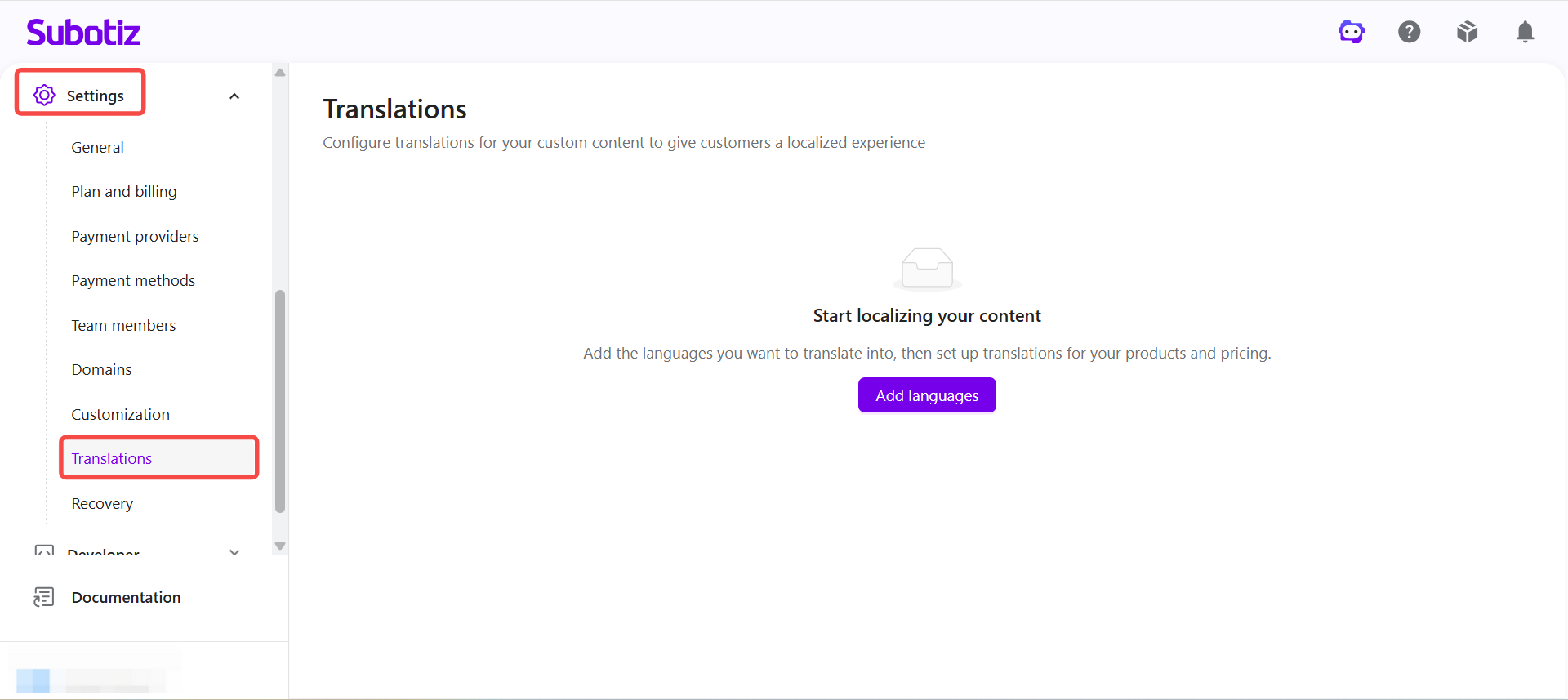
- Open language settings: Click Add Languages in the upper-right corner.
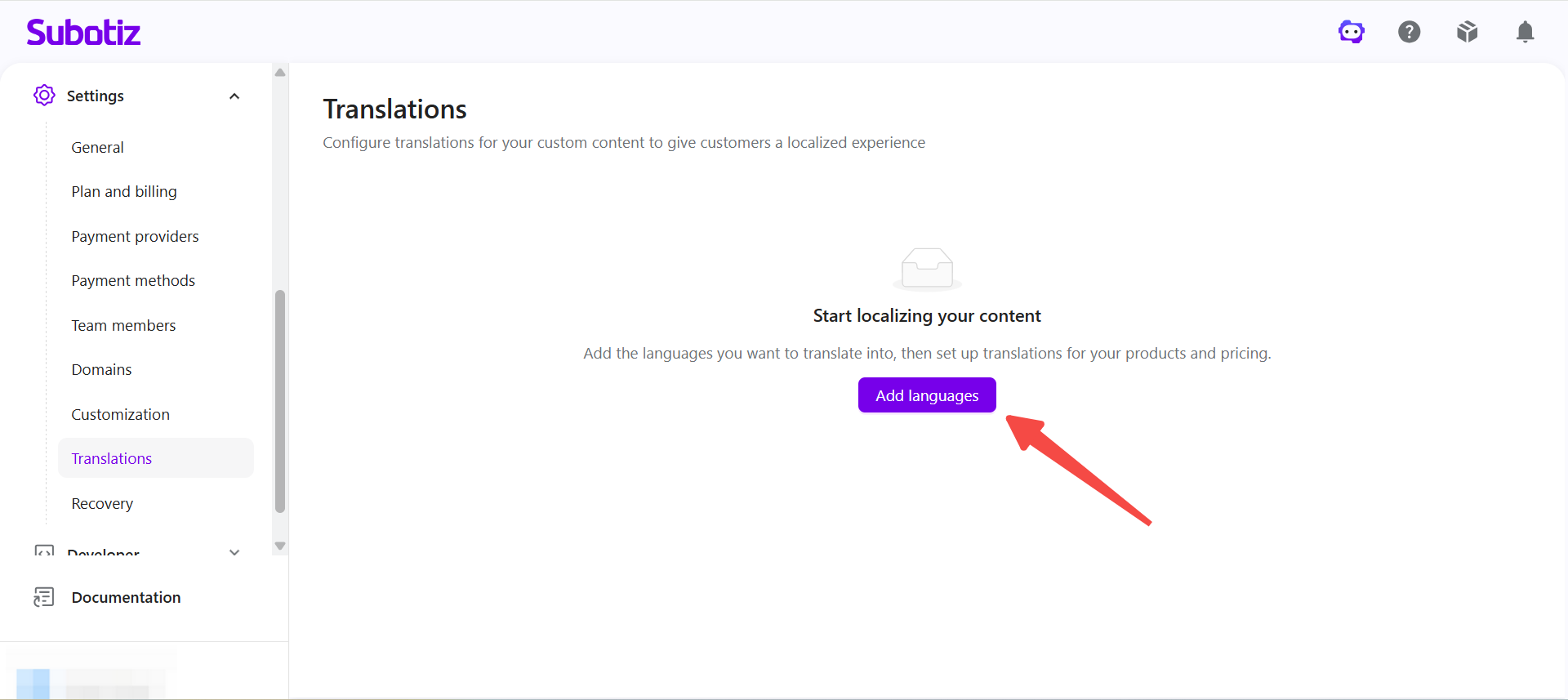
- Select translation languages: In Translation languages, select the languages to add, then click Save.
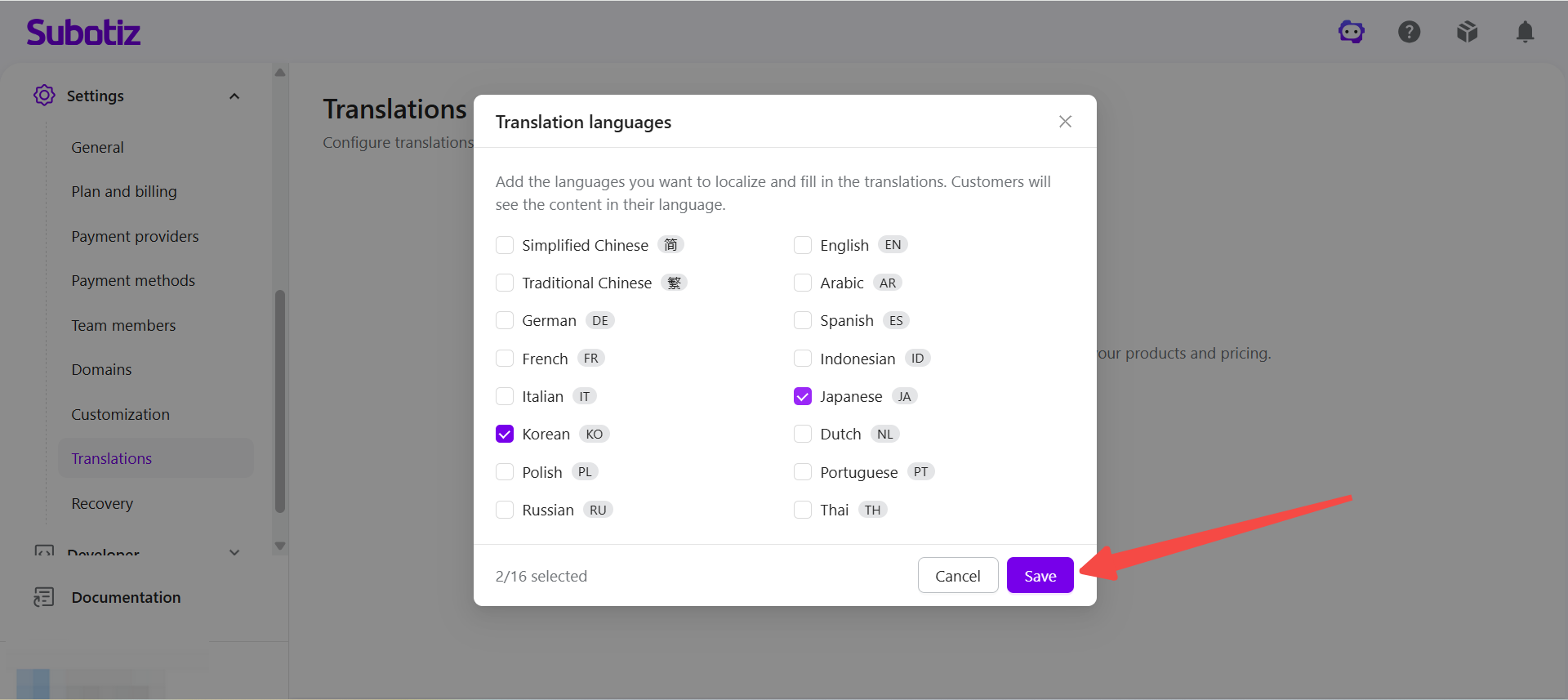
- Manage translation languages: To add or remove languages later, click Languages, update the selected languages, and save the changes.
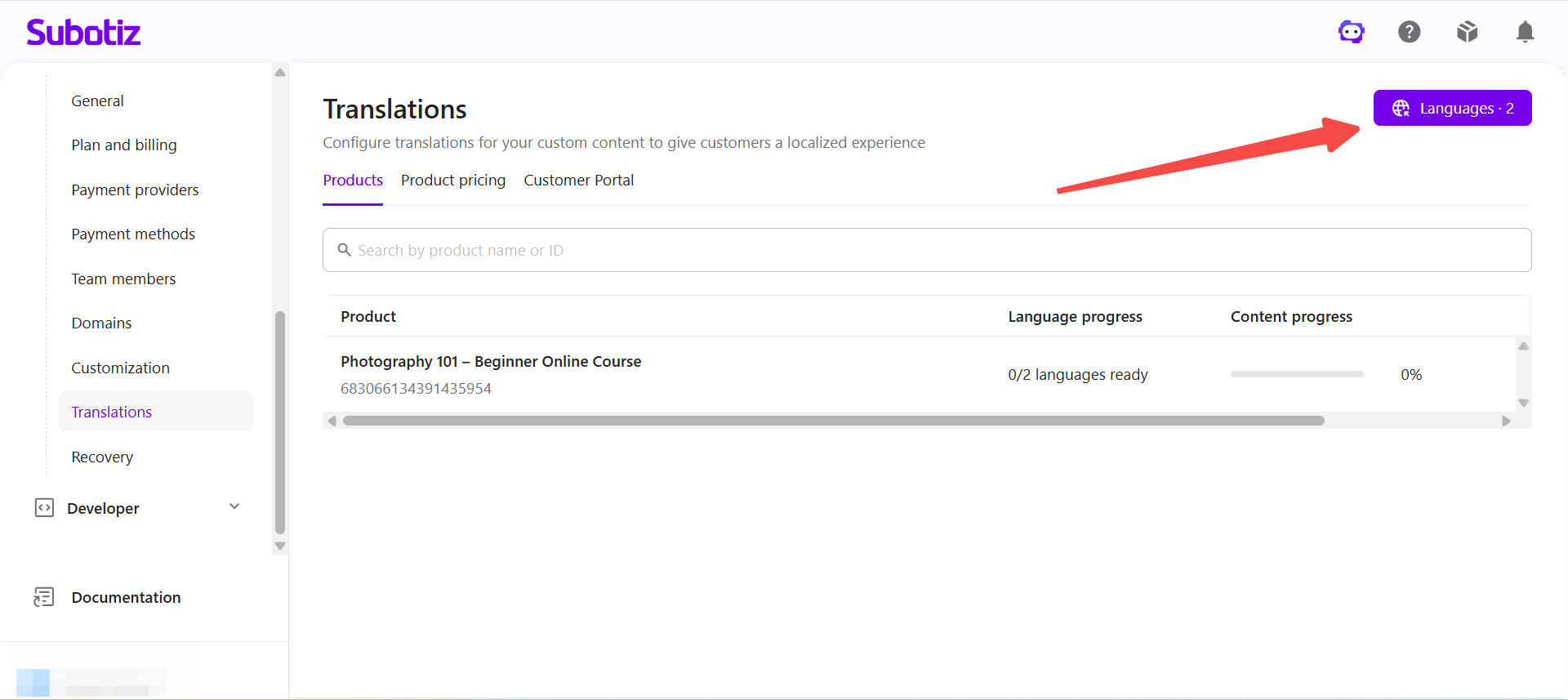
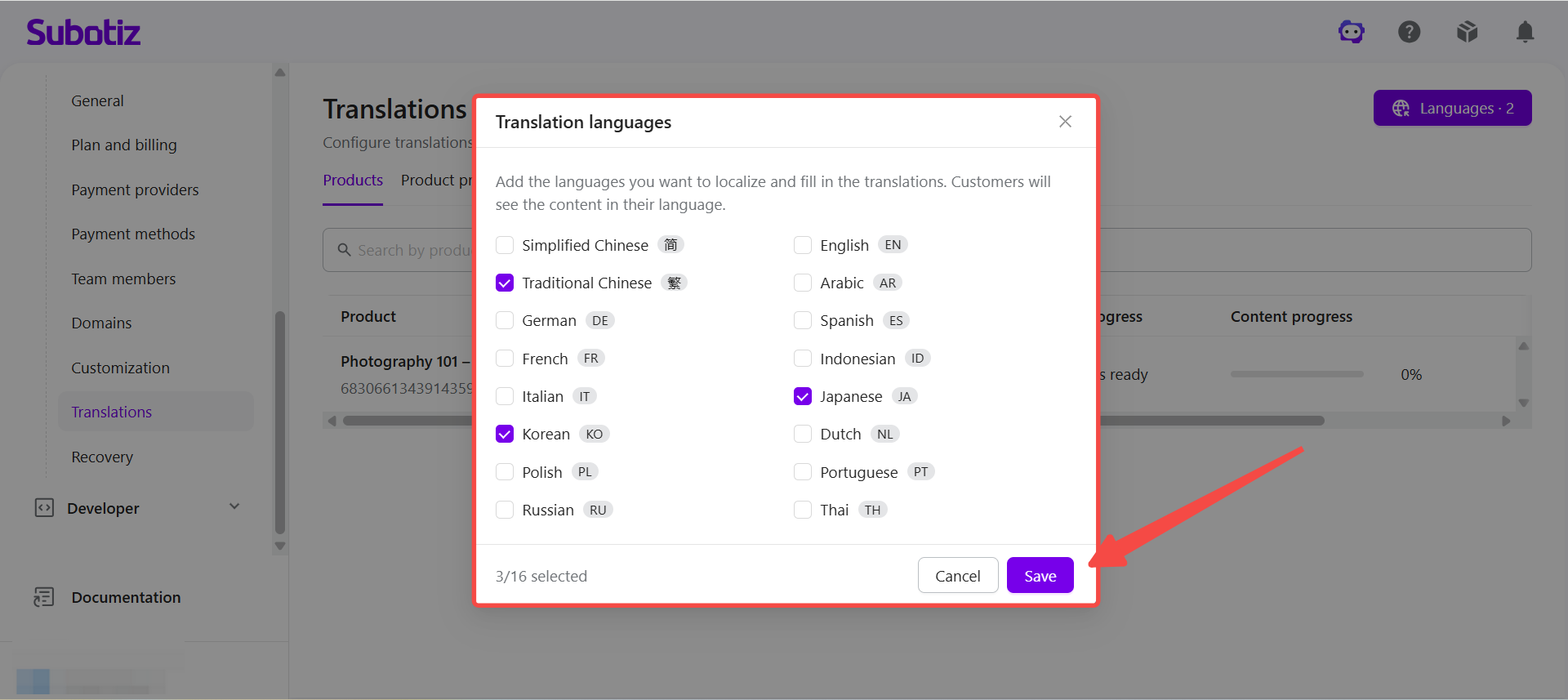
After adding translation languages, merchants can configure translations separately for Products, Product pricing, and the Customer Portal.
Configuring Translations
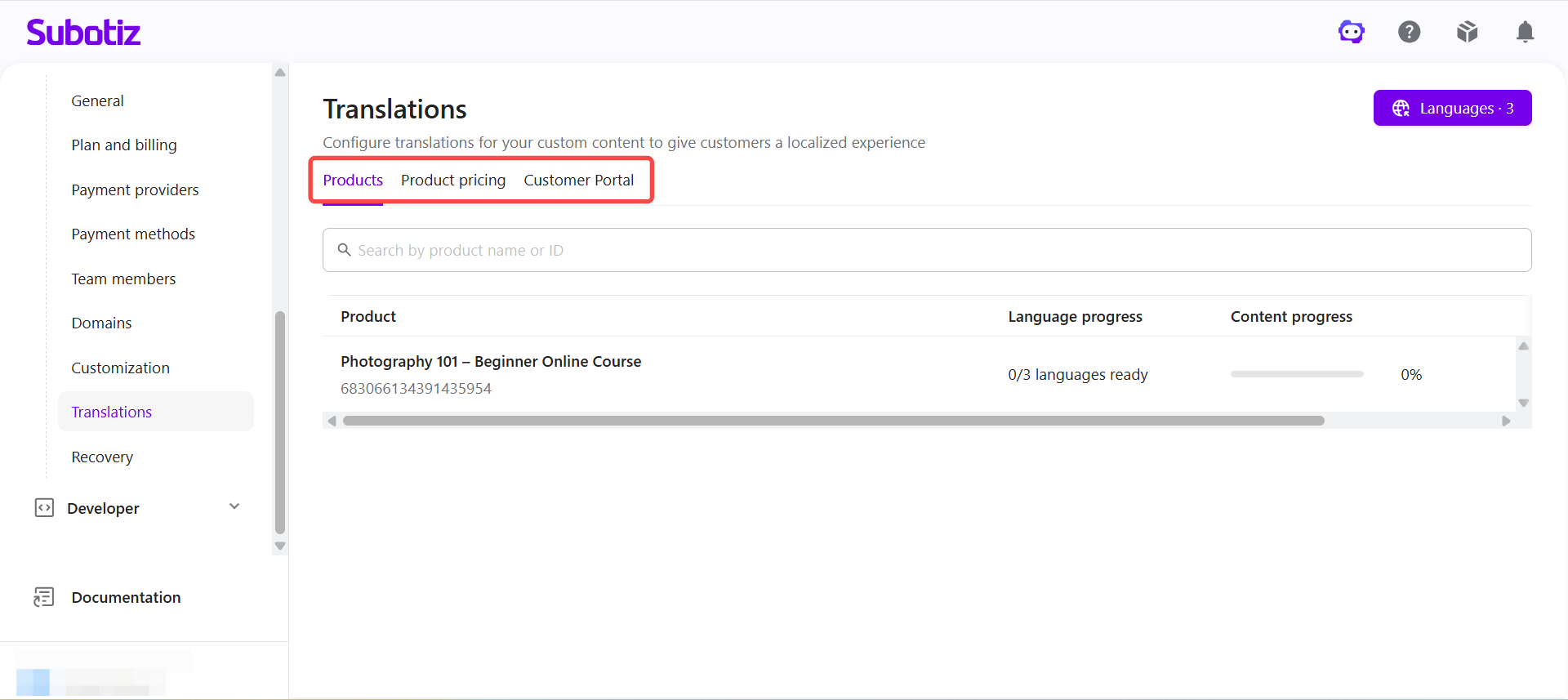
Products, product pricing, and the customer portal follow the same translation workflow. Merchants can select the content to translate and use AI translation or manual input to configure translated content.
Module | Accessing Translations | Translatable Content |
|---|---|---|
Products | Locate the product and click Manage translations | Product name, product description, and other supported custom text |
Product pricing | Locate the pricing item and click Manage translations | Pricing name, pricing description, and other supported custom text |
Customer Portal | Select Customer Portal and click Manage translations | Portal title, portal description, and other supported custom text |
- Select a translation module: On the Translations page, select Products, Product pricing, or Customer Portal.
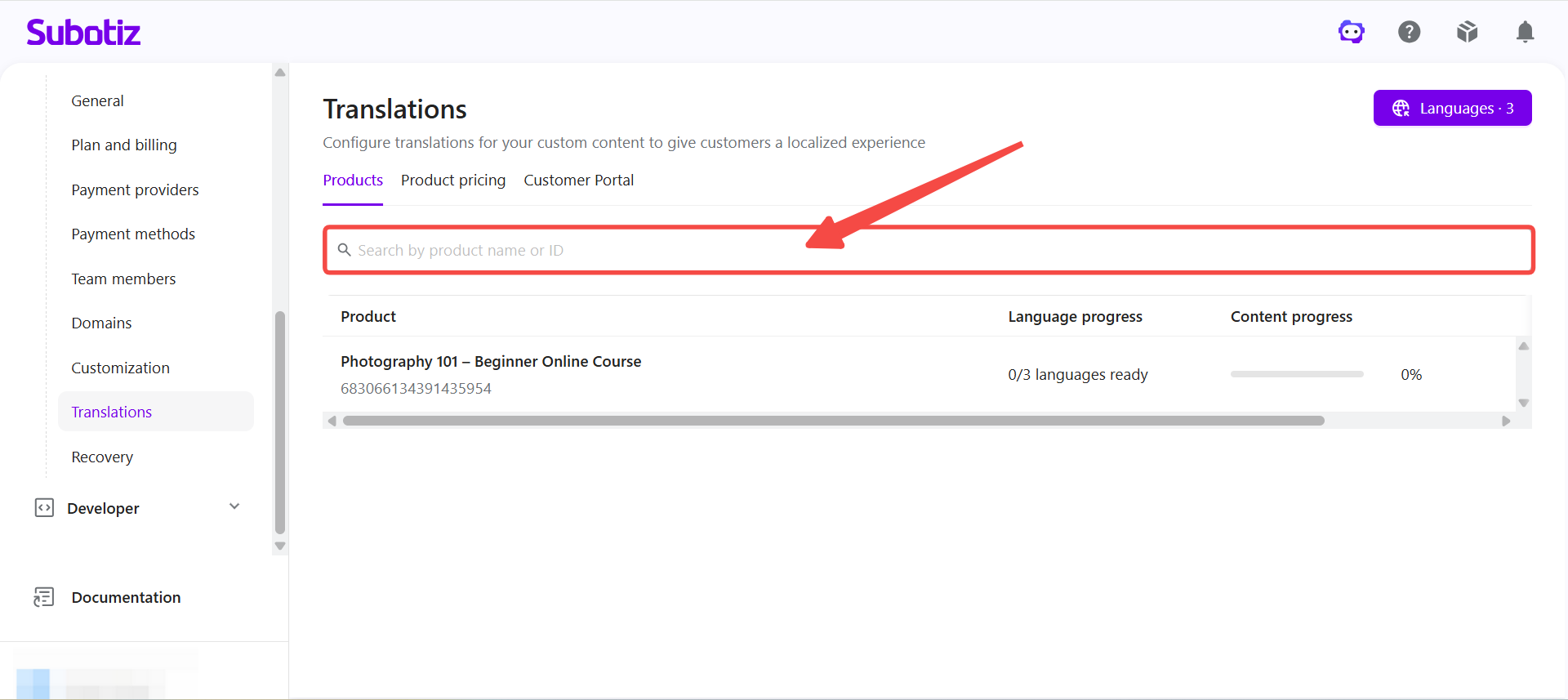
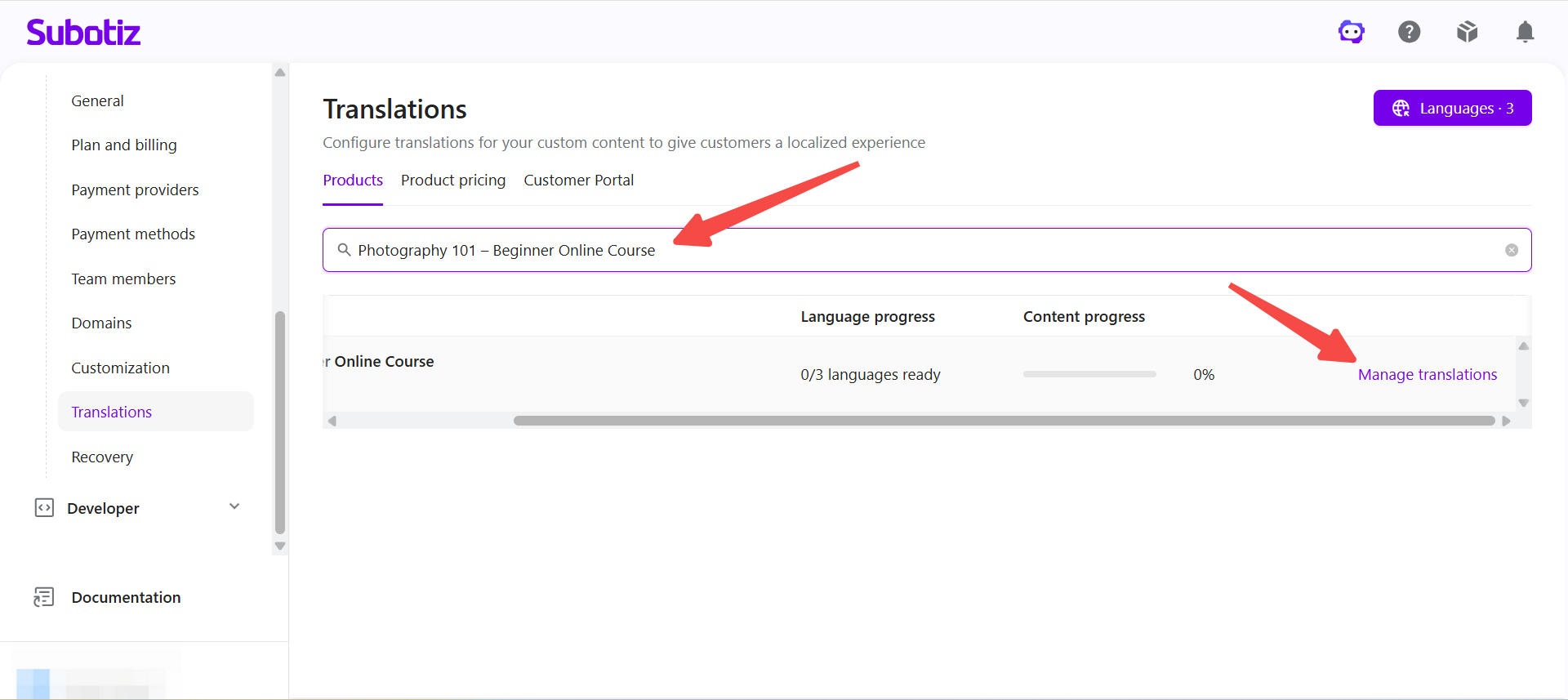
- Access translations: For a product or pricing item, search by name or ID to locate the content, then click Manage translations. For the customer portal, select Customer Portal and click Manage translations.
- Select a translation language: Select the language to configure from the language selector. Configure one language at a time. To configure multiple languages, switch languages and complete the translations separately.
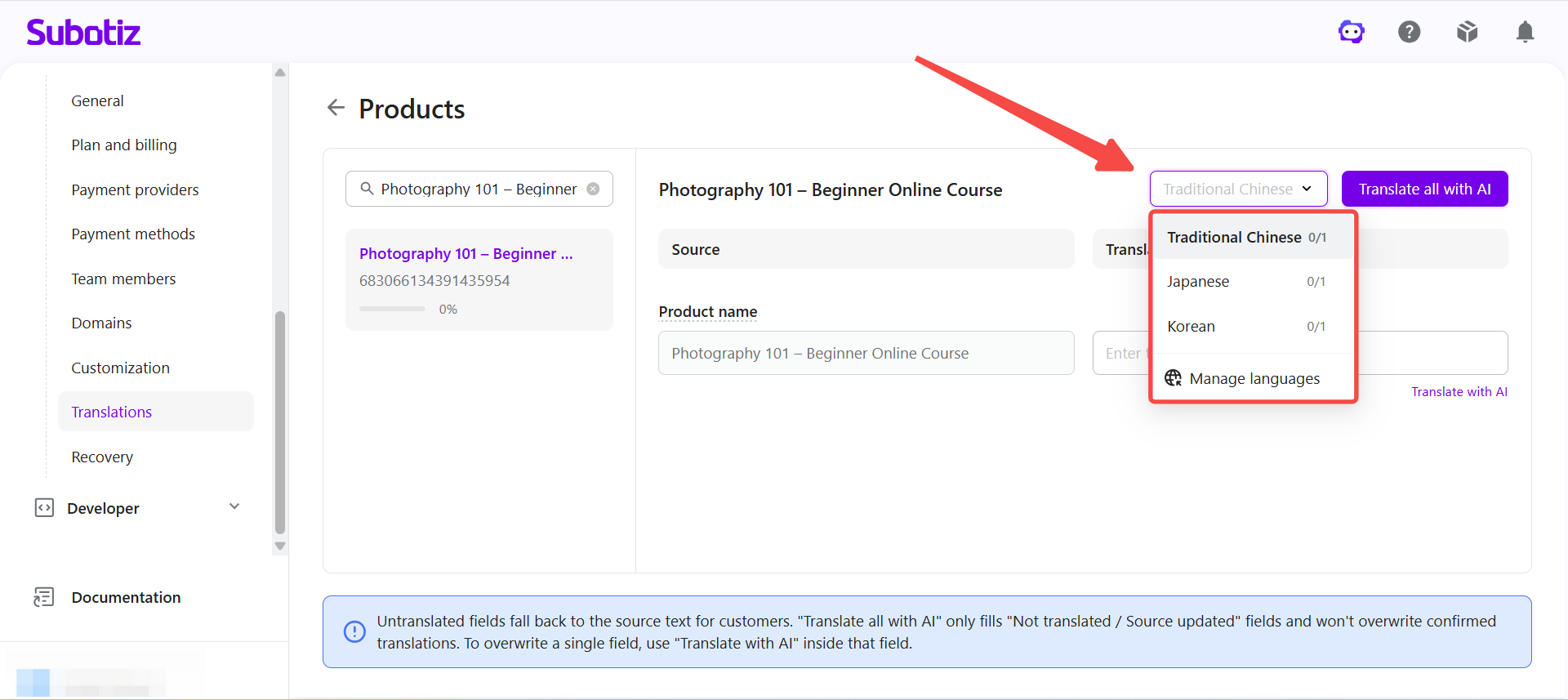
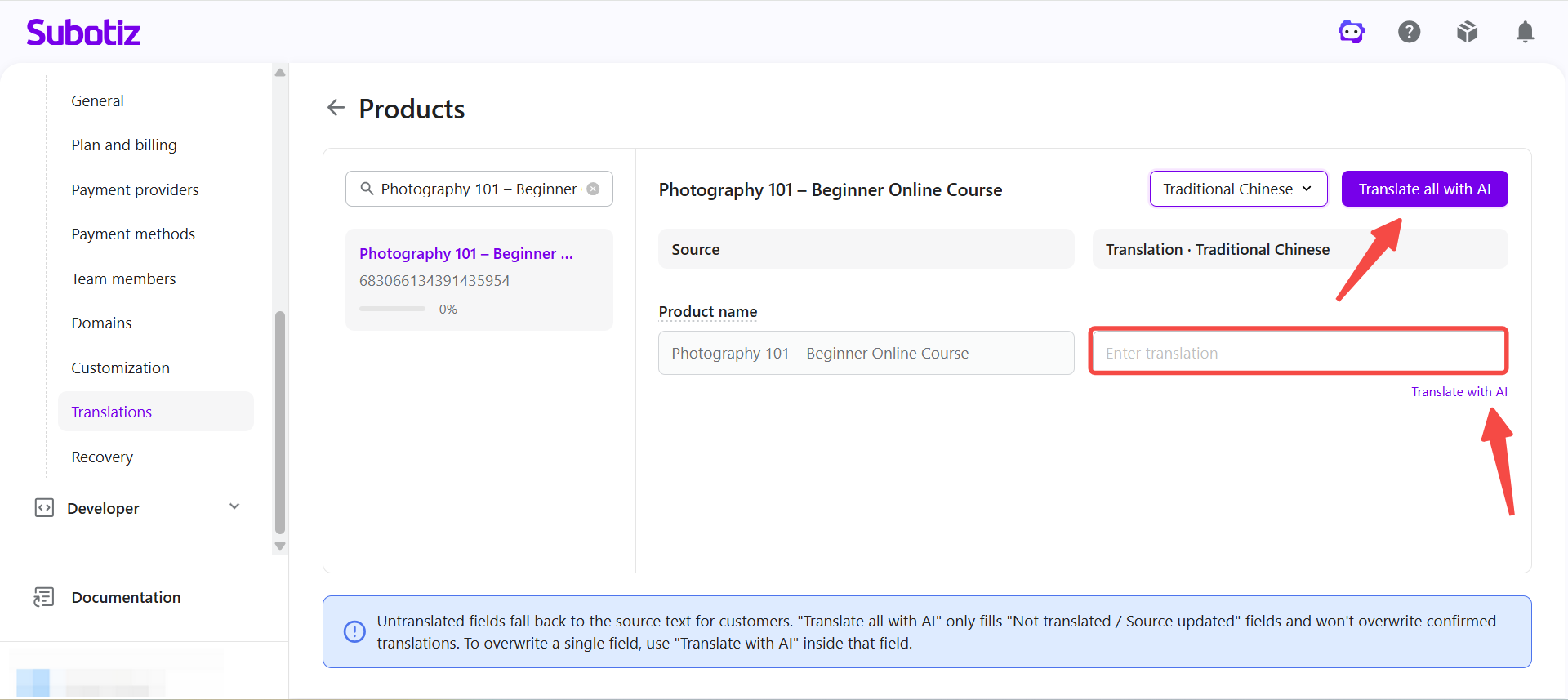
- Configure translated content: Use one of the following methods:
- Translate all fields with AI: Click Translate all with AI to generate translations for the applicable fields.
- Translate a single field with AI: Click Translate with AI for the relevant field.
- Enter translations manually: Enter or edit translated content directly in the Translation field.
Note: Translate all with AI processes untranslated fields and fields where the source text has changed. Existing translations remain unchanged when the source text has not changed.
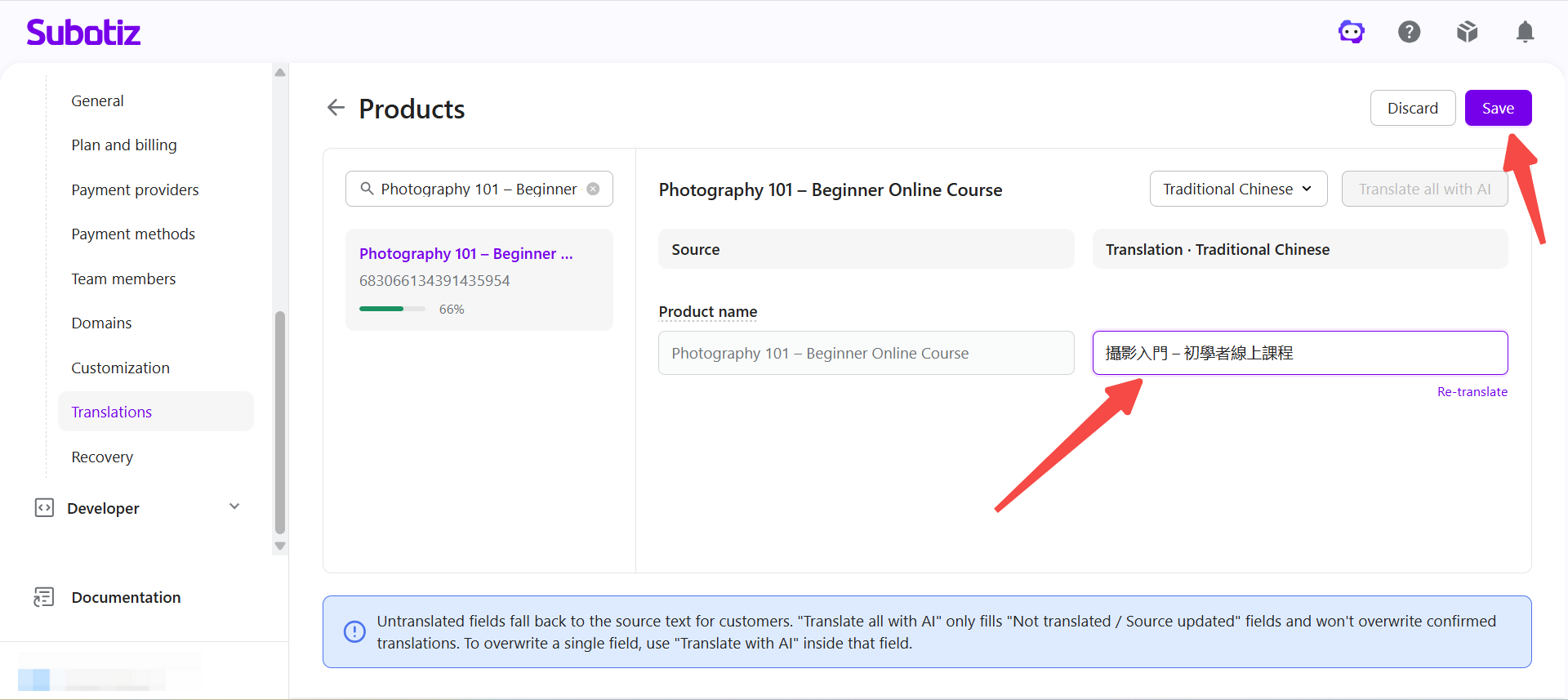
- Review and save translations: Review the translated content, make any necessary changes, then click Save.
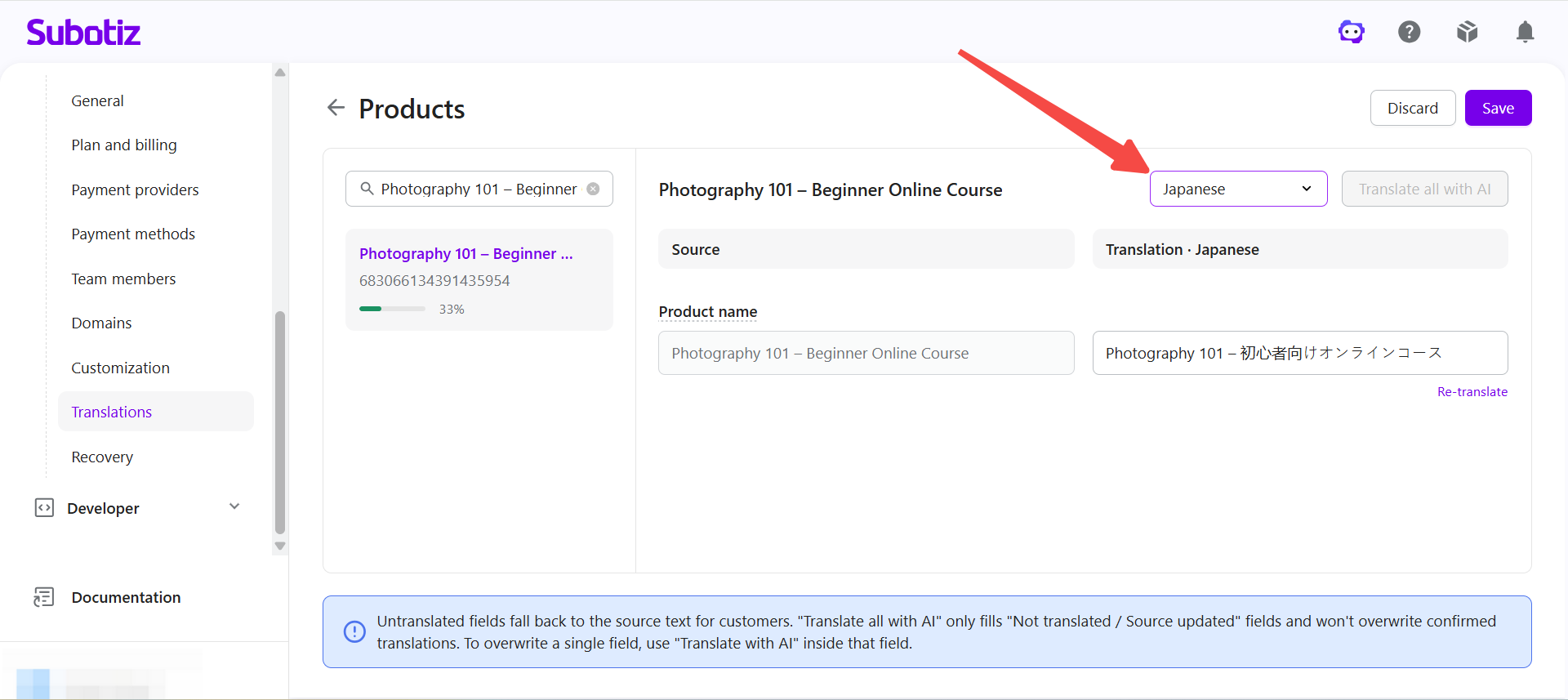
- Configure additional languages: Select another language and repeat the translation process. Complete and save translations separately for each language.
Managing Translation Content
After configuring translations, merchants can use translation progress to track completion across languages and content. When source content changes, review the corresponding translations and update them as needed.
Viewing Translation Progress
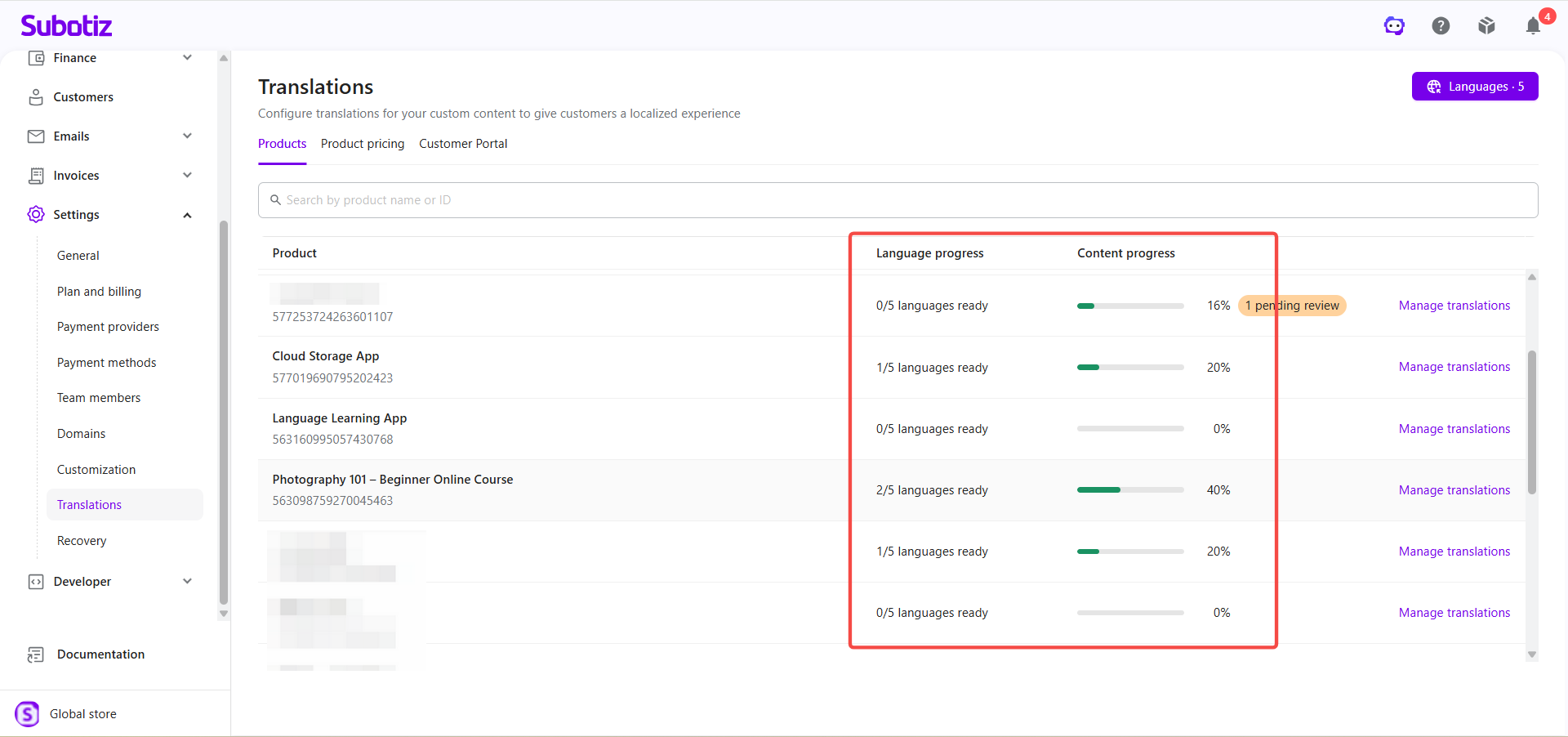
The Translations page displays translation progress by language and content, helping merchants identify incomplete translations.
- Language progress: Shows the overall translation completion status for each configured language.
- Content progress: Shows the translation completion status for individual products, product pricing, or customer portal content.
Merchants can open the corresponding content to continue configuring incomplete translations.
Reviewing Translations After Source Content Changes
When the source content for a product, product pricing, or the customer portal changes, review the existing translation to confirm that it still reflects the updated source content. A source content change does not automatically require the translation to be changed.
Note: Translations pending review continue to display to customers. Review them promptly to prevent translated content from becoming inconsistent with the updated source content.
- Review translations: Open Manage translations for the relevant product, product pricing, or customer portal content and review any translations affected by the source content change.
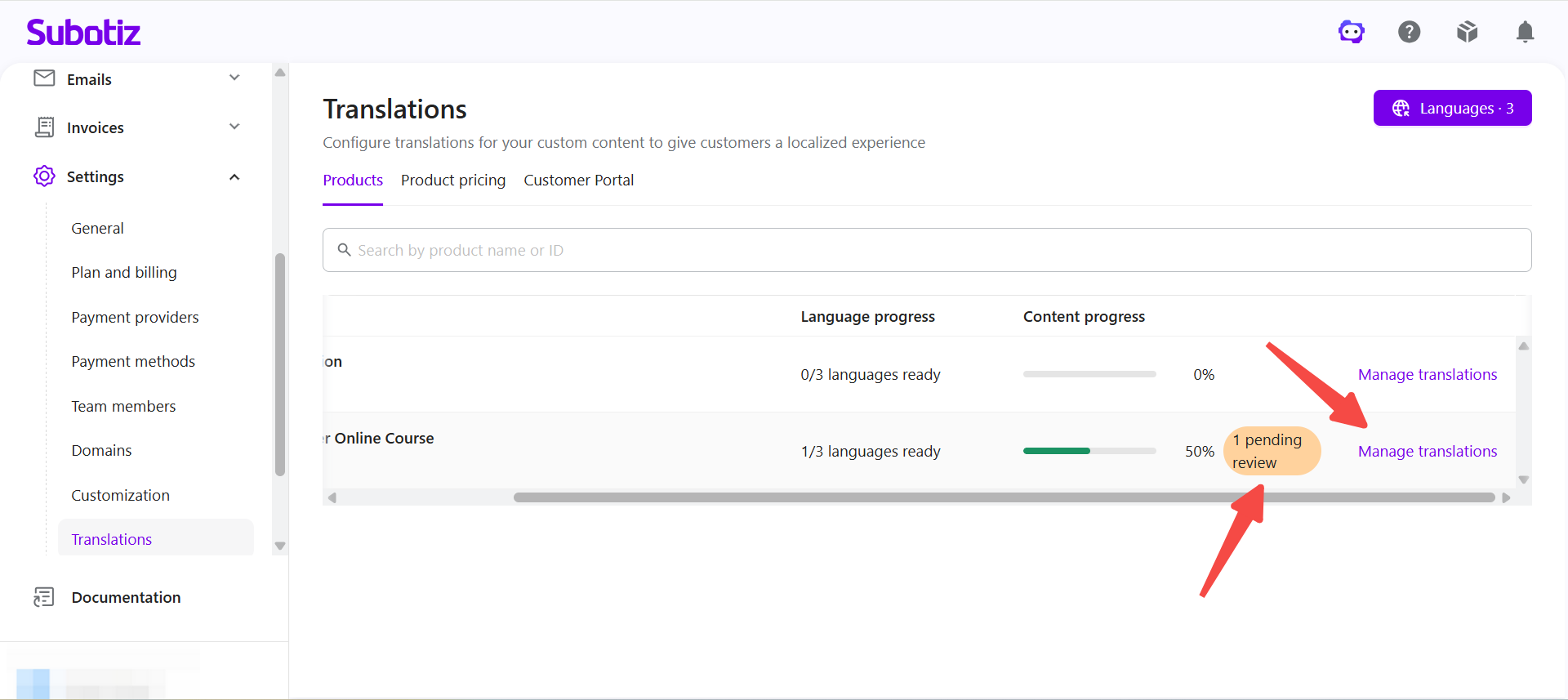
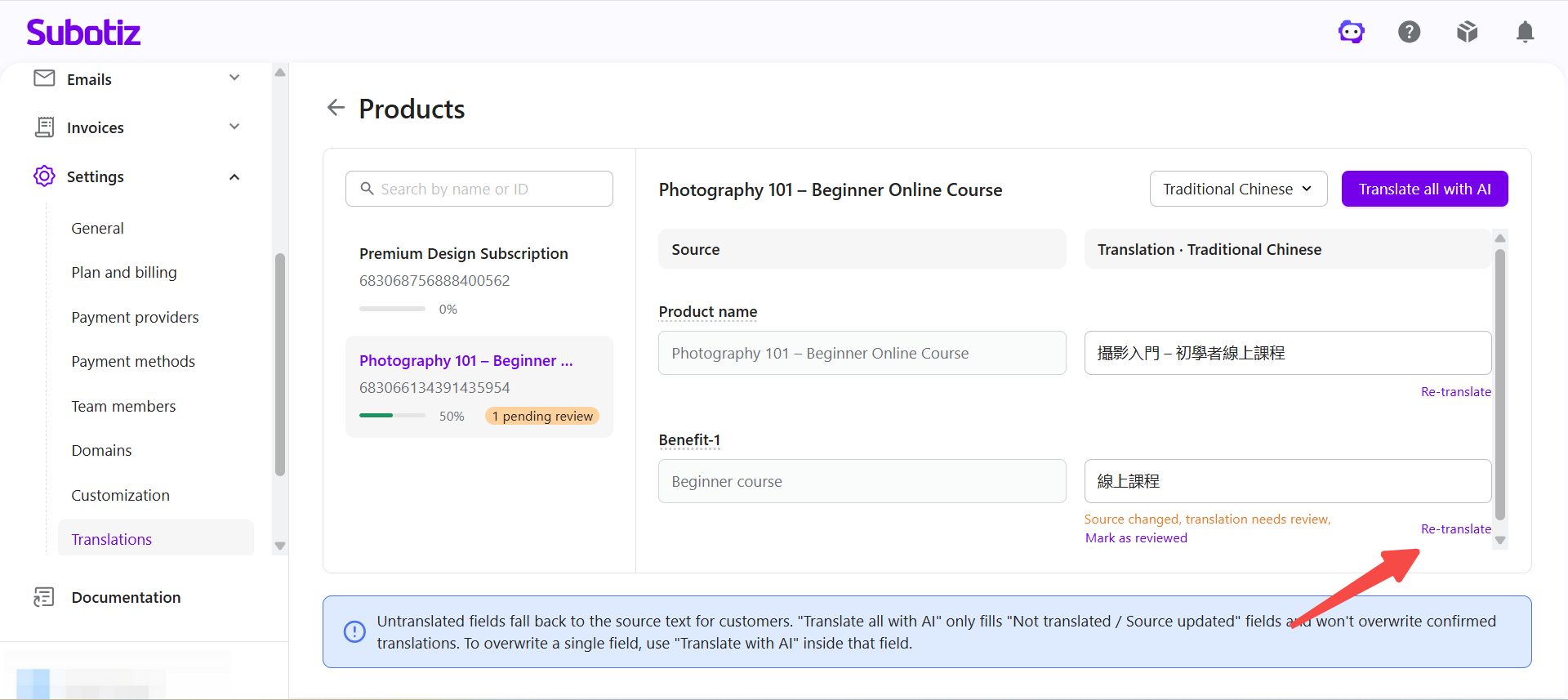
- Update translations as needed: If a translation needs to be updated, use Re-translate to generate a new translation or edit the Translation field manually. If the existing translation remains accurate, no content changes are required.
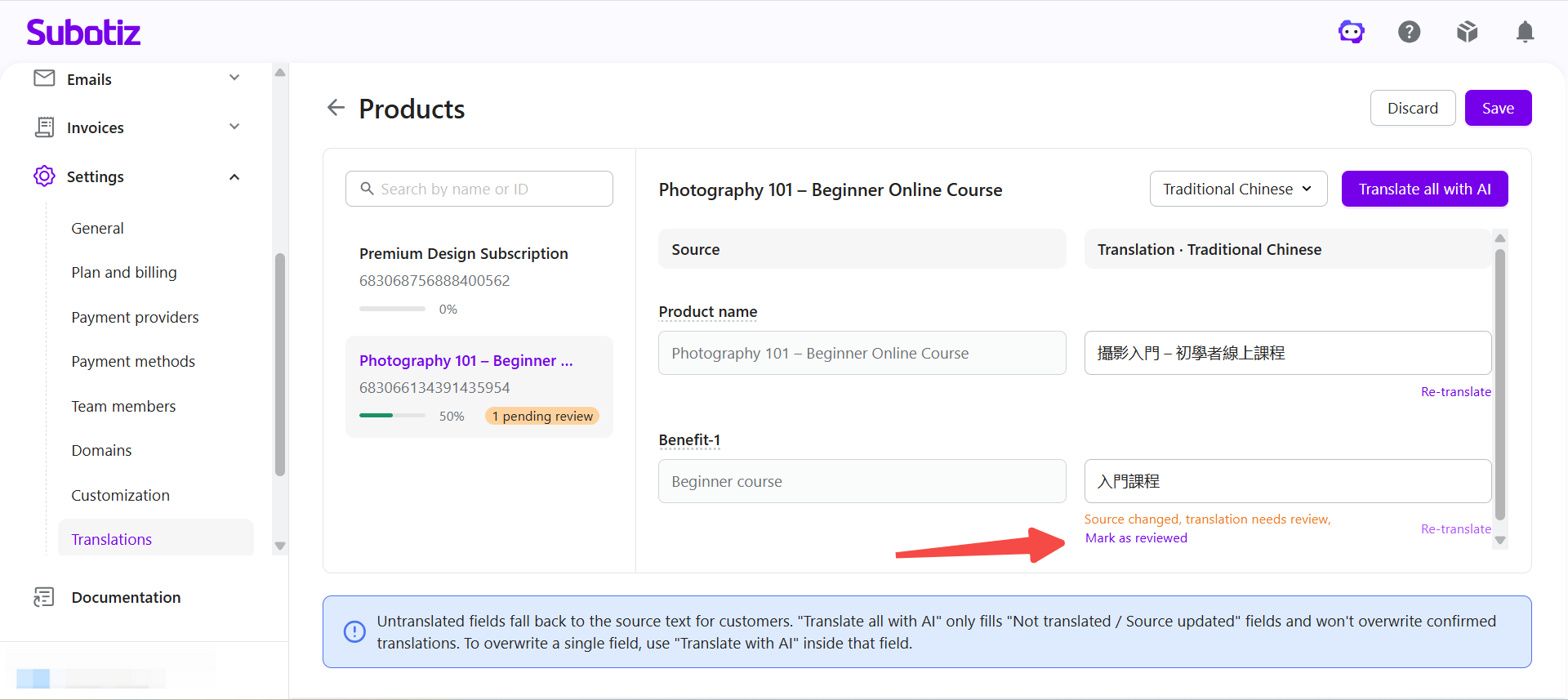
- Complete the review: After confirming that the translation is accurate, click Mark as reviewed.
Once translations are configured, Subotiz displays the corresponding localized content based on the language used on the customer-facing page. Merchants can use translation progress and review status to keep translated content aligned with changes to the source content.