The Customer Portal is a self-service interface in Subotiz that allows customers to manage subscriptions, payment methods, billing history, and profile information. Available content and actions depend on the merchant’s configuration.
Getting the Customer Portal Link
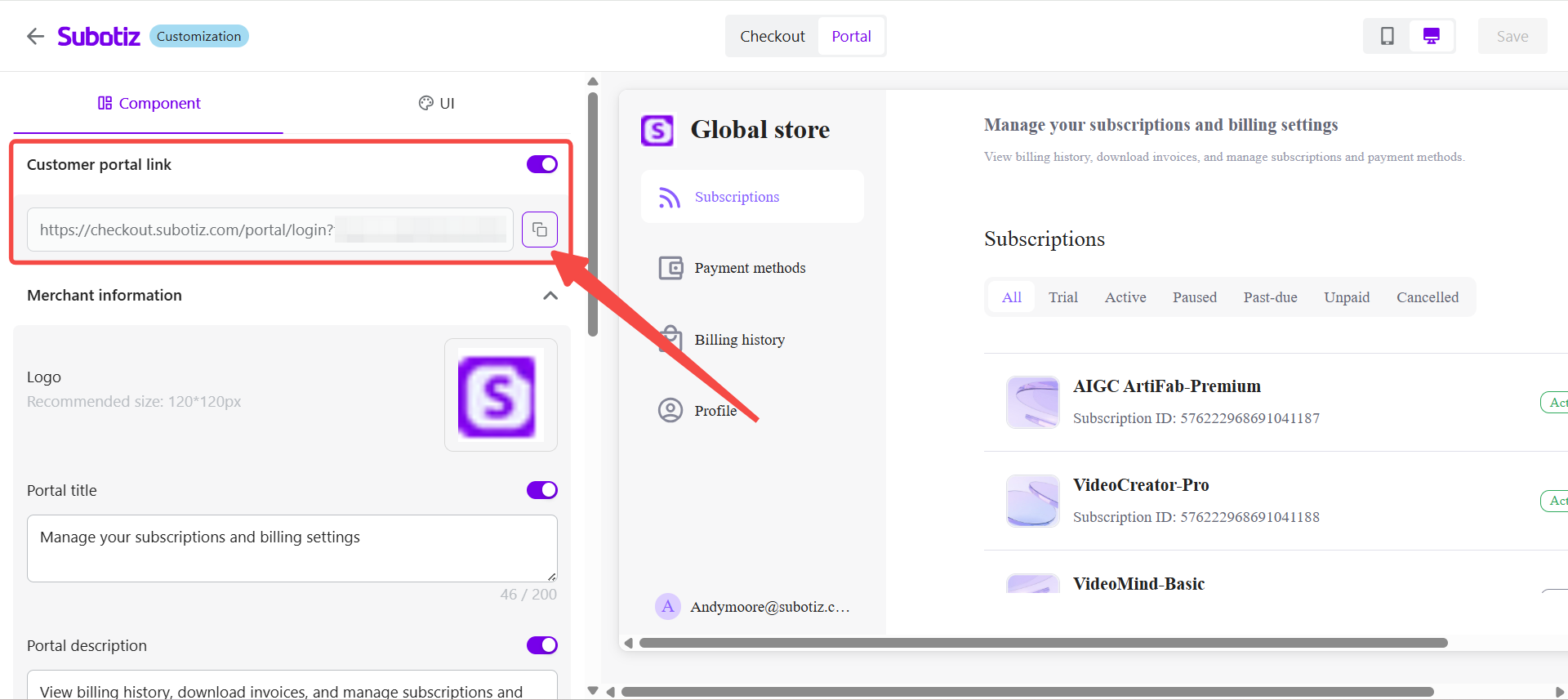
Merchants can retrieve the Customer Portal login link from the Subotiz admin and share it with customers.
- Get the Portal link: Go to Settings > Customization > Portal, then copy the link from the Customer portal link section. The link can be embedded in website navigation, customer account areas, or billing-related emails for convenient customer access.
Signing in to the Customer Portal
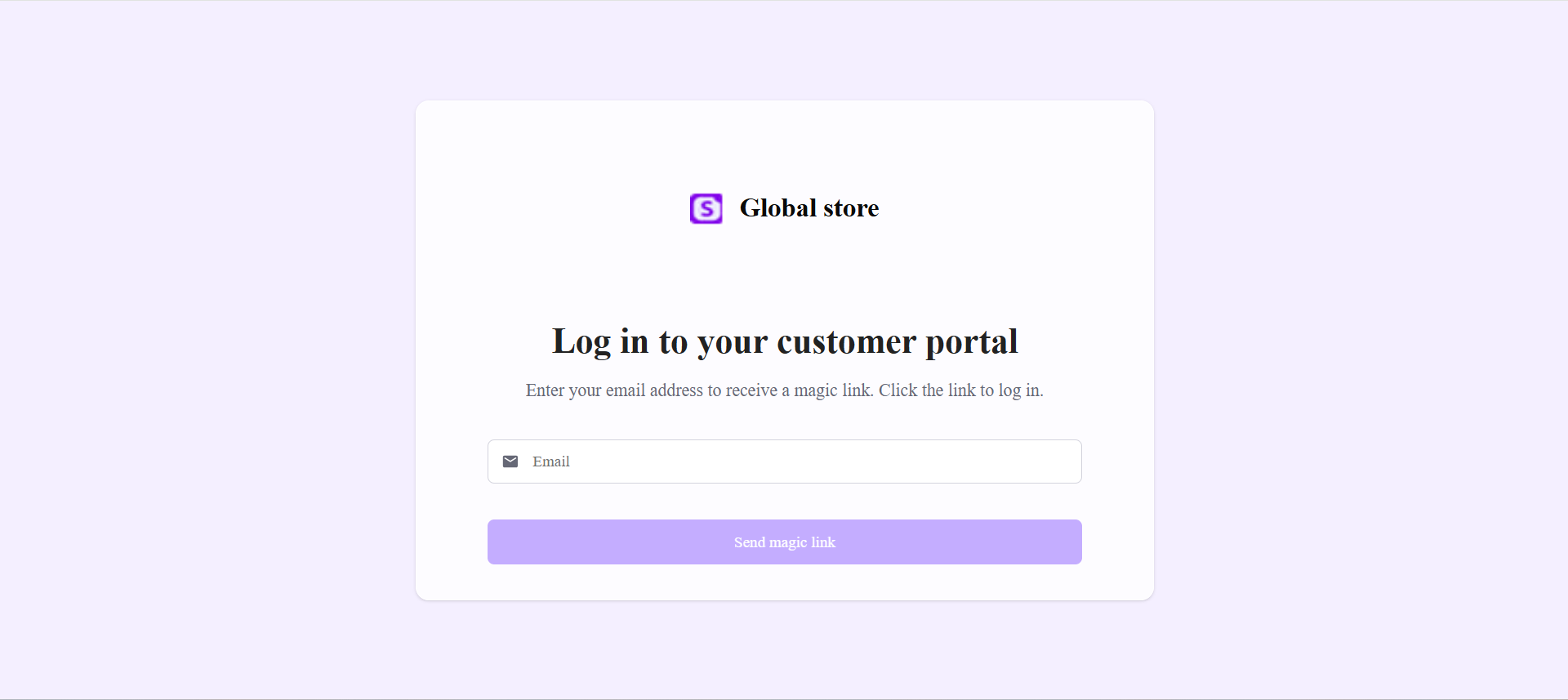
Customers can access the Customer Portal through the link provided by the merchant.
- Log in with a magic link: Customers enter their email address on the login page. The system sends an email containing a login button. Clicking the button signs customers in directly without requiring a password.
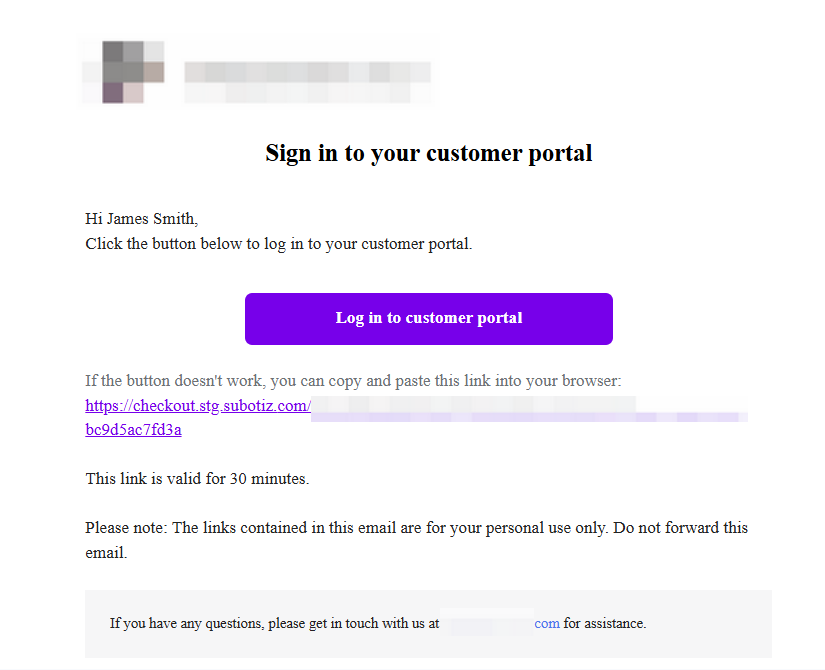
- Magic link email: The email includes a one-click login button and a fallback URL in case the button cannot be used. For security purposes, the login link remains valid for 30 minutes and must be requested again after expiration.
Portal Overview
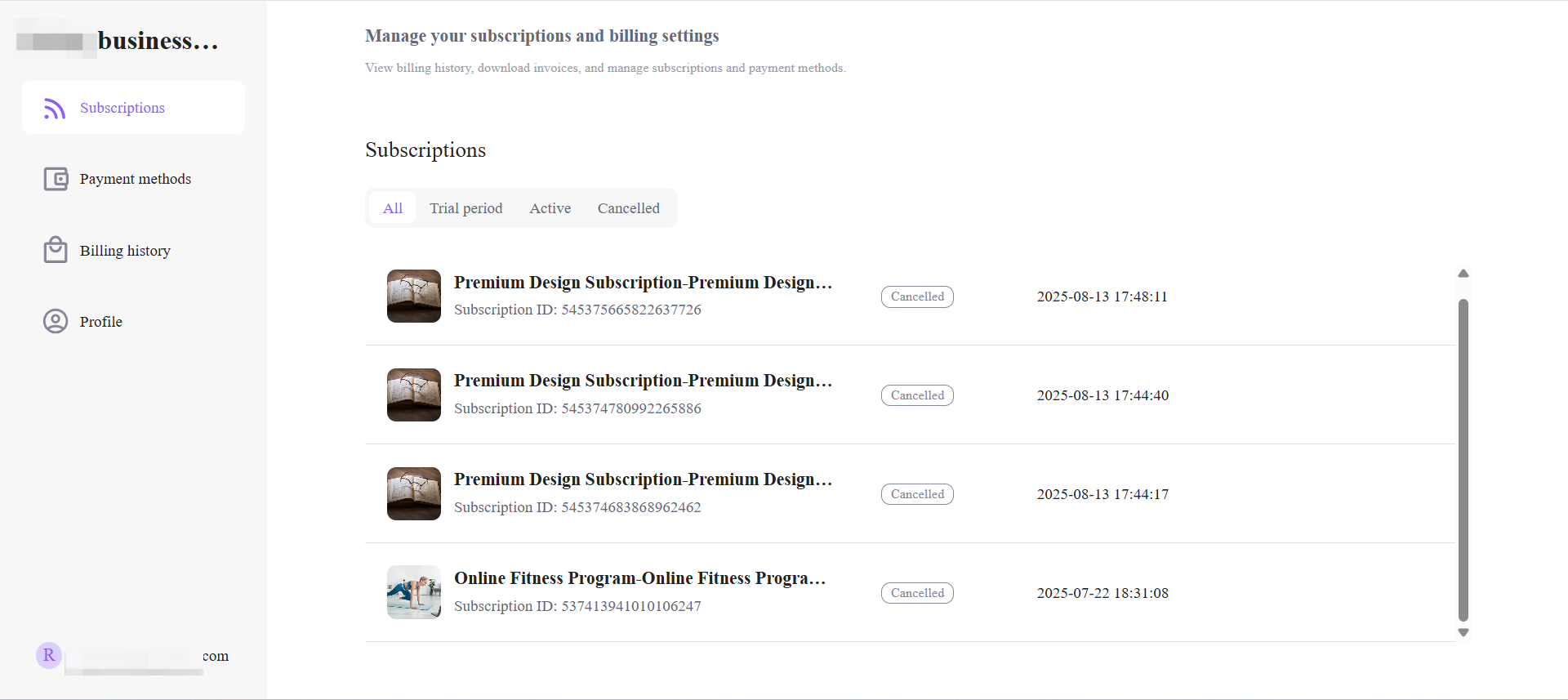
After signing in, customers can access portal modules from the left-side navigation menu.
Available sections include:
- Subscriptions
- Payment methods
- Billing history
- Profile
Displayed modules depend on the features enabled by the merchant.
Subscriptions
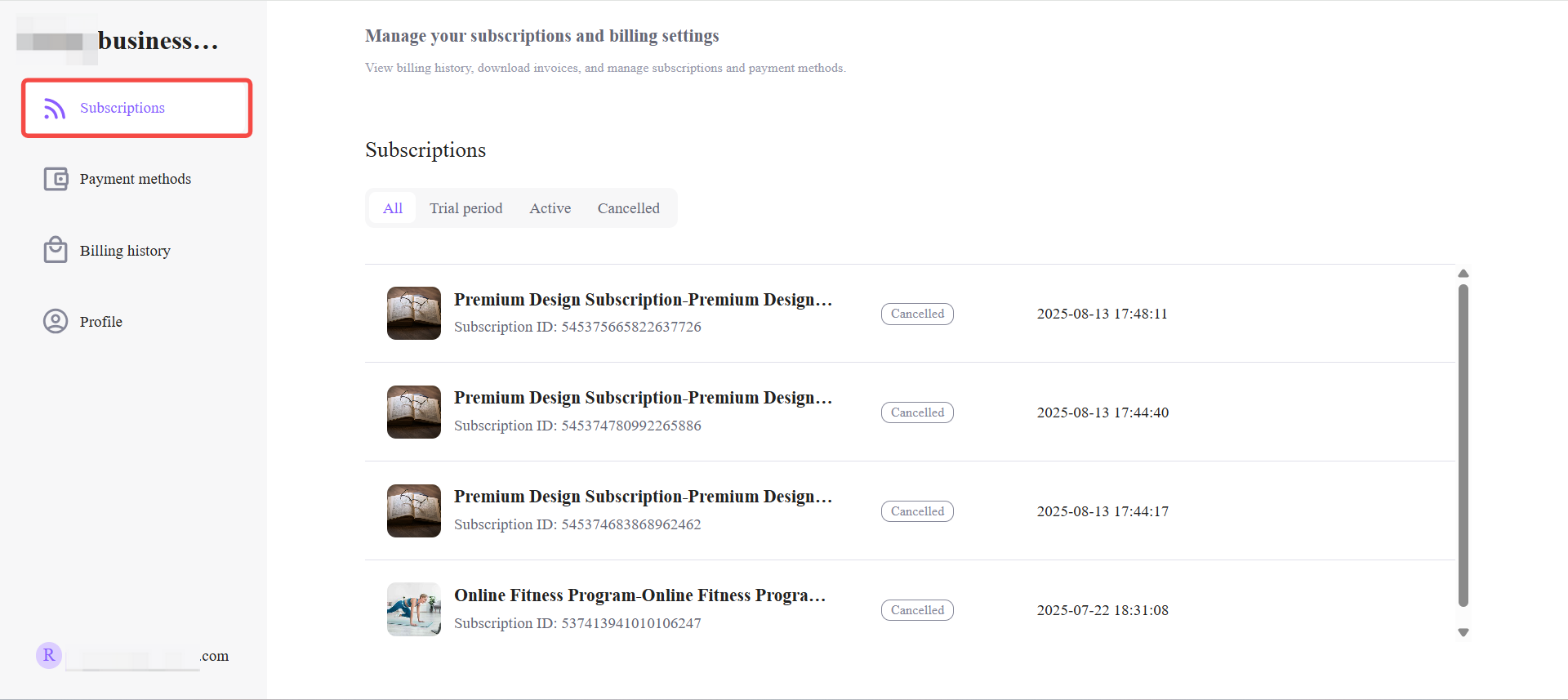
The Subscriptions section displays all subscriptions associated with the account, including trial, active, paused, and canceled subscriptions, together with related lifecycle information.
Available actions depend on the merchant’s configuration. Customers may be able to:
- View subscription status
- Check the next billing date
- Open subscription details
- Review pricing plans, billing cycles, and renewal history
- Update the payment method used for future renewals (when Payment methods management is enabled)
- View applied discounts or promotional information (if enabled)
- Pause or resume subscriptions (if enabled)
- Cancel subscriptions (if enabled)
- Change subscription plans (if enabled)
- Convert fixed-term subscriptions into ongoing subscriptions (for eligible fixed-term subscriptions when enabled)
- Cancel fixed-term subscriptions (for eligible fixed-term subscriptions when enabled)
Payment Methods
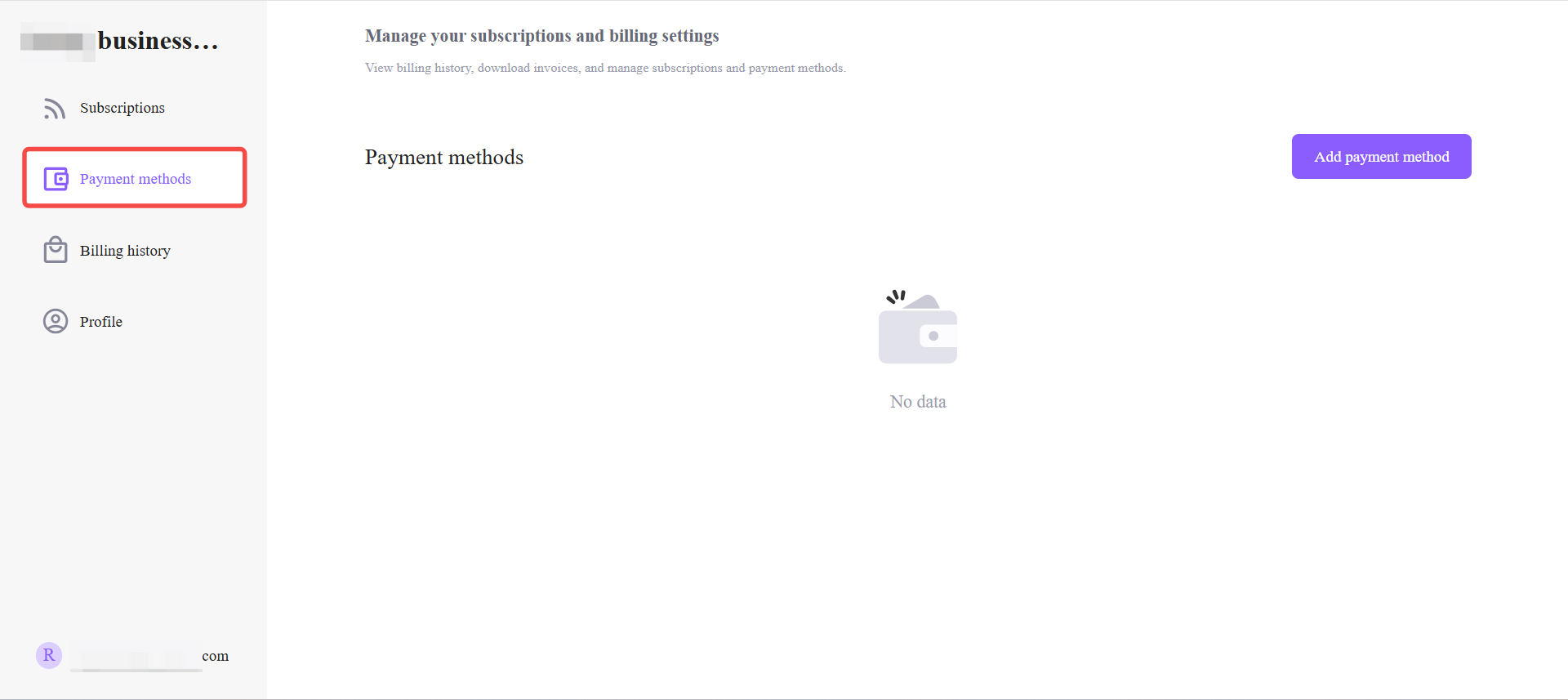
The Payment methods section allows customers to manage saved payment methods.
Customers can:
- Add a new card (3DS authentication required)
- Add or remove PayPal
- Set a default payment method
If a renewal fails, customers can update their payment method in this section and retry payment from Billing history.
Note: Removing a card deletes it from the account and prevents it from being used for future charges, which may result in failed subscription renewals.
Billing History
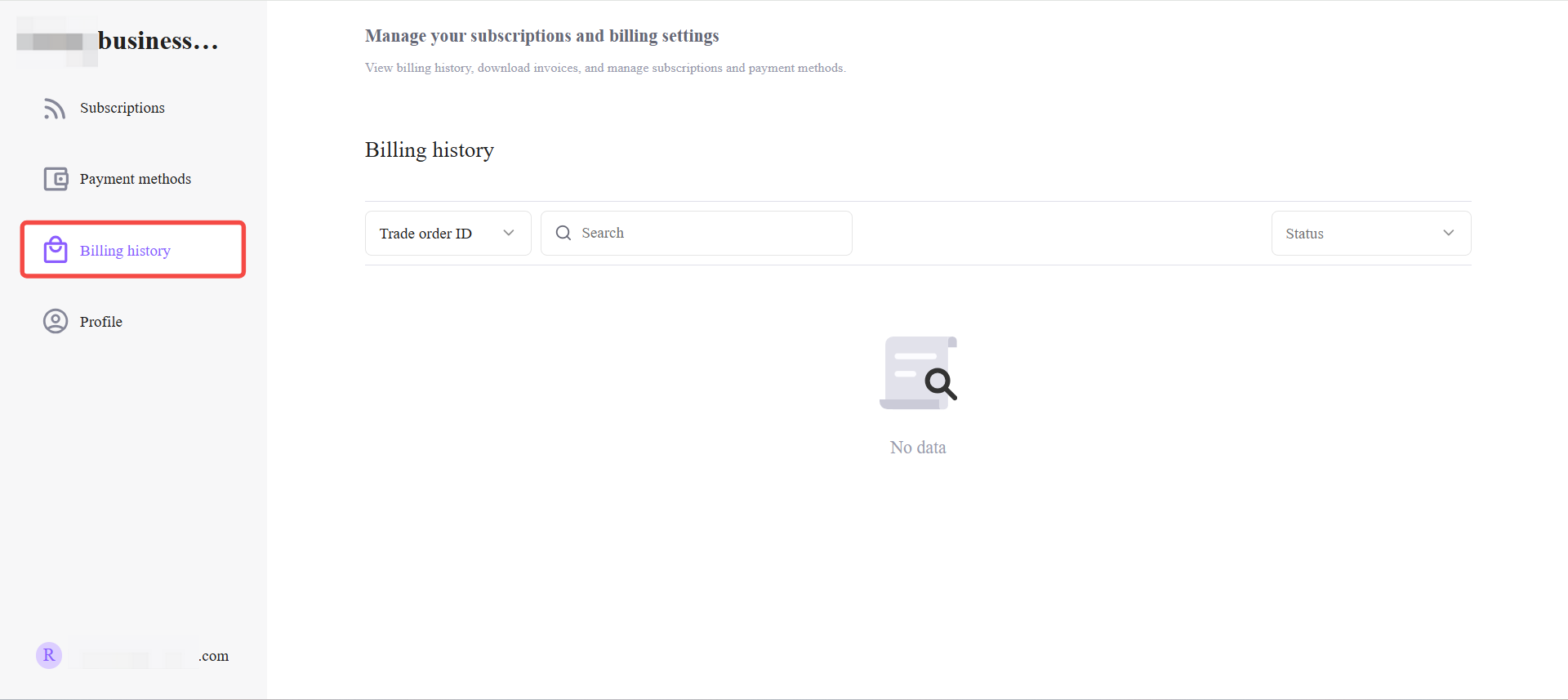
The Billing history section provides a complete record of historical billing activity.
Customers can:
- Browse billing records
- Review charge amounts and payment statuses
- Generate and download invoices (if available)
- Retry failed payments
Profile
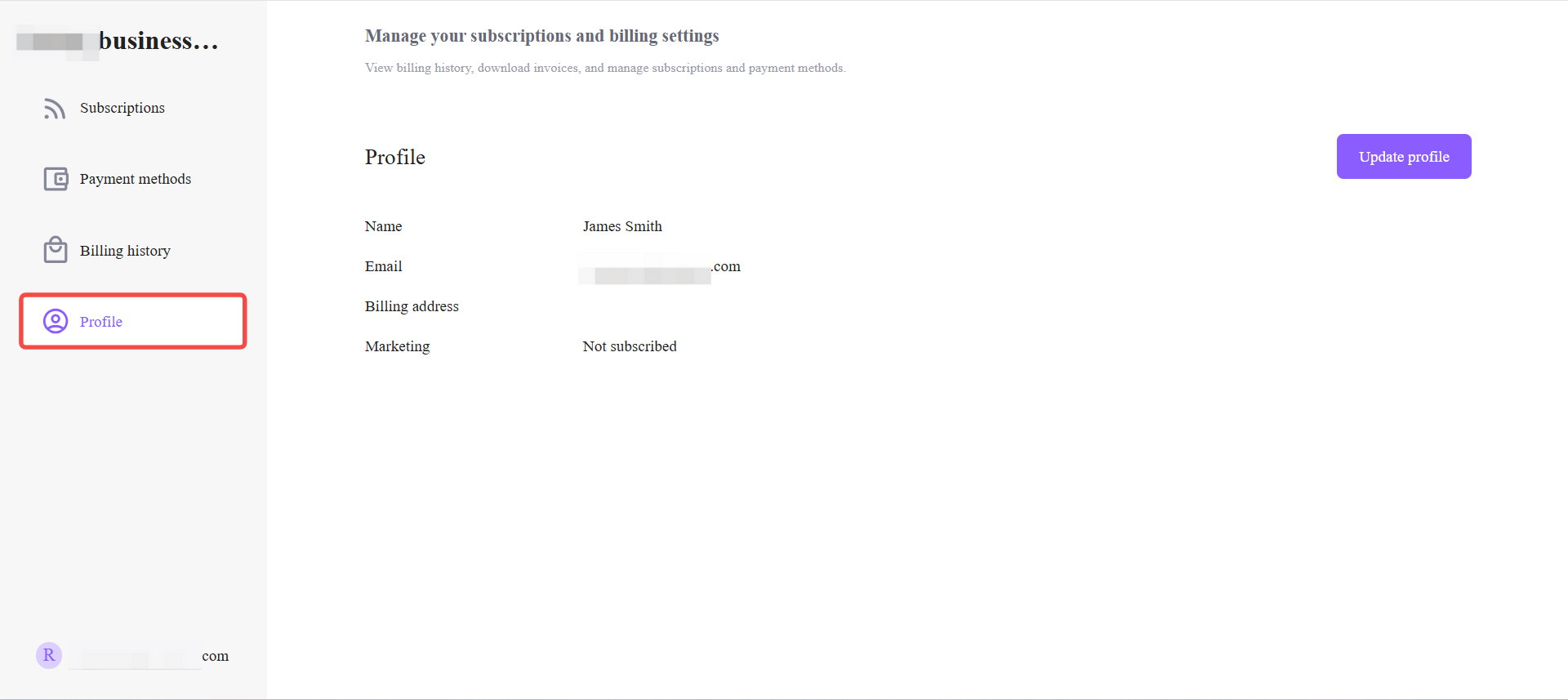
The Profile section displays customer profile and billing information. Available fields depend on the merchant’s configuration.
Customers may be able to view or update:
- Name
- Email address
- Billing address
- Marketing email preferences
Updates made in the Customer Portal sync with customer records in the Subotiz admin.
The Customer Portal centralizes subscription, payment, and billing management in a single interface, allowing customers to complete key actions independently while supporting a consistent and streamlined account management experience.