The Recipients page in Subotiz Accounts allows you to manage all saved recipients in one place. Search, filter, and review recipient information, then create payouts without entering recipient details again, helping streamline global payout management.
Searching and Filtering Recipients
When you have multiple recipients, use the available search and filter options to quickly find the one you need.
- Open the Recipients page: Go to Finance > Subotiz Accounts > Payout > Recipients.
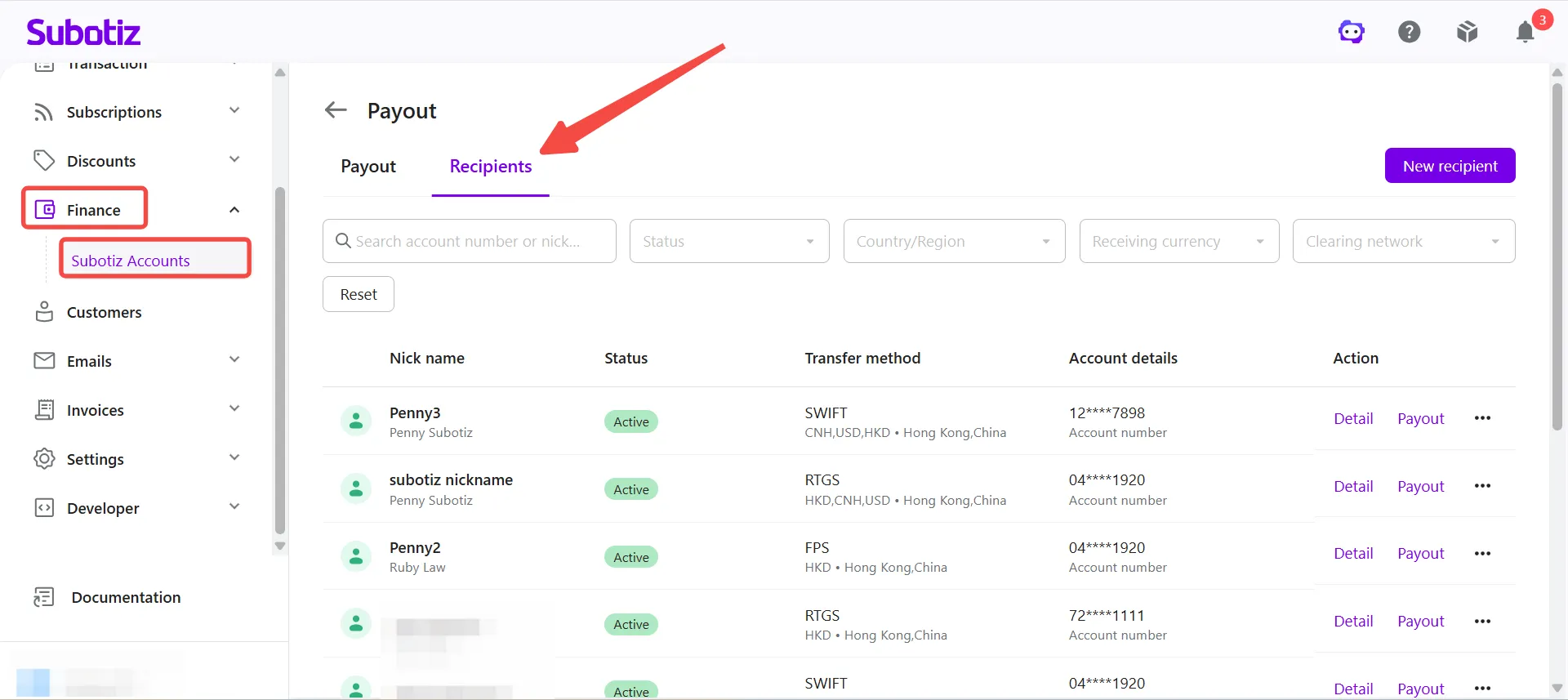
- Search by account number or recipient nickname: Enter an account number or recipient nickname in the search box.
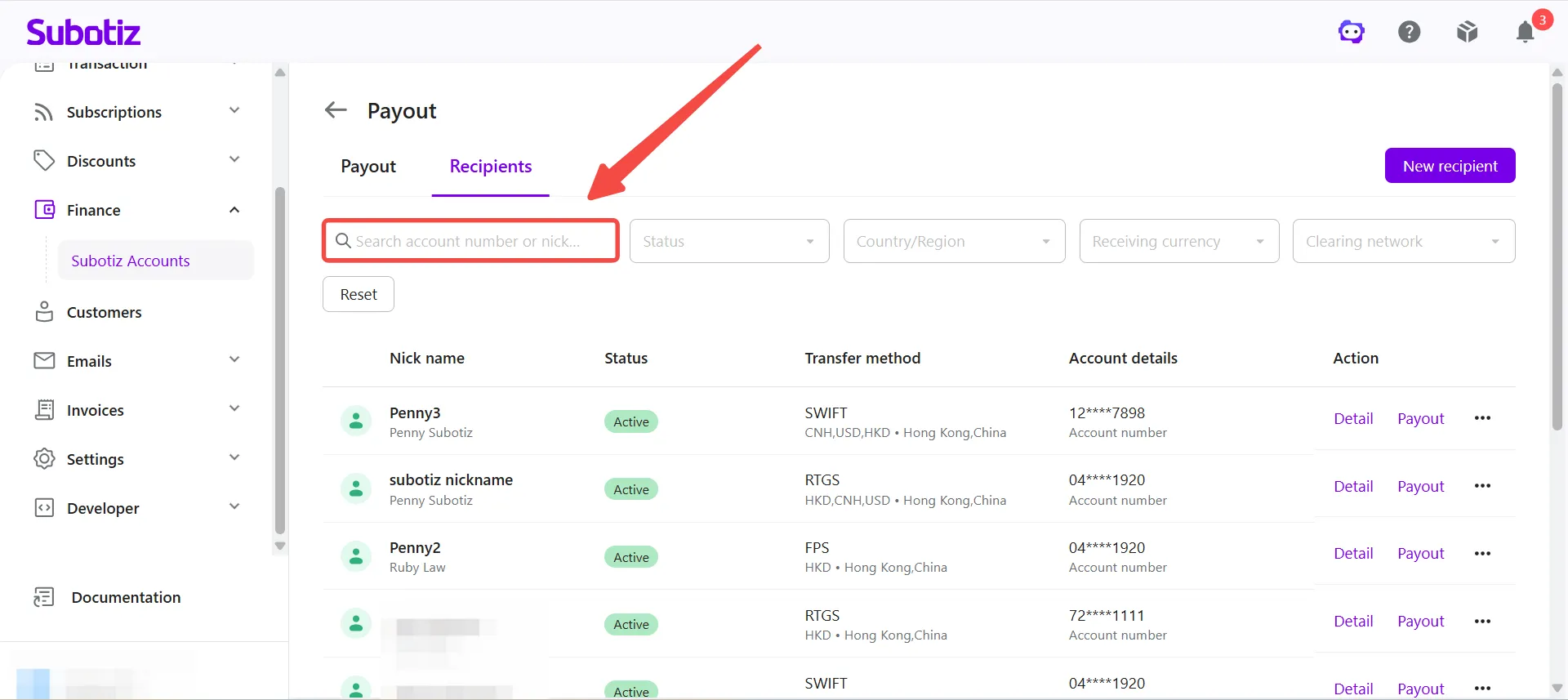
-
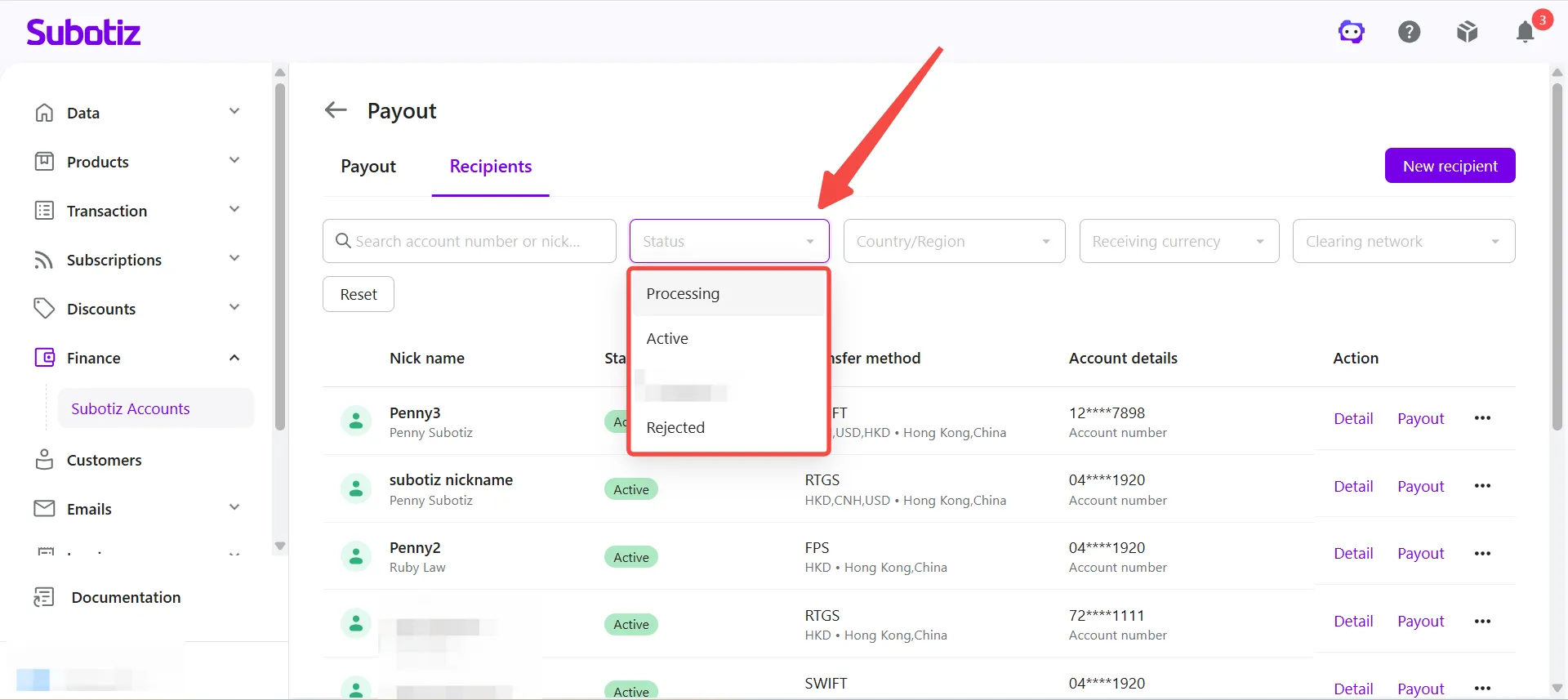
Filter by status: Use the Status filter to display recipients with a specific status.
- Processing: The recipient is under review and cannot be used for payouts.
- Active: The recipient is approved and ready to receive payouts.
- Action Required: Additional information is required before the review can continue.
- Rejected: The recipient did not pass the review and cannot be used.
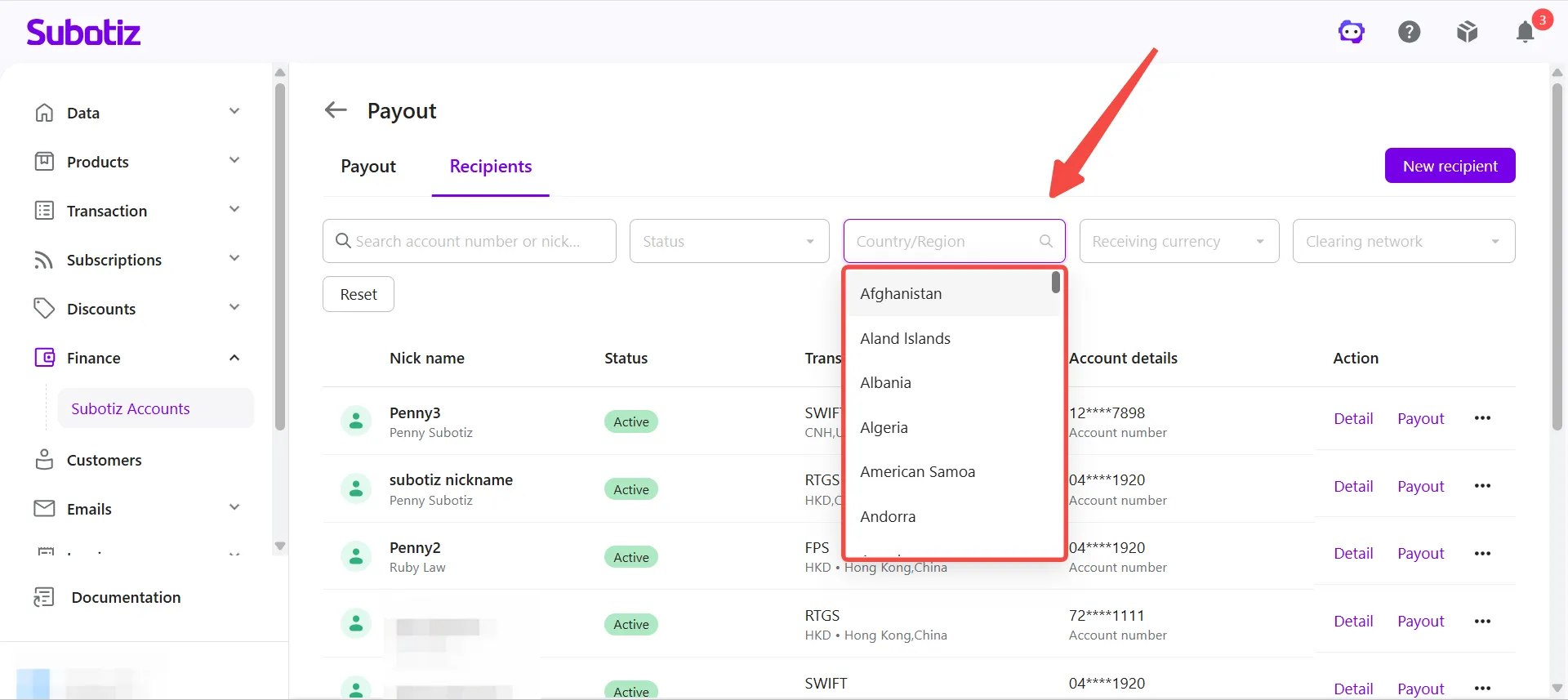
- Filter by country or region: Use the Country / Region filter to display recipients from a specific country or region.
- Filter by receiving currency: Use the Receiving currency filter to display recipients that support a specific currency, such as USD, EUR, GBP, or HKD.
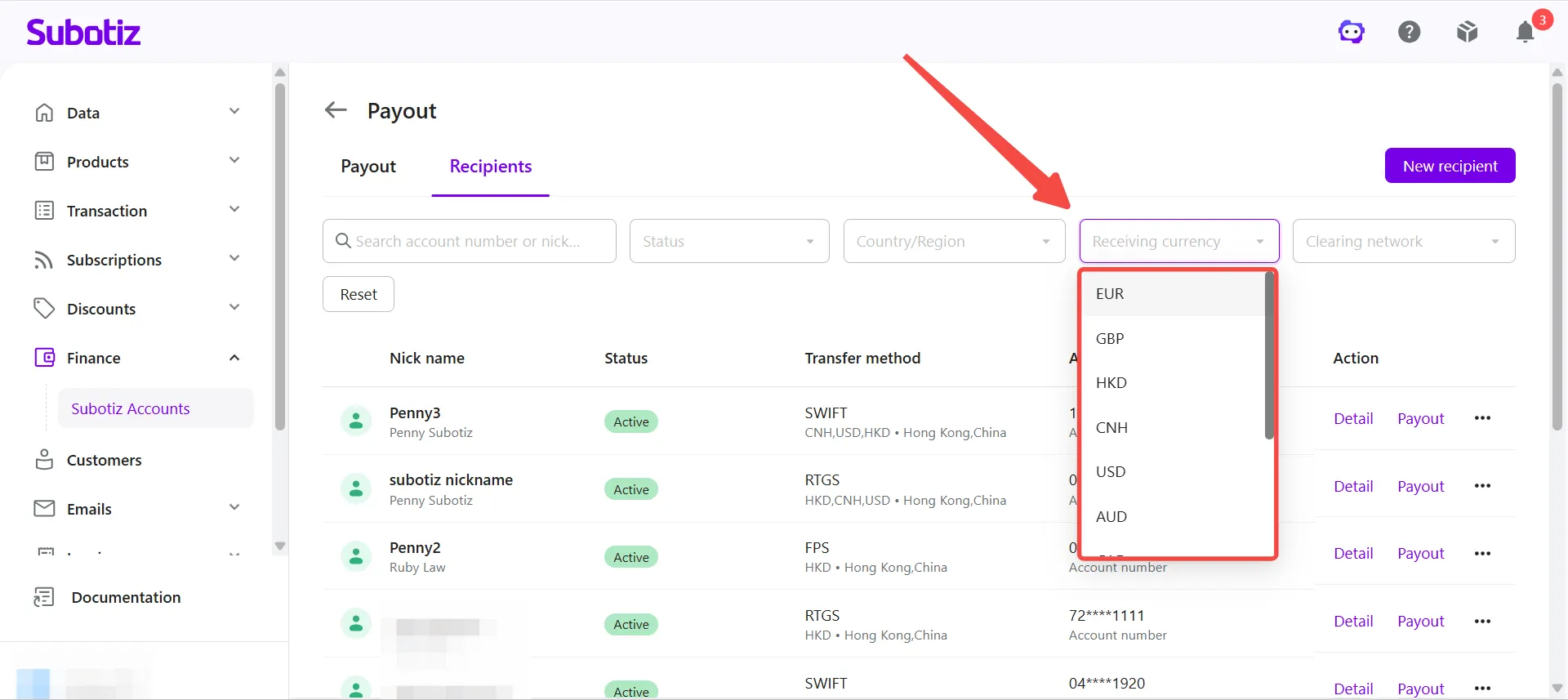
- Filter by clearing network: Use the Clearing network filter to display recipients that support a specific payment network, such as ACH, SEPA, FPS, RTGS, or SWIFT.
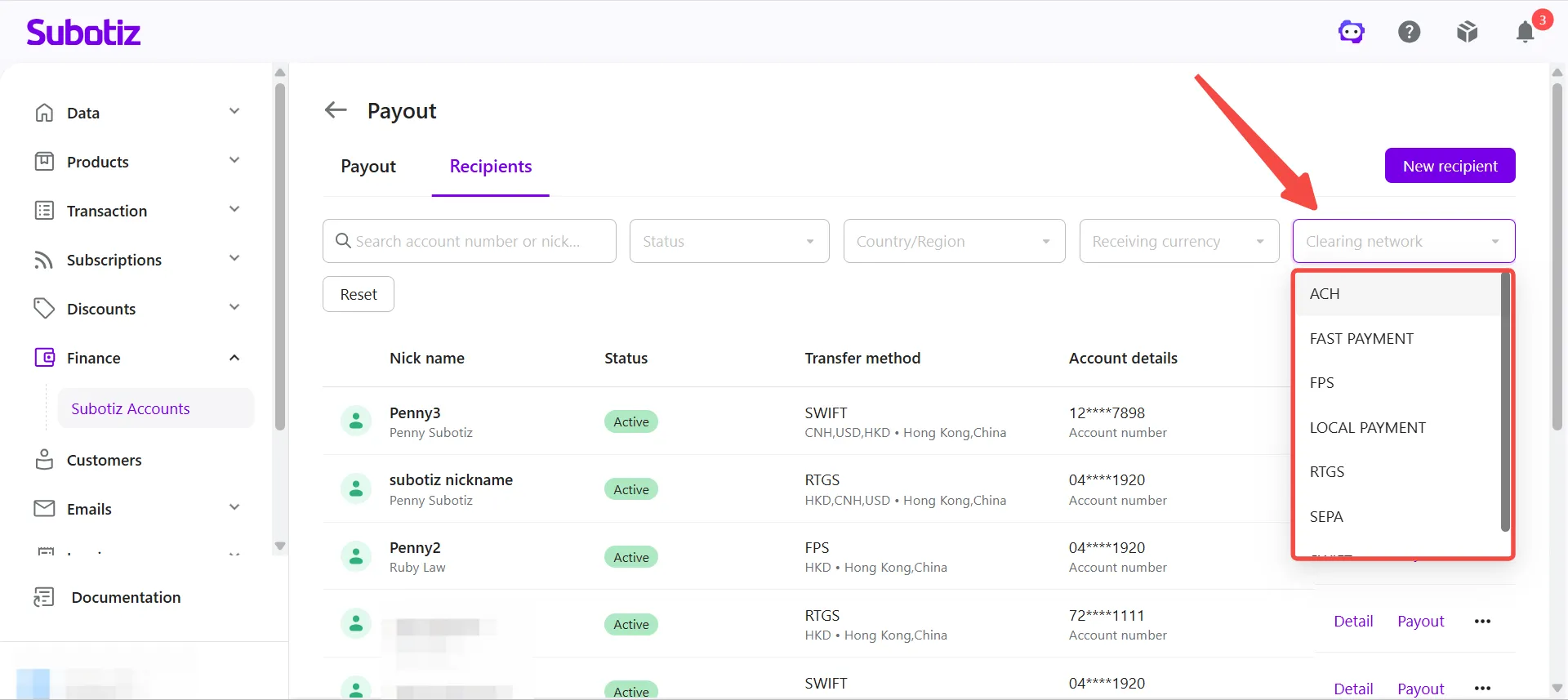
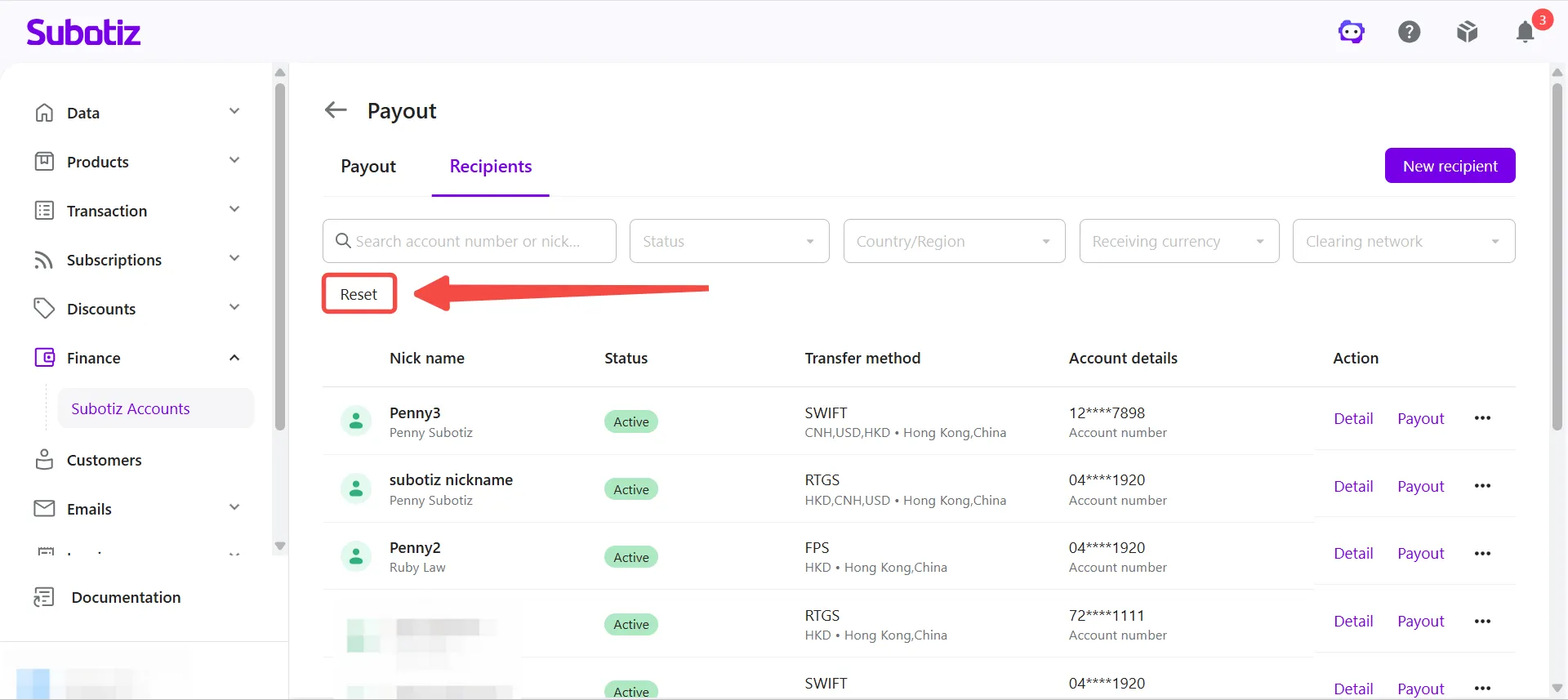
- Reset search and filters: Click Reset to clear all search keywords and filter criteria.
Viewing Recipient Information
-
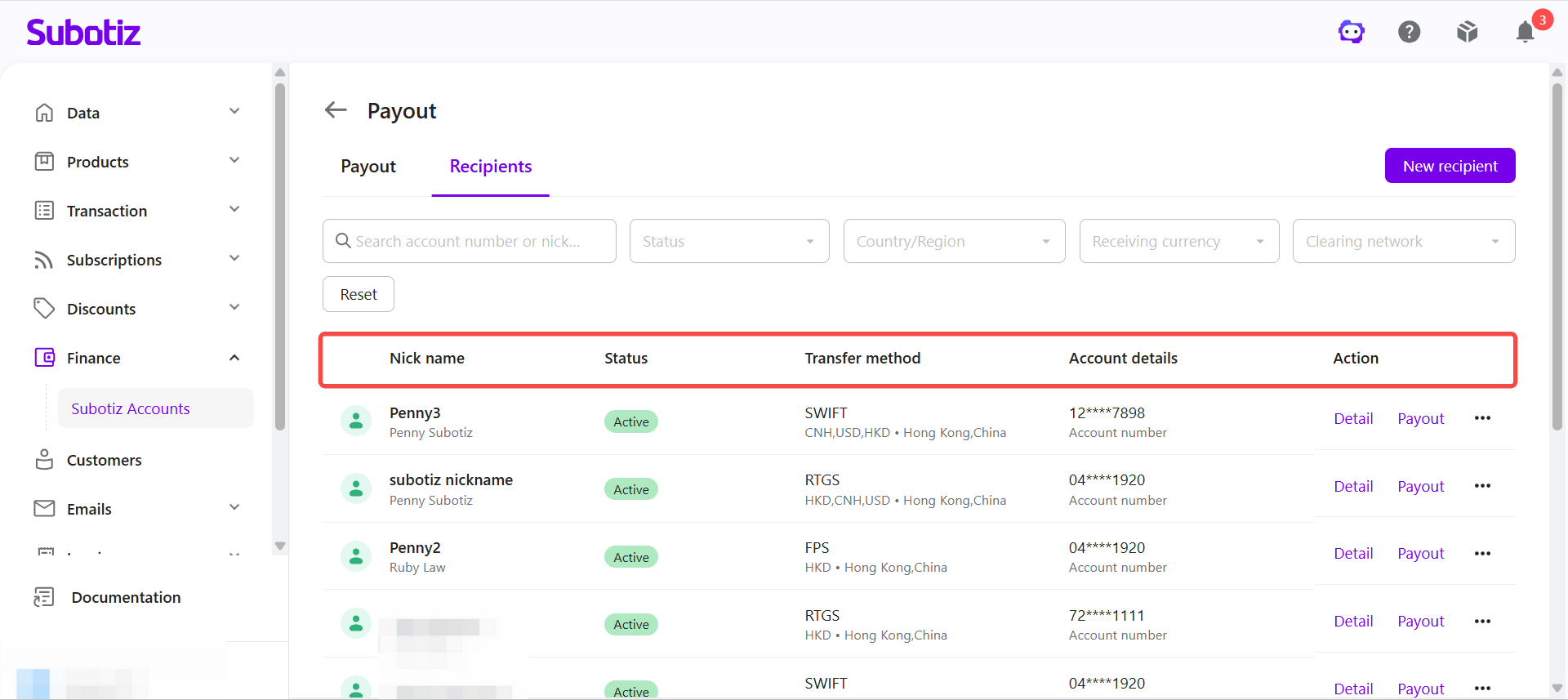
View the recipient list: The Recipients list displays the following information for each saved recipient:
- Nickname
- Status
- Transfer method
- Account details
- Available actions
-
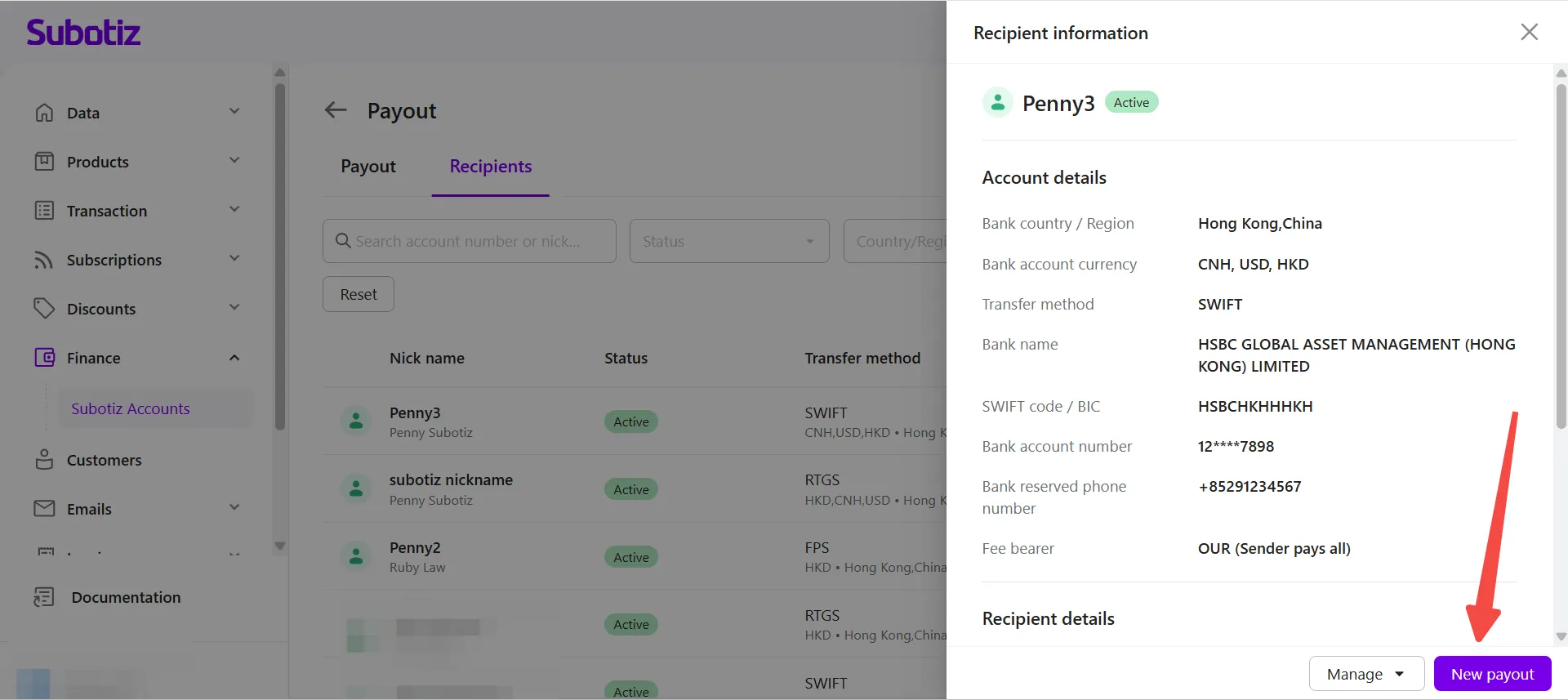
View recipient details: Click Detail to open the recipient information panel.
-
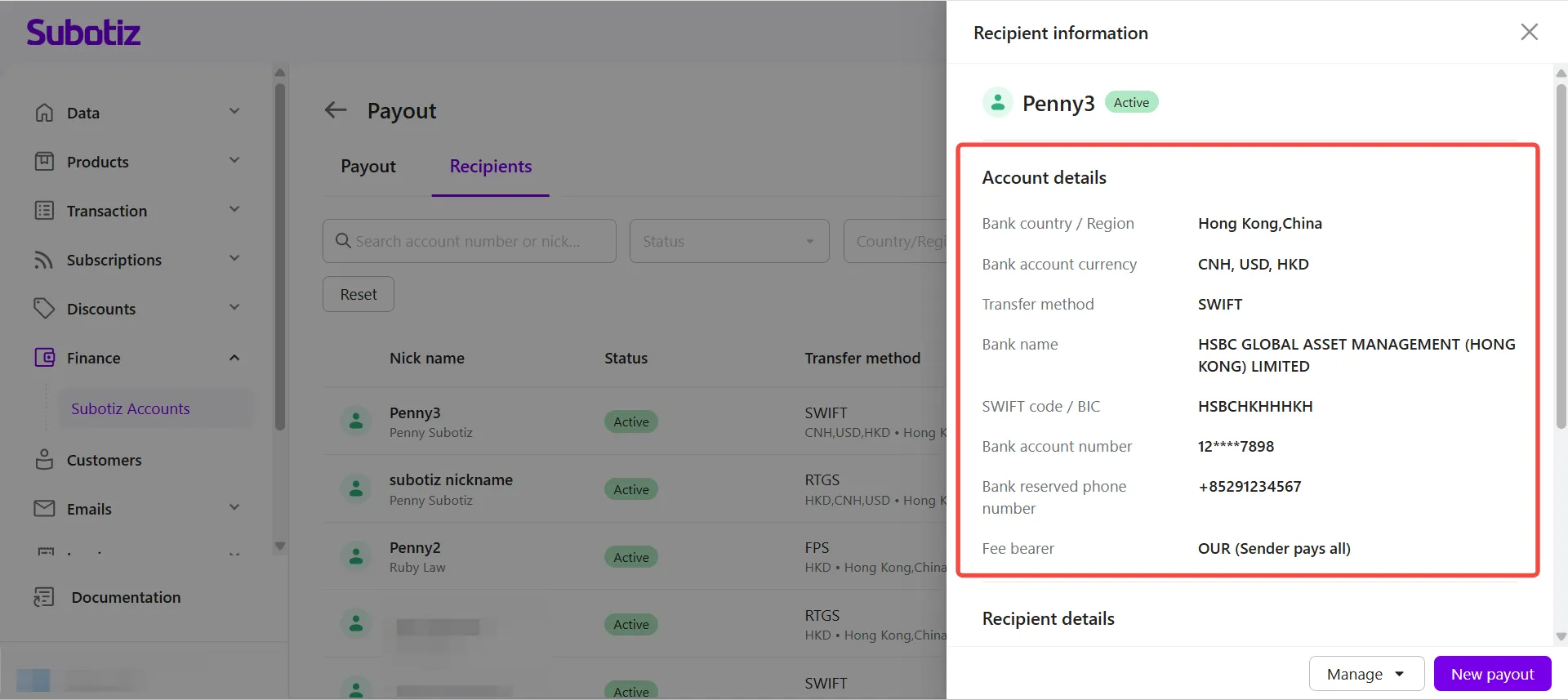
The Account details section may display:
- Bank country / Region
- Bank account currency
- Transfer method
- Bank name
- SWIFT code / BIC
- Bank account number
- Bank reserved phone number
- Fee bearer
The fields displayed depend on the recipient's payment method and bank information.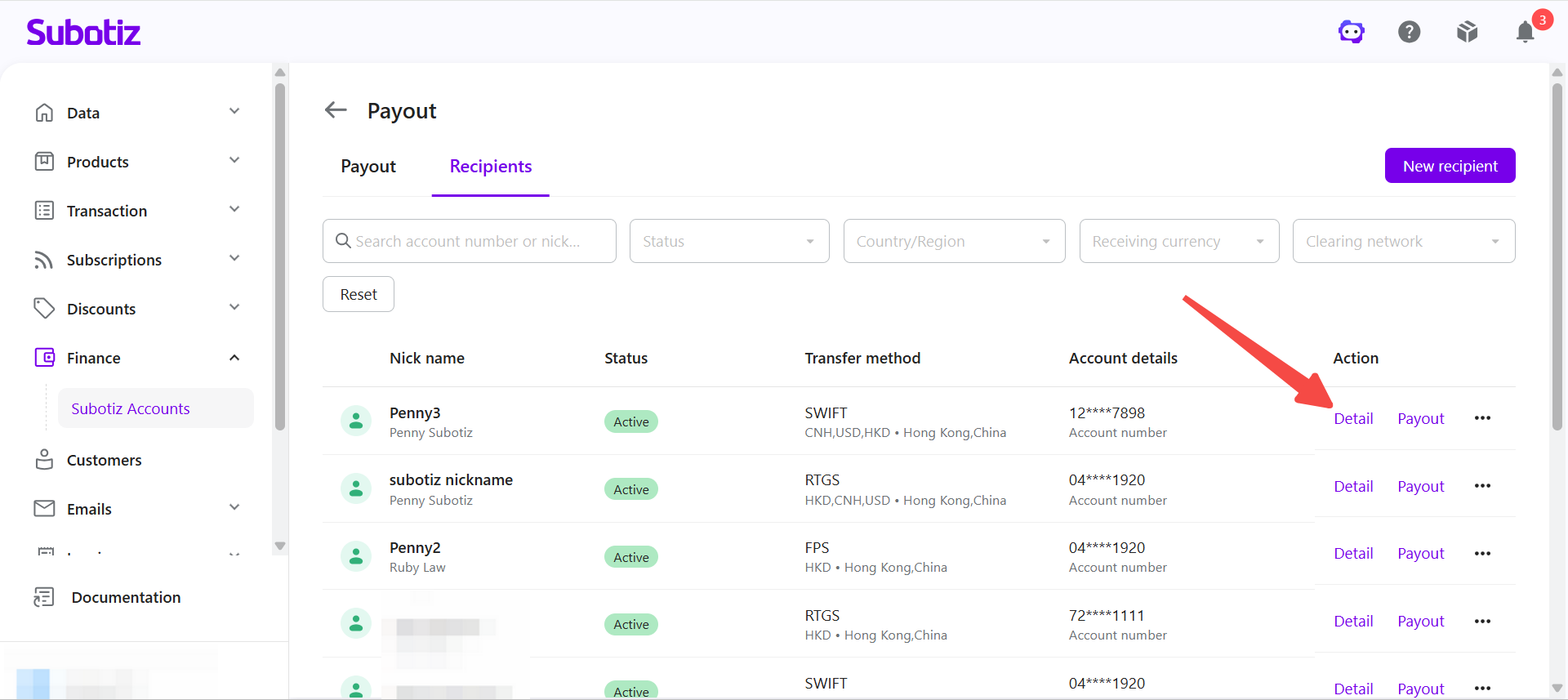
-
-
The Recipient details section may display:
- Nickname
- Recipient type
- First name
- Last name
- Business name
- Email address
- Country / Region
- State
- City
- Postal code
- Address
The information displayed depends on the recipient type and account type.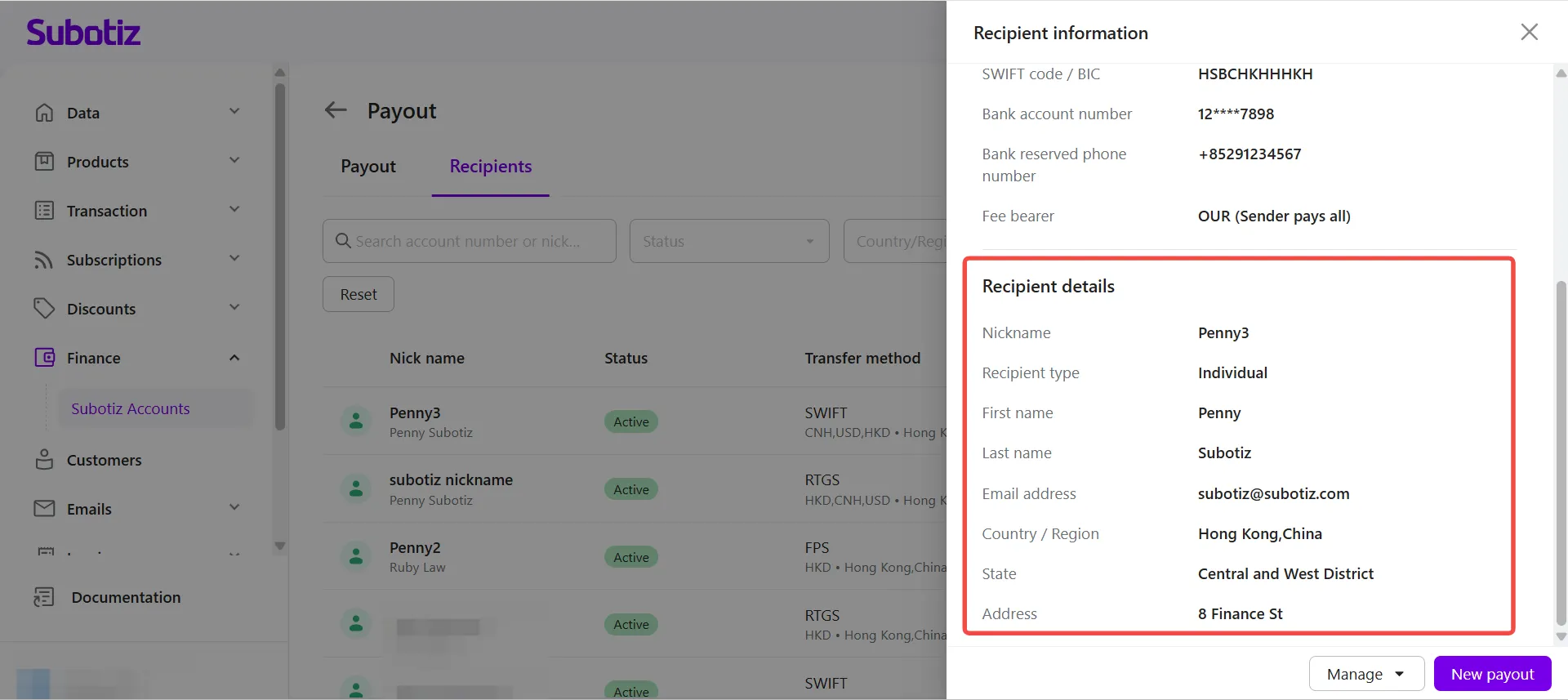
Managing Recipients
The following actions are available for saved recipients.
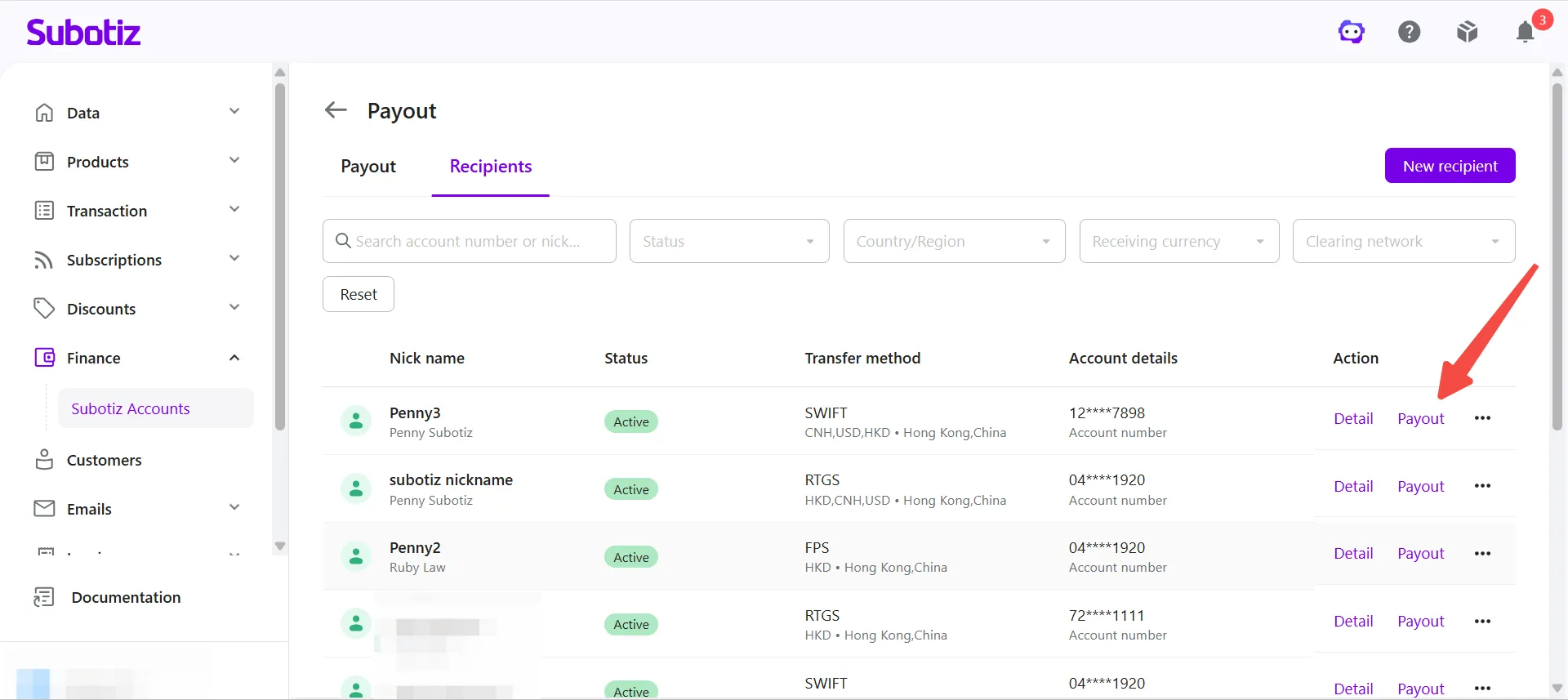
- Create a payout: Click Payout to create a payout for the selected recipient. The system automatically selects the appropriate payment network based on the recipient's banking information.
-
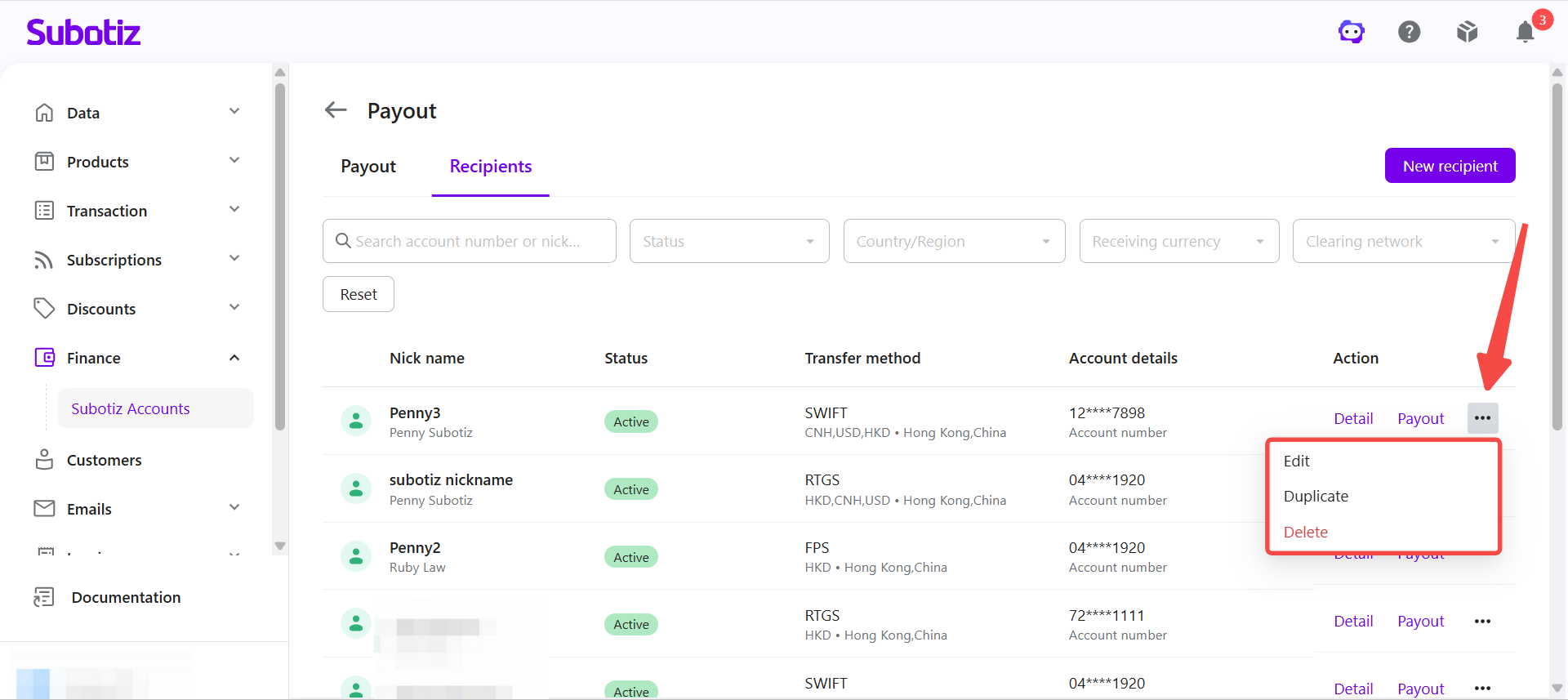
Manage a recipient: Click ⋯ to access the following actions:
- Edit: Update recipient information.
- Duplicate: Create a new recipient using the existing information.
- Delete: Remove a recipient that is no longer needed.
Note
Best Practices
- Use descriptive nicknames: Create meaningful nicknames so you can quickly identify each recipient.
- Review recipient information regularly: Keep recipient and bank account information up to date.
- Use Active recipients: Verify that the recipient status is Active before creating a payout.
The Recipients page helps you manage saved recipients, review recipient information, and create payouts more efficiently. Reusing saved recipients reduces manual data entry and helps streamline cross-border payment operations.
Next Steps
Continue with: