After Subotiz Payments is approved, payment method configuration is completed in two steps. This ensures customers see the correct payment options at checkout and helps improve checkout conversion rates.
Enabling payment methods
- Open the configuration page: Go to Settings > Payment providers > Subotiz Payments and click the provider card.
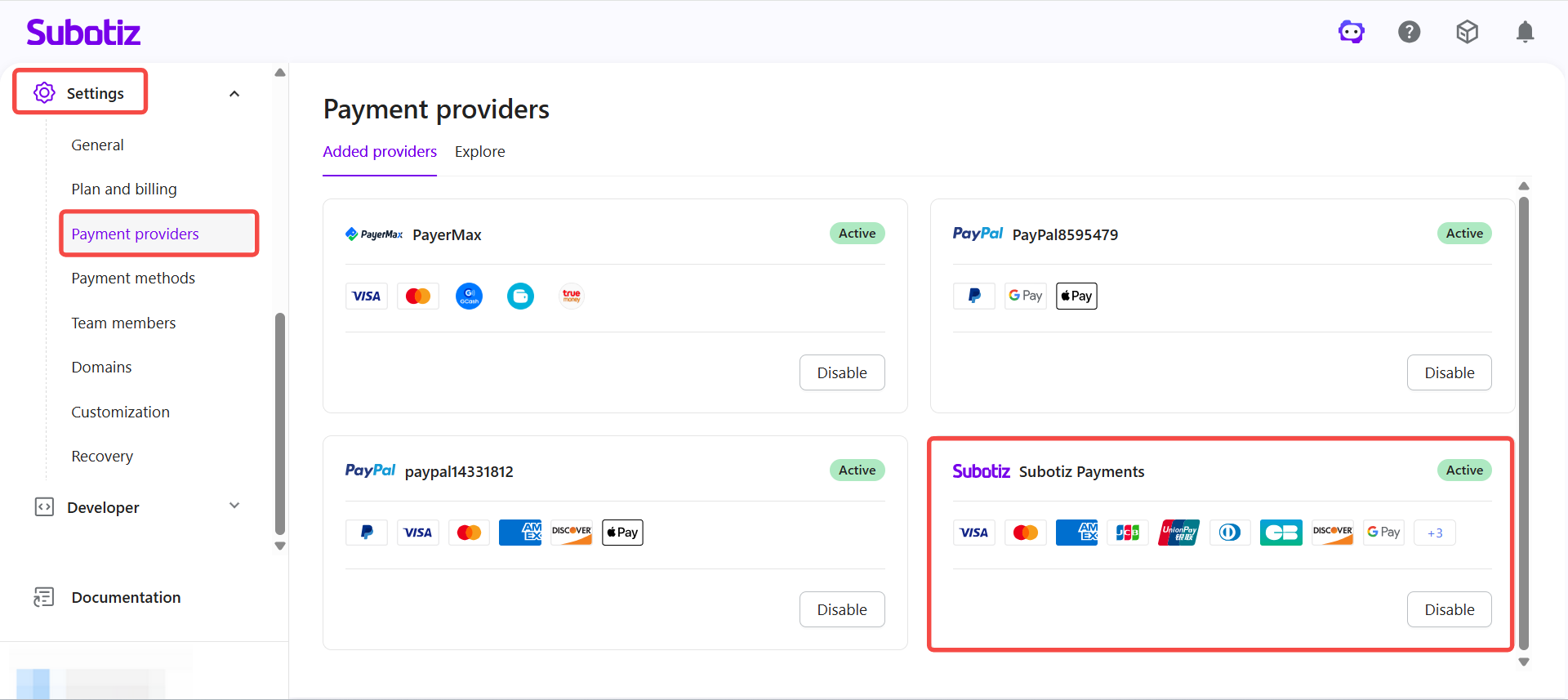
- Enable payment methods: In the payment methods section, toggle on the methods to enable. A purple toggle indicates the method is enabled; grey indicates it is disabled.

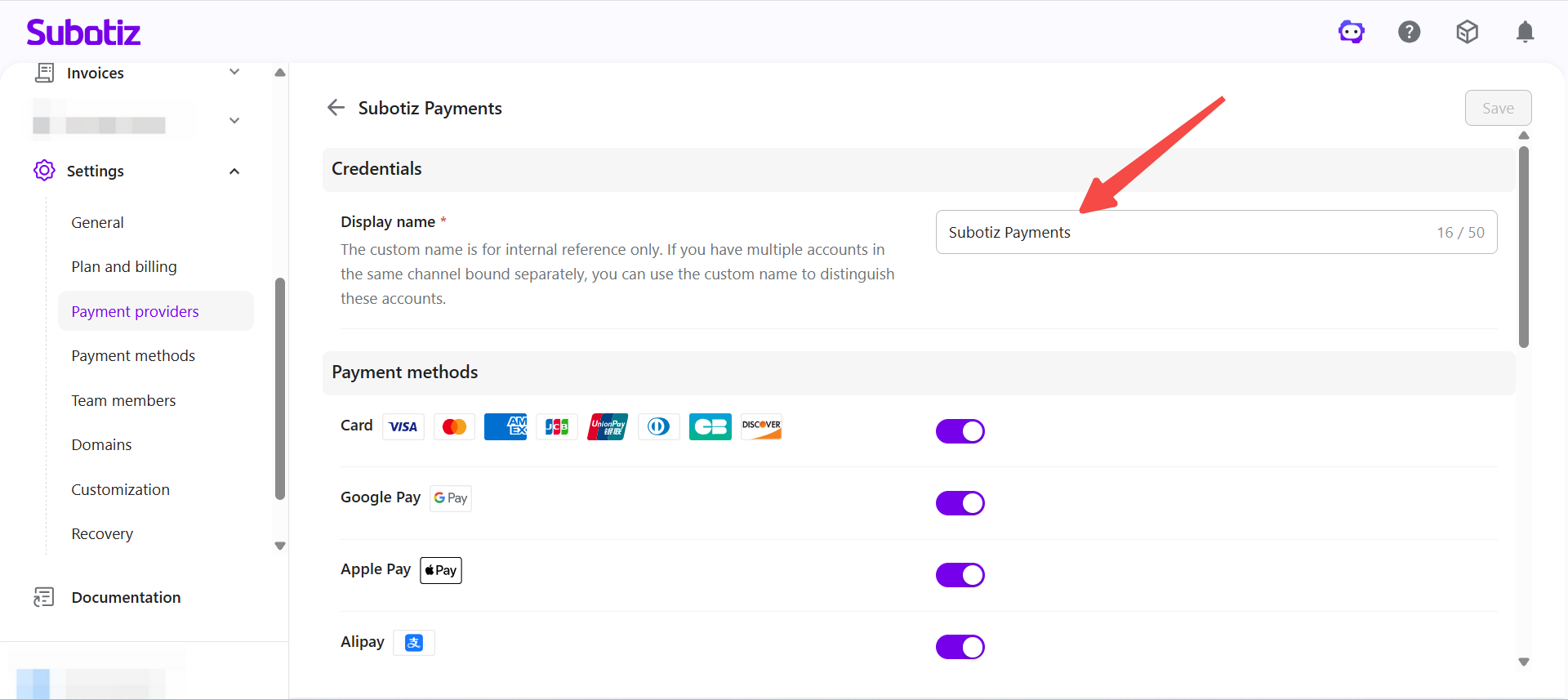
- Customize the display name (optional): The display name shown at checkout can be edited at the top of the page. This only affects the front-end label and does not change the underlying configuration.
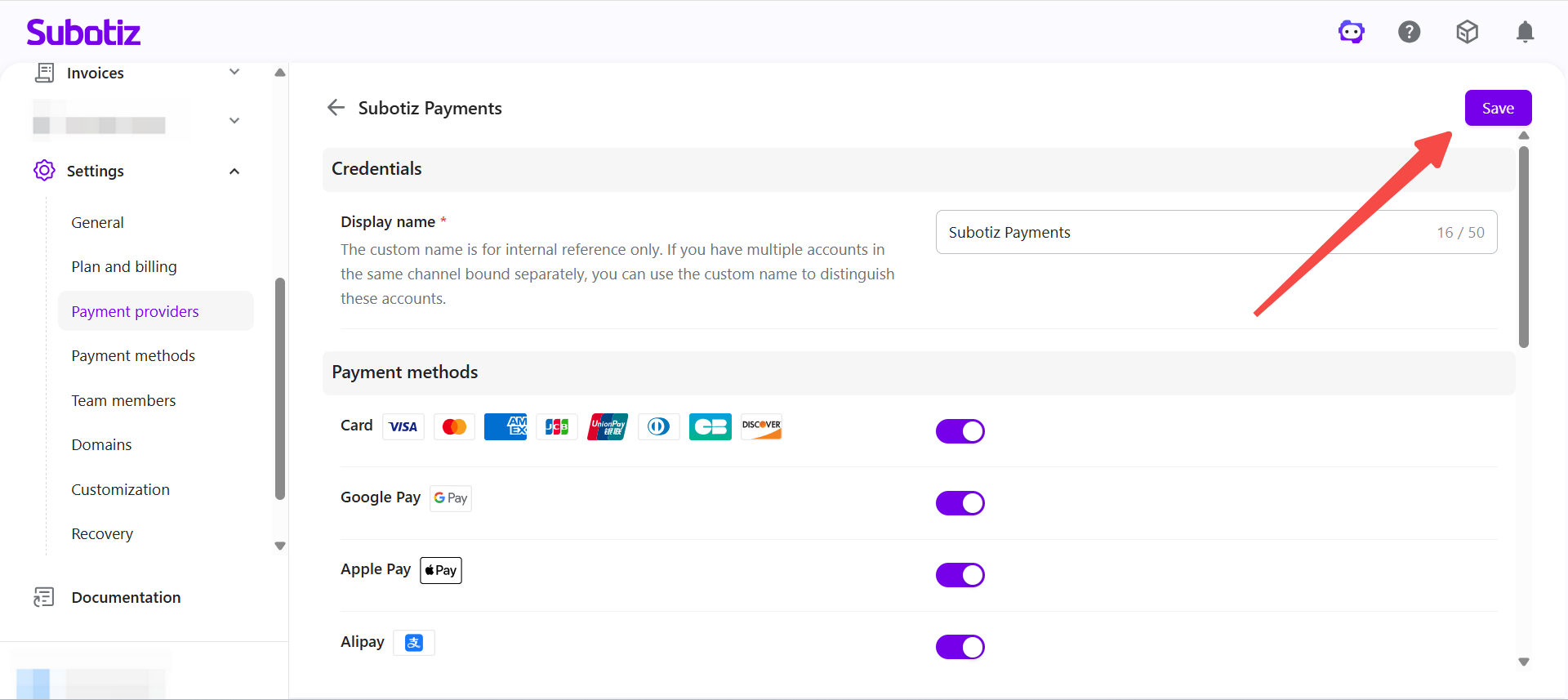
- Save settings: Click Save in the top right corner.
Completing configuration
- Go to payment methods: Navigate to Settings > Payment methods.
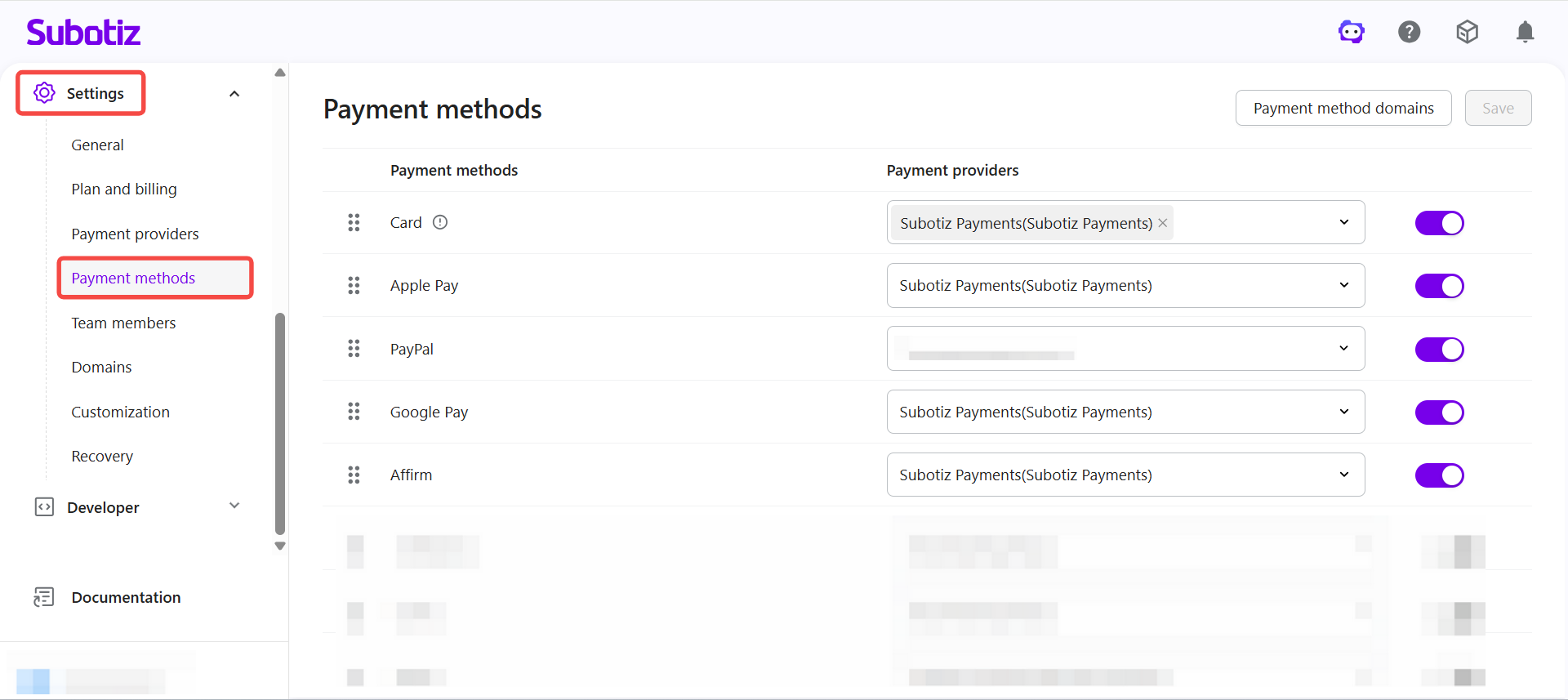
- Select a payment provider: Use the dropdown to select the corresponding payment provider for each method, then toggle it on. To adjust the display order of payment methods at checkout, refer to: Payment methods|Viewing and Managing Payment Methods
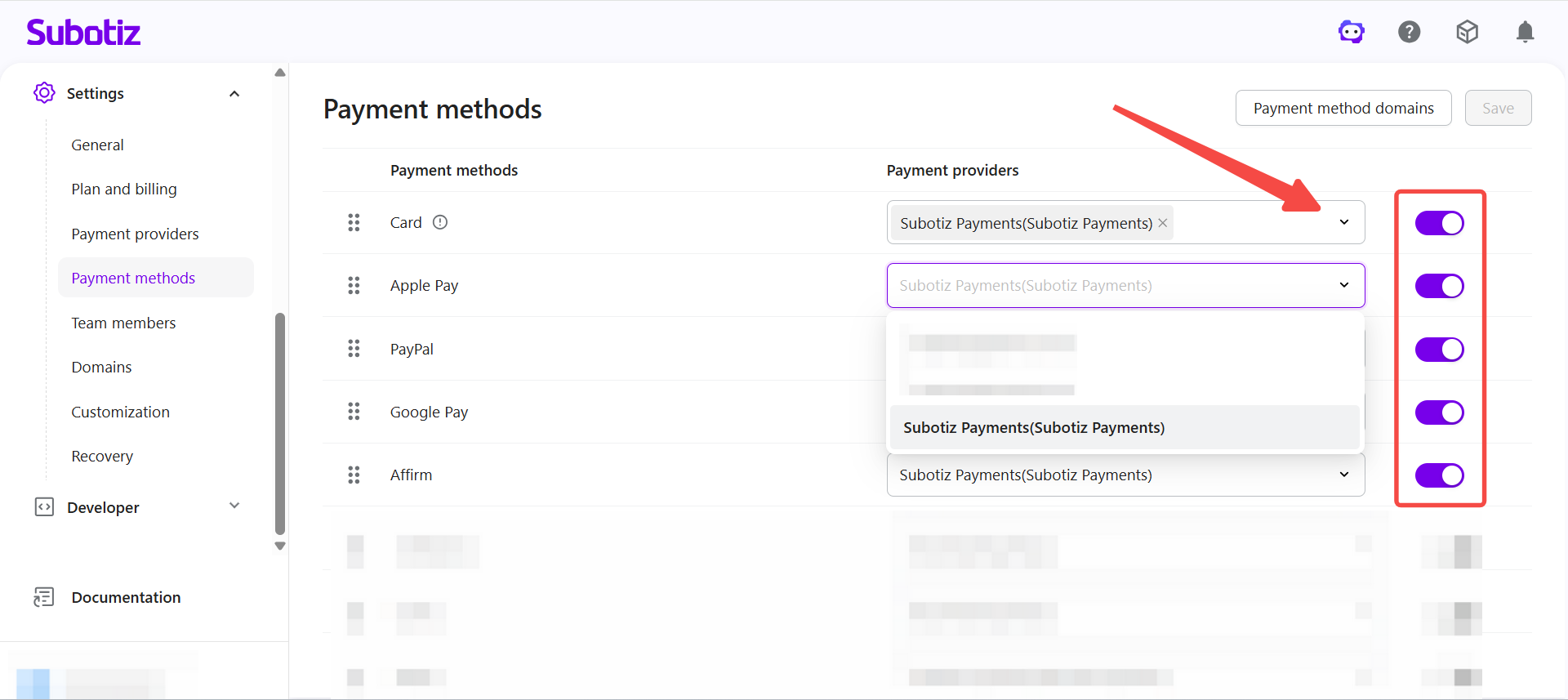
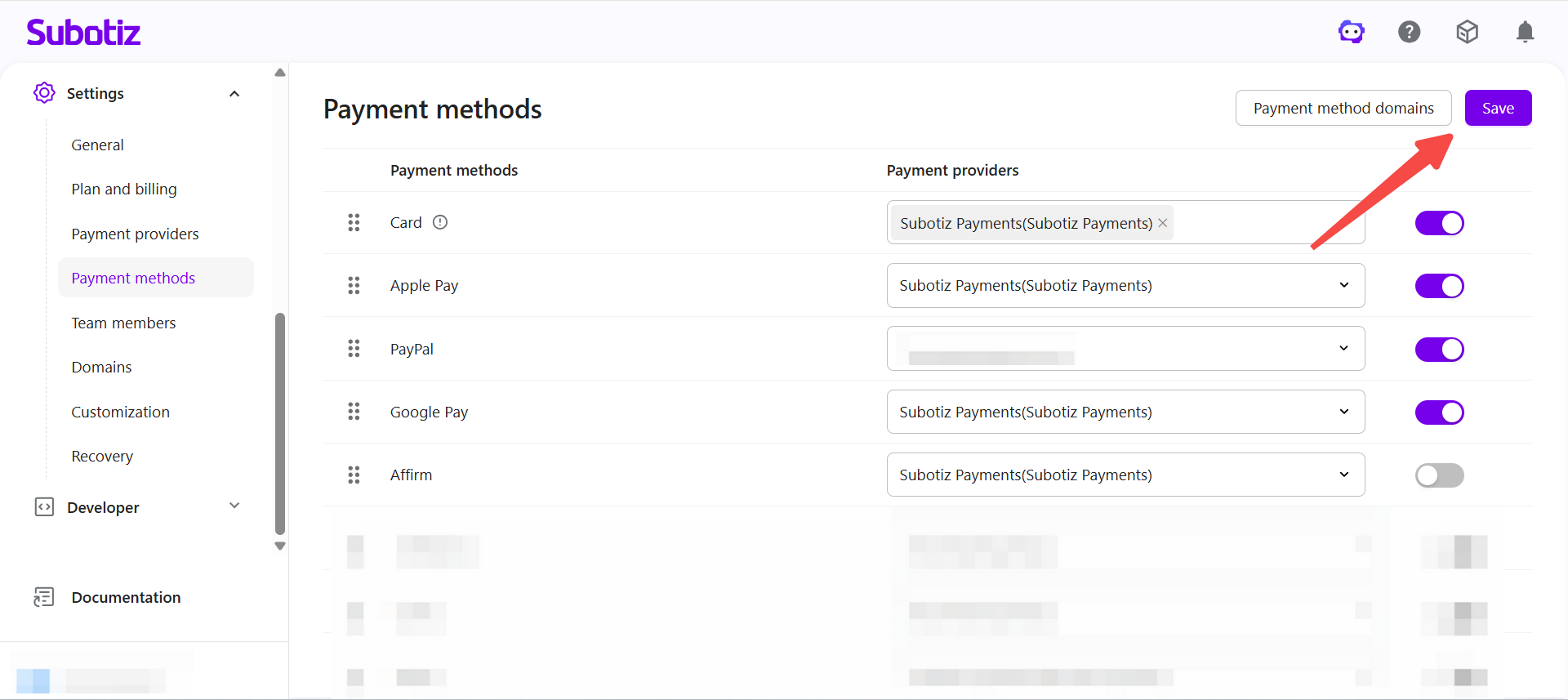
- Save settings: Click Save to apply the configuration.
Configuring 3DS authentication
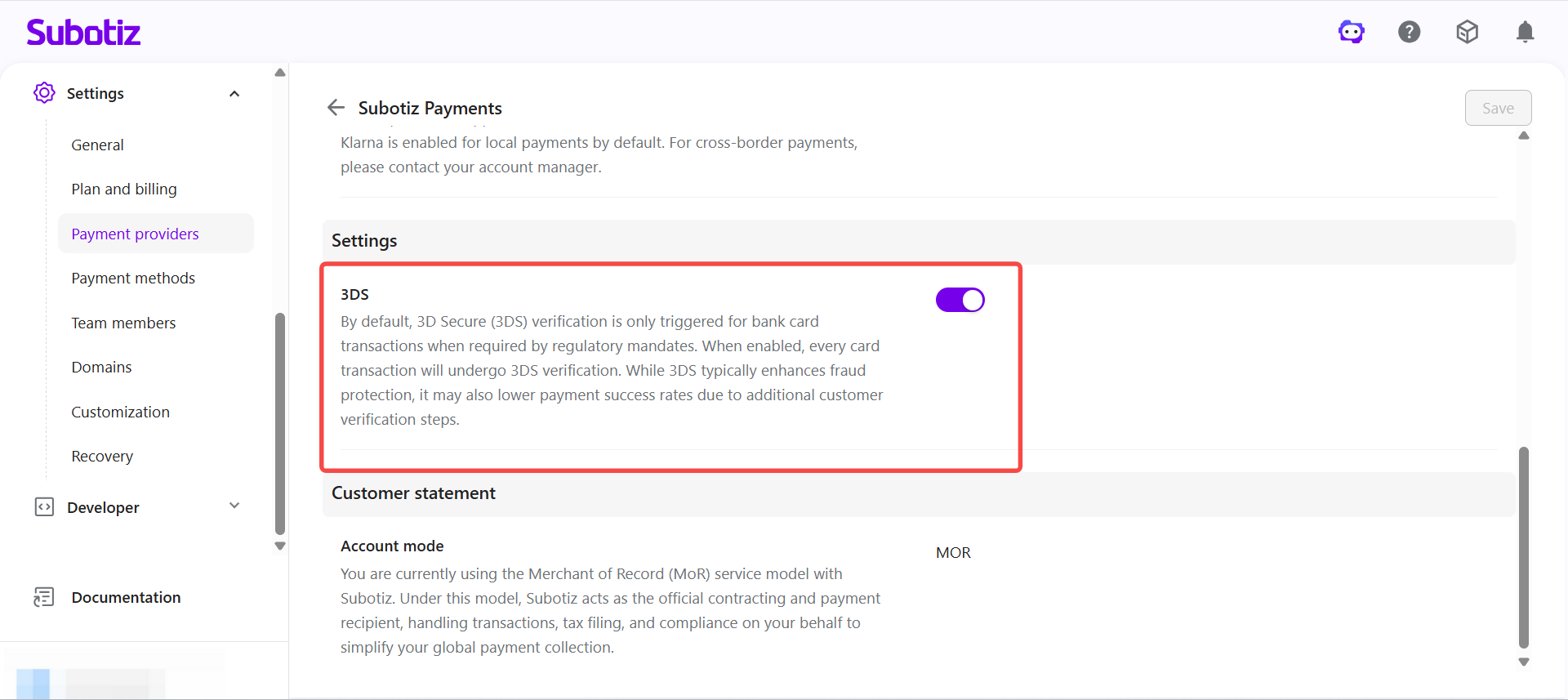
The 3DS toggle is located on the payment provider configuration page.
- When disabled: 3DS is triggered only when required by the issuing bank.
- When enabled: 3DS is required for every one-time card transaction. For subscription payments, 3DS is applied during the initial transaction only.
Enabling 3DS helps manage fraud risk but may impact payment success rates. For more details on how 3DS affects the business, refer to: Subotiz Payments|Card Payments and 3DS
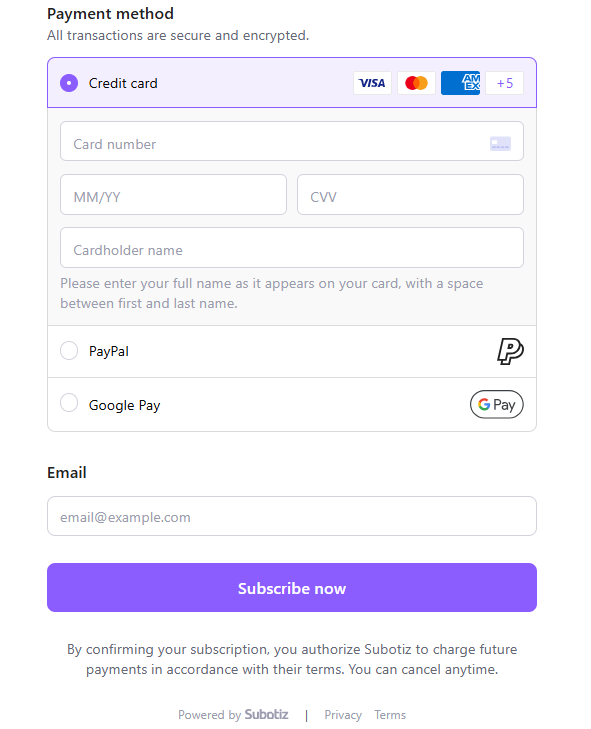
After configuration
Once the configuration is saved, customers will see the enabled payment options on the checkout page.
Payment method enabled but not appearing
If a payment method is enabled but not showing at checkout, common causes include:
- Digital wallets: The customer's device is not supported. Apple Pay requires a supported iOS device (for example, iOS 17 or later); Google Pay requires a Chrome-based browser.
- BNPL: The customer's location or transaction currency does not meet the requirements.
- Alipay: Approval has not been completed, or the transaction currency does not match the merchant entity.
- Configuration incomplete: Step 2 configuration in the payment methods page is incomplete, or the wrong payment provider has been selected.
For full visibility conditions, refer to: Subotiz Payments|Payment Methods Visibility at Checkout
Testing the checkout flow
Before going live, complete the following tests to confirm the configuration is working correctly.
- Test Apple Pay on an iOS device running iOS 17 or later.
- Test Google Pay on a Chrome-based browser.
- Test BNPL methods using the target market's location and currency.
- Confirm card payments and 3DS authentication are working as expected.
Payment method configuration follows two steps: enable each method in the payment provider settings, then assign the corresponding provider and toggle it on in the payment methods page. After configuration, test the checkout flow across different devices, regions, and currencies to confirm each method appears as expected.