A properly managed payment method setup improves checkout consistency and ensures your customers see the right options at the right time. It helps match customer expectations and supports region-specific payment options. This article explains how to view, reorder, assign providers, and manage the visibility of each method in the admin.
Managing Payment Methods
- Access the payment method settings: Go to Settings from the left-hand menu and select Payment method. The list includes all available payment methods, such as Apple Pay, Google Pay, Credit Card, and PayPal.
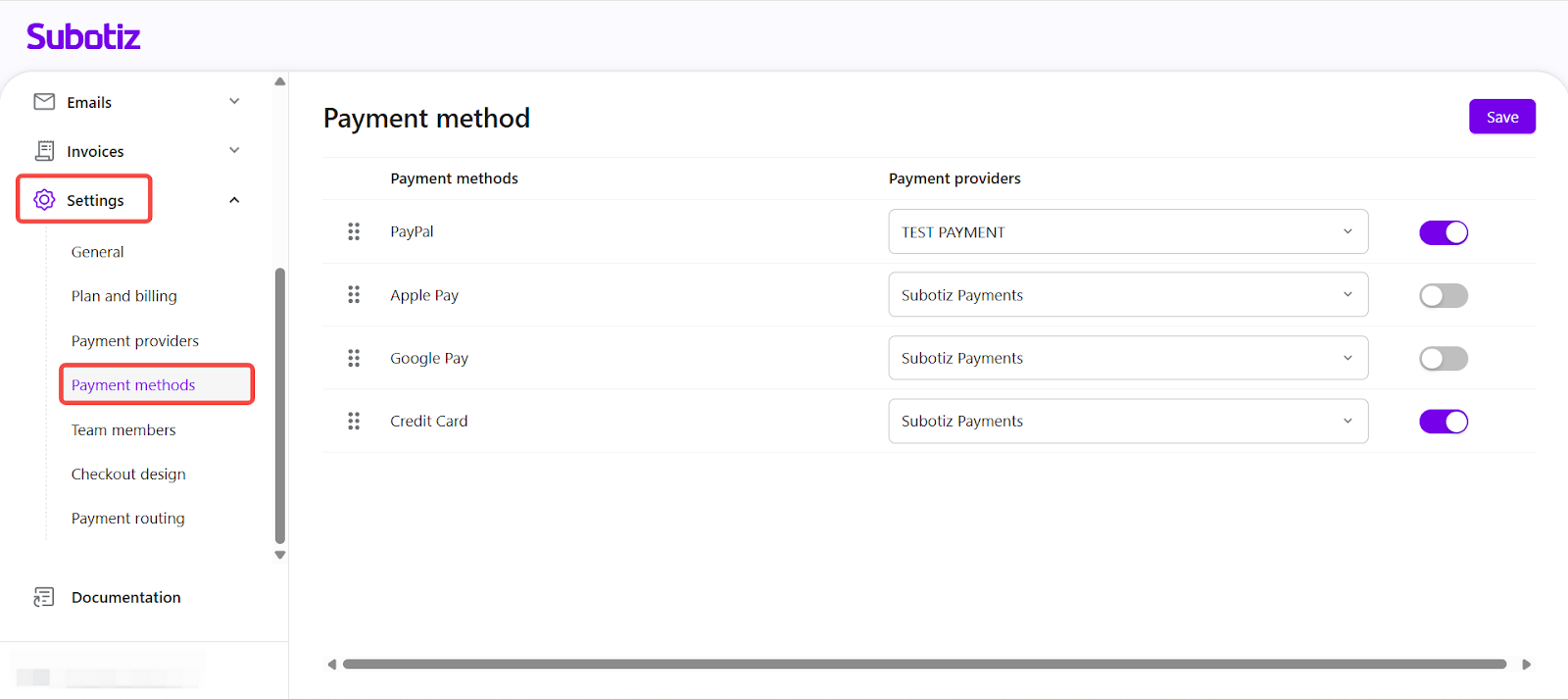
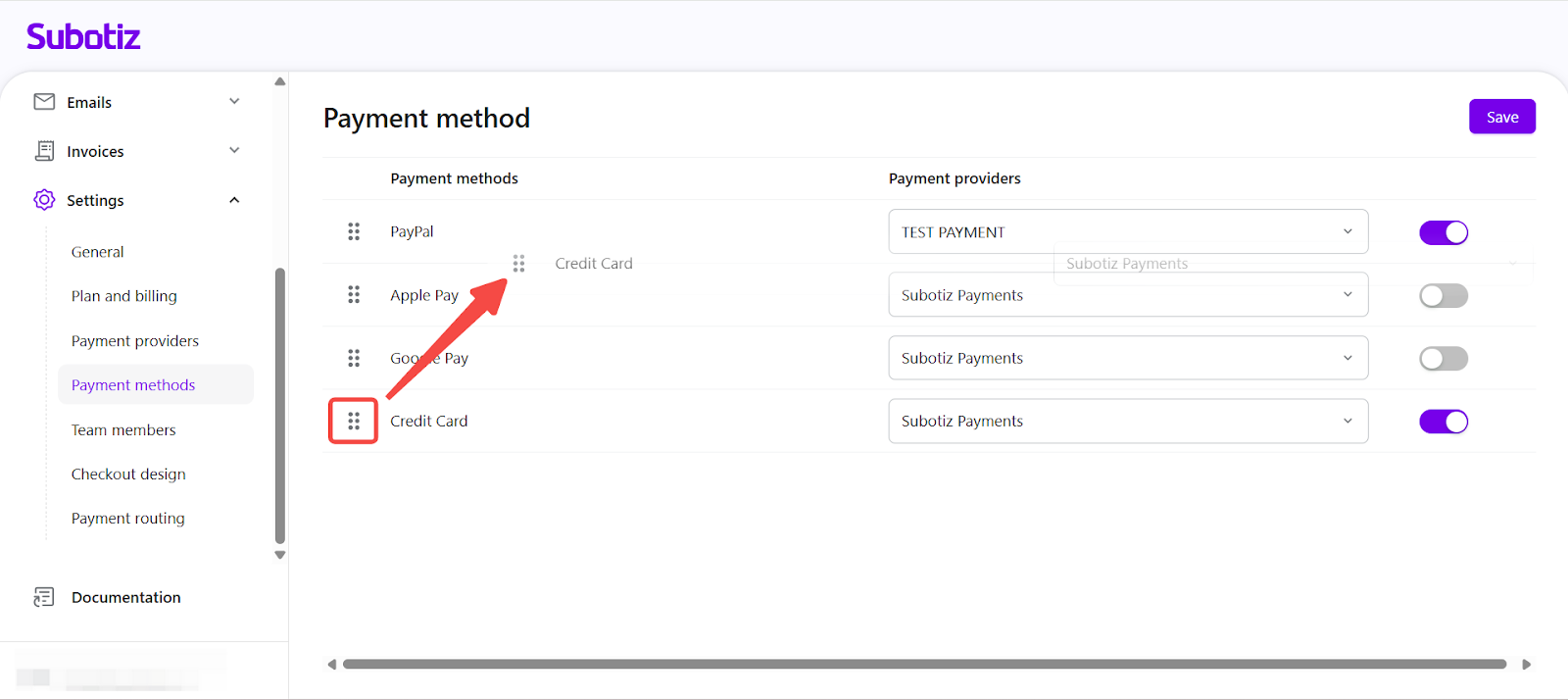
- Reorder payment methods: Click and hold the draggable icon (⋮⋮) before each payment method, then drag the entire row up or down to change the order. Newly added payment methods are placed at the bottom of the list by default.
-
Apply sorting rules and understand checkout impact: The order set here directly affects the display sequence in checkout.
- Express Checkout (EC) buttons: Displayed left to right, following the top-to-bottom order in the admin list.
- Payment list: Displayed top to bottom, following the admin list order.
-
Credit card form display rule: The credit card form is collapsed by default. It only expands automatically when credit card payment is placed first in the order list.
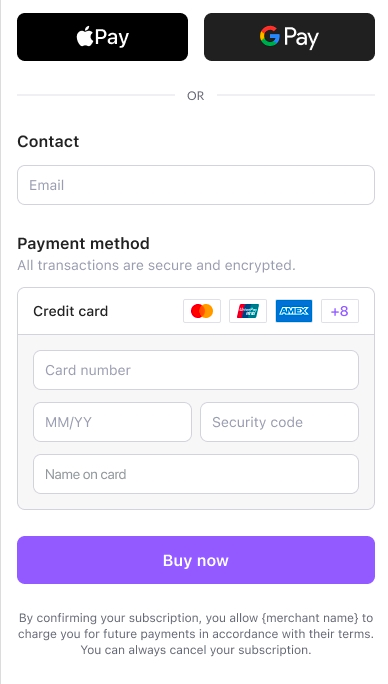
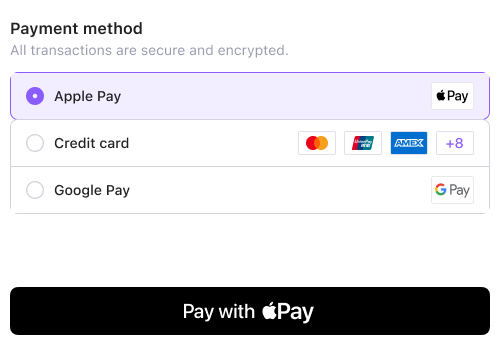
Example: If the order is Apple Pay → Credit Card → Google Pay:
- When Apple Pay and Google Pay have EC enabled, Apple Pay appears on the left and Google Pay on the right in checkout.
-
When Apple Pay and Google Pay have no EC enabled, the payment list displays Apple Pay, then Credit Card, then Google Pay from top to bottom.
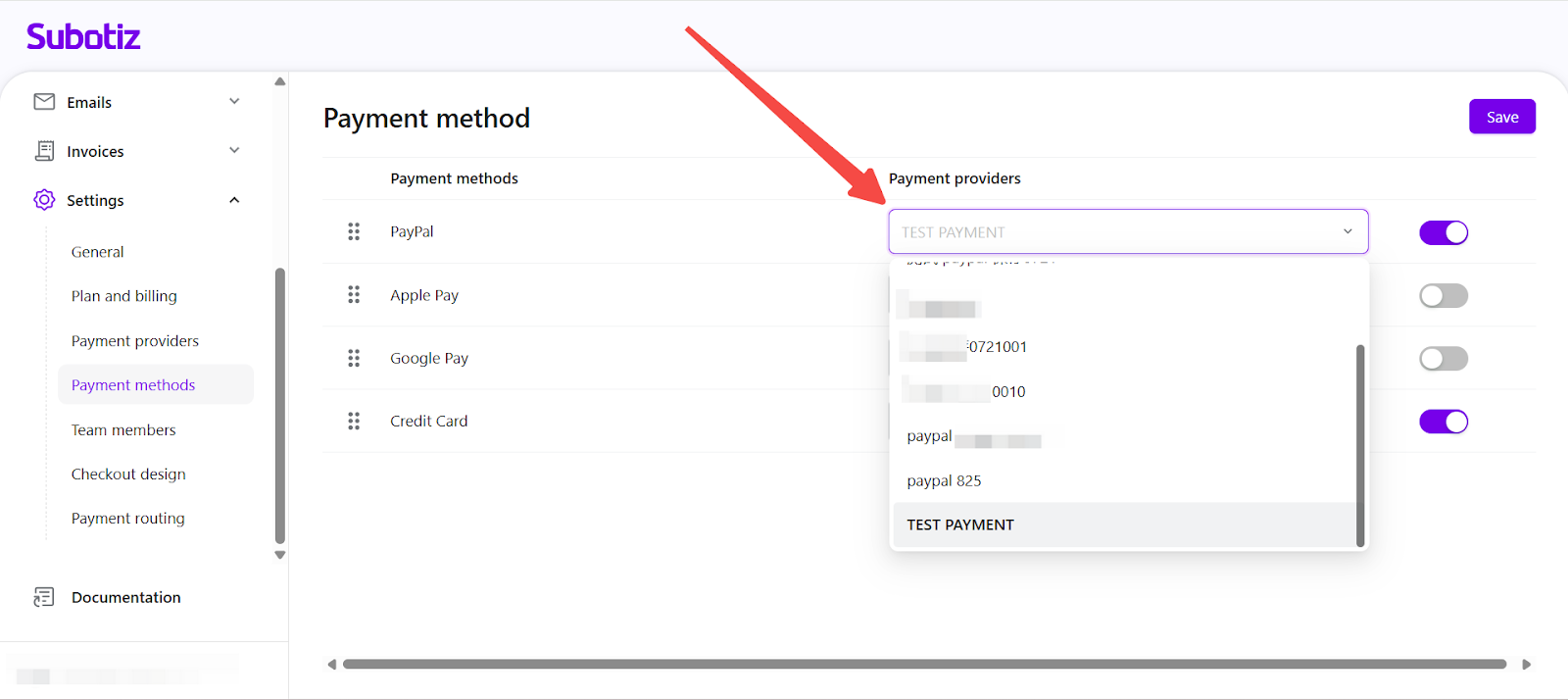
- Assign a payment provider: Use the dropdown in the Payment providers column to select a provider that supports the selected method. Only active providers are displayed. For detailed steps on setting up and managing payment providers, see Payment provider|Connecting a New Payment Provide.
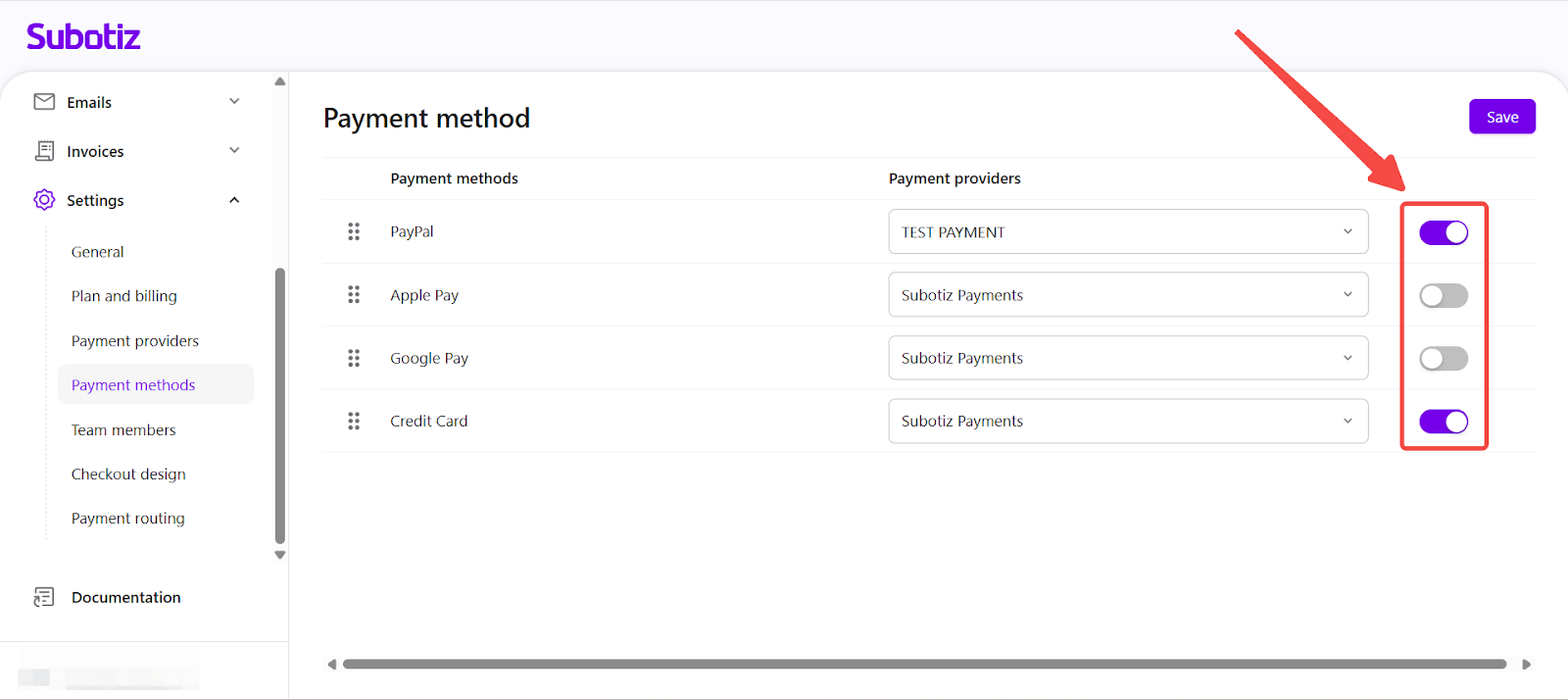
- Enable or disable a payment method: Use the toggle switch on the right to activate or deactivate a payment method. Disabled methods will not be visible to customers during checkout.
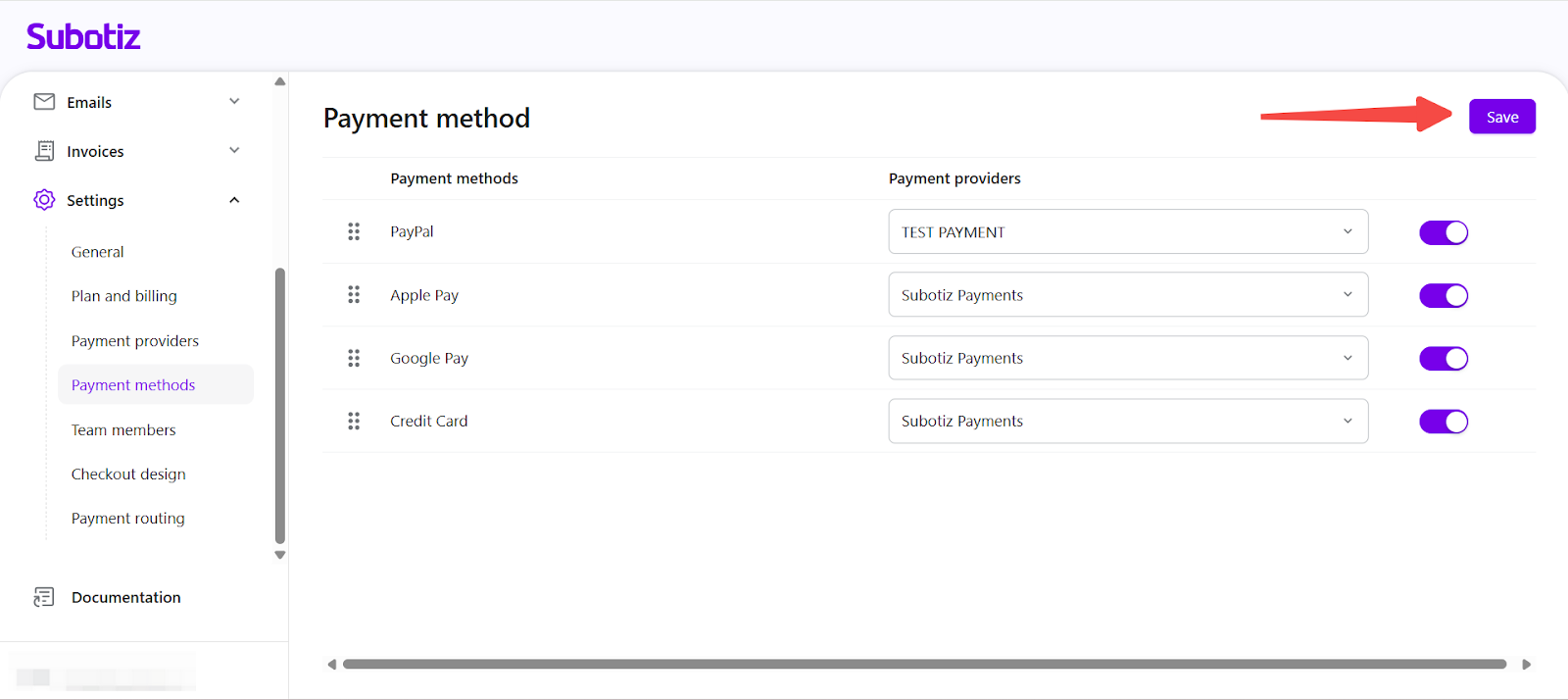
- Save changes: After completing any updates, click the Save button in the top-right corner. All changes are applied immediately.
Best Practices
- Place frequently used methods: Put methods such as Apple Pay, credit cards, or PayPal at the top of the list to make checkout faster for customers.
- Enable only relevant methods: Match enabled methods to your business needs or target customers to keep checkout options streamlined.
- Monitor transactions when disabling methods: If a method is linked to active subscriptions, check for failed transactions to avoid payment disruptions.
Keep payment methods accurate and up to date to prevent checkout issues and align with customer preferences. A well-managed setup supports scalability, ensures smooth payment operations, and allows your business to quickly adapt when introducing new payment options or entering new markets.