The Price Lists feature in Subotiz enables merchants to consolidate multiple pricing plans into a single display page, shareable via a checkout link or embed code. This setup supports flexible subscription pricing, allowing customers to compare plans and complete checkout efficiently.
Before You Start
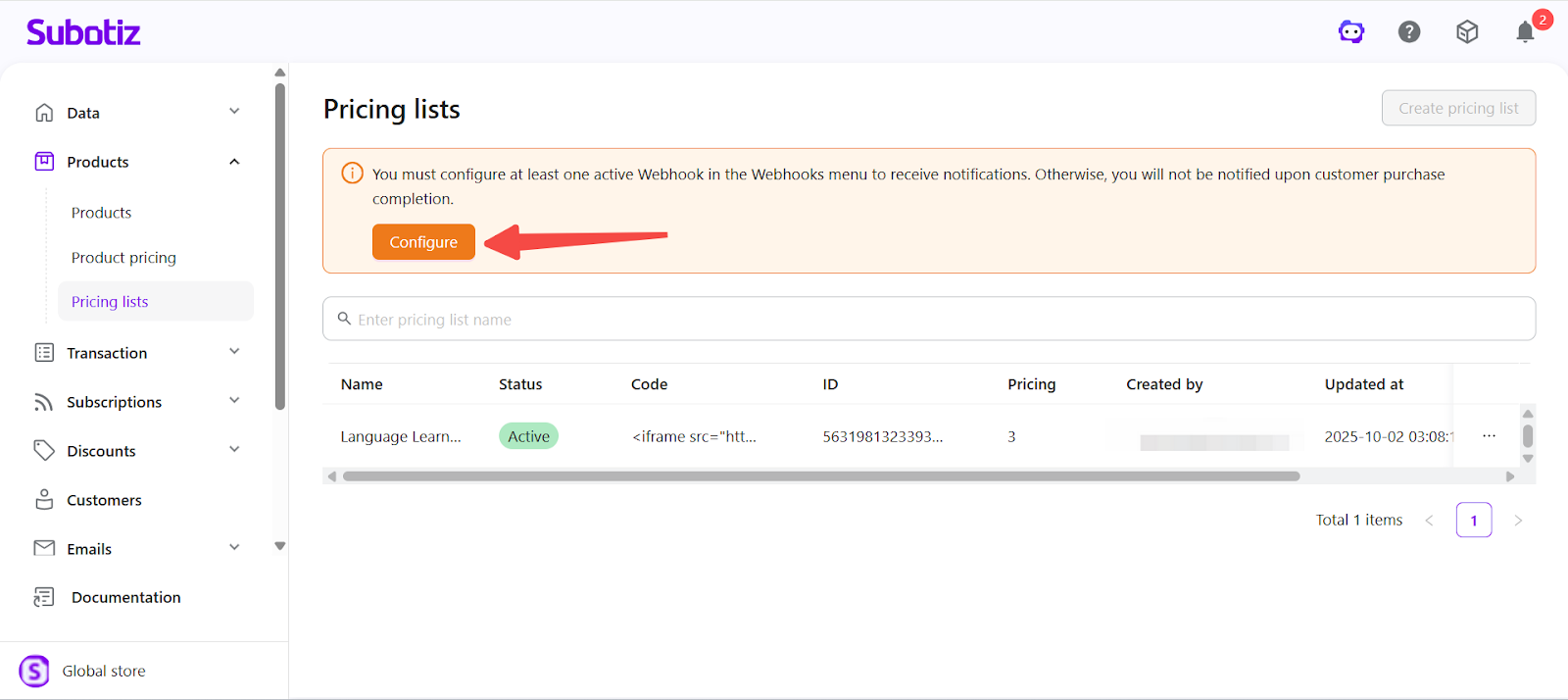
- Configure and enable a Webhook: Price lists require a Webhook to receive payment result notifications. Go to Developer > Webhooks, create a Webhook, and enter a valid Endpoint URL. Once configured and activated, the price list feature will be available. For setup guidance, refer to: Webhooks | Share Payment Link Setup.
Creating a Price List
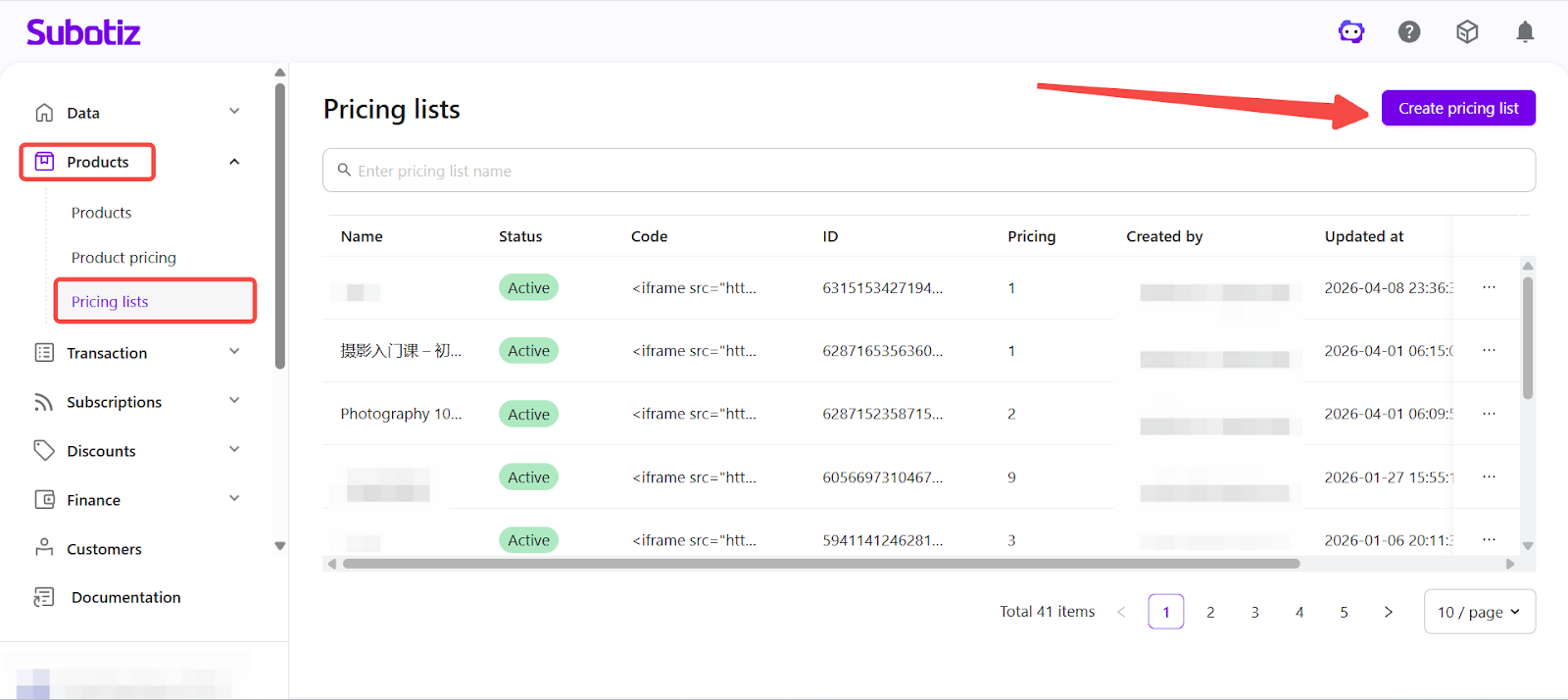
- Open Price List dashboard: In your Subotiz admin, go to Products > Price lists, then click Create pricing list at the top right.
-
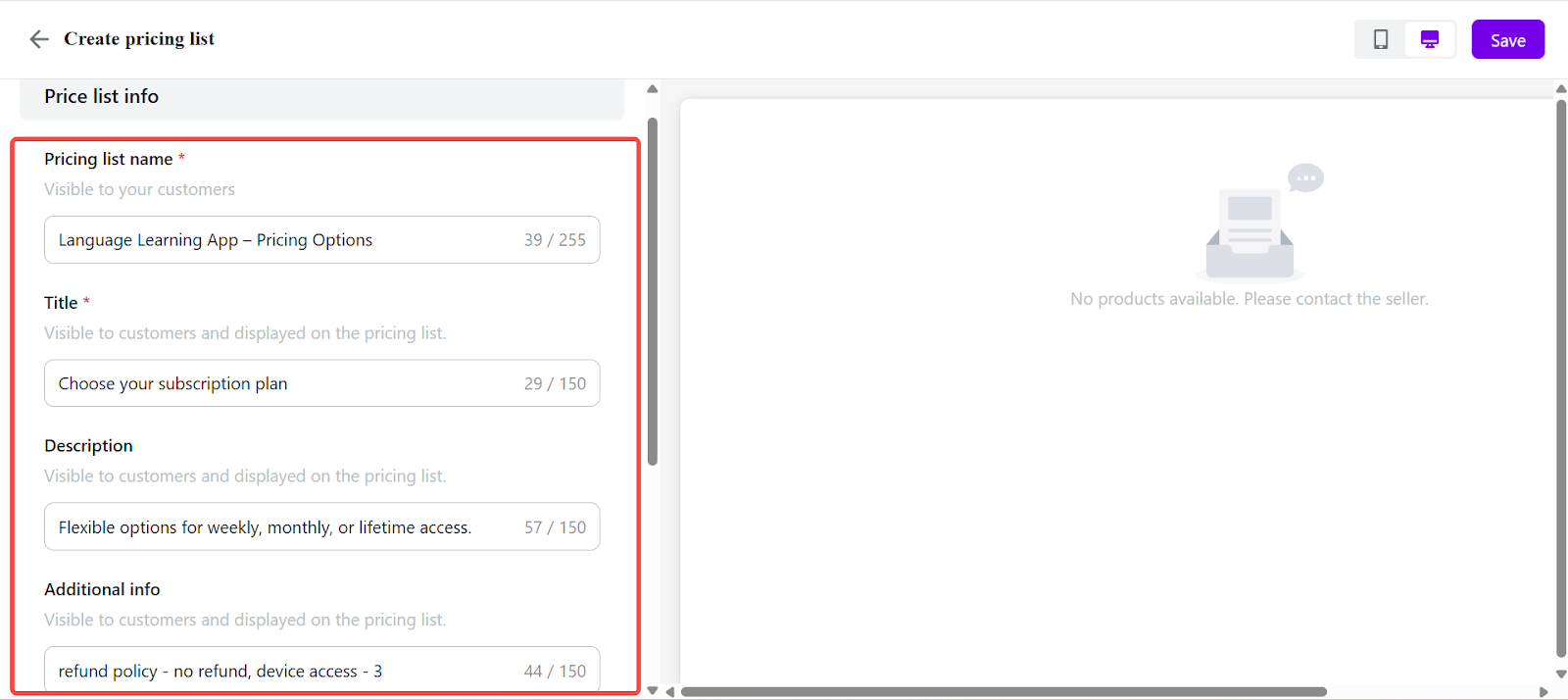
Enter basic information:
- Pricing list name: Internal label for admin reference.
- Title: Displayed on the pricing list page. (e.g., Choose your subscription plan)
- Description: Short introduction to highlight benefits. (e.g., Flexible options for weekly, monthly, or lifetime access.)
- Additional info (optional): Add supporting notes (e.g., refund policy, device access).
-
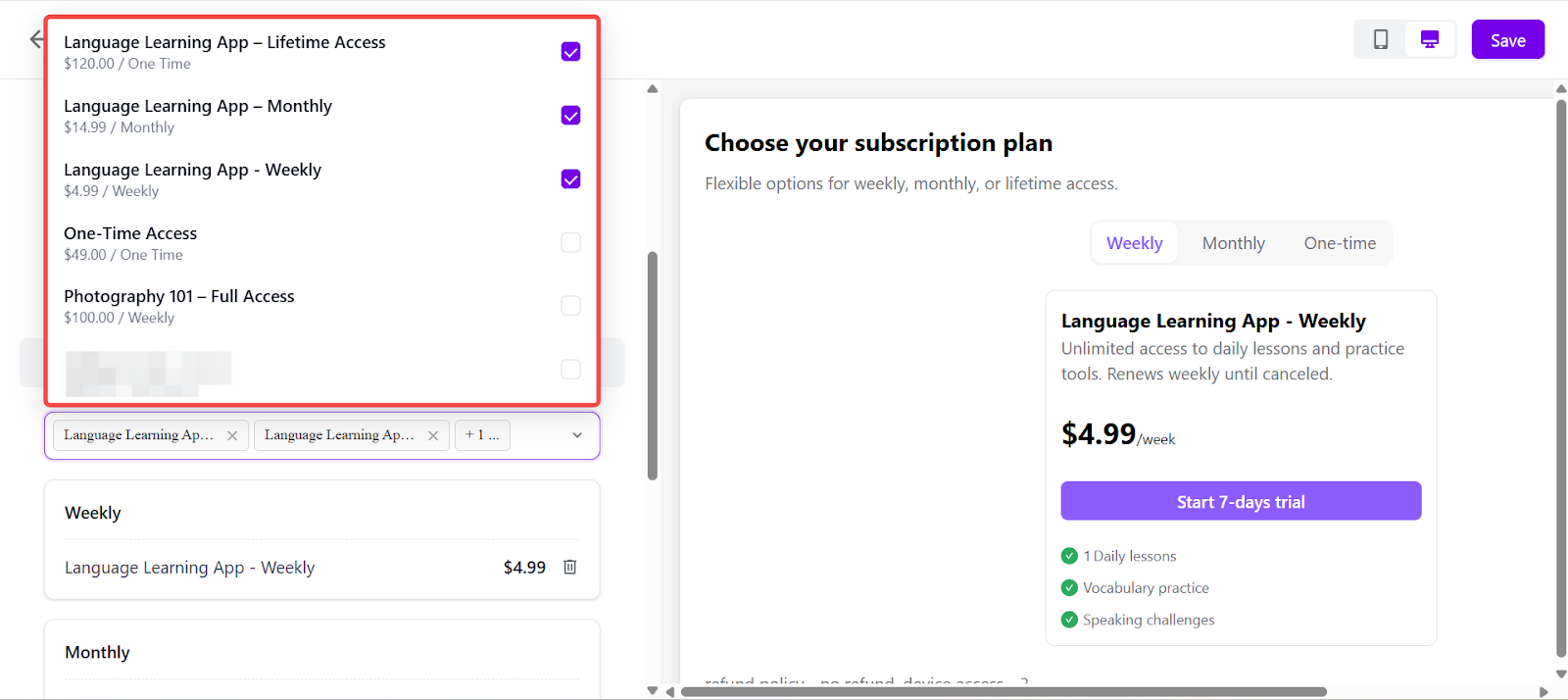
Add pricing plans: Under the Prices section, search and select existing pricing plans linked to your products. Each plan will appear as an option in the list.
-
Example:
- Language Learning App – Weekly ($4.99)
- Language Learning App – Monthly ($14.99)
- Language Learning App – Lifetime Access ($120.00)
-
Note: Each billing cycle (e.g., Weekly, Monthly, Yearly) supports up to 4 pricing plans per list.
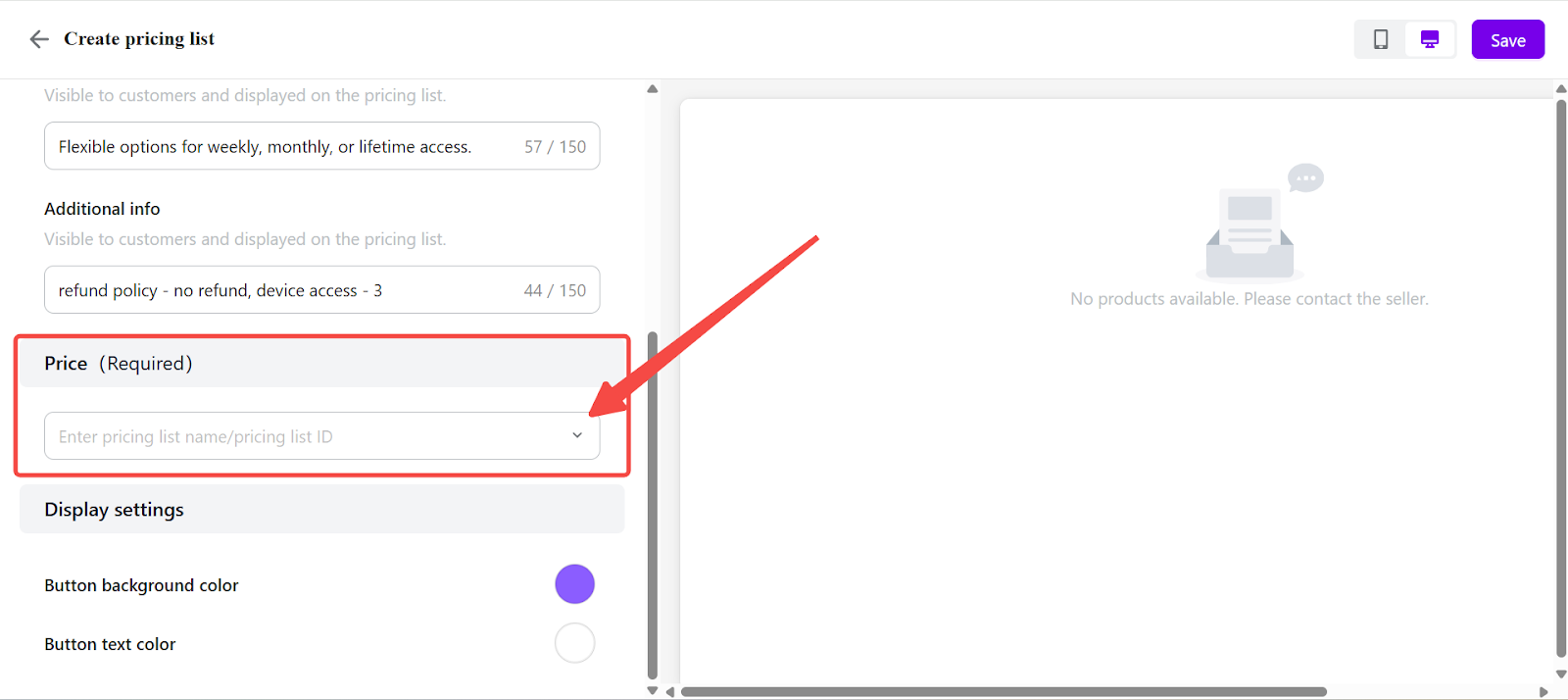
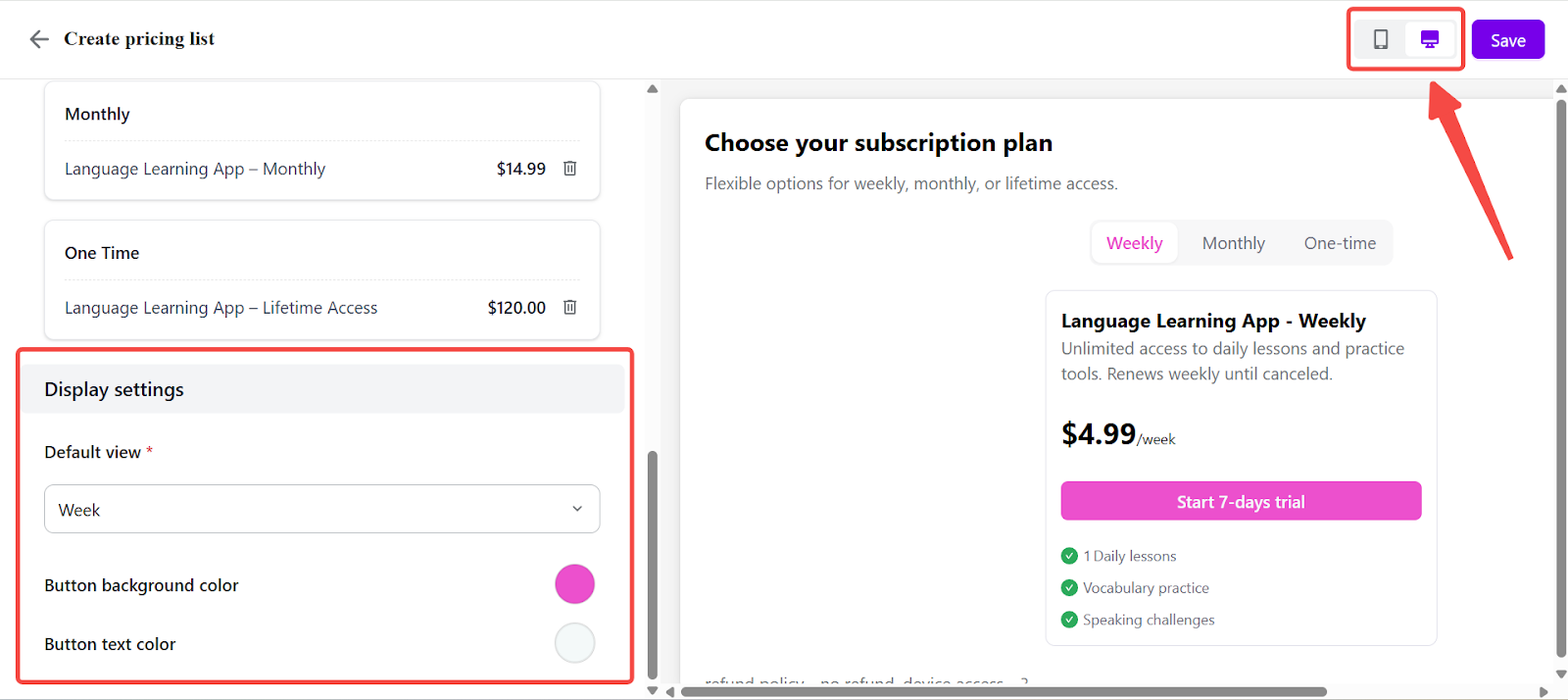
- Customize display: Adjust button background color and text color to match your brand. Preview how the list appears in both desktop and mobile layouts to ensure a consistent and professional presentation.
-
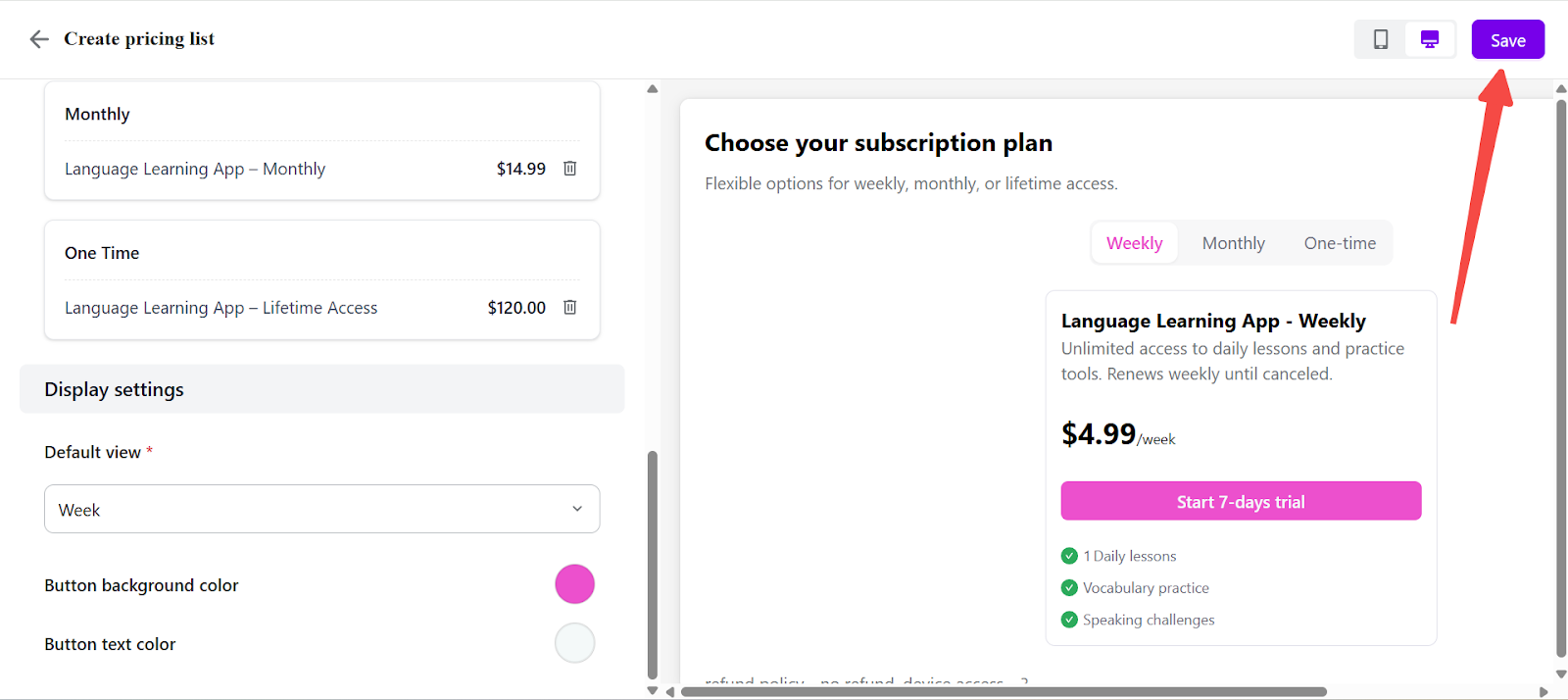
Click Save to activate the price list immediately. The system will automatically generate:
- Checkout link: Shareable via social media, group chats, or email.
- iframe embed code: For integration into a website or third-party page.
Price Lists allow merchants to consolidate multiple pricing options into a single checkout entry, simplifying promotion, improving plan clarity for customers, and supporting higher conversion rates.