The Share product feature in Subotiz allows merchants to retrieve a payment link for a pricing option and share it through email, social media, or other sales channels. Merchants can also set a default quantity and control whether customers can adjust the quantity at checkout to support different sales scenarios.
Enabling Product Sharing
Before using Share product, confirm that the corresponding pricing is Active. Product sharing is only available for active pricing.
Complete the Webhook configuration before sharing a payment link to ensure that payment result notifications, such as successful or failed payments, are received correctly.
For details about Webhook configuration, see:
Sharing a Product from the Prices List
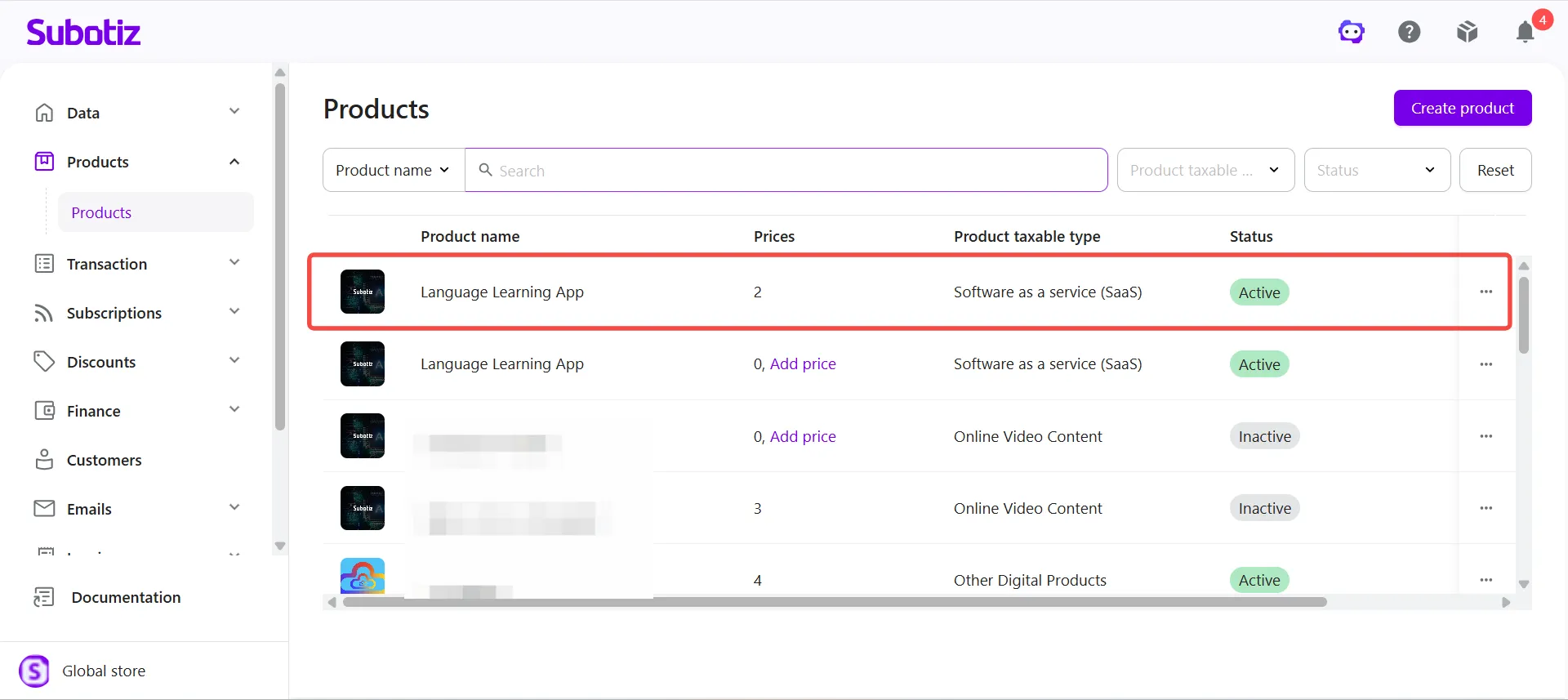
- Open the Prices tab: Log in to the Subotiz admin and go to Products > Products. Locate the product to share, then open its Prices tab.
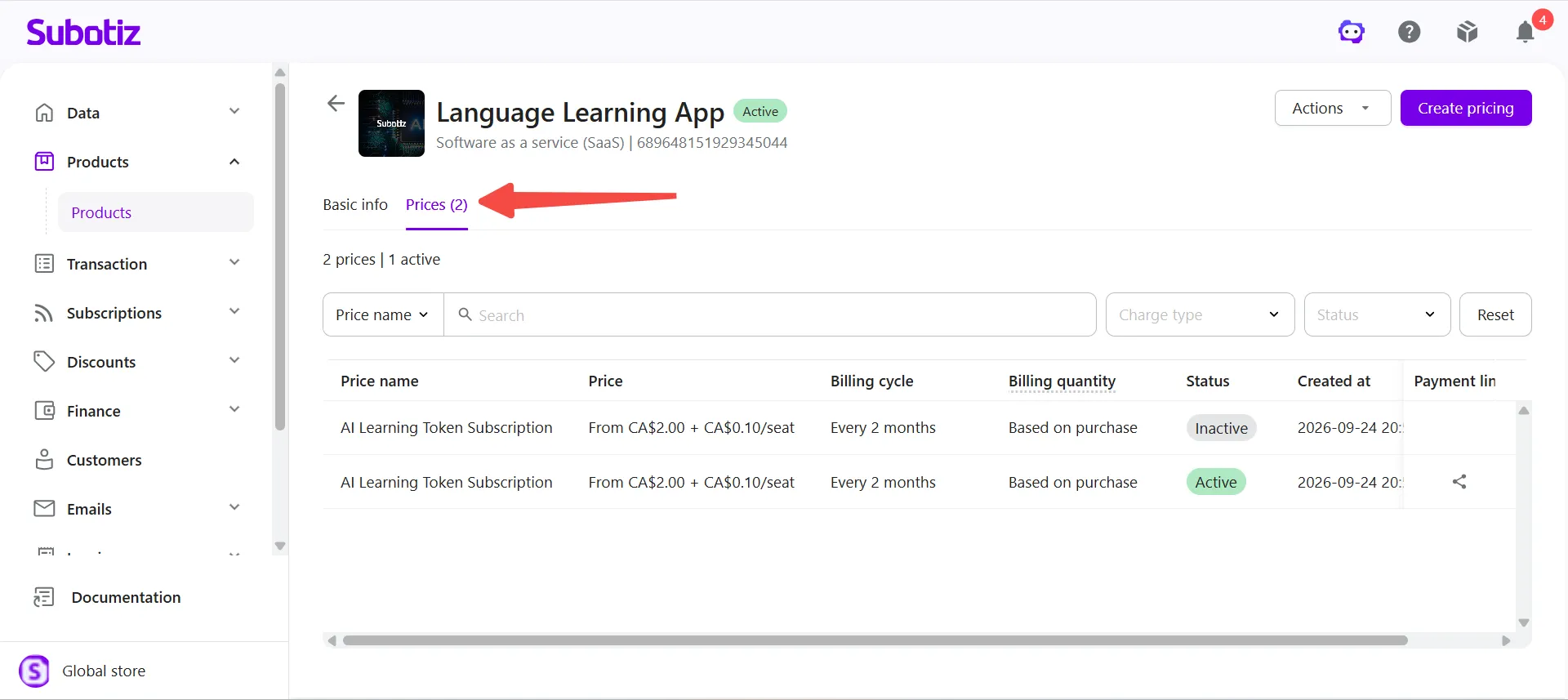
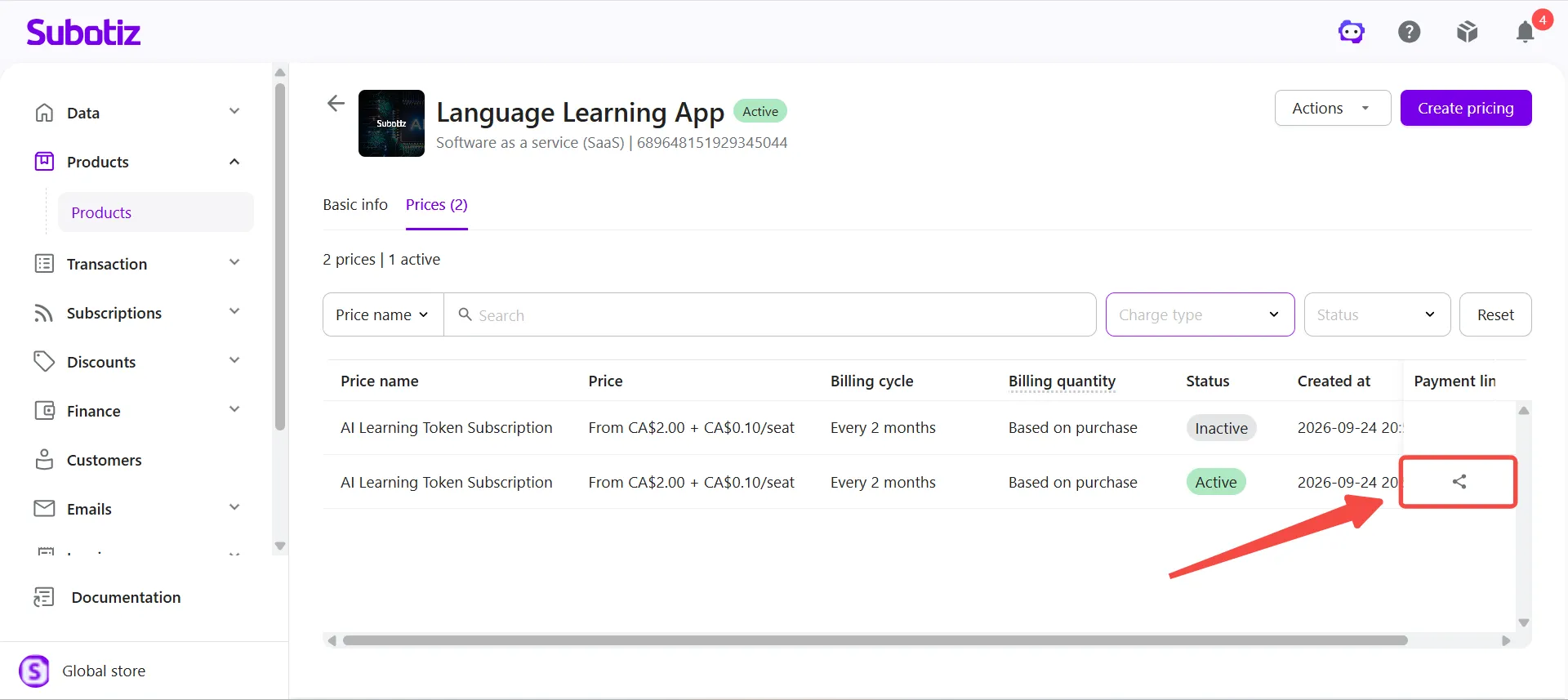
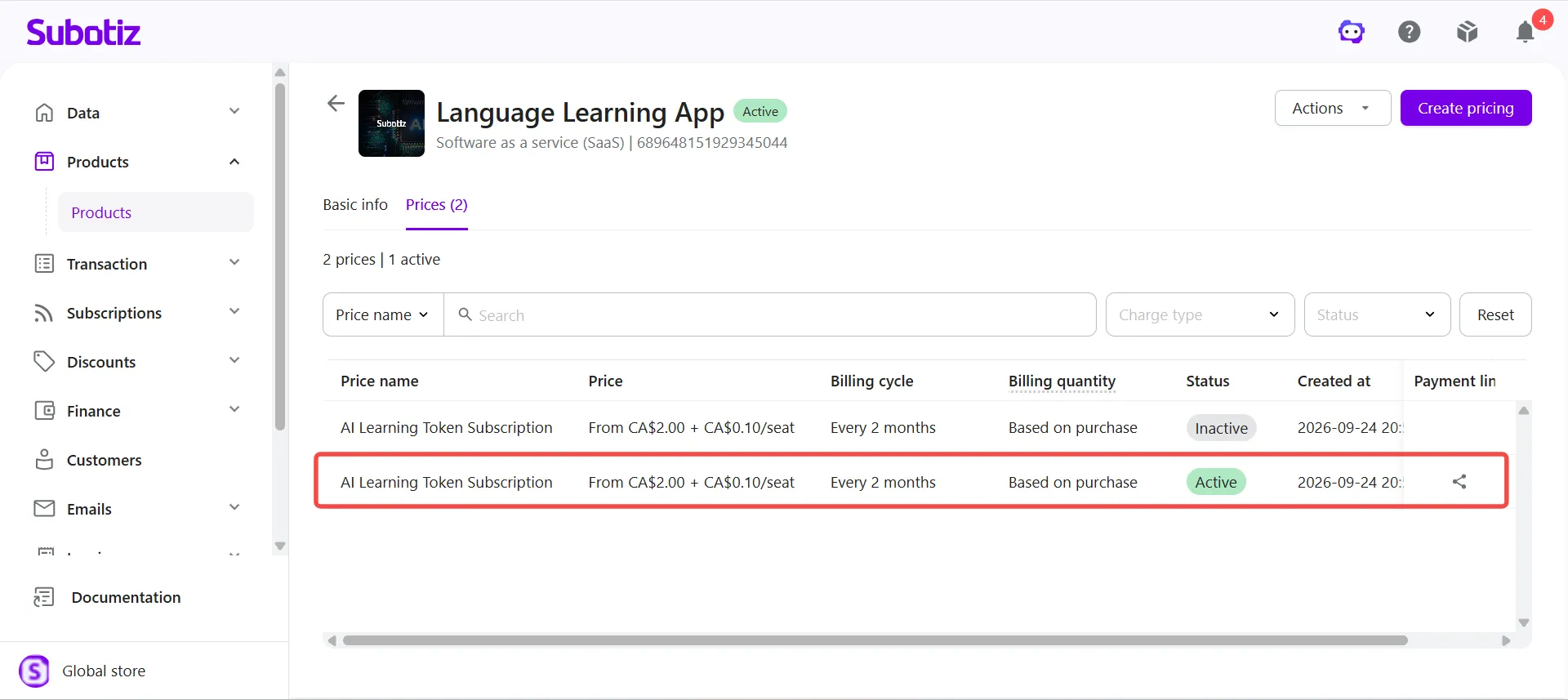
- Open the Share product window: Locate the pricing to share, then click the share icon in the Payment link column.
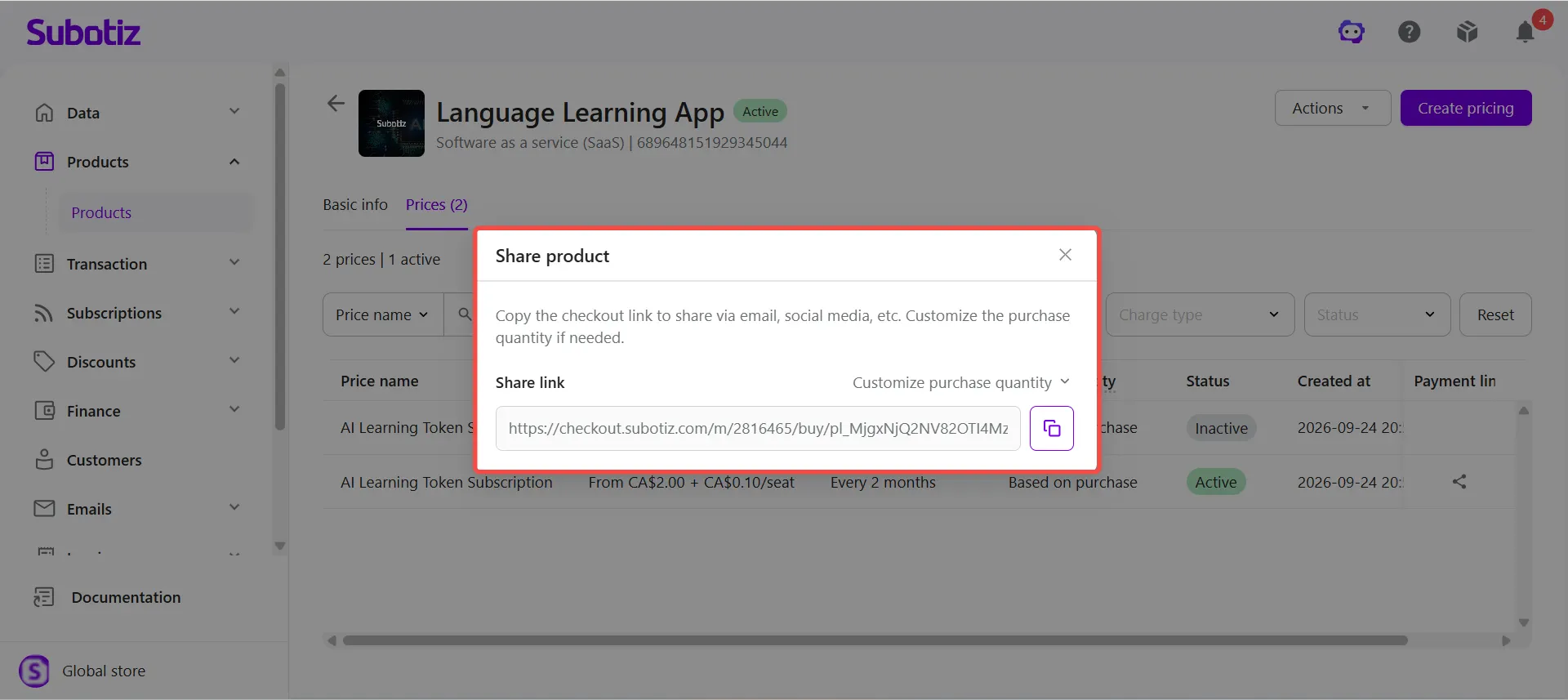
- Copy the payment link: In the Share product window, locate the Share link, then click the copy icon to copy the checkout link. Share the payment link through email, social media, or other sales channels. Customers who open the link are directed to the corresponding checkout page.
Customizing Purchase Quantity
Set the default quantity customers use when they open the payment link based on the sales scenario.
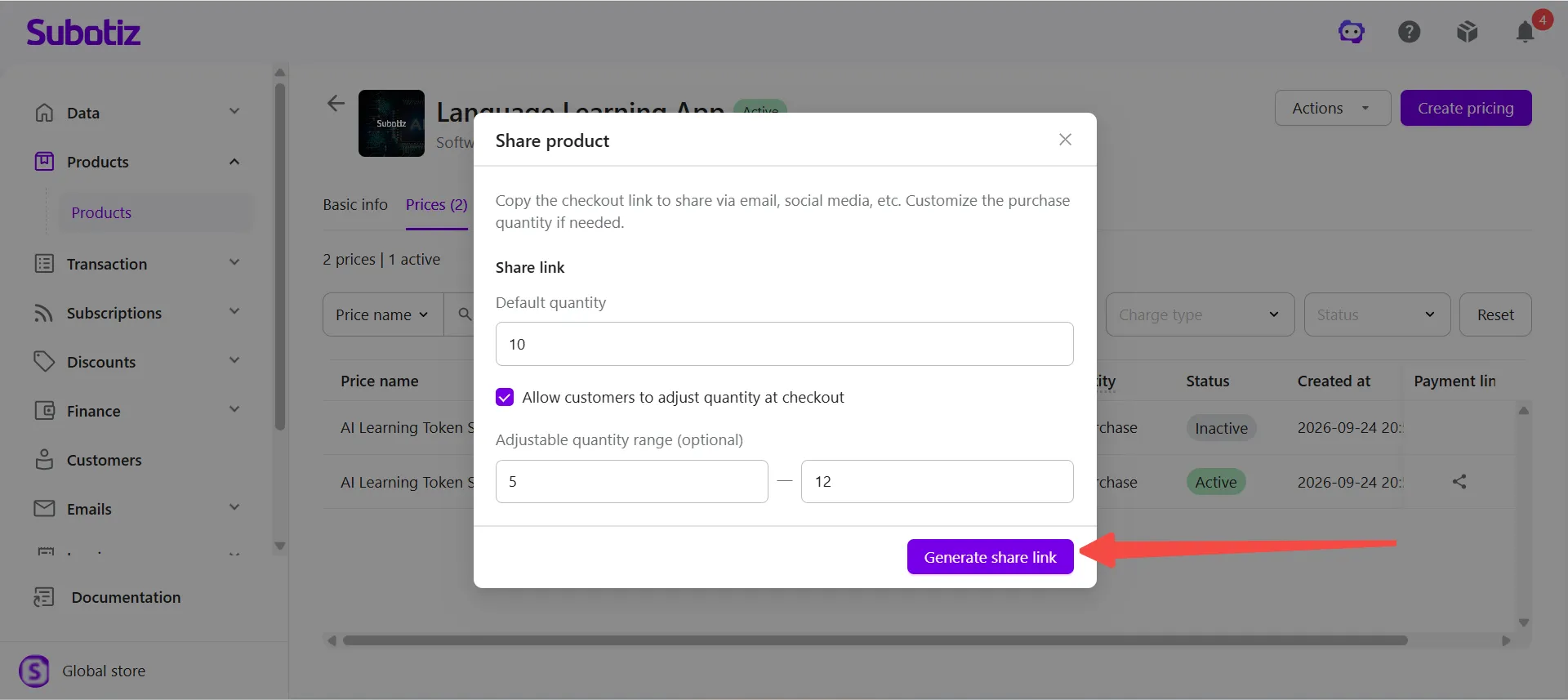
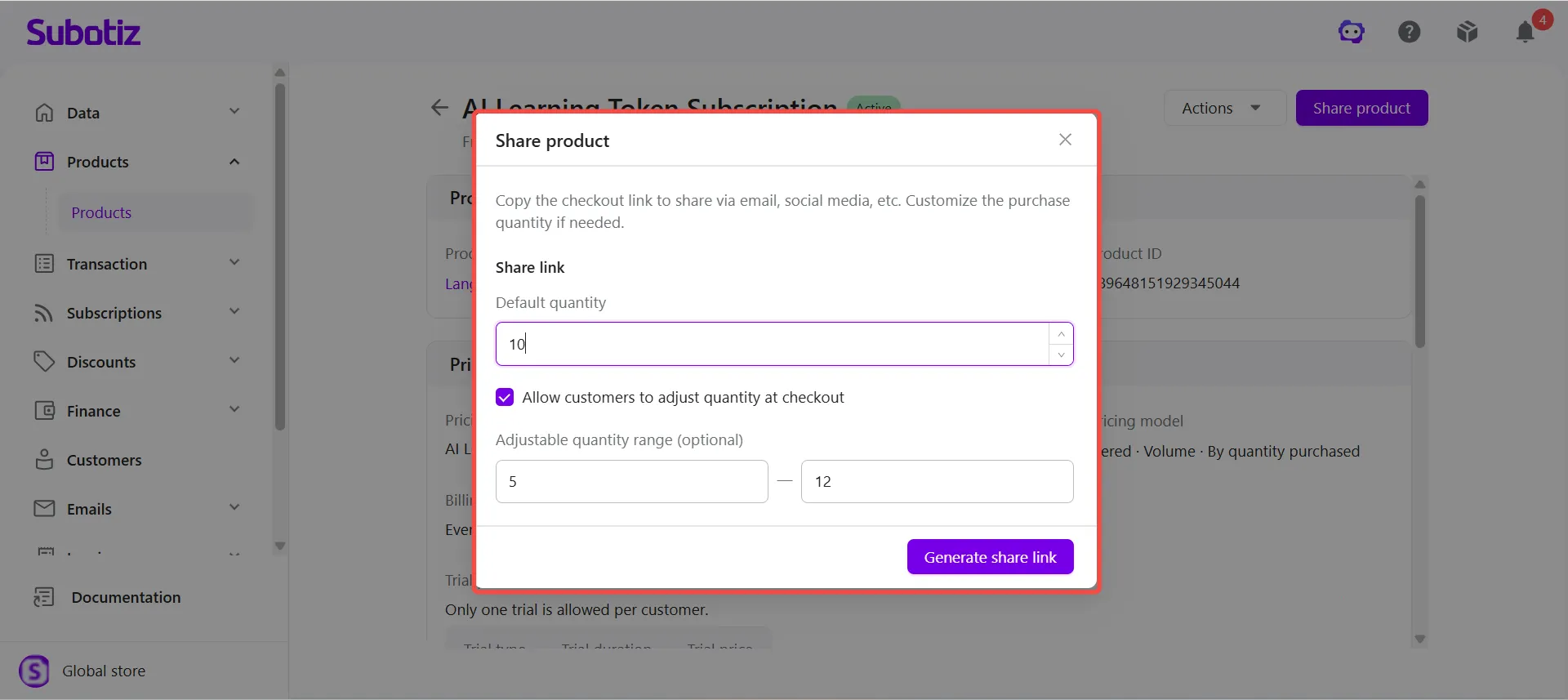
- Open quantity settings: In the Share product window, click Customize purchase quantity.
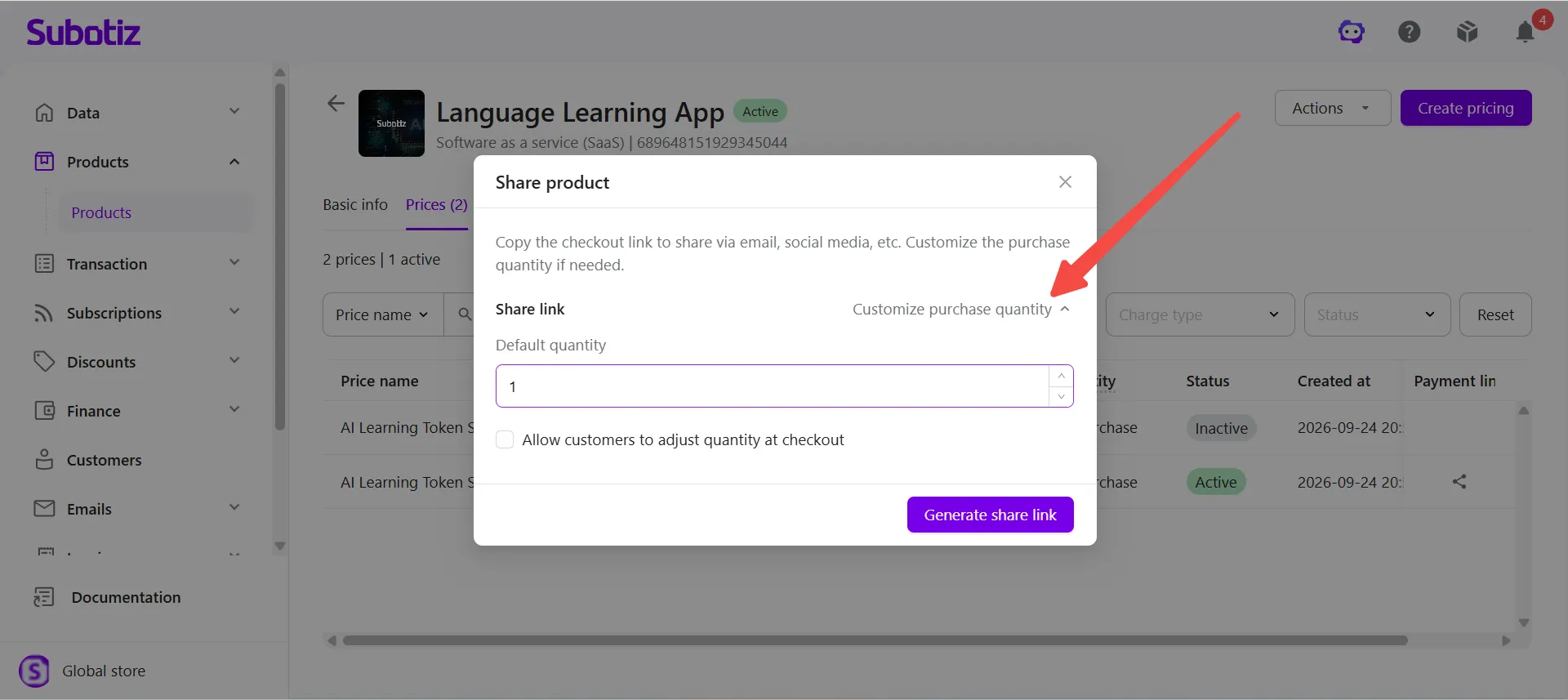
- Set the default quantity: Enter the quantity customers use when they open the payment link in Default quantity.
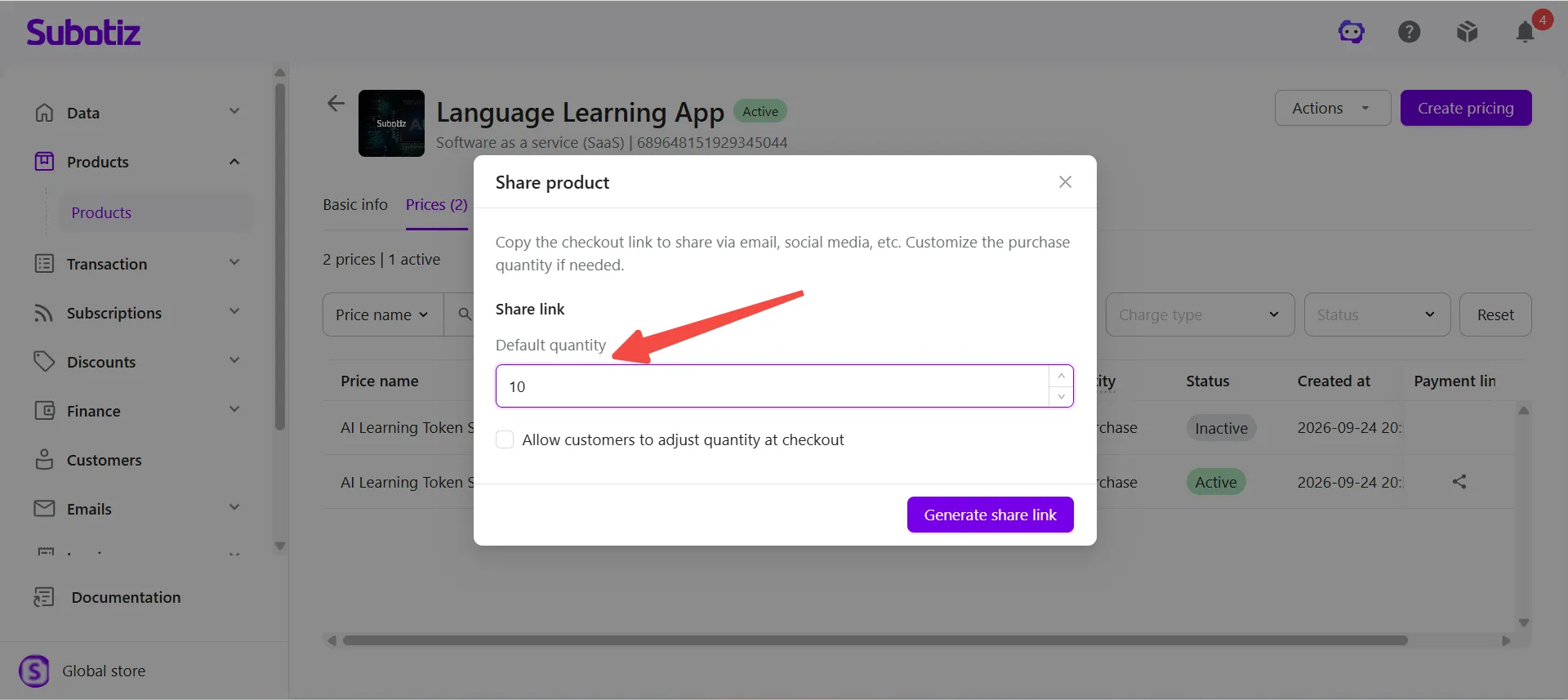
- Allow customers to adjust quantity: Select Allow customers to adjust quantity at checkout to allow customers to change the purchase quantity on the checkout page.
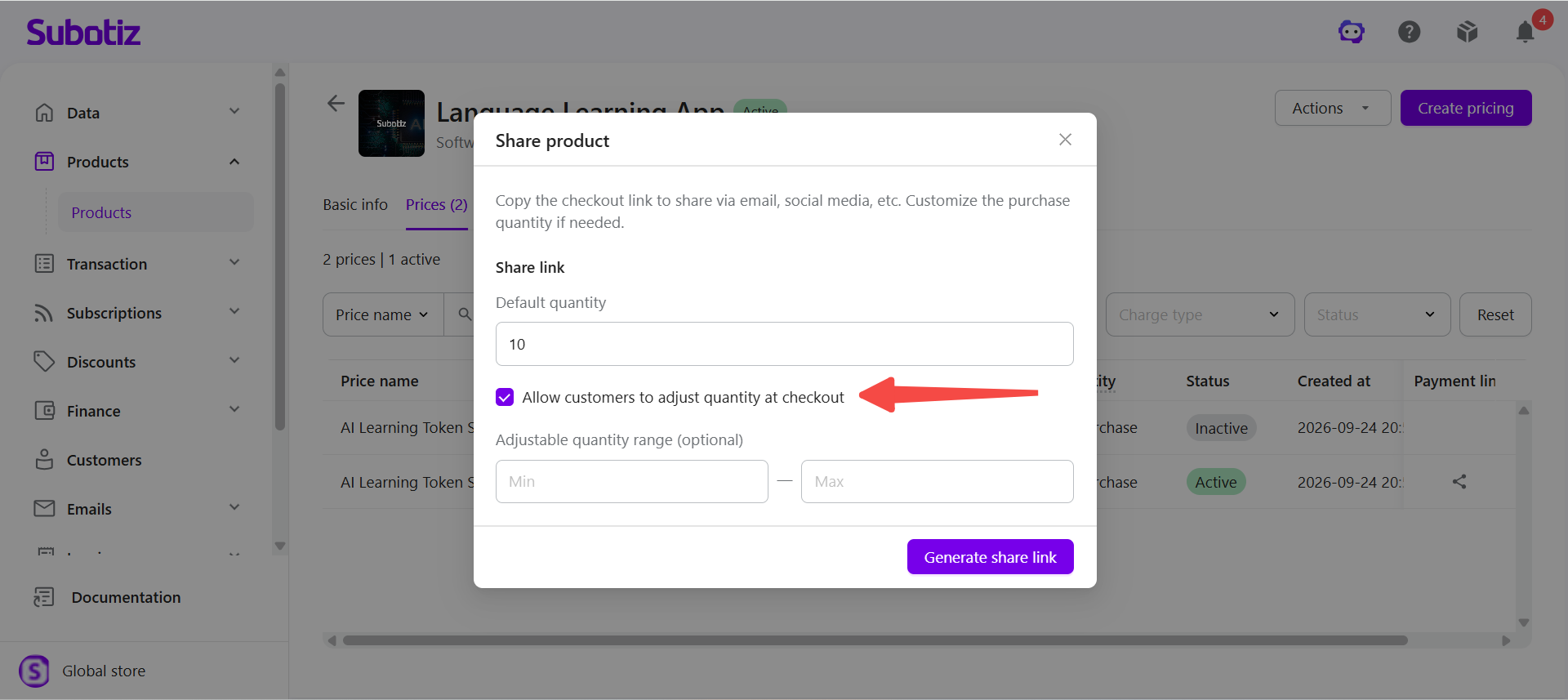
- Set the adjustable quantity range: After selecting Allow customers to adjust quantity at checkout, optionally enter Min and Max under Adjustable quantity range (optional) to limit the quantities customers can select at checkout.
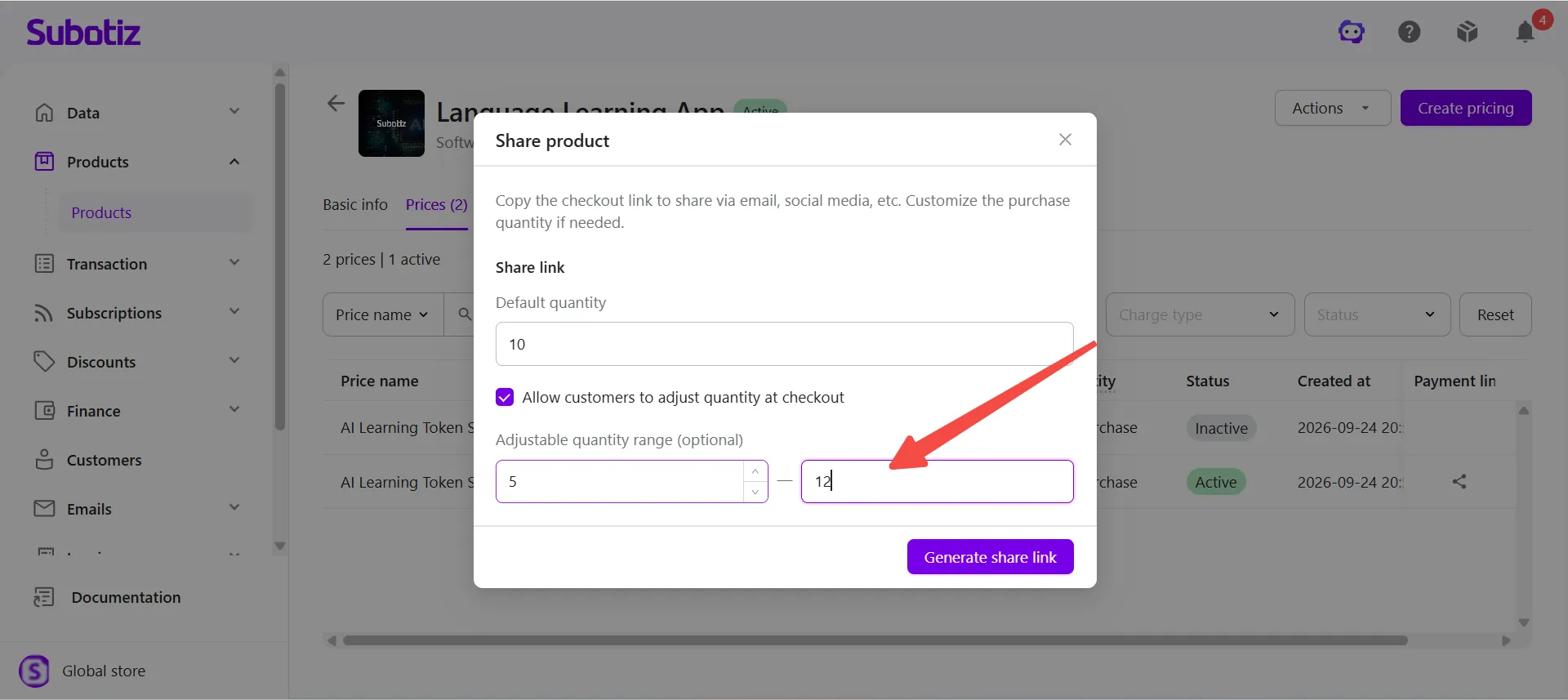
- Generate the share link: After configuring the purchase quantity, click Generate share link.
Viewing Purchase Quantity Settings at Checkout
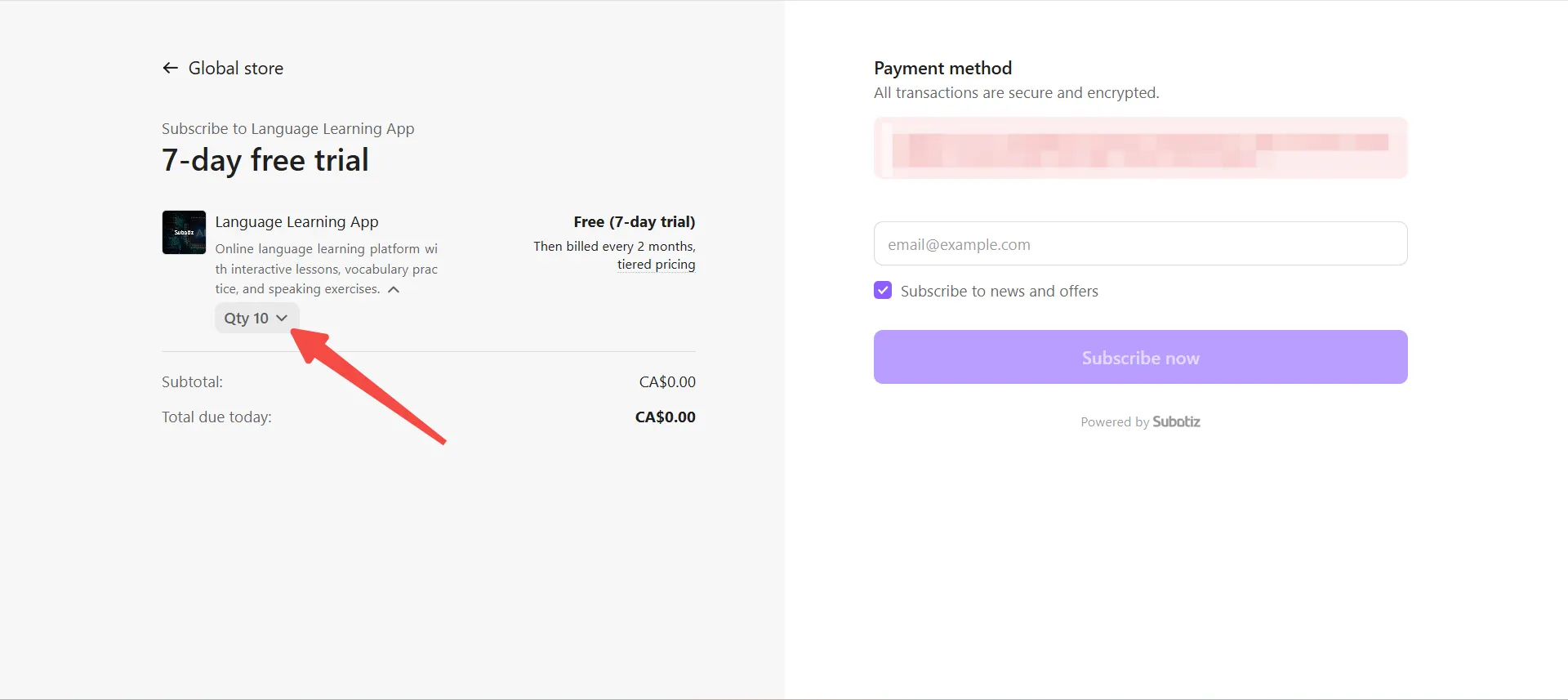
After generating the payment link, review the checkout page to see how the purchase quantity settings appear to customers.
- View the default quantity: When a customer opens the payment link, the checkout page displays the default quantity configured by the merchant.
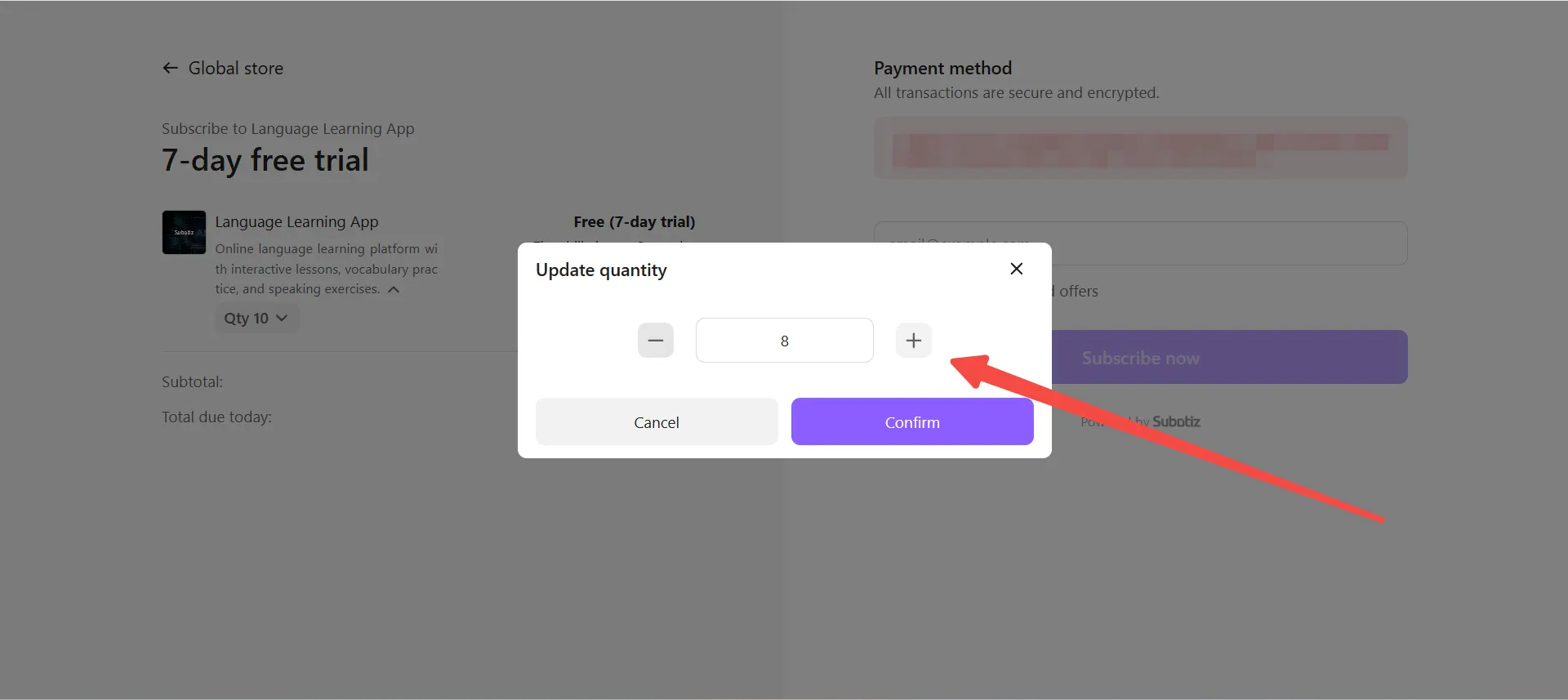
- Adjust the purchase quantity: If Allow customers to adjust quantity at checkout is enabled, customers can select the quantity and change it within the configured range. After the quantity is updated, the checkout page updates the corresponding amount.
Sharing a Product from Pricing Details
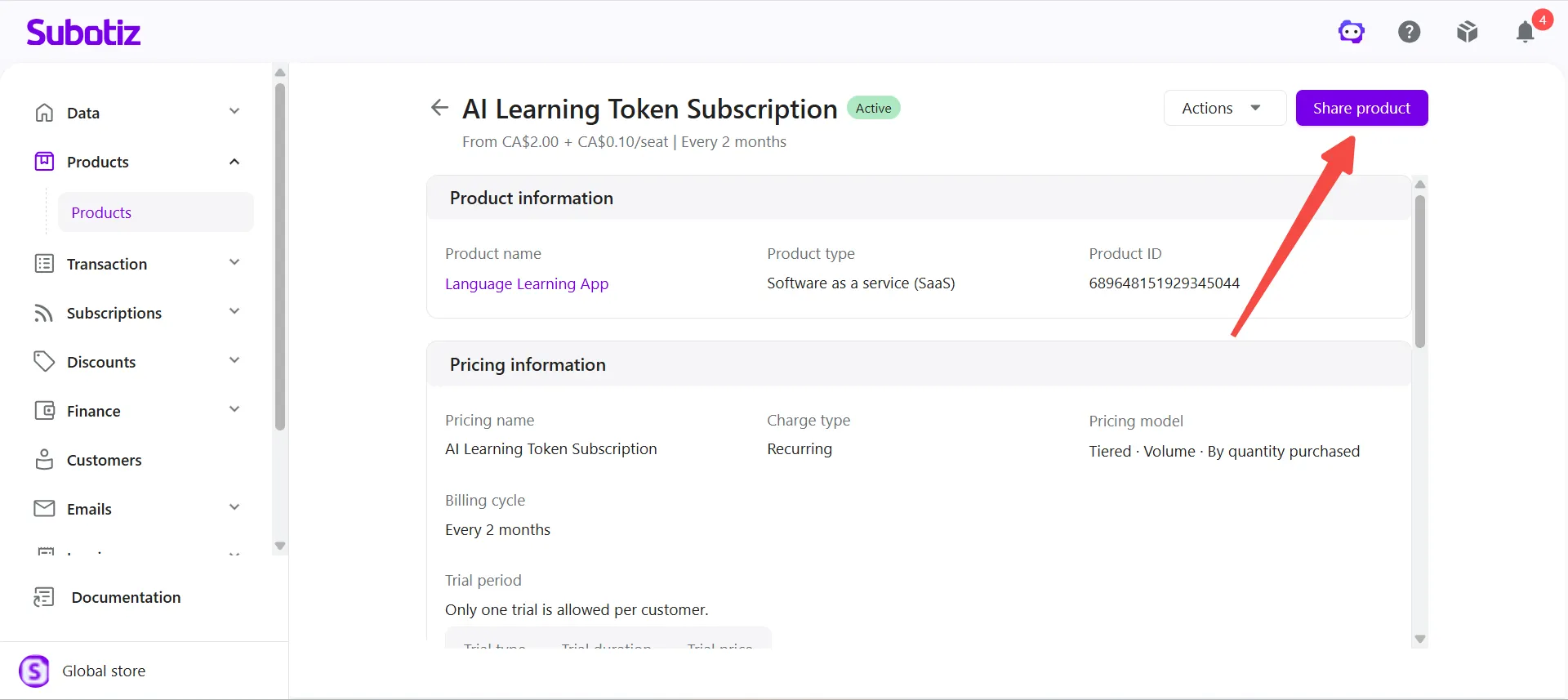
Merchants can also share a product directly from the pricing details page.
- Open pricing details: On the product's Prices tab, locate the pricing to share, then click it to open the details page.
-
Open the Share product window: Click Share product in the upper-right corner of the pricing details page.
- Get the payment link: In the Share product window, copy the Share link directly, or customize the purchase quantity and generate a new share link.
The Share product feature allows merchants to quickly retrieve a payment link for a pricing option and configure the default quantity and adjustable quantity range based on different sales scenarios. The generated payment link provides customers with direct access to checkout.