Subotiz Webhooks send real-time event notifications (such as payments, subscriptions, and refunds) to your backend systems. These notifications can be used to trigger automated processing and keep data in sync.
Webhook Setup Flow
Webhooks are configured through a step-by-step setup process, where you define the endpoint and select which events to receive.
- Access the Webhooks page: Navigate to Developer > Webhooks to open the Webhooks management interface. This page displays all existing Webhook endpoints and allows you to create, update, and manage them.
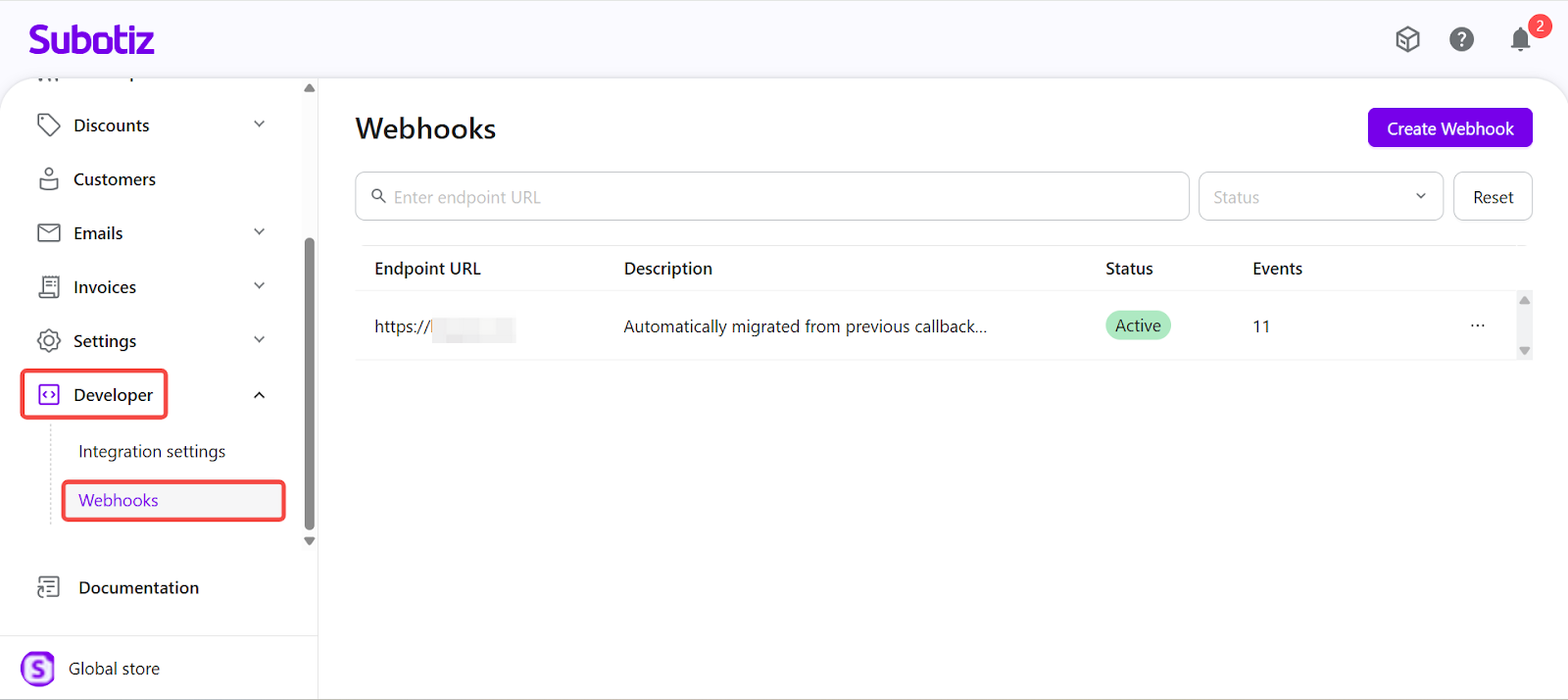
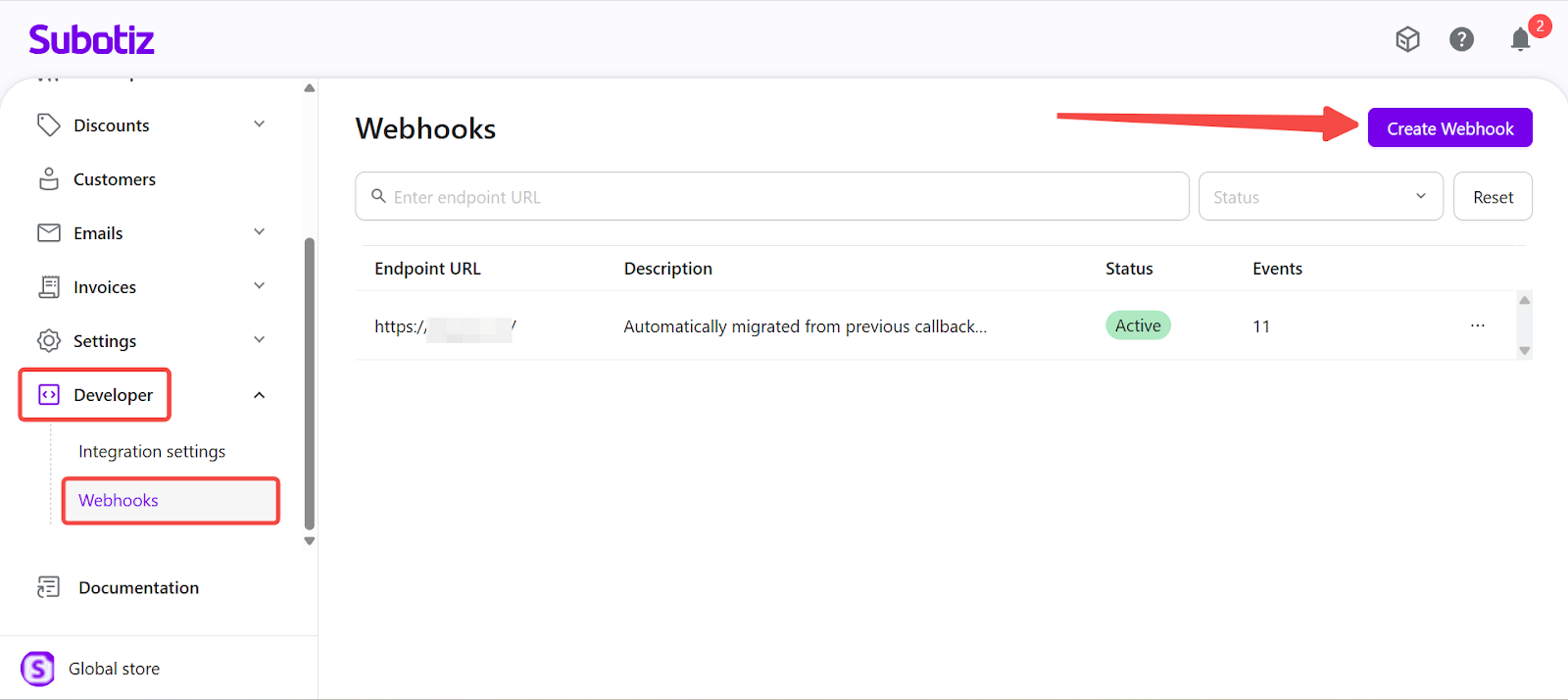
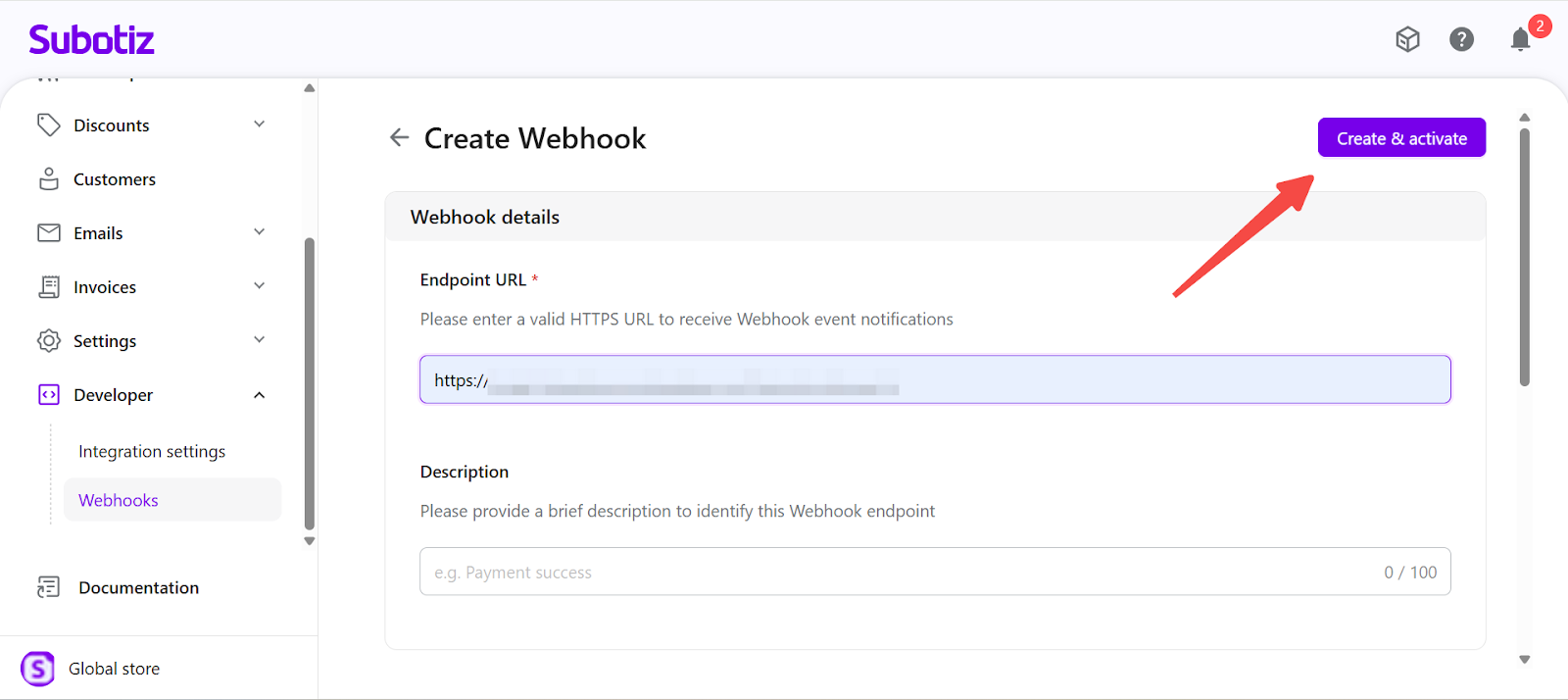
- Create a new Webhook: Select Create Webhook to open the Webhook configuration screen.
- Configure Webhook details: Provide the required information for event delivery.
- Endpoint URL: Enter a valid HTTPS URL that can receive Webhook event notifications. The endpoint must:
- Be publicly accessible
- Accept server-to-server requests
- Be managed by a trusted backend service
- Description (optional) : Enter a short label to identify the purpose of the endpoint, such as:
- Payment processing
- Subscription lifecycle synchronization
- Internal reporting
The description is used for identification and management purposes only.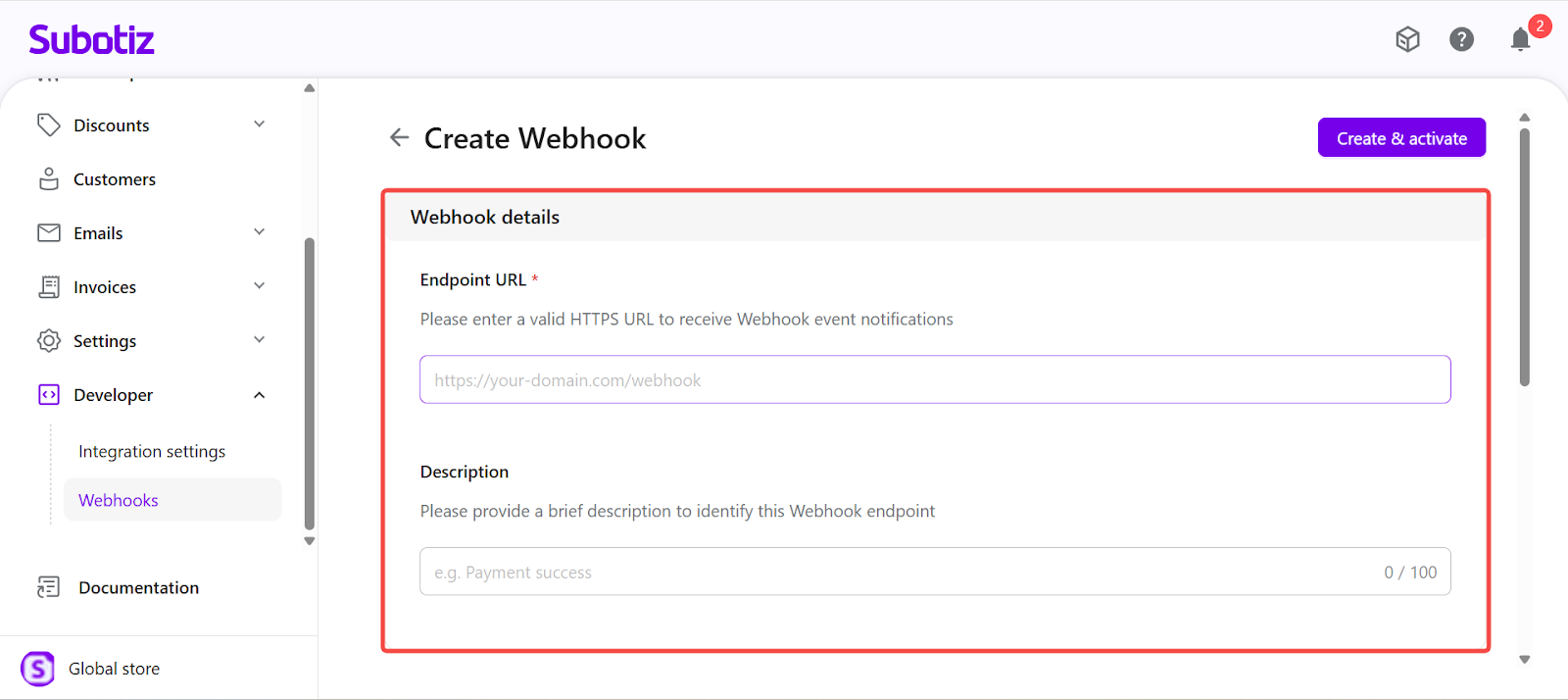
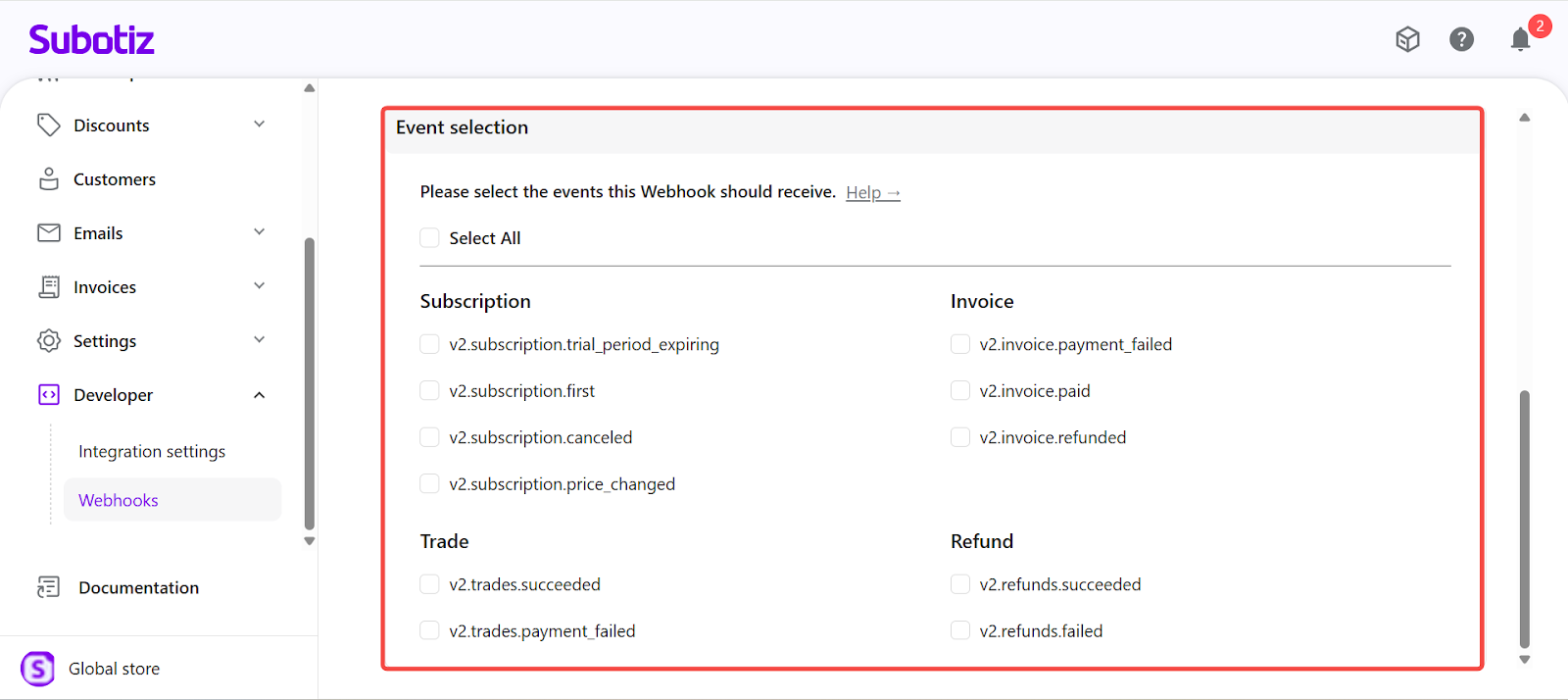
- Select event subscriptions: Choose the events this Webhook endpoint should receive. Only selected events are delivered.
- Subscription
- Trial period expiration
- First subscription charge
- Subscription cancellation
- Subscription price changes
- Invoice
- Invoice payment succeeded
- Invoice payment failed
- Invoice refunded
- Trade
- Transaction succeeded
- Transaction payment failed
- Refund
- Refund succeeded
- Refund failed
Select events based on your business needs:- For payment handling, select transaction-related events.
- For subscription management, include subscription and invoice events.
- Create and activate the endpoint: Select Create & activate to save and enable the endpoint.Once activated:
- The endpoint is registered immediately.
- Event delivery begins based on the selected subscriptions.
- The endpoint appears in the Webhooks list with an Active status.
Managing Existing Webhooks
After creation, Webhook endpoints remain fully manageable from the Webhooks list.
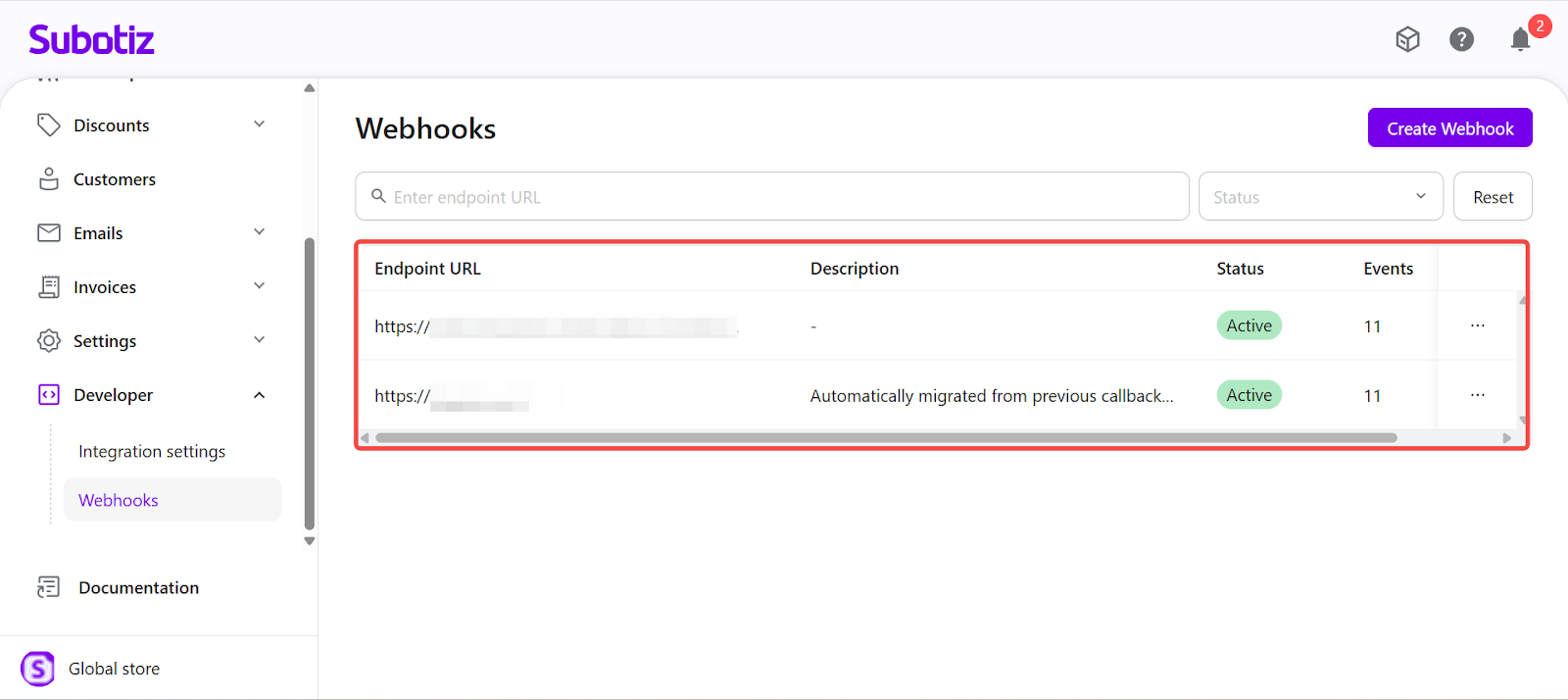
- Edit Webhook configuration: Select Edit from the endpoint action menu to update:
- Endpoint URL
- Description
- Subscribed event types
Changes take effect immediately after saving.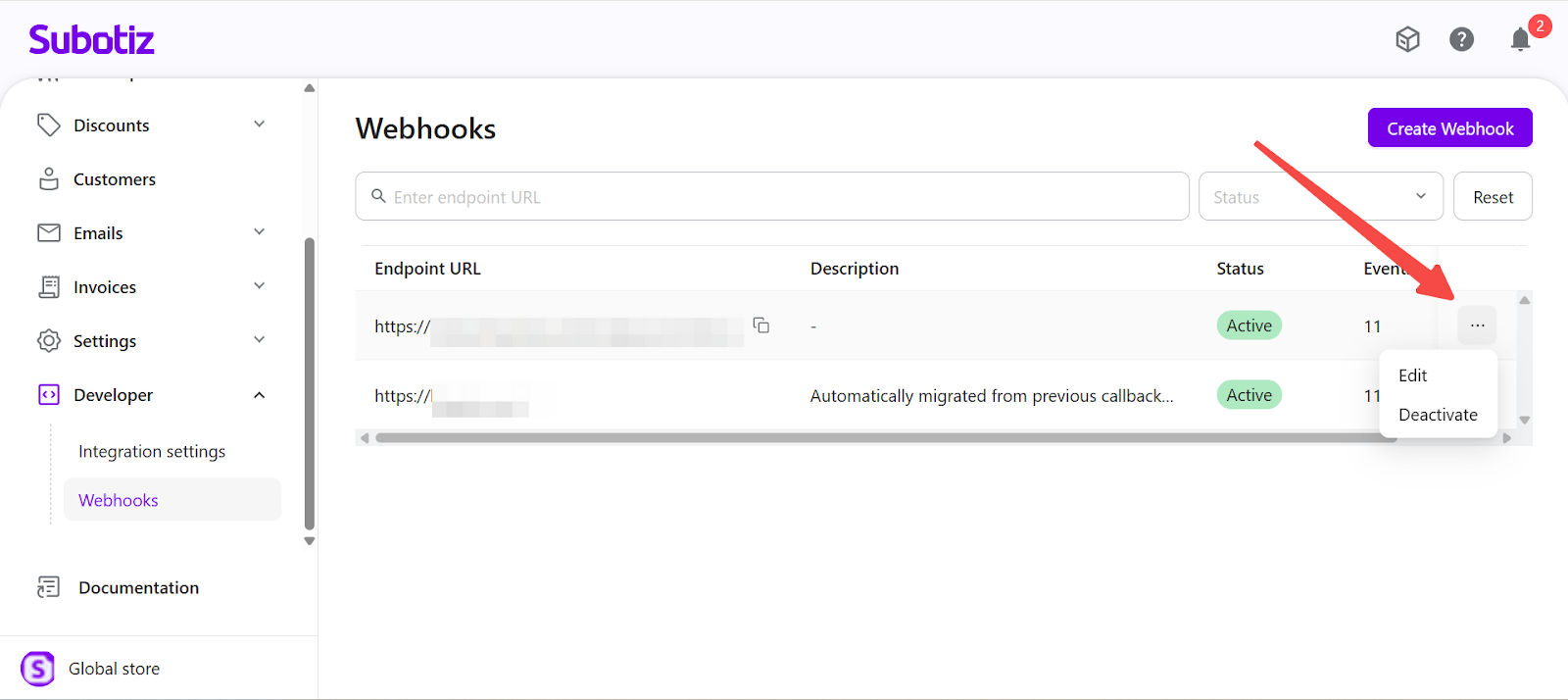
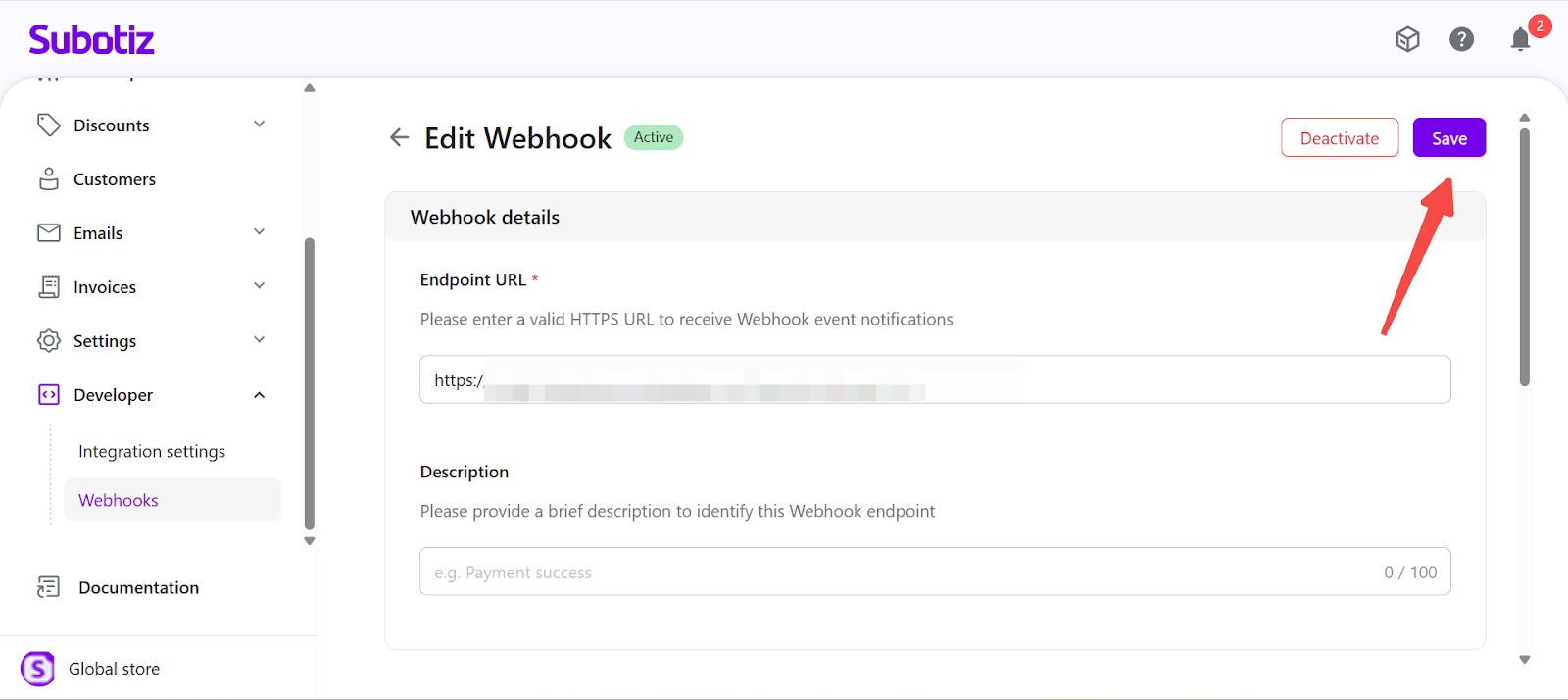
- Pause event delivery: Select Deactivate to pause event delivery for an endpoint.
- No events are sent to the endpoint.
- Configuration and event selections are preserved.
- Delivery can be resumed later without reconfiguration.
This is commonly used during system maintenance or endpoint migrations.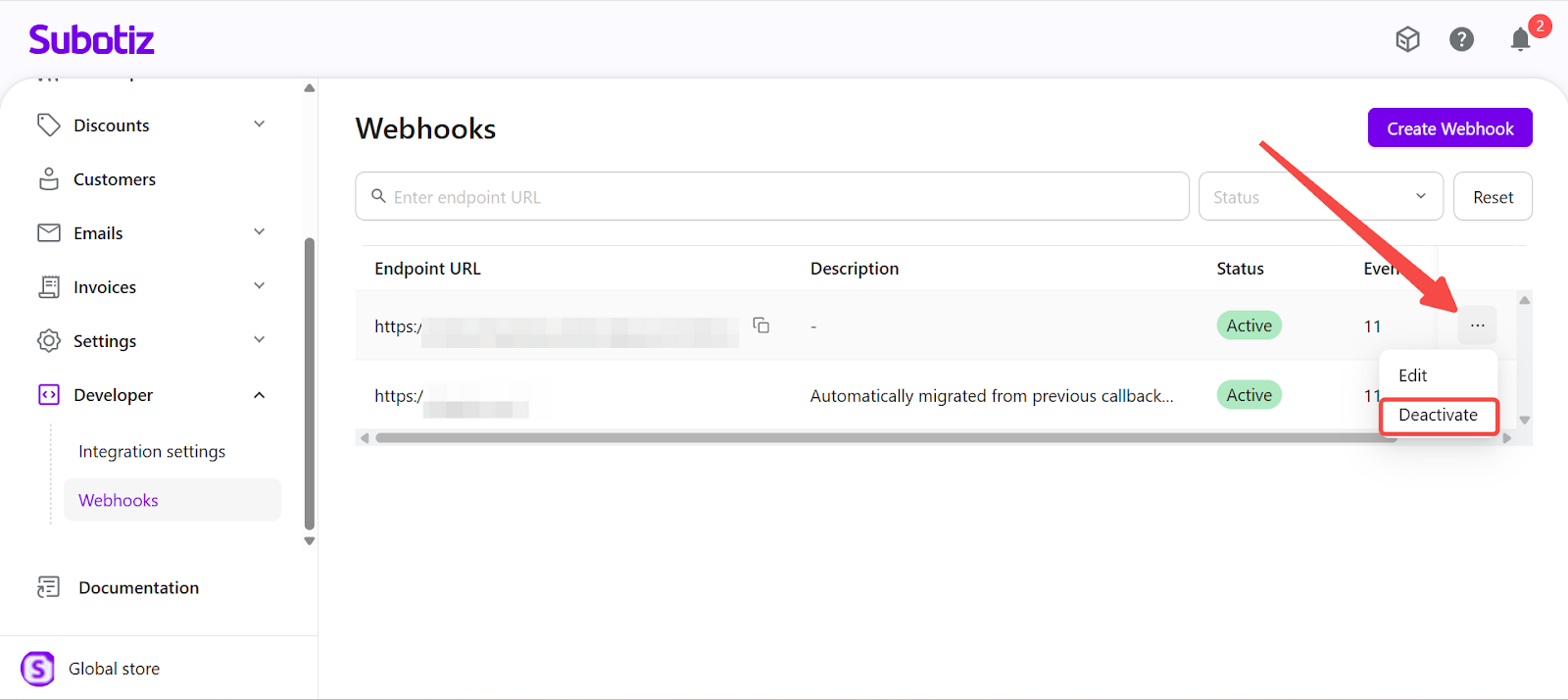
Webhook List Controls
The Webhooks list includes built-in controls for managing multiple endpoints efficiently.
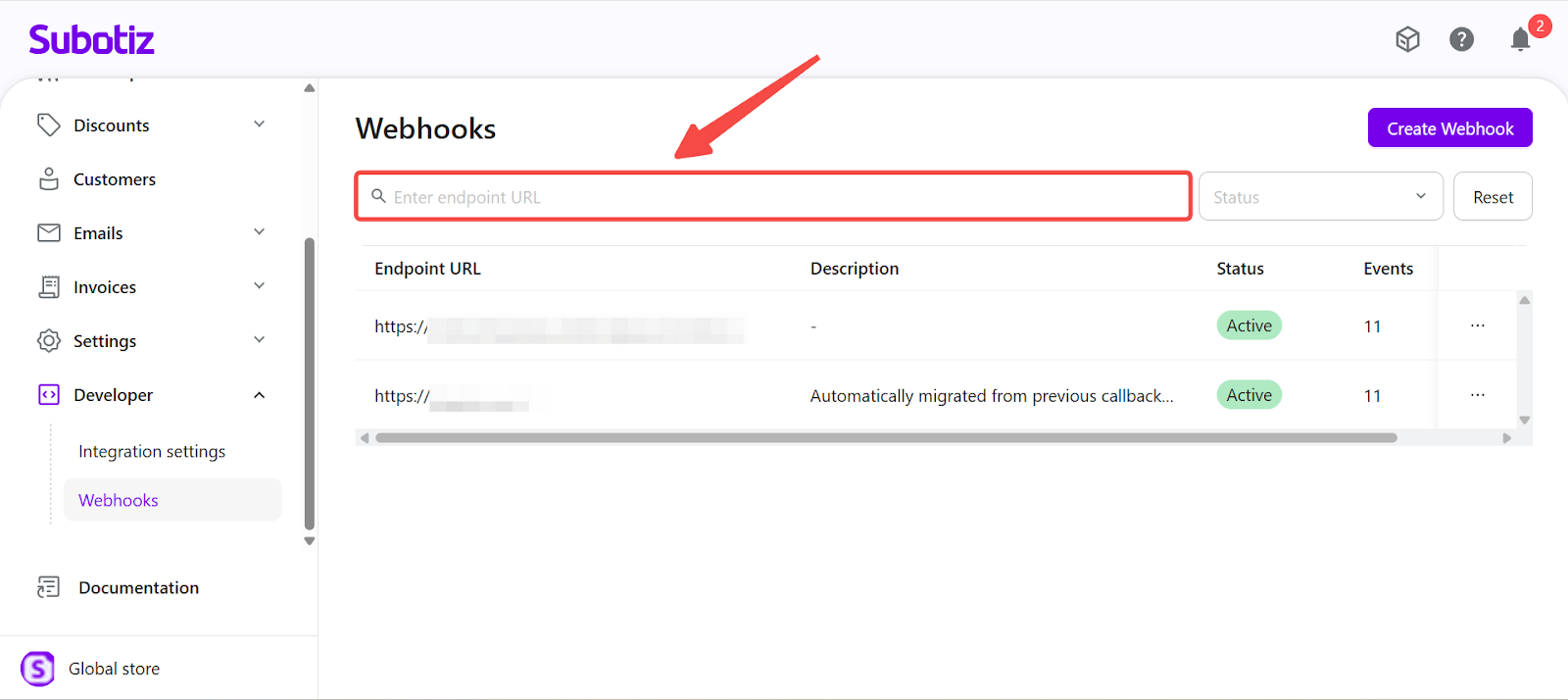
- Search by endpoint URL: Enter part or all of an endpoint URL to narrow the list to matching entries.
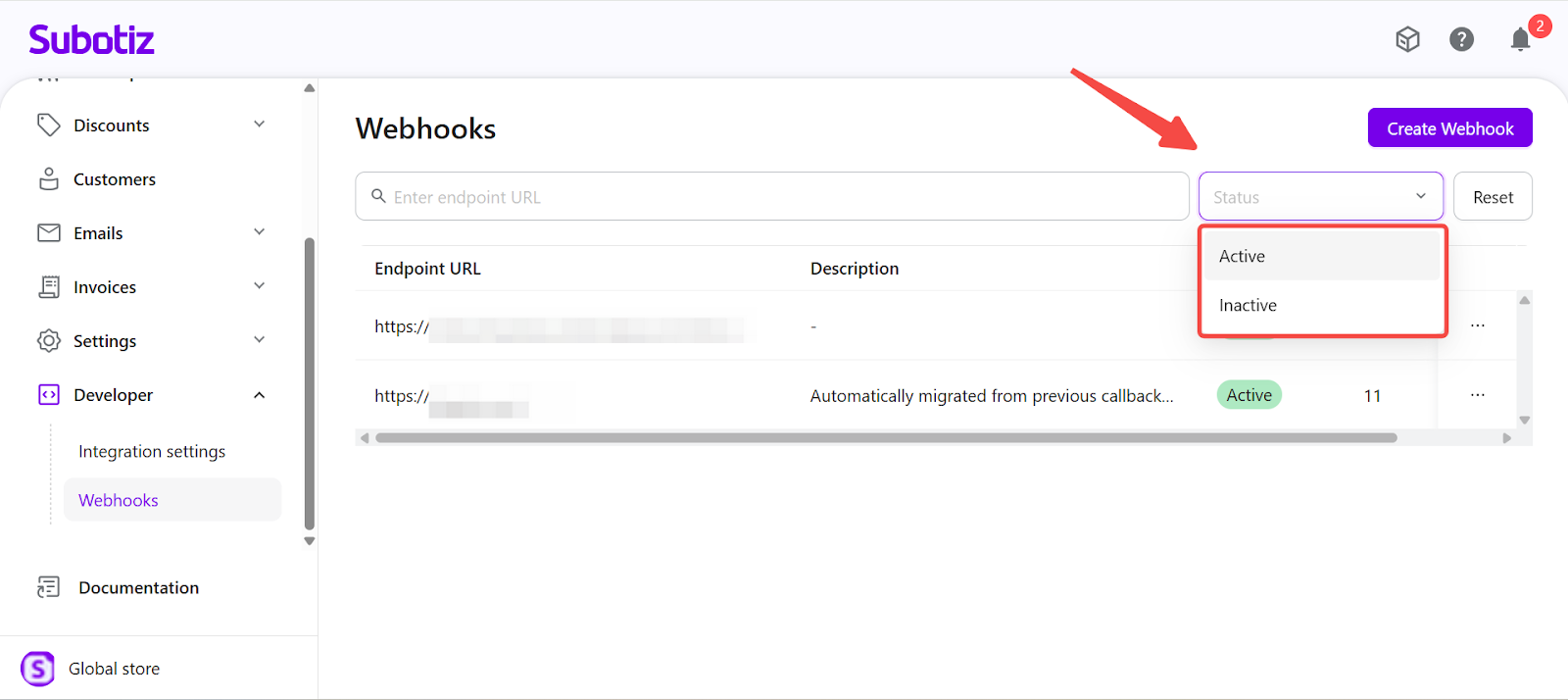
- Filter by status: Use the Status filter to display:
- Active endpoints currently receiving events.
- Inactive endpoints with delivery paused.
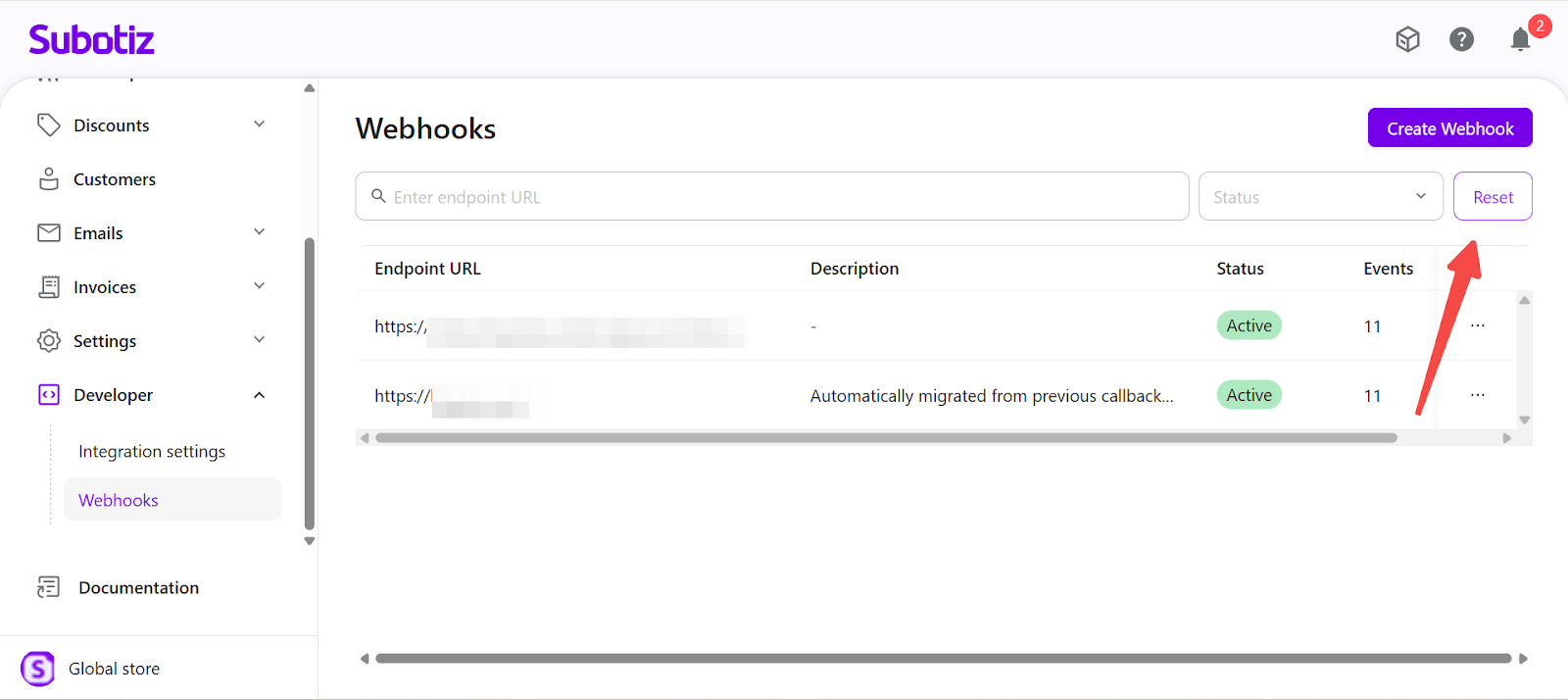
- Reset list view: Select Reset to clear all search and filter conditions and return to the full Webhooks list.
Best Practices
- Each Webhook endpoint receives only the events explicitly selected during setup.
- Endpoints remain visible and configurable even when inactive.
- Access to Webhook creation and management should be restricted to authorized technical users.
- Each Subotiz account supports a maximum of 10 Webhook endpoints.
Webhooks in Subotiz are configured through a step-by-step process to define endpoints and event subscriptions. Once set up, Webhooks deliver events in real time and support automated backend processing.