The trade orders page in Subotiz centralizes all billing activity, including subscription activations, renewals, usage-based charges, and one-time purchases. Merchants can search, filter, review order details, and initiate refunds to monitor payment outcomes and maintain accurate, auditable billing records.
Accessing the Trade Orders Page
-
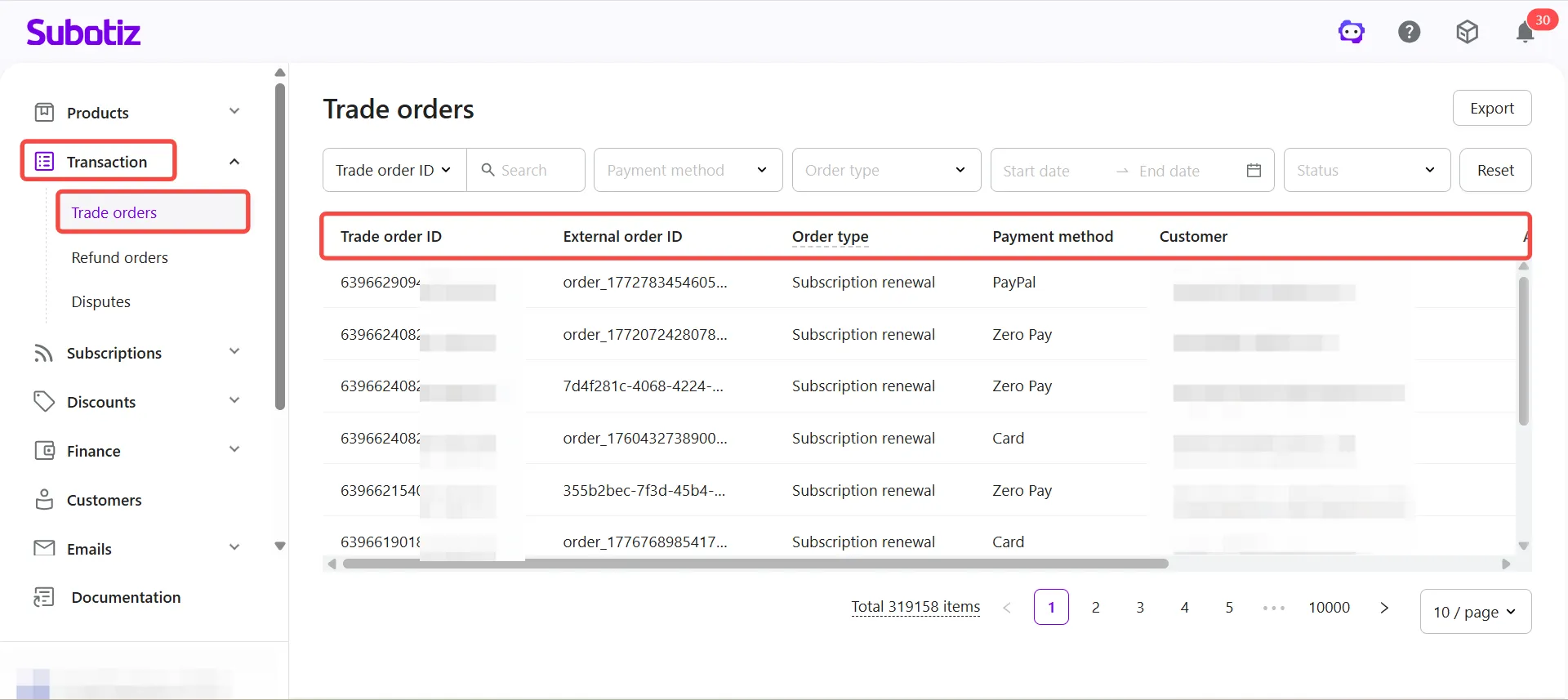
View Trade orders: Go to Transaction > Trade orders in the Subotiz admin. The system displays all trade orders in a list view.Each row includes the following fields:
- Trade order ID: Unique identifier generated by Subotiz.
- External order ID: Corresponding order reference from the merchant's system, if available.
- Order type: One-time payment, subscription activation, subscription renewal, or usage-based charge.
- Payment method: Such as Card, PayPal, or Apple Pay.
- Customer: Customer email address, or internal customer ID if no email is available.
- Amount: Billed amount for the transaction.
- Created at: Timestamp of order creation.
- Status: Current processing state of the trade order.
-
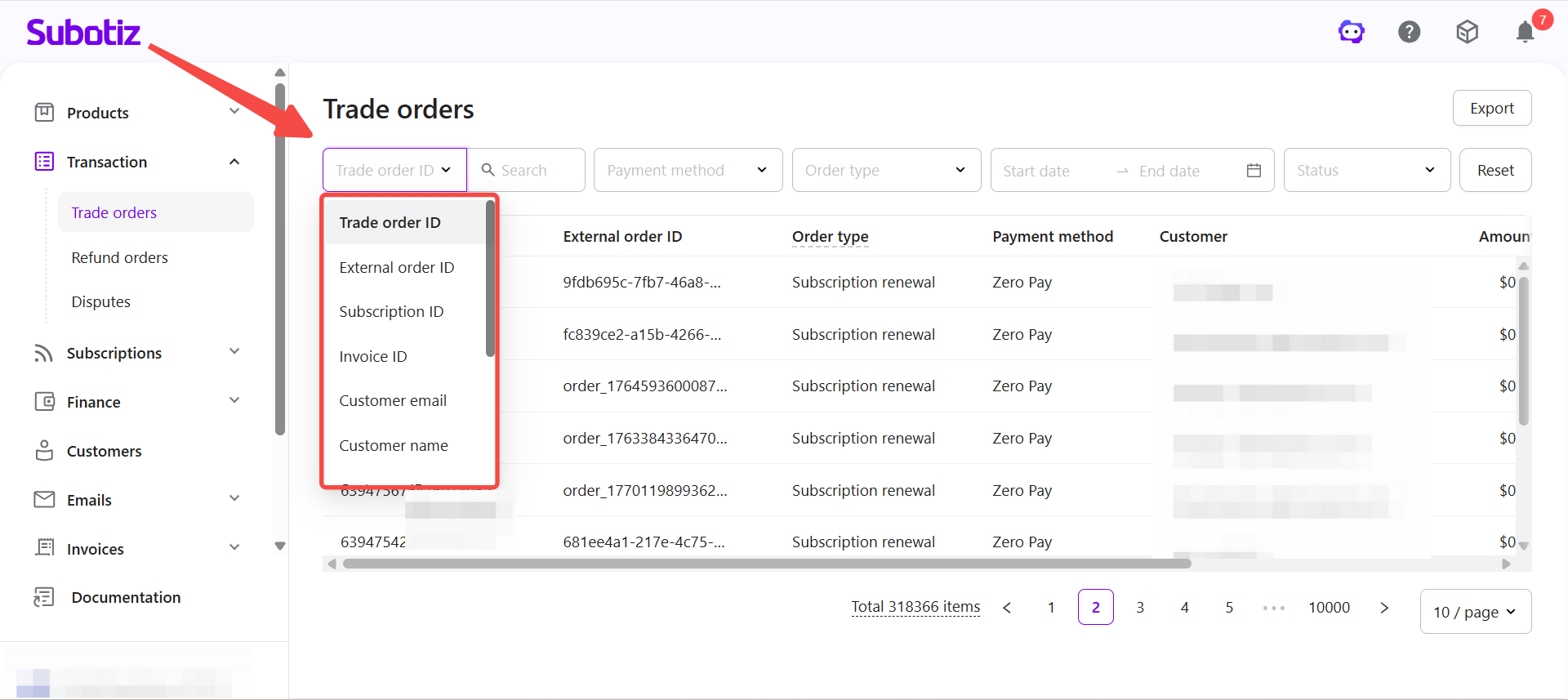
Searching Trade Orders: Select a search type from the dropdown next to the search bar, then enter a keyword.Supported search types include:
- Trade order ID
- External order ID
- Subscription ID
- Invoice ID
- Customer email
- Customer name
- Customer ID
- Product name
- Product ID
- Pricing name
- Pricing ID
- Card last four digits
-
Filtering Trade Orders: Use filter options on the list page to narrow down results. Multiple filters can be applied together.
-
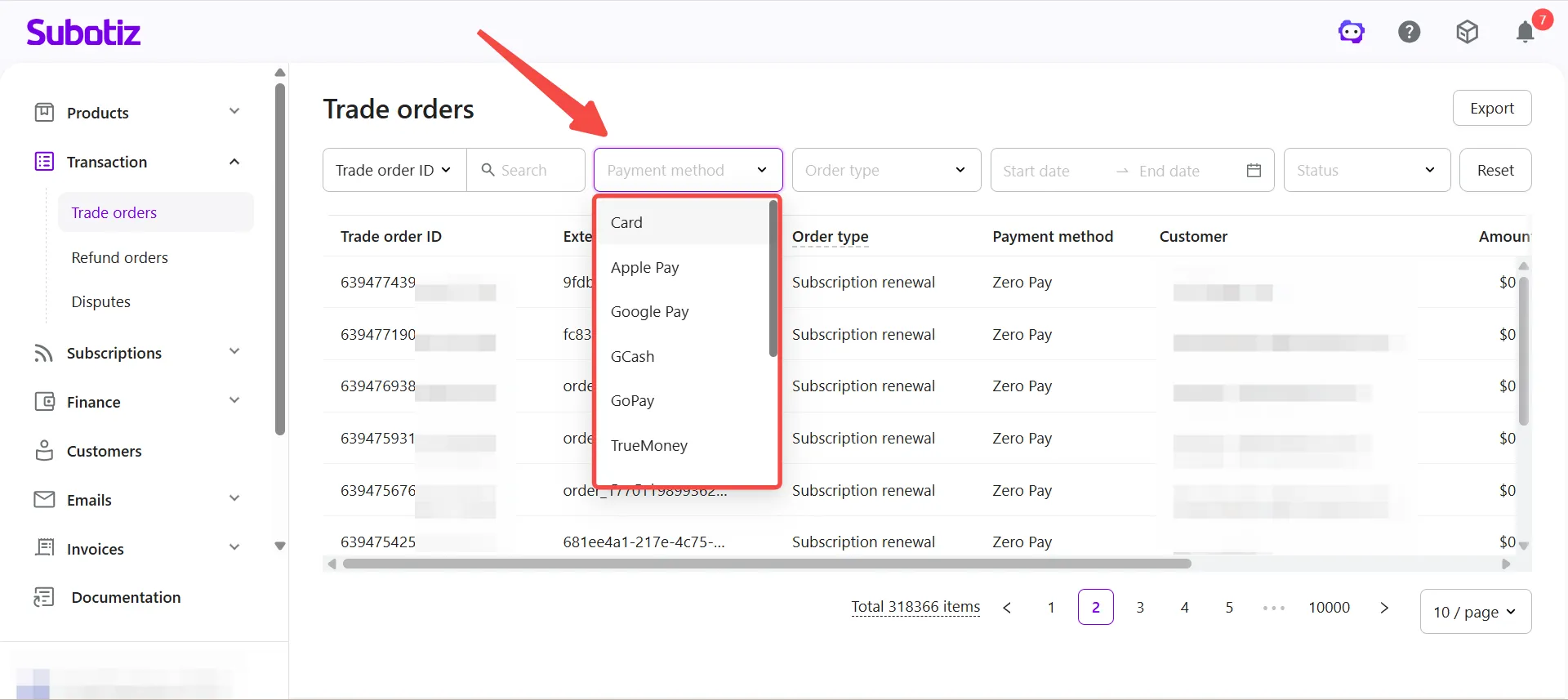
Payment method: Filter by specific payment method, including Card, PayPal, Apple Pay, Google Pay, GCash, GoPay, TrueMoney, Affirm, Afterpay, Alipay, Klarna, Zero Pay, and others.
-
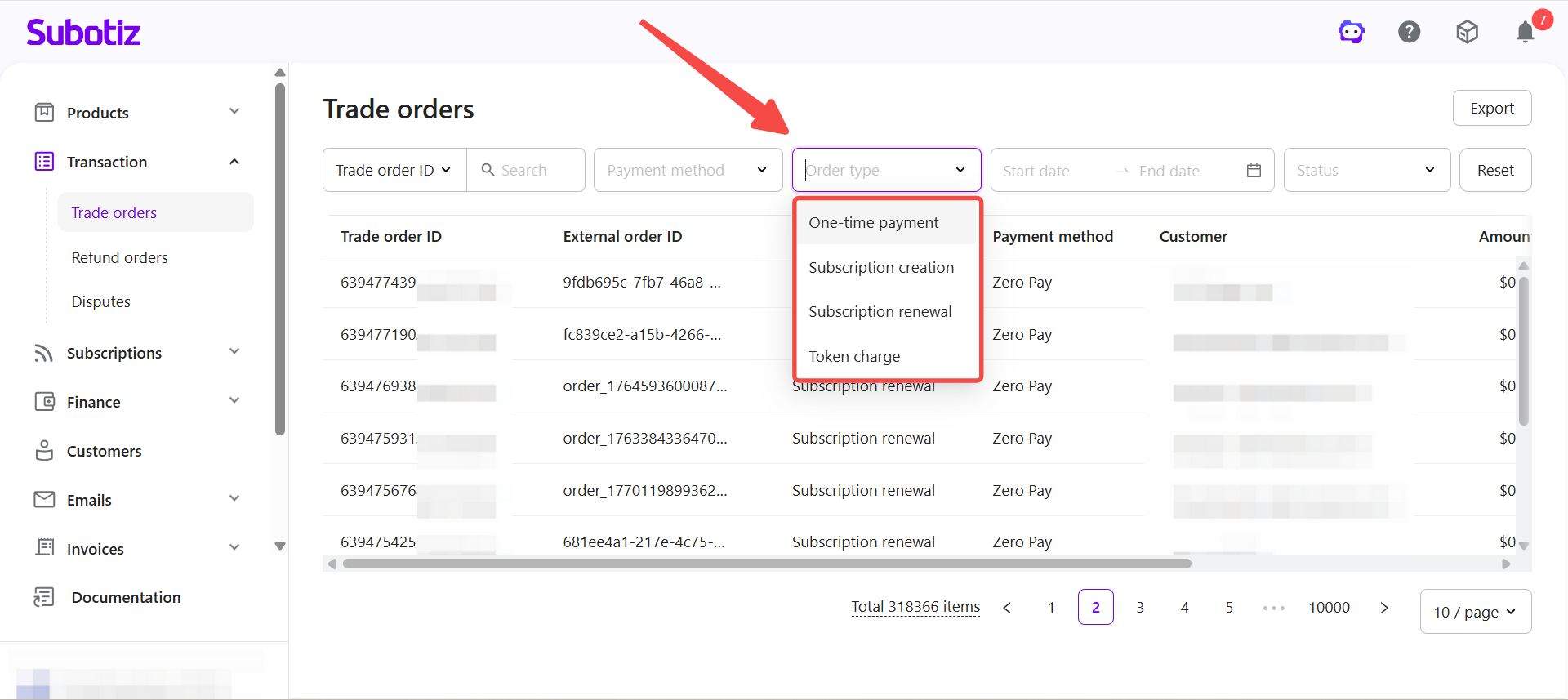
Order type: Filter by One-time payment, Subscription creation, Subscription renewal, or Token charge.
-
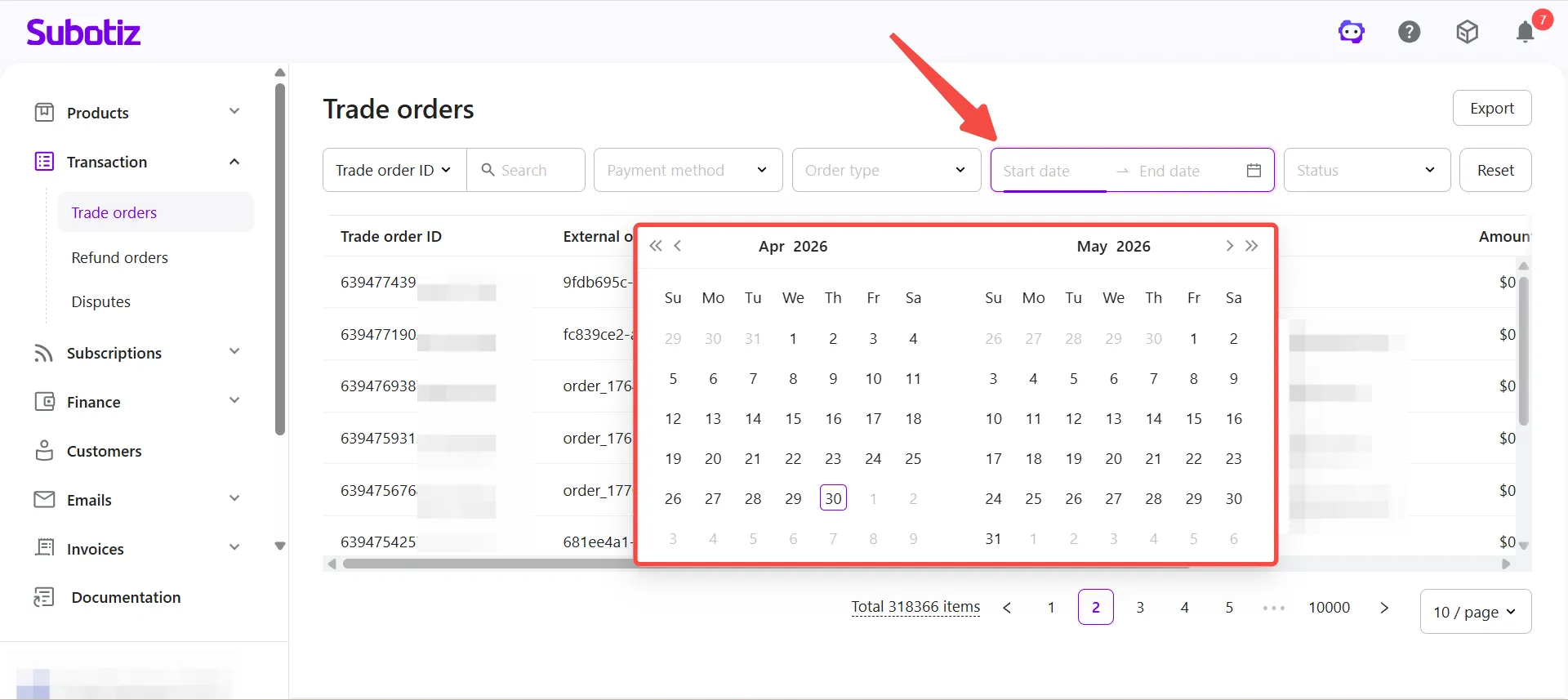
Date range: Select a start and end date to view orders created within a specific period.
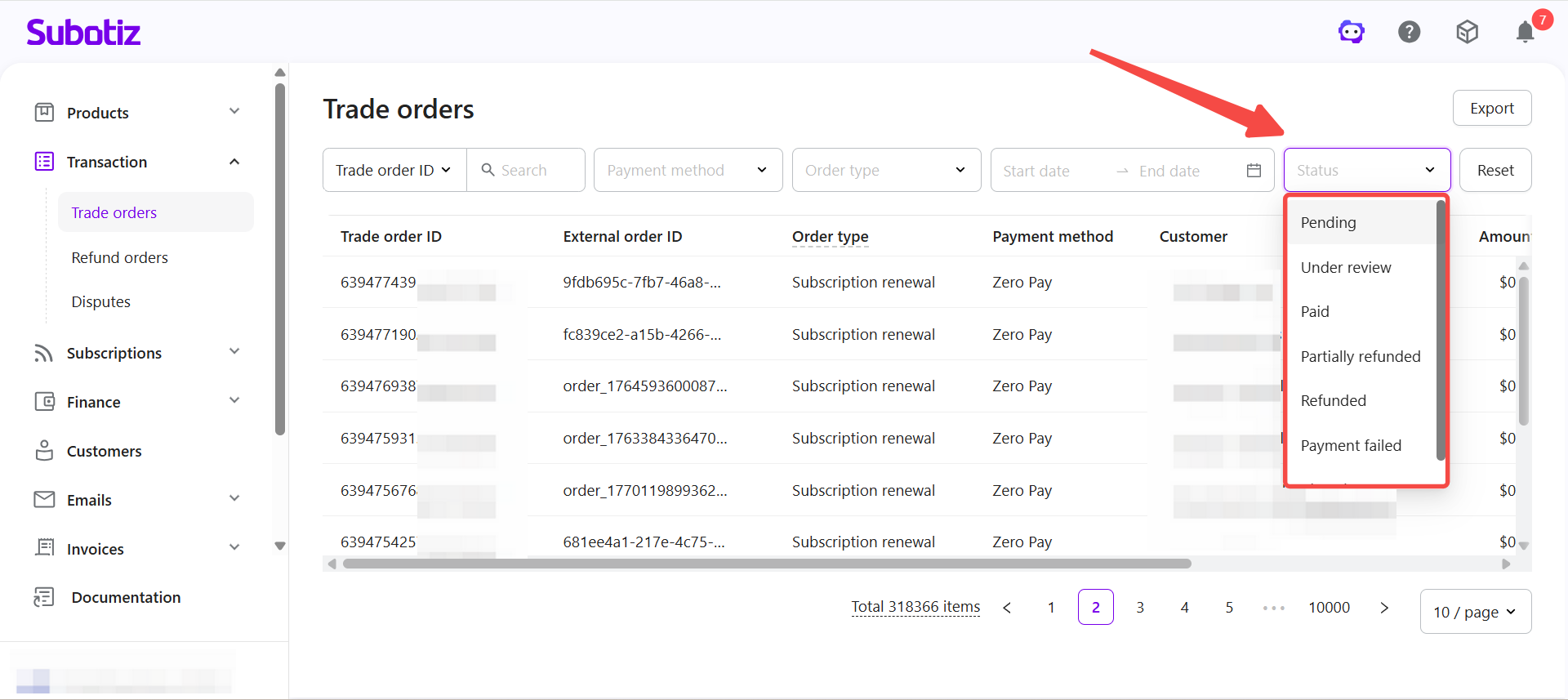
- Status: Filter by Pending, Under review, Paid, Partially refunded, Refunded, Payment failed, or Closed.
-
Viewing Trade Order Details
Click any order row to open the detail page. The page is organized into the following sections:
-
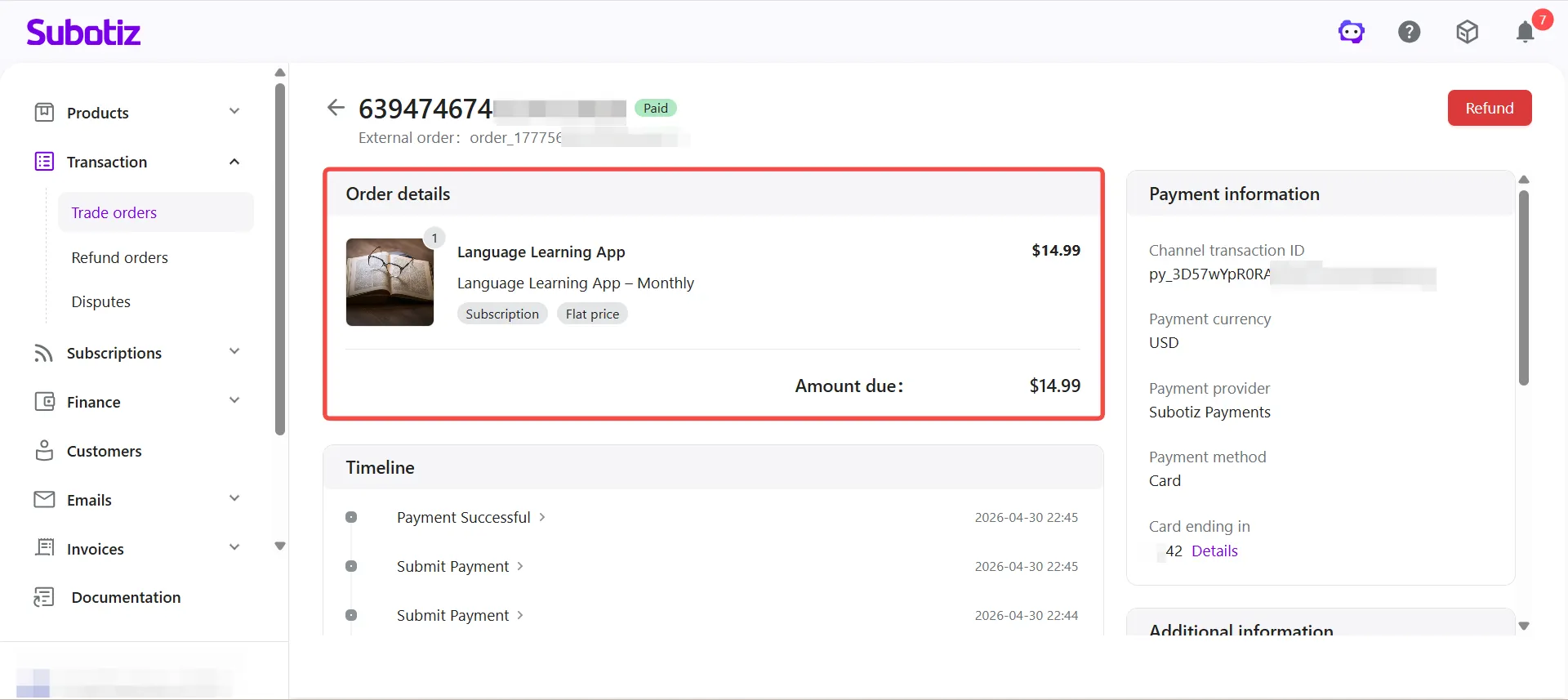
Order Details: Displays the product and billing details for the transaction:
- Product image and pricing name: Shows the product associated with the transaction.
- Pricing tags: Displays labels such as Subscription, Flat price, Package price, or Usage-based.
- Amount due: The actual amount charged for the transaction.
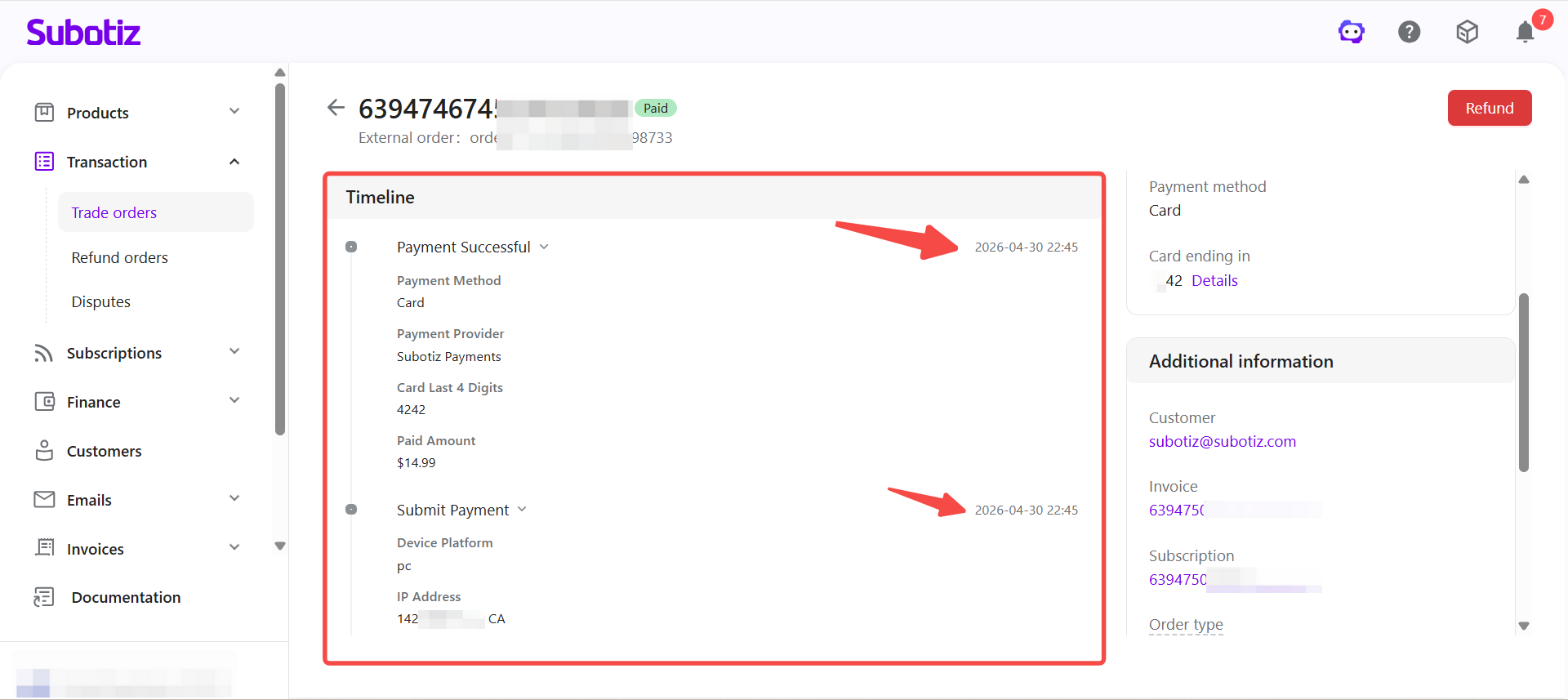
- Timeline: Records key events in chronological order, including Submit Payment and Payment Successful. Use this section to trace the full lifecycle of a payment or refund.
-
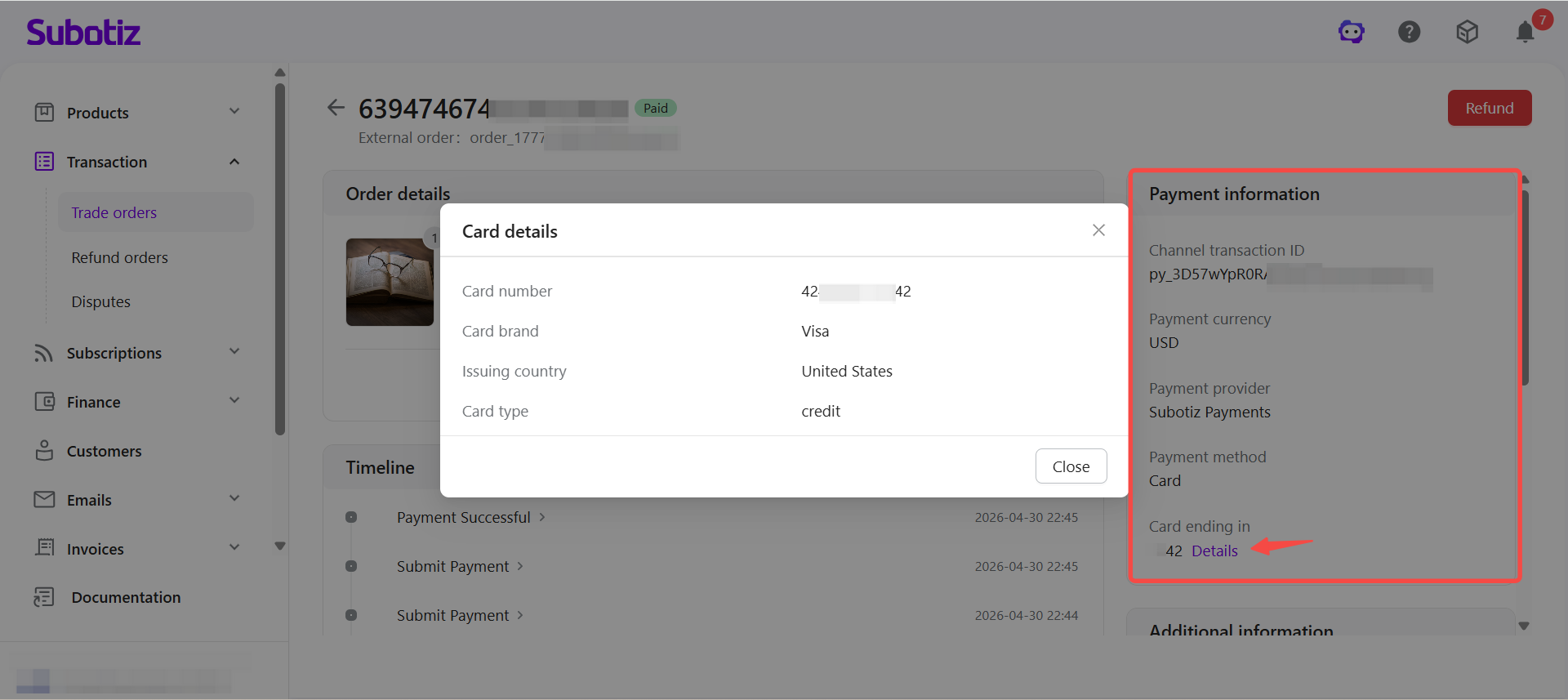
Payment Information: Shows channel and method details for the payment:
- Channel transaction ID: Identifier assigned by the payment channel, if available.
- Payment currency: Such as USD.
- Payment provider: Such as Subotiz Payments, PayPal, or Airwallex.
- Payment method: Such as Card, PayPal, Apple Pay, or Zero Pay.
- Card ending in: Displays the last four digits of the card. Click Details to view additional card information, including card brand, issuing country, and card type.
-
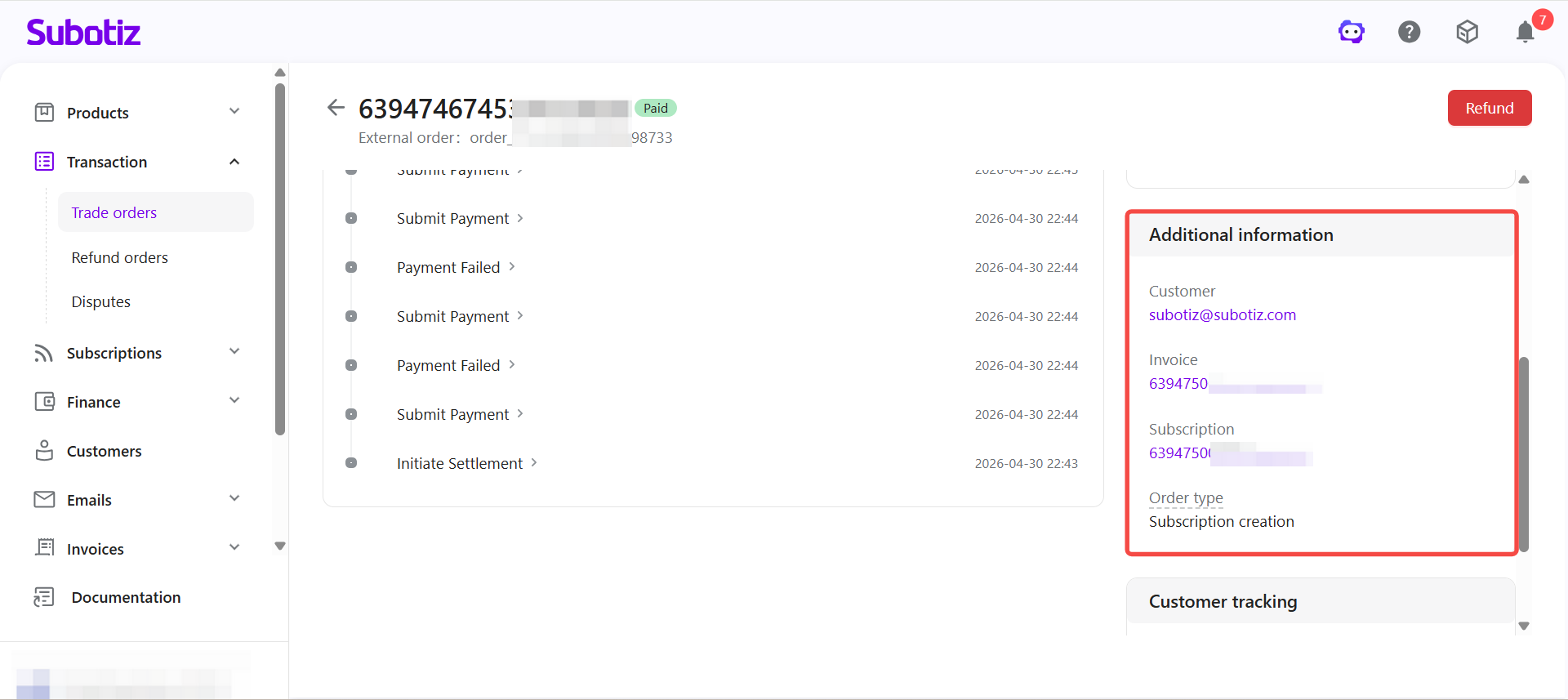
Additional Information: Shows how the trade order relates to other billing records:
- Customer: Customer email or customer ID.
- Invoice: Linked invoice ID with a direct link to the invoice record.
- Subscription: Linked subscription ID, if applicable.
- Order type: Such as Subscription renewal or One-time payment.
-
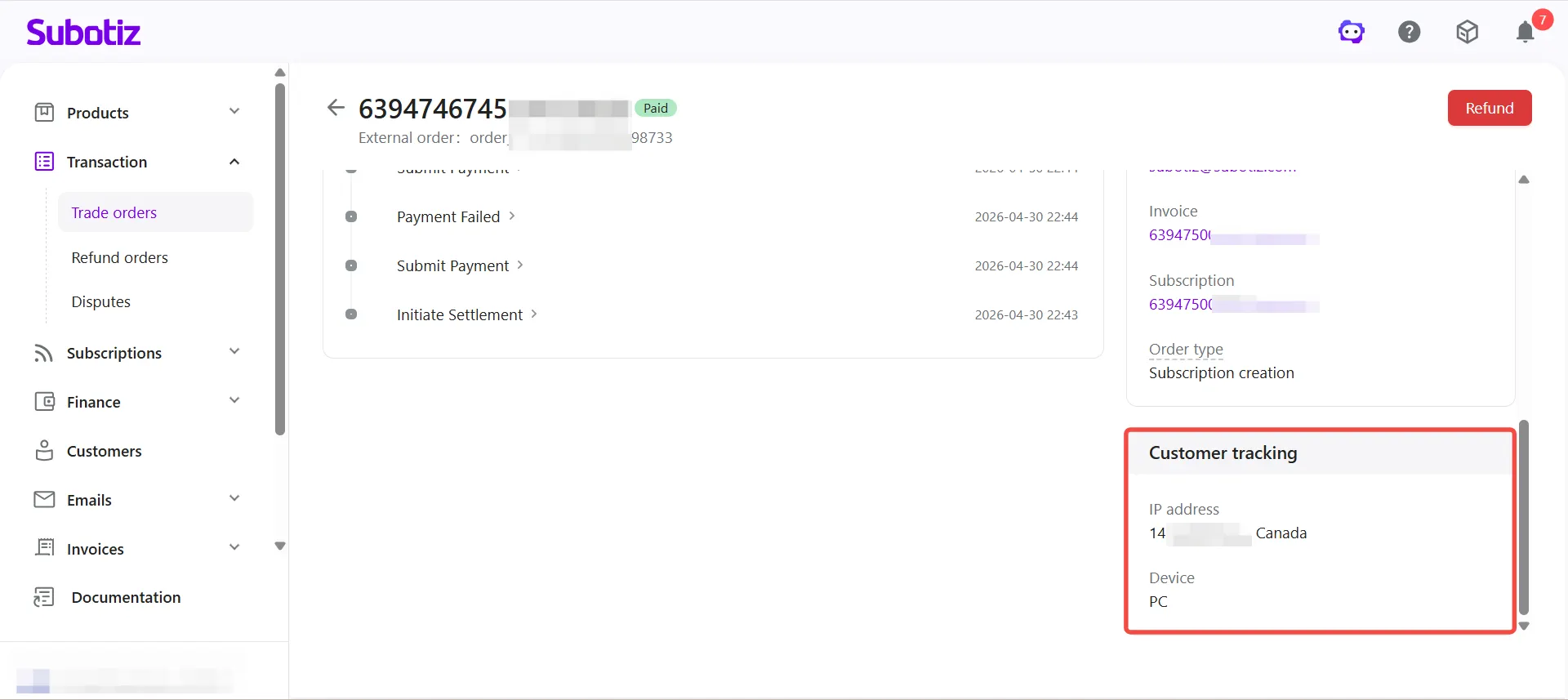
Customer Tracking: Provides context on where the payment originated:
- IP address: Customer IP address and resolved country or region. Displays Unknown if the information is not available.
- Device: Access device type, such as desktop or mobile. Displays Unknown if the information is not available.
Initiating a Refund
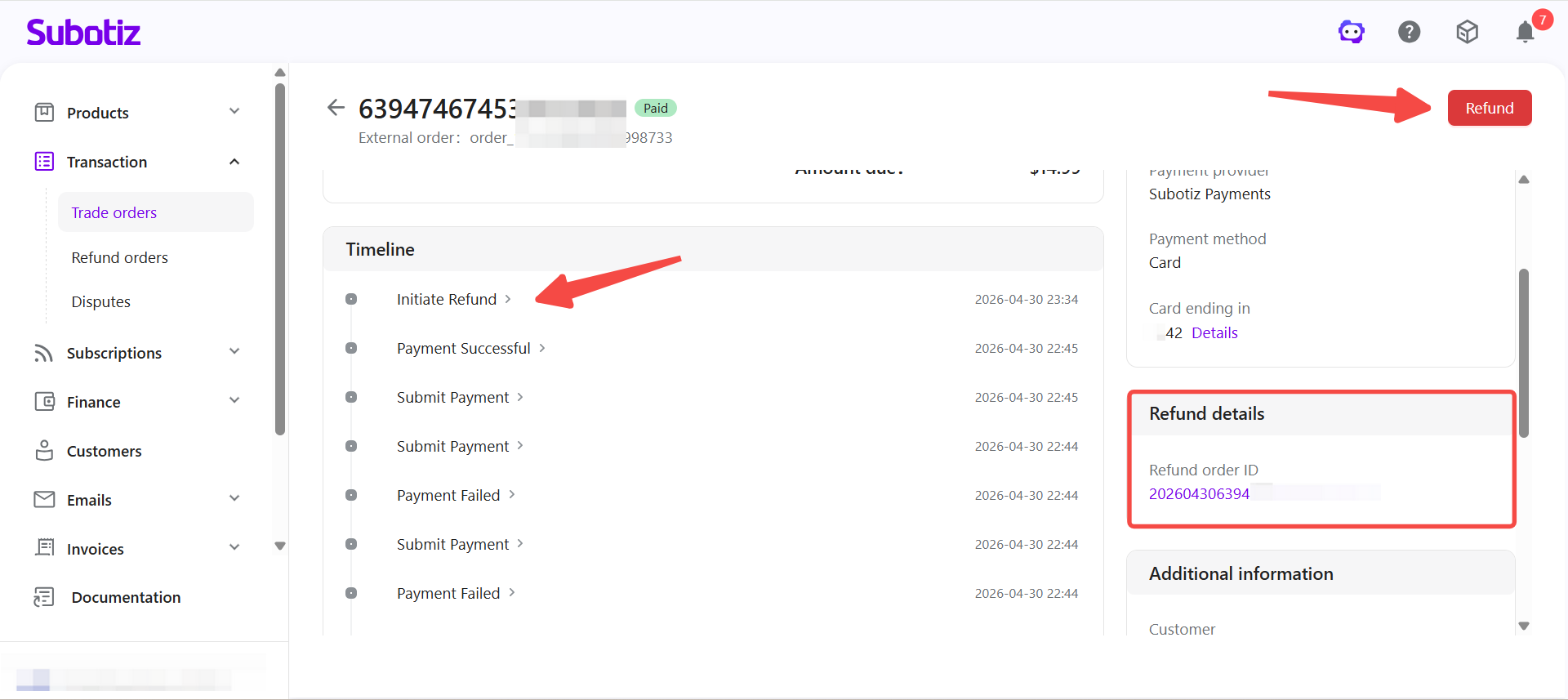
Click the Refund button in the top-right corner of the detail page to initiate a refund.
- Refund order generated: The system creates a refund record and tracks the outcome automatically.
- Eligible order statuses: The Refund button is available for orders with a Paid or Partially refunded status. It is not available for other statuses.
- Instant update: The refund order ID appears immediately after submission without requiring a page refresh.
For a detailed walkthrough of the refund process, see Trade orders|Refund Process.
Best Practices
- Monitor incomplete orders: Regularly check Pending and Under review orders and follow up with the customer or payment channel if needed.
- Verify refund outcomes: Review refund orders to confirm the amount and status are correct.
- Reconcile with invoices: Use the links in Additional Information to cross-check related invoices and subscription records.
- Export transaction data: Use the Export function to download records for internal reconciliation, financial analysis, or documentation.
The trade orders page gives merchants a centralized view of all billing activity. Through search, filtering, detail inspection, and refund management, merchants can track payment outcomes, monitor refund progress, and maintain a clear and auditable billing workflow.