Refunds for completed payments can be issued directly from the Subotiz admin. Merchants can enter any amount up to the refundable balance, allowing both full and partial refunds within the same workflow. Each refund generates a separate refund order for tracking and reconciliation.
Refund Conditions
Refunds can only be initiated from trade orders with a Paid or Partially refunded status.
- Payment must be settled: The payment must be successfully captured and settled.
- Within refundable balance: The total refund amount, including any partial refunds already issued, must not exceed the refundable balance.
- Initiate from the admin: Refunds must be initiated from the Subotiz admin to generate a refund order.
- Record each refund separately: Every refund generates a new refund order for tracking and reconciliation.
- Closed orders cannot be refunded: Refunds cannot be initiated from trade orders with a Closed status.
Issuing a Refund
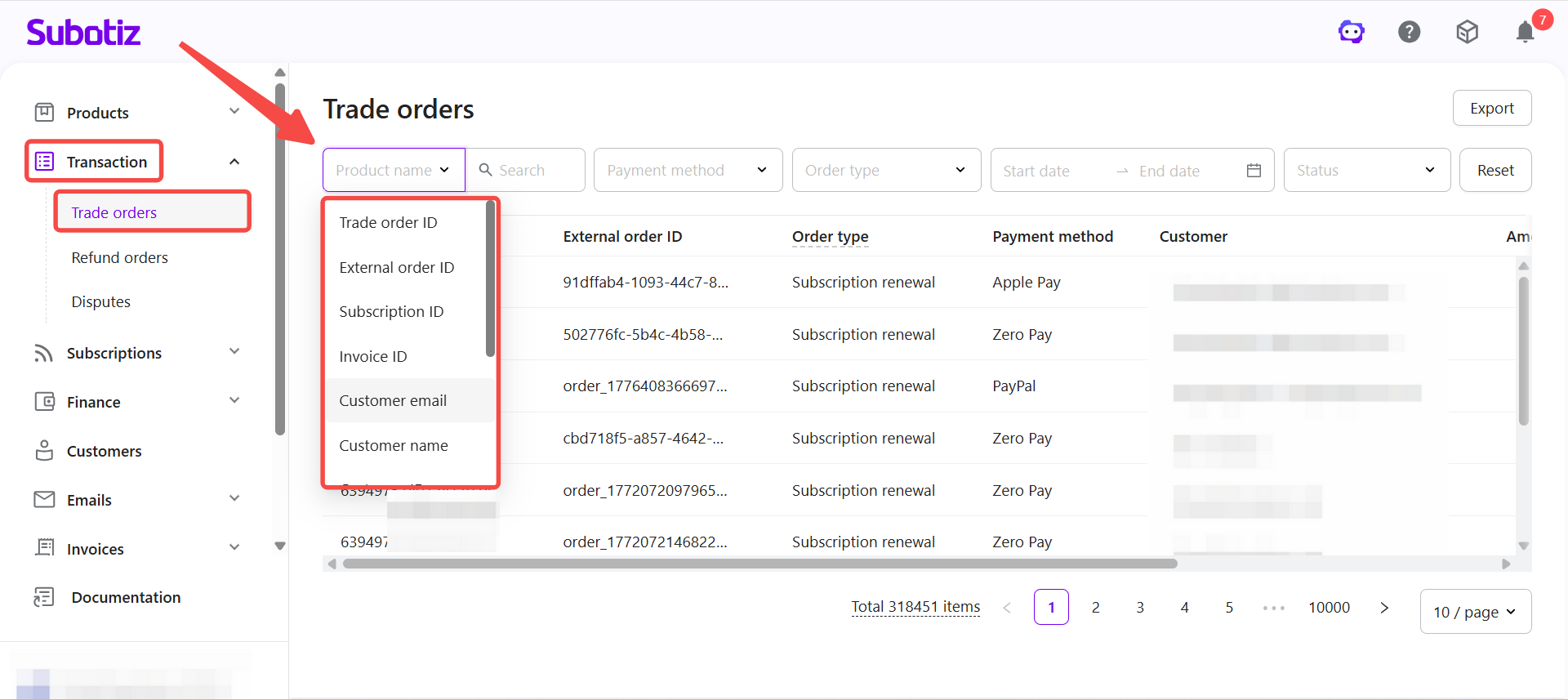
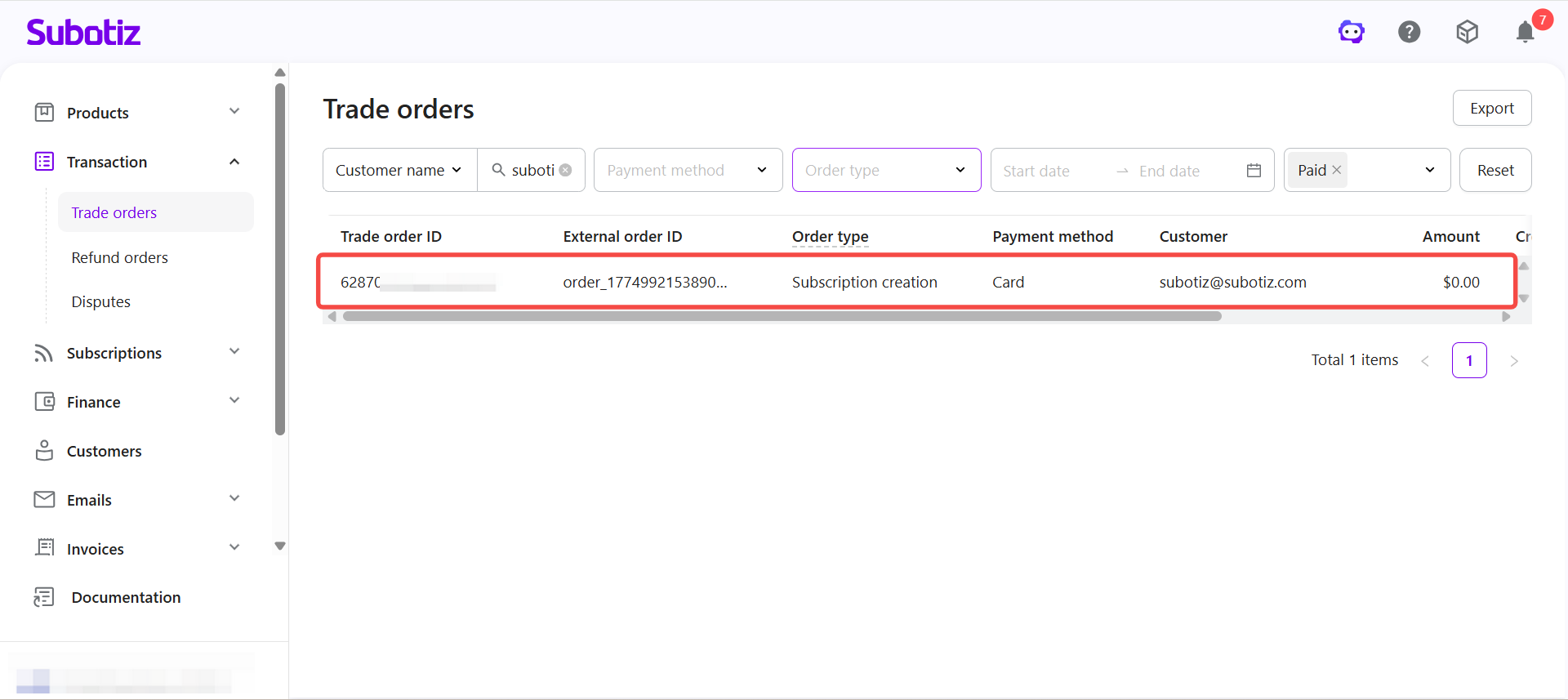
- Locate the trade order: Go to Transaction > Trade orders in the Subotiz admin, then use filters such as trade order ID or external order ID to find the target order.
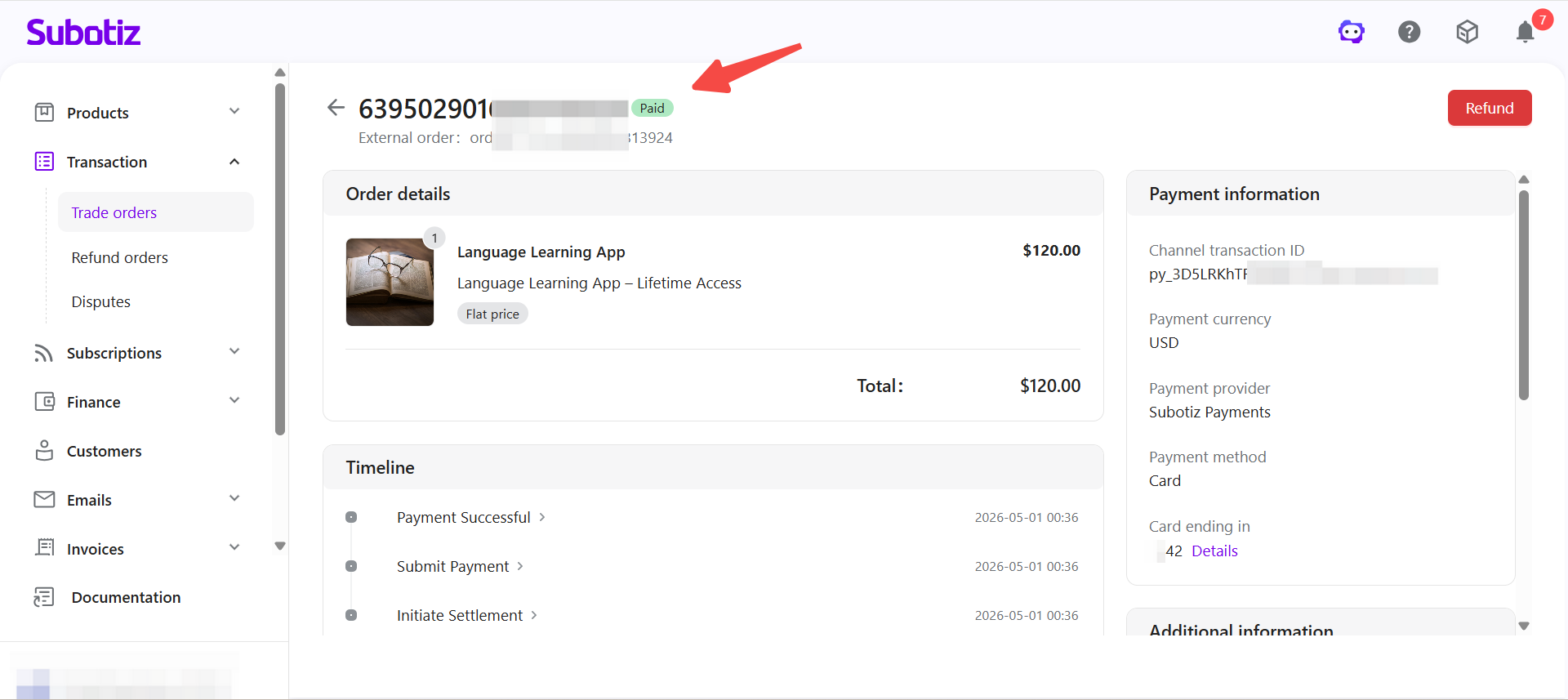
- Open the order details: Click the trade order to view its details and confirm the status is Paid.
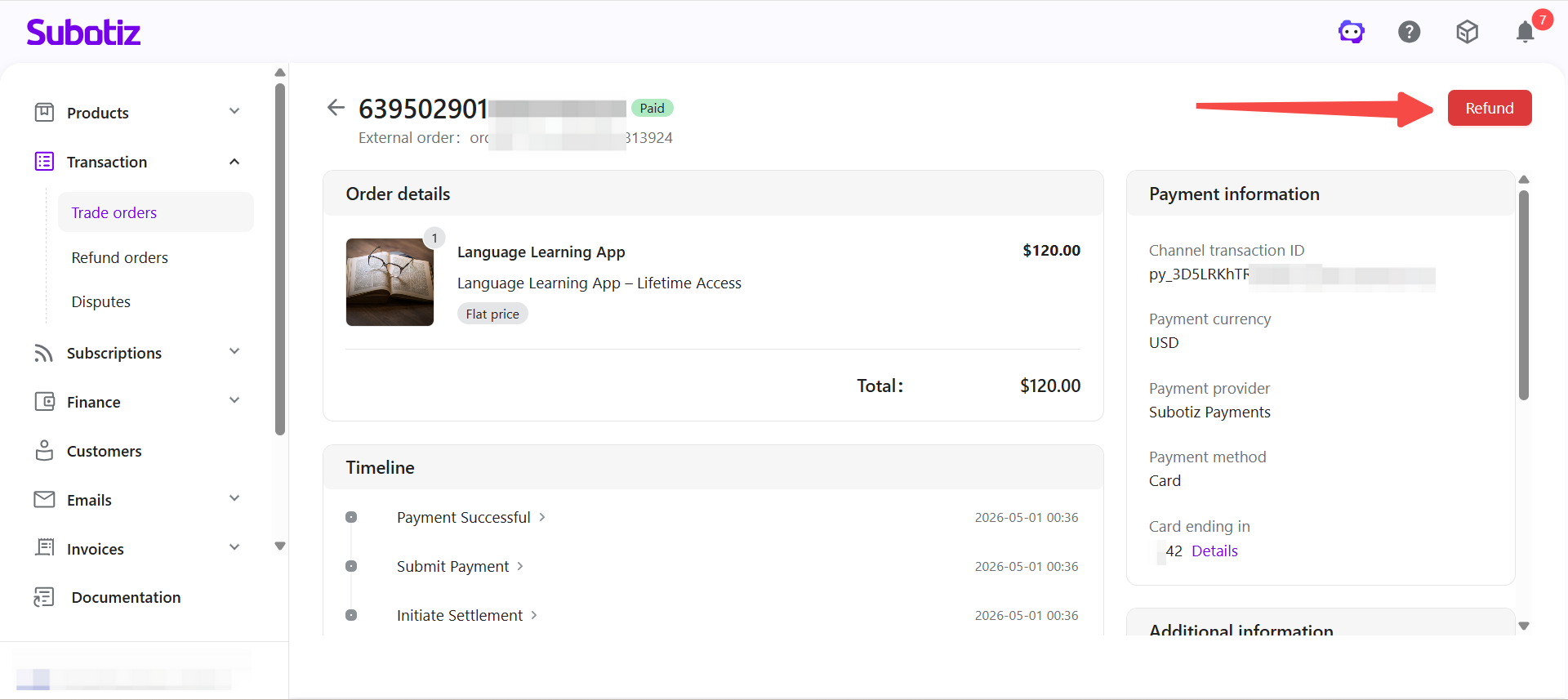
- Start the refund: Click the Refund button in the top-right corner of the trade order detail page.
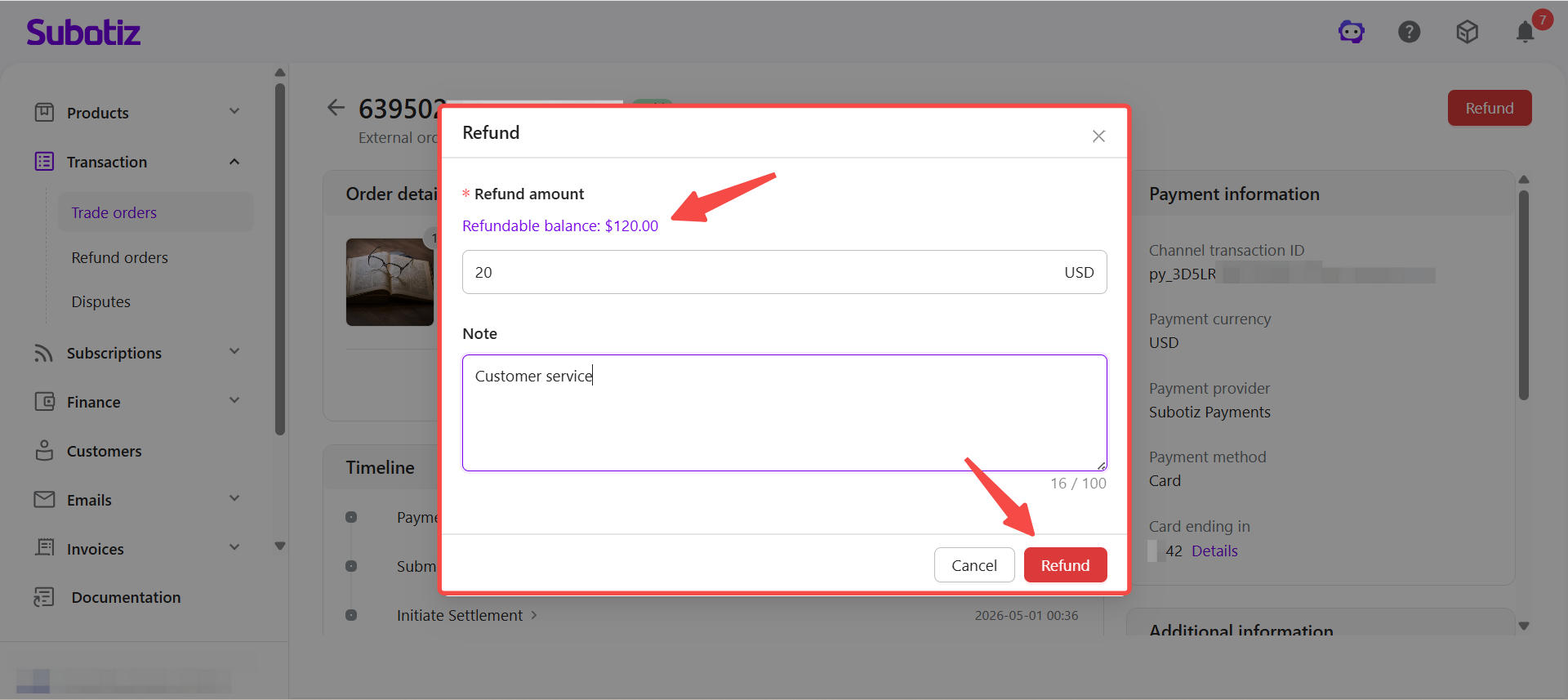
- Enter the refund amount and note: In the refund dialog, enter the refund amount, which cannot exceed the refundable balance. Optionally add an internal note, then click Refund.
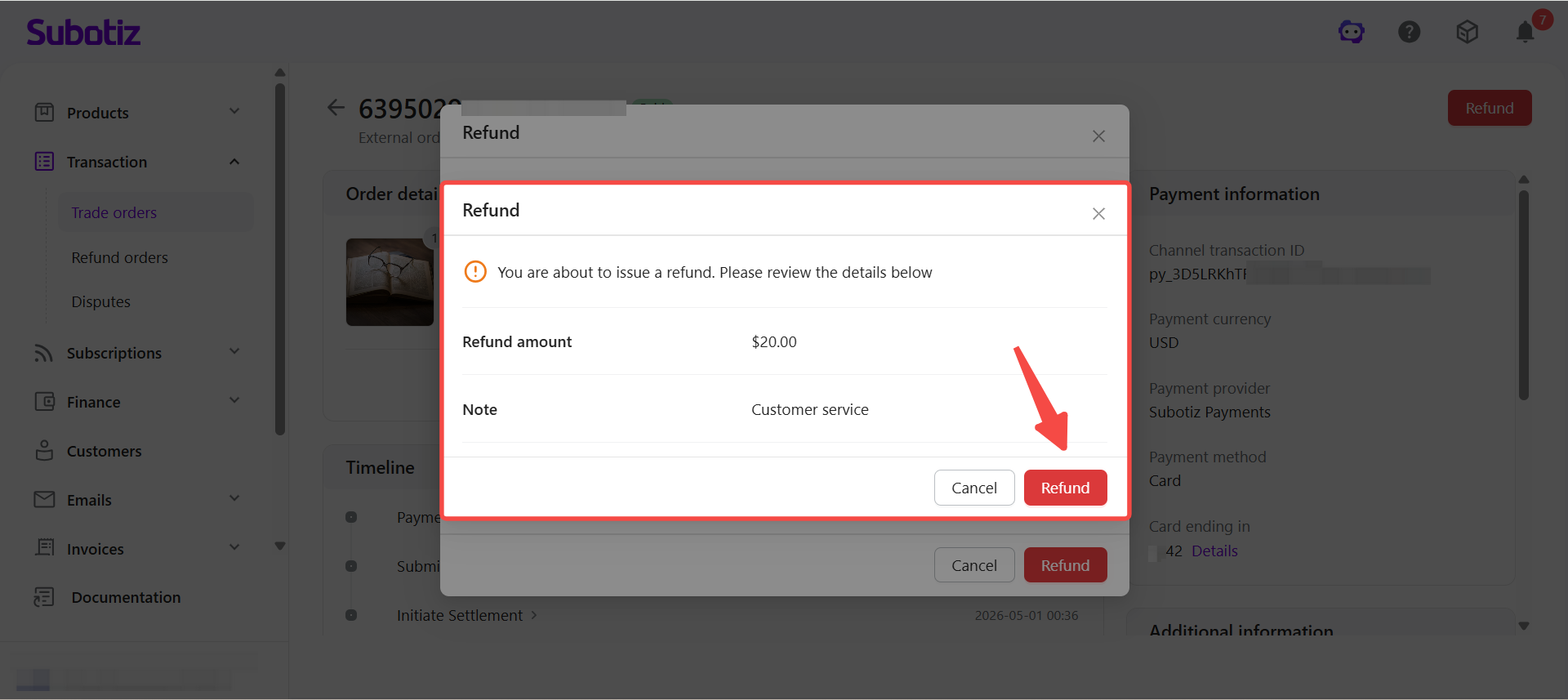
- Confirm the refund: A confirmation screen displays the refund amount and note. Review the details and click Refund to submit.
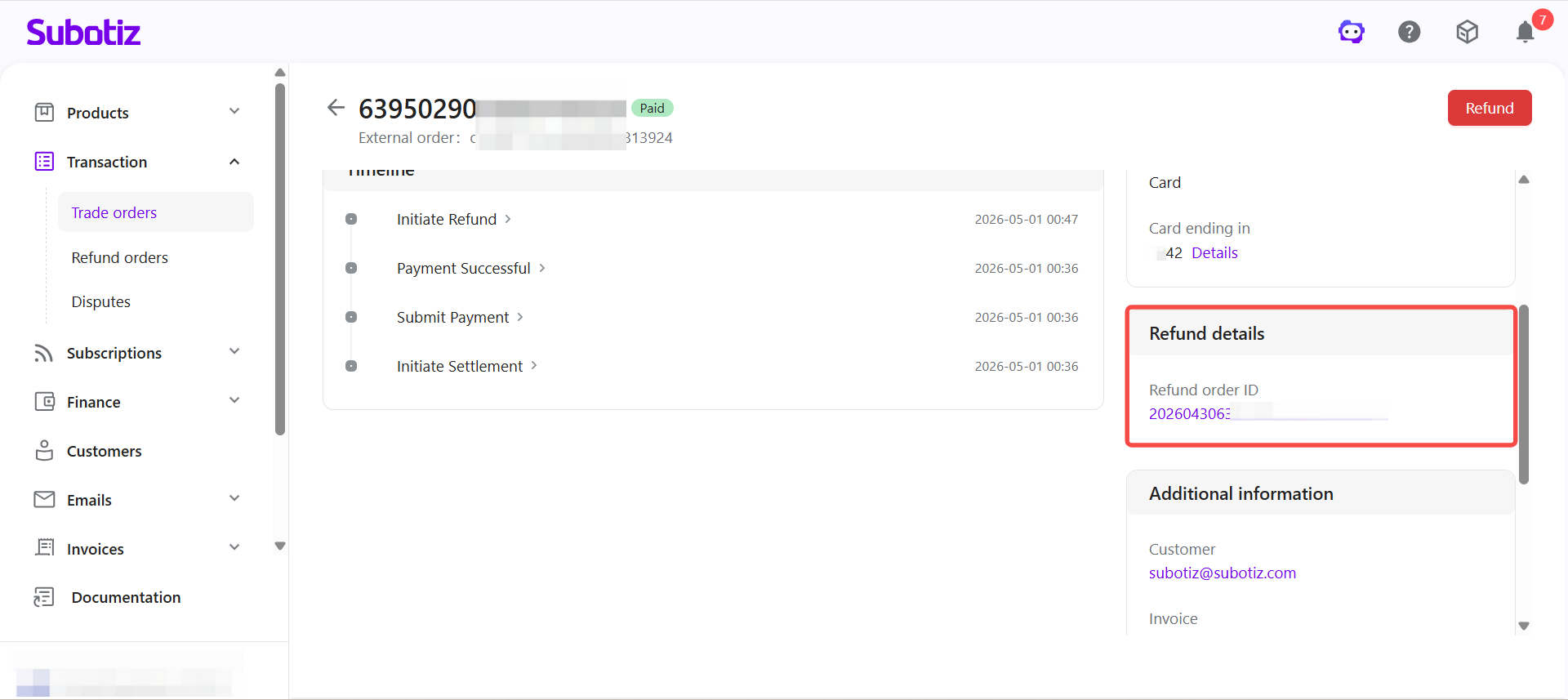
- View the refund order: After submission, the system generates a refund order automatically. The refund order ID appears in the Refund details section on the right side of the detail page. The refund order can also be tracked in Transaction > Refund orders.
Operational Notes
- Multiple partial refunds supported: Refunds can be issued multiple times as long as the total does not exceed the refundable balance.
- Partial refunds can be continued: After a partial refund is processed, the trade order status updates to Partially refunded and the Refund button remains available. Additional refunds can be issued until the refundable balance reaches zero.
- All refunds are recorded: Every refund initiated in Subotiz generates a refund order for audit and tracking purposes.
Best Practices
- Monitor refund order status: Regularly review recent refund orders, focusing on those with a Processing or Failed status.
- Verify refund amounts: Confirm the entered amount matches internal billing records before submitting.
- Use filters in Refund orders: Apply filters to locate specific refund orders for reconciliation or customer service needs.
- Investigate failed refunds: Resolve issues promptly to avoid delays or unresolved cases.
Refunds in Subotiz follow a single workflow initiated from the admin. By entering the refund amount directly, merchants can issue partial or full refunds. Each refund is tracked by an individual refund order, ensuring the process is clear and fully auditable.