Before setting up product pricing, you need to create a product. A product defines what you sell, while pricing plans define how customers are billed, including the billing amount and billing cycle.
By separating products from pricing plans, merchants can reuse the same product across multiple pricing configurations and improve subscription management efficiency.
Creating a Product
Products in Subotiz represent service offerings such as digital services, memberships, or online services. Common use cases include:
- Online courses or digital content downloads.
- Paid memberships, such as monthly or annual access.
- Online services, such as coaching, consulting, or live sessions.
-
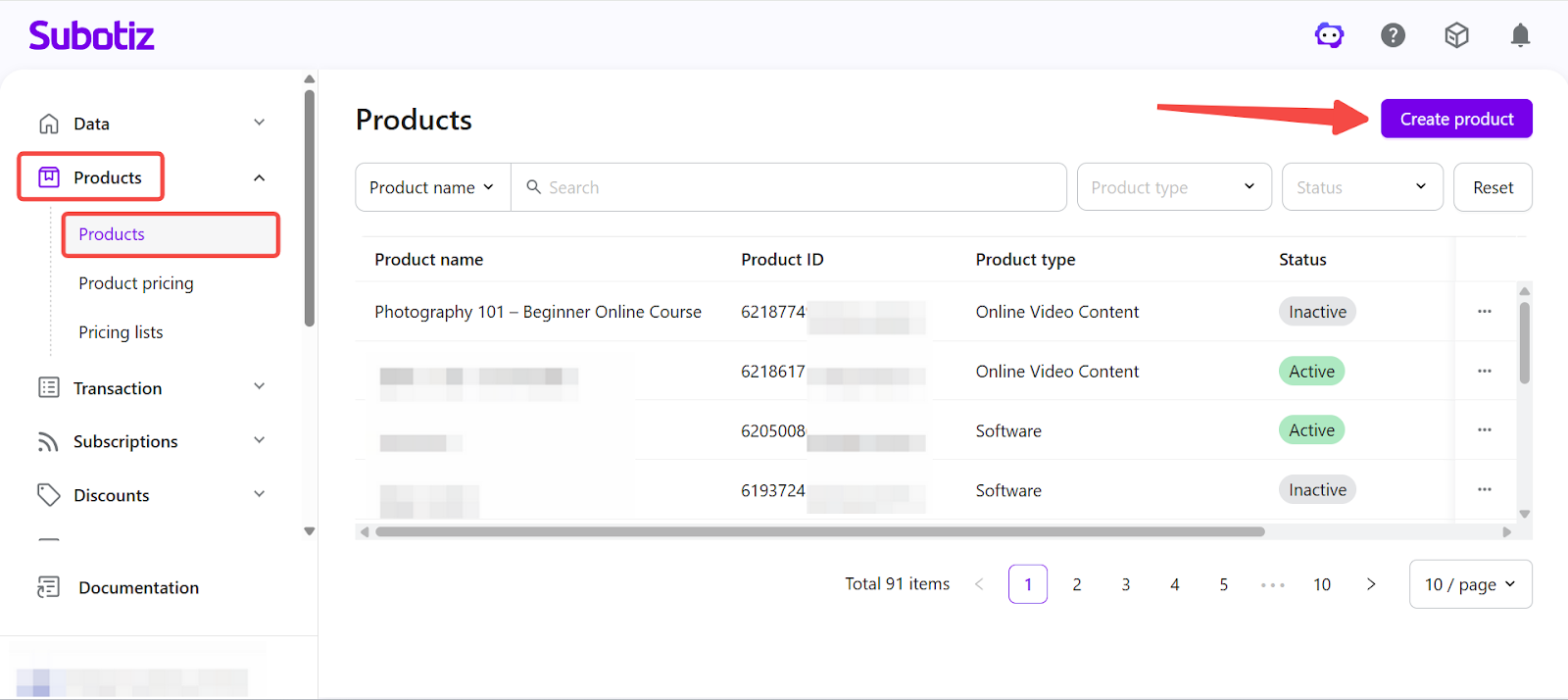
Create a new product: Go to Subotiz Admin > Products > Products, then click Create Product in the upper-right corner to open the product setup page.
-
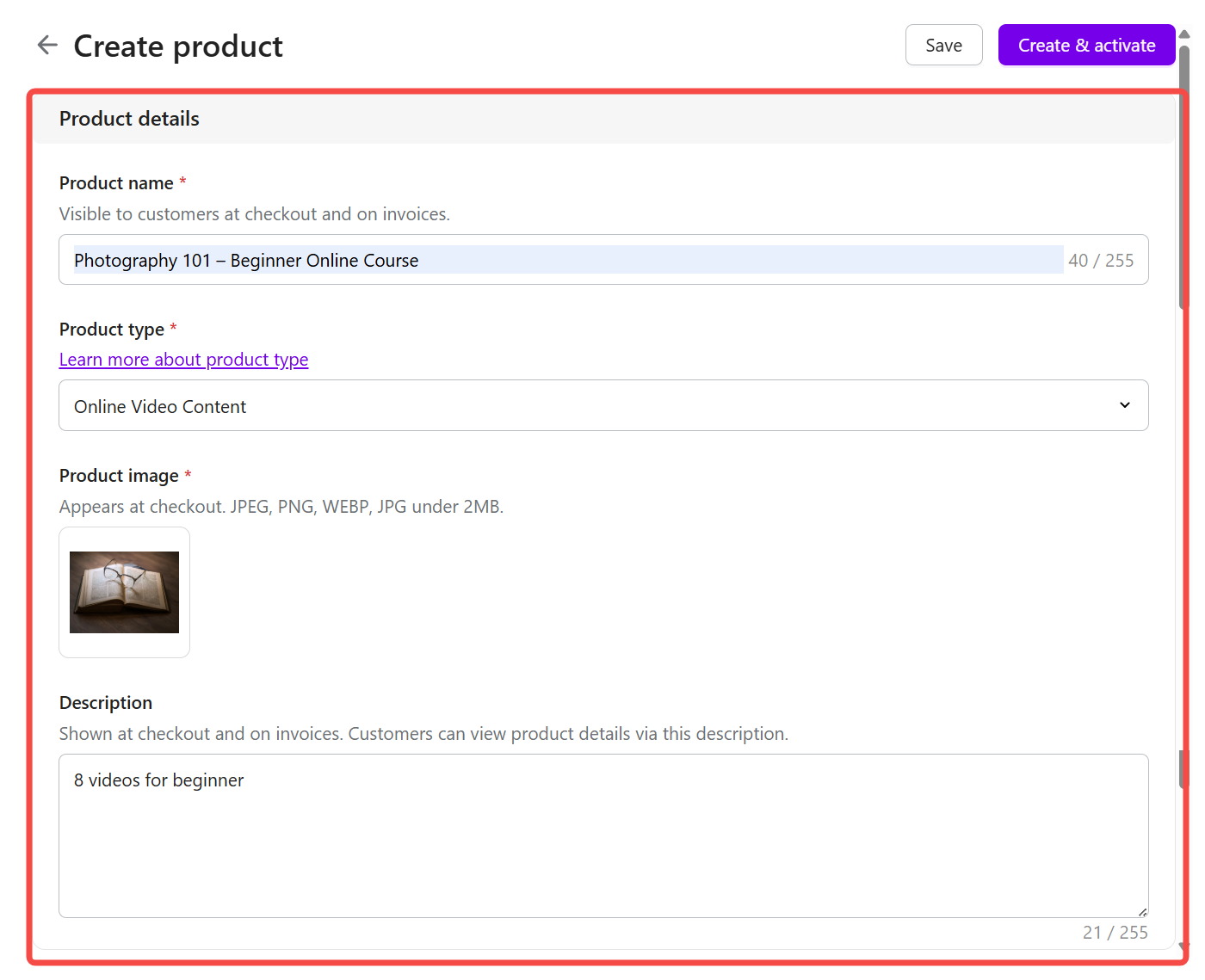
Enter product information: Fill in the following fields. These details are displayed to customers at checkout and on invoices:
- Product name: Displayed on checkout pages and receipts.
- Product type: Used for internal classification and filtering. See product type for more details.
- Product image: Upload a JPG, PNG, or WEBP file under 2MB.
- Product description (optional): A short summary to help customers understand the offering.
Note: The Product ID is automatically generated by the system for internal identification.
-
Add product features: In the Features section, define what customers receive after purchasing the product. These are displayed at checkout or on invoices for reference only and do not affect billing logic or usage enforcement.Two types of features are supported:
- Quantitative feature: Used for services with defined quantities or limits, such as number of courses, download counts, or usage credits.
- Qualitative feature: Used for descriptive purposes without quantity limits, such as membership access, community access, or exclusive services.
Click Add custom feature to add multiple entries as needed. Each product supports up to 20 features.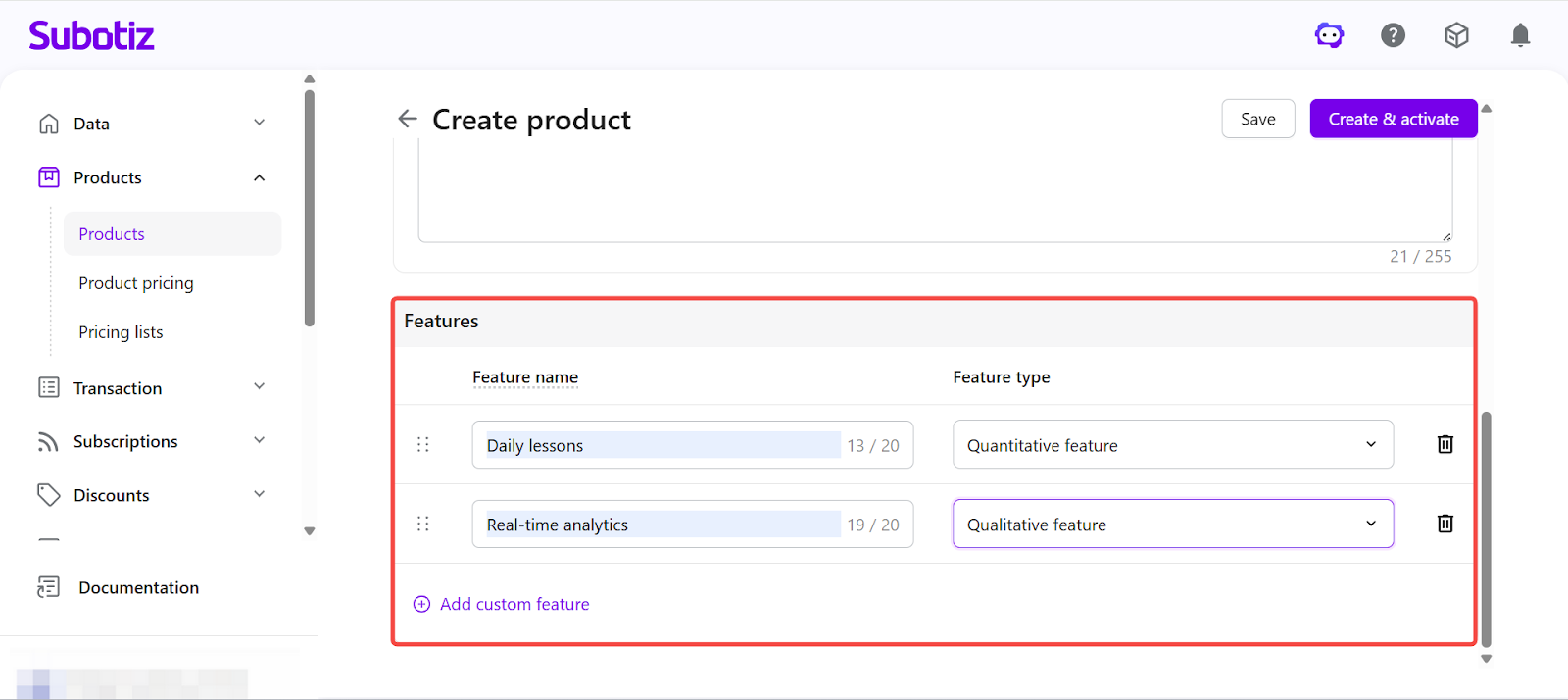
-
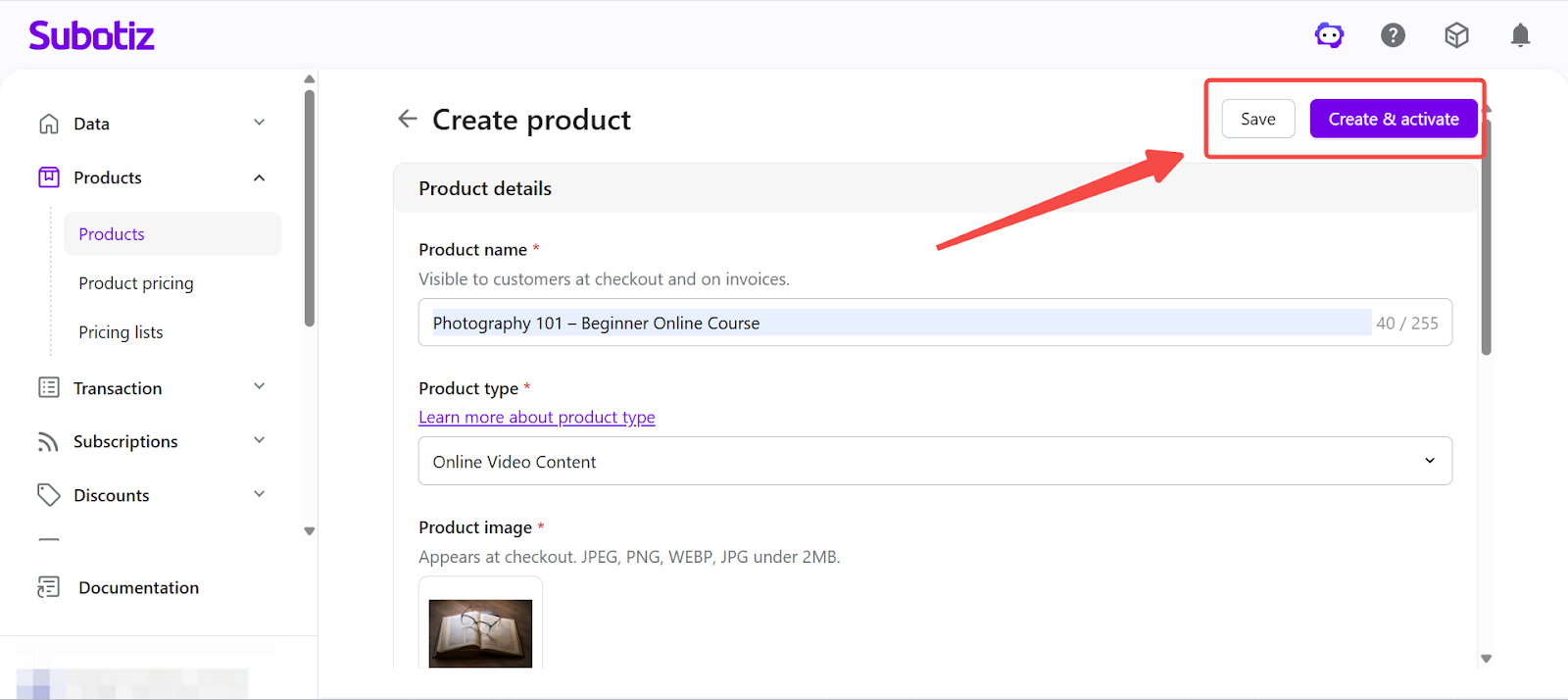
Save and activate: After completing the configuration, choose how to save the product:
- Create & activate: The product is immediately available for pricing configuration, checkout, and invoicing.
- Save: The product is saved as inactive for internal use only.
Please note:- Inactive products do not appear in pricing configuration.
-
Inactive products can still be edited and activated at any time.
-
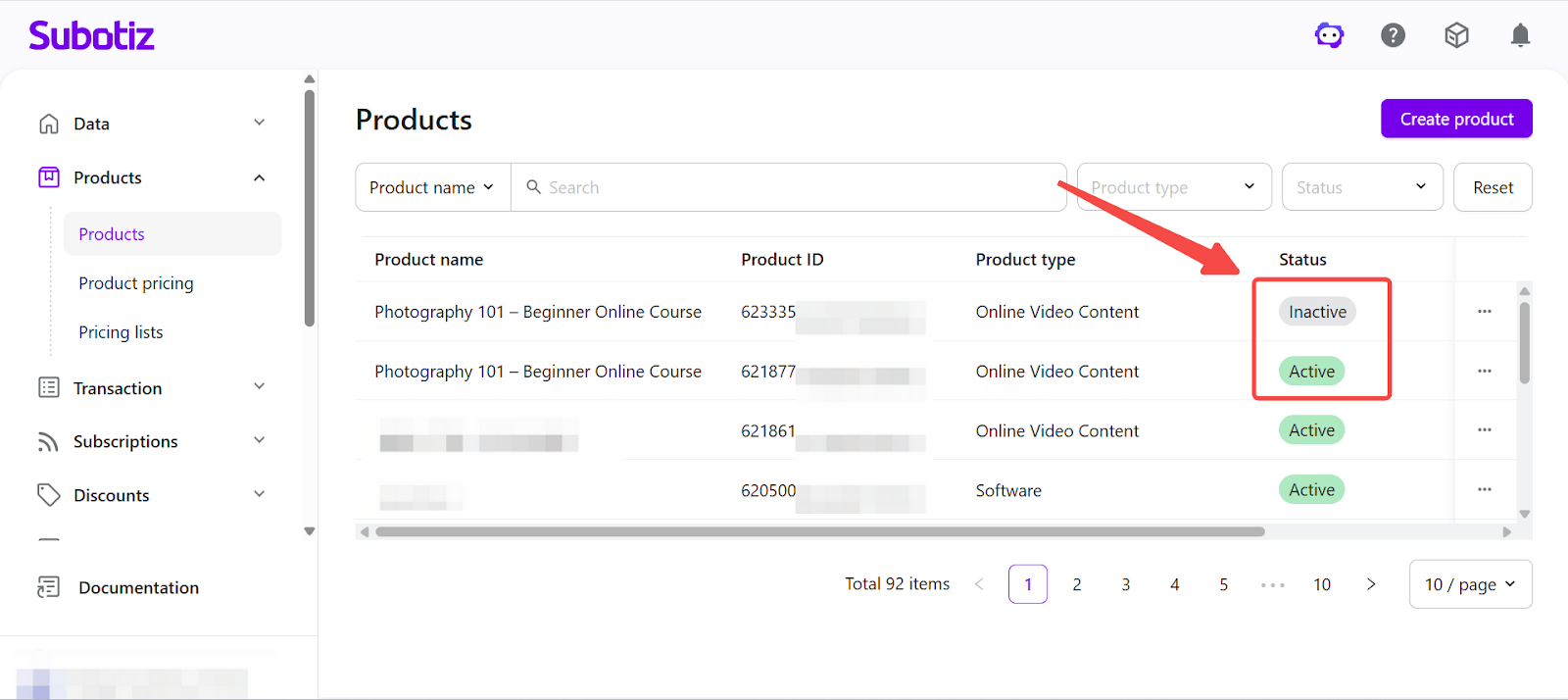
Check product status: After saving, the product will display one of the following statuses:
- Active: Available for pricing configuration and checkout.
- Inactive: Not available for new orders and used for internal management.
-
Archived: A soft-deleted state. The product is hidden from the list but remains available for historical records.
Once the product is activated, you can configure pricing plans and create subscription offerings. A well-defined product ensures clarity for customers at checkout and across invoices, while keeping your subscription structure organized.