Domain Verification Requirements
Checkout method |
Domain verification requirement |
|---|---|
Embedded Form |
Merchants must manually deploy the Apple Pay domain verification file and register the website domain in the Subotiz admin. |
Hosted Page |
Subotiz handles Apple Pay domain verification automatically, so no manual domain setup is required. When Apple Pay is enabled for the first time or the default checkout domain is changed, Subotiz automatically registers the domain. The registration record also appears in the payment method domains list. |
Note: If the Embedded Form is used without registering the domain, the Apple Pay button will not appear at checkout. No error message is displayed in the Subotiz admin or returned by the API.
Downloading the Apple Pay Verification File
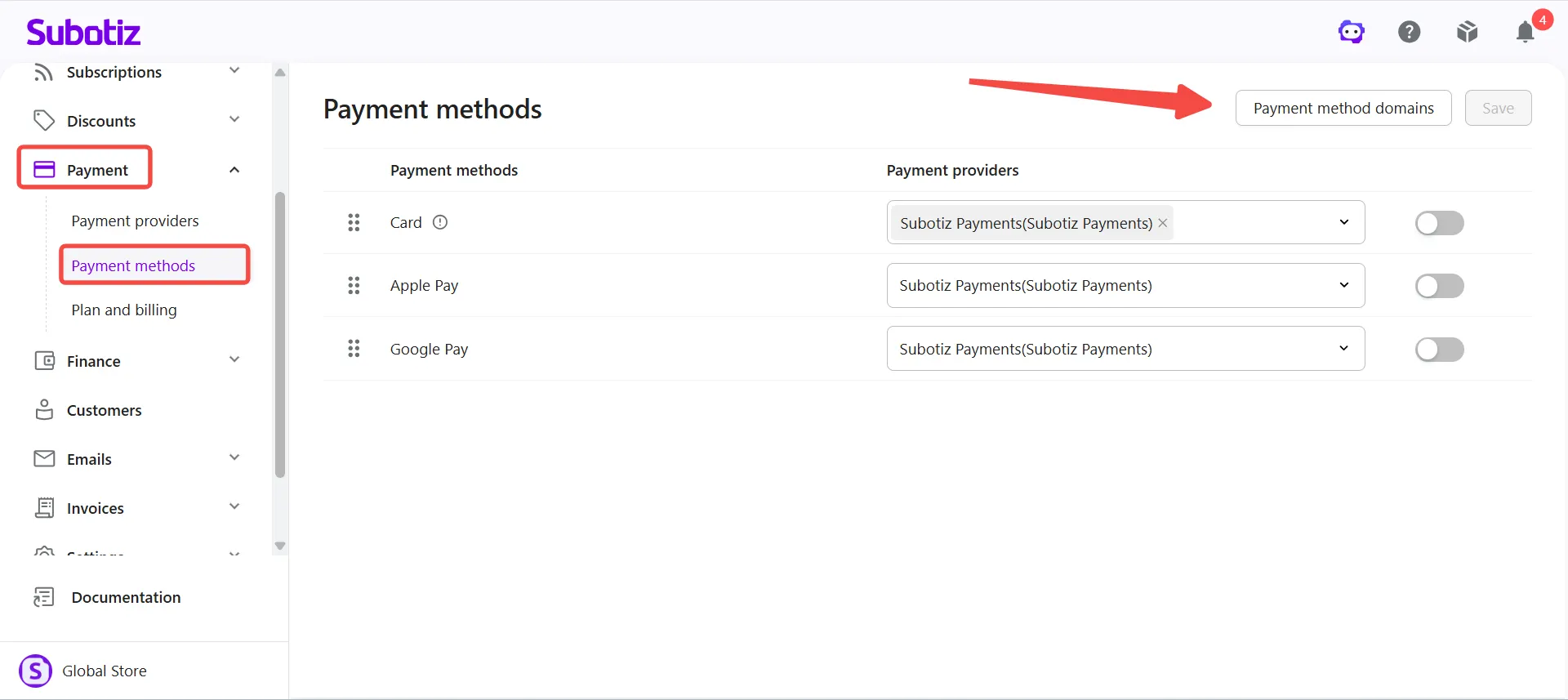
- Open the domain management page: Log in to the Subotiz admin, go to Payment > Payment methods, and click Payment method domains in the top-right corner.
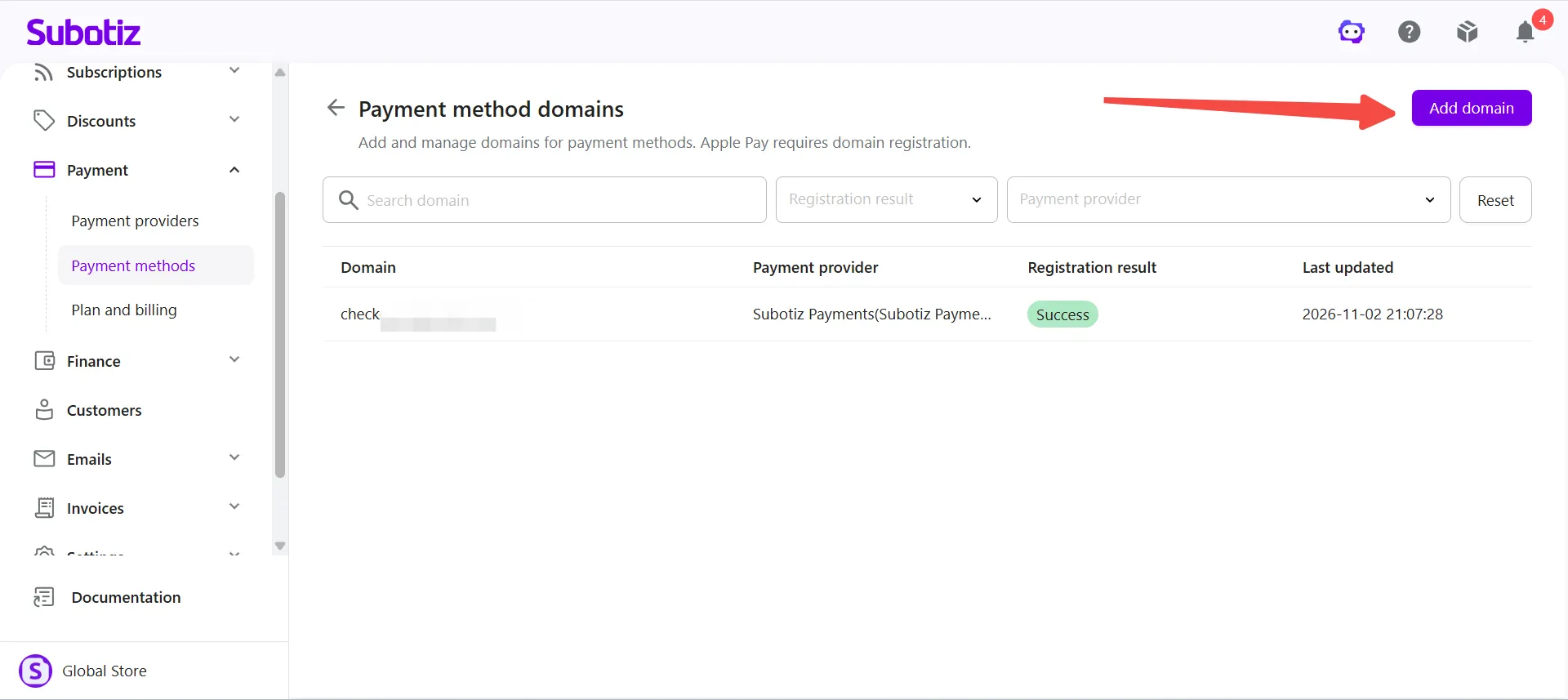
- Open the Add domain window: Click Add domain to open the domain registration window.
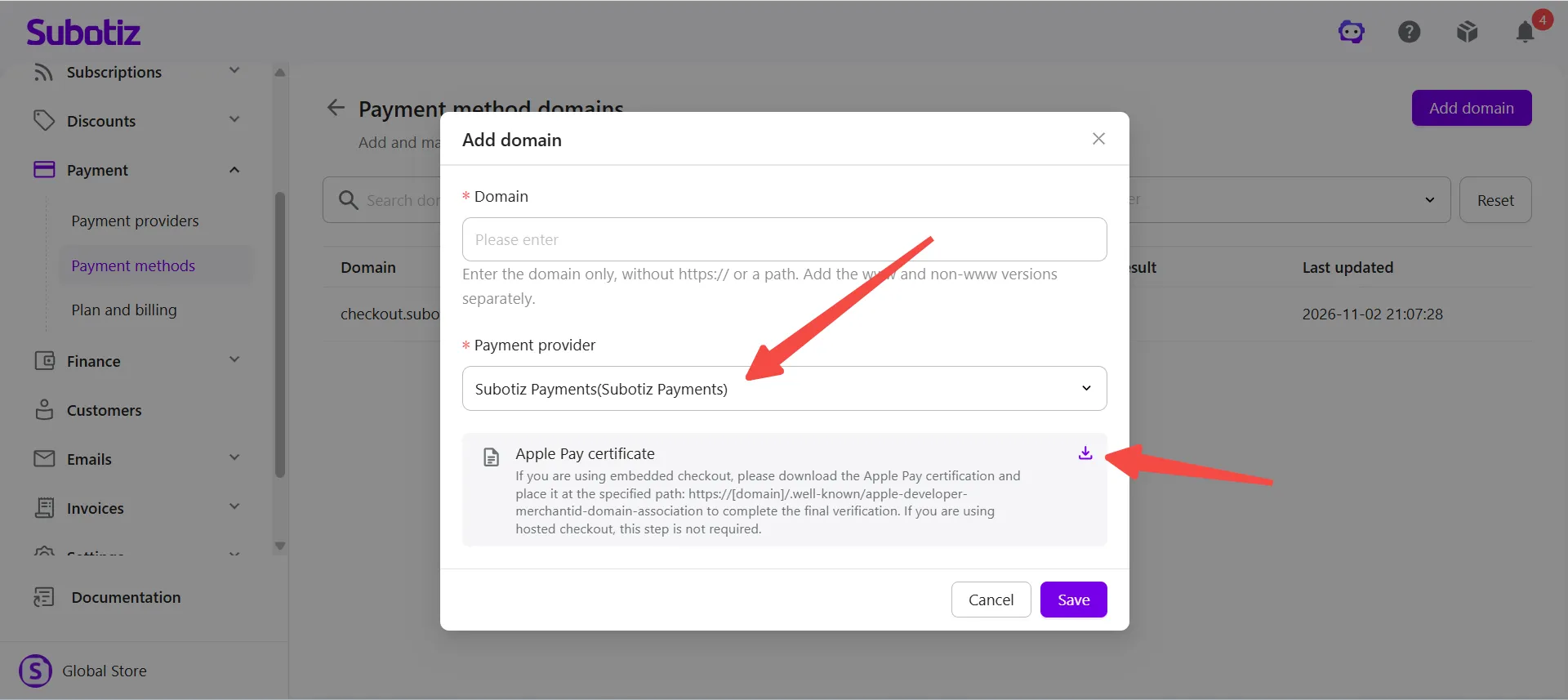
- Download the verification file: Select the Payment provider currently used for Apple Pay, then download the corresponding verification file from Apple Pay certificate.
Deploying the Apple Pay Verification File
https://example.com/.well-known/apple-developer-merchantid-domain-association- Keep the file intact: Do not change the file name or content, and do not add a file extension.
- Allow public access: Ensure the verification file is accessible directly over HTTPS without requiring login or other authentication.
- Avoid redirects: The verification file URL must not redirect to another page or domain.
- Keep the file available: Apple may periodically reverify the domain, so the verification file must remain accessible.
Registering the Website Domain
- Enter the website domain: In the Domain field, enter the domain hosting the Embedded Form, such as
www.example.com. Do not includehttps://or a page path.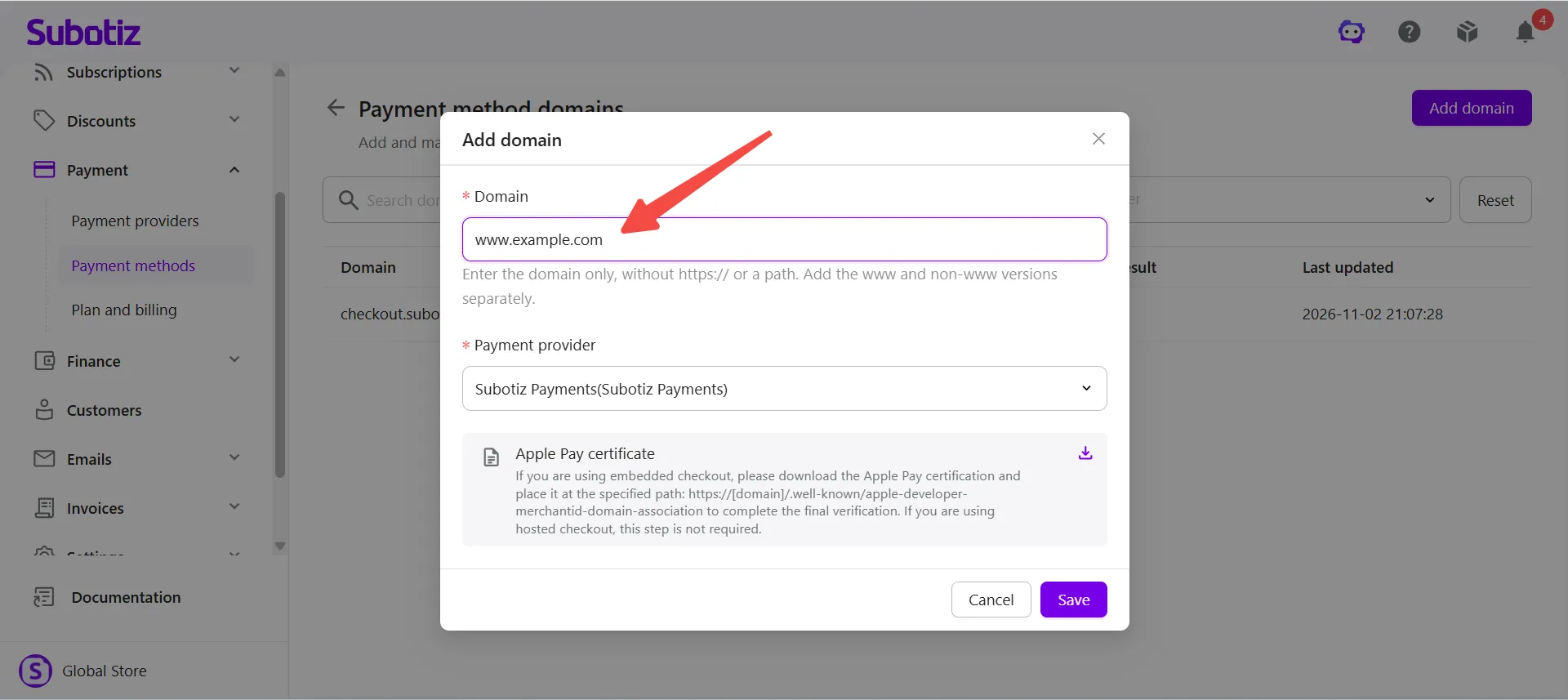
- Select the payment provider: Confirm that the selected Payment provider matches the downloaded Apple Pay verification file.
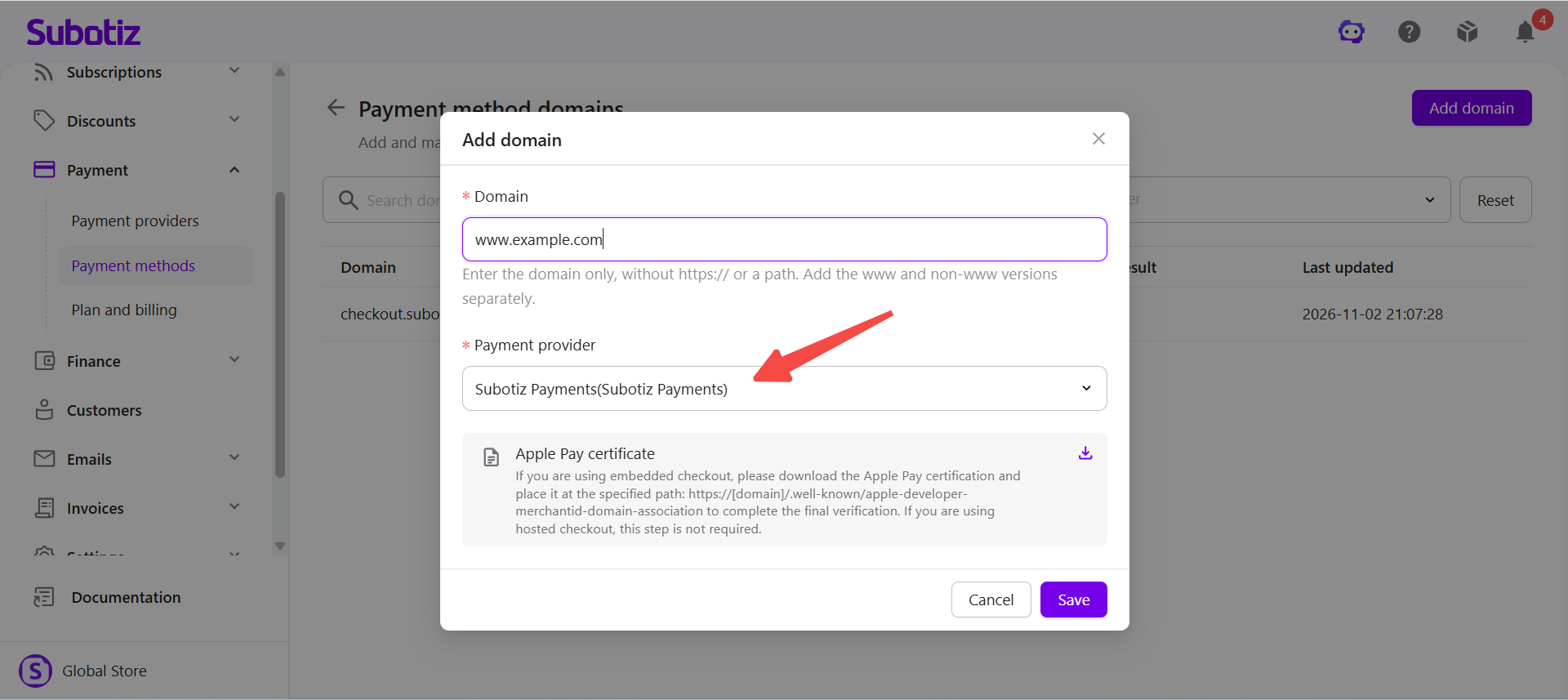
- Submit the domain registration: Click Save. Subotiz submits the domain registration request to the corresponding payment provider.
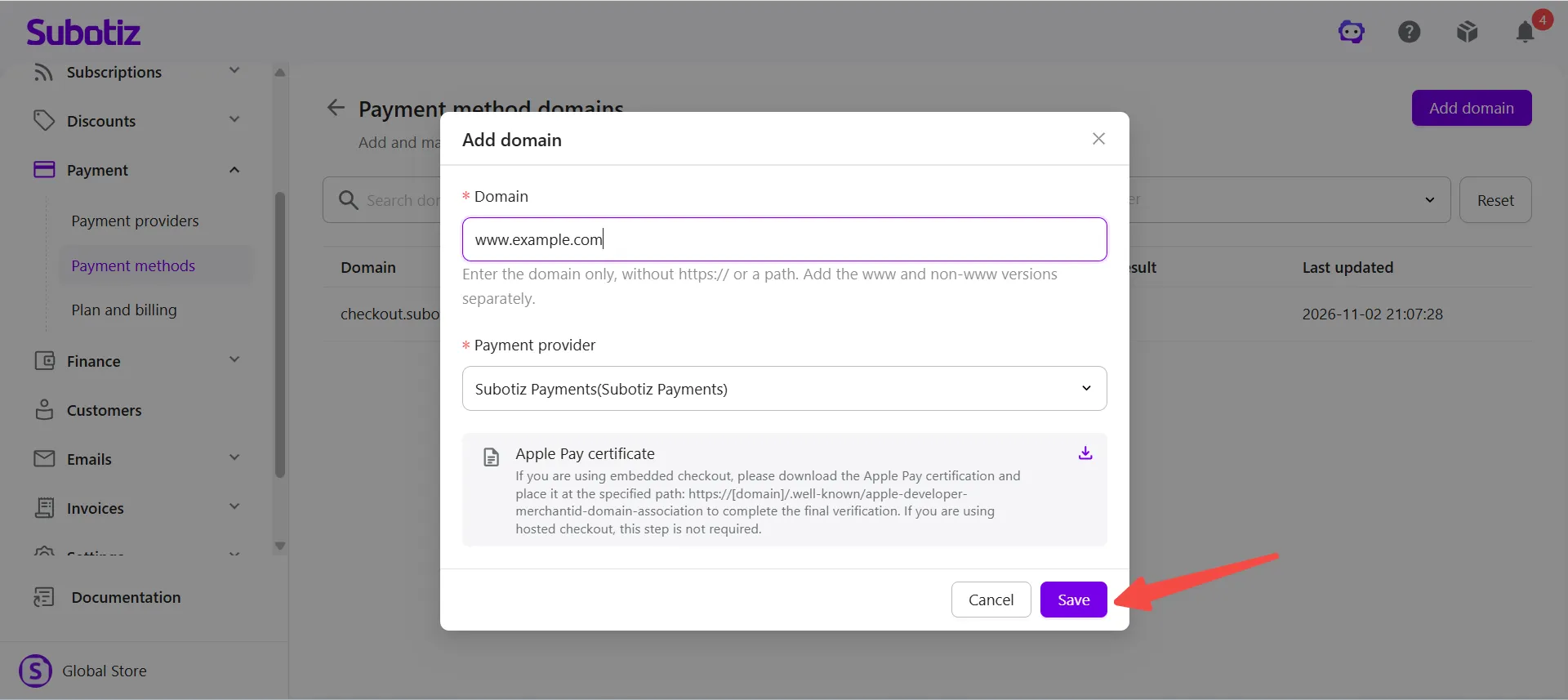
Note: Each domain and subdomain must be registered separately. For example,example.comandwww.example.comrequire separate registrations. Domain records cannot be edited or deleted directly after they are added, so confirm the domain and payment provider before submitting.
Checking Registration Results and Reregistering Domains
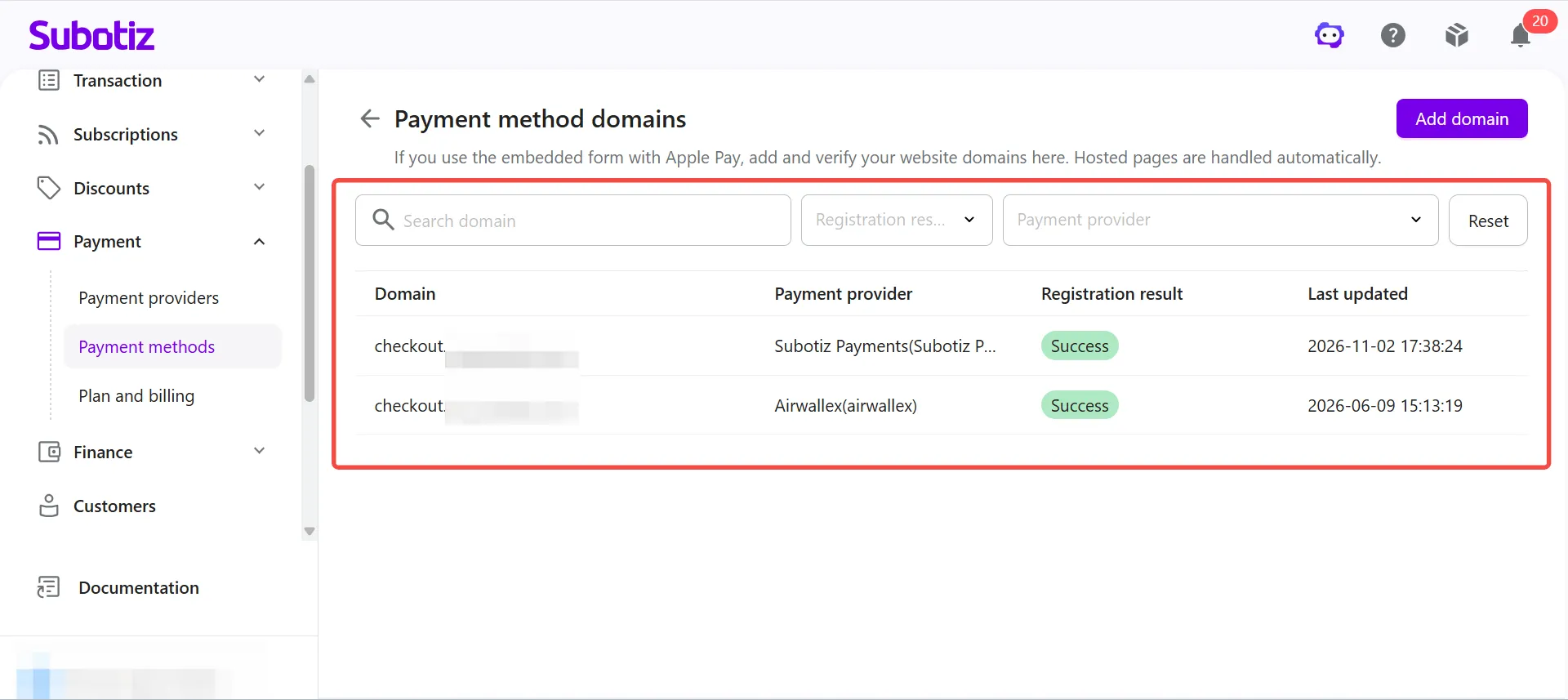
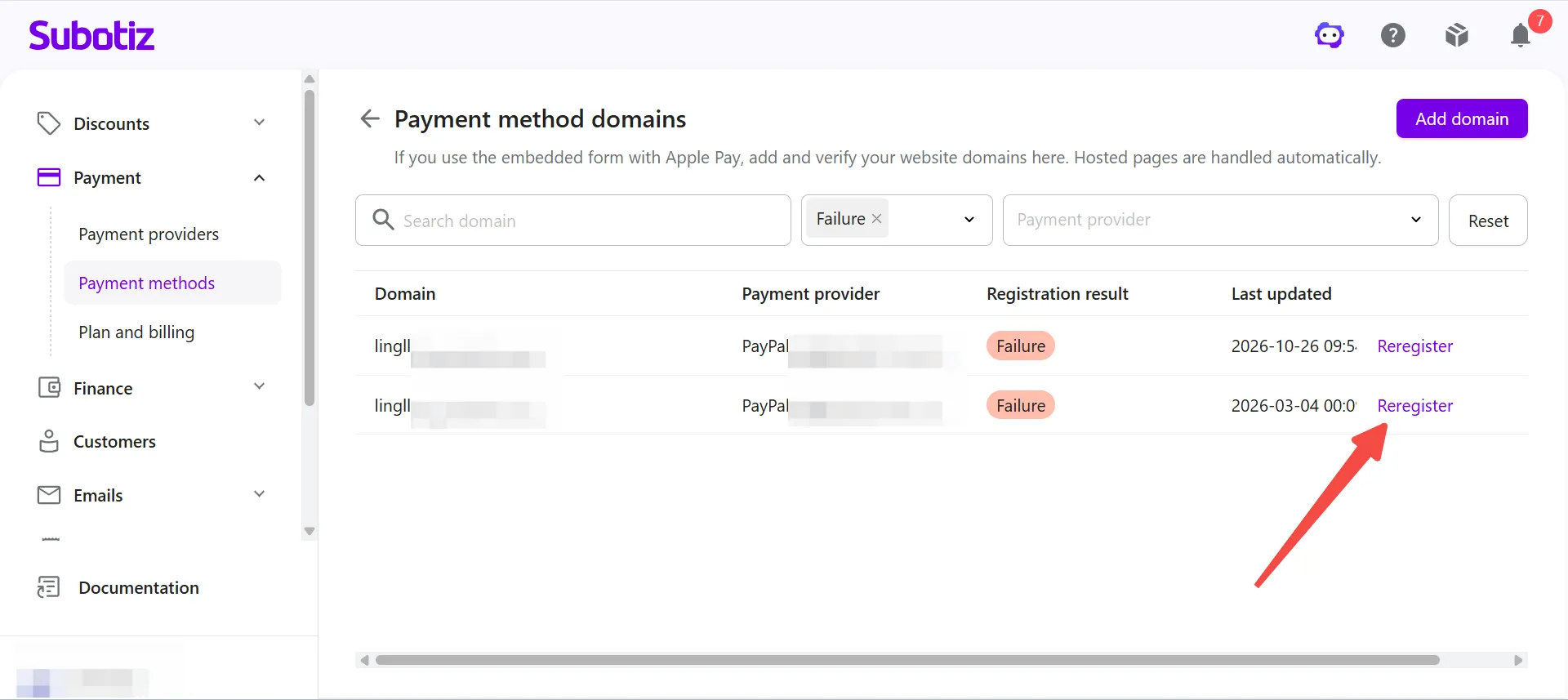
- View registration results: Review each record's Domain, Payment provider, Registration result, and Last updated time. Use the filters to find specific records.
- View the failure reason: If the registration result is Failure, hover over the status to view the reason.
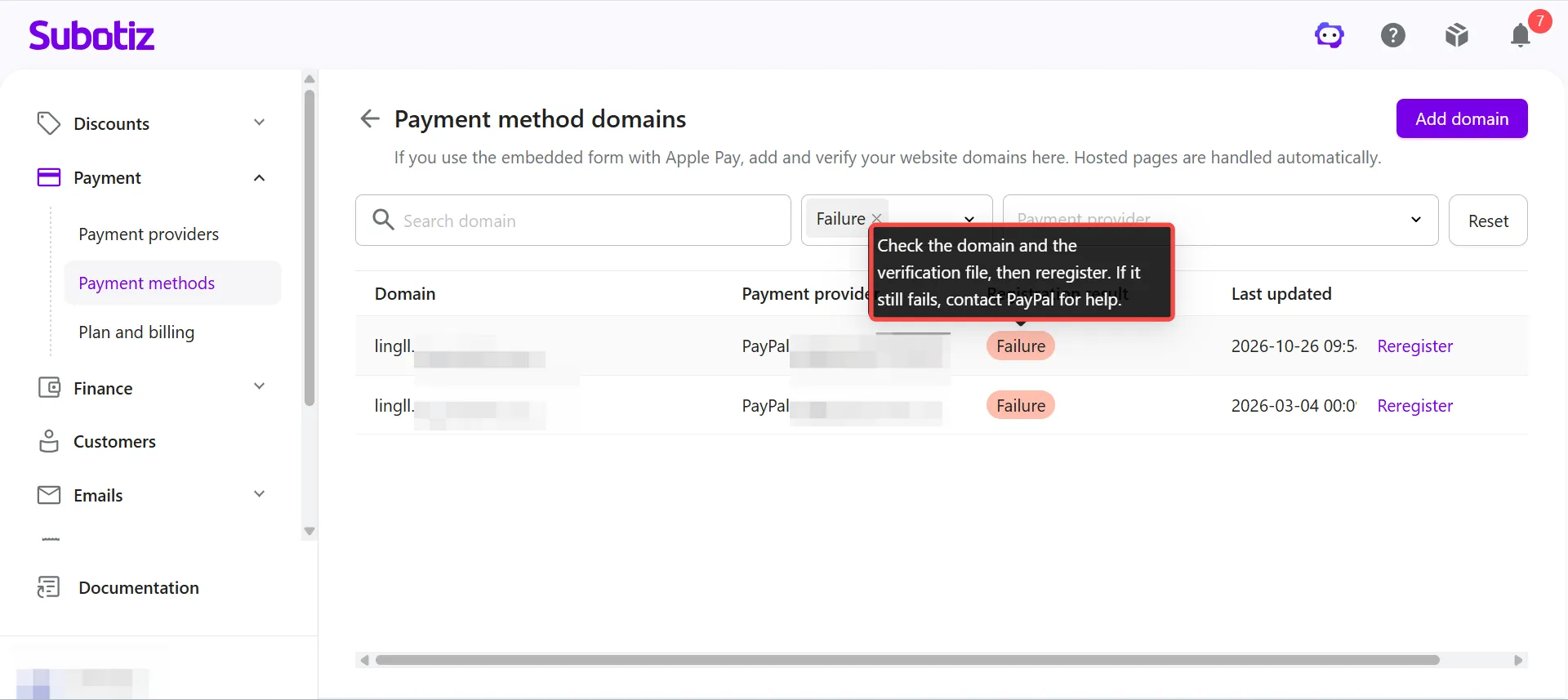
- Resubmit the registration: After resolving the verification file or website configuration issue, click Reregister to resubmit the domain registration. The domain can be changed during reregistration, but the payment provider cannot. After resubmitting, check the latest registration result in the list.
Domain Record Rules
- Editing and deletion restrictions: Domain records cannot be edited or deleted directly after they are added.
- Reregistration for failed records: Only records with a Failure status can be reregistered. During reregistration, the domain can be changed, but the payment provider cannot.
- Automatic deletion: Domain records associated with a payment provider are automatically deleted when that provider is removed.
Changing the Payment Provider or Website Domain
- Change the payment provider: When the Apple Pay payment provider is changed on the Payment methods page, Subotiz does not automatically register the domain with the new provider. First, complete domain registration using the new provider's Apple Pay verification file and confirm that registration succeeds. Then, switch the Apple Pay payment provider.
- Change the website domain: If the Embedded Form moves to a new domain or subdomain, complete domain verification for the new domain before using Apple Pay.
- Update website settings: If the web server, CDN, or access rules change, confirm that the verification file remains accessible at the required URL.
FAQs
-
Why doesn't Apple Pay appear at checkout?
Check the following:
- Domain registration: Confirm that the registration result is Success.
- Verification file: Make sure the verification file remains publicly accessible.
- Payment provider: Confirm that the active Apple Pay payment provider matches the domain registration record.
- Device and browser: Check that the customer's device and browser support Apple Pay.
-
Wallet and transaction: Confirm that the Wallet configuration and transaction amount meet the payment provider's requirements.
For the Embedded Form, also verify the following:
- Device requirements: Test on an iPhone running iOS 17 or later, or on a Mac using Safari 17 or later.
- Apple ID region: The Apple ID used for testing must not be registered in mainland China.
-
Iframe configuration: If the checkout is embedded within nested iframes, ensure that each iframe has the
allow="payment"attribute configured correctly.
-
Why does domain registration fail even though the verification file is accessible?
Check whether Cloudflare, a CDN, or other security settings are blocking Apple's access to the verification file. Also confirm that the verification file URL does not redirect to another page or domain.
-
What if the domain is already registered by another merchant?
If the system indicates that the domain is already registered by another merchant, contact the Subotiz customer success manager for assistance.
-
Does the Hosted Page require manual domain registration?
No. Subotiz automatically handles Apple Pay domain verification for the Hosted Page, including payment links and connected custom checkout domains.
When Apple Pay is enabled for the first time or the default checkout domain is changed, Subotiz automatically registers the domain. The registration record also appears in the payment method domains list.
Best Practices
- Verify domains in advance: Complete domain registration before launching the Embedded Form and confirm that the registration result is Success.
- Register the correct checkout domain: Ensure that the registered domain matches the domain hosting the Embedded Form.
- Keep the verification file accessible: Maintain public access to the verification file to prevent future verification failures.
- Verify before switching providers: Confirm that domain registration with the new payment provider succeeds before updating the Apple Pay payment provider configuration.