The Cardholder page in Subotiz Accounts allows merchants to manage all cardholders in one place. Merchants can review cardholder information, approval status, and linked cards, as well as search, filter, view, and edit cardholder records. Once approved, a cardholder can be selected when applying for a Regular Card or Shared Card without entering the same identity information again, helping streamline virtual credit card management.
Viewing the Cardholder List
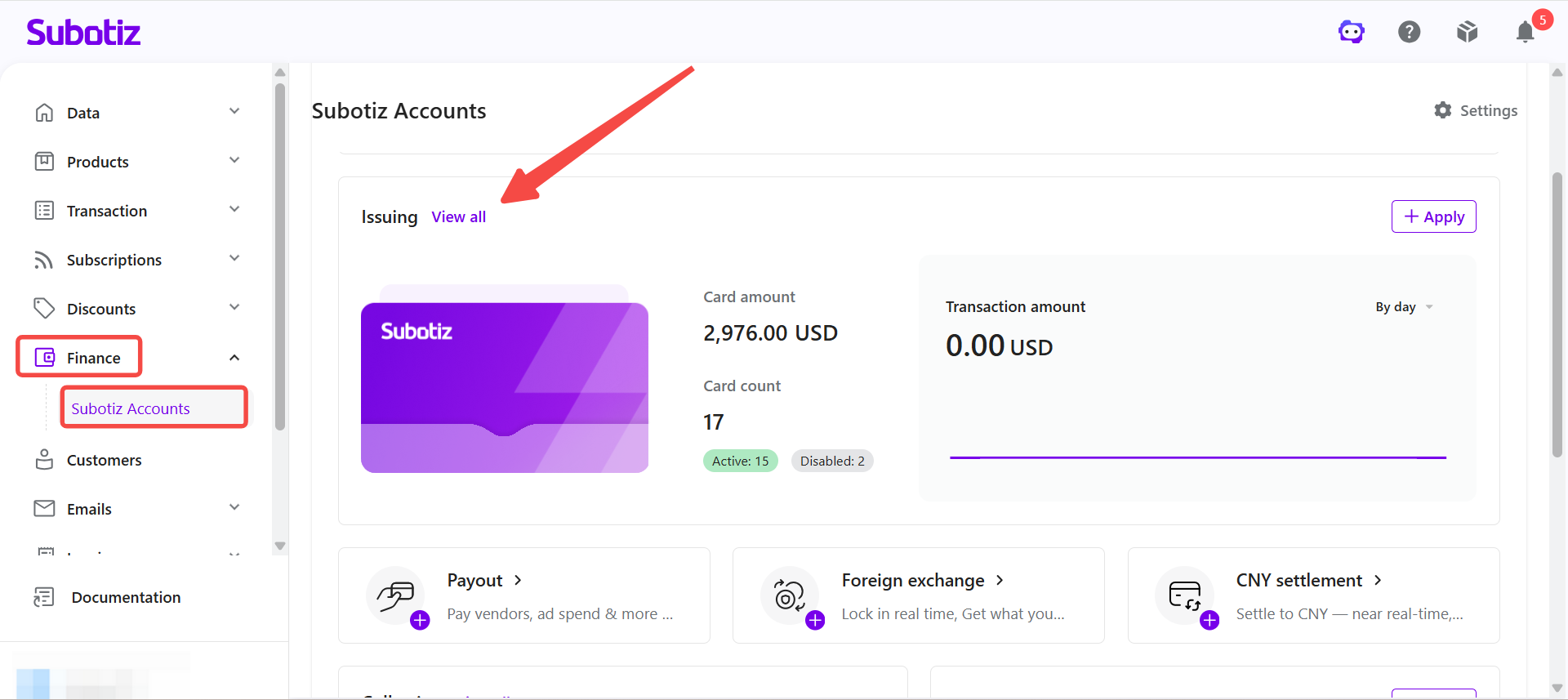
- Open Issuing: Log in to the Subotiz dashboard and go to Finance > Subotiz Accounts > Issuing, then click View All.
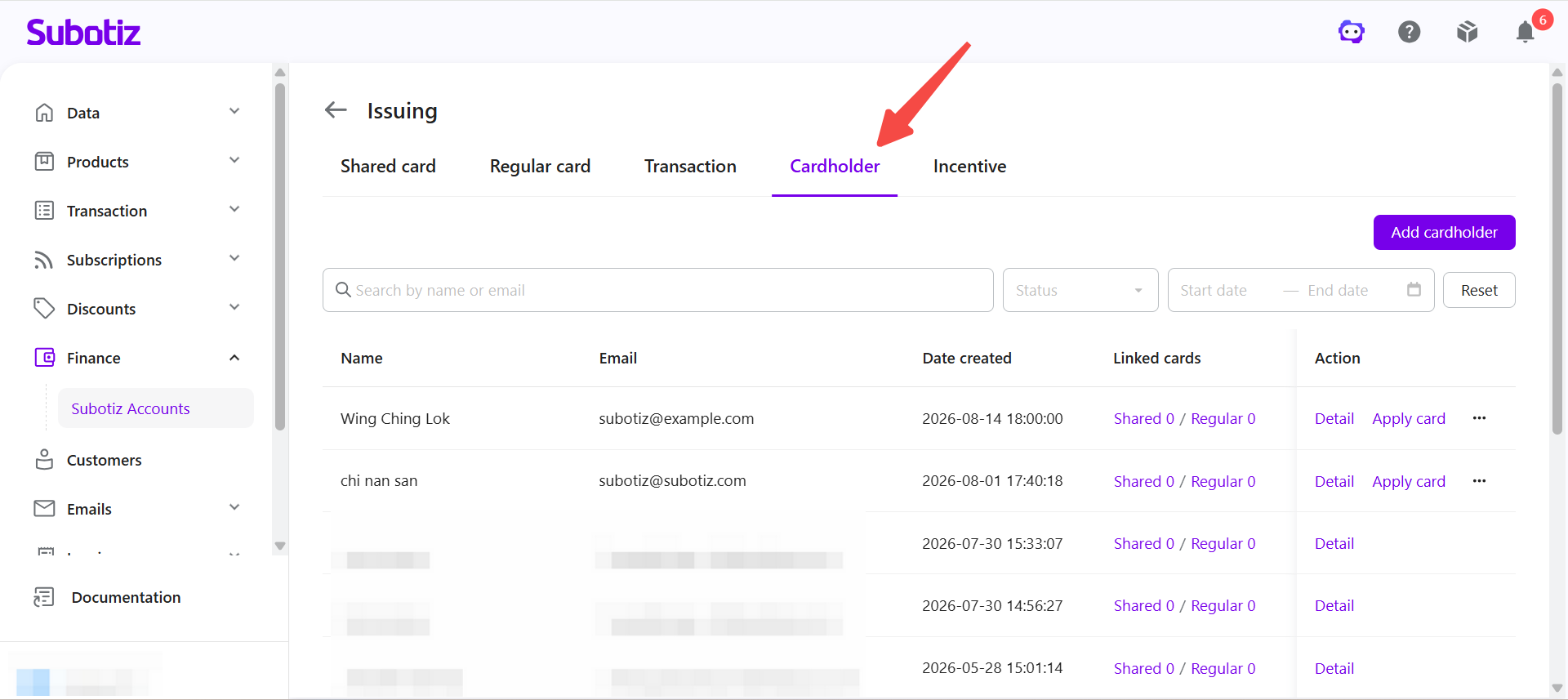
- Open Cardholder: Click the Cardholder tab to view all existing cardholders.
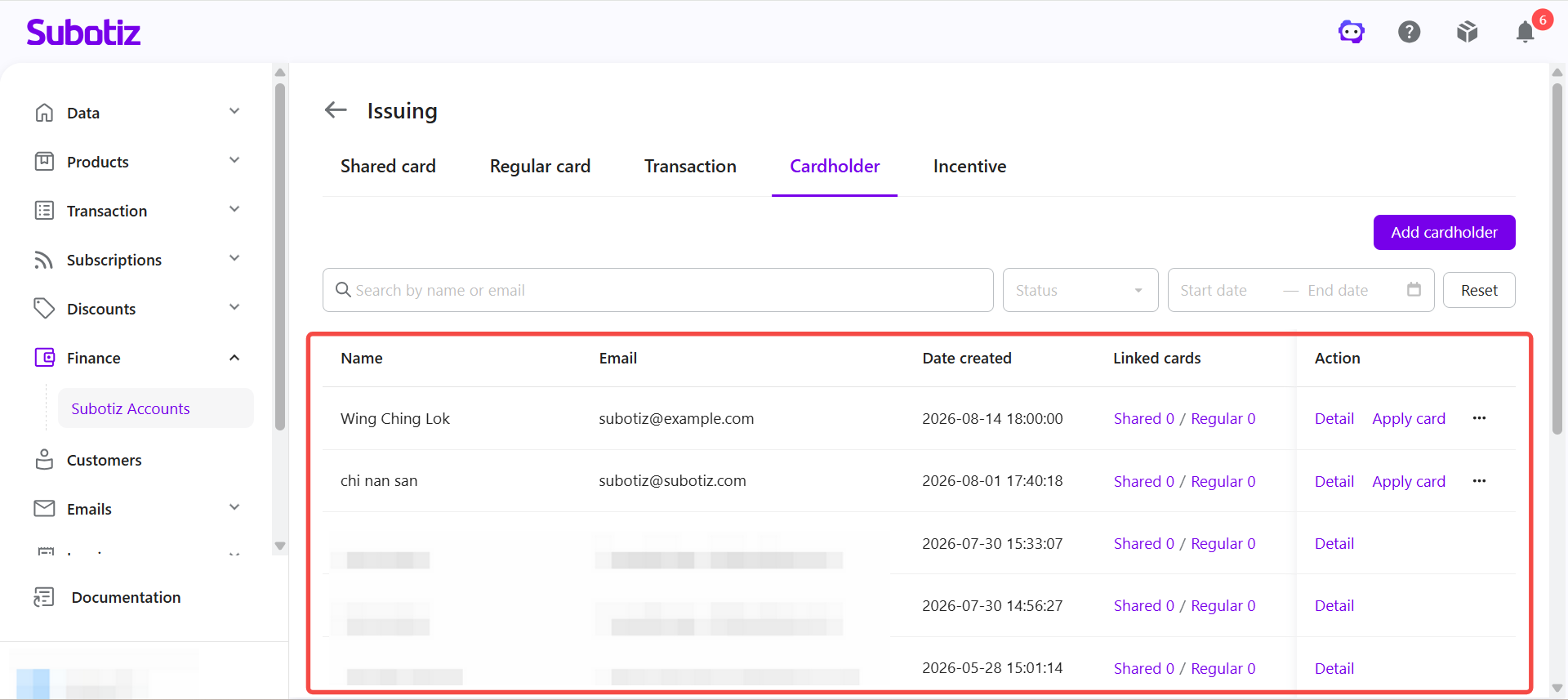
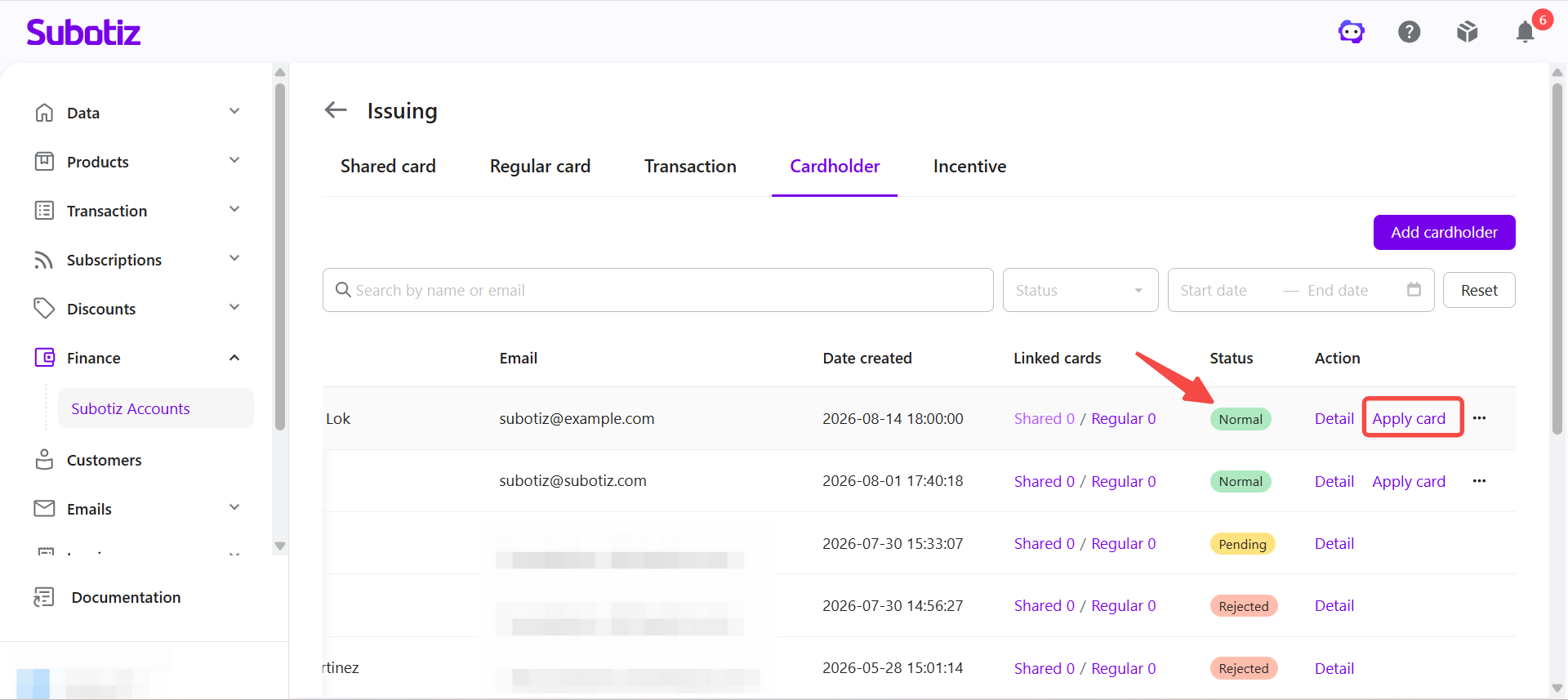
- View the cardholder list: The page displays all cardholders by default. Each record shows the cardholder's name, email address, date created, number of linked Shared Cards and Regular Cards, and status.
Searching and Filtering Cardholders
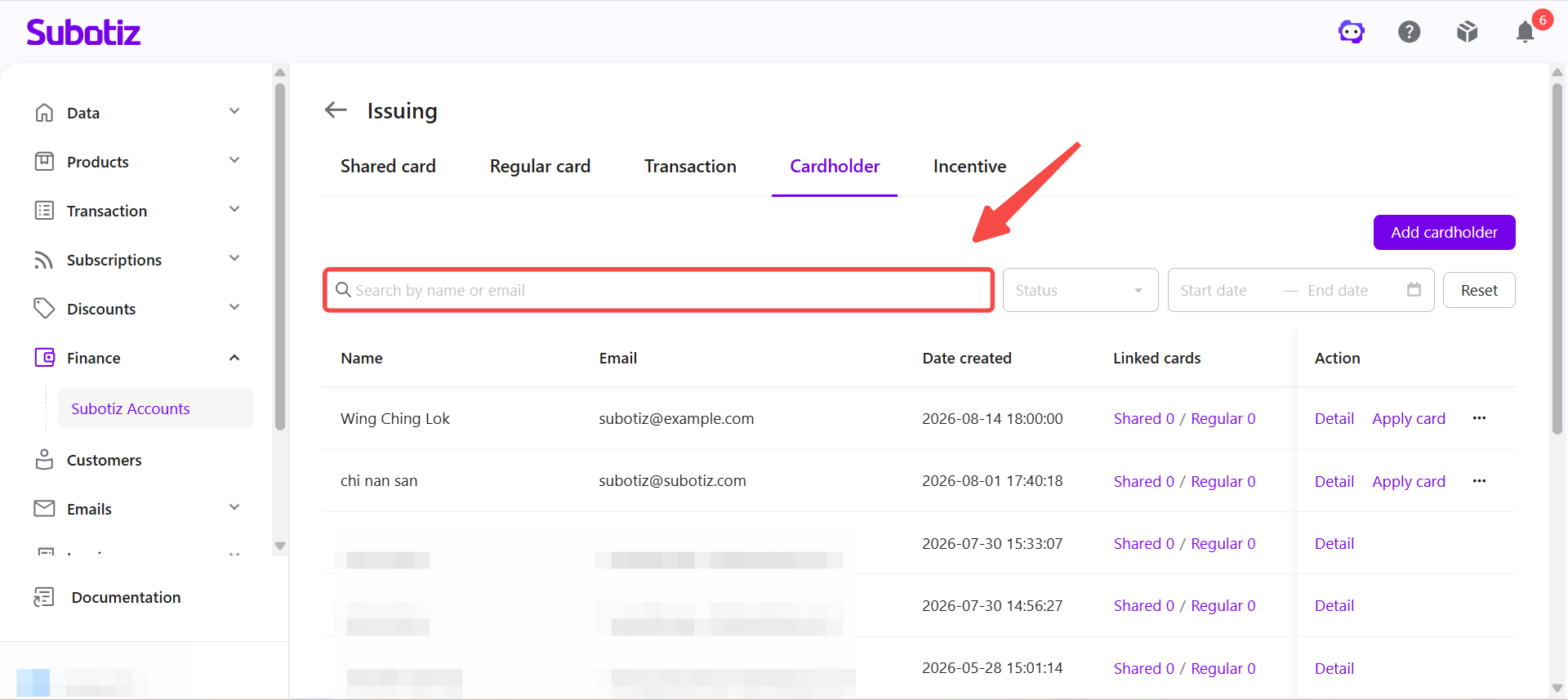
- Search for a cardholder: Enter a name or email address to find a specific cardholder.
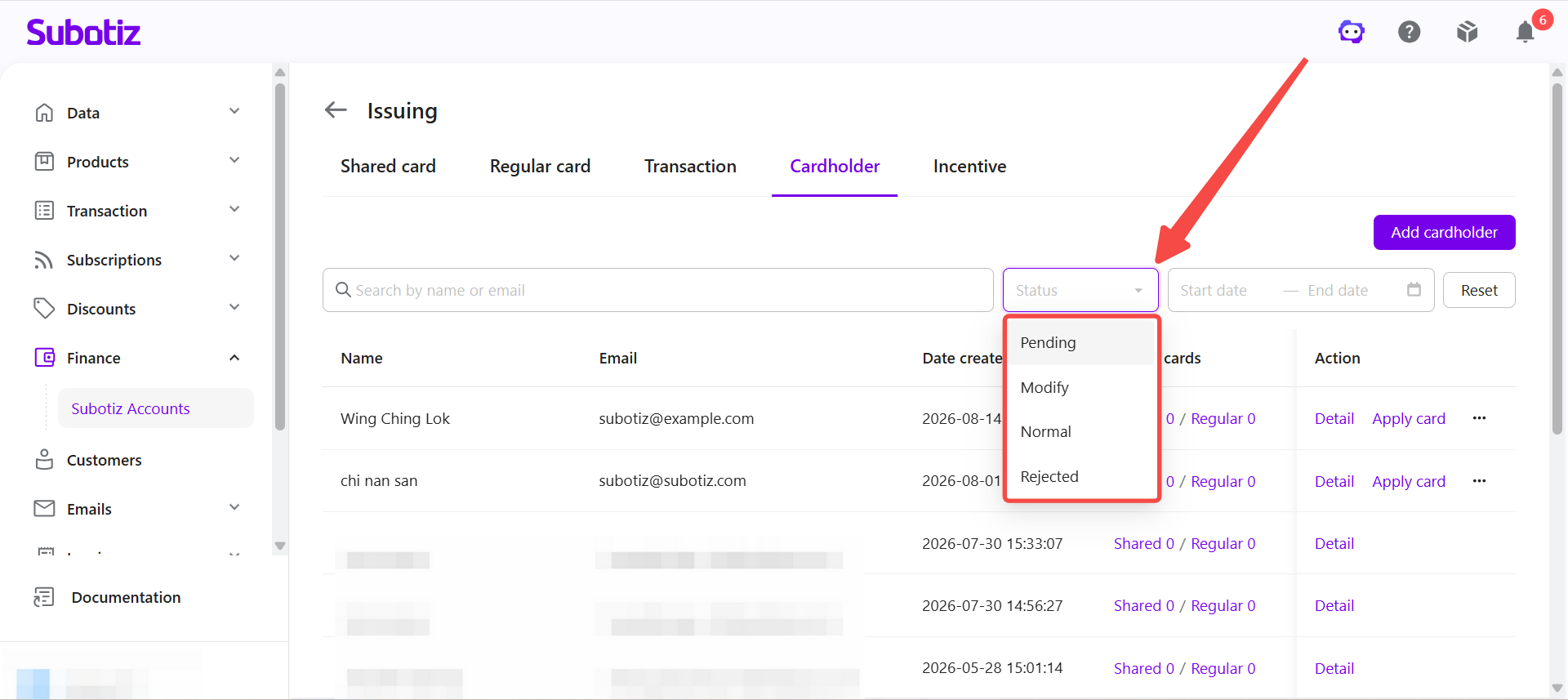
- Filter by status: Use Status to display cardholders with a specific status.
- Pending: The cardholder information is under review and cannot be used to apply for a Regular Card or Shared Card.
- Normal: The review is complete and the cardholder can be used to apply for a Regular Card or Shared Card.
- Modify: The cardholder information needs to be updated or supplemented before it can be resubmitted for review.
- Rejected: The cardholder was not approved. Open the cardholder details to review the reason.
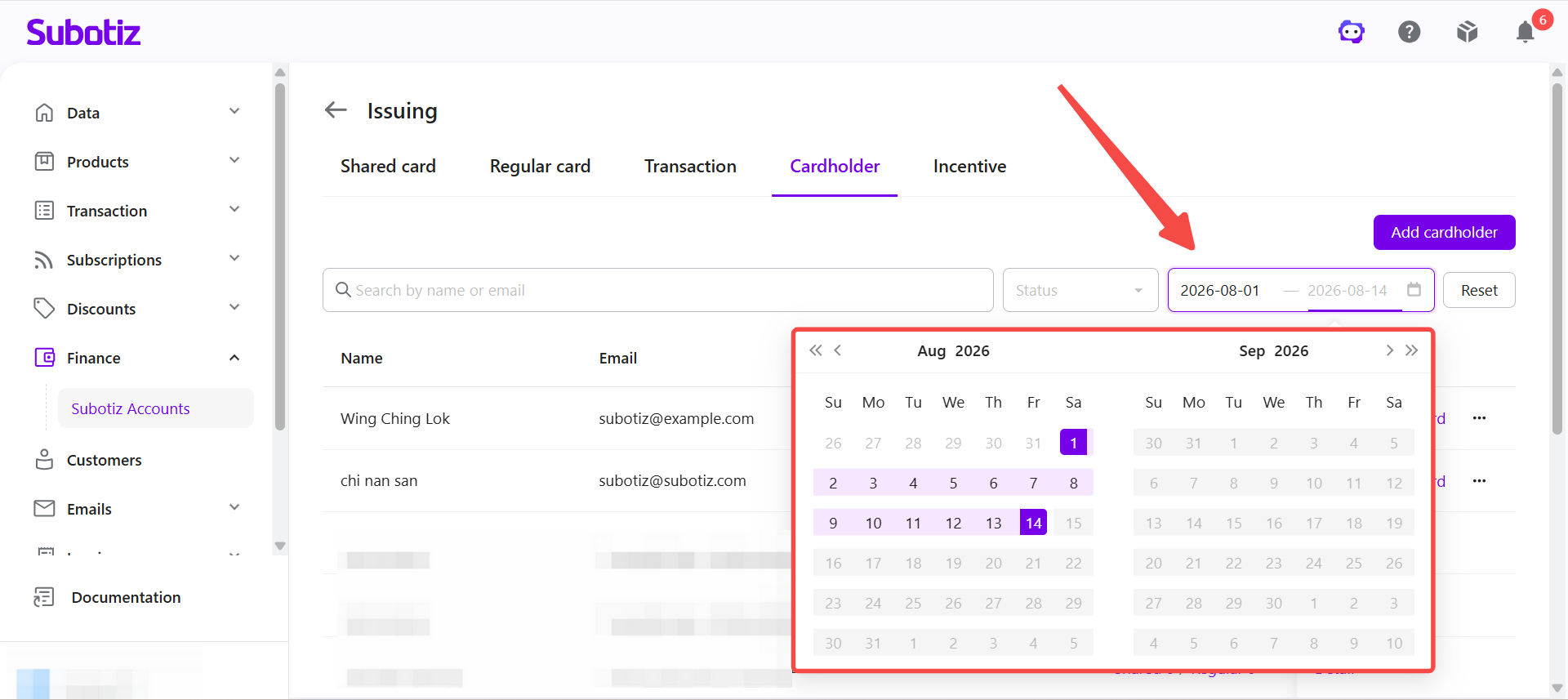
- Filter by creation date: Use Start date and End date to display cardholders created within a specific date range.
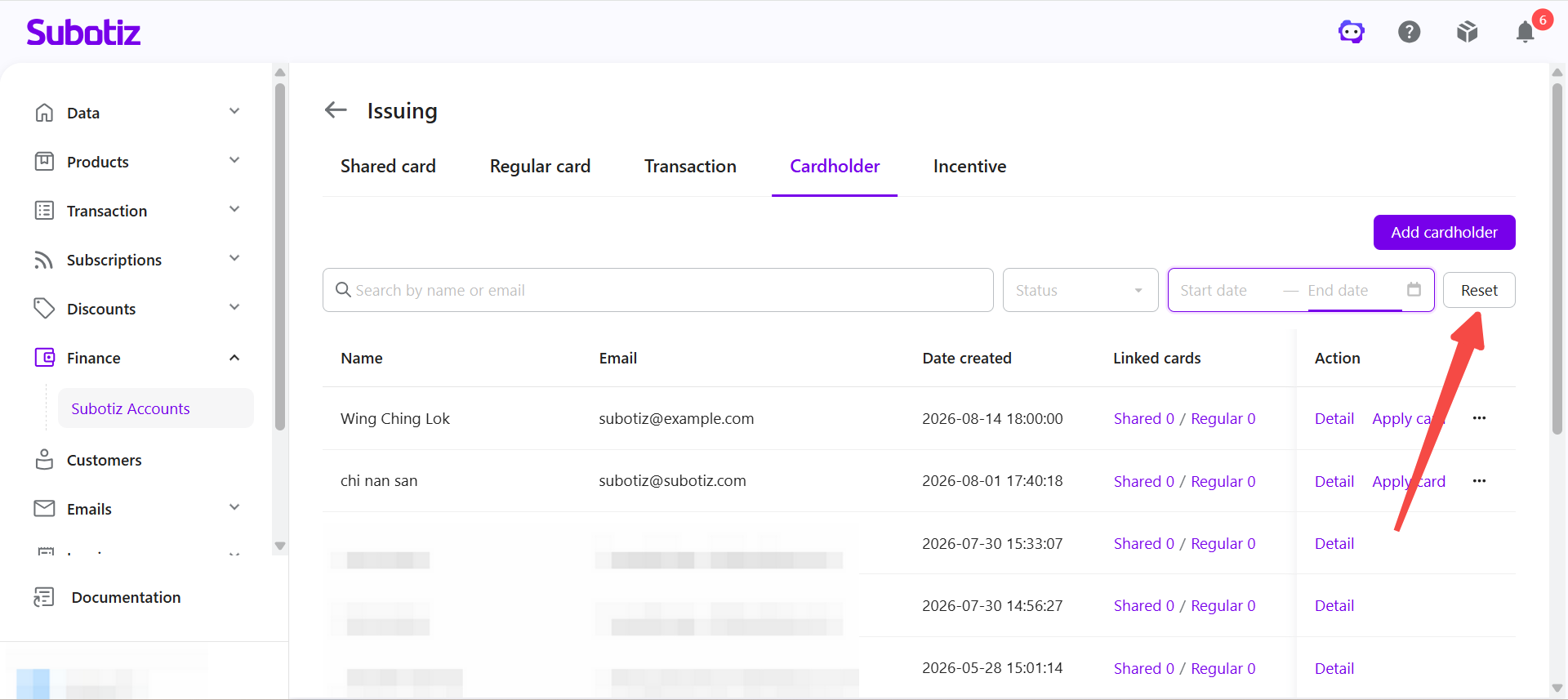
- Reset the filters: Click Reset to clear all applied filters.
Viewing Cardholder Details
- Open cardholder details: Click Detail for the corresponding cardholder.
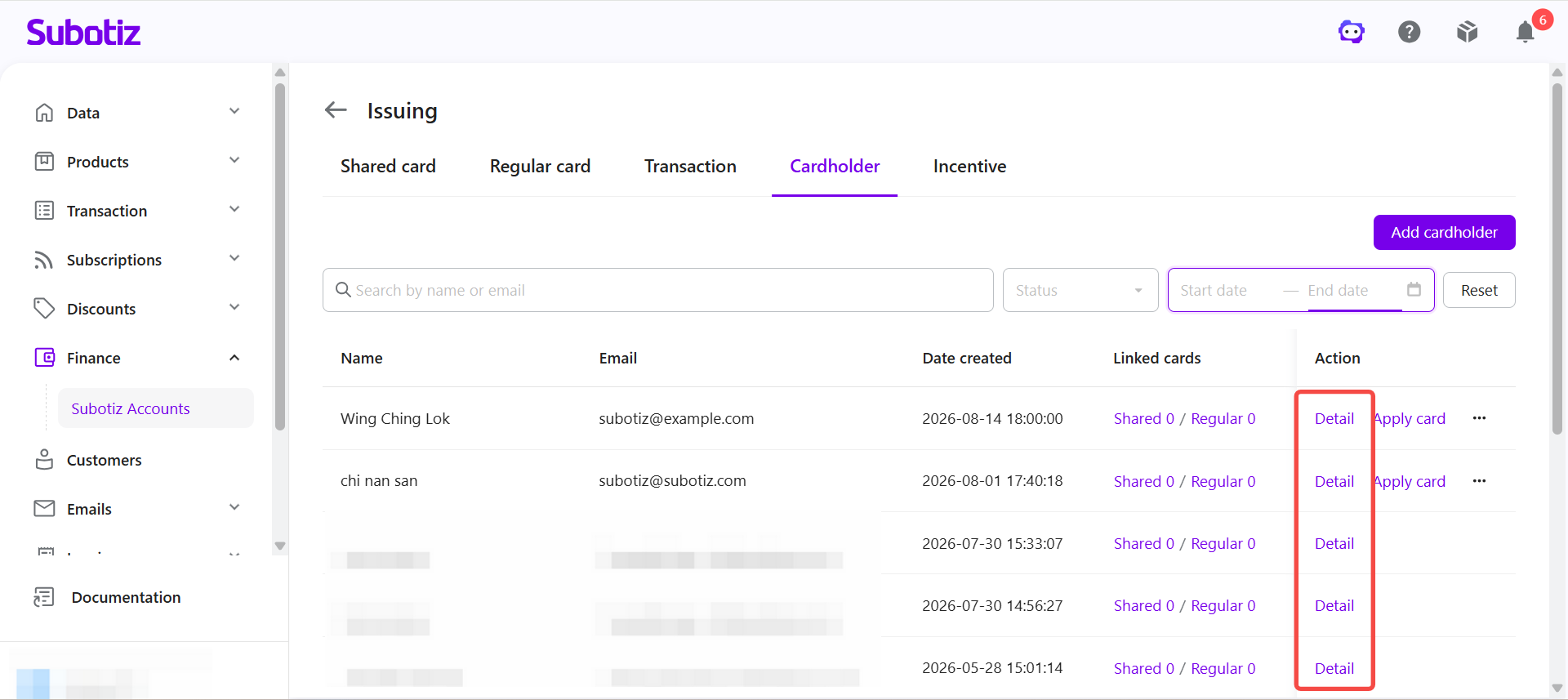
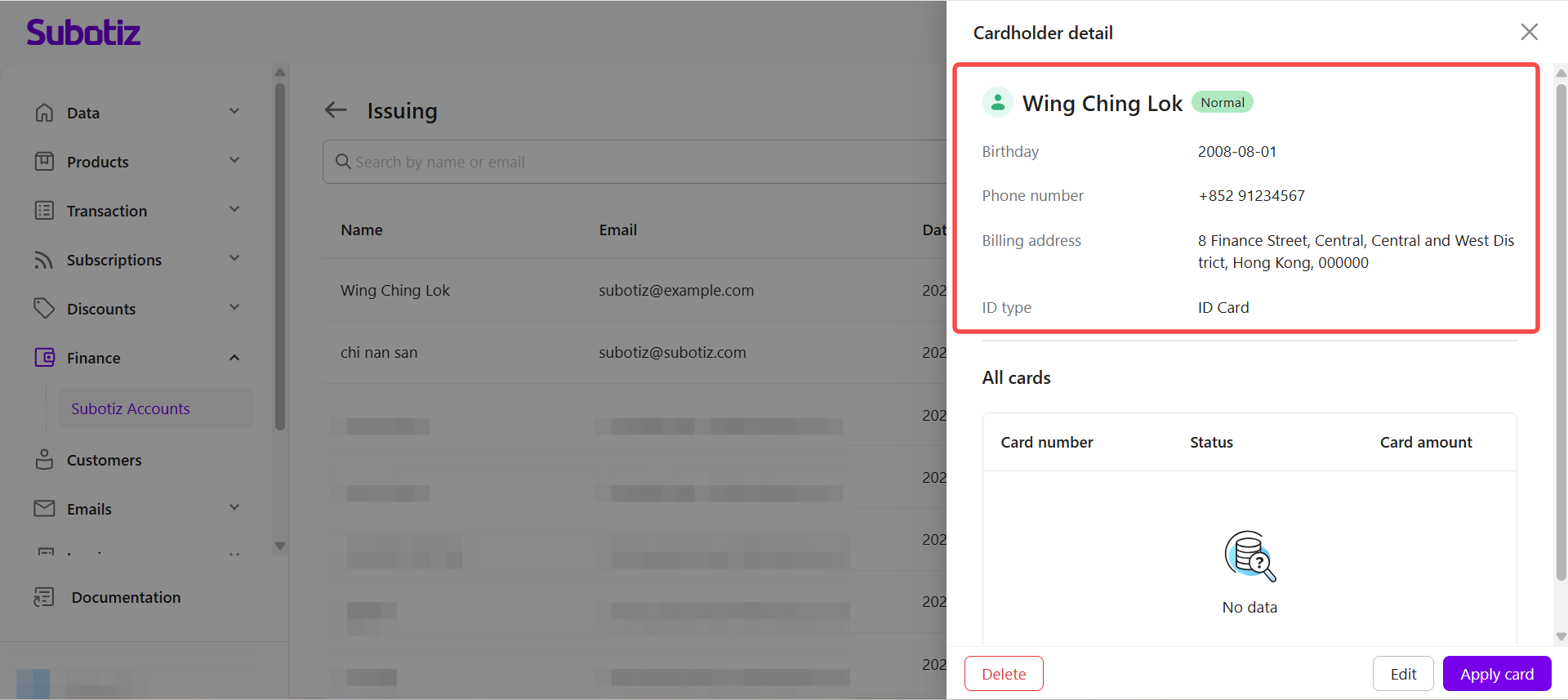
- Review cardholder information: View the cardholder's name, date of birth, phone number, ID type, billing address, status, and other available information.
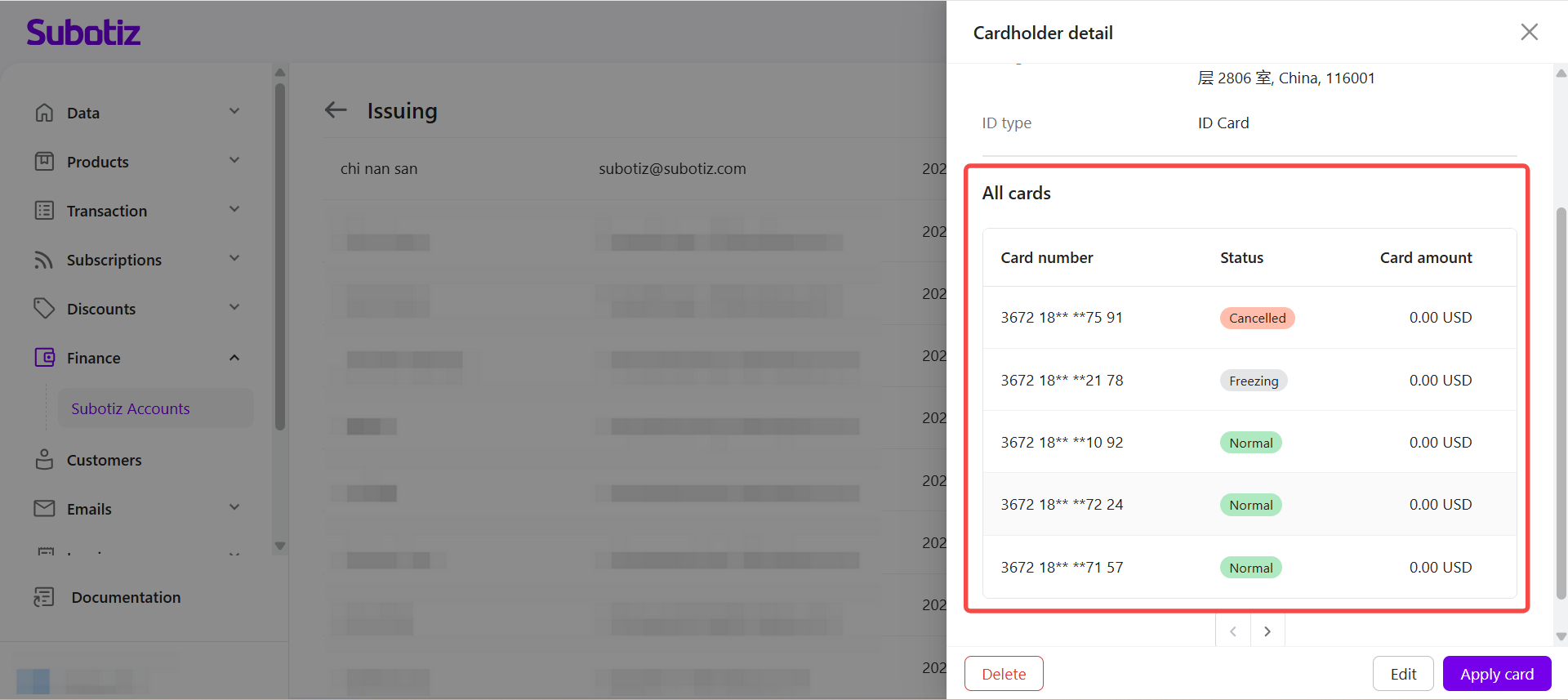
- View linked cards: Under All cards, view the cards linked to the cardholder, including the card number, status, and card amount.
Editing Cardholder Information
Notes:
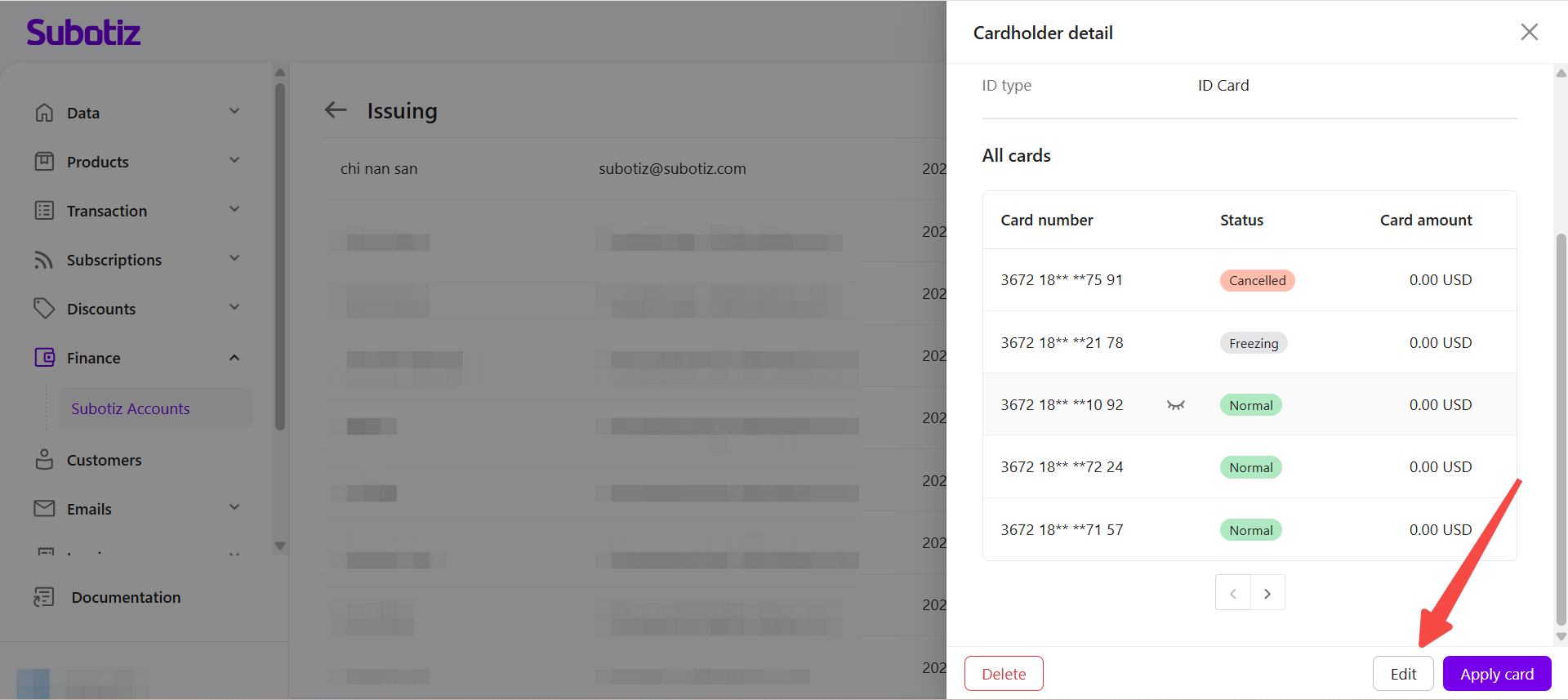
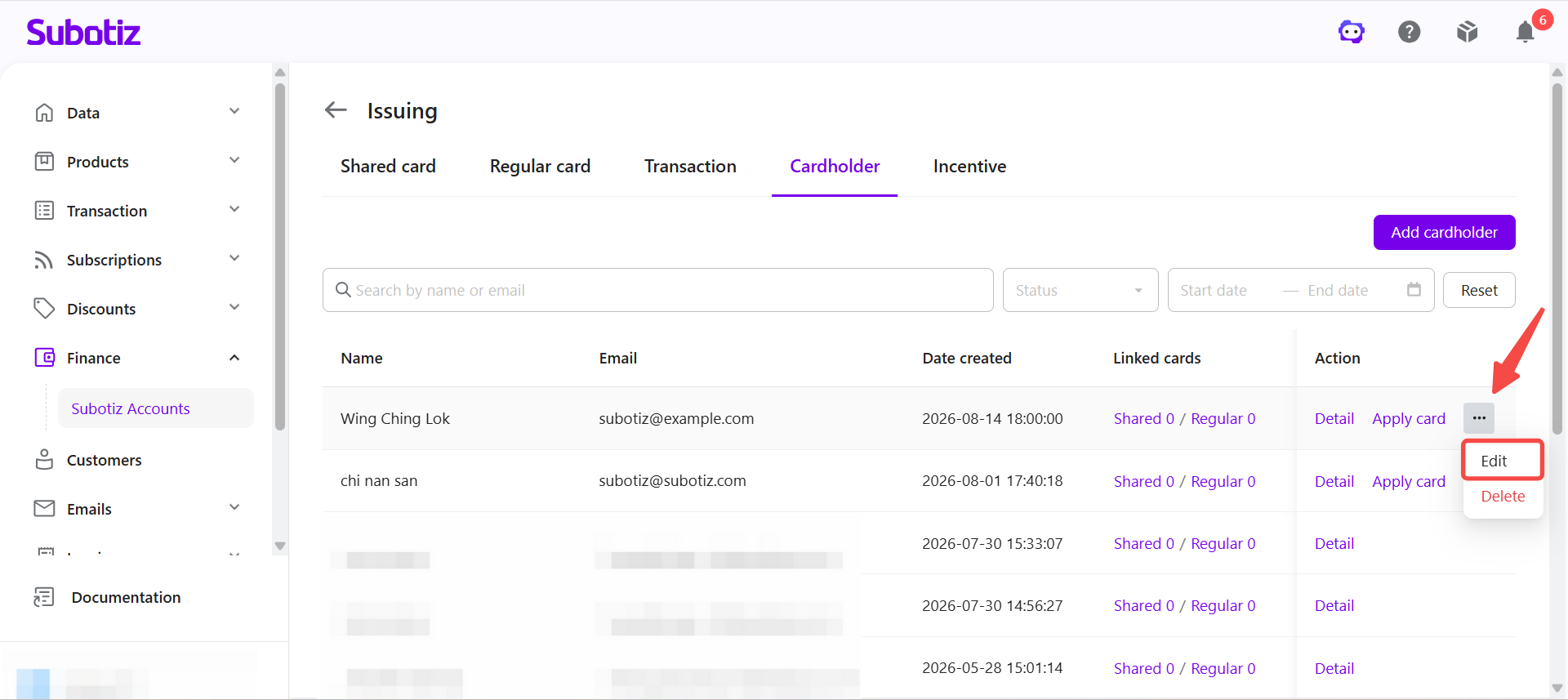
- Open the edit page: Click Edit from the cardholder details panel or from the Cardholder page.
- Update cardholder information: Update the available fields, such as the email address, mobile phone number, and billing address.
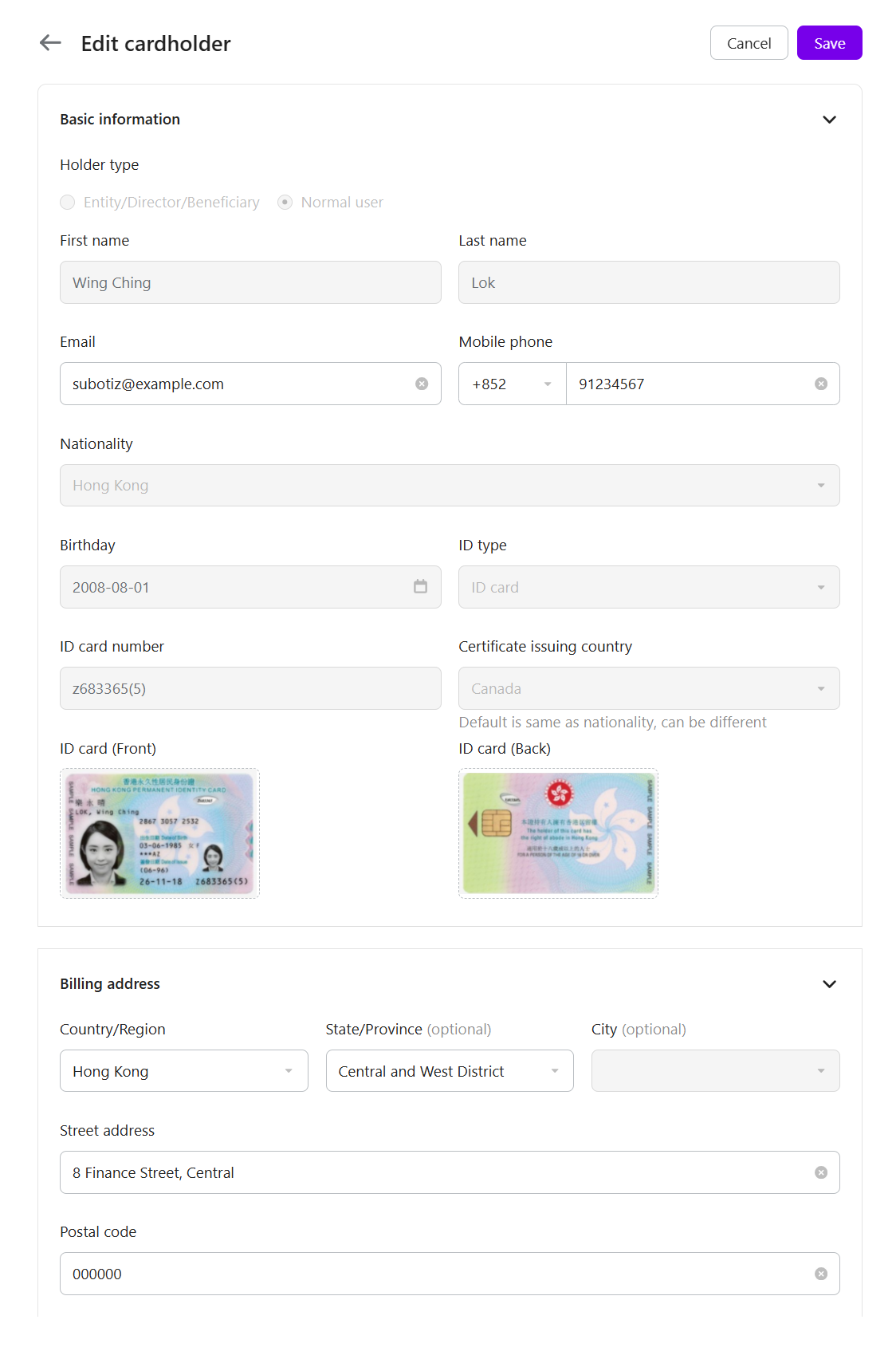
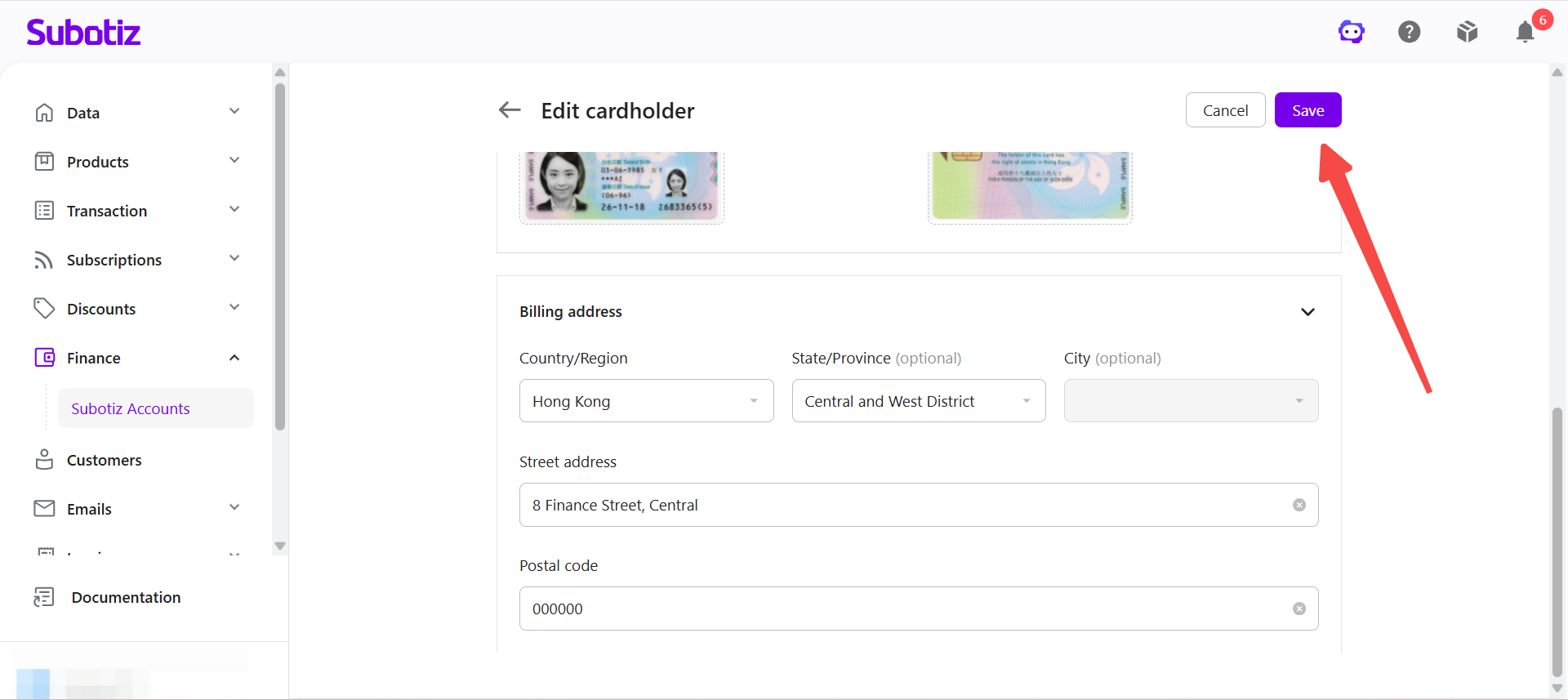
- Save the changes: Review the updated information, then click Save.
Applying for a Regular Card or Shared Card
- Confirm the cardholder status: Make sure the cardholder has a Normal status. Only approved cardholders can be used to apply for a Regular Card or Shared Card.
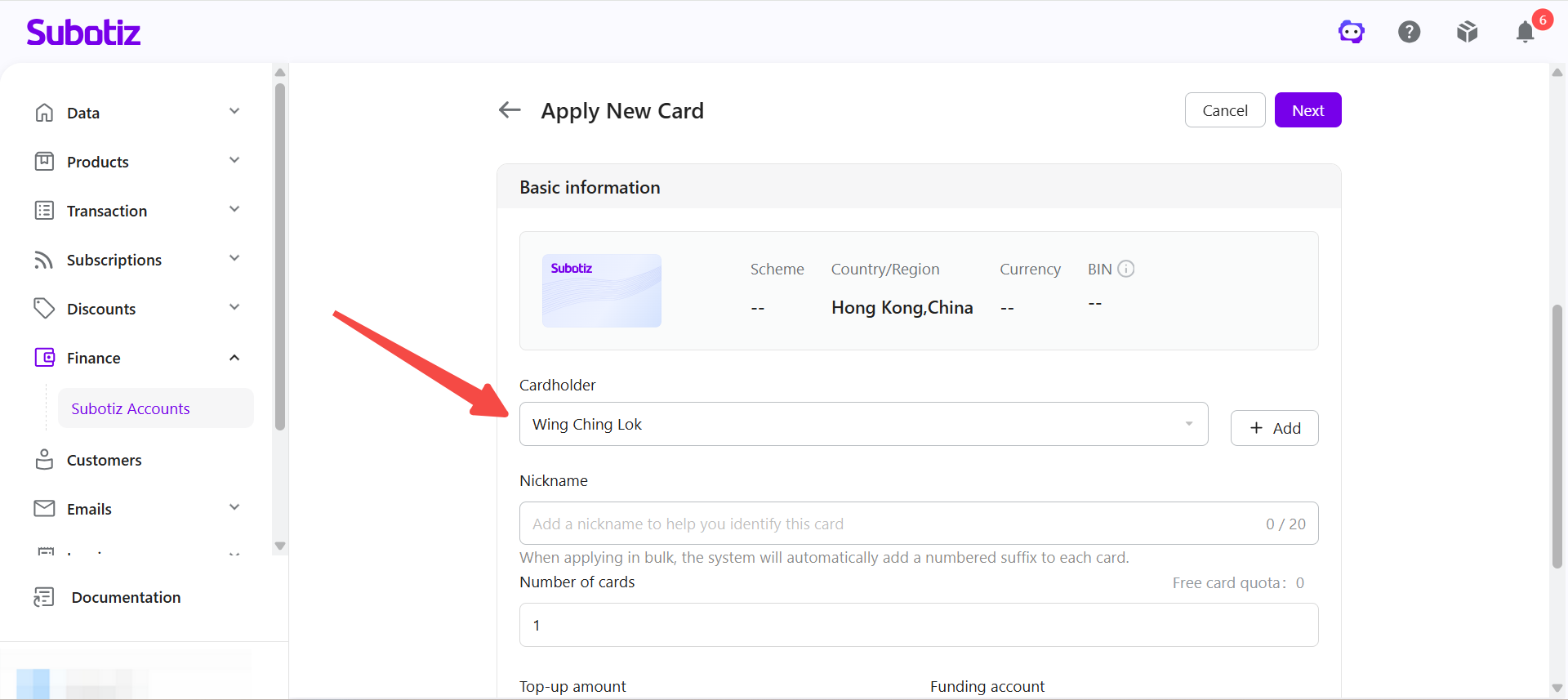
- Apply for a virtual credit card: When applying for a Regular Card or Shared Card, select an approved cardholder without entering the same identity information again.
Best Practices
- Create a separate cardholder for each user: Create an individual cardholder record for each person who will use a card to simplify card management, auditing, and future virtual credit card applications.
- Keep cardholder information accurate: Make sure cardholder information matches the corresponding identification documents to avoid delays during review.
- Review cardholder status regularly: If a cardholder remains in Pending status for an extended period or is Rejected, open the cardholder details and follow the instructions provided.
- Keep editable information up to date: Update the cardholder's contact information or billing address when it changes to keep cardholder records current.
- Delete cardholders without linked cards: Cardholders without linked Regular Cards or Shared Cards can be deleted. Cardholders with linked cards cannot be deleted.
The Cardholder page provides a centralized place to manage cardholder information, approval status, and linked cards. Maintaining cardholder records in one place simplifies Regular Card and Shared Card applications and improves overall virtual credit card management.