Shared Cards allow merchants to create multiple virtual credit cards linked to a shared Issuing Account. All Shared Cards draw from the same funding source, so merchants do not need to top up each card individually. Merchants can assign separate cards to different cardholders and business purposes and set spending limits for each card, making it easier to manage funds, card usage, and payments.
Applying for Shared Cards
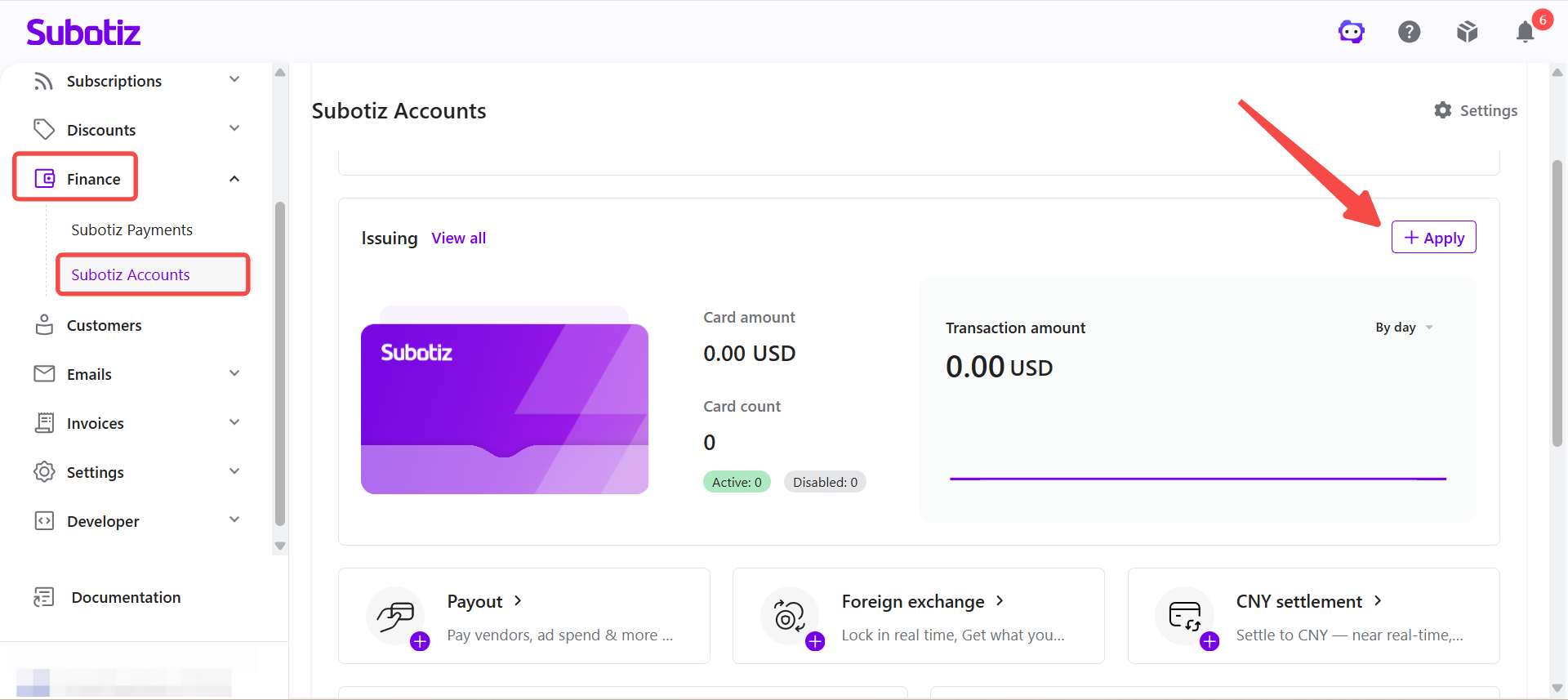
- Open Issuing VCC: Log in to the Subotiz dashboard and go to Finance > Subotiz Accounts > Issuing, then click Apply.
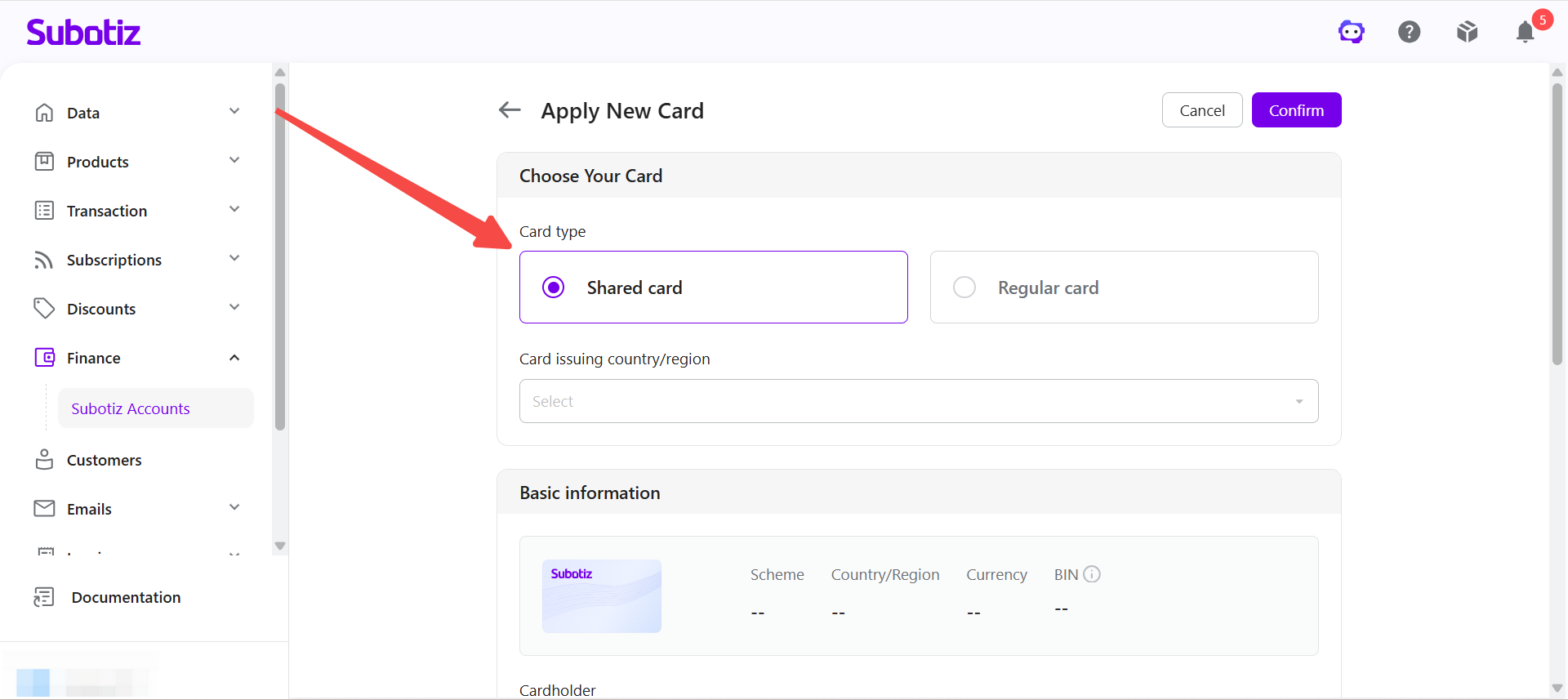
- Select the card type: On the Apply New Card page, select Shared card. Shared Cards use the Issuing Account as their shared funding source. Once created, the cards are automatically linked to the current Issuing Account and do not require individual top-ups.
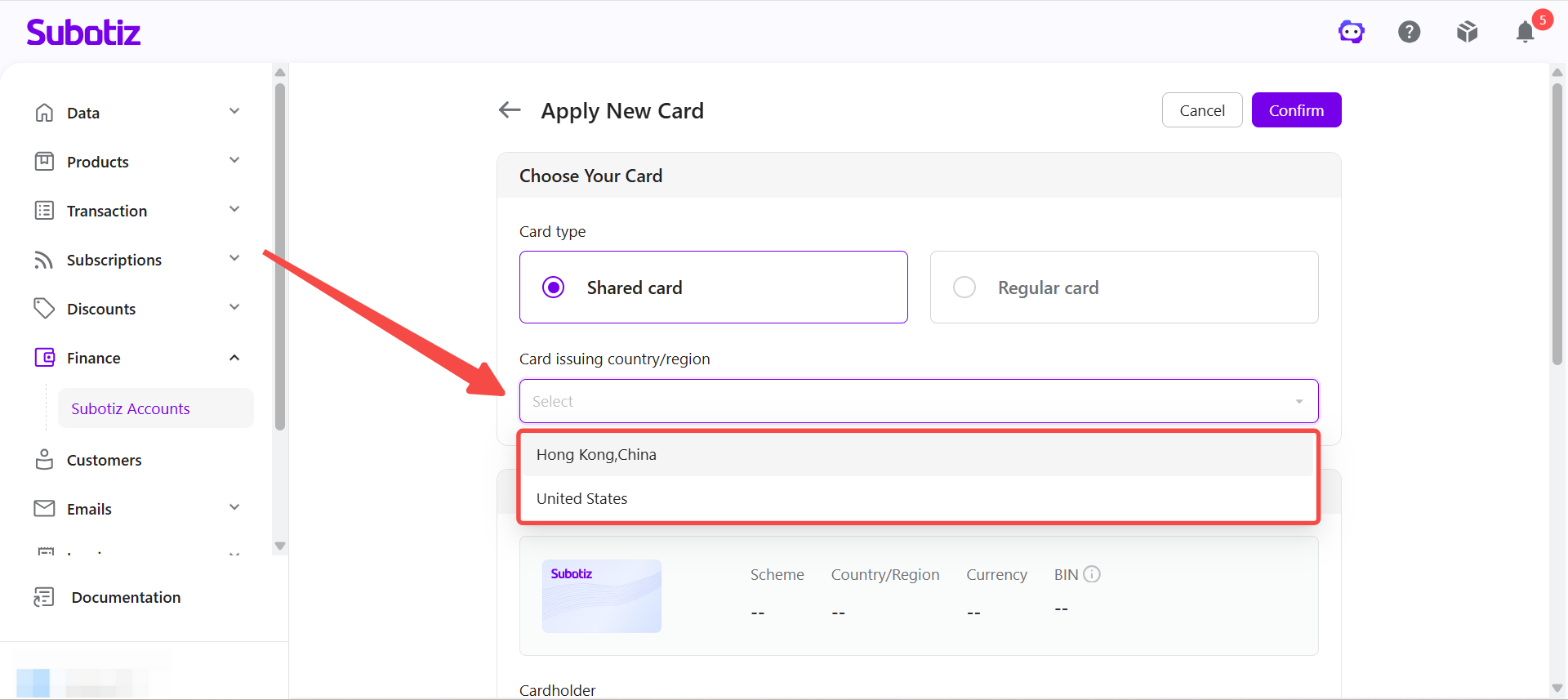
- Select the card issuing country/region: Under Card issuing country/region, select an available option, such as Hong Kong,China or United States.
Notes:
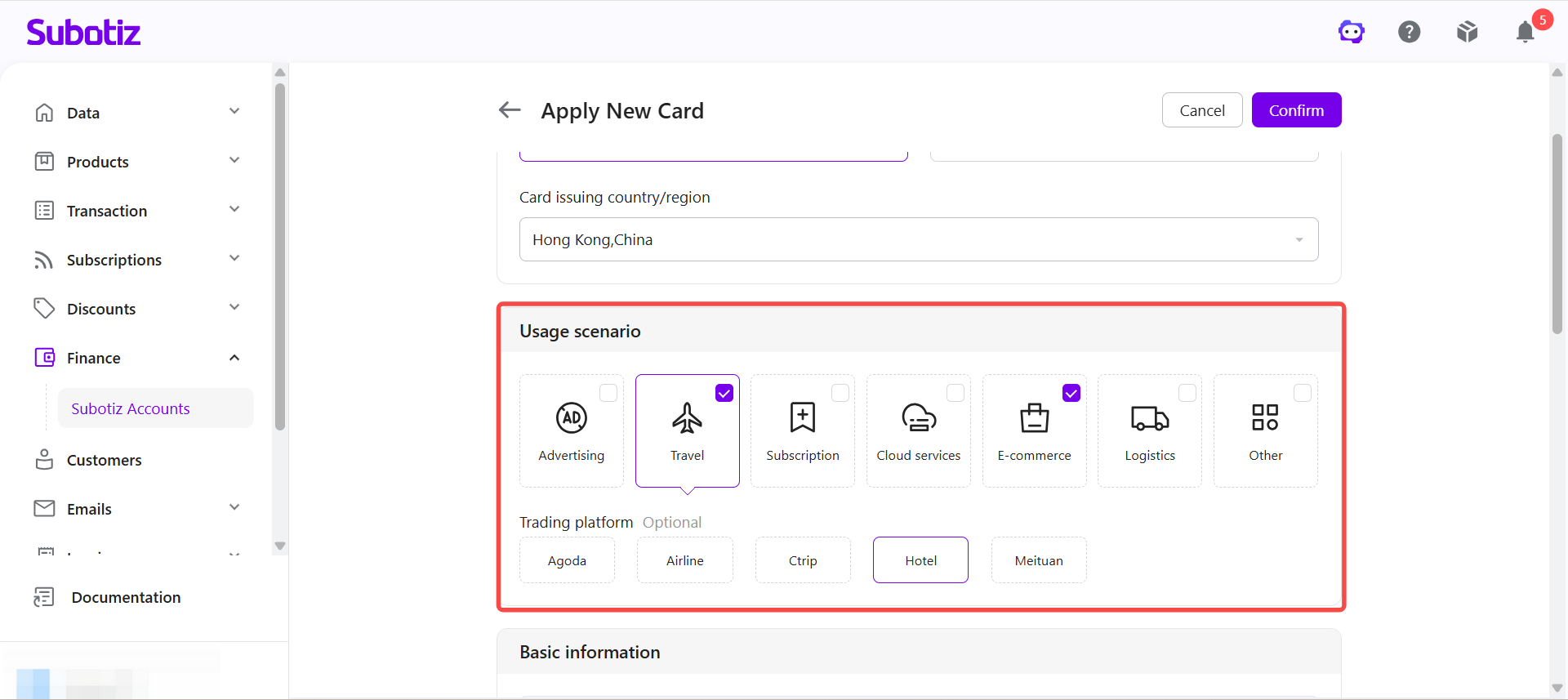
- Select use cases: Select one or more available use cases: Advertising, Travel, Subscription, Cloud services, E-commerce, Logistics, or Other.
Entering Card Information
- Select a card BIN: Select a BIN based on the business requirements. Different BINs may correspond to different card configurations, and some online platforms or merchants may use BIN information to identify a card's origin. If there is no specific BIN requirement, use the default BIN.
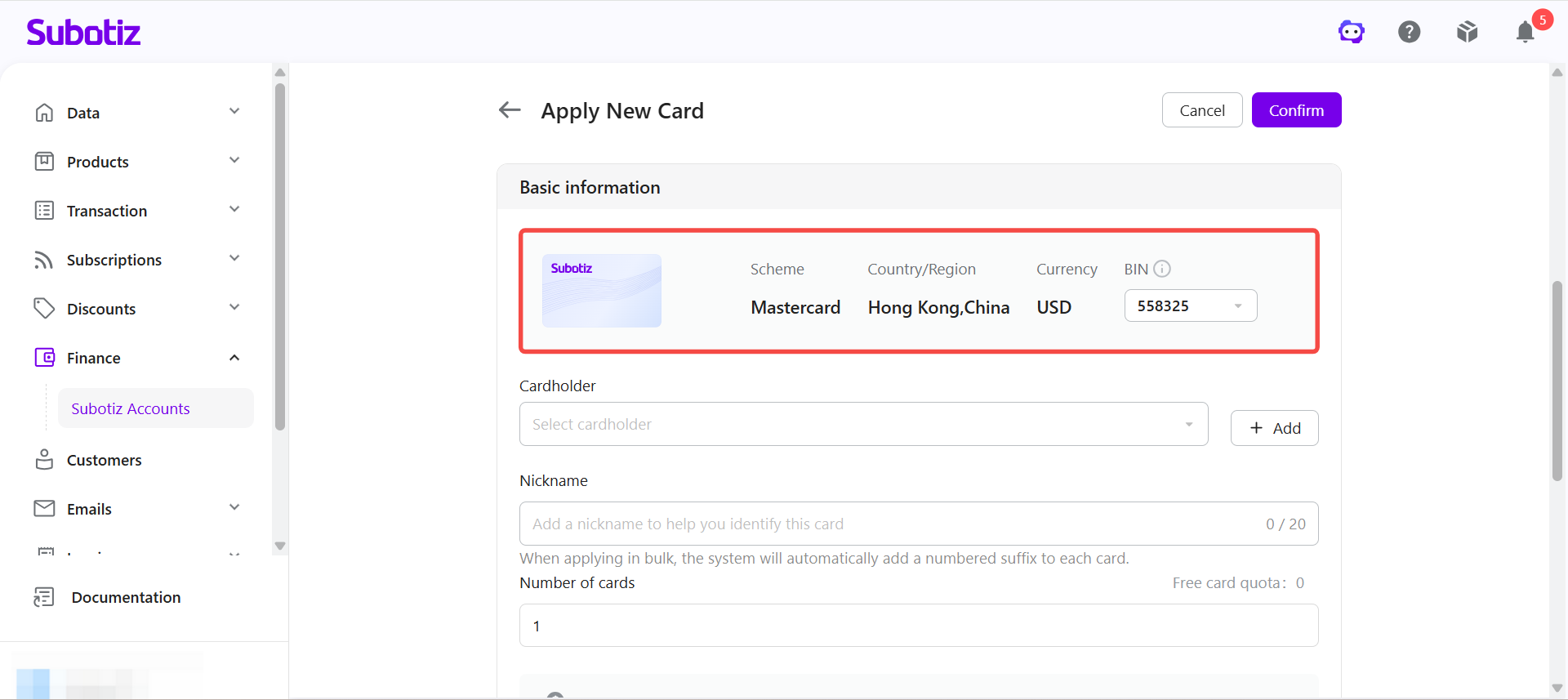
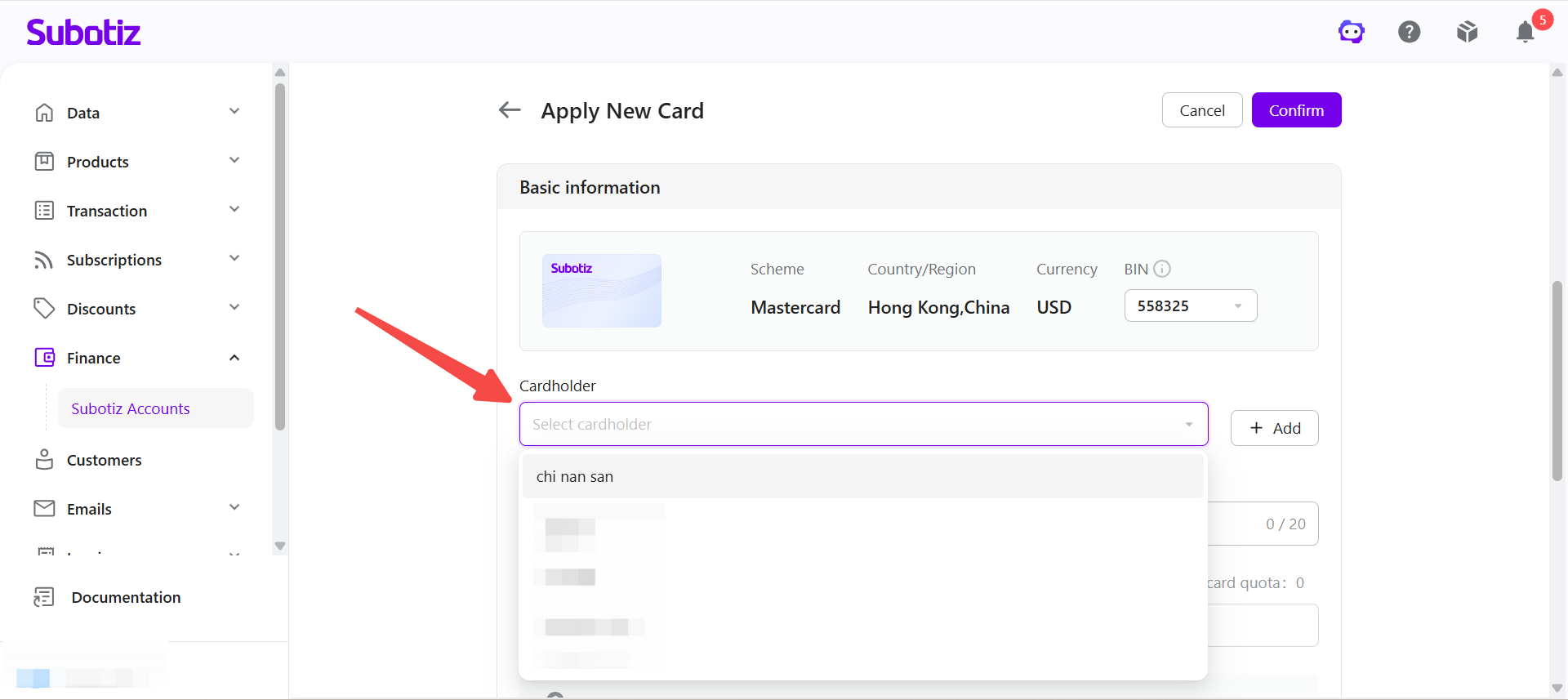
- Select a cardholder: Under Cardholder, select an existing cardholder. To create a new cardholder, click Add. After the cardholder is created, the system returns to the application page to continue the application. For detailed steps on adding a cardholder, refer to Issuing VCC | Adding a Cardholder.
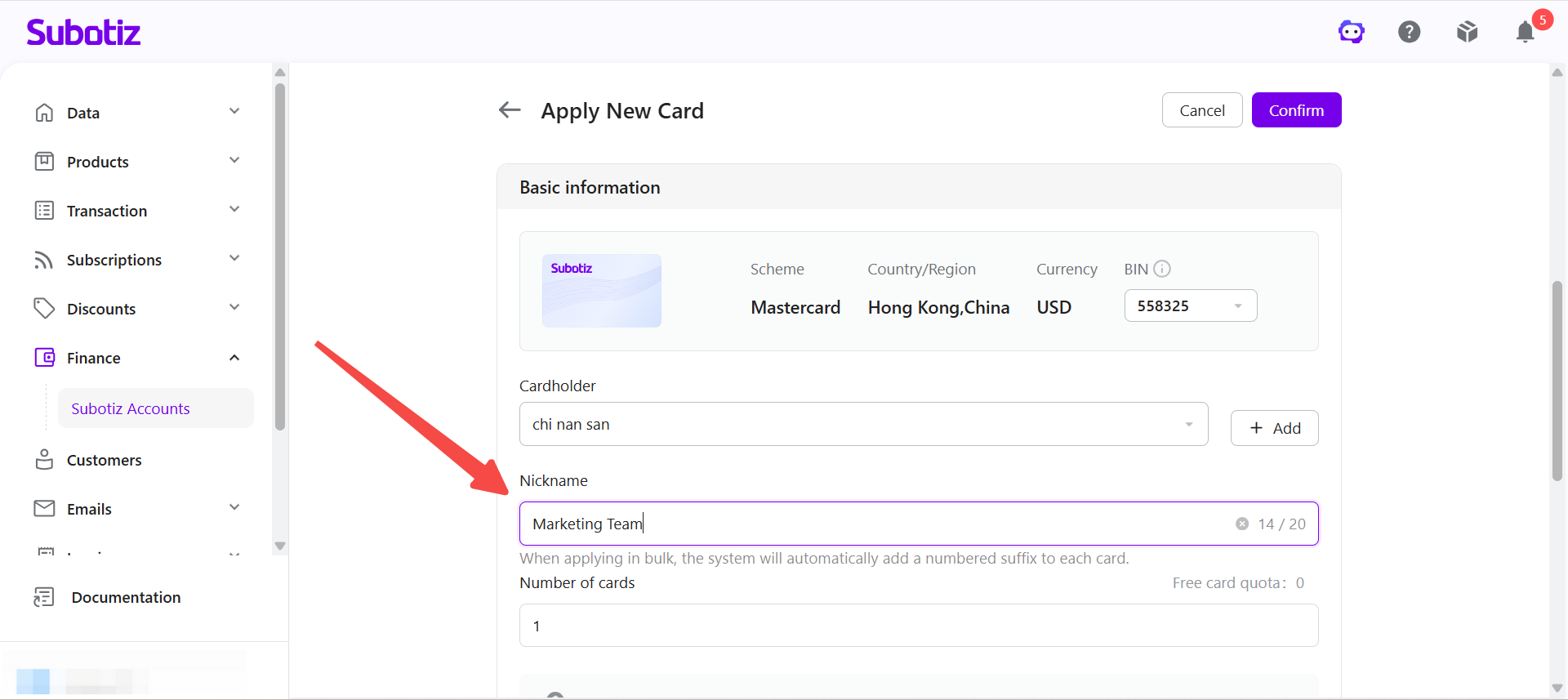
- Set a nickname: Under Nickname, enter a nickname that makes the card easy to identify, such as Google Ads, AWS, or Marketing Team. When applying for multiple cards, the system automatically adds a numbered suffix to each card nickname to help distinguish them.
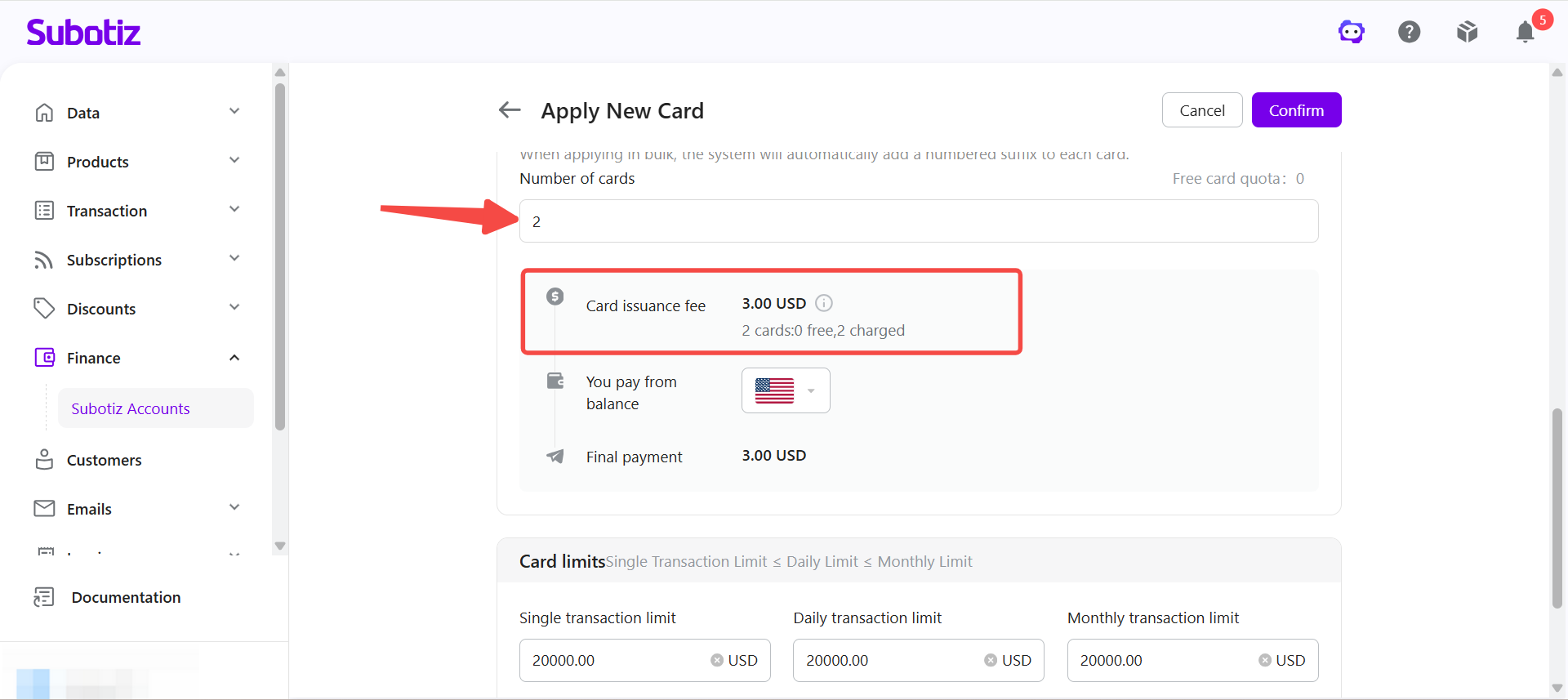
- Set the number of cards: Under Number of cards, enter the number of Shared Cards you want to create. The page also displays the account's remaining Free card quota.
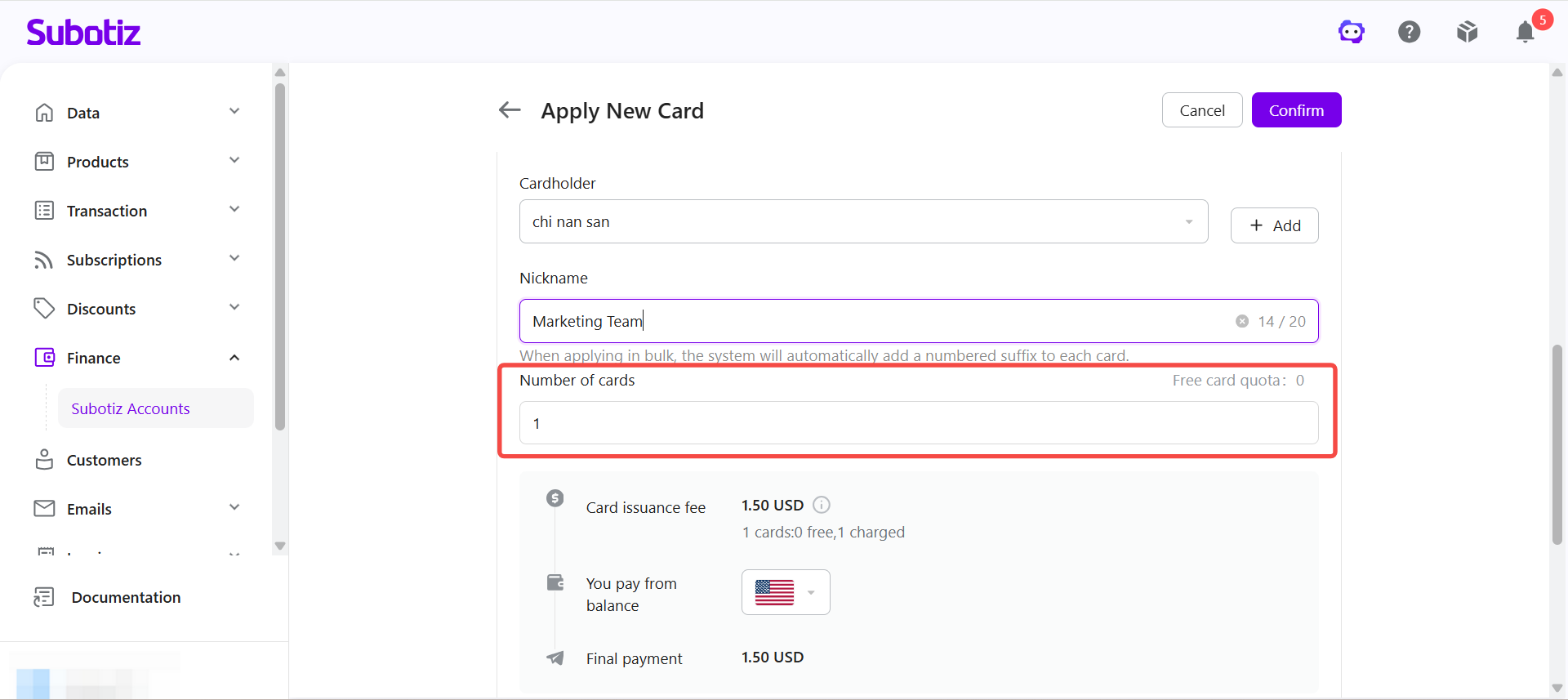
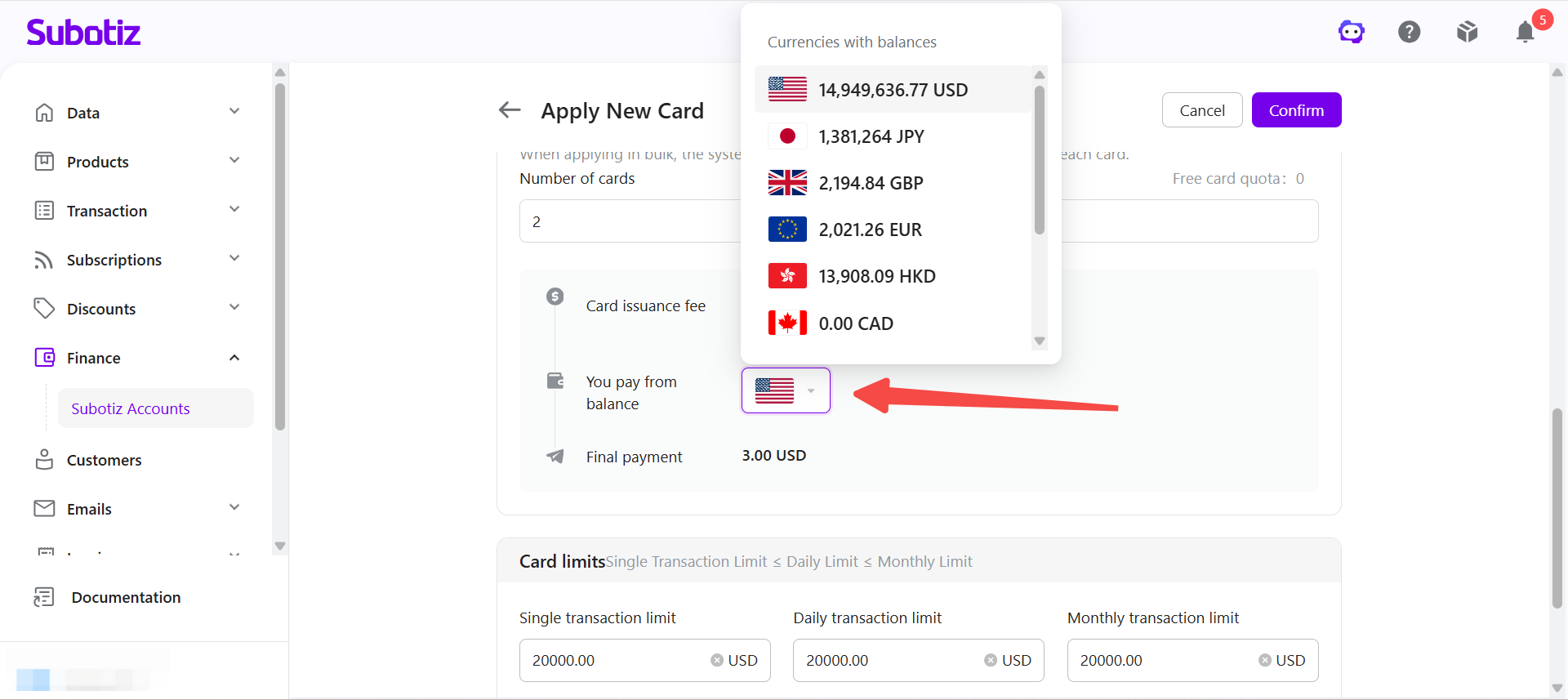
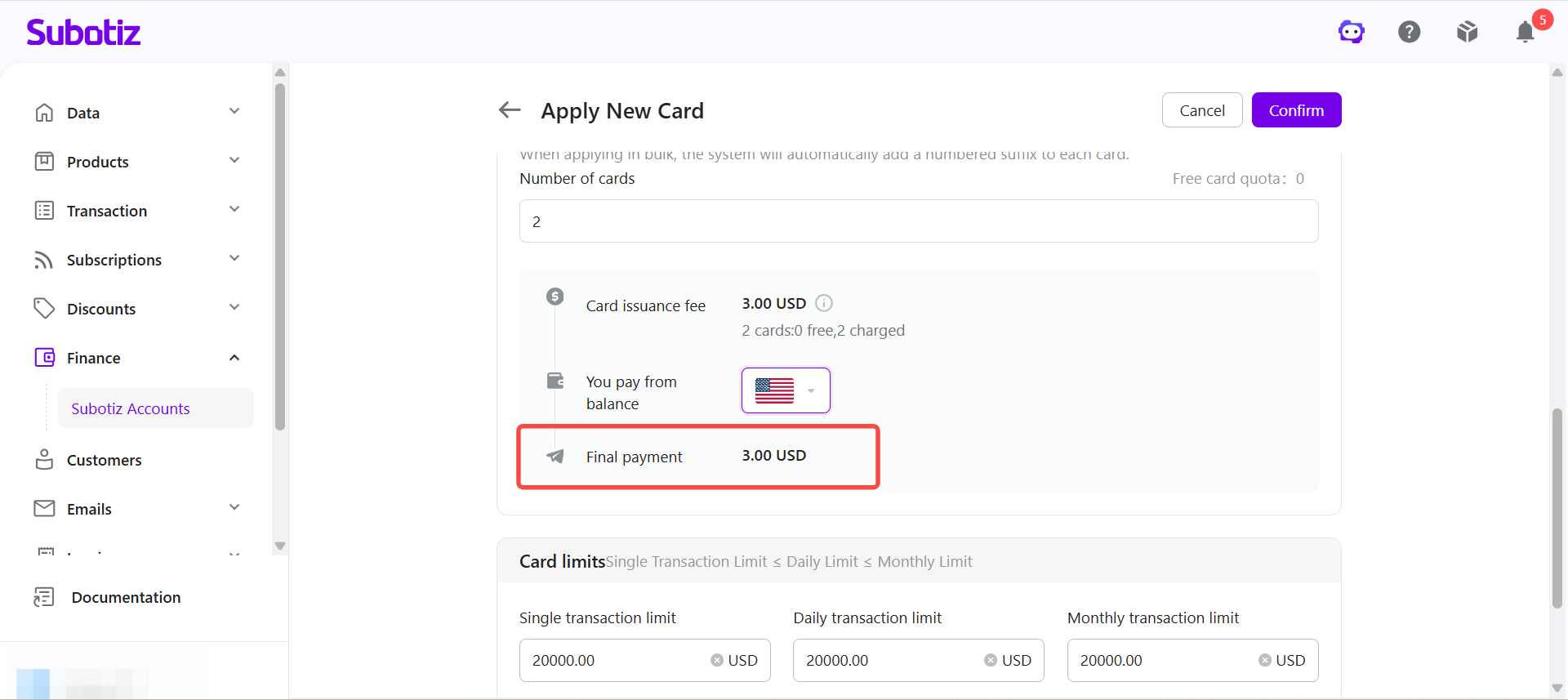
- Review the payment details: The system automatically calculates any applicable card issuance fees. After a Global Account is selected for payment, the page displays the total amount due. If the Global Account currency differs from the card issuance fee currency, the system automatically converts the funds using the real-time exchange rate and displays the applicable exchange rate and amount due. Review the card issuance fee, real-time exchange rate, and total amount due before submitting the application.
Notes:
Setting Card Limits
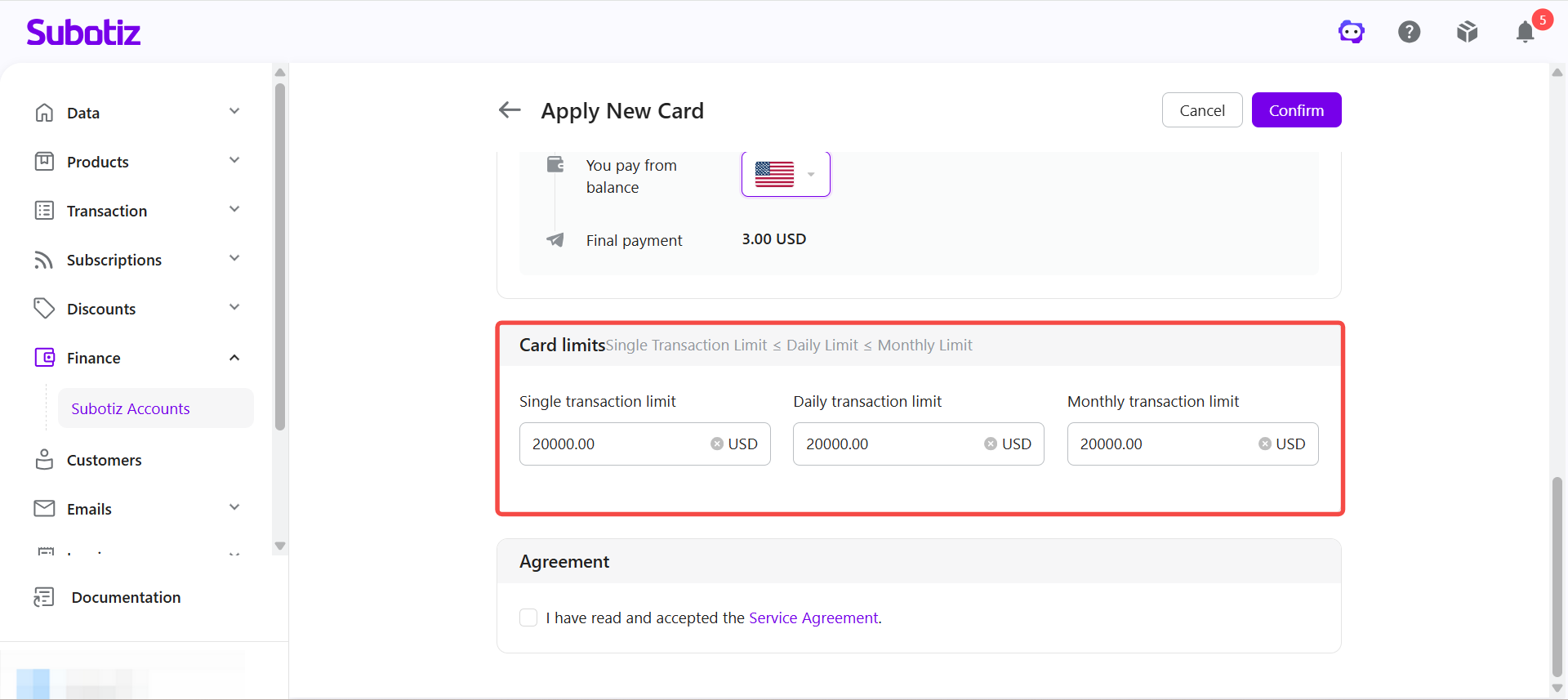
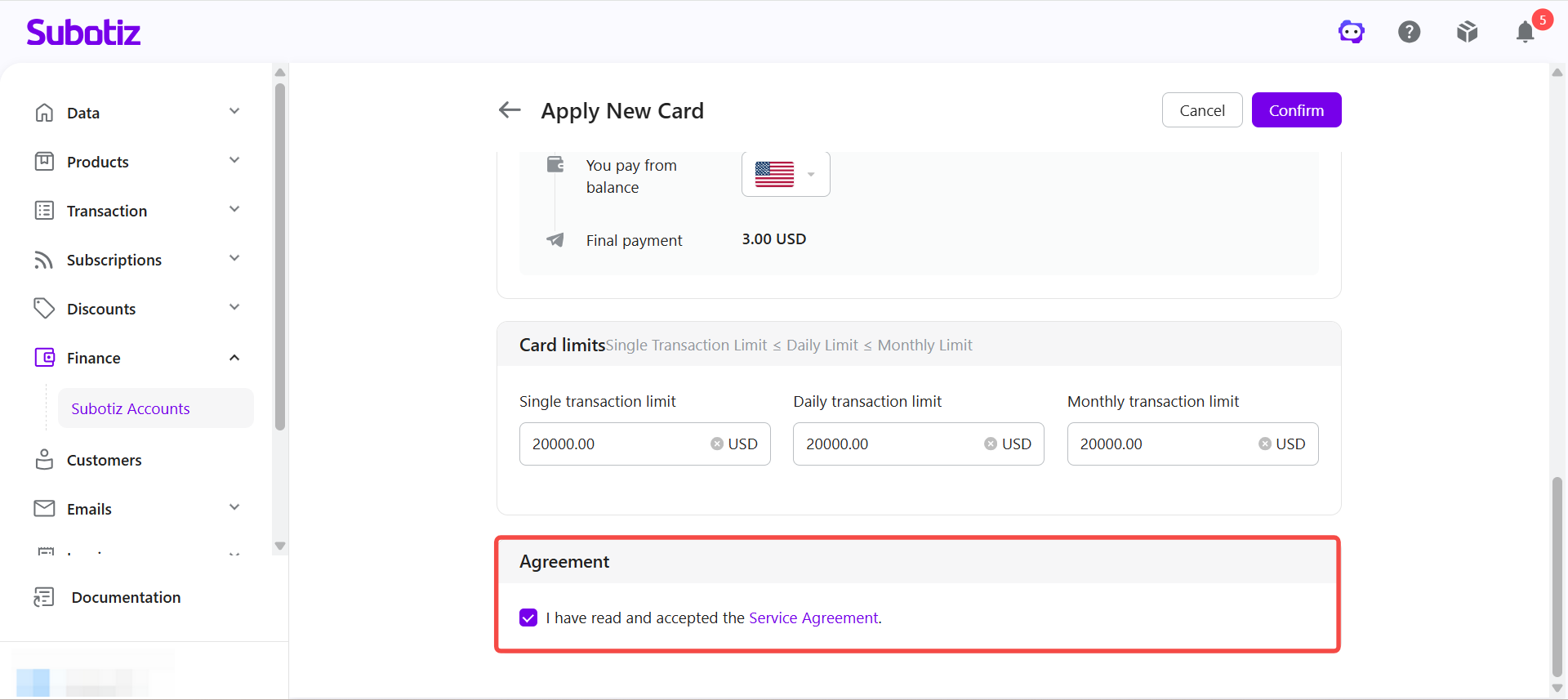
- Set the spending limits: Under Card limits, set the Single transaction limit, Daily transaction limit, and Monthly transaction limit based on the card's intended use.
Notes:
Accepting the Agreement and Submitting the Application
- Accept the Service Agreement: Under Agreement, select I have read and accepted the Service Agreement.
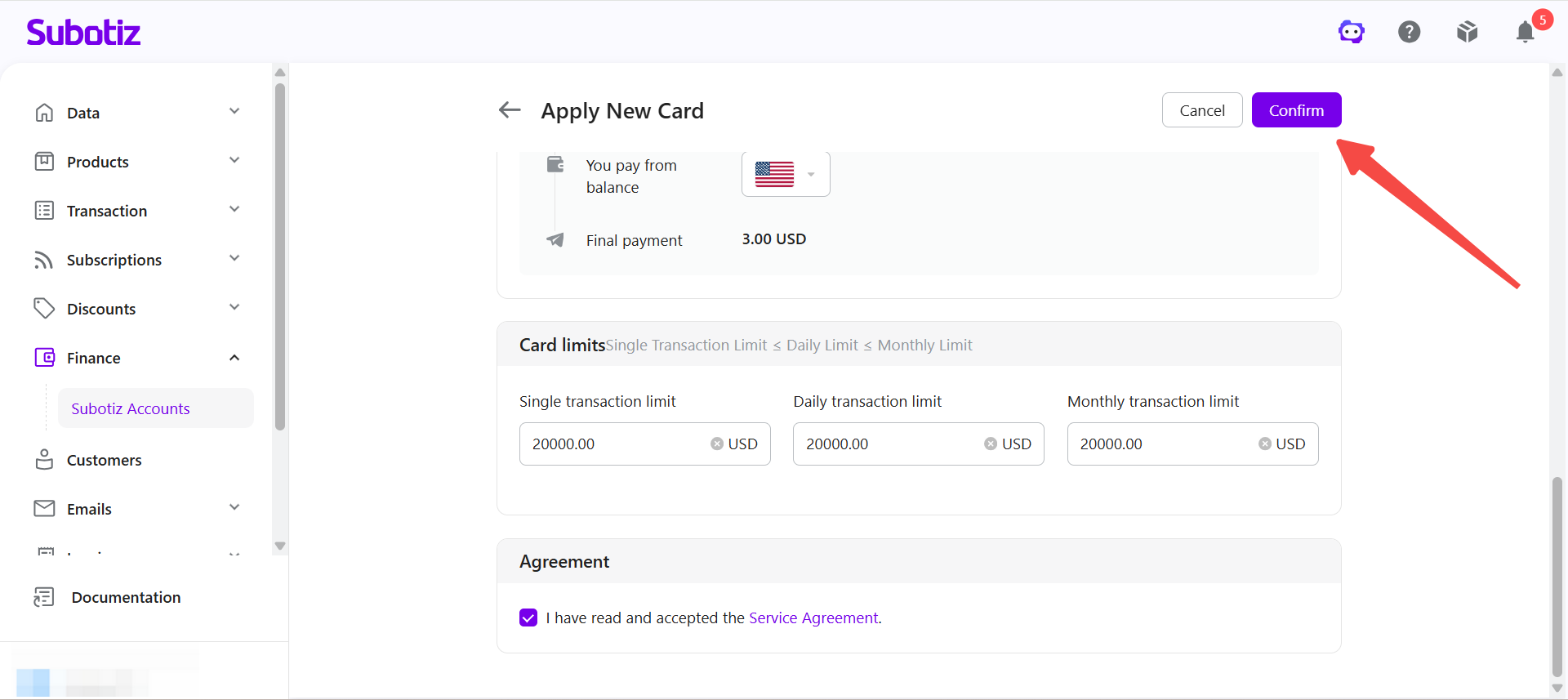
- Submit the application: Review the application details, then click Confirm to submit the application. Once the application is successfully submitted, the Shared Cards are created and linked to the current Issuing Account.
Best Practices
- Understand how Shared Cards are funded: All Shared Cards use the Issuing Account as their shared funding source, so individual card top-ups are not required.
- Check the free card quota: Review the remaining Free card quota before creating multiple cards.
- Set appropriate card limits: Set the single transaction, daily transaction, and monthly transaction limits based on how each card will be used.
- Maintain a sufficient Issuing Account balance: All Shared Card transactions are deducted from the Issuing Account. Keep sufficient funds in the account to help prevent transactions from failing due to insufficient funds.
- Use clear card nicknames: Use nicknames that identify the intended purpose of each card to simplify card management and reconciliation.
Shared Cards provide a centralized way to manage multiple virtual credit cards using a shared Issuing Account. Merchants can assign cardholders, configure card limits, and manage card usage and payments more efficiently.