The Regular Cards page in Subotiz Accounts allows merchants to manage all issued virtual credit cards in one place. Merchants can view card balances, transaction amounts, card status, and card details, as well as search, filter, top up, and manage cards across different business use cases.
Viewing the Regular Cards Overview
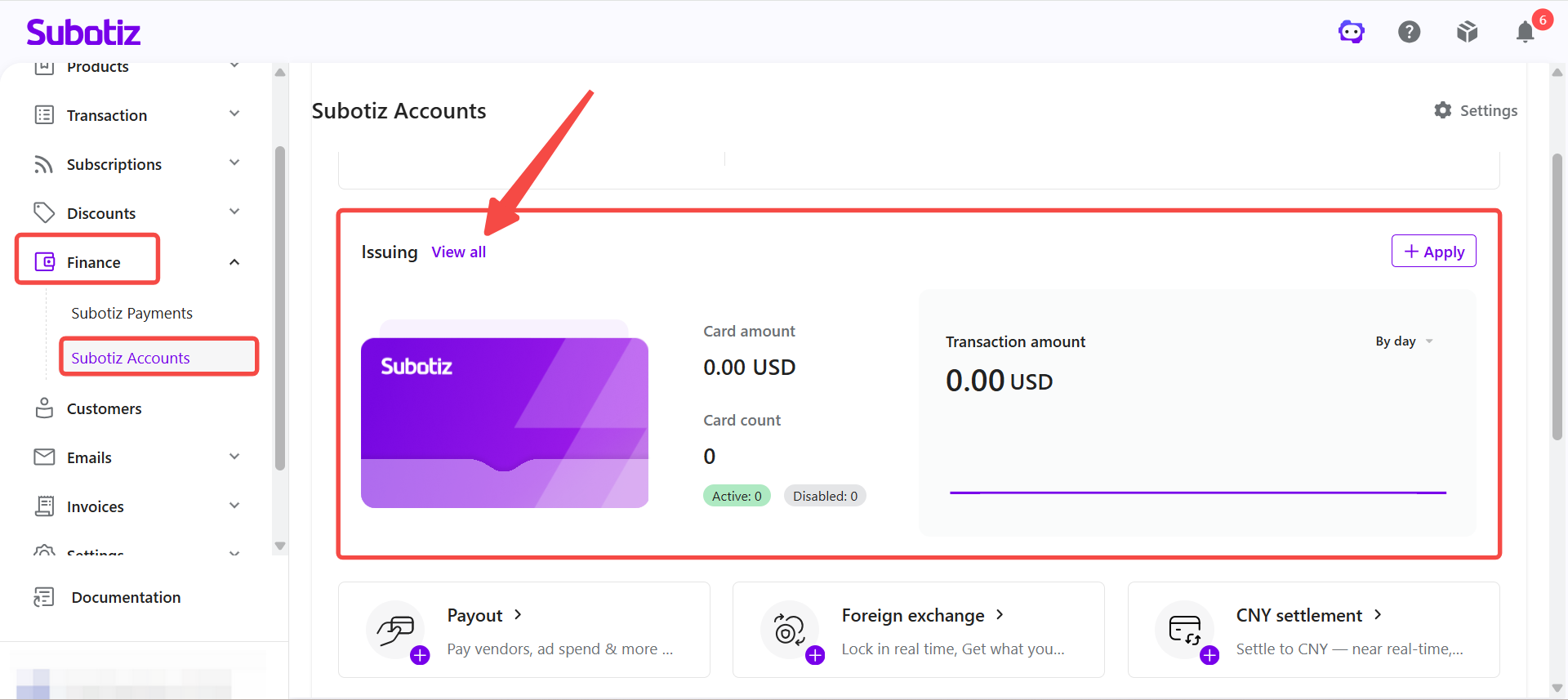
- Open Issuing: Log in to the Subotiz dashboard and go to Finance > Subotiz Accounts > Issuing, then click View All.
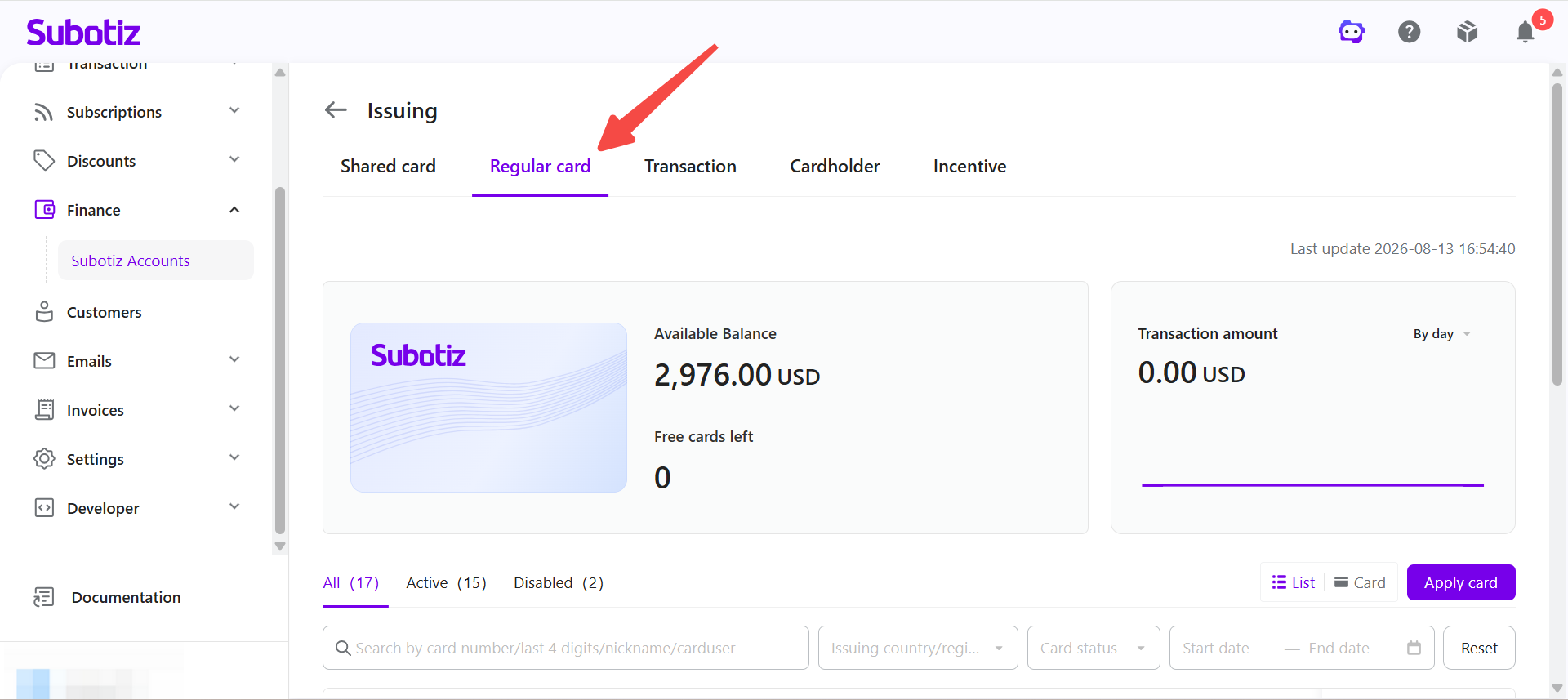
- Open Regular Cards: Click the Regular Cards tab to view all issued Regular Cards.
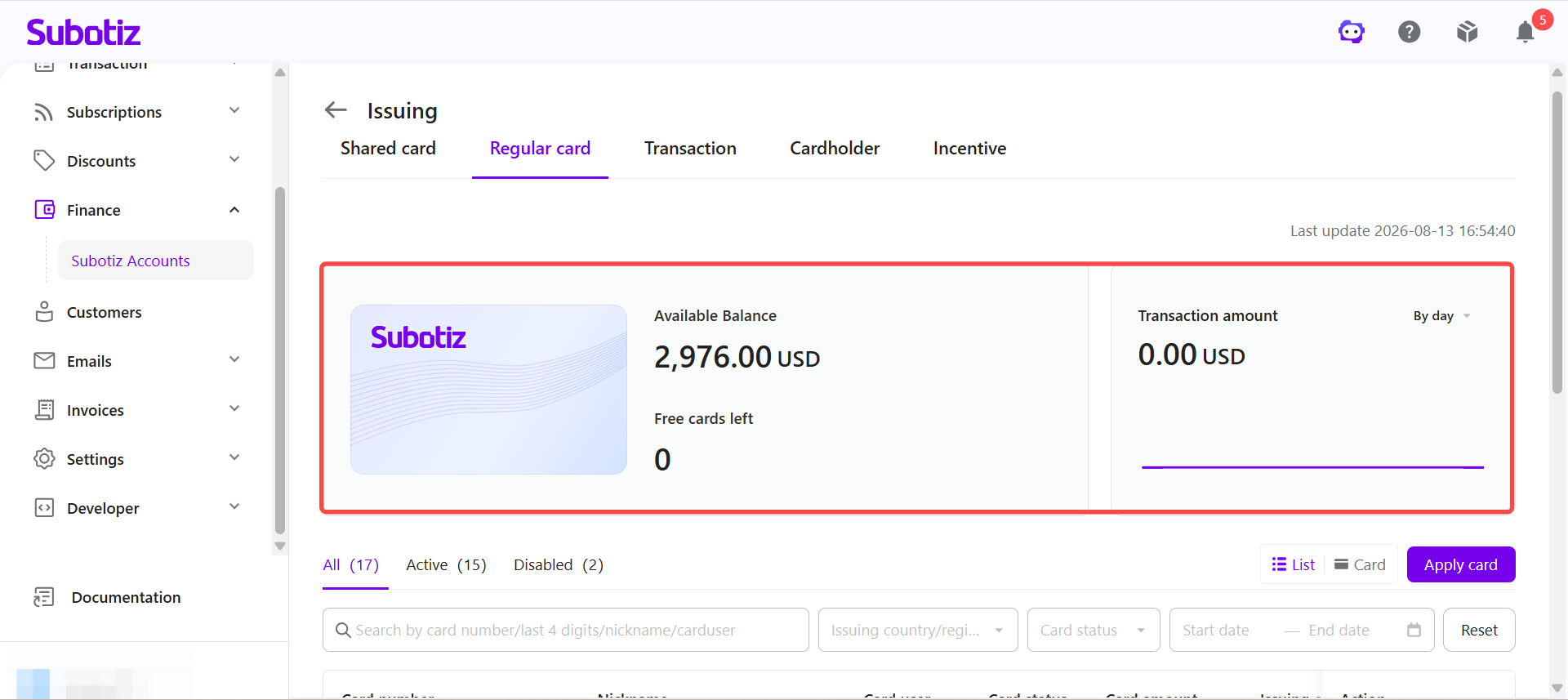
- Review the overview: The top of the page displays key Regular Card information, including the available balance, transaction amount, and remaining free card quota.
Browsing Regular Cards
- View the card list: The Regular Cards page displays all issued Regular Cards by default. Each card shows the card number with the middle digits masked, nickname, cardholder, card status, card balance, and issuing region.
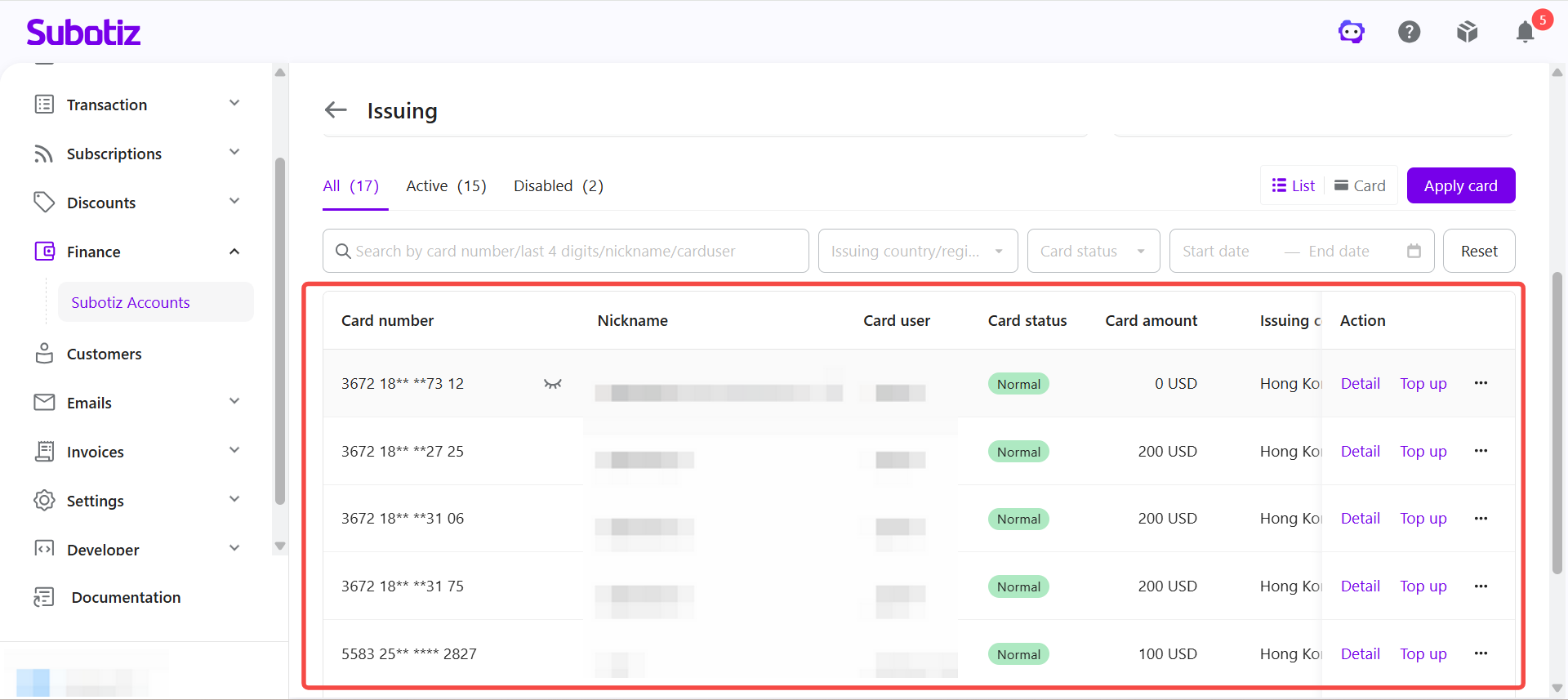
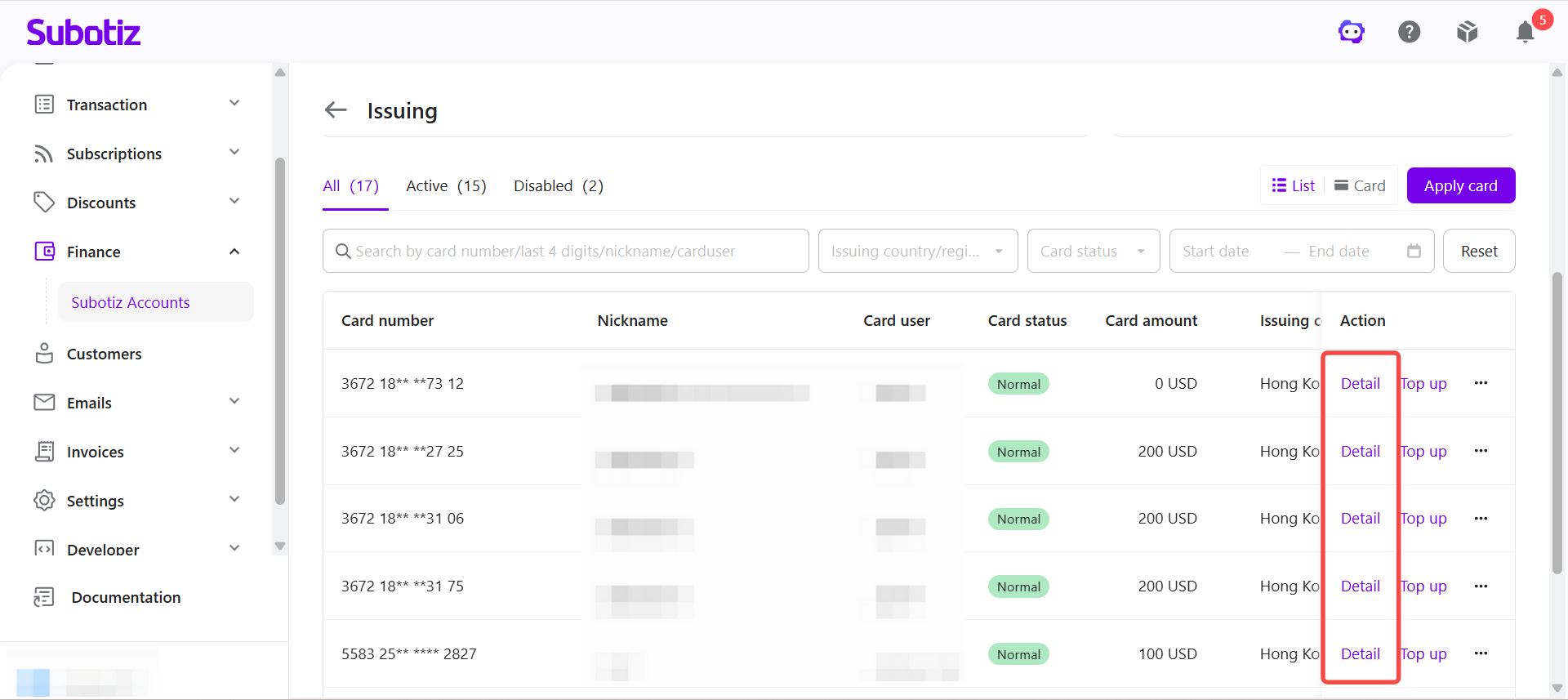
- View card details: Click Details to view detailed information for a Regular Card.
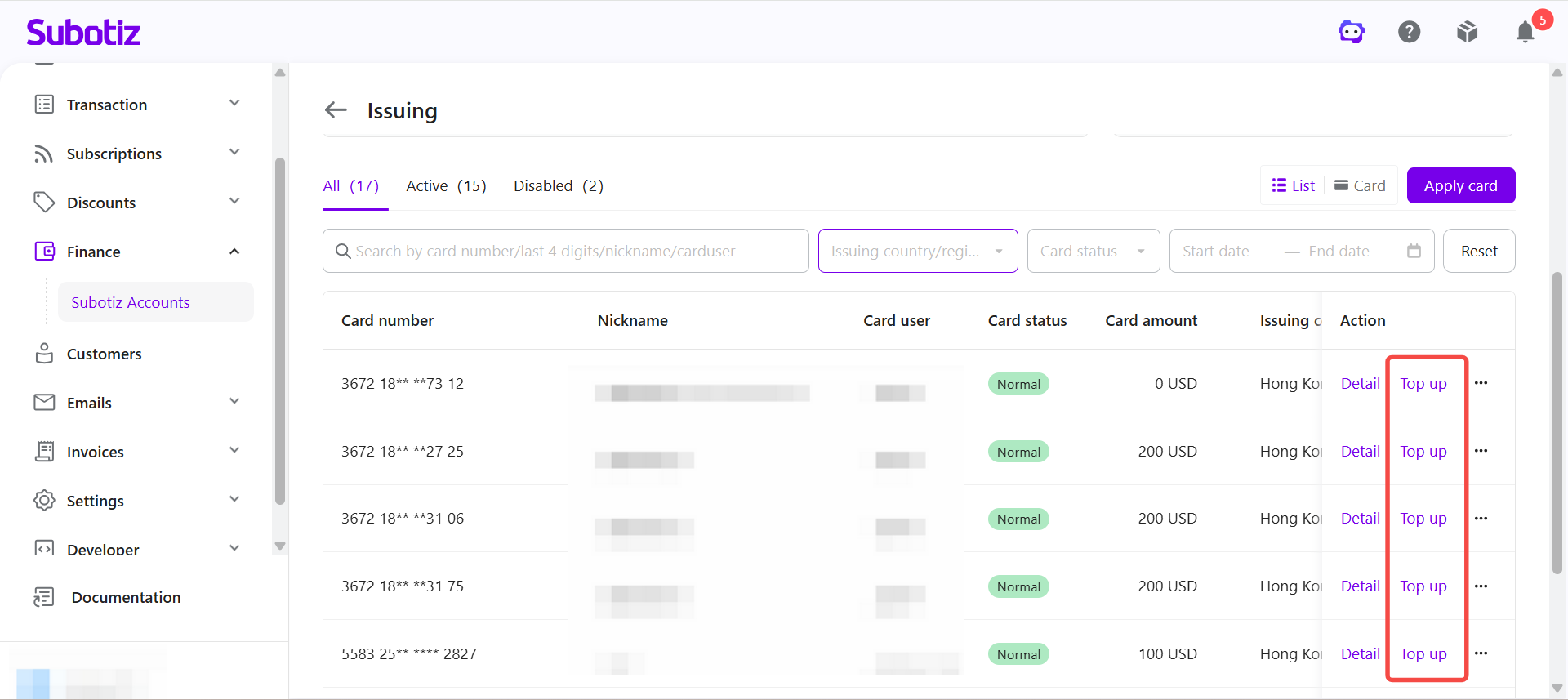
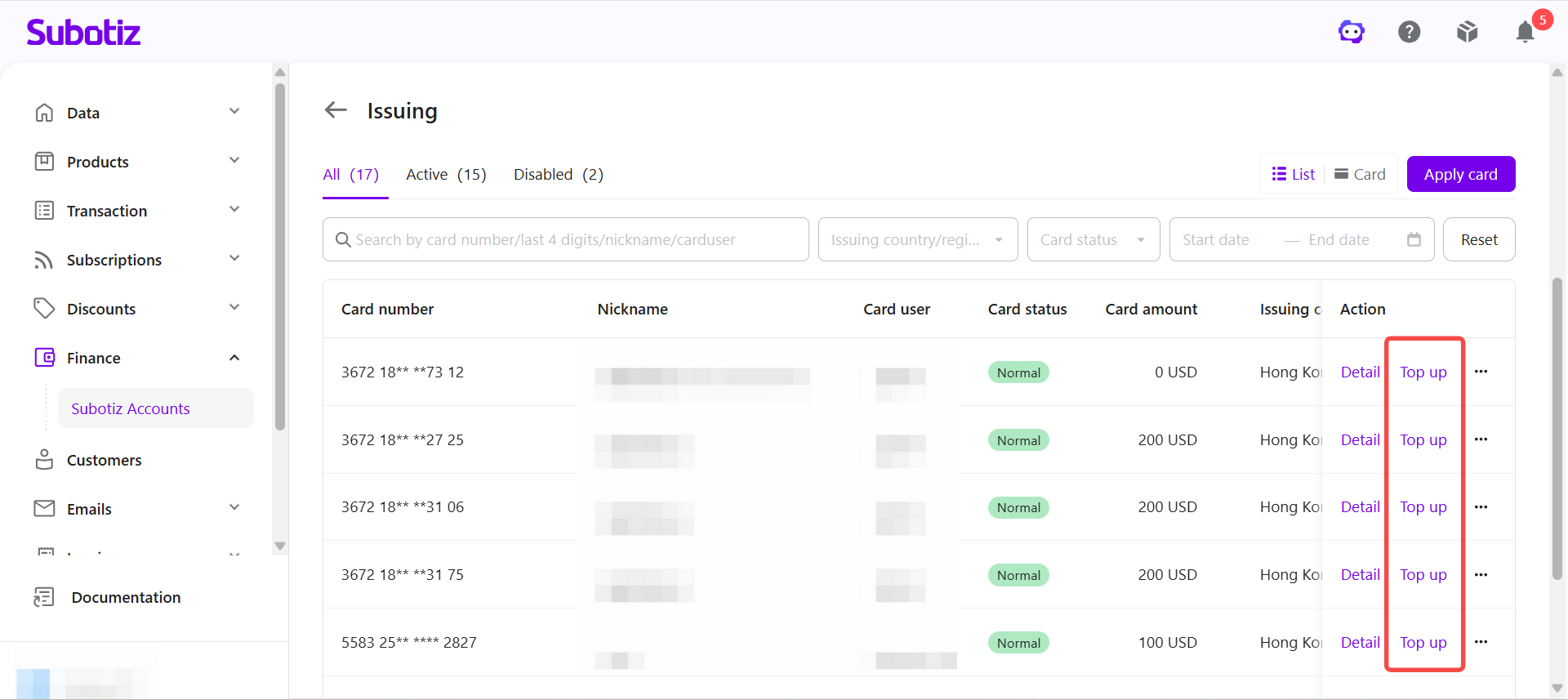
- Top up a card: Click Top Up to add funds to the selected Regular Card.
Switching Display Modes
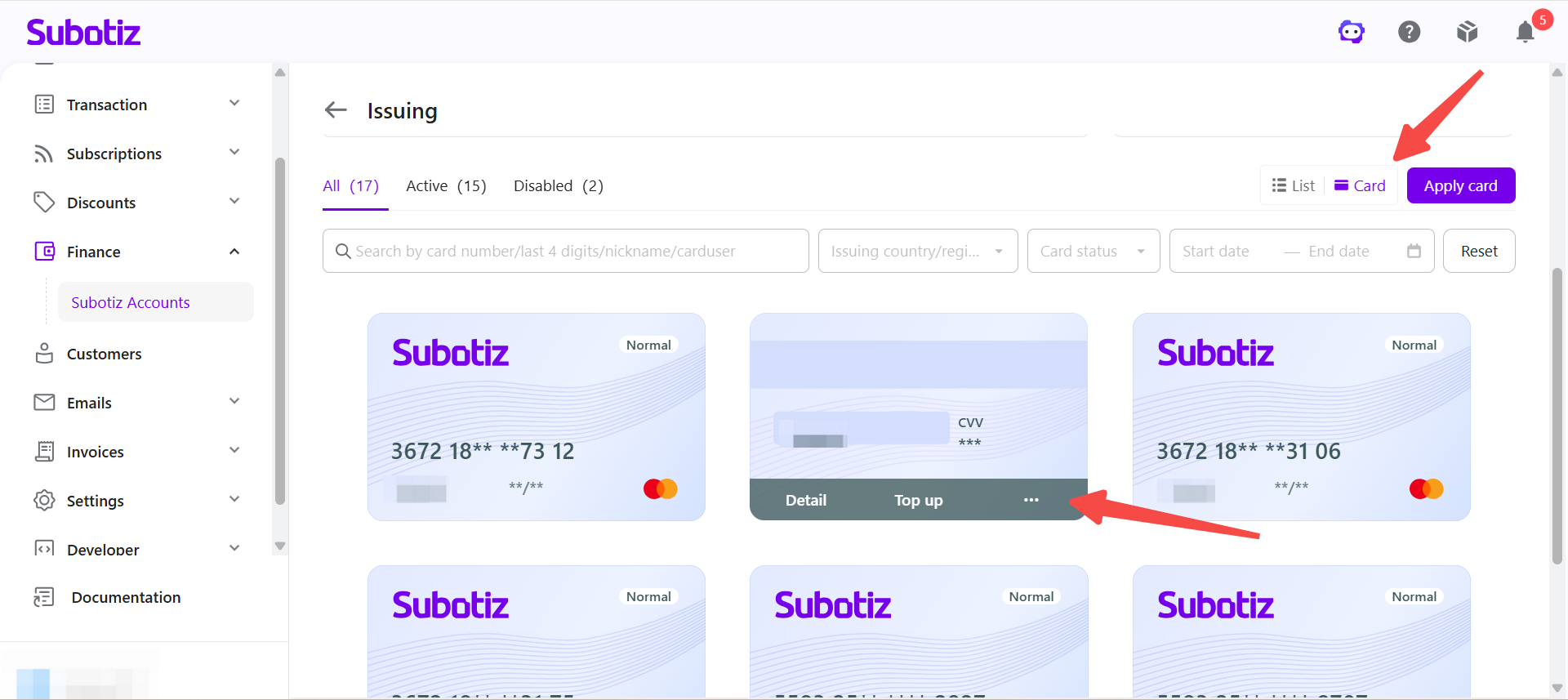
- Switch the display mode: Click List or Card in the upper-right corner of the page to change how Regular Cards are displayed.
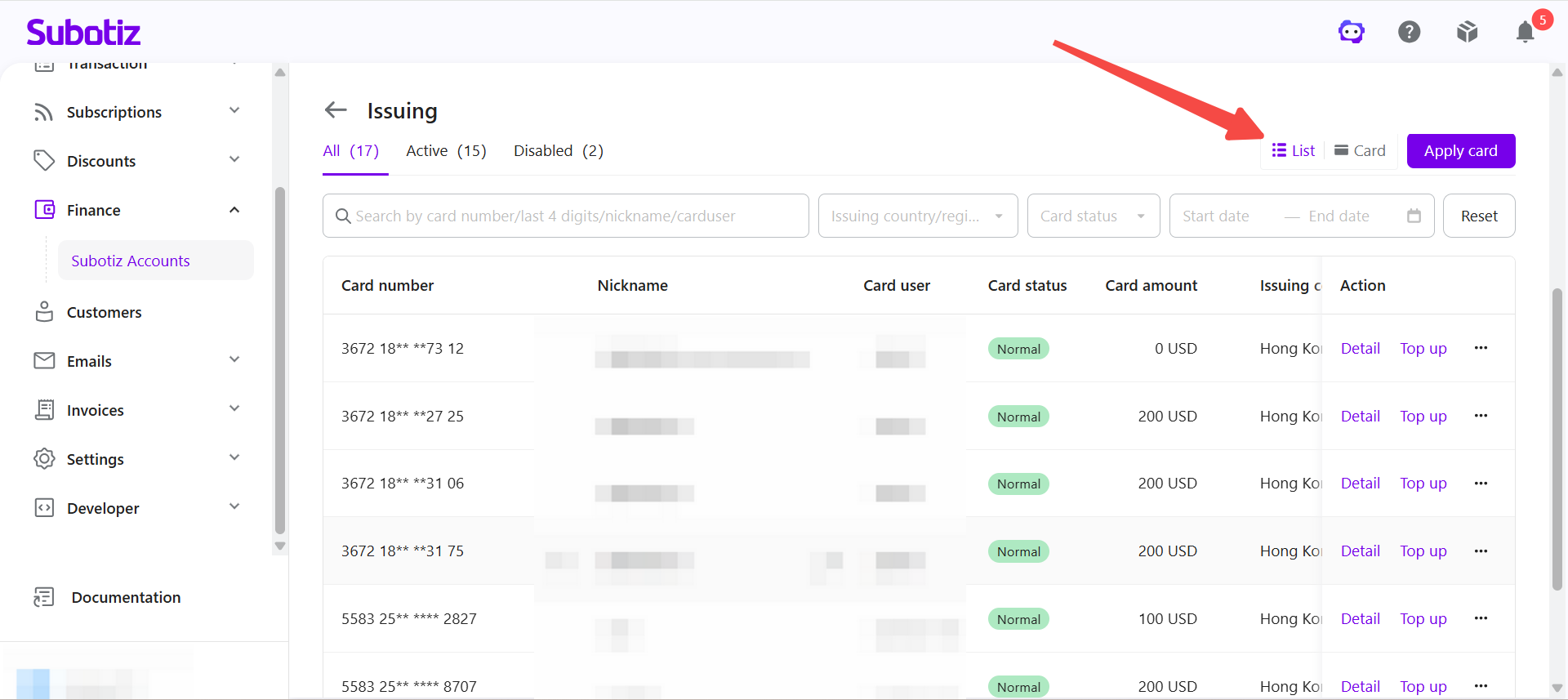
- Use List mode: Use List mode to review multiple cards and quickly access actions such as viewing card details or topping up a card.
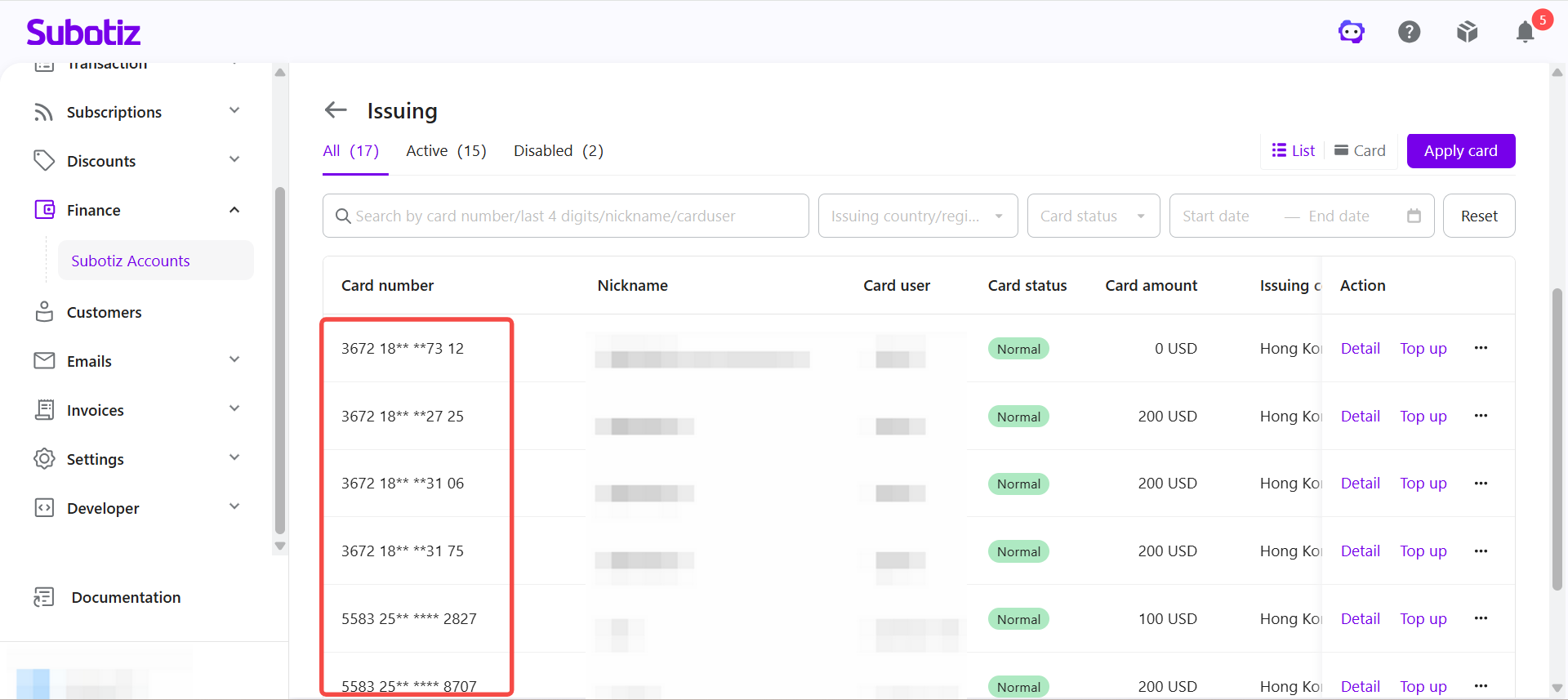
- Use Card mode: Use Card mode to view cards and their status at a glance, with direct access to card details, top-up, and additional actions.
Searching and Filtering Regular Cards
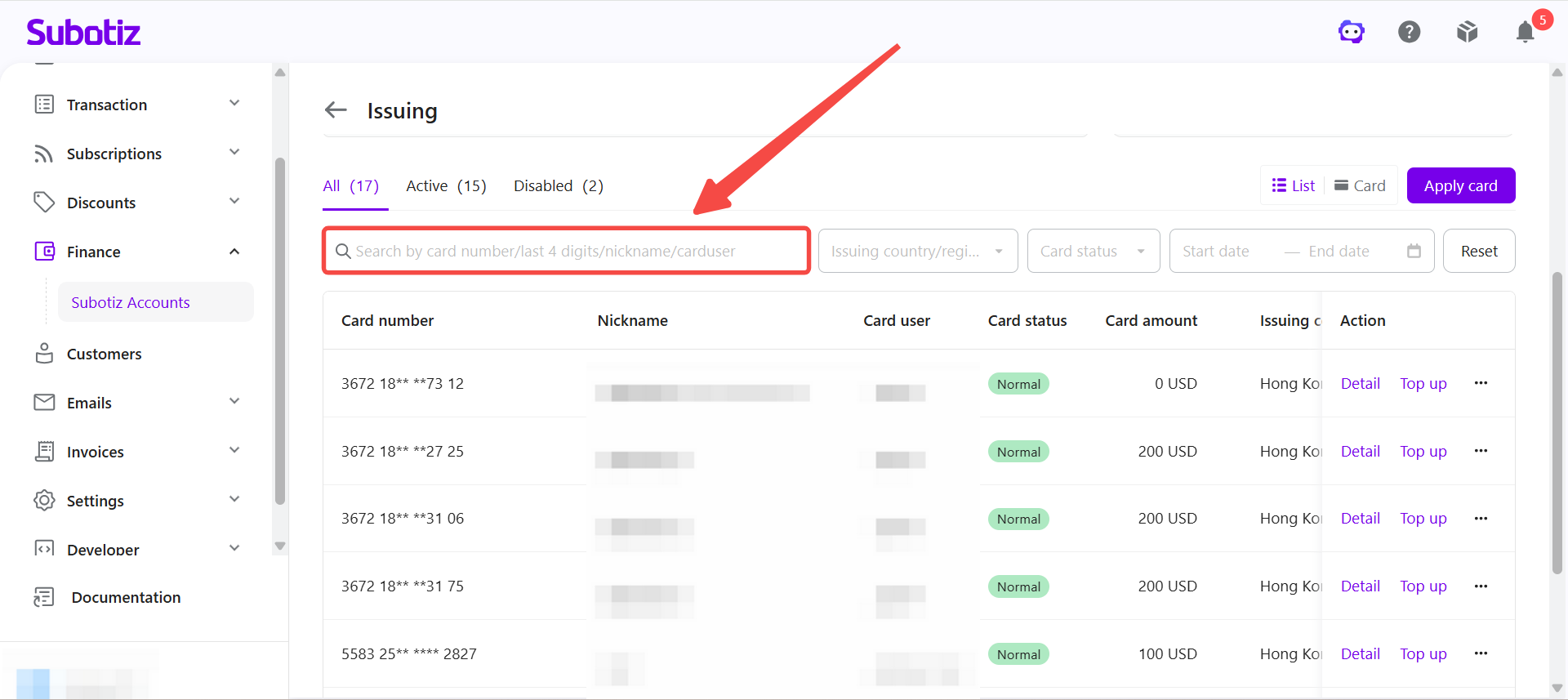
- Search for a Regular Card: Enter the last four digits of the card number, card nickname, or cardholder name in the search box to find a specific Regular Card.
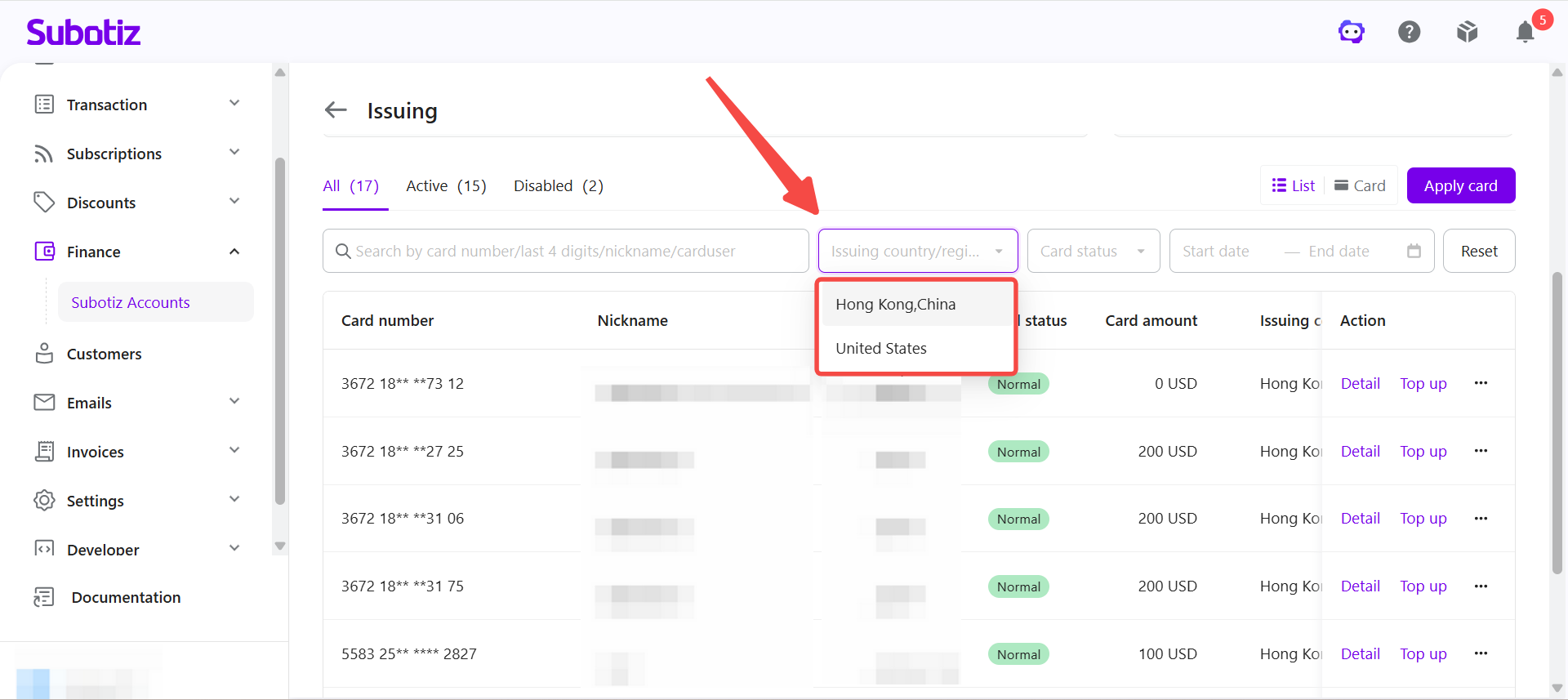
- Filter by issuing region: Use the Issuing Region filter to display Regular Cards issued in a specific region.
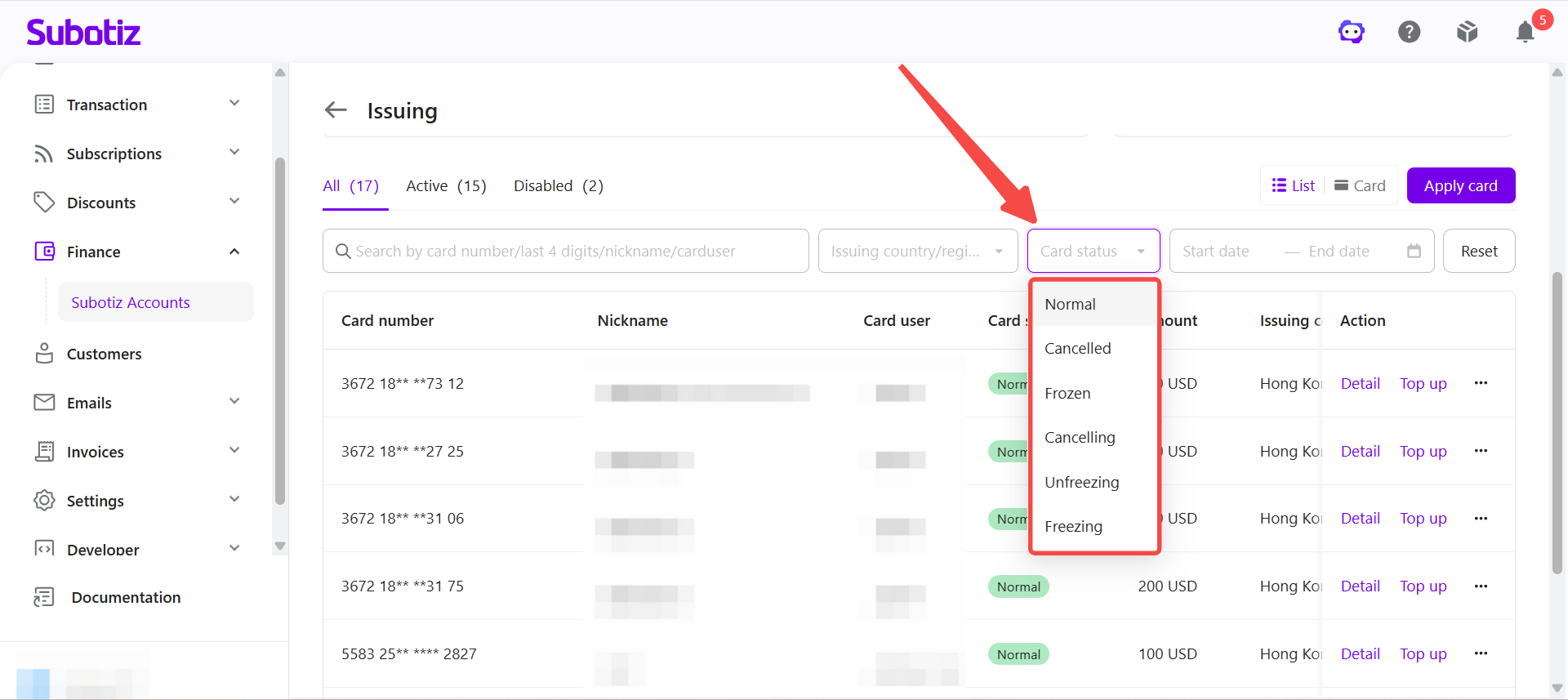
- Filter by card status: Use the Card Status filter to display Regular Cards with a specific status.Card status definitions:
- Normal: The card is available for online payments.
- Freezing: The freeze request is being processed. The card status updates after processing is complete.
- Frozen: The card is frozen and cannot be used for online payments.
- Unfreezing: The unfreeze request is being processed. The card can be used again after the request is complete.
- Cancelling: The card cancellation request is being processed. The card status updates after processing is complete.
- Cancelled: The card has been permanently cancelled and cannot be restored or used for payments.
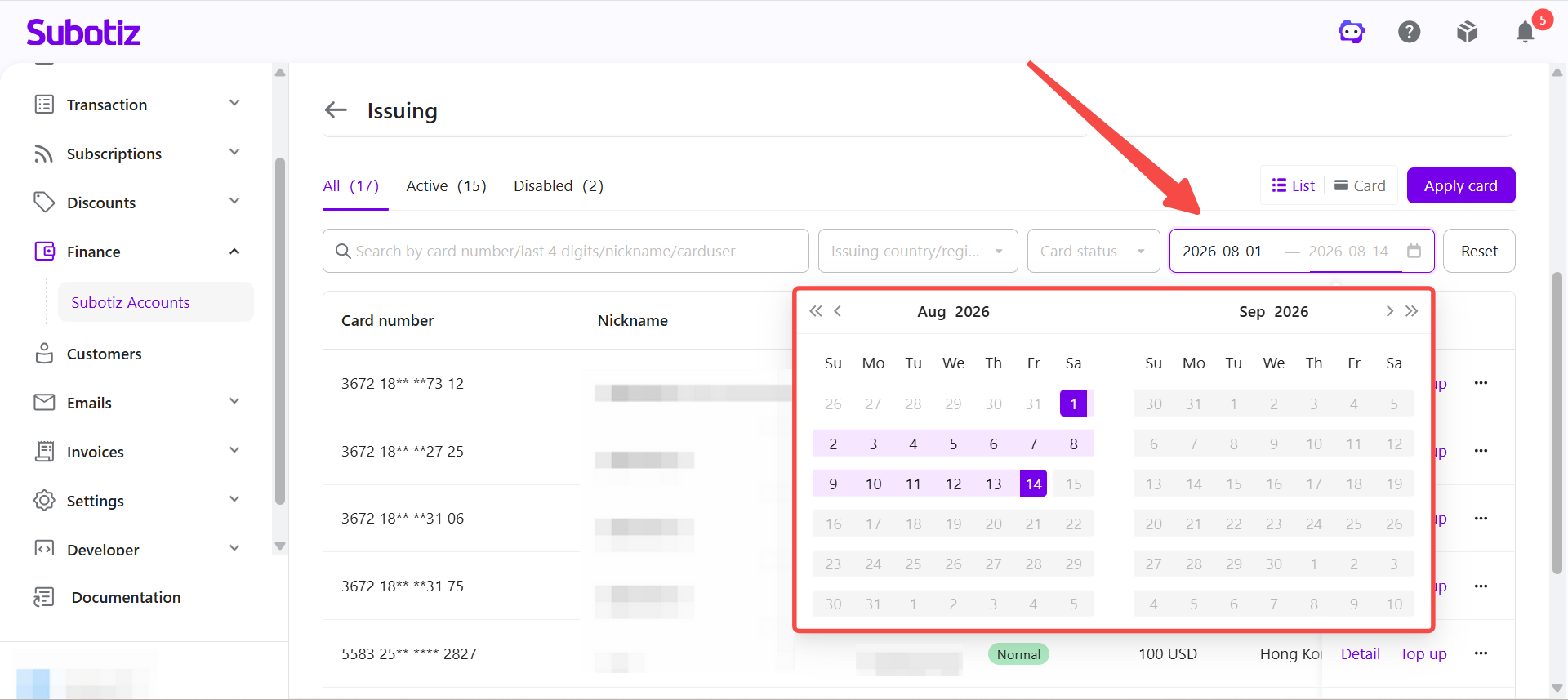
- Filter by creation date: Use Start Date and End Date to display Regular Cards created within a specific date range.
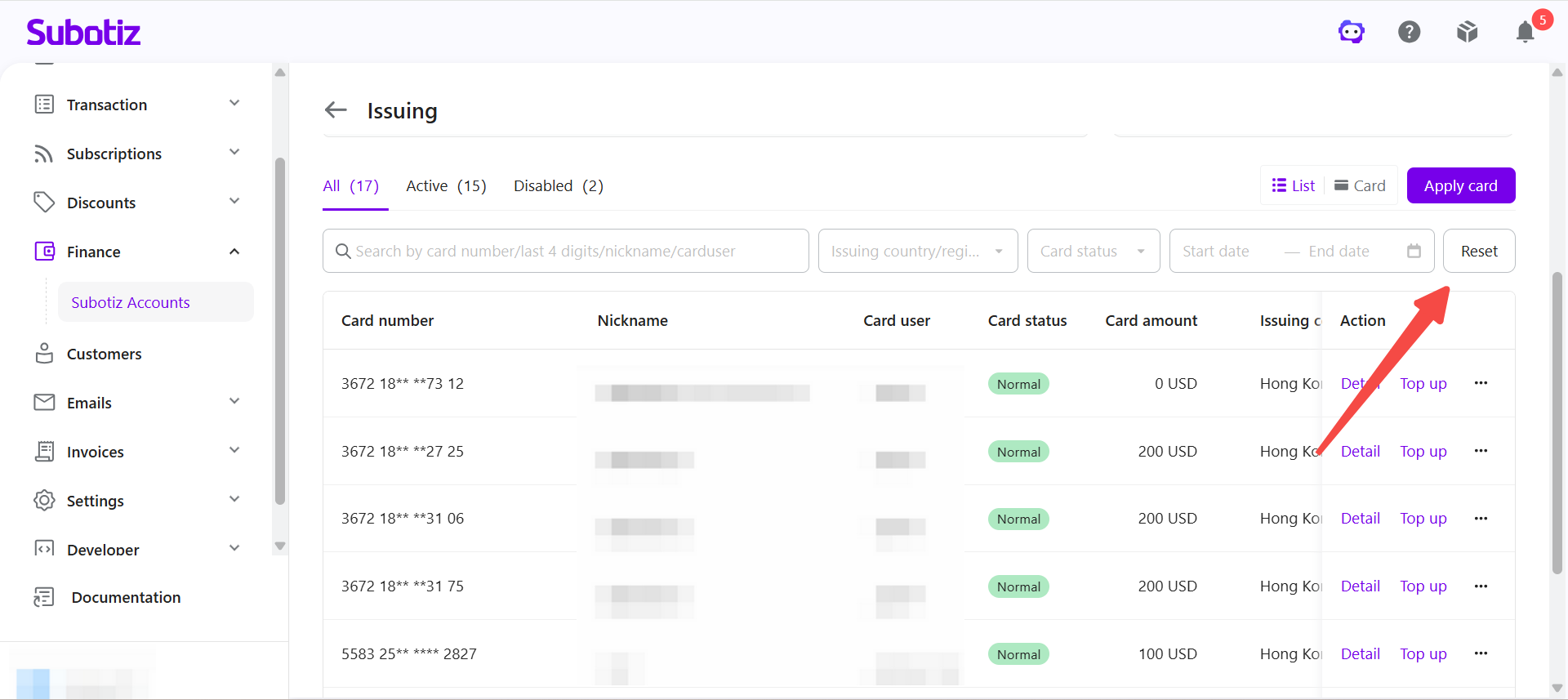
- Reset the filters: Click Reset to clear all applied filters.
Filtering by Card Status
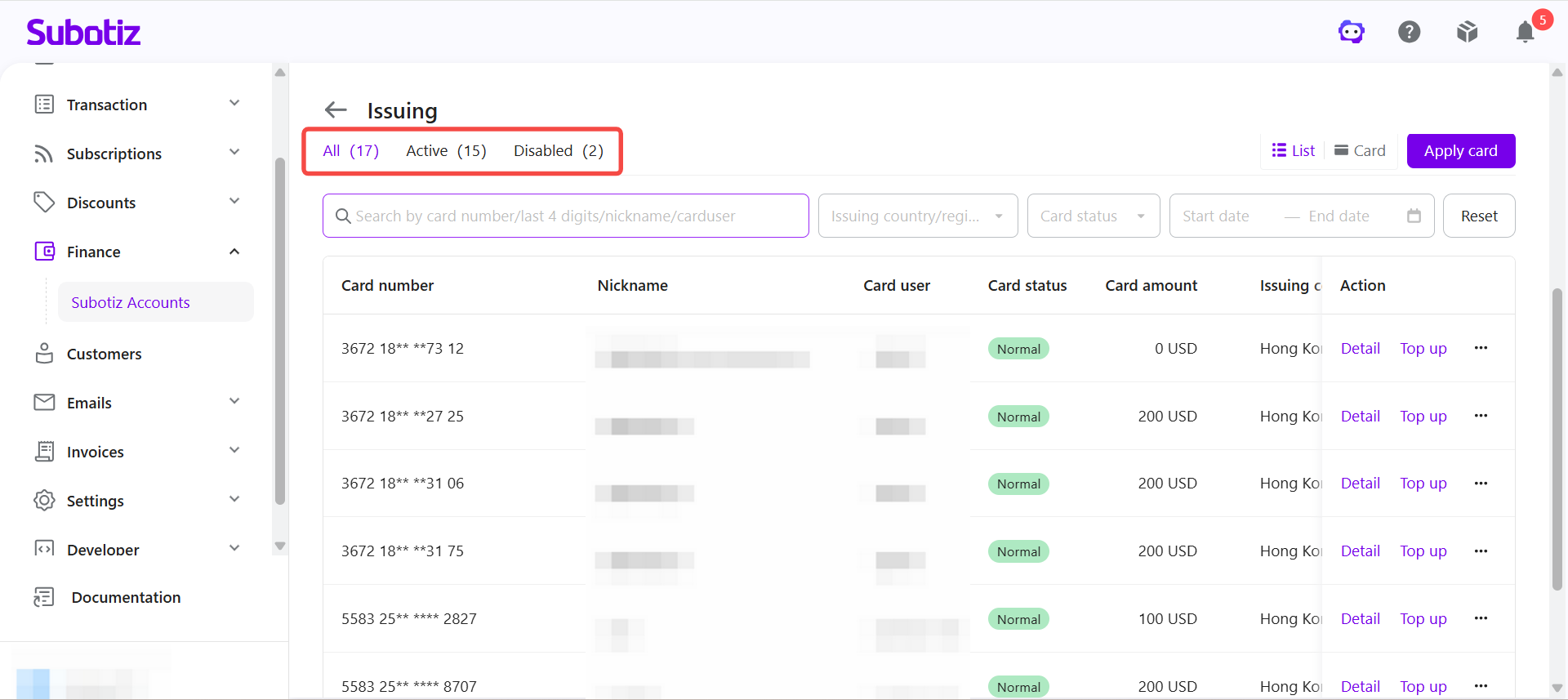
- Switch the card status view: Click All, Active, or Disabled to display Regular Cards with the corresponding status.
Viewing Card Details
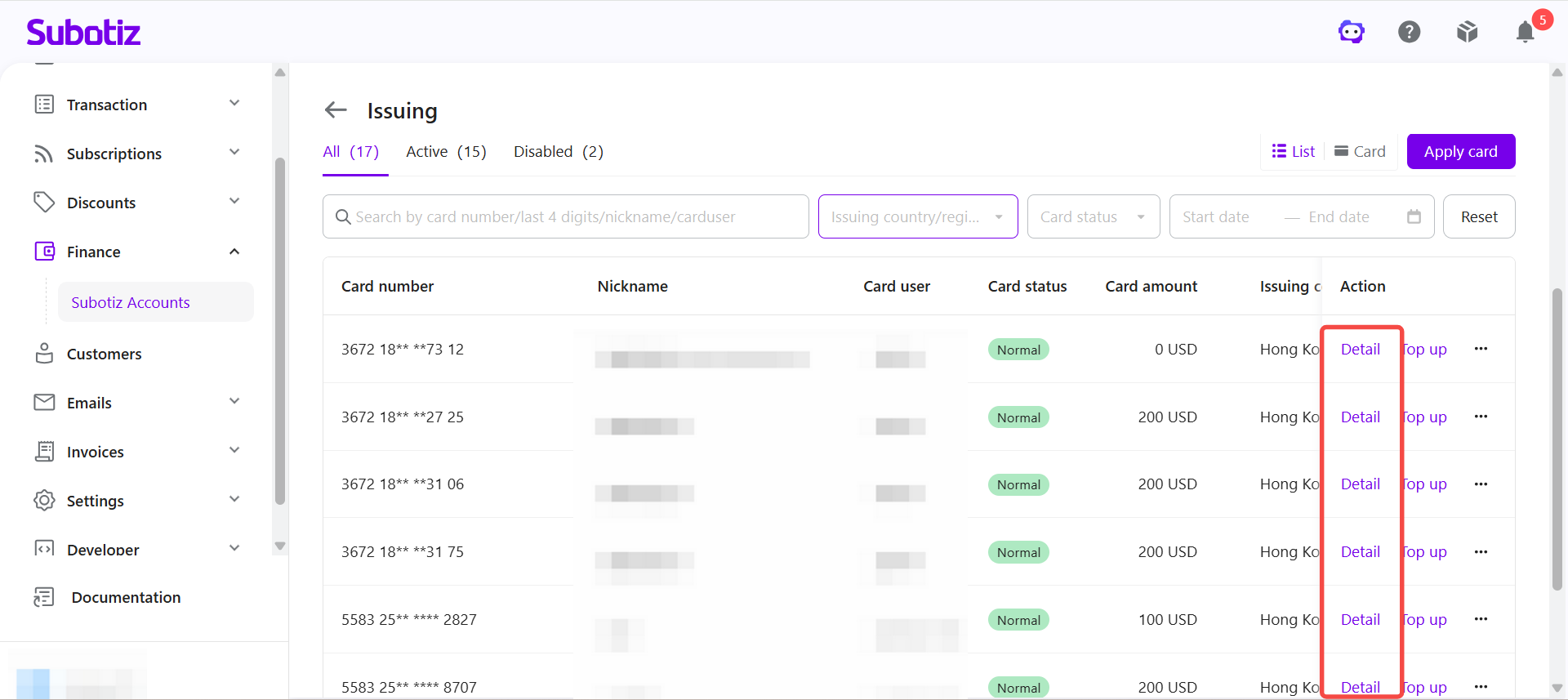
- Open card details: Click Details for a Regular Card to view its information and management options.
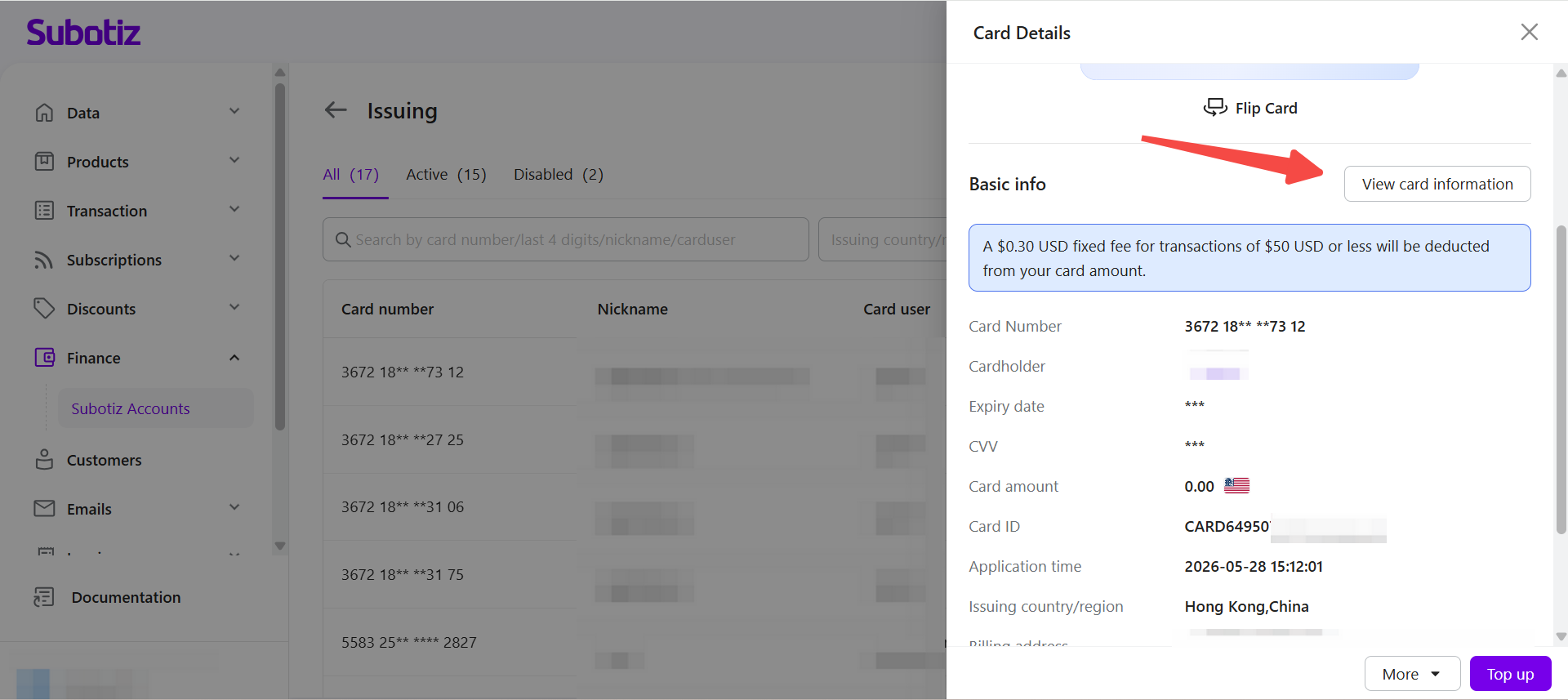
- Review card information: The card details page displays the card number, cardholder, expiration date, CVV, card balance, card ID, application date, issuing region, and billing address.
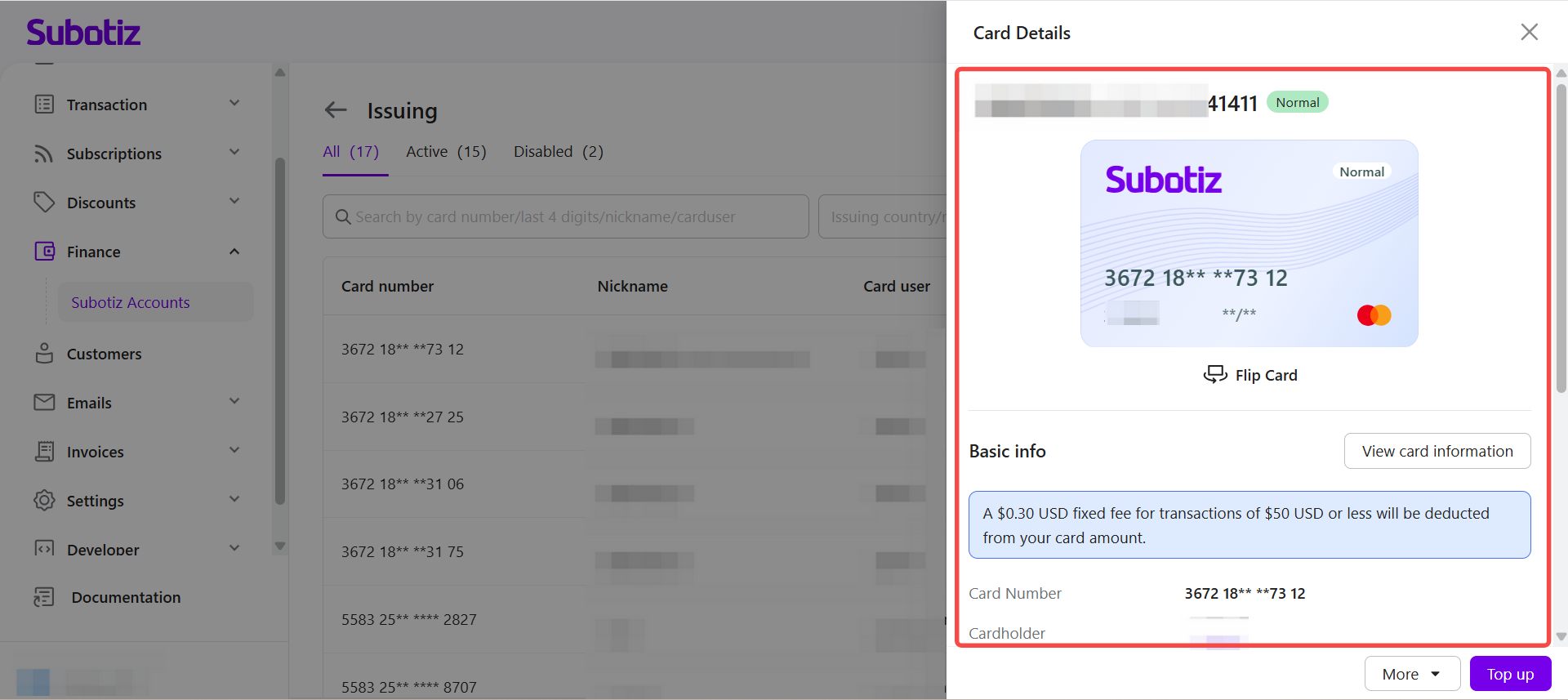
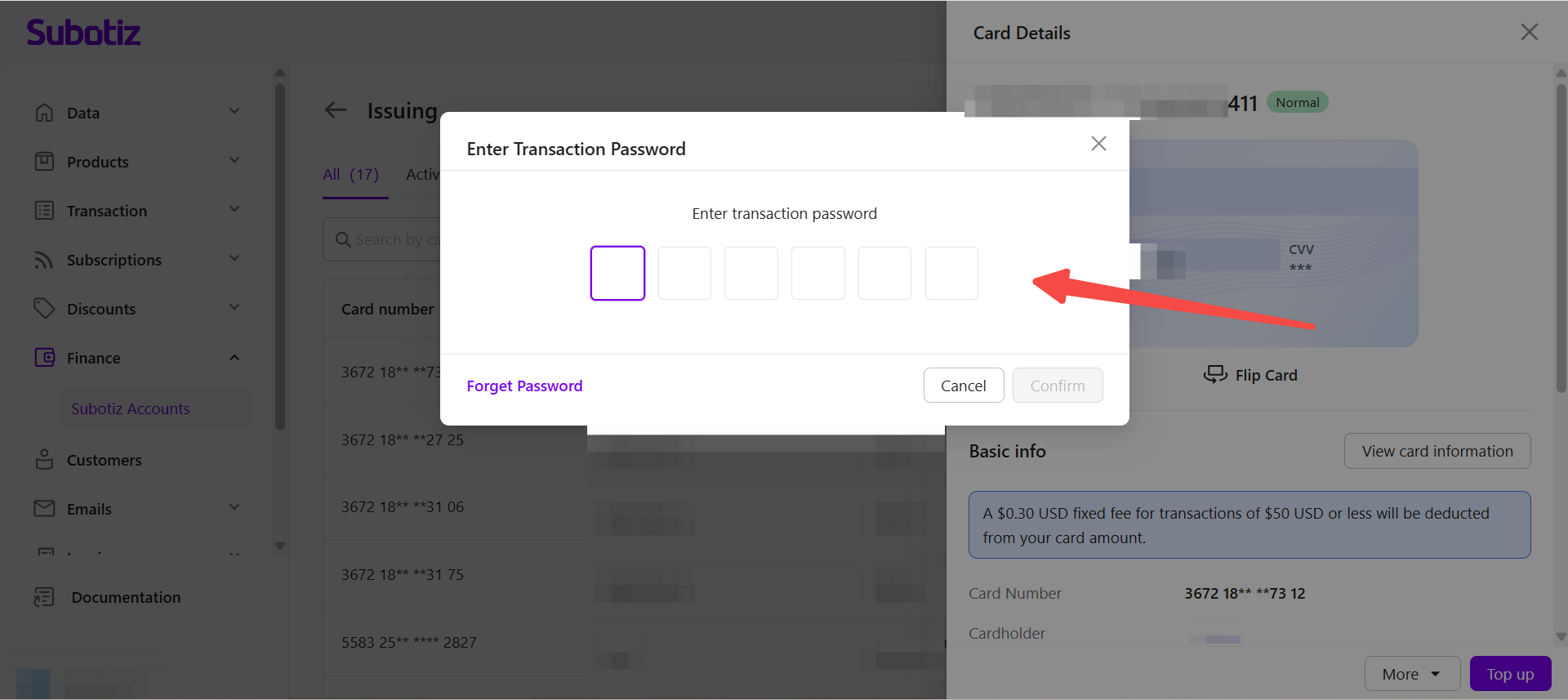
- View full card information: Click View Card Information and enter the transaction password to view the full card number, expiration date, and CVV. To protect sensitive card and account information, the transaction password is required each time you access these details.
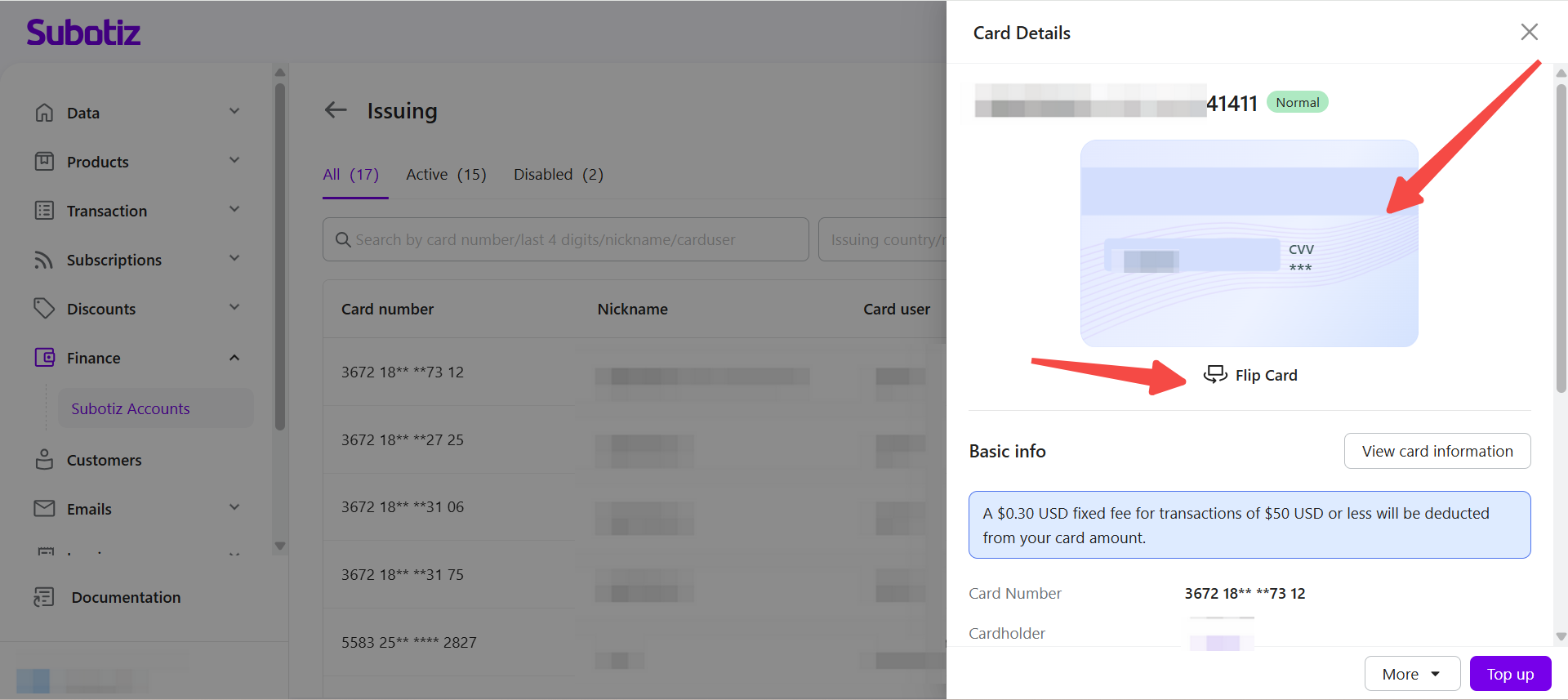
- Flip the card: Click Flip Card to view the back of the card.
- Manage the transaction password: To set or change the transaction password, refer to Subotiz Accounts | Payment Settings.
Managing the Notification Email
- View the notification email: The card details page displays the email address currently used to receive 3DS verification notifications.
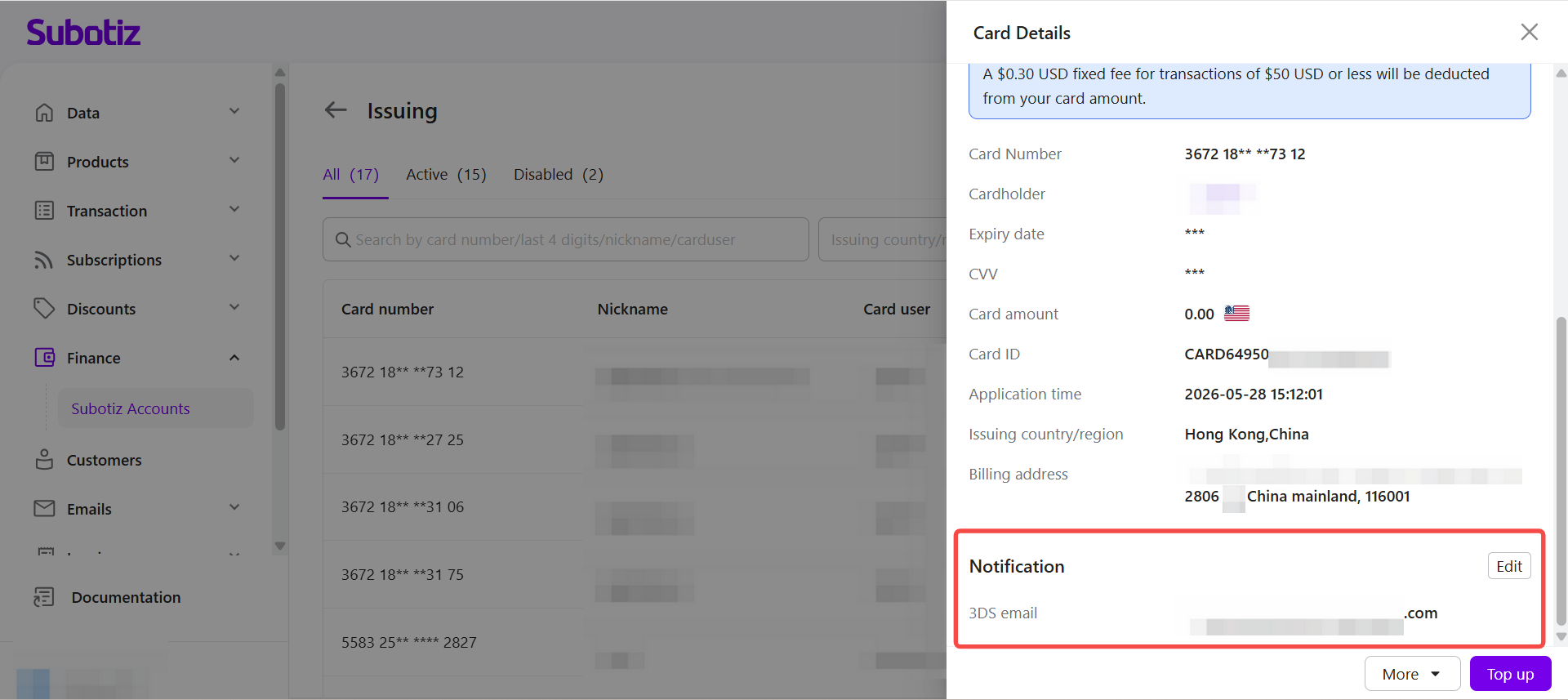
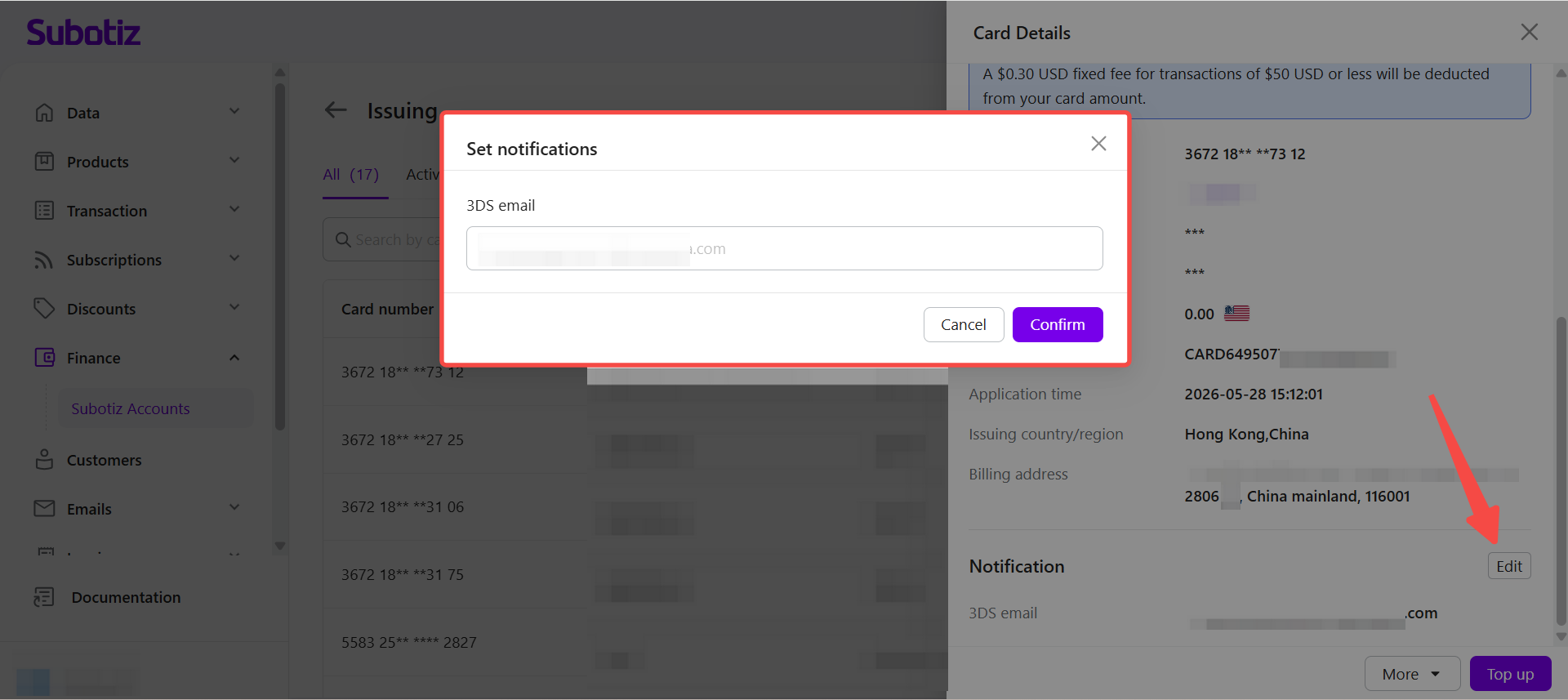
- Update the notification email: Click Edit, enter a new 3DS verification email address, and save the changes. When a transaction requires 3D Secure (3DS) verification, the system sends the verification code to this email address.
Topping Up a Regular Card
- Open the top-up page: Click Top Up for the selected Regular Card.
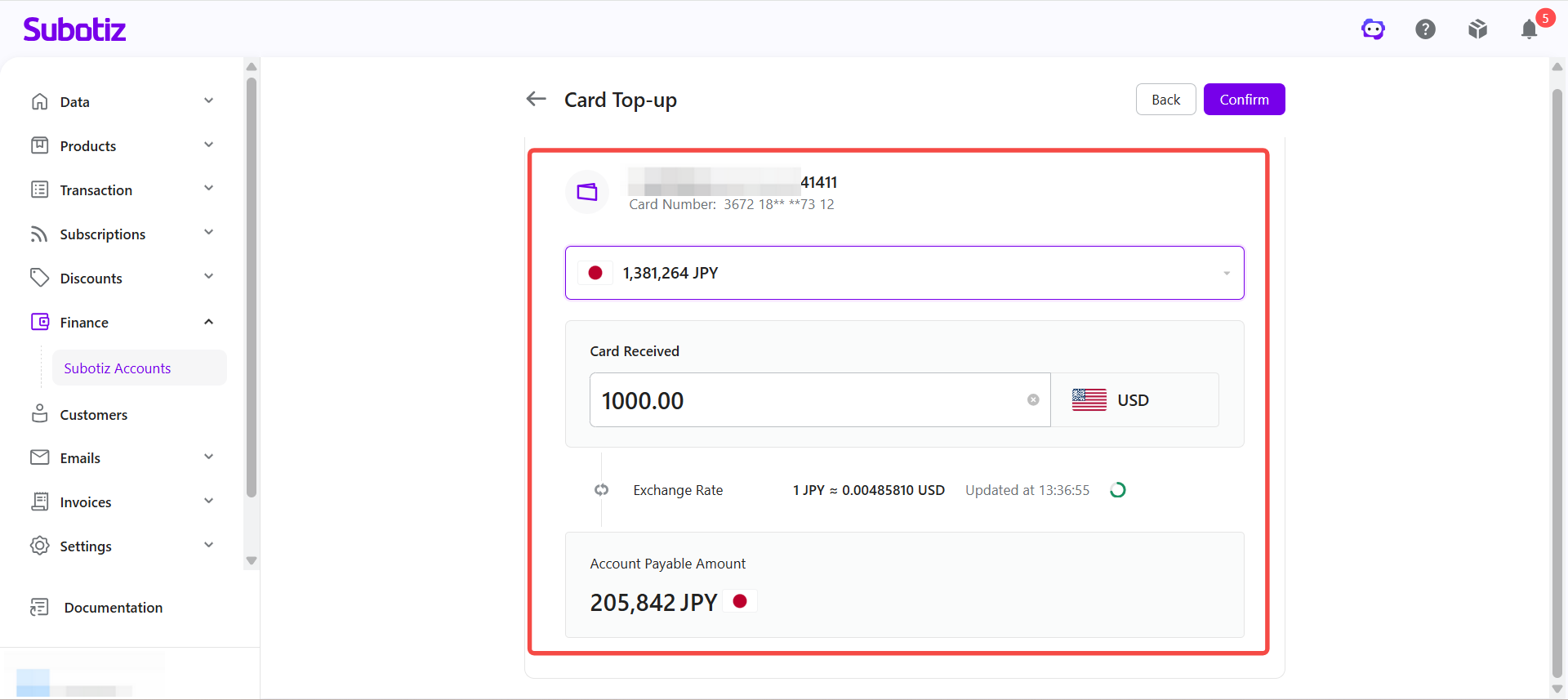
- Enter the top-up amount: Enter the USD amount to add to the Regular Card.
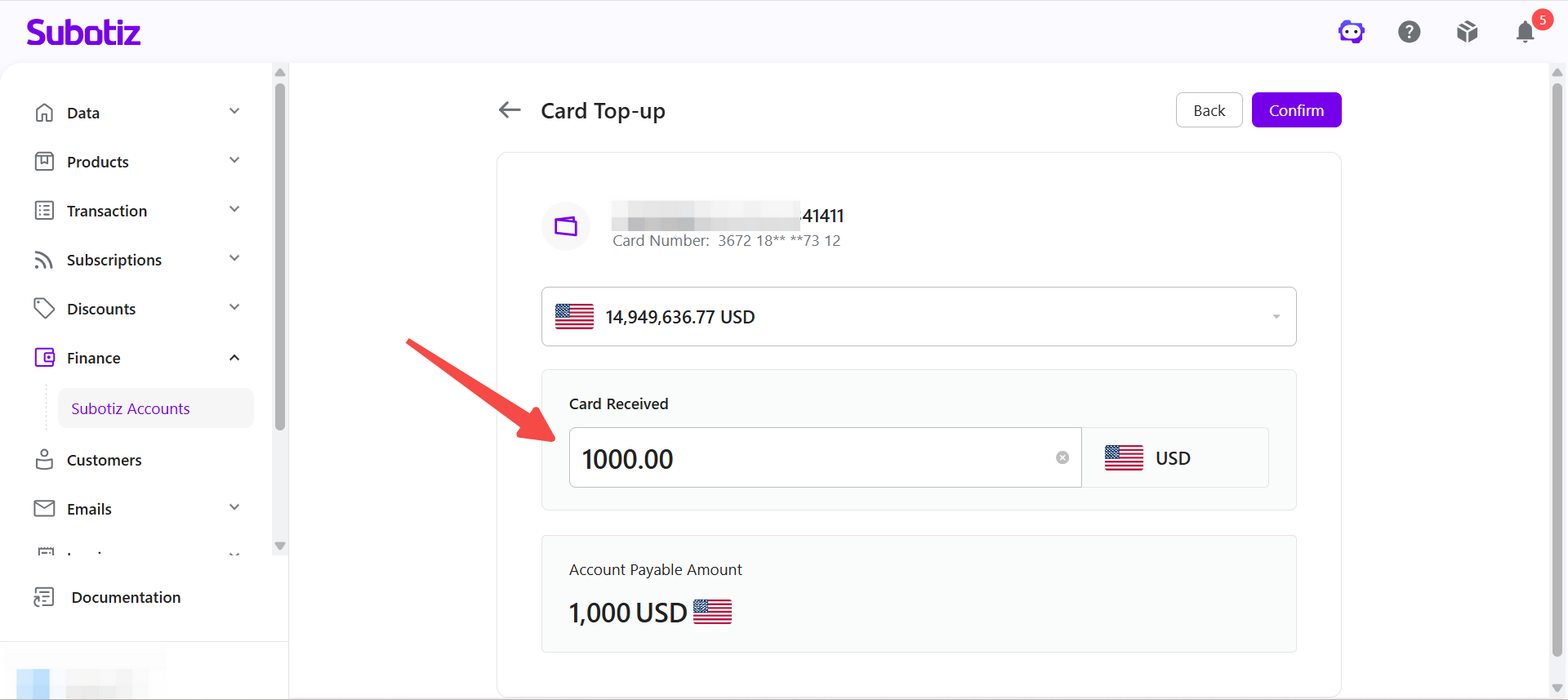
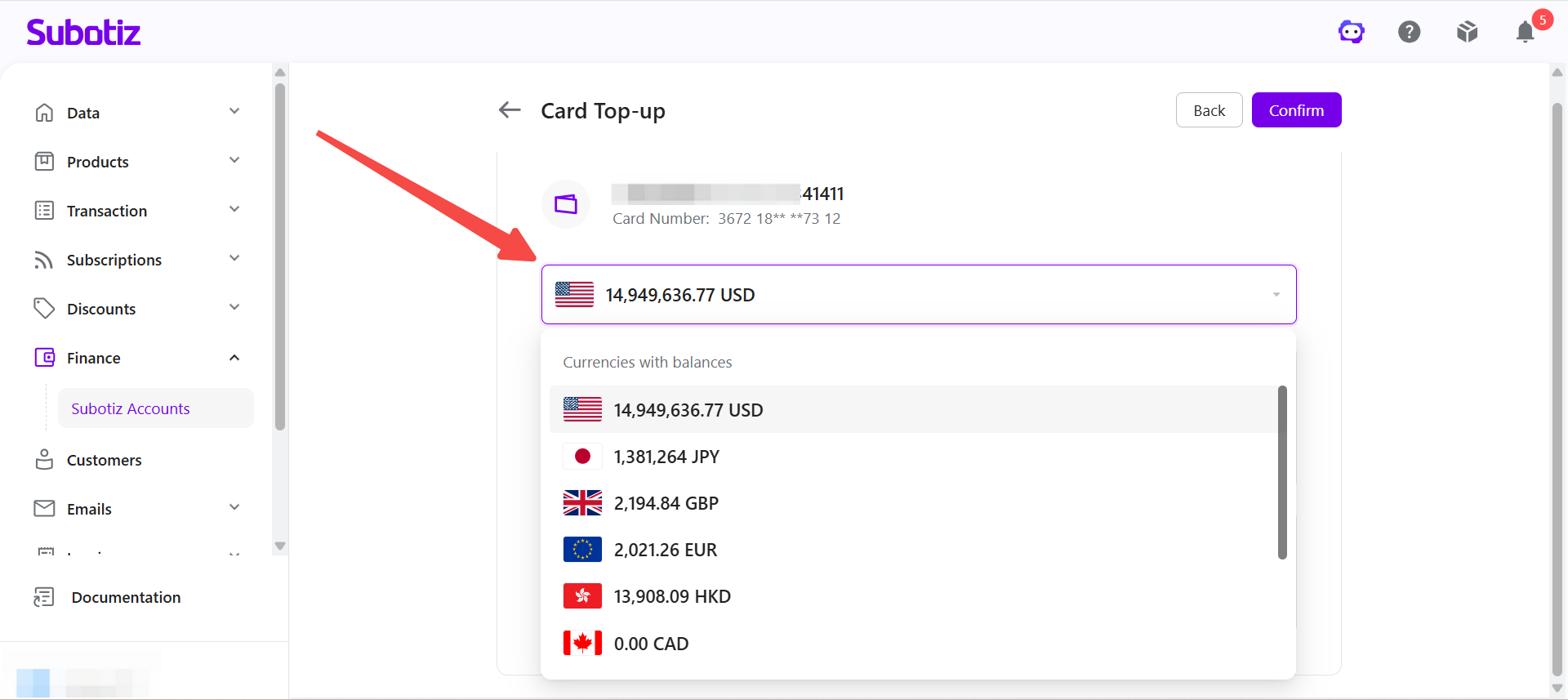
- Select a funding account: Select the Global Account to use for the top-up. If the Global Account currency differs from the card currency, the system automatically converts the funds using the real-time exchange rate and displays the applicable exchange rate and amount due.
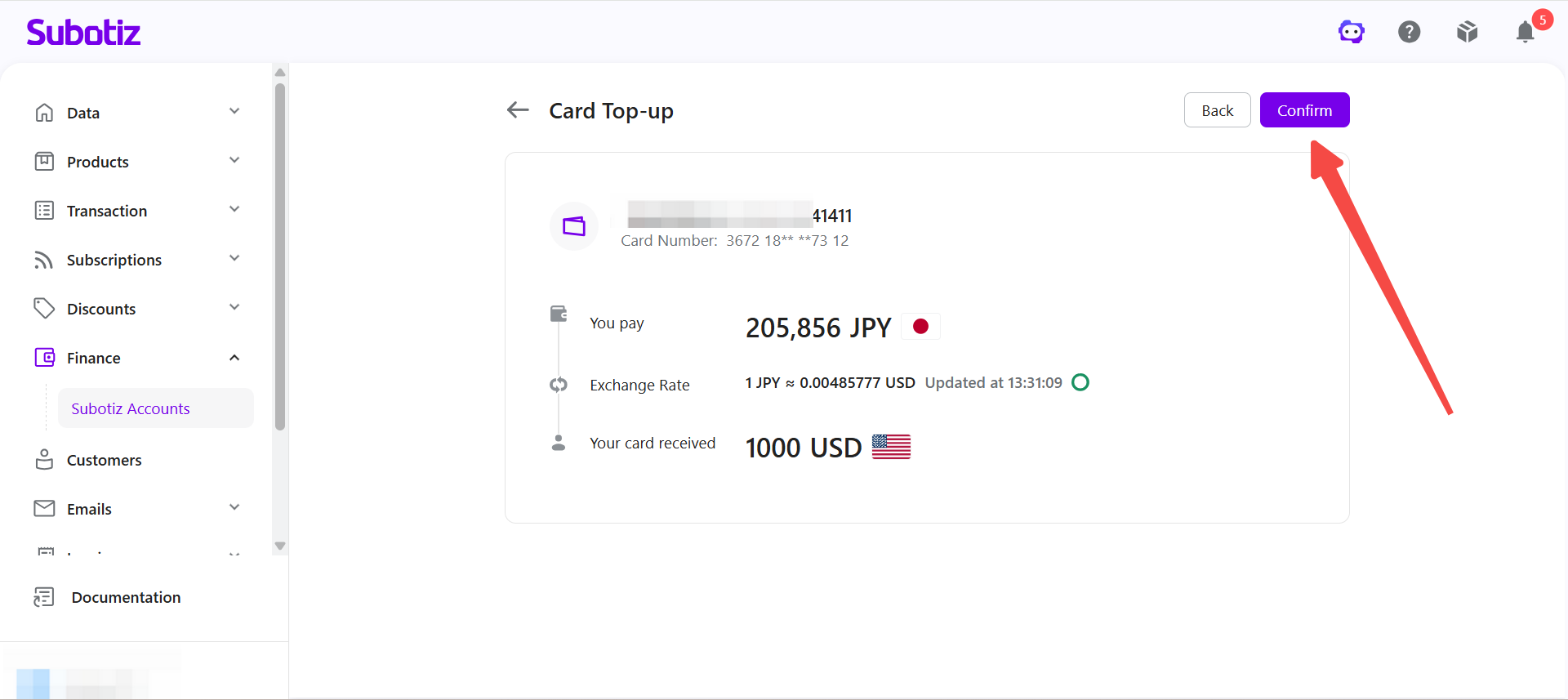
- Confirm the top-up: Review the top-up details, then click Confirm to complete the top-up.
Notes:
Managing a Regular Card
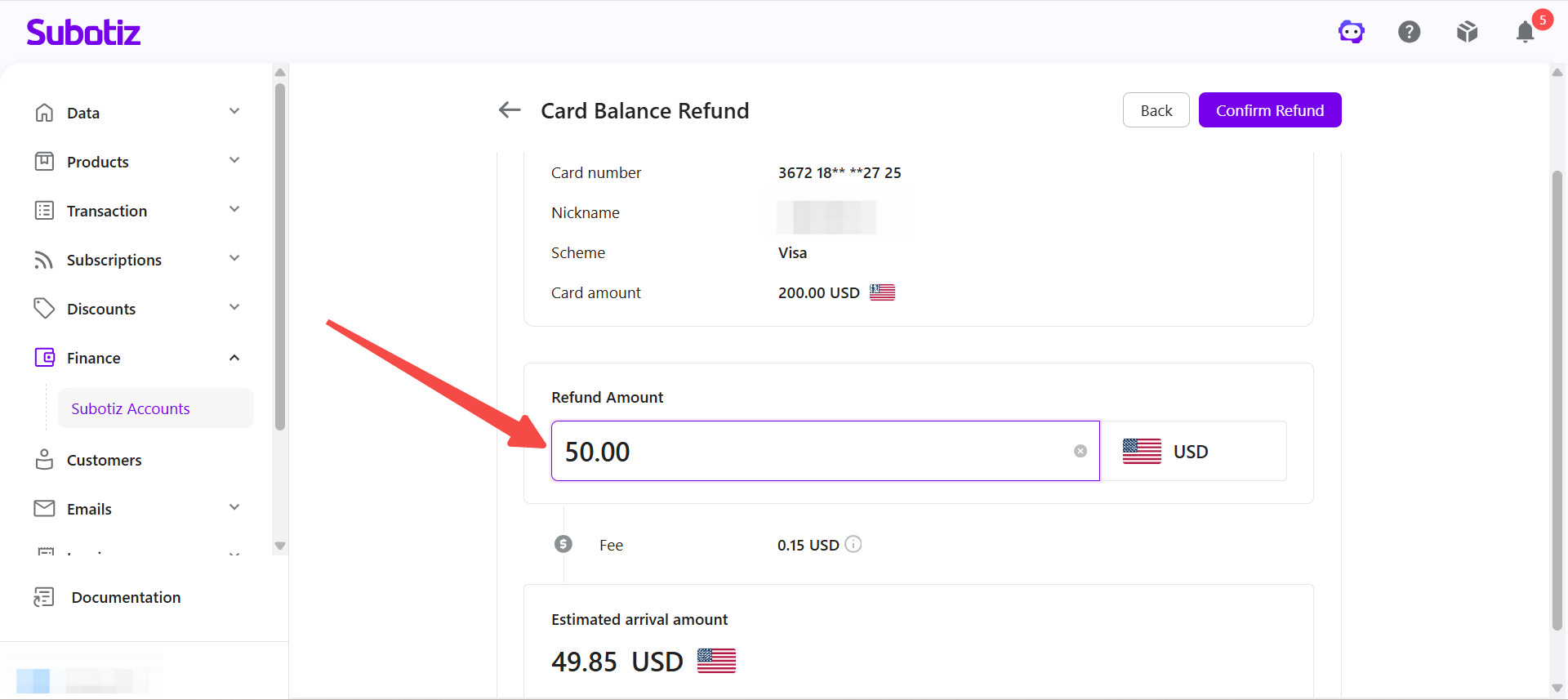
- Open additional actions: Click More for the selected Regular Card, then select Freeze, Cancel, or Refund as needed.
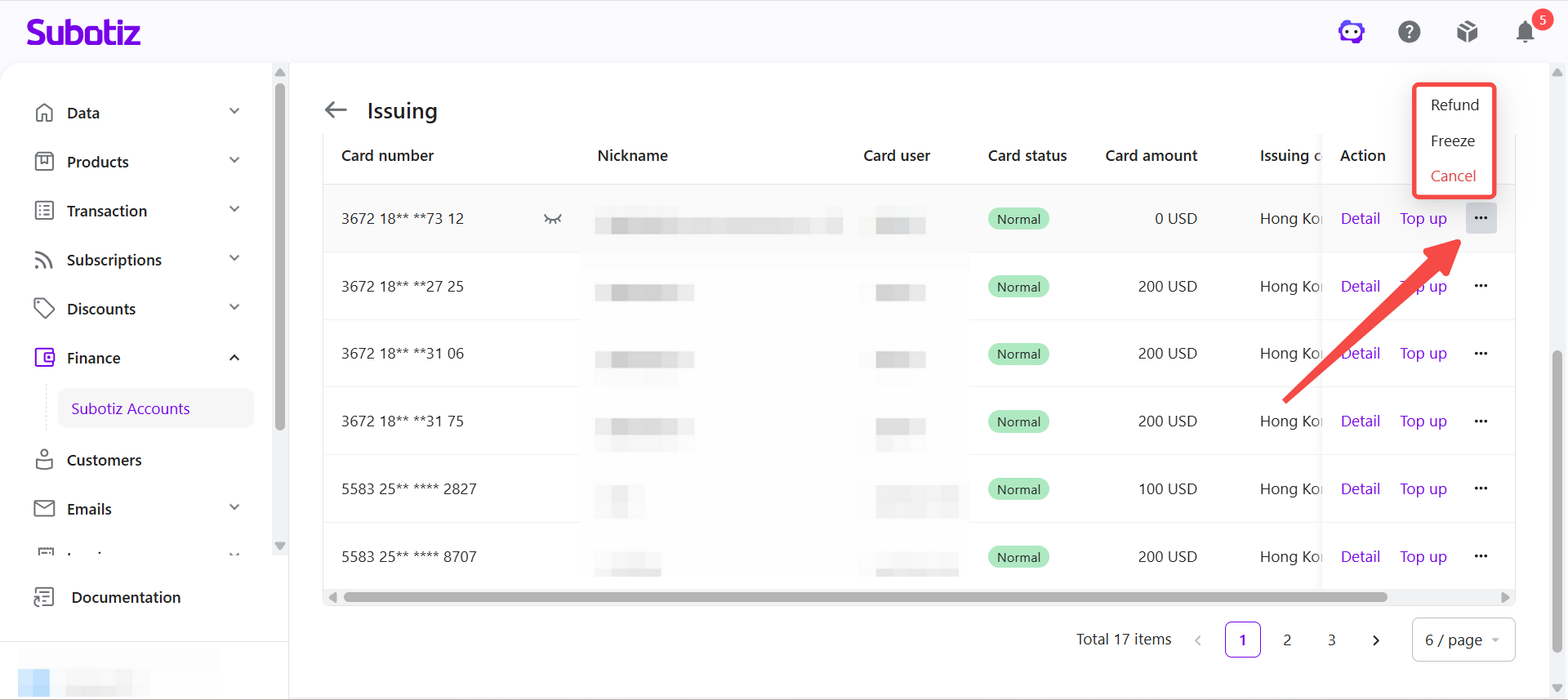
- Return the card balance: Click Refund, enter the amount to return, and confirm the refund.
Notes:
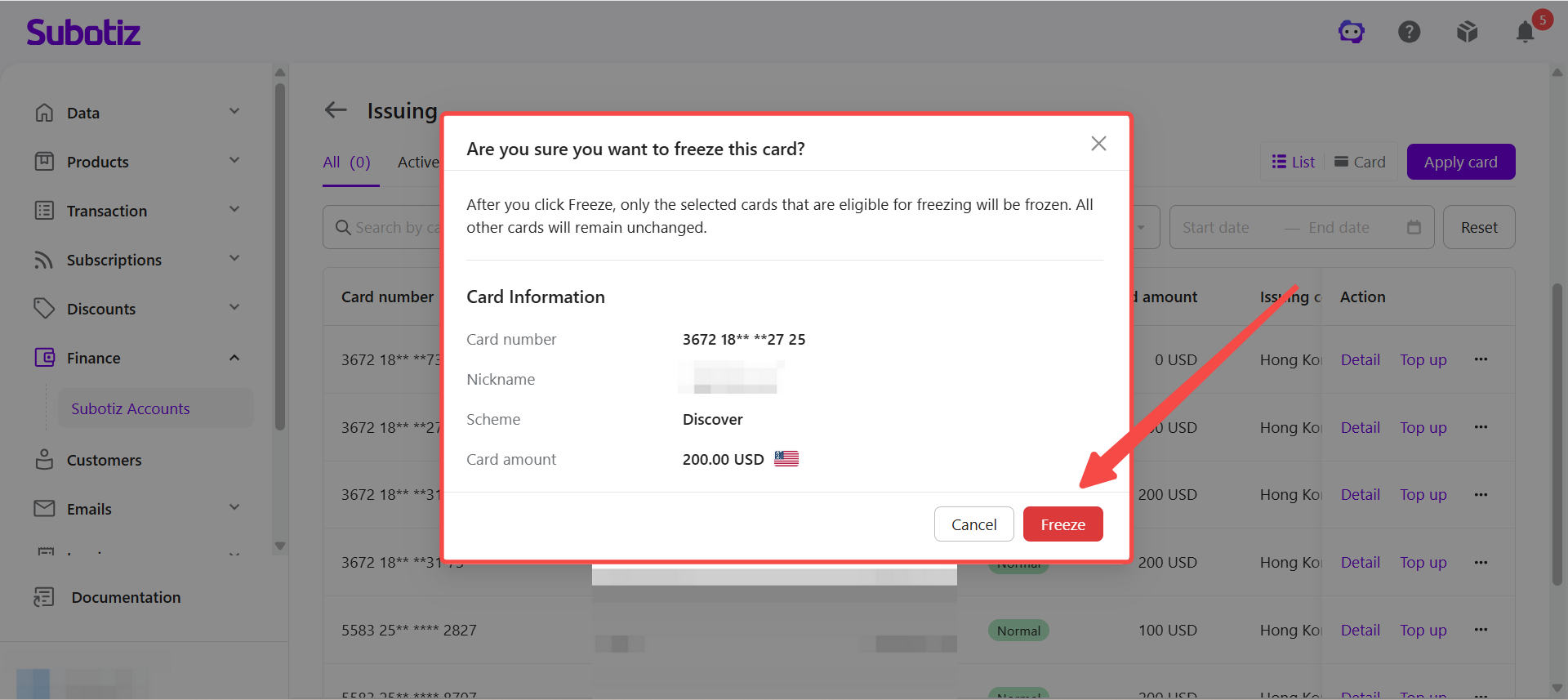
- Freeze a card: Click Freeze, review the card information, then click Freeze again to confirm. Once frozen, the card cannot be used for online payments until it is unfrozen.
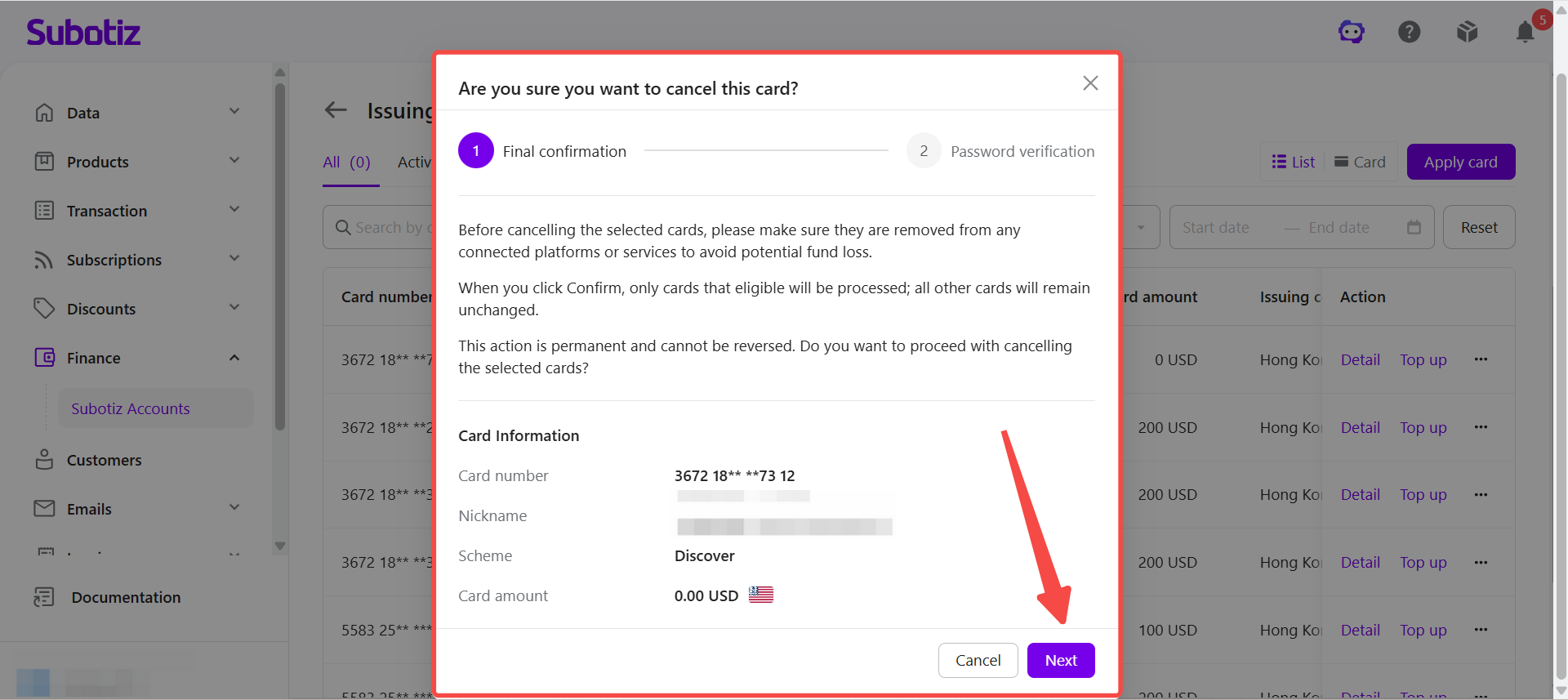
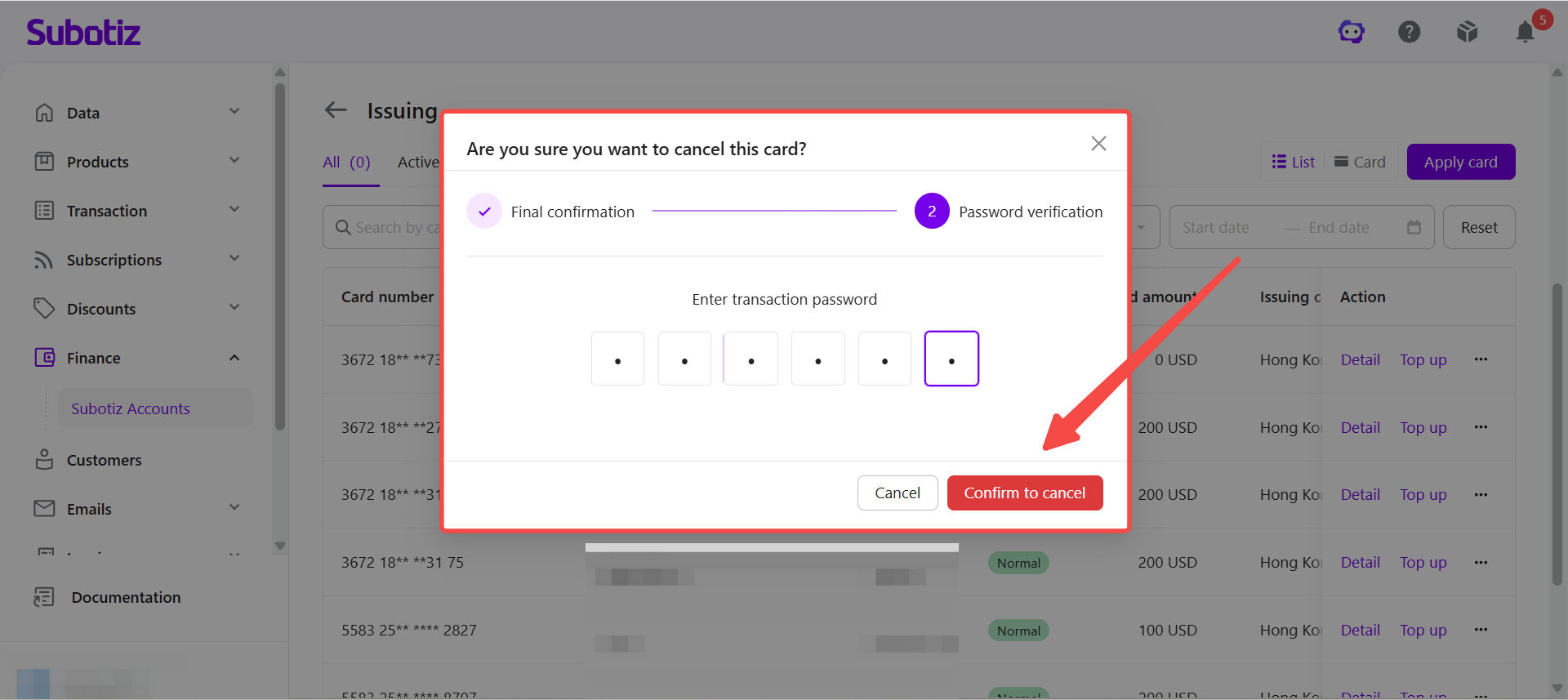
- Cancel a card: Click Cancel, review the card information and notices, then enter the transaction password to confirm the cancellation. A cancelled card cannot be restored or used for online payments. Before cancelling the card, make sure it has been removed from all linked platforms and subscription services.
Editing a Card Nickname
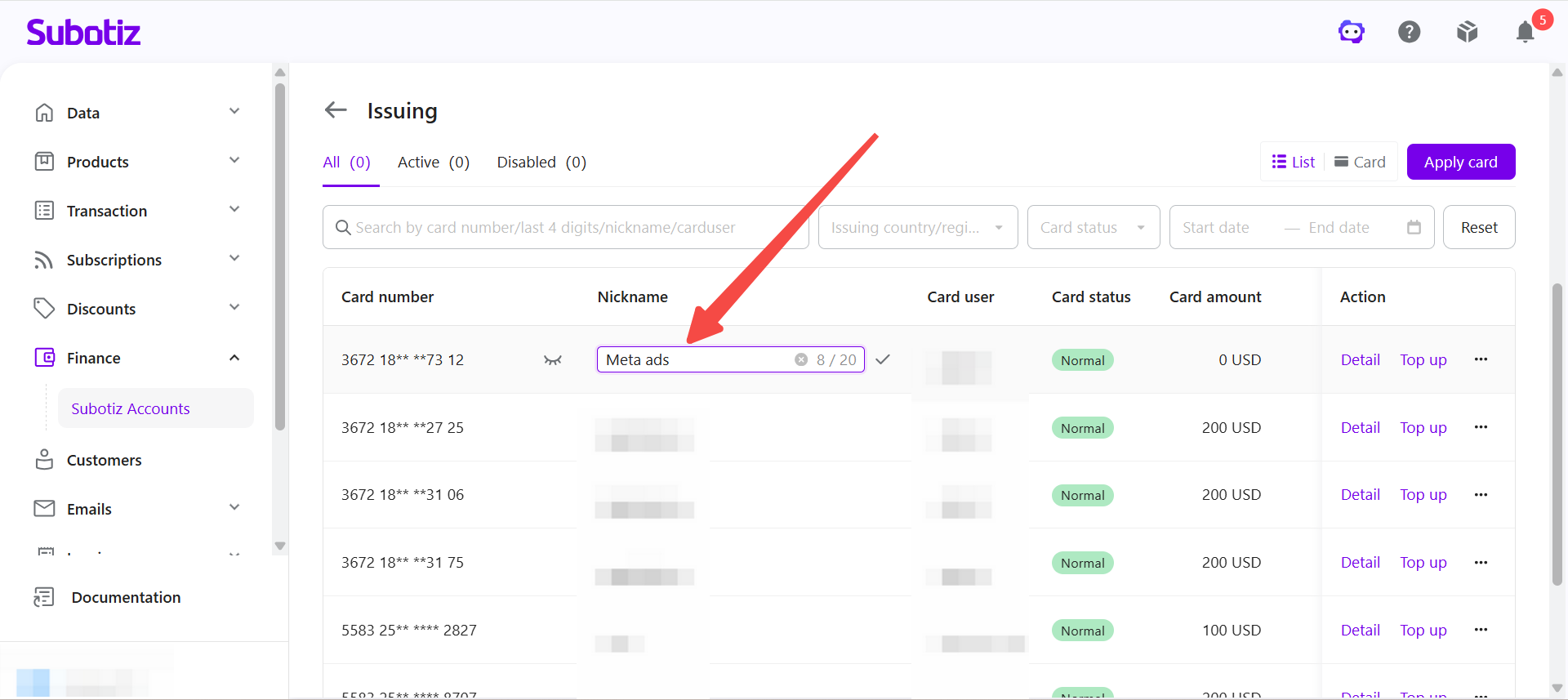
- Update the card nickname: Click the edit icon next to the nickname, enter a new nickname, and save the changes.
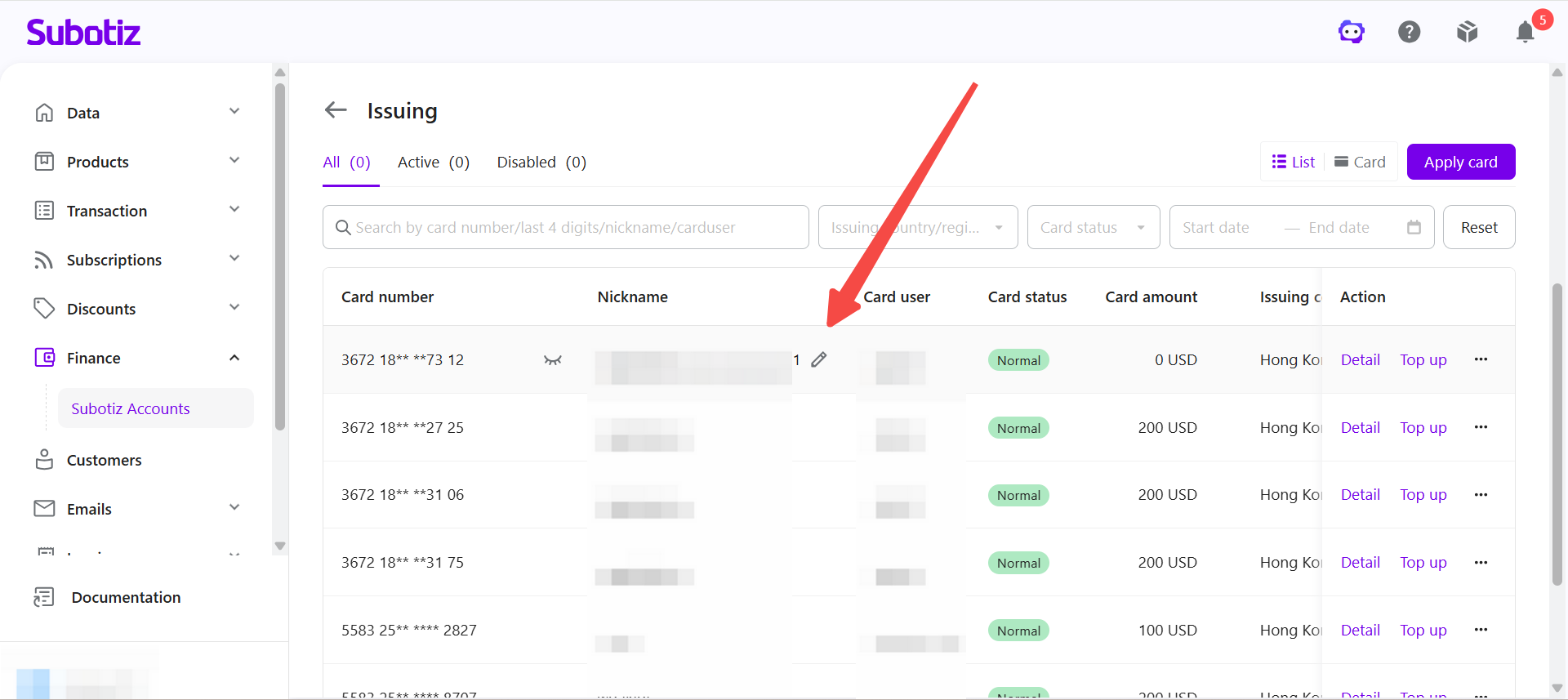
- Use clear card names: Name cards based on their business purpose, such as Meta Ads, Google Ads, AWS, or ChatGPT Team, to make them easier to manage and find.
Best Practices
- Maintain a sufficient card balance: Regular Cards use individual balances, and each transaction is deducted directly from the card balance. Top up cards as needed to help prevent transactions from failing due to insufficient funds.
- Use clear card nicknames: Name cards based on their business purpose to simplify card management and reconciliation.
- Keep the notification email up to date: Make sure the 3DS verification email address can receive messages so verification codes are delivered successfully.
- Protect sensitive card information: Keep the full card number, expiration date, and CVV secure, and restrict access to authorized users.
The Regular Cards page provides tools to search, filter, top up, view, and manage virtual credit cards in one place. These features help merchants manage card balances, card usage, business spending, and budgets more efficiently.