The Cardholder feature in Subotiz Accounts allows merchants to manage the identity information required to apply for virtual credit cards. Once a cardholder is added and approved, the cardholder can be selected when applying for a Regular Card or Shared Card without entering the same identity information again, helping streamline card issuance and centralize cardholder records.
Adding a Cardholder
- Open Issuing: Log in to the Subotiz dashboard and go to Finance > Subotiz Accounts > Issuing, then click View All.
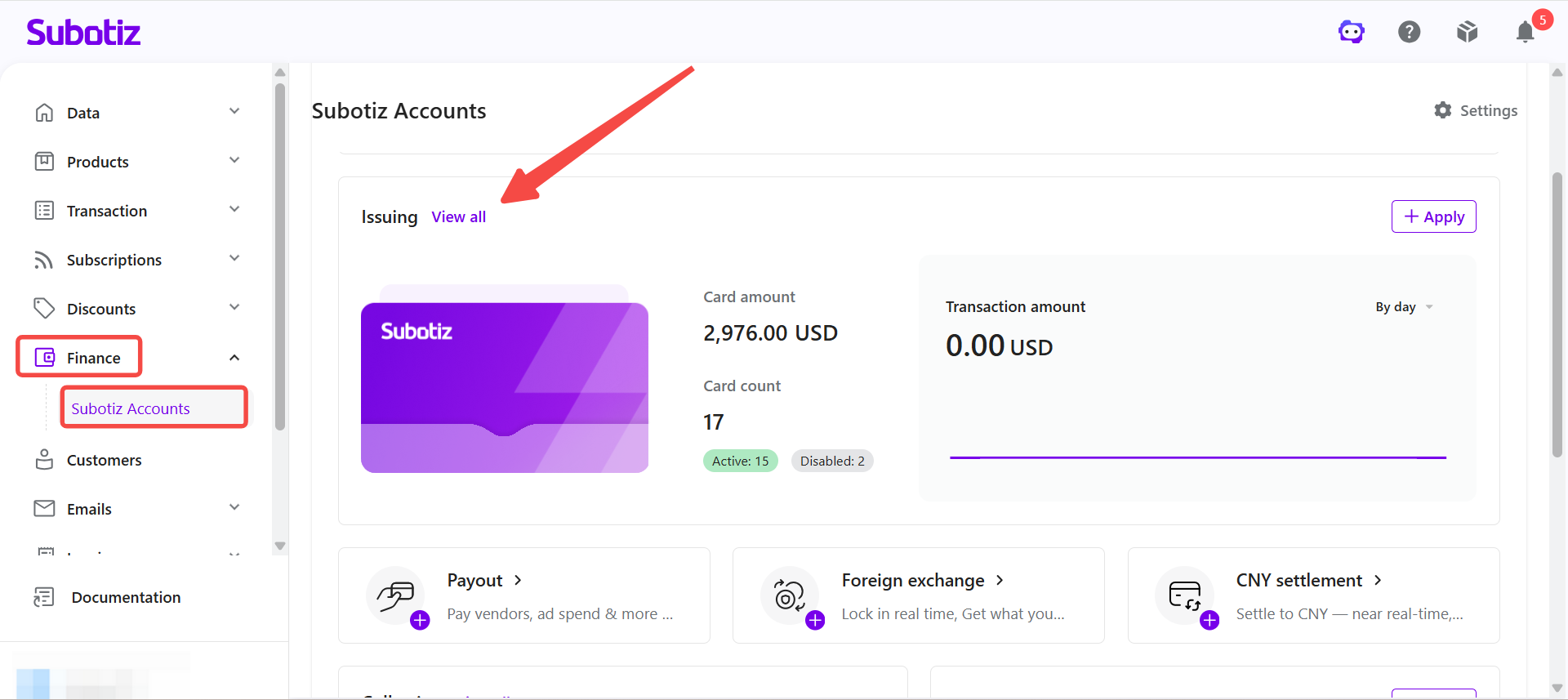
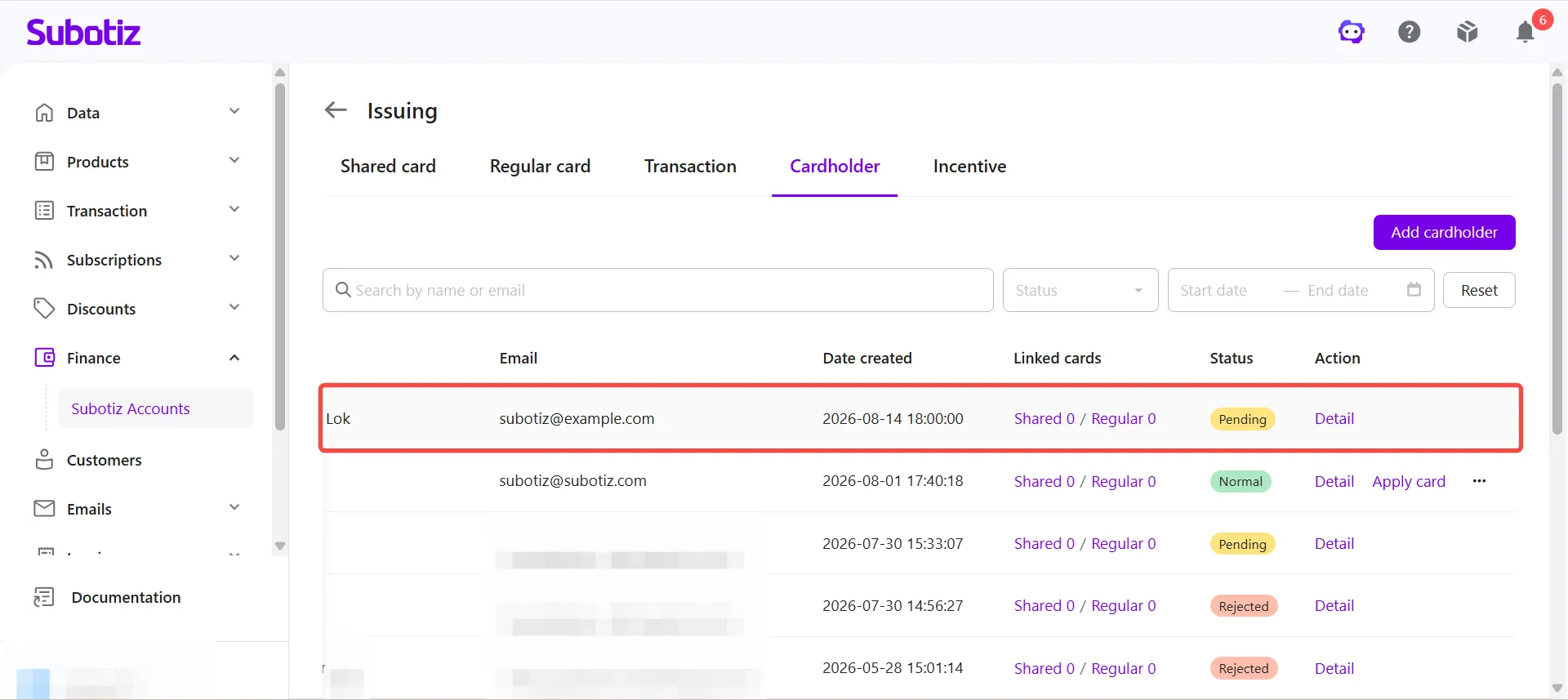
- Open Cardholders: Click the Cardholders tab to view all existing cardholders.
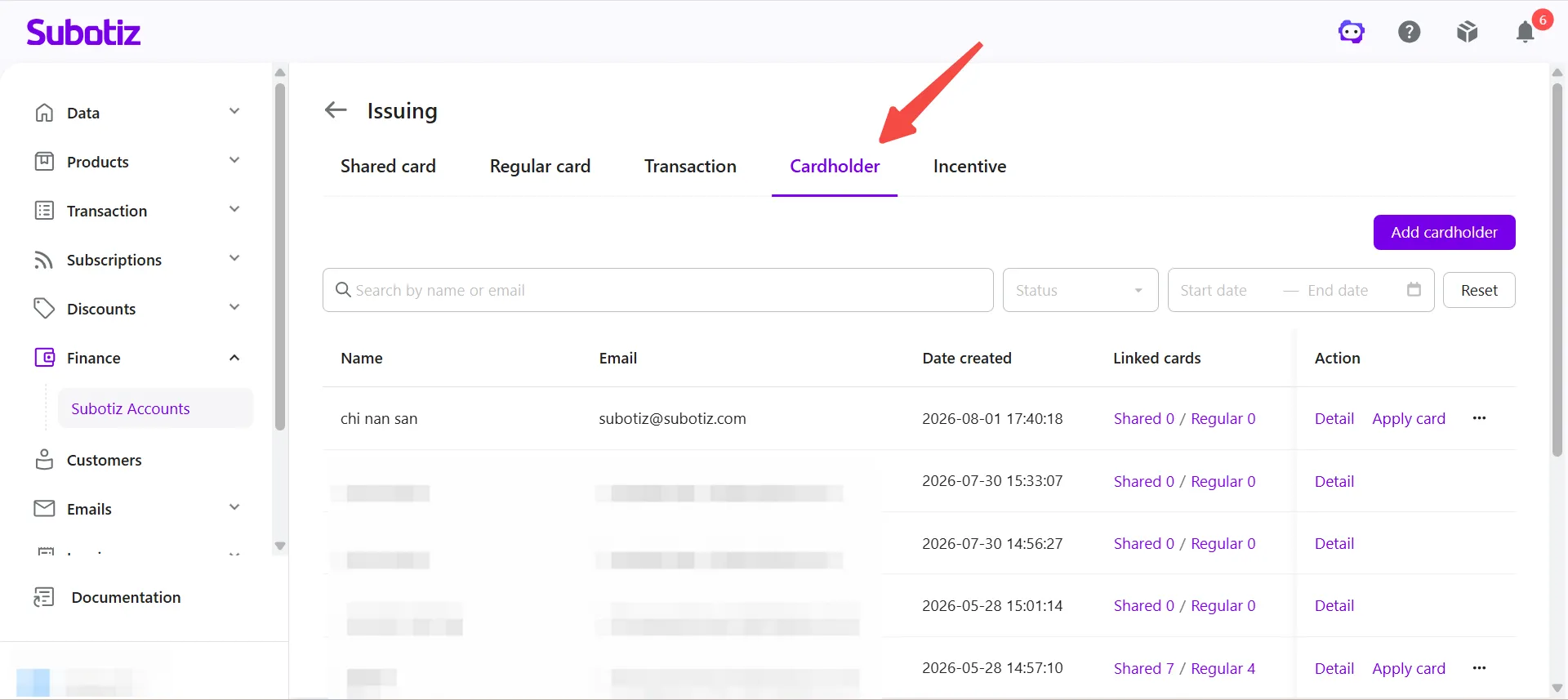
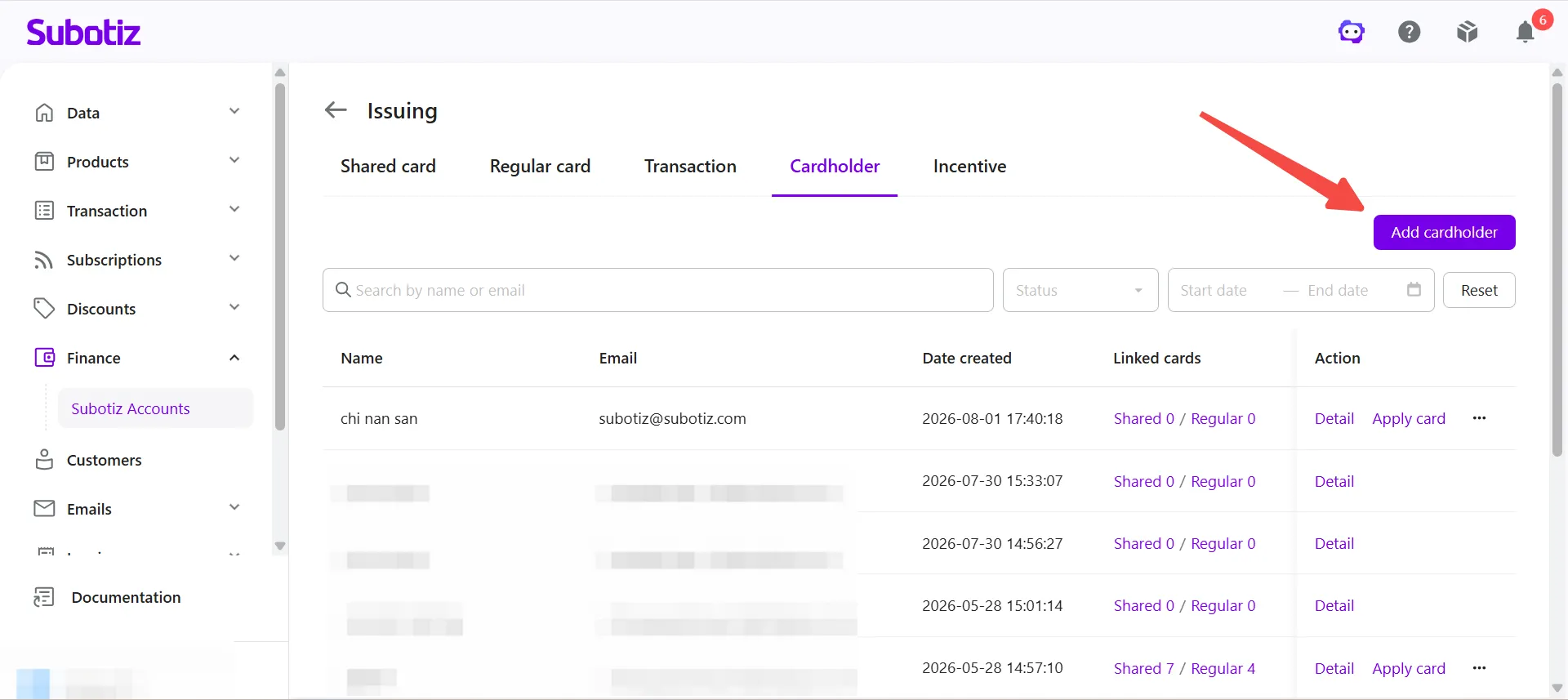
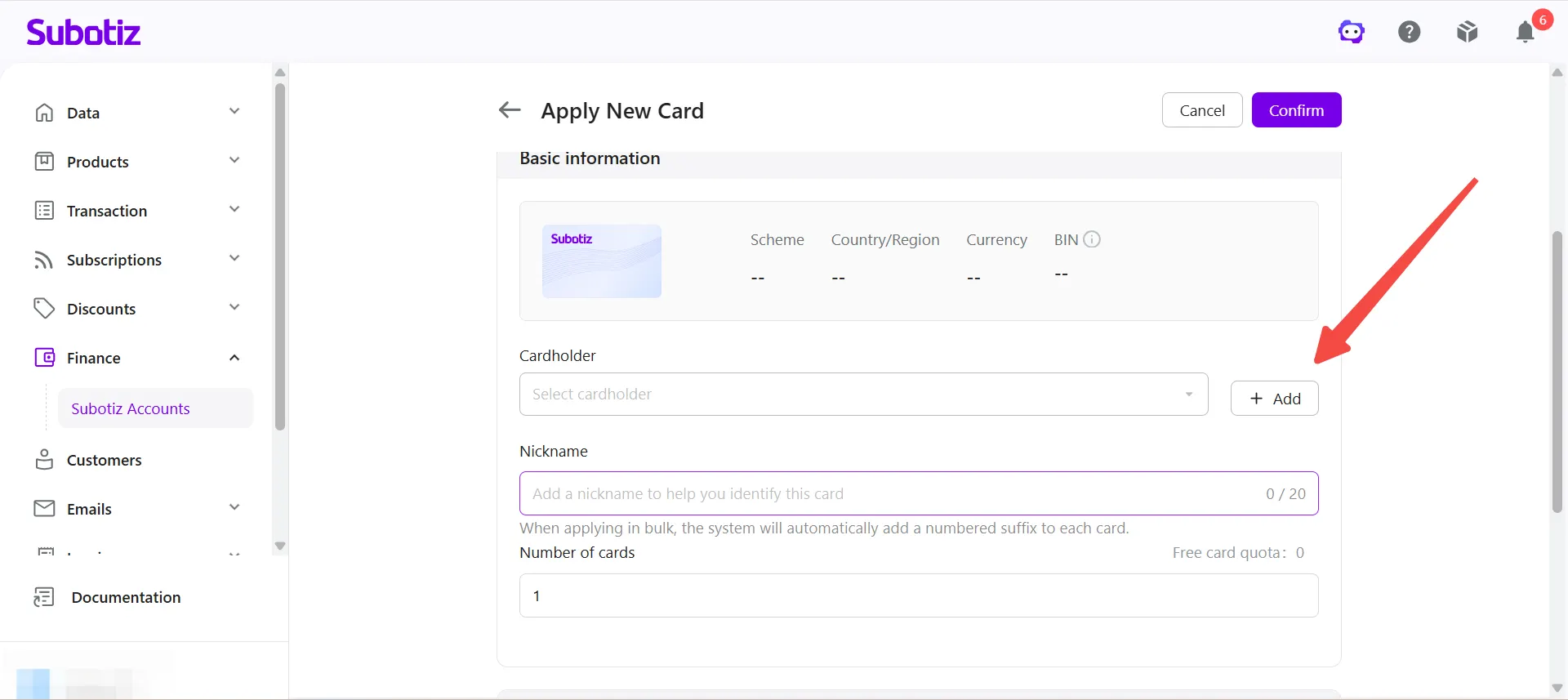
- Add a cardholder: Open the Create cardholder page using either of the following methods:
- Click Add Cardholder in the upper-right corner of the Cardholders tab.
- When applying for a Regular Card or Shared Card, click Add next to Cardholder.
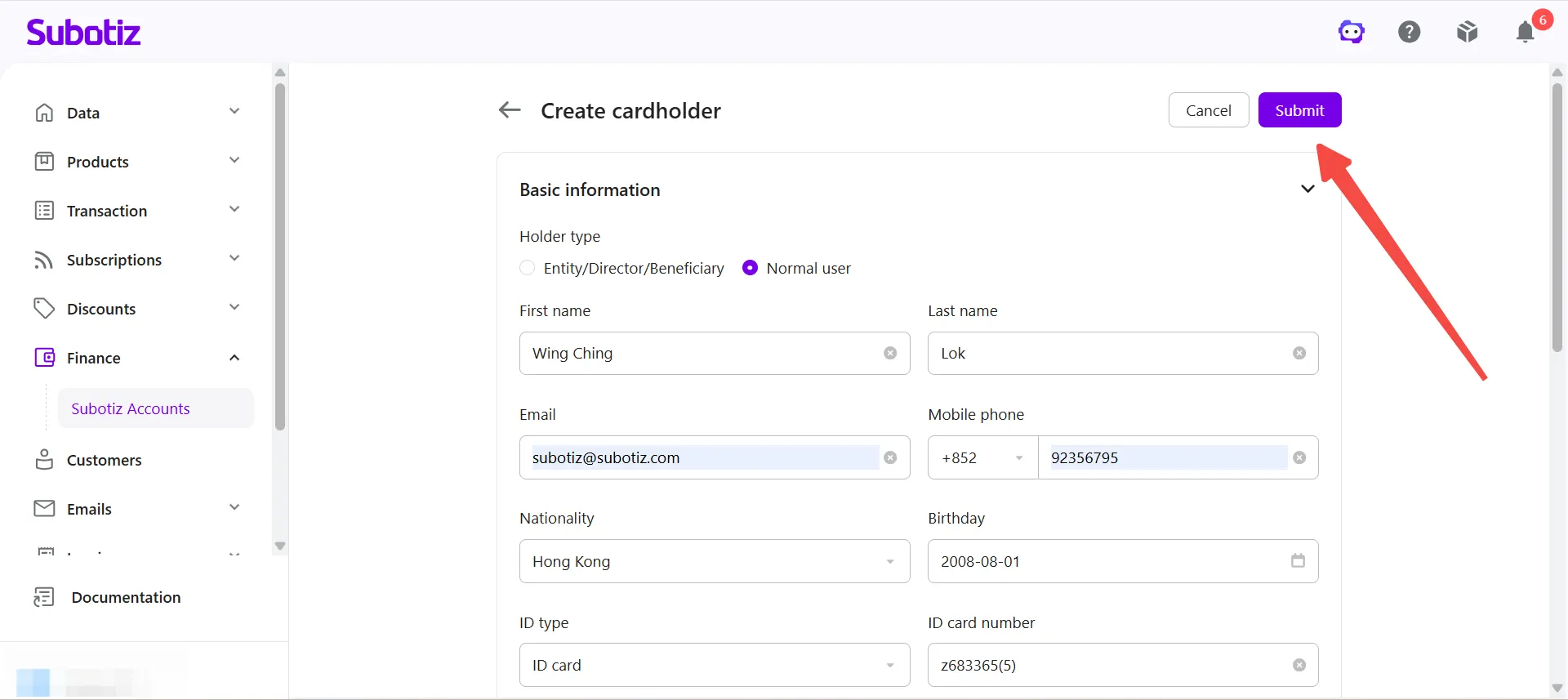
- Select a cardholder type: Under Holder type, select the option that applies to the cardholder:
- Entity/Director/Beneficiary: Select this option for a business owner, director, or beneficial owner.
- Normal user: Select this option for an employee or other individual who will use the virtual credit card.
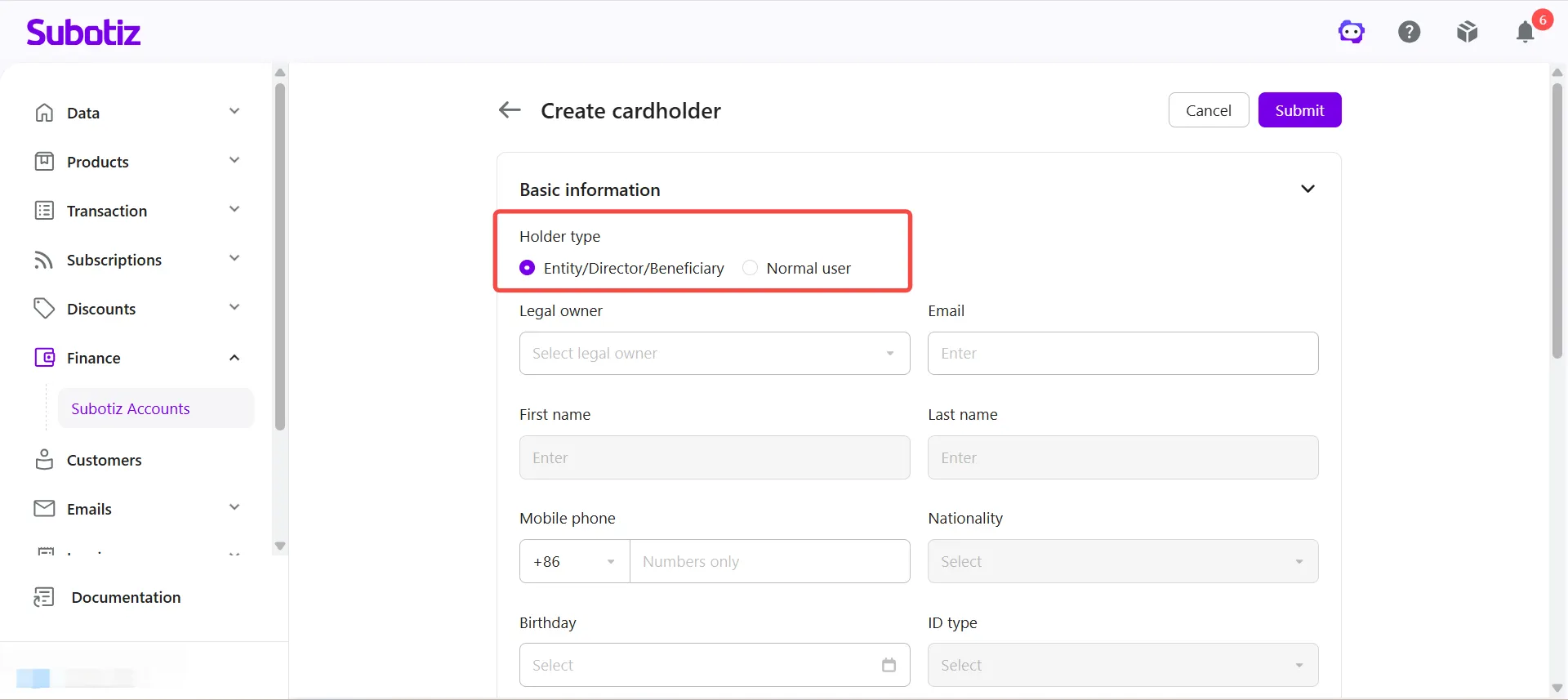
Entering Cardholder Information
- Enter basic information: Complete or review the required information based on the selected Holder type.
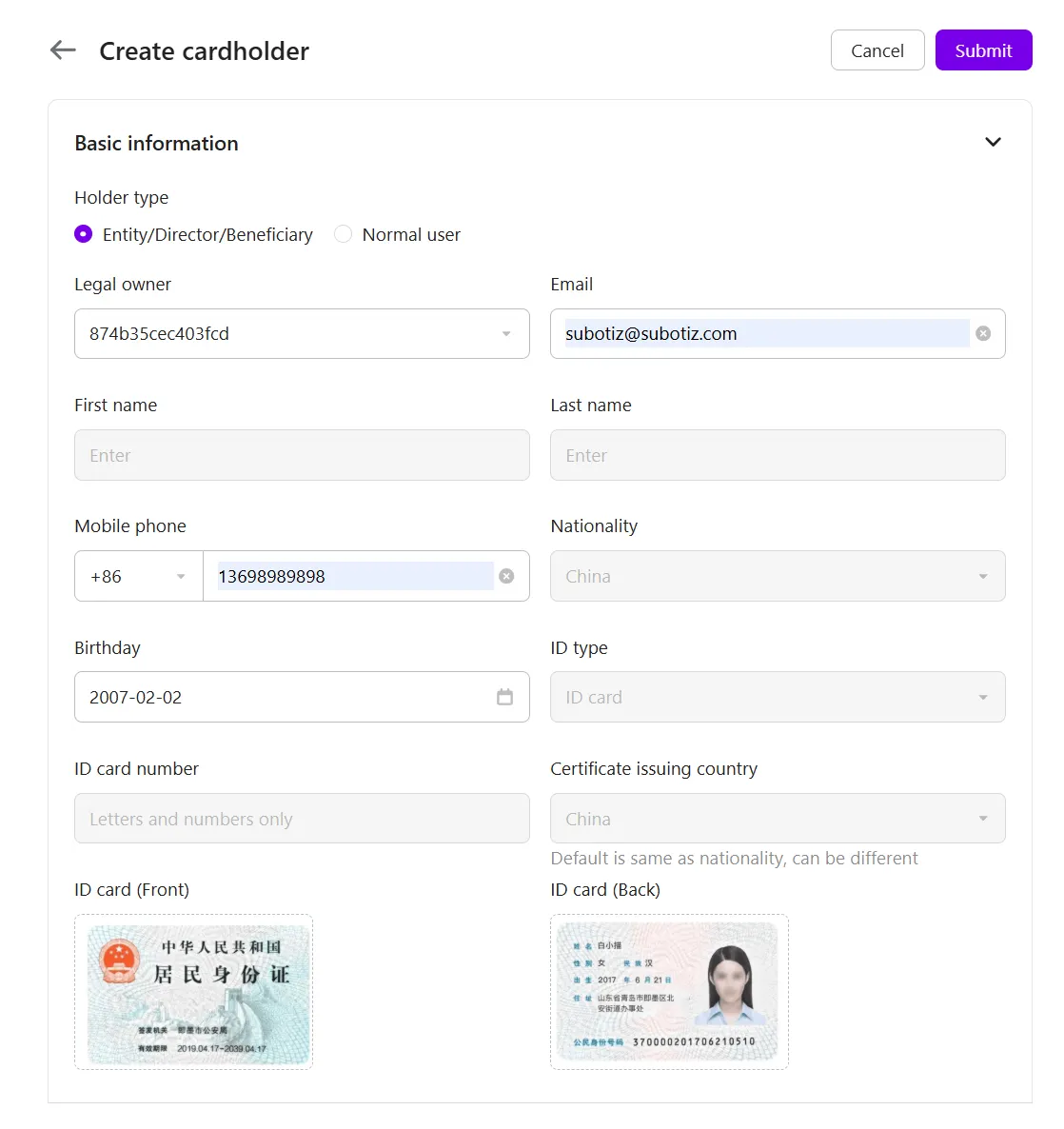
- Entity/Director/Beneficiary: Select an existing individual under Legal owner, then complete any additional information required on the page.
Notes:
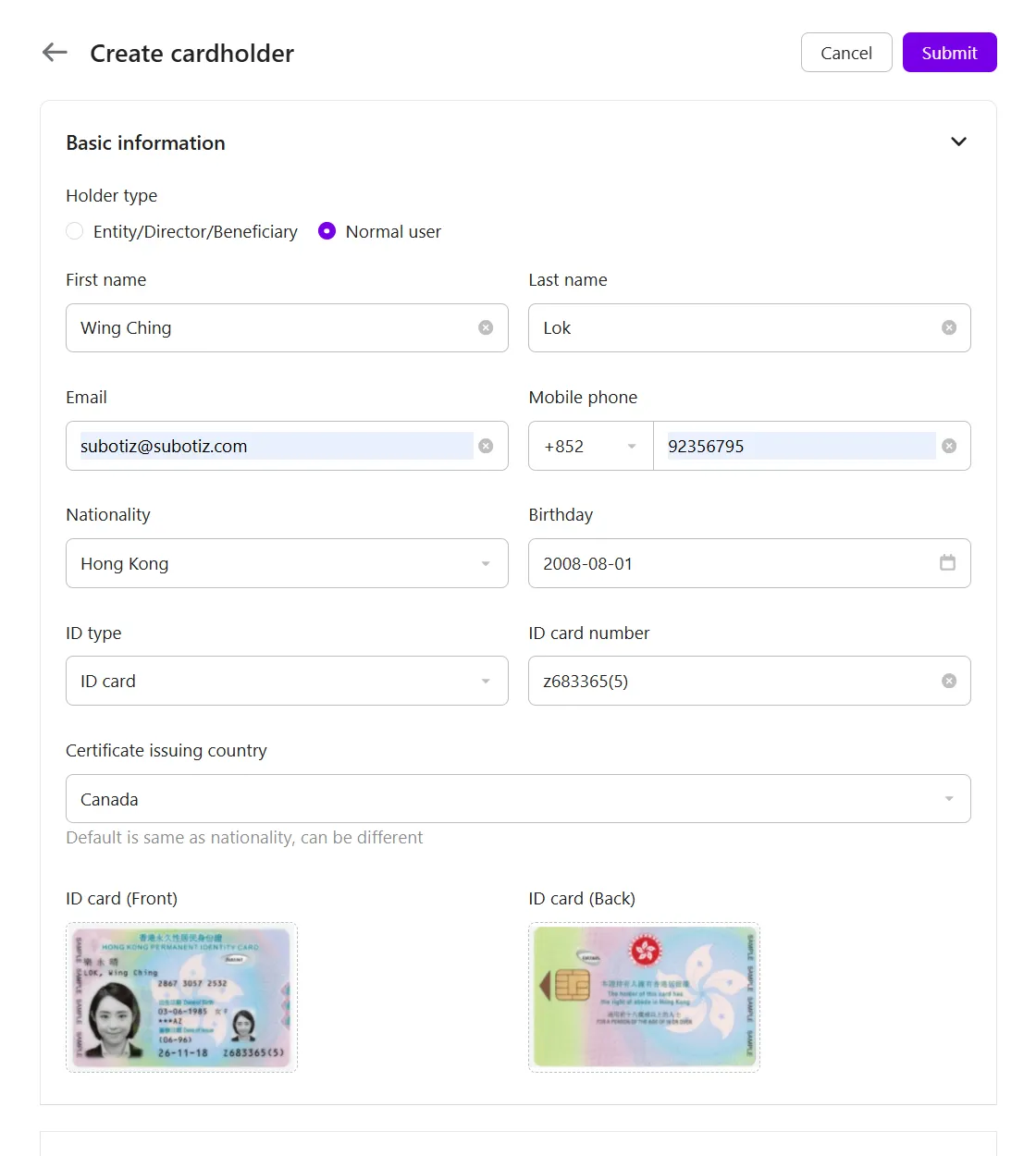
- Normal user: Enter the cardholder's first name, last name, email address, mobile phone number, nationality, date of birth, ID type, ID number, and ID issuing country. Upload the required ID document as prompted.
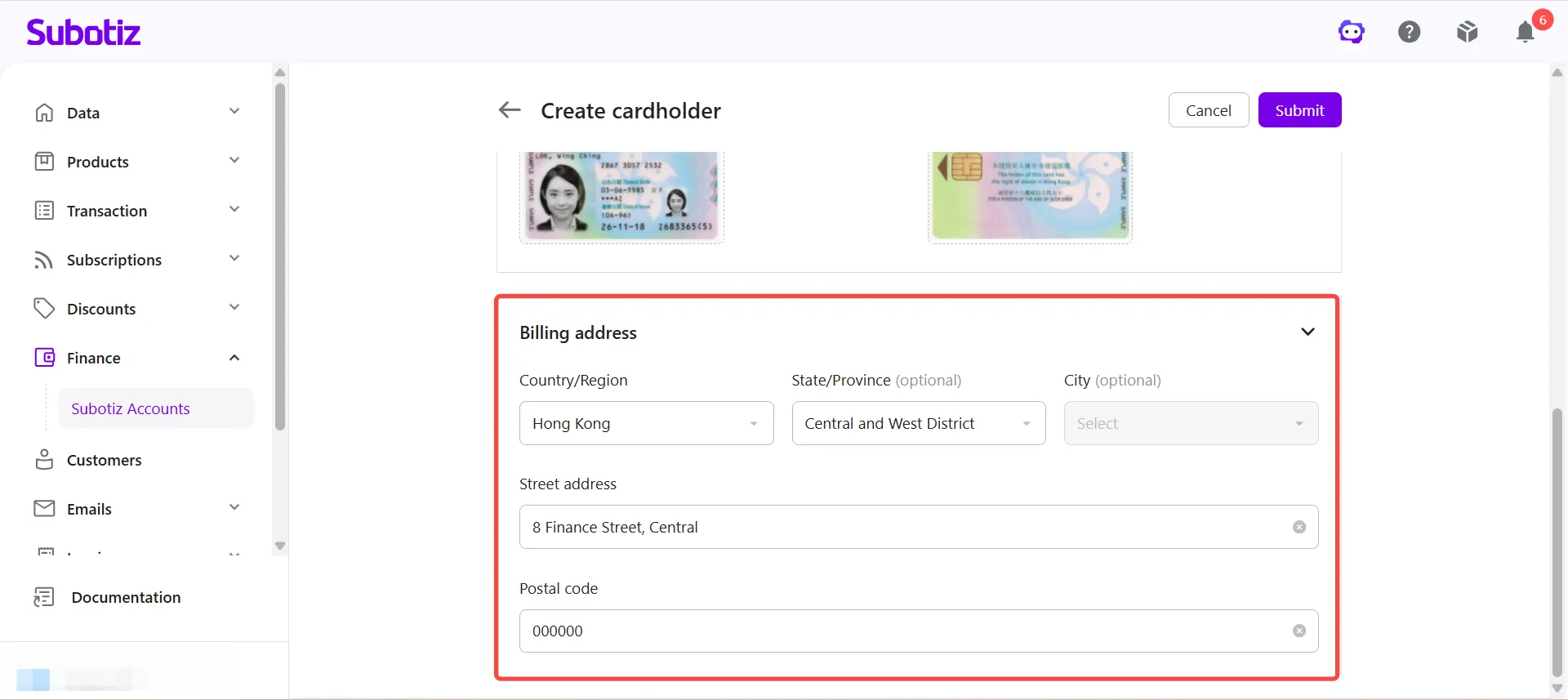
- Enter the billing address: Under Billing address, select the Country/Region and enter the Street address and Postal code. Complete State/Province and City where applicable. The address entered here will be used as the card's billing address when applying for a Regular Card or Shared Card.
- Submit the cardholder: Review the information for accuracy, then click Submit. The cardholder enters the review process after submission.
- Wait for review: After submission, the system returns to the Cardholders page and the new cardholder appears with an Under Review status. Once approved, the cardholder can be selected when applying for a Regular Card or Shared Card without entering the identity information again.
Best Practices
- Select the appropriate holder type: Select Entity/Director/Beneficiary for a business owner, director, or beneficial owner. Select Normal user for employees or other individuals who will use the virtual credit card.
- Provide accurate identity information: Make sure the information entered for a Normal user matches the cardholder's identification document to avoid delays during review.
- Upload clear and valid documents: Upload complete, legible, and unexpired identification documents to support the review process.
- Confirm the billing address: Make sure the billing address is accurate because it will be used as the card's billing address when applying for a Regular Card or Shared Card.
Once approved, a cardholder can be selected directly when applying for Regular Cards or Shared Cards without entering the same identity information again. This helps merchants manage cardholder information in one place and simplifies future card applications.