A Regular Card is a virtual credit card with its own balance, making it suitable for managing funds for a specific business purpose. Merchants can create separate Regular Cards for advertising, SaaS subscriptions, vendor payments, and other online business expenses, making it easier to manage budgets and track spending independently.
Applying for a Regular Card
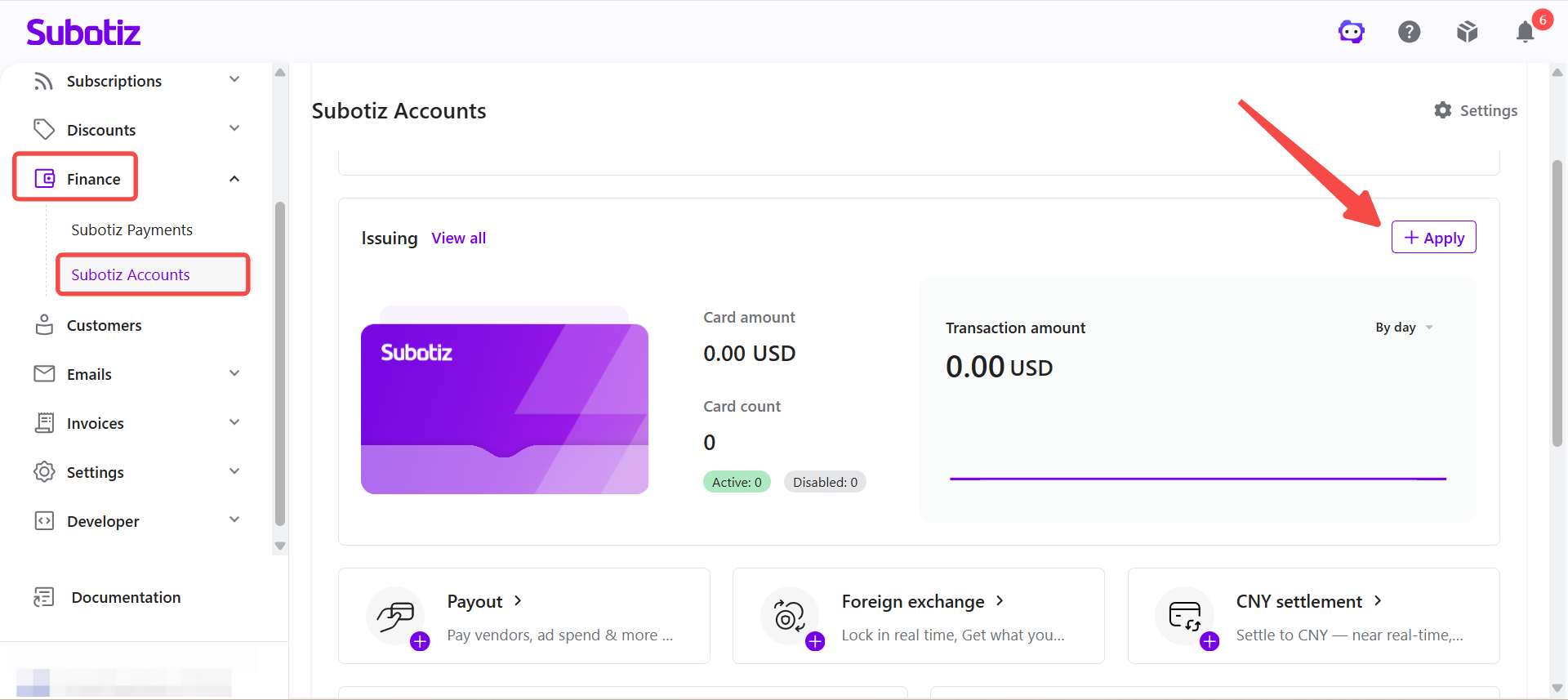
- Open Issuing: Log in to the Subotiz dashboard and go to Finance > Subotiz Accounts > Issuing, then click Apply.
- Select the card type: On the Apply New Card page, select Regular Card.
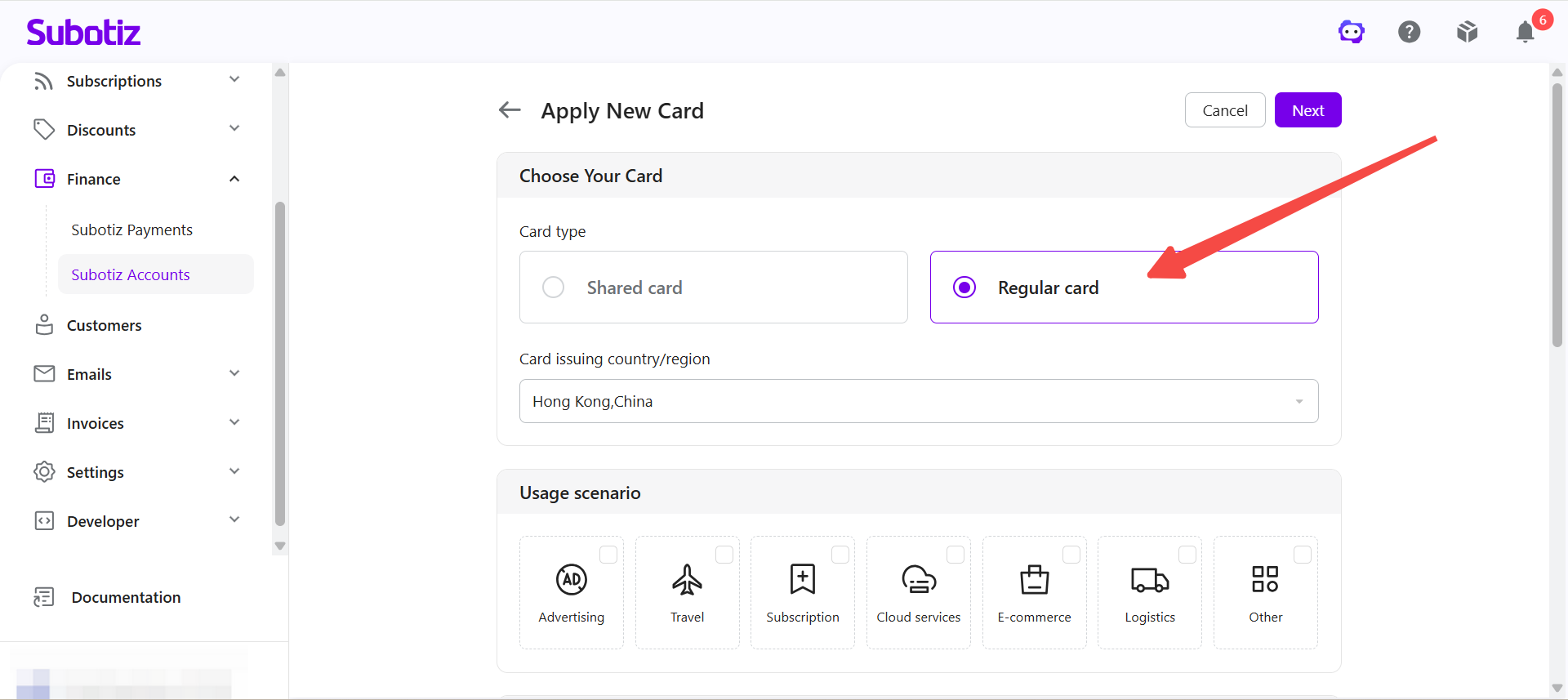
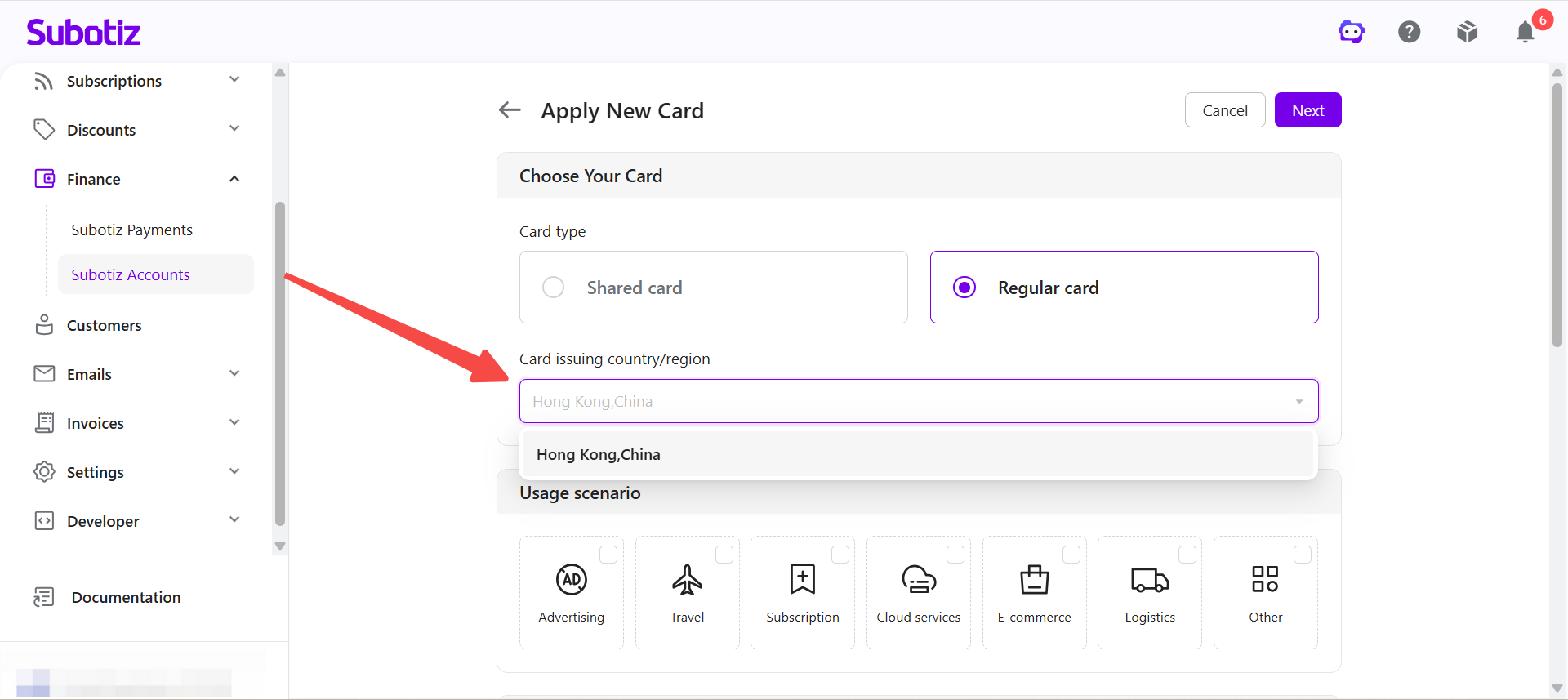
- Confirm the issuing region: Regular Cards are currently available in the Hong Kong issuing region.
Notes:
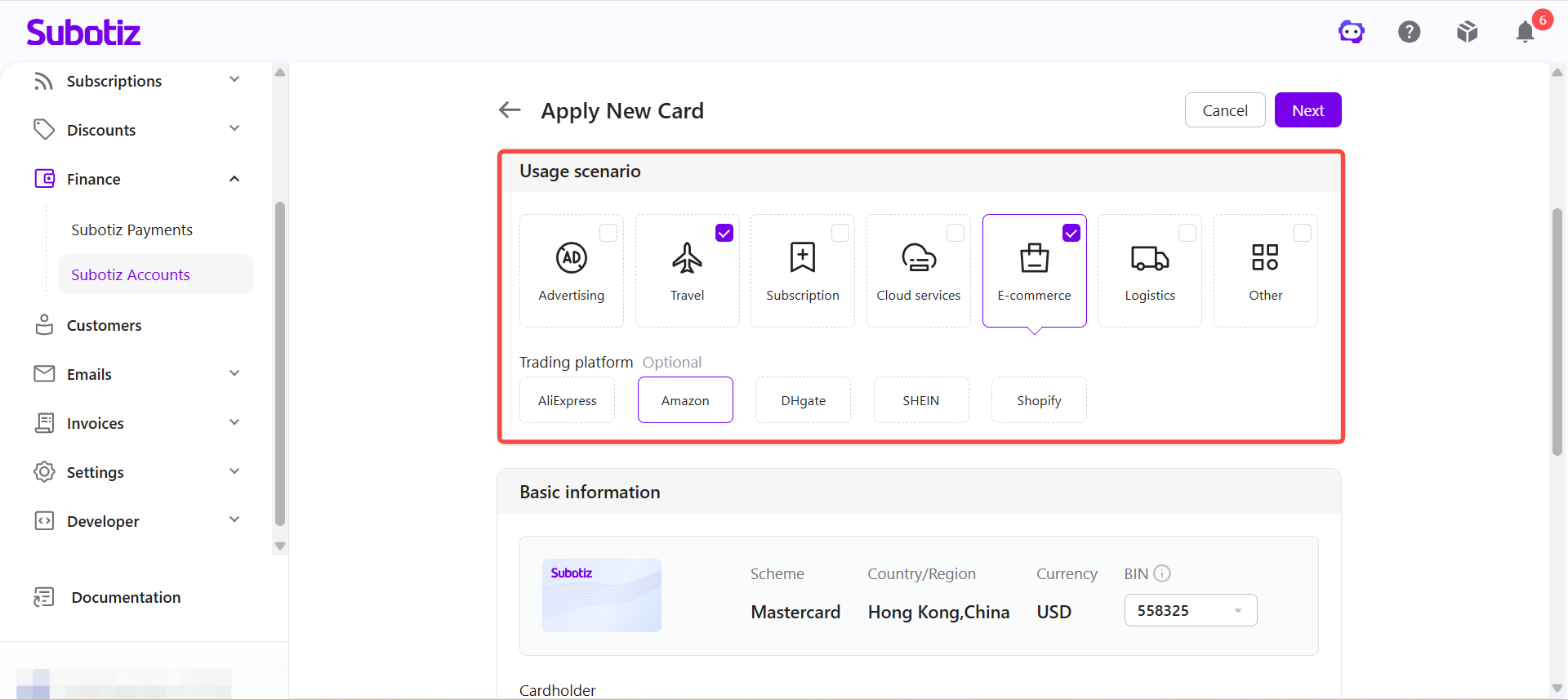
- Select a use case: Select the category that best matches the card's intended use, such as advertising, subscriptions, cloud services, e-commerce, or other business expenses.
Entering Card Details
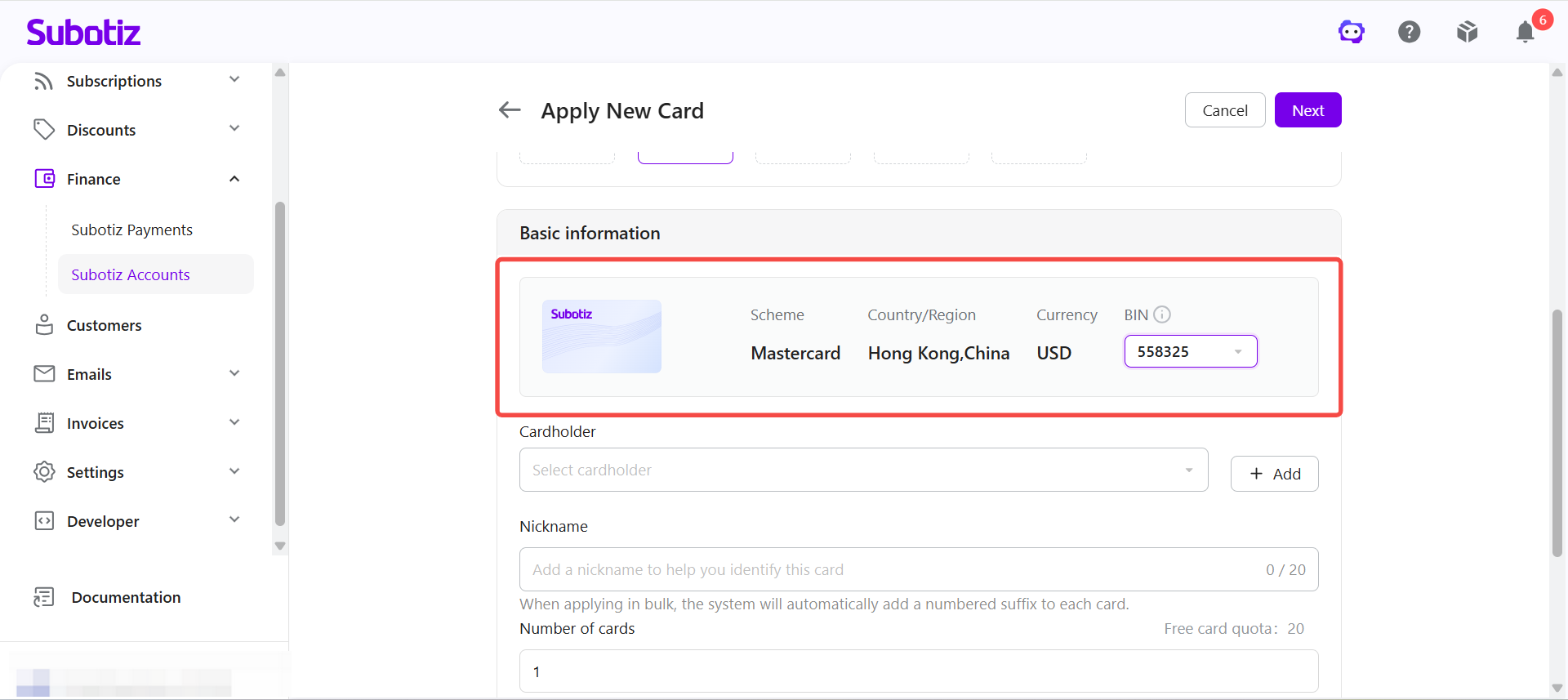
- Select a card BIN: Select a BIN based on the business requirements. A BIN (Bank Identification Number) consists of the first several digits of a card number and identifies information such as the issuing bank, card network, issuing region, and certain card attributes. Some online platforms and merchants use BIN information to identify a card's origin. If there is no specific BIN requirement, use the default BIN.
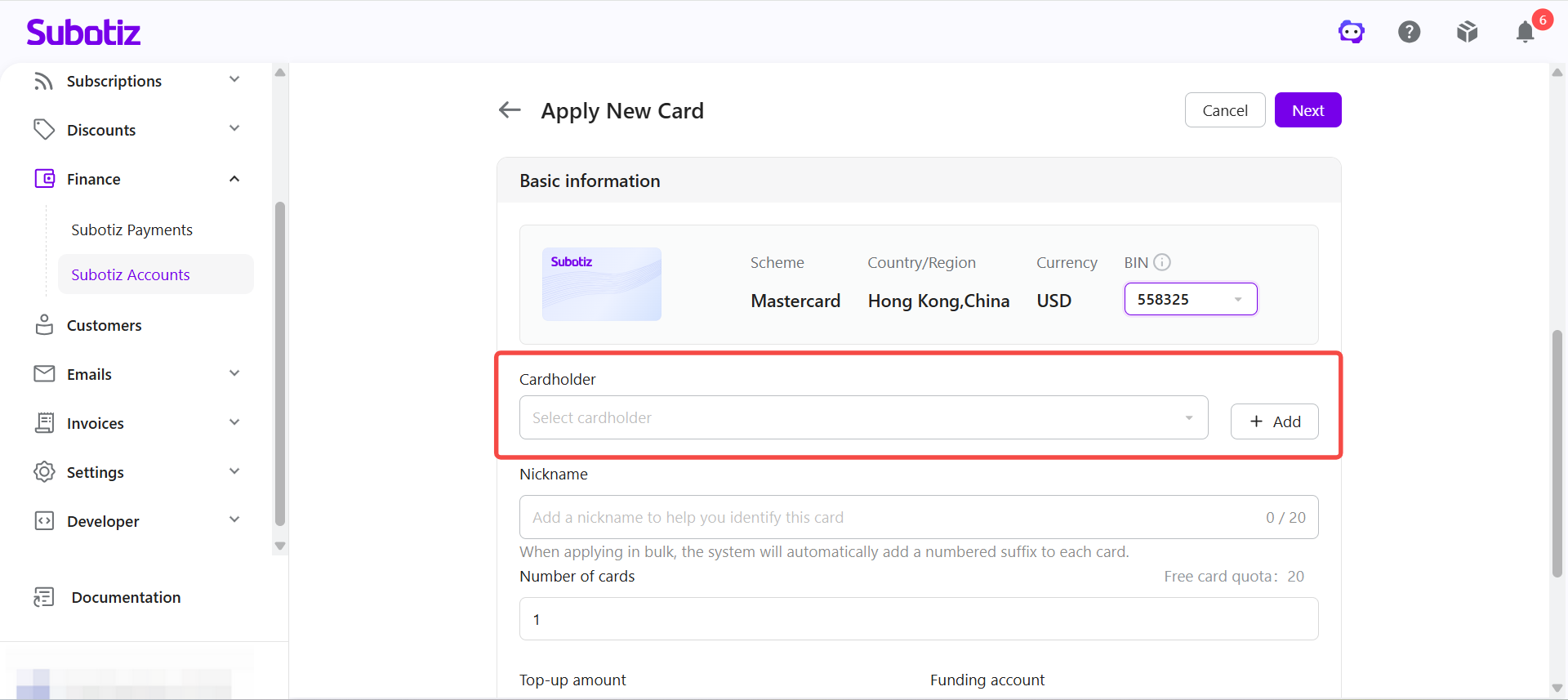
- Select a cardholder: Select an existing cardholder. To create a new cardholder, click Add. After the cardholder is created, the application page reopens so the application can continue. For detailed steps on adding a cardholder, refer to Issuing VCC | Adding a Cardholder.
-
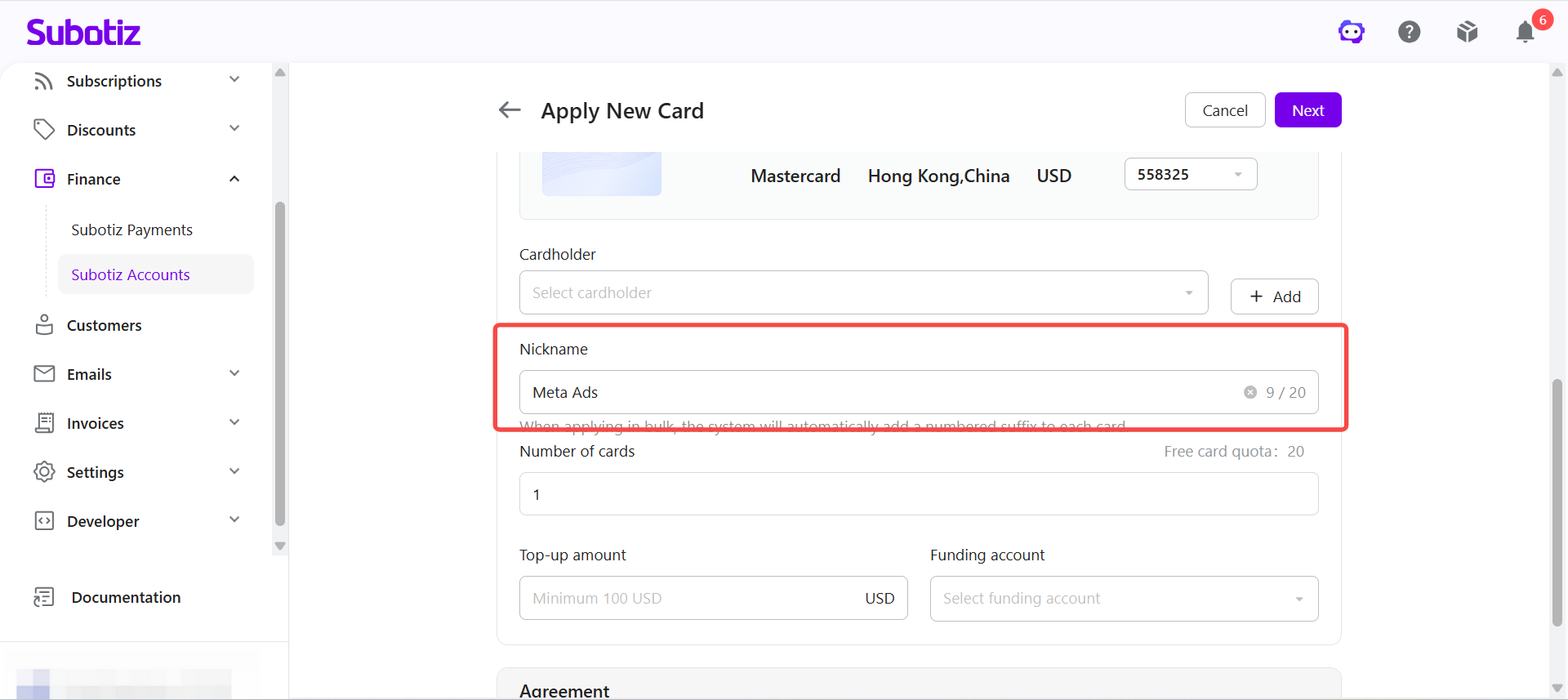
Set a nickname: Enter a nickname that makes the card easy to identify and manage.Examples:
- Meta Ads
- Google Ads
- AWS
- ChatGPT Team
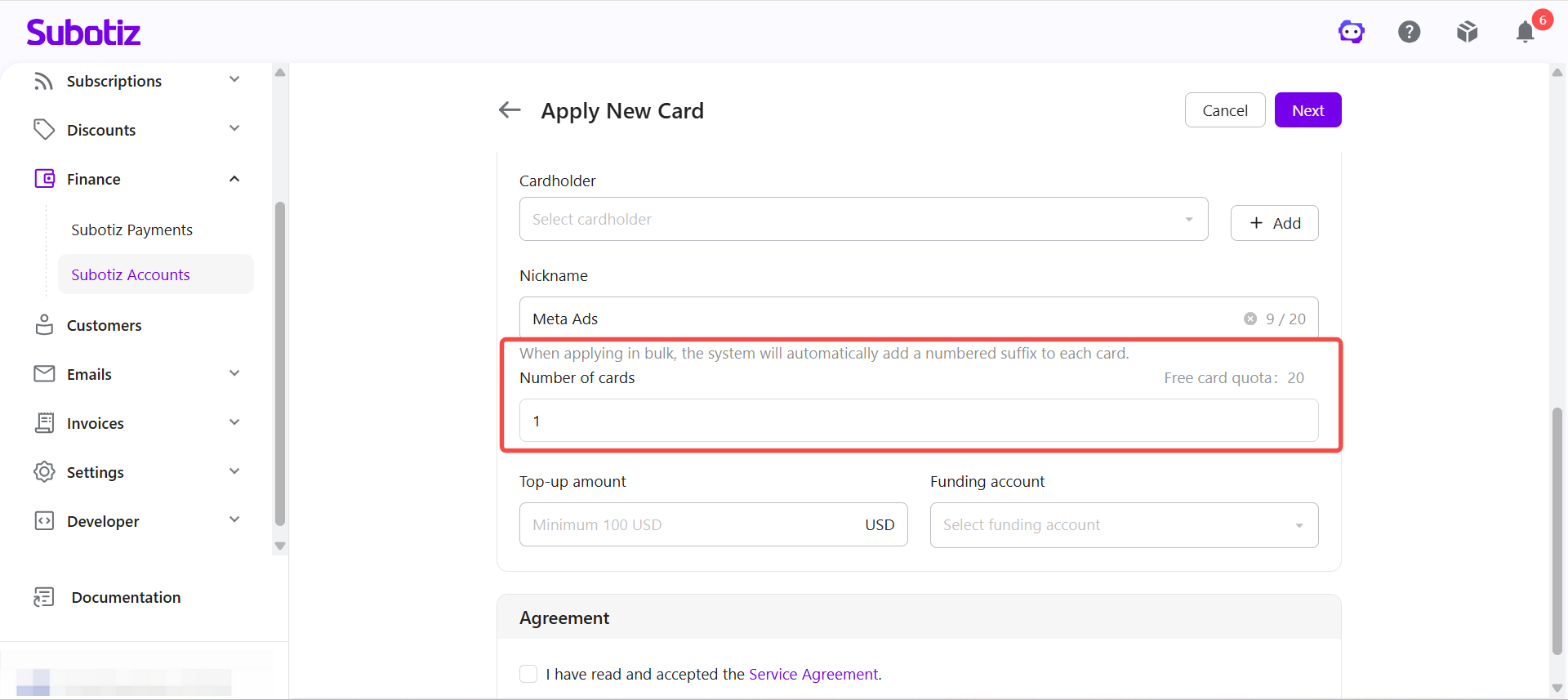
- Set the card quantity: Enter the number of Regular Cards to create. When applying for multiple cards at once, the system automatically adds a number to each card nickname to help distinguish them.
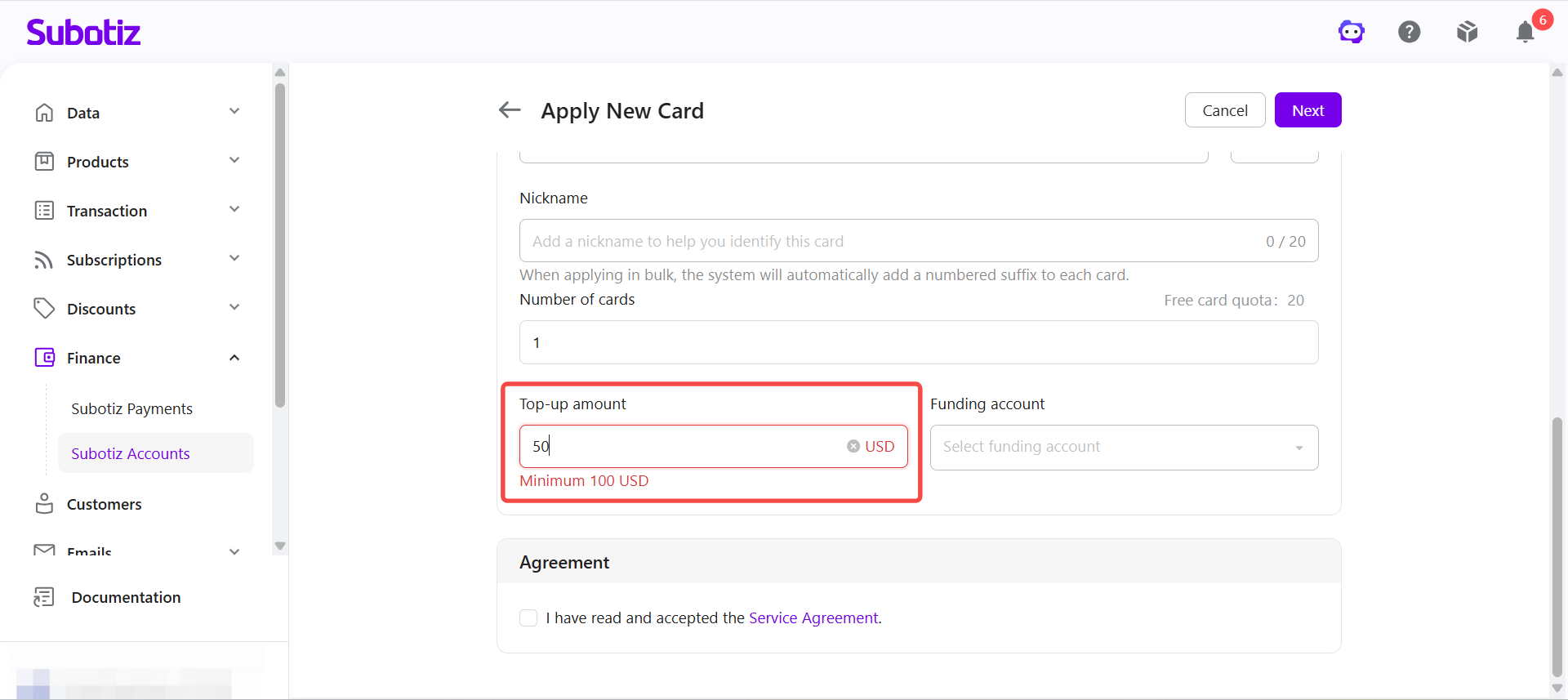
- Enter the top-up amount: Enter the amount to add to each card. Regular Cards must be topped up before they can be used for online payments. After the cards are created, the system automatically adds the specified amount to each card's balance.
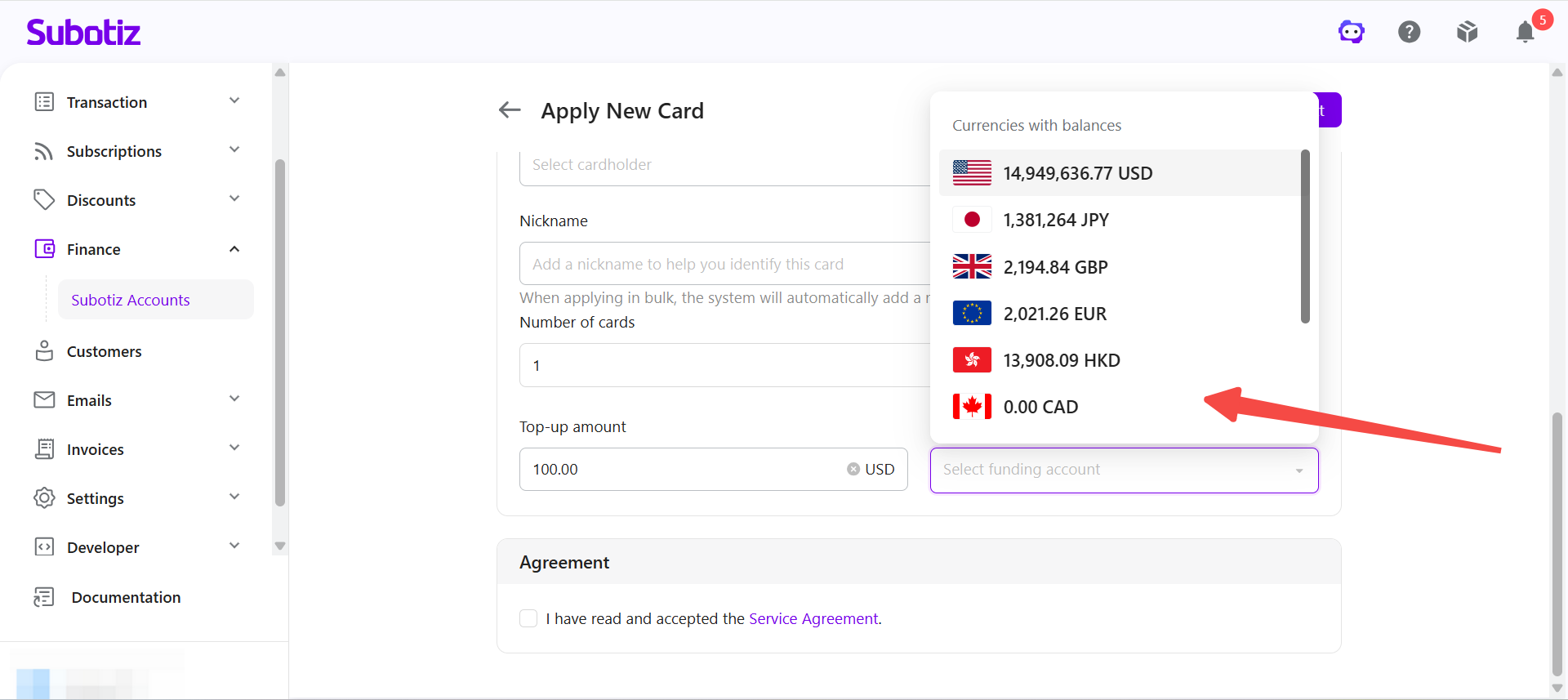
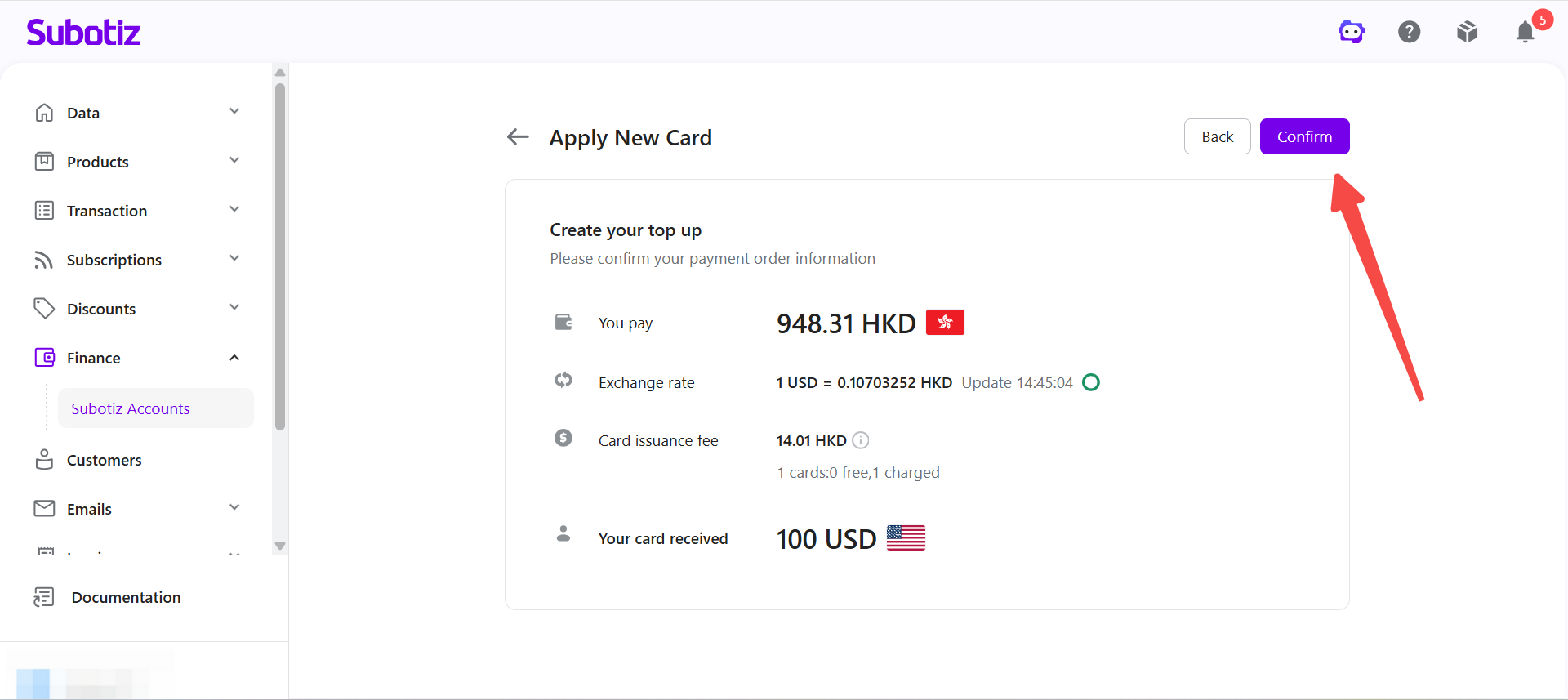
- Select a funding account: Select the Global Account to use for the top-up and any applicable card issuance fees. The system deducts the total amount due from the selected Global Account. If the Global Account currency differs from the card currency, the system automatically converts the funds using the real-time exchange rate and displays the applicable exchange rate and amount due.
-
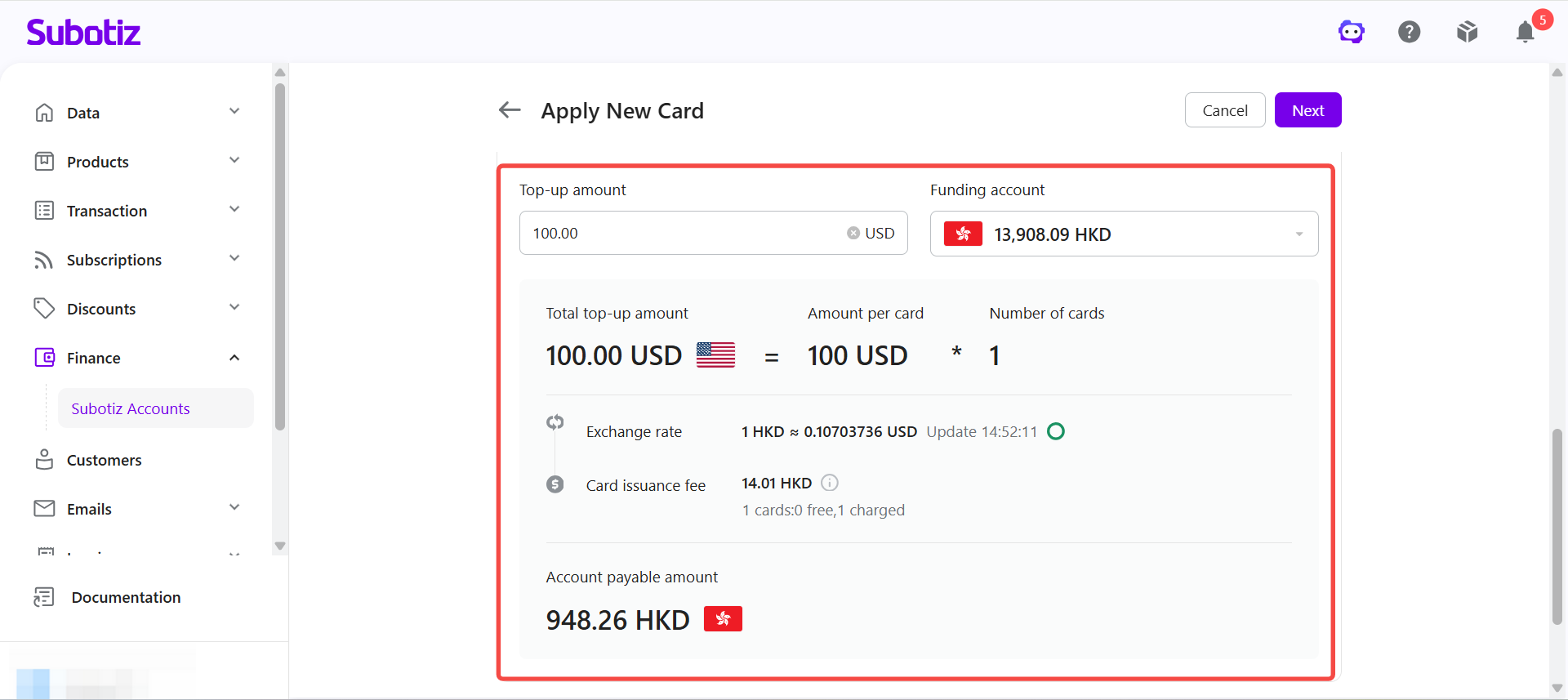
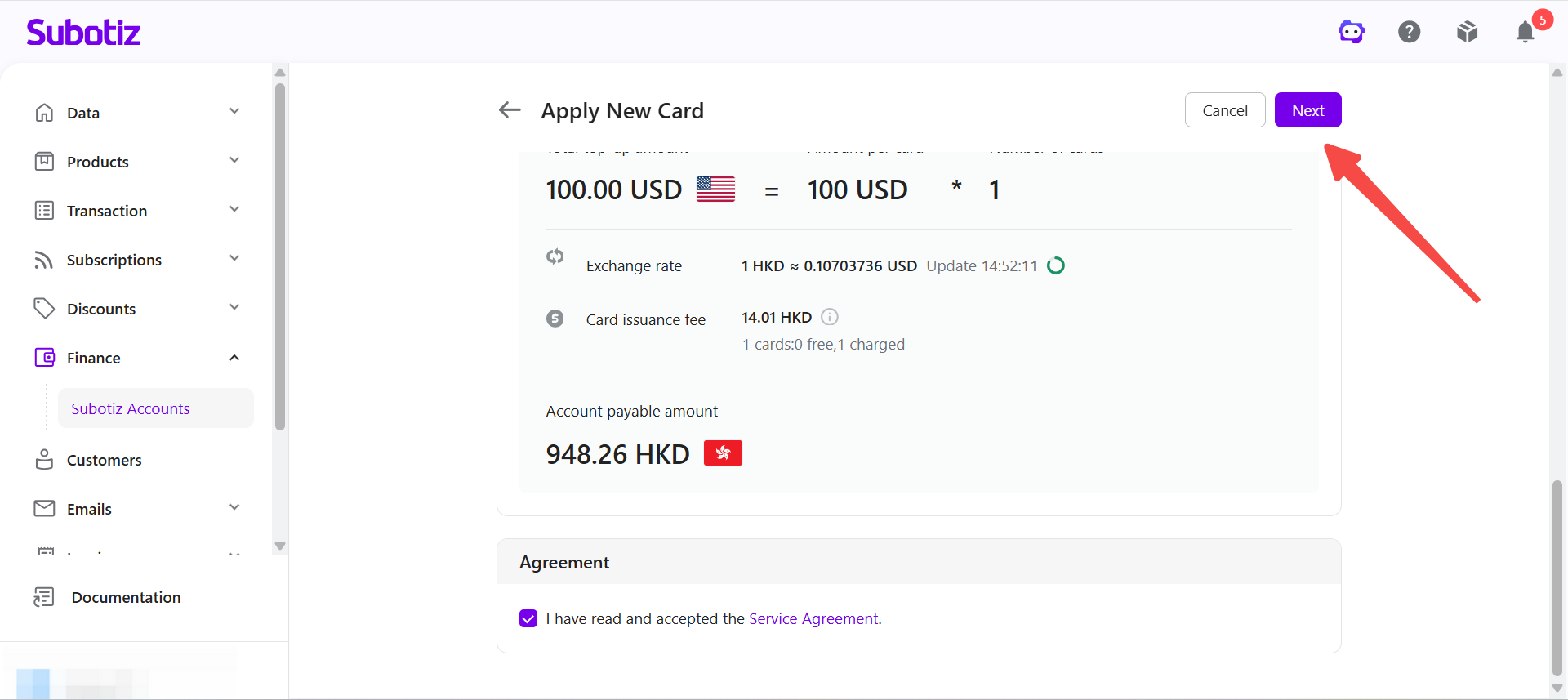
Review the payment details: The system automatically calculates and displays the following:
- Total top-up amount
- Top-up amount per card
- Number of cards
- Real-time exchange rate
- Card issuance fee, if applicable
- Total amount due
Note: The first 100 virtual credit cards per account, including Regular Cards and Shared Cards combined, can be issued free of charge. After the free card limit is reached, the card issuance fee displayed on the application page applies.
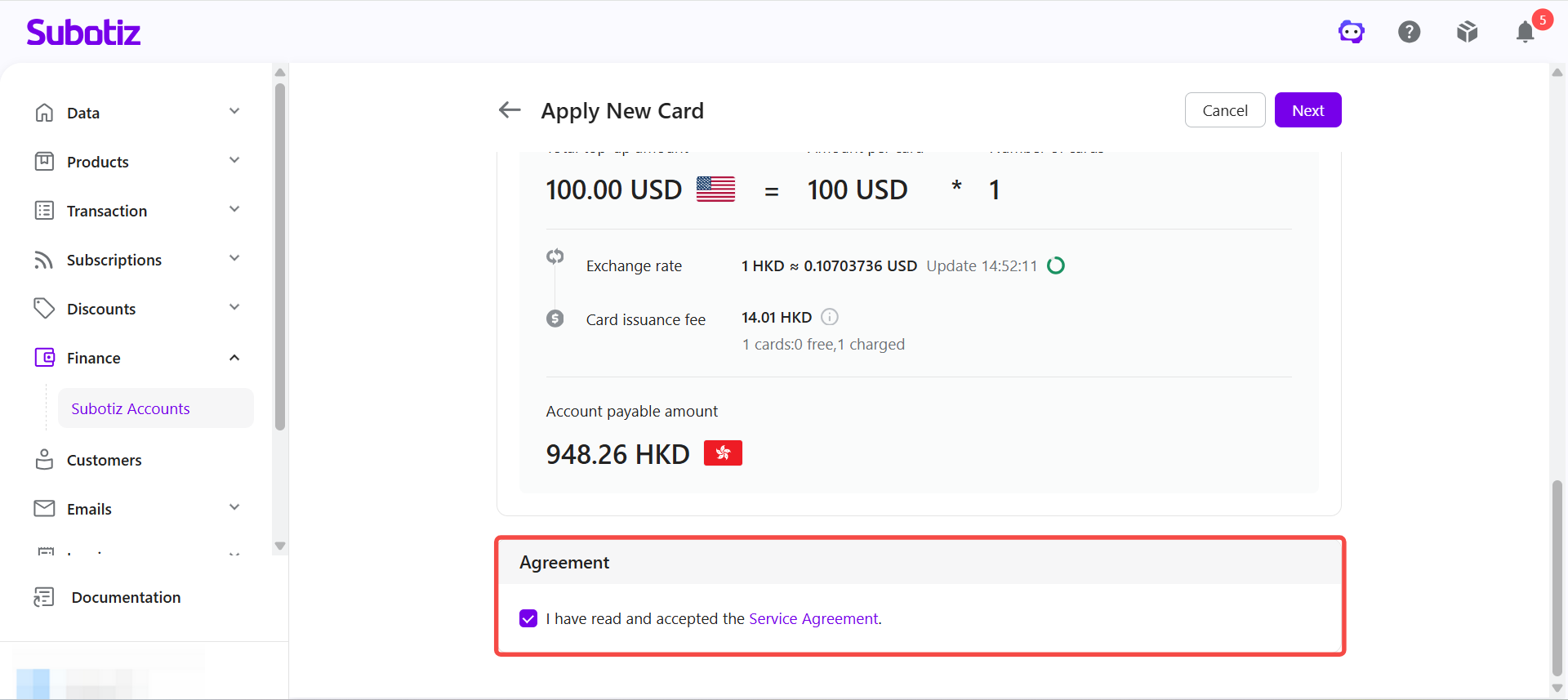
- Read and accept the terms: Select I have read and accept the Service Agreement.
- Submit the application: Review the application details, then click Next to submit. Once submitted successfully, the system automatically creates the Regular Card and completes the initial top-up.
Best Practices
- Choose the appropriate BIN: Use the default BIN unless there is a specific business requirement.
- Review the payment details: Check any applicable card issuance fees, the top-up amount, real-time exchange rate, and total amount due before submitting the application.
- Maintain sufficient funds: Make sure the selected Global Account has enough funds to cover the top-up amount and any applicable card issuance fees.
- Use clear card nicknames: Name cards based on their intended business purpose to make them easier to manage and reconcile.
- Confirm the top-up amount: The specified top-up amount is added directly to the card balance after the card is created and is available for online payments.
Regular Cards are designed for business expenses that require separate budgets and balances, such as advertising, SaaS subscriptions, cloud services, and vendor payments. Creating separate virtual cards for different business purposes helps merchants keep budgets organized, track spending, and manage online business expenses more efficiently.