The A/B Testing feature in Subotiz lets merchants manage experiments from activation to completion. Use the A/B Testing page to activate experiments, monitor their progress, review configurations and performance data, and manage experiment status throughout the experiment lifecycle.
Viewing the Experiment List
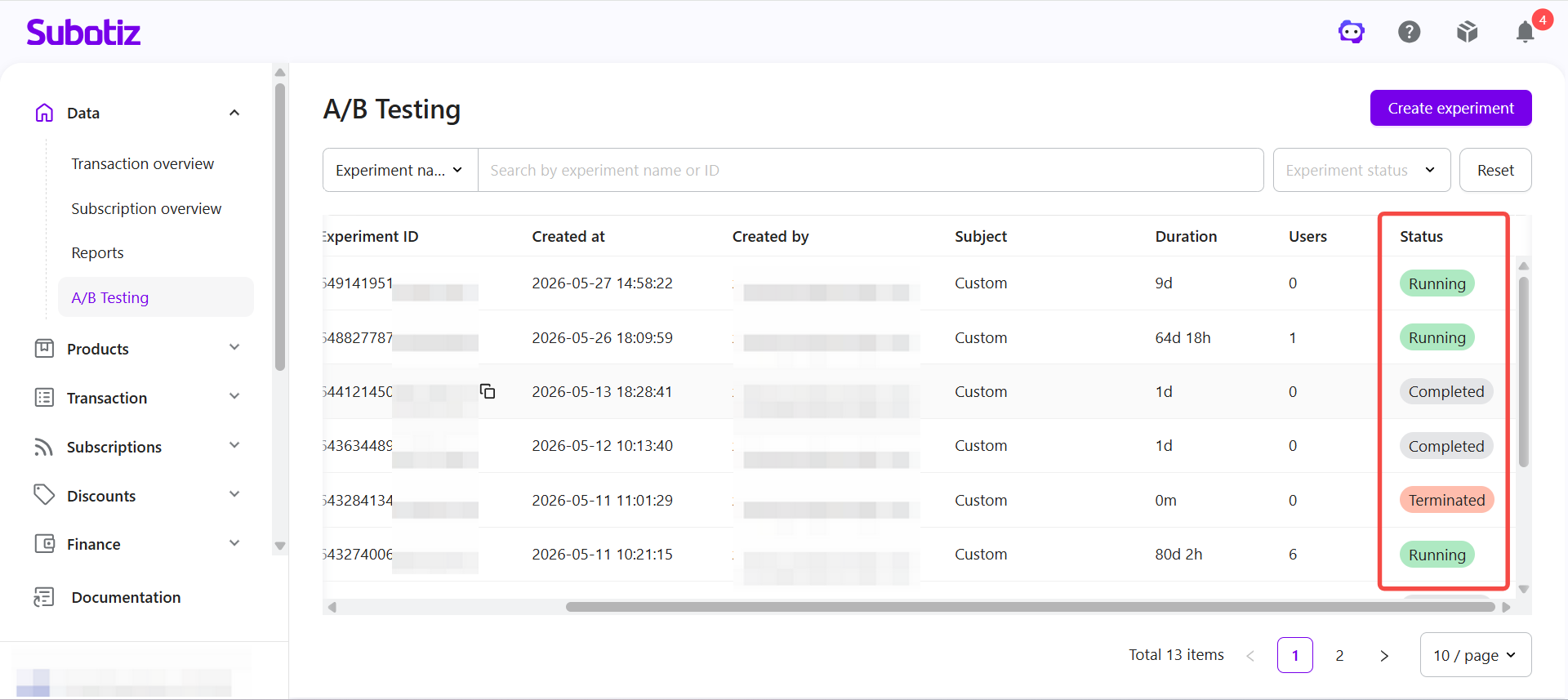
After an experiment is created, it is saved as a Draft by default. From the A/B Testing page, you can view all experiments, search by name or ID, and filter experiments by status.
-
Open A/B Testing: Sign in to the Subotiz Admin, then go to Data > A/B Testing. The experiment list displays every experiment in your account, including those with the following statuses:
- Draft
- Running
- Paused
- Completed
- Terminated
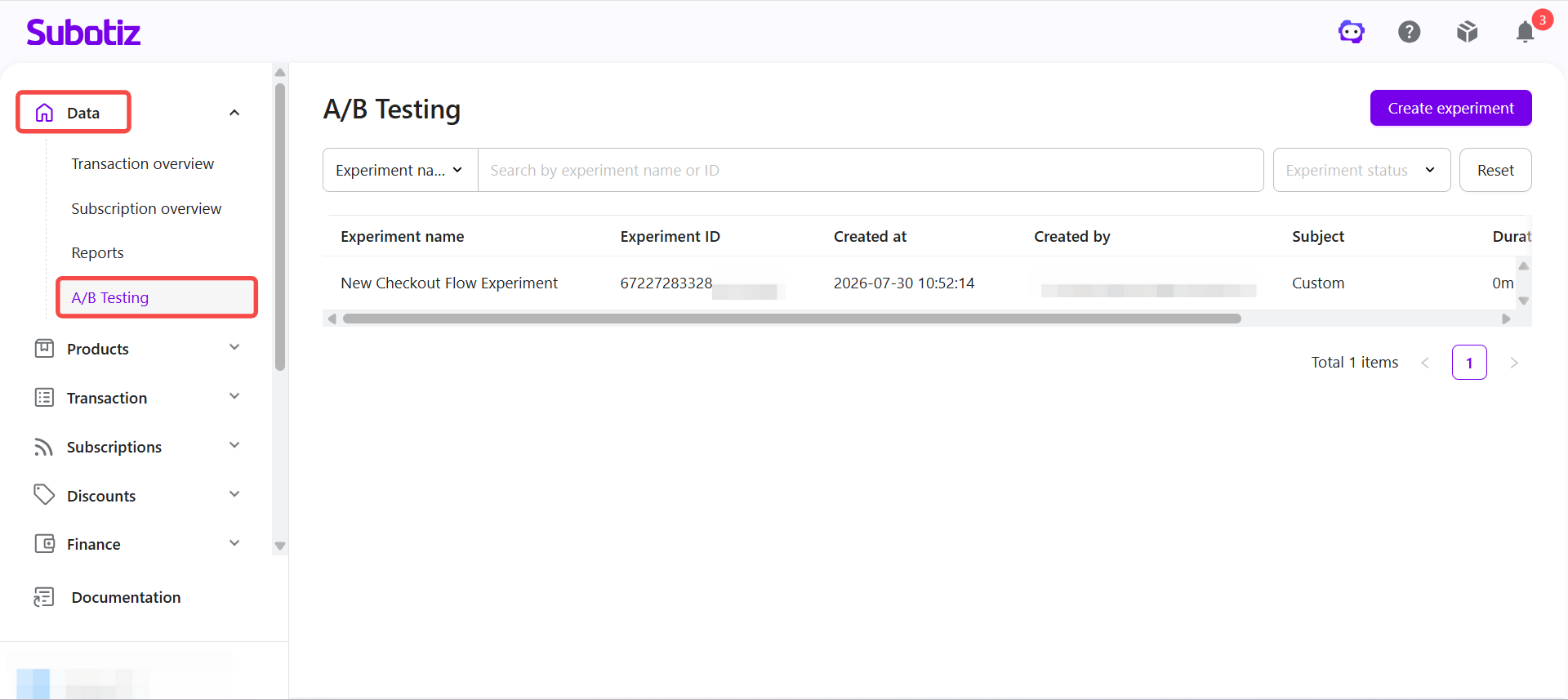
- Search by name or ID: Enter the Experiment name or Experiment ID to quickly locate a specific experiment.
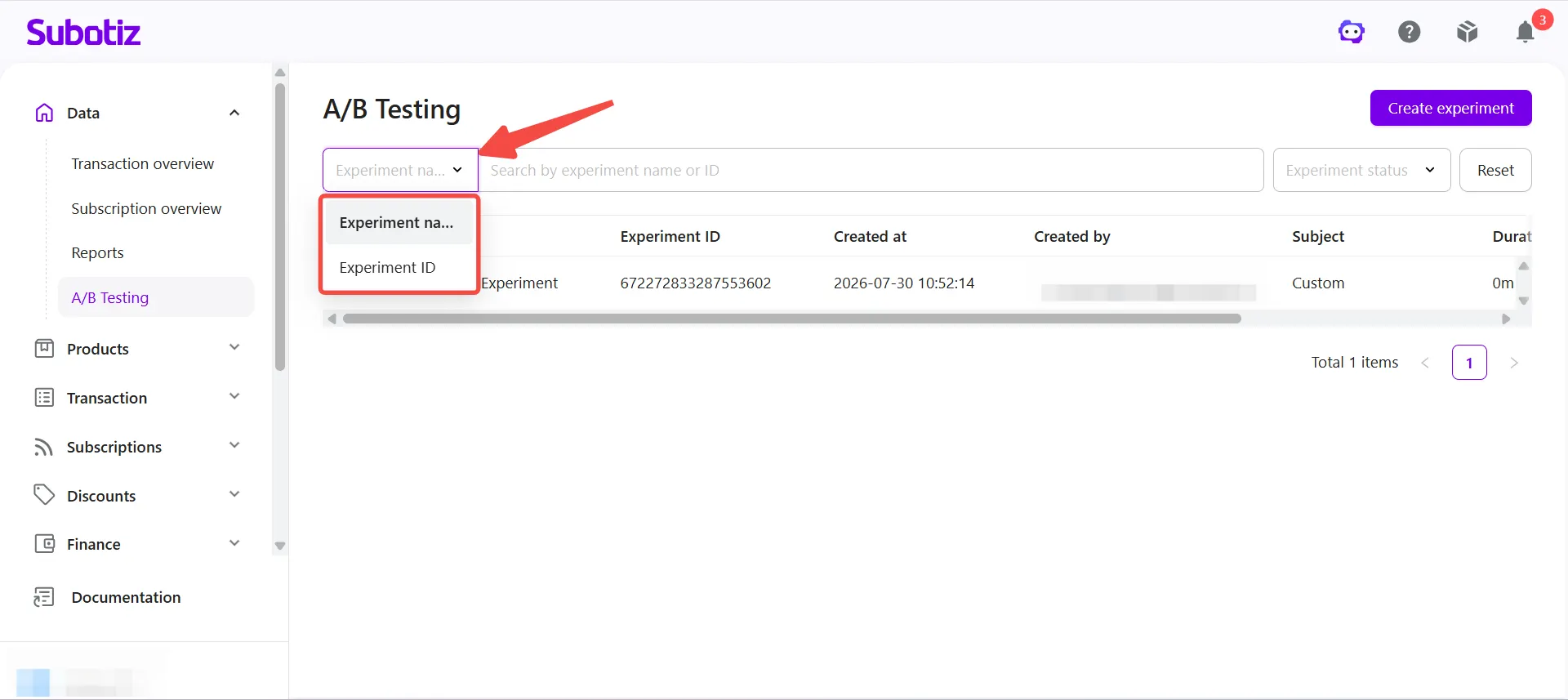
-
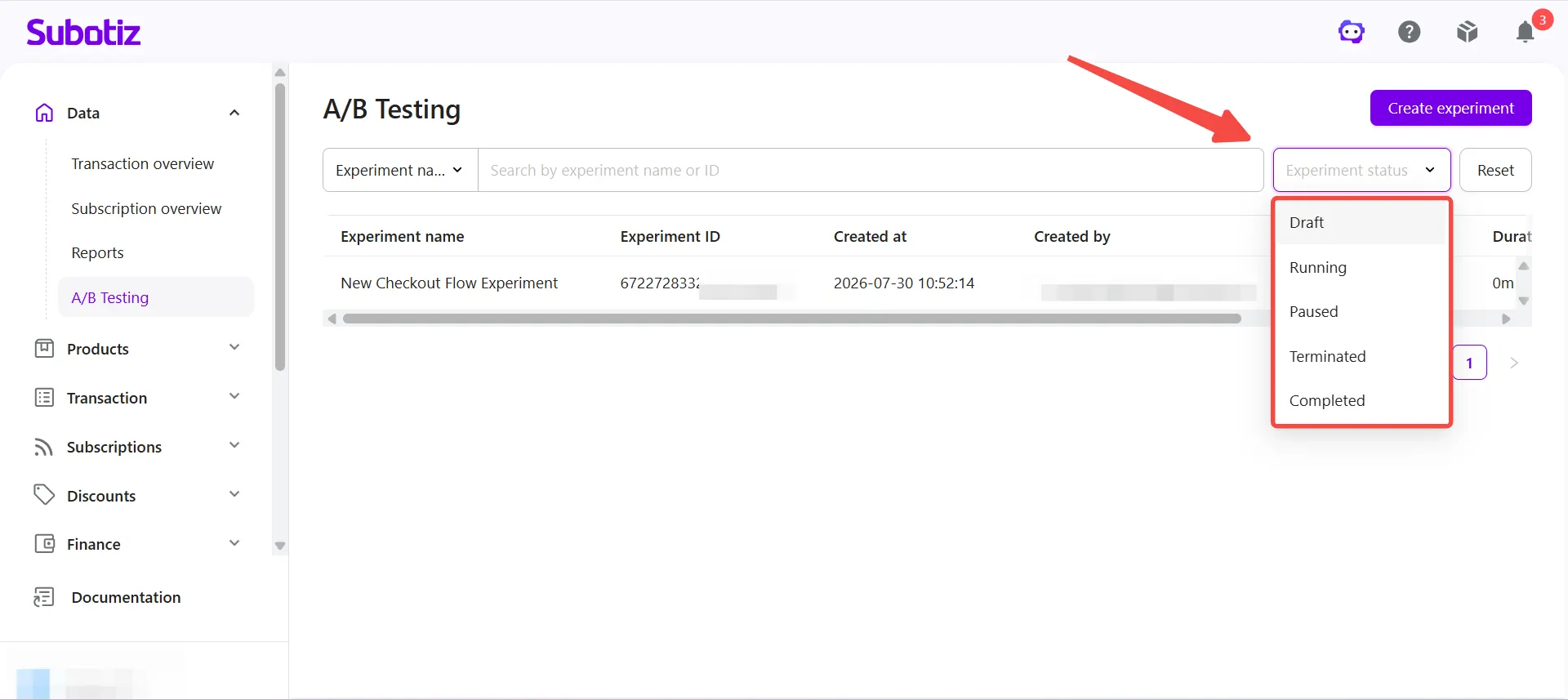
Filter experiments: Select a status to display only matching experiments.Available statuses include:
- Draft: The experiment has been created but has not been activated. No visitors are assigned to experiment groups, and no experiment data is collected.
- Running: The experiment is active. Eligible visitors are assigned to experiment groups, and data is collected continuously.
- Paused: The experiment is temporarily stopped. No new visitors enter the experiment, while existing participants continue to see their assigned version. The experiment can be resumed at any time.
- Completed: The experiment has automatically ended after reaching its configured end condition, such as the target number of experiment users or the maximum duration.
- Terminated: The experiment was ended manually before reaching its end condition. Once terminated, it cannot be resumed.
- Open the experiment: Click an experiment name to open its details page.
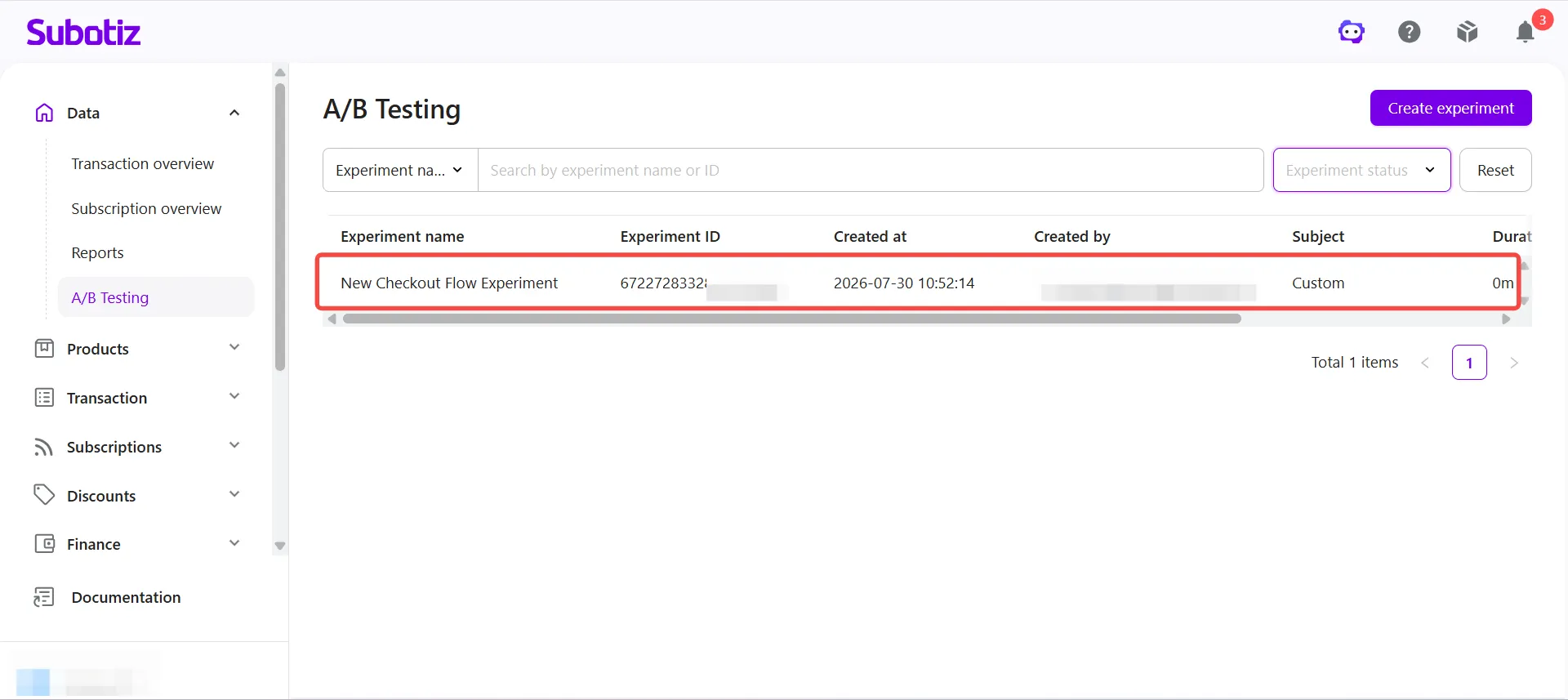
Viewing Experiment Details
The experiment details page contains two tabs:
- Experiment Details
- Experiment Data
Use these tabs to review the experiment configuration and monitor experiment performance.
-
Reviewing Experiment Details: The Experiment Details tab displays the experiment configuration and supporting information.
-
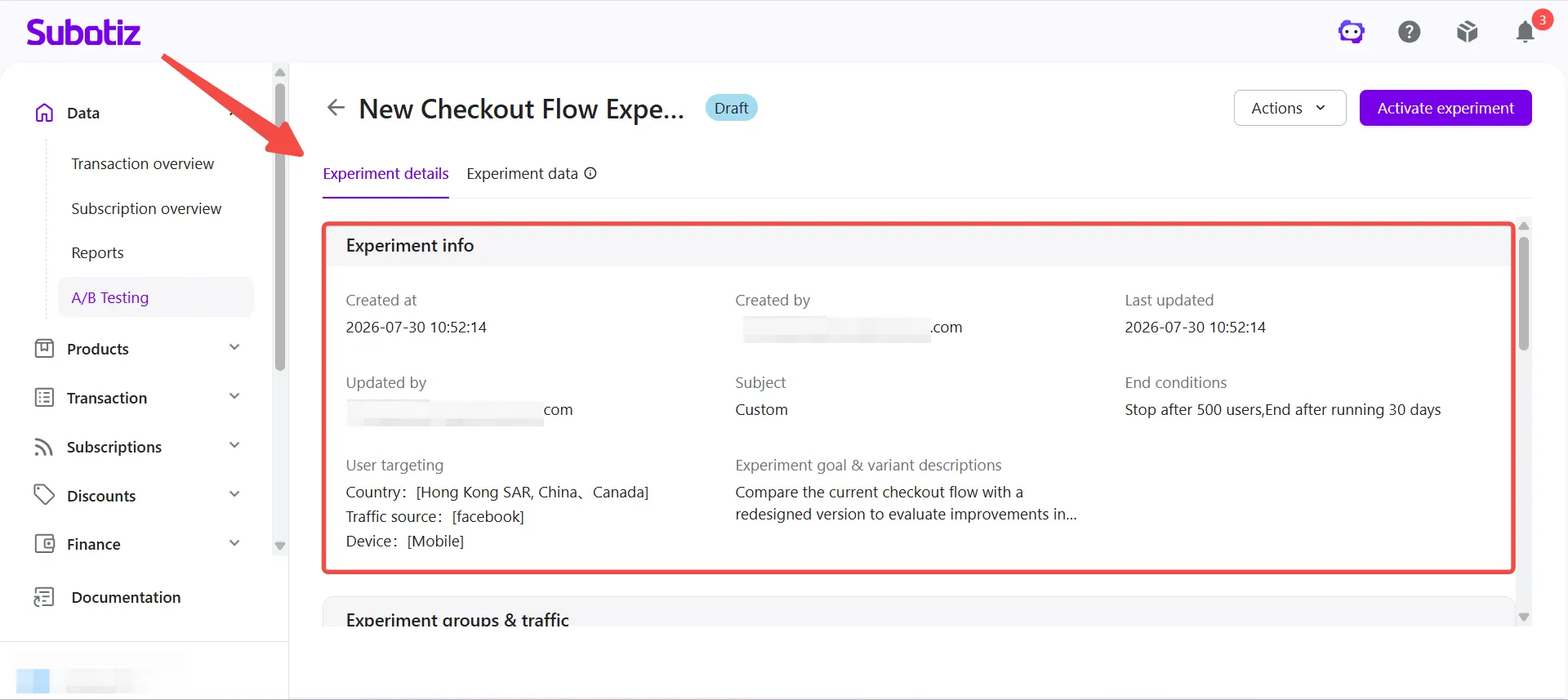
Experiment Information: View the following information:
- Created Time
- Created By
- Last Updated
- Updated By
- Experiment Subject
- End Conditions
- Target Audience
- Experiment Description
-
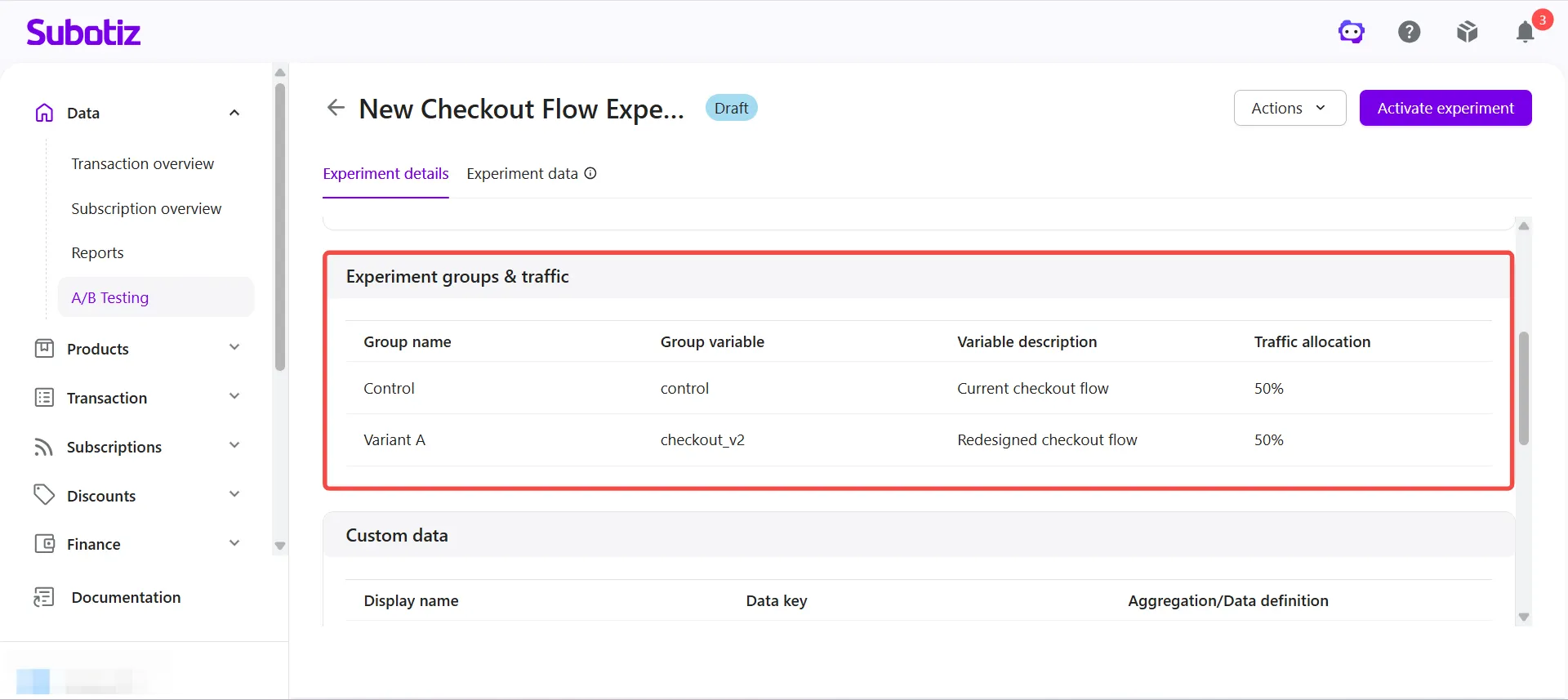
Experiment Groups and Traffic Allocation: View the configuration for each experiment group, including:
- Group Name
- Group Variable
- Group Description
- Traffic Allocation
-
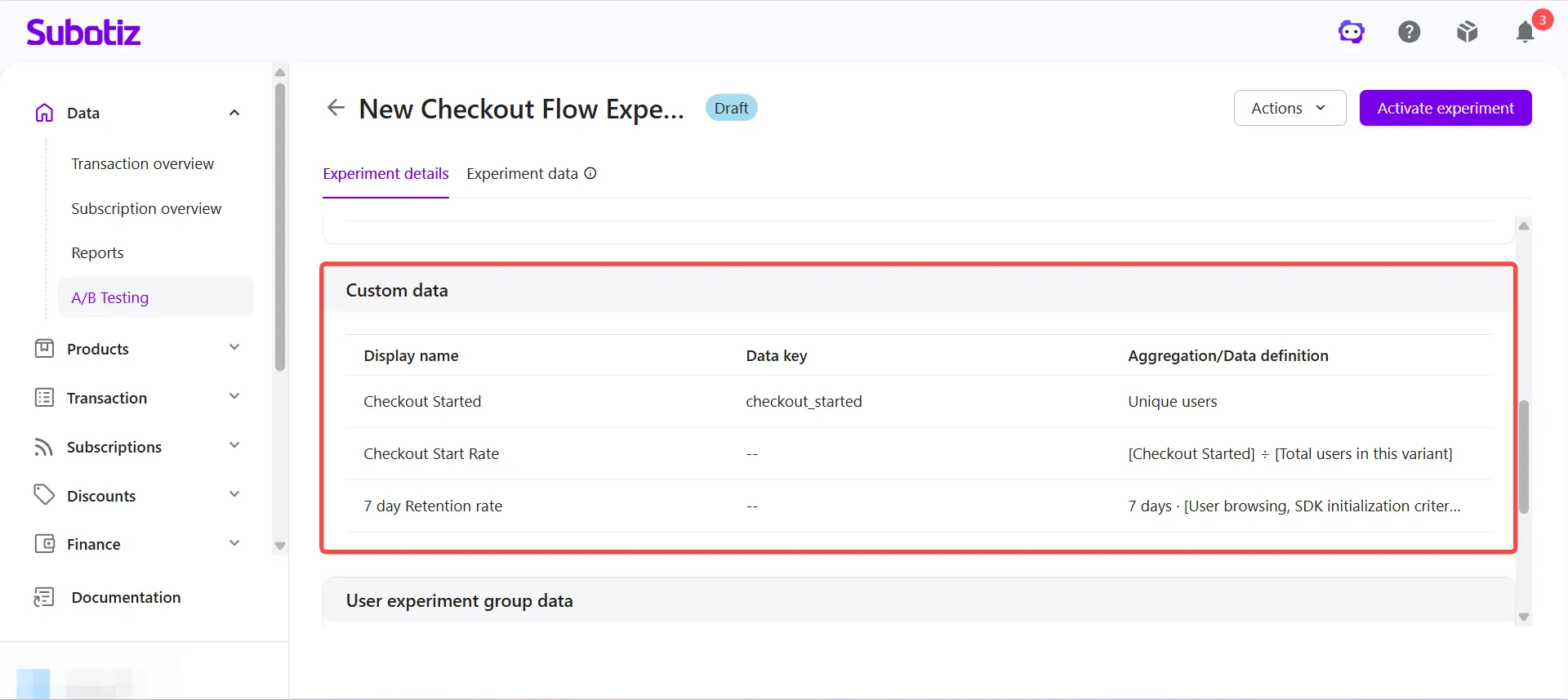
Custom Metrics: View the metrics configured for the experiment, including:
- Direct Metrics
- Derived Metrics
- Metric Name
- Metric Key
- Aggregation Method
- Measurement Method
-
User Experiment Assignment: Search for a specific user's experiment assignment using any of the following identifiers:
- Experiment User ID
- Customer ID
- External Customer ID
- IP Address
This feature helps verify experiment assignments and troubleshoot customer-reported issues.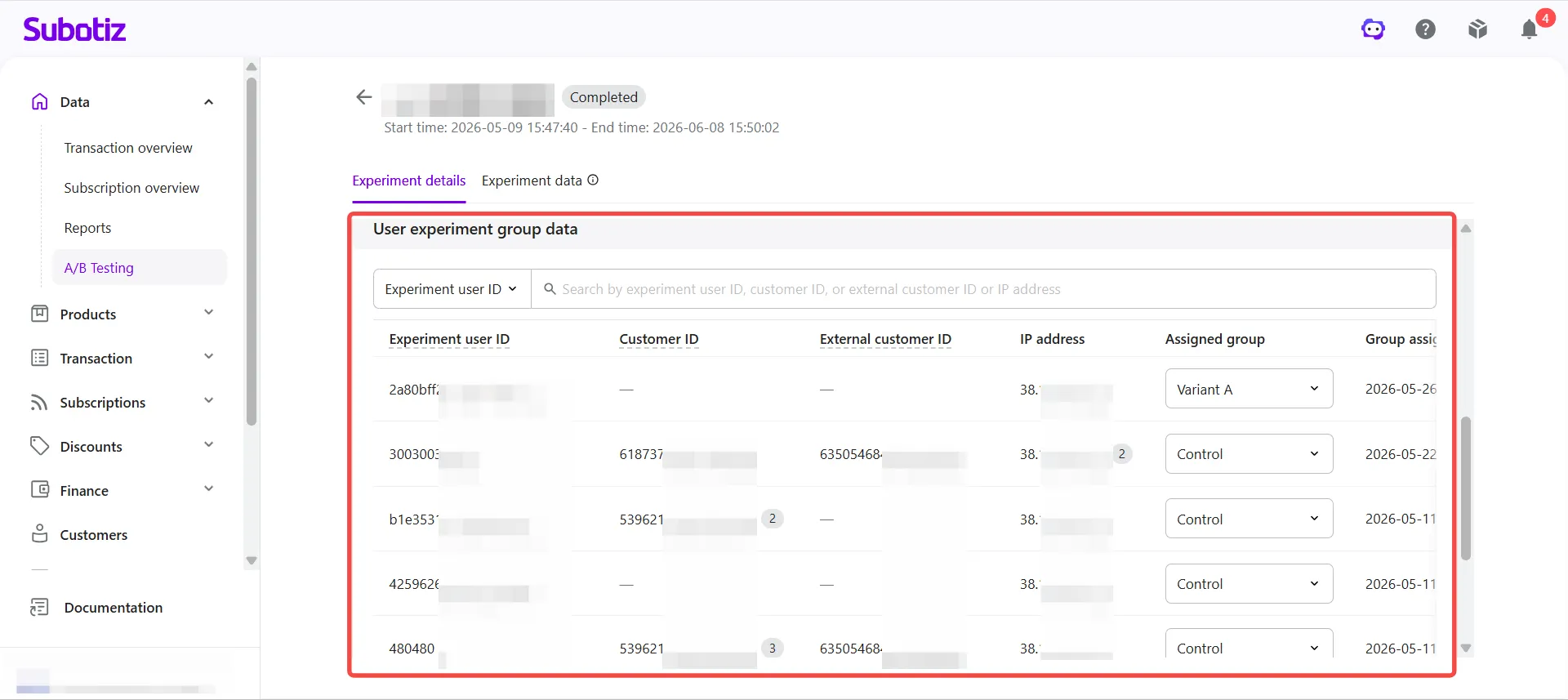
-
-
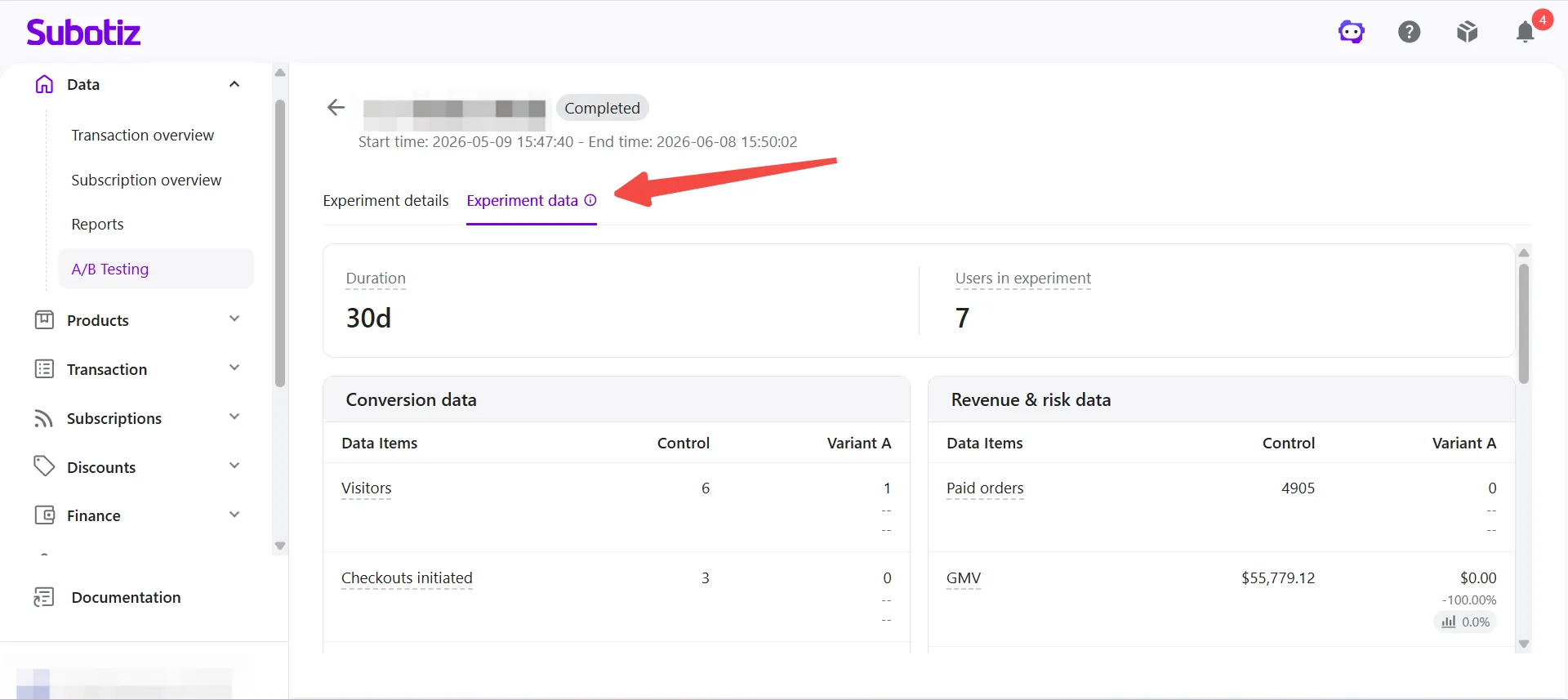
Viewing Experiment Data: The Experiment Data tab displays experiment performance, including:
- Conversion Funnel
- Revenue Metrics
- Risk Metrics
- Other Experiment Metrics
For details about interpreting experiment results, refer to A/B Testing | Understanding Experiment Data.
Activating an Experiment
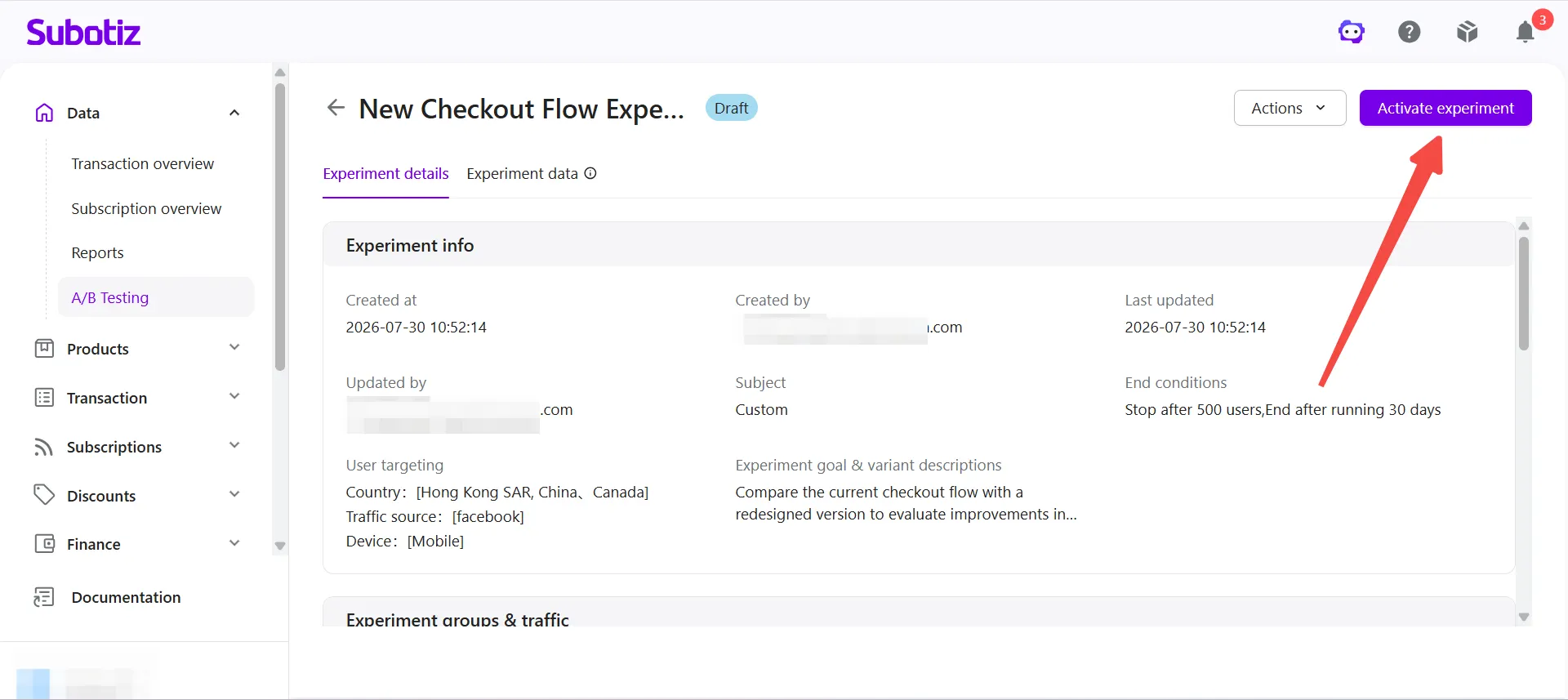
Experiments saved as Drafts do not begin running automatically. After confirming the experiment configuration, activate the experiment to start assigning visitors and collecting experiment data.
-
Activate the experiment: Open the experiment details page and click Activate Experiment. Once activated, the experiment begins running. Subotiz then:
- Assigns eligible visitors to experiment groups
- Displays the corresponding experiment version
- Collects experiment data
- Calculates experiment results
Managing an Experiment
Once an experiment is running, you can update supported settings or change its status as needed. Available actions vary by experiment status to help maintain reliable experiment results.
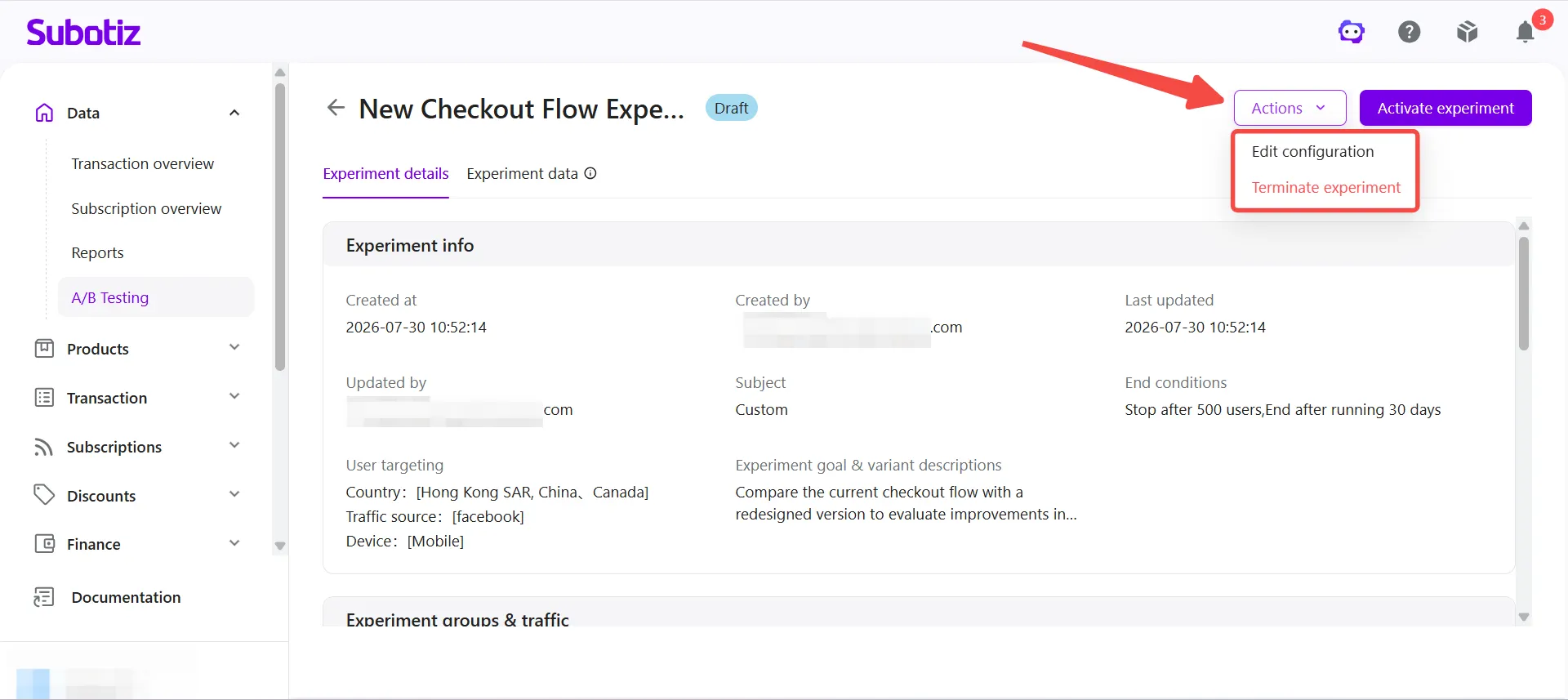
Click Actions in the upper-right corner of the Experiment Details page to view the available management options.
-
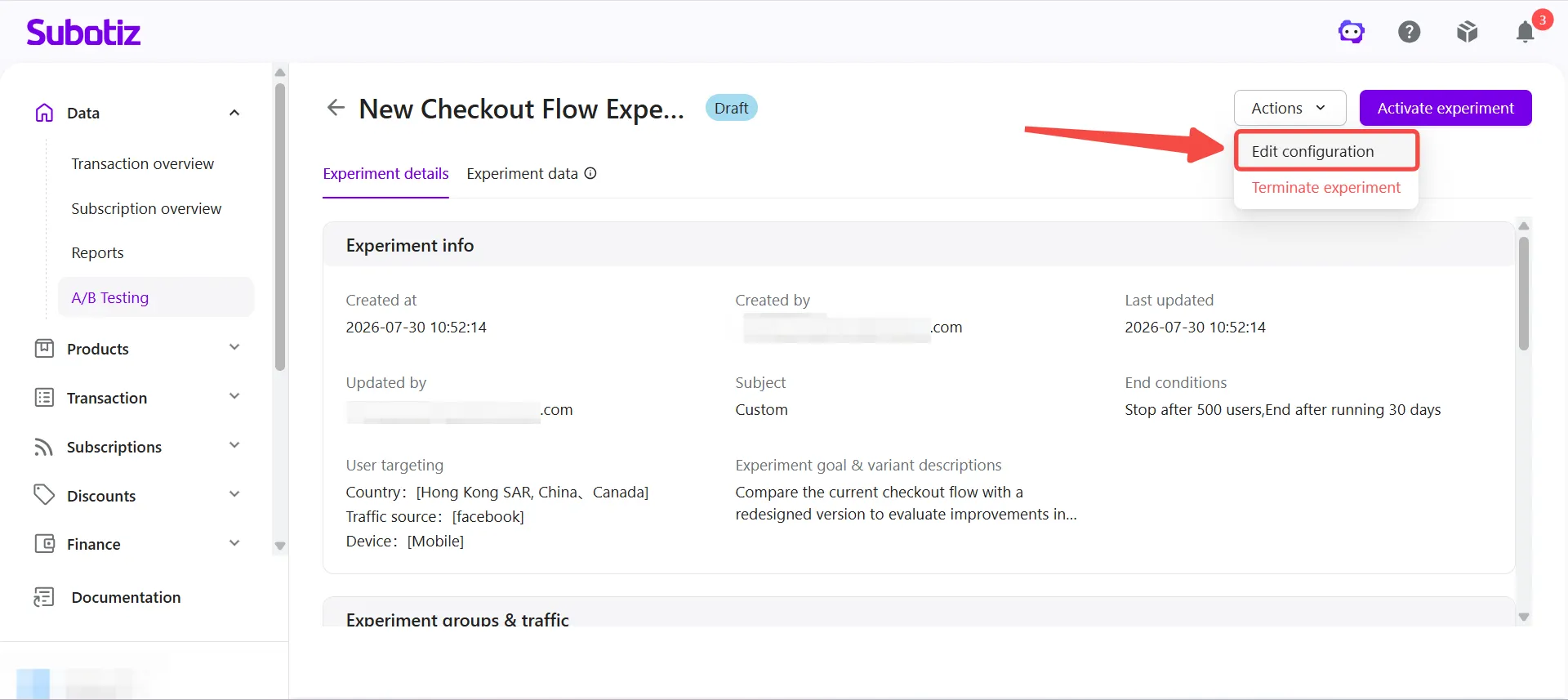
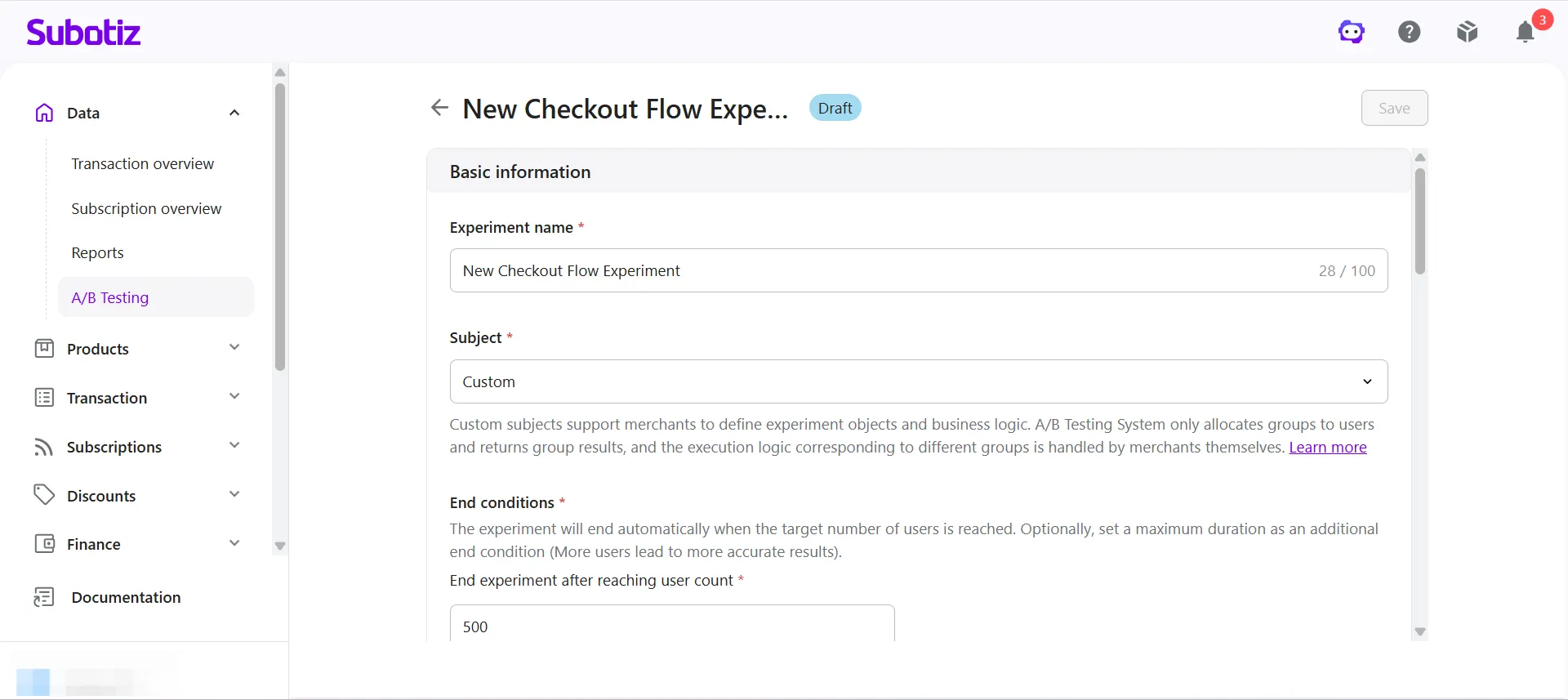
Edit the configuration: Click Actions > Edit Configuration to open the experiment configuration page.The settings you can modify depend on the current experiment status.
-
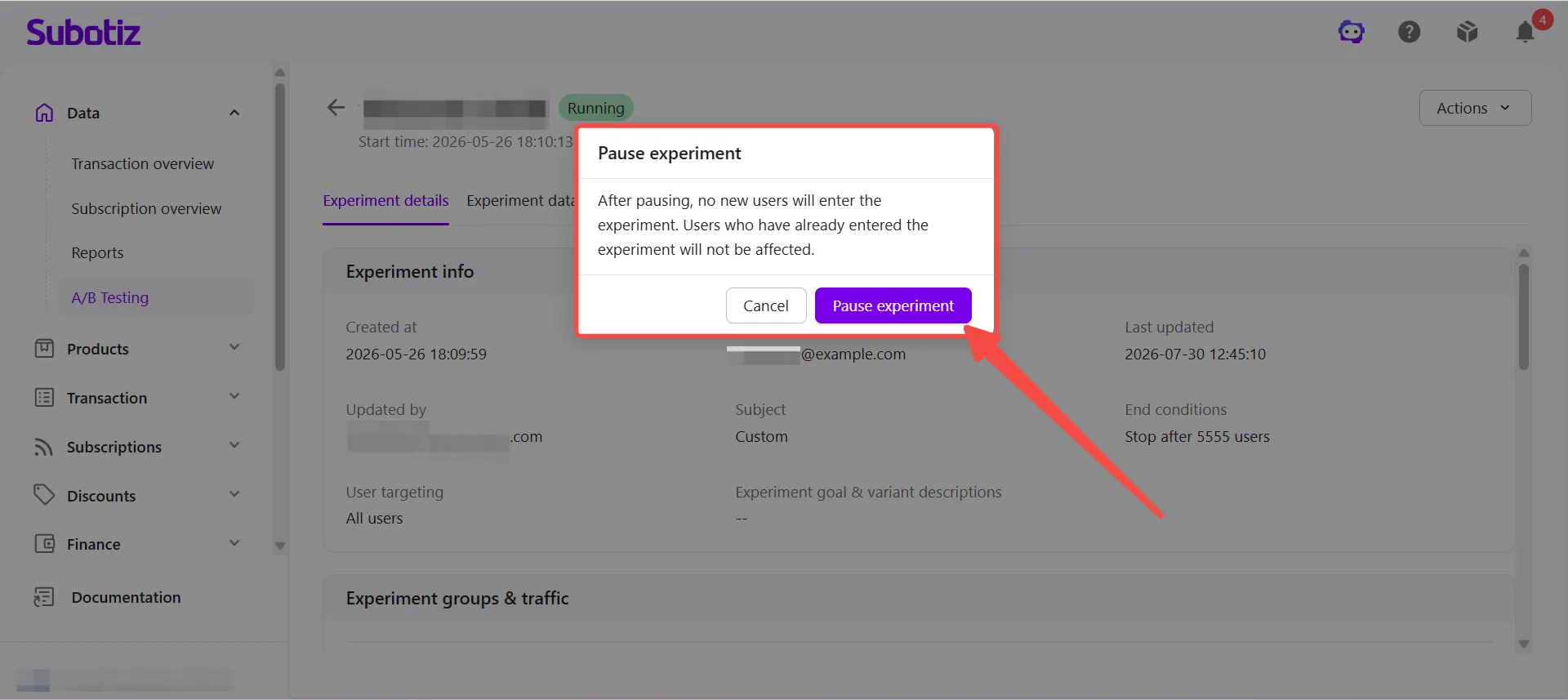
Pause the experiment: Click Actions > Pause Experiment. Before the experiment is paused, Subotiz displays the following information:
- No new visitors will enter the experiment.
- Existing participants continue to see their assigned experiment version.
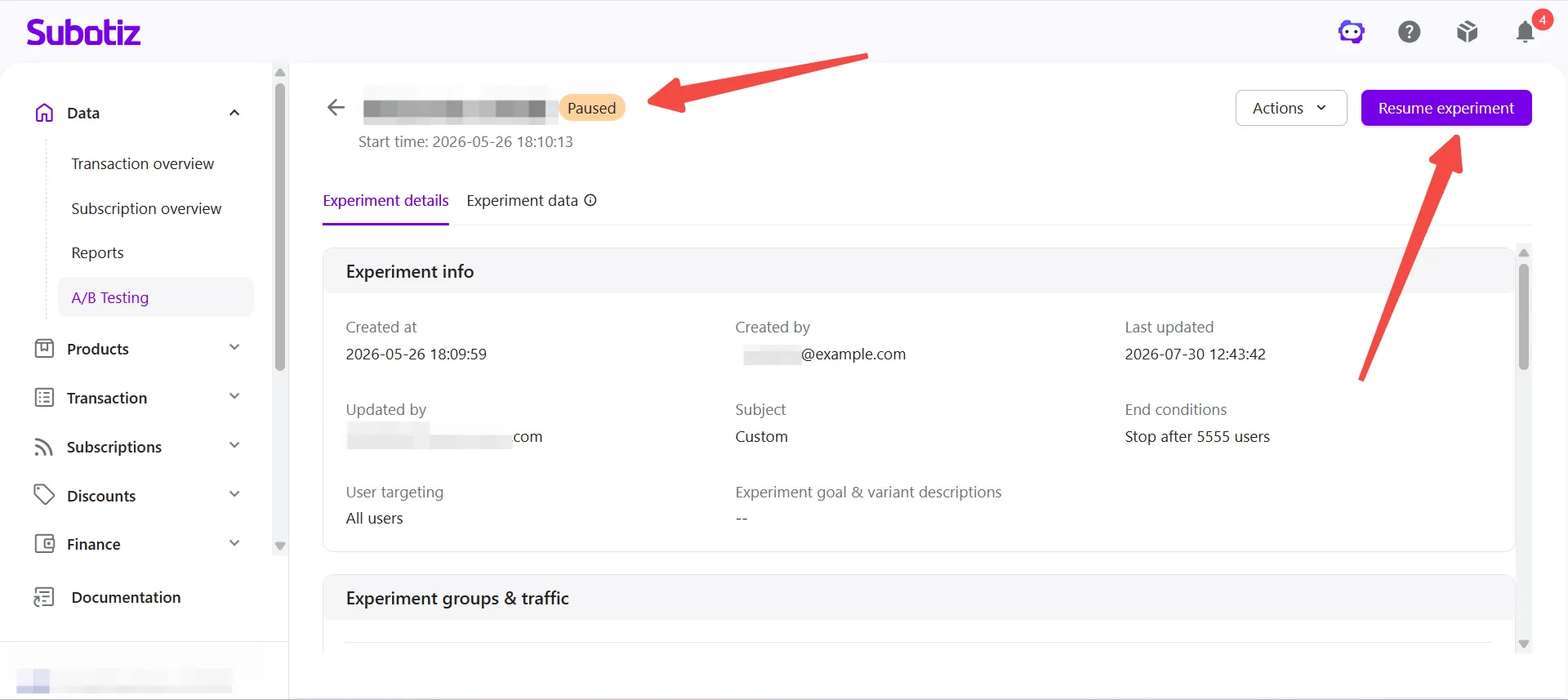
After confirmation, the experiment status changes to Paused.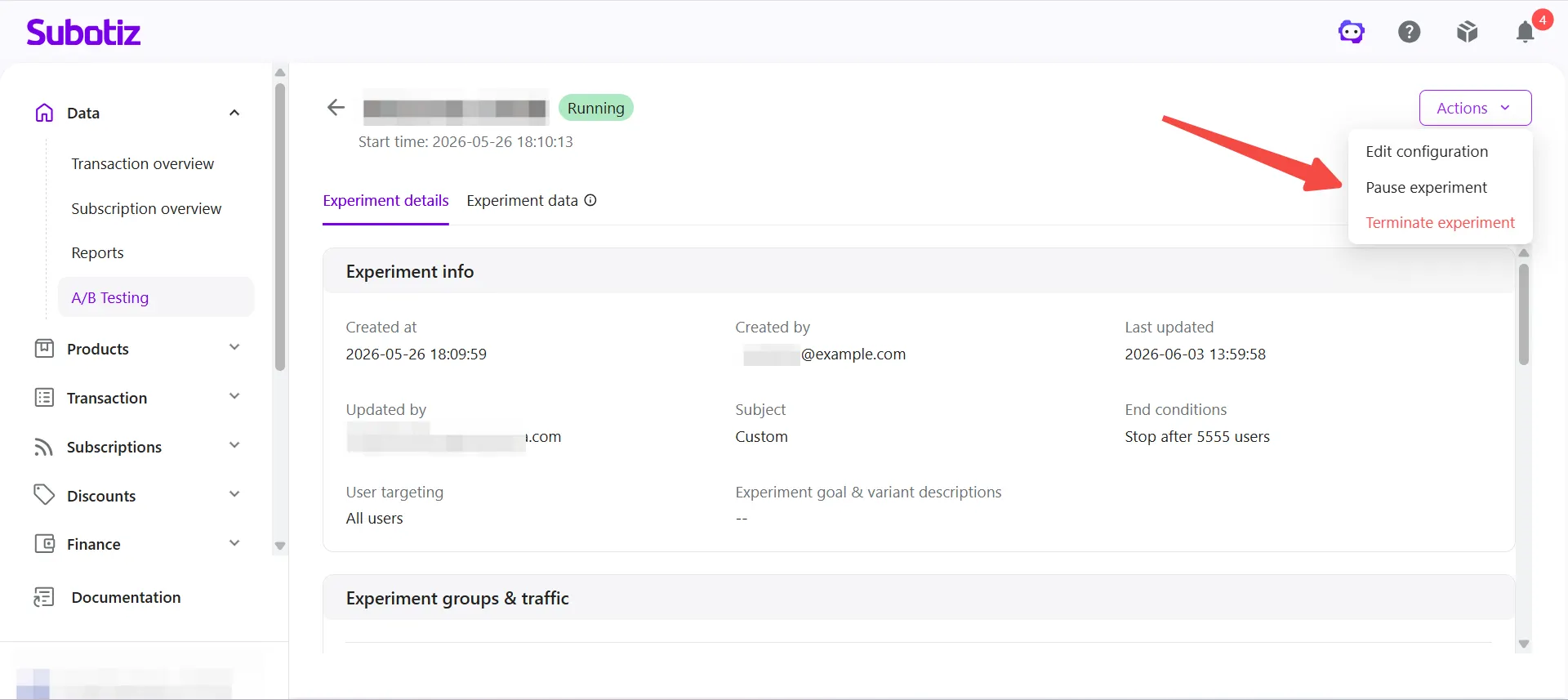
-
Resume the experiment: After an experiment is paused, click Resume Experiment in the upper-right corner of the page.Once resumed:
- Eligible visitors begin entering the experiment again.
- Experiment data collection continues.
- Existing participants remain in their original experiment groups.
-
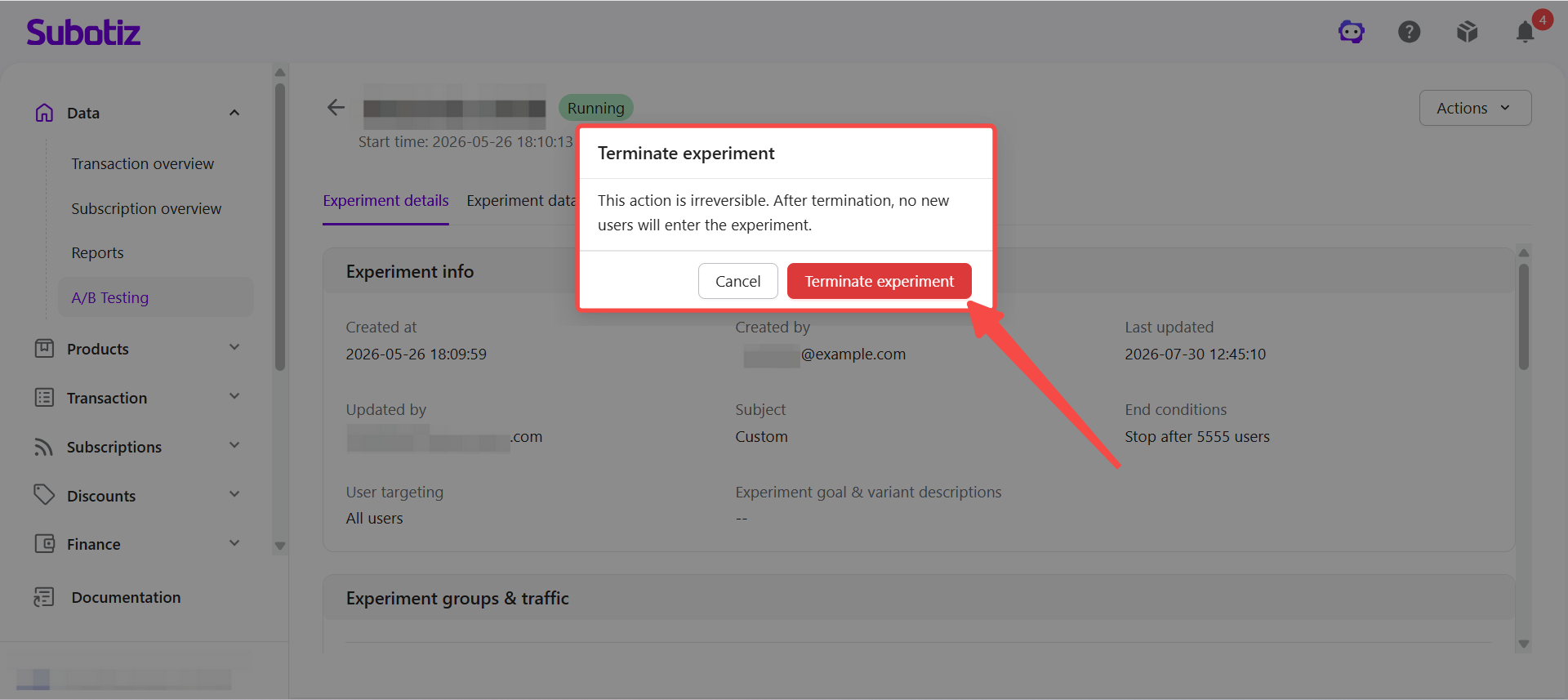
Terminate the experiment: Click Actions > Terminate Experiment. A confirmation dialog appears before the experiment is permanently terminated.
- No new visitors are assigned to the experiment.
- The experiment cannot be resumed.
- Previously collected experiment data remains available for analysis.
After confirmation, the experiment status changes to Terminated.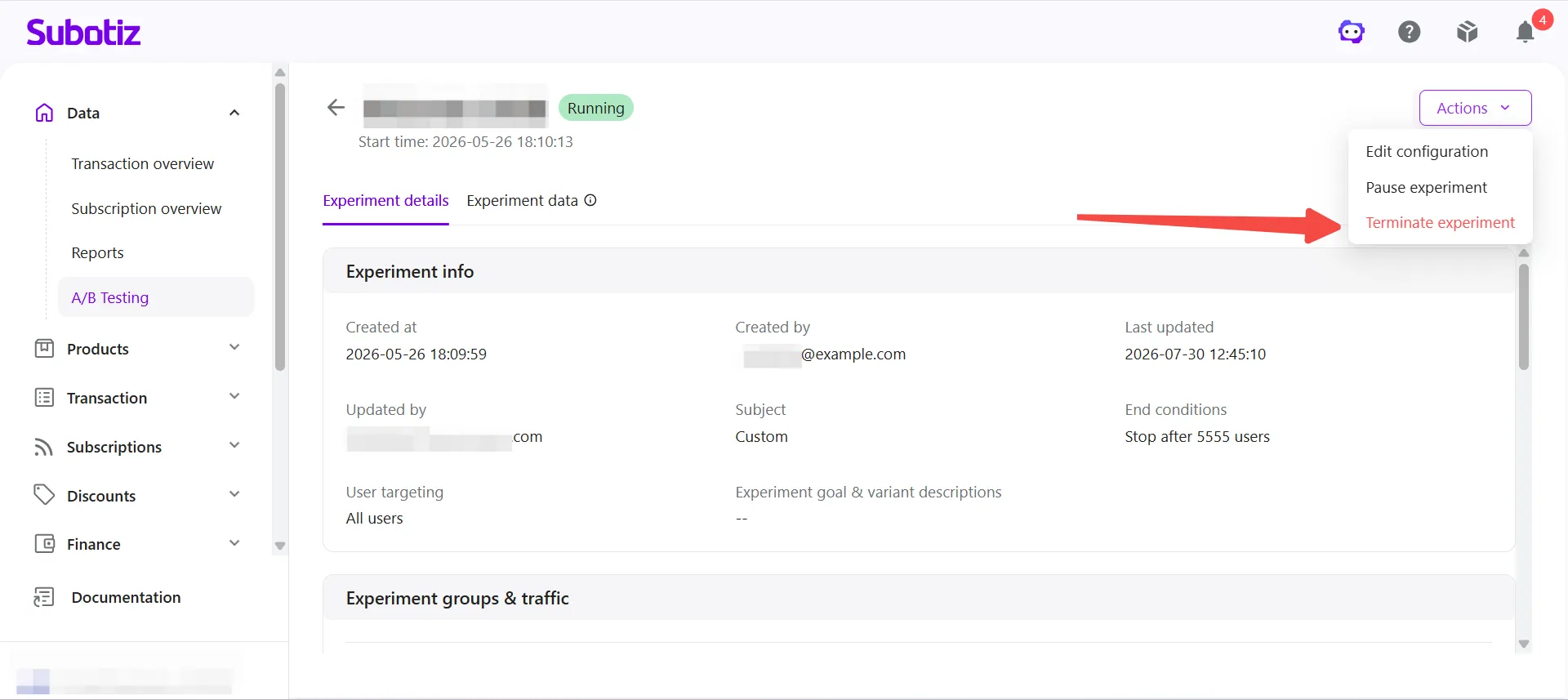
Editing Restrictions by Experiment Status
To preserve experiment integrity, the available editing options vary by experiment status.
Experiment Status |
Editing Permission |
Editable Content |
|---|---|---|
Draft |
Fully editable |
All experiment settings can be modified. |
Running |
Partially editable |
You can update the target audience and add new custom metrics. Existing group variables and configured metrics cannot be edited or removed. Newly added metrics begin collecting data only after they are created. |
Paused |
Partially editable |
You can update the target audience and add new custom metrics. Existing group variables and configured metrics cannot be edited or removed. Newly added metrics begin collecting data only after they are created. |
Completed |
Read only |
No settings can be modified. |
Terminated |
Read only |
No settings can be modified. |
Best Practices
- Review the experiment before activation: Confirm the experiment groups, traffic allocation, target audience, and custom metrics before starting the experiment.
- Avoid changing the experiment design after launch: Group variables and existing metrics become locked after the experiment starts running.
- Pause instead of terminating when testing is temporary: Pausing preserves the experiment and allows it to resume later without creating a new experiment.
- Terminate only when the experiment is no longer needed: A terminated experiment cannot be restarted.
- Plan new metrics in advance: Metrics added after an experiment starts only collect data from the time they are added.
The A/B Testing page provides a central place to activate, manage, and monitor experiments from start to finish. You can review configurations, monitor performance, and update supported settings based on the current experiment status.
To maintain reliable experiment results, review the experiment configuration carefully before activation, as some settings become unavailable once the experiment begins running.
Related Articles