The Payment Settings page in Subotiz Accounts lets you manage your transaction password and failed payment refund preferences. The transaction password authorizes payment operations, while the refund policy determines how funds are returned when a payment involving currency conversion fails.
Access Payment Settings
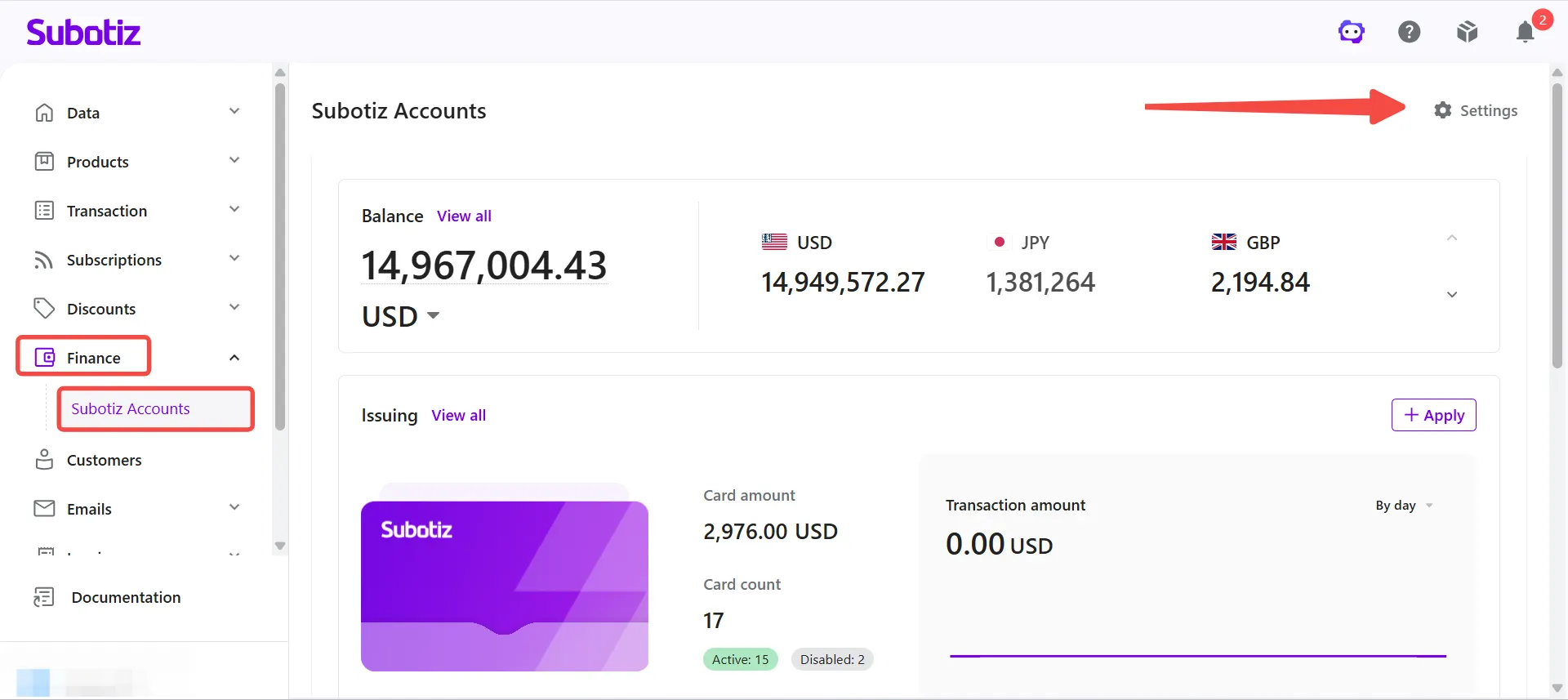
- Open the Settings page. Go to Funds > Subotiz Accounts, then click Settings in the top-right corner.
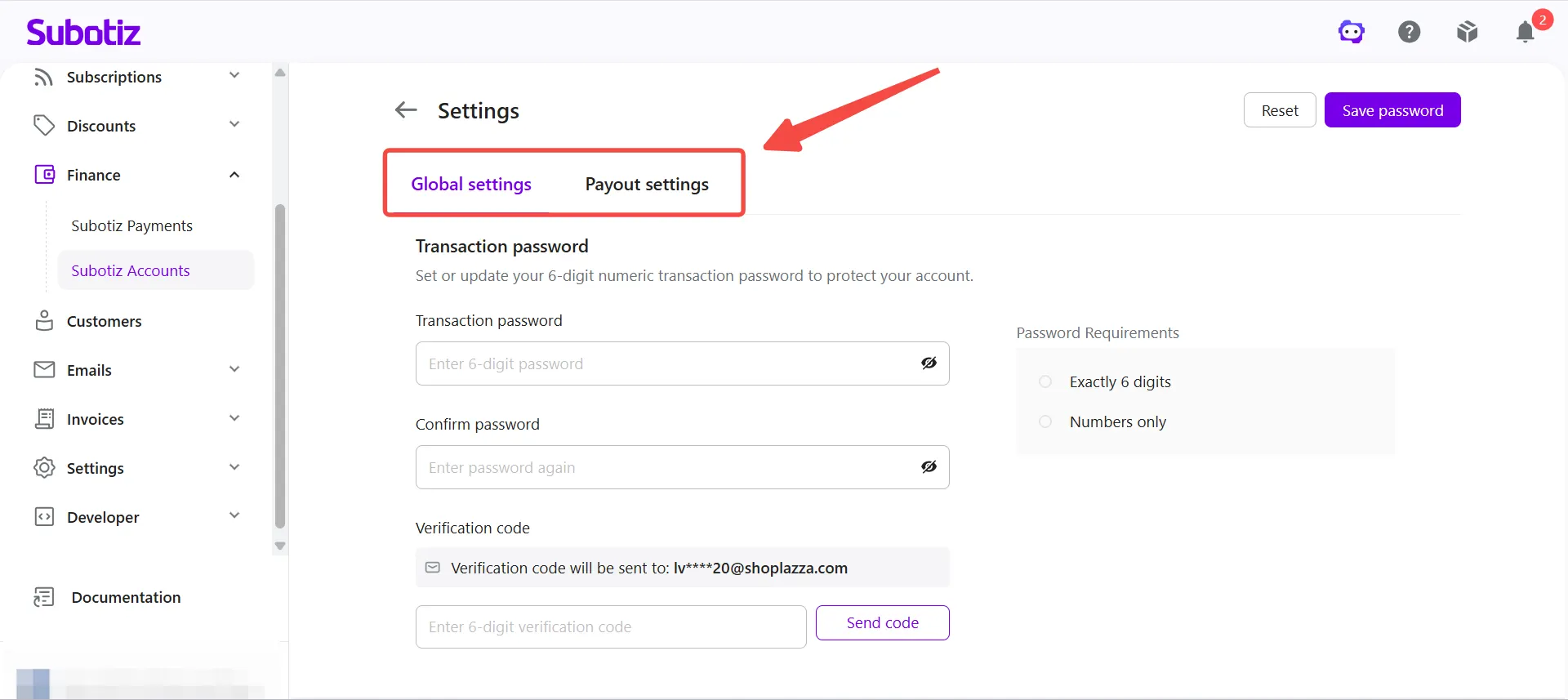
- Review the settings tabs. The following tabs are available:
- Global Settings: Set, update, or reset the transaction password.
- Payment Settings: Configure the refund currency rule for failed payments.
Manage the Transaction Password
The transaction password is required to authorize every payment operation. Set a transaction password before submitting your first global payment.
- Open Global Settings: Go to Settings > Global Settings.
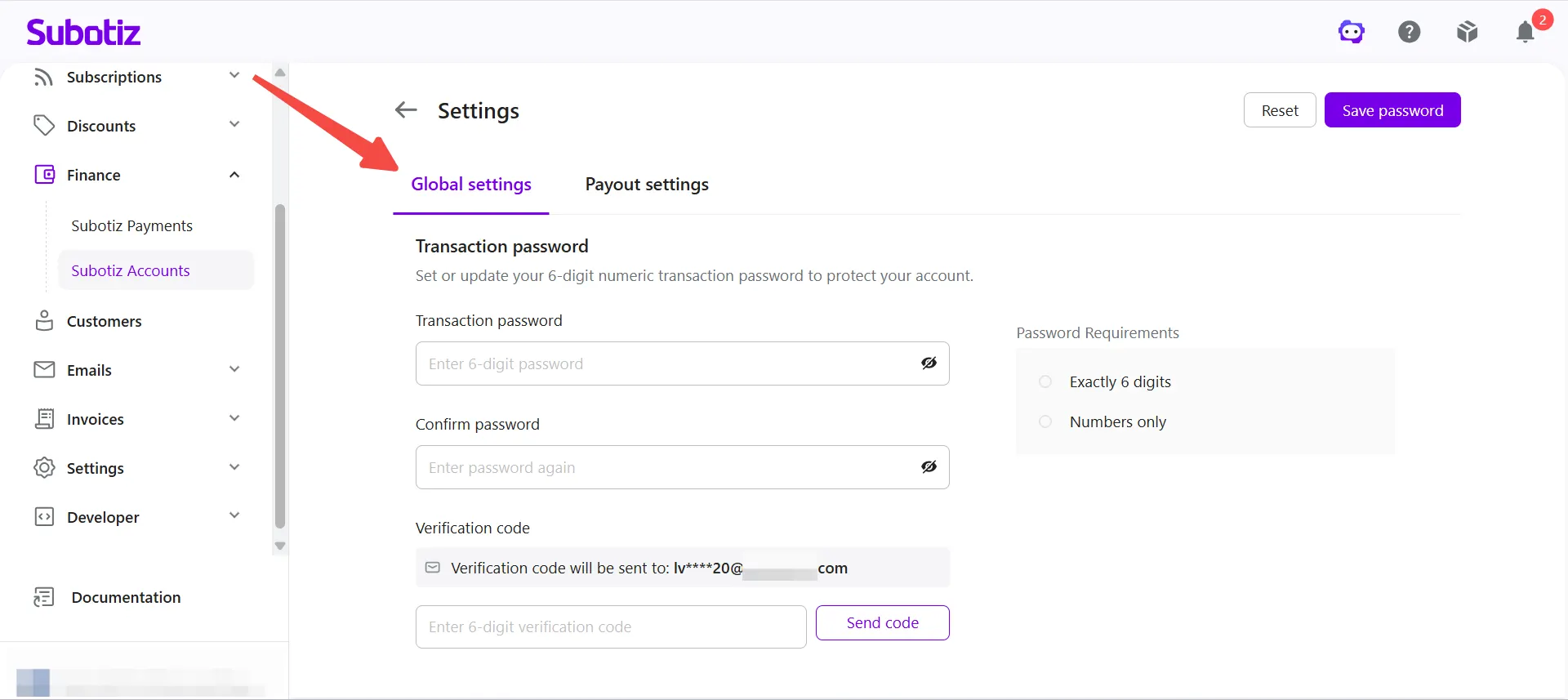
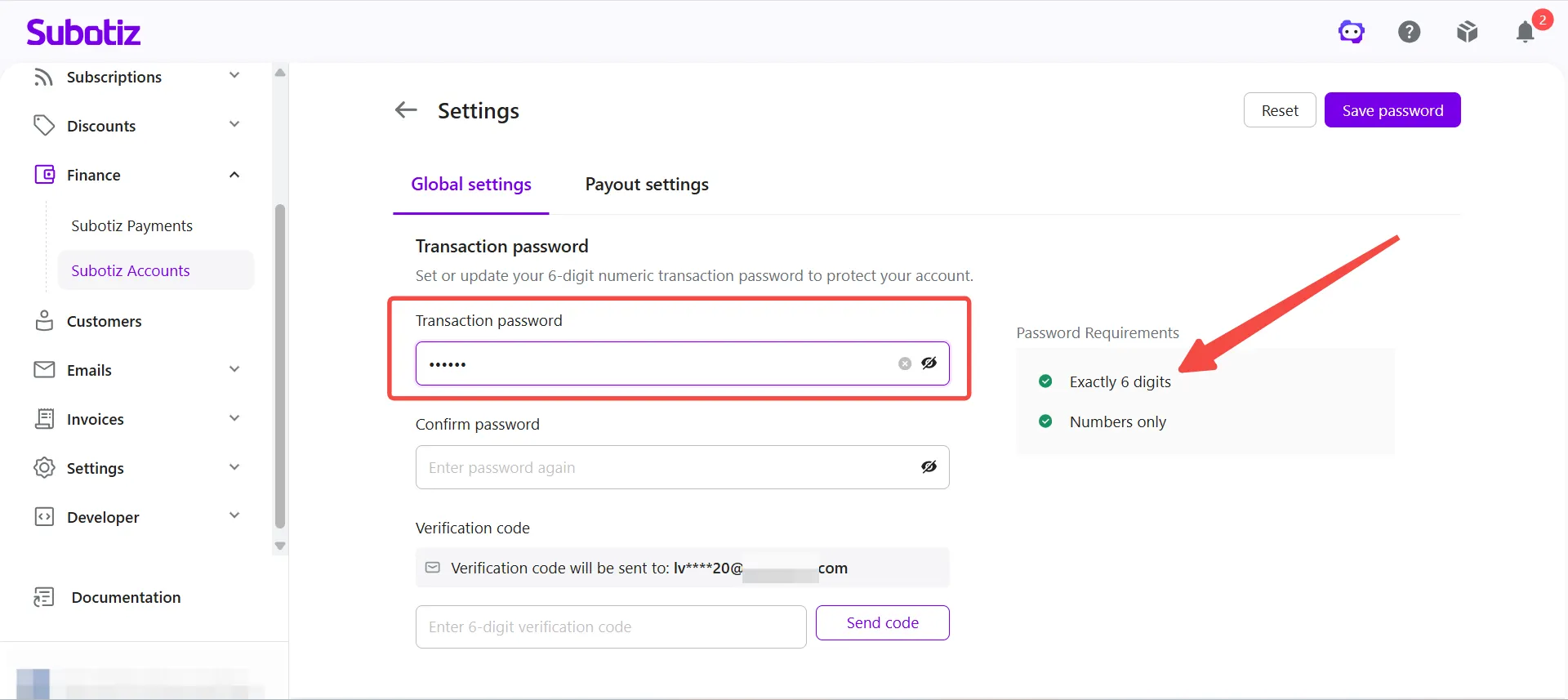
- Enter a transaction password: Enter a 6-digit numeric password.
- Confirm the transaction password: Re-enter the same password.
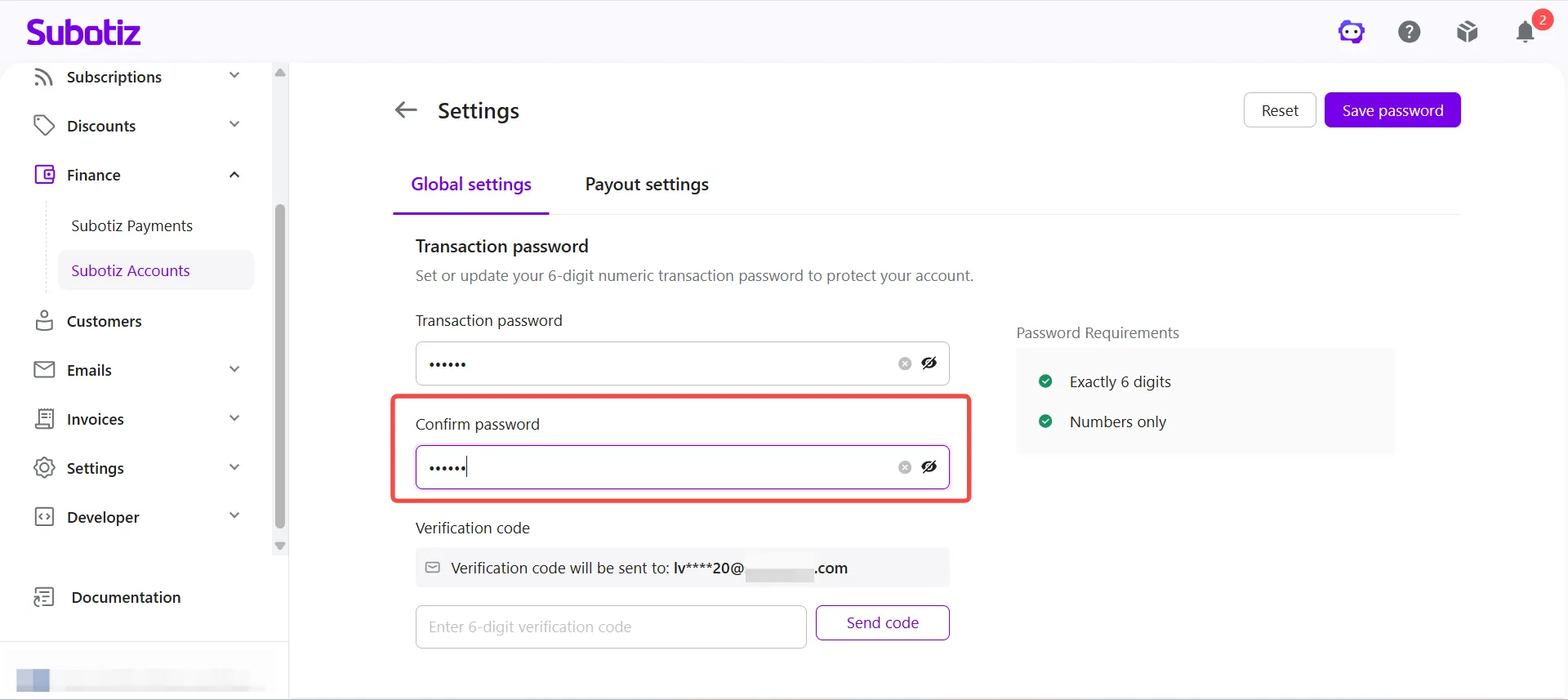
- Request a verification code: Click Send code, then check the registered email address for a 6-digit code from Subotiz.
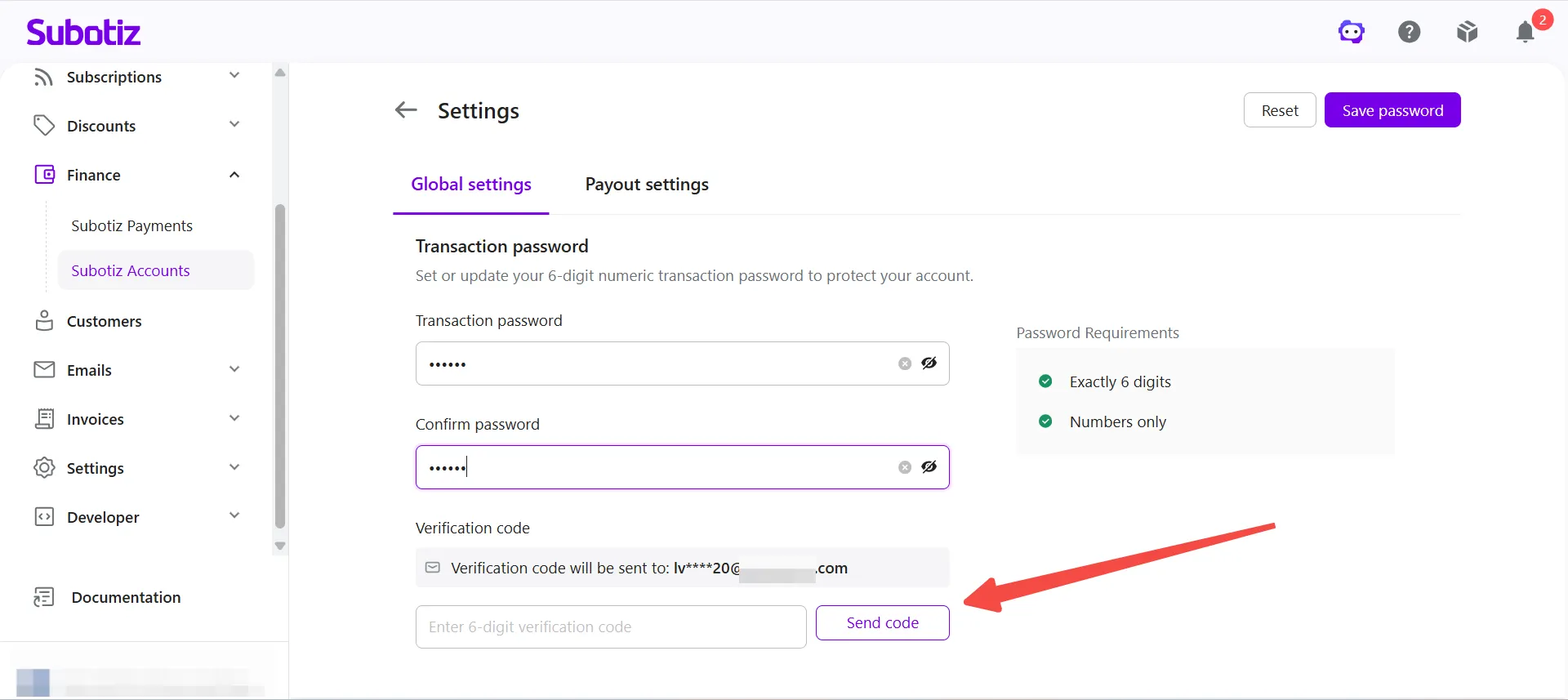
- Enter the verification code: Copy or type the code into the field.
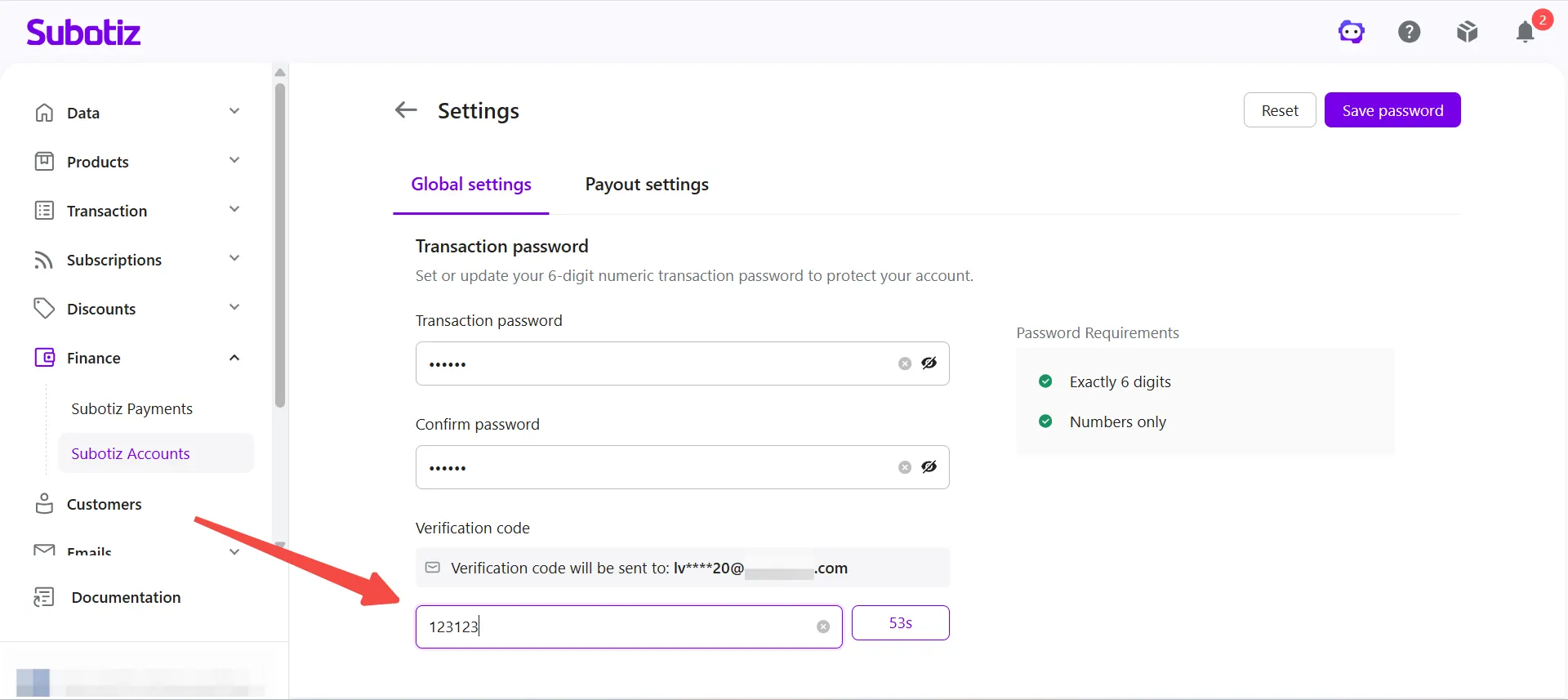
Not receiving the code? Check the spam or junk folder first. If the code hasn't arrived within 2 minutes, check whether your email provider or company mail server is blocking Subotiz emails, or click Resend.
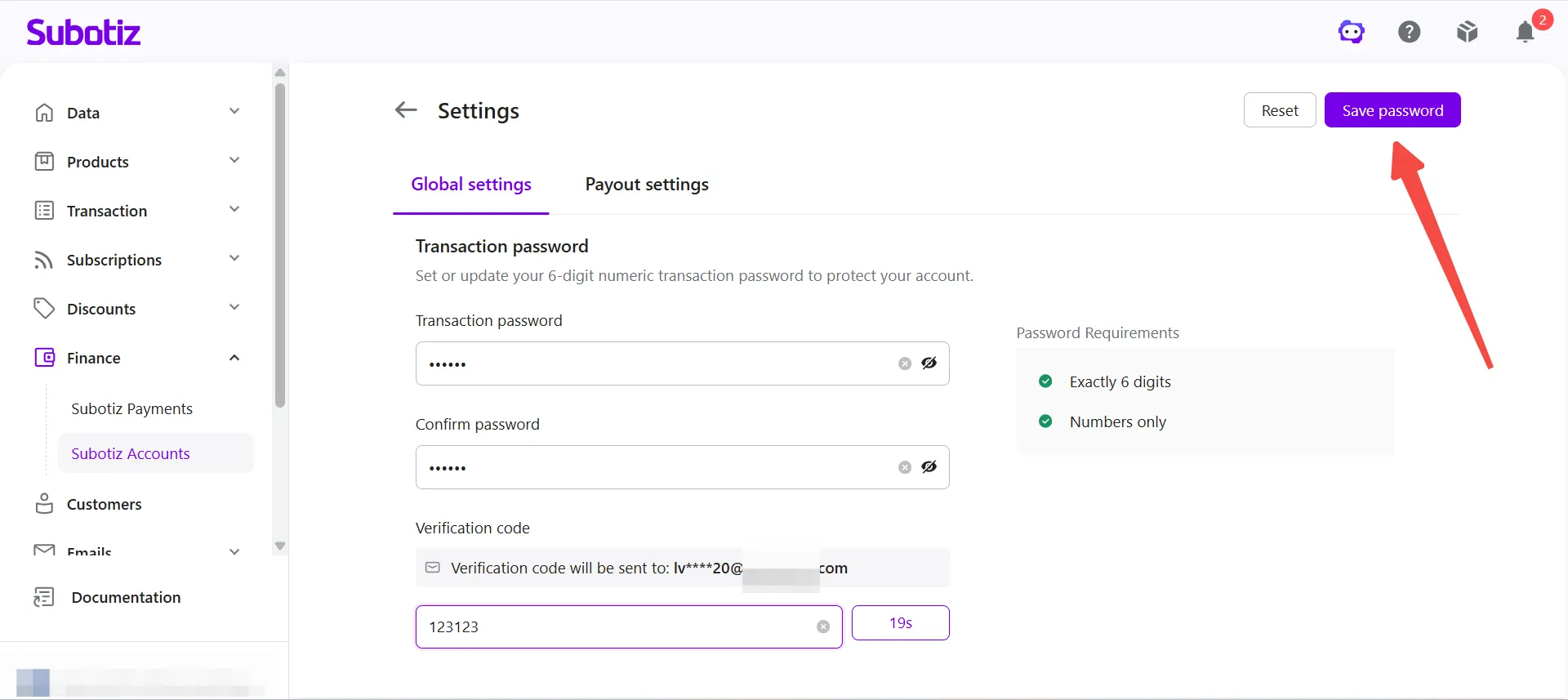
- Save the password: Click Save Password to complete setup or apply the update.
Transaction Password Rules
- Format: Must be exactly 6 digits. Letters and special characters are not accepted.
- Security: The transaction password is required whenever you submit a global payment, payout, or other sensitive fund operations.
- Lockout policy: After 5 consecutive incorrect attempts, the transaction password is temporarily frozen. Subotiz sends an unlock email to the registered address—follow the instructions in the email to unlock or reset the password before continuing.
- Forgotten password: If you forget your transaction password, go to Settings > Global Settings to reset it. Email verification is required, but you do not need to enter the current password.
- Routine updates: Update the transaction password periodically and keep it confidential to protect account funds.
Configure the Failed-Payment Refund Policy
When a global payment fails due to a bank reversal, beneficiary bank rejection, incorrect payment details, or another reason, and the payment involved a currency conversion, Subotiz refunds the funds according to the configured refund policy.
- Open Payment Settings: Go to Settings > Payment Settings.
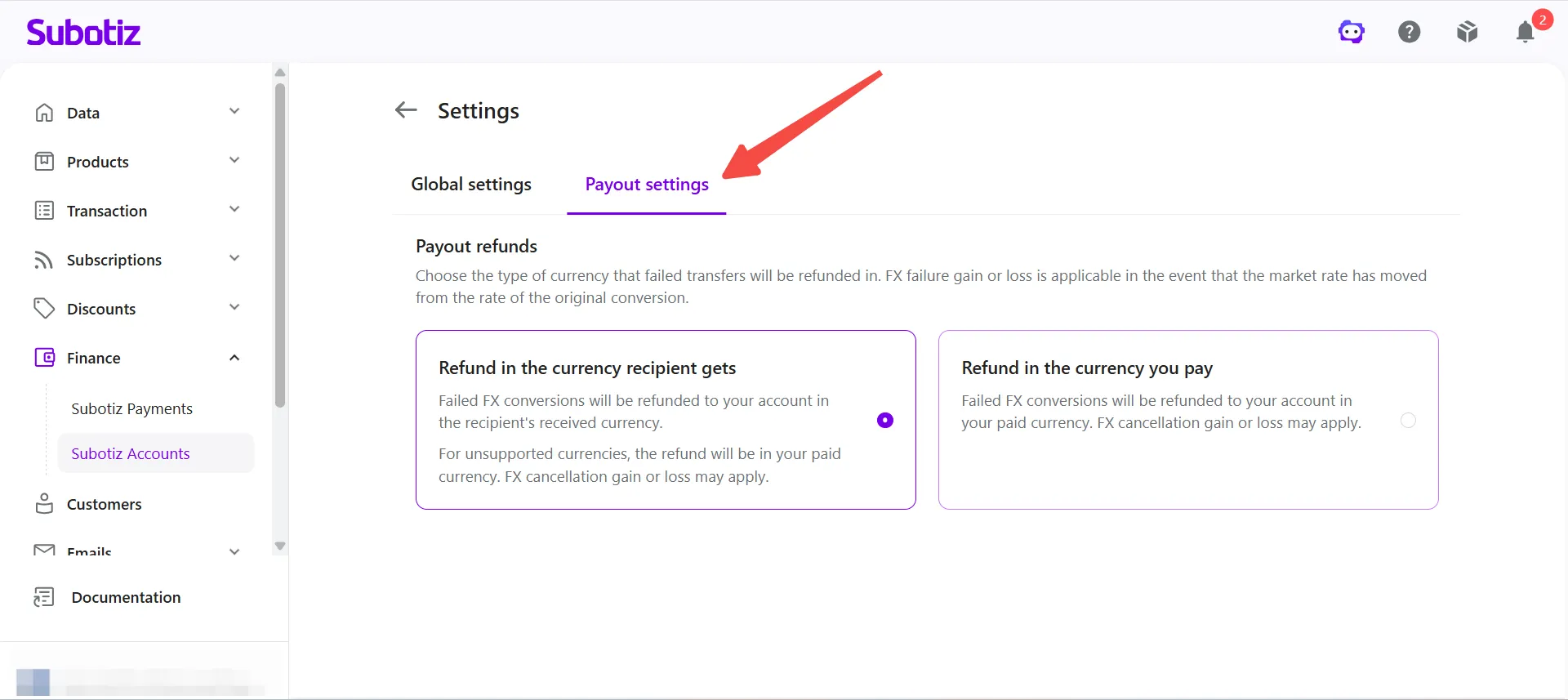
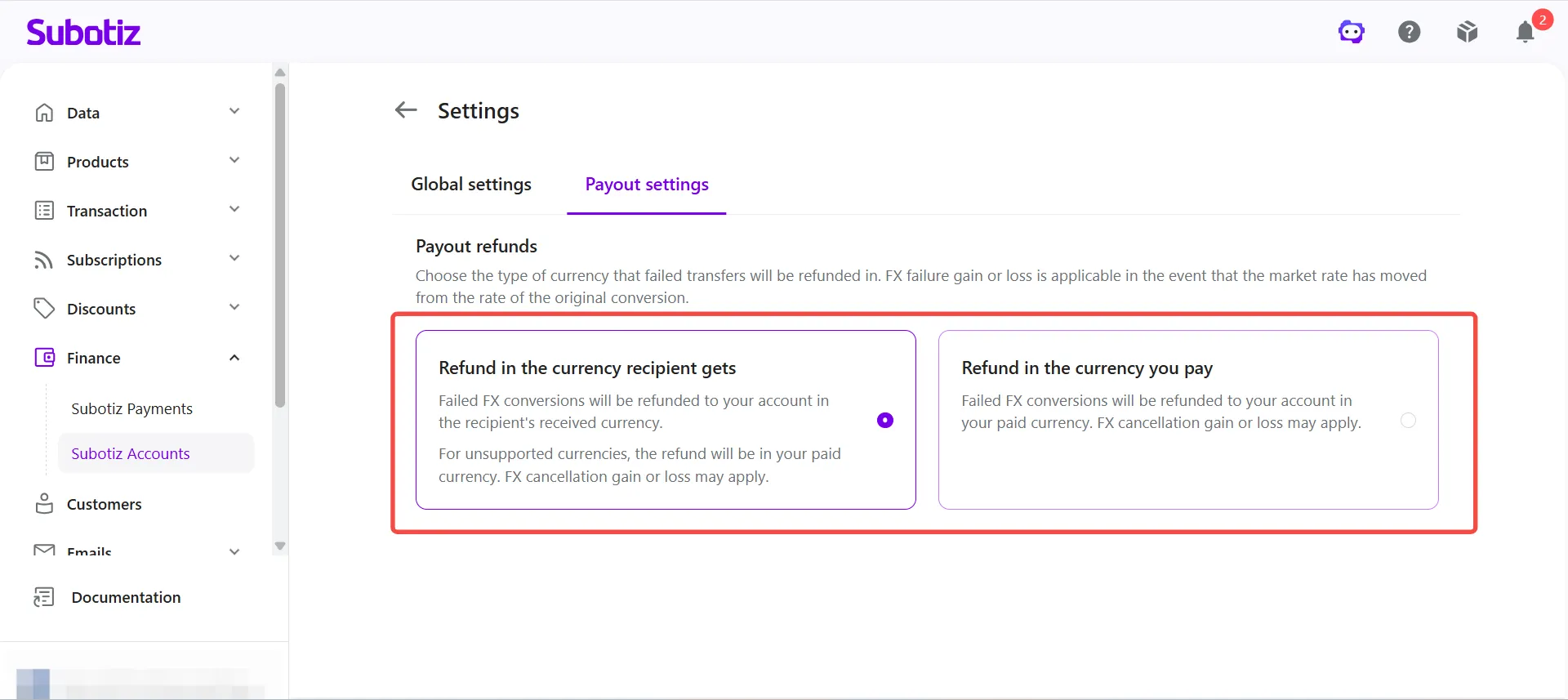
- Select a refund method. Choose one of the following options based on business needs:
- Refund in the currency recipient gets: Returns the funds in the currency the beneficiary was originally expected to receive. Because another conversion takes place, the final credited amount may differ from the original due to real-time exchange rate fluctuations.
- Refund in the currency you pay: Converts the funds back to the original payment currency and returns them to the corresponding balance. Because exchange rates may shift between the original payment and the refund, the final refunded amount may differ from the original.
FAQ
Q: Is the transaction password required for every payment?
Yes. To protect your account and funds, Subotiz requires the transaction password whenever you submit a global payment, payout, or other fund-related operation.
Q: What happens after entering the wrong transaction password?
After 5 consecutive incorrect attempts, the transaction password is temporarily frozen. Subotiz sends an unlock email to the registered address. Follow the instructions in that email to unlock or reset the password. Account funds are not affected during the lockout period.
Before submitting your first global payment, set up your transaction password and configure the refund policy. Once configured, failed payments involving currency conversion are refunded automatically based on your selected refund policy.