The FX conversion history displays all historical conversion transactions, including the converted amount, exchange rate, and transaction status for each record. Merchants can use filters to locate specific transactions and review detailed conversion information for account reconciliation.
Viewing Conversion Records
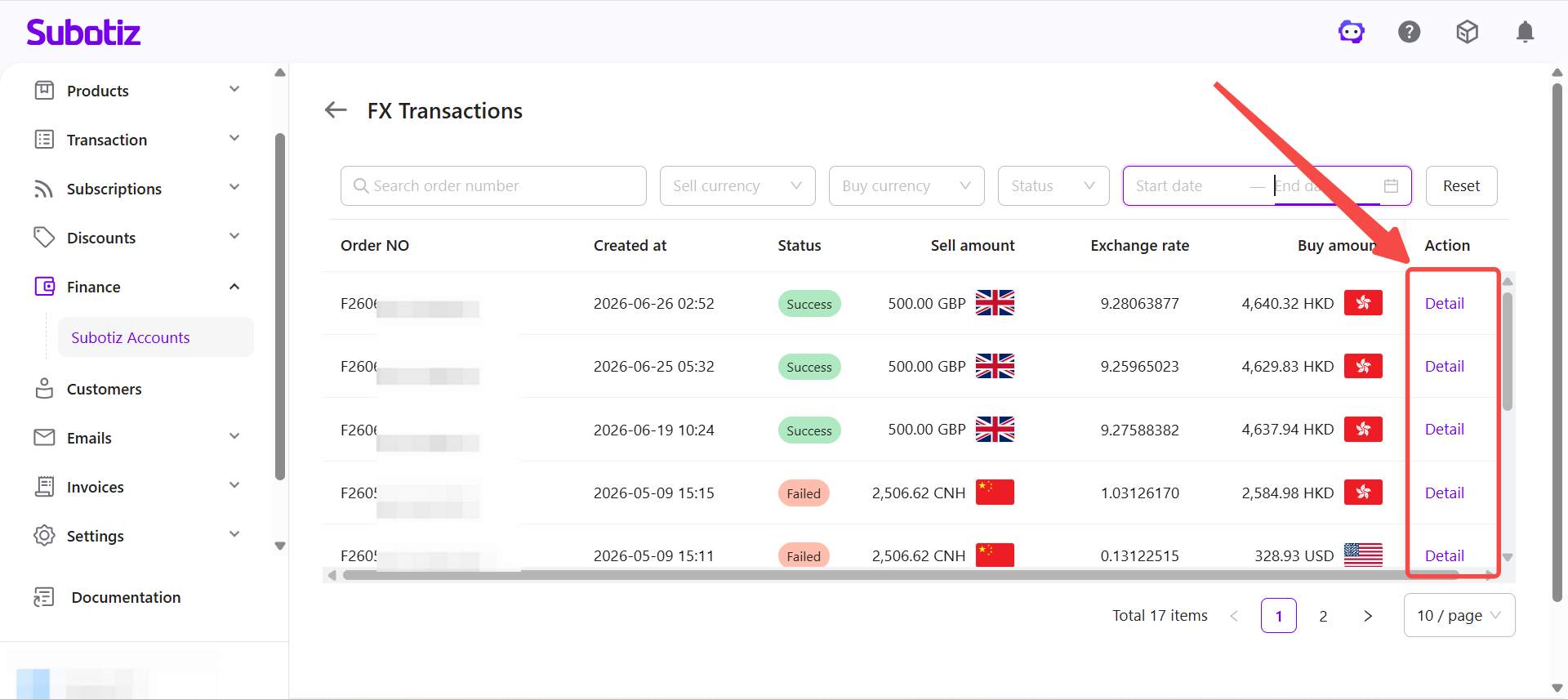
- Open the FX Transactions page: Go to Finance > Subotiz Accounts > Foreign Exchange and select the FX Transactions tab to view the full conversion history.
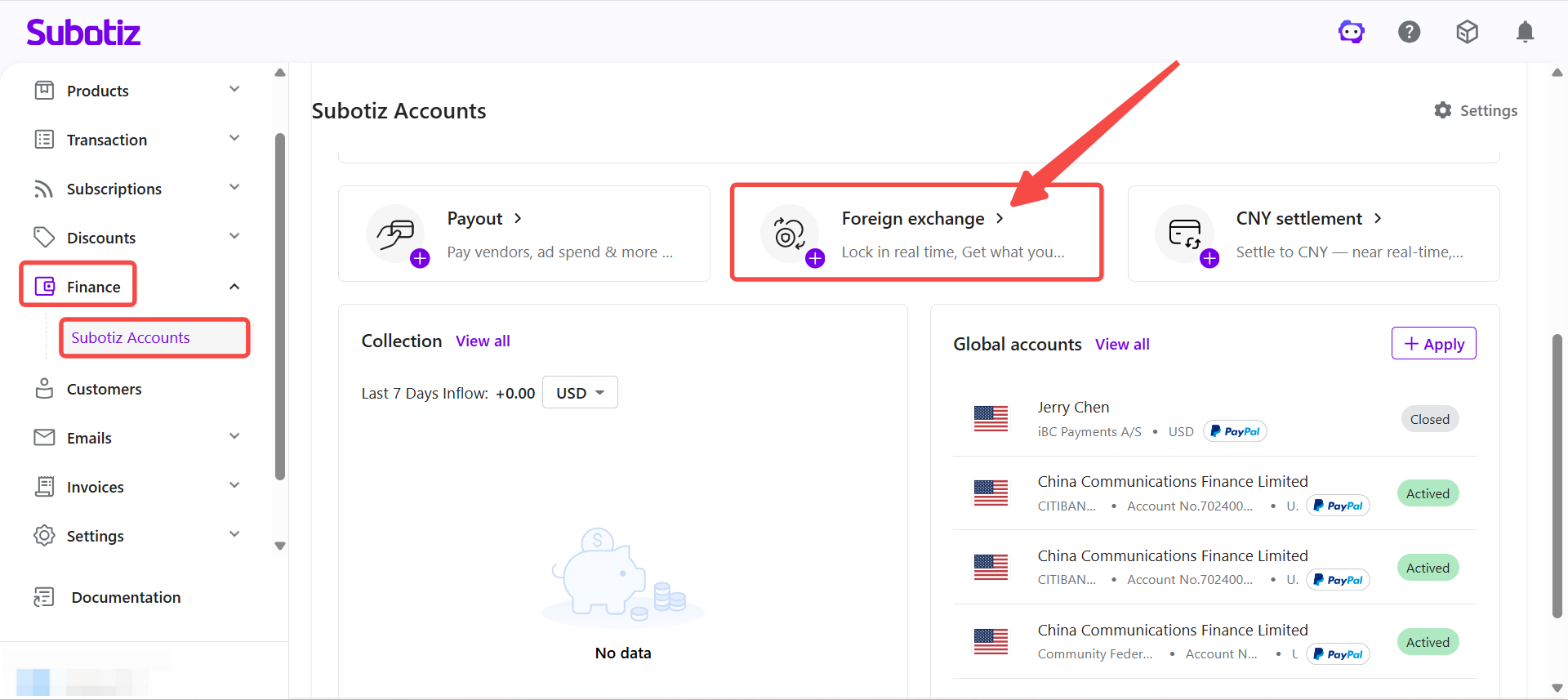
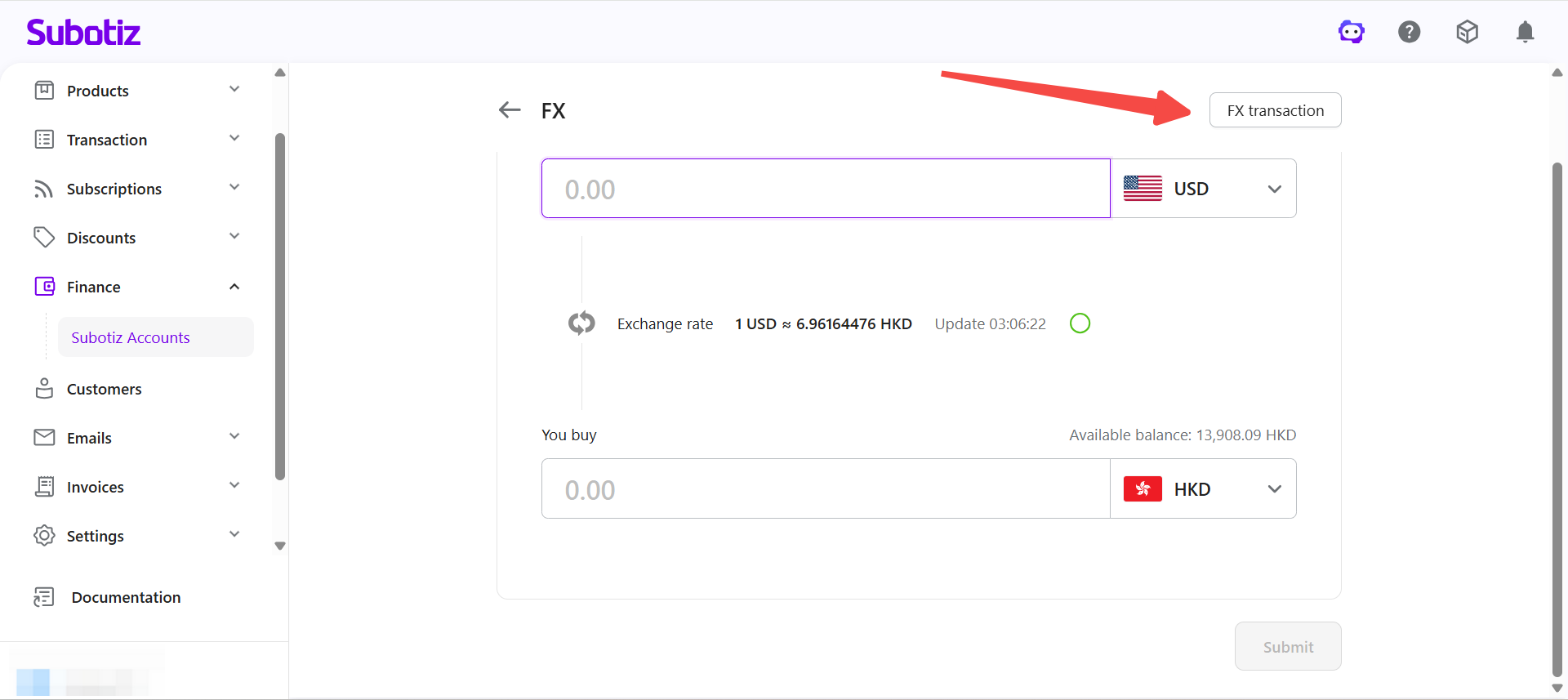
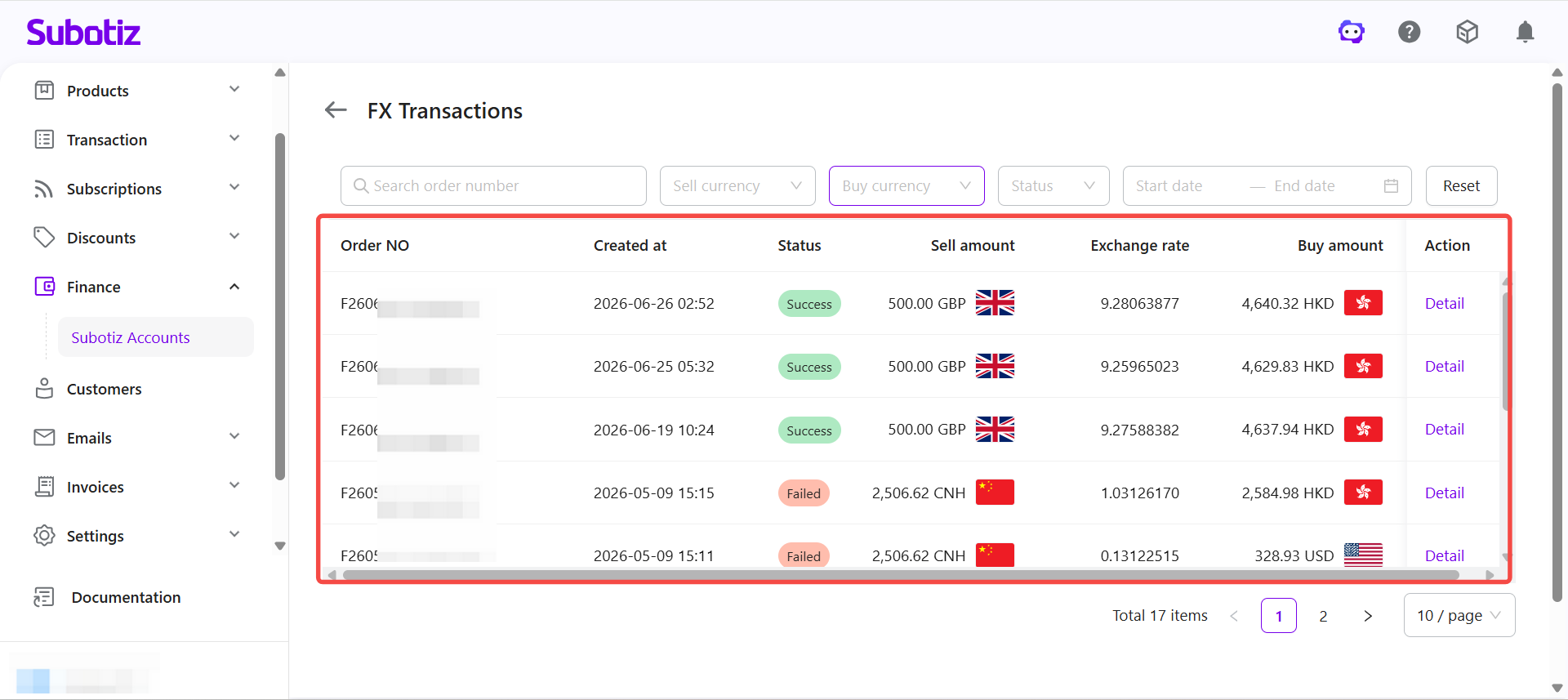
- Browse conversion records: The page displays all historical conversion records, including the following information:
- Order number
- Created at
- Current status
- Sell amount and currency
- Exchange rate
- Buy amount and currency
- Available actions
Filtering Conversion Records
When there are many historical records, use the filters at the top of the page to locate specific transactions quickly.
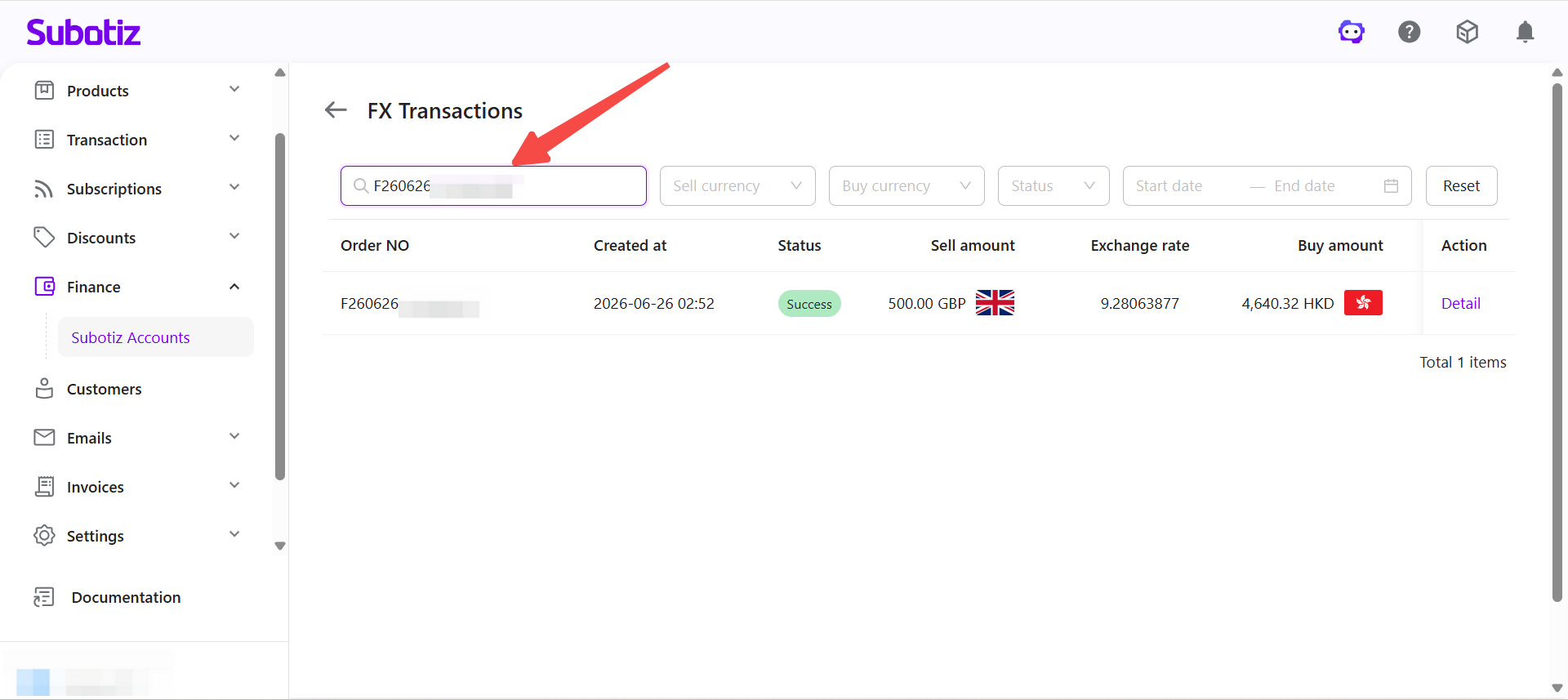
- Search by order number: Enter an order number in the search field. The system filters and displays the matching record.
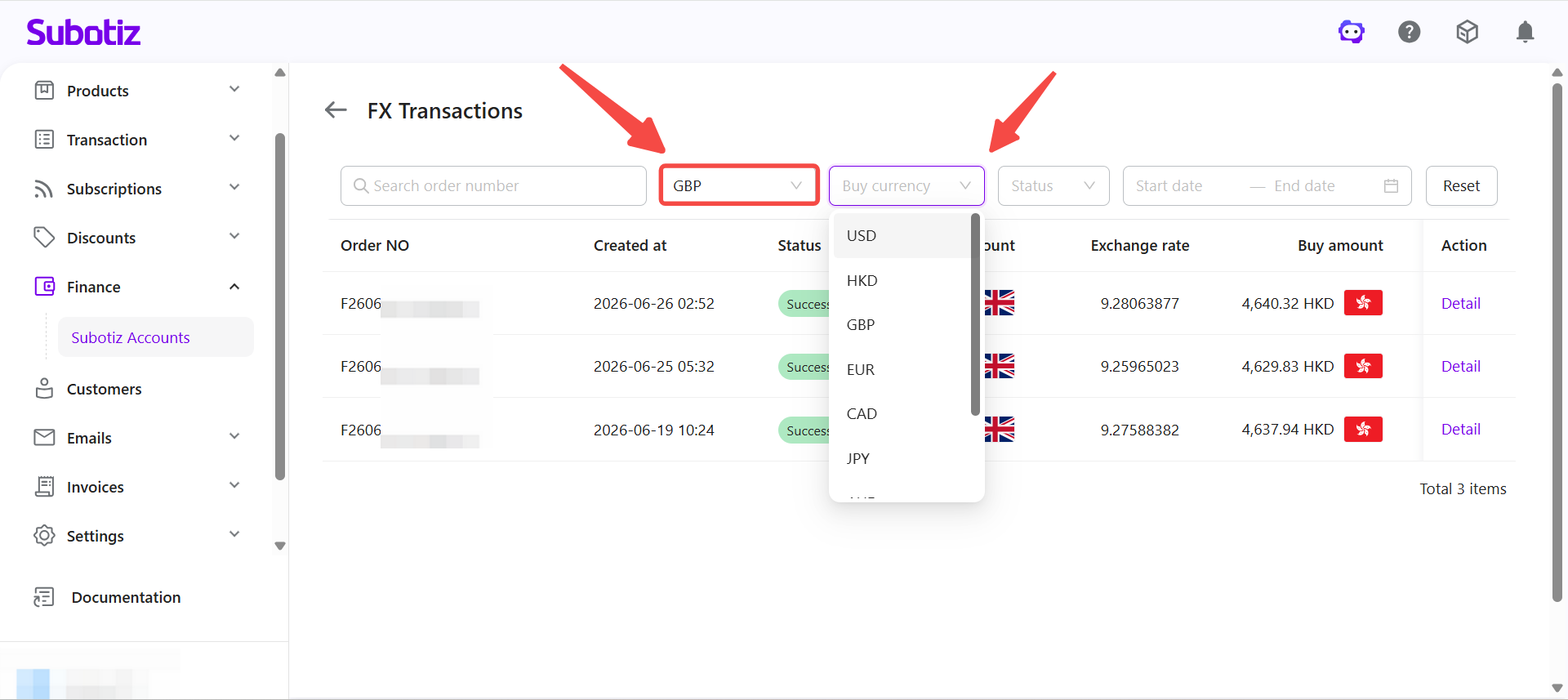
- Filter by currency: Select the sold currency and the purchased currency separately. The system filters all records matching the selected currency pair, which is useful for reconciling transactions by currency.
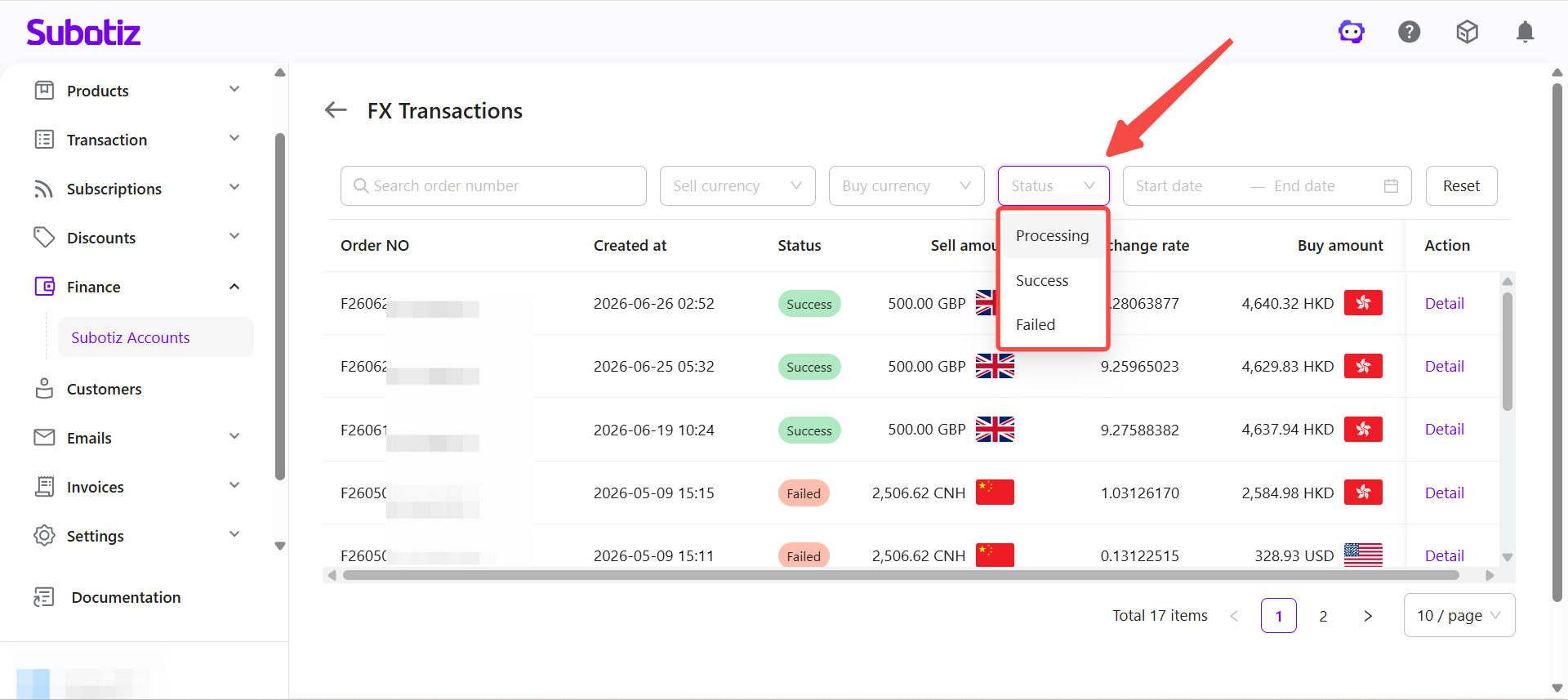
- Filter by transaction status: Select a status from the dropdown. The system displays only records matching the selected status. The following statuses are supported:
- Processing: The conversion request has been submitted. Conversions are normally completed immediately. If a channel issue occurs, the transaction may temporarily remain in the Processing status until processing is complete.
- Success: The conversion is complete. The sold currency balance has been deducted and the purchased currency balance has been credited. Converted funds are immediately available for subsequent treasury management activities.
- Failed: The conversion was not completed. The sold currency balance is not deducted. You can initiate a new conversion.
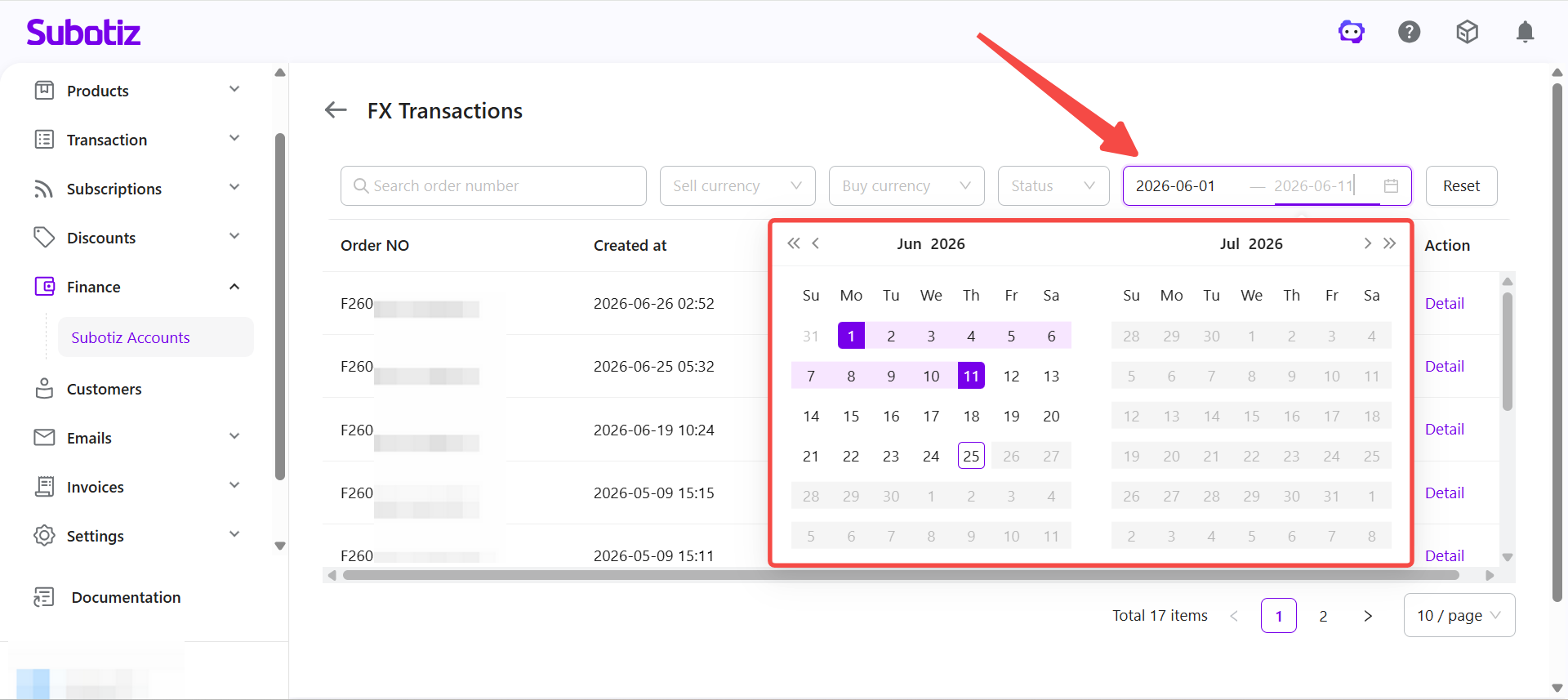
- Filter by date range: Set a start date and end date. The system displays only the records within the selected period, which is useful for reconciling transactions by accounting cycle.
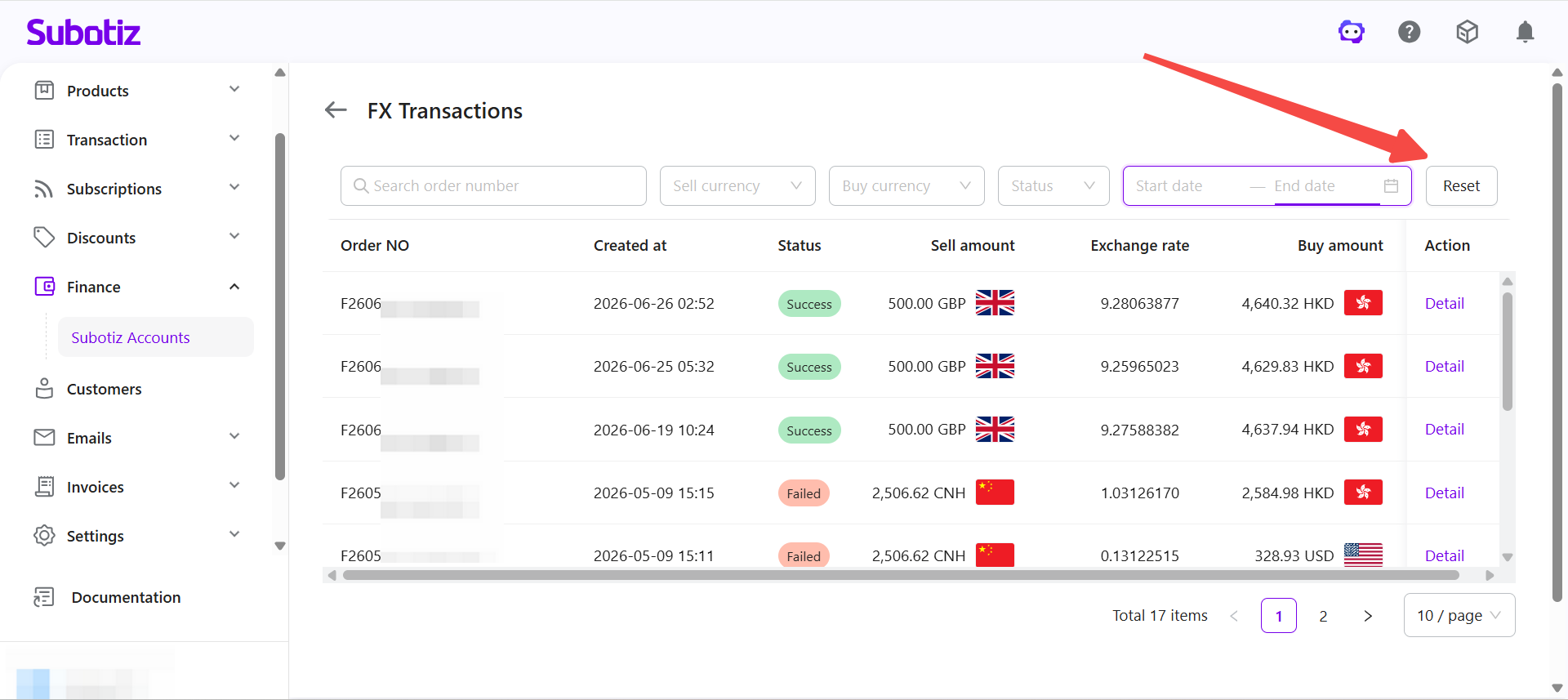
- Reset filters: Click Reset to clear all active filters and restore the full conversion history.
Viewing Conversion Details
- Open the detail page: In the conversion record list, click Details on the right side of the corresponding record. The information displayed on the detail page may vary depending on the transaction status.
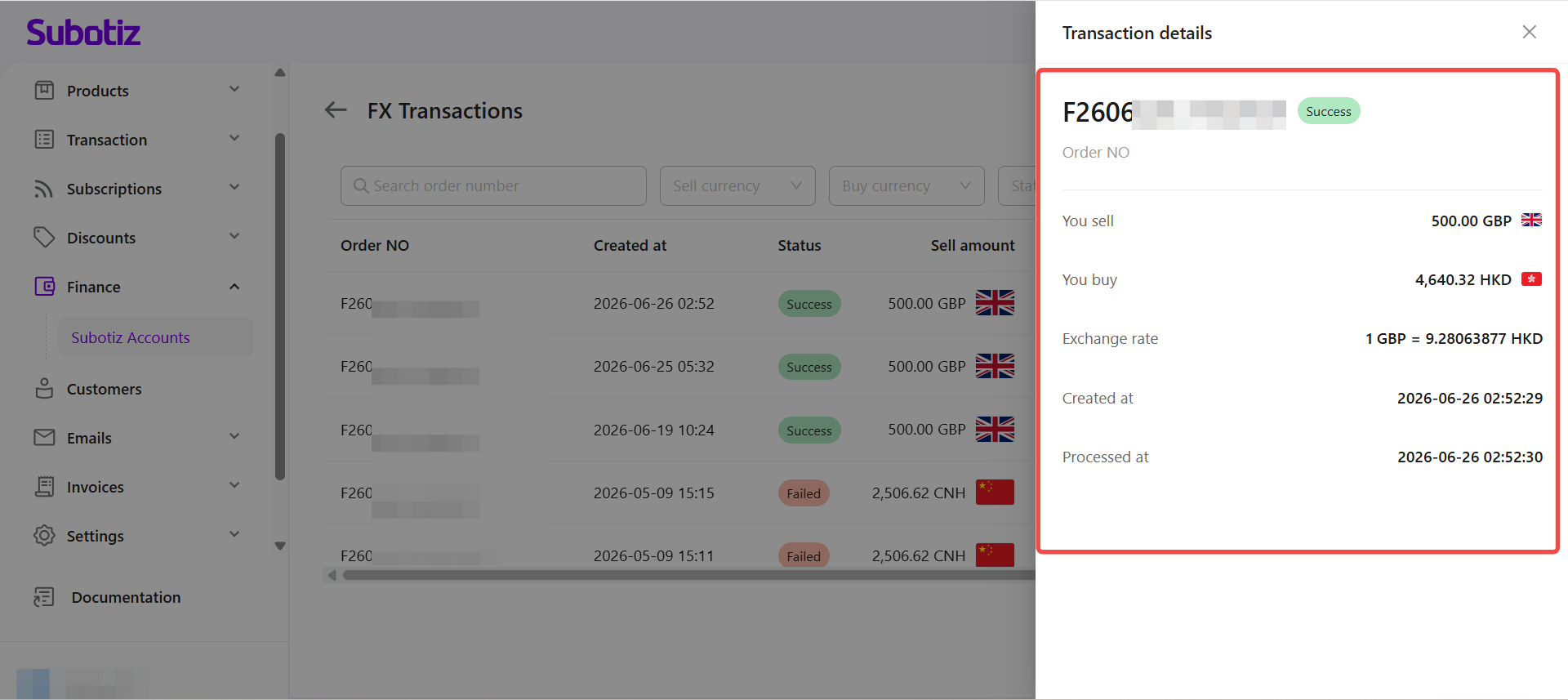
- Review the conversion details: The detail page typically displays the following information:
Field | Description |
|---|---|
Order number | The unique identifier for the conversion, which can be used for internal reconciliation or support queries |
Transaction status | The current processing status, such as Processing, Successful, or Failed |
Sell currency and amount | The currency and amount sold in the conversion |
Buy currency and amount | The currency and amount received in the conversion |
Exchange rate | The exchange rate confirmed at the time of the transaction, within the 45-second rate lock window. |
Created time | The time the conversion request was submitted and the transaction password was verified. |
Processed time | The time the system completed the conversion. |
Important Notes
- A conversion record is generated for every FX transaction and can be used for subsequent queries and financial reconciliation.
- The information displayed on the detail page may vary depending on the transaction status.
- The exchange rate applied is the rate confirmed at the time of submission.
- If a conversion fails, the sold currency balance is not deducted.
- For further assistance with a specific transaction, contact your Account Manager.
The FX conversion history provides a complete record of all historical conversions, including converted amounts, exchange rates, transaction status, and balance changes. Merchants can use search and filtering tools to quickly locate specific records and review detailed transaction information for daily treasury management and financial reconciliation.