Payment method visibility in Subotiz Payments determines which payment options appear at checkout. Visibility is controlled by merchant configuration, customer environment, and each method's eligibility conditions, ensuring that only valid options are displayed in each scenario.
Visibility rules
A payment method appears at checkout when all required conditions are met.
- General conditions
- Payment method enabled: Go to Settings > Payment methods and turn on the method.
- Payment provider configured: Go to Settings > Payment providers and complete provider setup.
- Device compatibility: The customer's device and browser support the method (for digital wallets).
- Customer location: Within the supported region.
- Transaction currency: Supported by the method.
- Merchant eligibility: The merchant entity meets the method's requirements.
- Activation or approval: Any required application or approval has been completed.
Visibility by payment method
Display conditions vary by payment method.
- Card payments
- Coverage: Available across all devices, regions, and currencies.
- Reliability: The most consistently available payment method.
- Digital wallets
- Apple Pay
- Requires a supported Apple device.
- Embedded integrations require iOS 17 or later.
- Google Pay
- Requires a Chrome-based browser (such as Chrome or Edge).
- Android devices require Google Play Services 16.0.0 or later.
- BNPL
- Merchant entity: Available to US-based merchants only.
- Customer location: Within the provider's supported region.
- Transaction currency: Supported by the selected provider.
- Transaction amount: Within the provider's limits.
- Billing address entered at checkout.
- Billing address saved in the account.
- IP address.
- Browser language (fallback).
- Alipay
- Payment method enabled: Turn on Alipay in payment settings.
- Transaction currency: Matches a supported currency for the merchant entity.
- Approval status: Required approvals for cross-border or subscription billing have been completed.
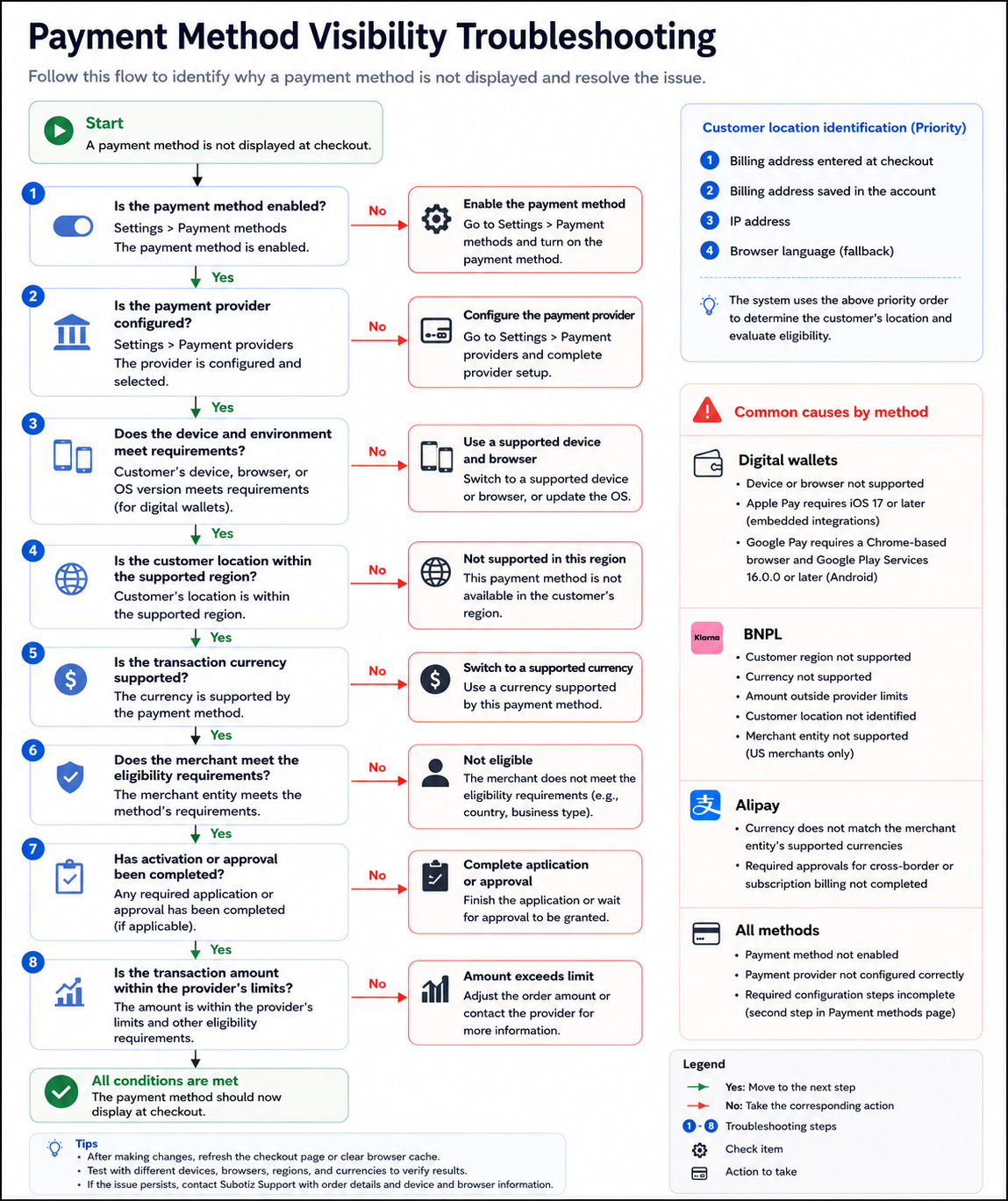
Troubleshooting payment visibility
Use the following steps to identify why a payment method is not displaying.
- Payment method is enabled: Check Settings > Payment methods.
- Provider setup is complete: Check Settings > Payment providers.
- Device and environment are compatible: Confirm compatibility (for digital wallets).
- Region and currency are supported: Confirm both meet the method's requirements.
- Approvals are complete: Confirm any required approvals have been completed.
- Transaction amount is within limits: Confirm the amount meets provider requirements.
Common causes by method
- Digital wallets: Device or browser not supported. Apple Pay requires iOS 17 or later (embedded). Google Pay requires a Chrome-based browser.
- BNPL: Customer region not supported, currency not supported, amount outside provider limits, or customer location not identified.
- Alipay: Currency does not match the merchant entity's supported currencies, or required approvals not completed.
- All methods: Confirm that the payment methods are enabled, the payment provider is configured correctly, all required configuration steps are complete, and the amount due at checkout is at least USD 0.50 (or the equivalent). For orders under this minimum, checkout displays a message indicating that no payment methods are available for the current order. Adjust the pricing so the amount due reaches the minimum, and payment methods will be displayed.
Payment method visibility depends on configuration, customer environment, and eligibility conditions. Testing checkout across different scenarios is the most reliable way to validate results.