When a charge fails in Subotiz, merchants can review the details, identify the cause, and take steps to resolve it before billing flow or account access is affected.
Viewing Failed Charge Records
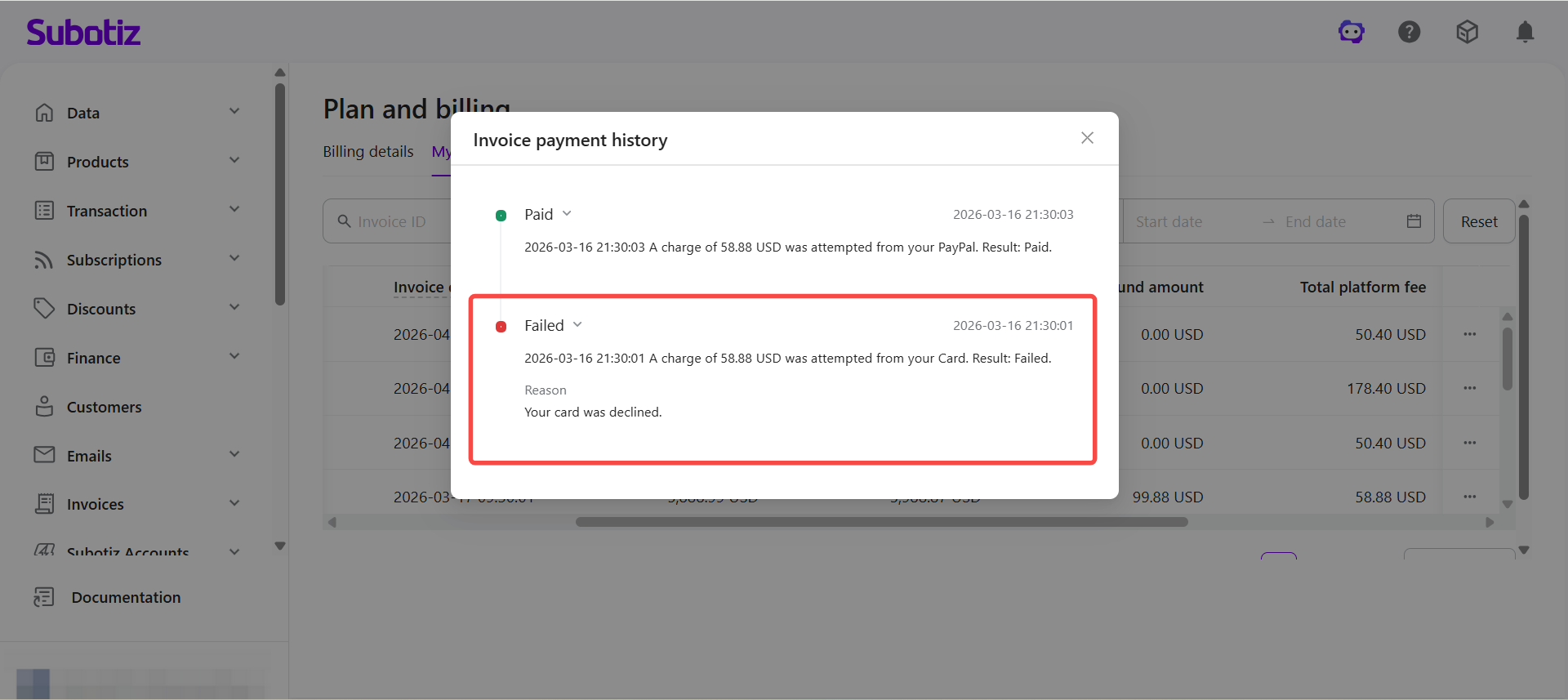
Check the details and reasons for failed charges.
- Open the billing page: Go to Settings > Plan and billing.
- Locate the invoice: Find the relevant invoice under the My bills tab.
- Open payment records: Click More (...) > Payment records.
- Review failure details: Check the charge time, payment method, and failure reason.
Post-Failure Handling
When a charge fails, the system takes the following steps.
- Automatic retry: The system will retry the charge at a later time based on retry logic.
- Suspension risk: If charges continue to fail over a period of time, the store may be subject to restrictions or account suspension.
In-App Notifications
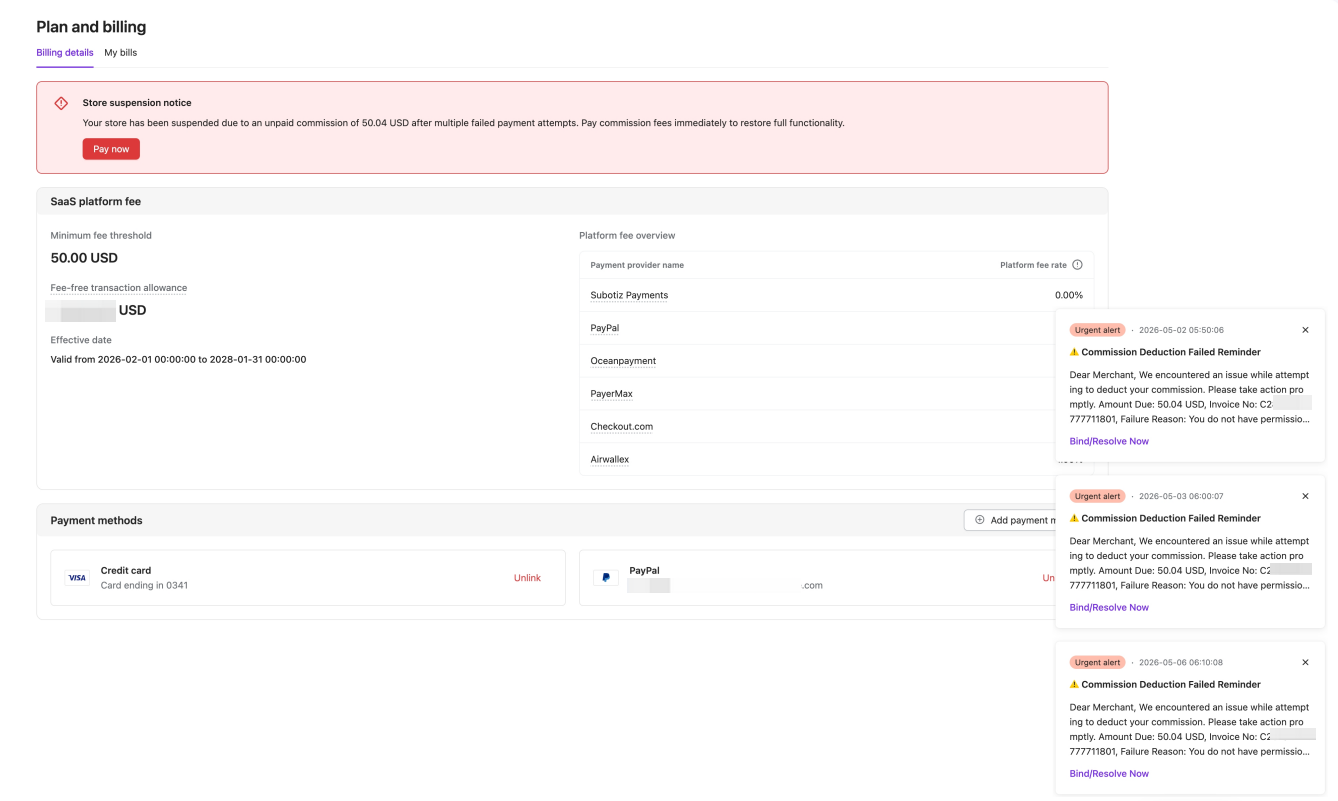
Merchants are notified via in-app message after each charge attempt, whether successful or failed. The notification includes the charge amount and invoice number. If a charge fails, click the link in the notification to go directly to Plan and billing to resolve the issue.
Impact on Billing Flow
Unpaid invoices affect billing progression but do not stop commission calculation.
- Invoice generation: New invoices are not generated while an unpaid invoice exists.
- Ongoing accrual: Transactions continue to accumulate commission during the unpaid period.
- Sequential billing: Once the current invoice is paid, the next invoice is generated based on accumulated results.
Account Restrictions and Store Suspension
Accounts may be restricted if invoices remain unpaid for a period of time.
- Admin limitations: Only the Plan and billing section remains accessible; other admin functions are view-only.
- Payment access retained: Merchants can still access billing to complete payment.
- Store transactions: Store transactions continue to operate normally and are not affected.
Resolving Failed Charges
Take action based on the failure reason to restore normal billing operations.
The following lists common failure reasons and suggested actions. For the actual failure reason, refer to the message shown in Payment records.
Failure reason | Resolution |
|---|---|
Expired card | Unlink the expired card and link a valid one |
Insufficient funds | Ensure the linked account has sufficient balance |
Authorization expired | Re-authorize the payment method |
Payment method disabled | Contact your payment provider or switch to another method |
Unfreezing Your Account
Once a suspended store completes payment, the account is automatically restored.
- Address the invoice: Go to Settings > Plan and billing > Billing details, confirm the failure reason, and update the payment method.
- Retry the charge: Click Pay now or wait for the system to retry automatically.
- Account restored: Once the charge succeeds, your store is automatically unfrozen.
Best Practices
- Link multiple payment methods: Reduce the risk of failed charges caused by a single method becoming unavailable.
- Act on notifications promptly: Address failed charges quickly to avoid invoice backlog and account suspension.
- Review payment methods regularly: Keep card expiry dates and account authorization status up to date.
When a charge fails, Subotiz notifies merchants via in-app message. If left unresolved, the store may face functional restrictions, though ongoing transactions are not affected. Updating the payment method and completing payment promptly helps restore normal billing operations.