The My bills page in Subotiz allows merchants to review platform fee charges, track invoice payment status, and access transaction-level fee details. This feature supports billing transparency and enables accurate financial reconciliation.
Accessing the Bill List
Access all generated invoices from the billing dashboard.
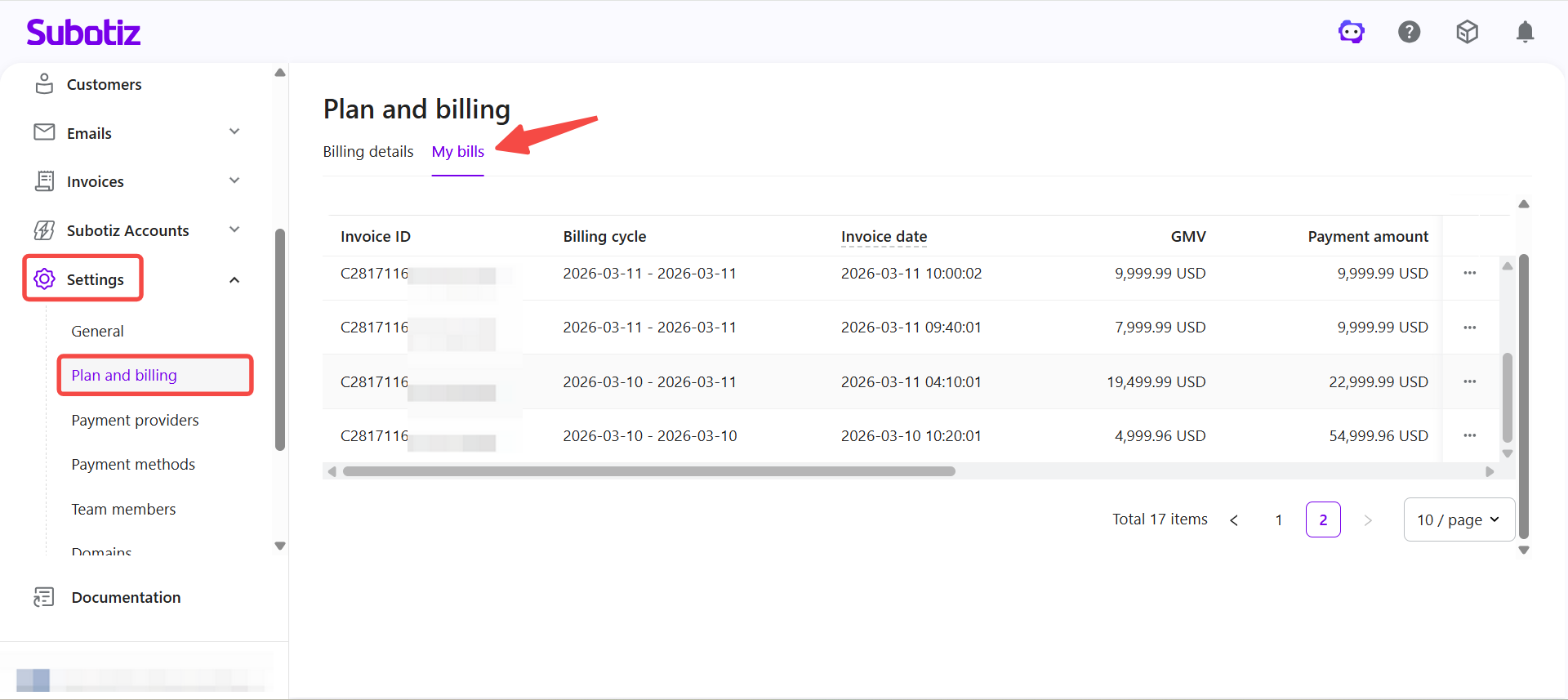
- Open the settings: Go to Settings > Plan and billing.
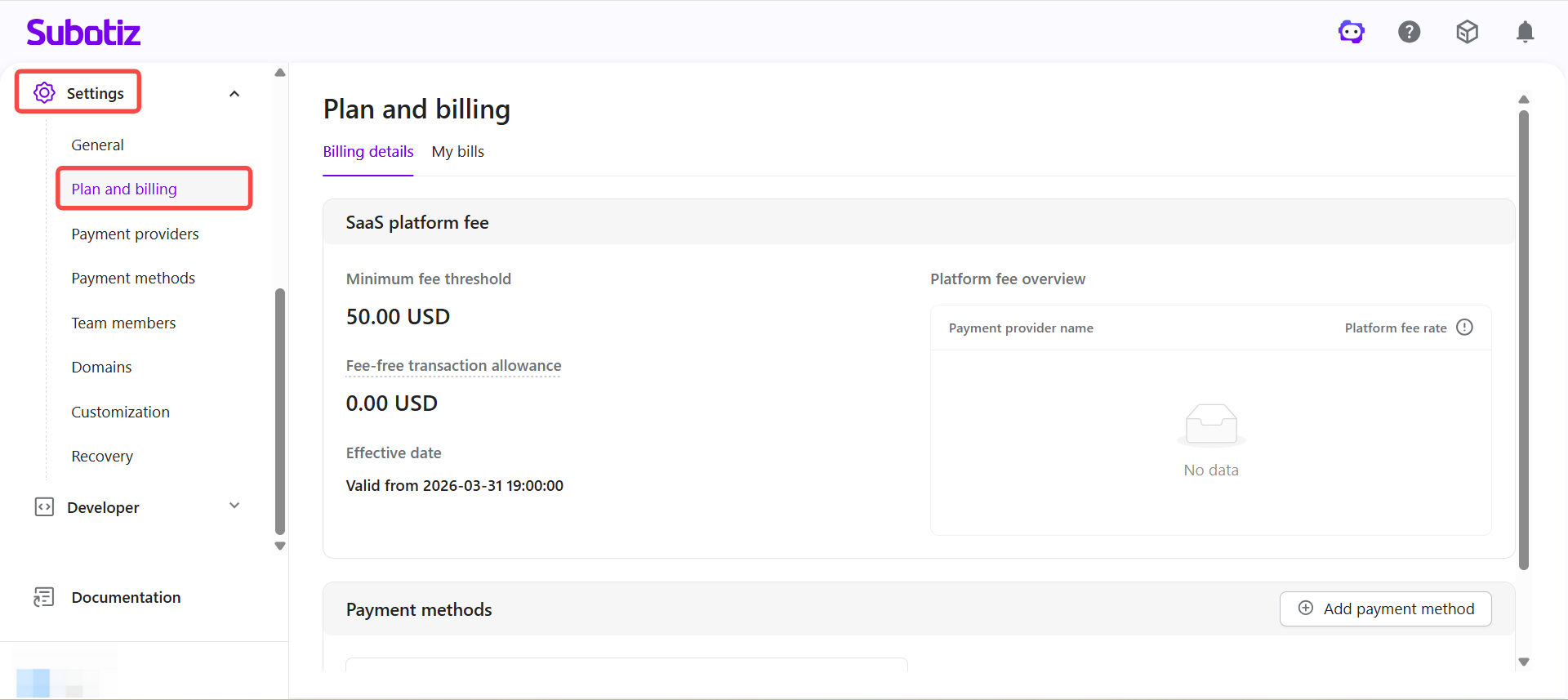
- Switch tabs: Click the My bills tab to view all invoices.
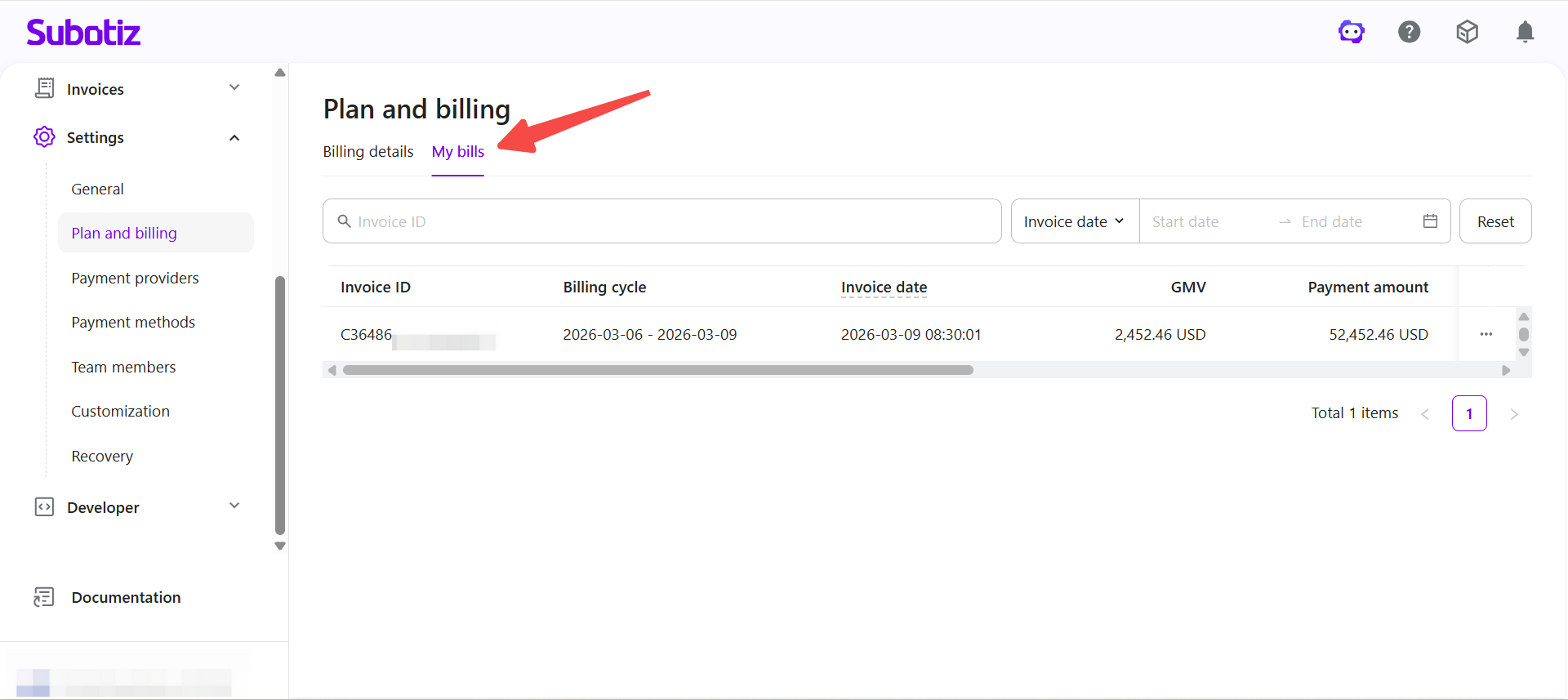
Understanding the Bill List
The My bills page displays all generated invoices in a list. Each invoice includes the following fields:
Field | Description |
|---|---|
Invoice ID | Unique identifier used for search and reference |
Billing cycle | Date range covered by the invoice |
Invoice date | Timestamp when the invoice was generated |
GMV | Total transaction volume within the billing cycle (USD) |
Payment amount | Total payment amount within the billing cycle (USD) |
Refund amount | Total refunded amount within the billing cycle (USD) |
Total platform fee | Total platform fee due for the invoice (USD) |
Commission payment time | Time when the charge was successfully processed; blank if unpaid |
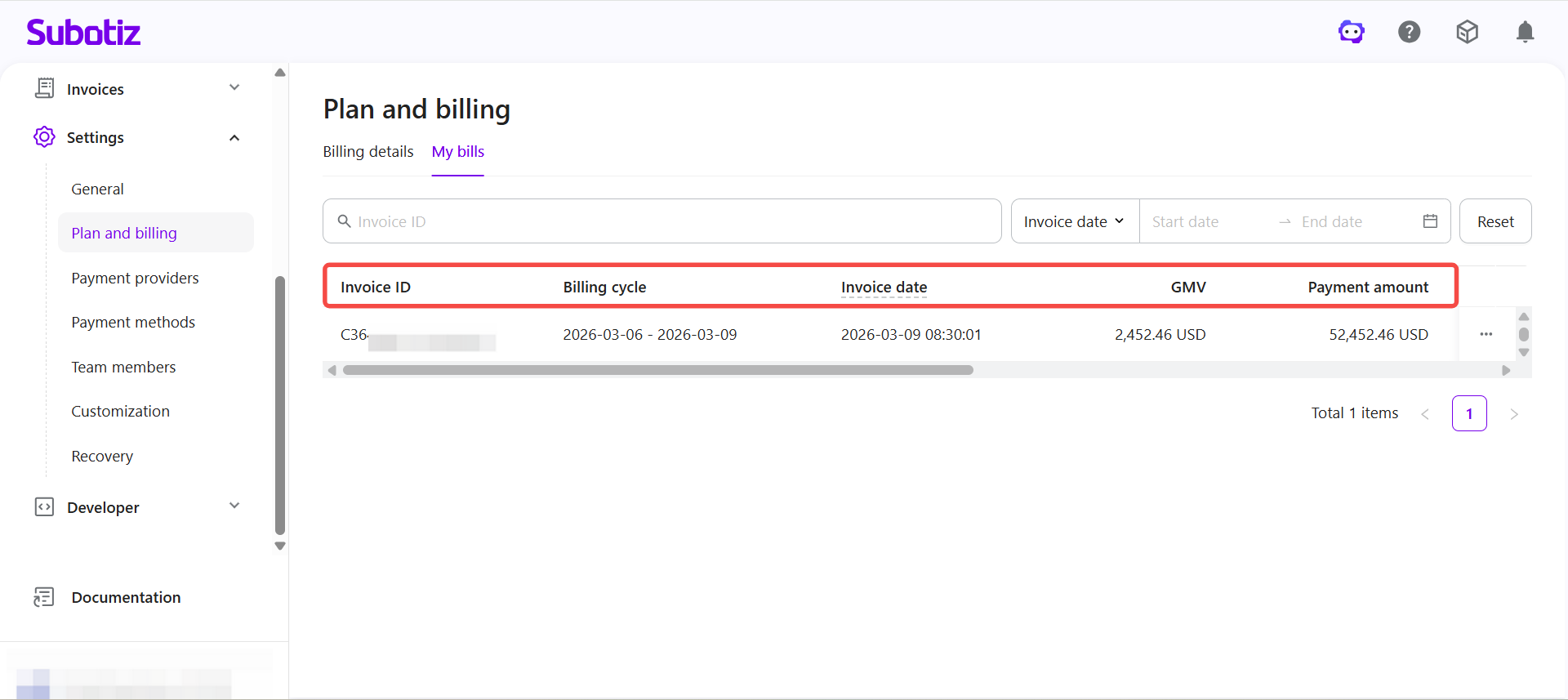
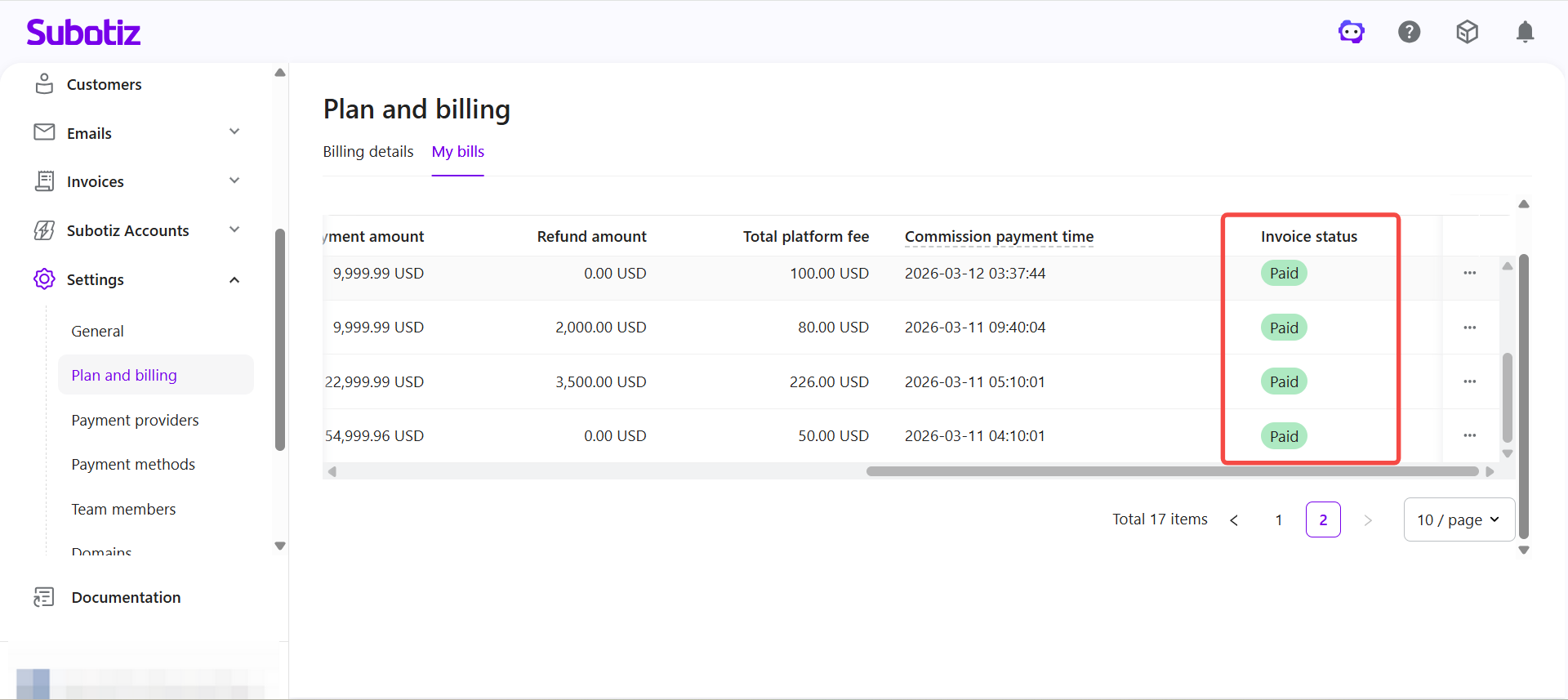
Invoice status | Current processing status of the invoice |
Understanding Invoice Status
Invoice status indicates the current stage of the billing process.
- Processing: The charge is being processed and has not yet completed.
- Paid: The invoice has been successfully charged and settled.
- Failed: The charge was unsuccessful. Review your payment method or account status.
Retry handling: If a charge fails, the system may retry automatically and send a notification via in-app message.
Viewing Platform Fee Details
Review the transaction-level breakdown for each invoice.
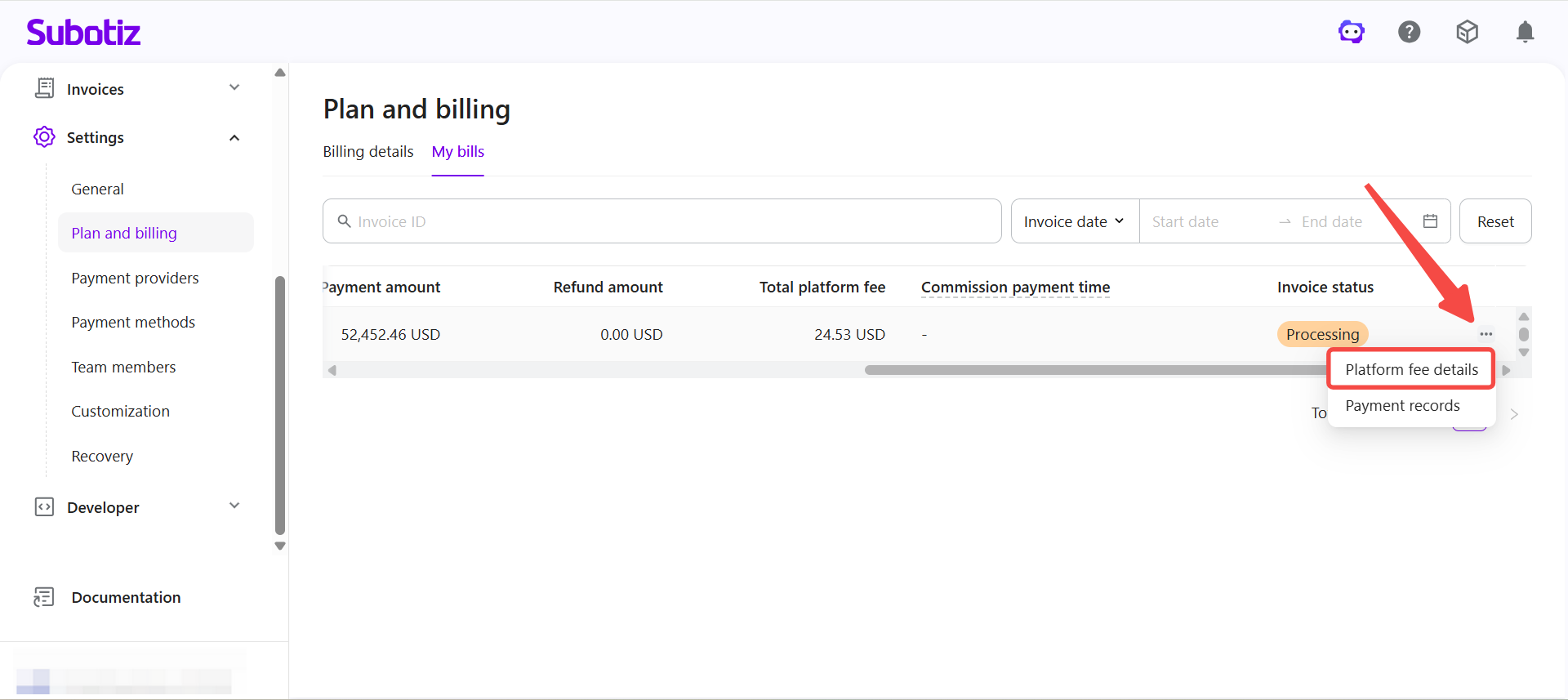
- Open the details: Click More (...) > Platform fee details.
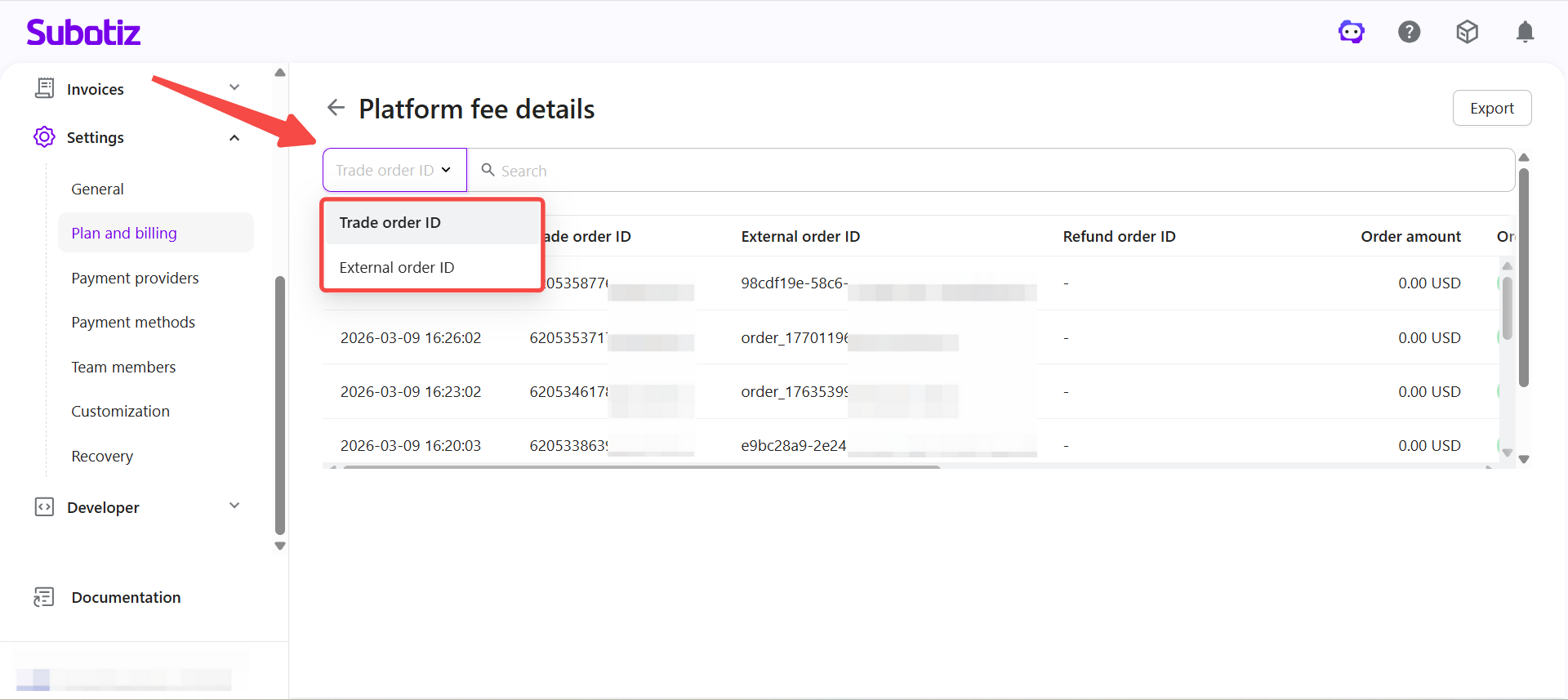
- Search records: Select Trade order ID or External order ID from the dropdown, then enter a value to filter results.
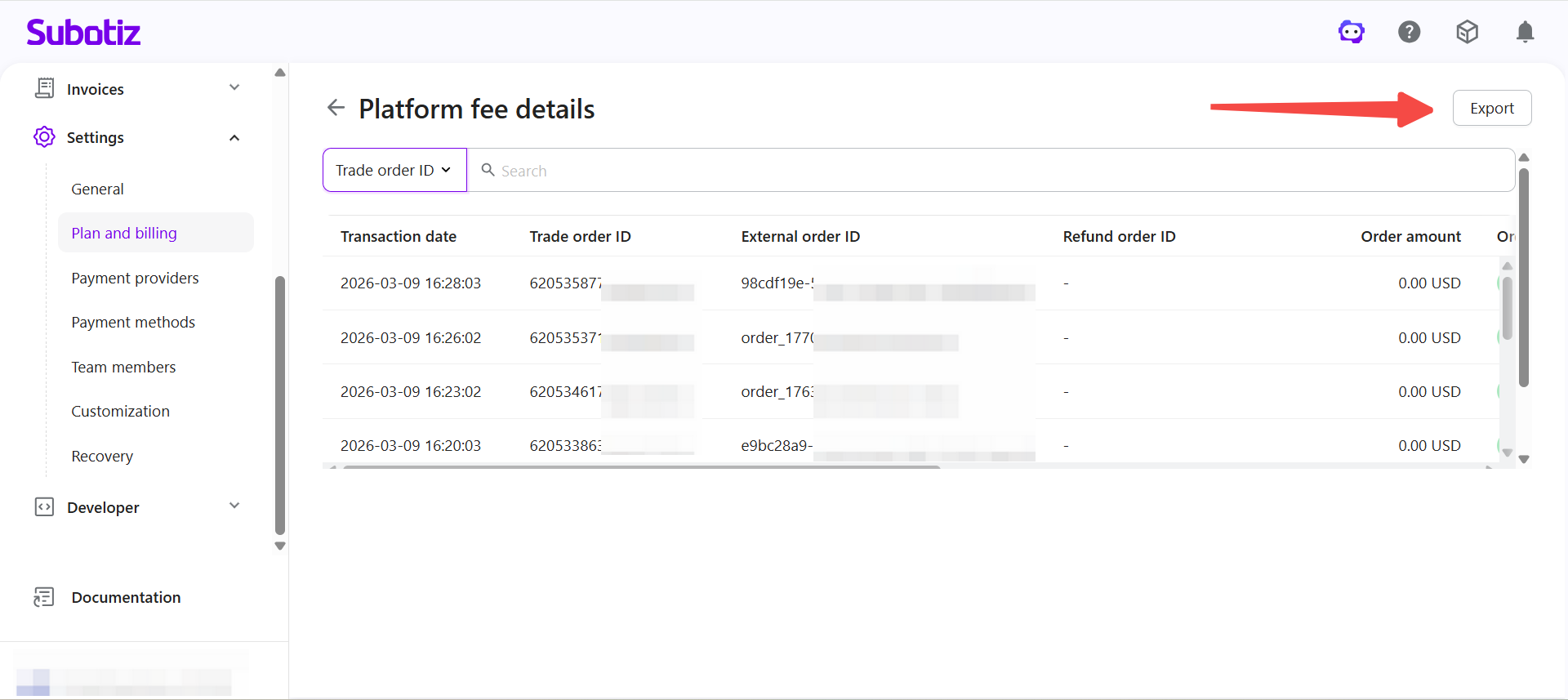
- Review field details: The page displays all transactions included in the invoice.
Field | Description |
|---|---|
Transaction date | Time the transaction was completed |
Trade order ID | Unique platform transaction identifier |
External order ID | Order number from the merchant's system |
Refund order ID | Refund identifier; blank if no refund |
Order amount | Amount paid by the customer, including currency |
Order type | Payment or Refund |
Payment provider | Payment channel used |
Payment method | Specific payment method used |
Platform fee rate | Applicable fee rate |
Platform fee | Actual fee amount deducted (USD) |
Transaction amount | Amount converted to USD at the real-time exchange rate |
Exporting Platform Fee Details
Export transaction-level records for reconciliation.
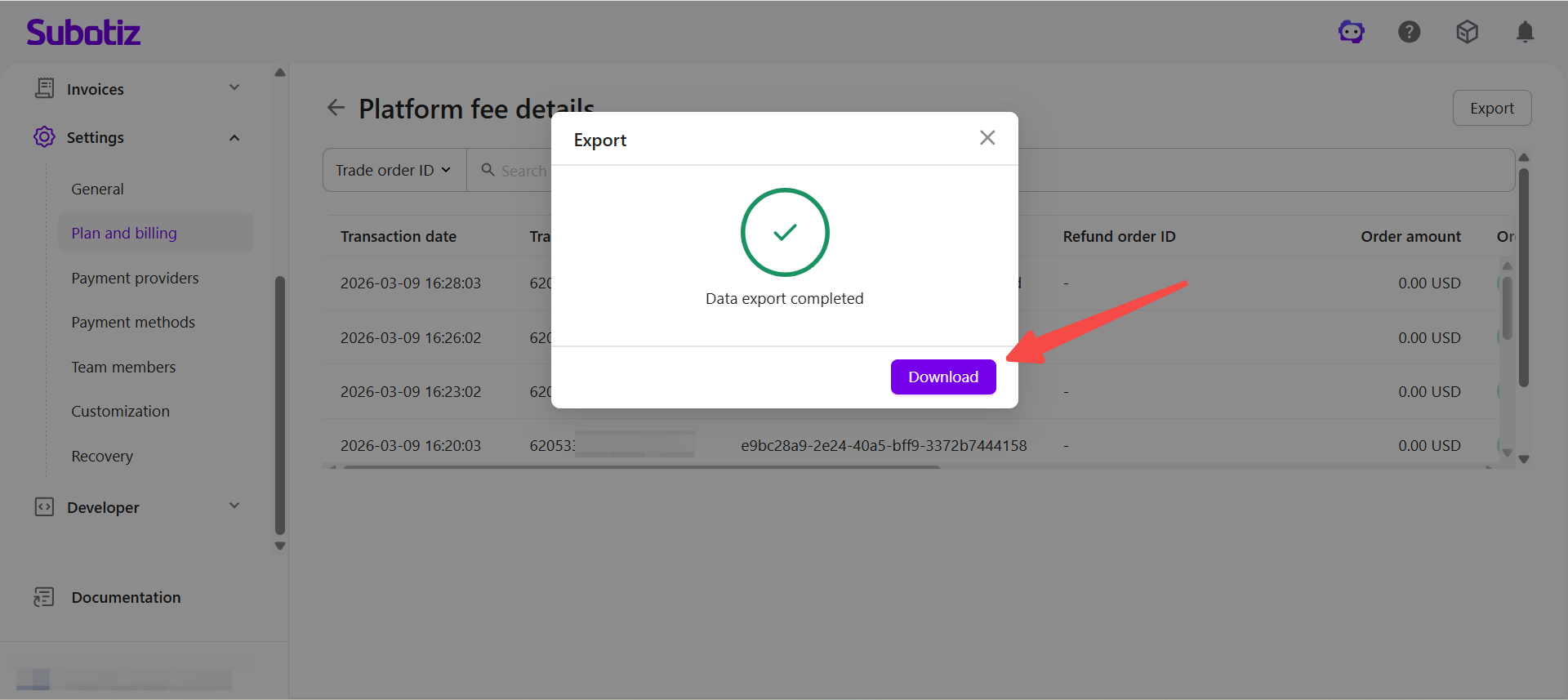
- Click Export: On the Platform fee details page, click Export in the top right.
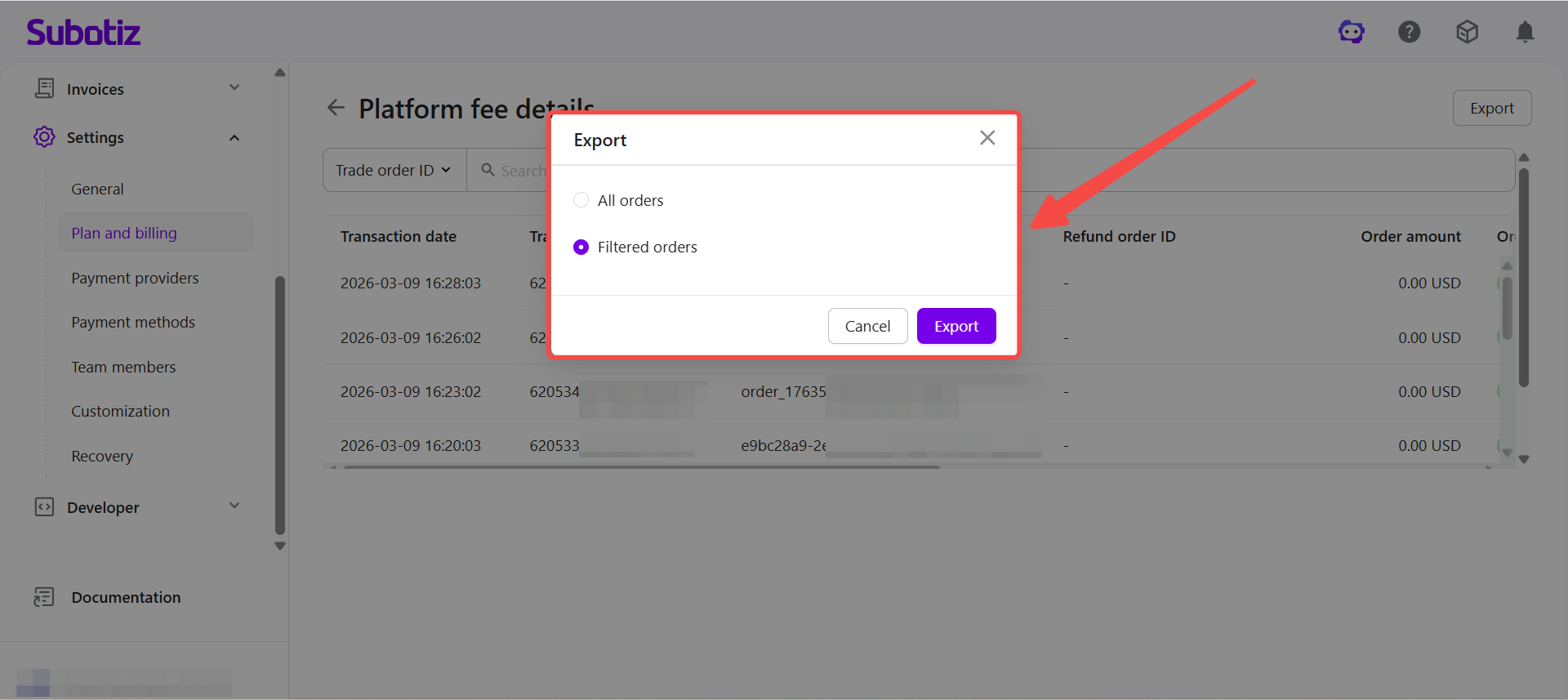
- Select export scope: Choose All orders or Filtered orders.
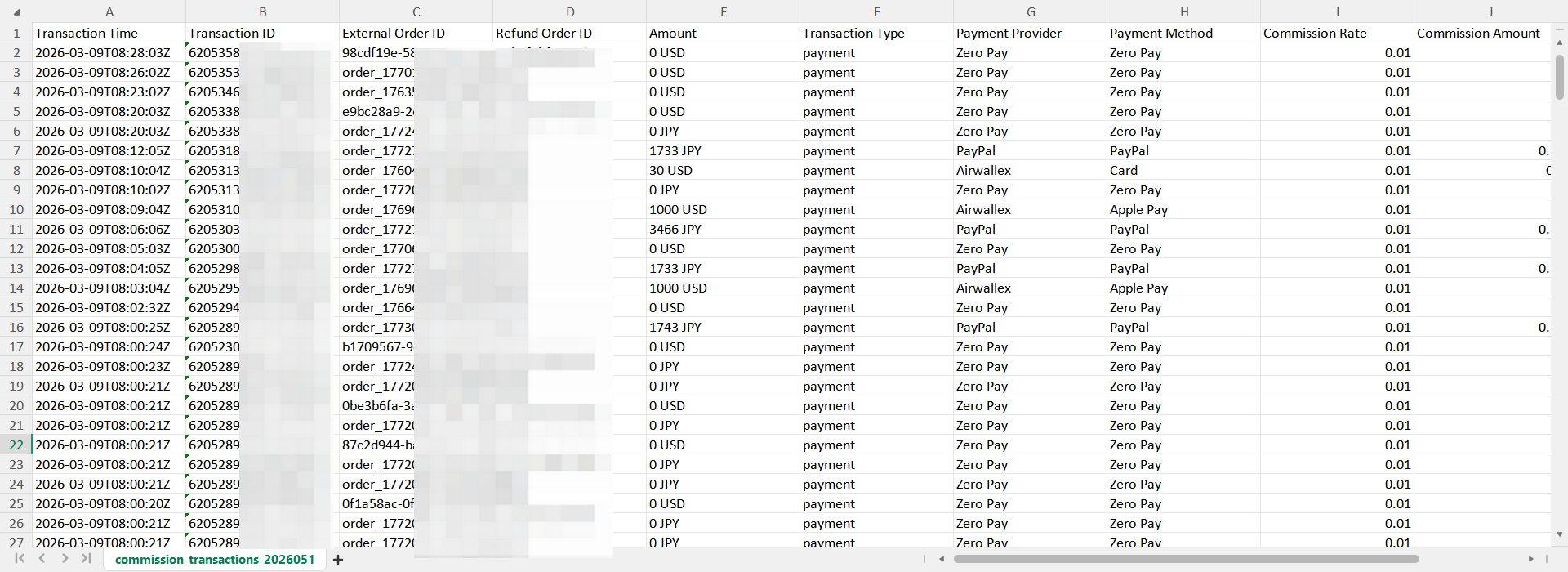
- Download the file: Once generated, click Download to save the CSV file locally.
Downloading an Invoice
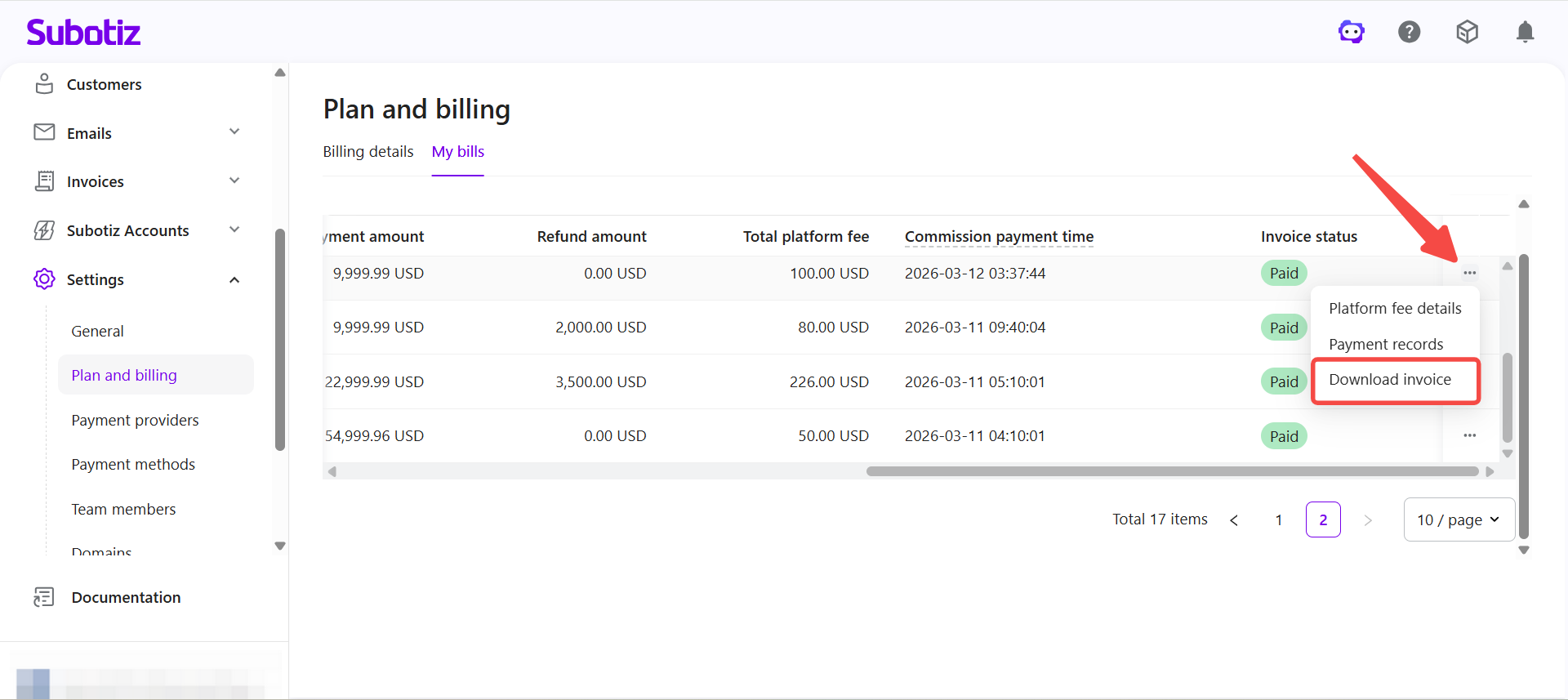
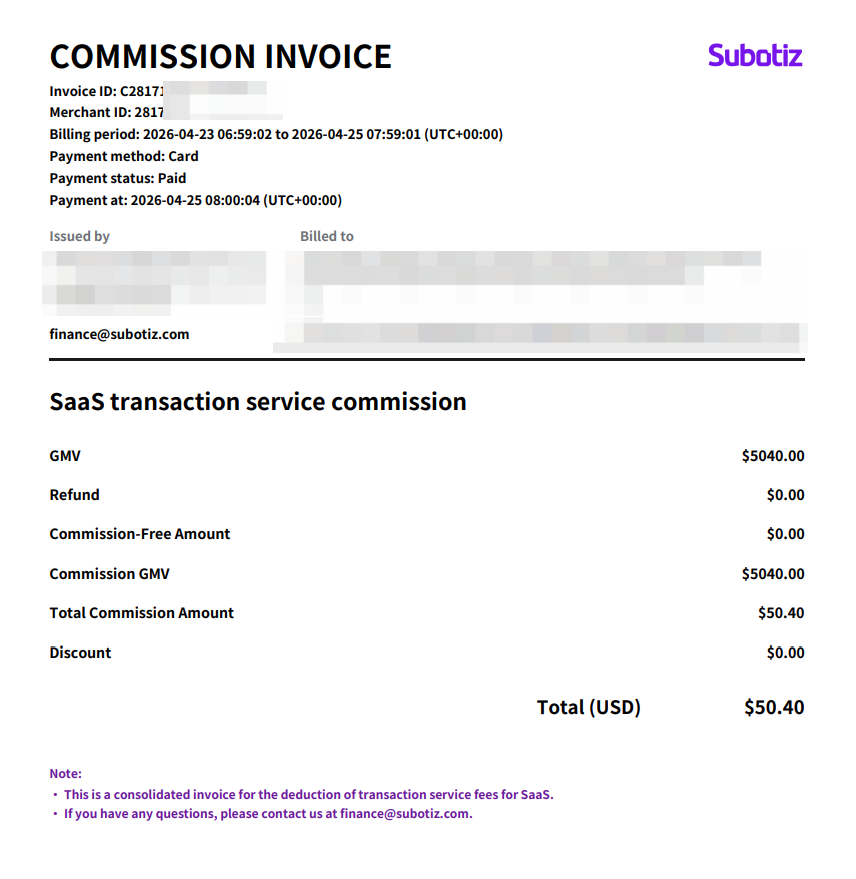
Download the invoice file after successful payment for recordkeeping or accounting use.
A downloadable invoice is available once the charge has been successfully completed. This option appears only when the invoice status is Paid. Invoices with outstanding payments do not display this option.
- Open the bill list: Go to Settings > Plan and billing, then click the My bills tab.
- Locate a paid invoice: Find an invoice with the status Paid.
- Download the invoice: Click More (...) on the invoice row and select Download invoice. The file will download directly to your device.
Viewing Payment Records
Review the full charge history for each invoice, including retry attempts.
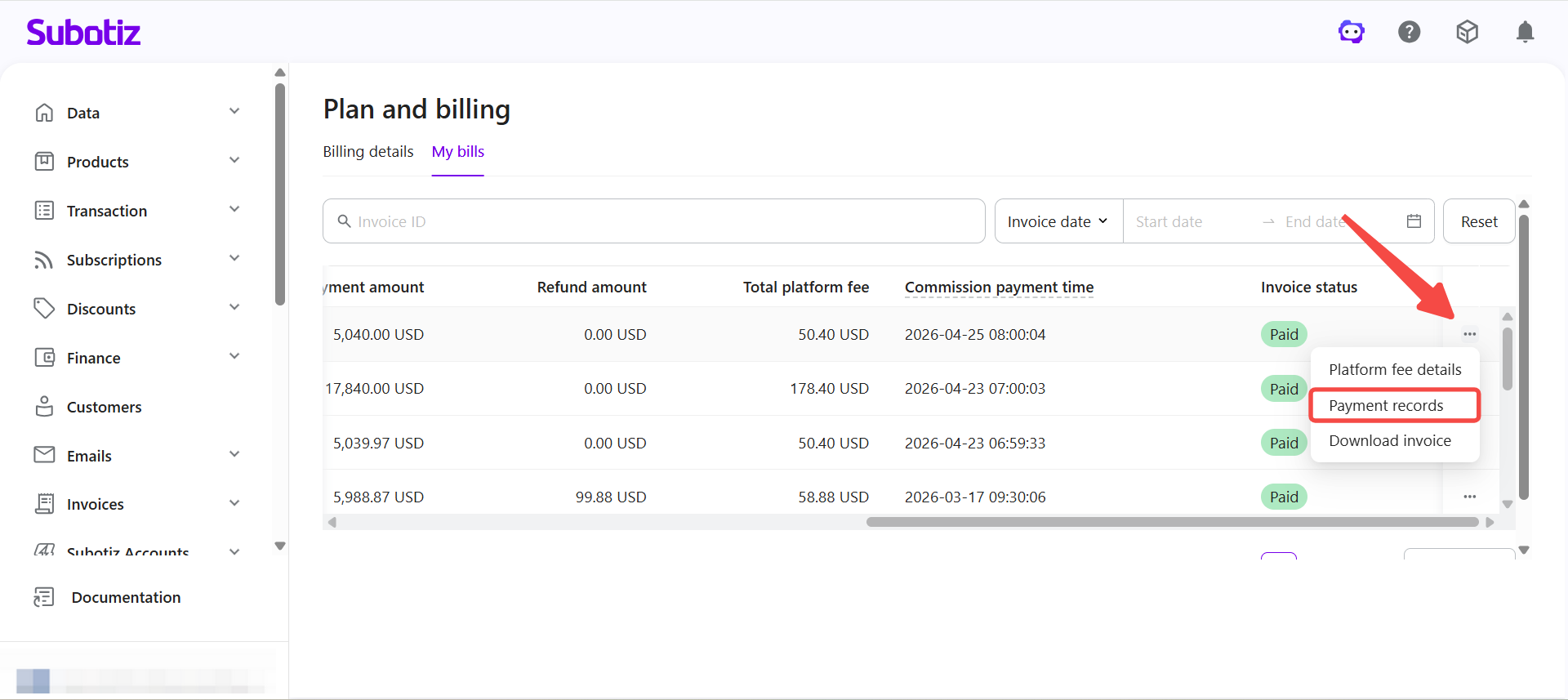
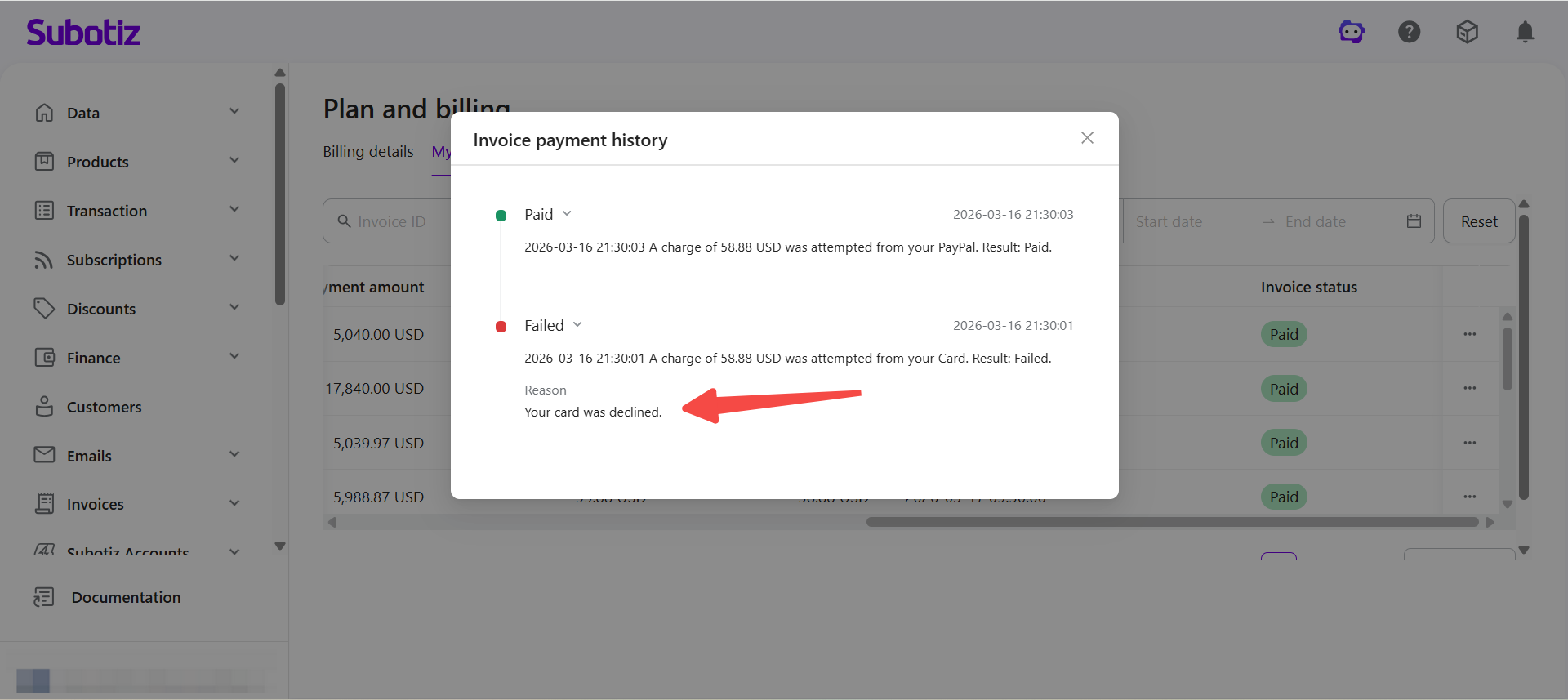
- Open the records: Click More (...) > Payment records.
- Review history: The Invoice payment history panel displays each charge attempt, including time, payment method, and result.
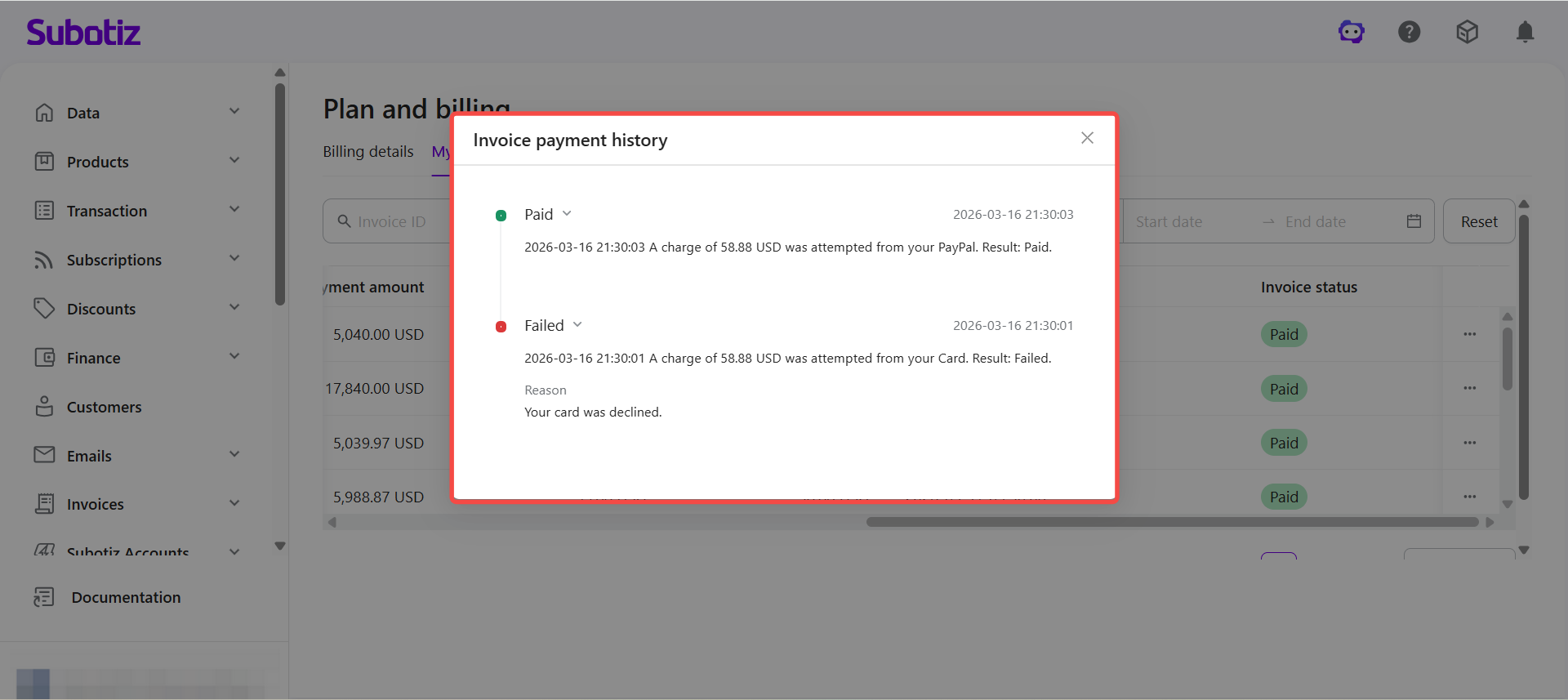
- Identify failures: Failed attempts include specific error messages for troubleshooting.
Best Practices
- Reconcile regularly: Review invoice amounts and transaction data to confirm billing accuracy.
- Export for accounting: Use exported data to match internal financial records.
- Monitor payment status: Resolve failed charges promptly to avoid account restrictions.
- Check payment records first: Use Payment records to identify the root cause of failed charges.
The My bills page provides a centralized view of invoices, platform fee details, and payment records. With built-in export and tracking capabilities, merchants can efficiently manage billing, reconcile transactions, and maintain stable financial operations.