The Transfer Store Ownership feature in Subotiz enables secure store ownership transfer to another user within the same account. This feature supports business handovers, partner management, and organizational changes, ensuring a smooth transition of store control while maintaining data security and access control.
Initiate a Transfer
Only the store owner can initiate a transfer.
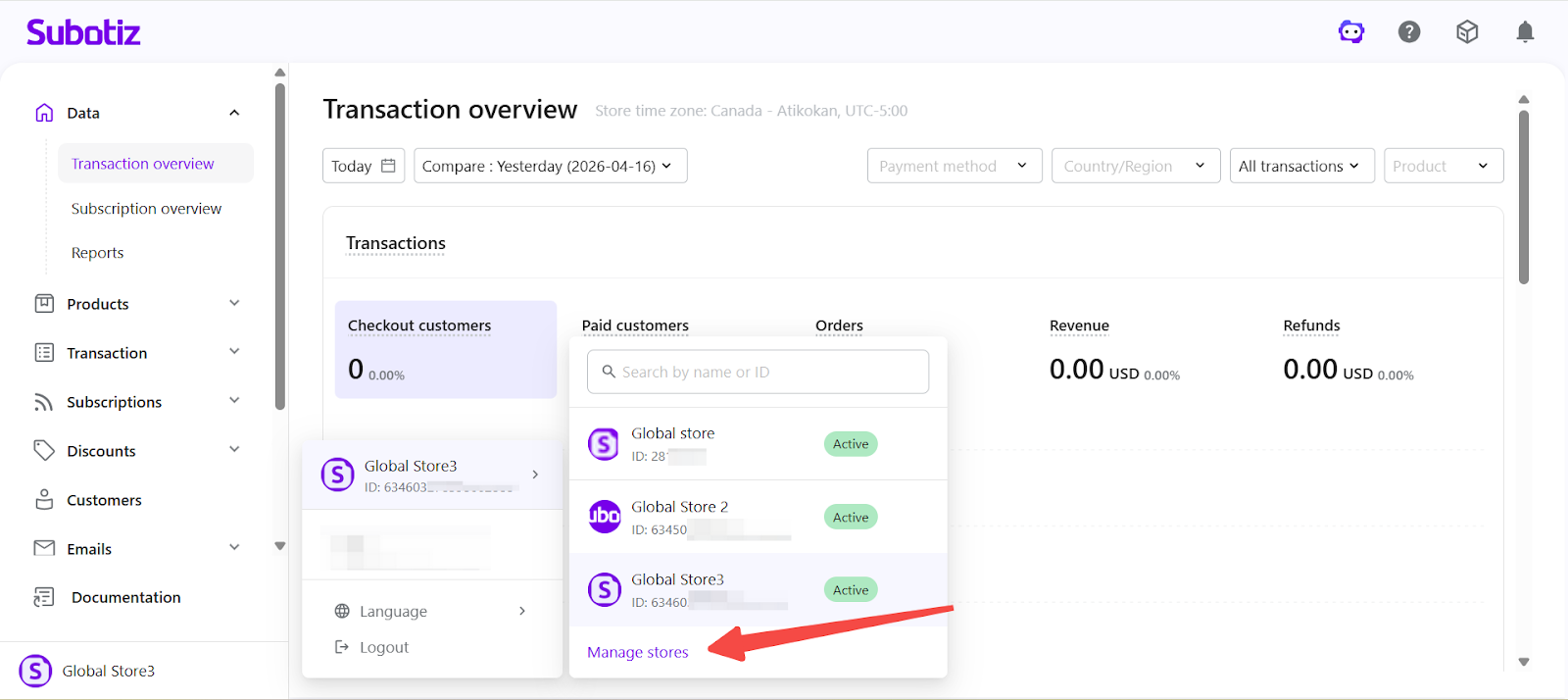
- Open the management page: Click Manage stores from the store panel.
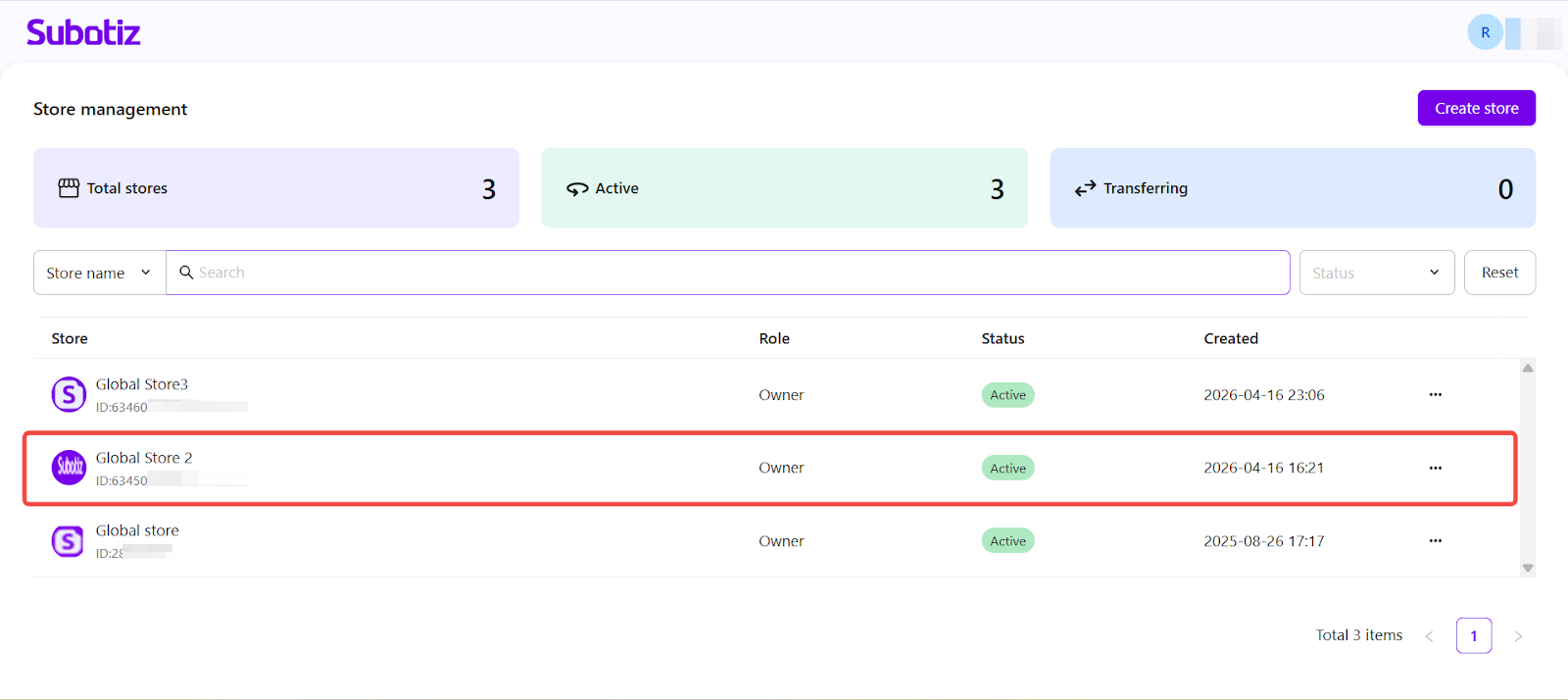
- Select the target store: Locate the store to be transferred from the list.
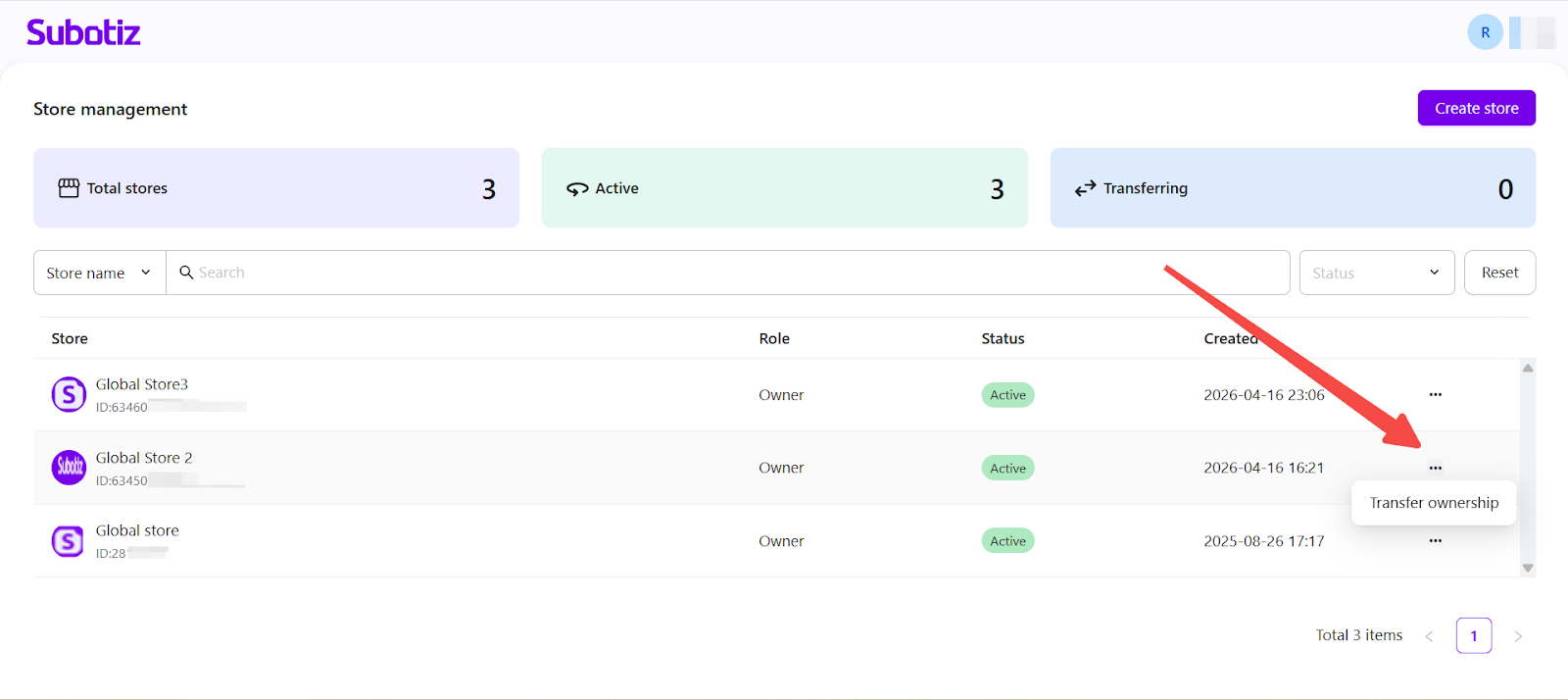
- Start the transfer: Click the action menu (⋯) for the selected store and choose Transfer ownership.
Enter Transfer Details
Provide recipient details and submit the transfer request.
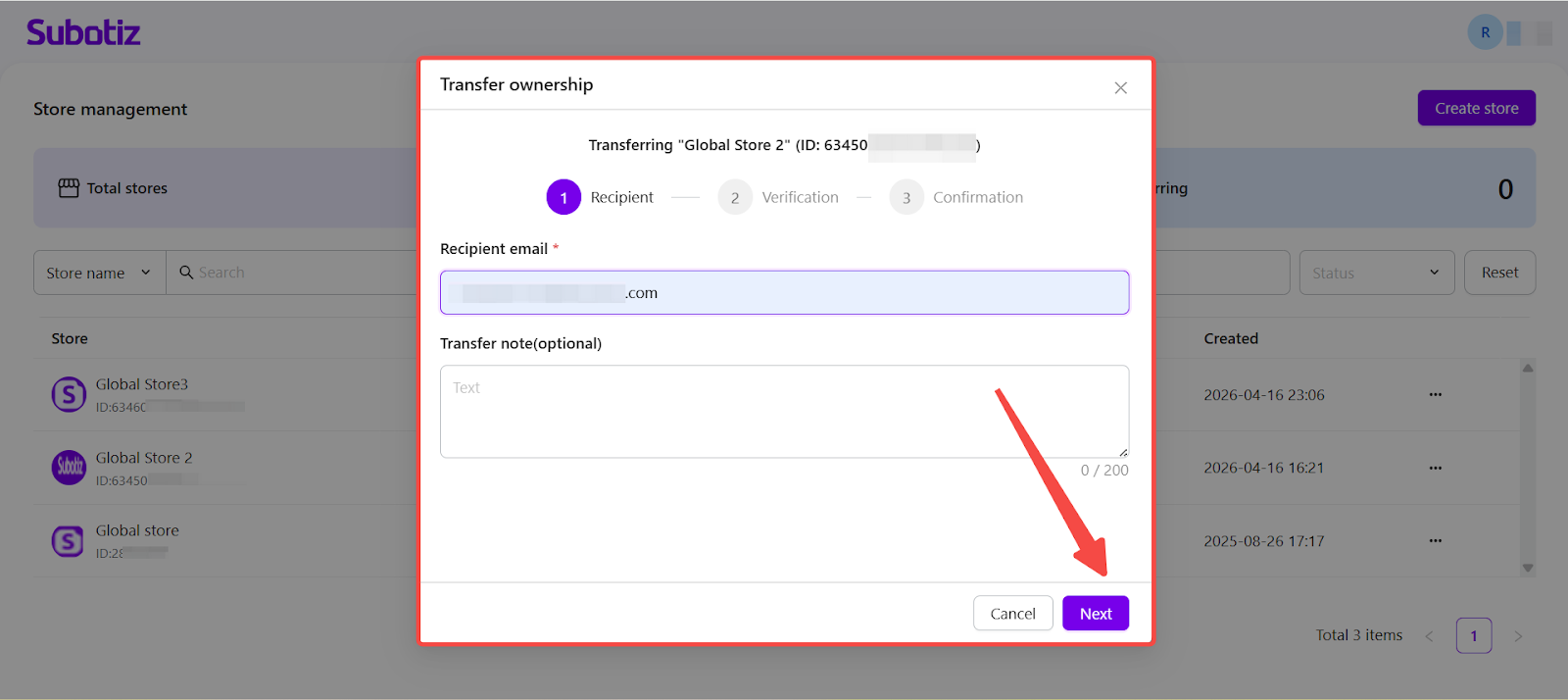
- Enter recipient details:
- Recipient email: Enter the recipient’s email address.
- Transfer note (optional): Add any relevant notes.
Note: The recipient email must be different from the current account email.
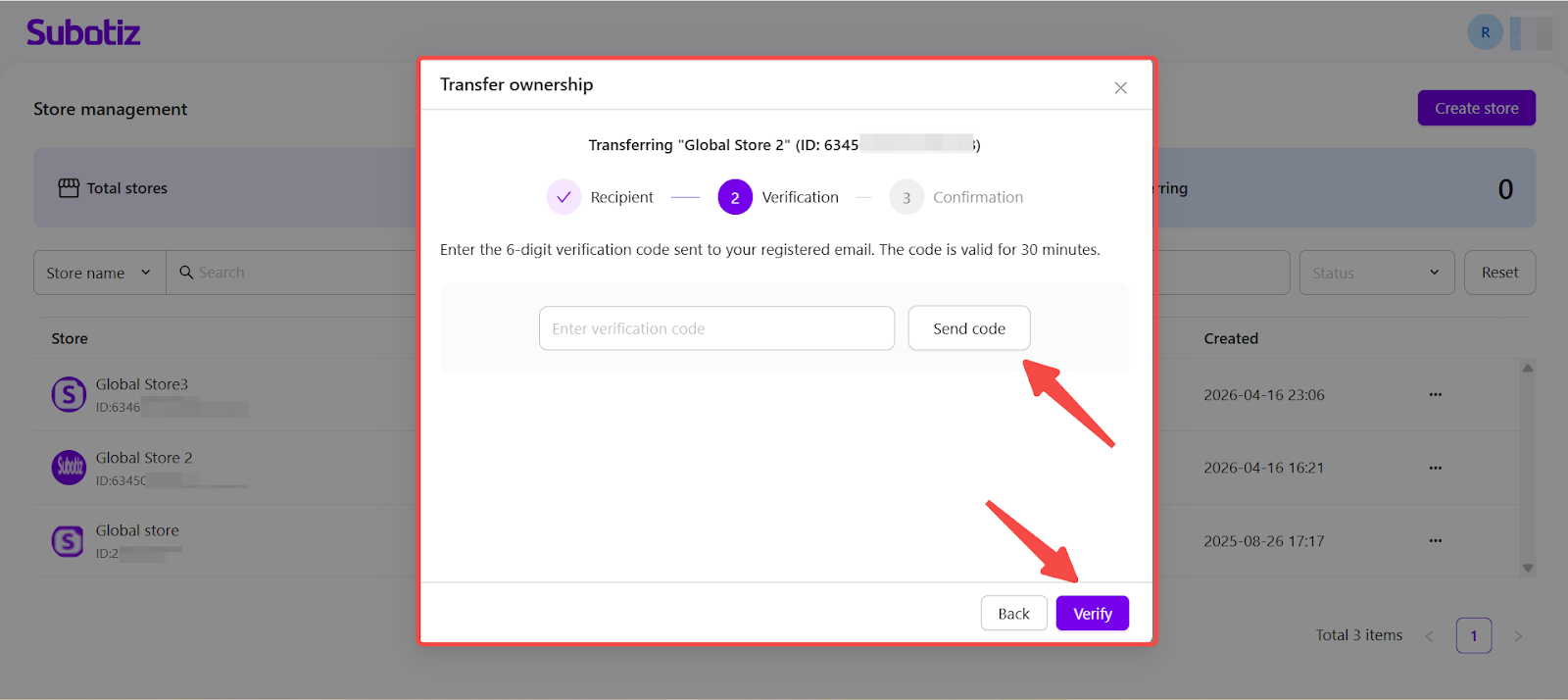
- Verify identity:
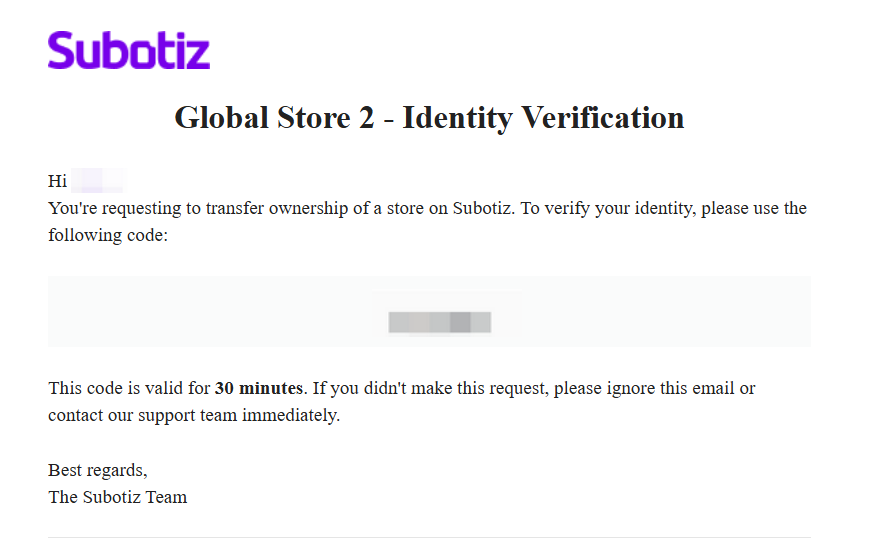
- Send code: Click Send code to receive a 6-digit verification code via email.
- Enter code: Input the verification code.
- Verify: Click Verify to complete verification.
Note: The verification code is valid for 30 minutes, and a new code can be requested after 60 seconds.
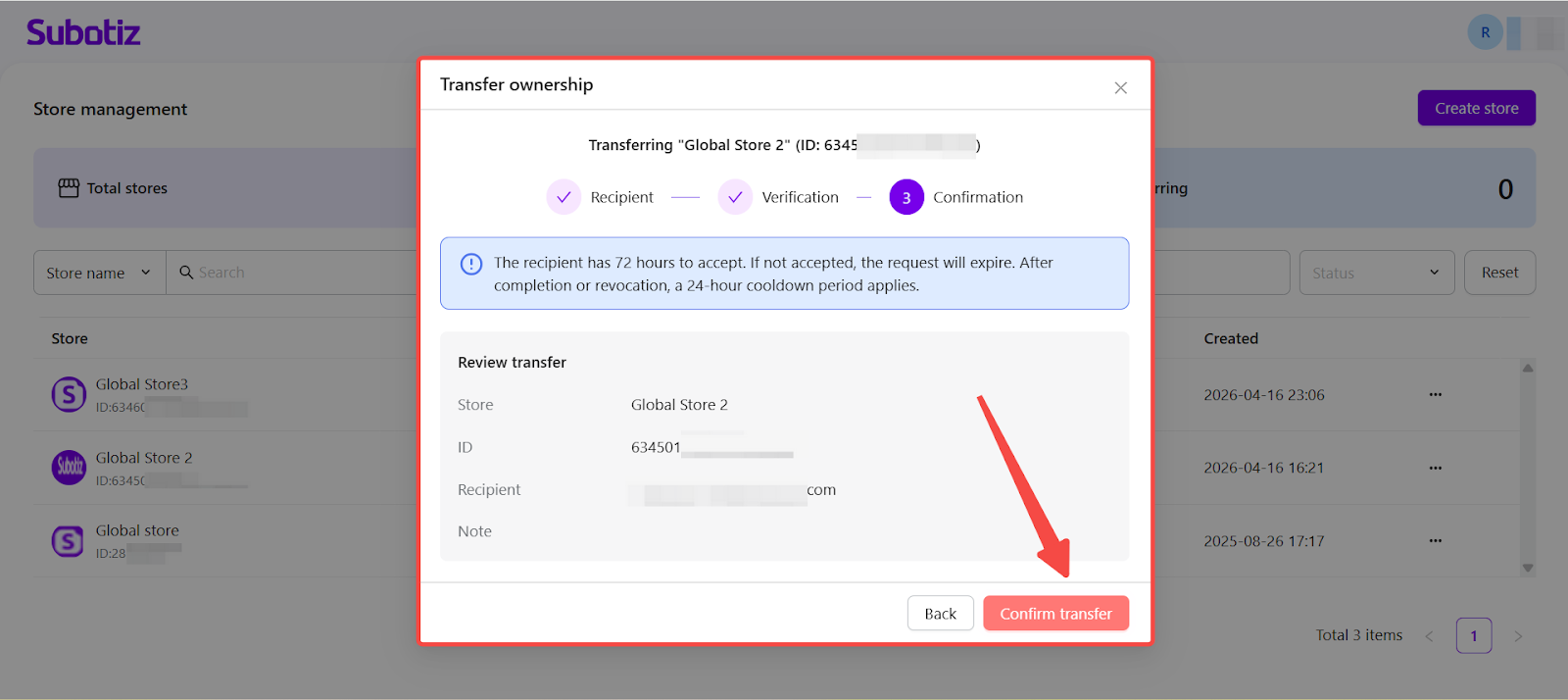
- Submit the transfer: Review the transfer details, then submit the request.
- Review details: Store name, Store ID, recipient email, and transfer note.
Note:
- The recipient must accept the transfer within 72 hours, or the request will expire.
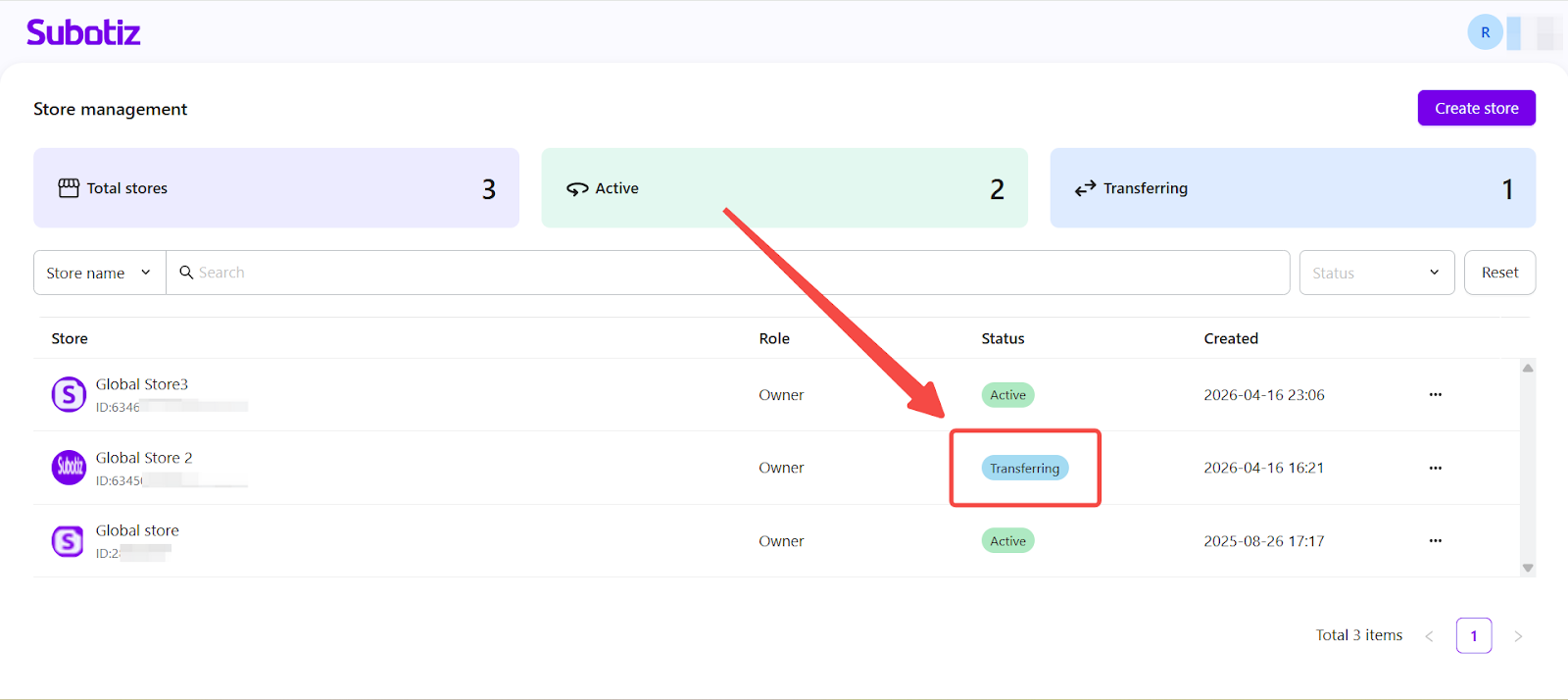
- Check transfer status: After submission, the store status changes to Transferring.
Accept a Transfer
The recipient must complete the transfer to take ownership.
- Receive notification: An email with transfer details is sent to the recipient.
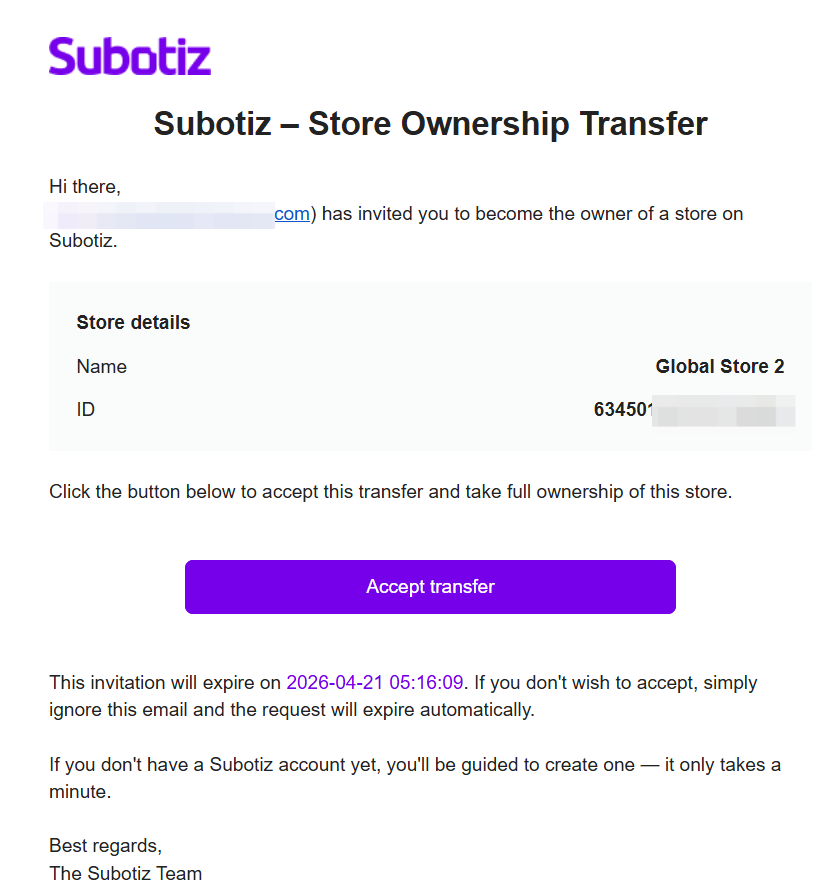
- Accept the transfer: Click Accept transfer in the email to open the transfer confirmation page.
- Complete the transfer: Follow the on-screen instructions to complete the process.
- New users: Account registration is required before accessing the store.
- Existing users: The transferred store appears in the account and can be accessed immediately after completion.
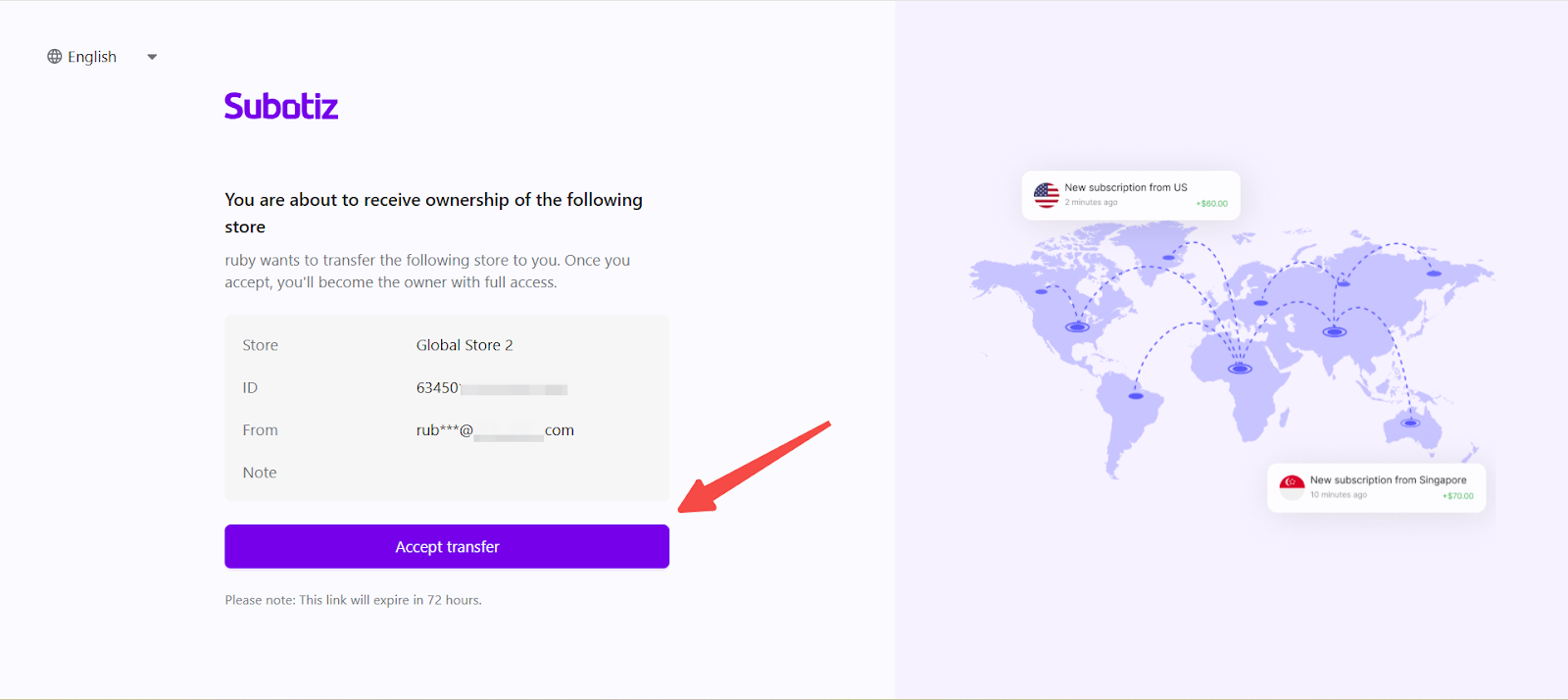
Transfer Completion
Once the transfer is confirmed, ownership is updated automatically.
- Ownership updated: The recipient becomes the new store owner.
- Access removed: The previous owner is removed and no longer has access.
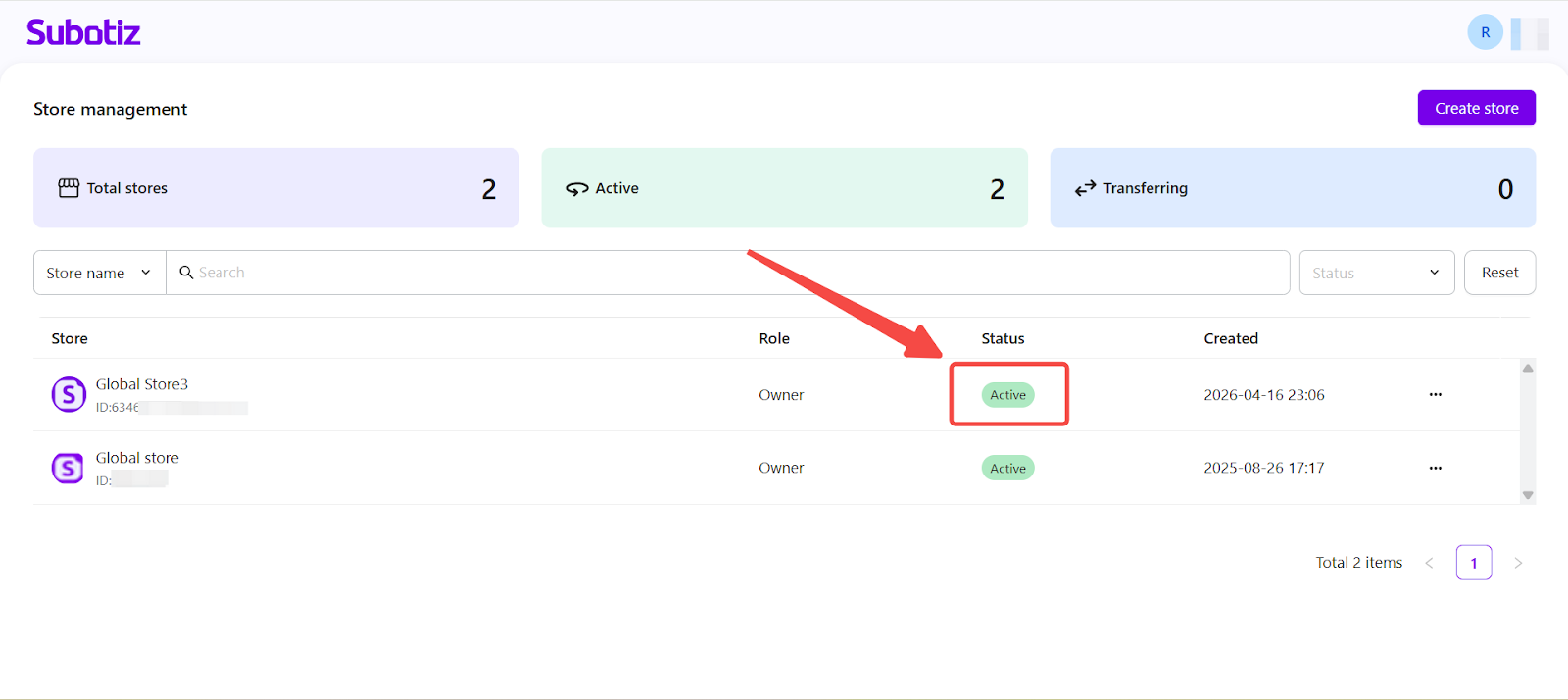
- Store reassigned: It appears in the recipient’s store list.
- Status updated: The store status changes from Transferring to Active.
Cancel a Transfer
A transfer can be canceled at any time before completion.
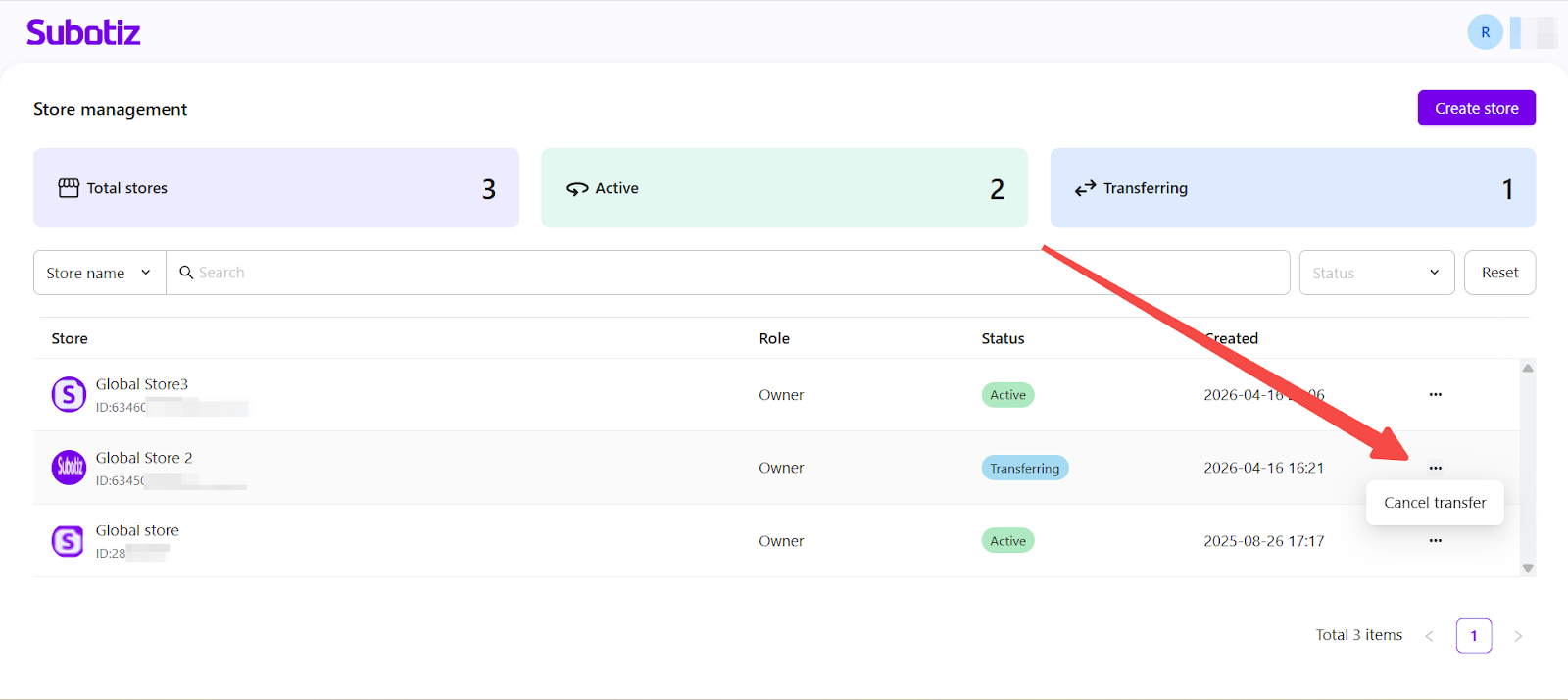
- Select the target store: In the store list, locate a store with the status Transferring and open the action menu (⋯), then click Cancel transfer.
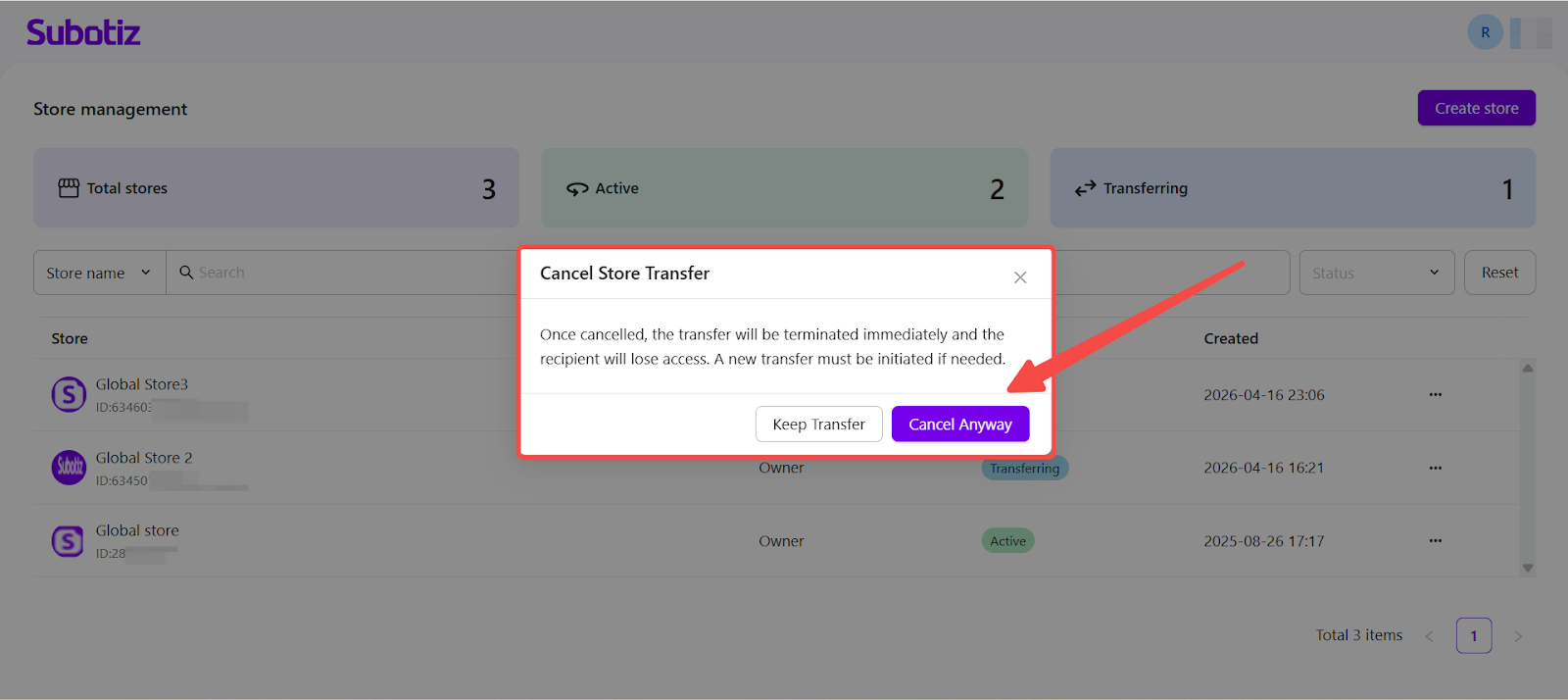
- Confirm the action: Click Confirm cancel in the pop-up.
After cancellation:
- The transfer process is stopped immediately.
- The recipient can no longer accept the transfer.
- A new transfer must be initiated if needed.
Important Notes
- Store limit: Up to 100 stores can be associated with a single account.
- Expiration: Transfer requests expire if not accepted within 72 hours.
- Cooldown: A store cannot be transferred again within 24 hours after completion.
The Transfer Store Ownership feature provides a secure and structured way to transfer control between users, supporting smooth business transitions while maintaining clear ownership and access boundaries.