The Store Ownership Transfer feature in Subotiz allows store owners to transfer ownership to another user while maintaining control over account access and store permissions. This feature supports business handovers, partner transitions, and organizational changes through a secure, structured process.
Initiating an Ownership Transfer
Only the current store owner can initiate an ownership transfer.
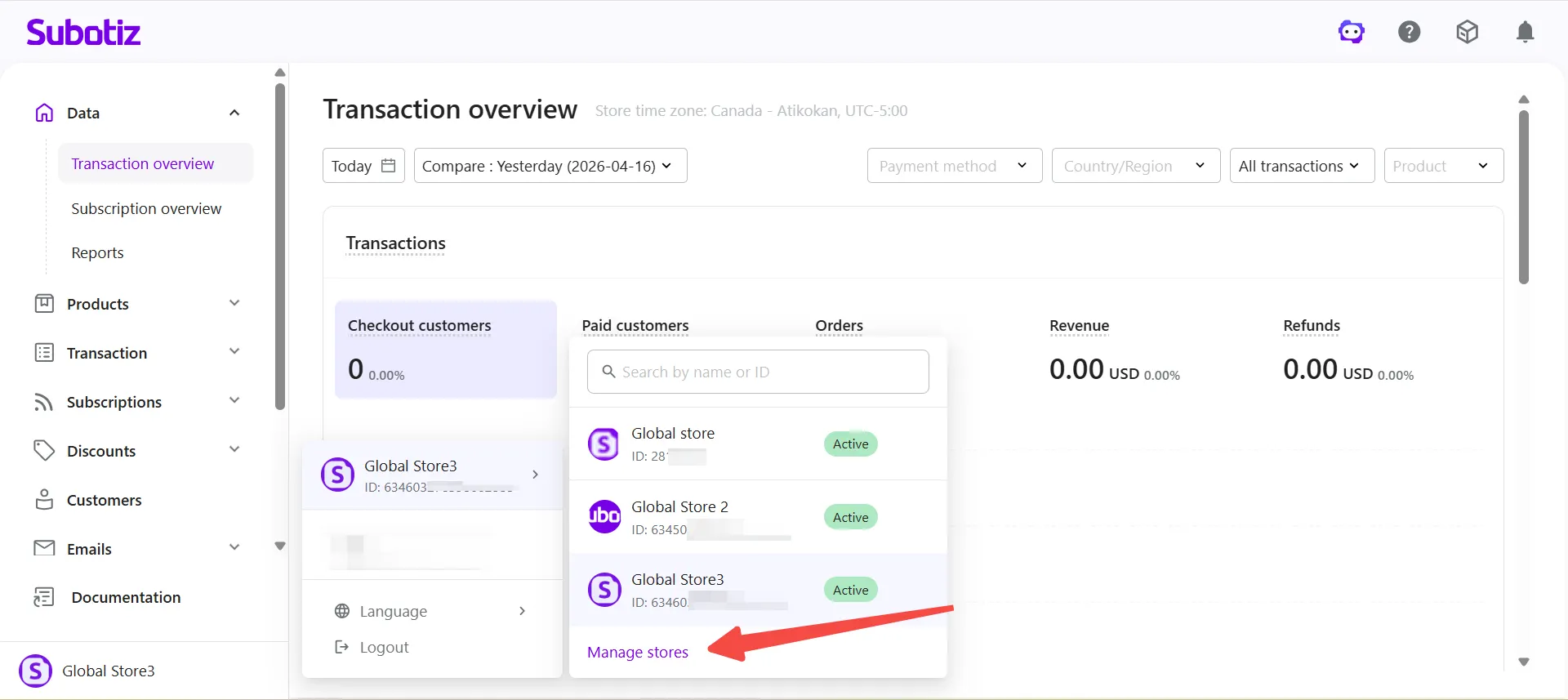
- Access Store Management: Click Manage stores in the store panel.
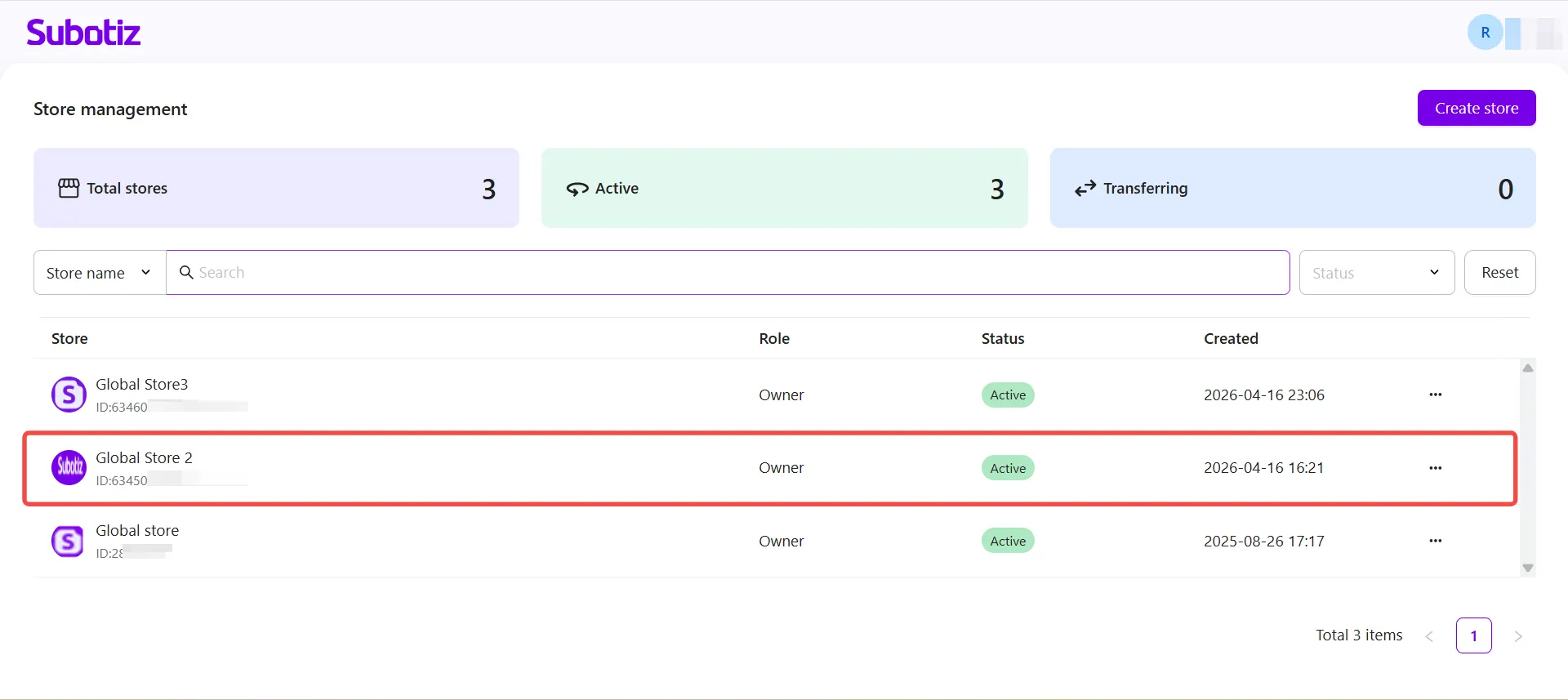
- Select a store: Locate the store to transfer in the store list.
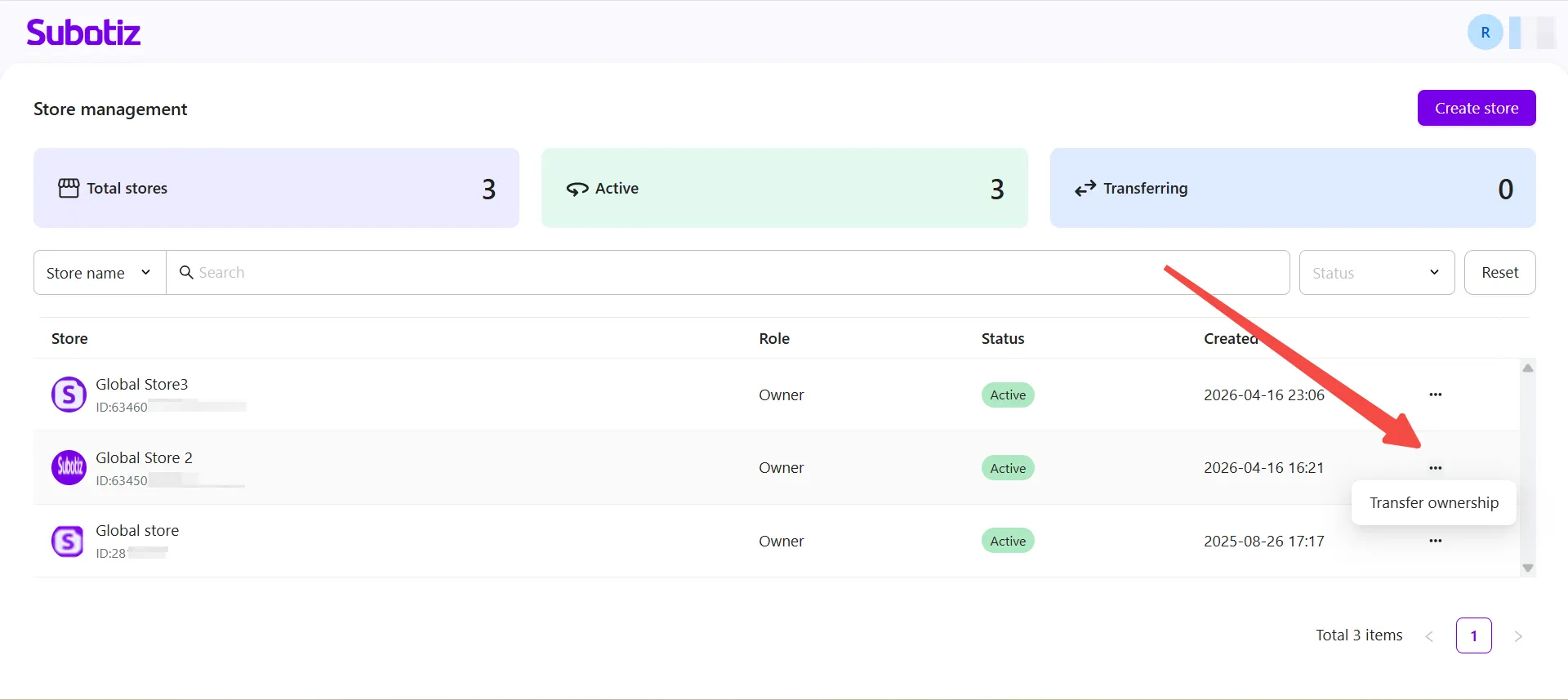
- Initiate the transfer: Open the action menu ⋯ for the selected store and select Transfer ownership.
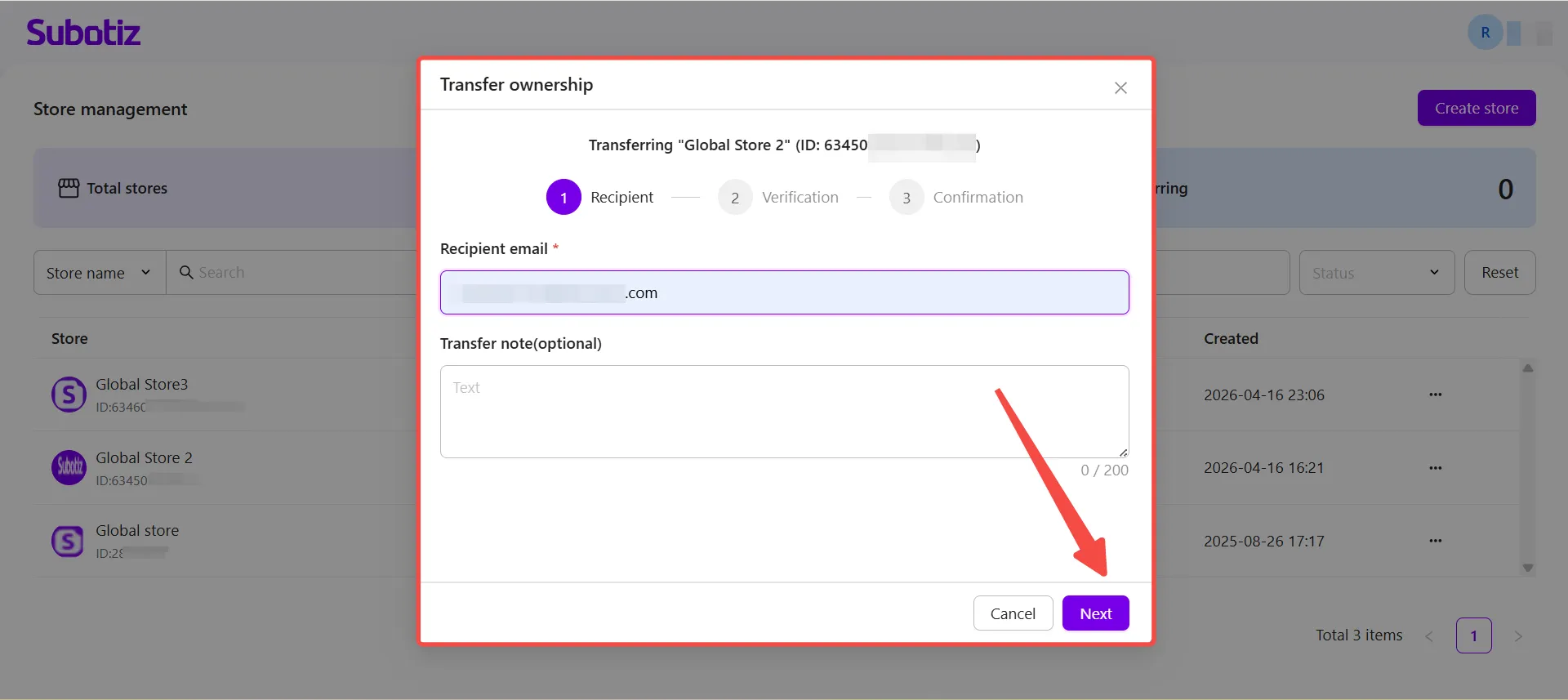
Entering Transfer Details
- Enter recipient information: Complete the following fields:
- Recipient email: Enter the email address of the new store owner.
- Transfer note: Optional. Add relevant information about the transfer.
Note: The recipient's email address must be different from the current account email address.
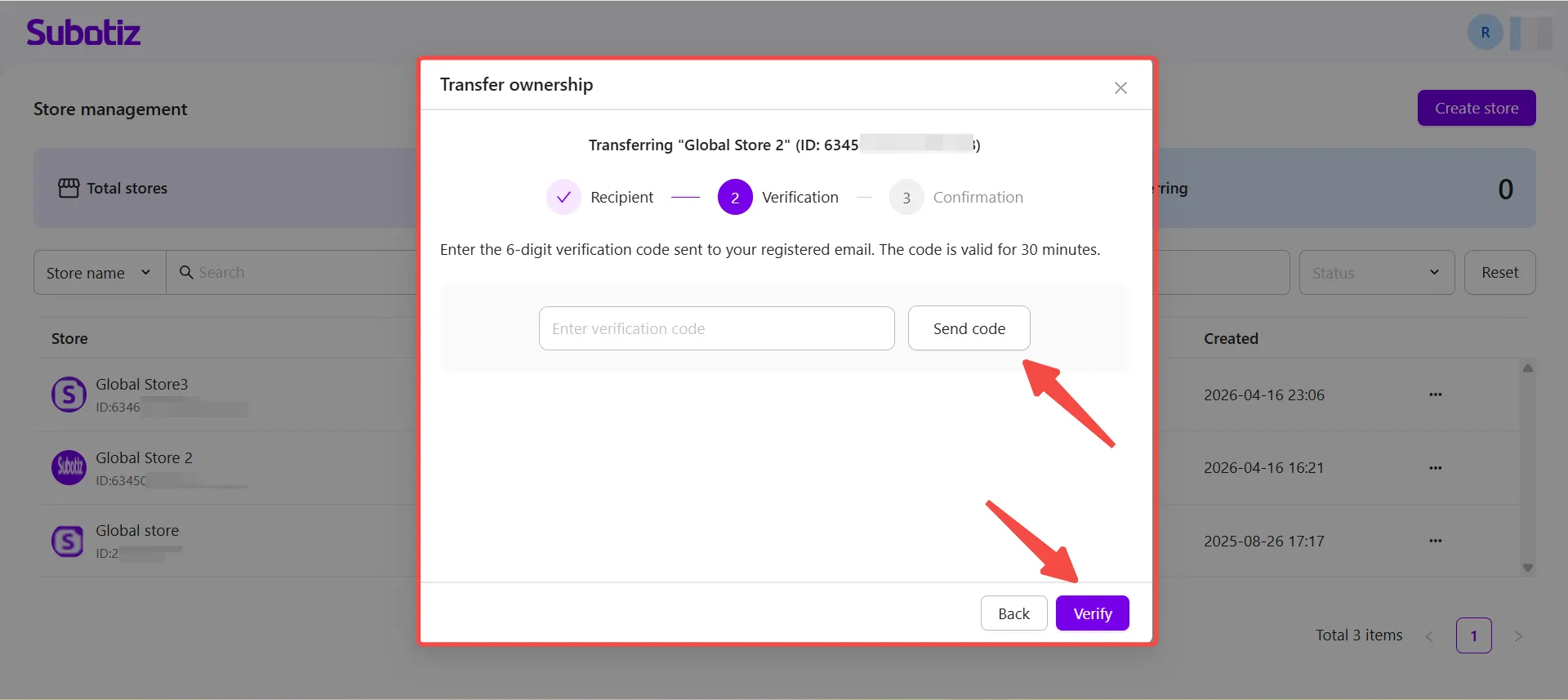
- Verify identity: Complete email verification to authorize the transfer.
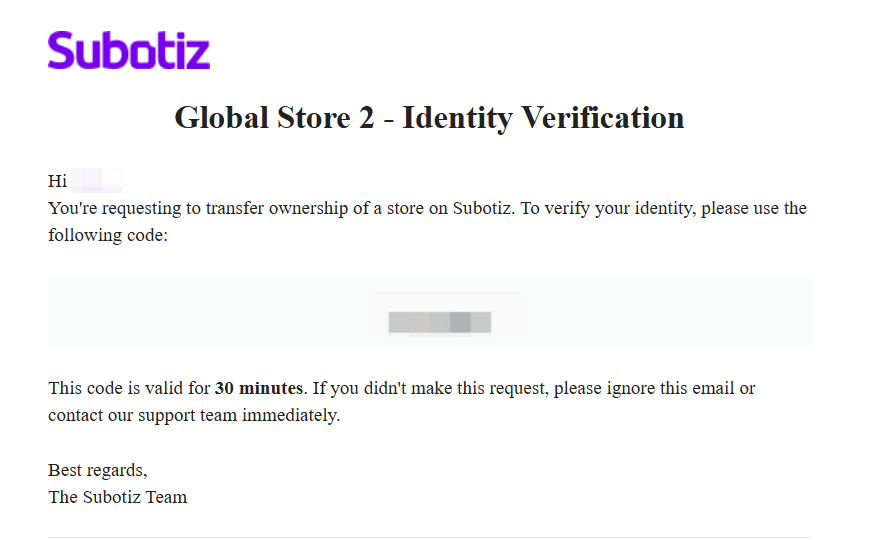
- Send code: Click Send code to receive a six-digit verification code by email.
- Enter code: Enter the verification code.
- Complete verification: Click Verify.
Note: The verification code remains valid for 30 minutes. A new code can be requested after 60 seconds.
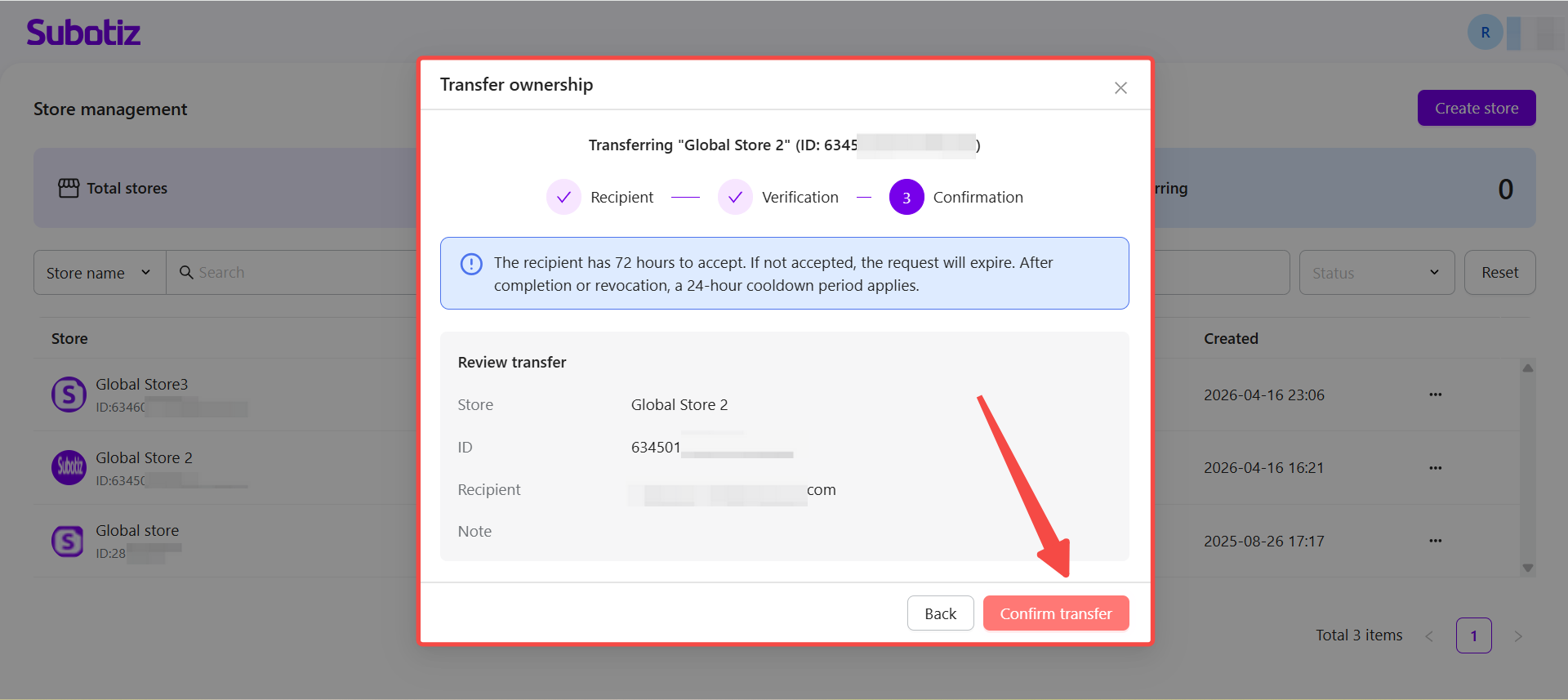
- Submit the transfer: Review the store name, Store ID, recipient email, and transfer note, then submit the transfer request.
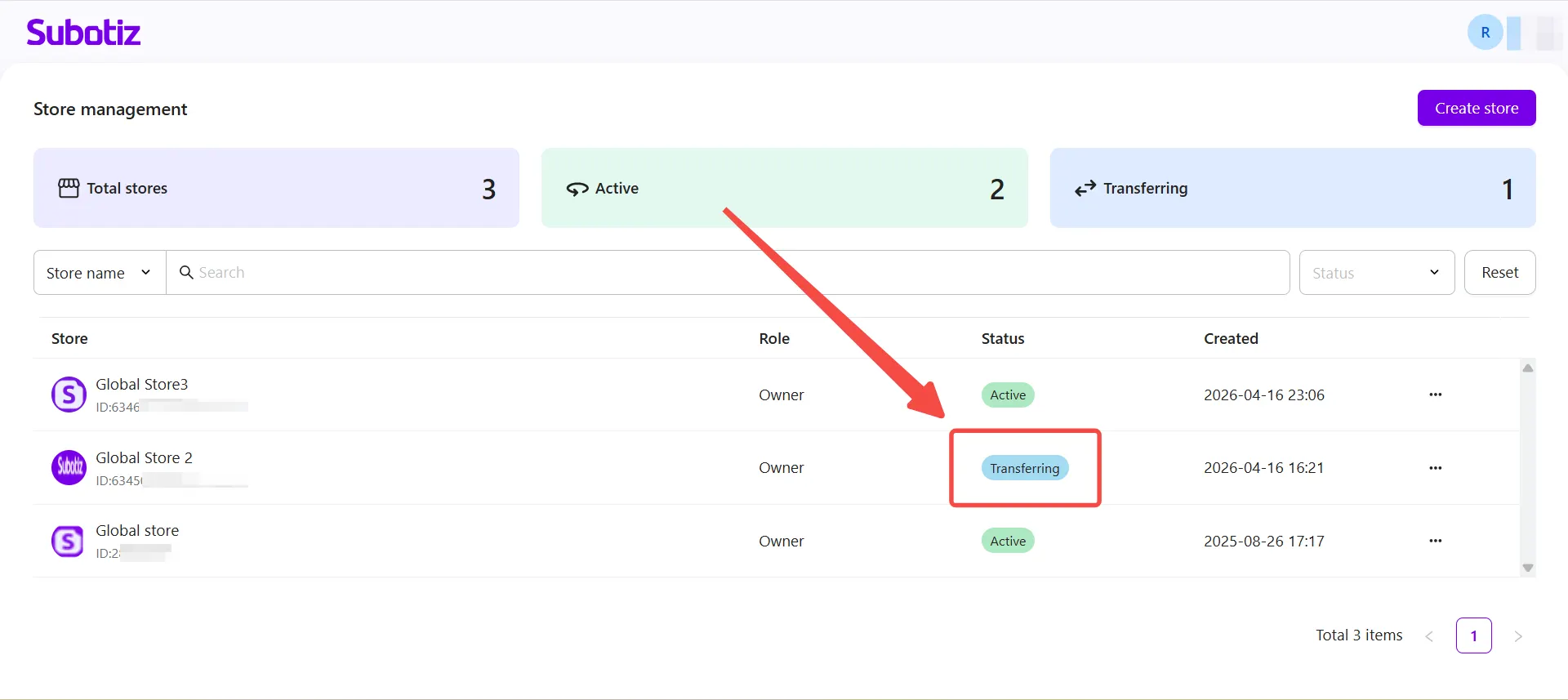
- Check transfer status: Return to the store list and confirm that the store status has changed to Transferring.
Accepting an Ownership Transfer
The recipient must accept the transfer request to become the new store owner.
- Check the notification email: Open the ownership transfer email sent to the recipient.
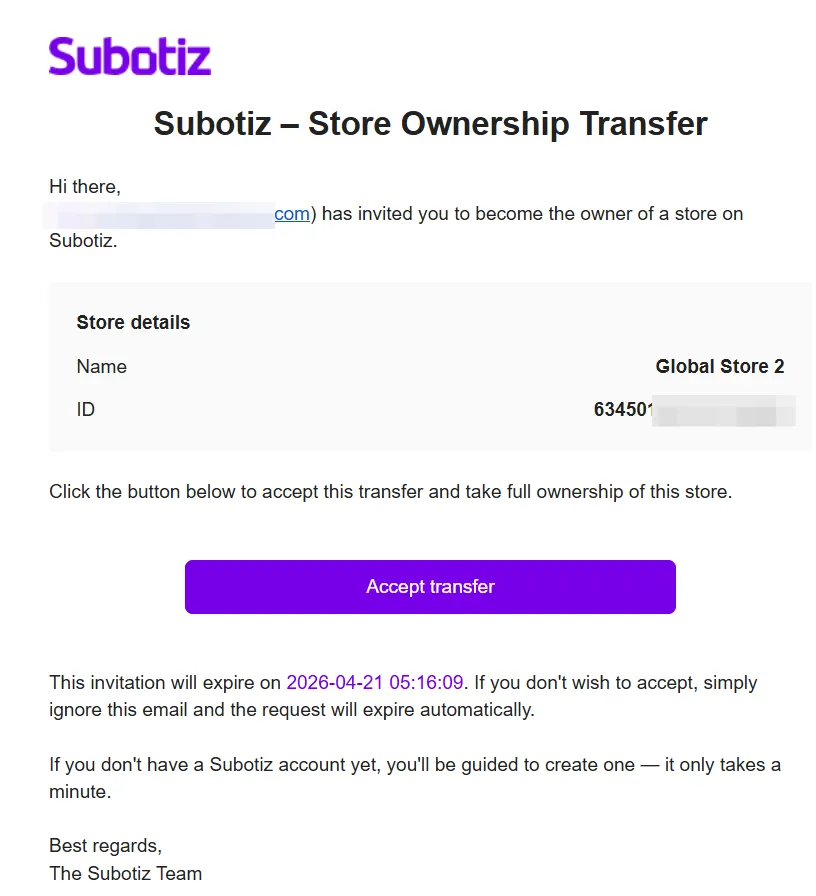
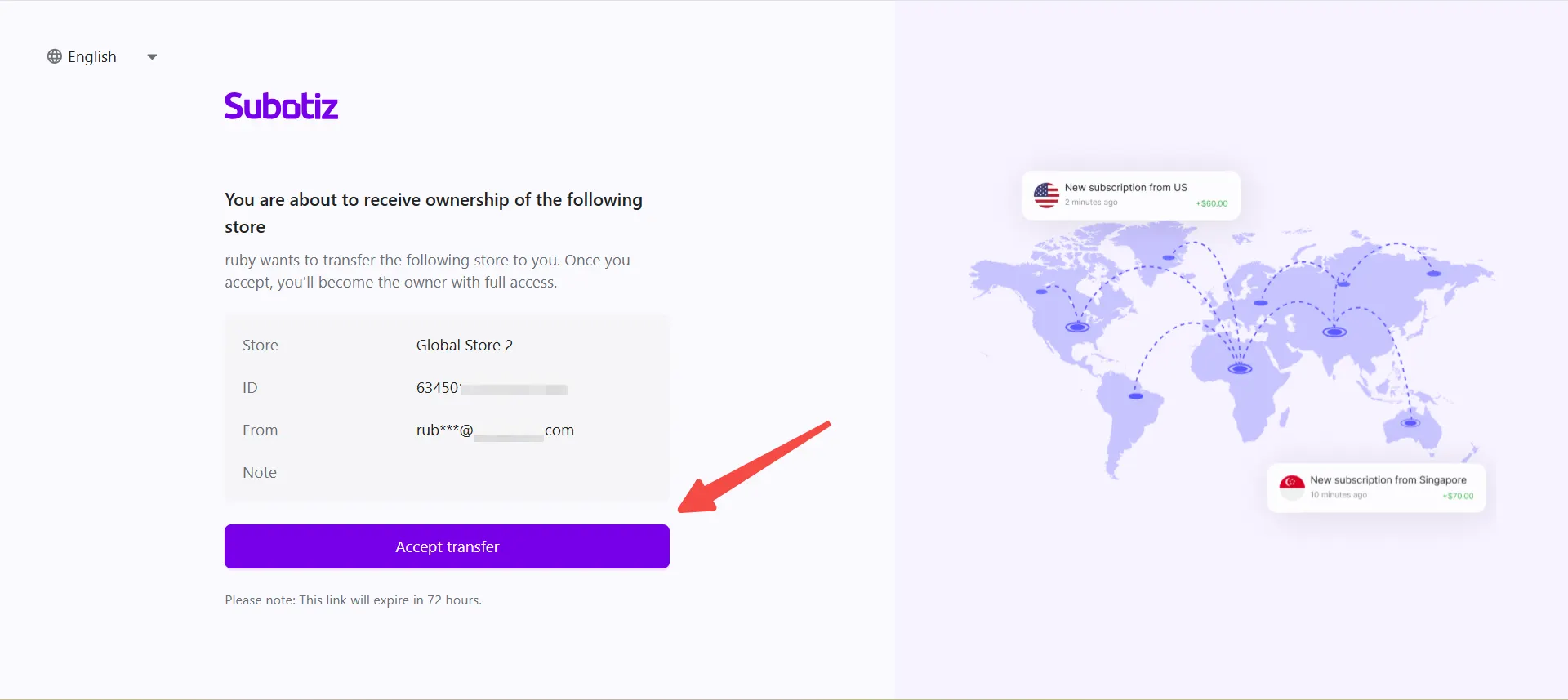
- Accept the transfer: Click Accept transfer in the email to open the transfer confirmation page.
- Complete the transfer: Follow the on-screen instructions to finish the process.
- New users: Complete account registration before accessing the transferred store.
- Existing users: The transferred store appears in the account and becomes accessible immediately after completion.
Confirming Transfer Completion
Once the recipient completes the transfer, Subotiz automatically updates the store ownership and access permissions.
- Ownership updated: The recipient becomes the new store owner.
- Access removed: The previous owner no longer has access to the store.
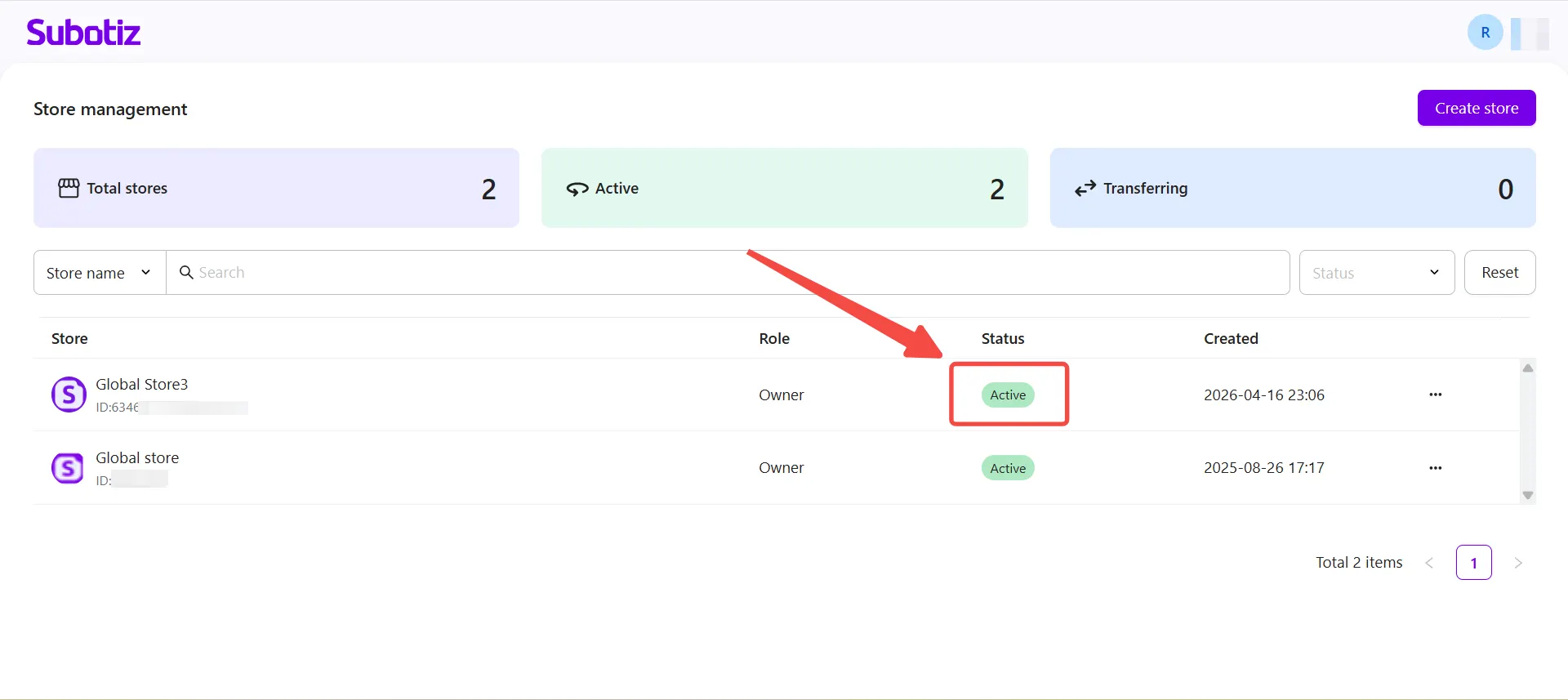
- Store reassigned: The transferred store appears in the new owner's store list.
- Status updated: The store status changes from Transferring to Active.
Canceling an Ownership Transfer
The current store owner can cancel a pending transfer before the recipient completes the process.
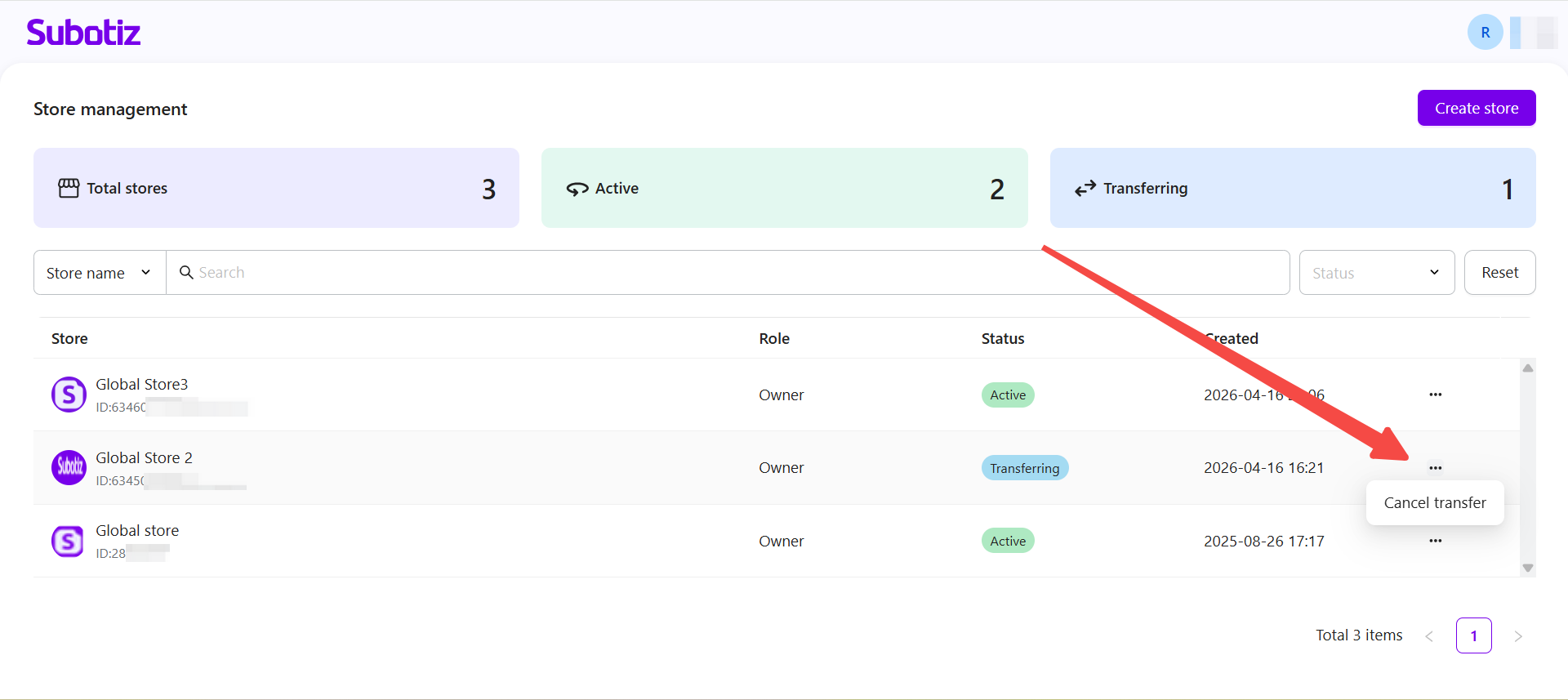
- Locate the pending transfer: In the store list, find the store with the Transferring status, open its action menu ⋯, and select Cancel transfer.
- Confirm cancellation: Click Cancel Anyway in the confirmation window.
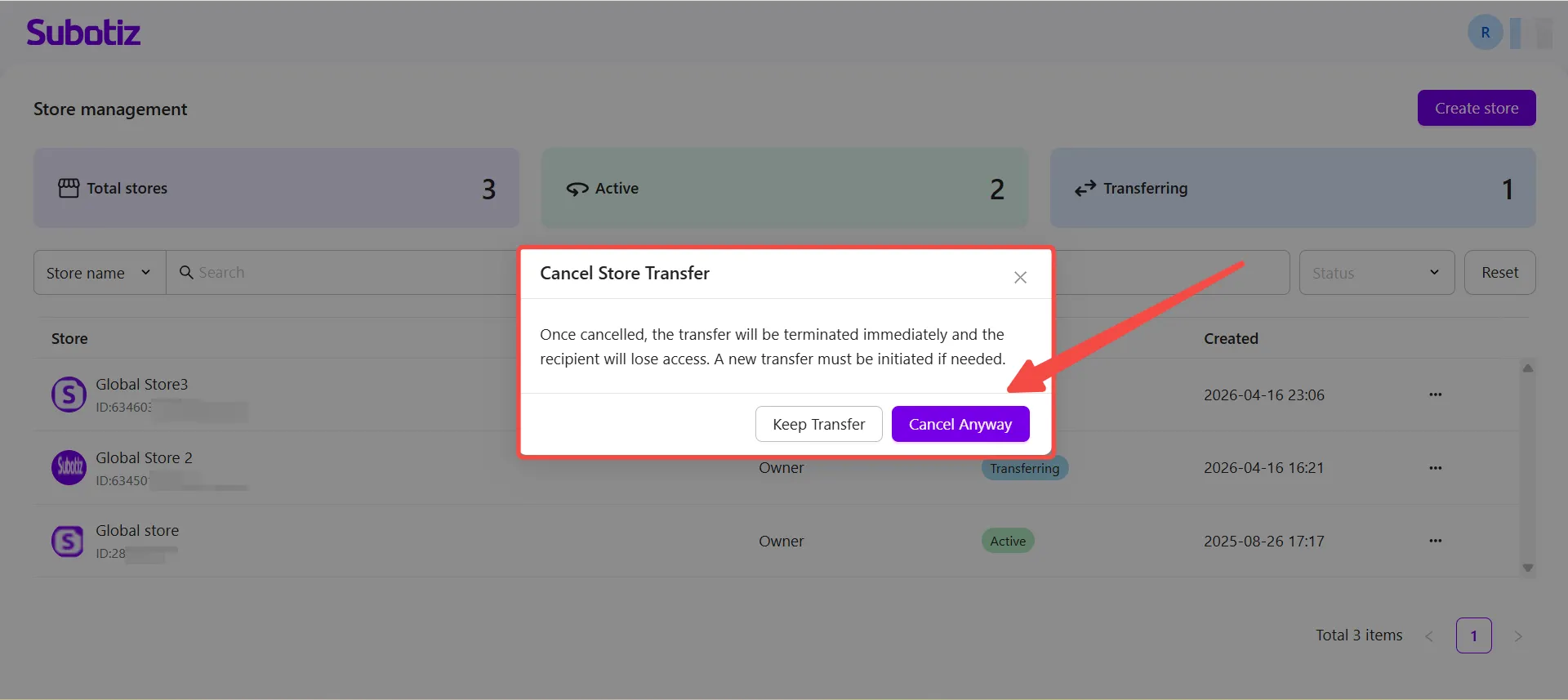
After cancellation:
- The pending transfer is canceled immediately.
- The recipient can no longer accept the transfer request.
- A new transfer request must be initiated to transfer ownership.
Transfer Rules and Limitations
- Store limit: A single account can be associated with up to 100 stores.
- Transfer expiration: Ownership transfer requests expire after 72 hours if the recipient does not accept them.
- Transfer cooldown: A store cannot be transferred again within 24 hours after a successful transfer.
Subotiz provides a structured ownership transfer process that helps merchants manage store handovers while maintaining clear ownership and access permissions.