Store Management in Subotiz allows merchants to create, view, and manage multiple stores under a single account. This feature supports multi-brand operations and partner-based business models by providing a centralized way to organize and manage stores.
Creating a Store
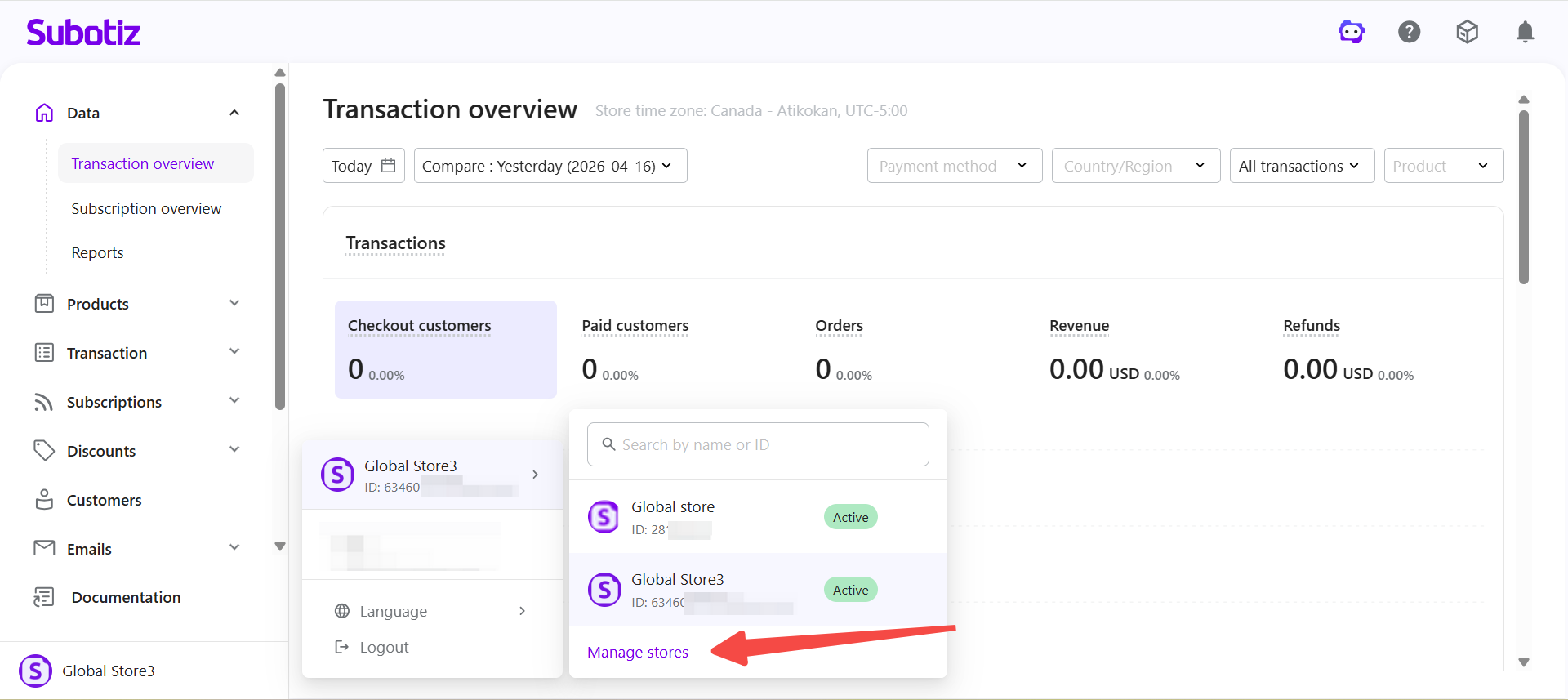
- Access Store Management: Click Manage stores in the store panel.
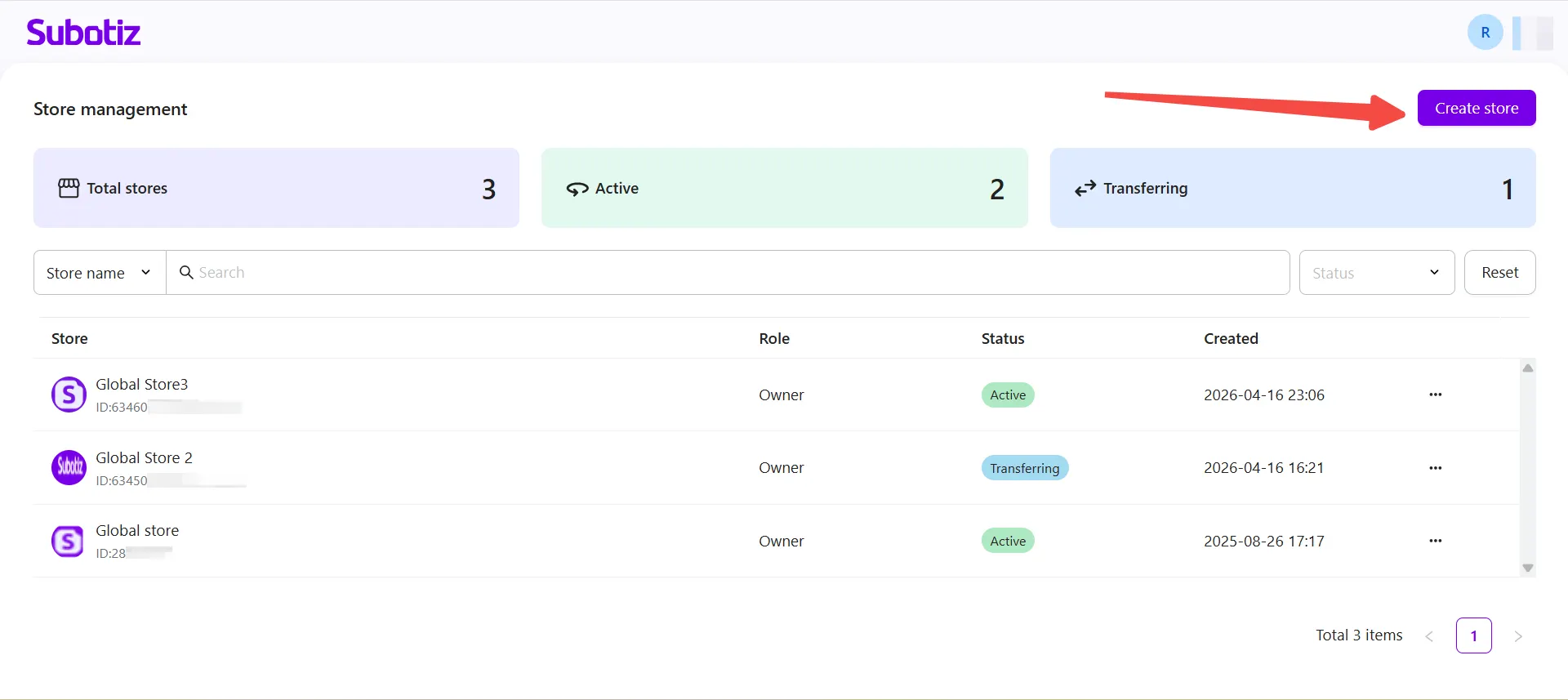
- Create a store: Click Create store in the upper-right corner of the Store Management page.
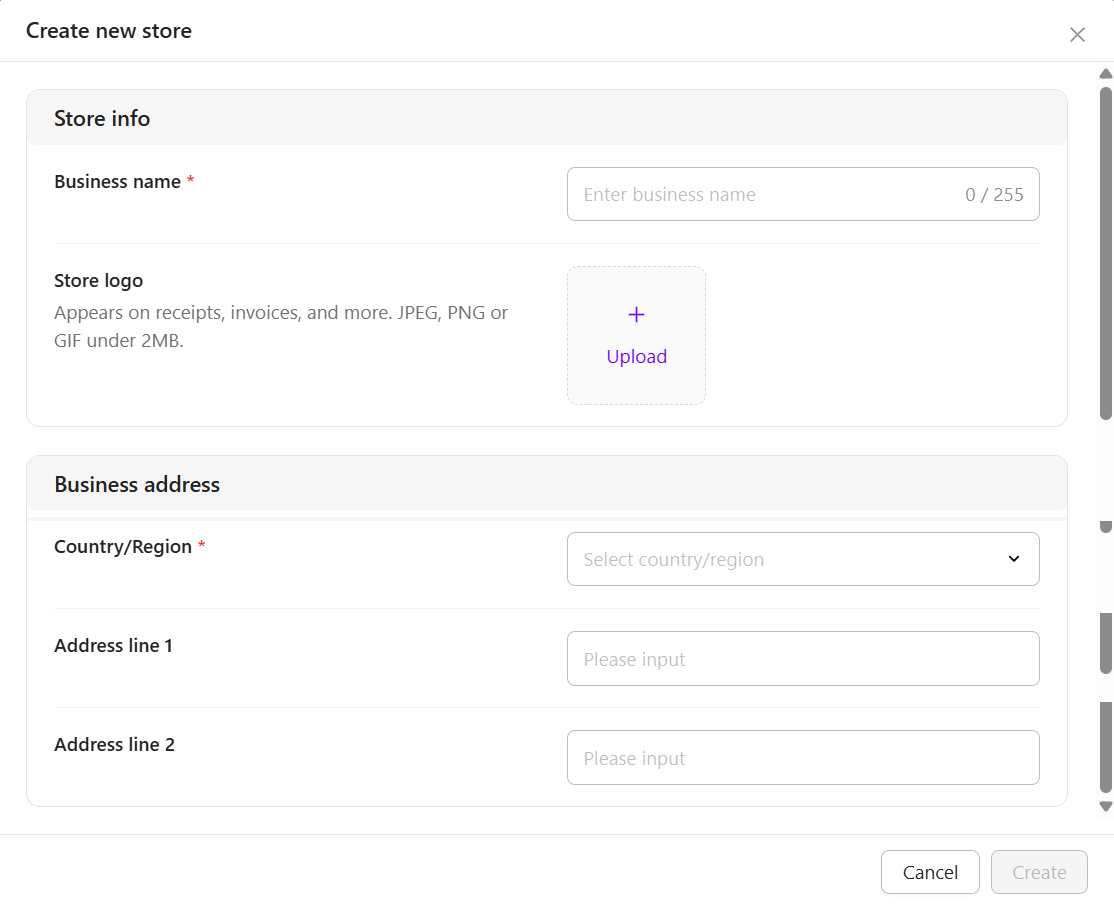
- Enter store details: Complete the following fields in the pop-up window:
- Business name: Required. The name displayed on the checkout page and in the customer portal.
- Store logo: Optional. Upload a logo to identify the store.
- Country/Region: Required. Select the country or region associated with the store.
- Address: Optional. Enter the store address.
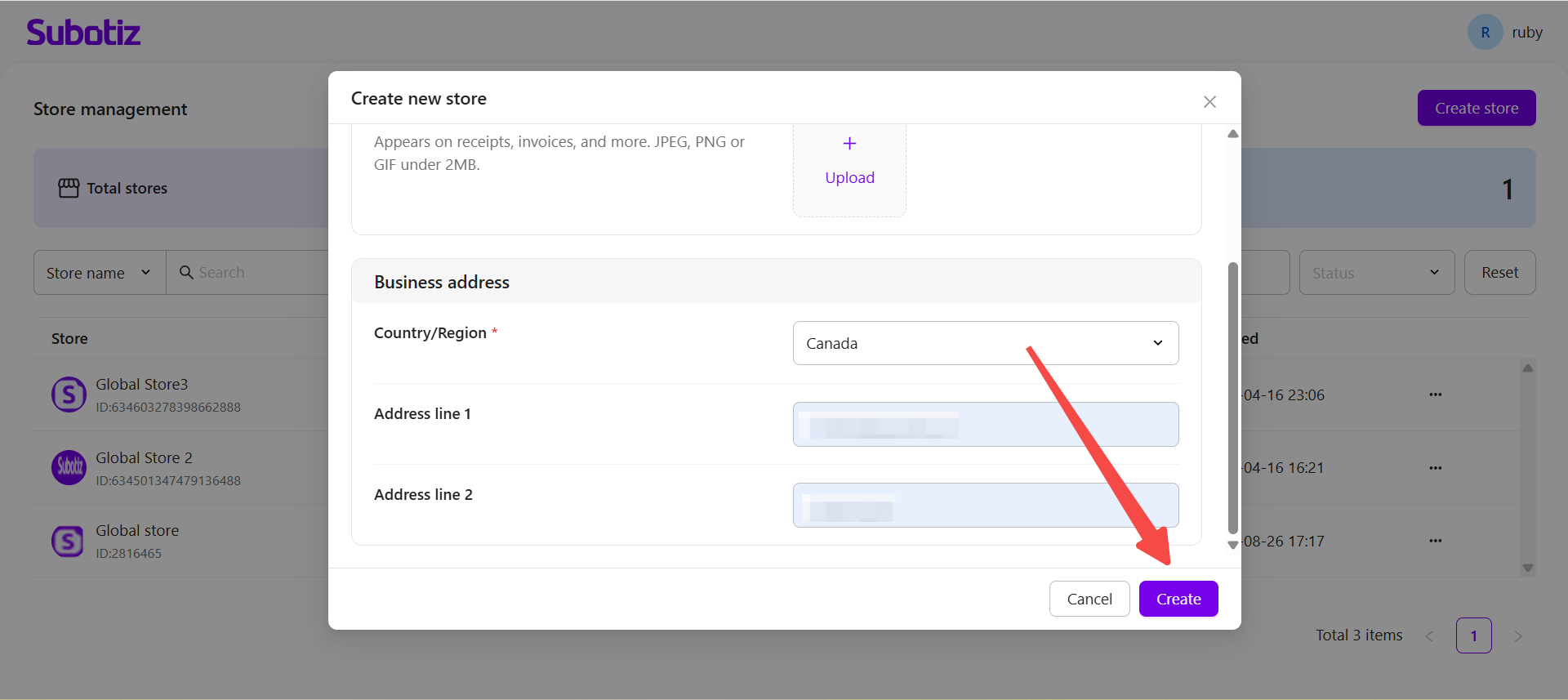
- Confirm store creation: Click Create to create the store.
Store Creation Rules
The following rules apply to newly created stores:
- Store limit: Each account can have up to 100 stores.
- Default status: New stores are automatically set to Active.
- Default role: The store creator is automatically assigned the Owner role.
Viewing and Managing Stores
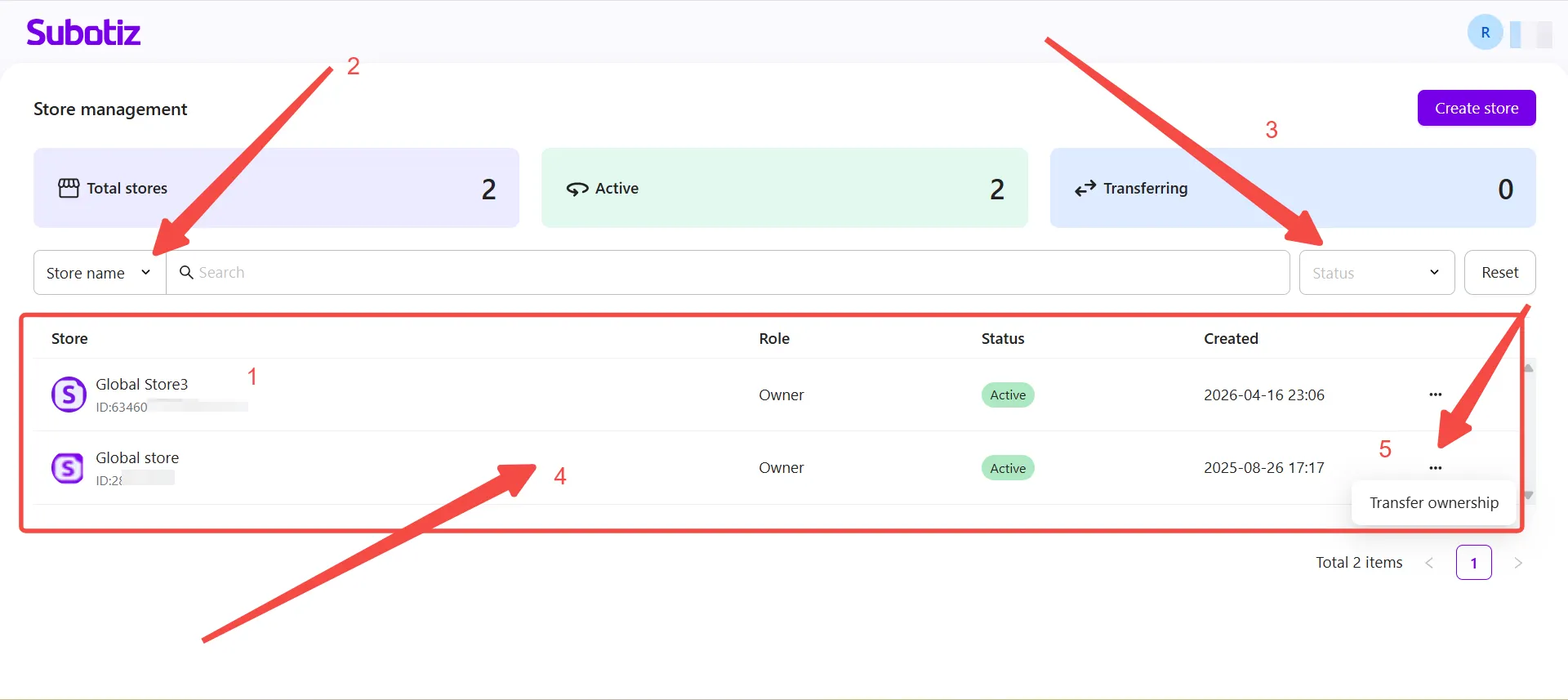
The Store Management page provides a centralized view of all stores associated with the account.
- View stores: Review all stores associated with the account.
- Search for a store: Enter a store name or Store ID in the search field.
- Filter stores: Use the Status filter to display stores by status.
- Open a store: Click a store row to open its admin in a new browser tab.
- Transfer ownership: Open the action menu for the relevant store and select Transfer ownership.
Best Practices
- Use clear store names: Assign distinct, recognizable names to make stores easier to identify.
- Plan store organization: Organize stores based on business needs to simplify ongoing management.
Managing multiple stores through Subotiz helps merchants maintain a centralized view of their stores and streamline daily store operations.