The Webhook Notification Logs feature in Subotiz lets merchants review event deliveries, check delivery status, and inspect server responses. It also allows events to be resent after issues are fixed, making it easier to troubleshoot failed deliveries and keep integrations running reliably.
Notification Logs Overview
Notification logs show the full lifecycle of webhook events sent to an endpoint, including delivery status, request payloads, and server responses.
- Open logs: Go to Developer > Webhooks, then click any webhook endpoint to view its notification logs.
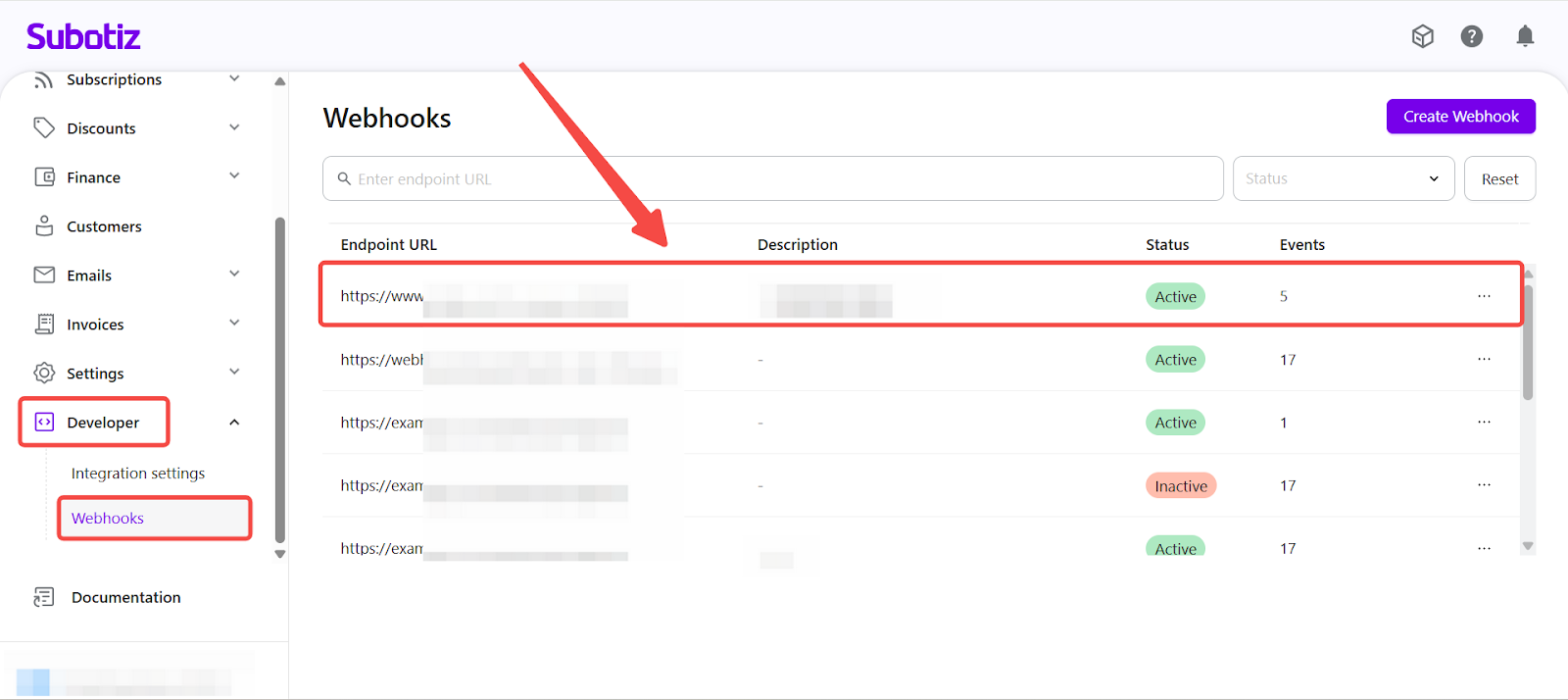
- Check retention: Logs are available for the most recent 30 days only. Older records are not displayed.
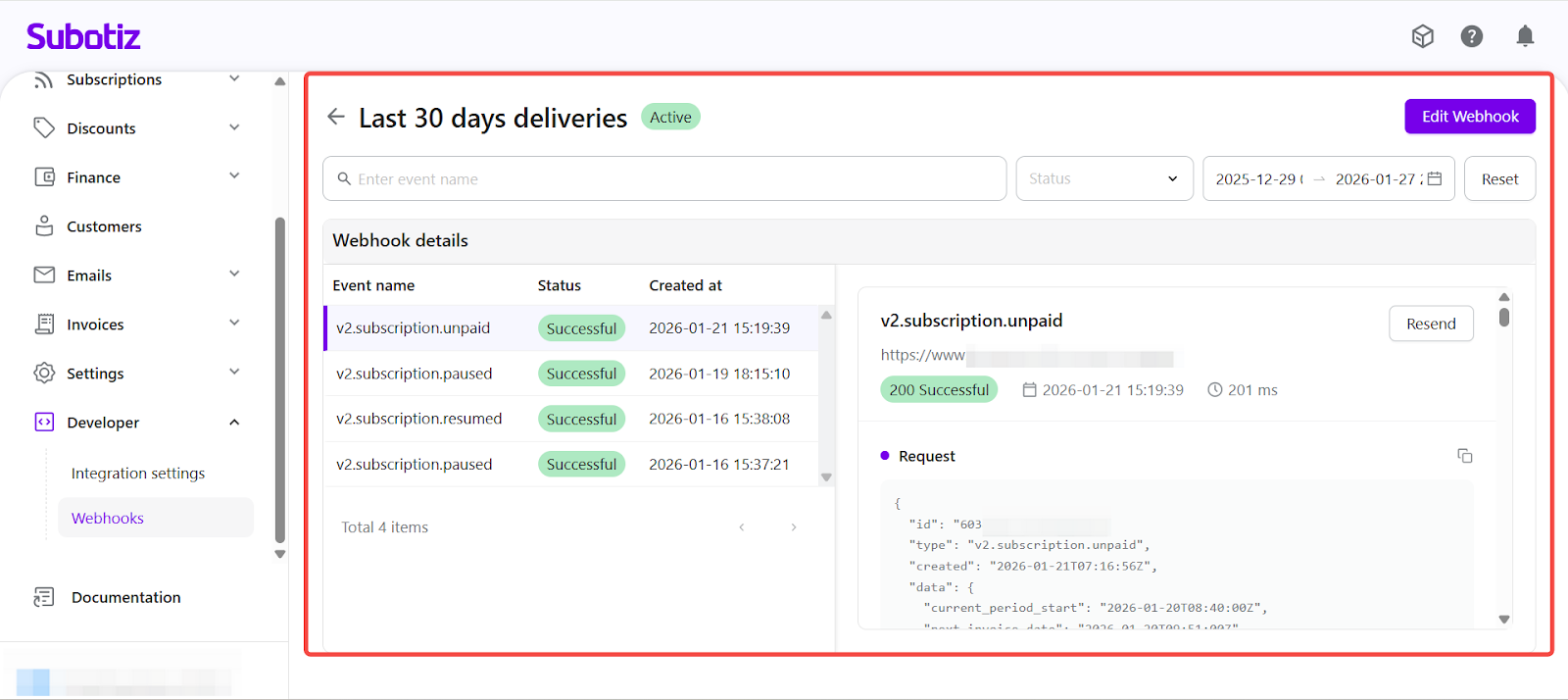
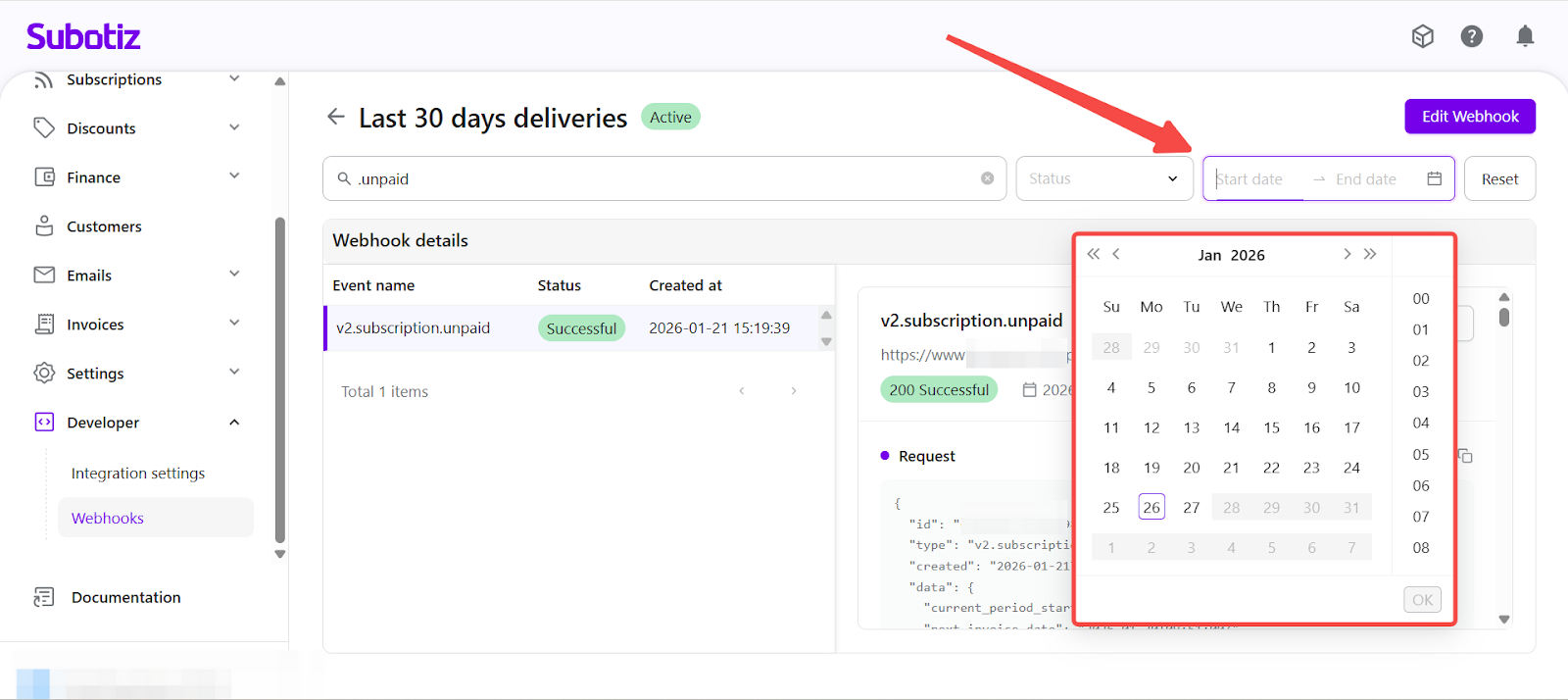
- Search and filtering rules: The notification log page supports filtering to help quickly locate specific event records.
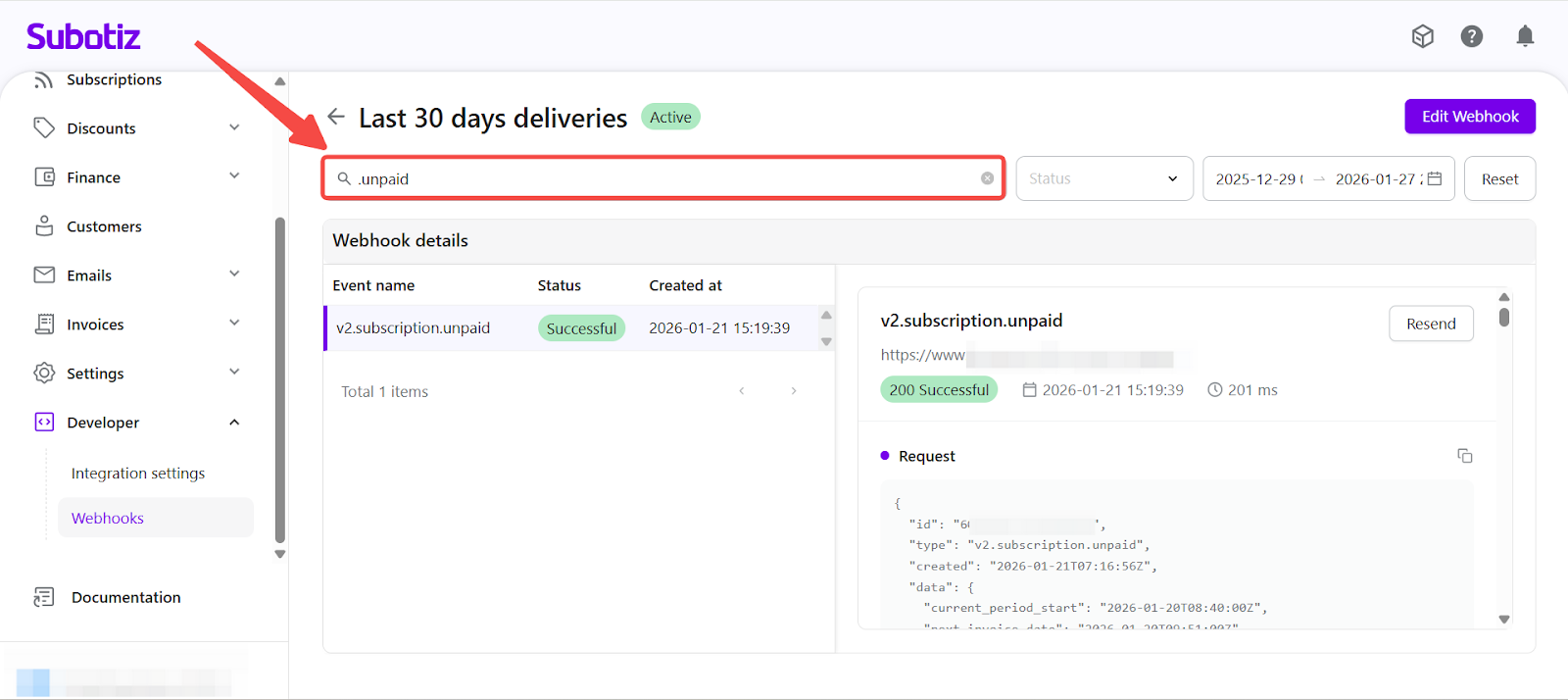
- Search events: Use the search bar to find events by name (for example:
.unpaid).
Check search scope: Search is limited to event names. Order IDs, subscription IDs, endpoint URLs, and request content are not supported.
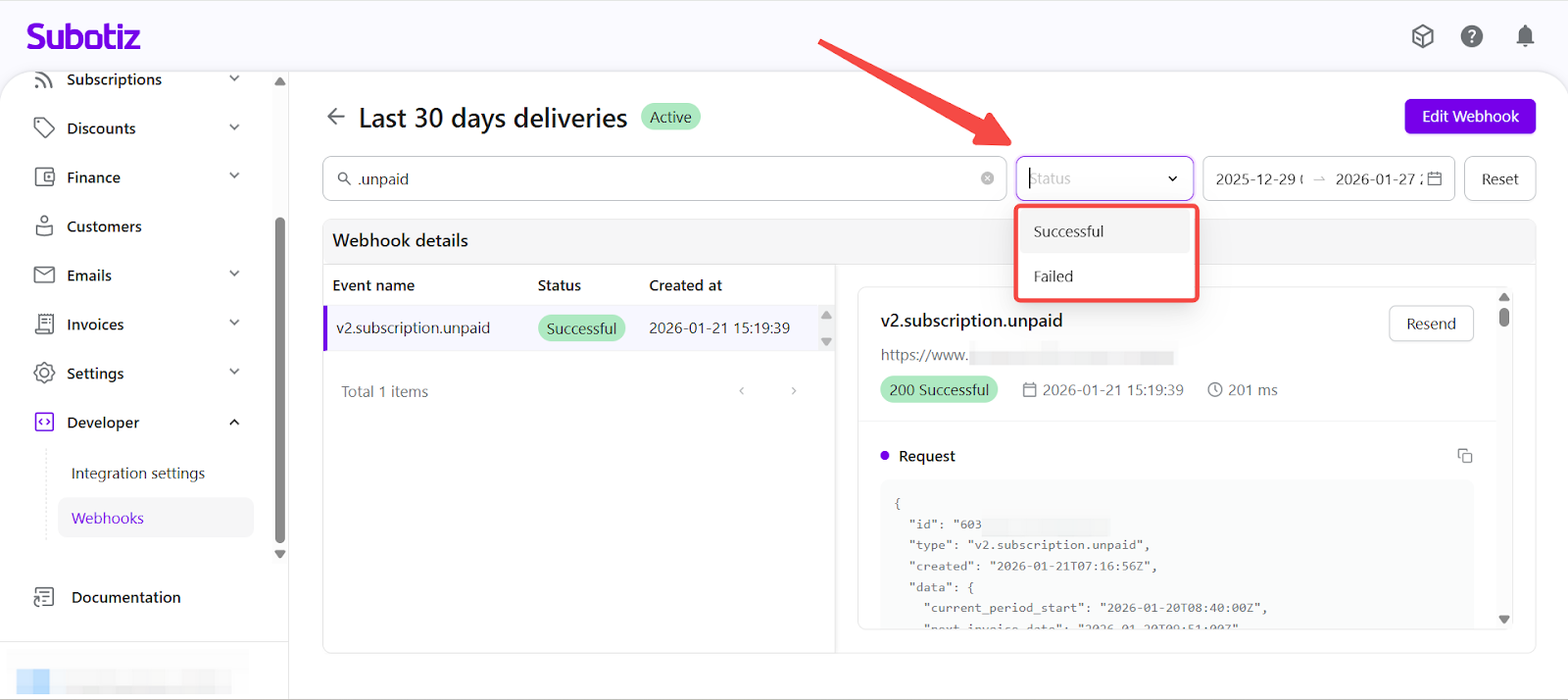
- Filter by status: Filter notification records by delivery status:
- Successful
- Failed
- Filter by time range: Select a date range within the last 30 days.
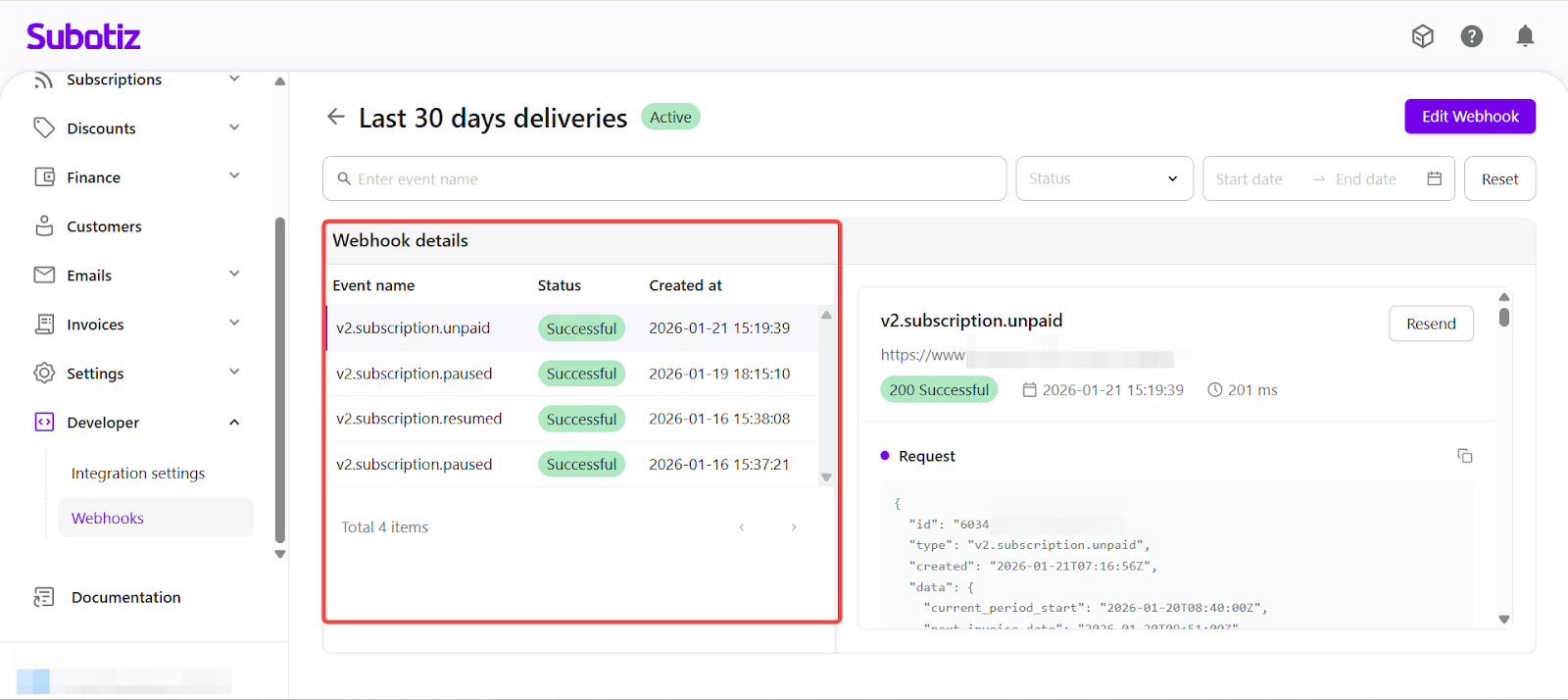
Webhook Details
- View event information
- Check event details:
- Event name (for example,
v2.subscription.unpaid) - Delivery status
- Created time
- Review sorting: Logs are sorted by creation time, with the most recent events shown first.
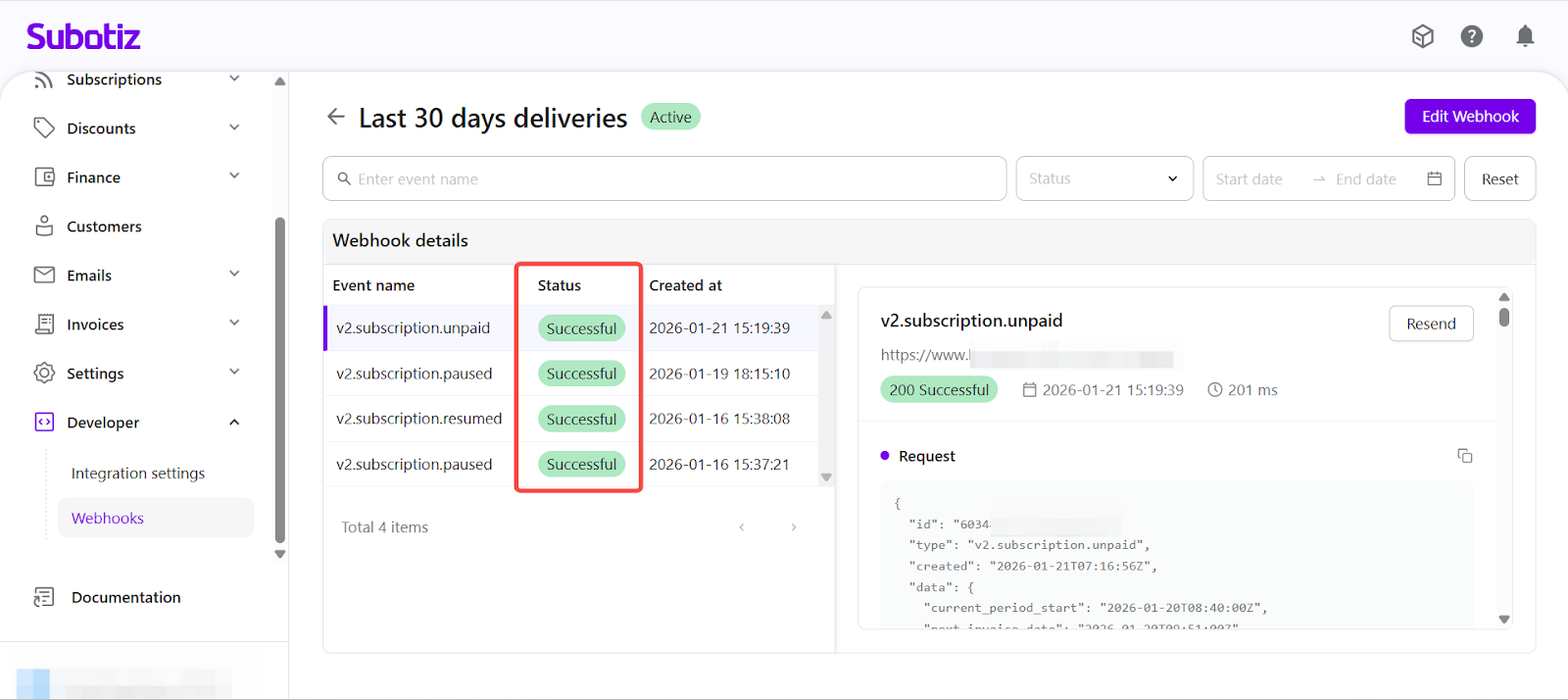
- Delivery status
- Understand status:
- Successful: The request was delivered and the endpoint returned a valid response (typically HTTP 2xx) .
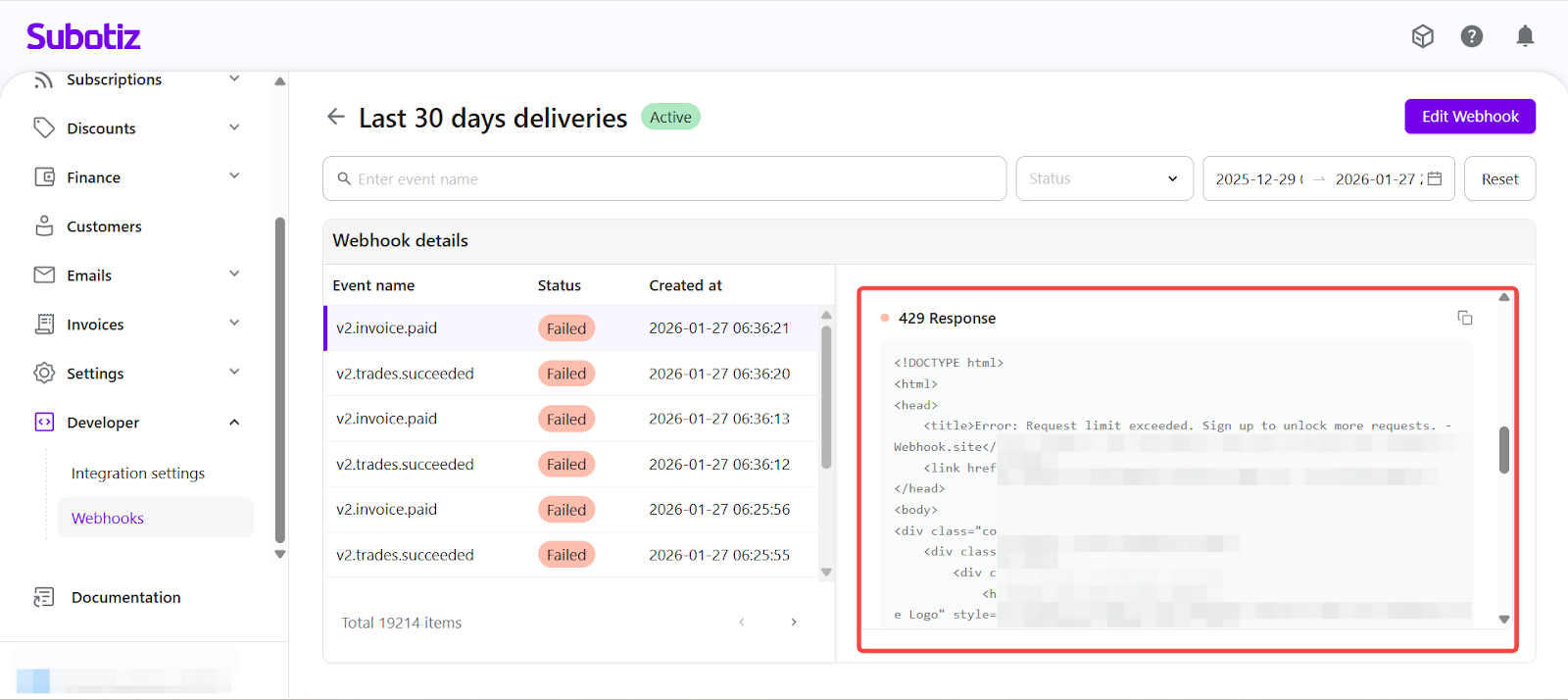
- Failed: The request did not succeed, or the endpoint returned an error (non-2xx).
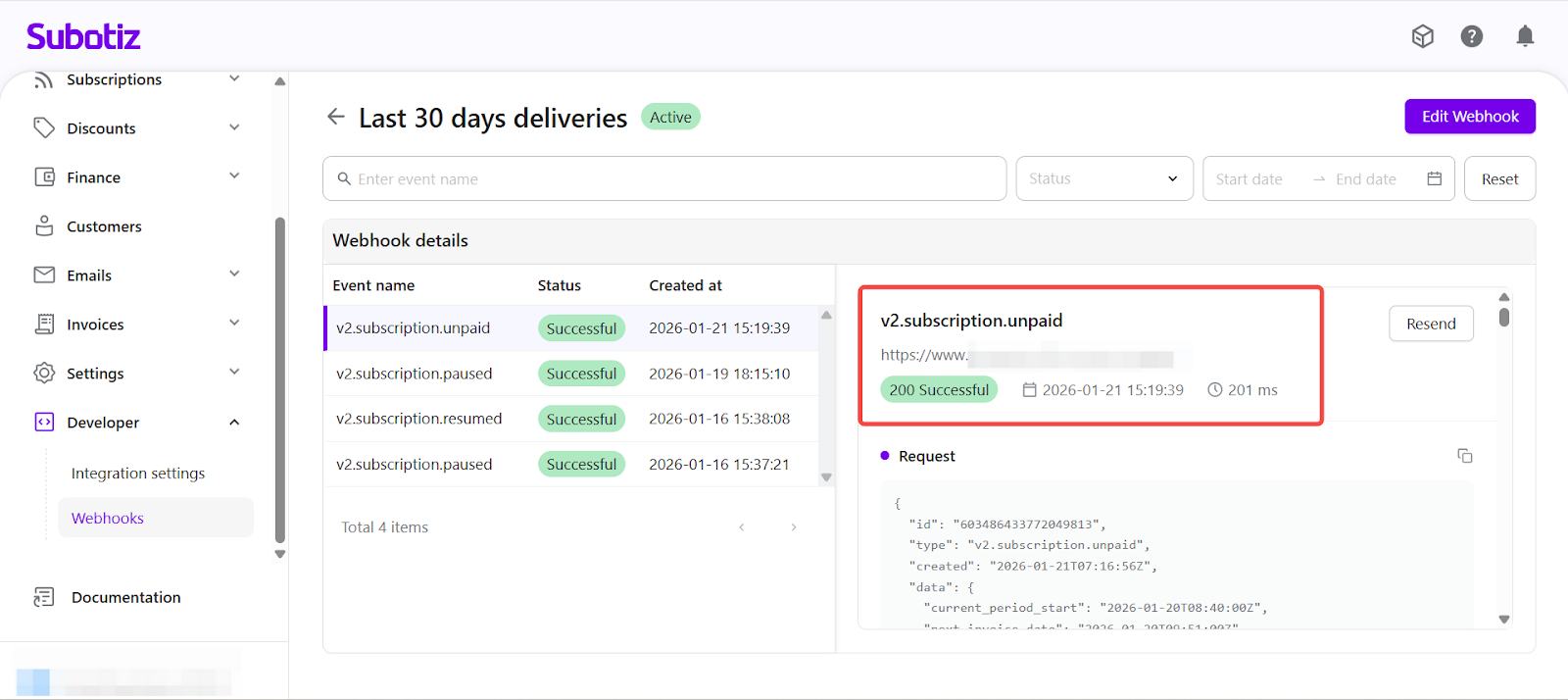
- View notification details: Click any record to see the full request and response.
- Basic information:
- Event name
- Endpoint URL
- Delivery status
- Delivery time
- Request duration
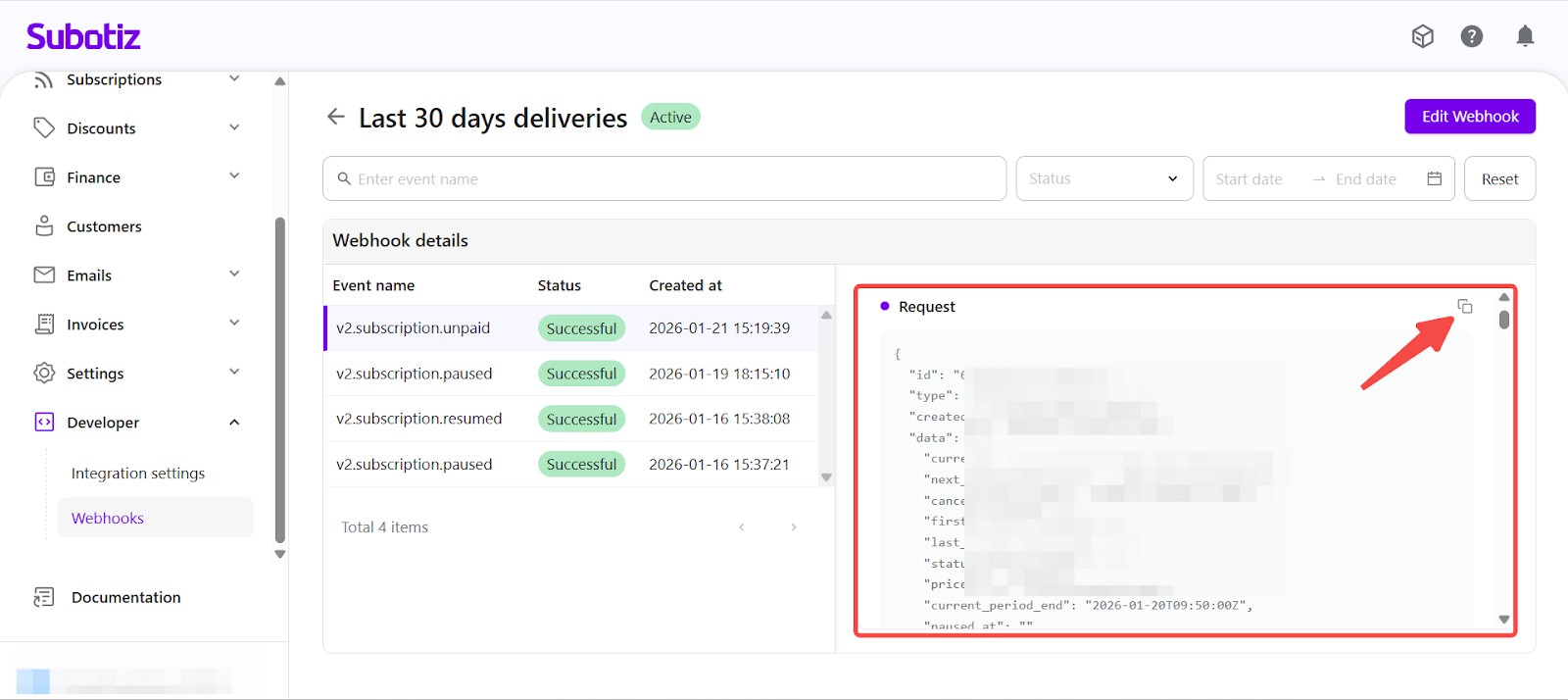
- Request payload:
- Displays the request payload sent to the endpoint.
- Copy request: Use one-click copy for debugging.
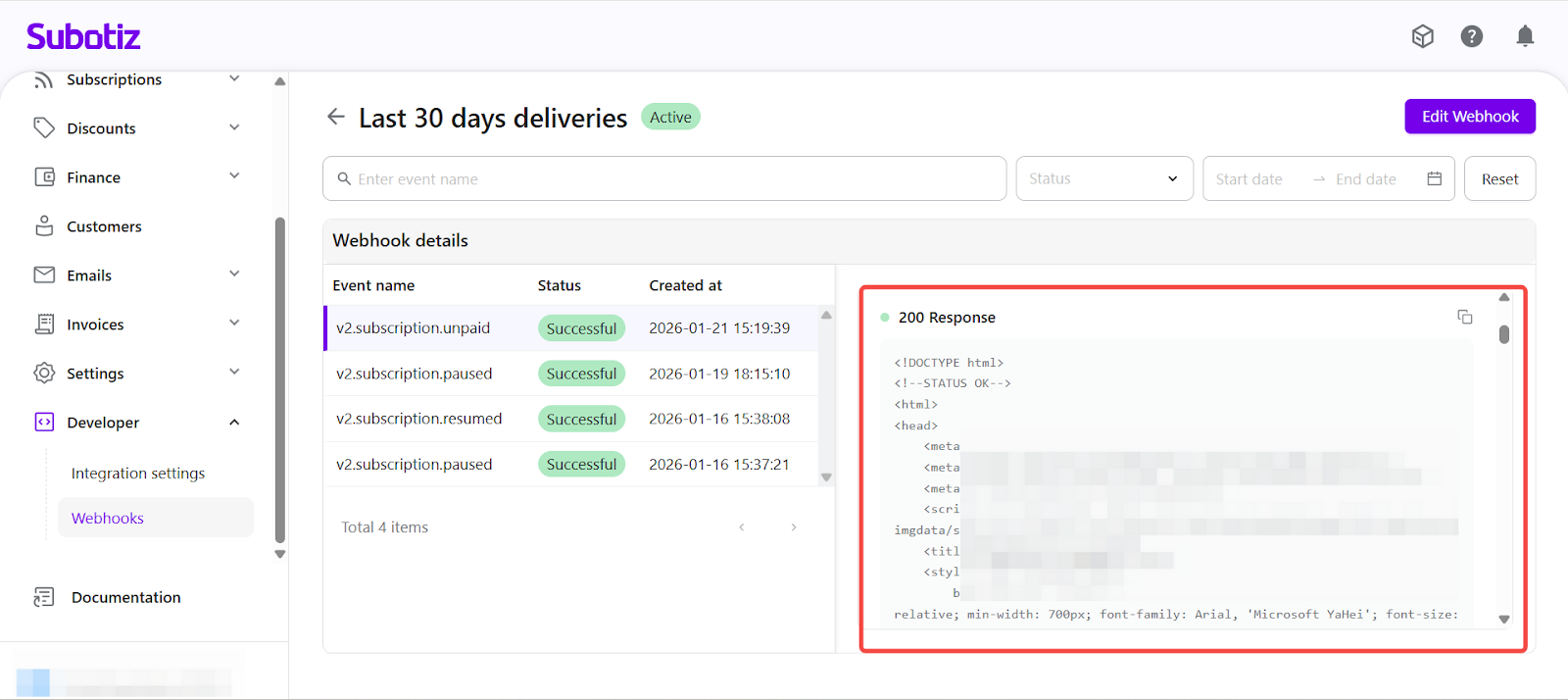
- Response:
- Shows the raw response returned by the endpoint.
- Use it to confirm success or identify errors.
Resend Webhook Events
After resolving the issue, you can resend webhook events.
- When to Resend
- Fix auth issues: Credentials or permissions have been corrected.
- Resolve server errors: Backend issues have been fixed.
- Remove network blocks: Firewall or network restrictions have been cleared.
- Re-run business logic: The event needs to be processed again.
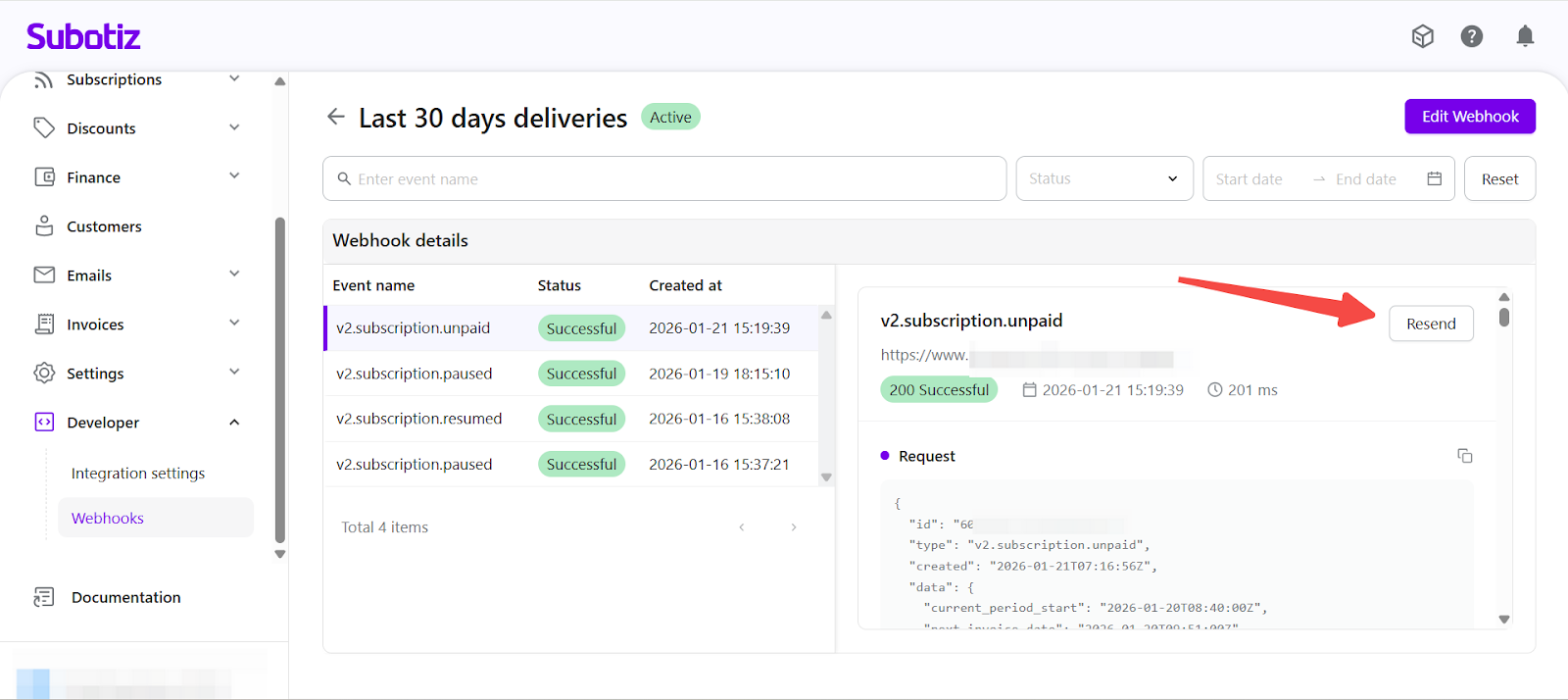
- Resend an event
- Click Resend: Open the notification details and click Resend.
- Send the request again: The system sends the same payload to the original endpoint.
- Update status: The event status updates based on the latest response.
- If the event was successful but the resend request fails, the status is updated to failed.
- If the event failed but the resend succeeds, the status changes to successful.
- Keep original record: The original log entry remains unchanged.
Use the resend function only after the issue is resolved to avoid duplicate or unintended processing.
Troubleshooting
If a webhook isn’t received:
- Check logs: Confirm the event exists.
- Check status: See if it failed.
- Review response: Look for errors in the response.
- Resend: After fixing the issue, resend the event.
Notification logs and resend functionality give you full visibility into webhook delivery and let you recover from failures without manual support, improving reliability and operational efficiency.