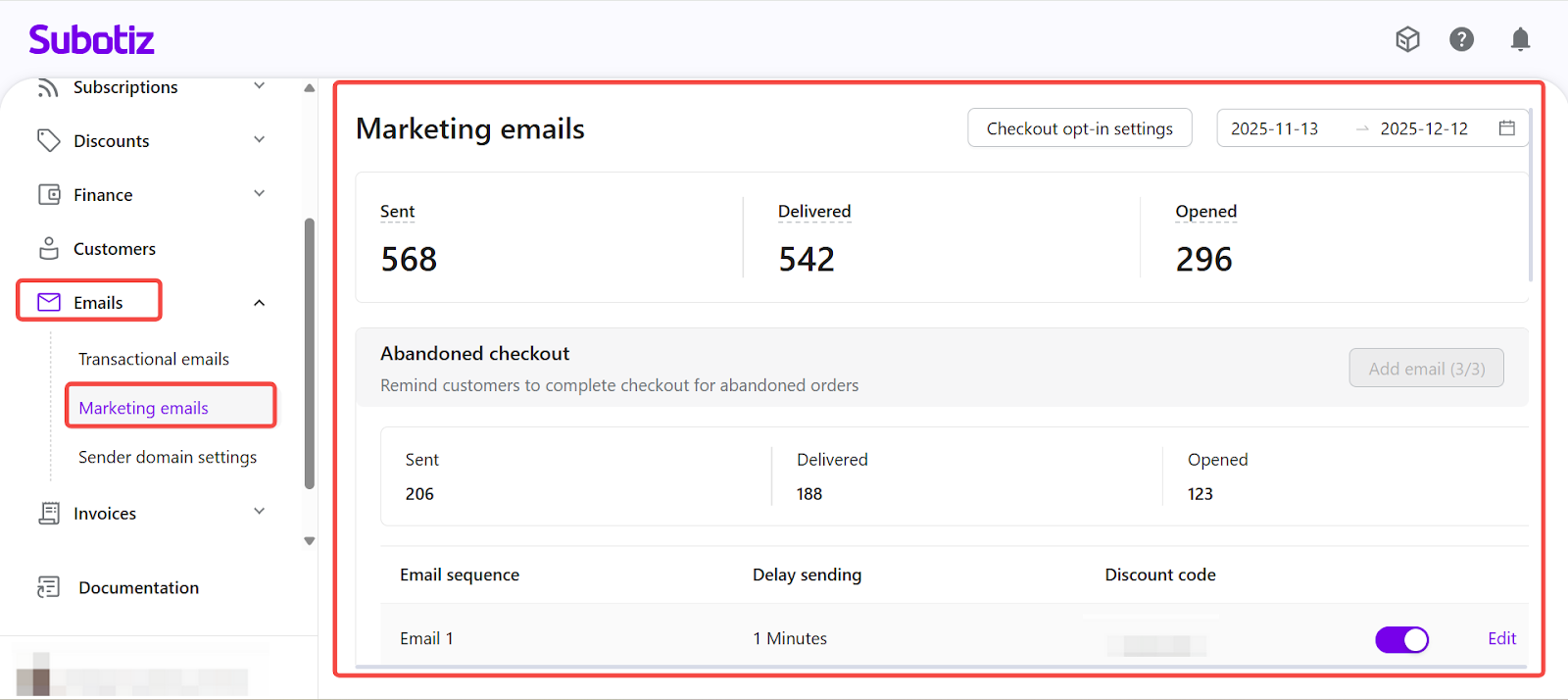
The Marketing emails section in Subotiz provides a centralized interface for viewing, configuring, and monitoring Abandoned checkout, Cancelled trial, and Expired subscription journeys. This page allows merchants to manage email sequences, define delay times, and review performance across key lifecycle touchpoints.
Accessing Marketing Emails
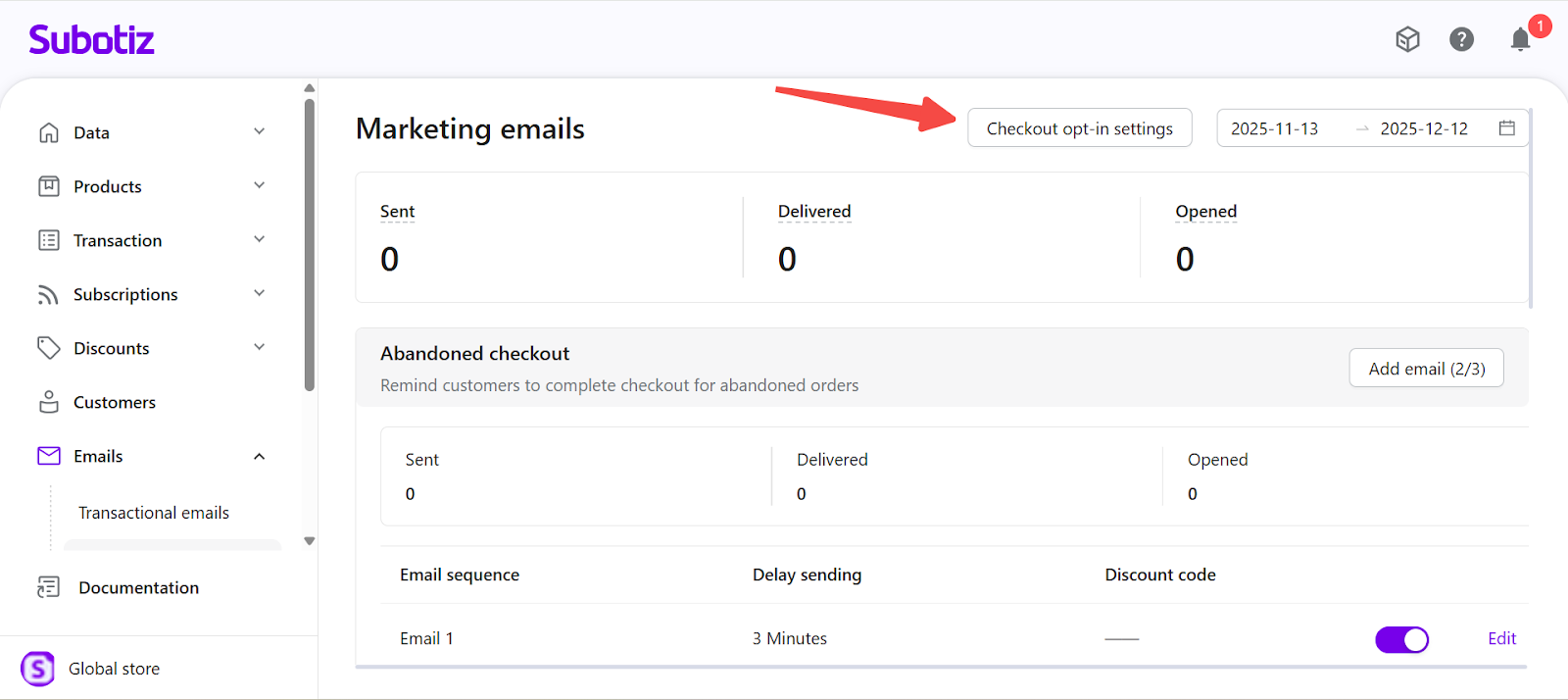
- Open Marketing emails: Go to Emails > Marketing emails in the Subotiz admin. The page displays all three journeys along with their combined Sent, Delivered, and Opened metrics for the selected date range.
Reviewing Journey Performance
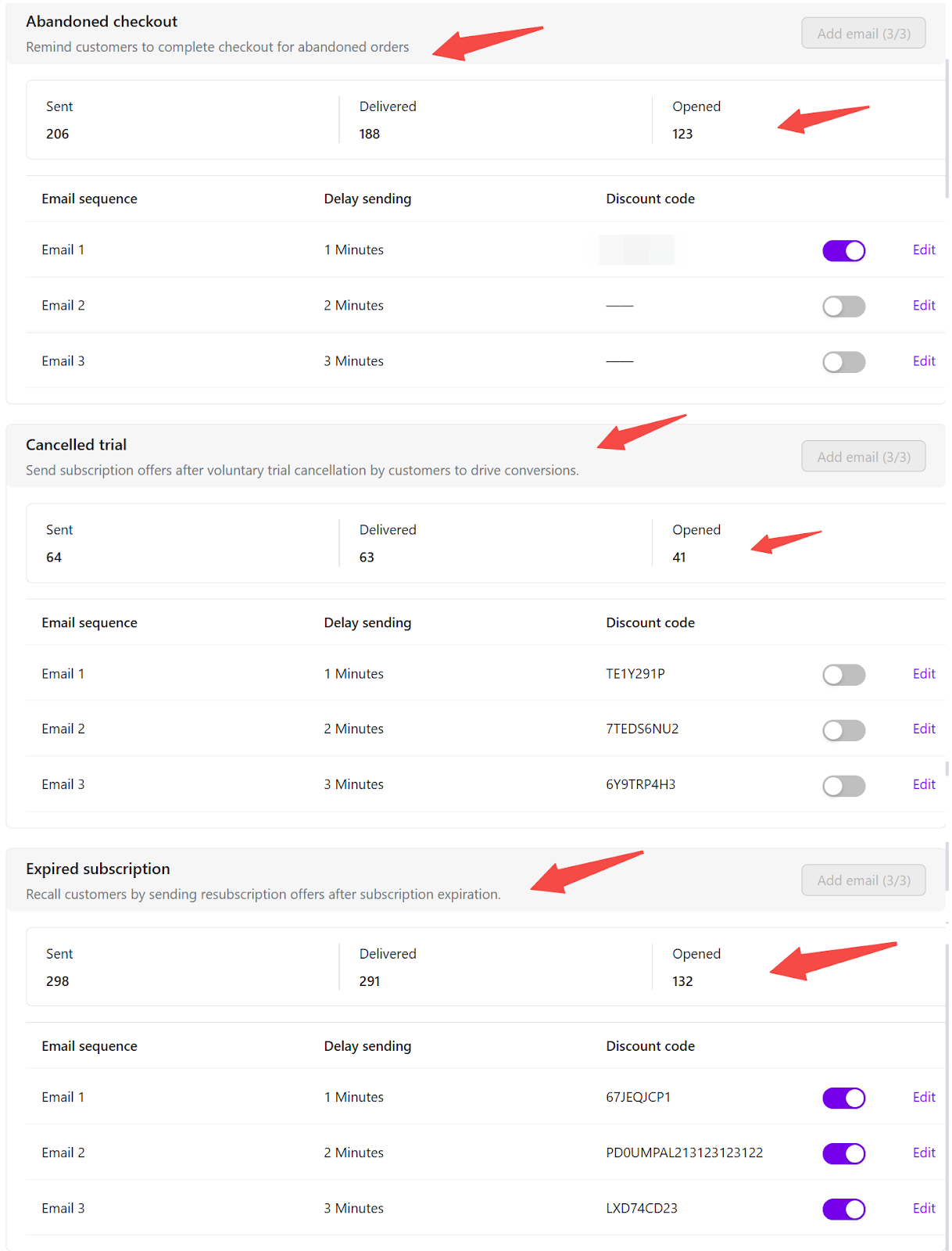
- View journey overview: Each journey block displays the following information:
- A short purpose description
- Total sent, delivered, and opened metrics
- A list of configured emails shown in sequence order
This overview helps merchants understand how each lifecycle journey is performing.
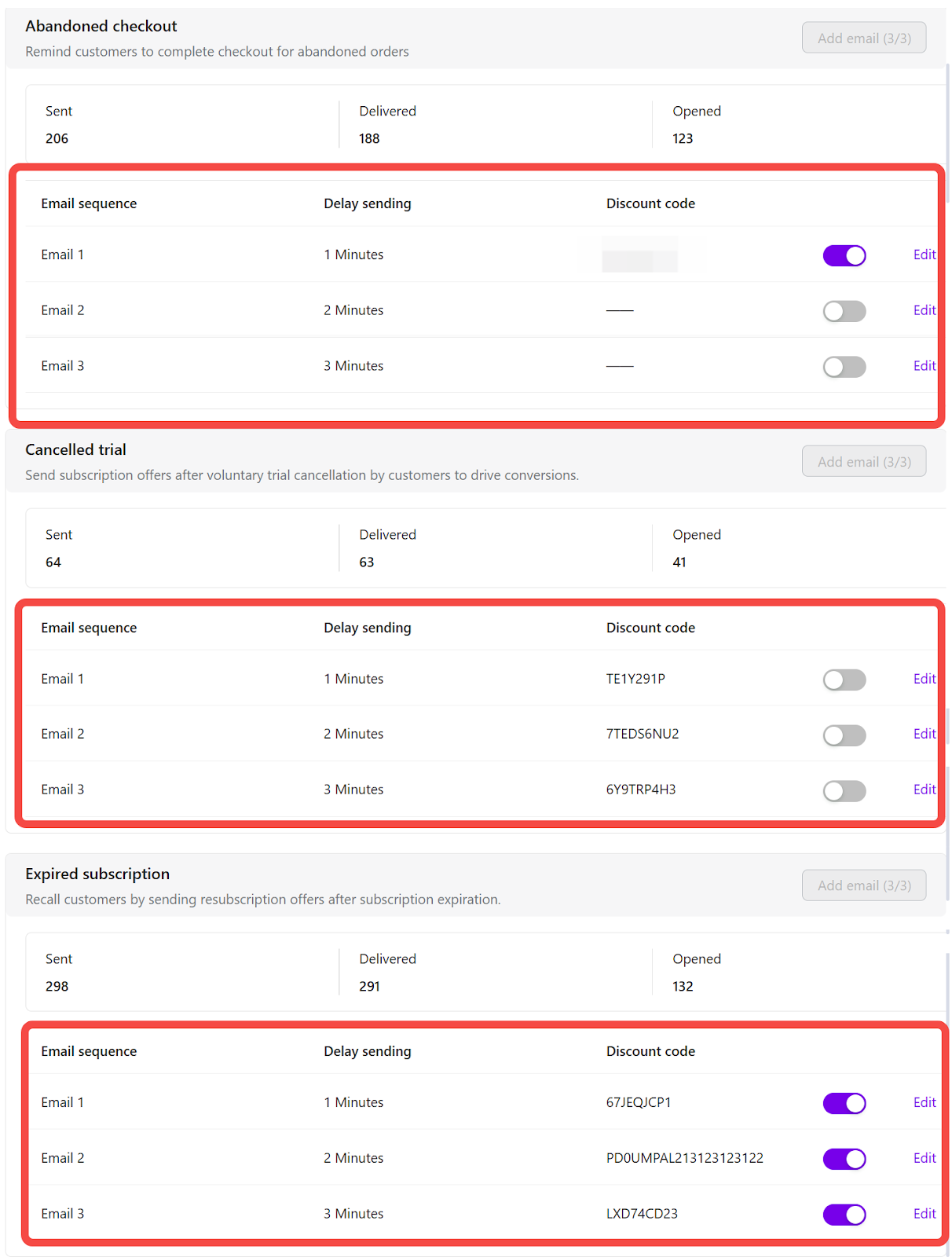
- Review individual email details: Each email entry shows:
- Delay sending time
- Discount code, if applicable
- Activation status
- An edit entry point
This allows merchants to quickly confirm the configuration status of each email.
Adding Marketing Emails
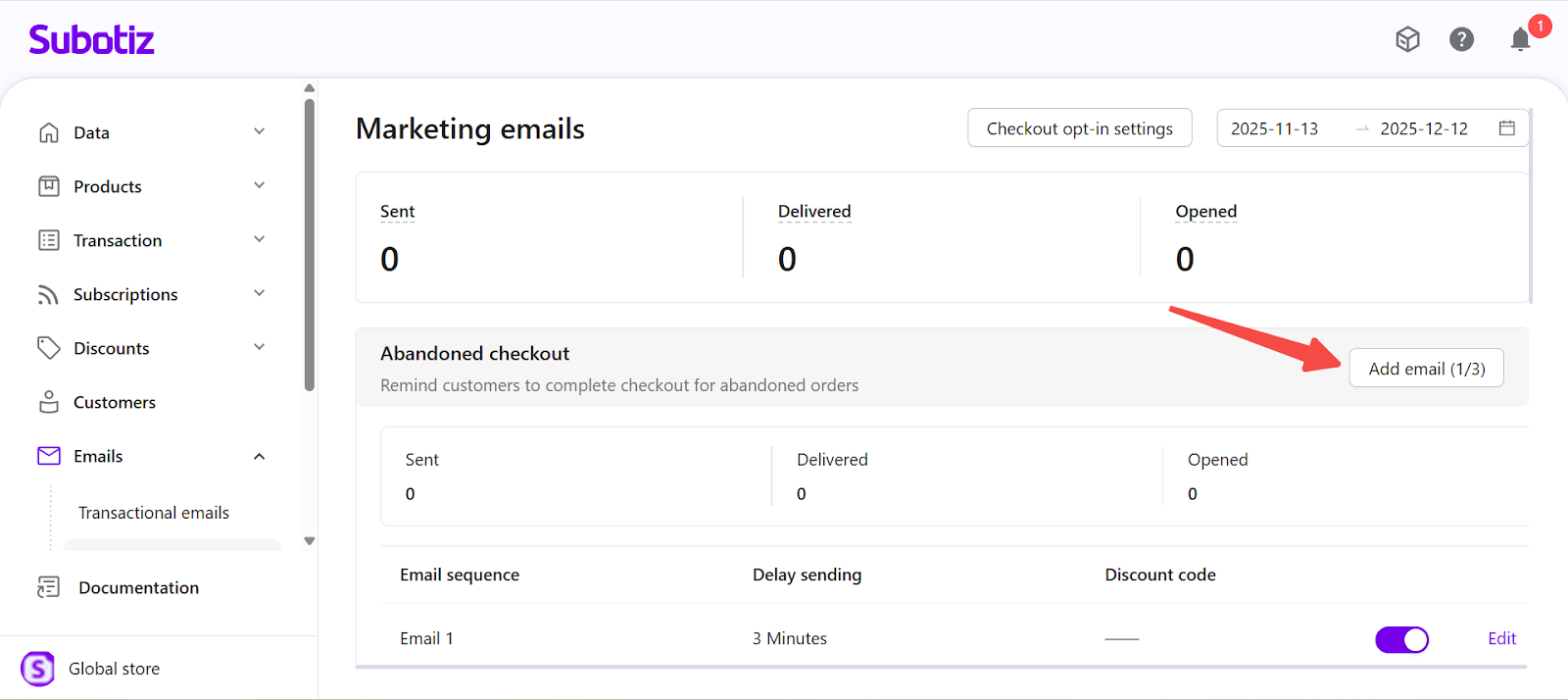
Each marketing journey supports up to three emails, delivered in sequence.
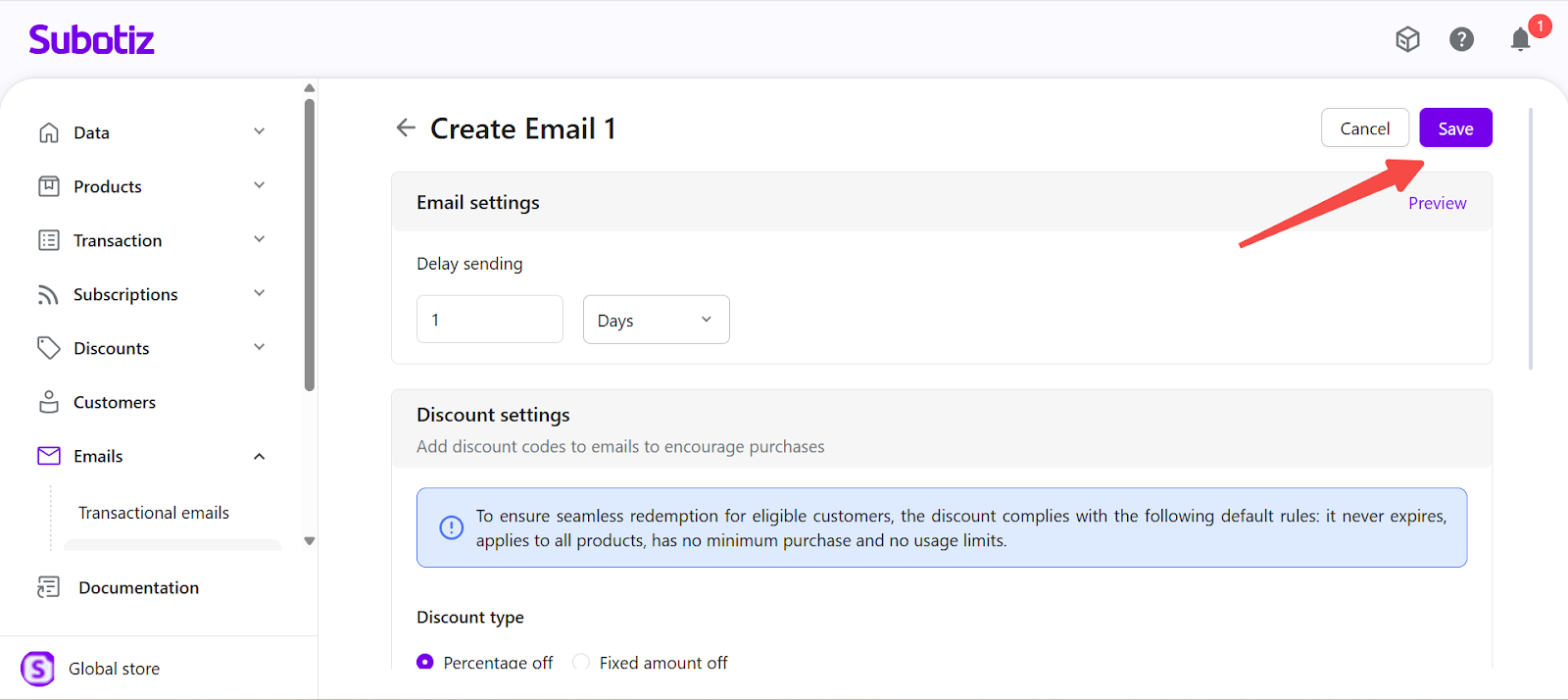
- Add an email: Select Add email in the relevant journey block.
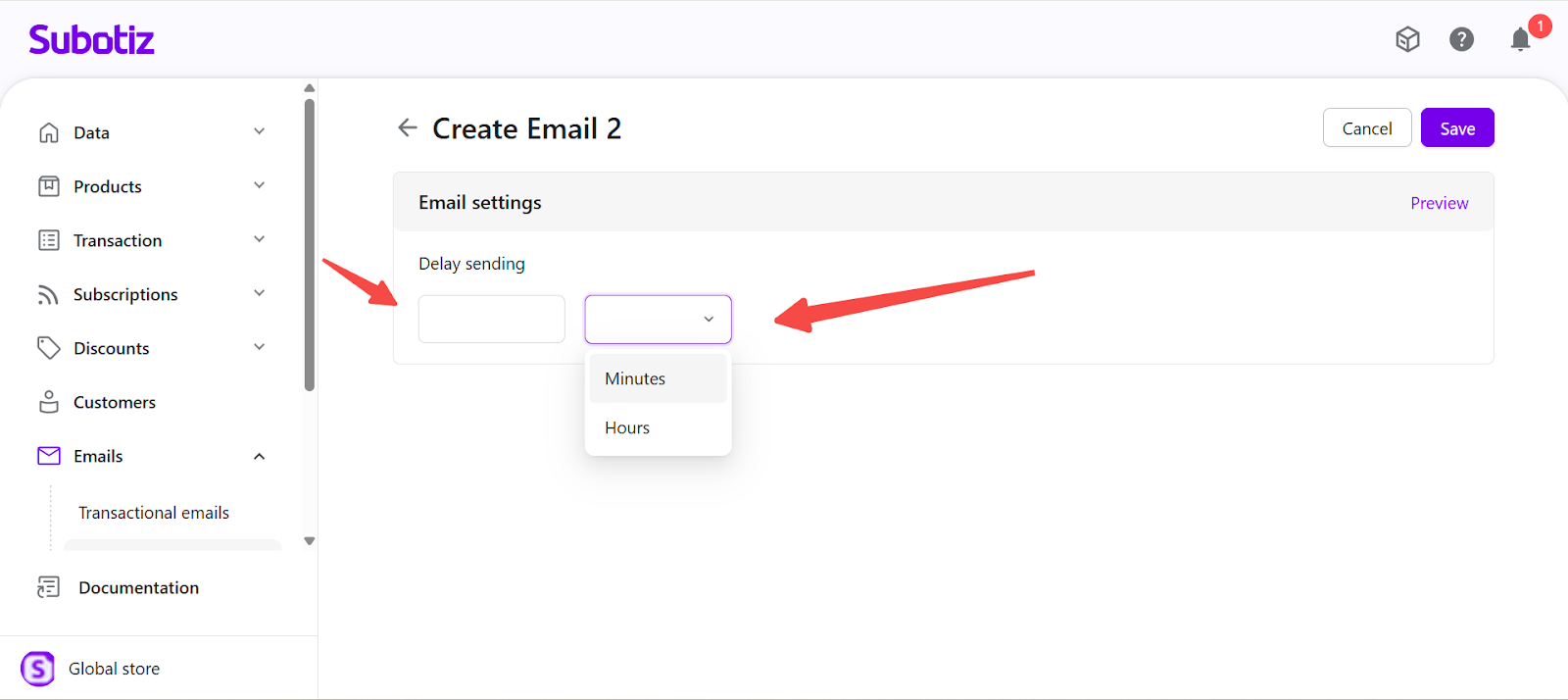
- Configure delay sending:
- Abandoned checkout supports minutes or hours.
- Cancelled trial and Expired subscription support minutes, hours, or days.
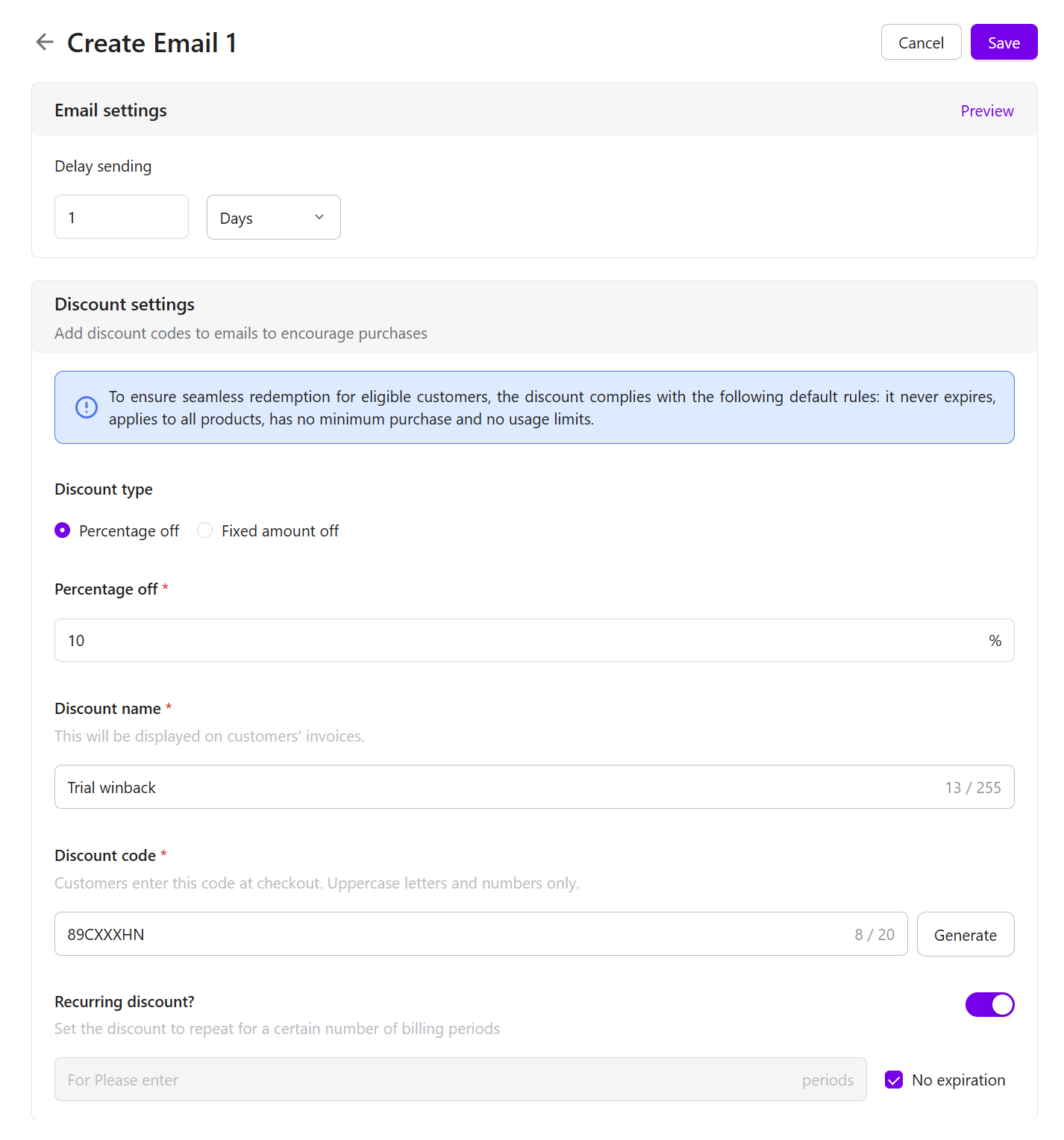
- Configure discount settings:
- Abandoned checkout emails do not support discount codes.
- Cancelled trial and Expired subscription emails require a discount. Discount settings are configured directly within the email creation page.
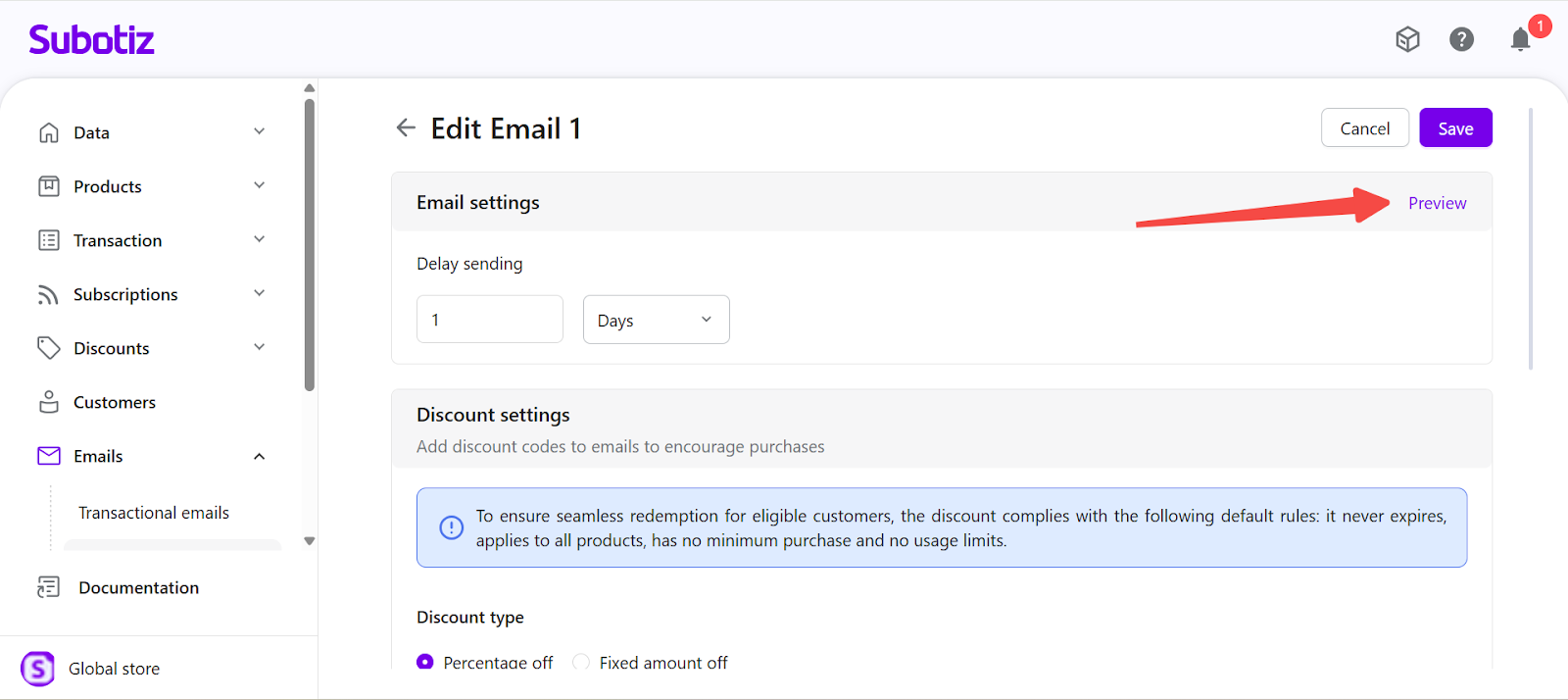
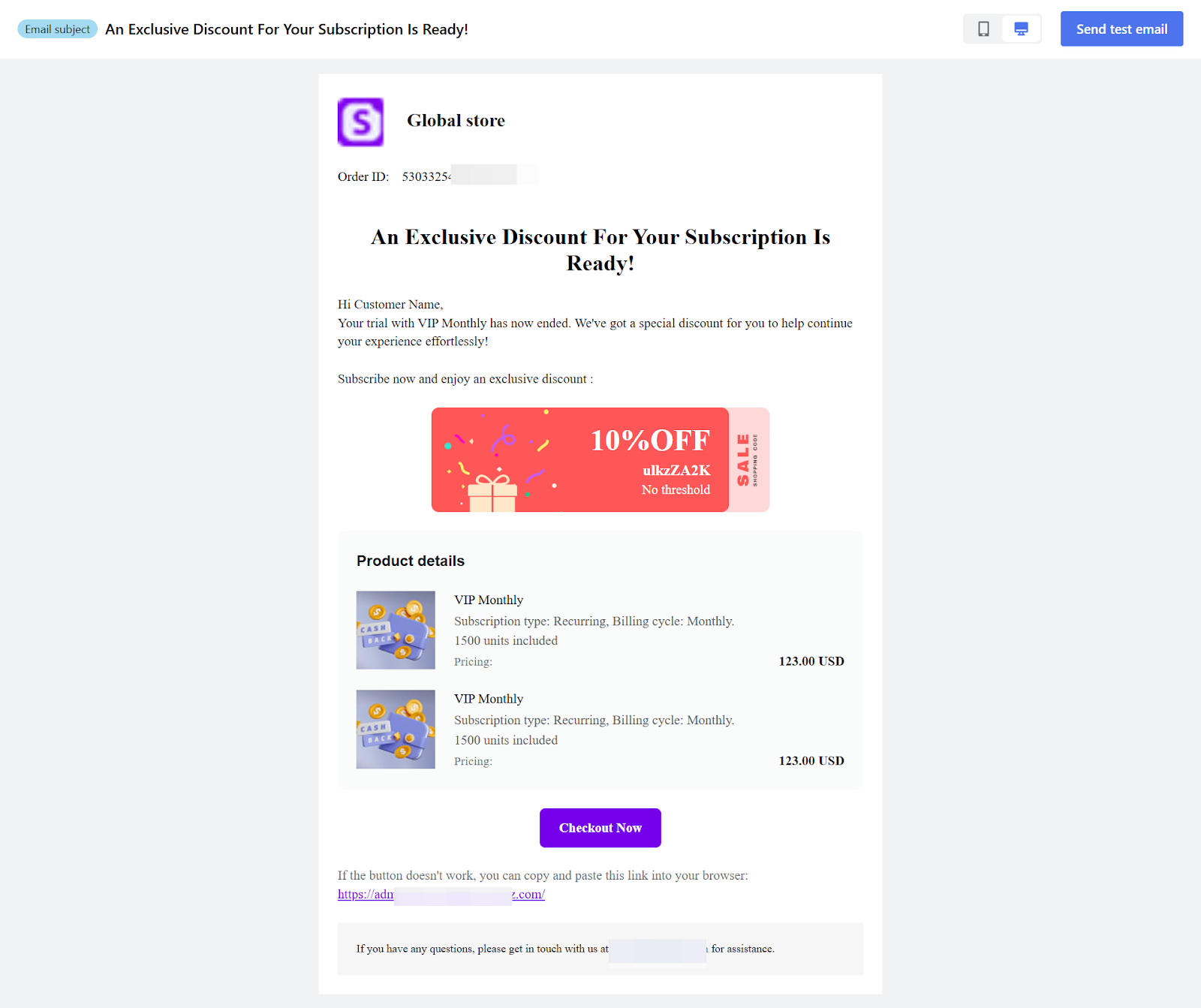
- Preview the email: Use Preview to review the email layout and content.
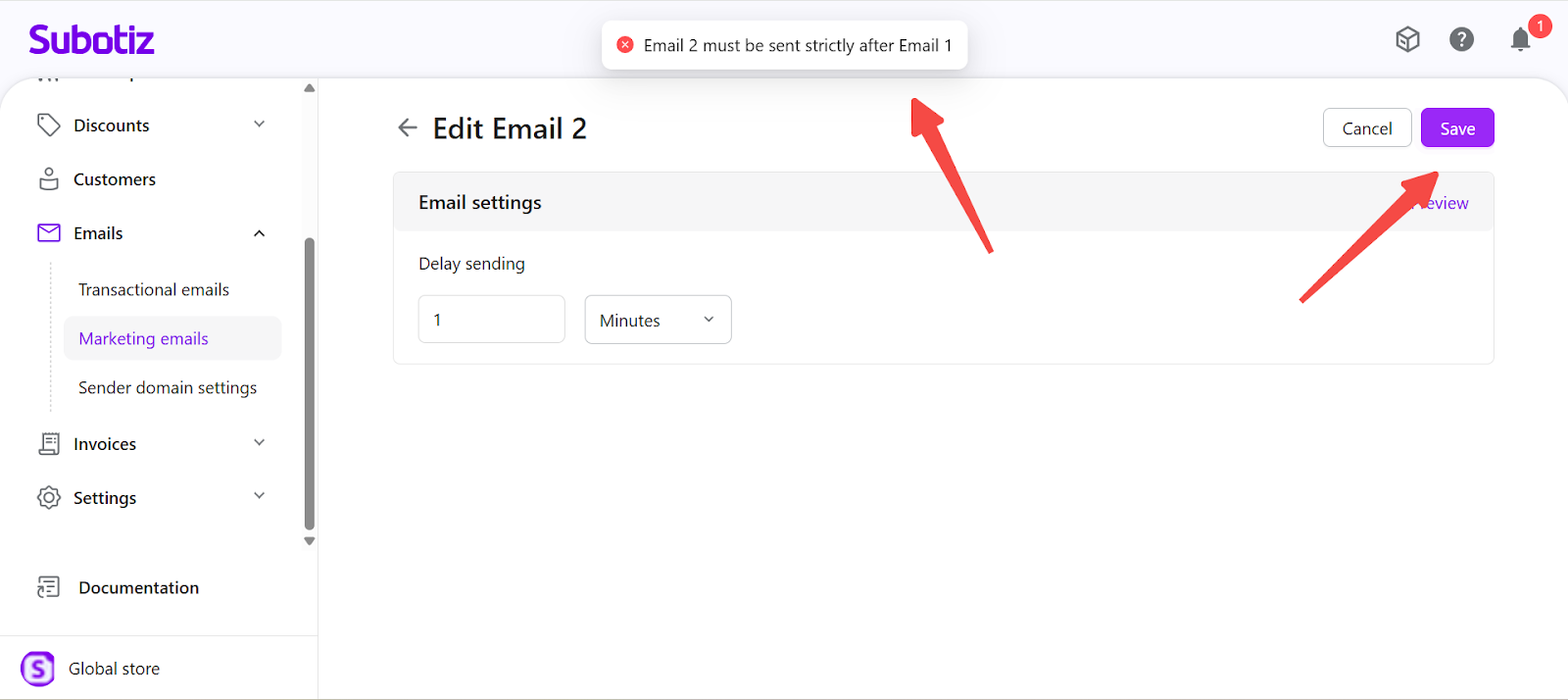
- Save the email: Select Save to publish the configuration. Email sequences must follow increasing delay times, with Email 1 sent before Email 2, and Email 2 before Email 3.
Editing Existing Emails
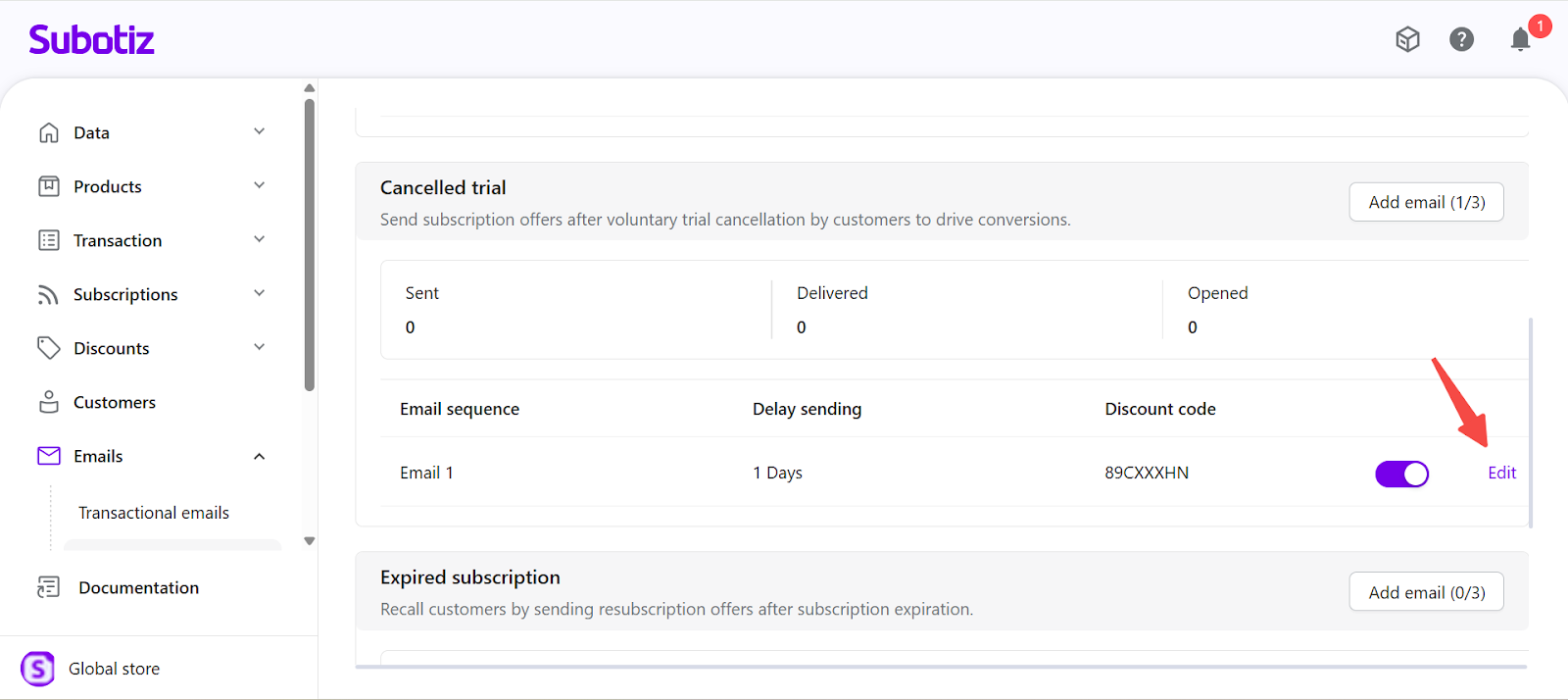
- Edit an email: Select Edit to update an email’s delay time or discount configuration. Changes apply only to customers who trigger the journey after the update.
- Save updates: Before saving, Subotiz validates delay order and required fields. Once saved, updated settings take effect immediately.
Enabling or Disabling Emails
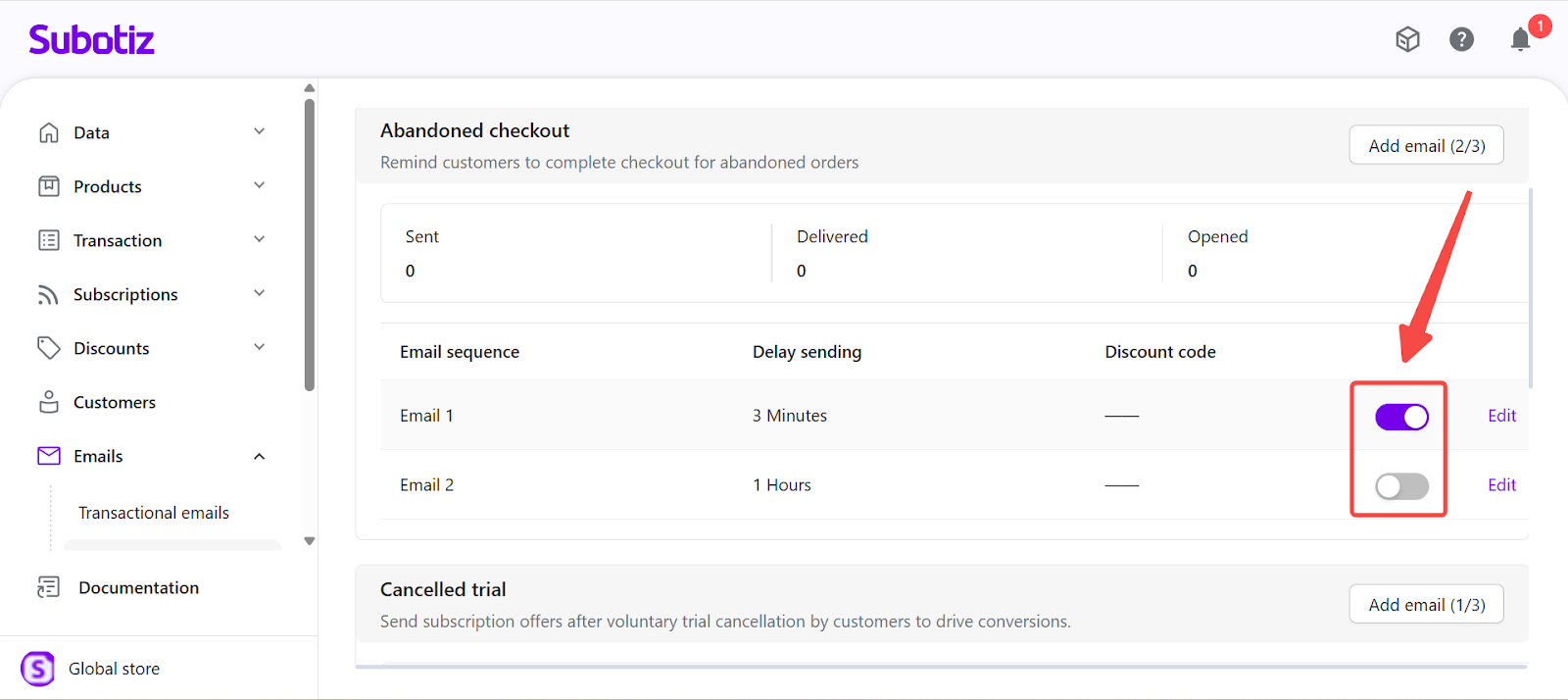
Each email includes an activation toggle.
- Turning an email off stops it from being delivered to future customers.
- Turning it back on reactivates the email for eligible users.
Emails cannot be deleted, but may remain disabled indefinitely.
Managing Marketing Consent
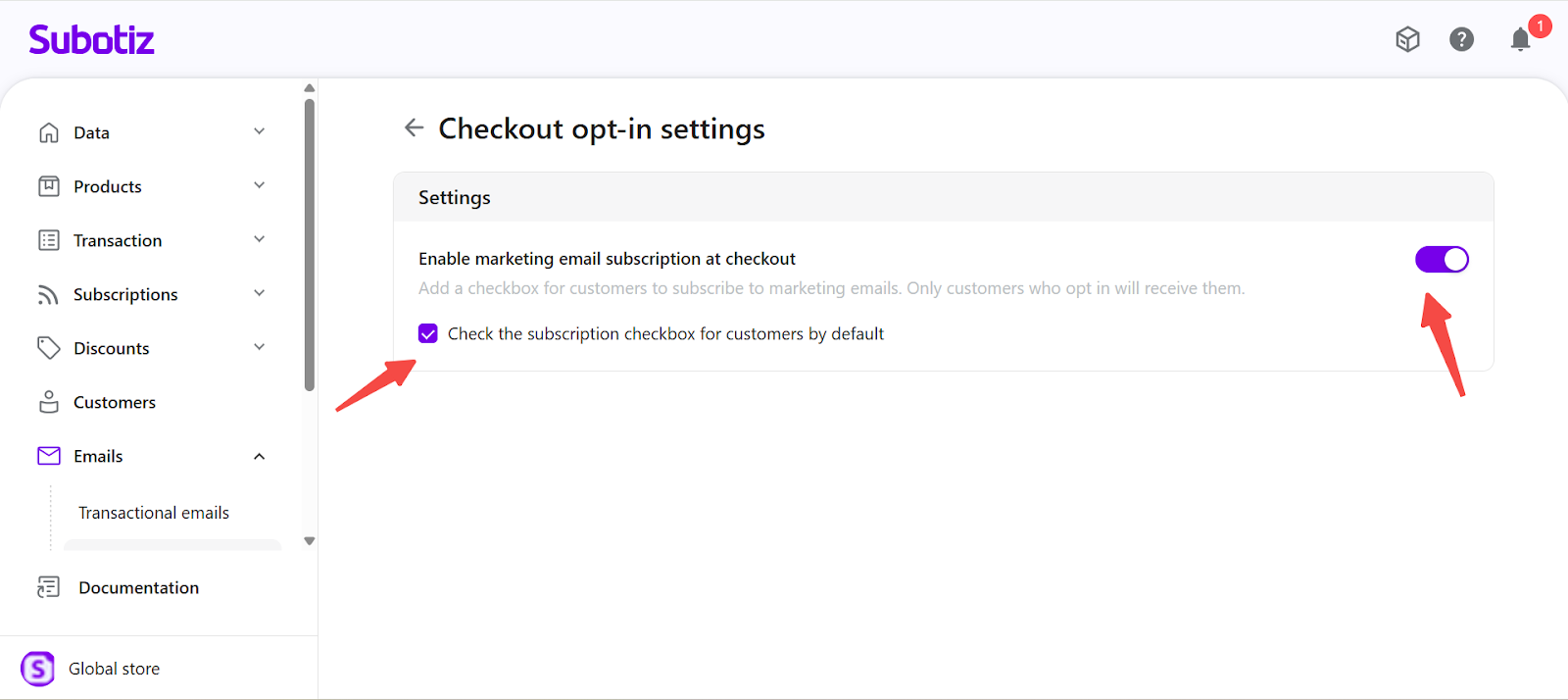
Open Checkout opt-in settings to control how marketing consent is collected at checkout.
This page allows configuration of the following:
- Whether the marketing subscription checkbox appears during checkout
- Whether the checkbox is pre-selected
Only customers who opt in through this setting are eligible to receive marketing emails.
Filtering and Monitoring Data
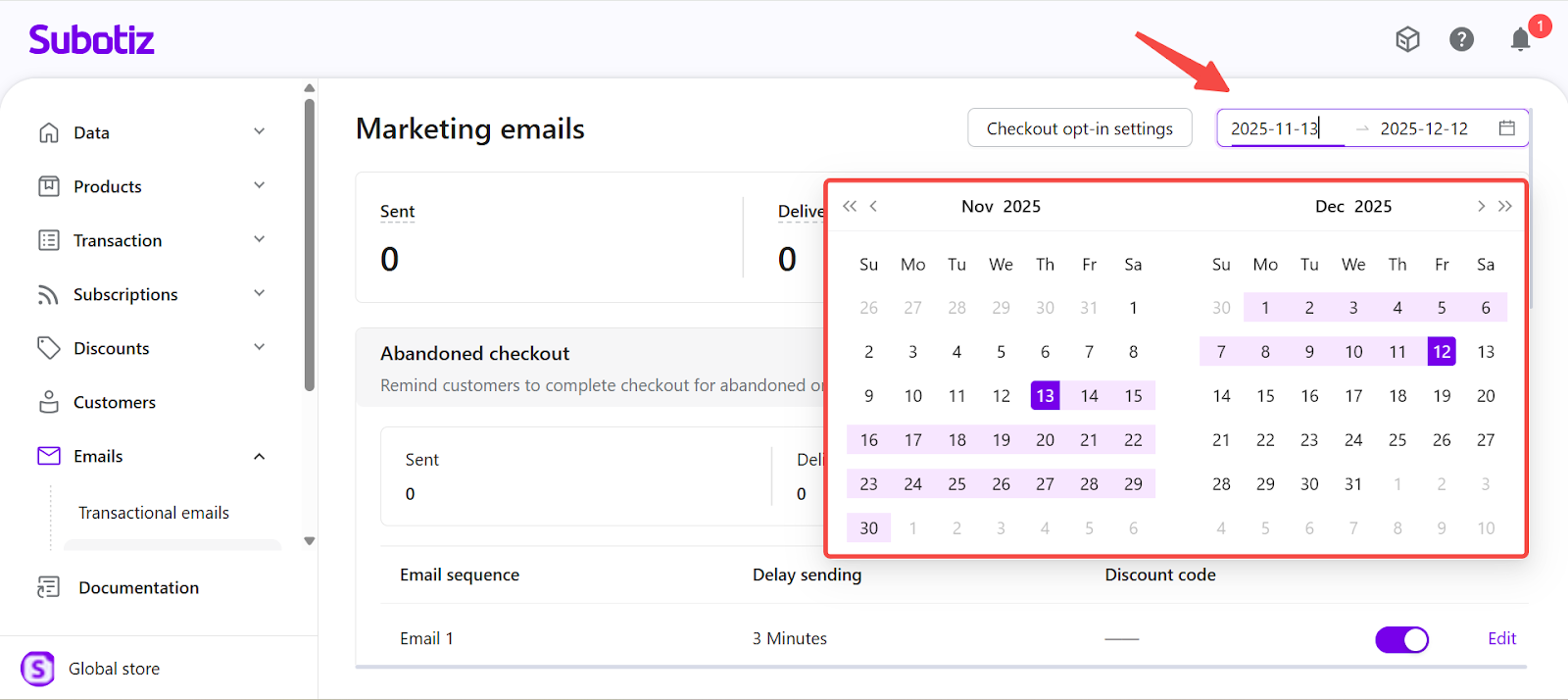
- Apply a date filter: Use the date selector to review performance within a specific time range.
- Default range is the last 30 days
- Maximum range is 365 days
- Metrics reflect emails sent within the selected period
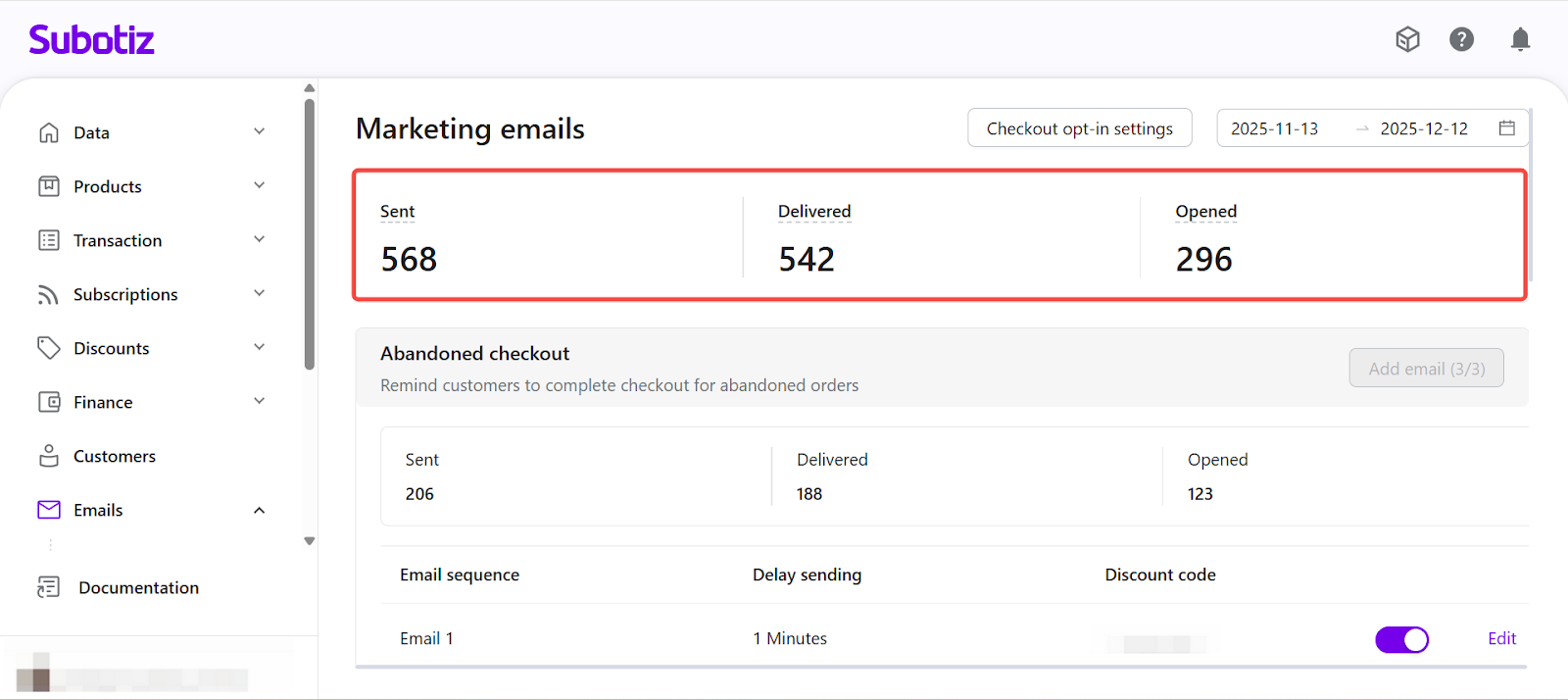
- Review key performance indicators: The dashboard displays:
- Sent emails
- Delivered emails
- Opened emails
These metrics update automatically based on the selected date range.
Best Practices
- Start with a single email per journey before expanding to additional follow-ups.
- Review journey metrics regularly to adjust timing and sequencing.
- Keep marketing consent settings aligned with compliance requirements.
Limitations
- Abandoned checkout emails require Hosted Checkout integration.
- Each journey supports a maximum of three emails.
- Emails cannot be deleted, but may be edited or disabled.
- Configuration changes apply only to new trigger events.
The Marketing emails dashboard gives merchants full visibility and control over lifecycle campaigns. By managing email sequences, monitoring engagement metrics, and adjusting consent settings in one place, merchants can optimize retention and winback strategies without relying on external email systems.