The Customer Import feature allows merchants to perform bulk customer import into Subotiz using a standardized Excel or CSV template. This enables bulk creation or updates of multiple customer profiles in a single action, reducing manual data entry and improving overall customer data management efficiency.
Supported Use Cases
The Customer Import feature is designed for the following scenarios:
- Existing customer data needs to be created in bulk.
- Initial customer data setup is required when onboarding to Subotiz.
- Existing customer records need to be updated or enriched, such as addresses, notes, or custom fields.
- Customer data preparation is required for subscriptions, customer management, or marketing emails.
This feature supports bulk customer record management through file uploads.
Accessing the Customer Import Tool
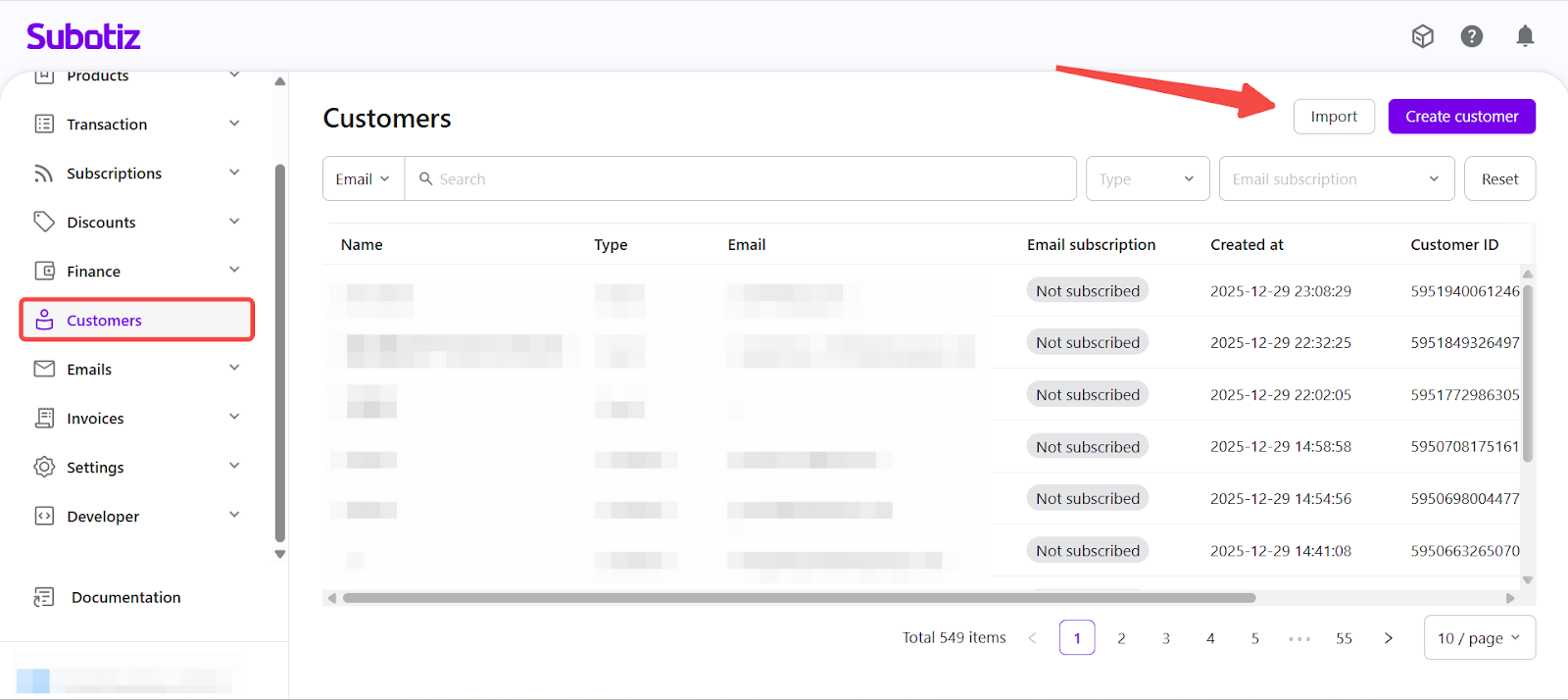
- Open the import dialog: Log in to your Subotiz admin, go to Customers, and select Import in the top-right corner to open the customer import dialog.
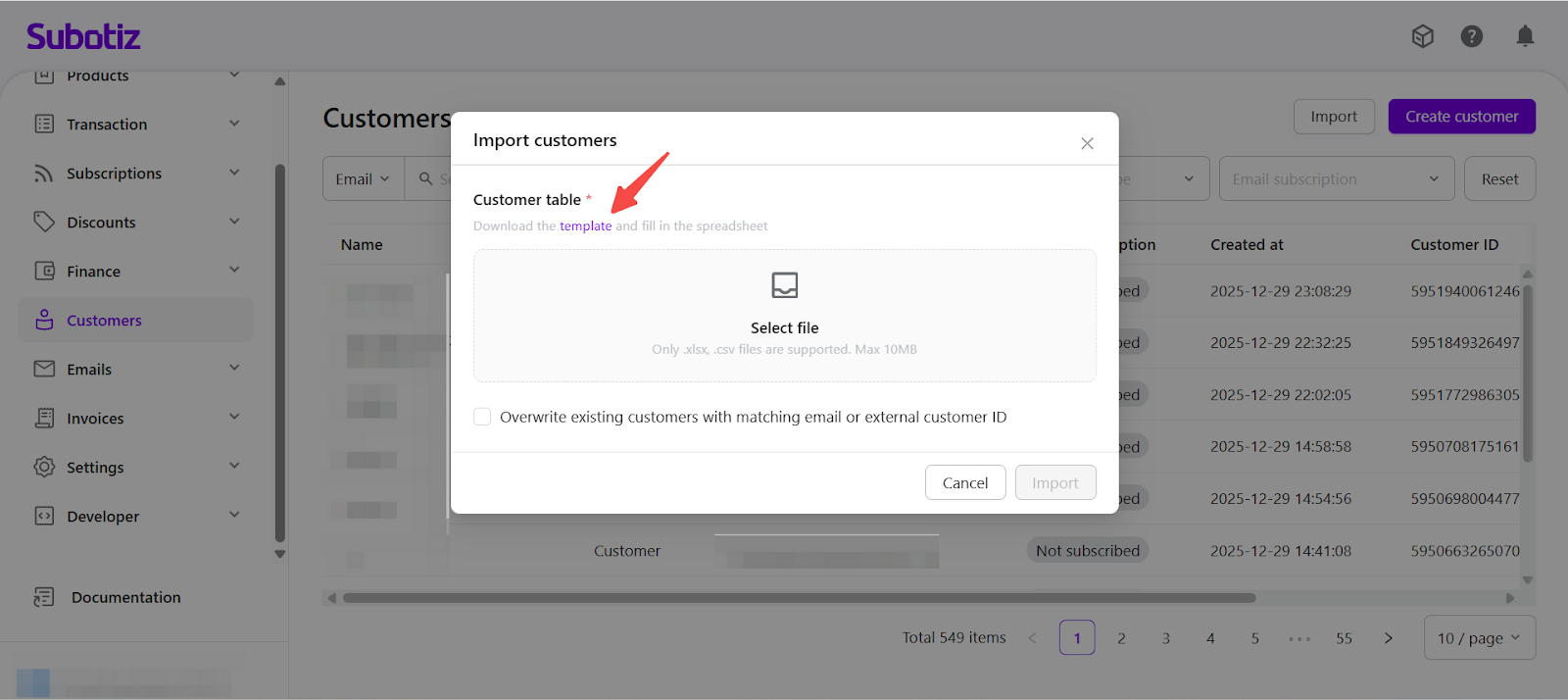
- Download the template: In the import dialog, select template to download the standard customer import template.
-
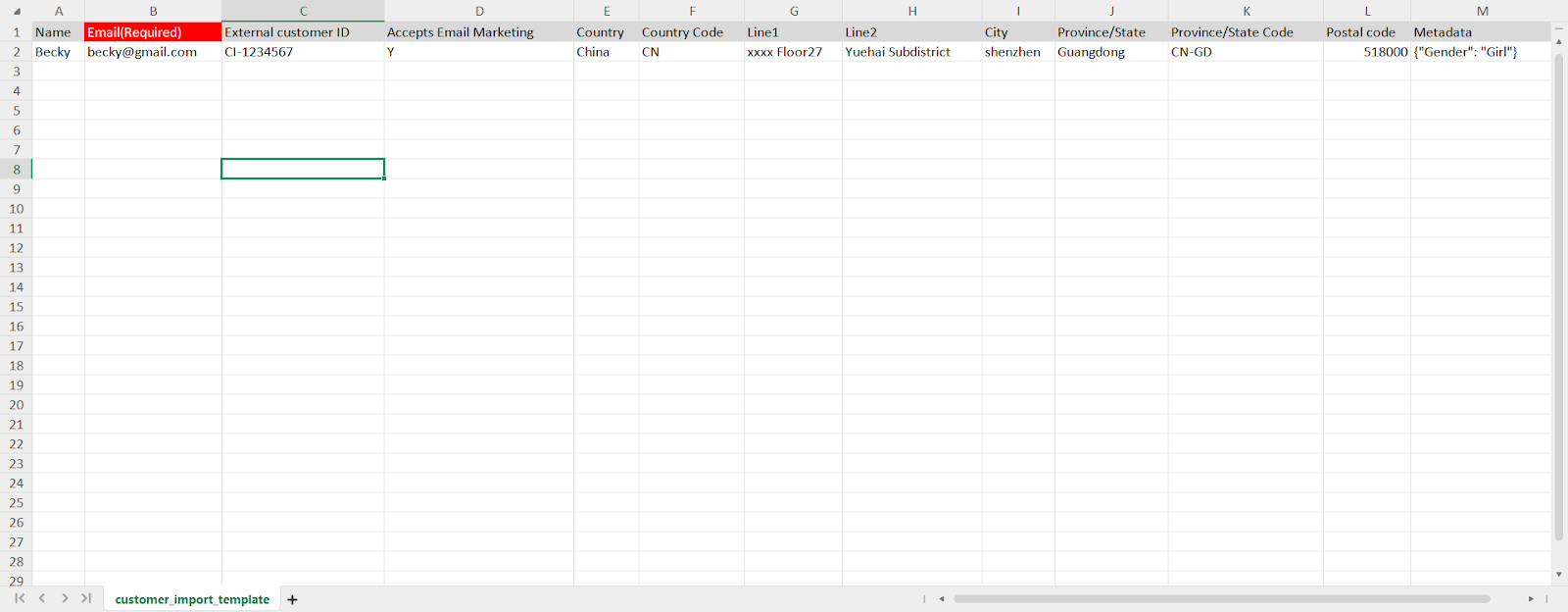
Template completion rules: Before filling out the template, make sure the following requirements are met:
- Do not modify the column headers or change their order.
- Fill in all fields strictly according to the required format.
- The file size must not exceed 10 MB.
- Only .xlsx and .csv file formats are supported. Files that do not meet these requirements cannot be imported.
- Customer Field Reference: The table below outlines each field available in the customer import template.
Field |
Required |
Description |
|---|---|---|
Name |
No |
Customer’s full name |
Email |
Yes* |
Customer email address. Must be unique and cannot be shared across customers |
External Customer ID |
No |
Unique customer identifier from your own system |
Accepts Email Marketing |
No |
Indicates whether the customer has opted in to marketing emails. Use Y for yes, N for no |
Country |
No |
Customer’s country (for reference only) |
Country Code |
No |
Country code using ISO Alpha-2 format |
Address Line 1 |
No |
Primary address line (max 100 characters) |
Address Line 2 |
No |
Secondary address line (max 100 characters) |
City |
No |
City name (max 50 characters) |
Province / State |
No |
Province or state (for reference only) |
Province / State Code |
No |
Province/state code using ISO 3166-2 format. Country code is required if this field is provided |
Postal Code |
No |
Postal or ZIP code (max 20 characters) |
Metadata |
No |
Custom data in JSON format, supports up to 20 fields |
-
Customer identity rules:
- By default, Email is used as the unique customer identifier.
- If a customer does not have an email address, External Customer ID can be used instead.
- When using External Customer ID as the identifier, the Email field may be left empty.
- Email and External Customer ID values must be unique across all customers.
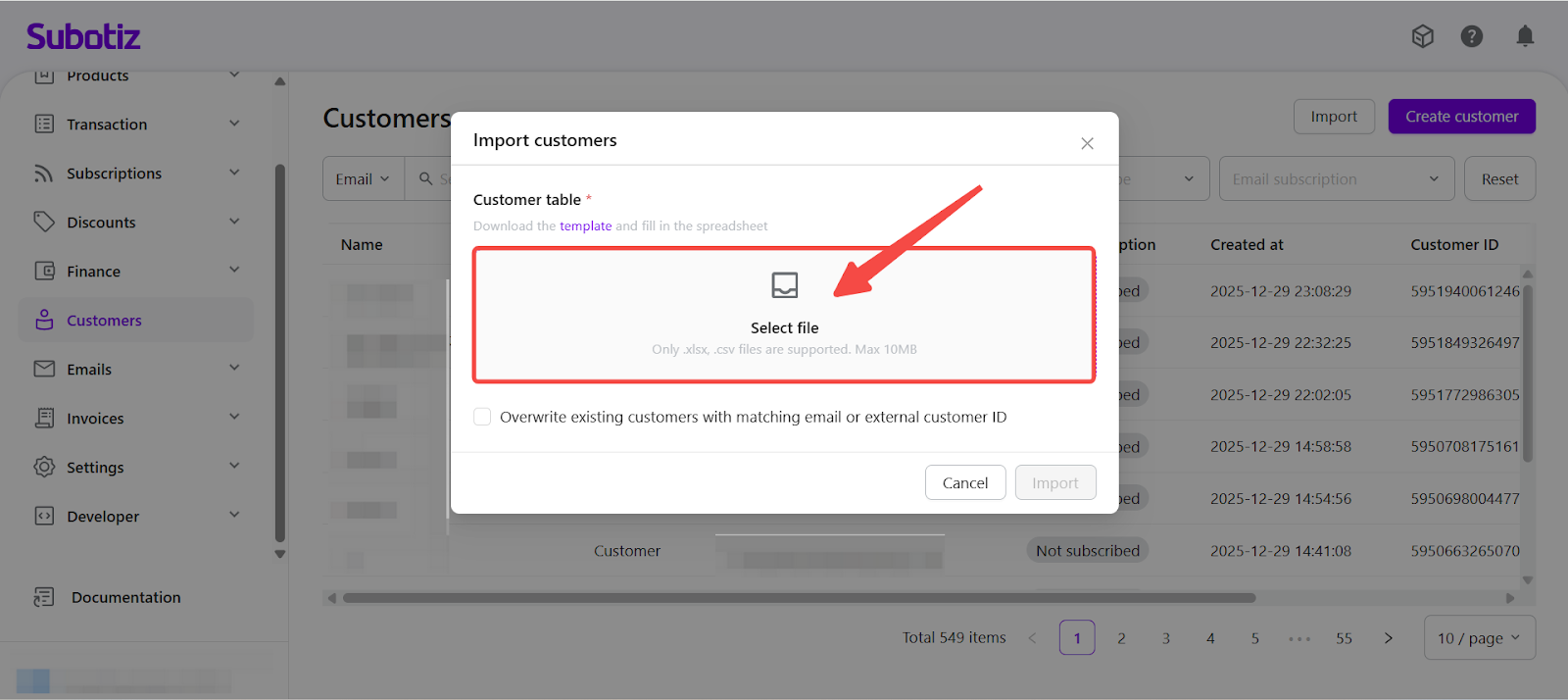
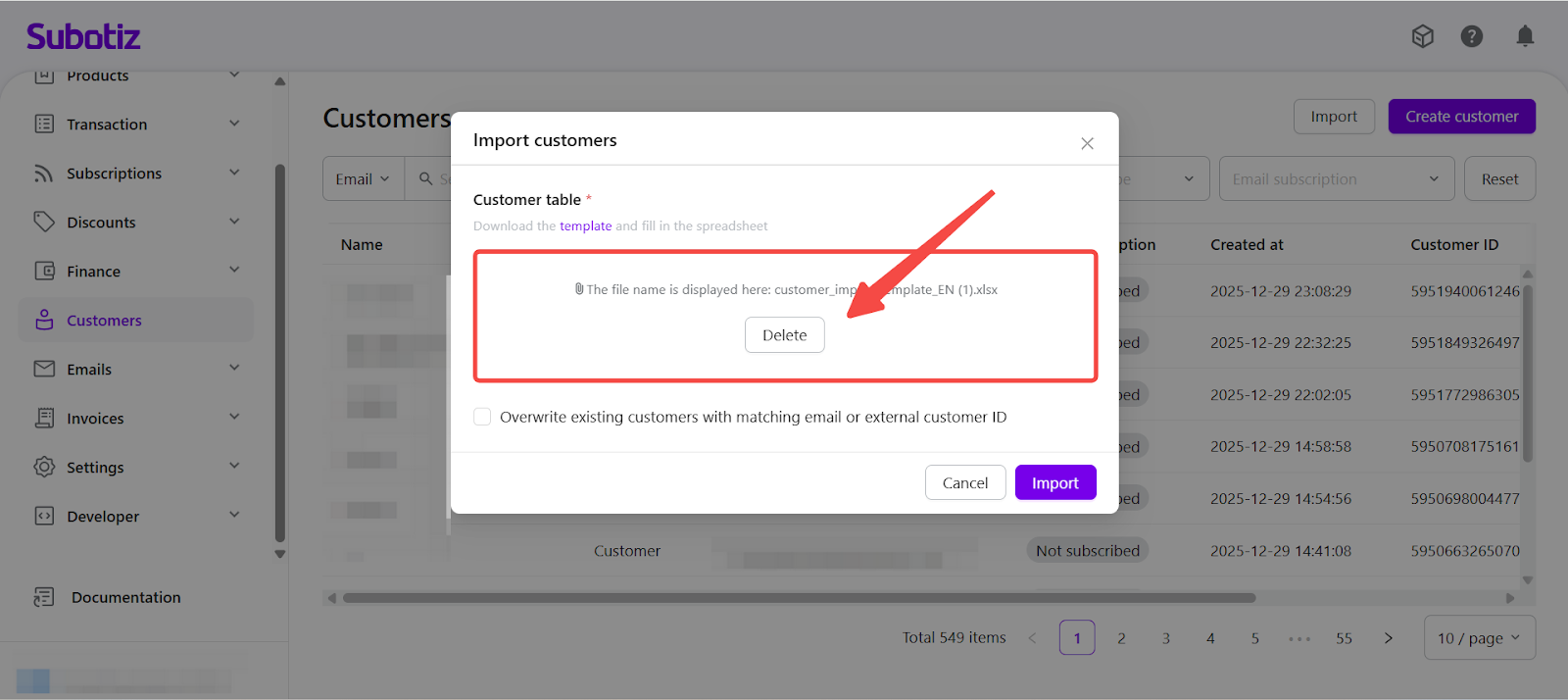
- Upload the completed file: After completing the template, use the Select file button to upload the Excel or CSV file.
-
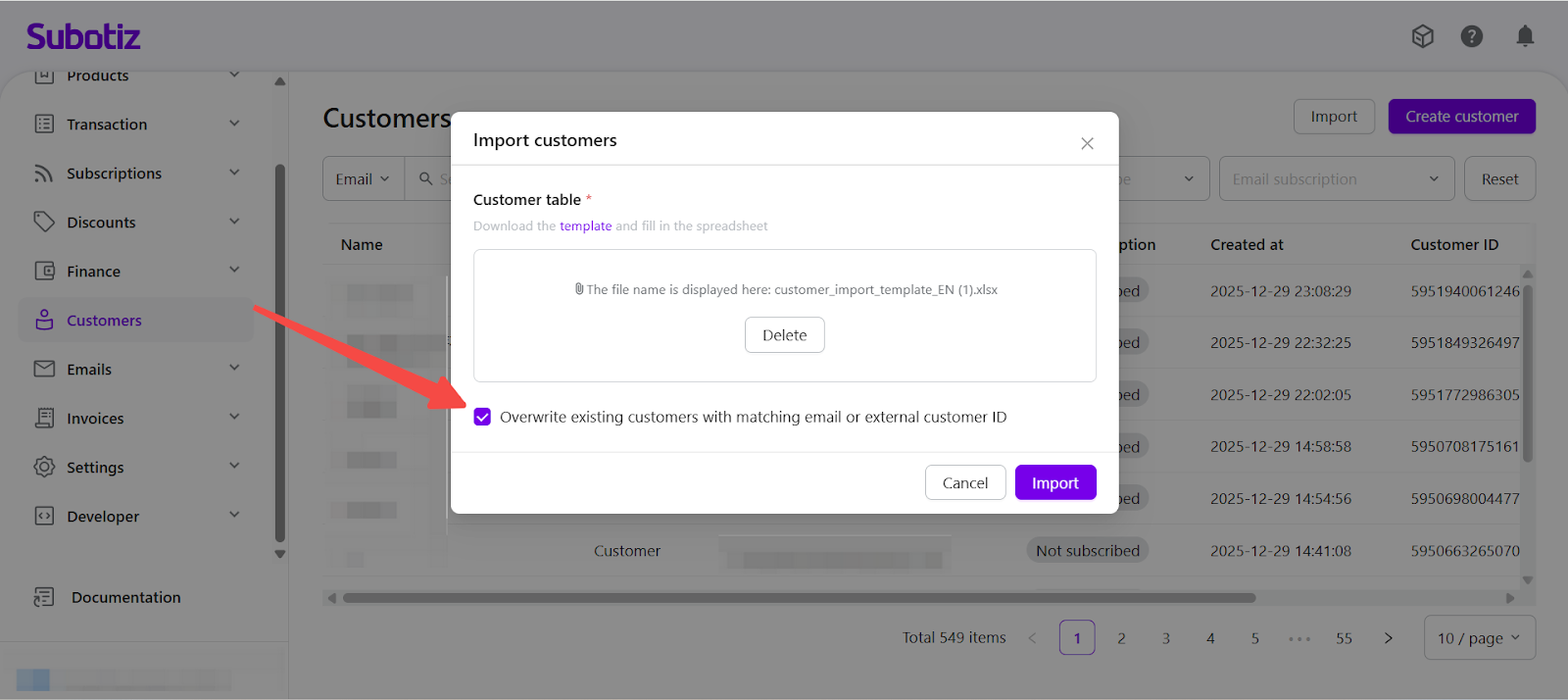
Import Behavior for Existing Customers (Optional): When uploading the file, it is possible to choose whether to update existing customer records by enabling the option: Overwrite existing customers with matching email or external customer ID
-
Overwrite enabled
- If a matching email or external customer ID already exists, Subotiz updates the customer using the imported data.
- Empty fields in the template will not overwrite existing values.
-
Overwrite disabled
- If a matching customer already exists, the record is skipped and no changes are made.
-
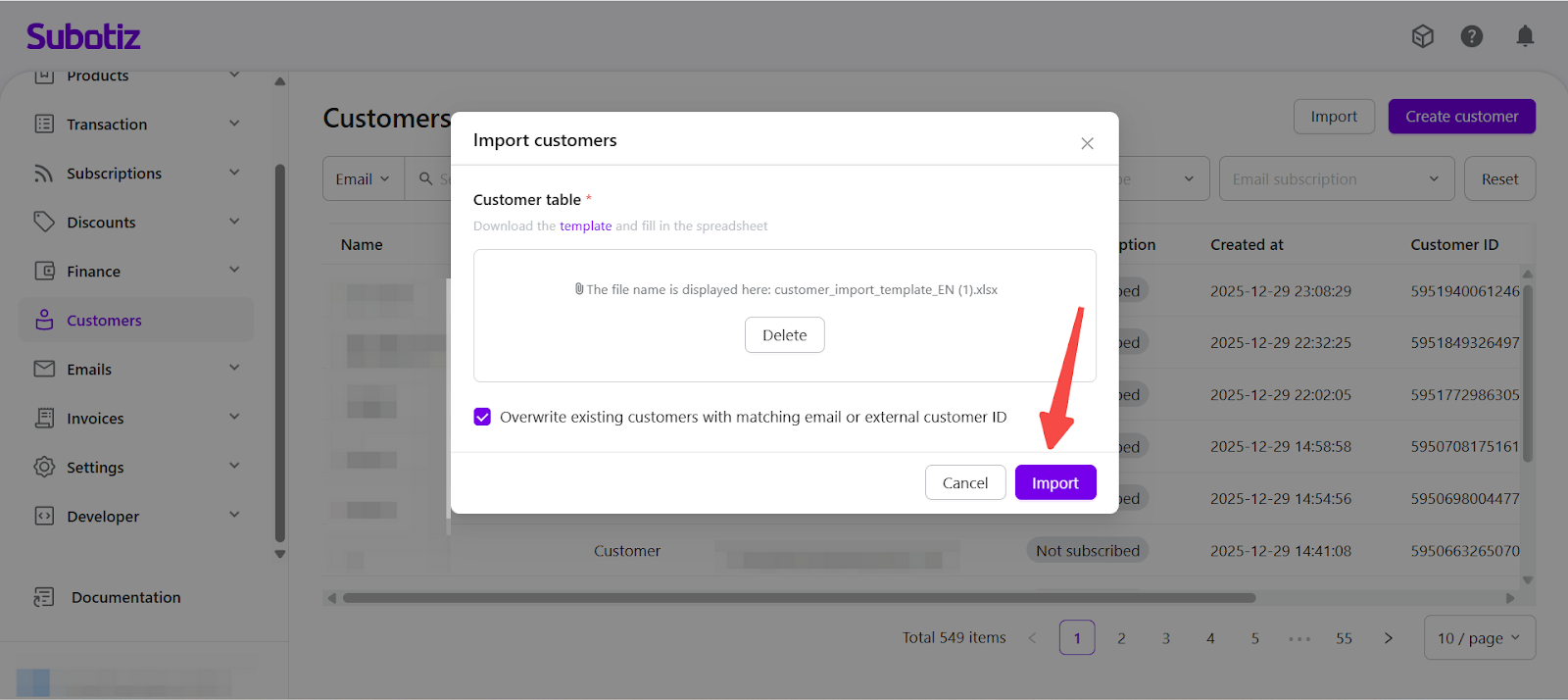
- Start the import: Once the file and import settings are confirmed, select Import. The system will process the file automatically.
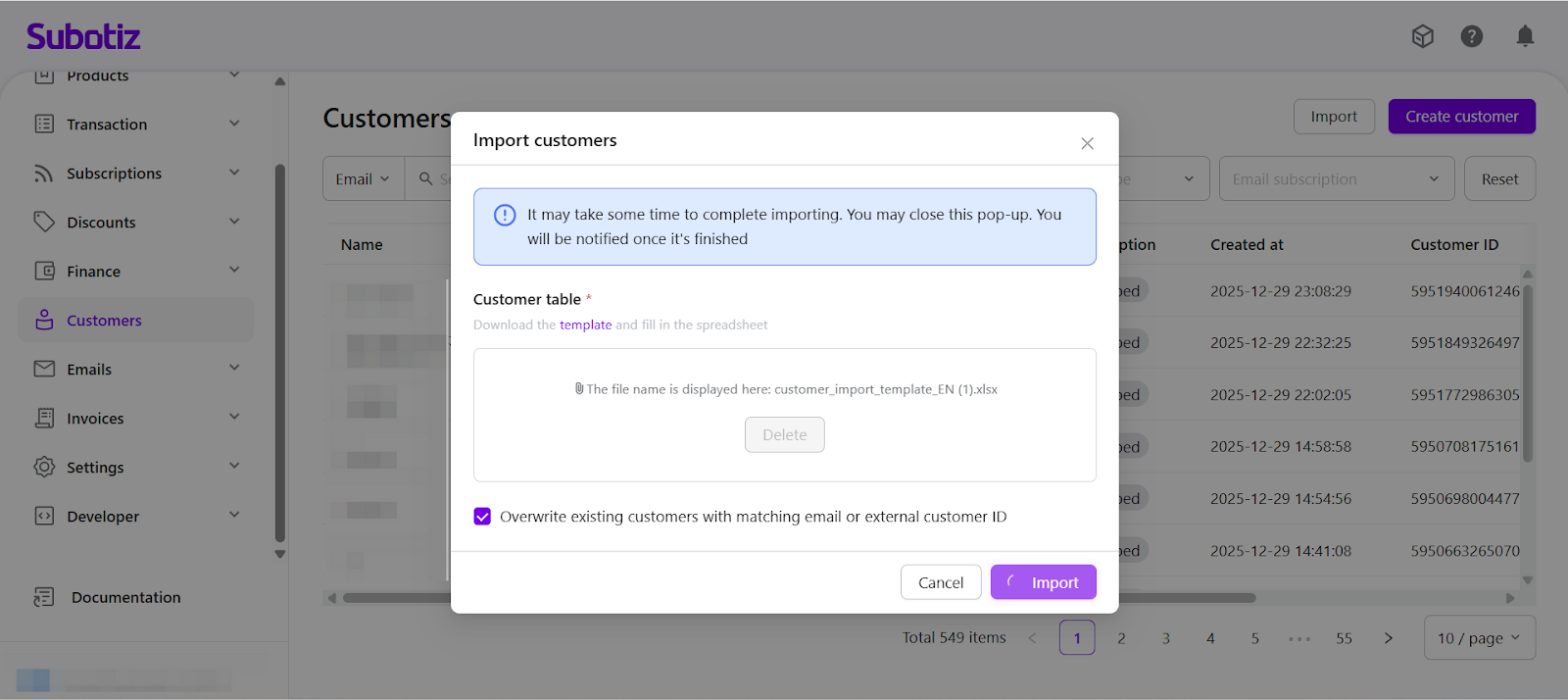
- Processing time: For large files, processing may take some time. The page can remain open, or the dialog can be closed. Once the import is complete, a notification will be sent.
-
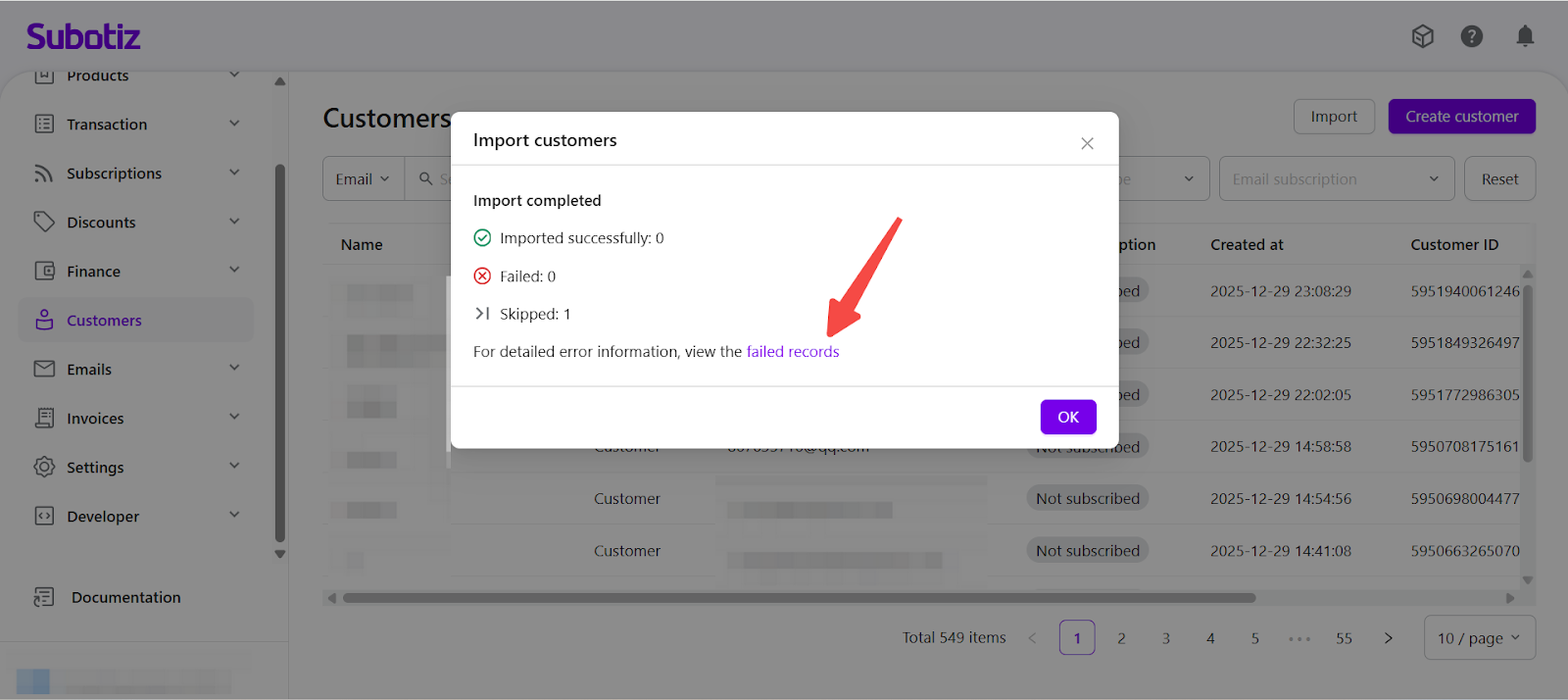
Reviewing Import Results: After processing, Subotiz displays a summary of the import results, including:
- Successfully imported records
- Failed records
- Skipped records
If any records fail to import, failed records can be selected to download a detailed error file, correct the issues, and re-import the data.
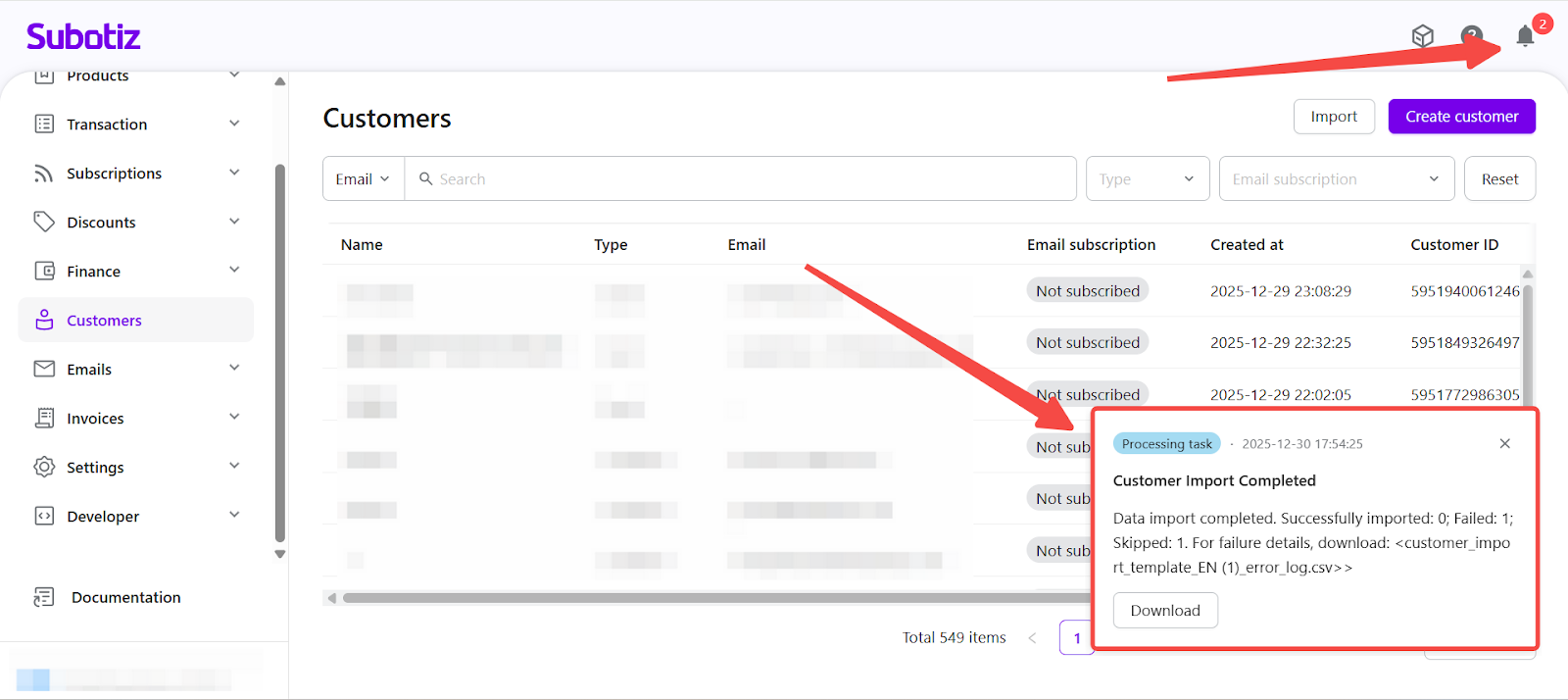
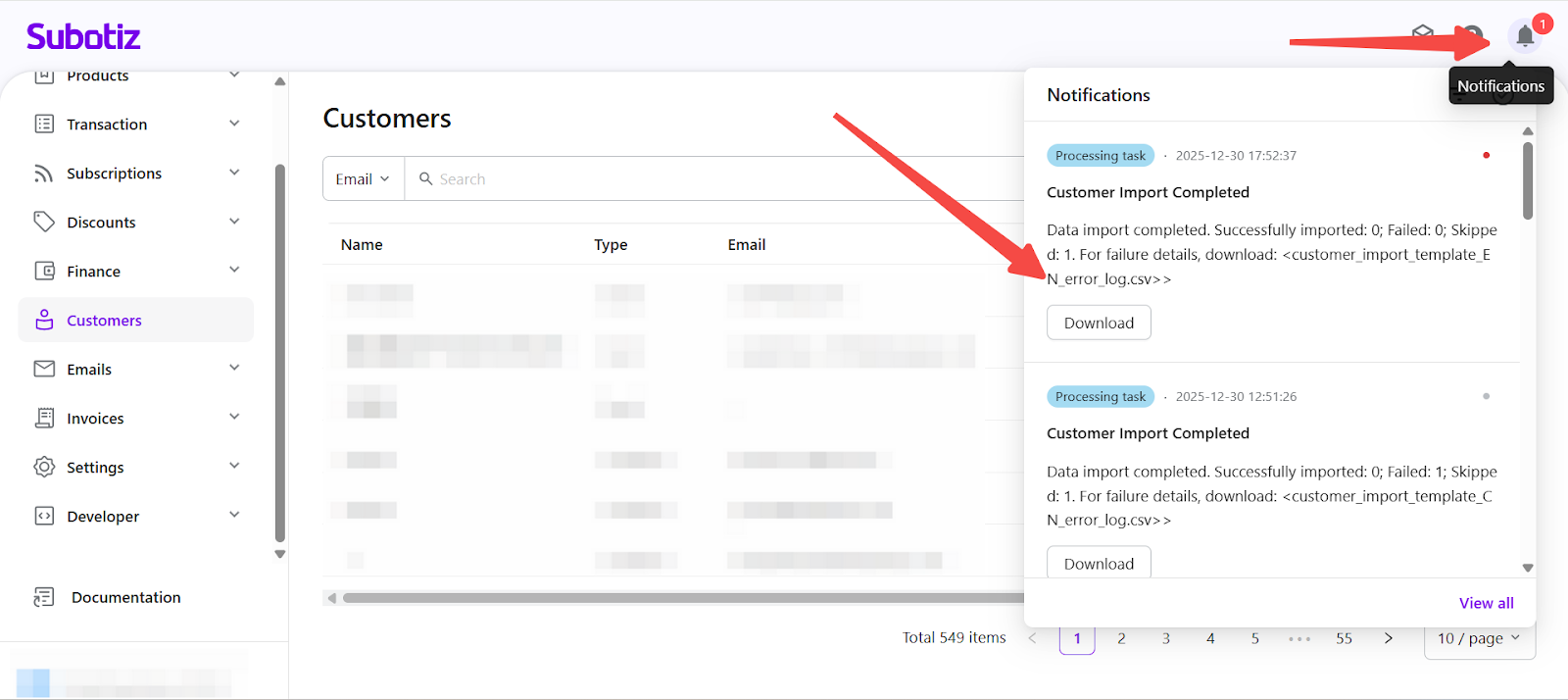
- Viewing Results from Notifications: If the import dialog is closed during processing, a notification will be sent once the task is complete. The result can be accessed from Notifications, where failed records can also be downloaded.
The Customer Import feature enables merchants to efficiently create and maintain customer records at scale using a standardized file-based workflow. With clear field validation and flexible overwrite controls, Subotiz helps you maintain a clean, structured customer database that supports ongoing customer management, subscriptions, and operational workflows.