Linking a payment method enables automatic processing of commission charges and invoice payments. By connecting a credit card (such as Visa and Mastercard) or PayPal account, merchants can keep billing running and reduce the risk of failed charges.
Linking a Payment Method
Link a payment account so the system can automatically process commission and invoice charges.
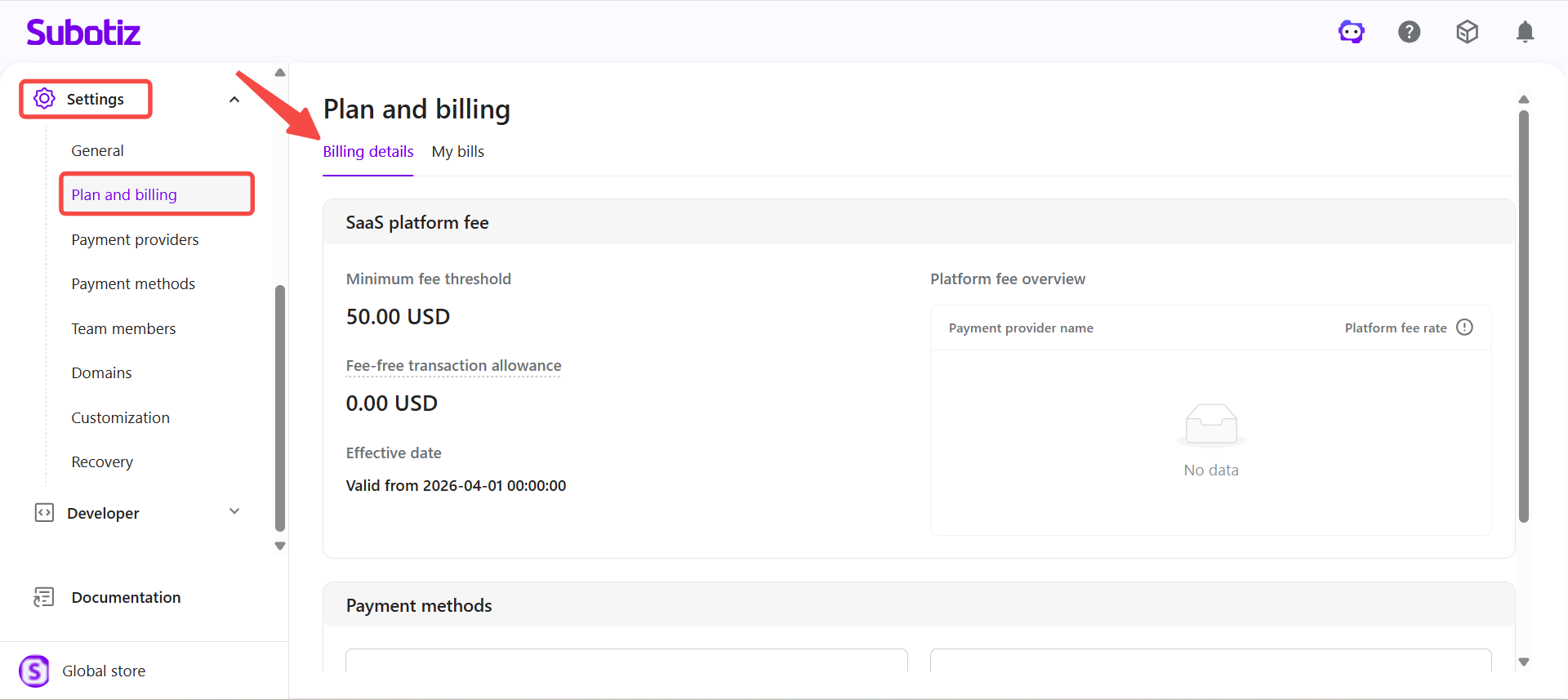
- Open the settings: Go to Settings > Plan and billing, then click the Billing details tab.
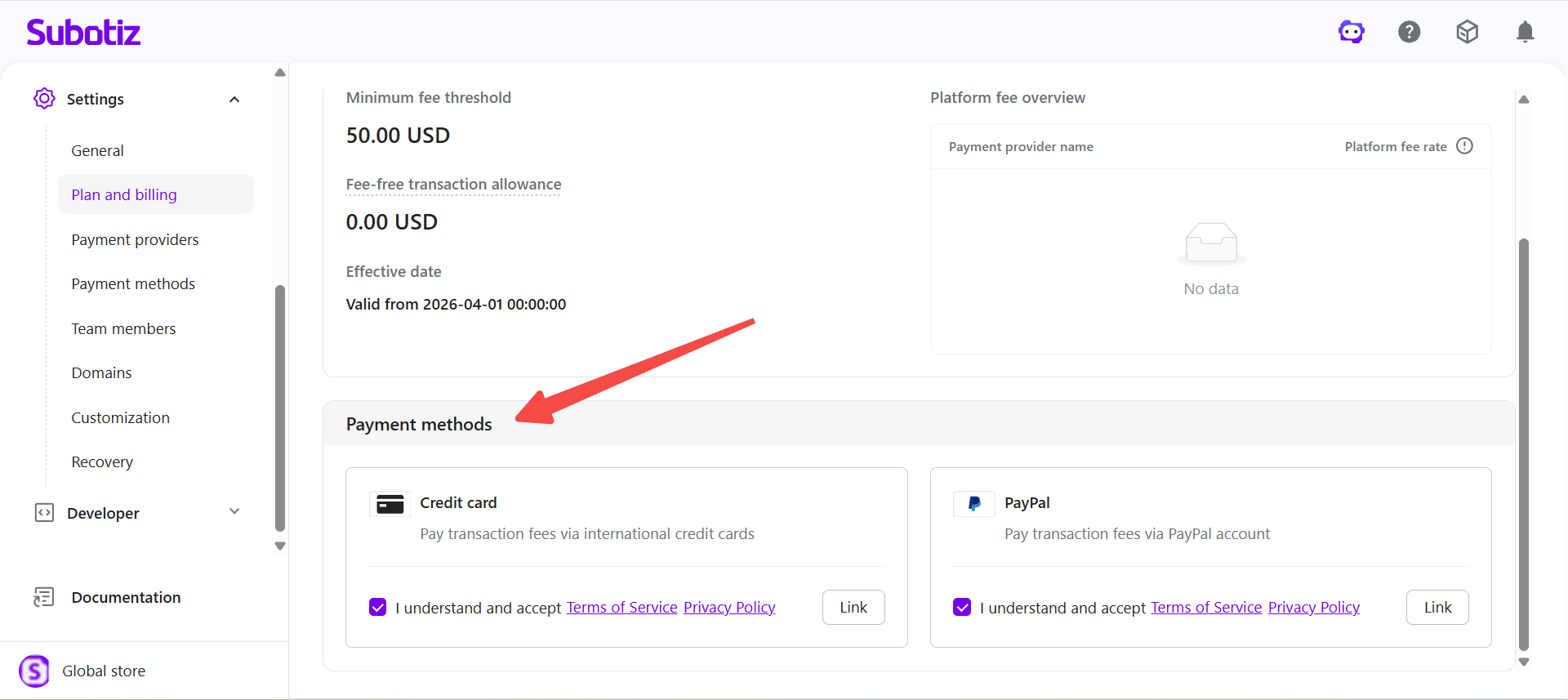
- Locate the section: Scroll down to the Payment methods area.
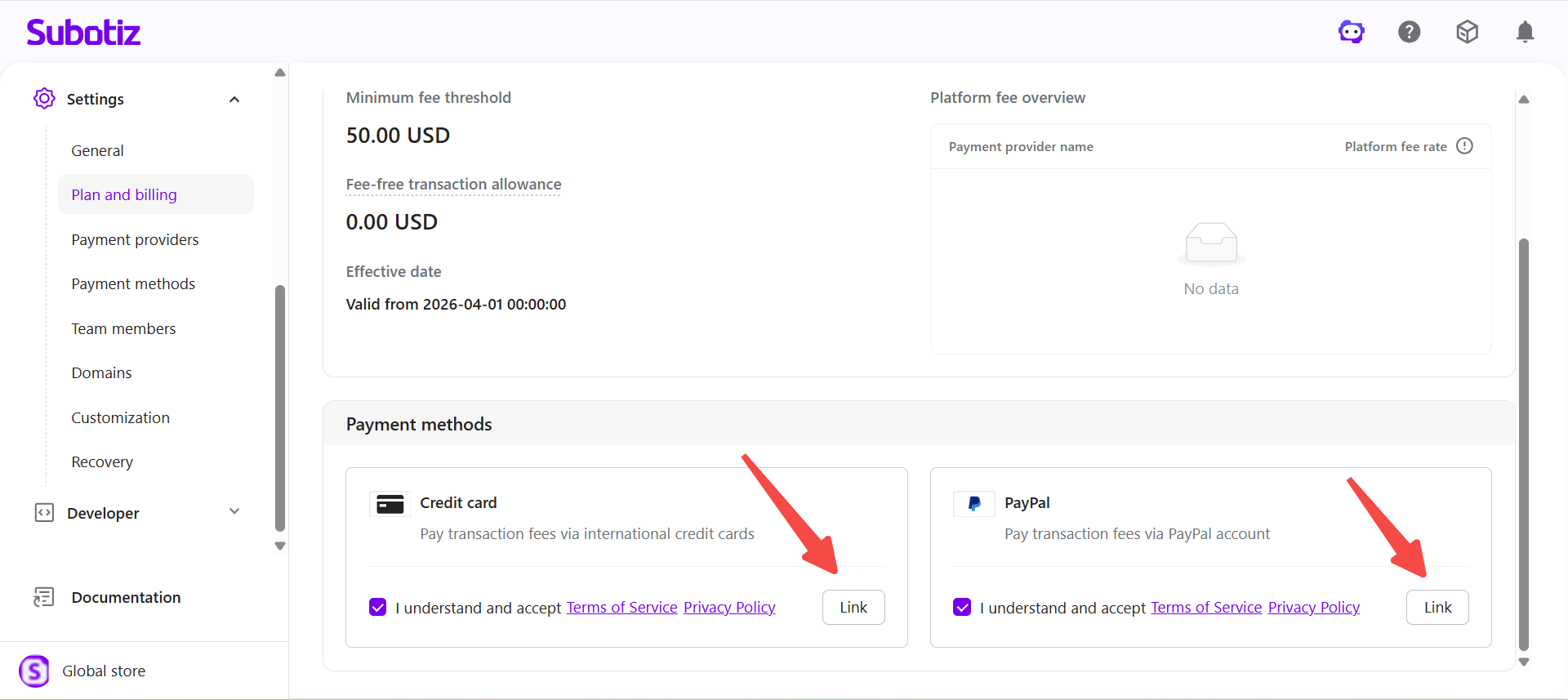
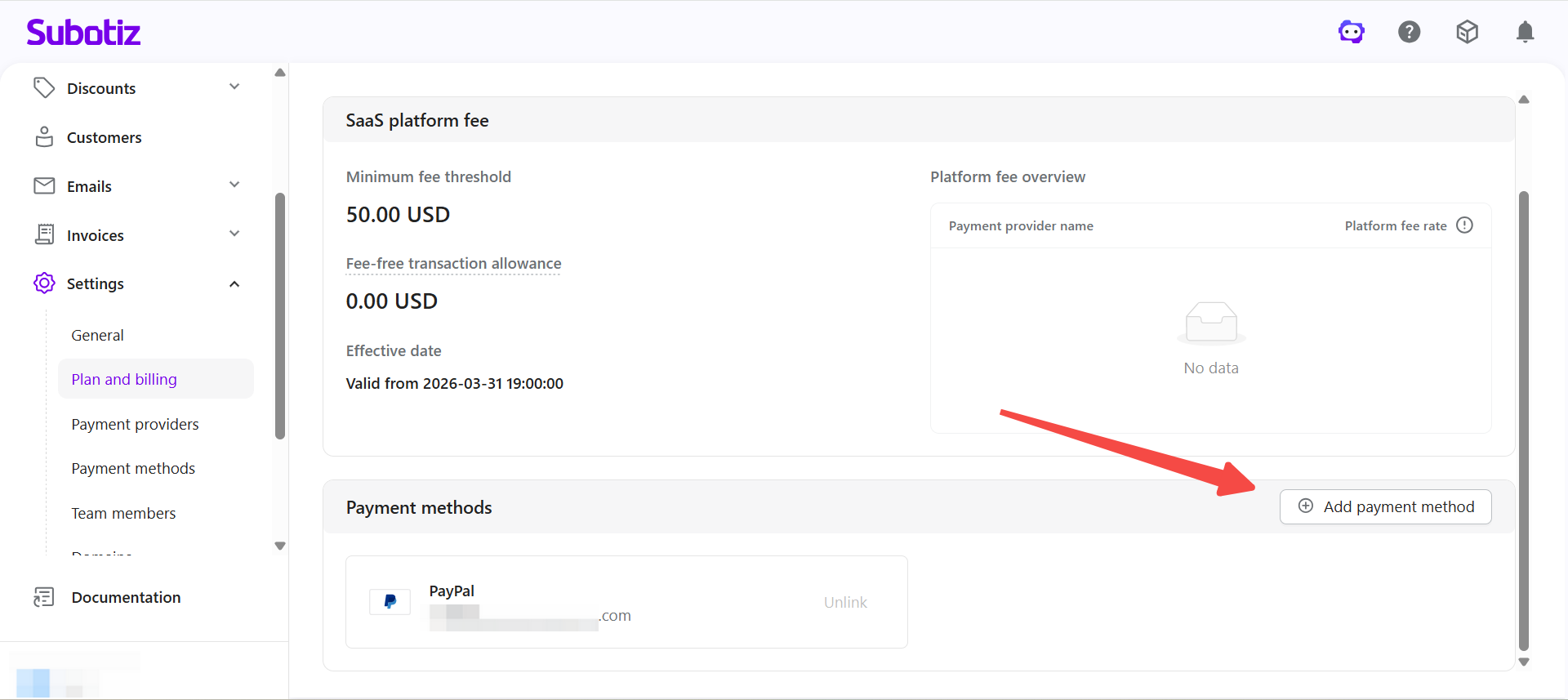
- Start linking: Click Link on the payment method card, or click Add payment method in the top right.
- Complete authorization: Follow the on-screen prompts to authorize. Required terms are presented and confirmed during the process. Once completed, the payment method is added to your list and will be used for automatic charges.
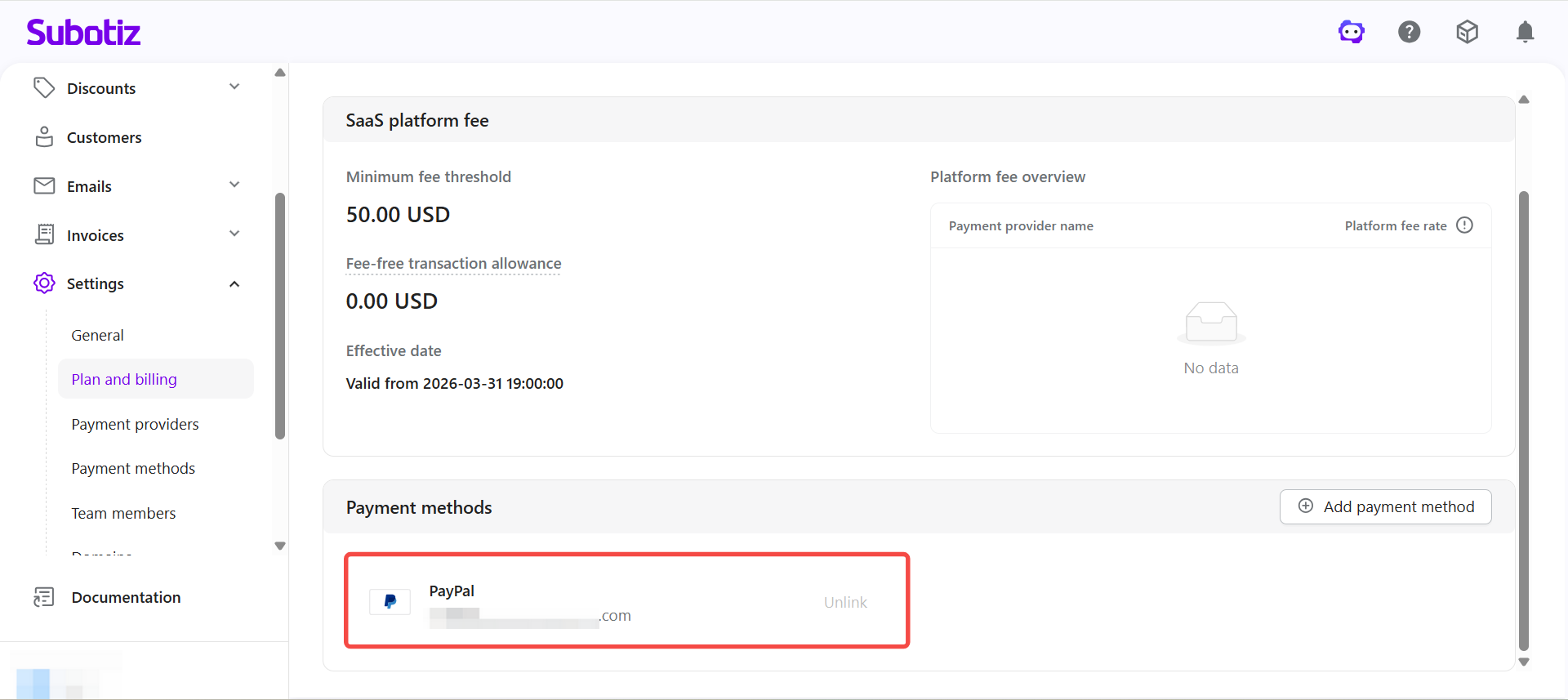
Payment Method Display Rules
The payment method section adapts based on your current setup.
- First-time setup: All available payment methods (such as credit cards and PayPal) are shown directly. Click Link to get started.
- After linking one method: Unlinked methods are no longer shown by default. Use the Add payment method button in the top right to add more.
Linking PayPal
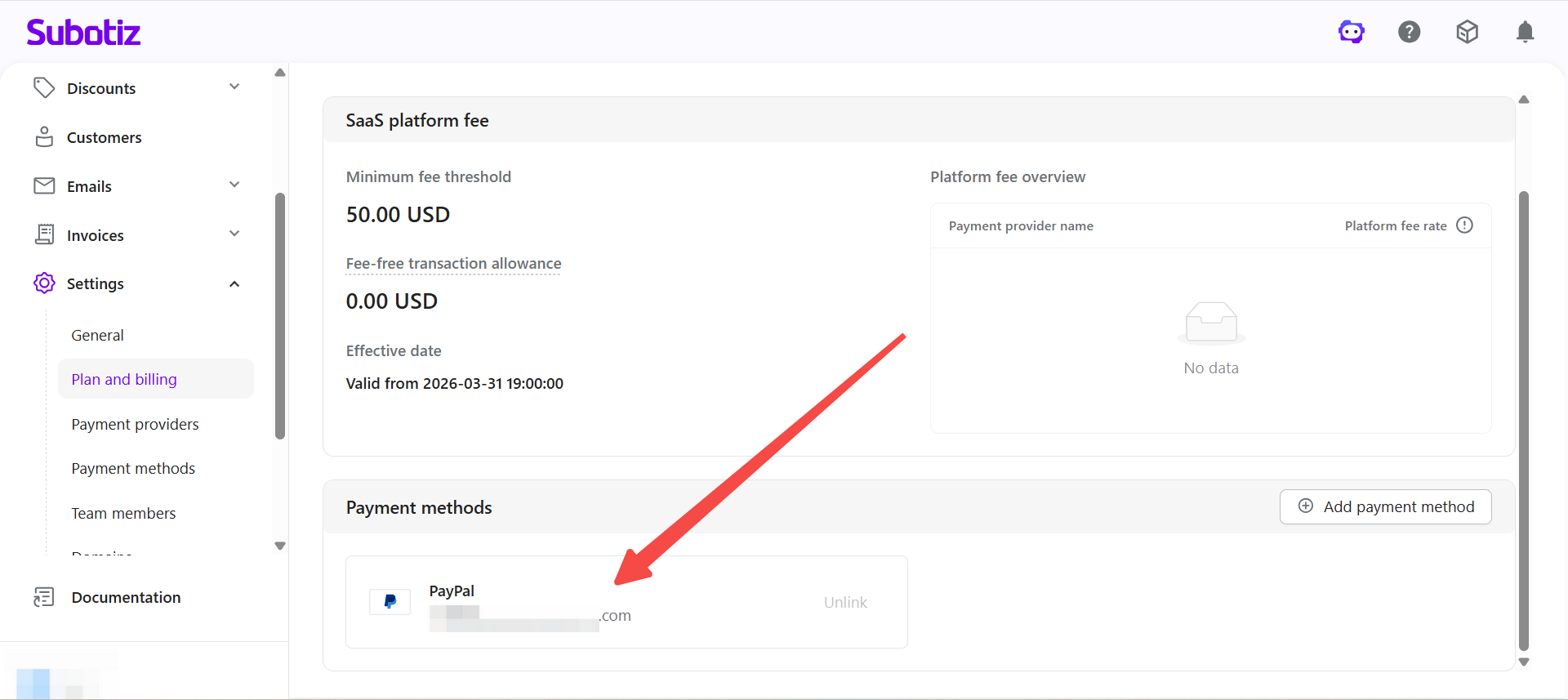
Once linked, PayPal will be used for automatic commission and invoice deductions.
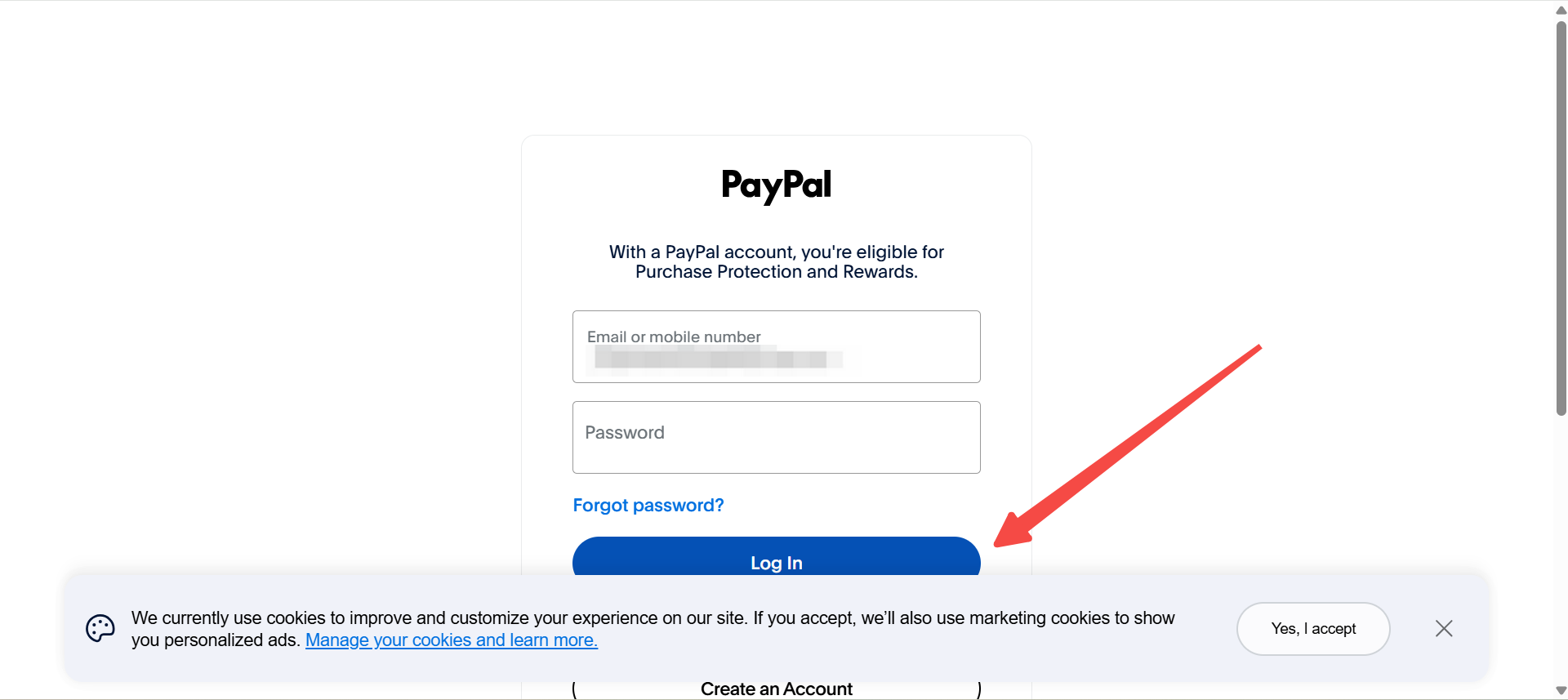
- Authorize access: You will be redirected to PayPal to log in and grant authorization.
- Confirm the link: After authorization, you are returned to the admin and your PayPal account details are displayed.
Linking a Credit Card
Credit cards are supported, such as Visa and Mastercard.
- Enter card details: Provide the card number, cardholder name, expiry date, and CVV.
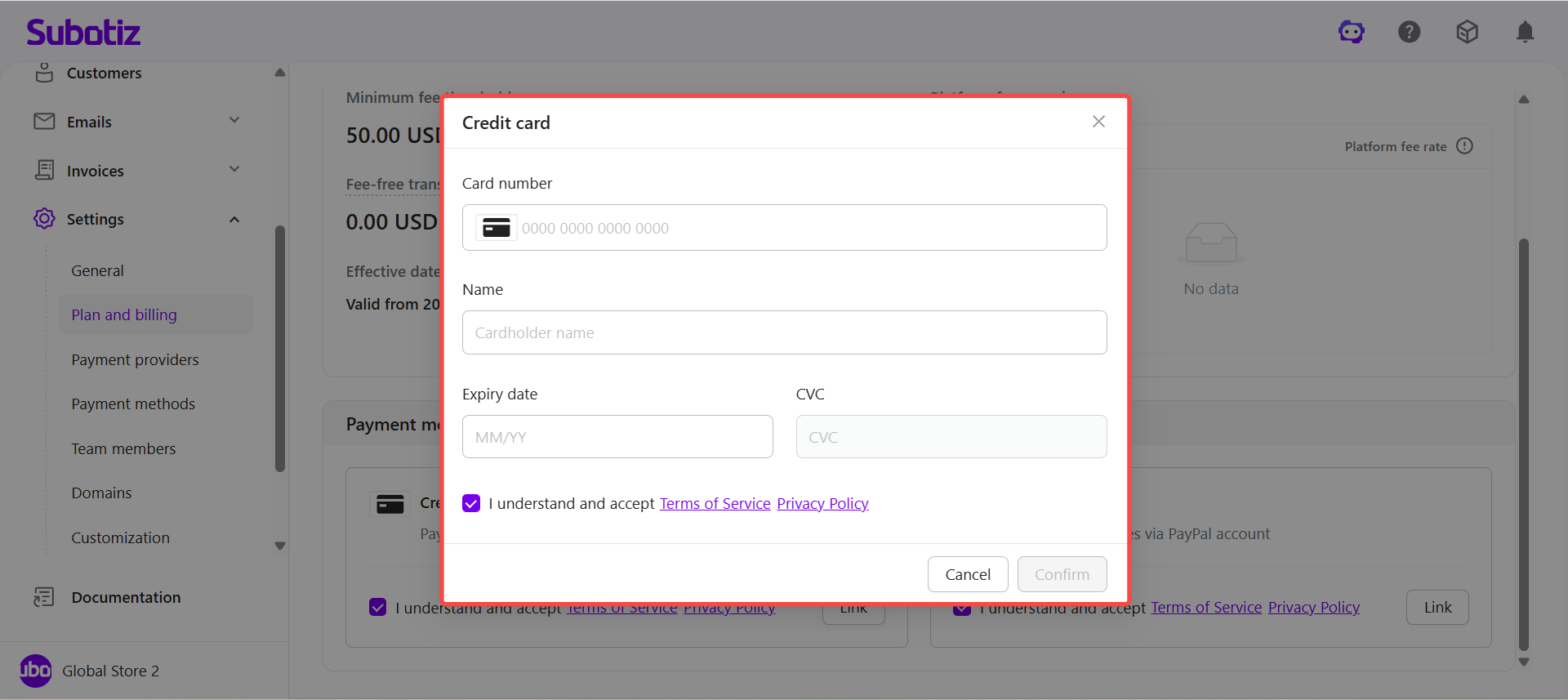
- Confirm the link: Once verified, the card brand and last four digits are displayed to confirm the card has been saved.
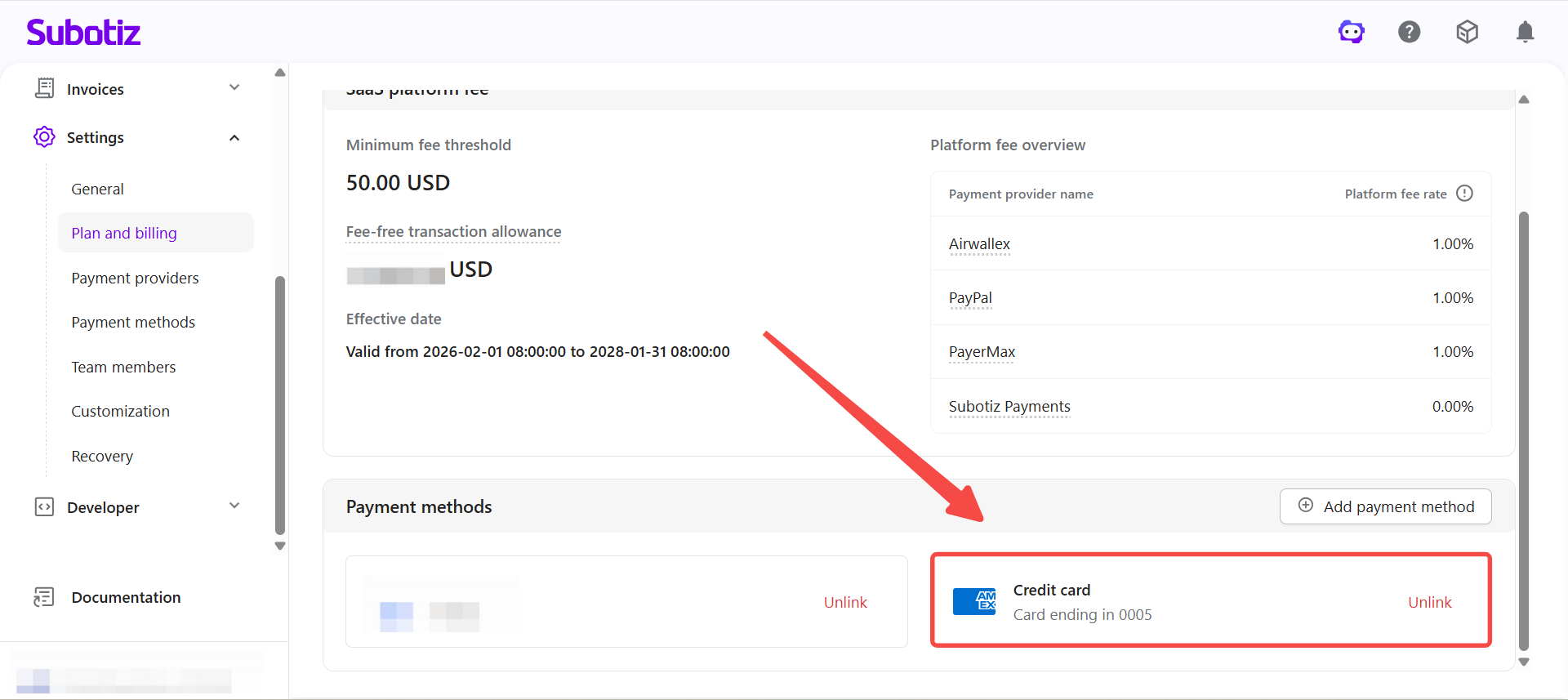
Managing Linked Payment Methods
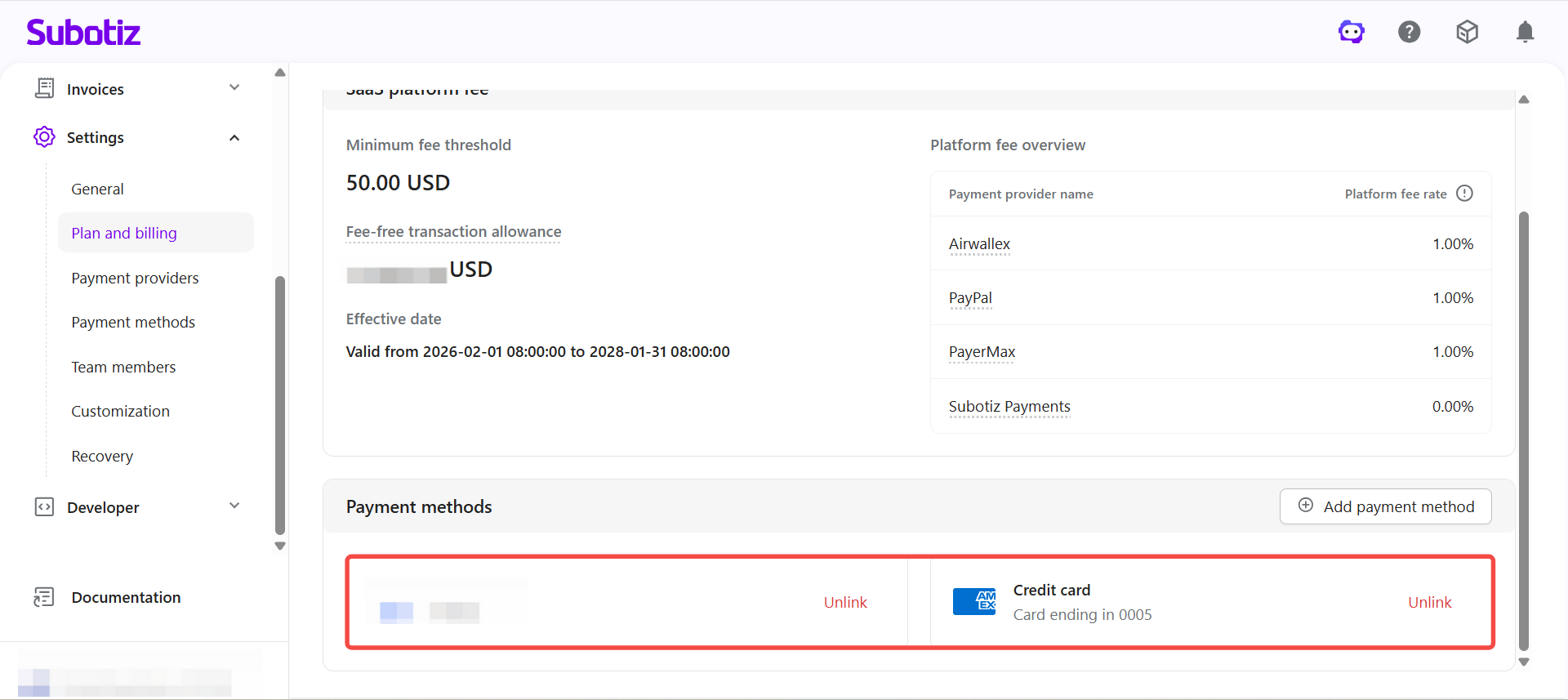
Multiple payment methods can be linked at the same time.
- View linked methods: All linked accounts are listed in the Payment methods area.
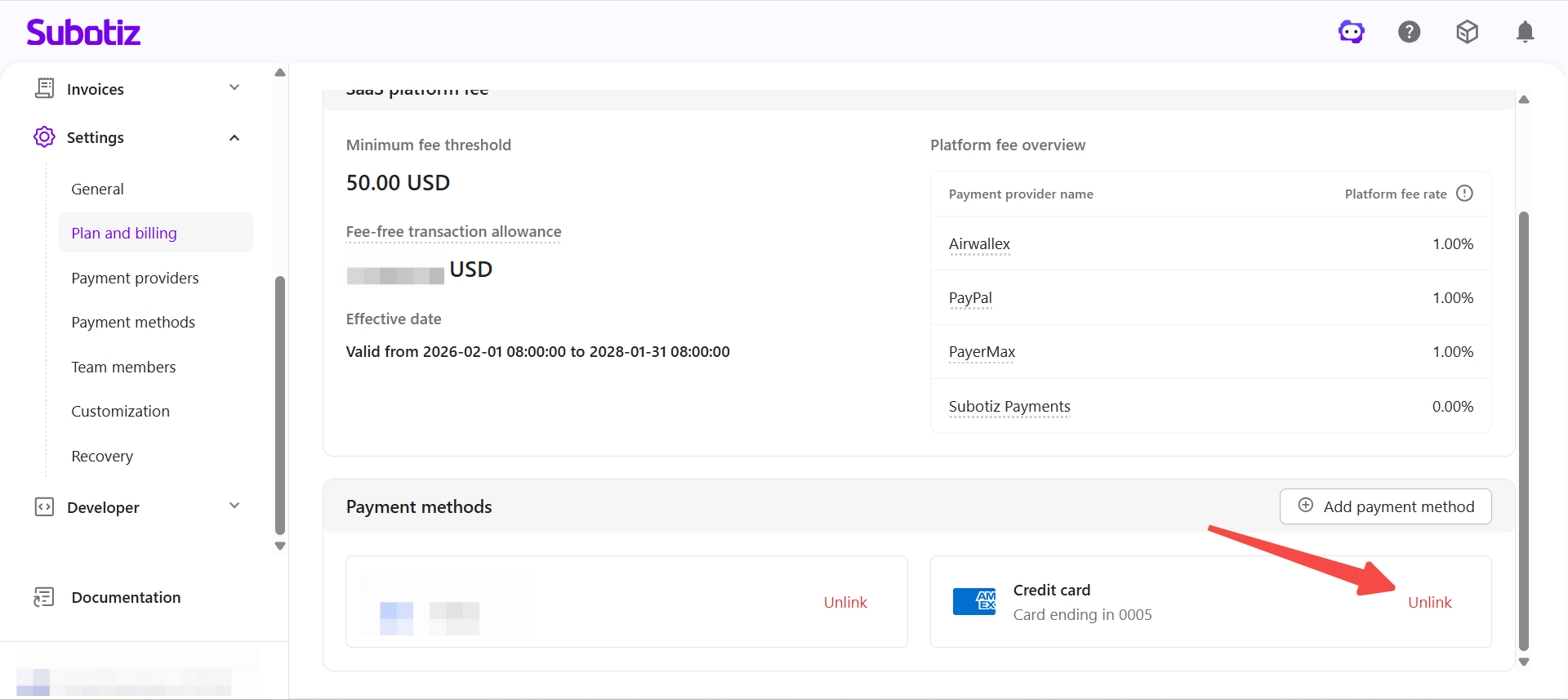
- Remove a method: Click Unlink next to the payment method to remove it. That method will no longer be used for automatic charges.
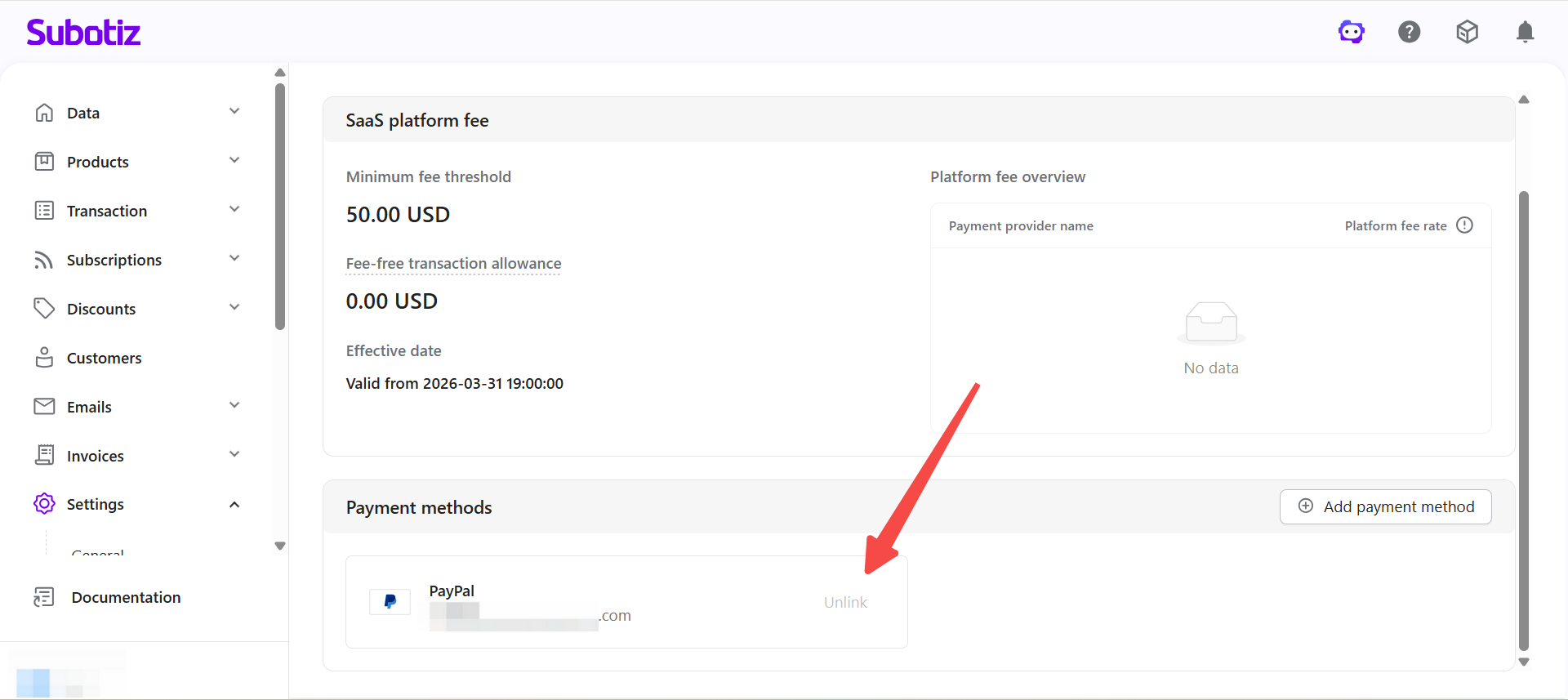
- Removal restriction: The last remaining payment method cannot be removed. Link a new method before unlinking the existing one.
Charge Processing Logic
The system automatically selects an available linked payment method when a charge is triggered.
- Automatic deduction: Charges for commissions and invoices are initiated automatically, with no manual action required.
- Fallback logic: If one payment method fails, the system attempts to complete the charge using another available method.
- Applicable scenarios: Covers all commission charges and invoice payments.
Important Notes
- Keep at least one method active: Ensure at least one valid payment method is linked at all times to avoid billing disruptions.
- Check for expiry: Regularly review card expiry dates and account authorization status.
- Watch for failures: If a charge fails, a notification will be sent via in-app message. Address the issue promptly to avoid account restrictions.
Configuring and maintaining payment methods ensures that commission and invoice charges are processed without interruption. Linking multiple methods provides redundancy and ensures stable billing operations.