The Sender domain settings feature in Subotiz enables merchants to authenticate emails with a custom domain, improving deliverability and brand trust. By setting up key DNS records (TXT, CNAME, SPF, DMARC), merchants can reduce verification errors and avoid spam filters. This guide highlights common setup issues, registrar differences, and important limitations for a smooth configuration.
Troubleshooting Sender Domain Verification
- DNS propagation: After adding DNS records at your registrar, allow 30 minutes to 48 hours for changes to propagate. Verification should only be attempted after this period.
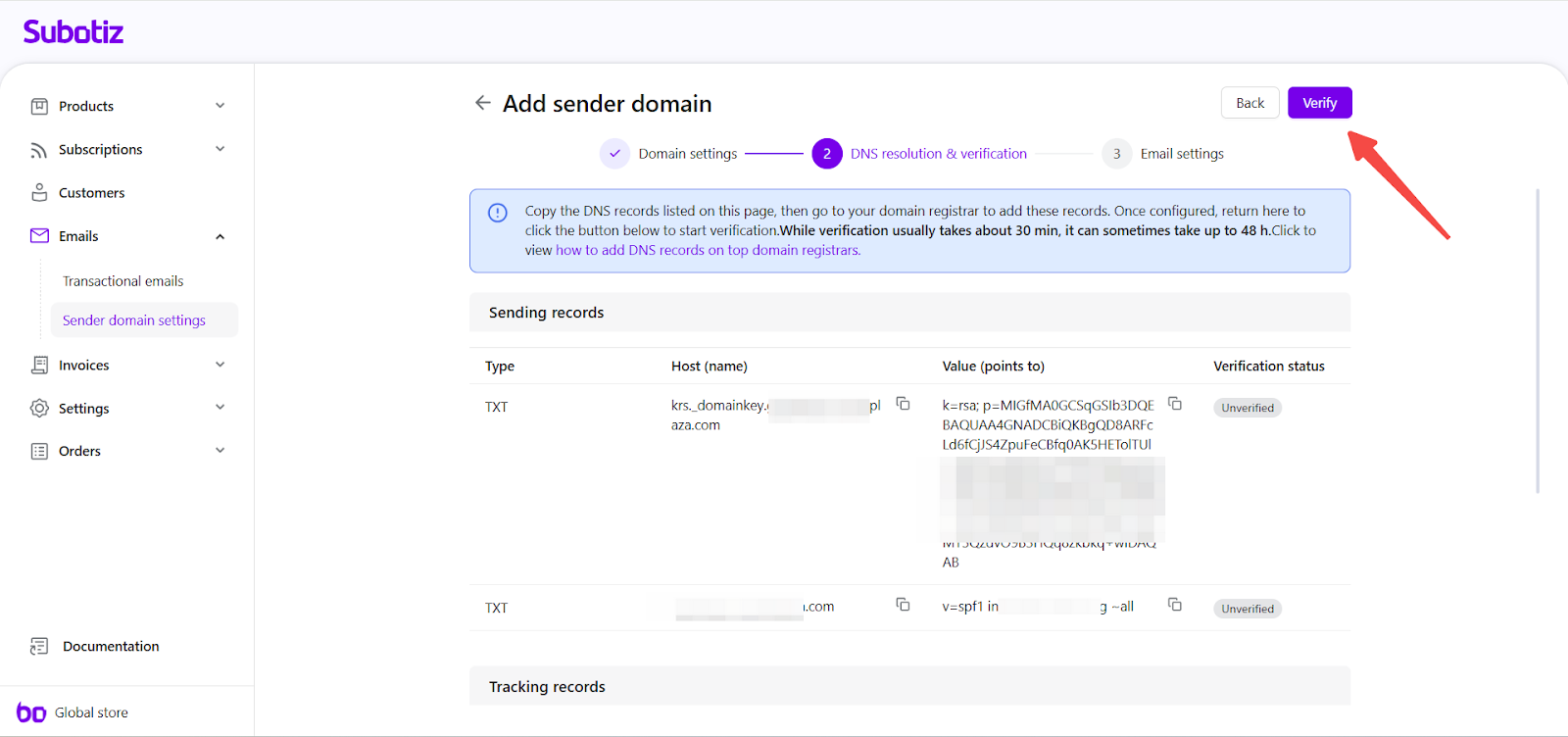
- Record type and host values: Enter the exact TXT and CNAME records provided in Subotiz.
- Do not include https://.
- Remove unnecessary spaces or characters.
- Copy every value in full without modifications.
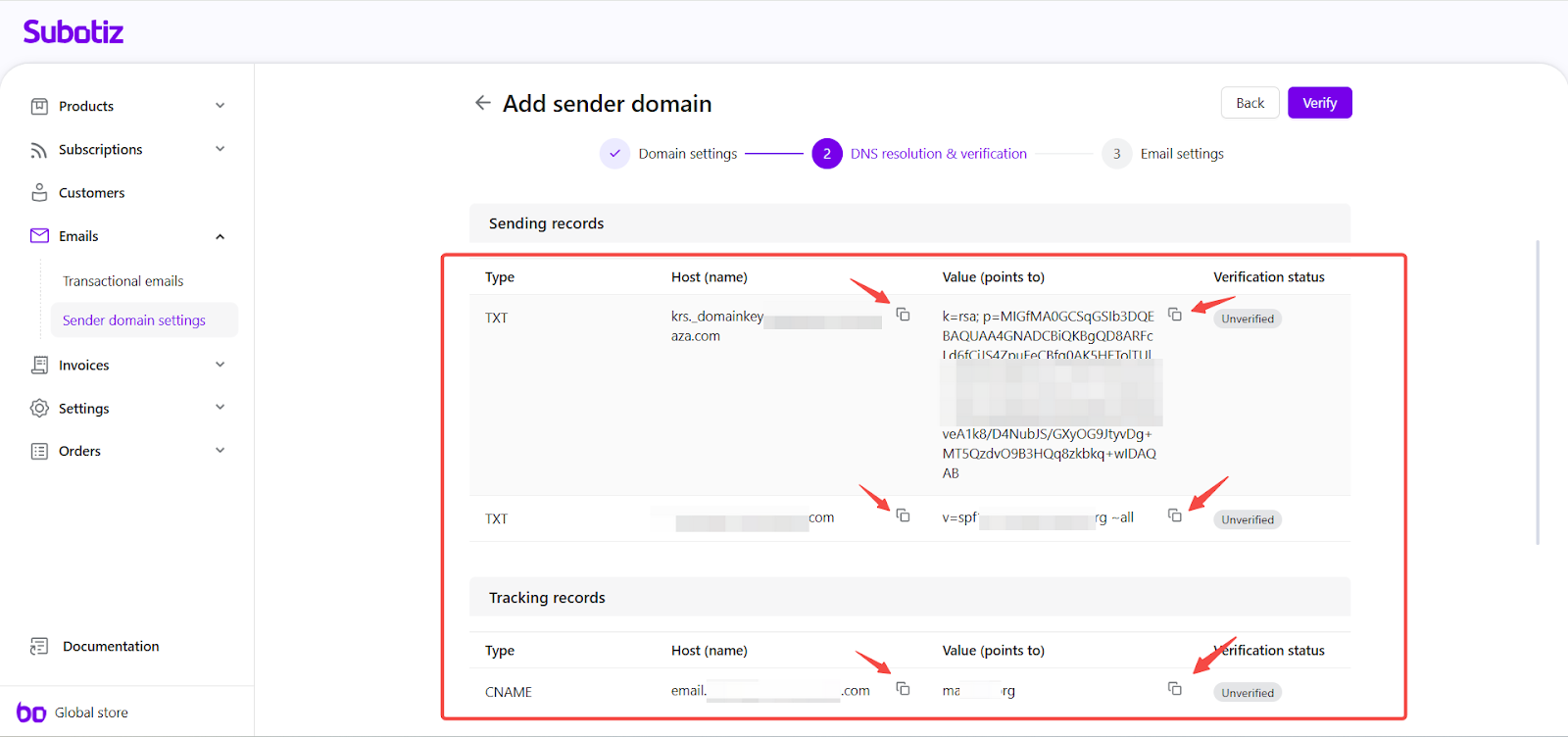
- SPF record handling: Maintain only one SPF TXT record in the DNS zone.
- If an SPF record already exists, merge the Subotiz mechanism into the same line.
- Delete duplicate or conflicting SPF entries to avoid failures.
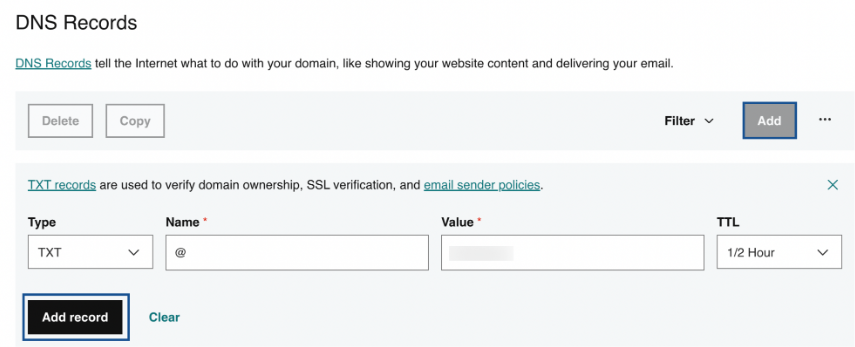
- Subdomain match: Ensure the Host (Name) value matches the subdomain defined in Subotiz. For Example:
- Correct: Sender domain = mail.shopdemo.com → DNS Host = mail.
- Incorrect: Using the root domain (shopdemo.com) or other prefixes like email.
Example: GoDaddy DNS record entry (applies to TXT and CNAME):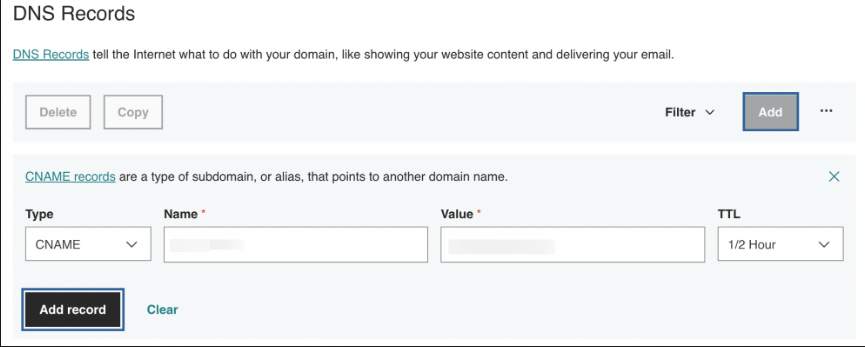
- Retry using Edit: If the verification status remains Unverified or Failed:
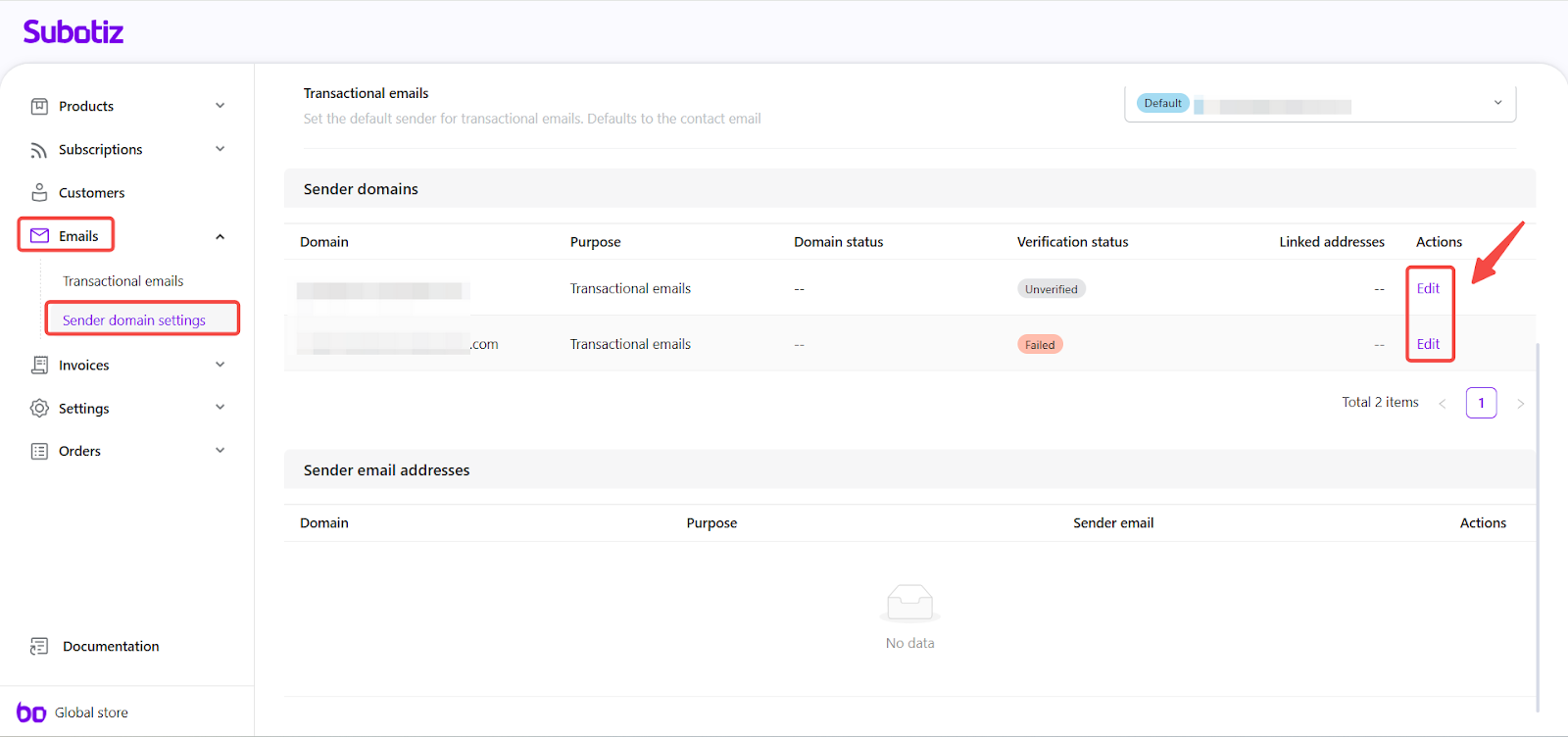
- Go to Emails > Sender domain settings, locate the Sender domains list, and find the domain marked as Unverified or Failed. In the Actions column, click Edit.
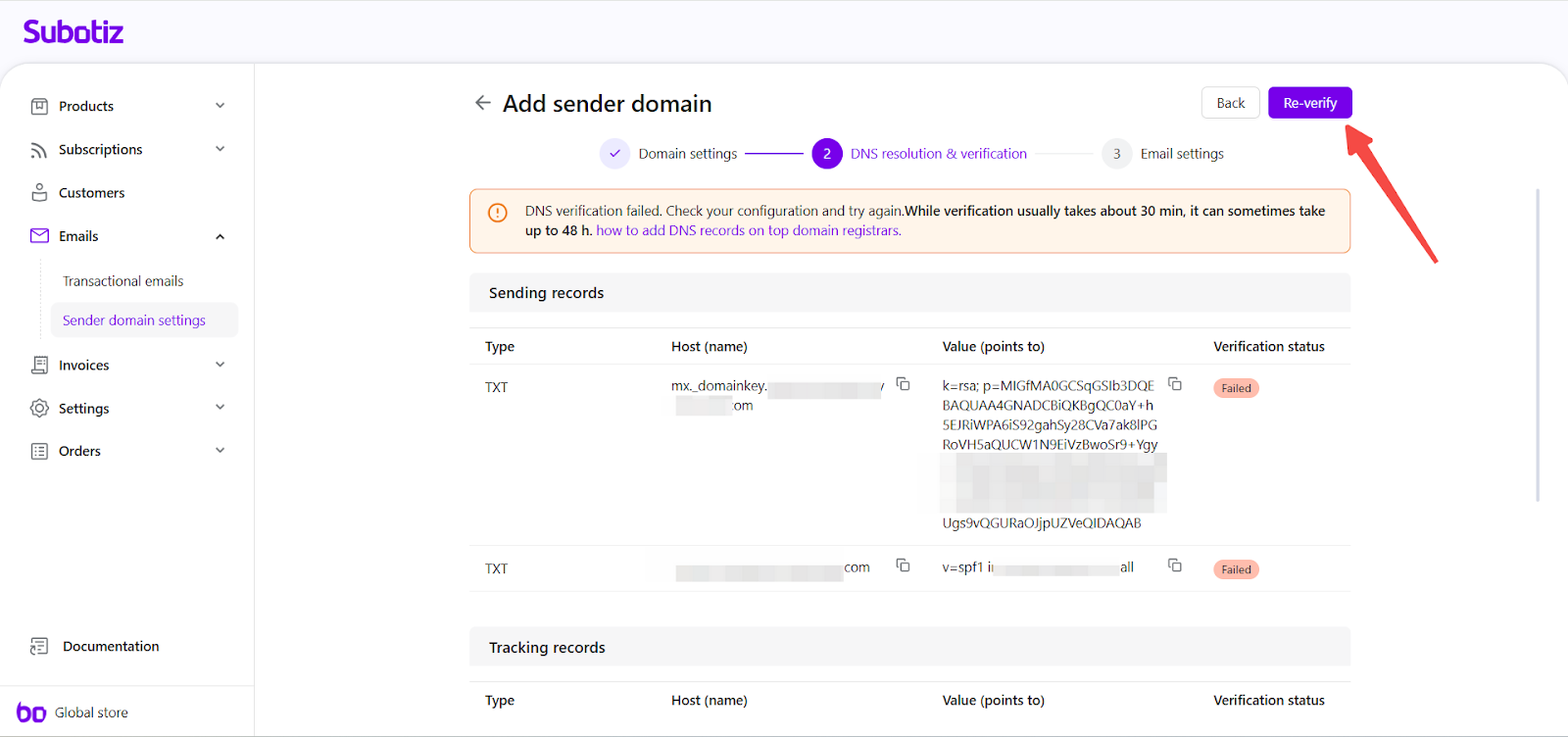
- Check every Host (Name) and Value entry in your registrar.
- Save the updates and retry verification in Subotiz.
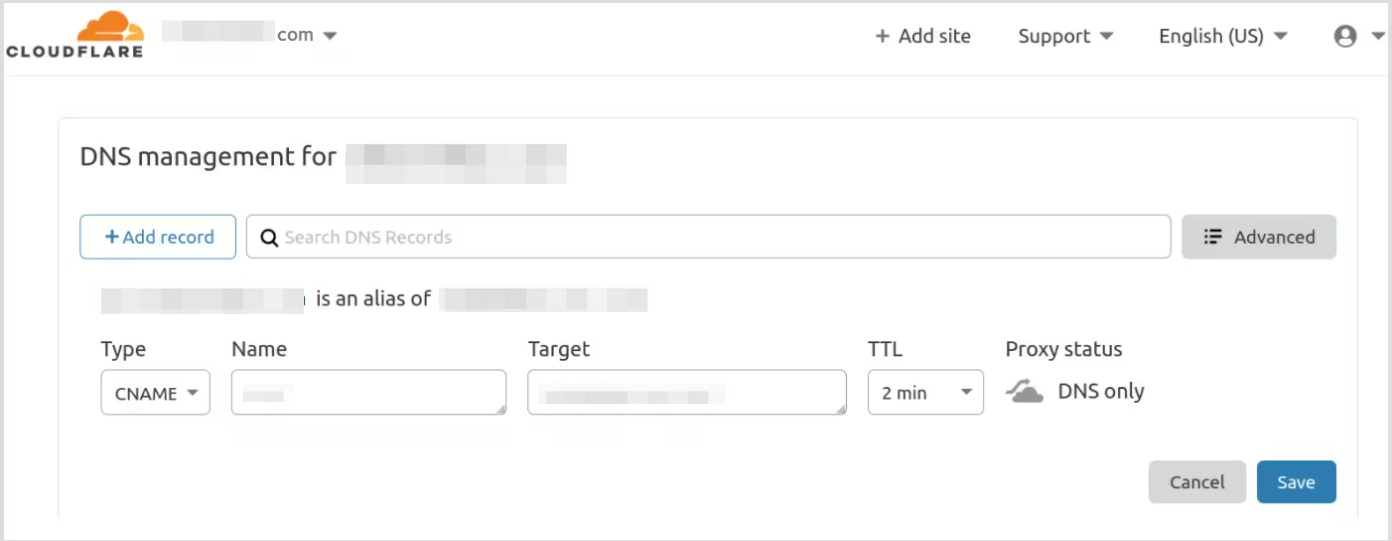
- Registrar interface differences: Different DNS providers (GoDaddy, Cloudflare, Namecheap, etc.) may display slightly different input fields when adding records. However, the requirements are always the same: record type, Host (Name), and Value must match exactly what Subotiz provides.
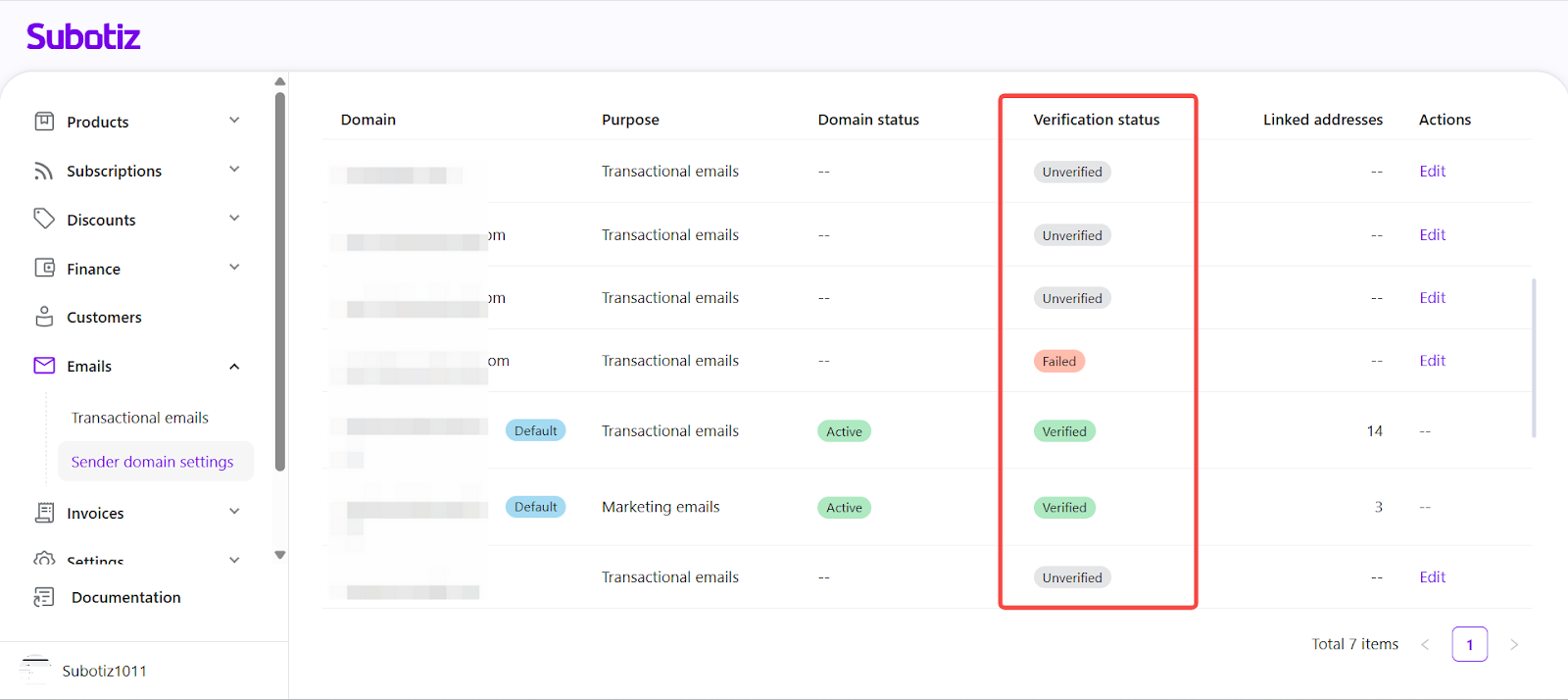
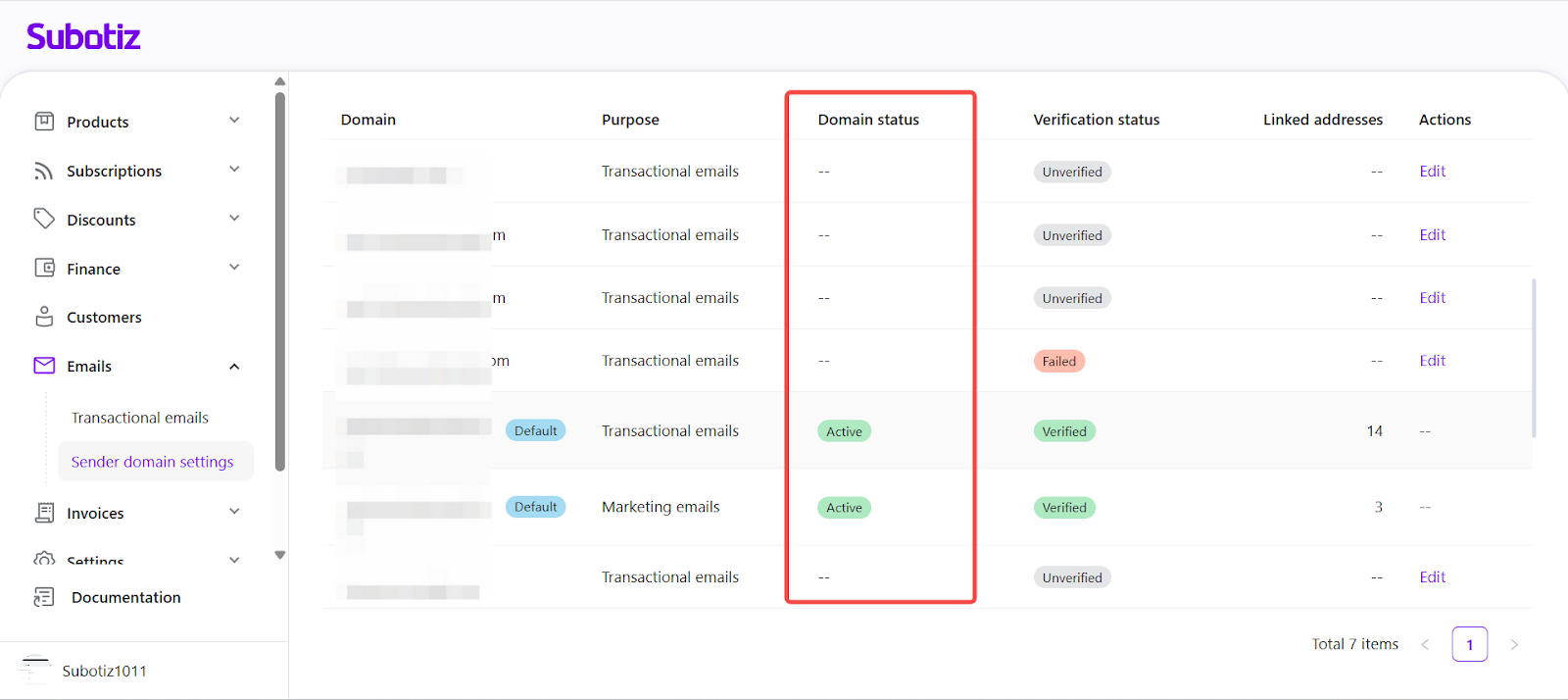
- Verification status:
- Unverified: DNS records have not propagated or verification not yet started. Wait 30 minutes – 48 hours before retrying.
- Verified: DNS records are configured correctly and active for sending.
- Failed: DNS records are misconfigured. Common causes include incorrect Host/Value entries or duplicate SPF records. Review and correct before retrying.
- Domain status: Once a domain is verified, Subotiz checks its availability for sending.
- Active: The verified domain can be used for sending emails.
- Disabled: The domain cannot be used until re-enabled.
Limitations
- Custom domain requirement: A domain with DNS access is mandatory. System-assigned domains cannot be used.
- Transactional and Marketing emails: Custom sender domains apply to both Transactional emails (e.g., order confirmations, subscription notices) and Marketing emails (e.g., abandoned checkout reminders). Some account-level notifications, such as password resets, continue to use the system domain.
- Sending-only function: Sender email addresses created in Subotiz are restricted to sending. To receive inbound emails, configure forwarding rules at your registrar.
Multiple Subdomains
If you need to configure multiple subdomains (e.g., mail.shopdemo.com and news.shopdemo.com), each subdomain must be added and verified separately in Subotiz. Corresponding TXT, CNAME, and SPF/DMARC records are required for every subdomain to ensure proper email authentication.
Properly configuring sender domain settings in Subotiz ensures authenticated transactional and marketing emails are delivered reliably to customer inboxes. By verifying DNS records and using a branded subdomain, merchants strengthen brand identity, reduce spam risk, and build greater customer trust.