The Add sender email address feature in Subotiz allows merchants to create branded sender addresses under a verified domain. These sender addresses are applied across transactional and marketing emails, helping maintain a consistent sender identity, strengthen brand recognition, and reinforce customer trust. Merchants can also designate one address as the default sender to ensure all outgoing emails use a unified, professional identity.
Setting Up a Sender Domain
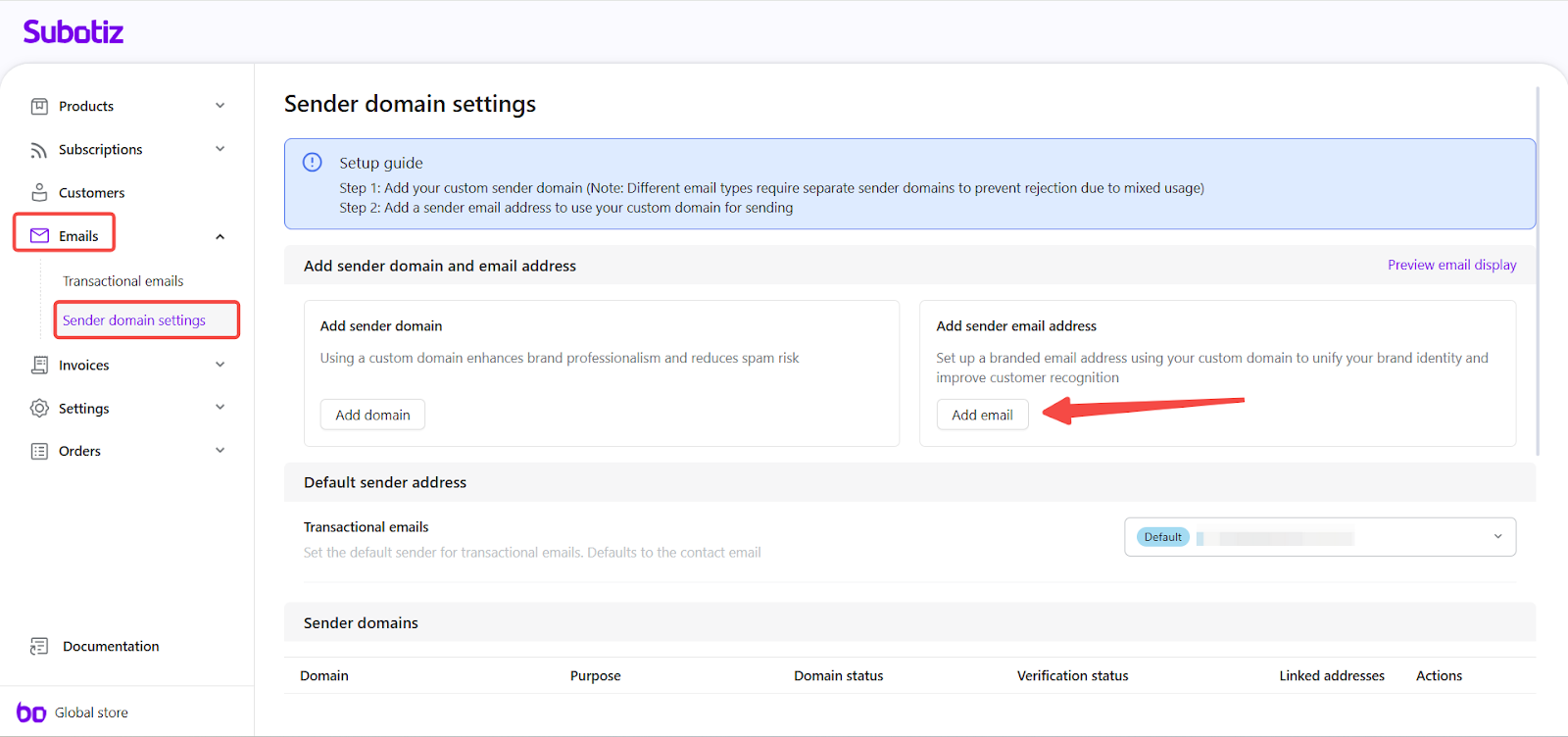
- Access sender email settings: Go to Emails > Sender domain settings in the Subotiz admin. Under a verified domain, click Add email.
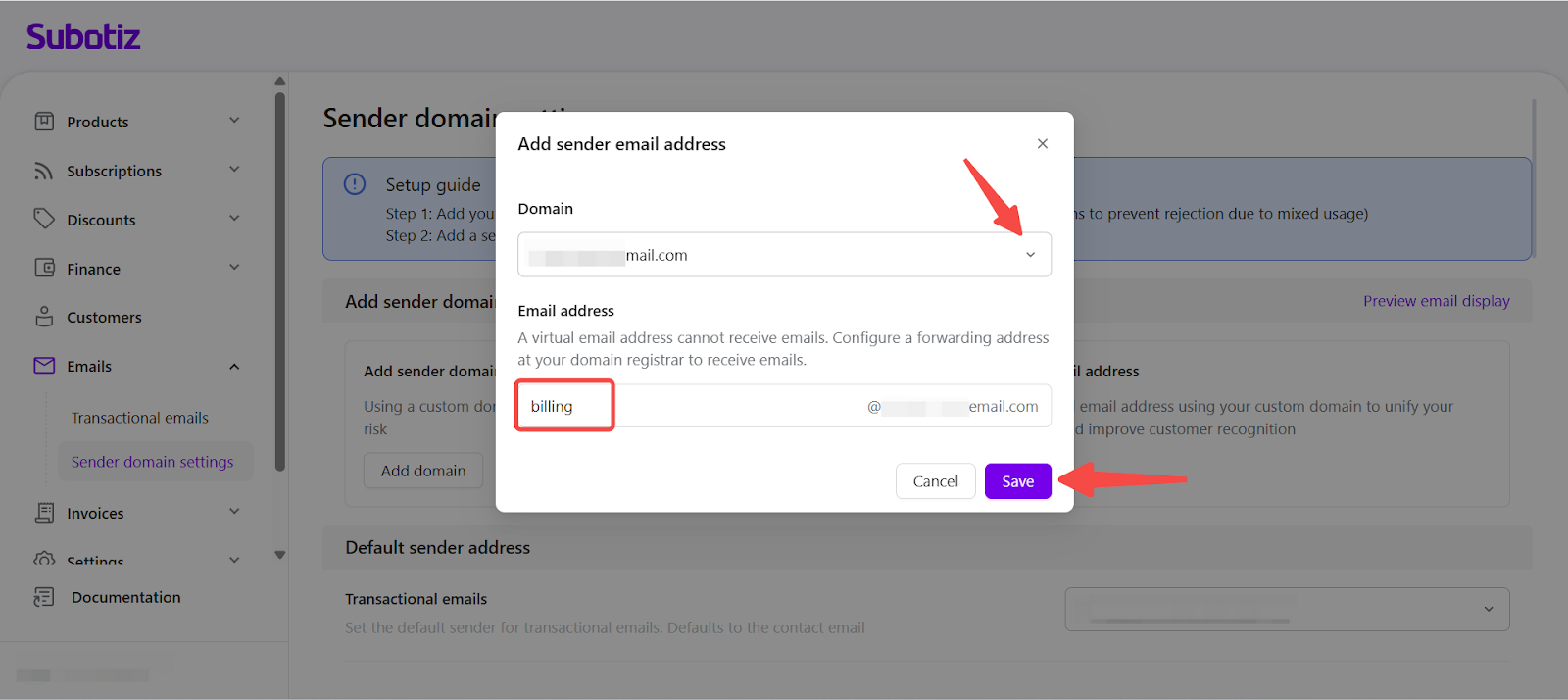
- Add a branded sender email address: Enter only the prefix of the email address. The system will automatically append the selected verified domain (e.g., typing "billing" generates billing@mail.shopdemo.com).
- Do not manually enter the “@” symbol or the domain name — the system provides it automatically.
- The address must use the verified domain.
- The email field is only enabled after selecting a verified domain.
- Optional step: Adding an email address is not mandatory, but recommended for branded communication.
- If the email is a virtual address, it cannot receive replies. To handle inbound messages, configure a forwarding address at your domain registrar.
- Click Save to save or Cancel to discard.
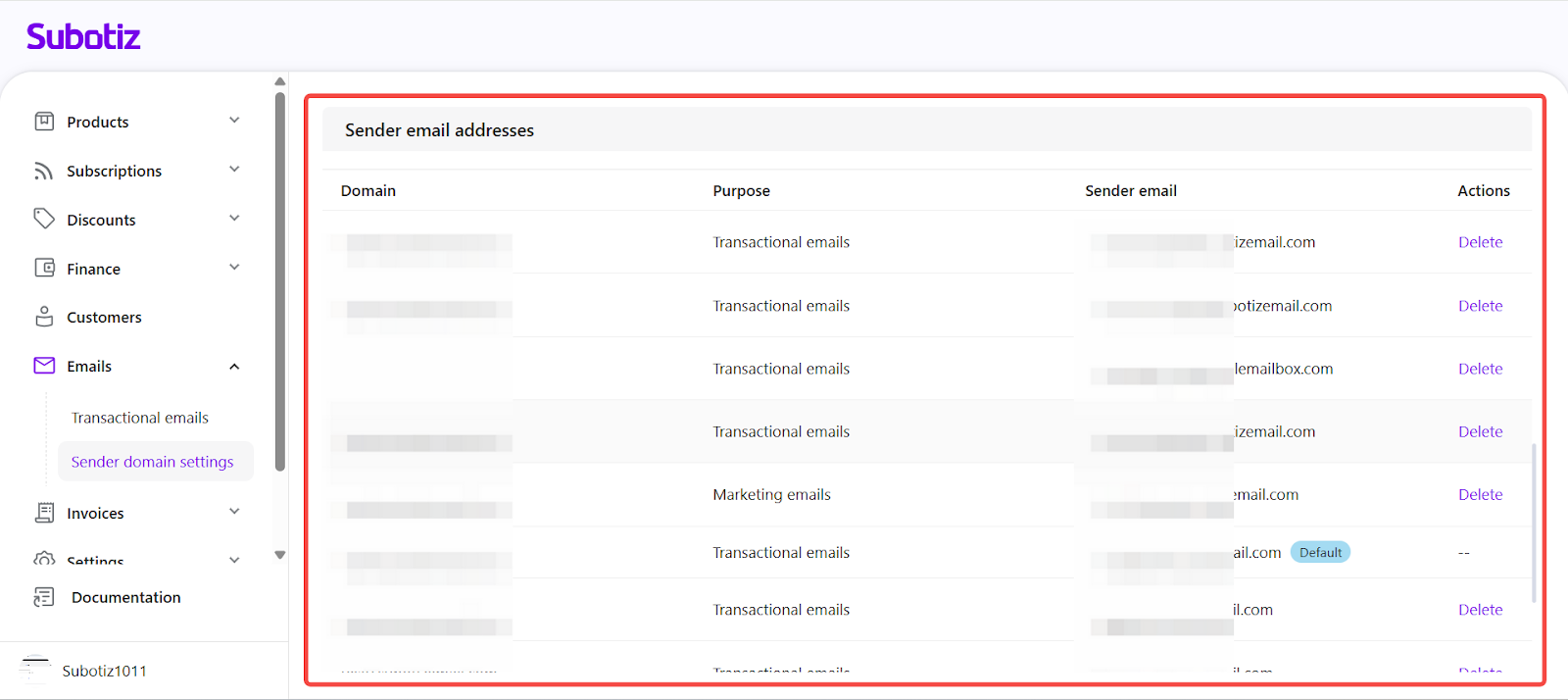
- View sender email addresses: After saving, return to the Sender domain settings page. Scroll to the Sender email addresses section to view all added addresses.
- The list displays the associated domain, sender email address, and usage description.
- Use the Actions column to remove addresses.
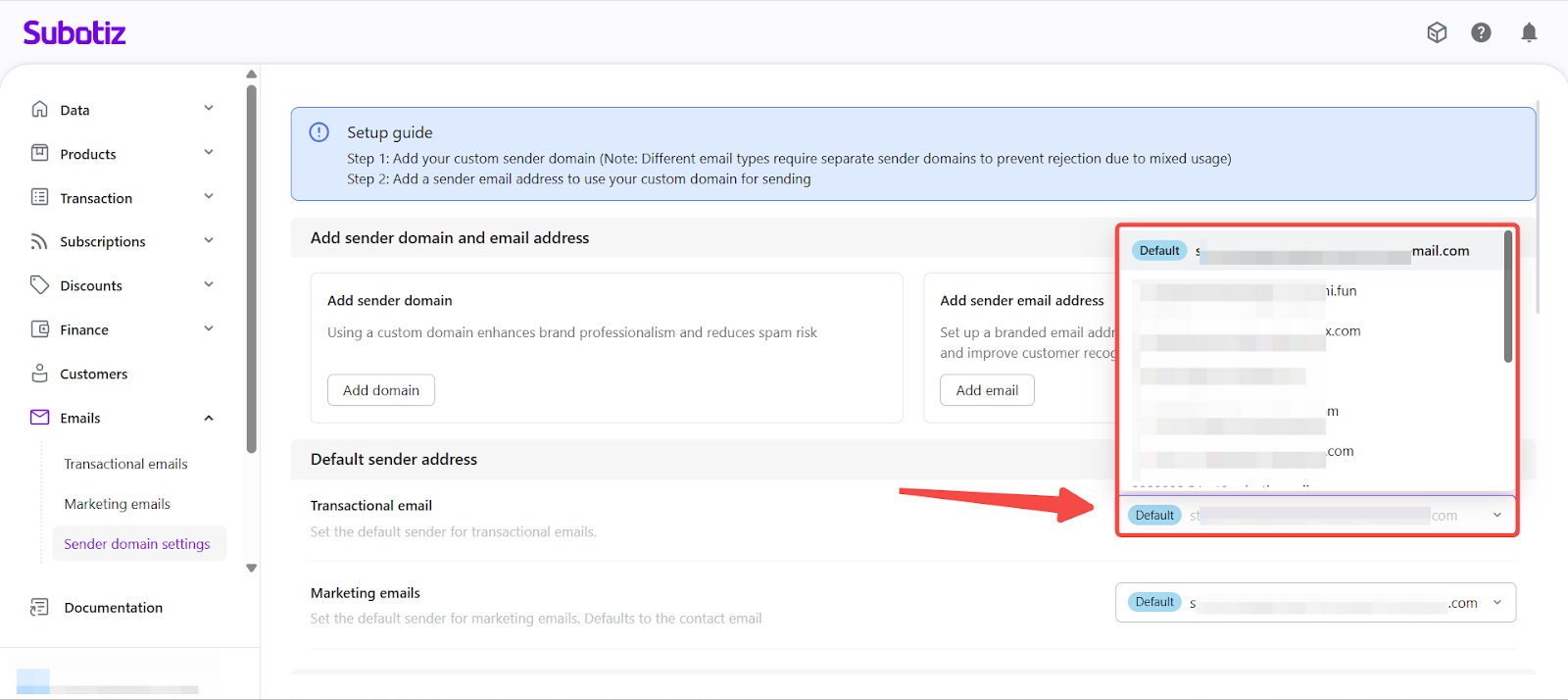
- Set a default sender address: In the Sender domain settings page, open the Default sender dropdown and select a verified email address.
- The default sender is applied across all system emails, including transactional and marketing emails.
- This ensures each type of system email uses a consistent, branded sender identity.
- If no custom sender email is configured, Subotiz uses the store’s registered contact email as the fallback.
- Applicable Email Types: Once configured, the sender email address is used consistently across the following email types:
- Transactional emails: Subscription creation, payment success or failure, trial notifications, and other system-generated notifications
- Marketing emails: Abandoned checkout recovery, trial-to-paid conversion reminders, and subscription re-engagement campaigns
All supported emails are sent using the selected branded sender address to ensure a consistent brand presence.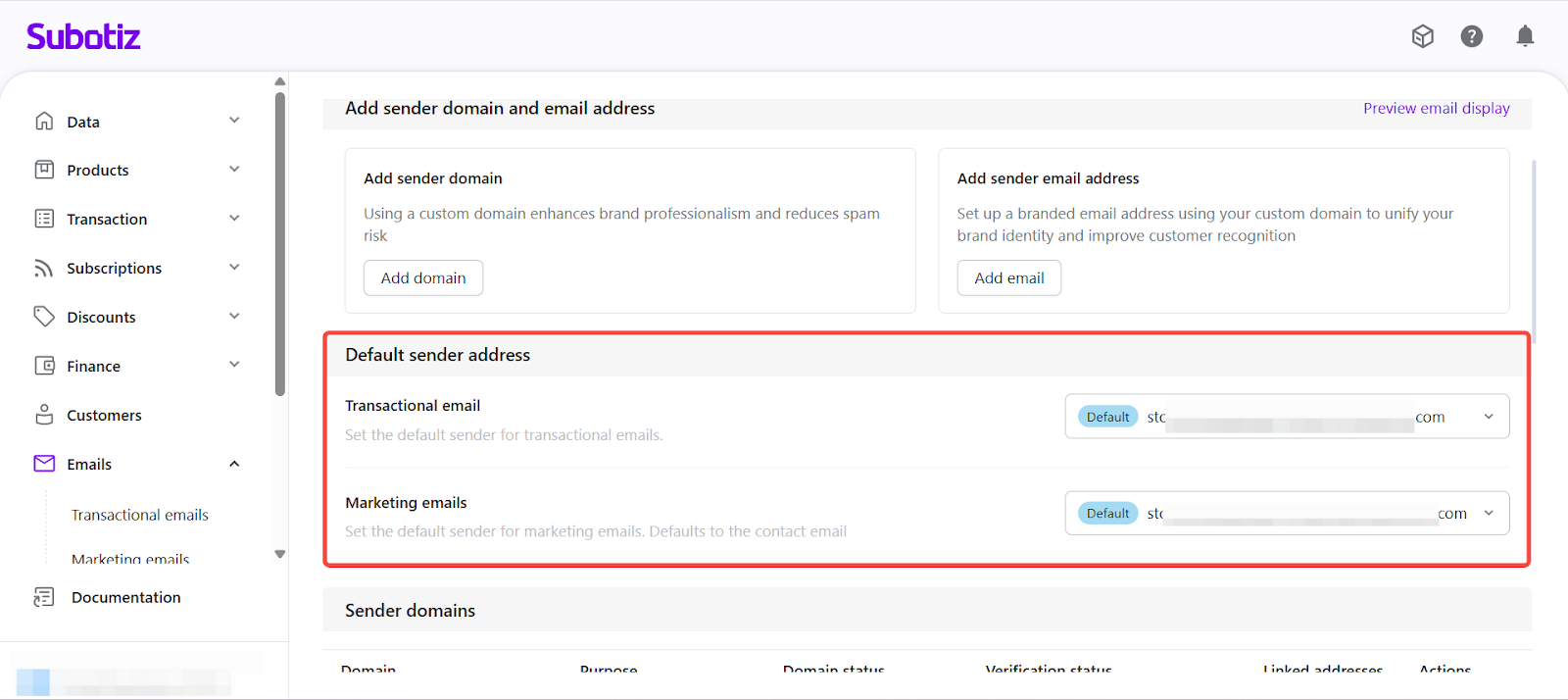
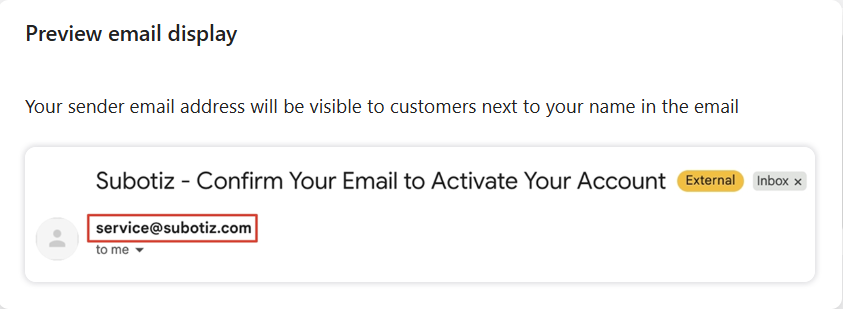
Preview of Sender Email in Customer Inbox
Once a sender email address is configured, it will be visible to customers in their inbox, displayed next to your store name. This ensures a professional, consistent, and branded communication experience across all email touchpoints.
Best Practices
- Use clear, recognizable addresses: Examples include support@, billing@, or noreply@ to improve customer trust.
- Set a default sender promptly: Configure a default address right after domain verification to ensure consistent communication.
- Forward replies to a monitored inbox: Ensure customers can reach you by setting forwarding rules at your registrar.
Adding a branded sender email address in Subotiz ensures that transactional and marketing communications are delivered with a consistent, professional sender identity. Setting a default sender strengthens brand recognition, improves deliverability, and builds customer trust across every email interaction.