The Balance section in Subotiz provides a real-time snapshot of available, pending, and reserved funds. It also provides complete transaction records to support accurate cash flow monitoring, payout planning, and financial reconciliation.
Accessing the Balance Page
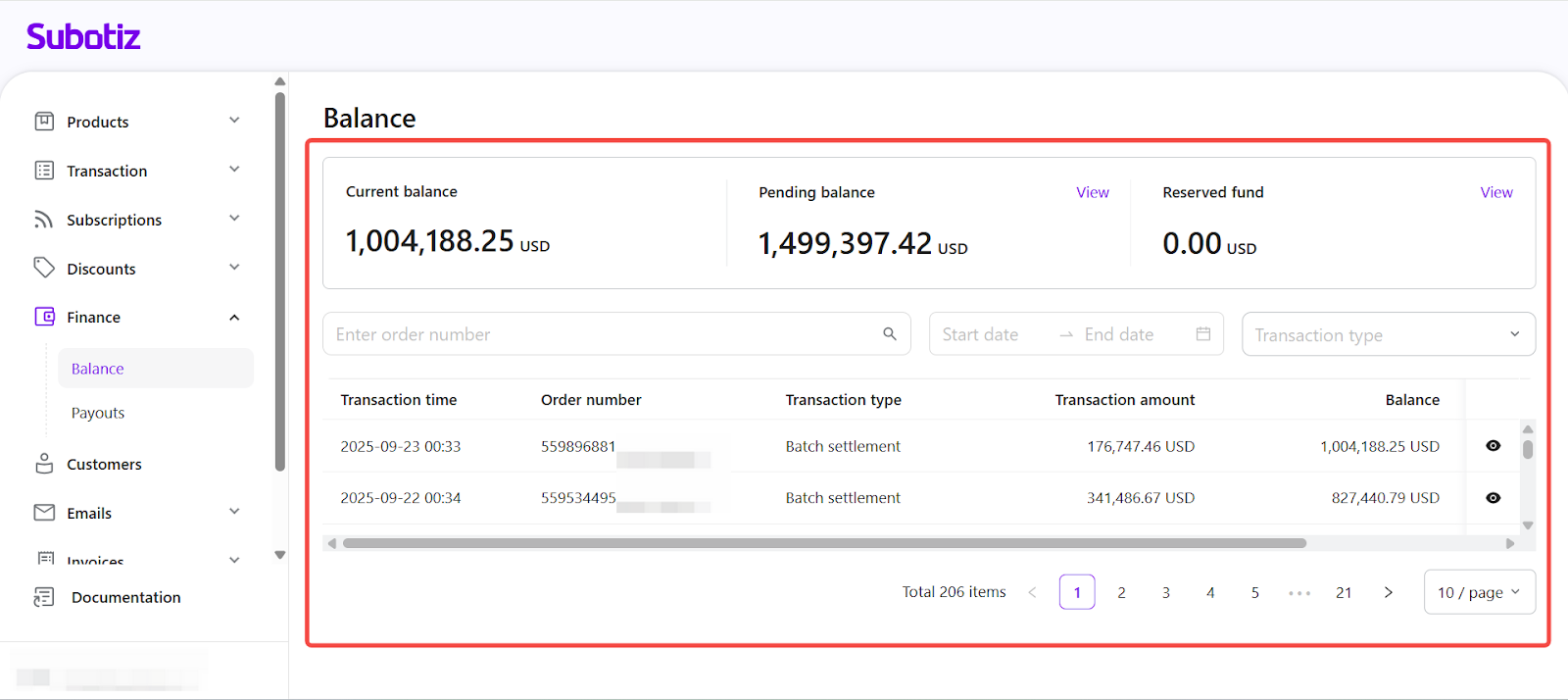
- Access the Balance page: Navigate to Finance > Balance in the Subotiz admin to view an up-to-date summary of account funds and all related transactions.
Viewing Balance Overview
-
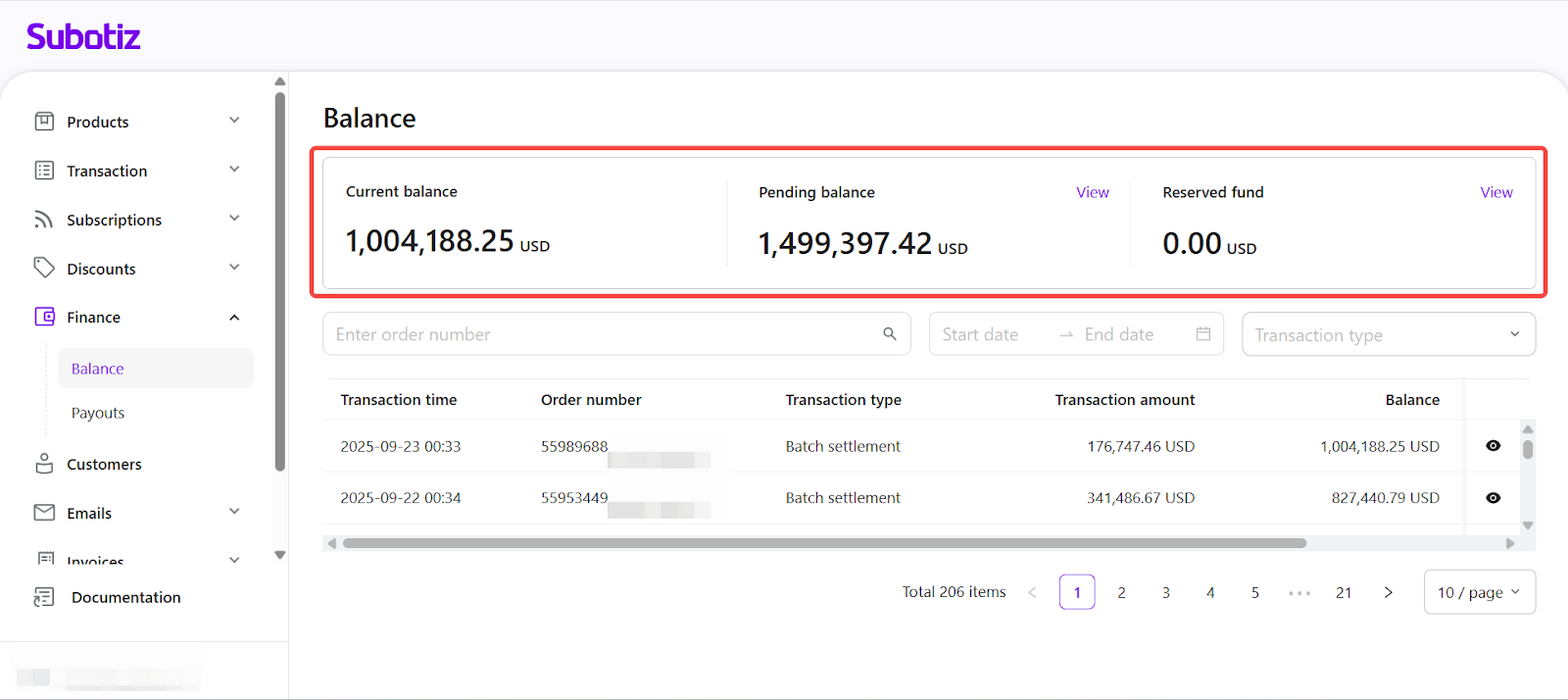
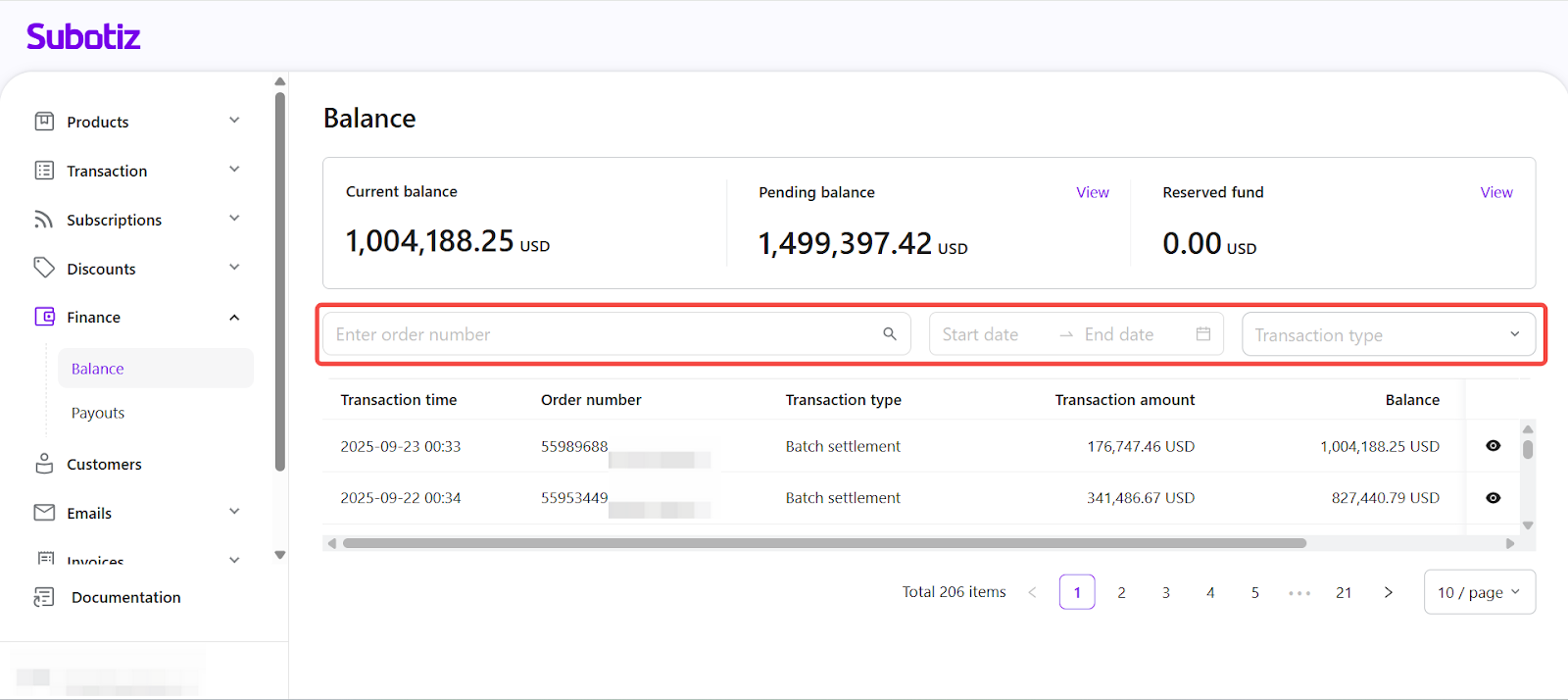
The top section presents three balance categories:
- Current balance: Funds available for immediate payout.
- Pending balance: Funds received but still in the settlement process.
- Reserved fund: Funds temporarily held under your rolling reserve policy.
-
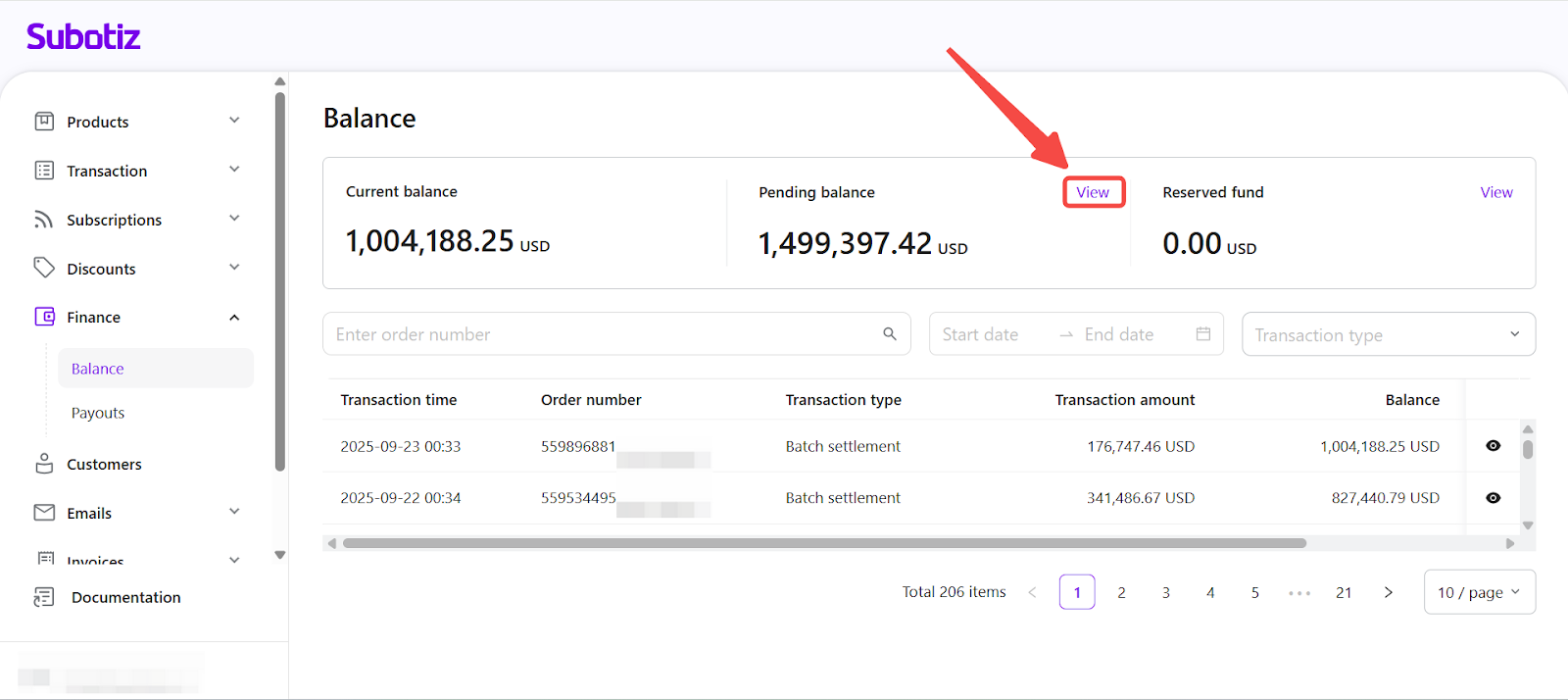
Pending balance: Select View opens the pending balance page, listing unsettled transactions and their associated payment cycles. Detailed field descriptions are available in Balance|Reviewing Pending Balance Details.
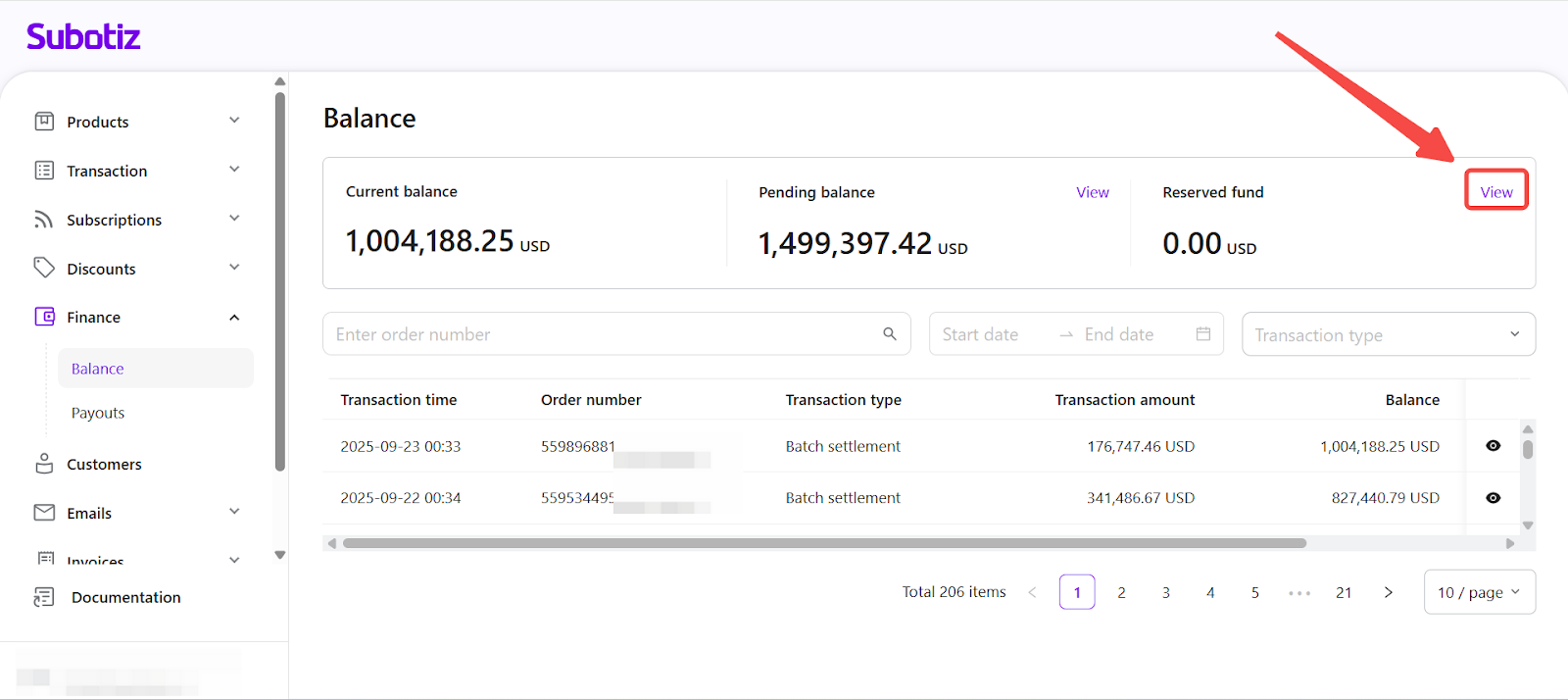
- Reserved fund: Select View opens the reserved fund page, showing held amounts, reserve periods, and rolling reserve ratios. Detailed field descriptions are available in Balance|Checking Reserved Fund Status.
Filtering Transactions
Filtering enables quick location of specific records and targeted activity review.
-
Available filter options:
- Order number: Search for a specific order or settlement batch.
- Date range: Display transactions within a selected time frame.
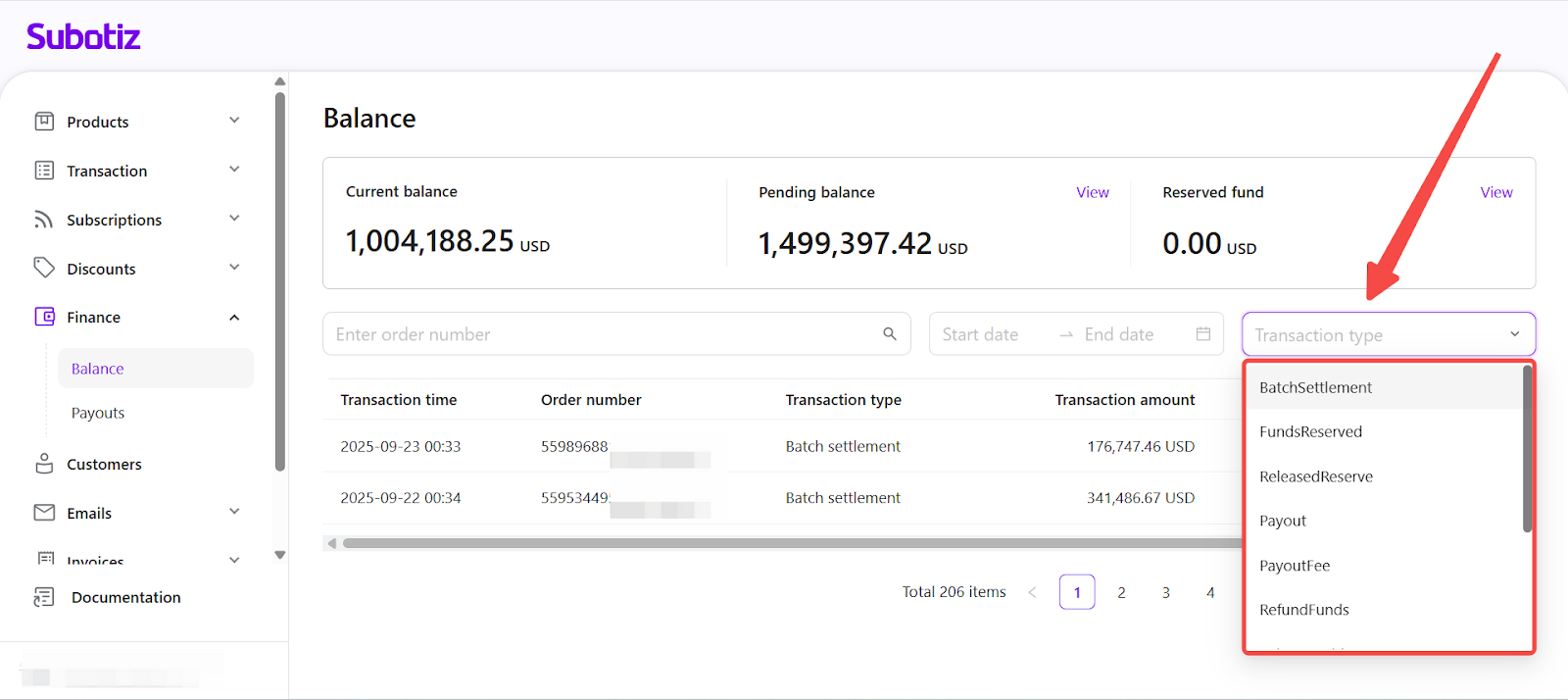
Transaction type: Filter results by transaction category.
-
Transaction type definitions:The following transaction types are available when using the Transaction type filter:
Transaction typ |
Description |
BatchSettlement |
Bulk settlement entry grouping multiple transactions into a single batch. |
FundsReserved |
Amount held in reserve according to the rolling reserve policy. |
ReleasedReserve |
Reserved funds released after the reserve period expires. |
Payout |
Transfer of funds from Subotiz to the merchant’s bank account. |
PayoutFee |
Fees charged for processing a payout. |
RefundFunds |
Funds refunded to a customer for a previous transaction. |
BalanceDebit |
Debit adjustment to the account balance. |
Payin |
Incoming payment from a customer (e.g., online payment). |
Adjustment |
Manual balance change applied by Subotiz (credit or debit). |
ActiveAccountFee |
Periodic account maintenance or service fee. |
NegativeBalanceDebit |
Debit transaction applied to cover a negative account balance. |
Viewing Transaction List
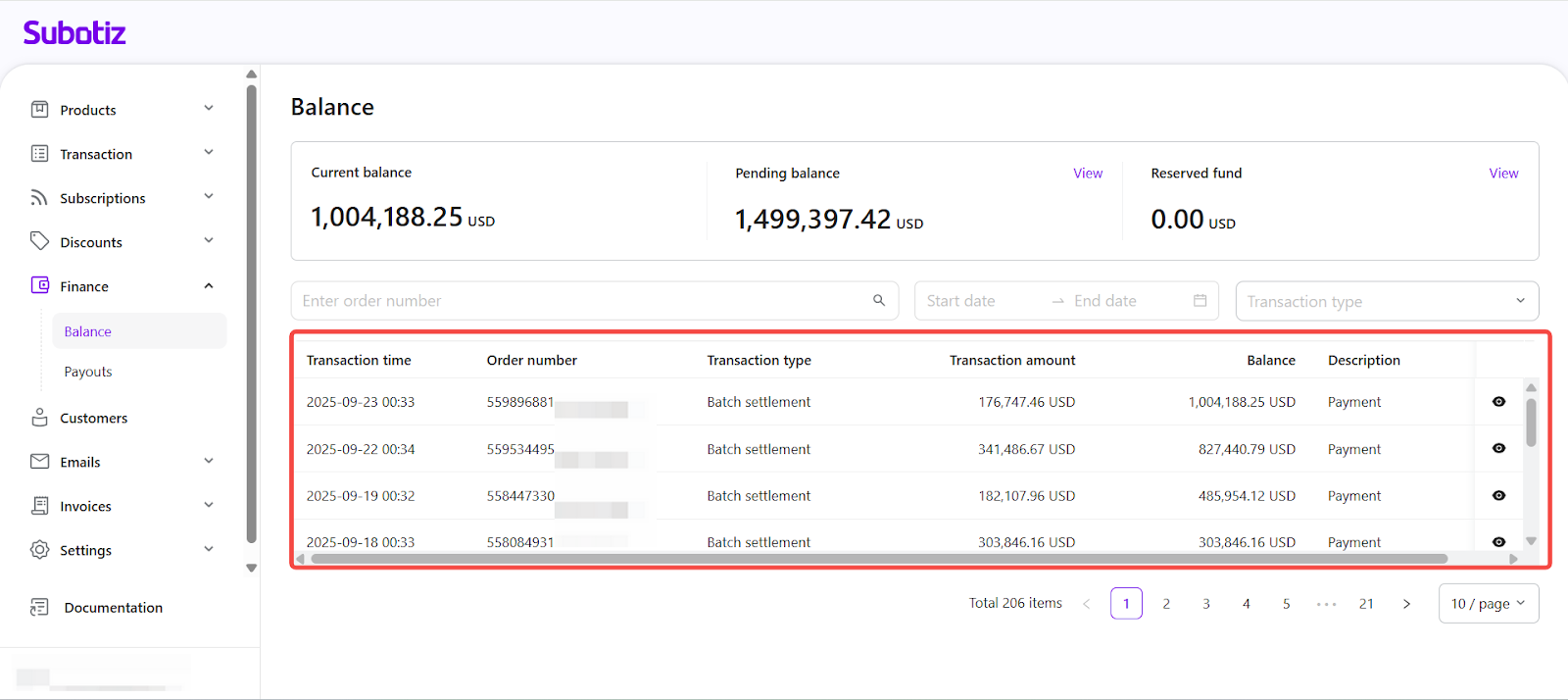
The transaction list displays all account activity in chronological order, supporting payout reconciliation and historical review.
- Transaction time: Timestamp of when the transaction was recorded.
- Order number: Order ID or settlement batch ID.
- Transaction type: Transaction category (e.g., Payout, Batch settlement).
- Transaction amount: Monetary value of the transaction.
- Balance: Account balance immediately after the transaction.
- Description: Brief explanation of the transaction, giving quick context for the entry.
- Eye icon: Indicates that detailed transaction information is available. Selecting the icon opens the transaction details panel, which shows additional fields such as amounts, timestamps, payout IDs, and linked bank account information.
For more on description types and detail views, see Balance|Viewing Transaction Descriptions and Detail View.
Best Practices
- Monitor balances regularly: Maintain awareness of available, pending, and reserved amounts to support accurate cash flow planning.
- Track timelines: Use settlement and reserve release dates to forecast fund availability.
- Verify payout details: Double-check payout amounts, dates, and bank account details before reconciliation.
- Use filters strategically: Isolate relevant transactions for faster investigations.
A structured balance view provides clear visibility into fund movements, enabling precise tracking, timely payouts, and reliable financial management.