The Balance page is the go-to page for day-to-day fund management in Subotiz. It shows real-time available balance, pending balance, and reserve fund status, along with a full transaction history. Use it to investigate unexpected balance changes, track unsettled funds, or export data for reconciliation.
Accessing the Balance Page
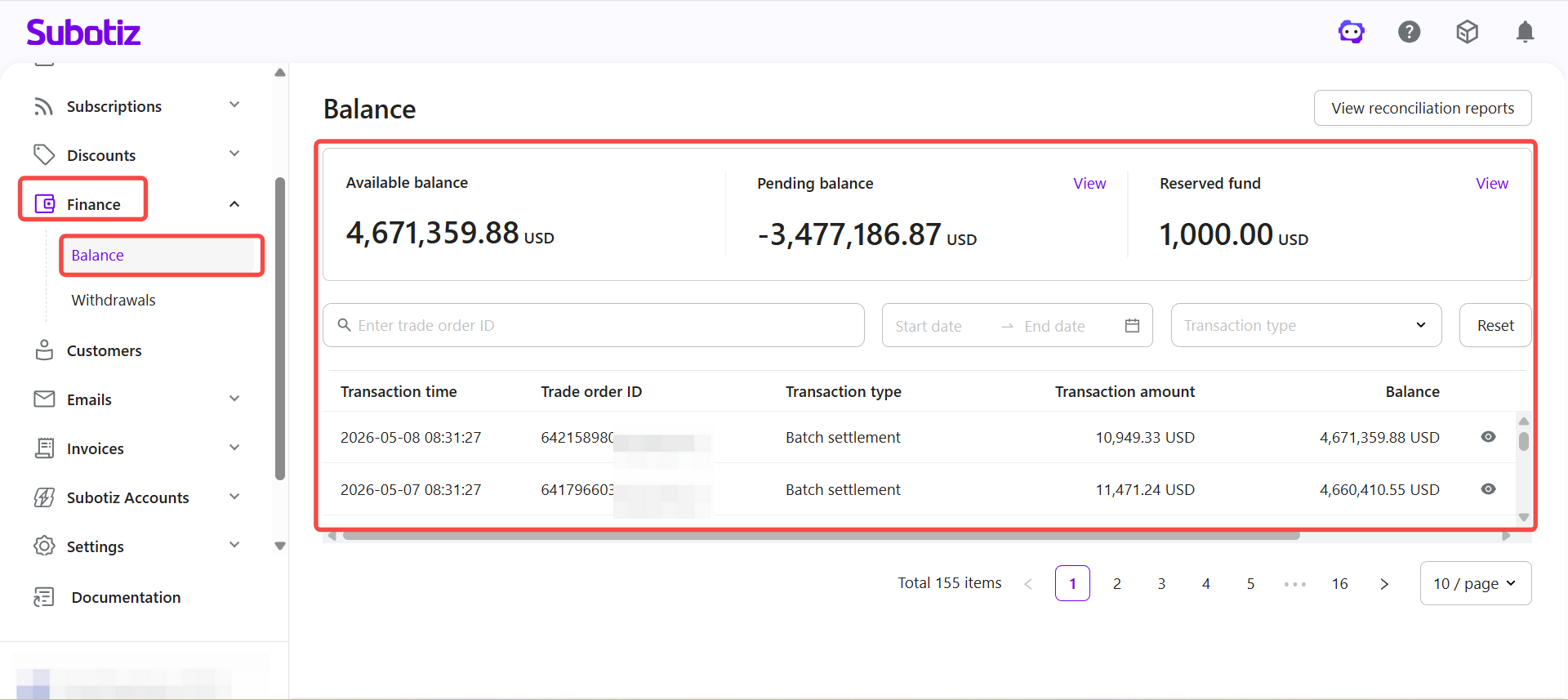
- Open Balance page: Go to Finance > Balance to view account balances and transaction records.
Viewing Balance Overview
- Review core balances: The top of the page displays three balance categories: available balance, pending balance, and reserved fund.
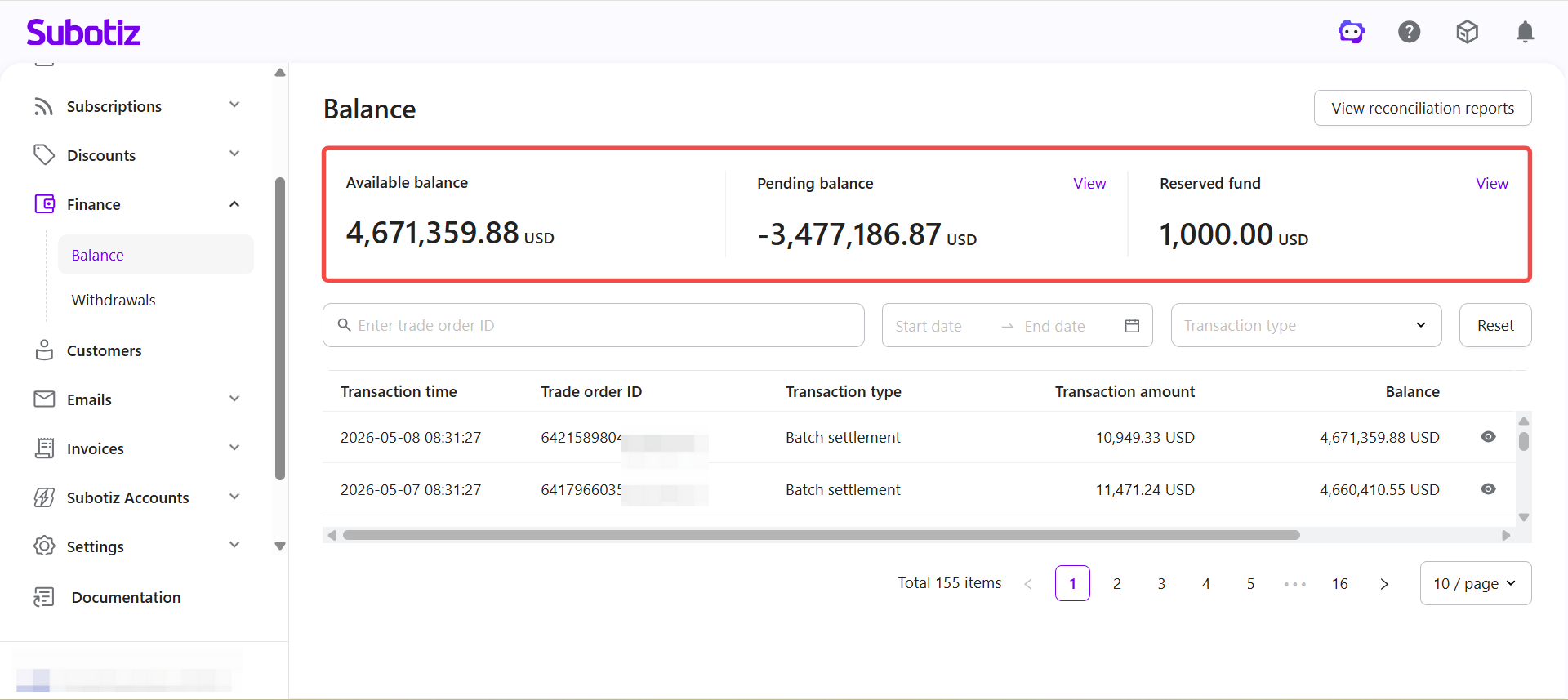
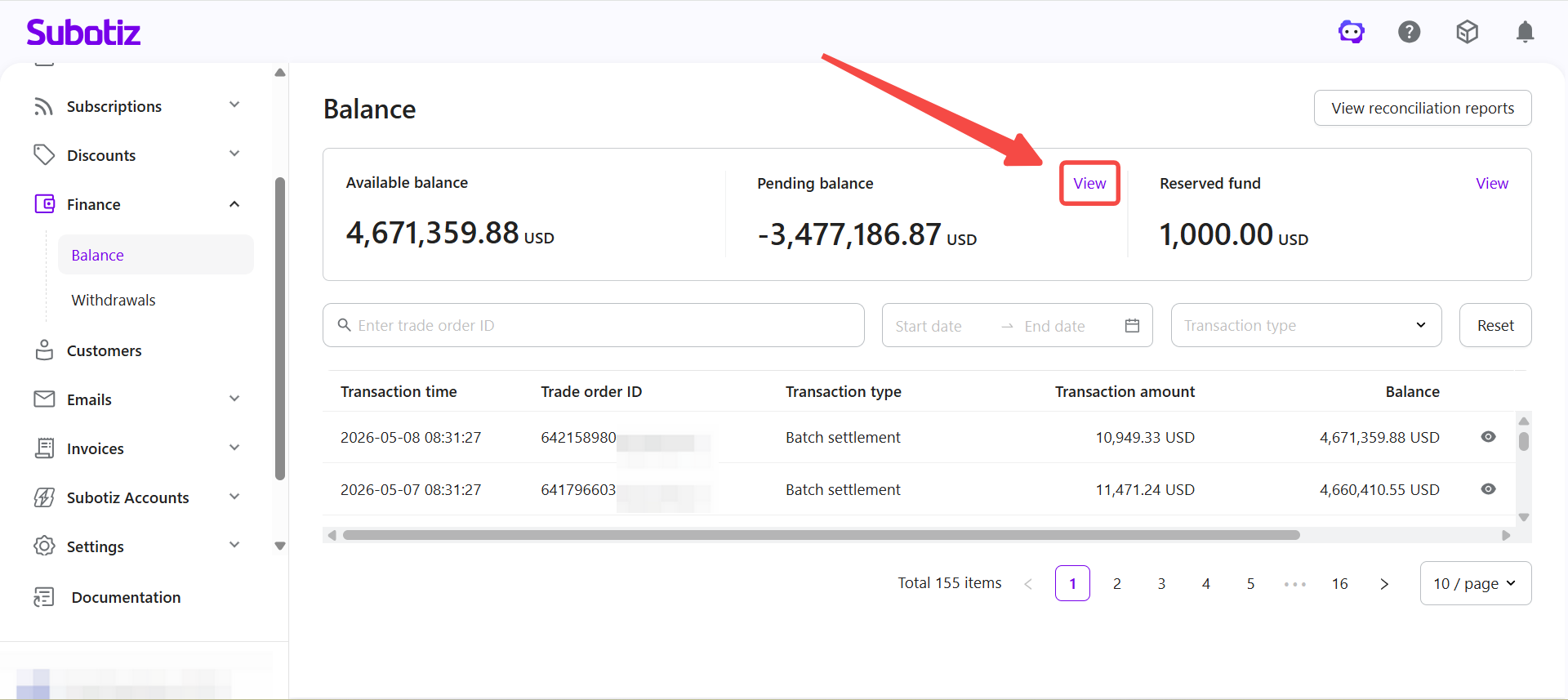
- View pending balance details: Select View to open the pending balance page. The system lists all unsettled transactions organized by settlement cycle. For field descriptions, see Balance|Reviewing Pending Balance Details.
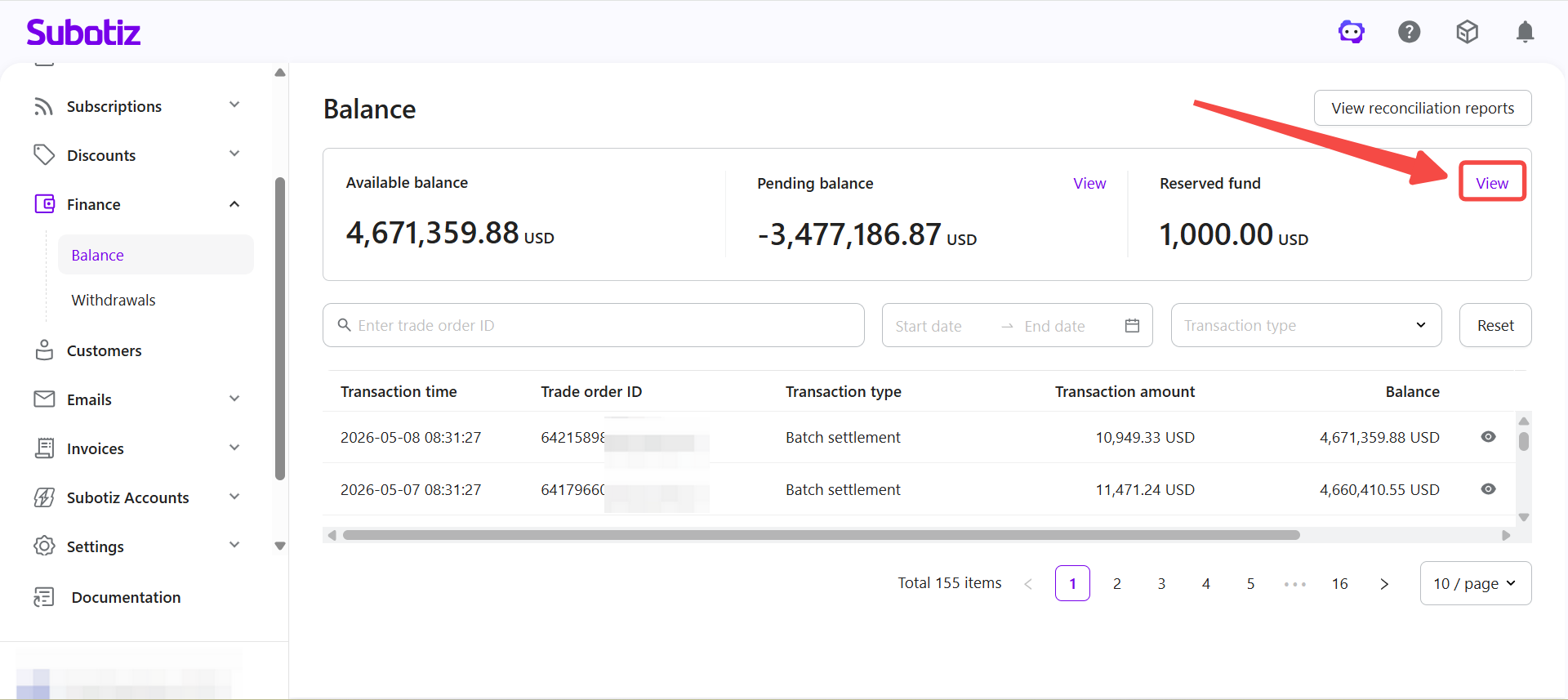
- Check reserved fund details: Select View to open the reserved fund page, showing held amounts, release cycles, and rolling reserve rules. For field descriptions, see Balance|Checking Reserved Fund Status.
Viewing Transaction Records
Use filters to locate specific records and identify the source of fund discrepancies.
-
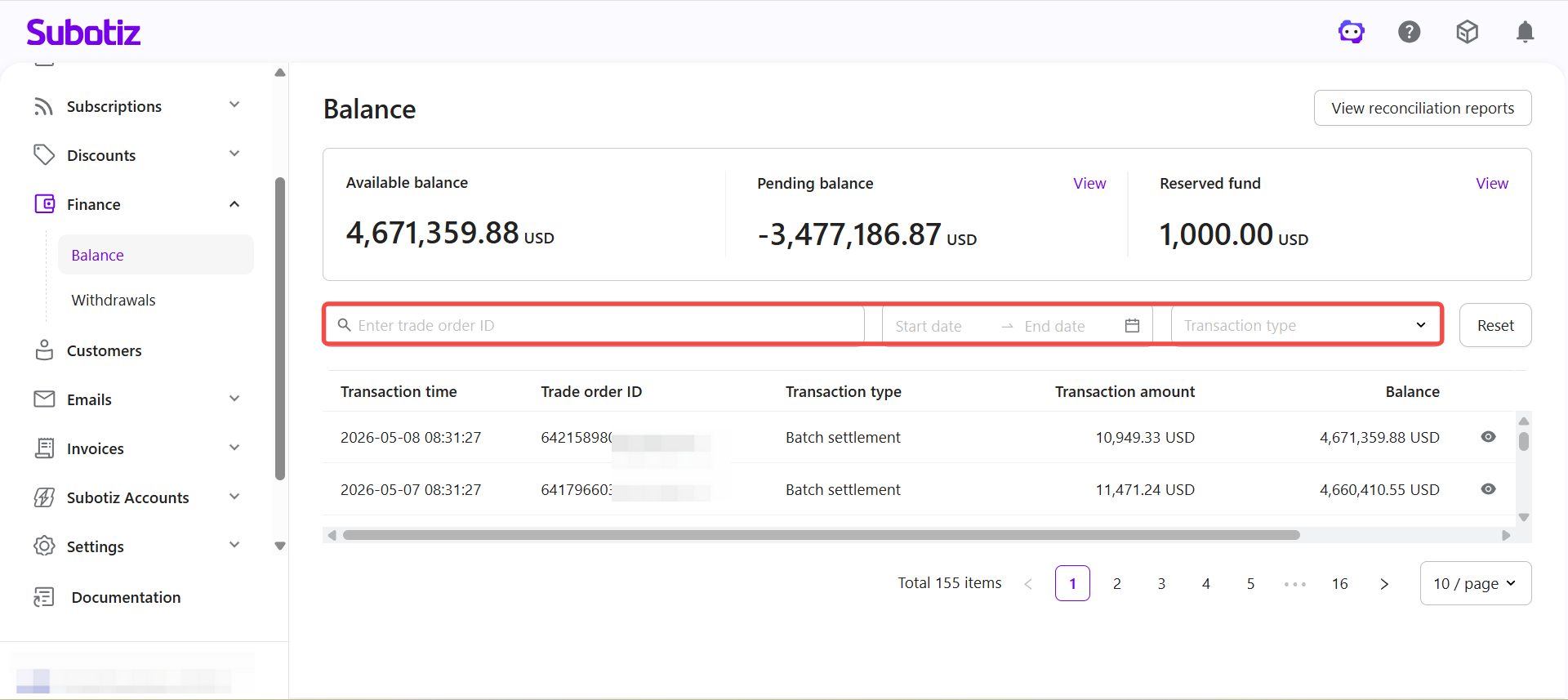
Filter records: Configure the following conditions in the filter bar:
- Transaction ID: Enter an order number or settlement batch ID for a precise search.
- Date range: Select a time period to display transactions within that window.
- Transaction type: Filter by a specific category of fund movement.
-
Combined filters: Apply multiple conditions simultaneously to narrow results.
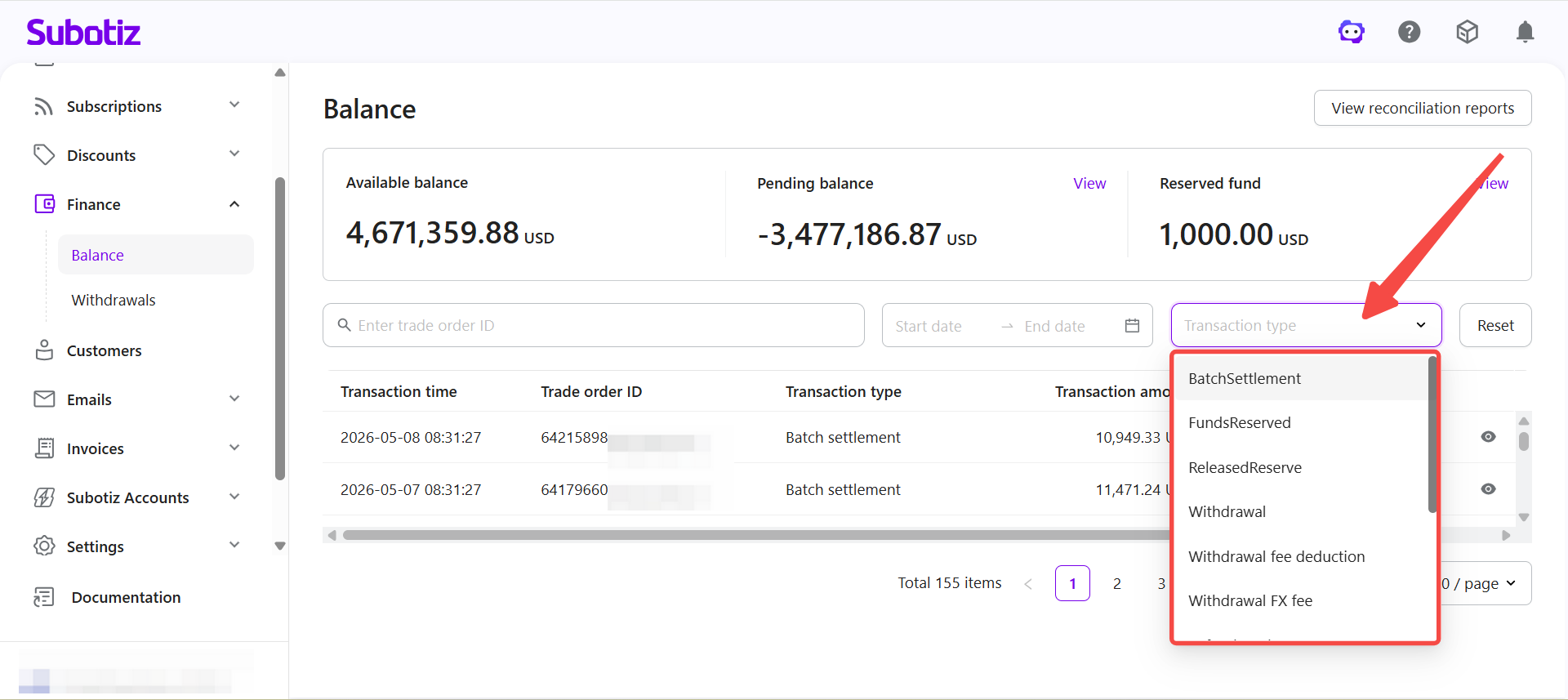
- Review transaction types: Transaction types show what caused each fund movement and whether it was a credit or debit.Transaction typeDescriptionBatchSettlementBulk settlement entry grouping multiple transactions into a single batch.FundsReservedAmount held in reserve according to the rolling reserve policy.ReleasedReserveReserved funds released after the reserve period expires.PayoutTransfer of funds from Subotiz to the merchant’s bank account.PayoutFeeFees charged for processing a payout.RefundFundsFunds refunded to a customer for a previous transaction.BalanceDebitDebit adjustment to the account balance.PayinIncoming payment from a customer (e.g., online payment).AdjustmentManual balance change applied by Subotiz (credit or debit).ActiveAccountFeePeriodic account maintenance or service fee.NegativeBalanceDebitDebit transaction applied to cover a negative account balance.
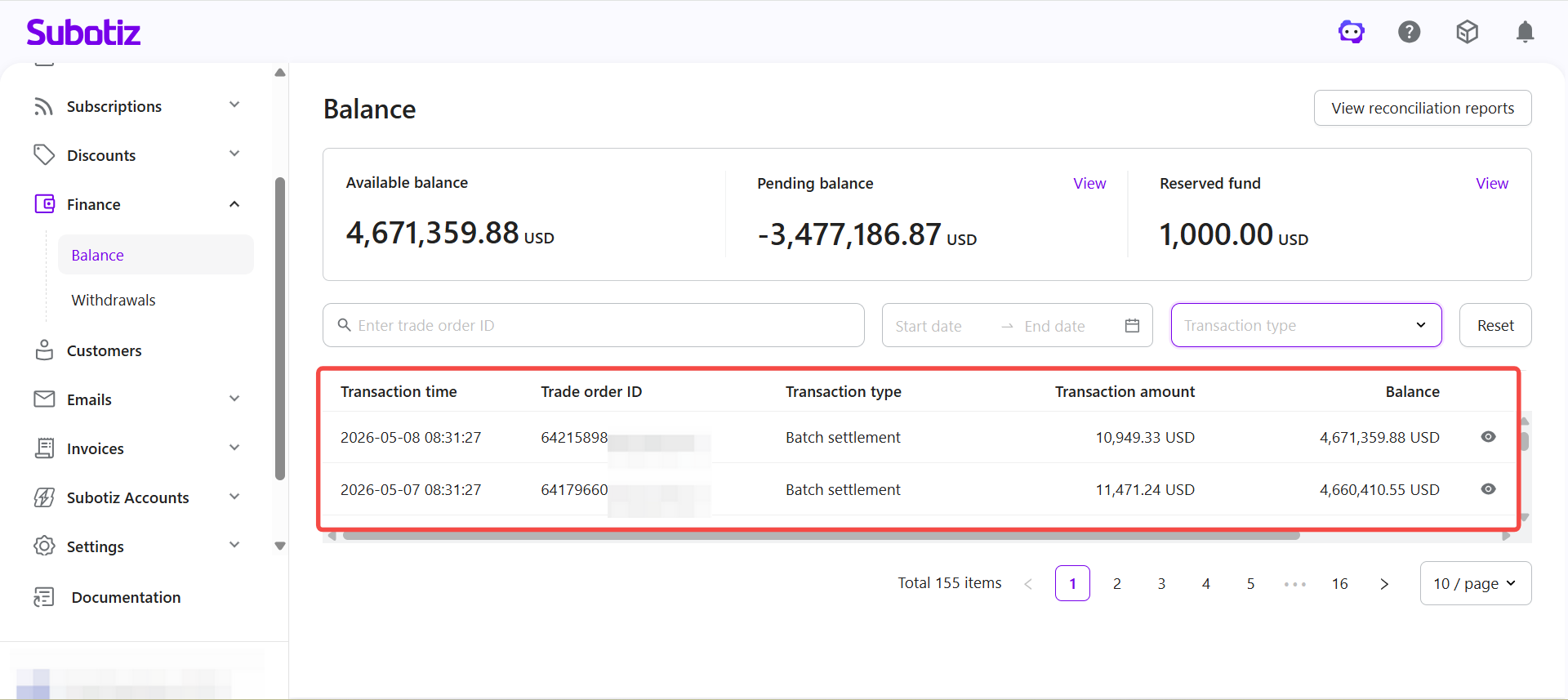
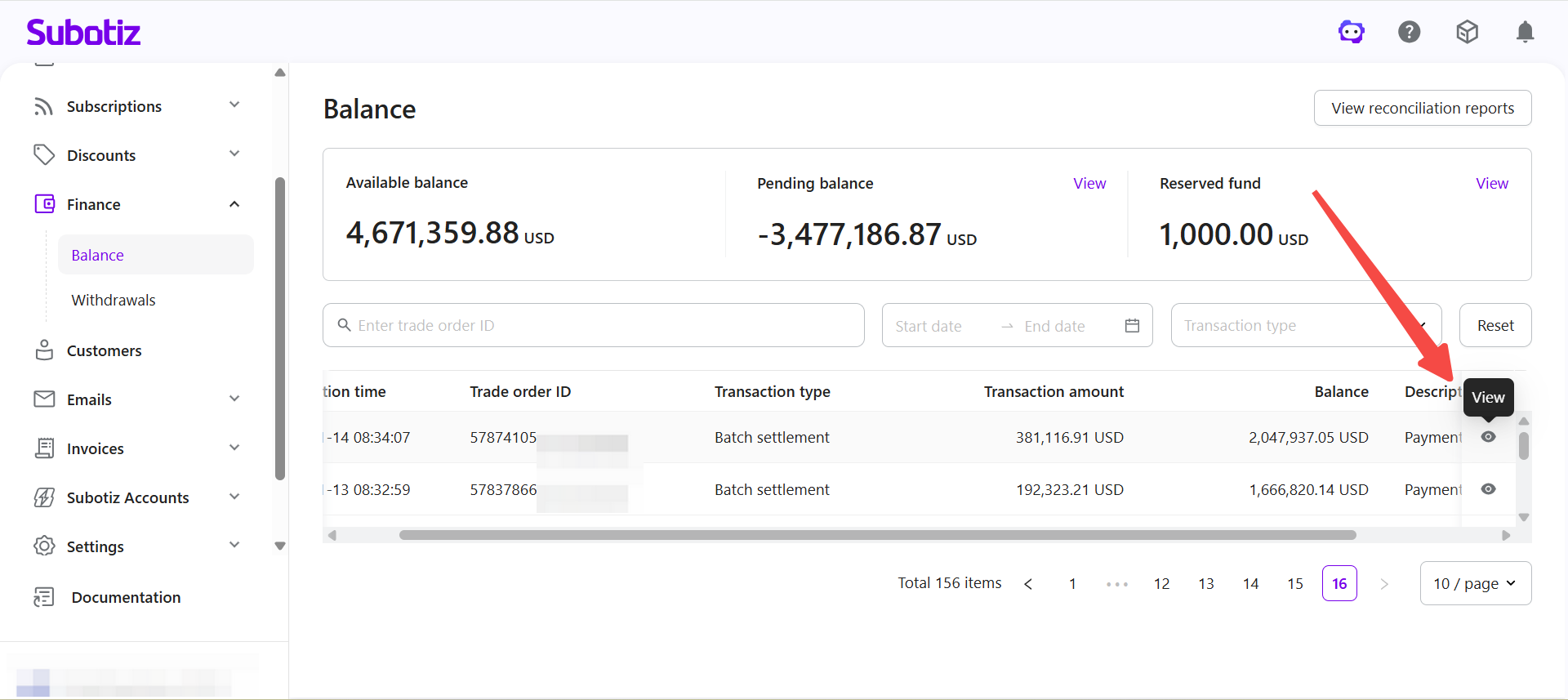
- View the transaction list: The system lists all transactions in chronological order for fund tracking and reconciliation:FieldDescriptionTransaction timeTimestamp of when the transaction was recordedTransaction IDCorresponding order number or settlement batch IDTransaction typeCategory of fund movementTransaction amountAmount credited or debitedBalanceAccount balance immediately after the transactionDescriptionSystem-generated summary of the transactionView iconClick to expand transaction details including amount, fees, reserve, and net amount
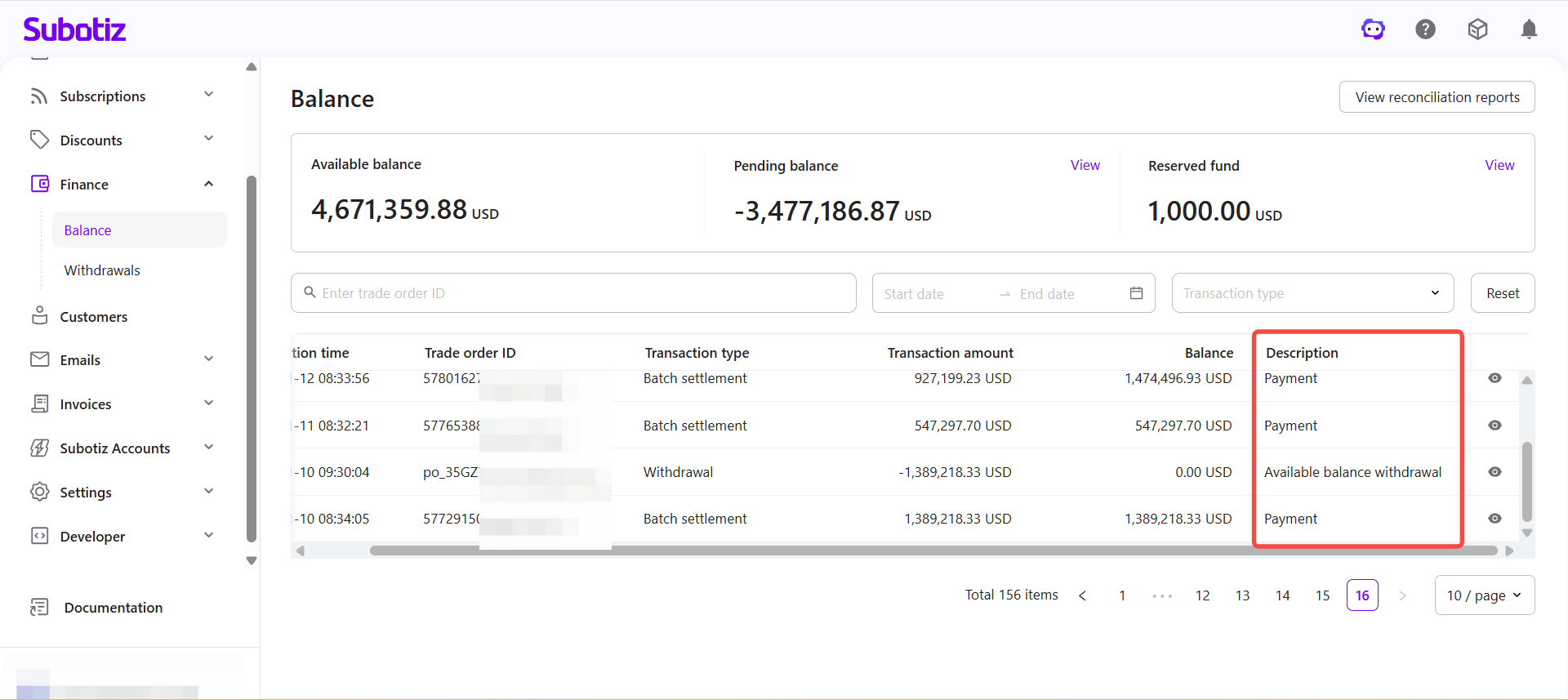
- Understand the description field: The description field provides additional context for each transaction:DescriptionMeaningDetail view supportedAvailable balance payoutAvailable funds transferred to the merchant's bank account✅PaymentIncoming customer payment✅Online paymentPayment received via online channel✅Return funds caused by failed payoutFunds returned after a failed payout❌Active account fee deductionPeriodic account maintenance fee deducted by the system❌Any negative balance caused by previous outgoing amounts, chargebacks, or refunds after account restrictions will be debited from your payout accountAutomatic deduction when balance turns negative due to refunds or disputes❌
- Check detail view availability: The view icon is only available on certain transaction types. Not all records include a detail view. For field descriptions, see Balance|Understanding Transaction and Settlement Details.
Exporting Transaction Records
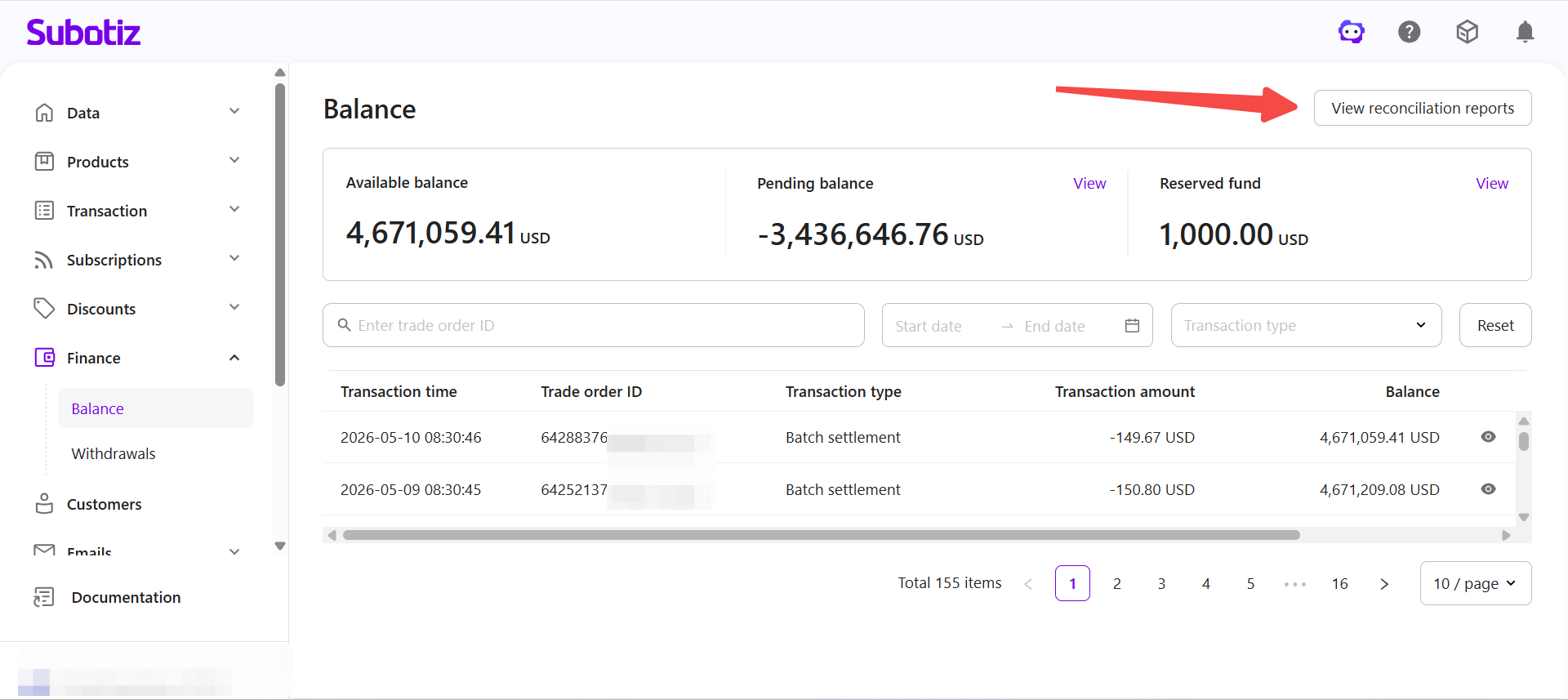
- Export transaction data: Click View reconciliation report, select a date range, and download detailed records or reports. For more, see Balance|Accessing Reconciliation Reports and Exporting Data.
Investigating Fund Discrepancies
- Identify transaction type: Determine whether a transaction increases or decreases the balance.
- Compare balance changes: Cross-check transaction amount and balance fields to confirm results.
- Review transaction details: Open the detail view to verify fees, reserve, and net amount.
- Cross-reference reports: Run reconciliation reports to cross-check against bank statements or accounting records.
Managing Balance: Best Practices
- Monitor balances regularly: Track available balance, pending balance, and reserve fund movements.
- Track settlement cycles: Plan fund usage based on settlement and release timing.
- Verify payout records: Confirm amounts, dates, and account details before initiating withdrawals.
- Use filters for investigation: Apply filters to isolate relevant transactions during reconciliation or troubleshooting.
The Balance page displays available balance, pending balance, and reserve fund status in one place, alongside a complete transaction record list. Filters, search, and export tools are available to locate fund movements and support reconciliation. The view icon appears only on supported transaction types and descriptions.