Price lists in Subotiz provide a centralized view for managing multiple pricing plans grouped into a single checkout link or embed code. This setup helps organize subscription options clearly and present them effectively to customers.
Accessing Price Lists
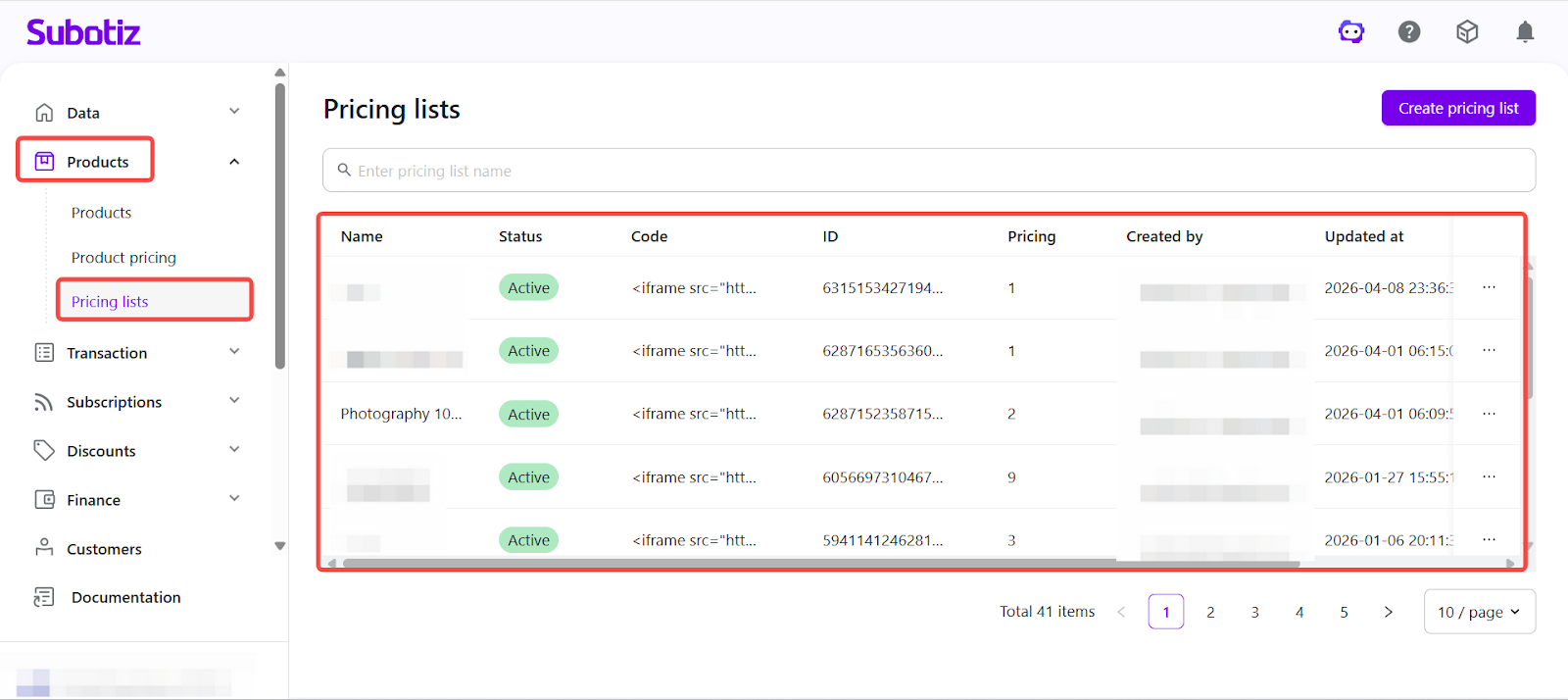
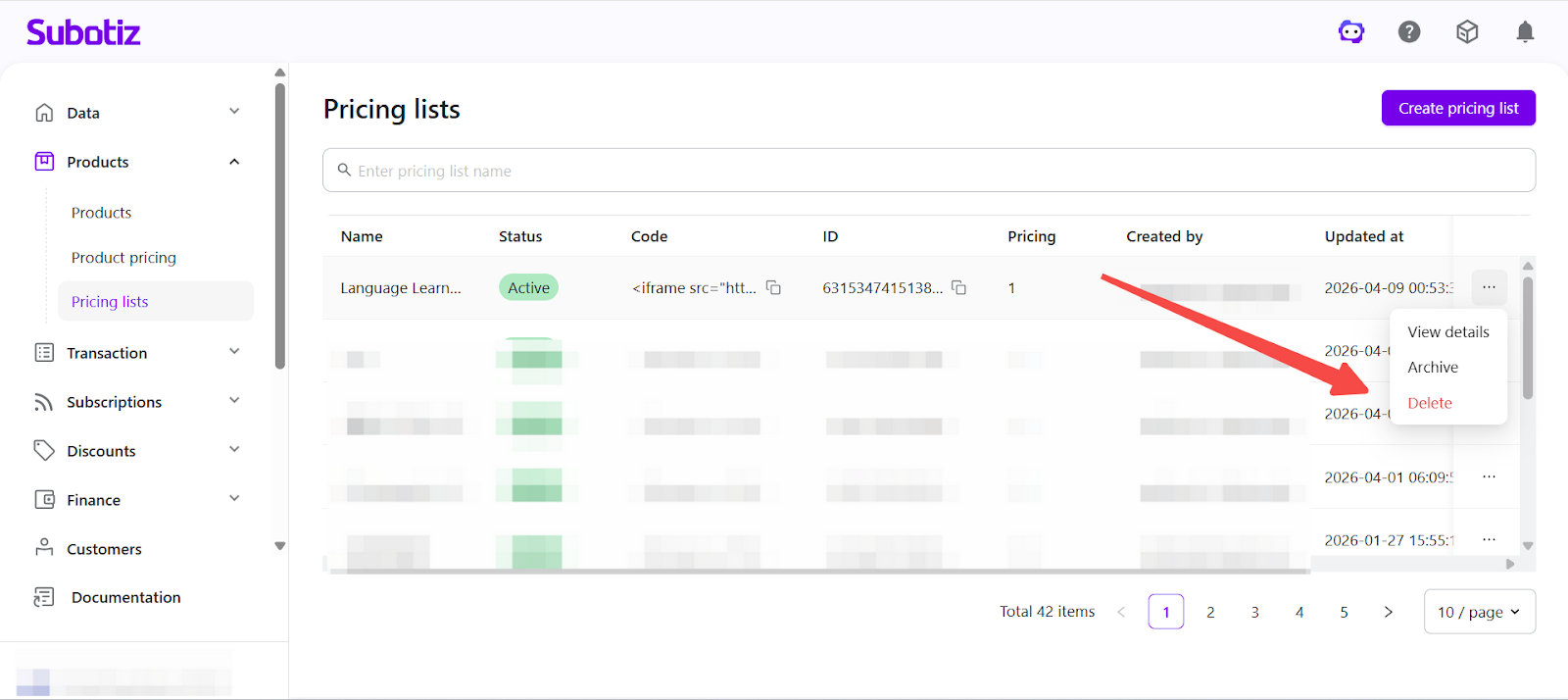
- Open the dashboard: Go to Products > Price lists in the Subotiz admin. The dashboard displays all lists with columns for:
- Name: The price list name.
- Status: Active or Archived.
- Code: Embed code (iframe) for use on external websites.
- ID: Unique list identifier.
- Pricing: Number of pricing plans included in the list.
- Created by / Updated at / Created at: System record.
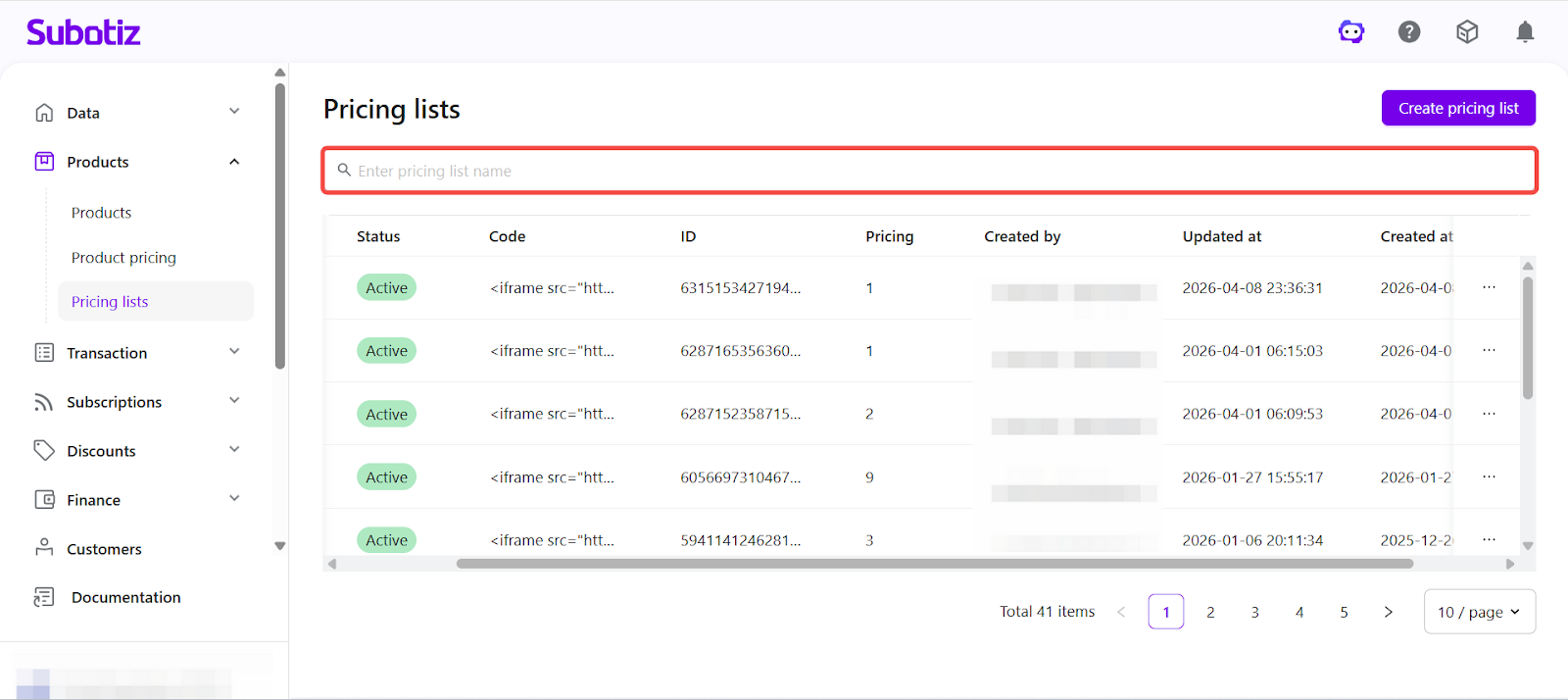
- Search by name: Use the search bar at the top to quickly locate a specific list.
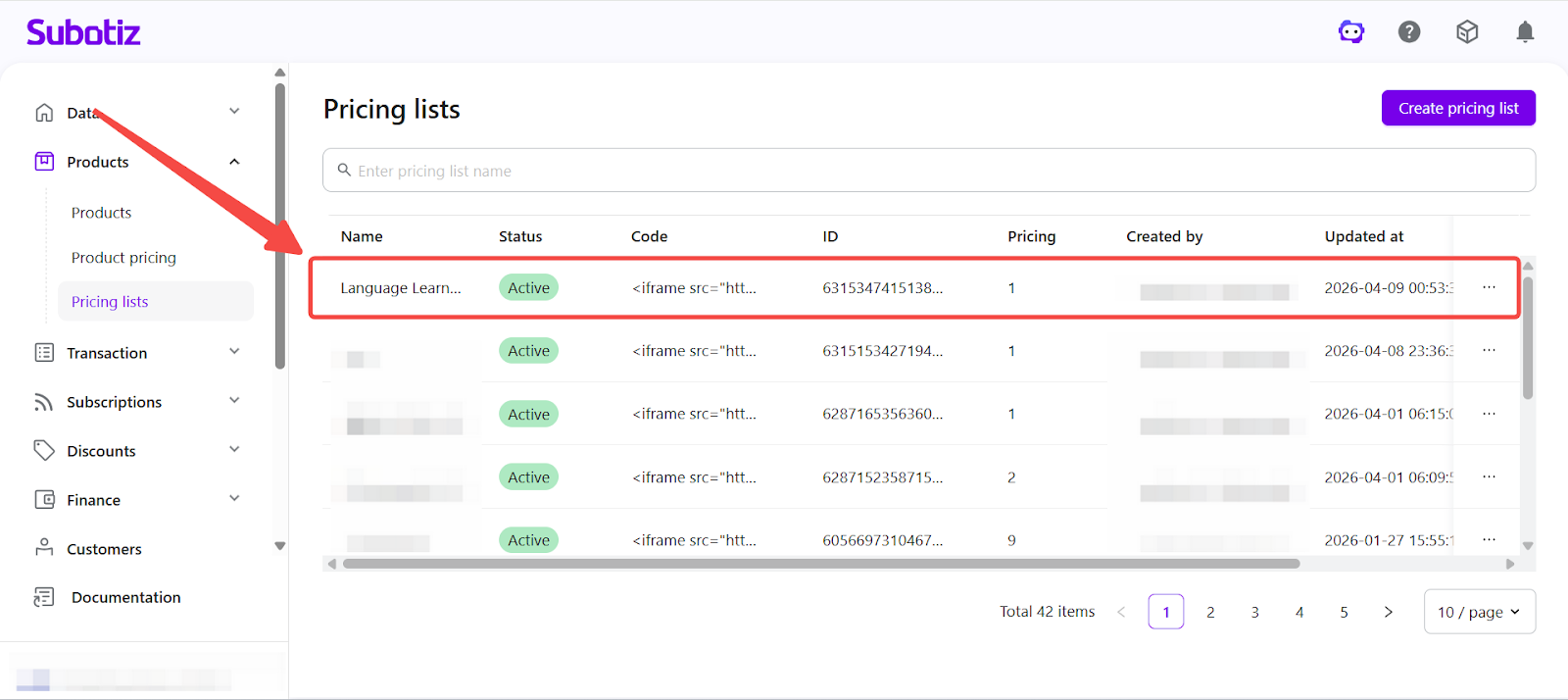
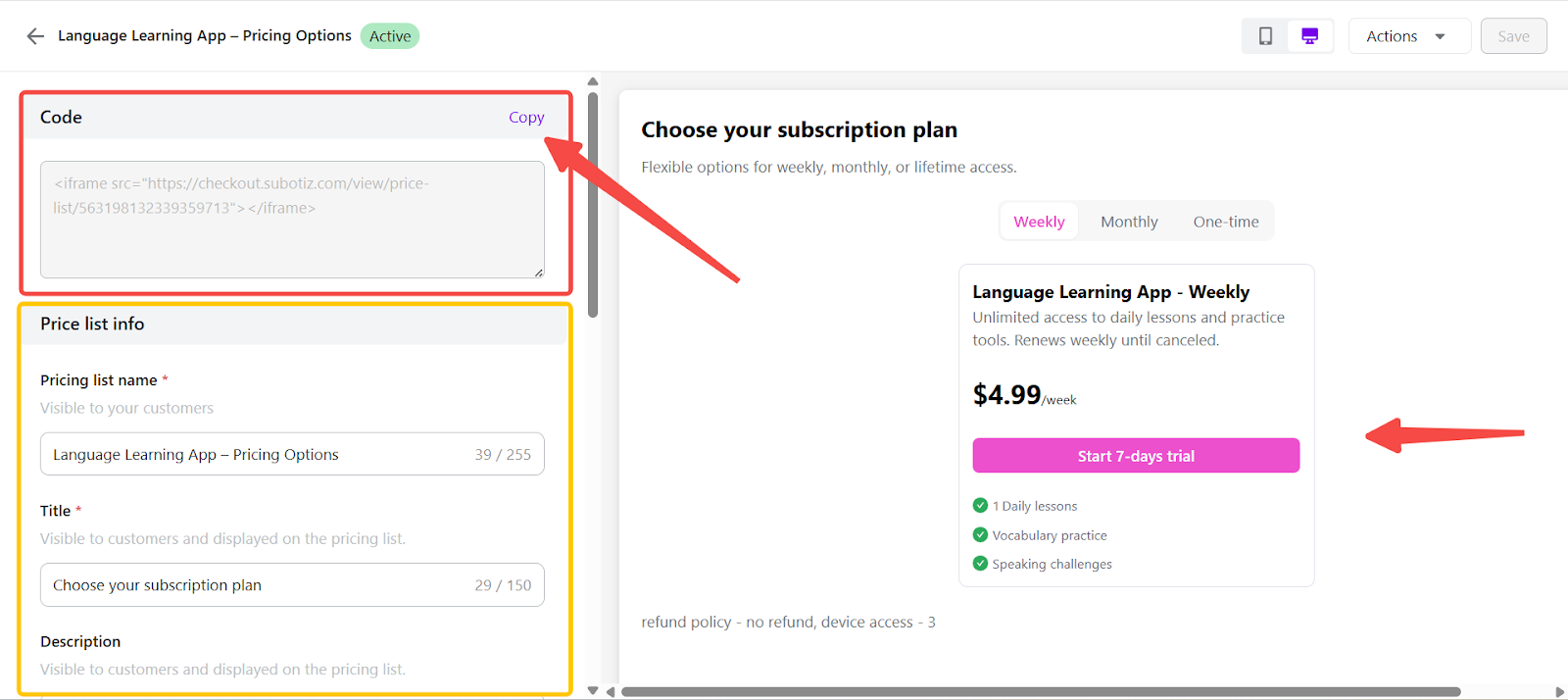
- View list details: Click a price list to open the detail page. Here you can:
- Copy embed code: Use the iframe code to place the price list on your website.
- Copy share link: Use the generated checkout link to share via email, messaging apps, or social media.
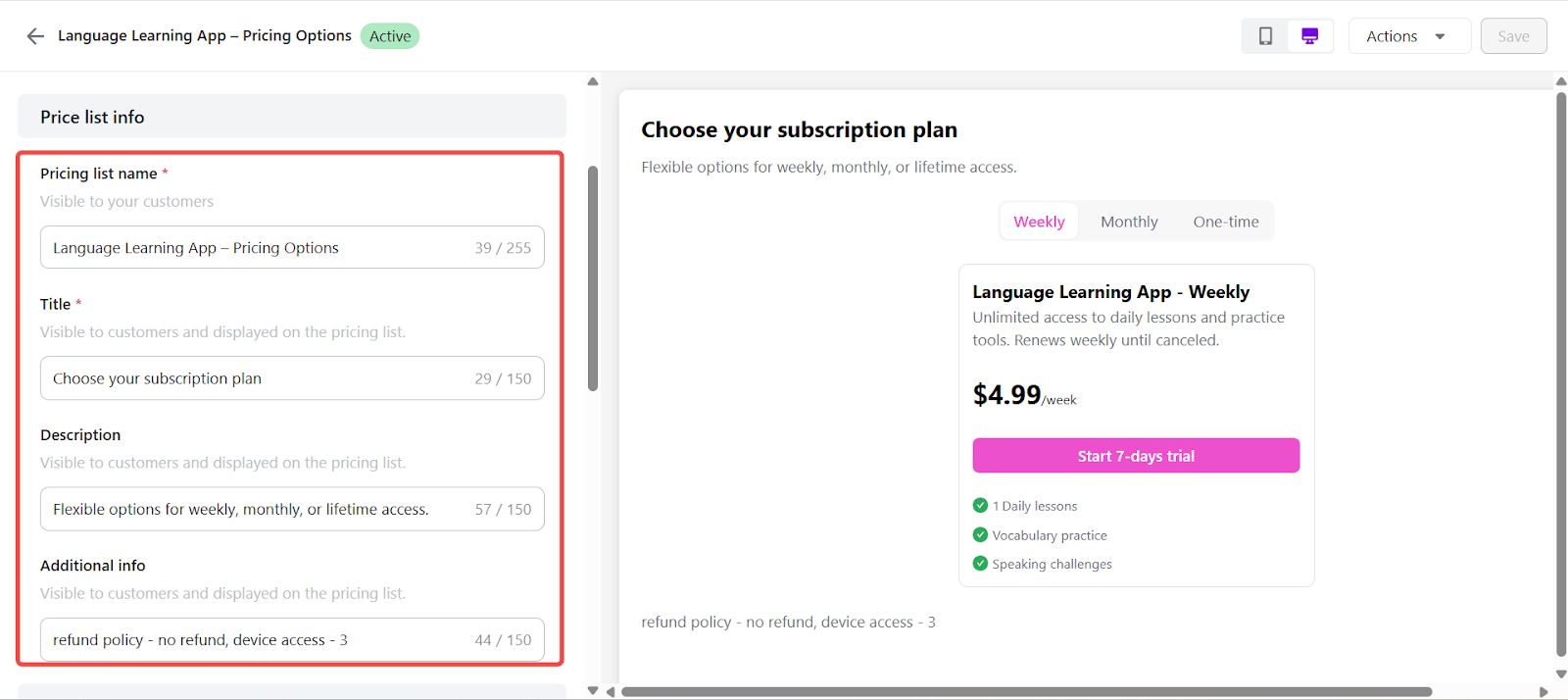
- Edit list details: Modify pricing list information such as name, title, description, and display settings.
- Preview customer view: Preview how pricing plans are displayed based on the billing cycles and options included.
Managing Price Lists
- Edit details: Update price list details directly in the detail view, including the list name, customer-facing title, description, and display settings. Changes are applied immediately.
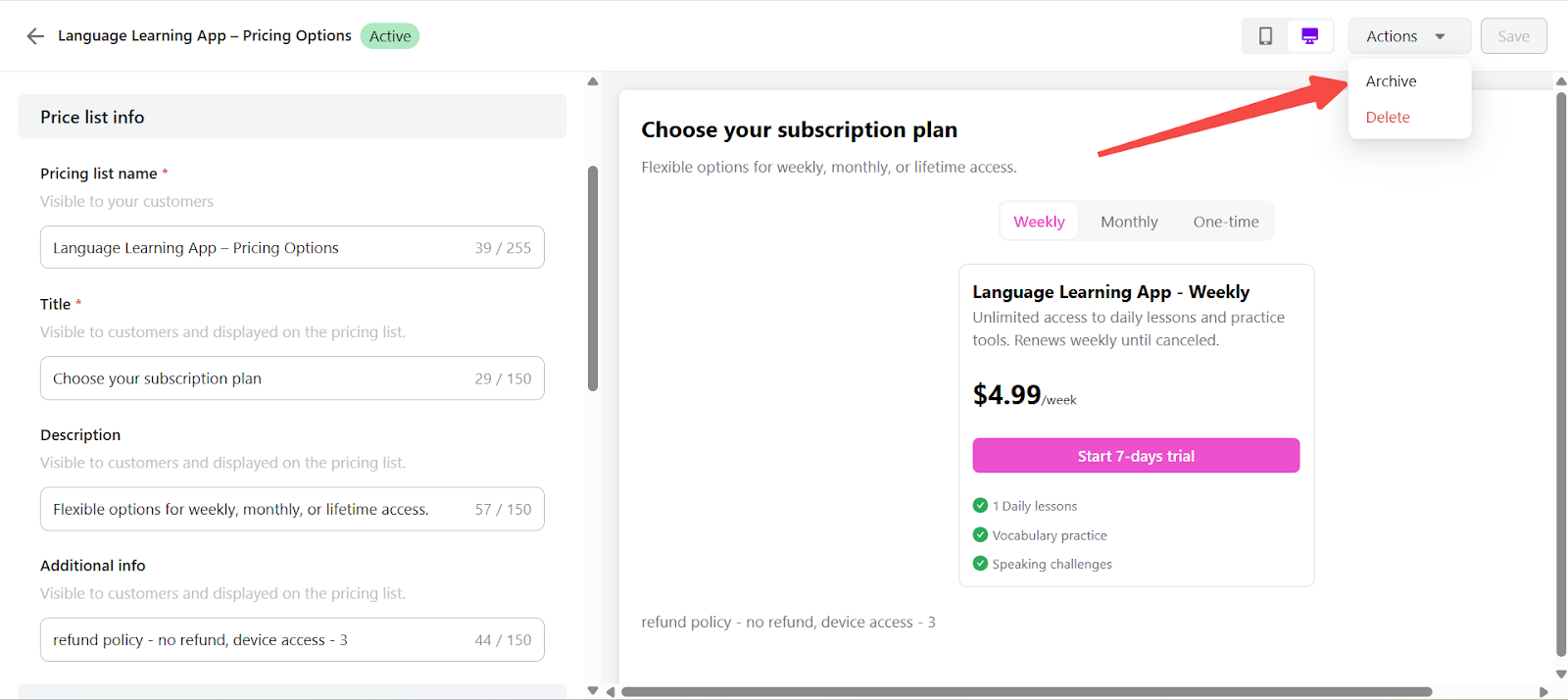
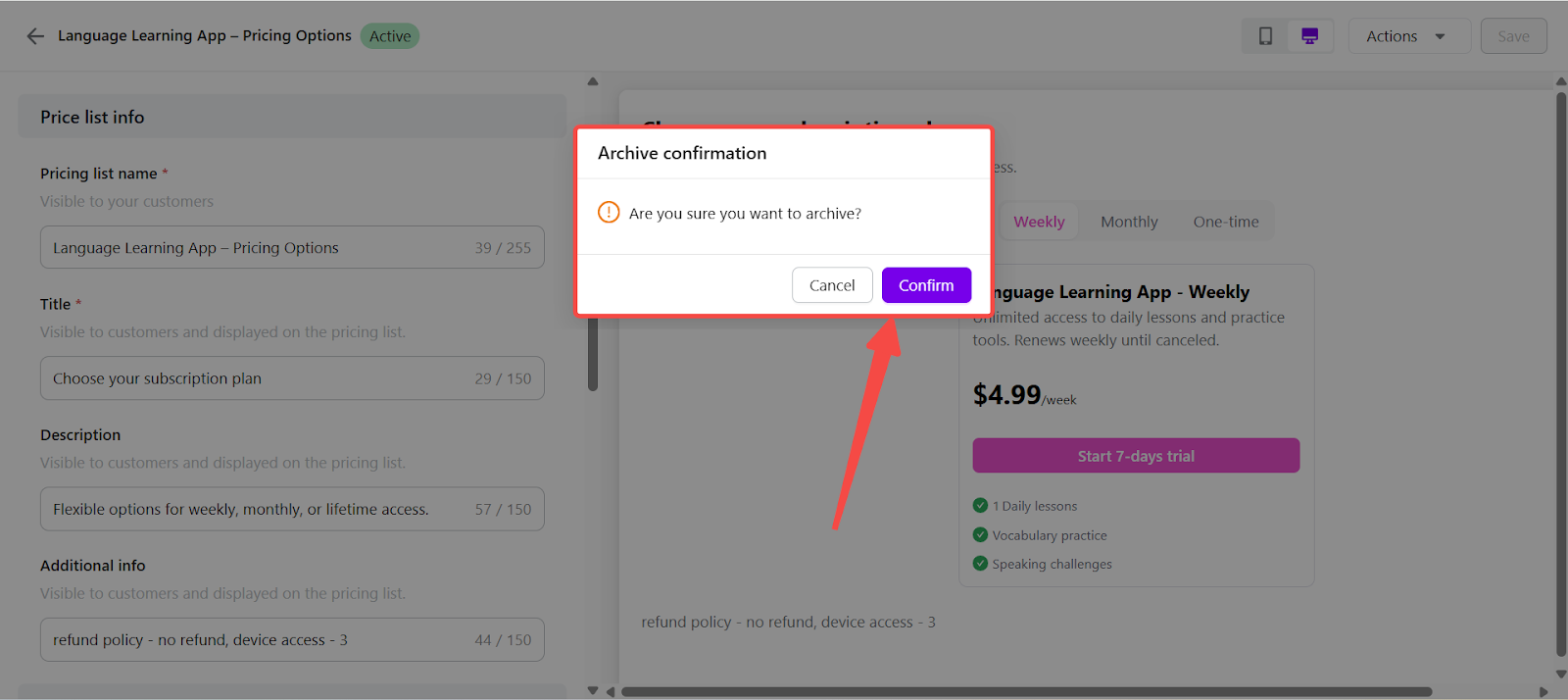
- Archive a list: From the detail page, go to Actions > Archive. Archived lists are no longer available for checkout but remain accessible in the admin for reactivation.
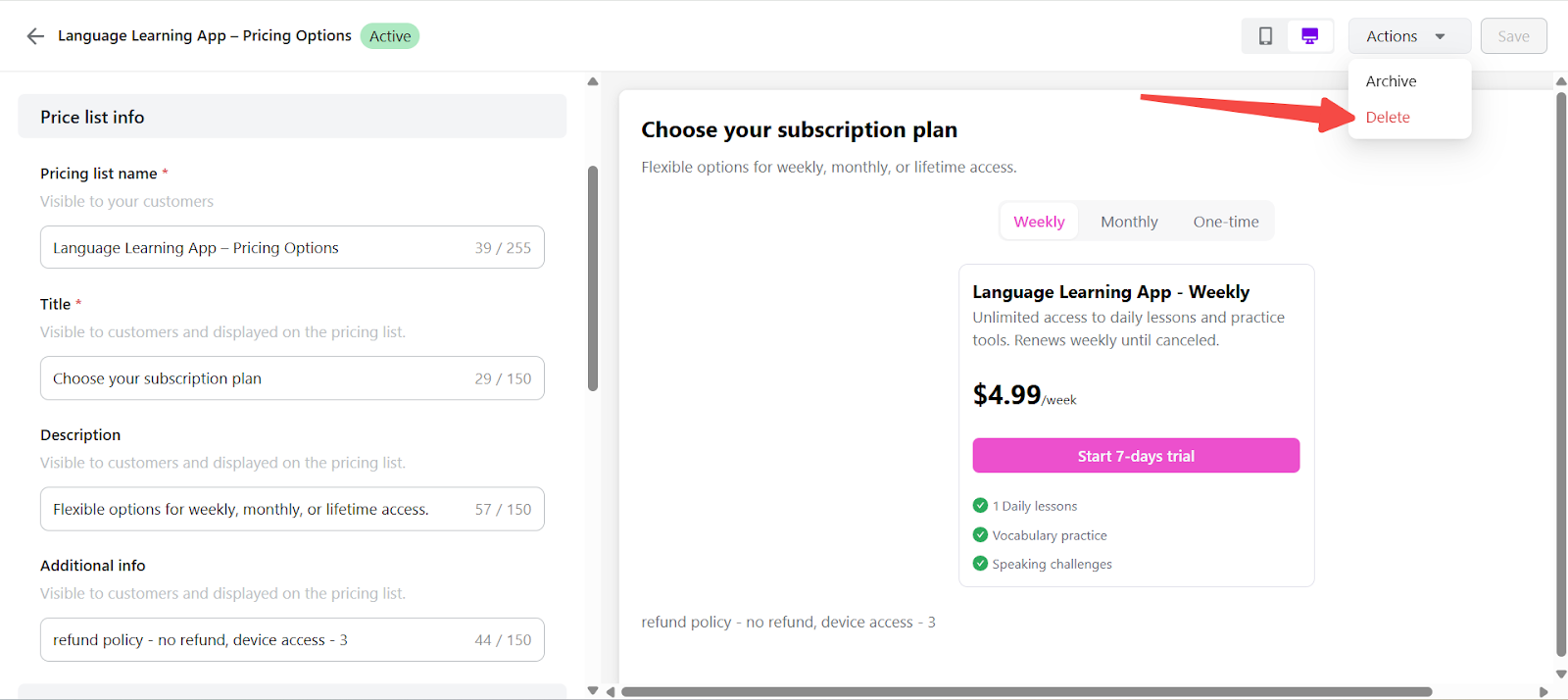
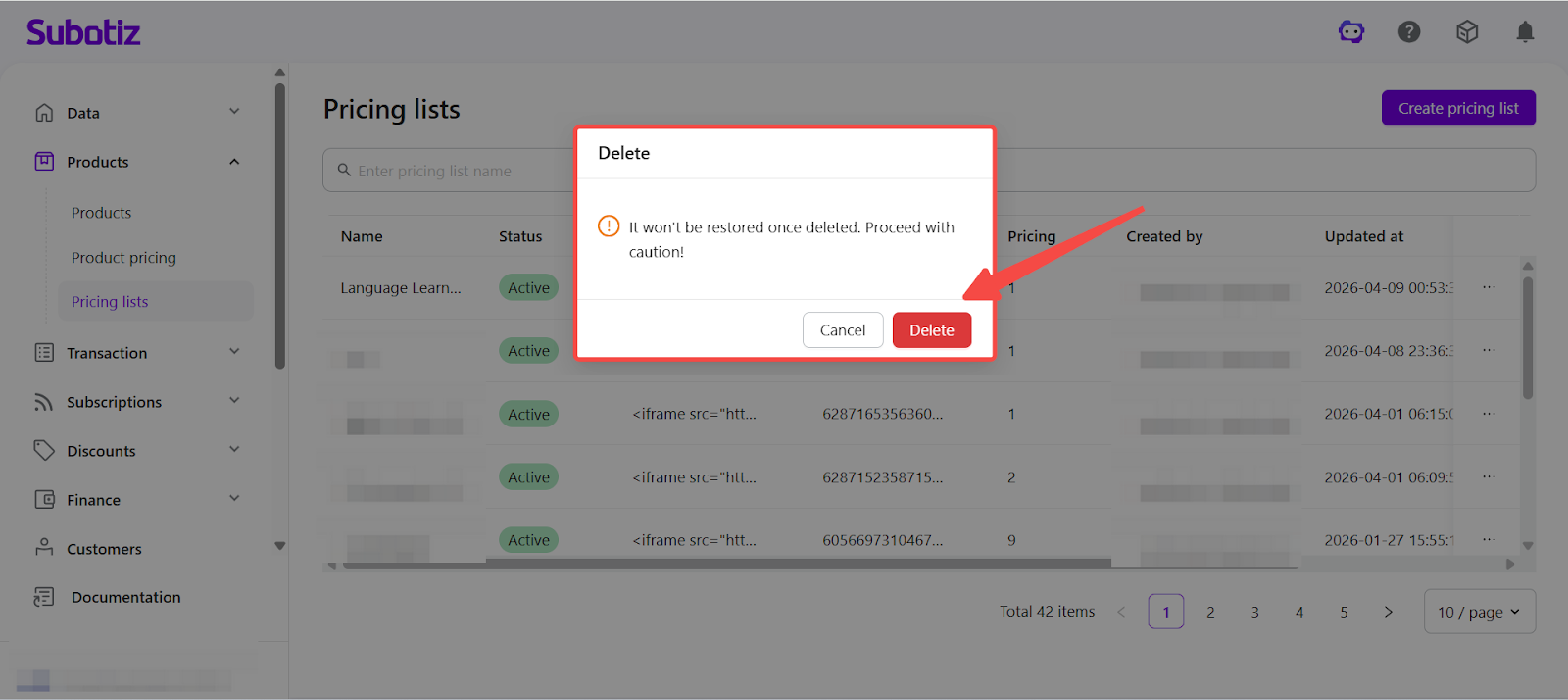
- Delete a list: From either the detail page or the dashboard menu, select Delete. Deleting permanently removes the list. All associated links and embed codes will become invalid, and this action cannot be undone.
By organizing multiple pricing plans into a single entry point, price lists simplify checkout and provide a clearer way to present pricing options to customers.