Subotiz flat rate recurring pricing allows merchants to set recurring charges for products based on a defined billing cycle. This subscription pricing model supports SaaS, memberships, online courses, and other recurring billing scenarios, with options for standard pricing, custom pricing, trial periods, and product features.
Before creating pricing, create the corresponding product. For details about products and pricing, see Products|Products and Pricing and Products | Understanding Pricing.
Creating Flat Rate Recurring Pricing
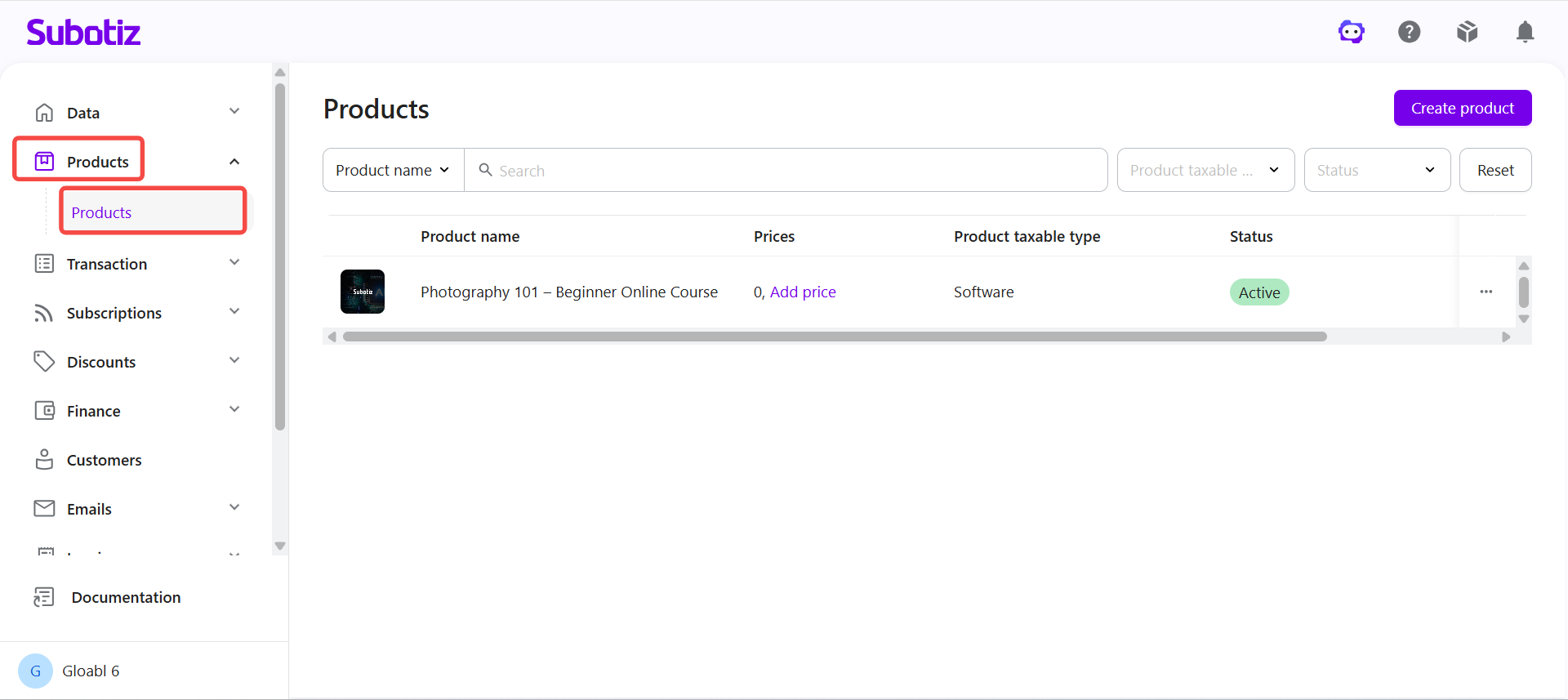
- Open Products: Log in to the Subotiz admin and go to Products > Products.
-
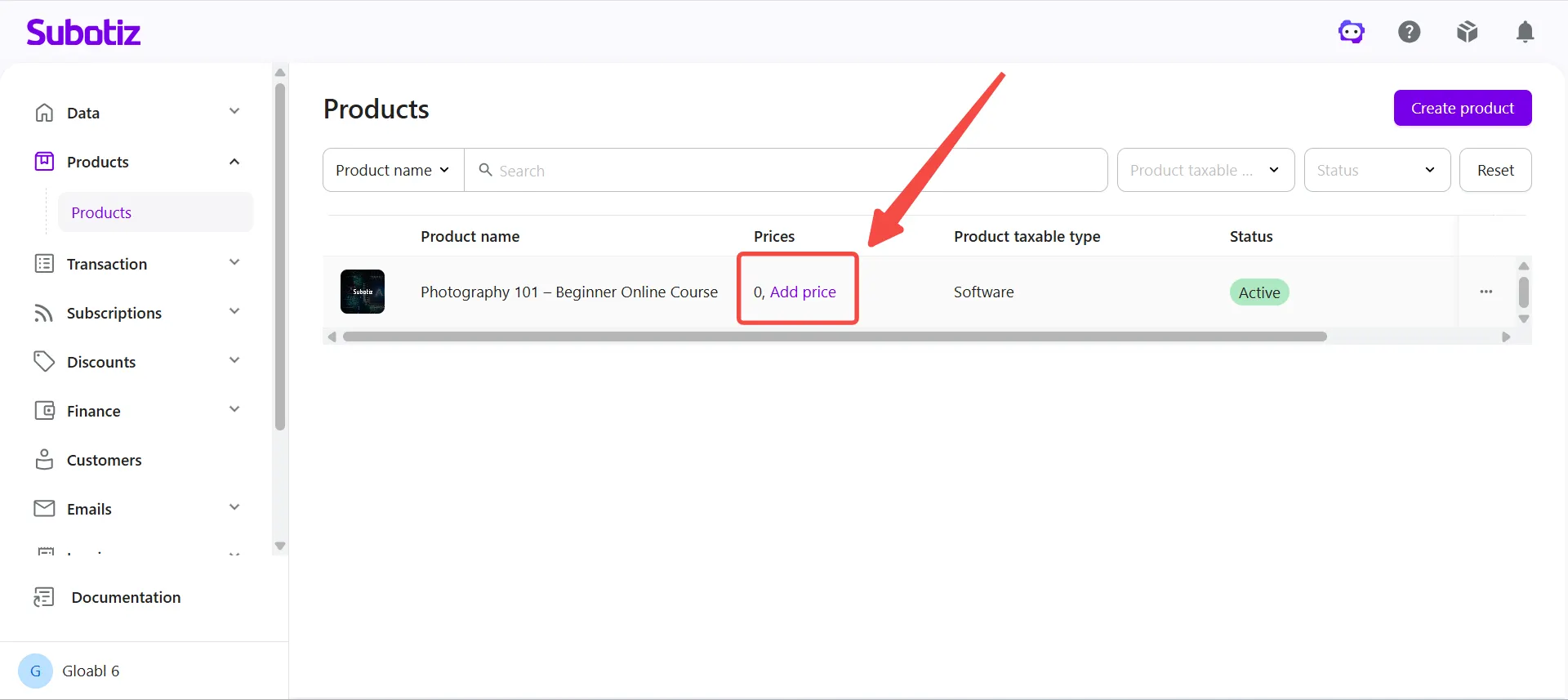
Start creating pricing: Locate the product and open the pricing creation page based on whether pricing already exists:
- No pricing created: Click Add price under the pricing count.
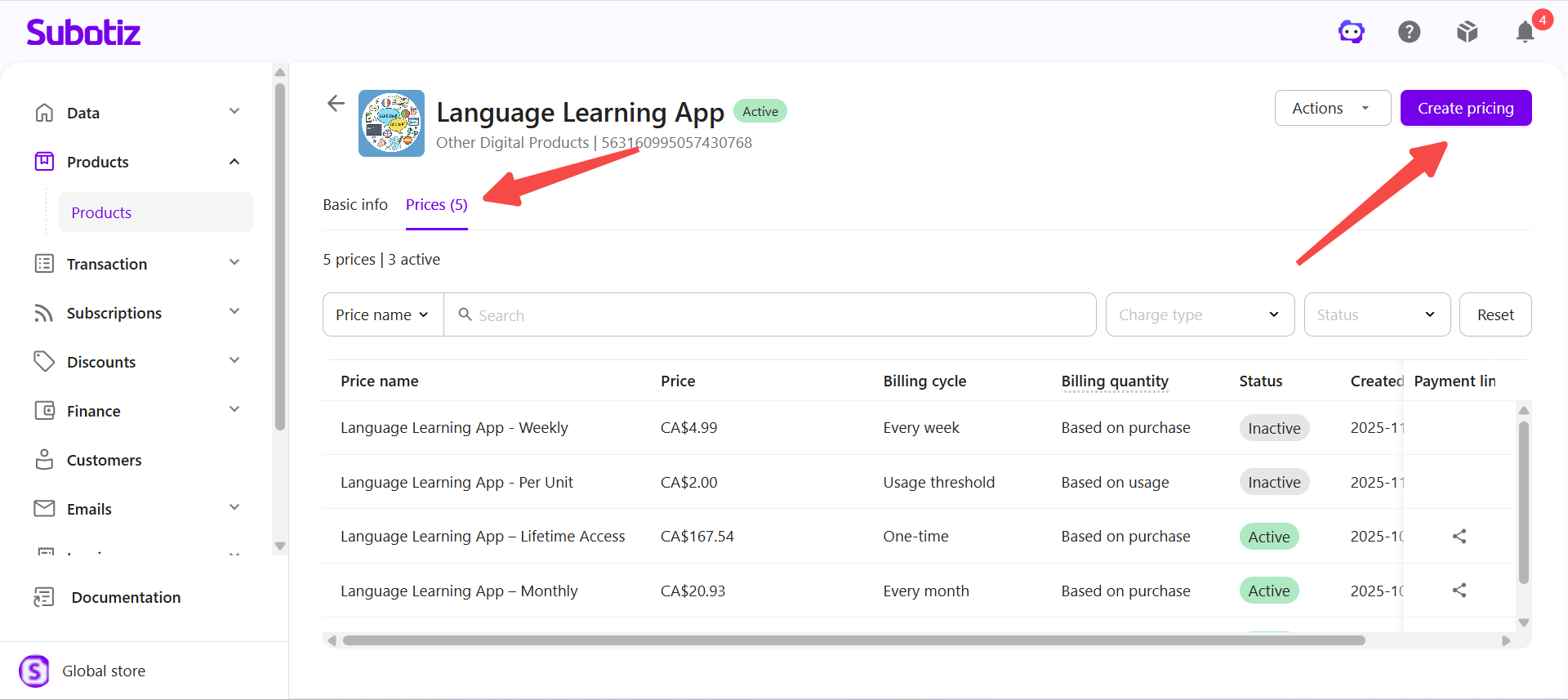
- Pricing already exists: Select the product to open its details, open the Prices tab, then click Create pricing.
-
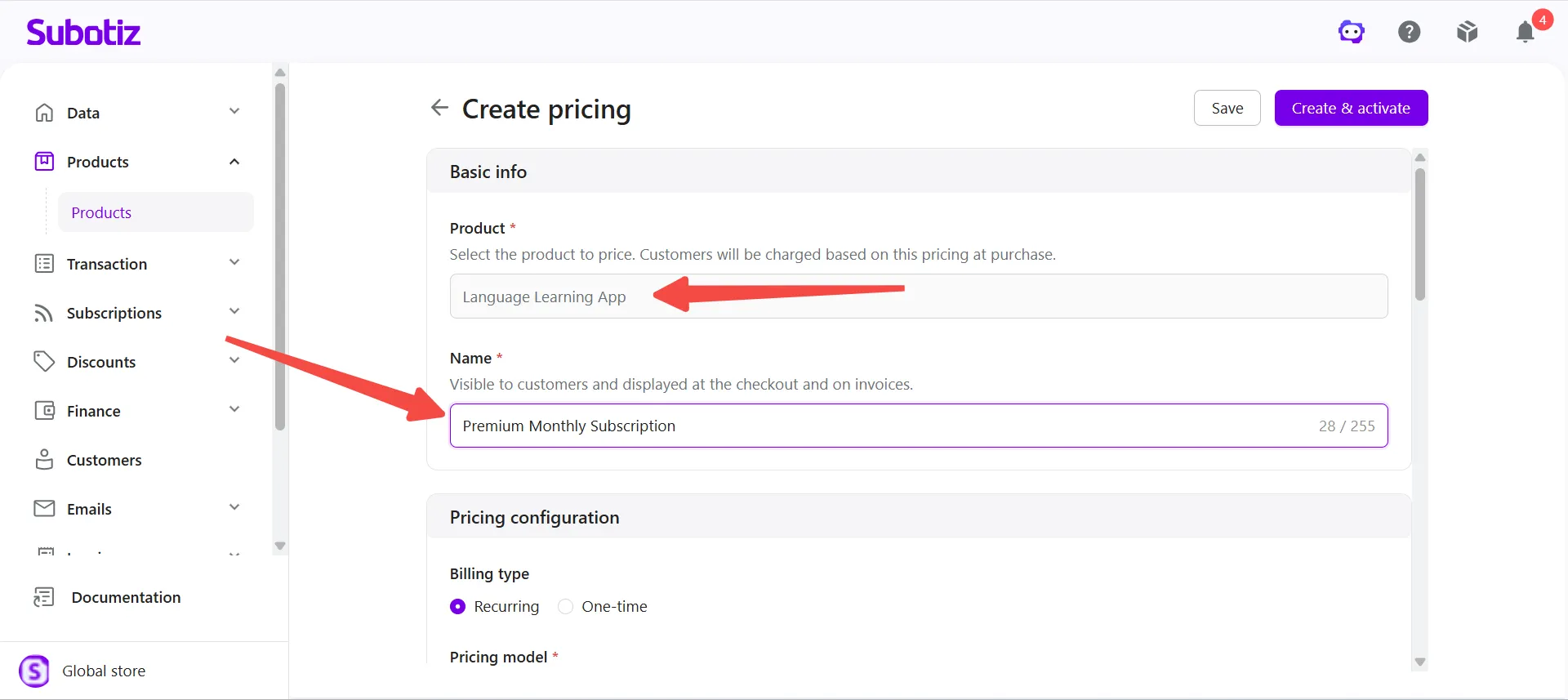
Enter basic information: Under Basic info, confirm the associated Product, then enter a Name. The name is visible to customers and appears at checkout and on invoices.
- For example, for the Language Learning App product, enter Premium Monthly Subscription as the pricing name.
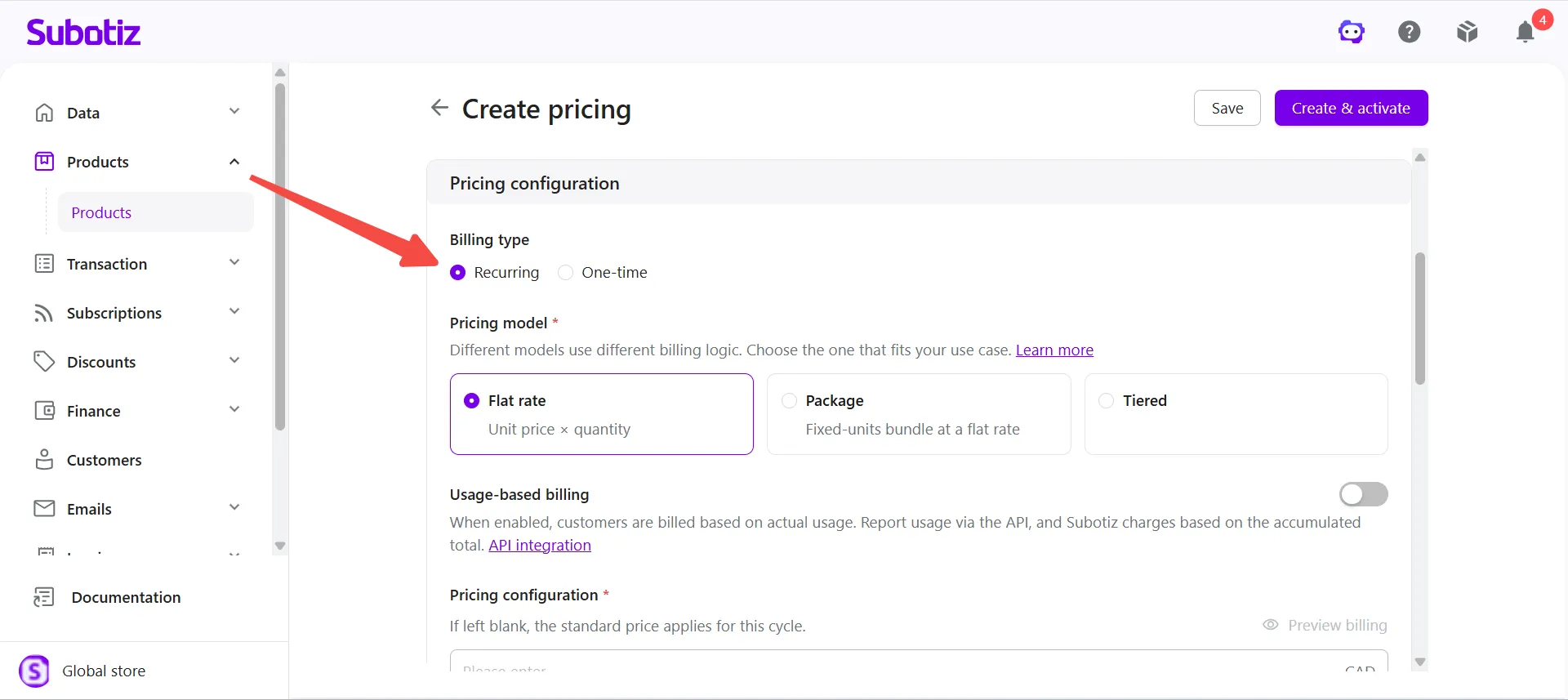
- Select Recurring: Under Pricing configuration > Billing type, select Recurring.
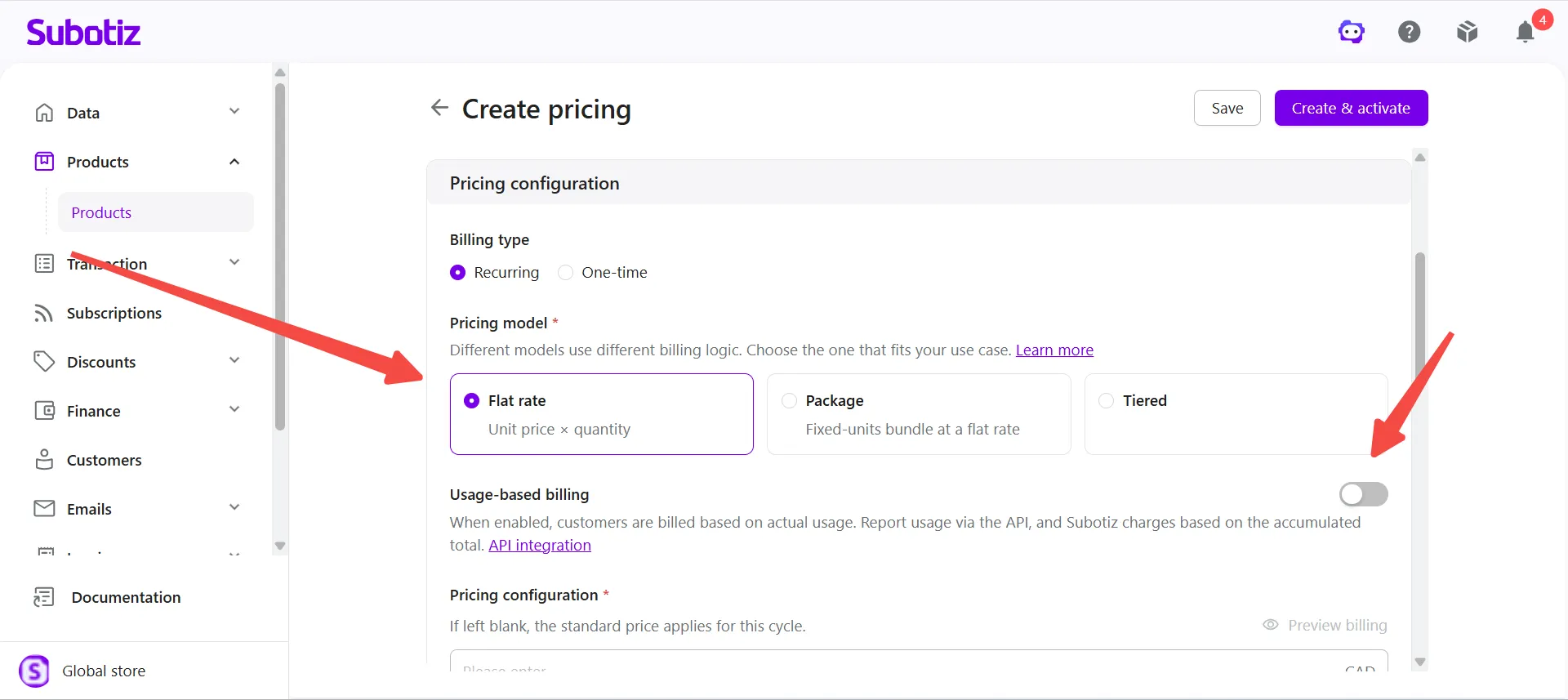
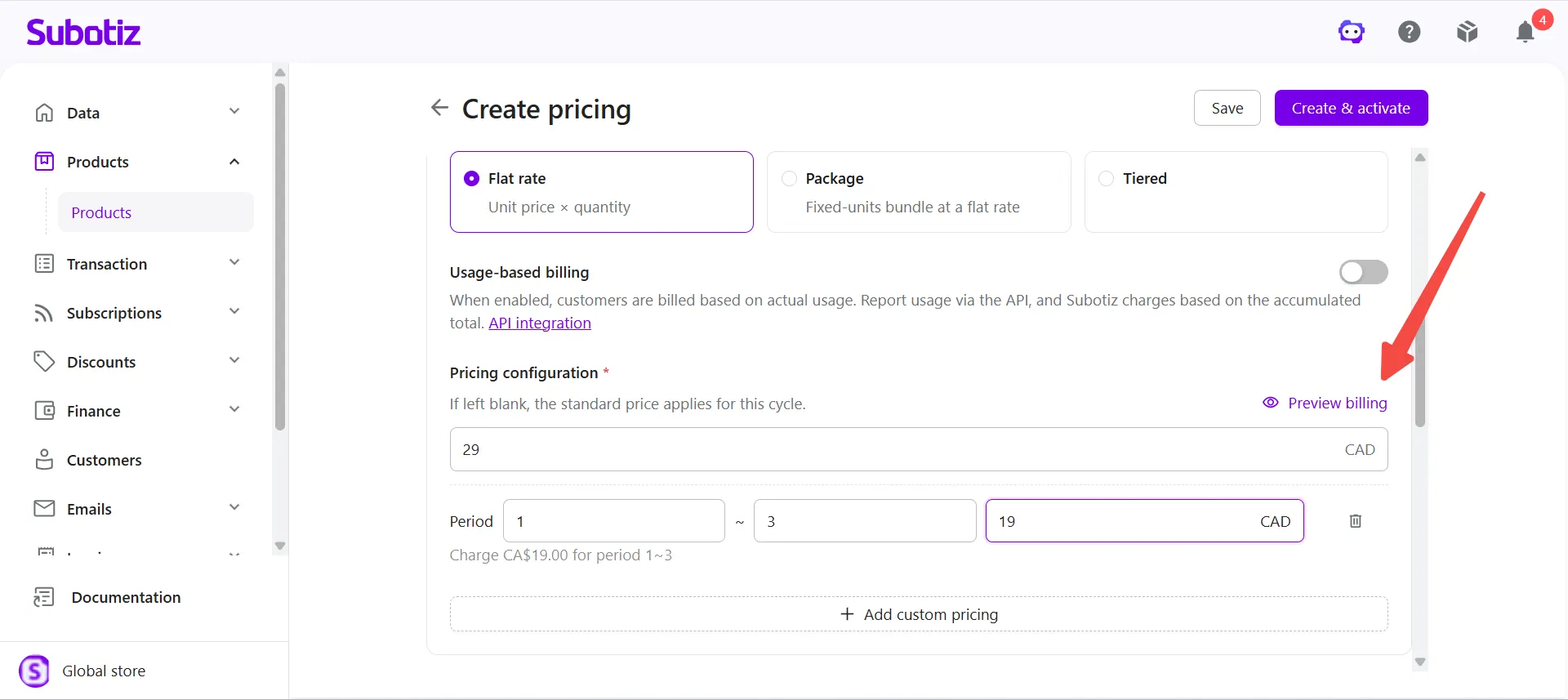
- Select Flat rate: Under Pricing model, select Flat rate. Charges are calculated as the unit price multiplied by the billing quantity. If billing based on actual customer usage is not required, leave Usage-based billing disabled.
-
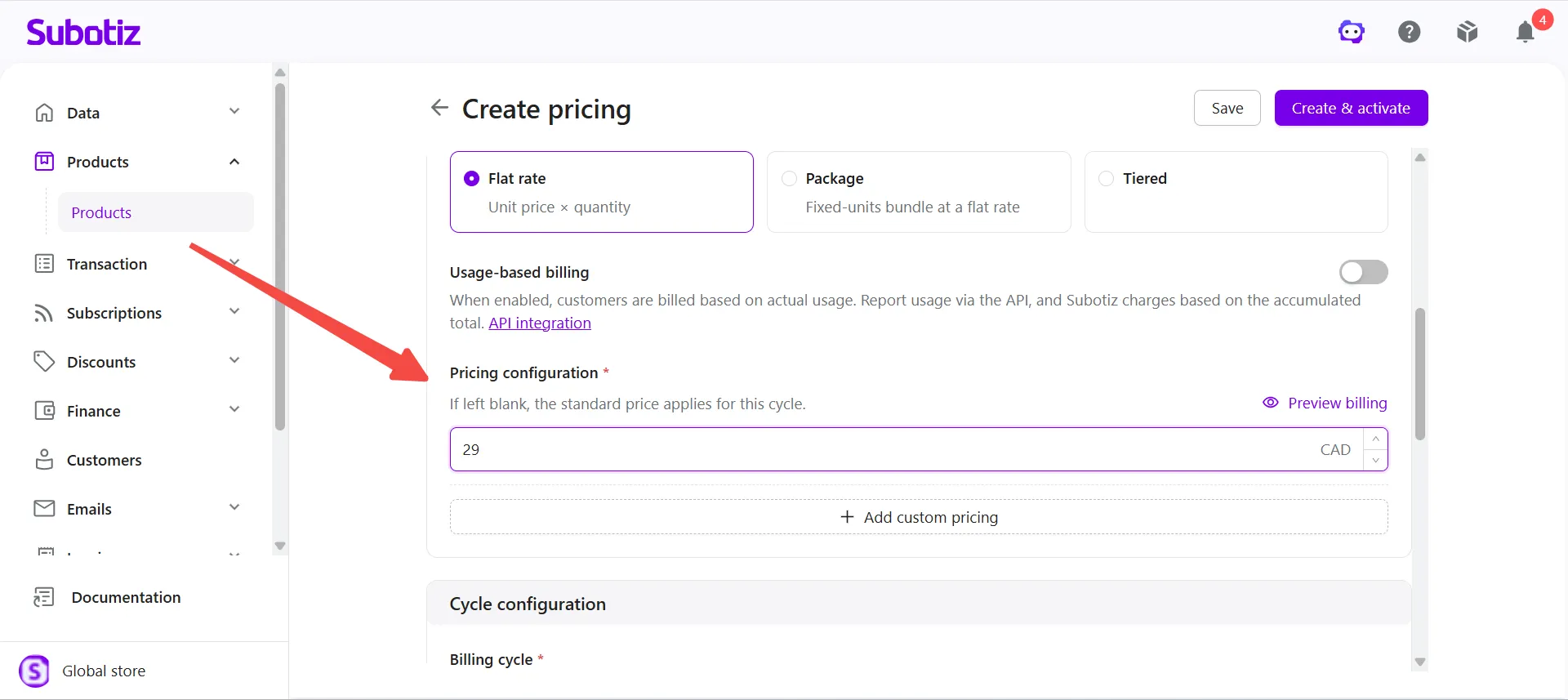
Set the standard price: Under Pricing configuration, enter the standard price. Pricing supports up to 14 decimal places. Billing cycles without custom pricing use this price.
- For example, enter 29.00 CAD for the Premium Monthly Subscription.
-
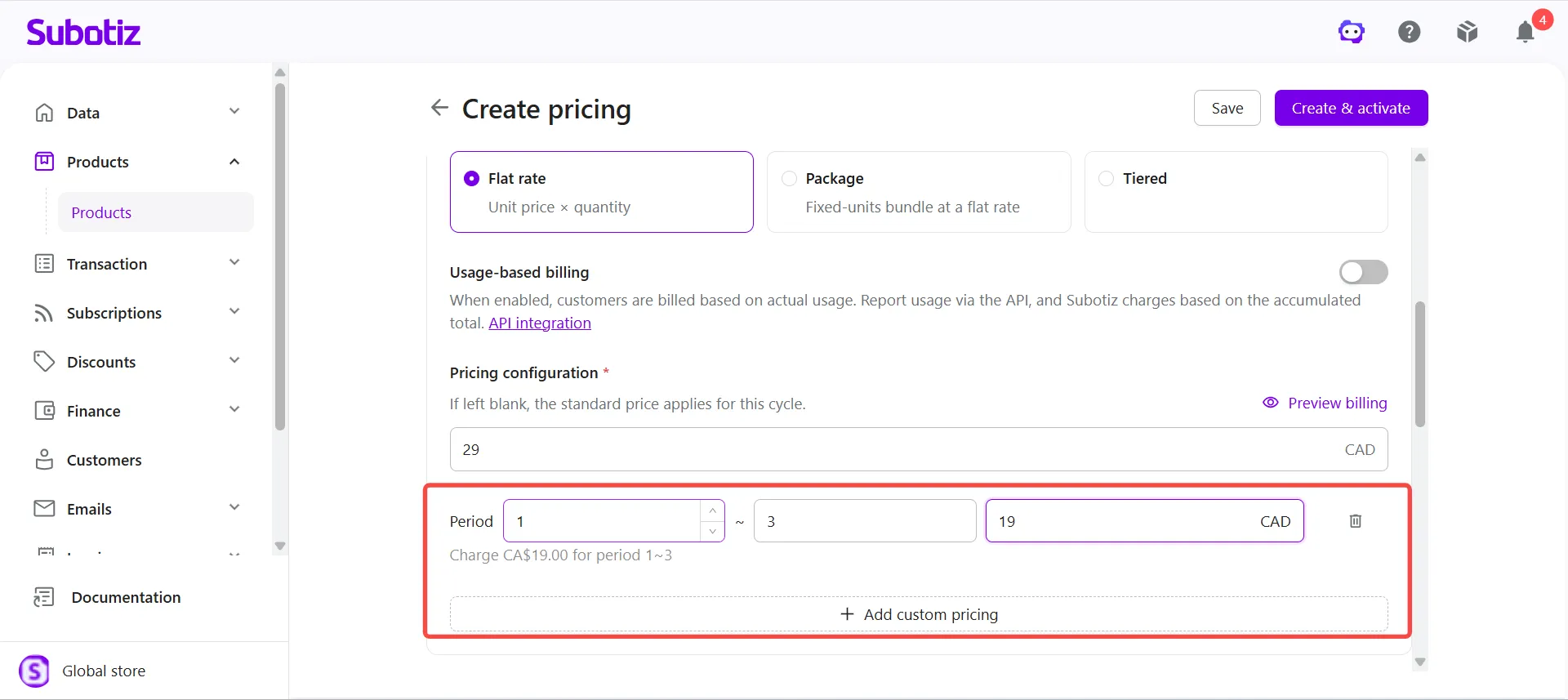
Configure custom pricing: To set different prices for specific subscription billing periods, click Add custom pricing, then set the start period, end period, and corresponding price. Billing periods without custom pricing use the standard price.
- For example, if the standard price is CA$29.00, set billing periods 1–3 to CA$19.00. The custom price applies to the first three billing periods, and the standard price of CA$29.00 applies from billing period 4 onward.
-
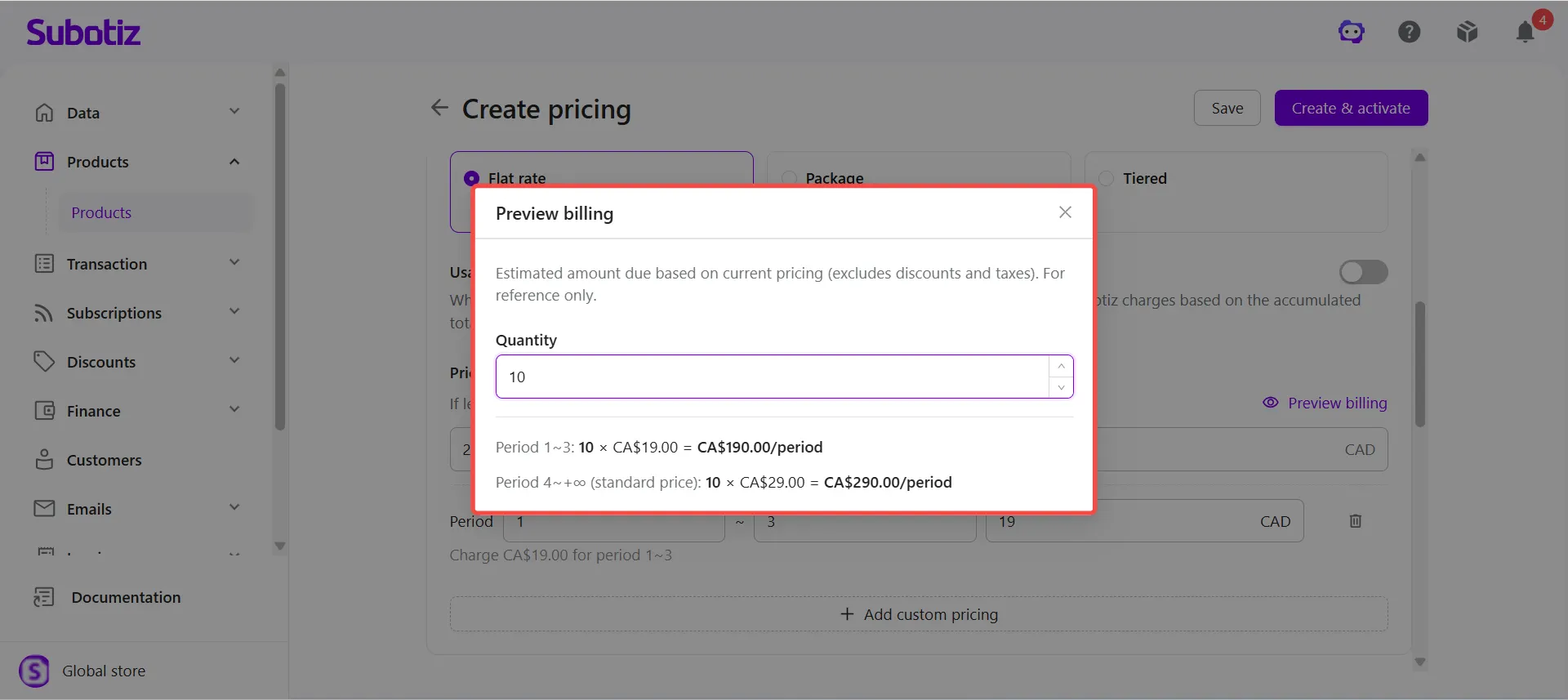
Preview billing: Click Preview billing, enter the Purchase quantity, and review the estimated charges based on the current pricing configuration. For example, with a purchase quantity of 10, billing periods 1–3 are calculated using the CA$19.00 price, while billing period 4 onward uses the CA$29.00 standard price. Preview amounts exclude discounts and taxes and are for reference only.
-
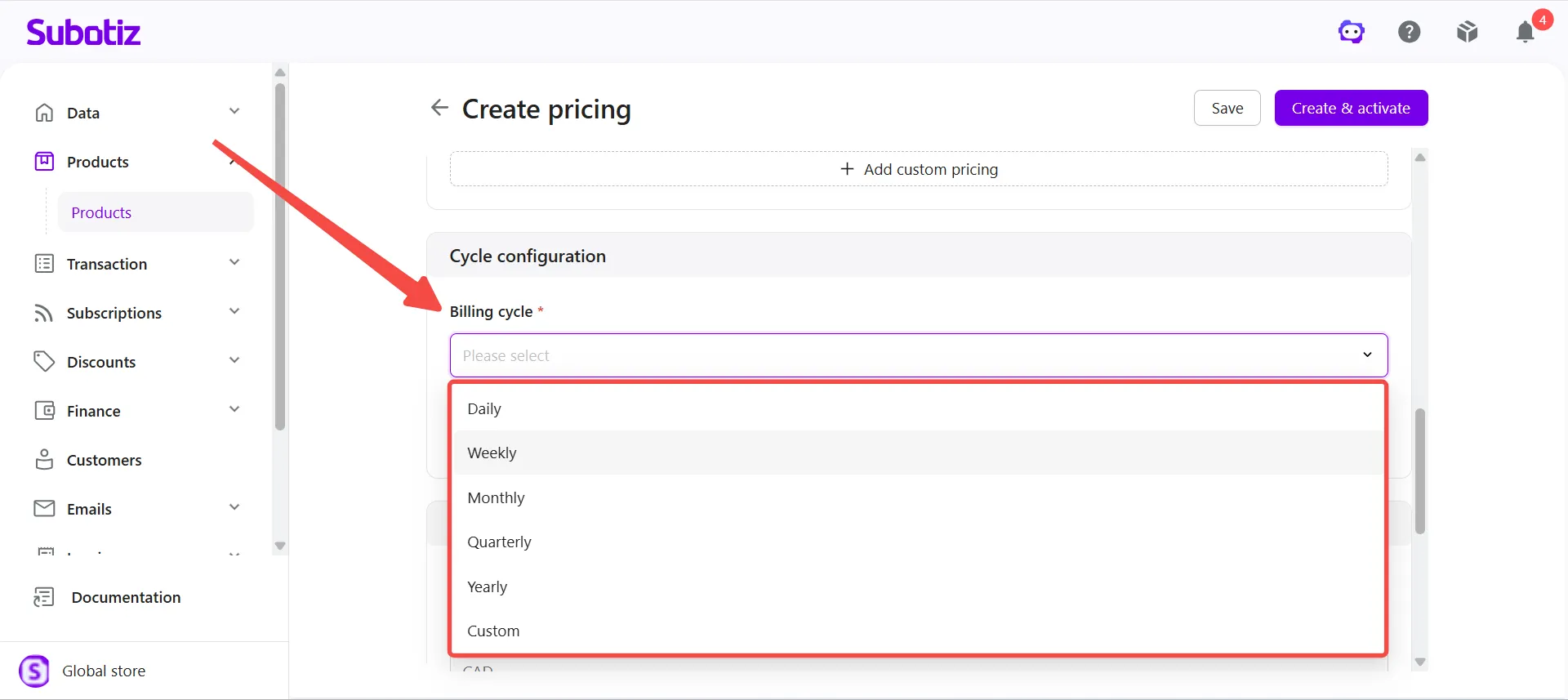
Set the billing cycle: Under Cycle configuration > Billing cycle, select the subscription billing cycle. Supported options include Daily, Weekly, Monthly, Quarterly, Yearly, and Custom. For a custom cycle, set a cycle quantity from 2–365 and select Day, Week, Month, Quarter, or Year as the unit.
- For example, selecting Every 2 Months creates a billing cycle that renews every two months.
-
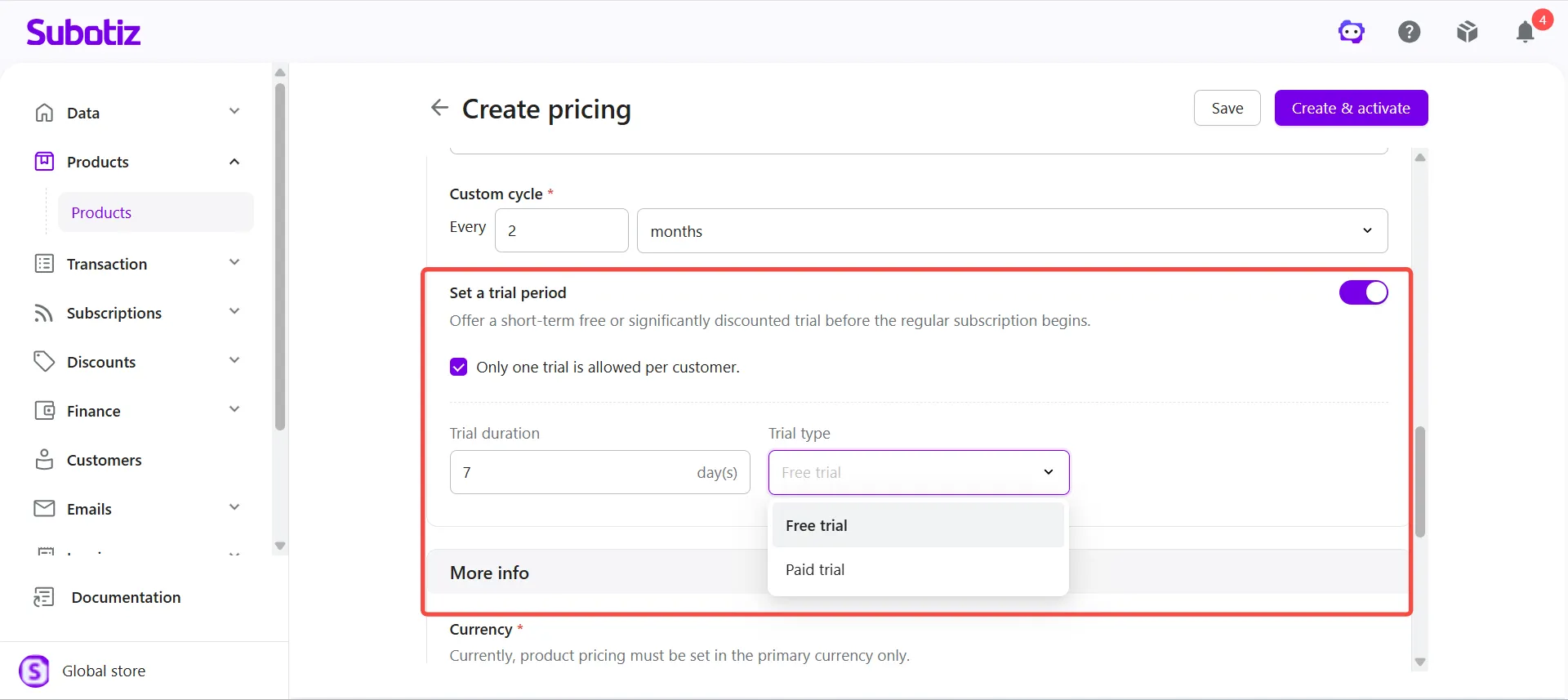
Configure a trial period: To offer a trial before regular subscription billing begins, enable Set a trial period, then configure the trial settings:
- Trial duration: Enter the number of trial days.
- Trial type: Select Free trial or Paid trial.
-
Only one trial is allowed per customer: Select this option to limit each customer to one trial.
- For example, configure a 7-day Free trial and select Only one trial is allowed per customer for the Premium Monthly Subscription.
-
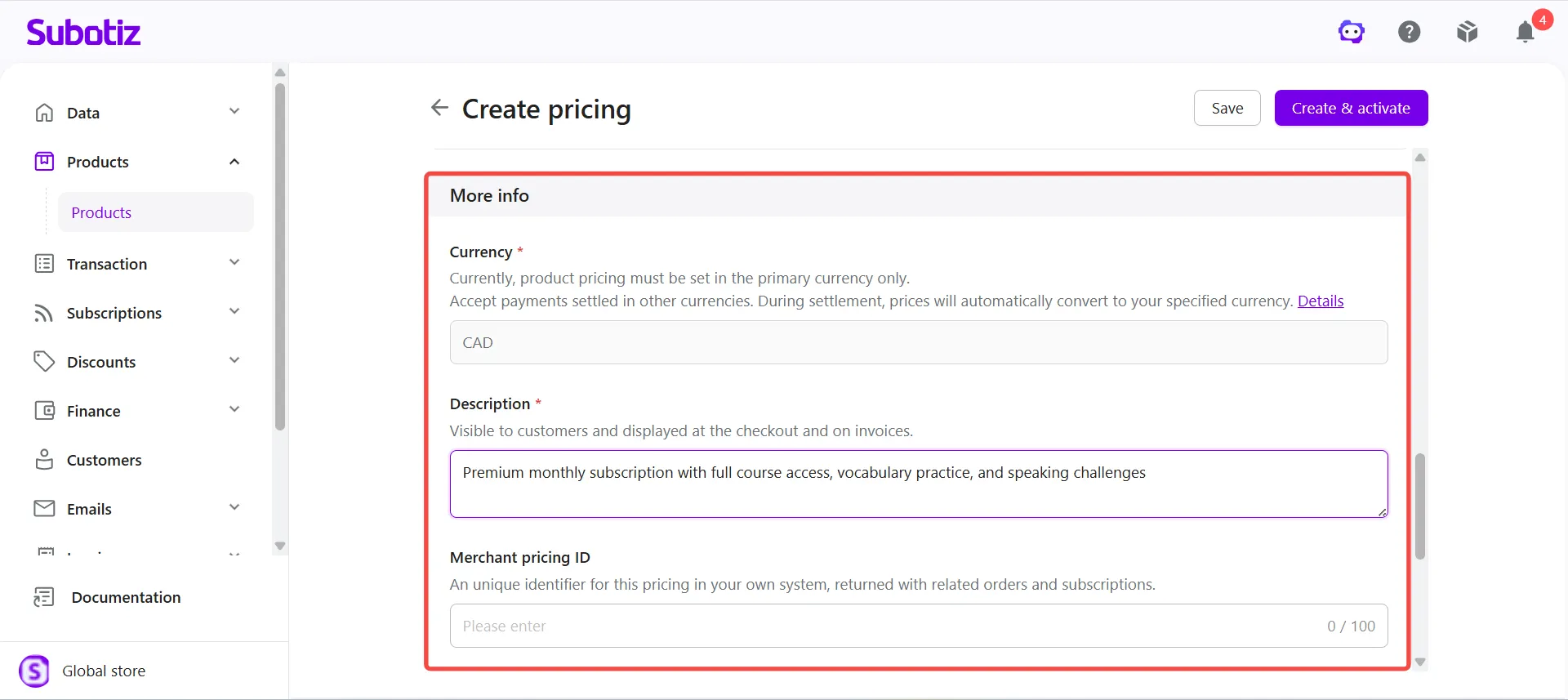
Enter additional information: Under More info, confirm the Currency, enter a Description, and optionally enter a Merchant pricing ID.
- Currency: Product pricing must be configured in the store's primary currency. When accepting payments in another supported currency, the system converts the product price to the specified settlement currency during settlement based on the applicable exchange rate. For details about supported currencies, currency conversion, and settlement, see Subotiz Payments|Multi-Currency Payments and Settlement.
- Description: Enter a customer-facing description that appears at checkout and on invoices. For example, enter Premium monthly subscription with full course access, vocabulary practice, and speaking challenges.
- Merchant pricing ID (optional): Enter a unique identifier for the pricing in the merchant's own system. The ID is returned with related orders and subscriptions.
-
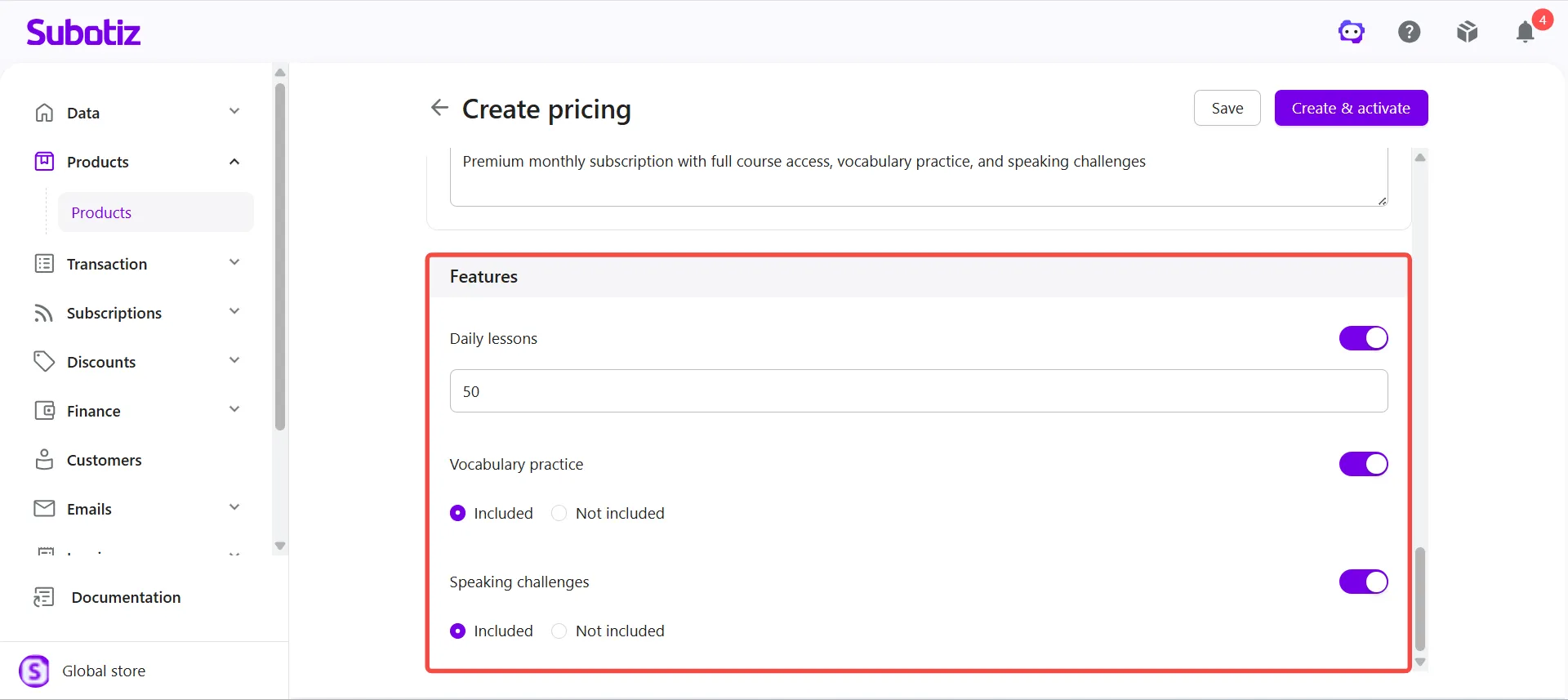
Configure pricing features: Under Features, enable the product features included with the pricing and complete any required configuration based on the feature type.
- Quantitative features: Enter the quantity included with the pricing.
-
Qualitative features: Specify whether the feature is included.
- For example, the Premium Monthly Subscription can include Daily lessons, Vocabulary practice, and Speaking challenges.
-
Save or activate pricing: Choose an option based on whether the pricing is ready for use:
- Save pricing as inactive: Click Save to create the pricing with an Inactive status.
- Create and activate pricing: Click Create & activate to create and immediately activate the pricing.
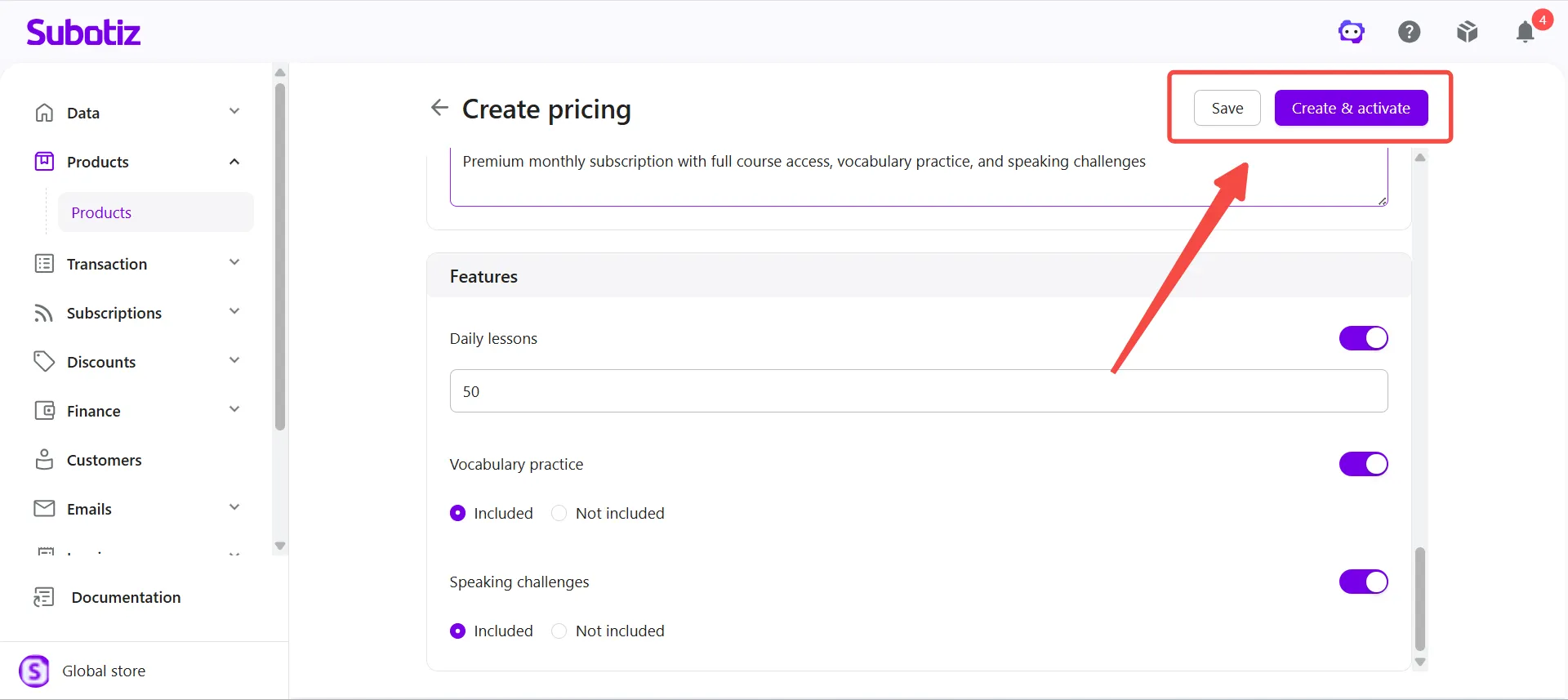
Note: Pricing can only be used for new sales and checkout when both the product and its corresponding pricing are Active.
Viewing the Customer Checkout Page
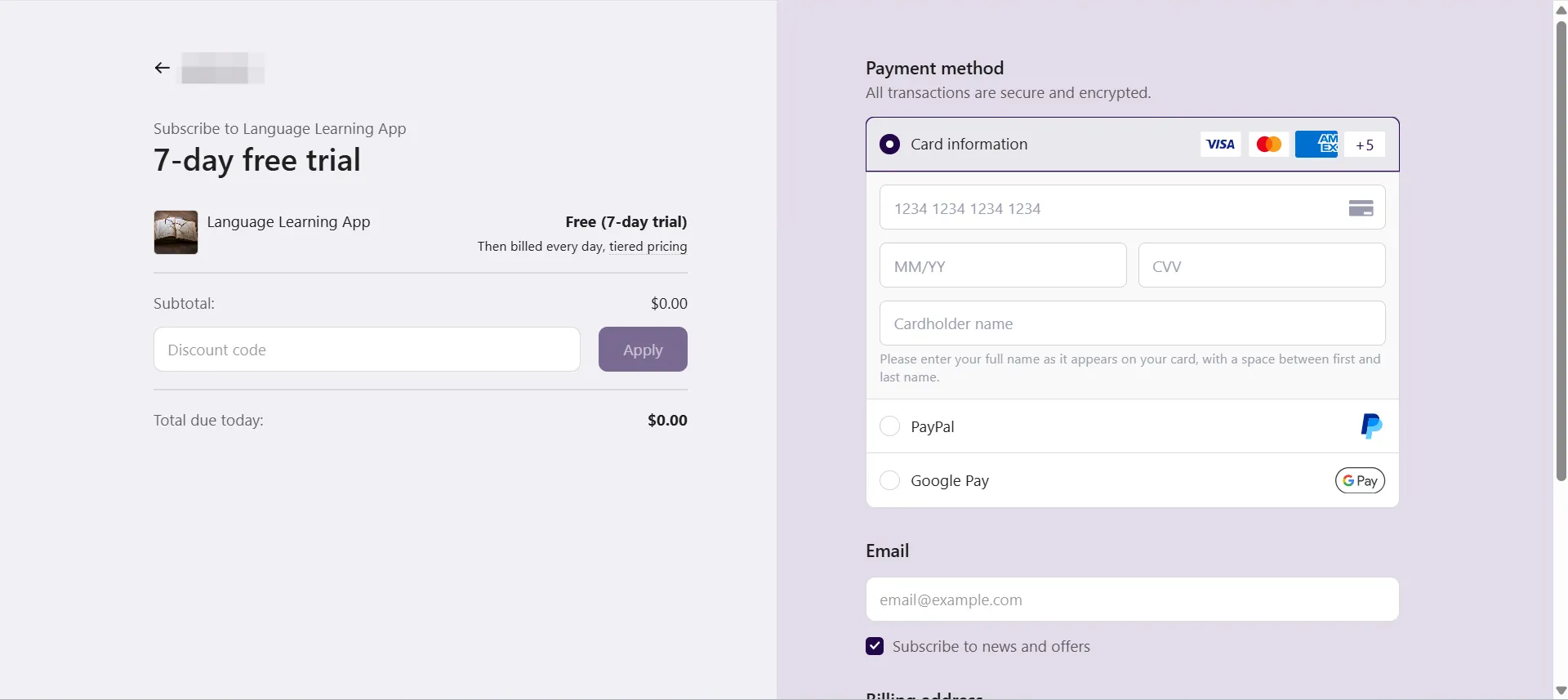
After flat rate recurring pricing is created and used for a subscription, customers can view the product information, subscription price, current amount due, and relevant billing information at checkout, then complete the subscription using an available payment method.
When custom pricing is configured, the checkout page displays the applicable billing information based on the subscription configuration.
Managing Flat Rate Recurring Pricing
Existing flat rate recurring pricing can be edited, activated, or deactivated. Changes to pricing do not overwrite the original pricing information associated with existing transactions and subscriptions. Existing subscriptions continue using their applicable original pricing configuration, while updated pricing applies to subsequently created transactions and subscriptions.
For instructions on editing, activating, and deactivating pricing, see Products | Manage Pricing. For details about how product and pricing changes affect existing records, see Products|Product and Pricing Update Behavior.
Flat rate recurring pricing supports subscription models that charge customers on a recurring billing cycle. Merchants can combine standard pricing, custom pricing, billing cycles, trial periods, and product features to support different recurring billing scenarios.