The General module in Subotiz stores key business information such as name, logo, address, and support email. This information is displayed on invoices, checkout pages, and customer communications. Follow the steps below to configure Basic Info and Business Address.
Setting Up Basic Business Information
- Access the General module: Go to Settings > General in the Subotiz admin to view and edit all fields under Basic Info and Address.
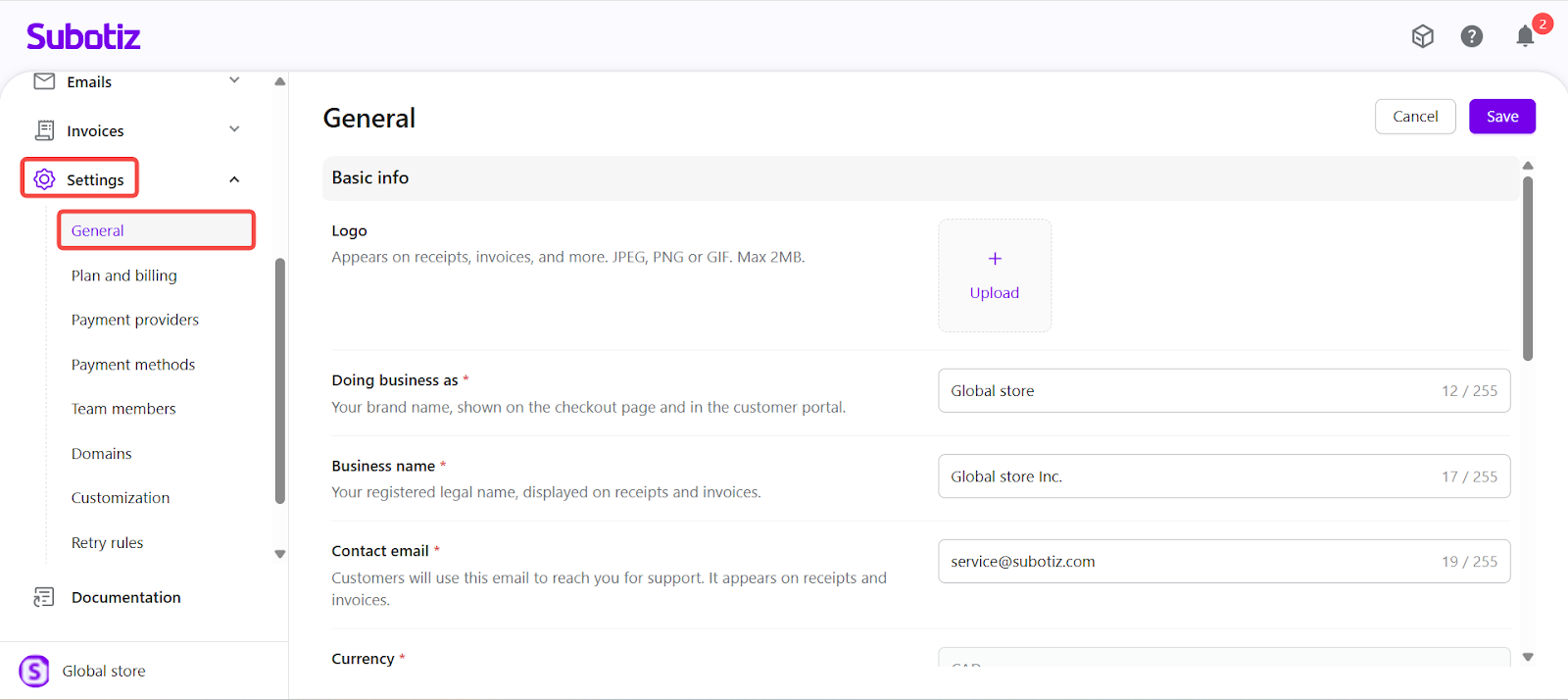
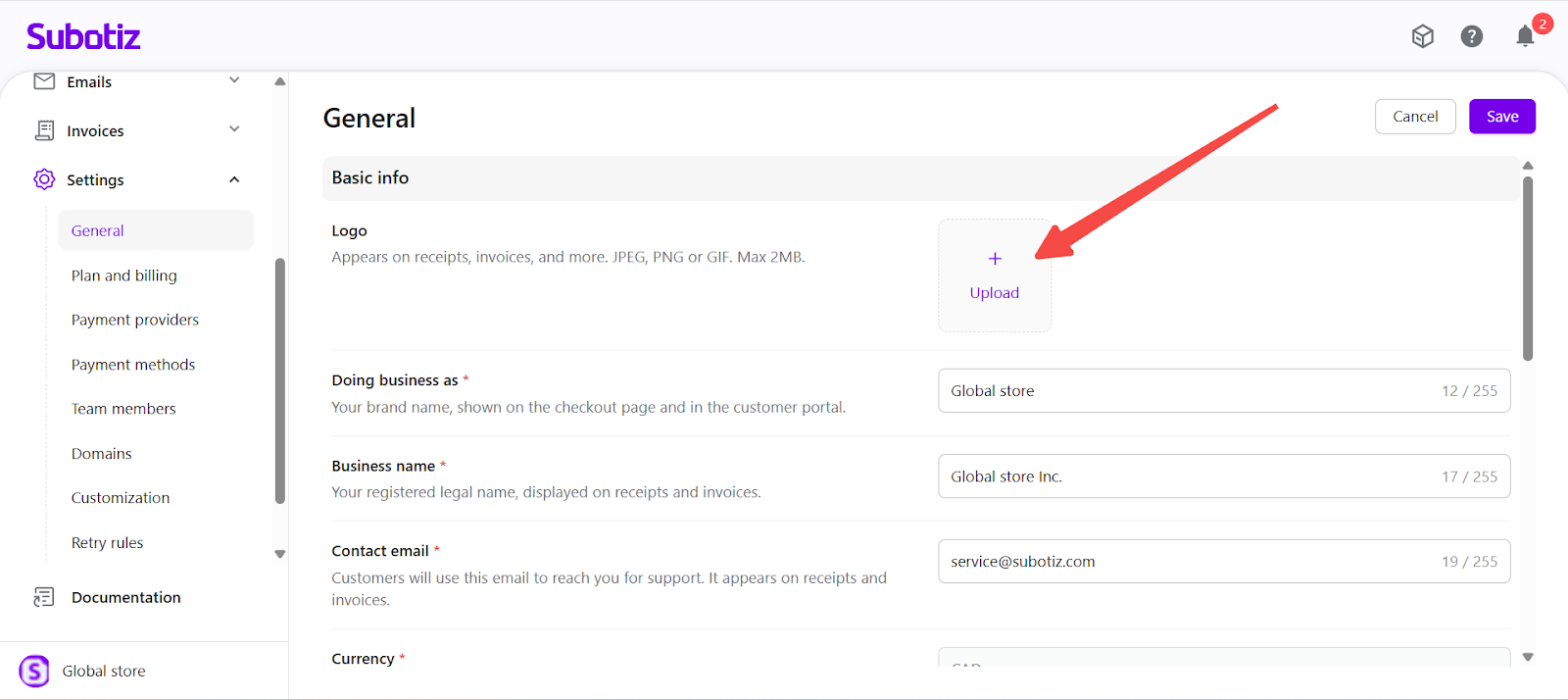
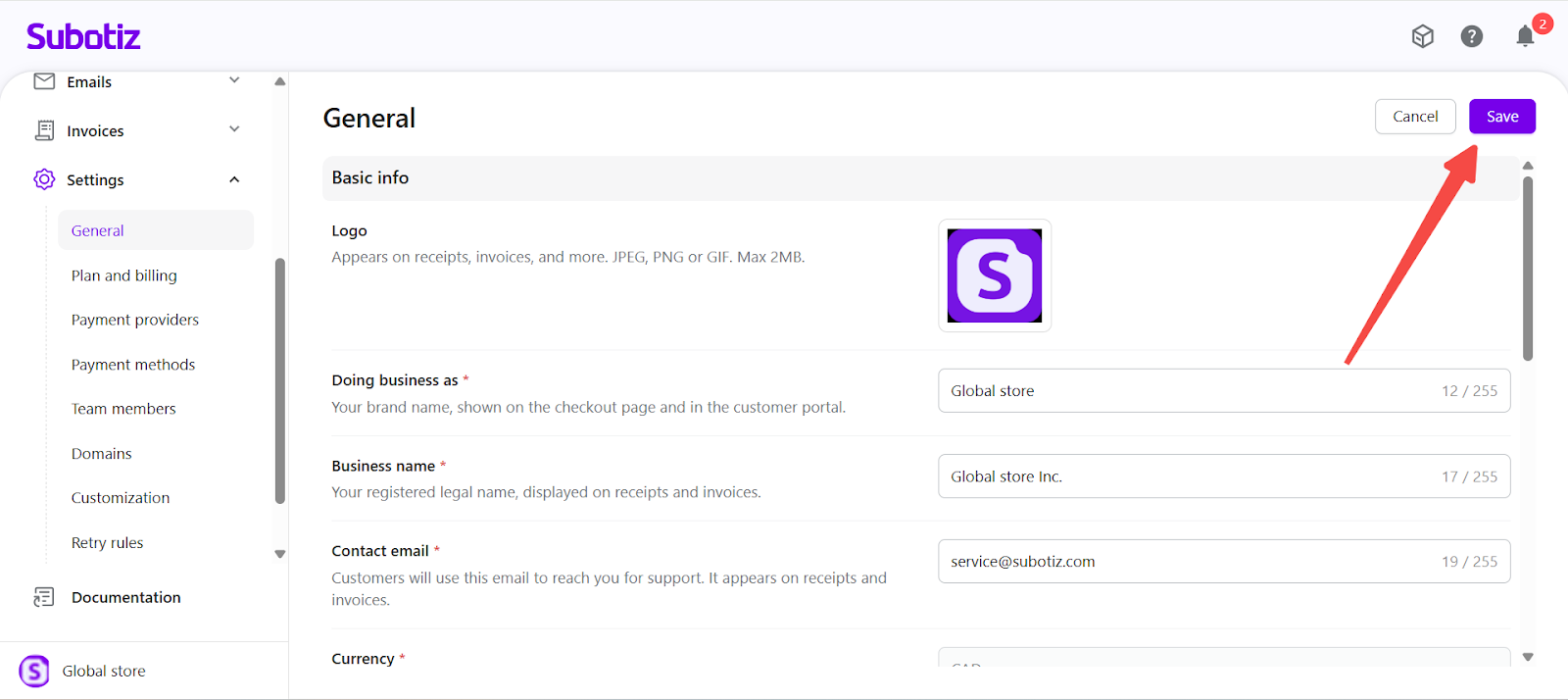
- Upload the brand logo: Select the logo area to upload an image. Supported formats include JPG, PNG, and GIF (max 2MB). A preview is shown after selection.
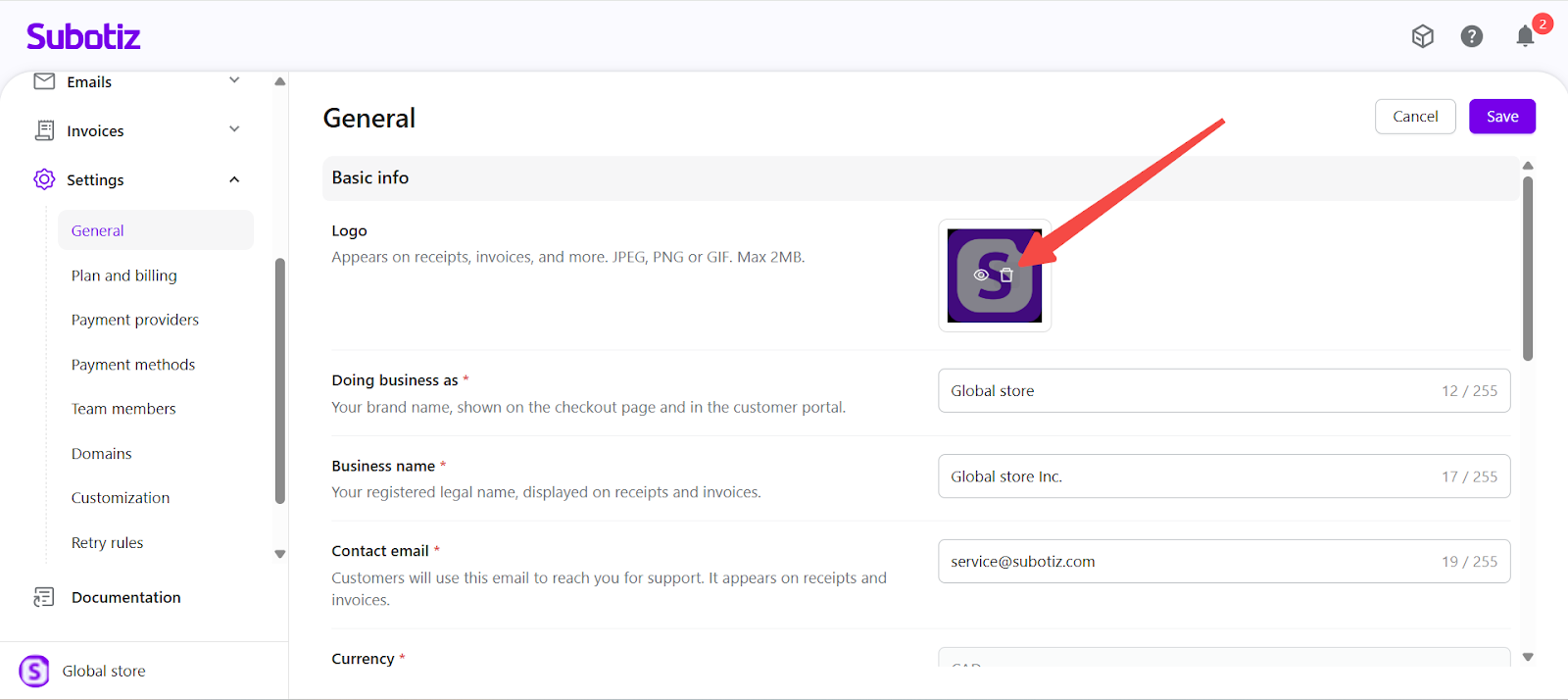
- Review or Delete: Hover over the uploaded logo to reveal available actions. Select Review to check the image, or choose Delete to replace it.
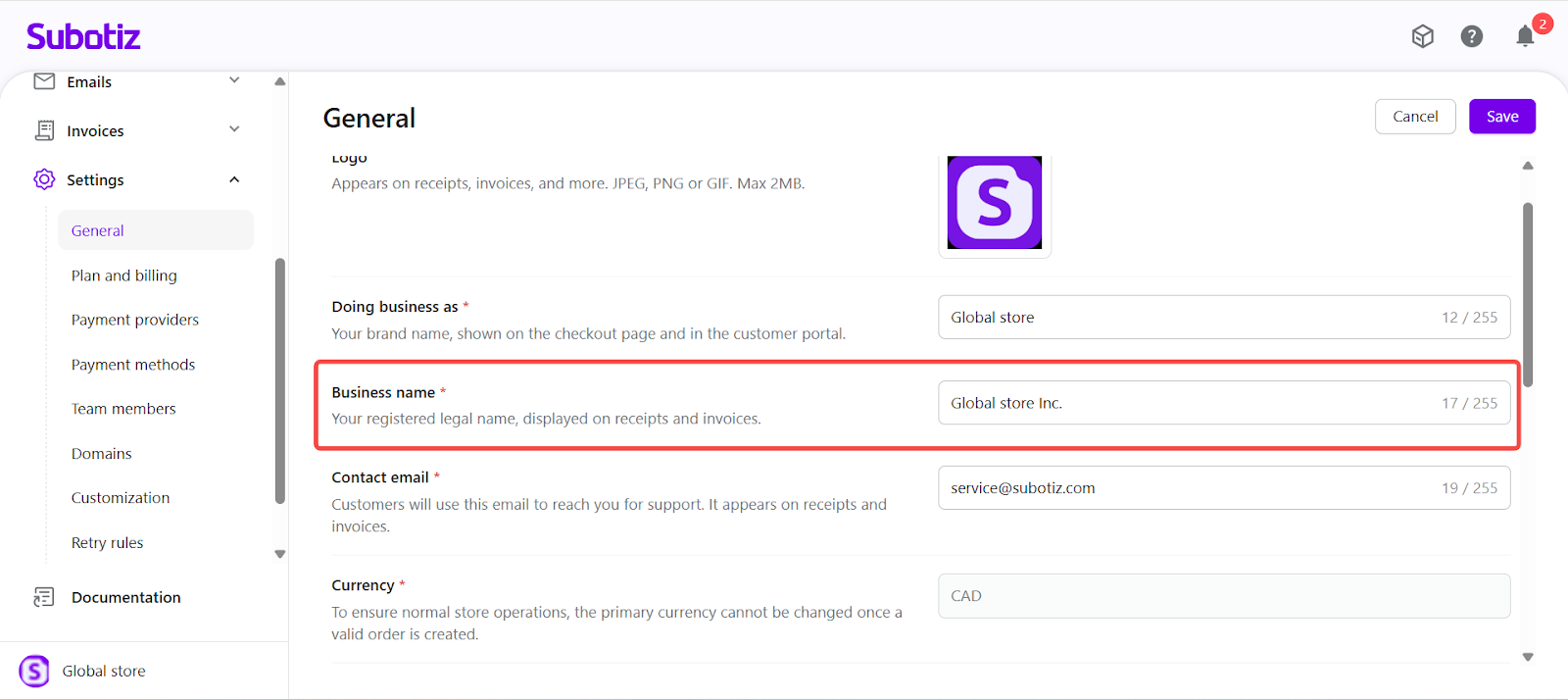
- Enter the display name (DBA): In the Doing Business As (DBA) field, enter the brand name or trade name you want customers to see (for example, Global Store). This name appears on checkout pages and other customer-facing experiences.
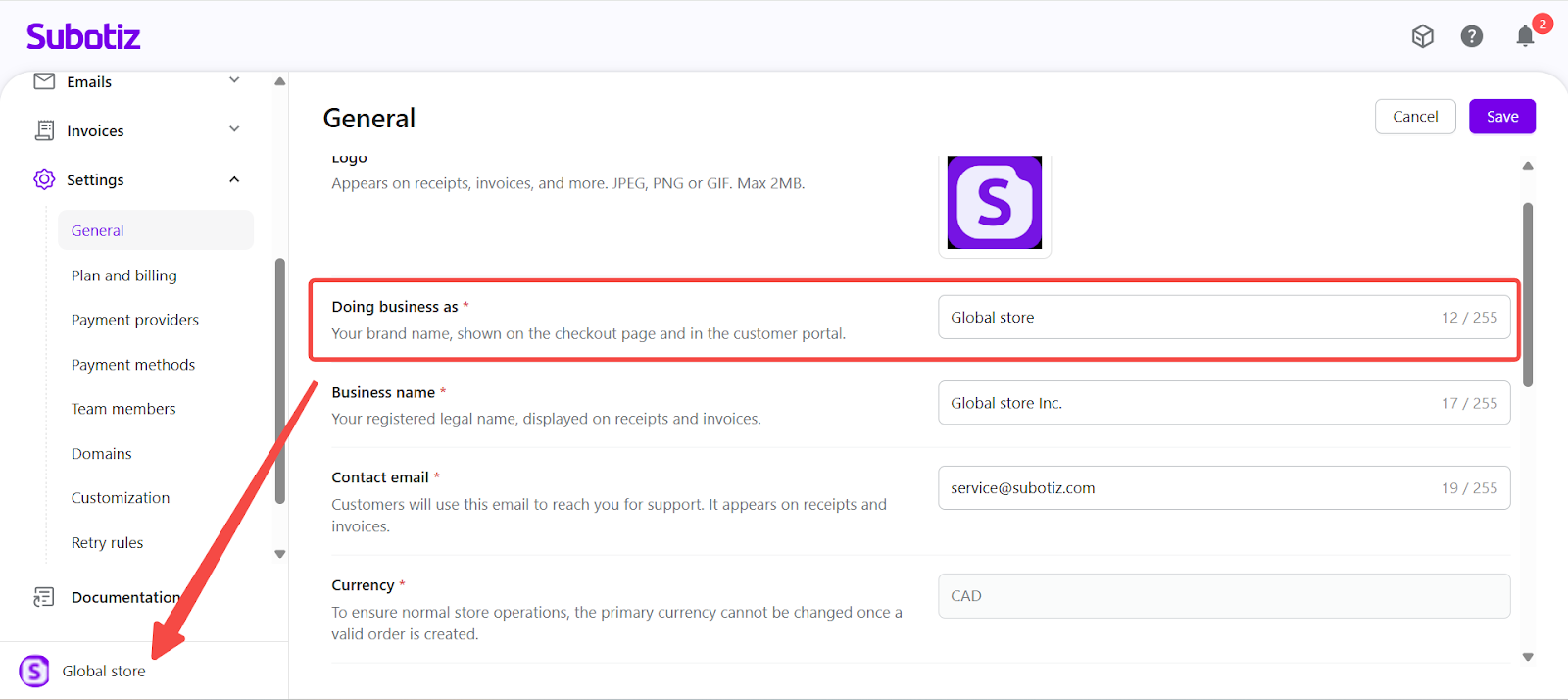
- Enter the business name: In the Business Name field, enter the registered legal name of your business entity (for example, Global Store Inc.). This name is used for invoices, receipts, and compliance-related records.
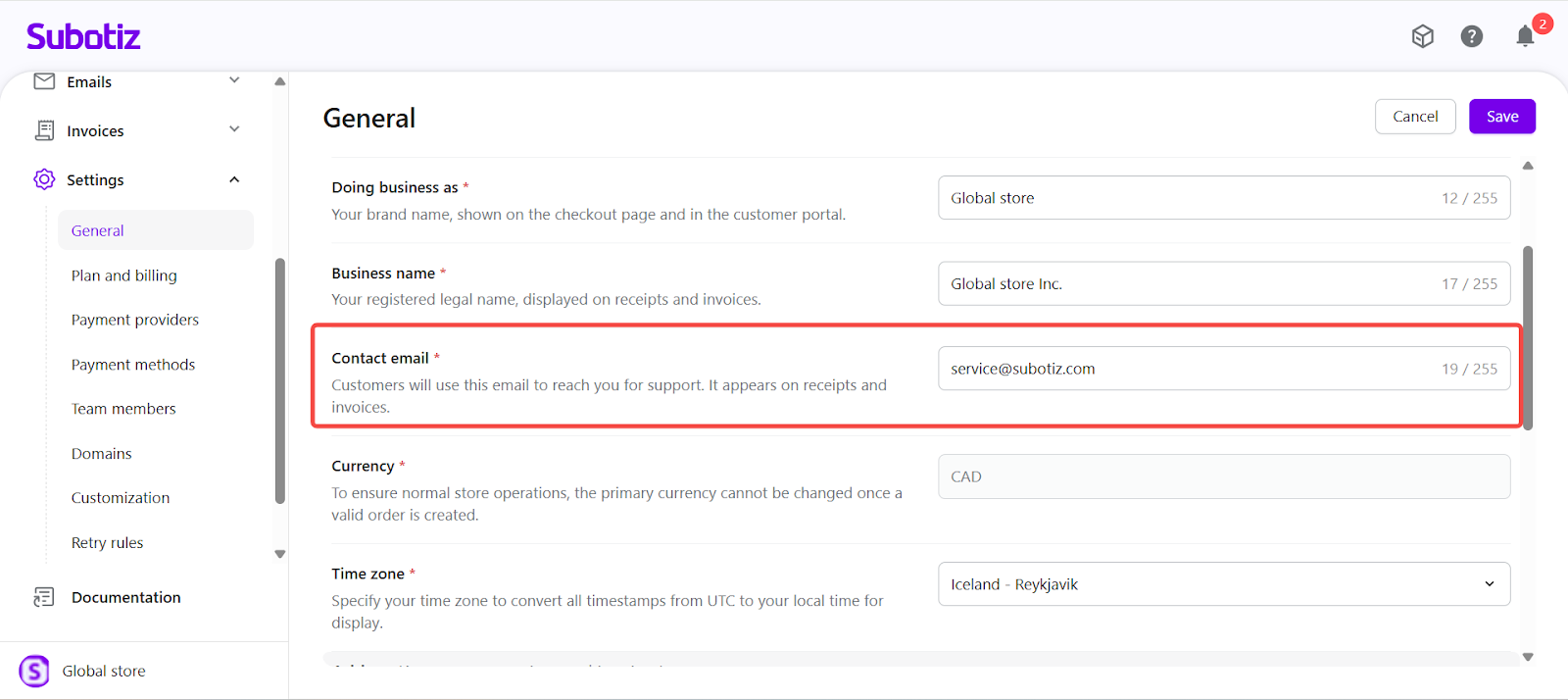
- Provide a contact email: Enter a valid support email address. This contact appears on invoices and help-related pages.
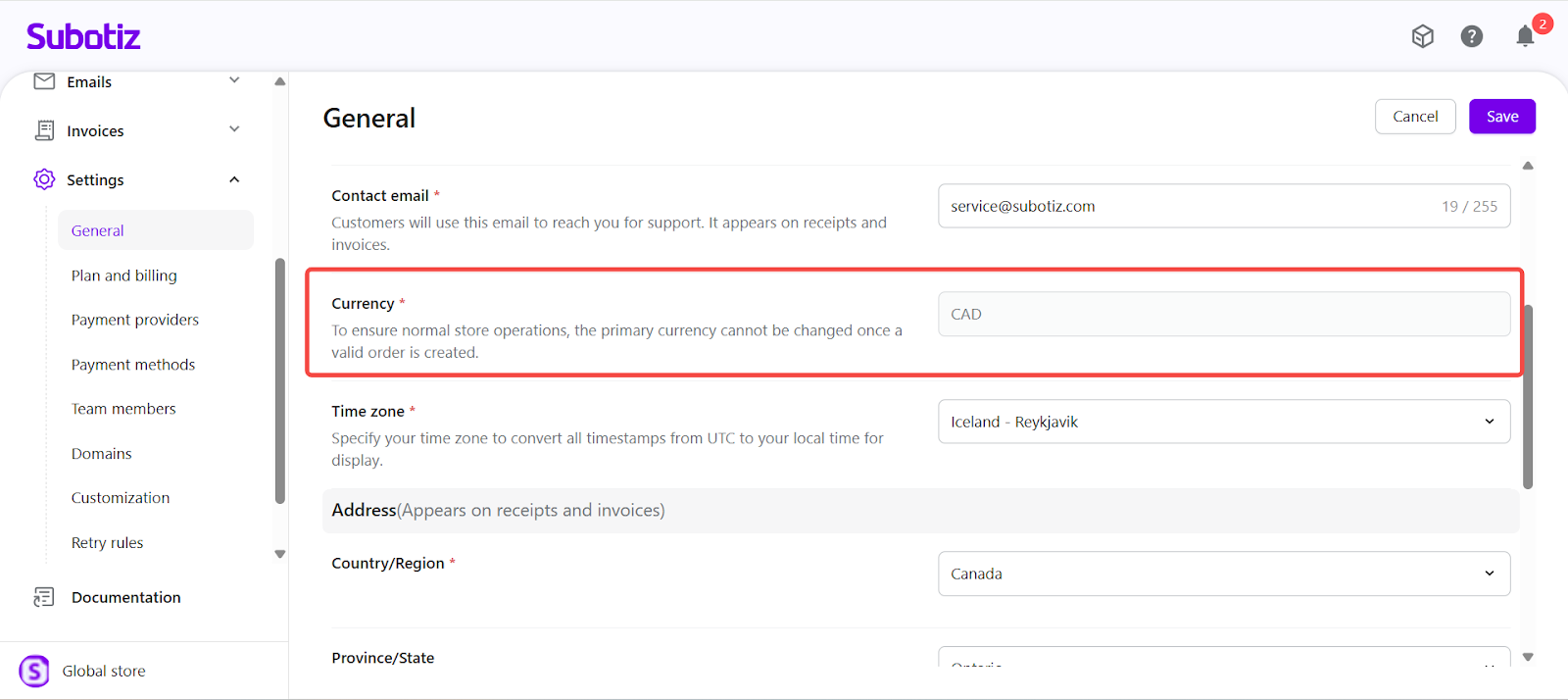
- Store currency: Define your store currency before generating any orders. Merchants typically align this with their payout account or primary market. Once orders are created, the currency can no longer be changed.
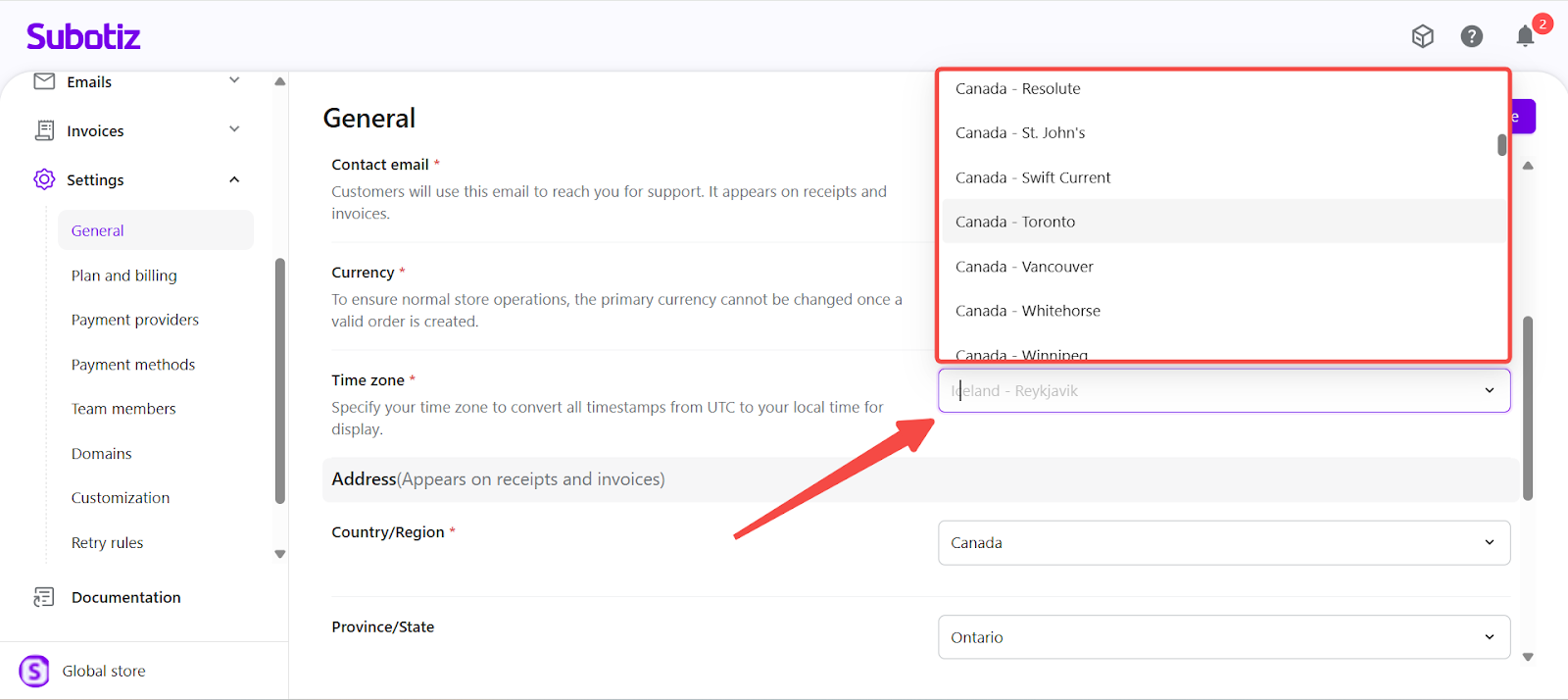
- Store time zone: Select your store time zone to control how dates and times are displayed across the Subotiz admin, analytics, and exports. Choose the time zone where you primarily operate or reconcile transactions. The system automatically handles daylight saving time (DST).
Entering Business Address
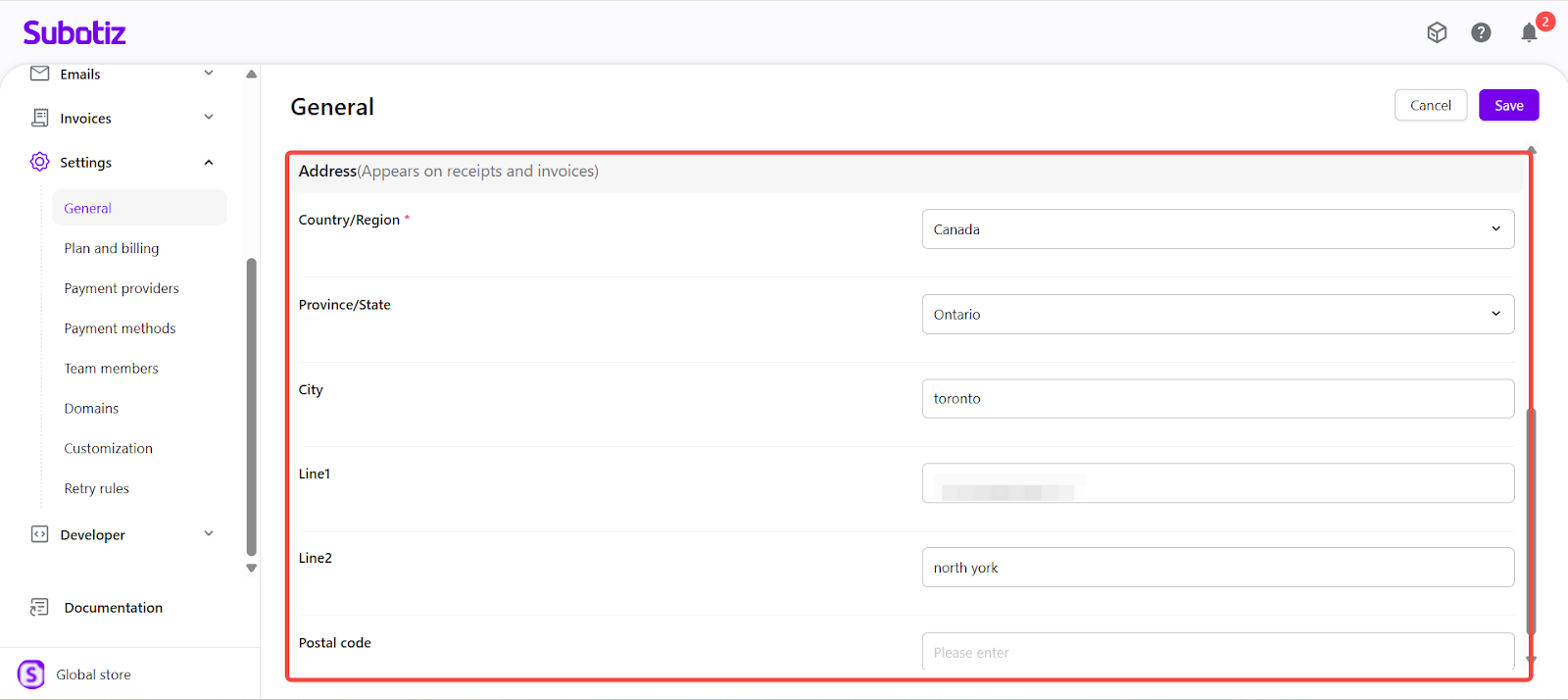
- Fill in the required address fields: Scroll to the Address section and complete all applicable fields. This information appears on system-generated documents.
- Country/Region: Select your country. Required.
- Province/State: Enter your region or state.
- City: Optional.
- Address Line 1: Provide the main street address.
- Address Line 2: Optional.
- Save changes: After completing all fields, click Save to apply the updates across the account.
Information configured in the General module is automatically reflected on invoices, receipts, checkout pages, and support emails. Keeping this information accurate ensures compliance, improves clarity for customers, and presents a consistent, professional brand across your Subotiz store.