Editing a team member profile in Subotiz allows workspace admins to update member details, adjust permissions, or remove accounts as roles change. Keeping profiles accurate ensures access stays aligned with operational needs, protects sensitive areas, and maintains efficient workspace access control. Regular reviews also help strengthen security standards.
Editing a Team Member Profile
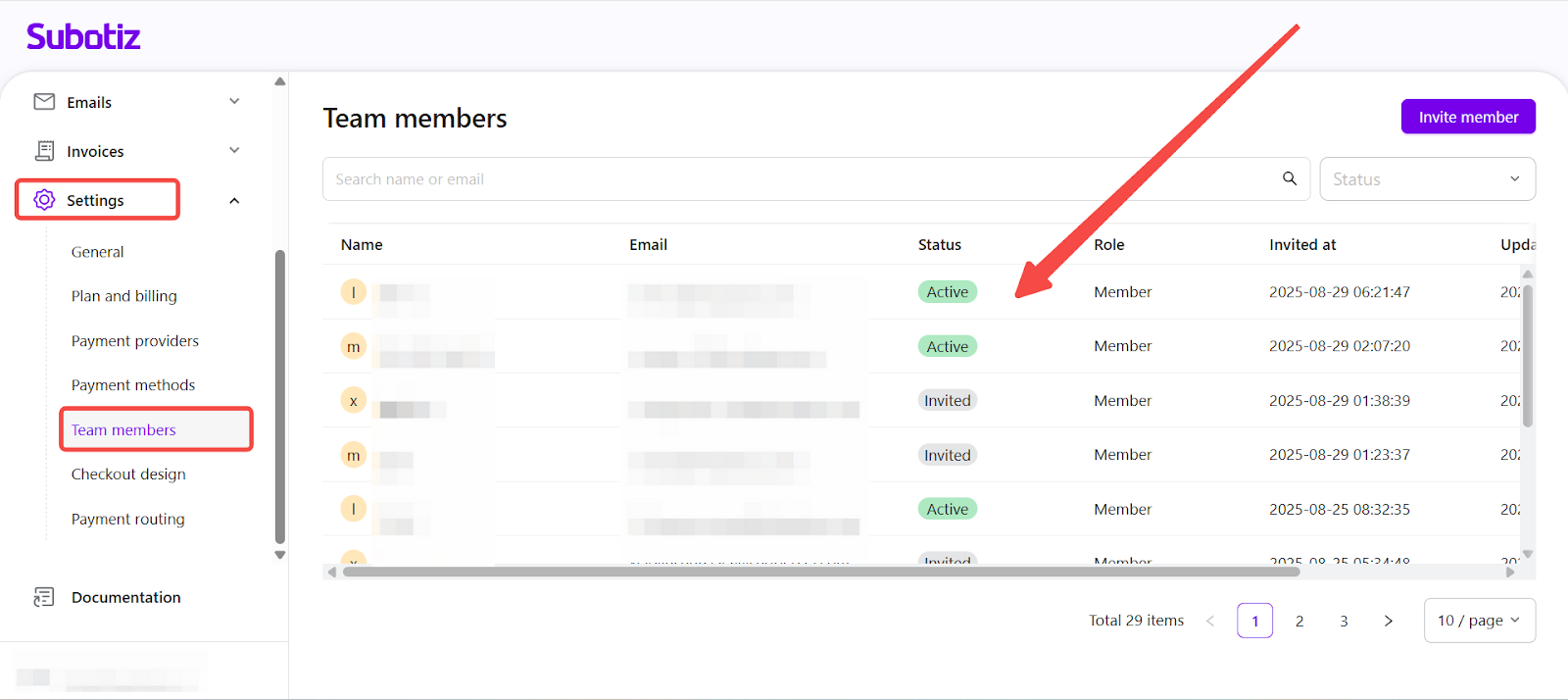
- Open the member profile: From the Subotiz admin, go to Settings > Team members, then click on a team member’s row to open their profile.
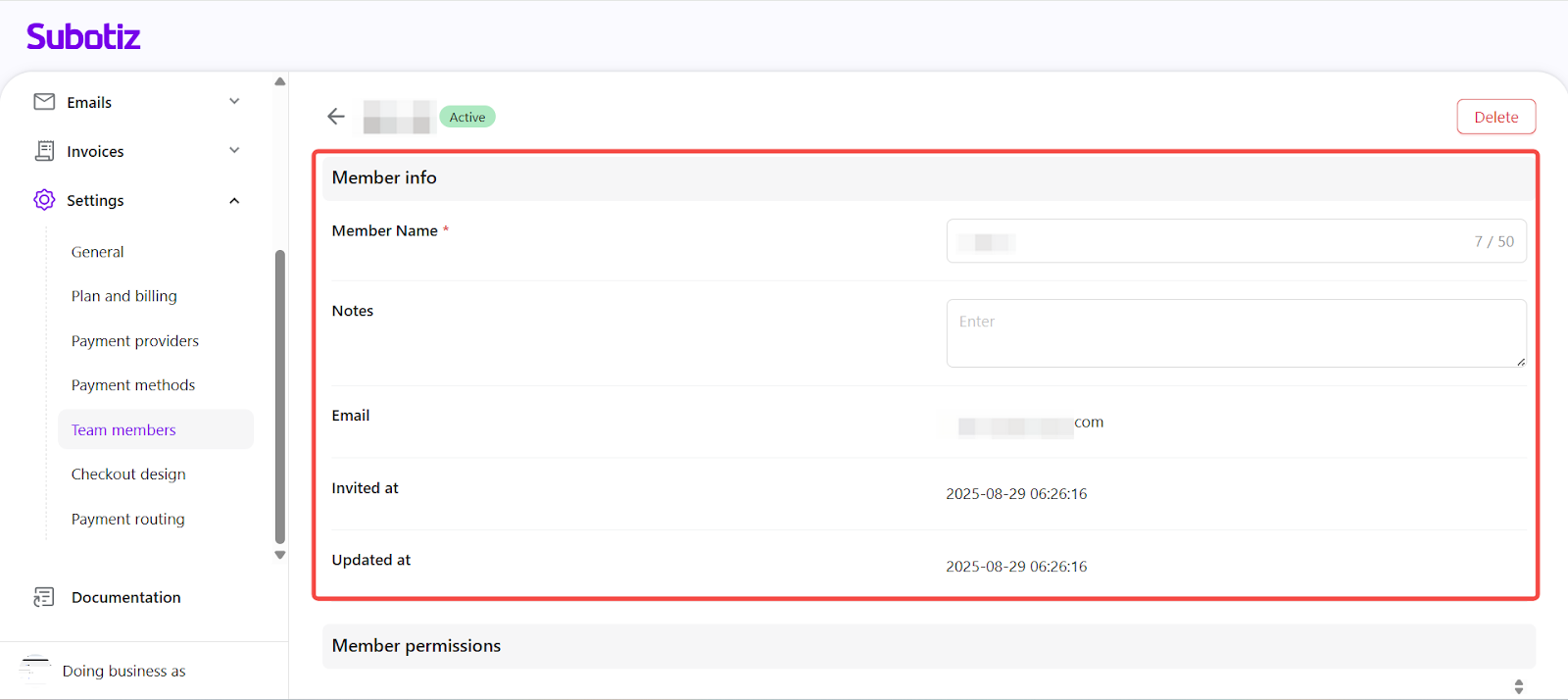
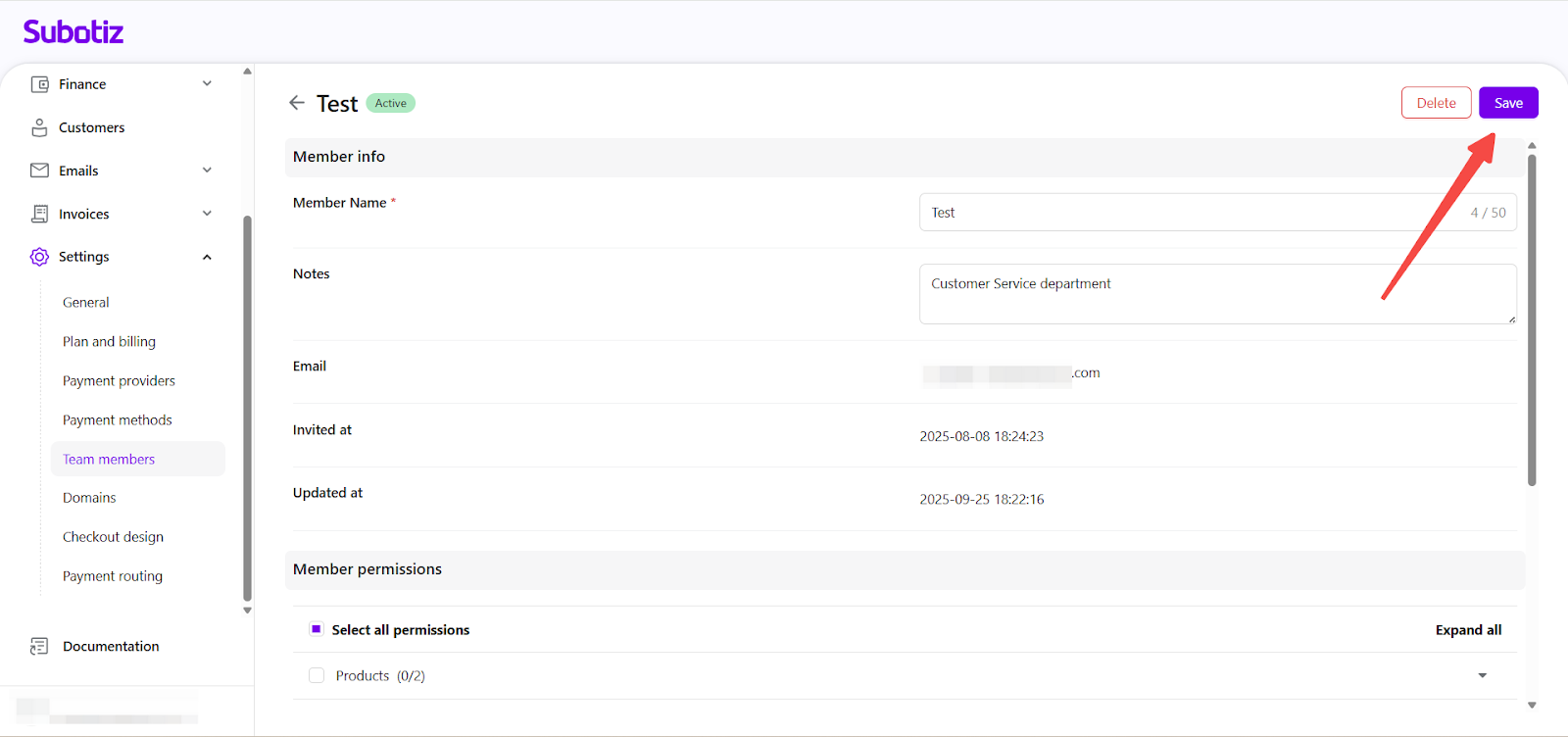
- Update member information: The top section of the profile shows the member’s details, with some fields available for editing:
- Status: Active or Invited (view-only)
- Member name: Editable. Limit 50 characters.
- Notes: Optional. Up to 500 characters.
- Email: View-only. Cannot be changed.
- Invited at / Updated at: System-generated timestamps (view-only)
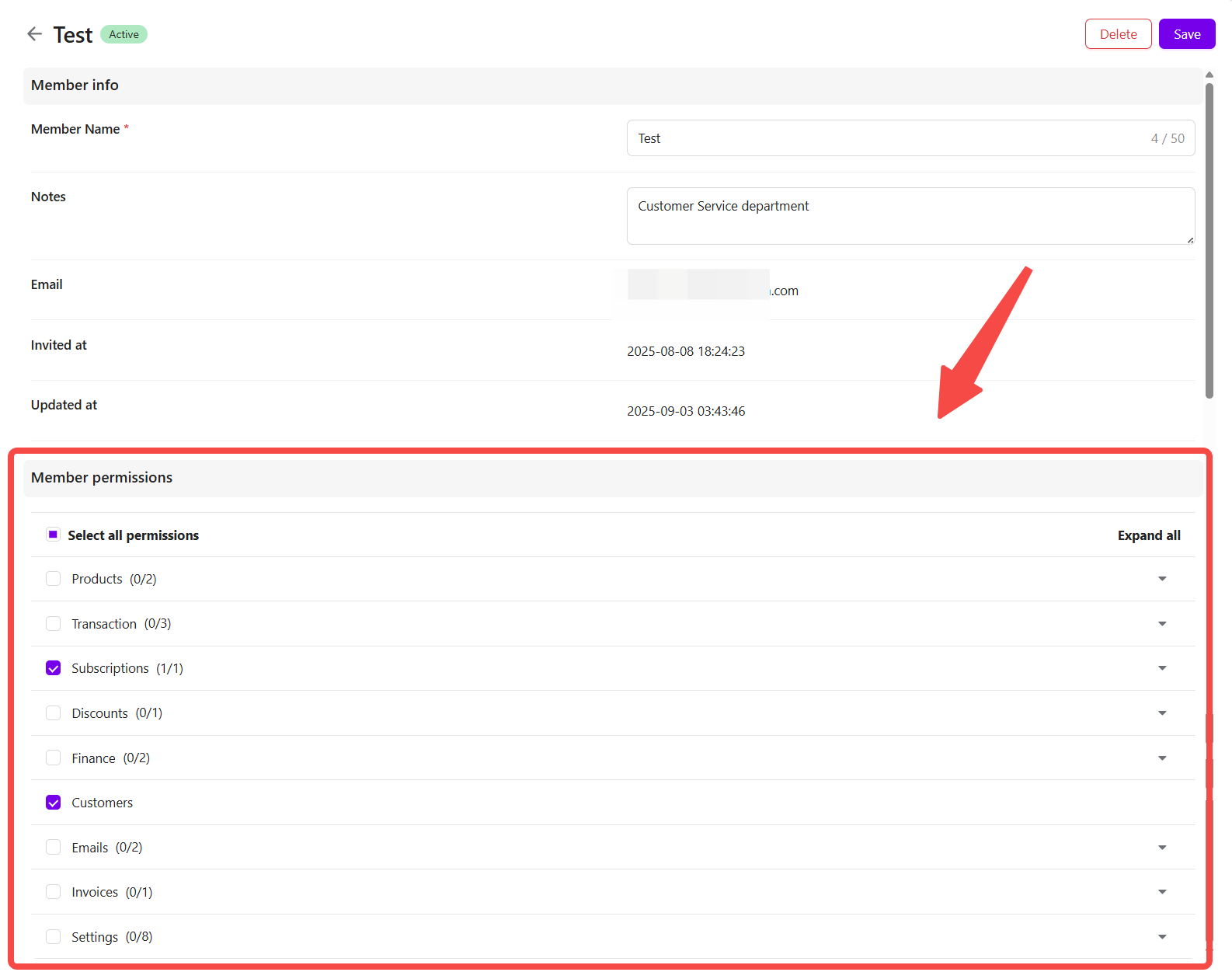
- Configure permissions:
- Assign access:
- In the Member permissions section, select at least one permission to save changes.
- Use Select all permissions to grant full access across all modules.
- Expand a category (e.g. Product, Order, Customer) to assign specific actions.
- Permission rules:
- Select all permissions applies to all standard modules. Sensitive categories (Finance, Payment settings, Team settings) are excluded by default and must be selected manually.
- Permissions not available to the current admin will appear greyed out and cannot be assigned.
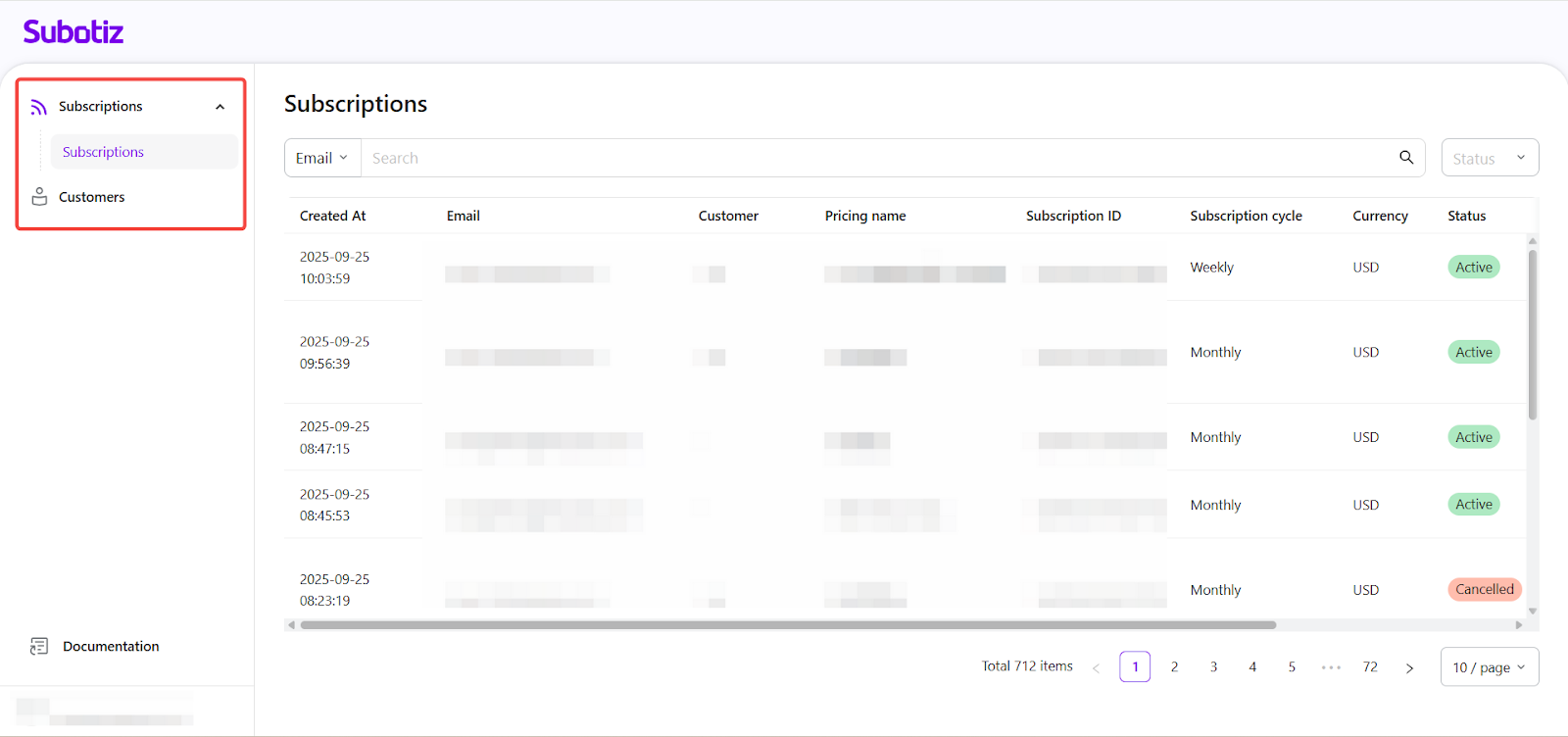
- If no permissions are selected, the member will not see any sections after logging in.
- Save changes: After making any changes, click the Save button in the top-right corner to apply them immediately.
Removing a Team Member
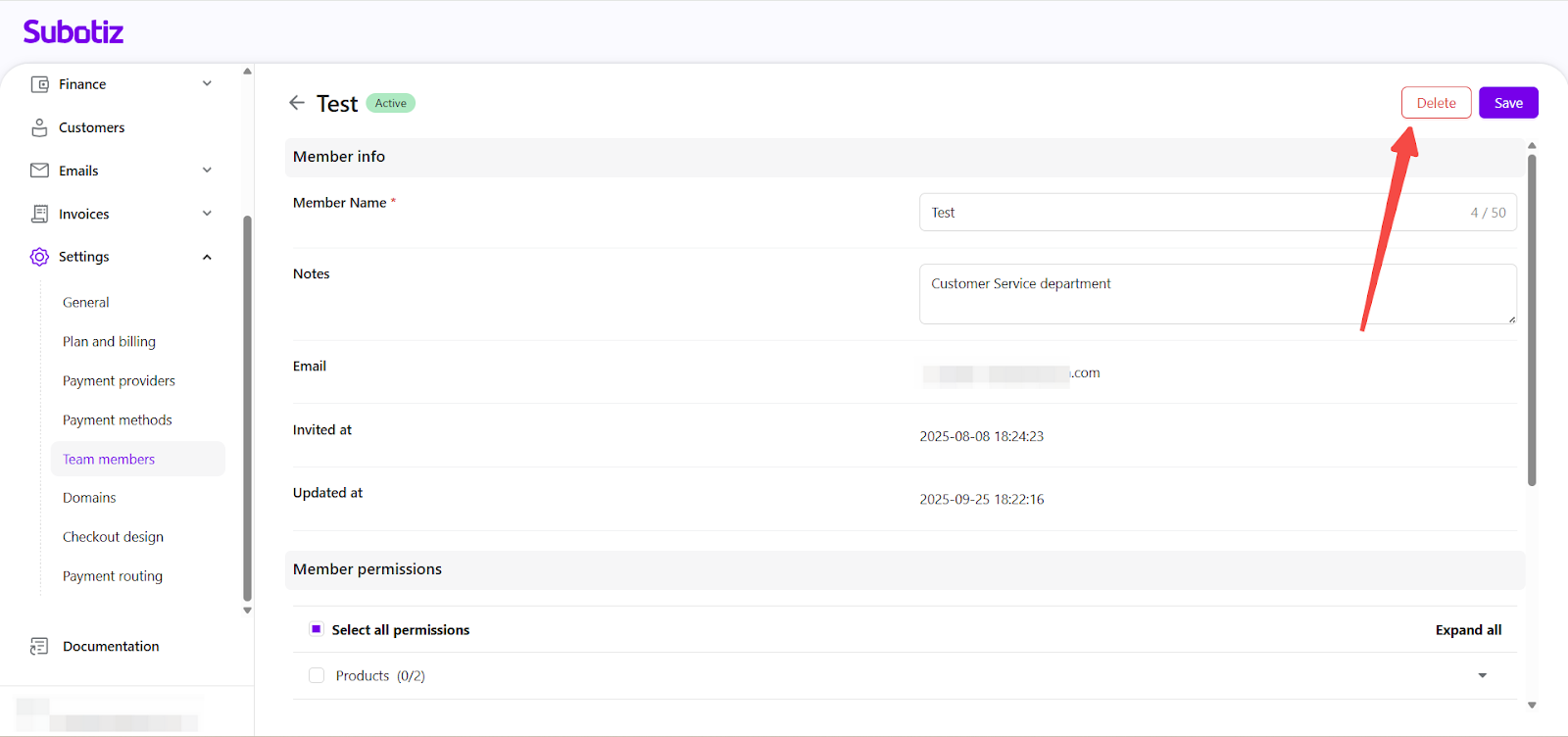
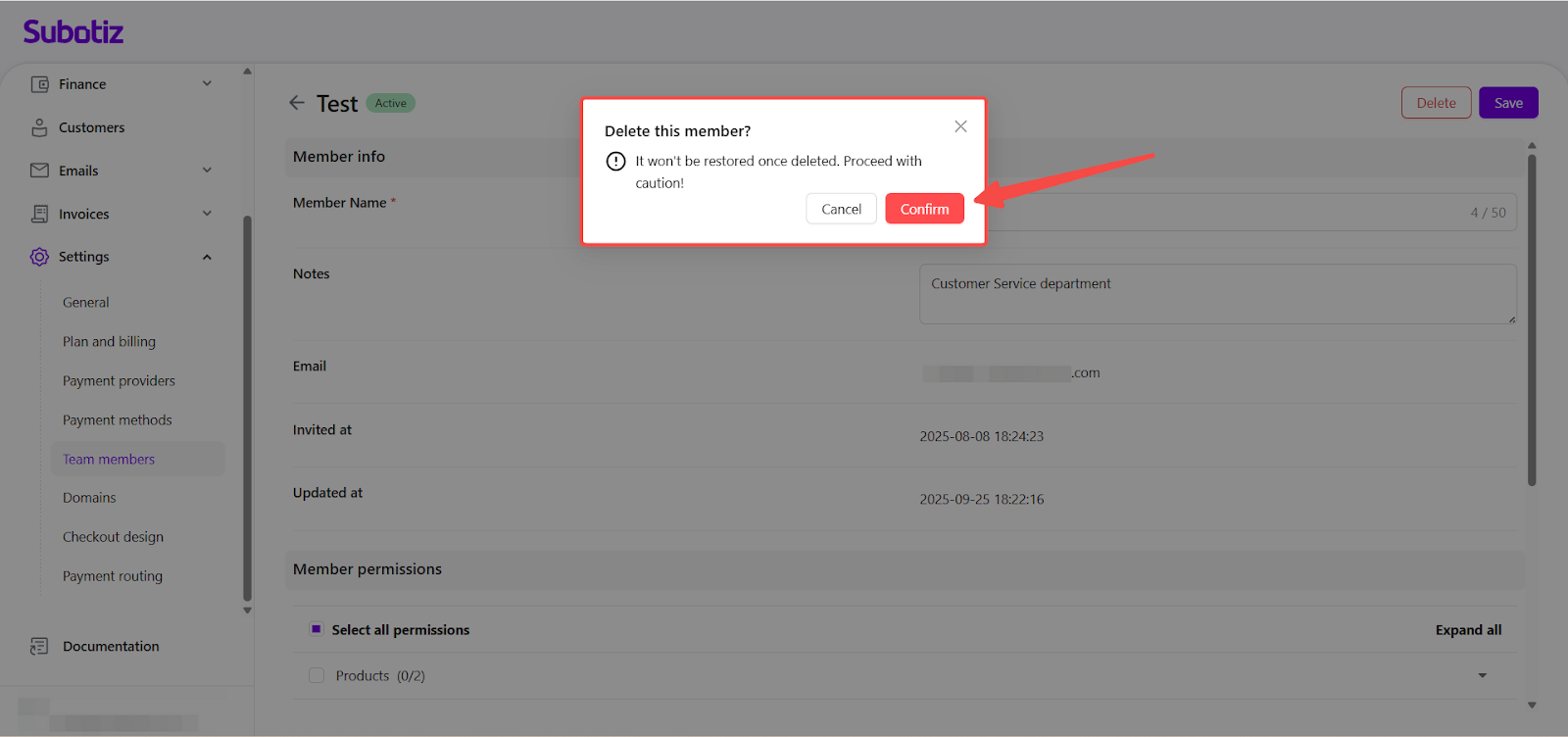
- Delete member: Click Delete in the top-right corner of the profile and confirm the action.
- Deletion rules:
- Workspace owners cannot be deleted: They do not appear in the team list.
- Deleting a member removes all access immediately: Store data is unaffected.
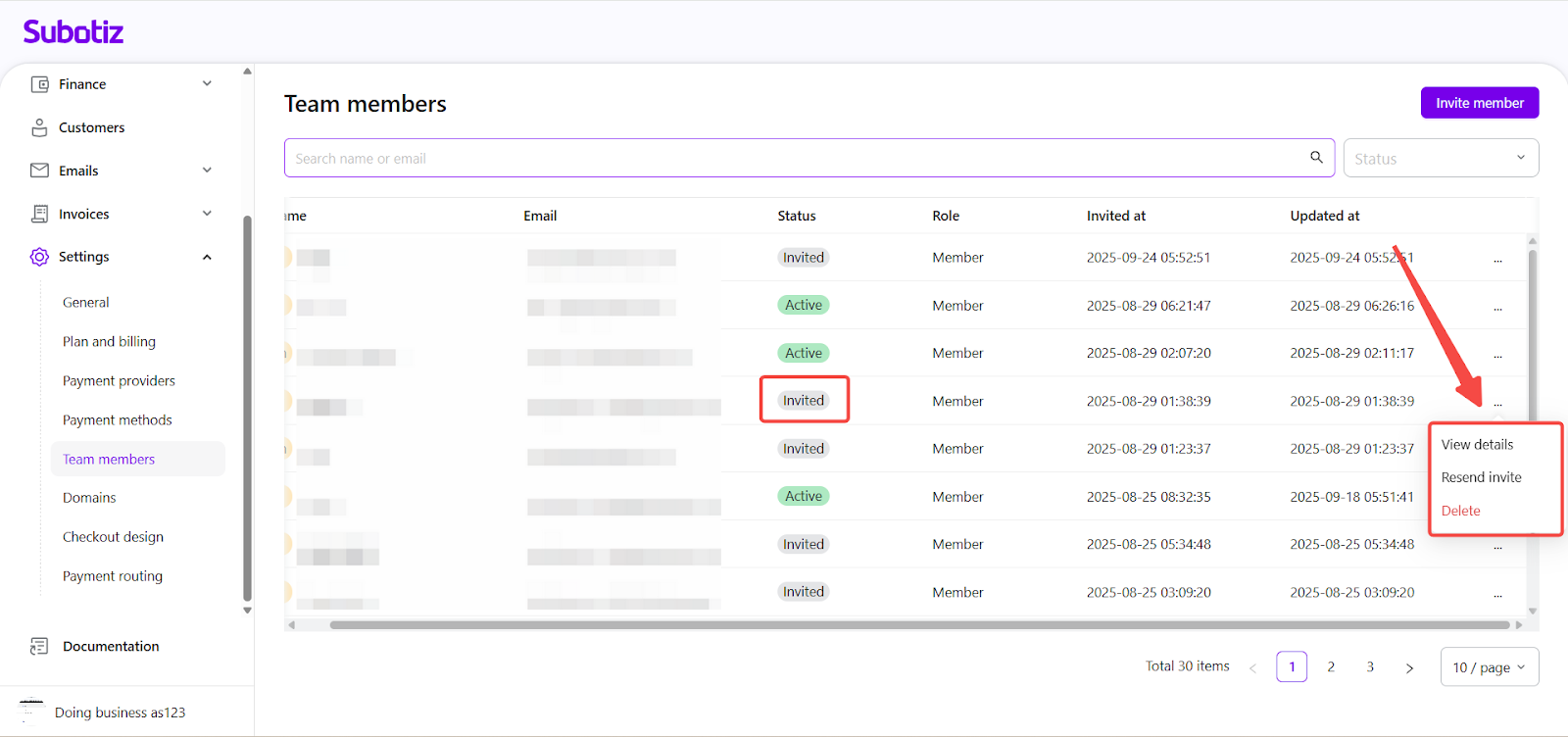
- Editing a profile does not resend invitations: To resend for “Invited” members, use Resend invite from the team list.
Keep member profiles up to date and review permissions regularly to reduce access risks, support compliance, and ensure members can work effectively as roles evolve.