Accepting a workspace invitation in Subotiz is a secure, fully automated process. New members receive a branded, time-limited email, set their own account credentials, and gain access based on their assigned permissions. This streamlined flow eliminates manual approval steps, helping new users start working immediately while maintaining strict access control.
Invitation Flow Overview
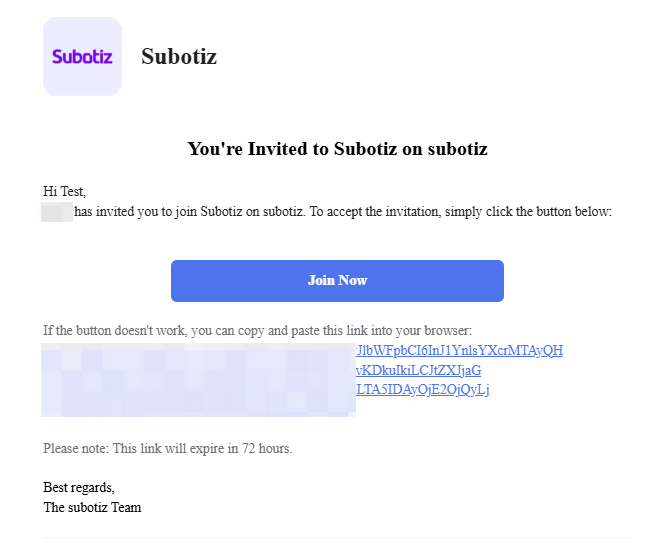
- Send secure invitation email: After the workspace owner invites a member from the admin, the system generates and delivers a secure, time-limited email to the specified address.
- Each invitation email includes:
- Workspace name
- Company logo (white-label supported)
- Inviter’s name
- A Join Now button linked to the invitation page
- A reminder that the link expires after 72 hours
- Confirm the invitation link: Clicking Join Now opens a secure registration page showing the invitee’s pre-filled name field, a password field, and a Sign up button to create the account.
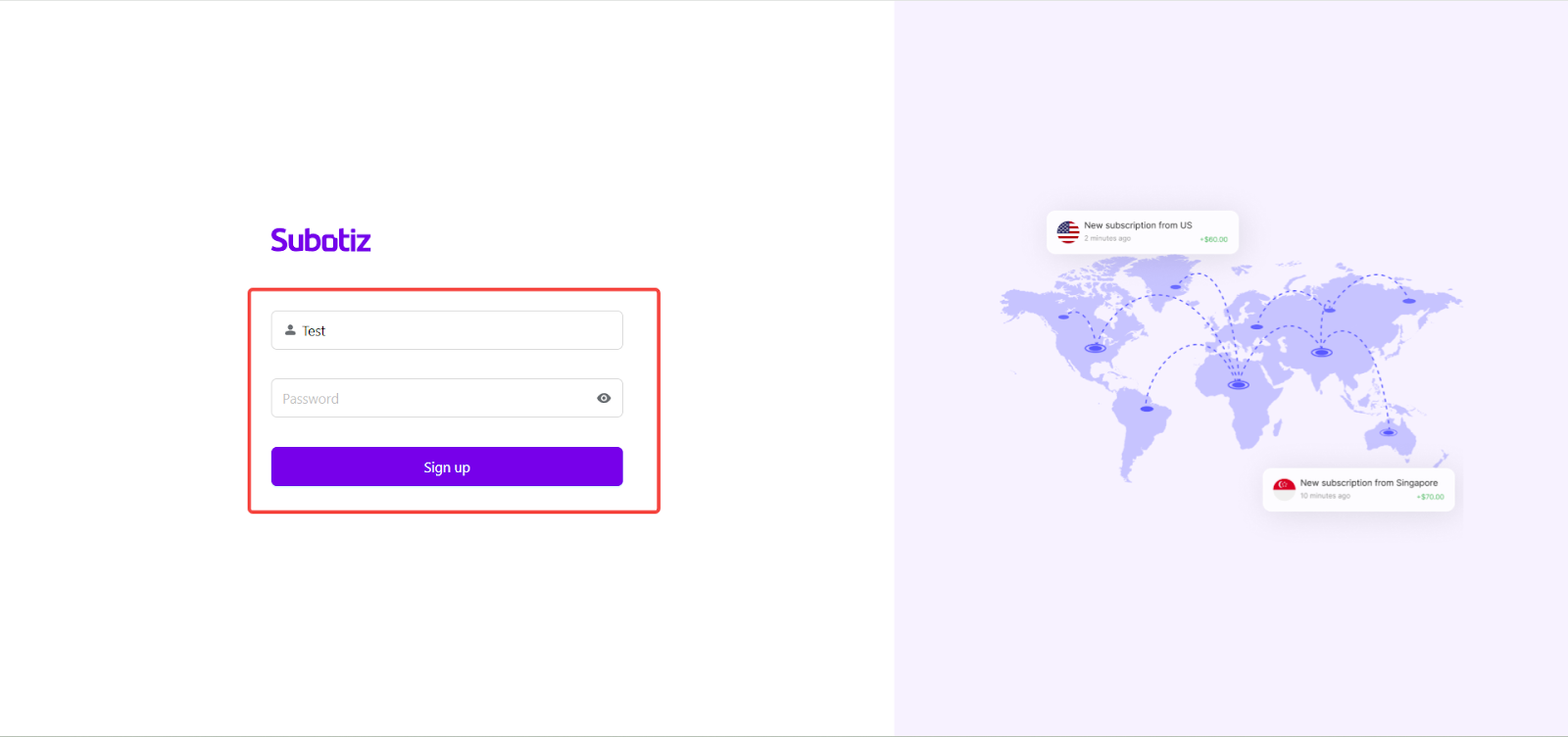
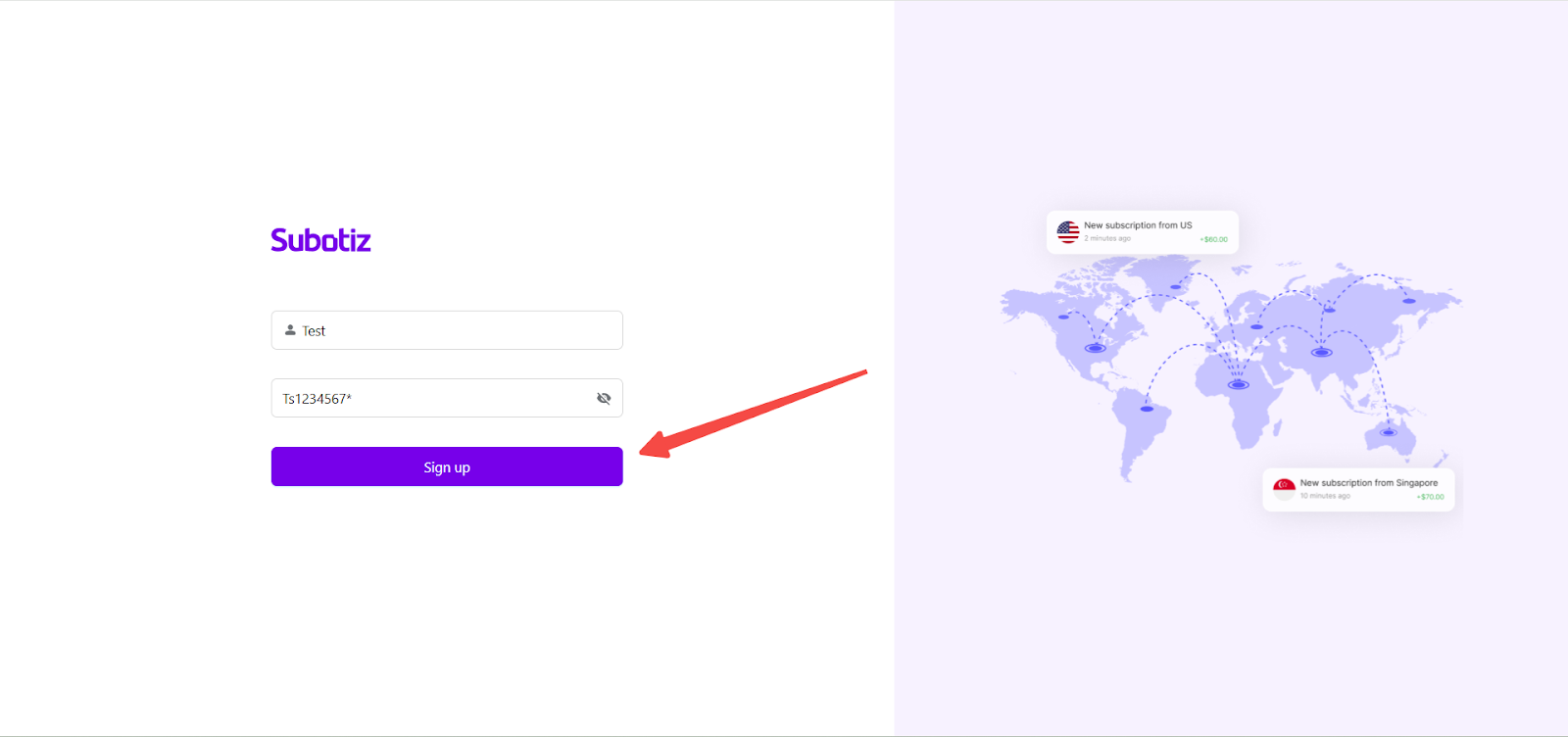
- Complete the account setup:
- Confirm the pre-filled name or edit if needed.
- Enter a password that is 8–20 characters long and includes uppercase and lowercase letters, numbers, and symbols.
- Click Sign up to create the account. The account is created immediately after signing up.
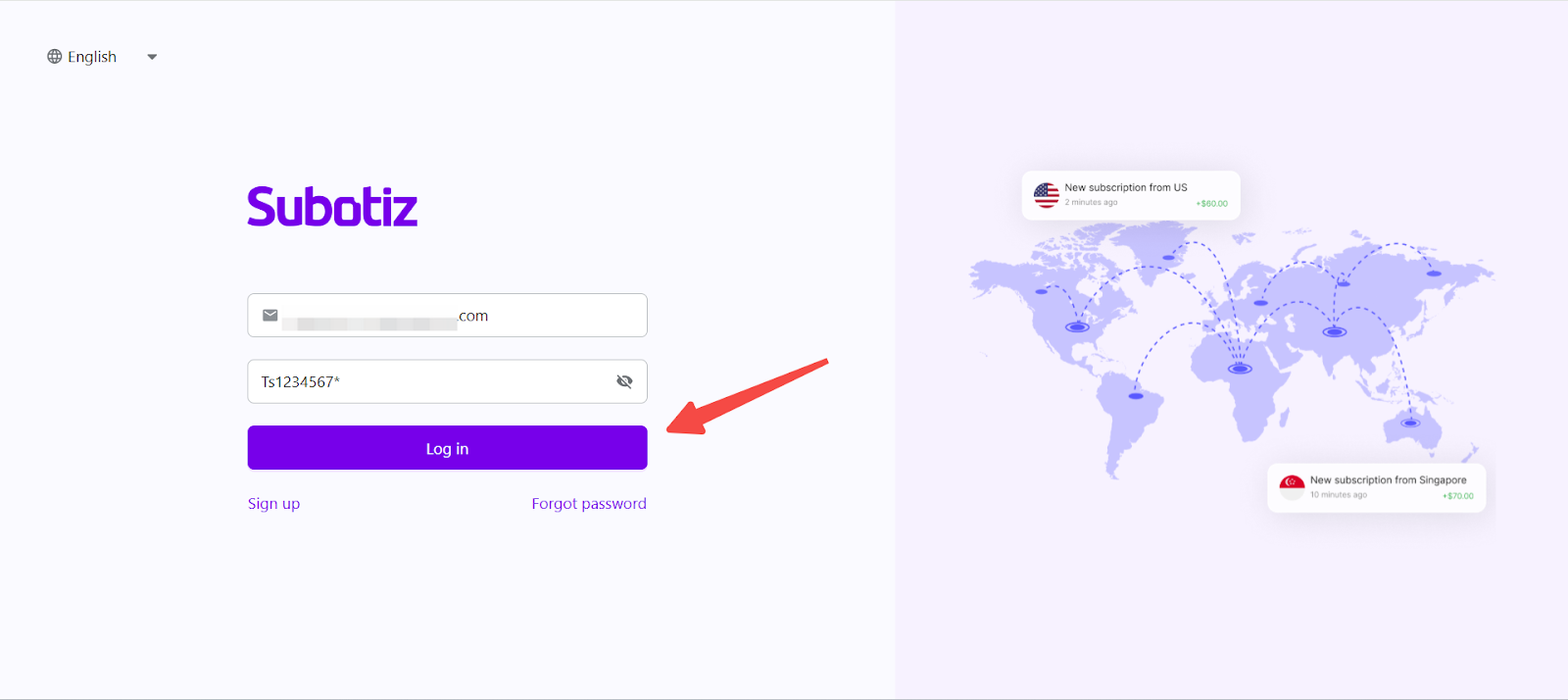
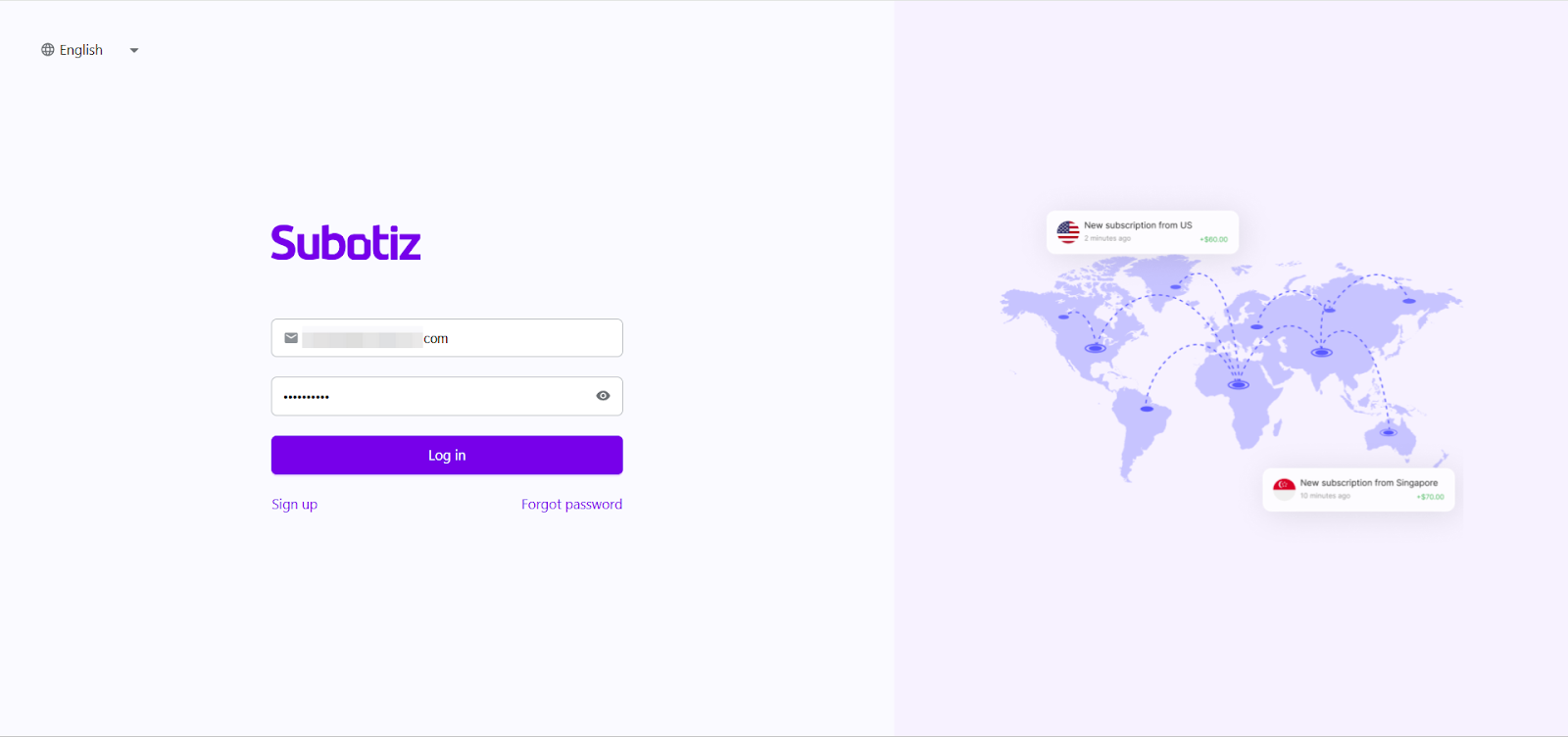
- Log in to the workspace: After the account is created, the system redirects to the login page with the email pre-filled. Enter the same password just set, then click Log in to access the workspace.
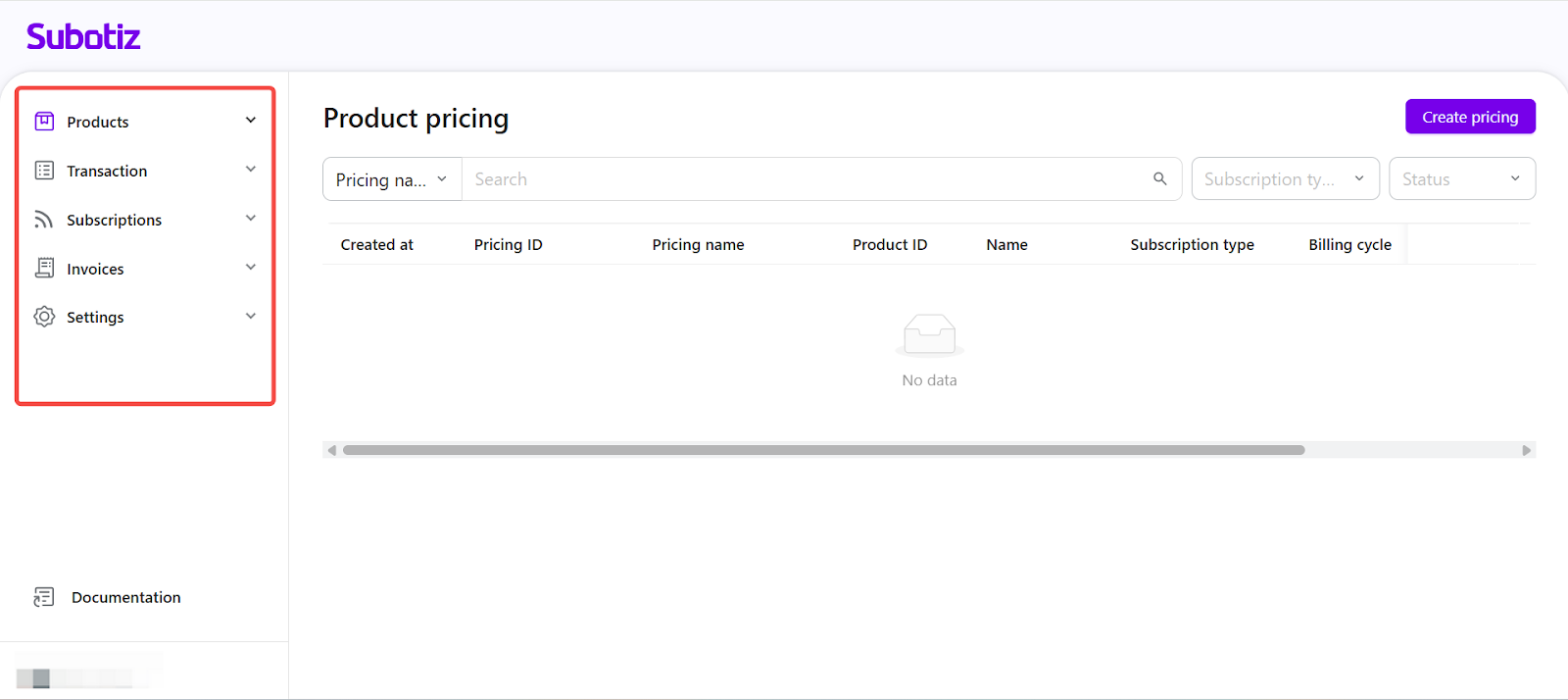
- Access workspace according to permissions: After logging in, the invitee is taken to the first section of the workspace allowed by their assigned permissions. They will only see and manage modules they have access to.
Expired or Reused Invitation Links
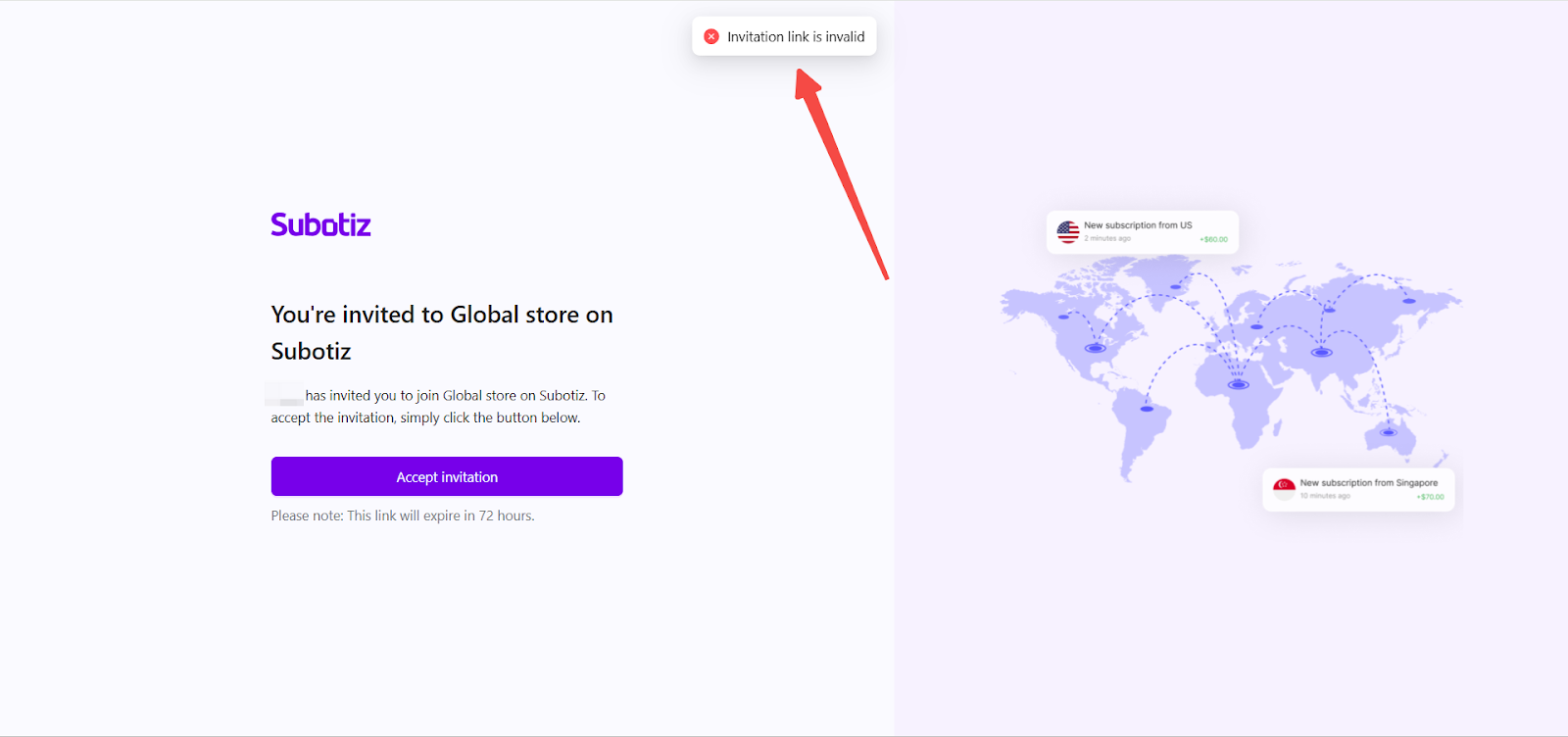
Each invitation link is valid for 72 hours, and only the latest invitation remains active. The system checks link status in real time.
- Expired links: A toast message appears and the user cannot proceed.
- Reused links: The setup step is skipped and the user is redirected to the invited workspace if logged in, or to the login page if not.
Invitation Limits
- Daily limit: Each workspace can send up to 500 invitations in any 24-hour period.
- Limit reached: When the daily limit is reached, the Invite member button is disabled until the next reset.
Provide a smooth invitation acceptance flow to help new members start working without delay. Assign the right permissions from the start to maintain security, support consistent workflows, and reduce onboarding time.