Adding team members with the right permissions ensures they can work efficiently while protecting sensitive areas of the Subotiz admin. This process combines account invitation and permission assignment into one streamlined step, helping workspace owners save time while maintaining strict access control.
Invitation Process
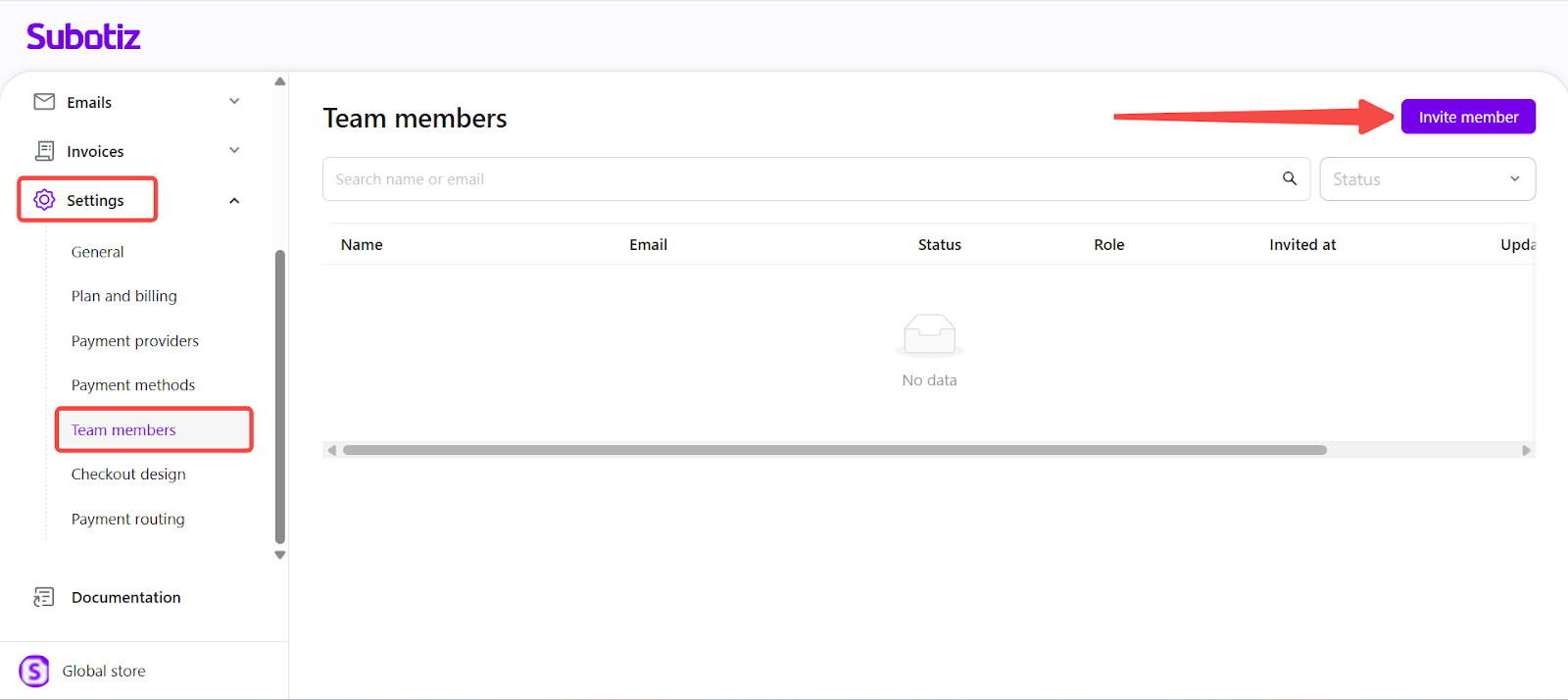
- Open the Invite member page: From the Subotiz admin, go to Settings > Team members, then click Invite member in the top-right corner. This opens the team member setup page.
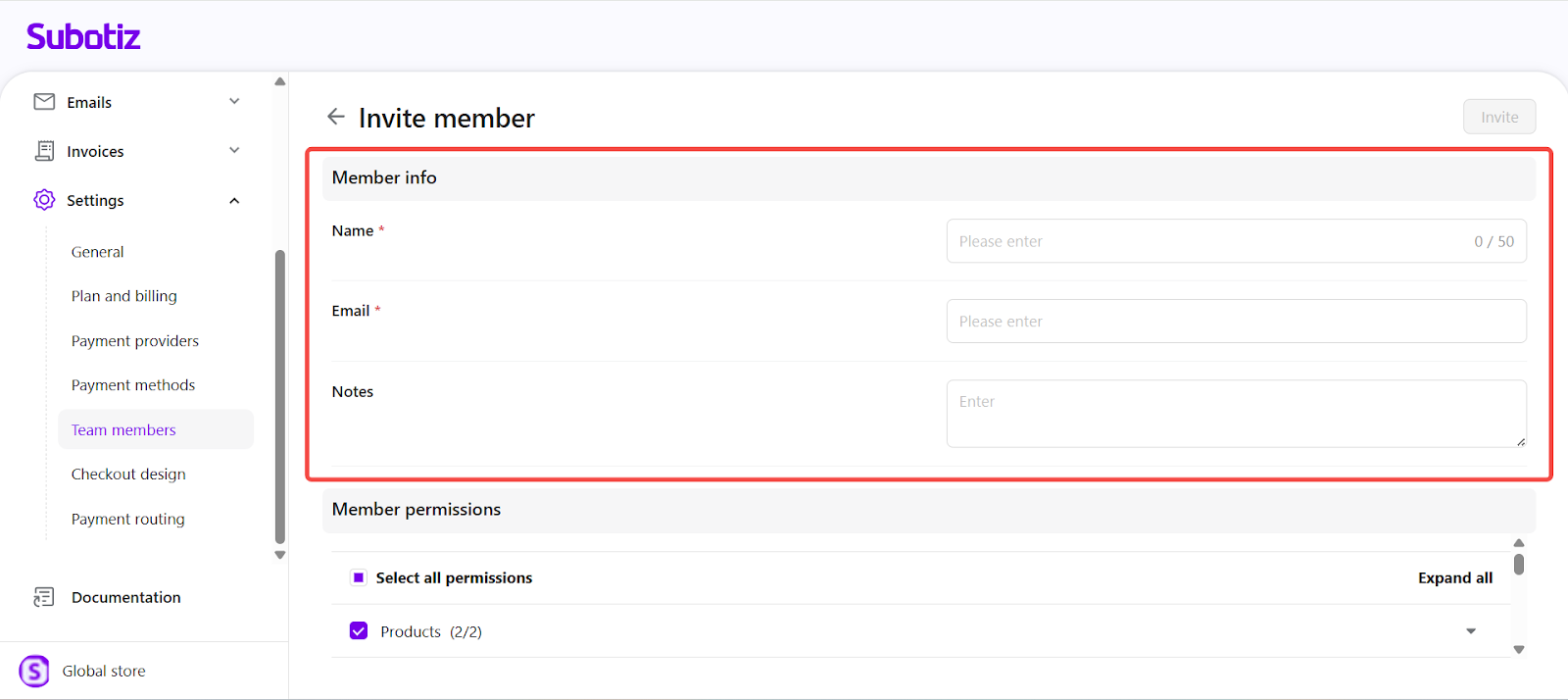
- Enter member information: In the Member info section, complete the required fields:
- Name: Required. Limit 50 characters.
- Email: Required. Must be unique and in valid email format.
- If the email has already been invited, an error appears: "This email has already been invited."
- Notes: Optional. Up to 500 characters. Used for internal reference.
- Assign access permissions:
- Select and assign access:
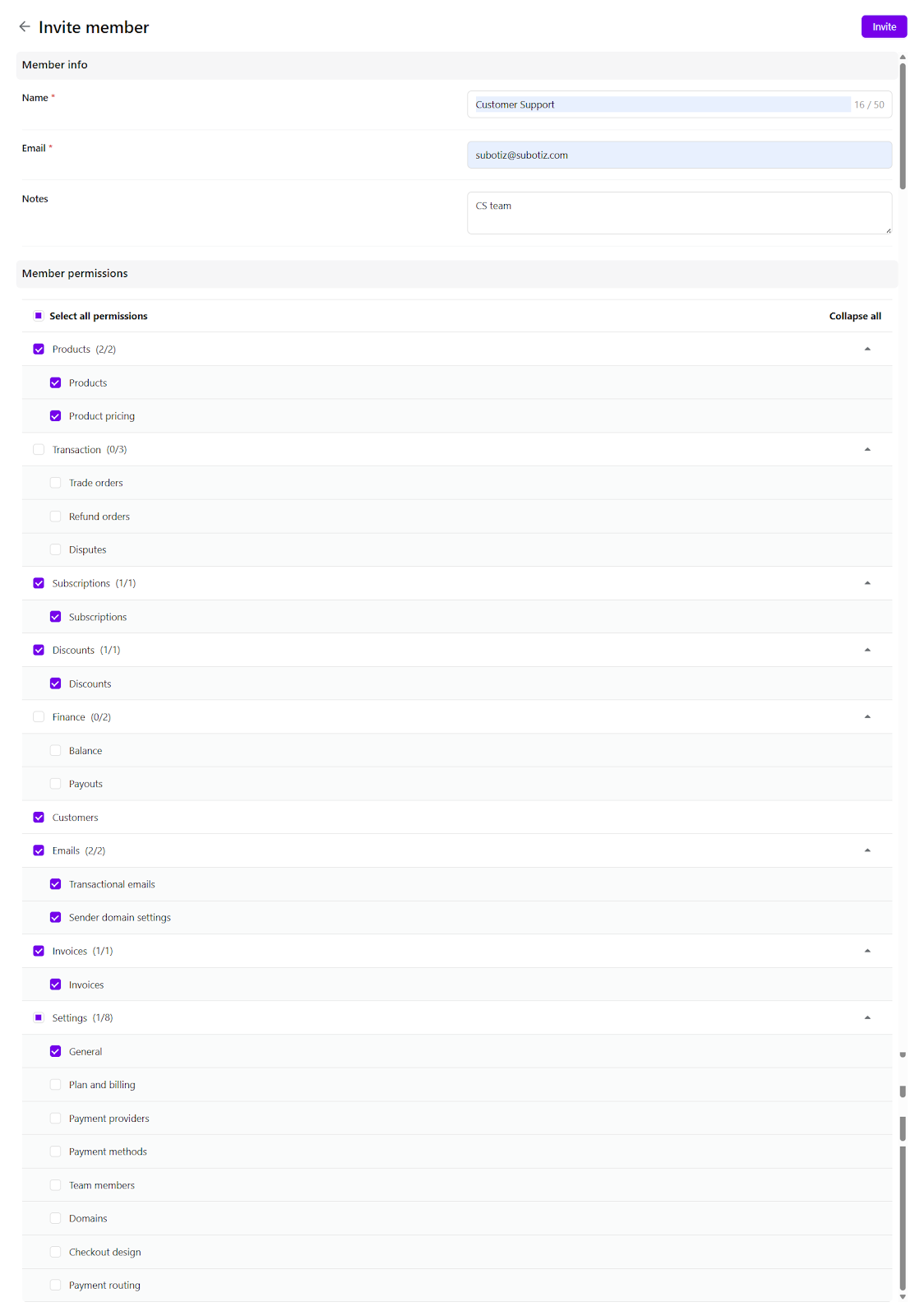
- In the Member permissions section, choose the areas the member can access.
- At least one permission must be selected to proceed. If none are selected, a warning appears: "Select at least one permission."
- Use Select all permissions to grant full admin-level access.
- Expand a module (e.g. Products, Emails , Customers) to assign specific actions.
- Permission rules:
- Select all permissions applies to all standard modules. Sensitive modules such as Finance, Team settings, and Payment settings are excluded by default and must be granted intentionally.
- Permissions not available to the current admin appear greyed out and cannot be assigned.
- If no permissions are assigned, the invited user will not see any sections in the admin after login.
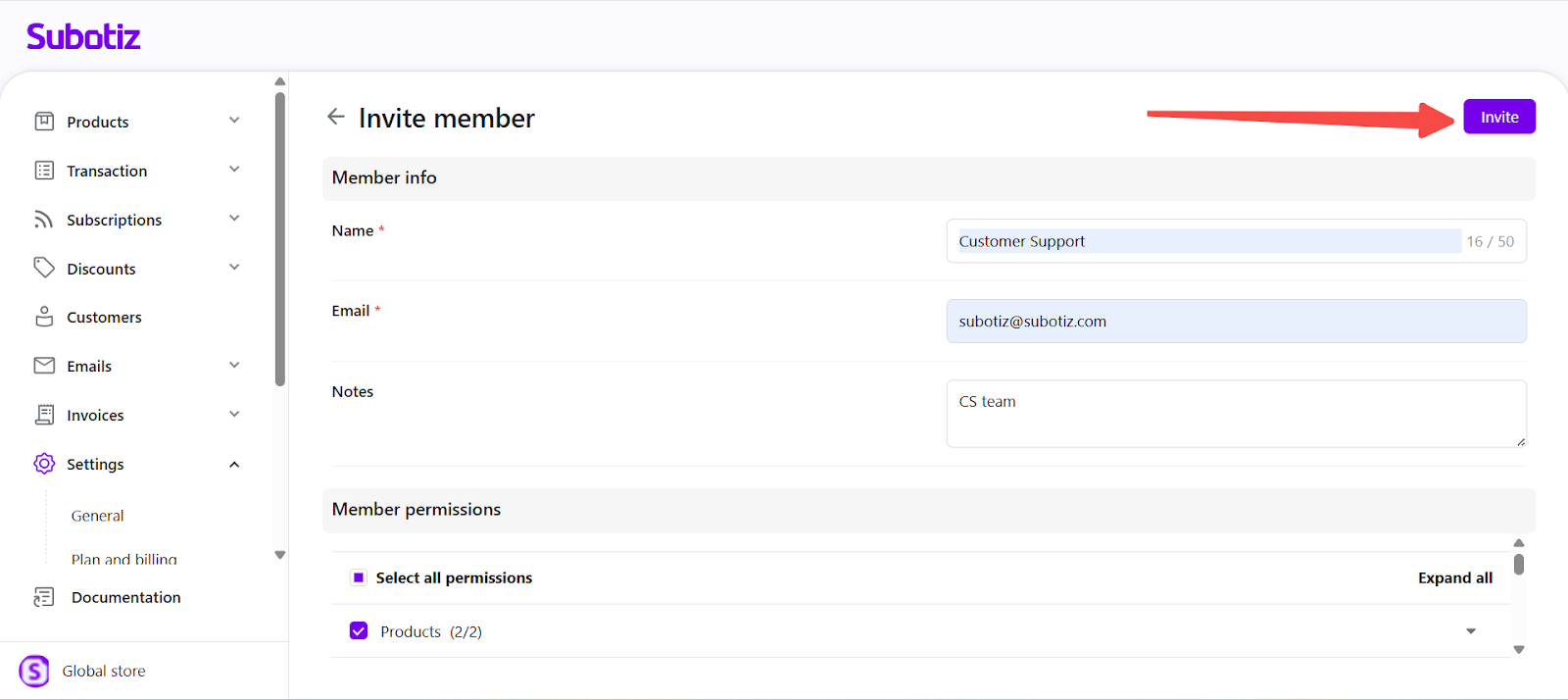
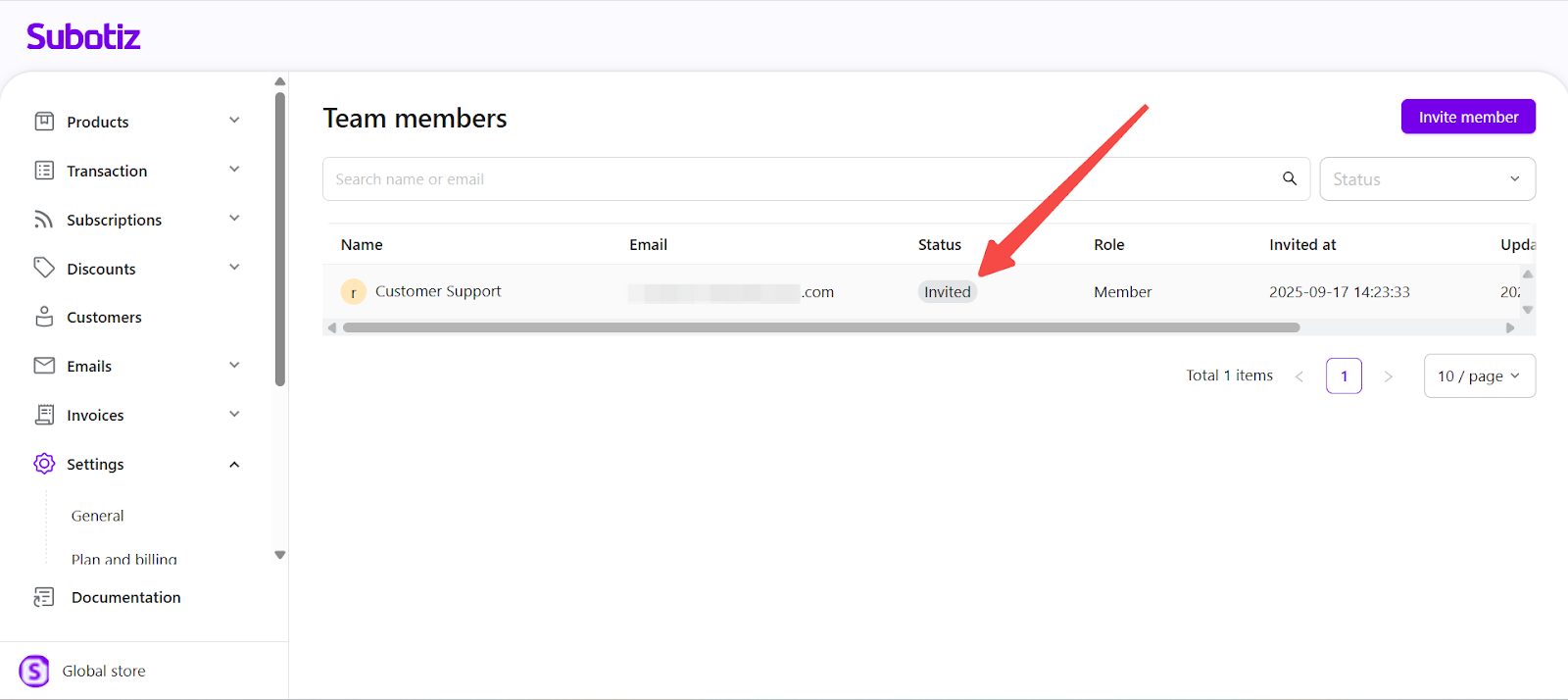
- Send invitation: Click Invite in the upper-right corner. The user will appear in the team list with the status set to Invited.
Invitation Rules & Limits
- Link expiry: Invitation links remain valid for 72 hours. Sending a new invitation to the same email cancels all previous links.
- Member capacity: Each workspace can have up to 500 team members.
- Sending limits:
- Maximum 500 invitations per workspace in any 24-hour period.
- A 5-minute cooldown applies to repeat invitations for the same user.
Assigning permissions during the invitation process ensures each member has the access they need from day one while protecting sensitive information. Review permissions regularly to maintain security and keep access aligned with evolving roles.