Team members are individual user accounts invited by the workspace owner to collaborate within the same environment. Each member signs in with their own credentials and is granted specific permissions for designated admin sections. This setup supports multi-user workspace management, enforces access control, and enables secure collaboration without compromising data security or account ownership.
Purpose of Team Members
The Team Members feature allows workspace owners to delegate tasks without sharing the primary account. With permission-based access, members can manage assigned sections independently. This improves operational efficiency, reduces security risks, and ensures clear accountability.
Typical Scenarios
Team Members are commonly used to support:
- Manage store operations: Staff managing products, subscriptions, or orders.
- Oversee finance: Finance team members reviewing balance, payouts, or invoices.
- Assist customers: Assistants updating customer information or processing refunds.
- Assign controlled access: Workspace owners granting admin access while retaining full control.
Permission Control and Security
- Assign permissions: Grant each member access to specific admin sections according to their role and responsibilities.
- Update or revoke access: Change permissions at any time as required.
- Accept invitations: Members must accept before access becomes active.
- Maintain secure logins: Separate credentials ensure secure, isolated accounts.
Access Status and Reminders
- Reissue invitations: Remove and resend pending or expired invitations.
- Remove members: Delete accounts without affecting workspace data.
- Review permissions regularly: Ensure access matches current roles.
Viewing Team Members in the Admin
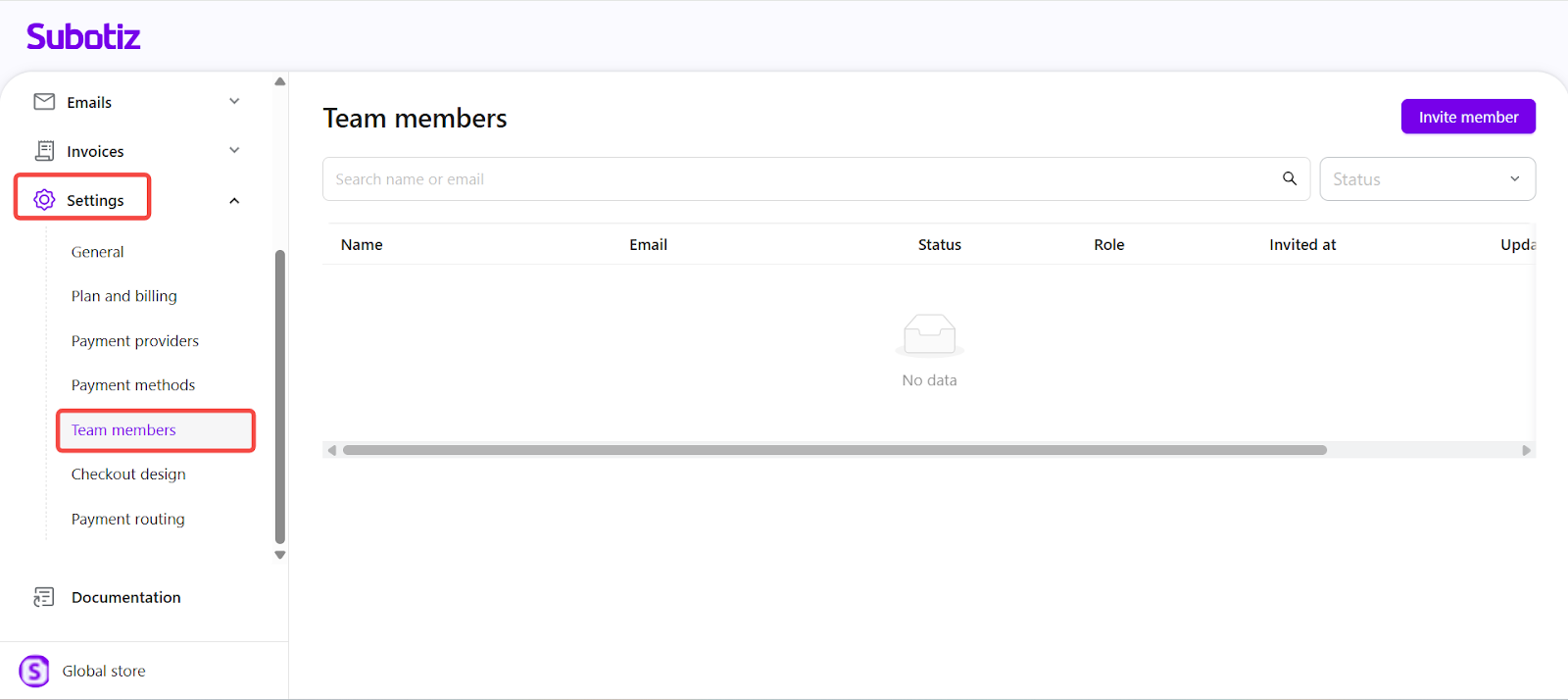
View all active and invited members: Go to Settings > Team Members. The list displays details such as name, email, role, invitation date, and access status. From this dashboard, you can:
- View all active and invited members.
- Track invitation status and update history.
- Remove members or resend invitations.
- Adjust access permissions as needed.
Manage multi-user access securely with the Team Members feature. With separate logins and customizable permissions, you can maintain operational control, support safe collaboration, and keep workflows efficient. Regular permission reviews help ensure access remains aligned with each member’s responsibilities.