The Payment Provider integration in Subotiz supports multiple third-party payment gateways, allowing you to offer flexible and secure payment options to your customers. This guide explains how to connect a new provider, enter the required credentials, and enable supported payment methods from the Explore tab in the admin.
Connecting a Payment Provider from the Explore Tab
- Access the Explore tab: In the Subotiz admin, go to Settings > Payment Provider and open the Explore tab to browse all supported payment providers.
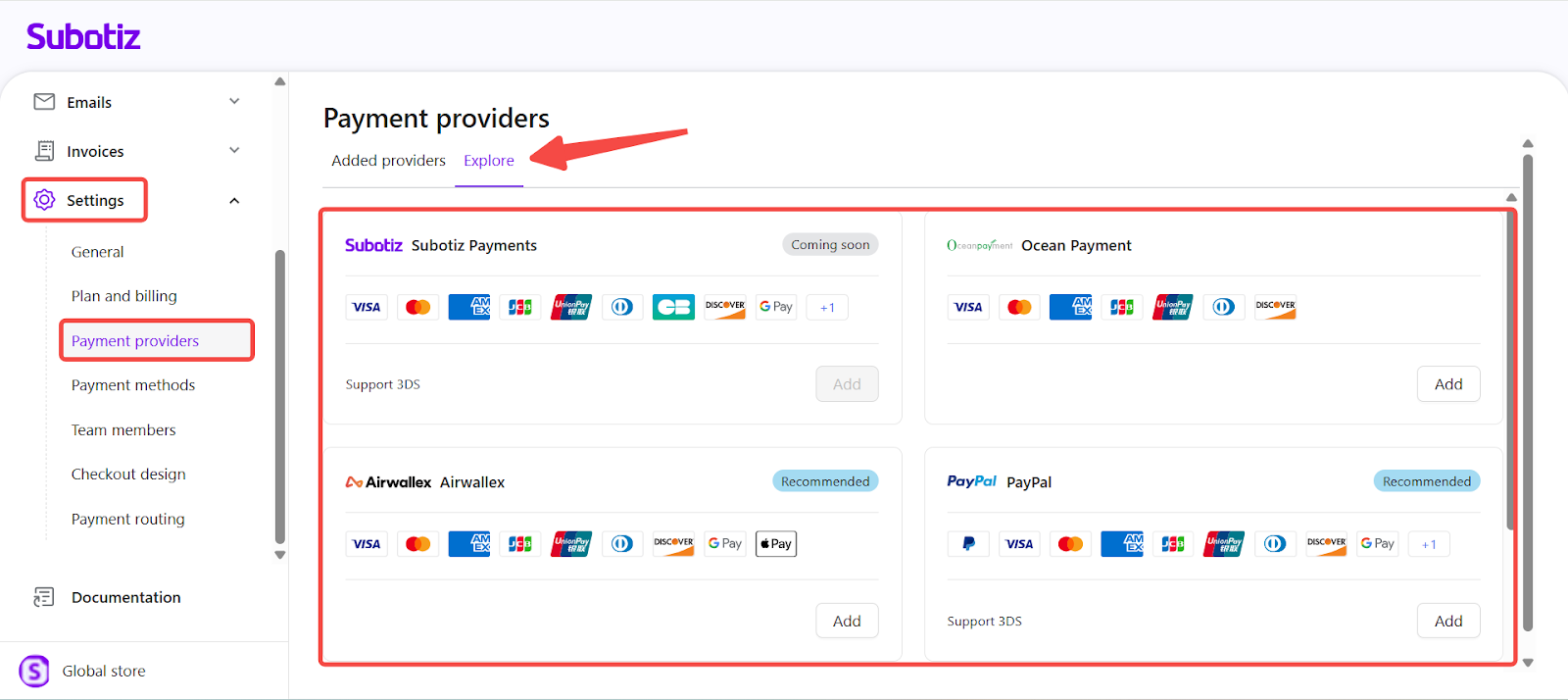
- Select a provider: Each listed provider shows the payment methods it supports. Review the available options, then click Add next to the provider you want to configure.
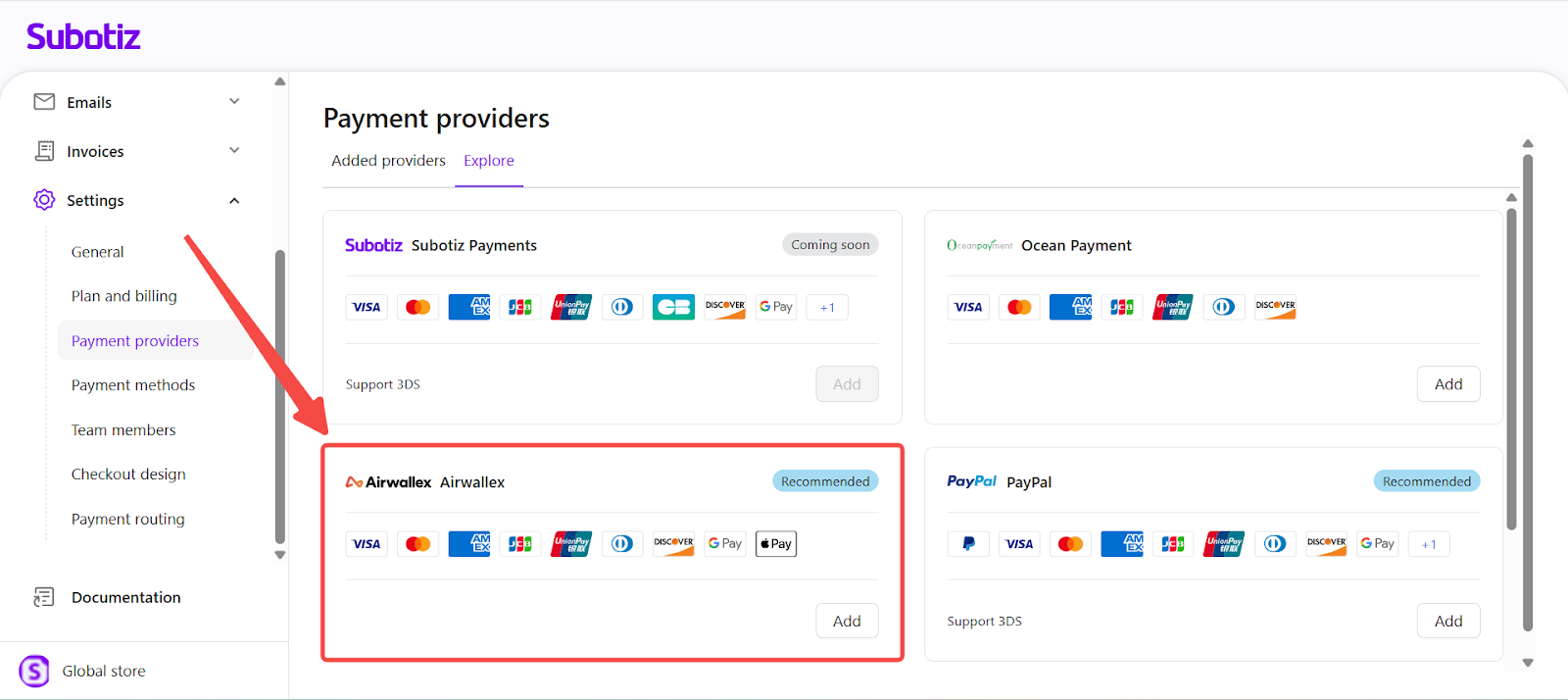
-
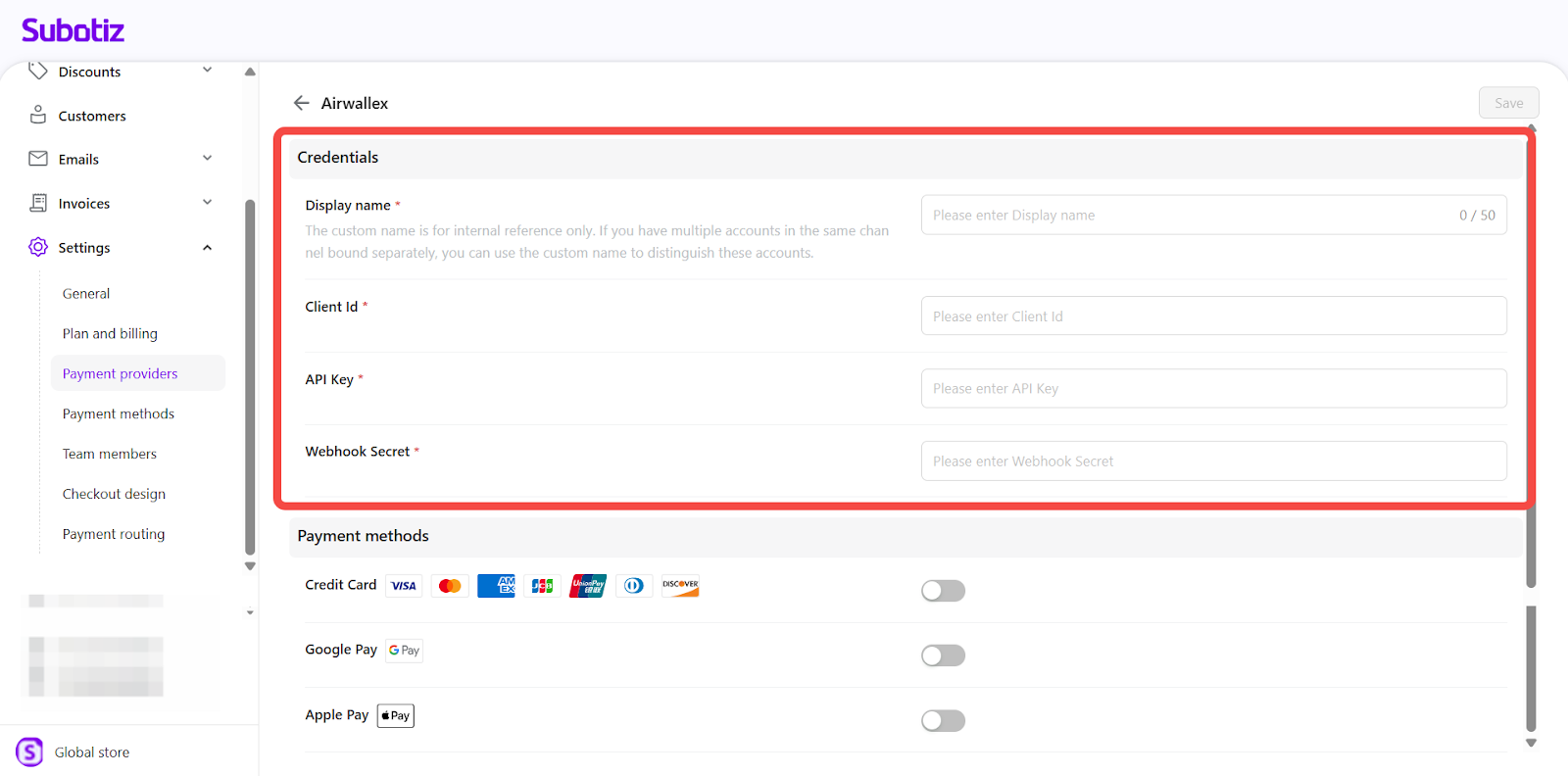
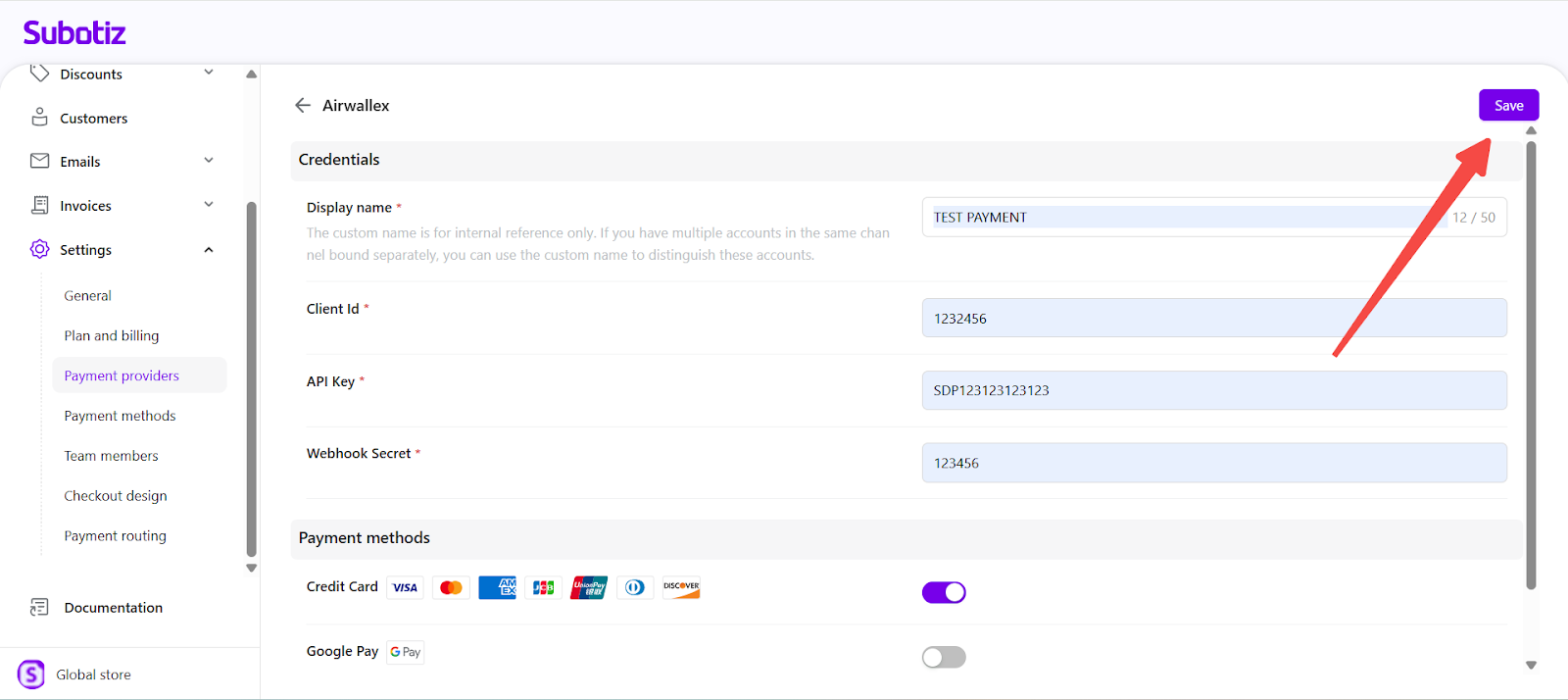
Enter required credentials: The setup screen prompts for credentials specific to the selected provider. Example screenshots in this article use Airwallex. Fields and layout may vary by provider.
- Display name: Internal label used in Subotiz.
- Client ID: Issued by the payment provider.
- API Key: Authenticates secure connection.
- Webhook Secret: Enables real-time transaction updates (if applicable).
Check the provider’s documentation for specific credential requirements. A full list of supported payment methods and required credentials is available in Payment provider|Credential Requirements by Provider.
- Configure payment methods: Select at least one payment method to enable. Available options depend on the selected provider and can be adjusted at any time.
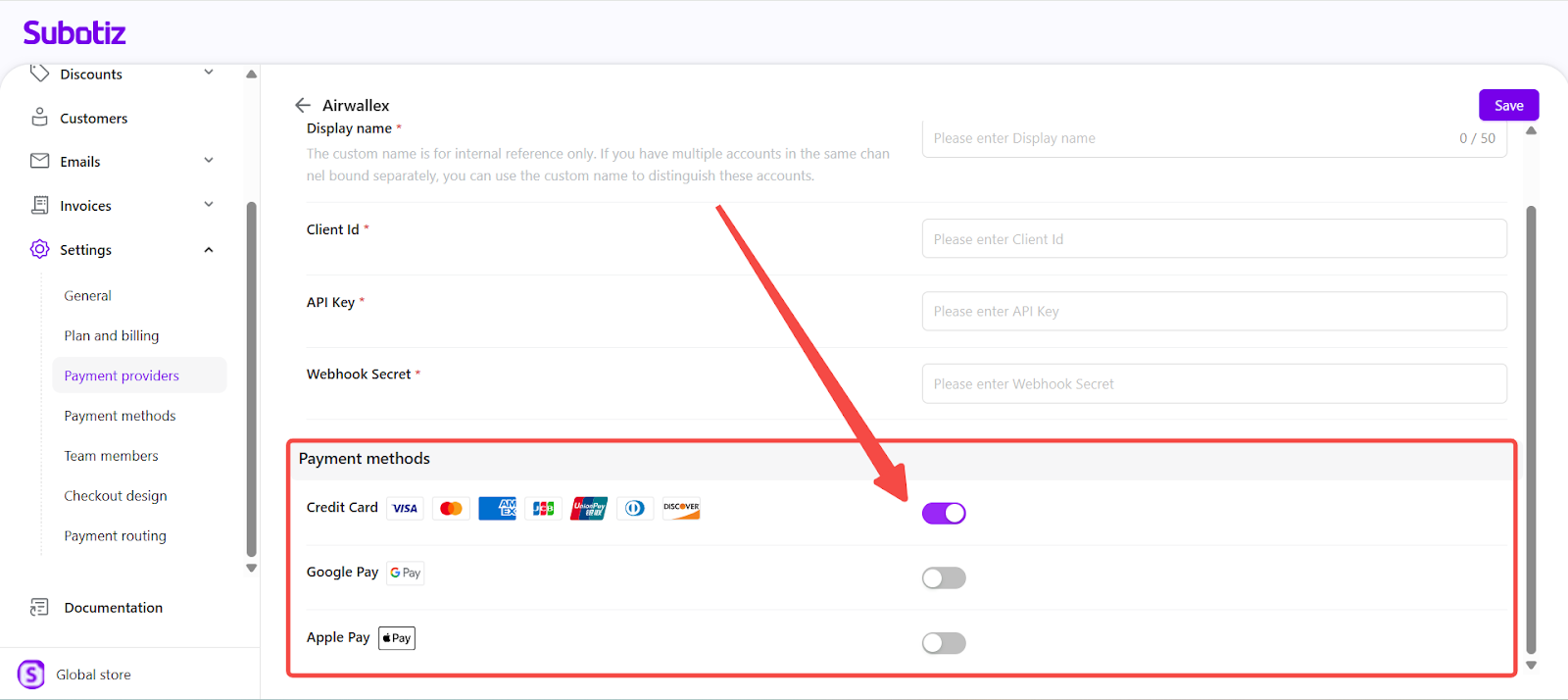
- Save the configuration: Once all required fields are completed, click Save to connect the provider and activate the integration.
Once connected, the provider ensures secure transaction processing and gives customers access to their preferred payment methods. Manage connected providers anytime from the Added providers tab in the admin.