Transactional Emails in Subotiz centralize system-generated customer notifications for subscription events and payment activities. From a single page, merchants can review email types, track performance, preview and edit email templates, and control notification status to maintain consistent branding and timely customer communication.
Accessing the Transactional Emails Page
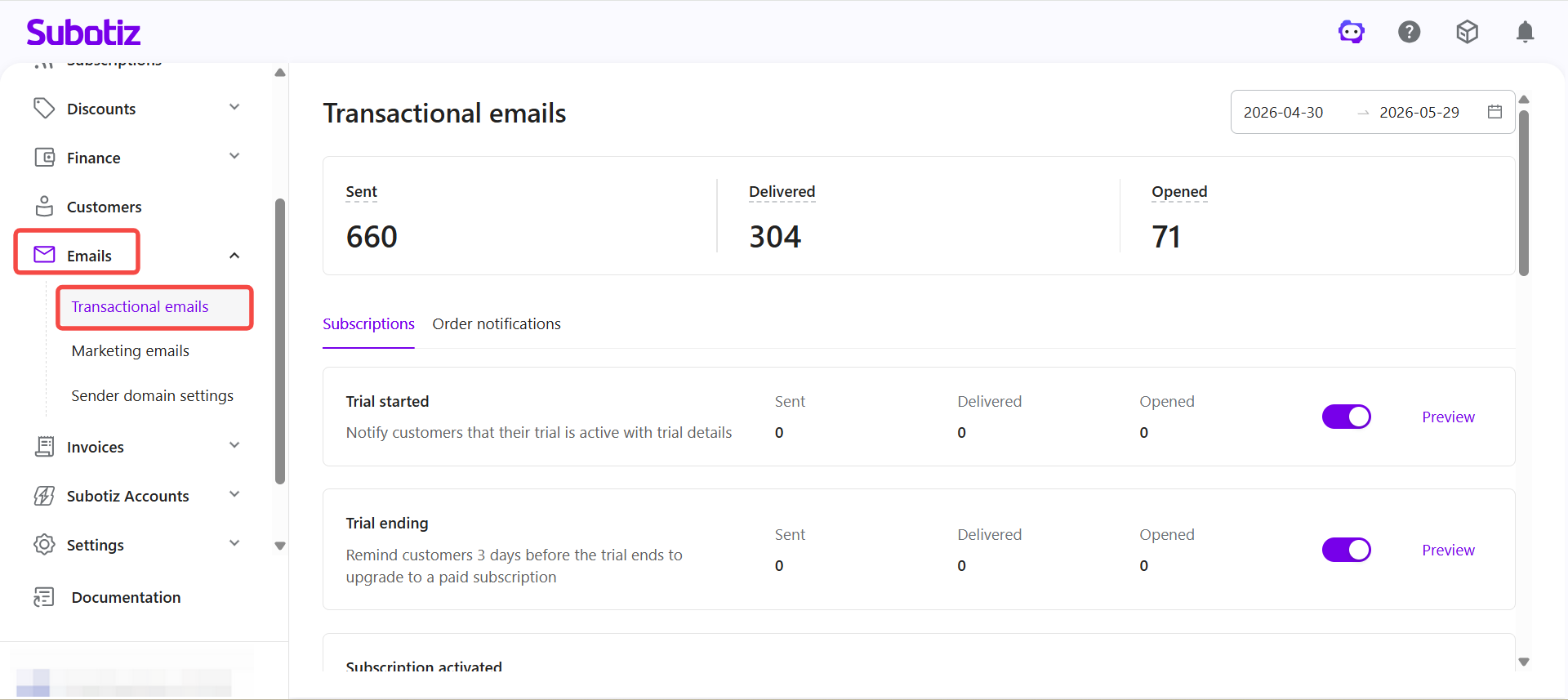
- Open the Transactional emails section: In the Subotiz admin, go to Emails > Transactional emails. The list displays all automated email types sent by the system.
-
Filter email data: Use the date selector in the upper-right corner to view the following metrics within a selected time range:
- Sent
- Delivered
- Opened
This helps merchants analyze email activity and customer engagement over specific periods.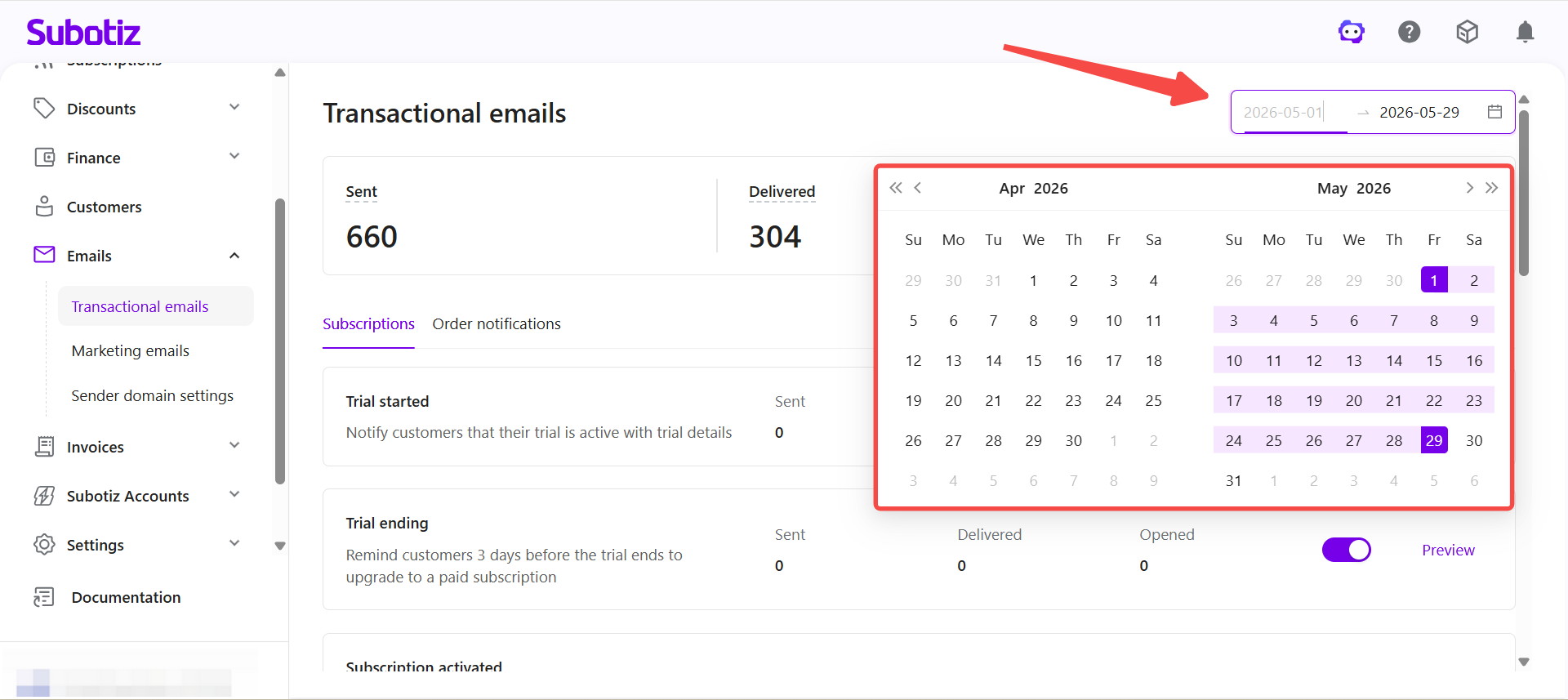
-
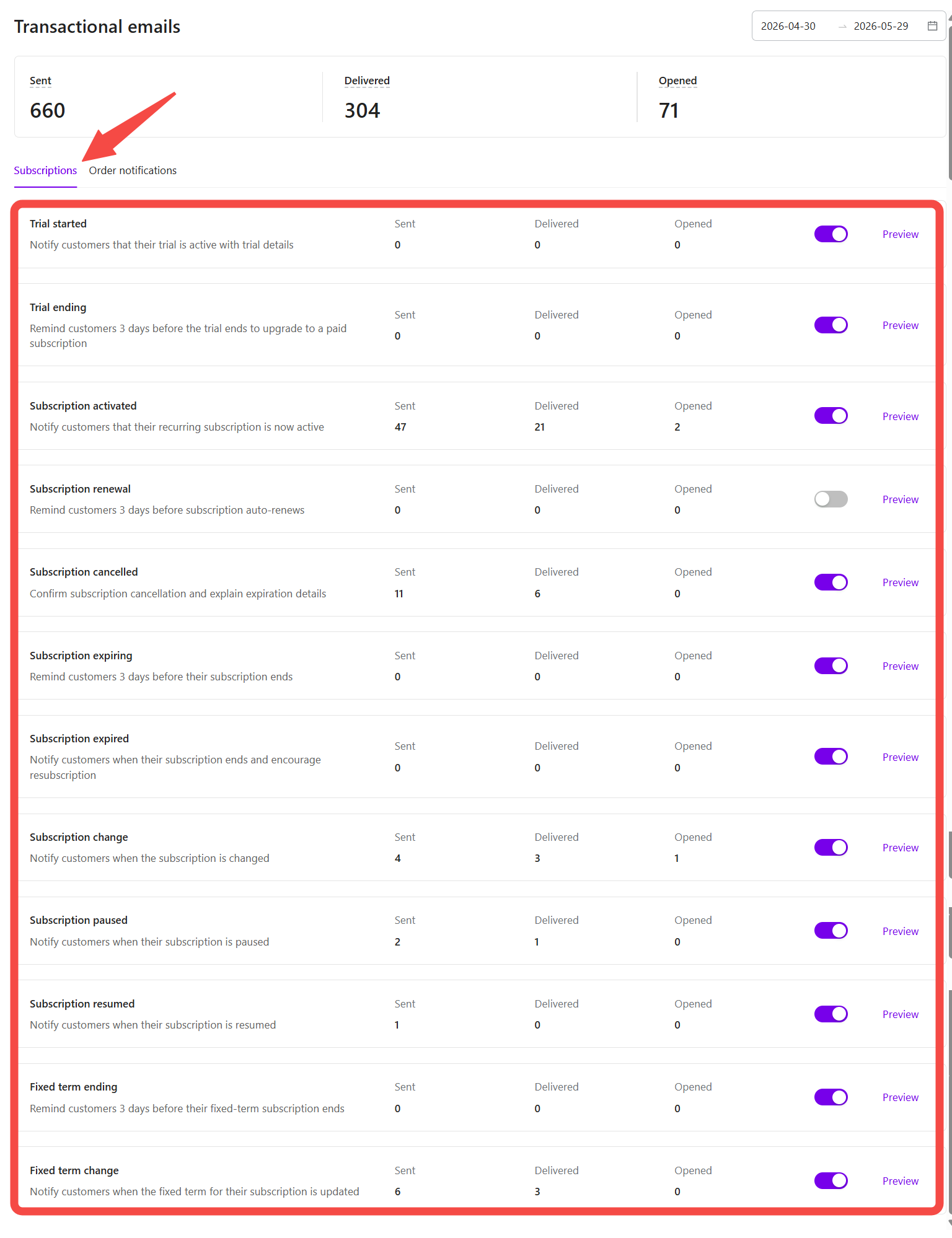
View email types: Transactional emails are grouped by function and primarily include:
-
Subscriptions:
- Trial started: Notifies customers that their trial has started and includes trial details.
- Trial ending: Reminds customers 3 days before the trial ends and encourages conversion to a paid subscription.
- Subscription activated: Confirms that the subscription is now active.
- Subscription renewal: Reminds customers 3 days before automatic renewal.
- Subscription cancelled: Confirms successful cancellation and explains post-subscription service details.
- Subscription expiring: Reminds customers 3 days before the subscription ends.
- Subscription expired: Notifies customers when the subscription ends and encourages resubscription.
- Subscription change: Notifies customers when subscription details are updated.
- Subscription paused: Notifies customers when a subscription is paused.
- Subscription resumed: Notifies customers when a subscription is resumed.
-
Fixed term ending: Reminds customers 3 days before a fixed-term subscription ends.
- If Convert to Ongoing Subscription is enabled for the subscription, this email includes a one-click option that allows customers to convert their subscription to an ongoing subscription. If this email is disabled, customers will not receive the reminder email or the conversion option. For more information, see Subscriptions | Editing the Fixed Term.
- Fixed term change: Notifies customers when the fixed term configuration is updated.
-
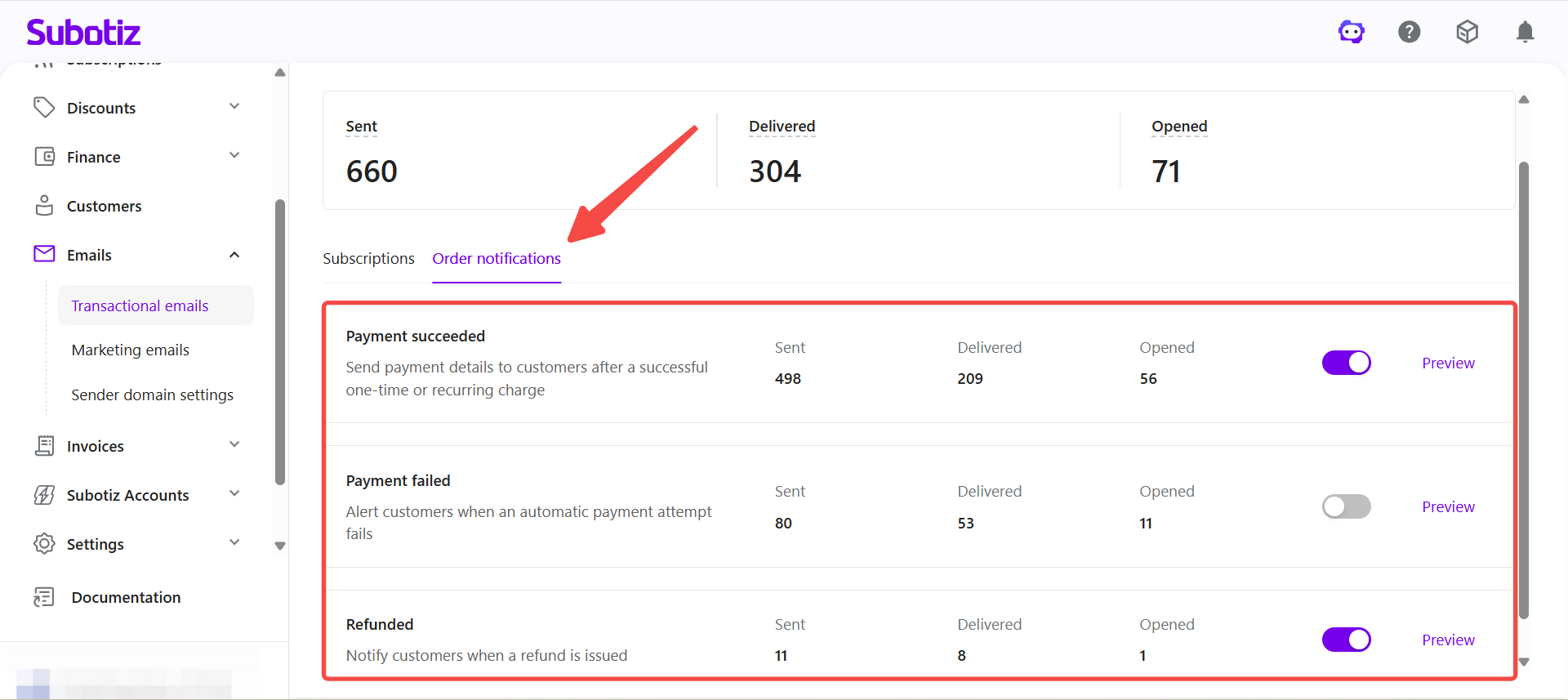
Order notifications:
- Payment succeeded: Sends payment details after a successful one-time or recurring payment.
- Payment failed: Notifies customers when an automatic payment attempt fails.
- Refunded: Notifies customers when a refund is issued.
-
- Enable or disable emails: Use the toggle beside each email type to enable or disable specific notifications and control which emails are sent to customers.
Note: Disabling certain transactional emails may affect related subscription features. For example, disabling Fixed term ending prevents customers from receiving the reminder email and any associated conversion option.
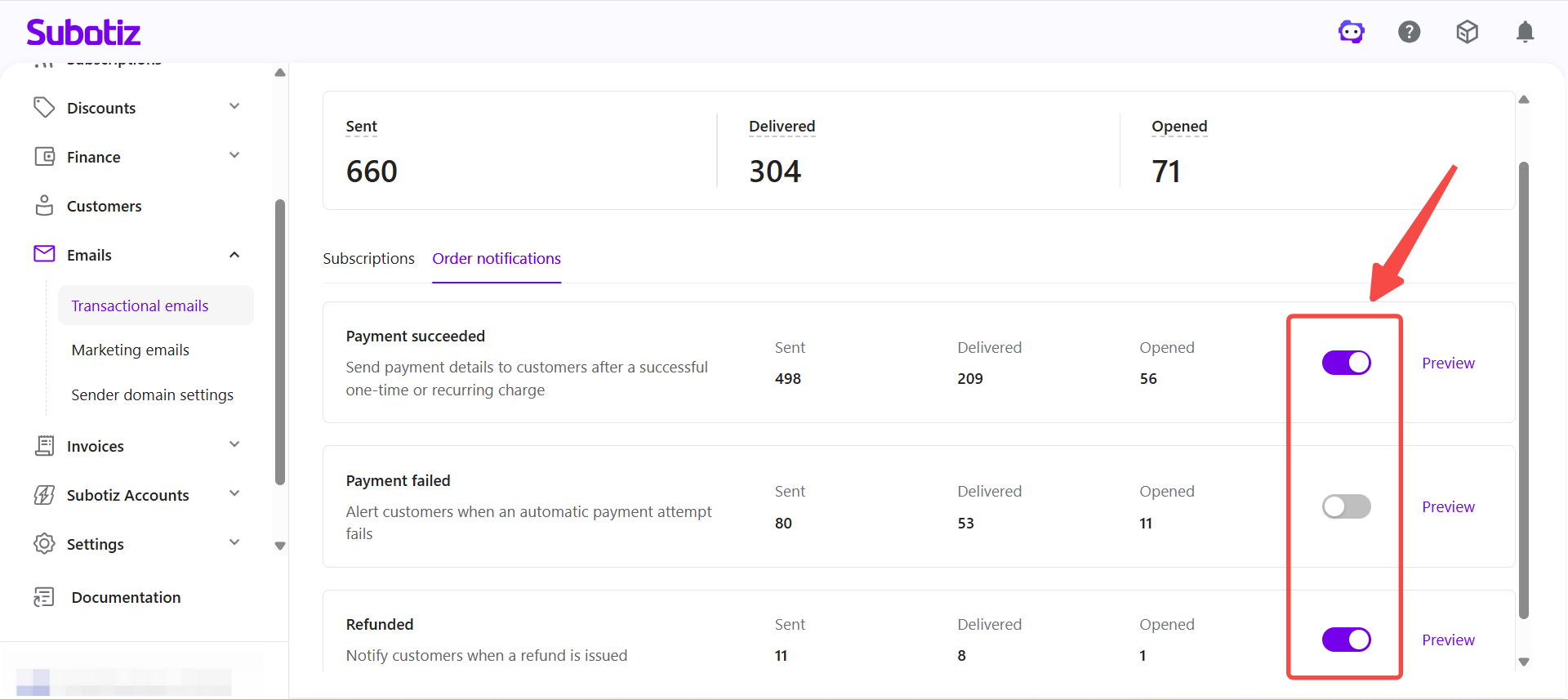
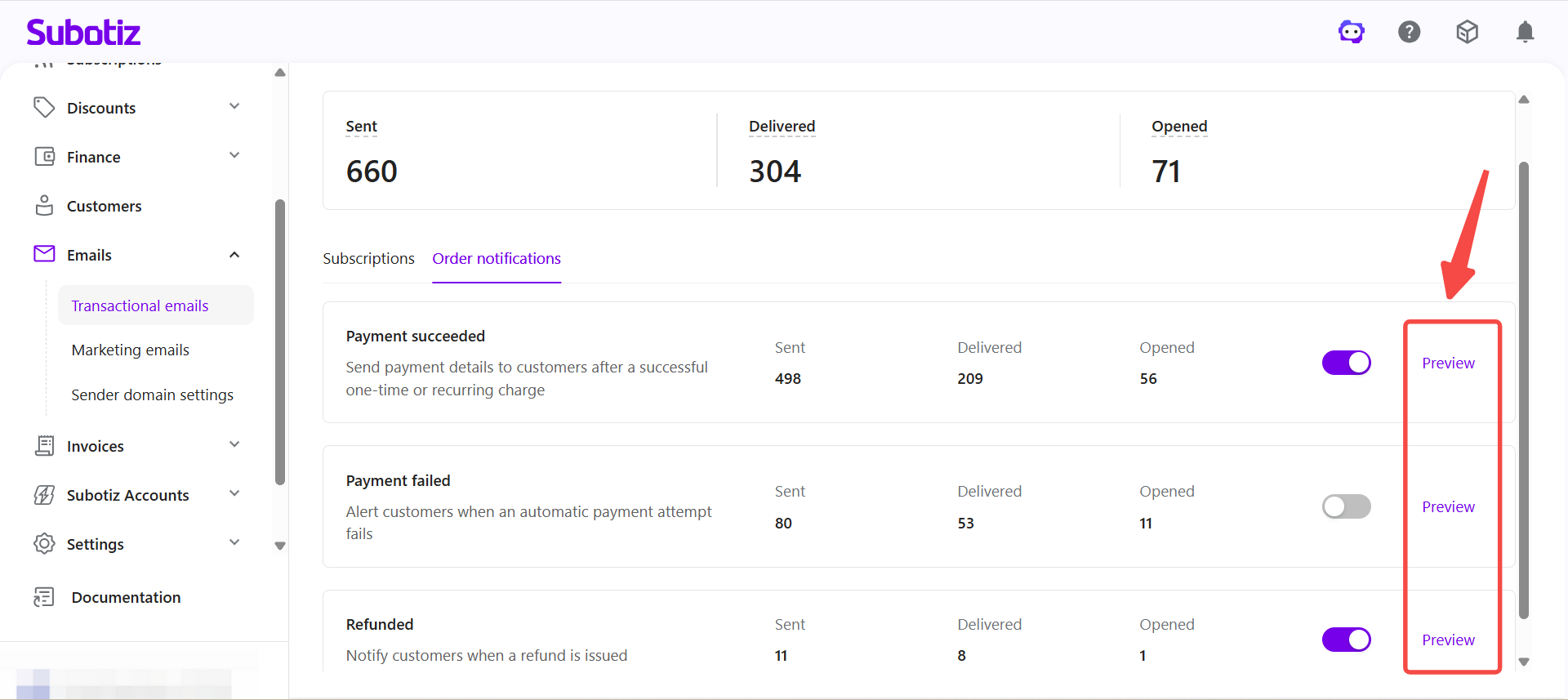
- View and edit email templates: Click Preview to open the email template, where you can preview or edit the email content and layout.
-
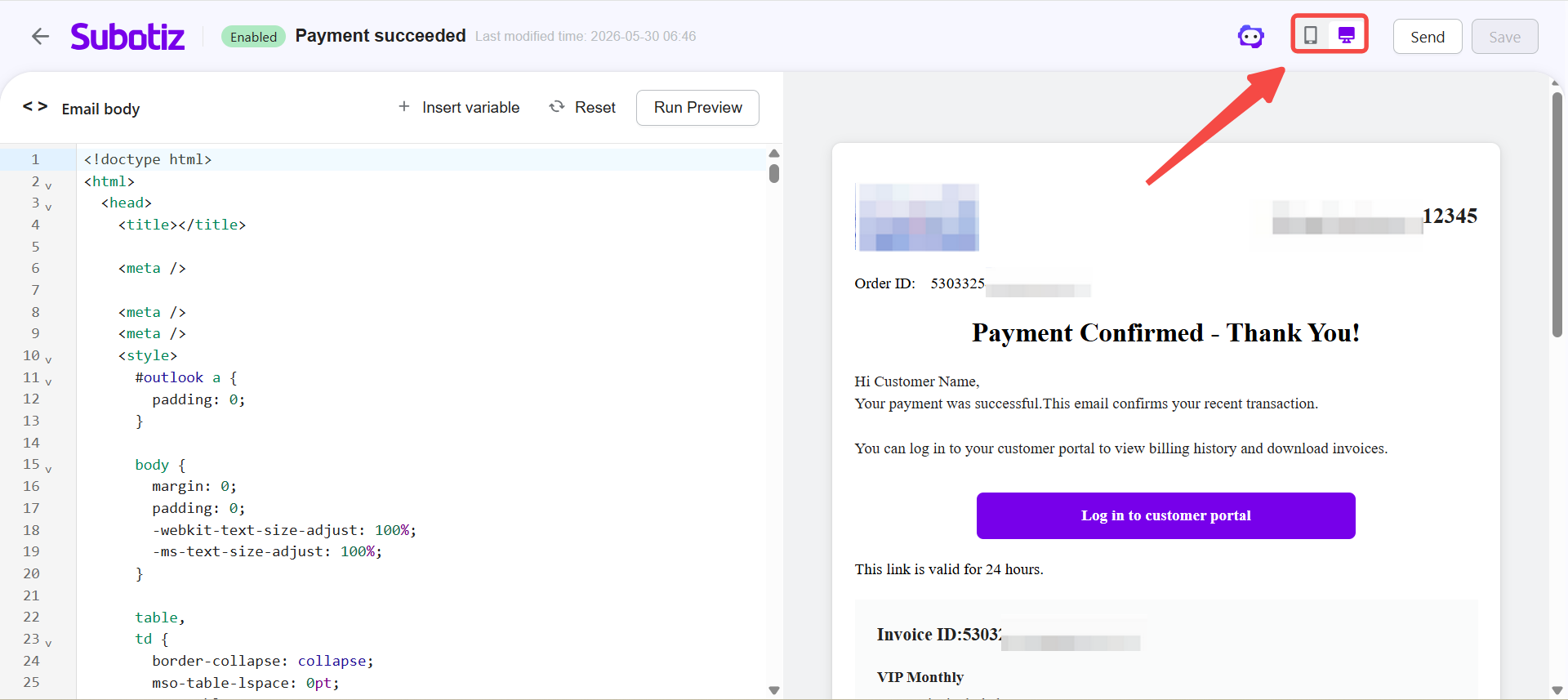
From the template page, you can:
- Switch views: Toggle between desktop and mobile view to check how the email appears across different devices.
- Edit content: Modify email content and styling directly and save template updates. AI editing tools are also available to help generate or refine email content. For more details about AI email editing, see: AI Assistant|Editing Email Templates
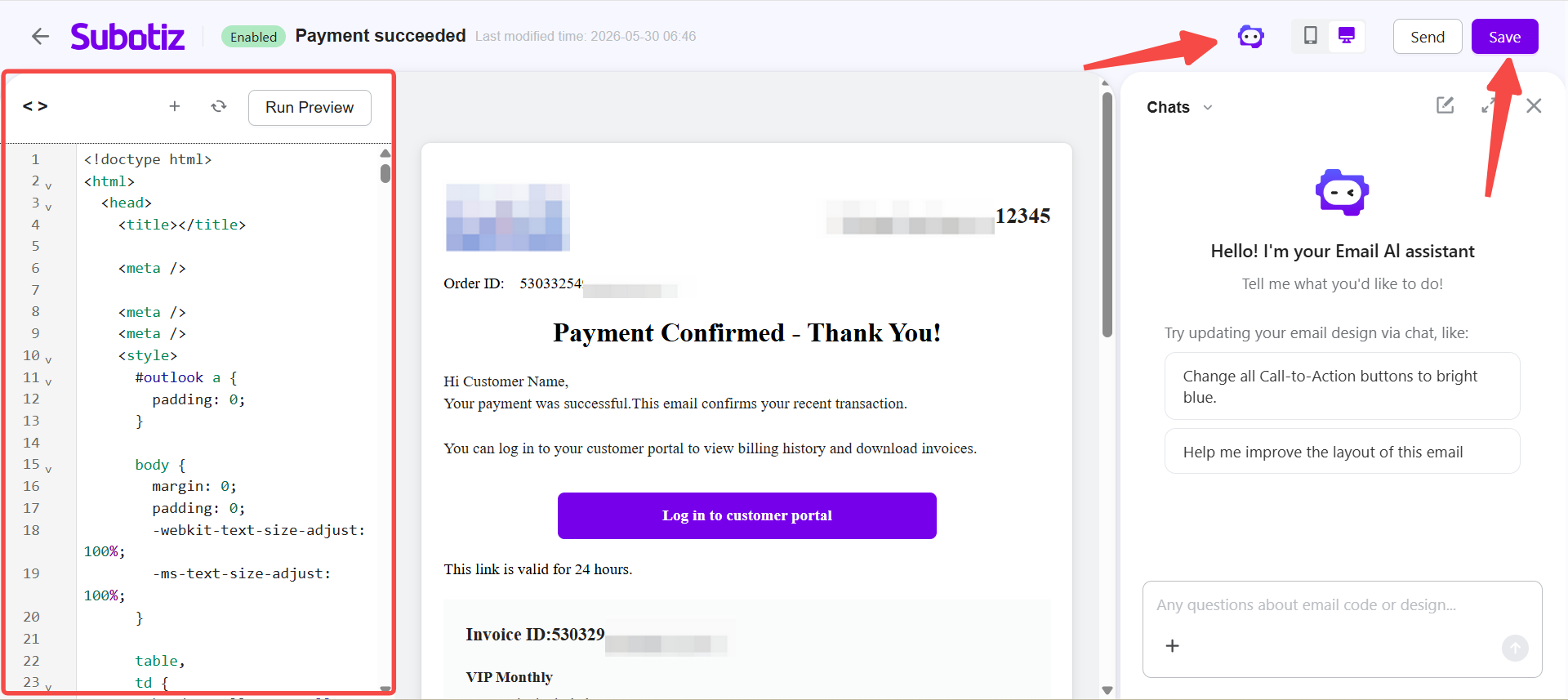
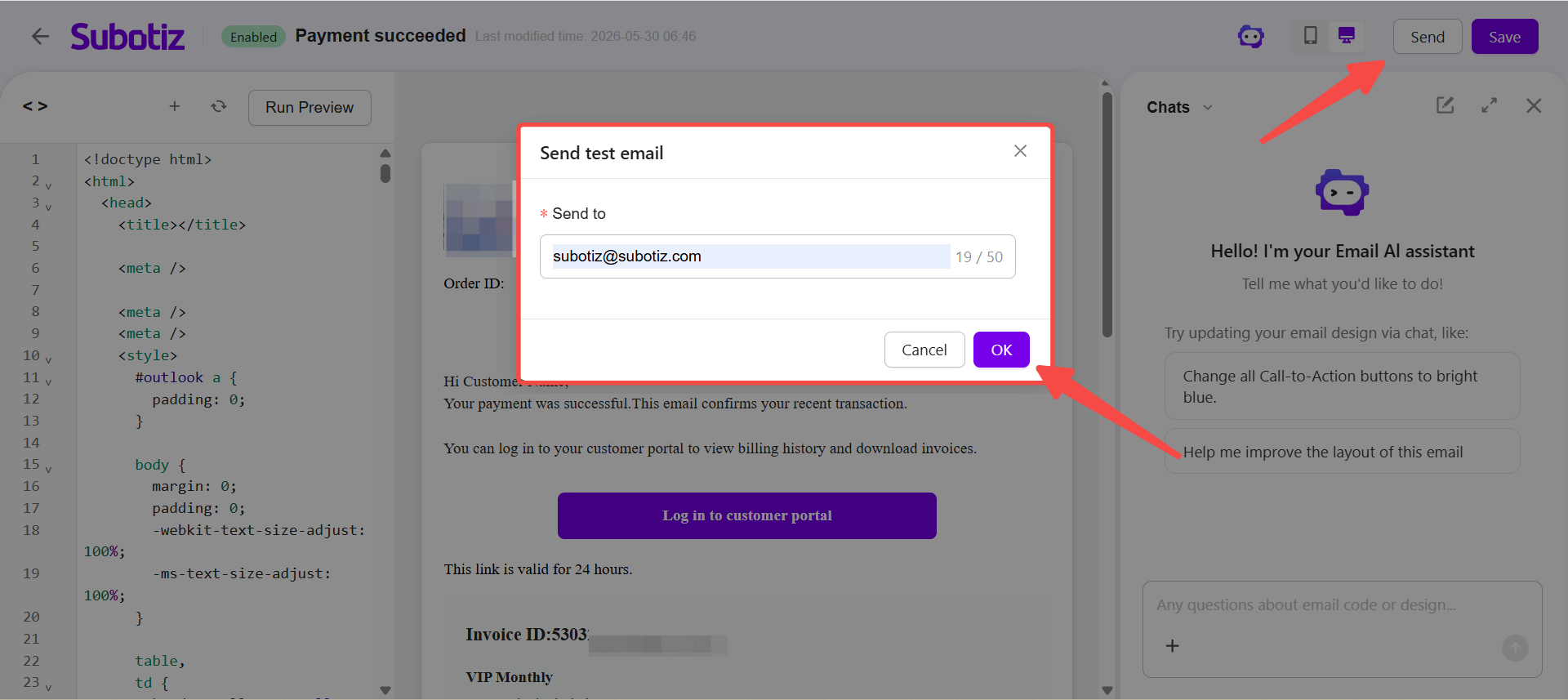
- Send test email: Click Send to send a test email to a specified address for preview and review.
-
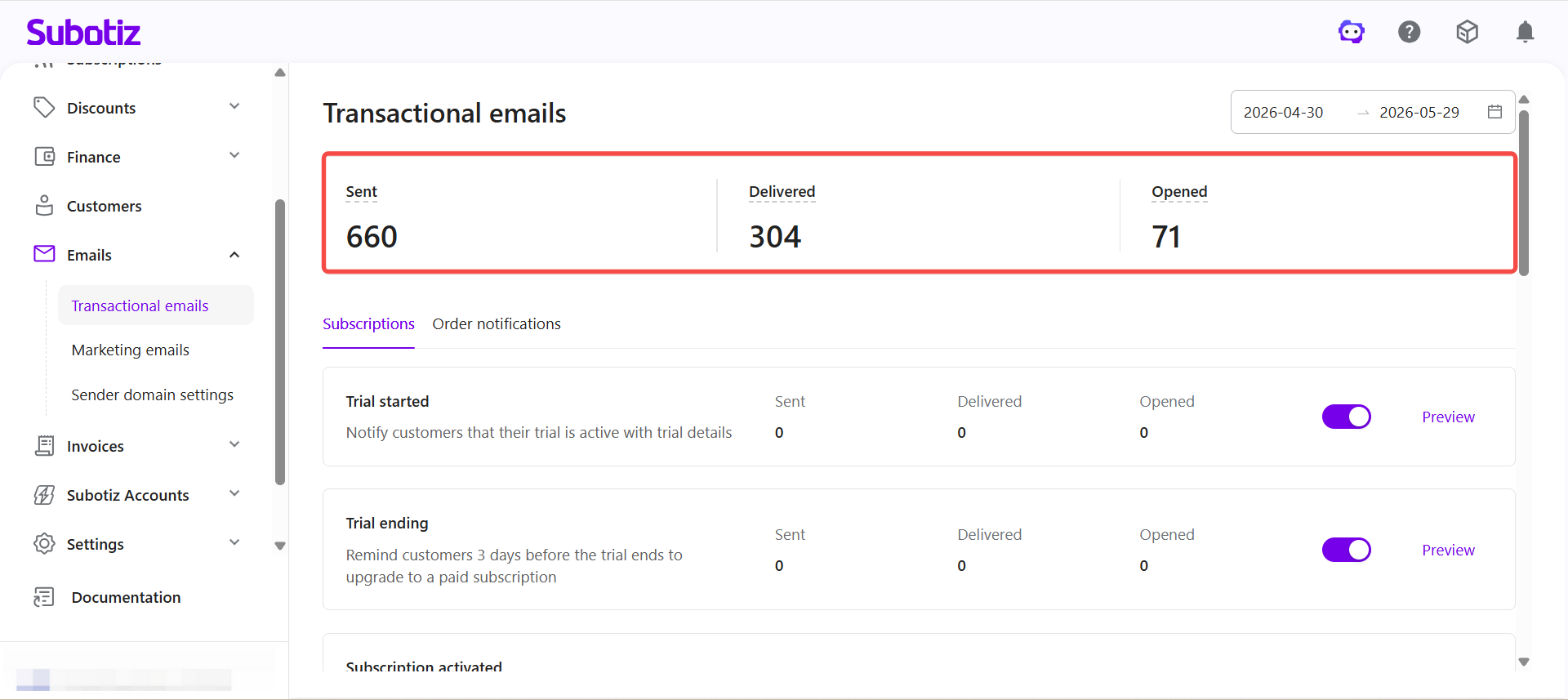
Review email performance: The top of the page summarizes overall transactional email performance.
- Sent: Total number of emails triggered by the system.
- Delivered: Number of emails successfully delivered to customer inboxes.
- Opened: Number of emails opened by customers.
The Transactional emails page gives merchants a single place to track email performance, manage notification settings, and preview or edit templates. This helps merchants ensure customers receive timely notifications while maintaining consistent communication across subscription and payment events.