The Invoices panel in Subotiz provides a centralized view of all billing records. Using search, filters, and detailed views, merchants can quickly locate invoices, verify payment and refund outcomes, and generate invoice files for reconciliation and recordkeeping when eligible.
Accessing the Invoice Dashboard
- Open Invoices: Log in to your Subotiz admin and go to Invoices. Subotiz automatically generates invoices for one-time purchases, subscription charges, trial activations, and completed refunds. Each invoice entry displays key information, including creation time, customer email, invoice ID, invoice type (billing scenario), amount, status, and billing cycle.
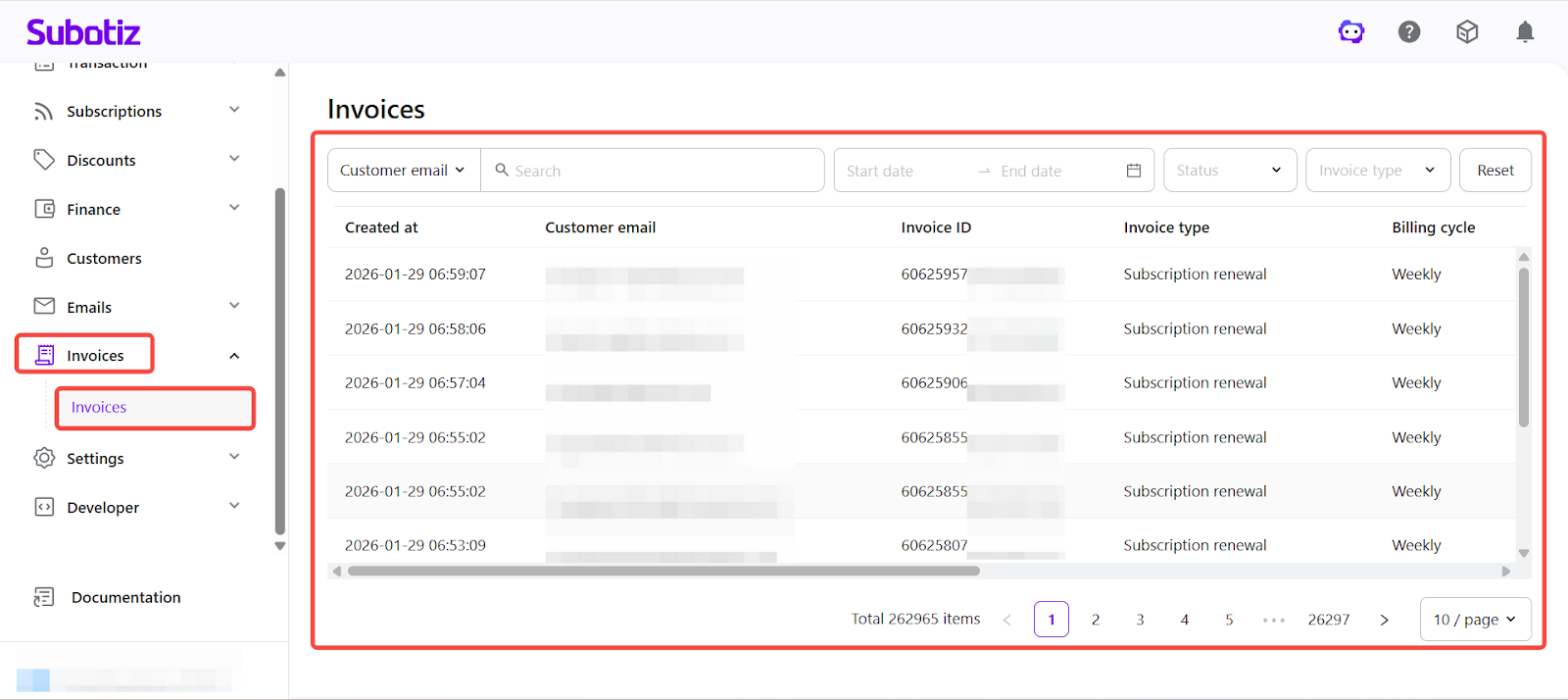
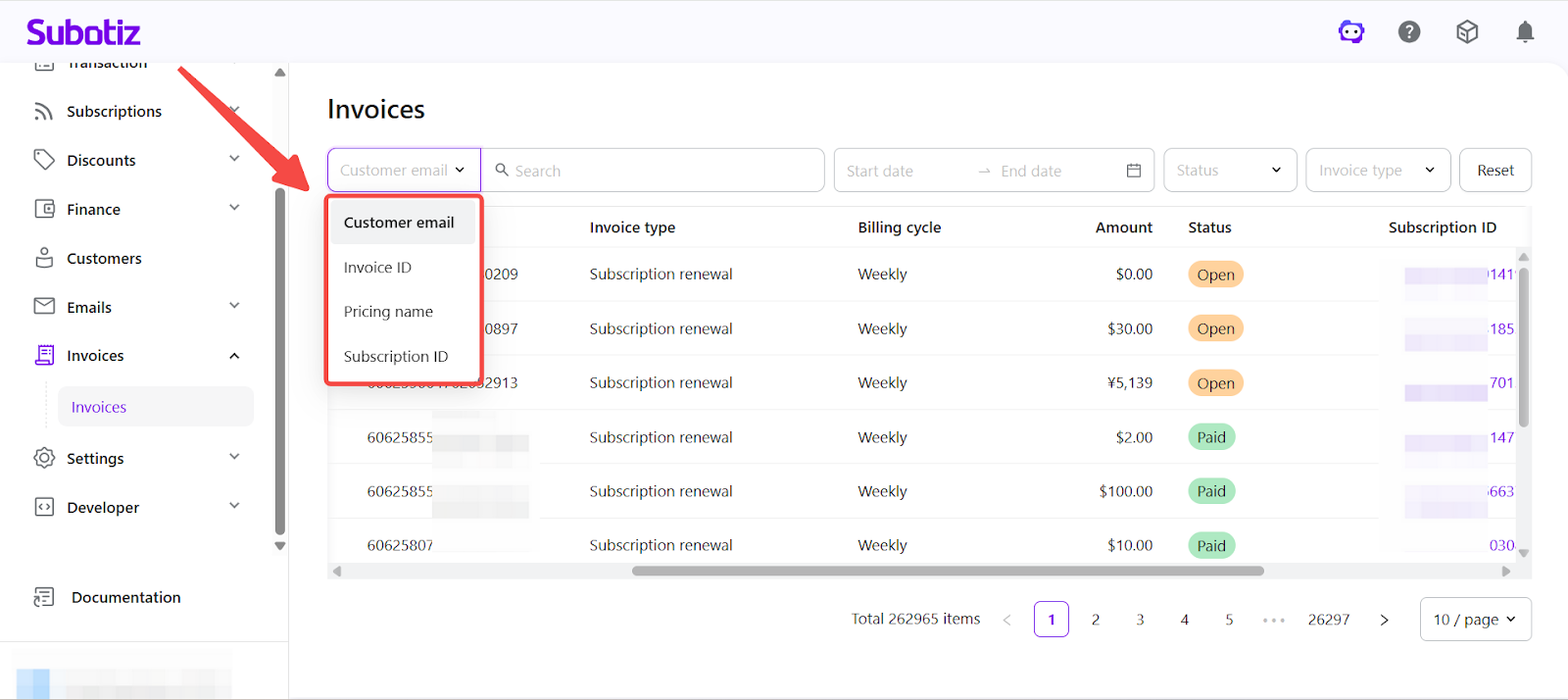
- Search by field: Use the search bar to locate invoices by Customer email, Invoice ID, Pricing name, or Subscription ID.
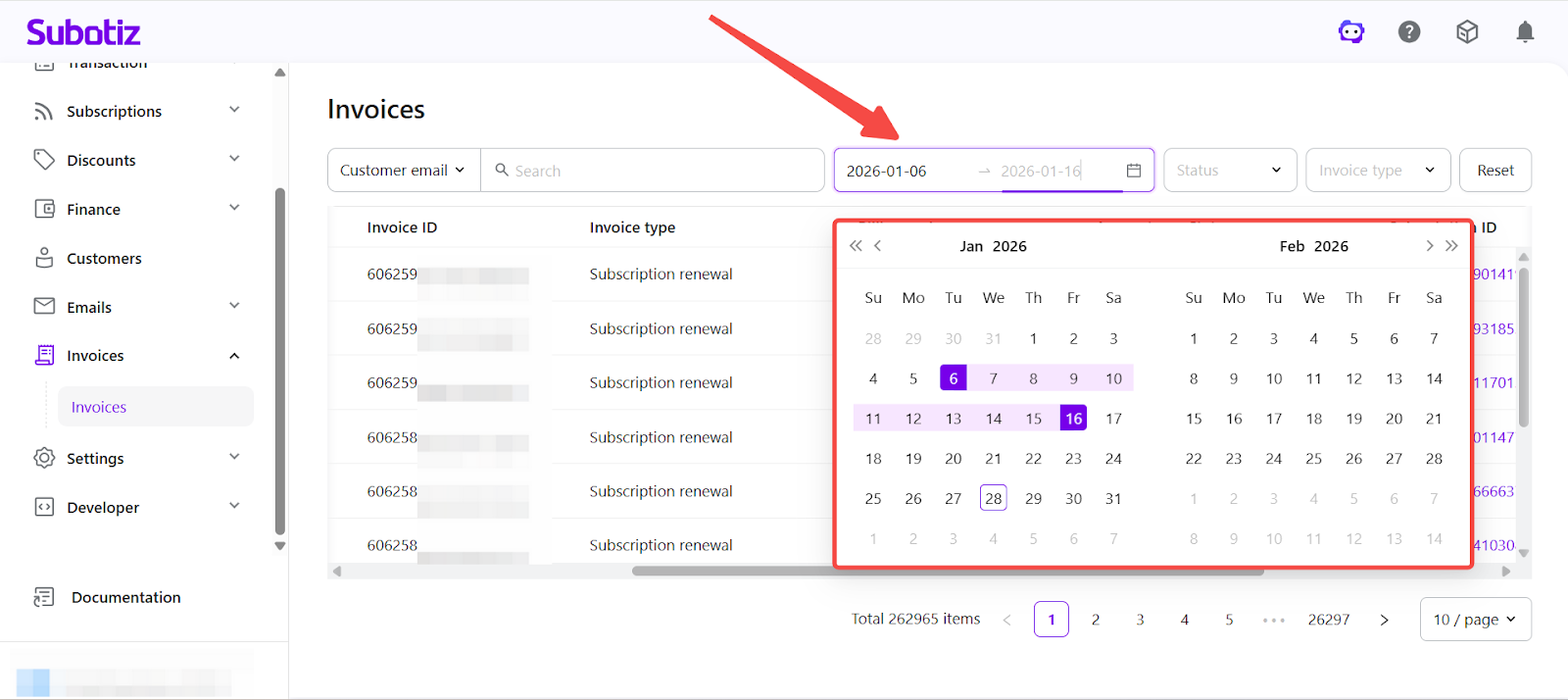
- Filter by date: Use the date selector to set a time range and filter invoices by a specific billing period or customer activity.
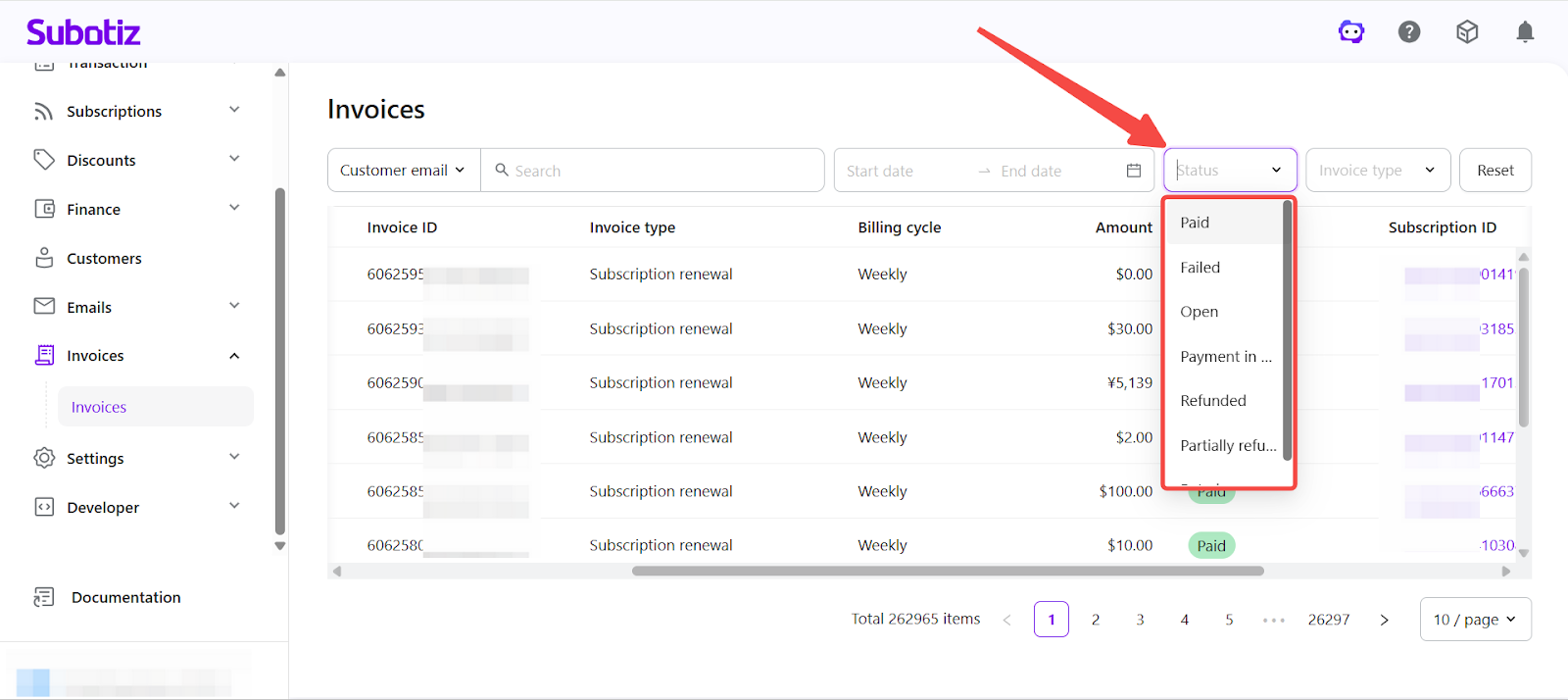
- Filter by status: Filter invoices by status, such as Paid, Failed, Retrying, Refunded, or Partially Refunded, to quickly classify billing records.
Note: Retrying applies to subscription renewal charges where the initial payment attempt failed and the invoice remains within the system’s automatic retry period. No manual action is required. For details, see Invoices|Invoice Status and Refund Lifecycle
-
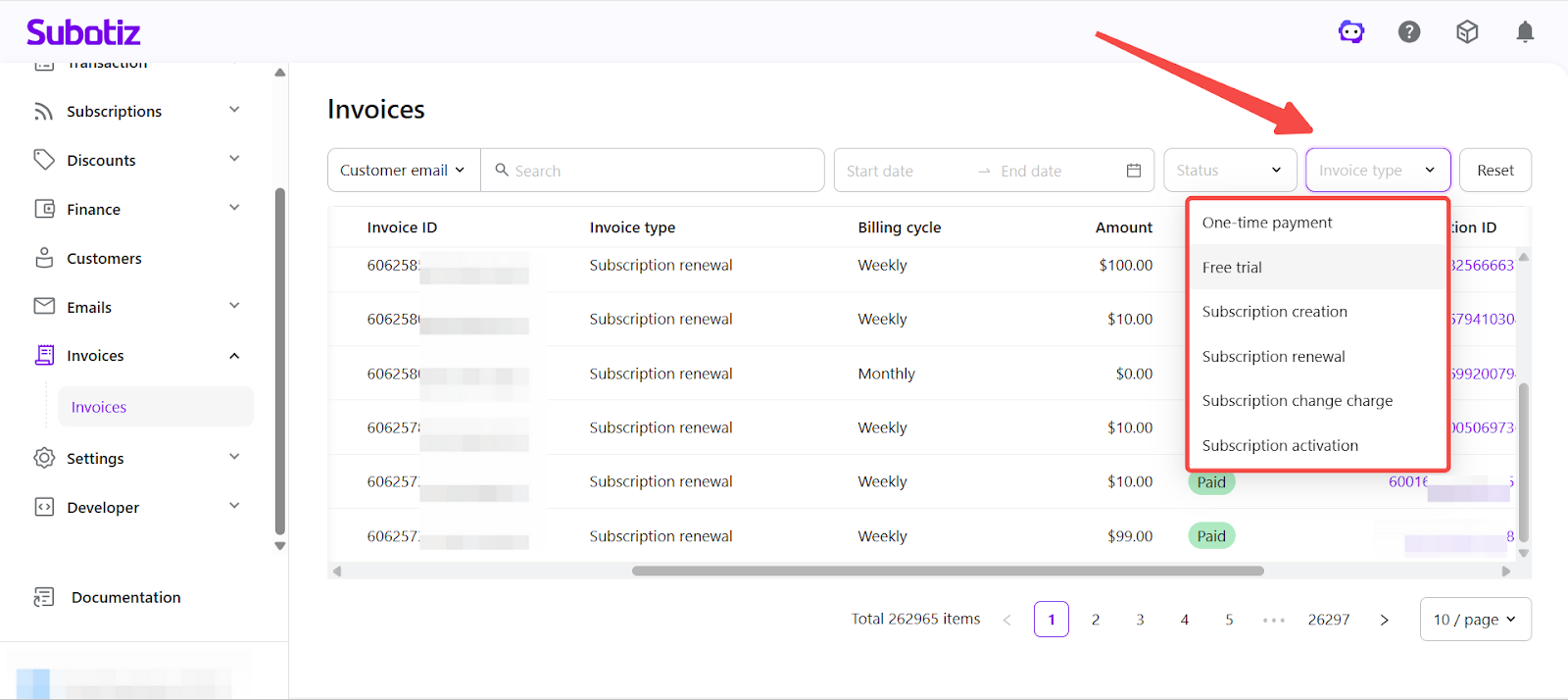
Filter by invoice type: Filter invoices by billing scenario, including:
- One-time payment
- Free trial
- Subscription creation
- Subscription renewal
- Subscription change charge
- Subscription activation
Viewing Invoice Details
-
Open any invoice: Click any row in the invoice list to open a detailed view of that invoice.

-
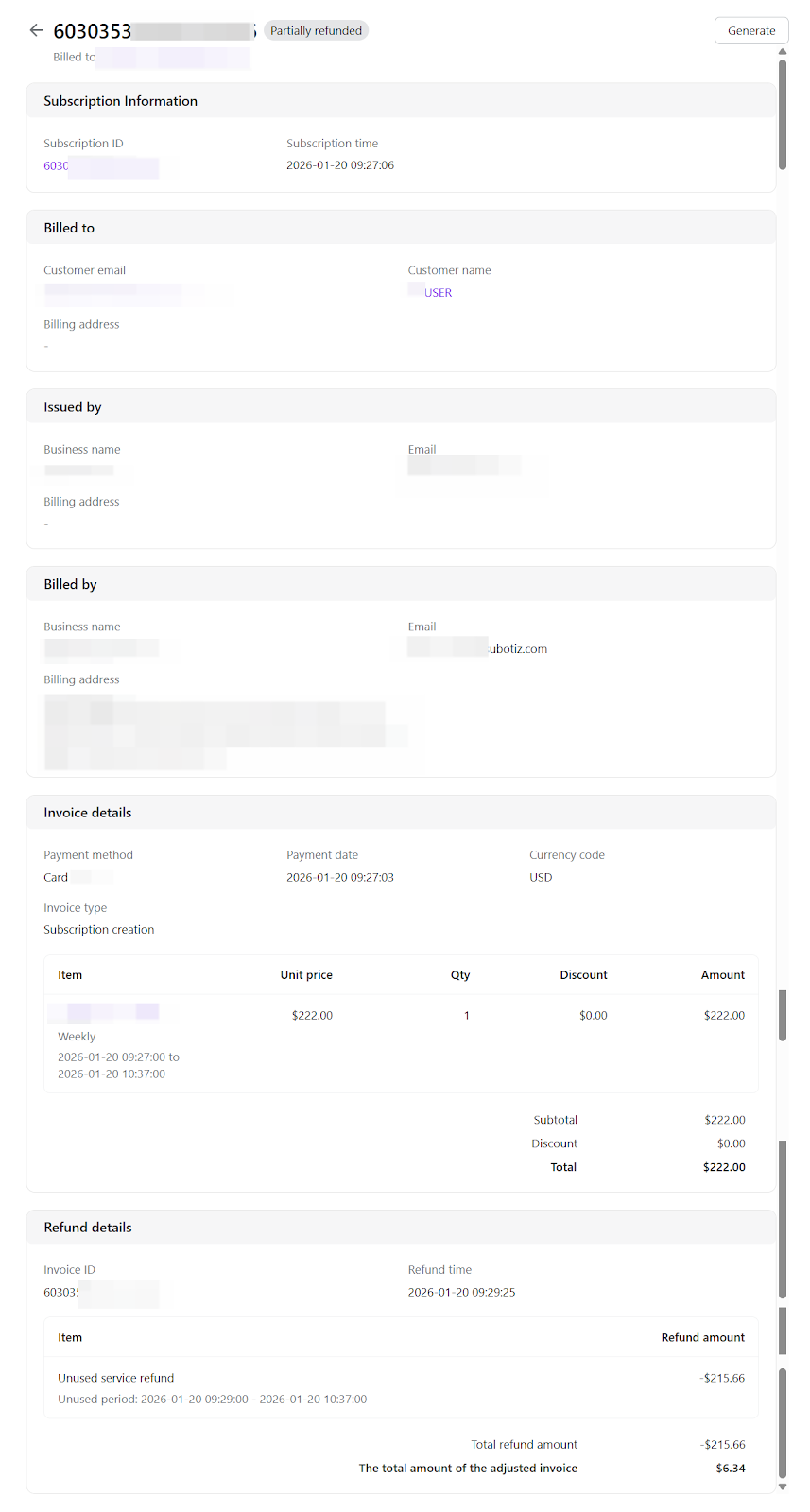
Review invoice information: The invoice detail page displays the complete billing record for reconciliation and support. Available fields may vary depending on invoice status.
-
Subscription information
- Subscription ID: The subscription instance that generated the invoice.
- Subscription time: When the subscription was created.
-
Billed to
- Customer email
- Customer name
- Billing address (if provided)
-
Issued by
- Business name (shown on the invoice)
- Merchant contact email
- Billing address (from workspace settings)
-
Invoice details
- Payment method
- Payment time
- Currency code
- Invoice type
- Item list, including item name, unit price, quantity, billing period, discounts, subtotal, and total amount
-
Refund information (shown only for refunded invoices)
- Invoice ID linked to the refund
- Refund time
- Refunded product or subscription
- Refunded amount (partial or full)
-
-
Generate Invoice: When an invoice status is Paid, Refunded, or Partially Refunded, the invoice detail page displays a Generate action.
- Failed invoices do not support invoice generation.
- Generating an invoice does not affect the original billing amount, payment status, or subscription relationship.
For generation steps and editable fields, see Invoices|Generate and Download Invoices.
Viewing Related Records
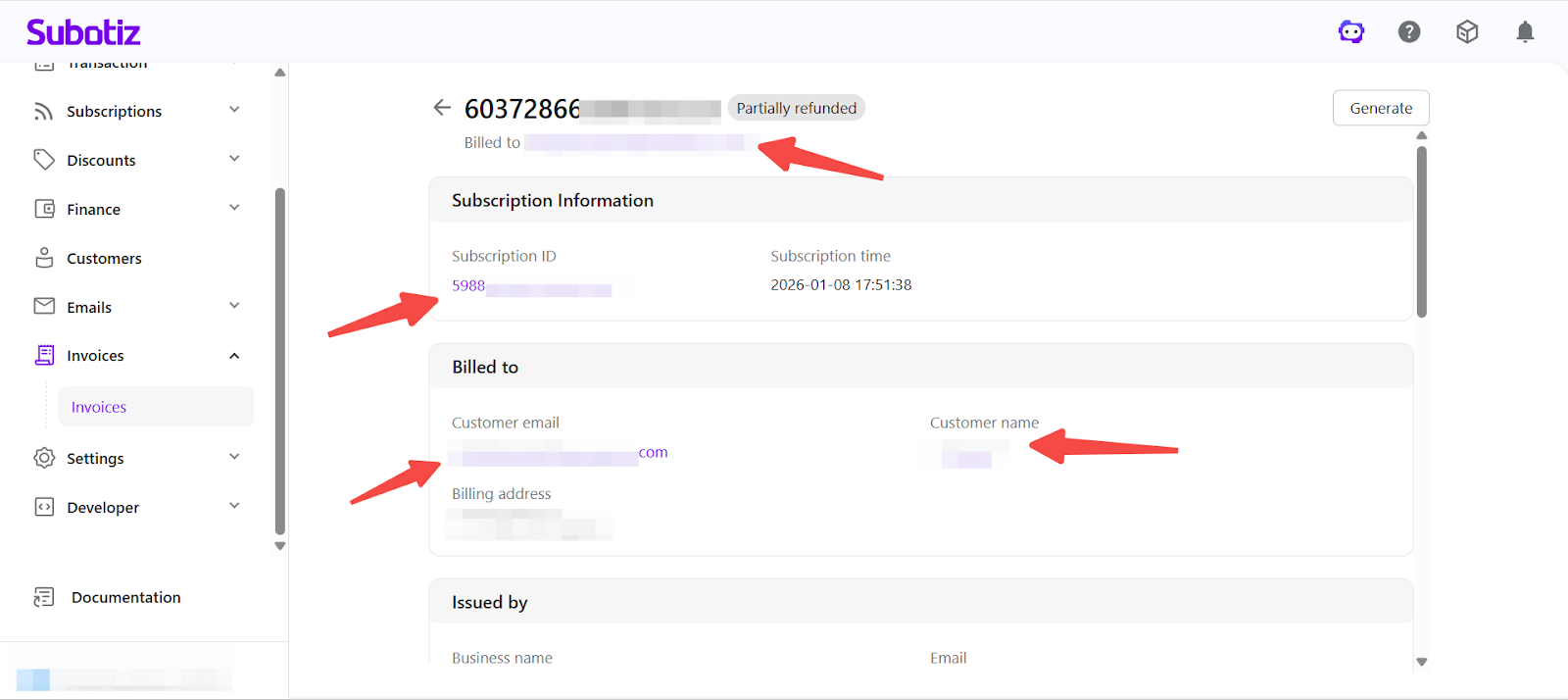
The invoice detail page includes linked fields that allow you to open related records directly. Invoices are typically associated with trade orders, subscription records, or pricing configurations, enabling efficient cross-checking and issue resolution.
Best Practices
- Use filters regularly: Review invoices weekly using status and date filters to identify failed or abnormal charges early.
- Generate and archive invoices: Generate invoices for formal reconciliation or recordkeeping, and archive them for accounting, audits, or tax reporting.
- Monitor failed and retrying invoices: Track Failed and Retrying invoices to follow up with customers or wait for system retry results, helping reduce churn.
- Review zero-value invoices: Audit $0 invoices to confirm trial activation and payment method collection behavior.
The Invoices panel enables merchants to manage billing records and payment outcomes in a single view. With search, filters, and detailed invoice pages, merchants can efficiently review charges, generate invoices, and maintain clear and accurate billing records.