In the Customers module of Subotiz, merchants can view and manage all customer profiles related to subscriptions, payments, and billing activity. Each customer profile brings together transactions, subscriptions, and invoices in one place, making it easier to track billing history and manage the customer lifecycle.
This article explains how to access the customer list, review individual customer details, and manage customer data from the admin.
Accessing the Customer List
-
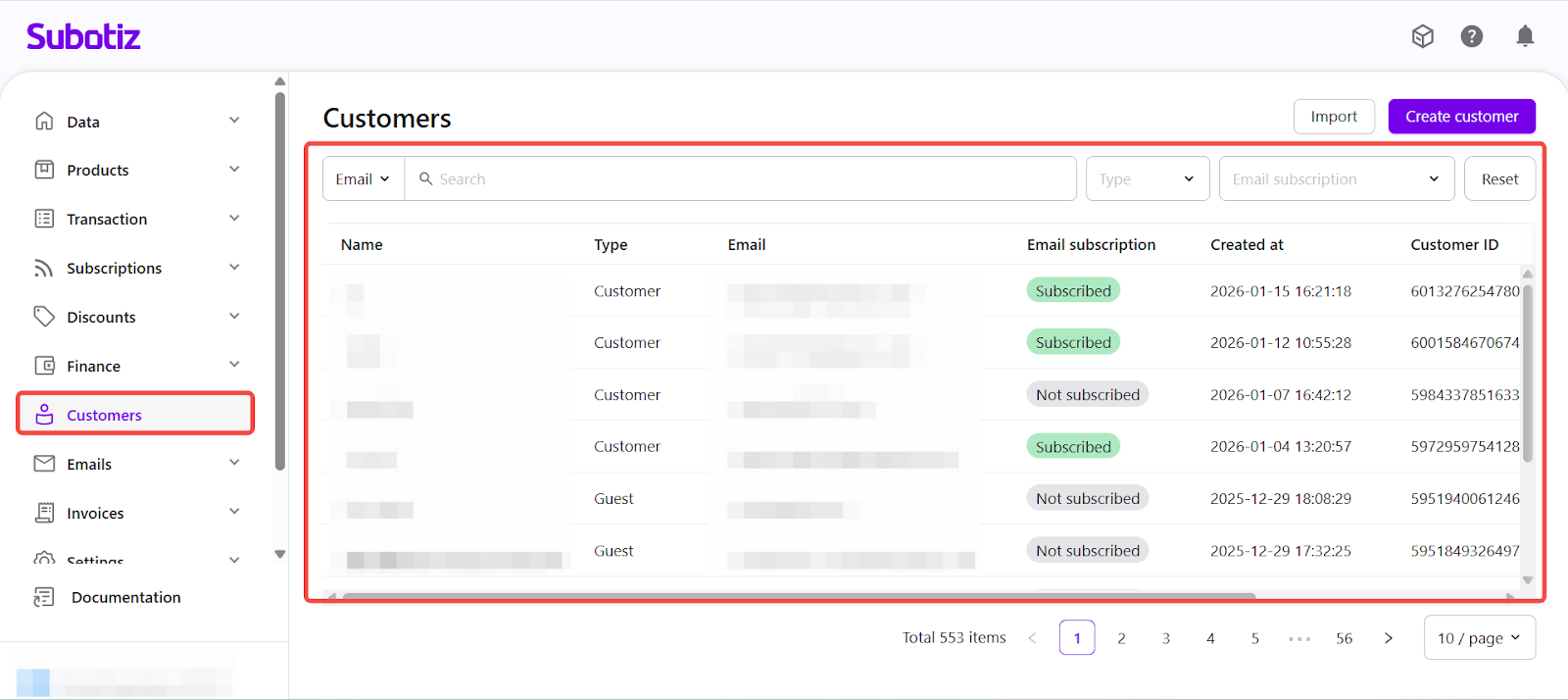
Open the customer list: Log in to the Subotiz admin and go to Customers. The customer list displays the following information:
- Name
- Customer type (Customer or Guest)
- Email address
- Email subscription status
- Created at
- Customer ID
- External Customer ID
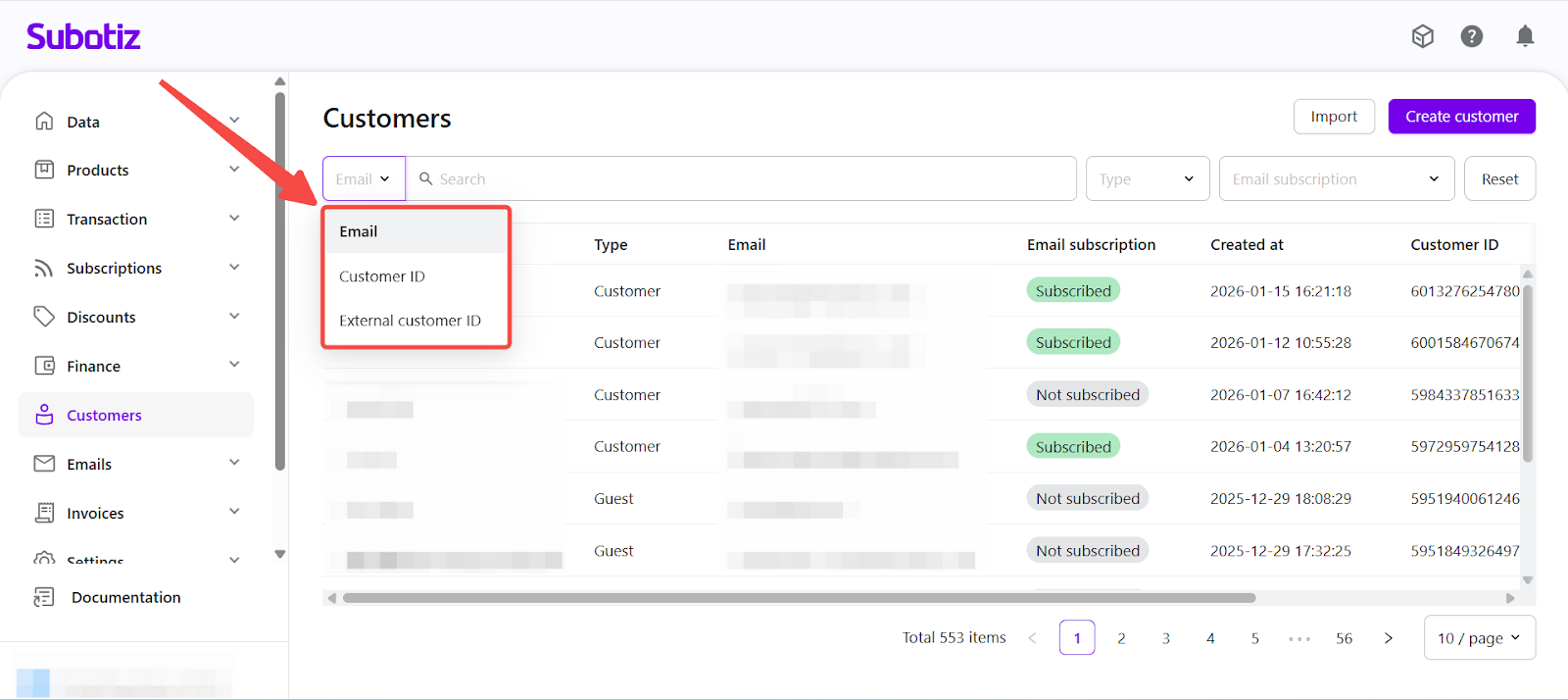
- Search customers: Use the search bar to find customers by Email, Customer ID, or External Customer ID.
-
Filter customer records: The customer list can be narrowed using the following filters:
- Type: View Customers or Guests.
- Email subscription: View subscribed or not subscribed customers.
These filters help separate subscription customers, one-time purchasers, and customers with different communication preferences.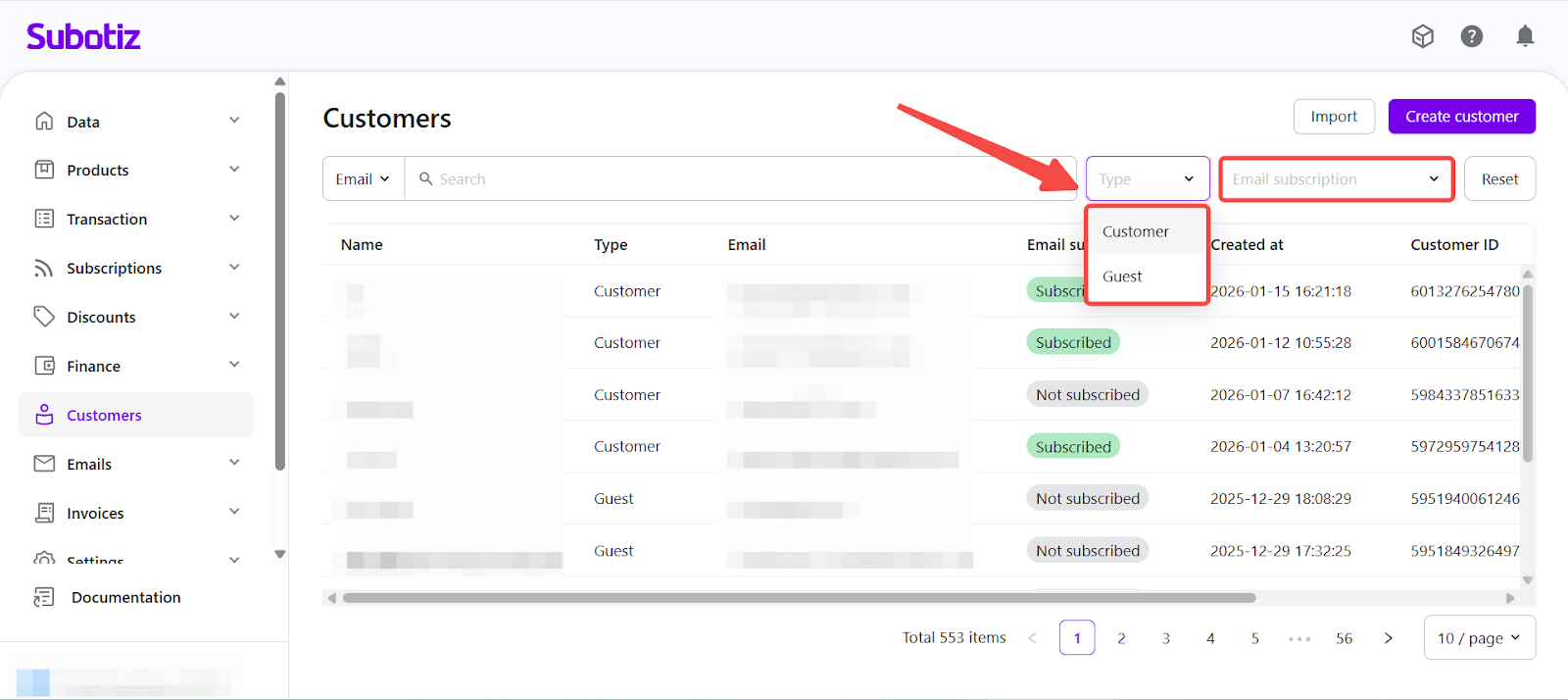
Viewing Customer Details
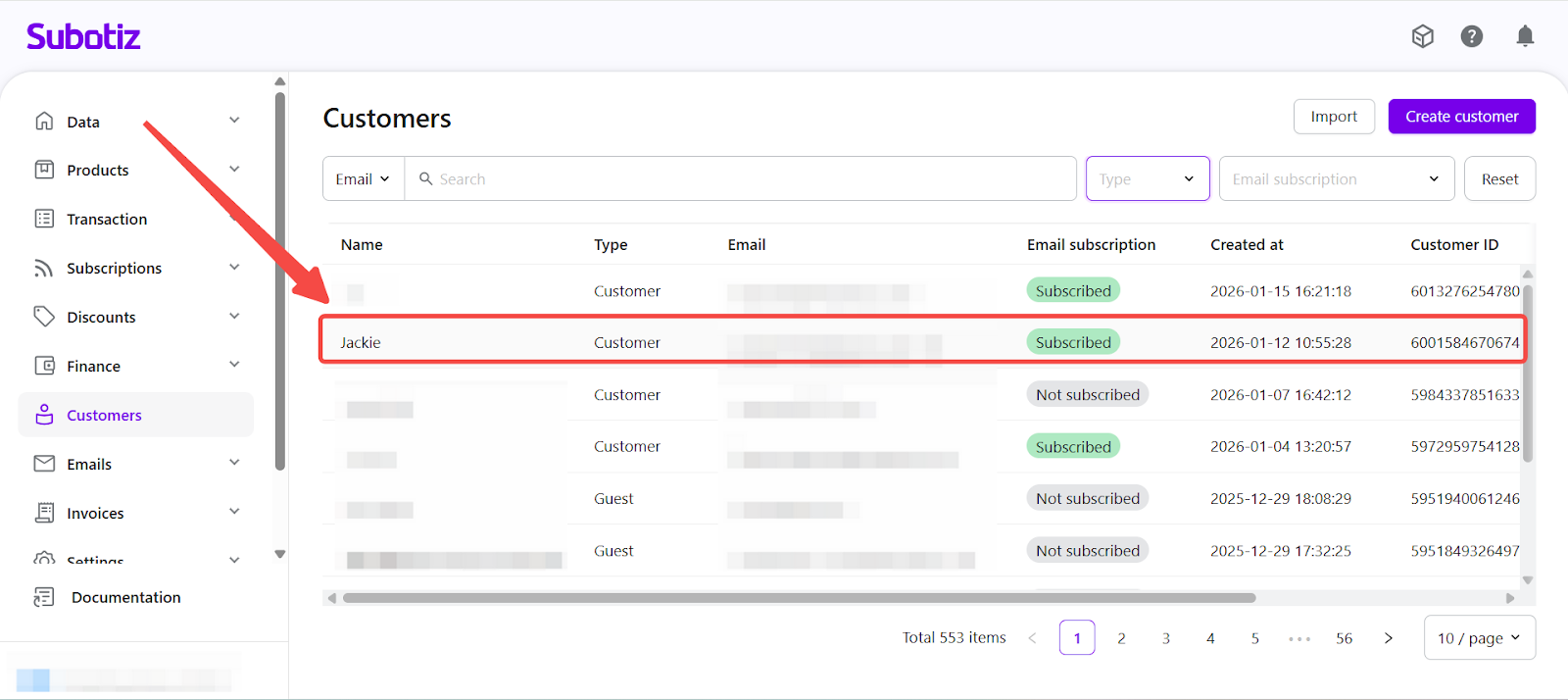
- Open the customer profile: Click any customer record to open the customer detail page. This page shows all subscriptions and billing records linked to the customer.
-
Basic information: The Basic information section shows the customer’s core identity details:
- Customer ID (system-generated and not editable)
- External Customer ID (if available)
- Created at
- Marketing (email subscription status)
- Billing address (shown as “–” if not provided)
Click Edit to open the Edit basic info dialog and update editable fields such as name, address, or email subscription status.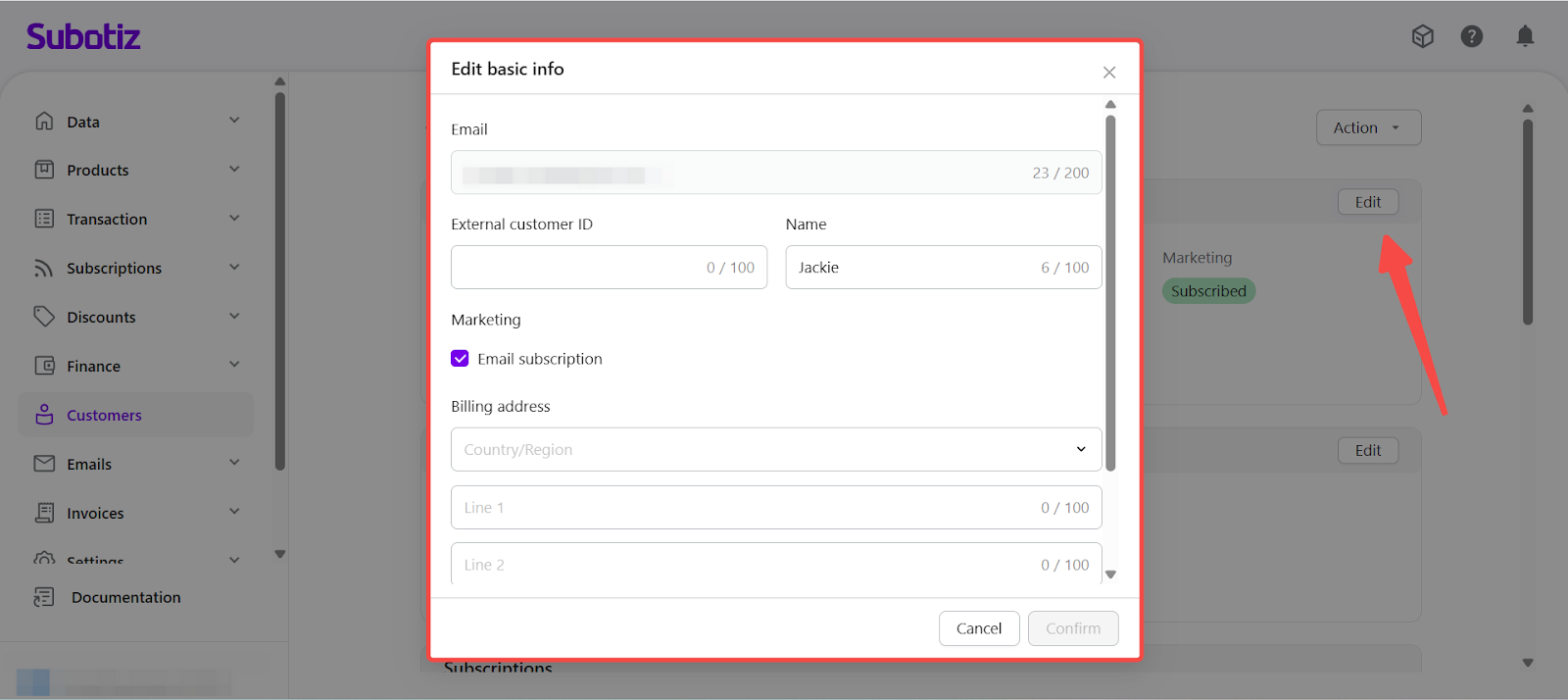
-
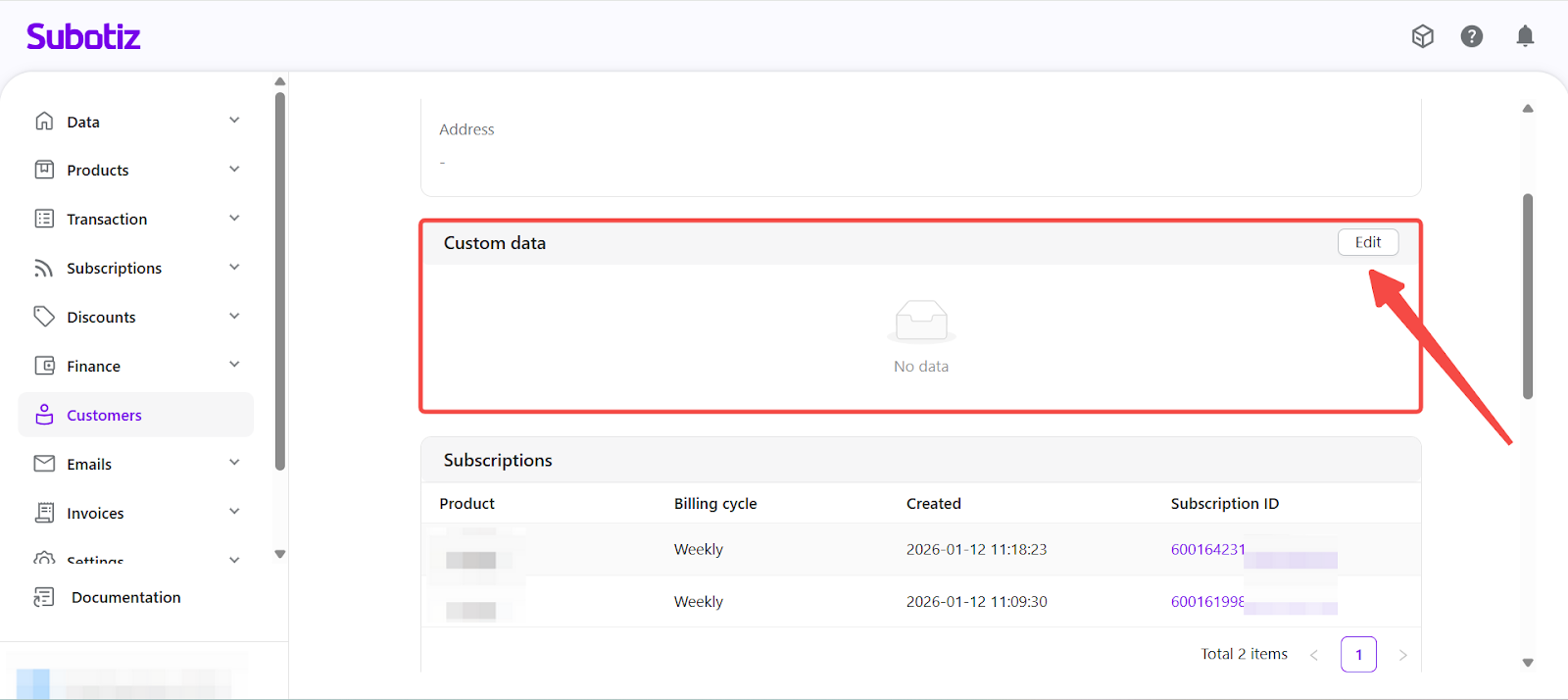
Custom data: The Custom data section stores merchant-defined fields for internal reference or external system mapping, such as internal IDs or business tags.
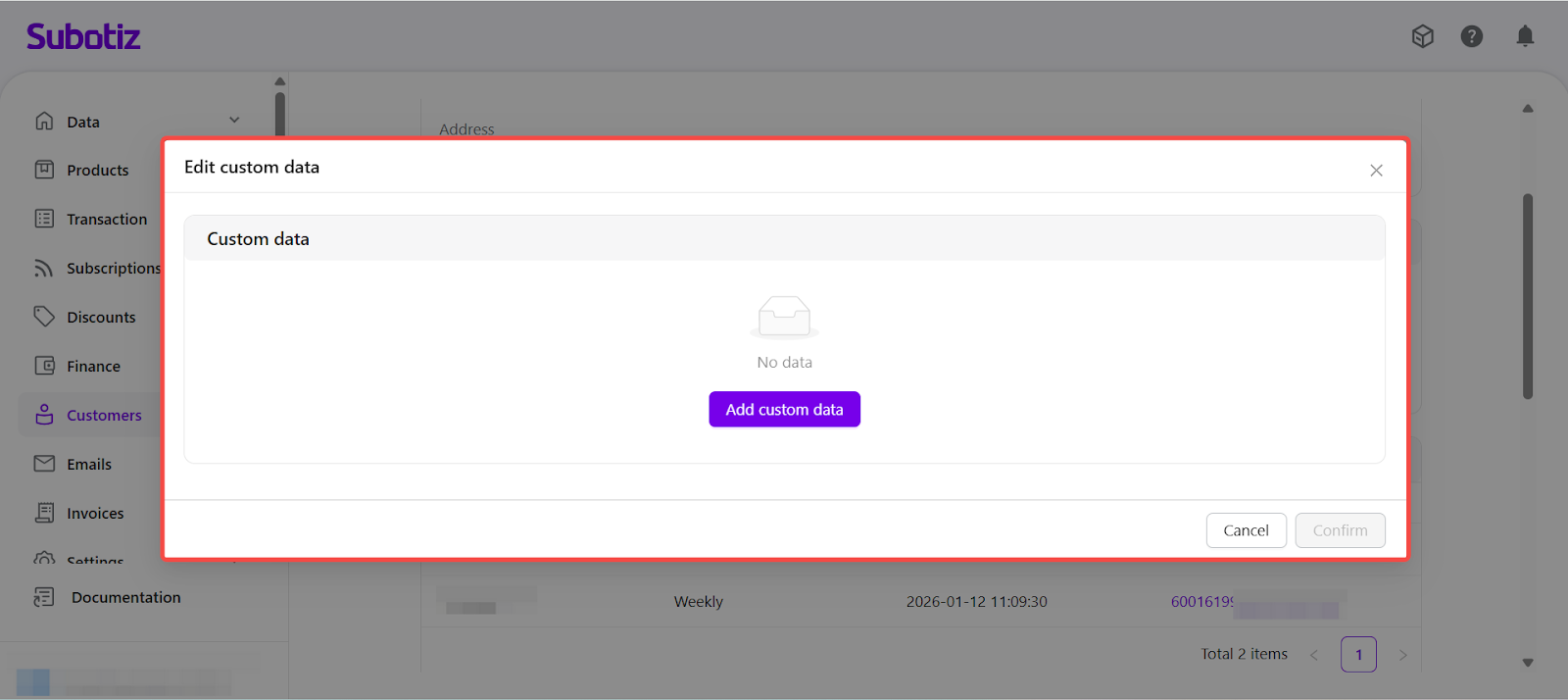
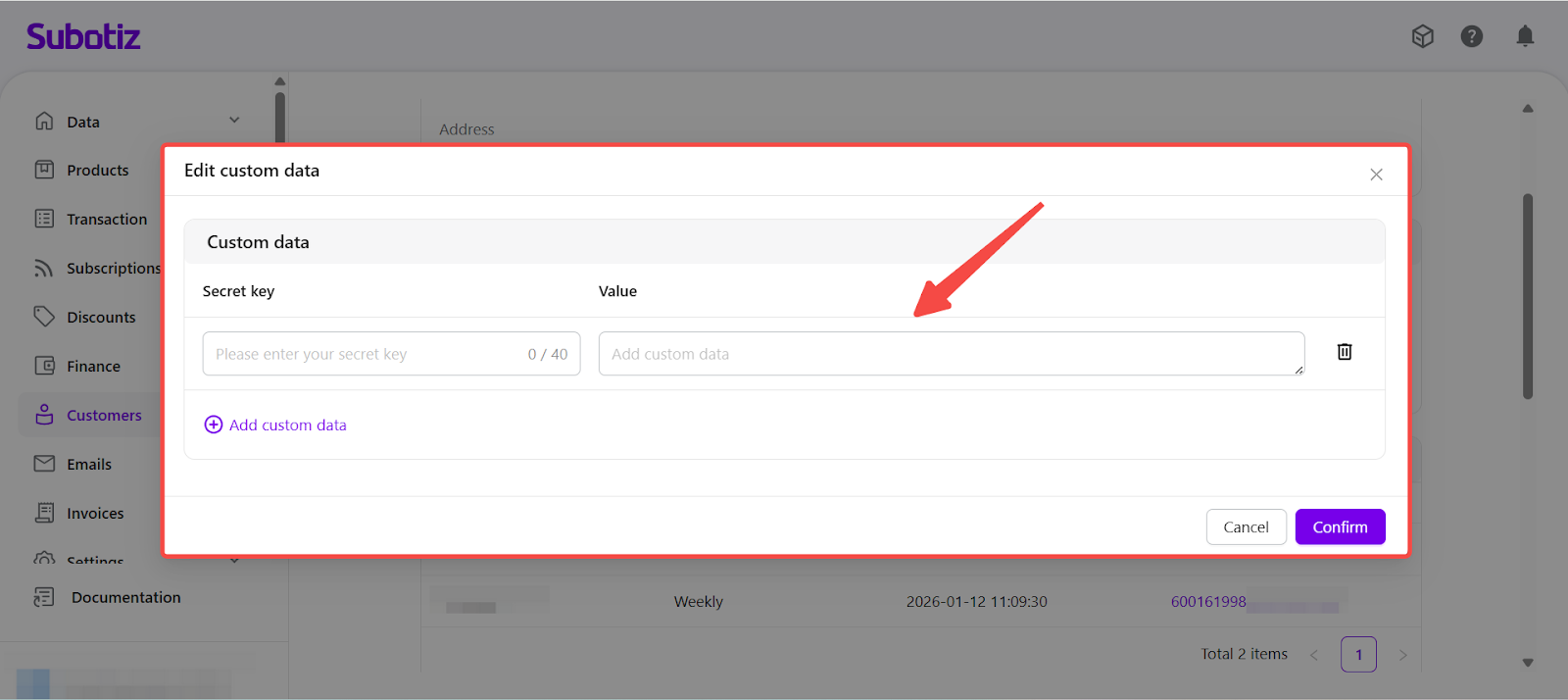
- Click Edit > Add custom data to add up to 40 key–value pairs.
- Existing custom data can be updated at any time.
- Custom data is informational only and is not used for customer identification or matching.
-
View subscriptions: The Subscriptions section lists all subscription records associated with the customer, including:
- Product name
- Billing cycle
- Created at
- Subscription ID
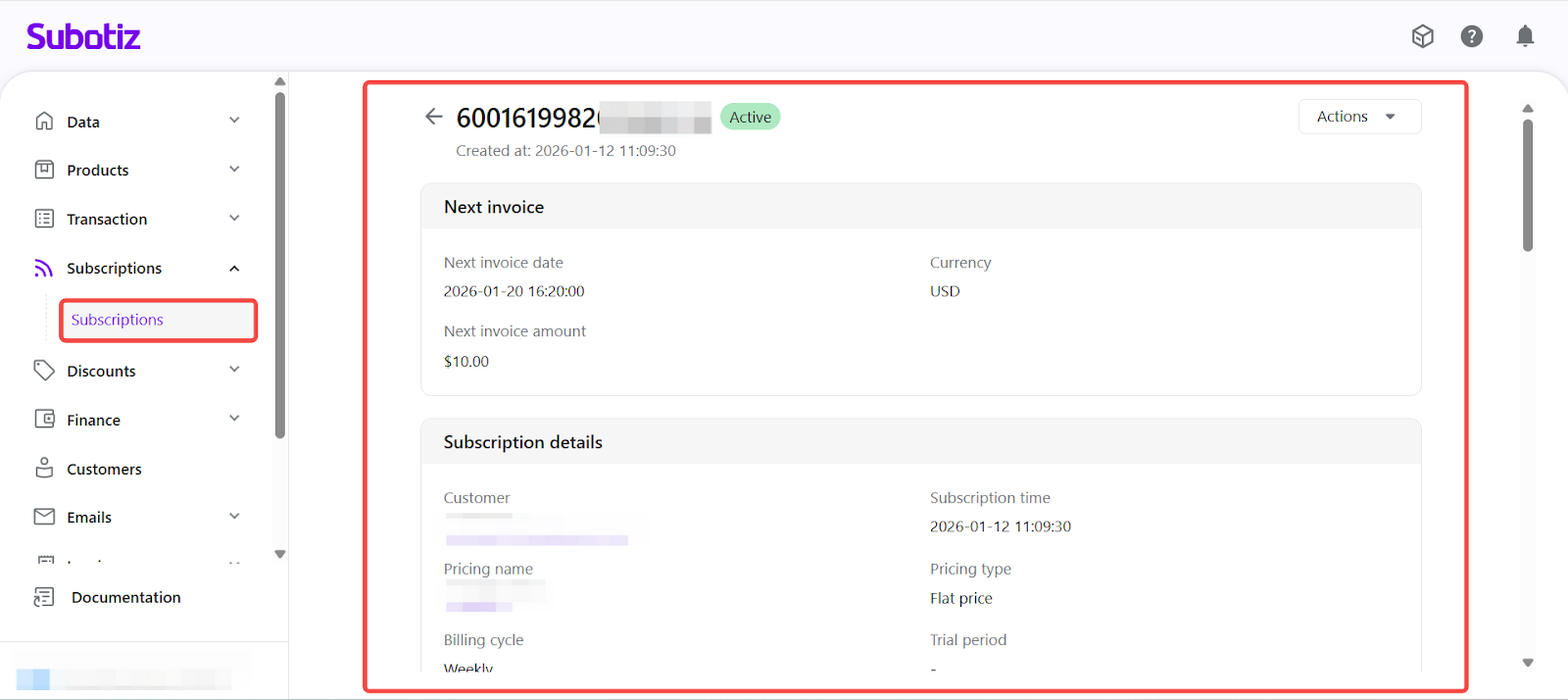
Click a Subscription ID to open the full subscription details.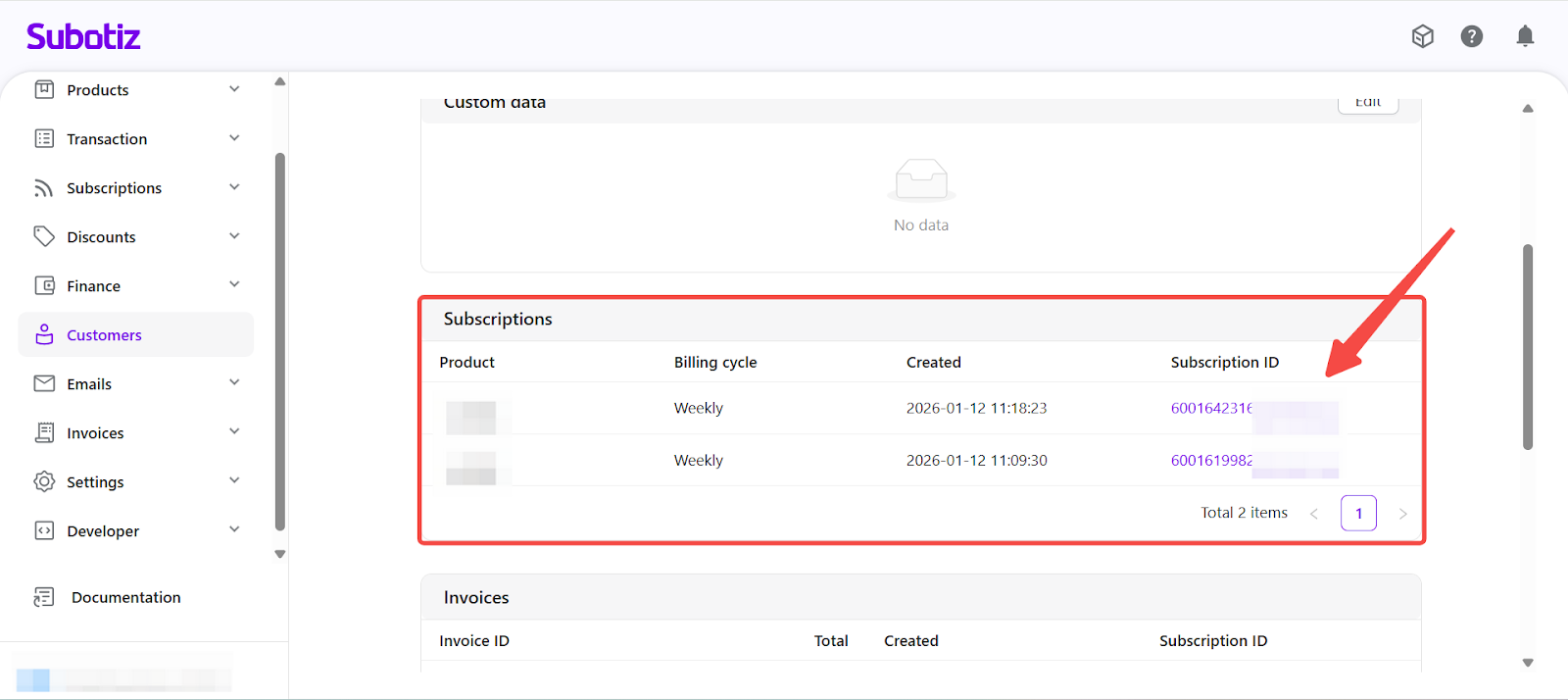
-
Review invoices: The Invoices section shows all billing records associated with the customer, including:
- Amount
- Invoice ID
- Created at
- Associated subscription
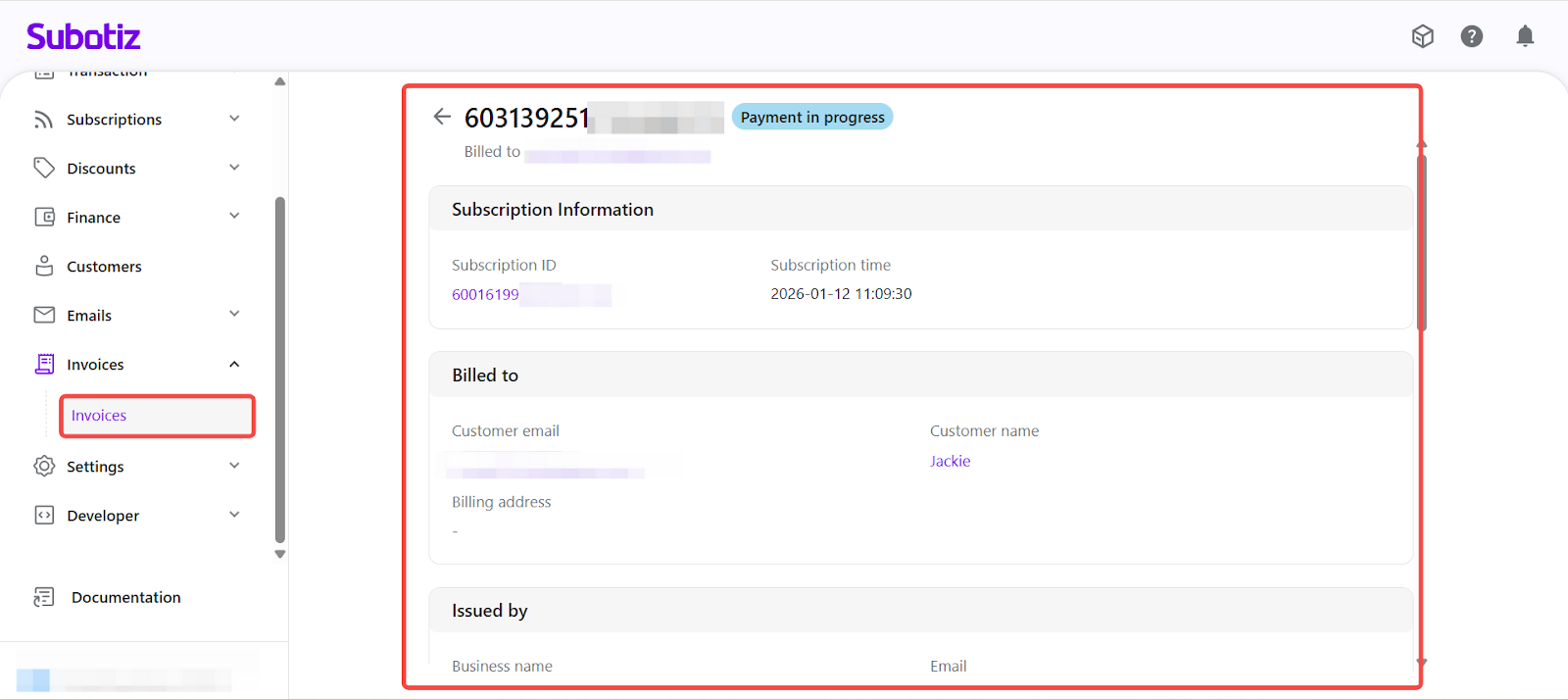
Click an Invoice ID to open the full invoice record.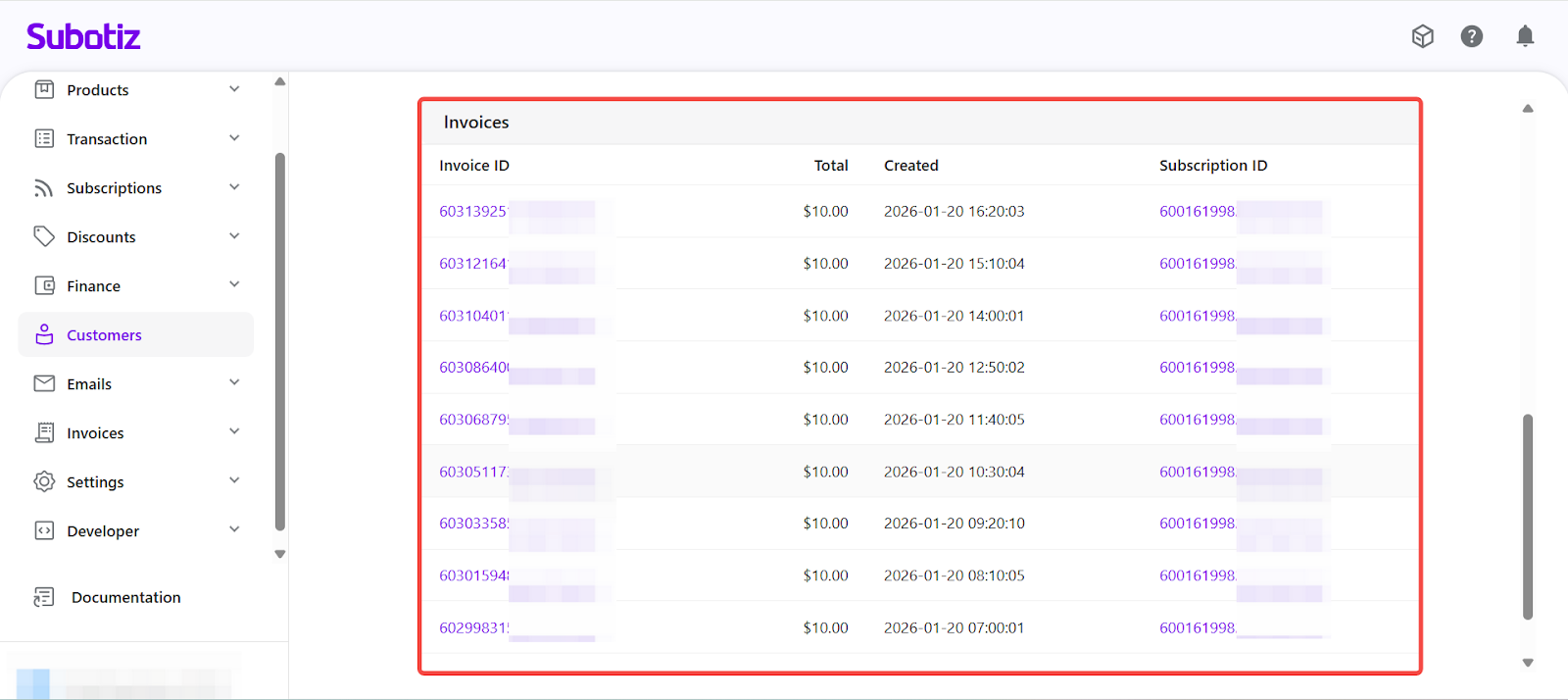
Deleting a Customer
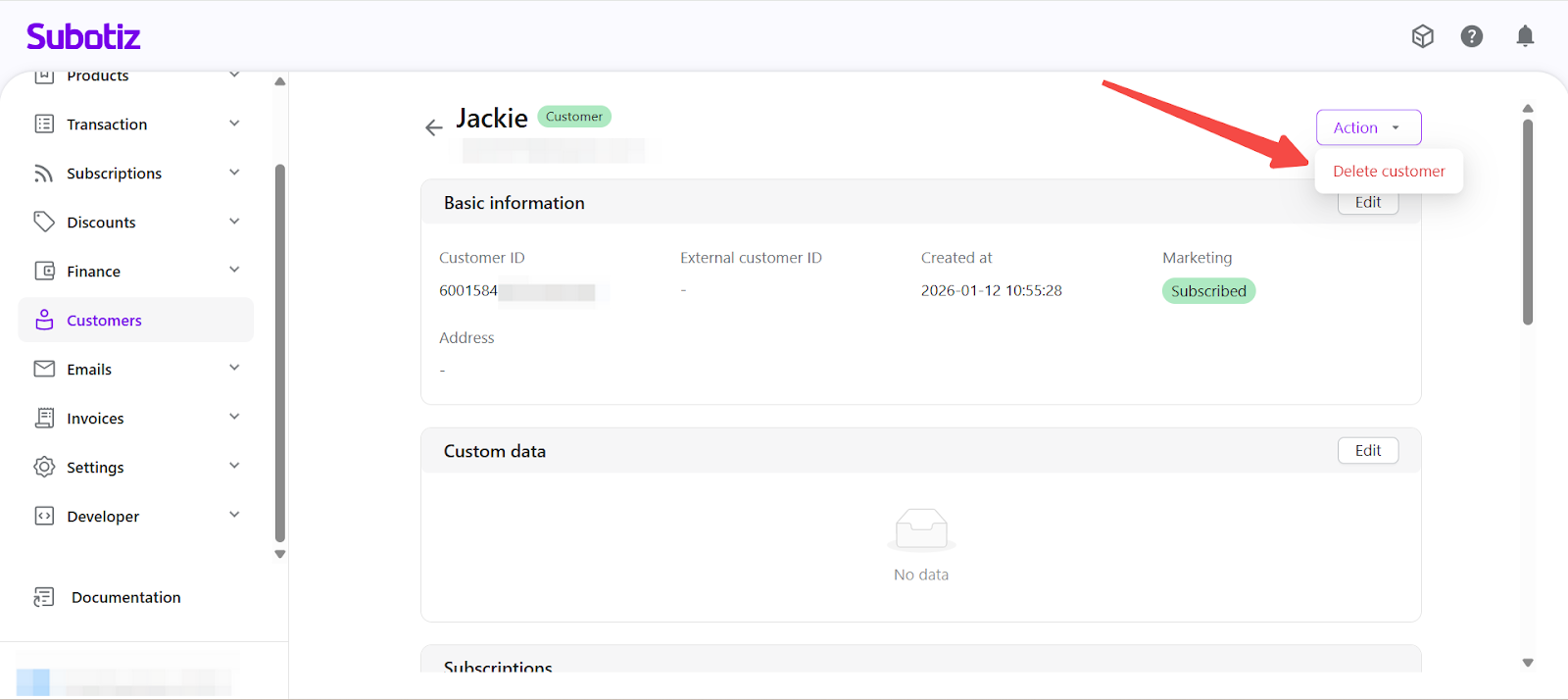
From the customer detail page, click Action in the top-right corner.
-
Delete customer: Click Action > Delete customer
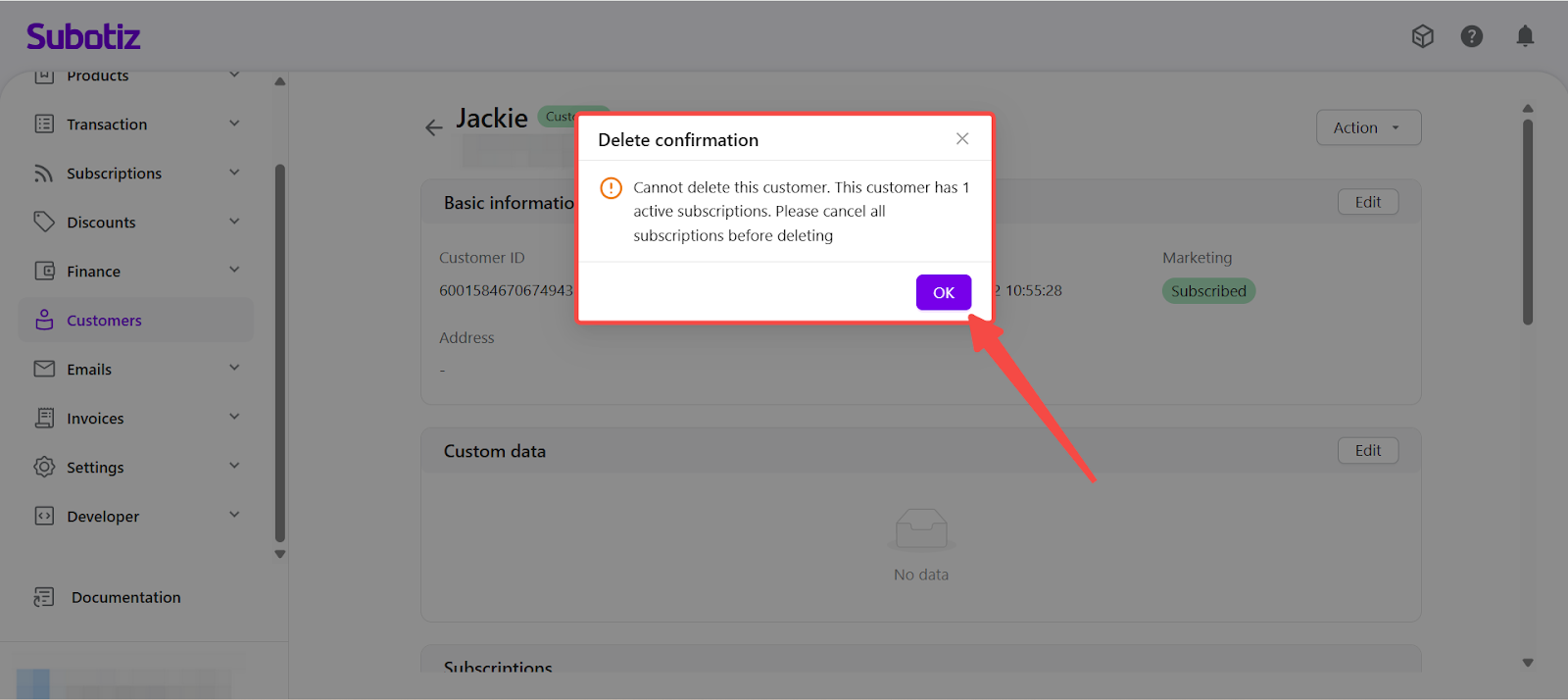
- If the customer has any active or unfinished subscriptions, deletion is not allowed and you will be asked to cancel those subscriptions first.
- If the customer has no active subscriptions, deletion can be confirmed.
- Deleted customers cannot be restored.
After deletion, the customer profile is no longer accessible and you are returned to the customer list automatically.
Best Practices for Managing Customers
- Confirm customer identity first: Check customer type and email address before handling billing or subscription issues.
- Use filters and search: Quickly locate guests or unsubscribed customers.
- Start with the customer profile: Review subscriptions, invoices, and custom data in one place when troubleshooting.
- Keep identifiers consistent: Encourage customers to use a consistent email address or External Customer ID to reduce duplicate profiles.
Customer profiles are the foundation for all subscription and payment activity in Subotiz. Keeping customer data clean and consistent helps ensure accurate billing and smoother support workflows.
Next step: Read Customers|Creating Customers to learn how customer profiles are created and matched in Subotiz.