The subscription cancellation feature in Subotiz allows administrators or customers to terminate an active subscription contract. Administrators can cancel subscriptions from the admin, while customers may also cancel subscriptions through the customer portal. Depending on subscription status and billing stage, the system provides different cancellation options, such as immediate cancellation or cancellation at the end of the current billing cycle.
Available Cancellation Options
The system provides different cancellation options based on subscription status and billing stage:
- At the end of the current period: The subscription ends after the current billing cycle is completed. Until then, the subscription remains active and customers can continue using the service, but no future renewal invoices are generated. This option is commonly used when customers want to cancel but continue using the service for the remainder of the current billing period.
- Immediately: The subscription contract terminates immediately and the system stops generating future billing cycles. This option is typically initiated by administrators but may also be available in selected customer self-service scenarios.
For fixed-term subscriptions, the contract automatically ends when the configured term is completed and does not require manual cancellation.
Processing a Cancellation Request
- Open the cancellation entry: Log in to Subotiz Admin and go to Subscriptions > Subscriptions. Locate the target subscription and open the Subscription Details page. Subscription cancellation may be initiated either by administrators or customers. When the subscription remains within an active lifecycle, the Cancel subscription action is available on the Subscription Details page.Common scenarios include:
- The subscription is in Trial or Active status.
- The current billing cycle has not ended.
- The subscription has not already been canceled or terminated.
If the subscription has already been canceled or the contract has ended, the Cancel subscription action is not displayed.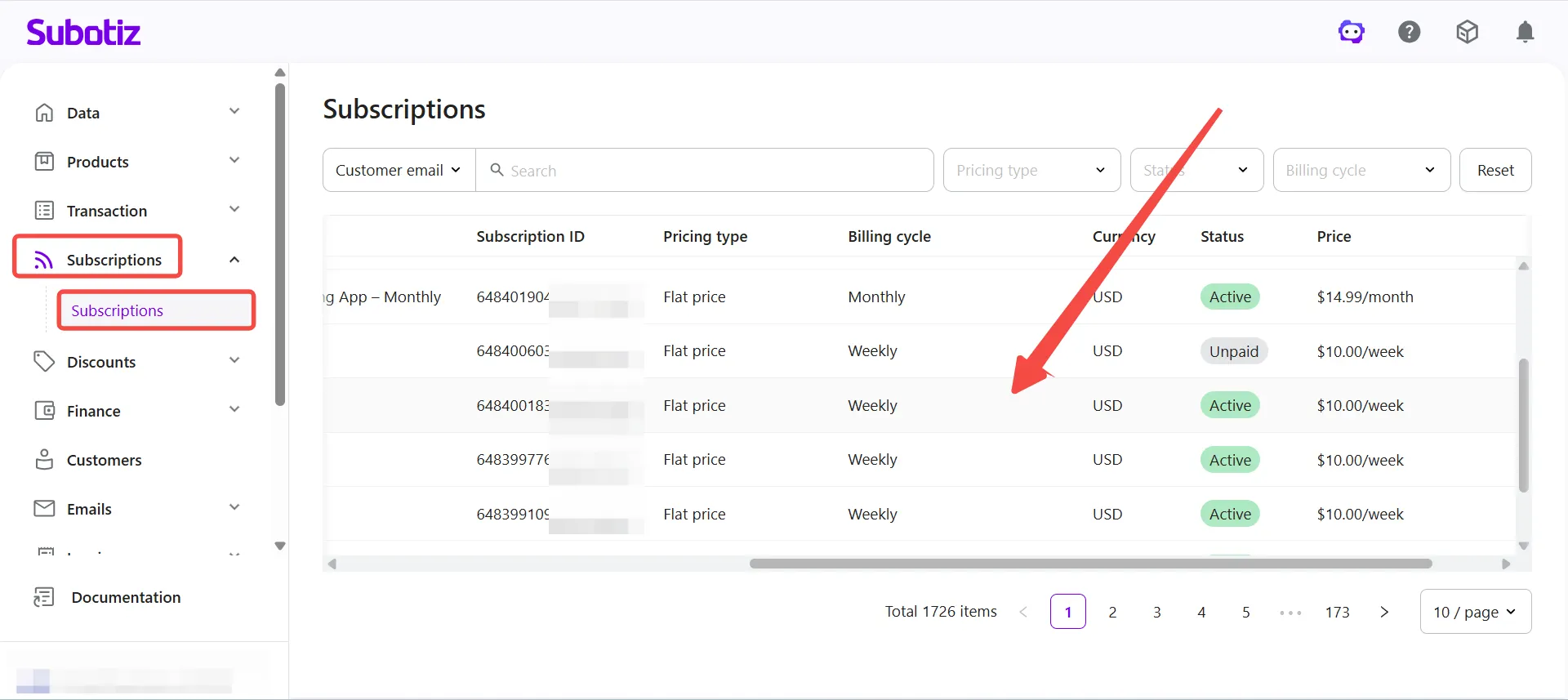
- Open the cancellation dialog: Review the customer email, subscription plan, and pricing information, then click Actions > Cancel subscription in the upper-right corner.
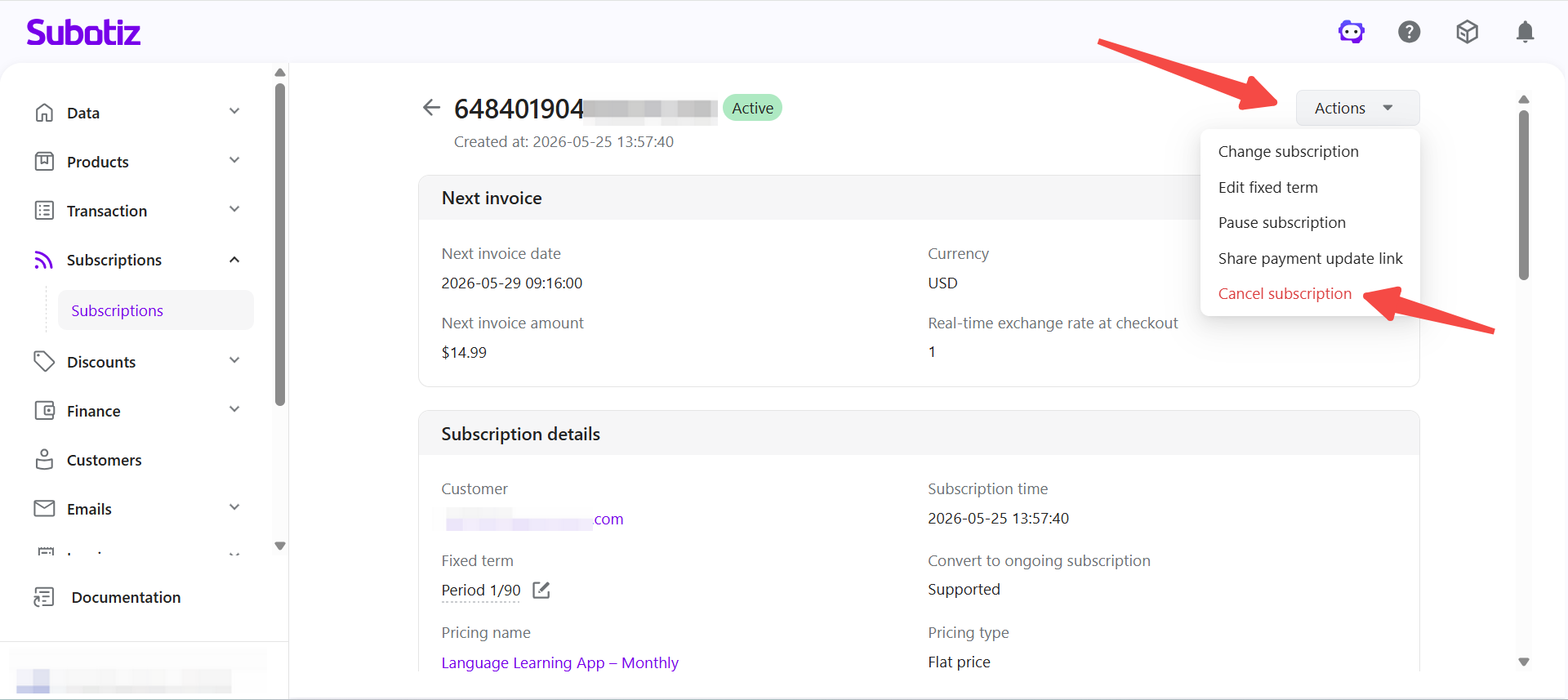
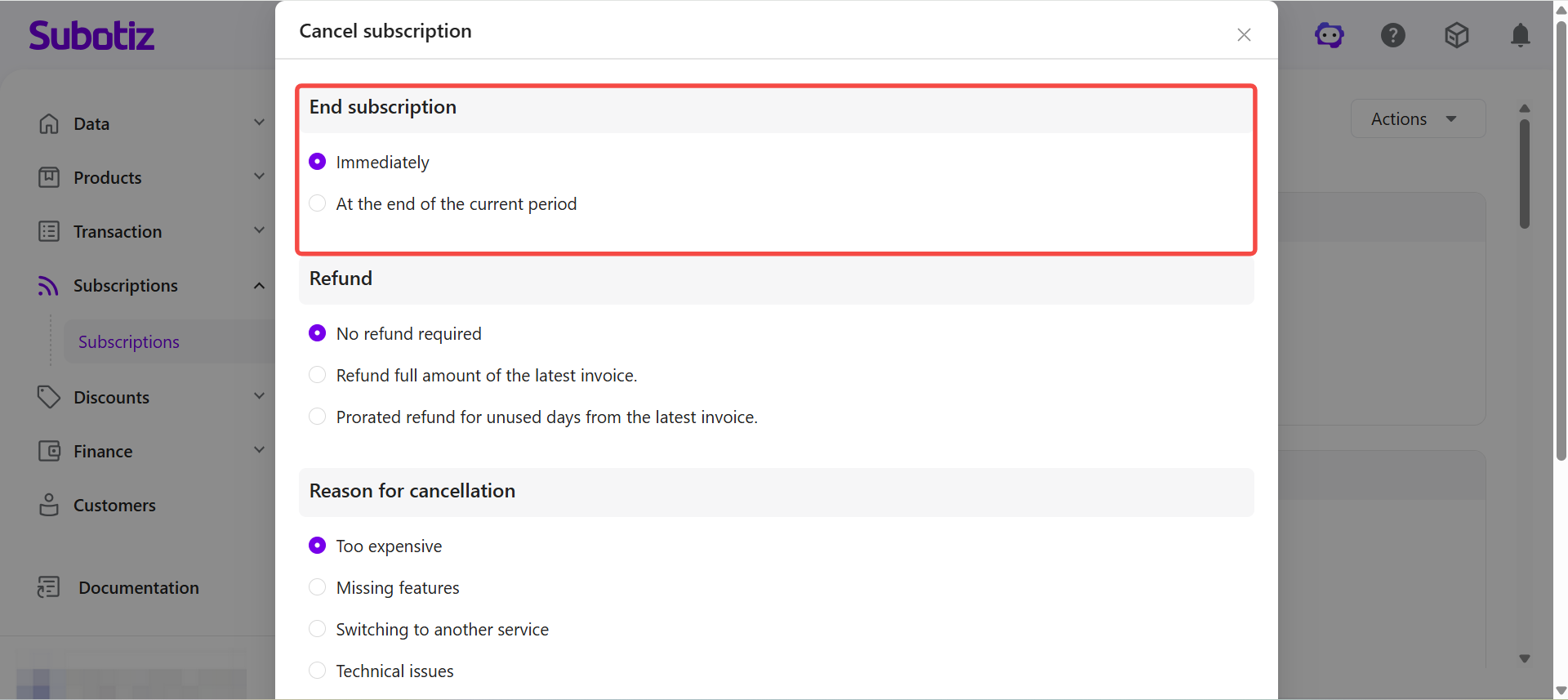
- Select the cancellation timing: In the Cancellation time section, choose how the cancellation takes effect. Available options vary depending on subscription status, such as:
- Immediately: The subscription contract terminates immediately and no new billing cycles are generated.
- At the end of the current period: The subscription ends after the current billing cycle is completed. Until then, the subscription remains active but no future renewal invoices are generated.
- Configure refund handling: In the Refund section, configure how billing is handled after cancellation. Available refund options vary depending on subscription stage and billing status, for example:
- No refund required
- Refund full amount of the latest invoice (if applicable)
- Prorated refund for unused days from the latest invoice (if applicable)
- When Prorated refund for unused days from the latest invoice is selected, the system calculates the refund amount automatically based on the remaining time in the billing cycle.
- Typical refund calculation:
- Refund amount = (Amount paid for the current cycle ÷ Total days in the billing cycle) × Remaining unused days
- Example:
- Standard monthly plan
- A $31 subscription covers July 1 – July 31
- If the subscription is canceled on July 10
Remaining unused days: 21 days$31 ÷ 31 × 21 = $21 refund
The system automatically calculates refunds according to this rule. Available refund options may vary depending on subscription status.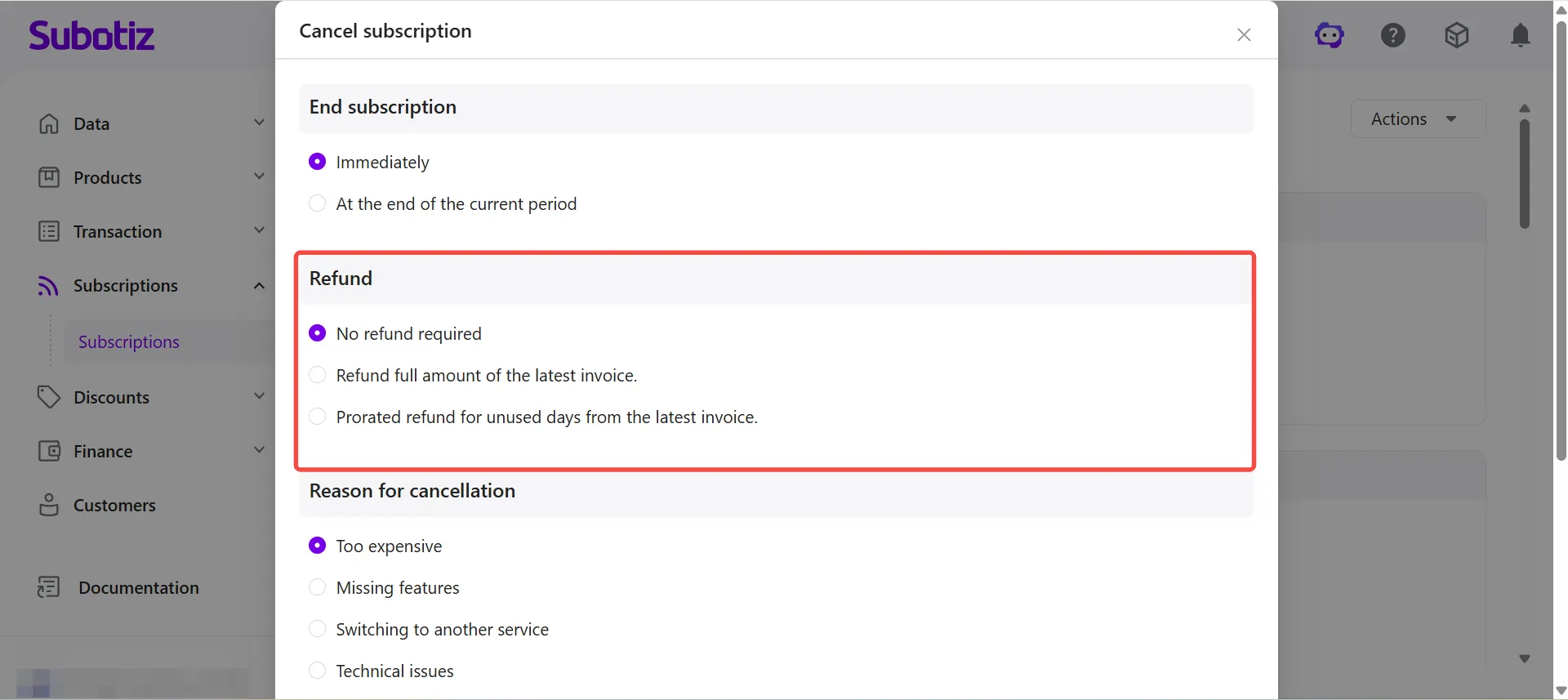
- Select a cancellation reason (optional): When canceling a subscription, the system requires selecting a cancellation reason to record the cancellation background and support operational analysis and customer service.Common reasons include:
- Too expensive
- Missing features
- Switching to another service
- Technical issues
- No longer needed
- Too difficult to use
- Other
If Other is selected, additional details can be entered in the Additional comments field (up to 200 characters).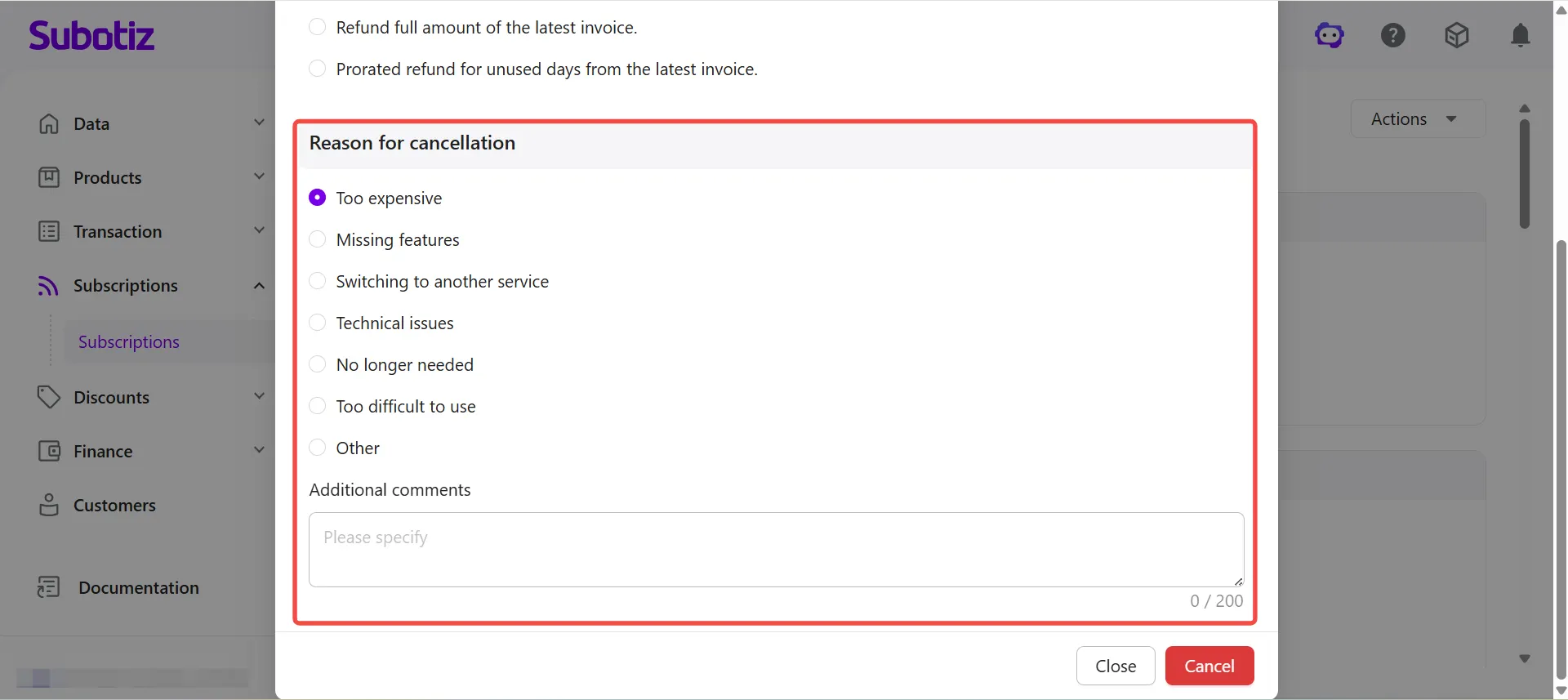
- Confirm the cancellation: After confirming the cancellation timing, refund handling, and cancellation reason, click Cancel subscription.
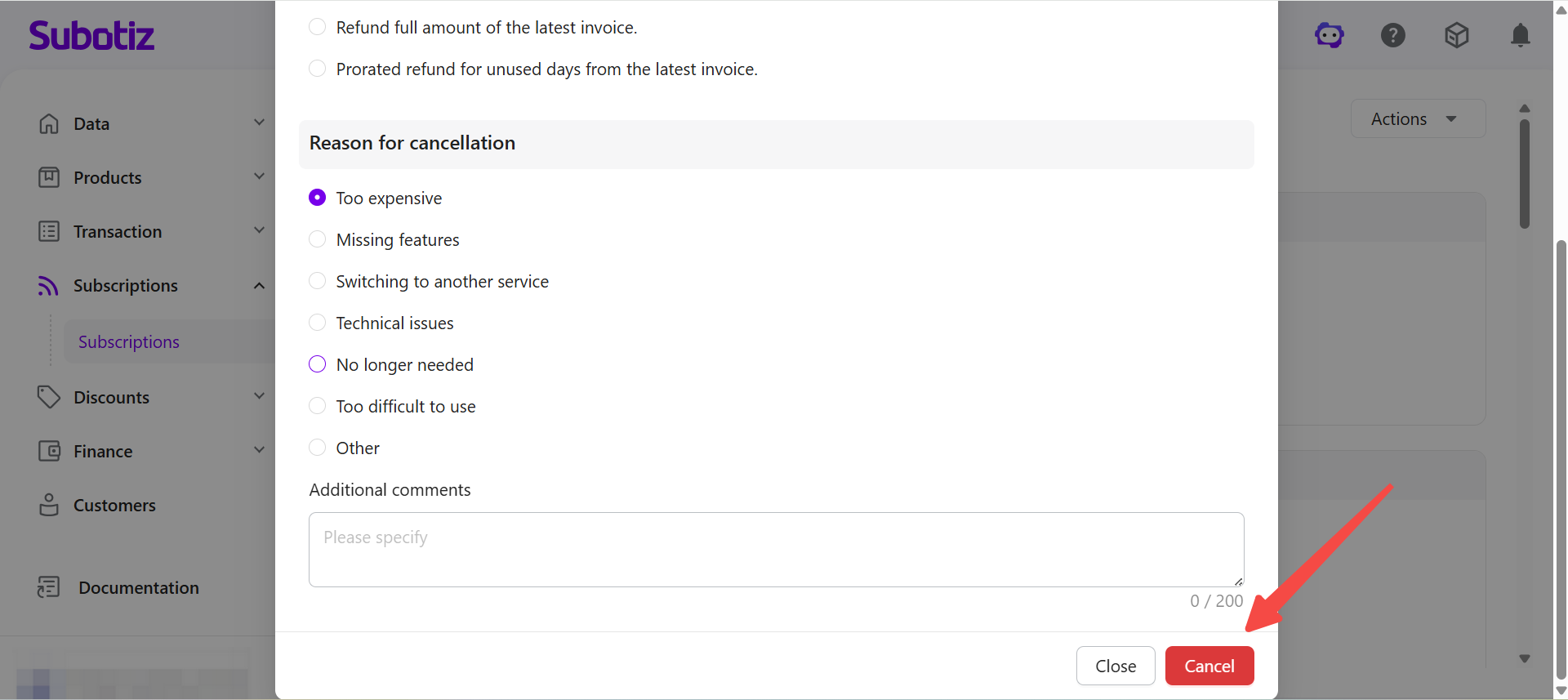
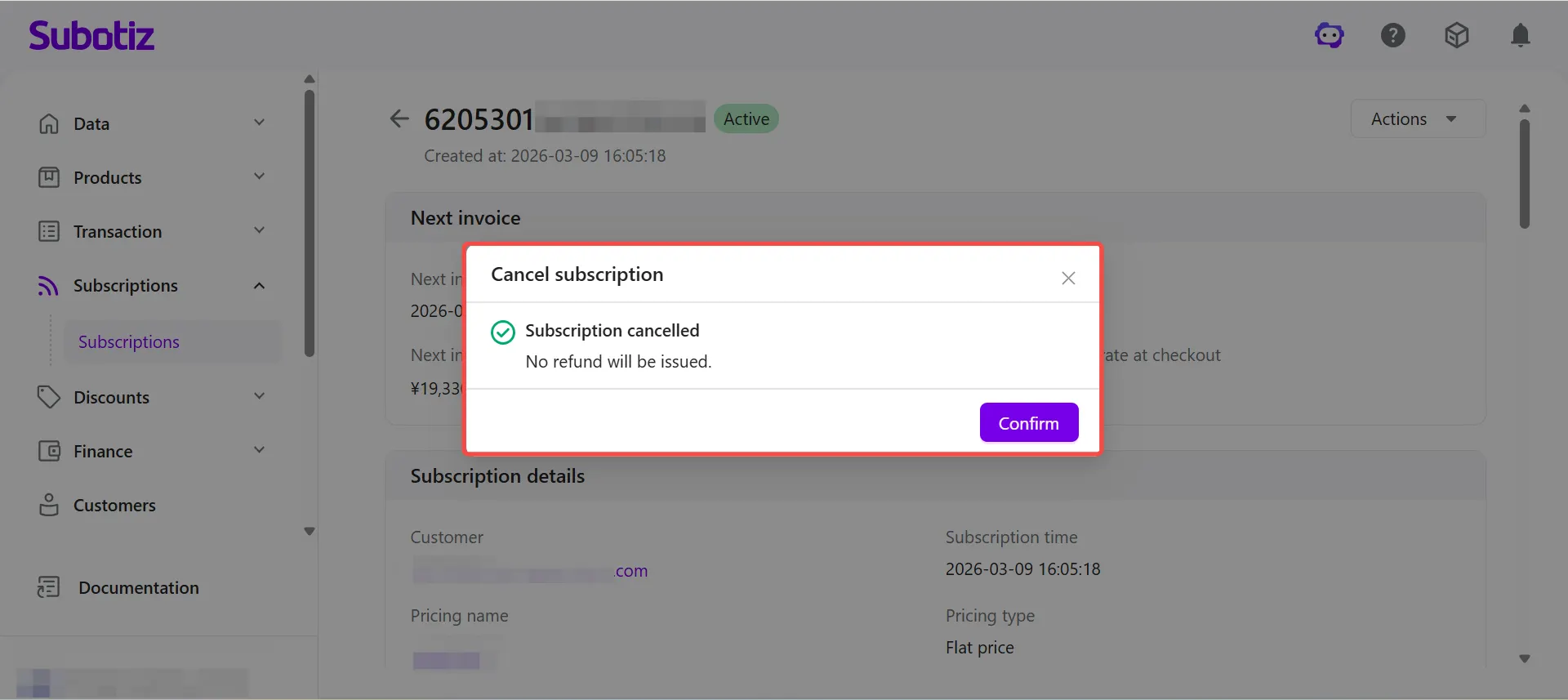
- Complete the cancellation: After submission, the system displays the cancellation result and updates the contract status accordingly.
System Behavior After Cancellation
After cancellation is submitted, the system automatically performs the following actions.
- Update contract records: The system records:
- Scheduled cancellation time
- Cancellation request time
- Canceled by
- Actual cancellation time
- Cancellation reason
- Cancellation method
The contract status will update to Canceled.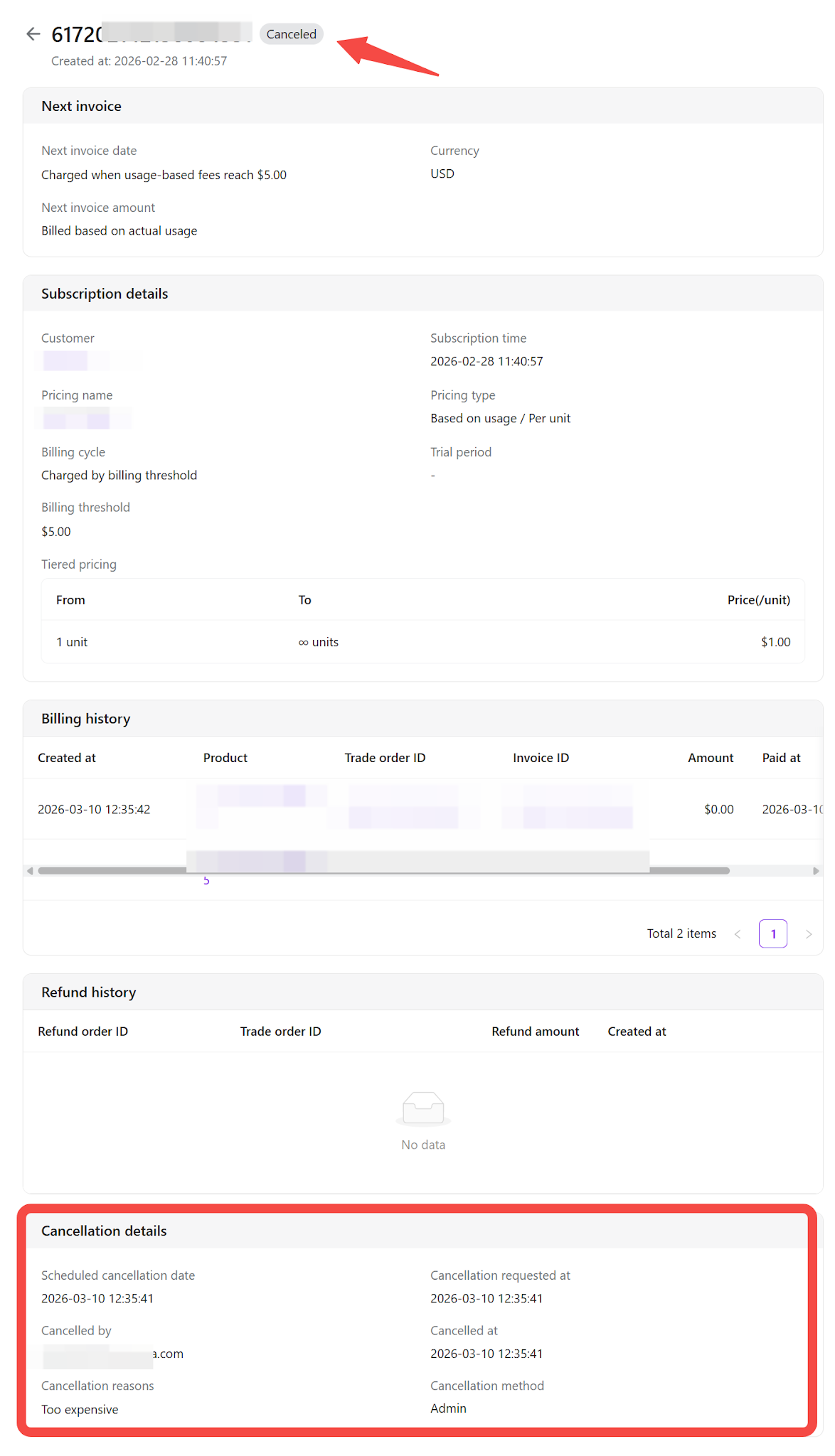
- Process invoices: After subscription cancellation, the system automatically updates related billing records:
- Generated but unpaid invoices continue following configured retry or dunning rules.
- Invoices already being processed continue updating according to payment results.
- Refunds are processed according to the selected refund option.
- No new renewal invoices are generated after contract termination.
Limitations
- Only supported for subscription contracts: One-time orders cannot be canceled.
- Cancellation does not delete historical invoices, transactions, or related records.
- Refund execution may be subject to payment provider rules and settlement timing.
Subotiz processes subscription cancellations based on the selected timing and refund settings, automatically updating contract status and related billing records while preserving complete historical data for reconciliation and customer support.