The Subscriptions page in Subotiz allows merchants to view and manage all subscriptions in one place. From this page, merchants can review subscription details, monitor billing status, and access the complete billing history for each customer.
Viewing and Managing a Subscription
Follow the steps below to locate and review subscription records on the Subscriptions page.
- View the subscription list: Open Subscriptions > Subscriptions to view all active and historical subscriptions.The subscription list displays the following fields:
- Created time
- Customer email
- Customer
- Pricing name
- Subscription ID
- Pricing type (Flat price / Package price / Based on usage)
- Billing cycle (Weekly / Monthly / Quarterly / Yearly / Customer-initiated payment / Charged by billing threshold)
- Currency
- Status
- Price
The Price column displays key pricing information depending on the pricing structure, such as:- Trial information (free trial or paid trial duration and price)
- Tiered or phased pricing (for example: “$10/week for periods 1–3, $13/week starting from period 4”), helping quickly identify billing amounts at different stages.
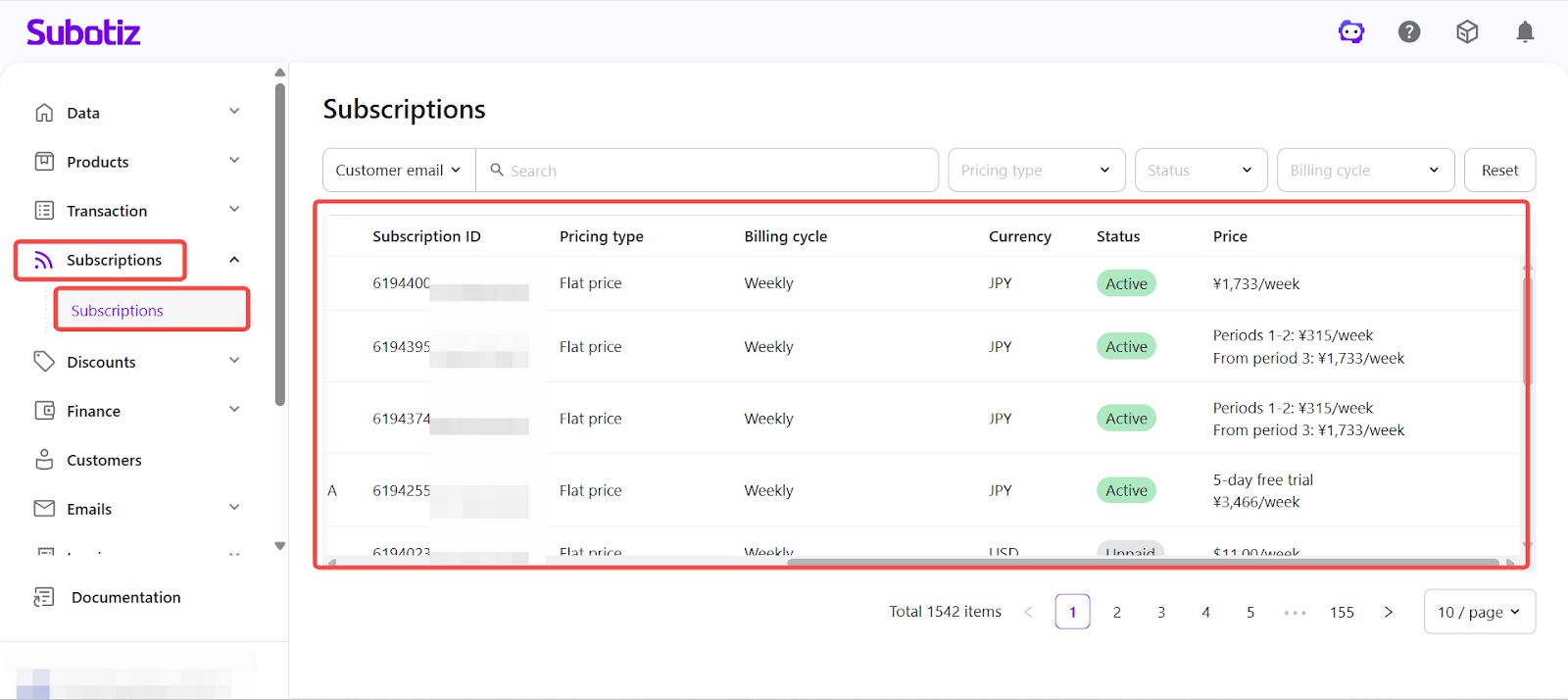
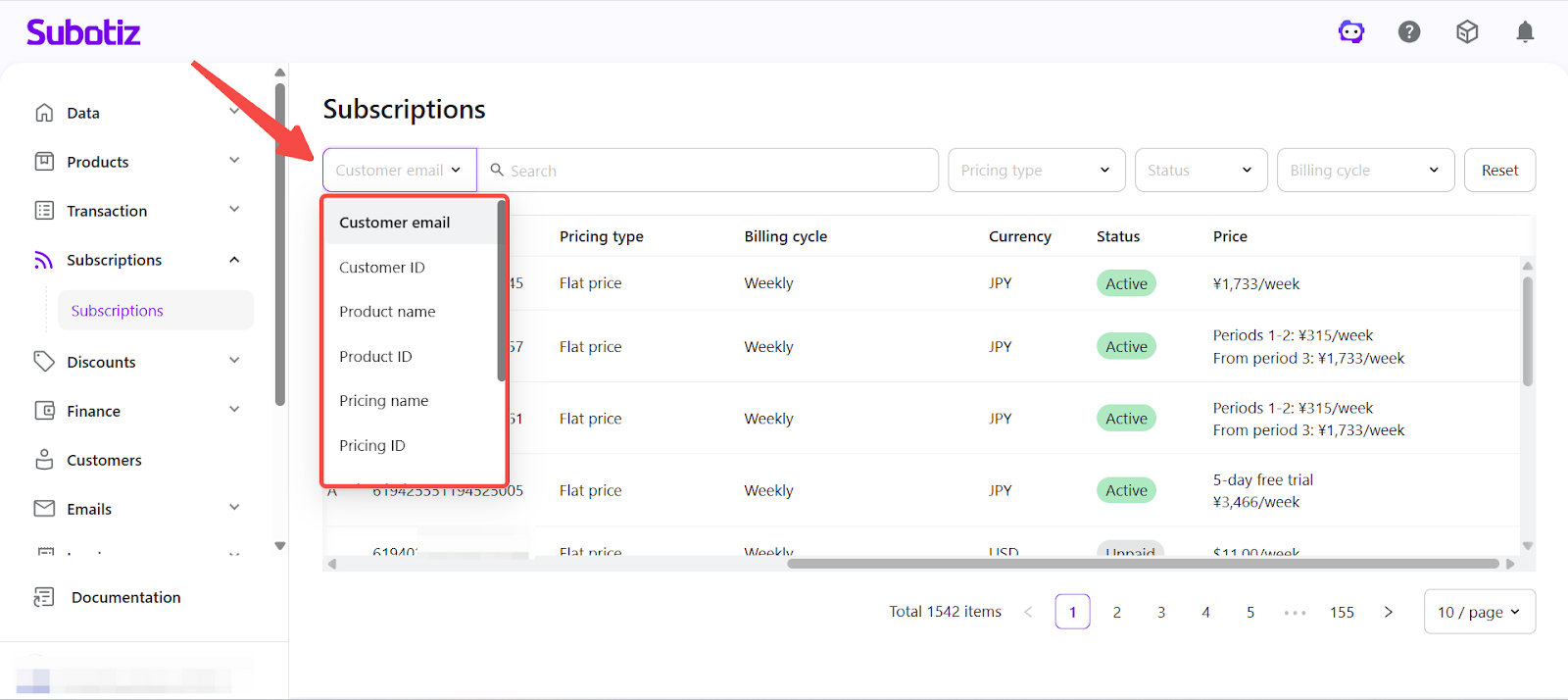
- Search subscriptions: At the top of the subscription list, select a search field and enter a keyword to locate a subscription.Available search fields include:
- Customer email or Customer ID
- Product name or Product ID
- Pricing name or Pricing ID
- Subscription ID
Common use cases include:- Trade Order ID, Refund Order ID, or Invoice ID
- Investigating unexpected charges: search by customer email or invoice ID
- Financial reconciliation: locate specific transactions using trade order ID or refund order ID
- Reviewing subscriptions for a specific product: search by product name or product ID
- Filter subscriptions:
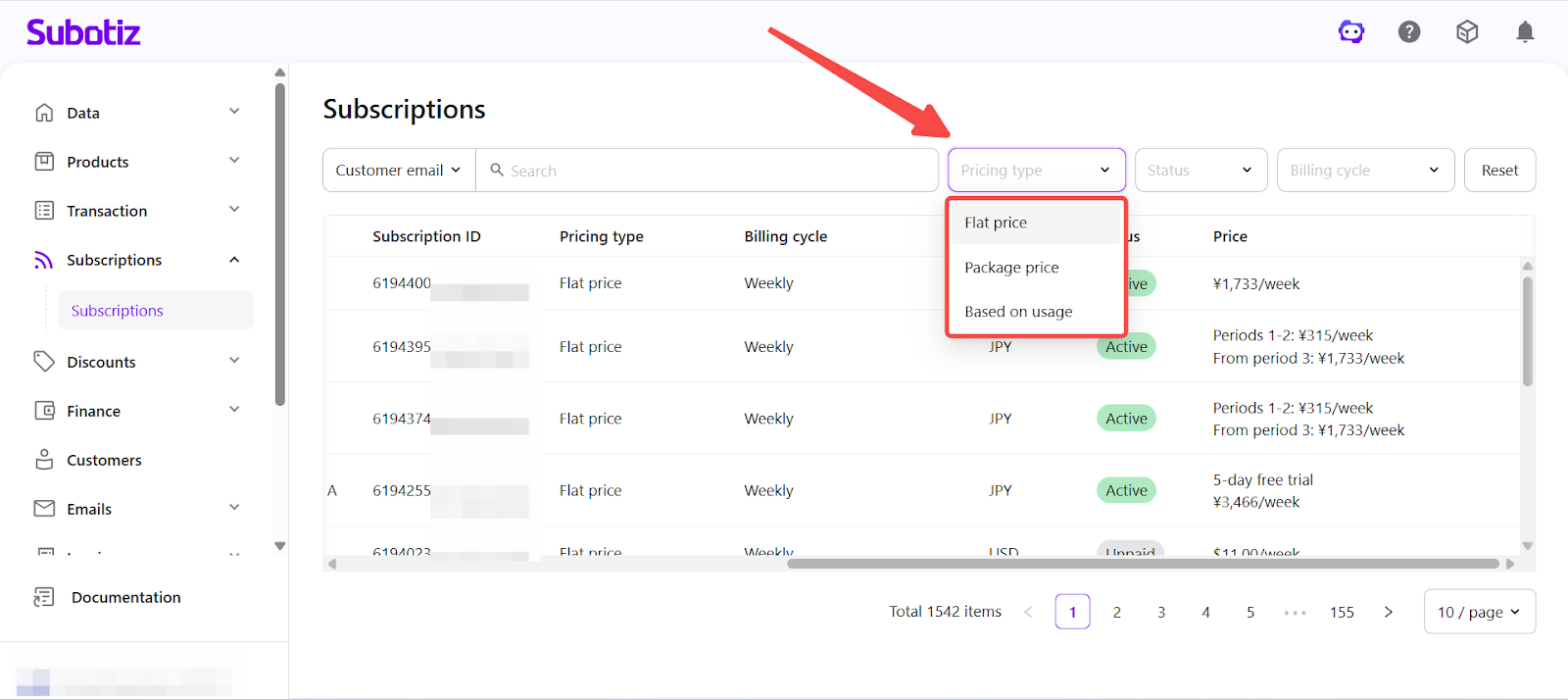
- Filter by pricing type: Use the Pricing Type filter to view subscriptions by pricing model:
- Flat price
- Package price
- Based on usage
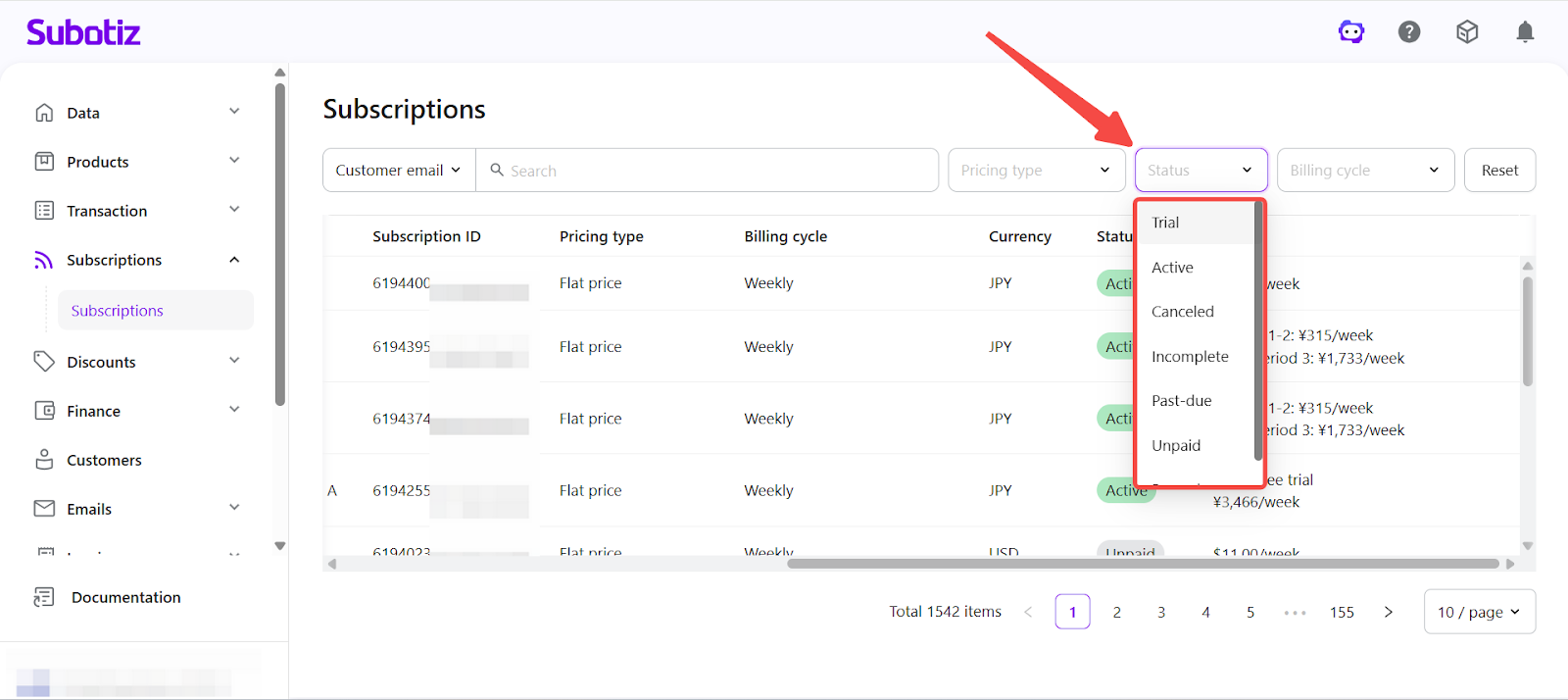
- Filter by subscription status: Use the Status filter to review subscriptions at different lifecycle stages:
- Trial: The subscription is currently in a trial phase and has not yet entered the regular billing cycle. This may include free or paid trials.
- Active: The subscription is active and billing is running according to the configured billing rules.
- Incomplete: The customer started the checkout or subscription process but did not complete payment or confirmation.
- Past due: A bill has passed its due date and remains unpaid, requiring follow-up or payment handling.
- Unpaid: A billing cycle has generated an invoice that has not yet been paid.
- Paused: The subscription has been temporarily paused and no new charges will be generated until it is resumed.
- Canceled: The subscription has been terminated and no further billing will occur.
- Filter by billing cycle: Use the Billing Cycle filter to view subscriptions based on their billing schedule.Available options include:
- Weekly: Charges are generated every week.
- Monthly: Charges occur once per month.
- Quarterly: Charges occur every three months.
- Yearly: Charges occur once per year.
- Customer-initiated payment: Billing is triggered manually by the customer rather than on a fixed schedule.
- Charged by billing threshold: Charges are triggered when a predefined billing or usage threshold is reached.
This filter helps merchants quickly locate subscriptions that follow specific billing schedules.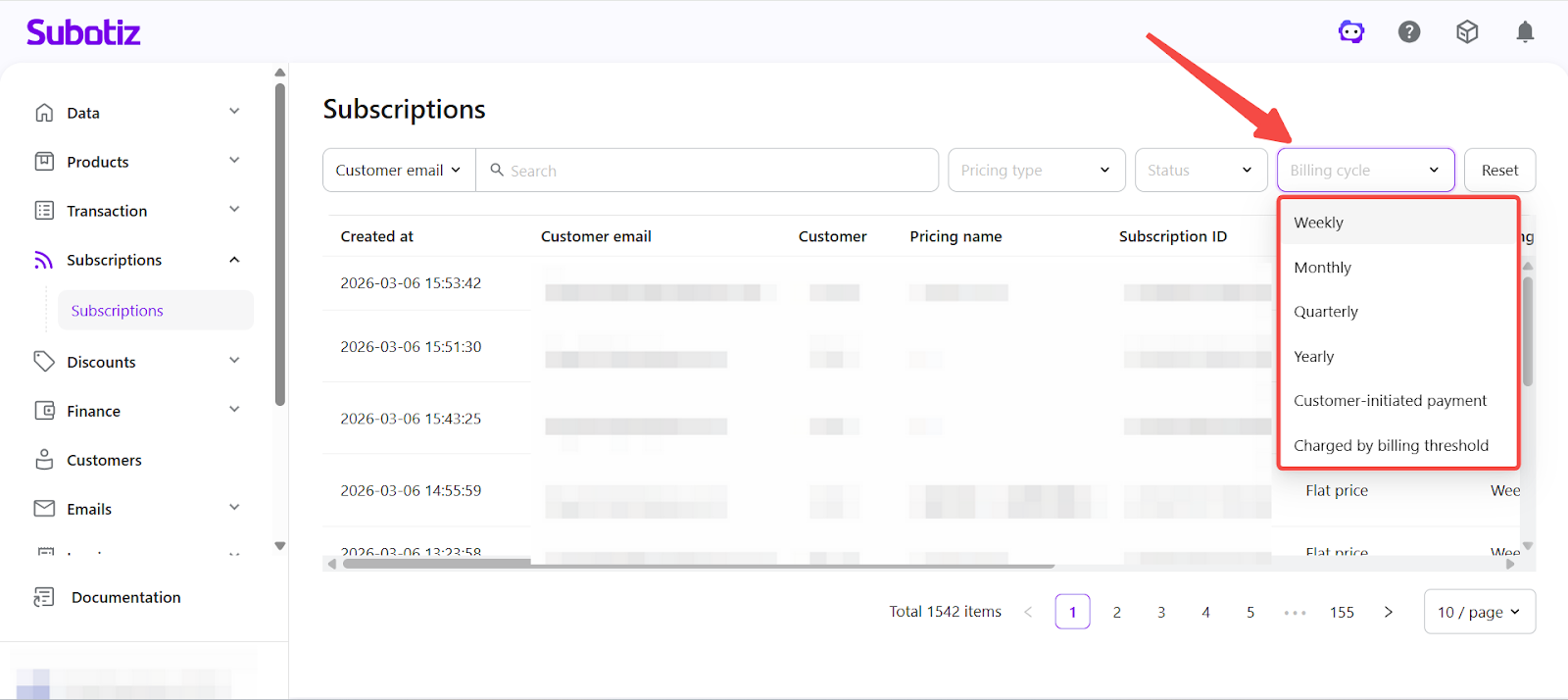
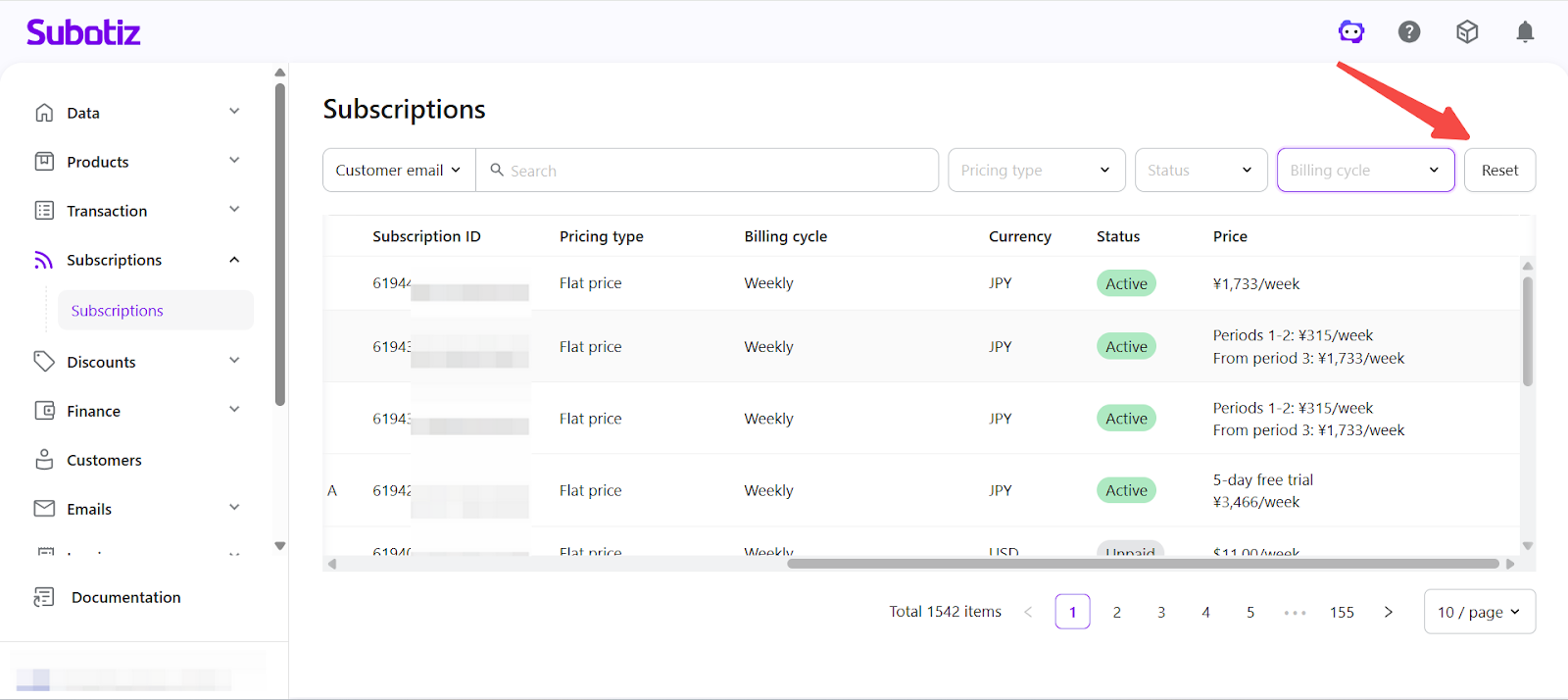
- Reset filters: Click Reset to clear all filters and return to the full subscription list.
Viewing Subscription Details
Click any subscription in the list to open the subscription detail page and review the complete subscription record, including billing history.
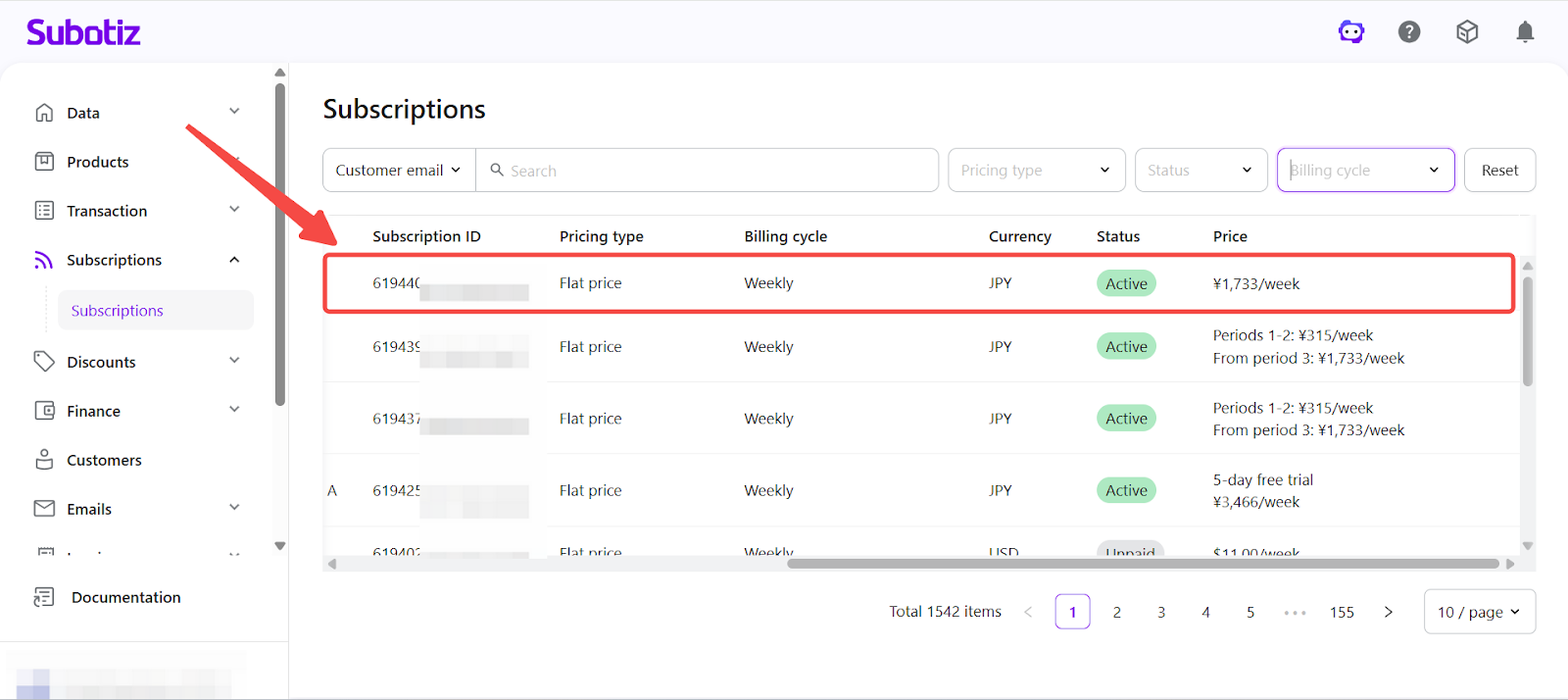
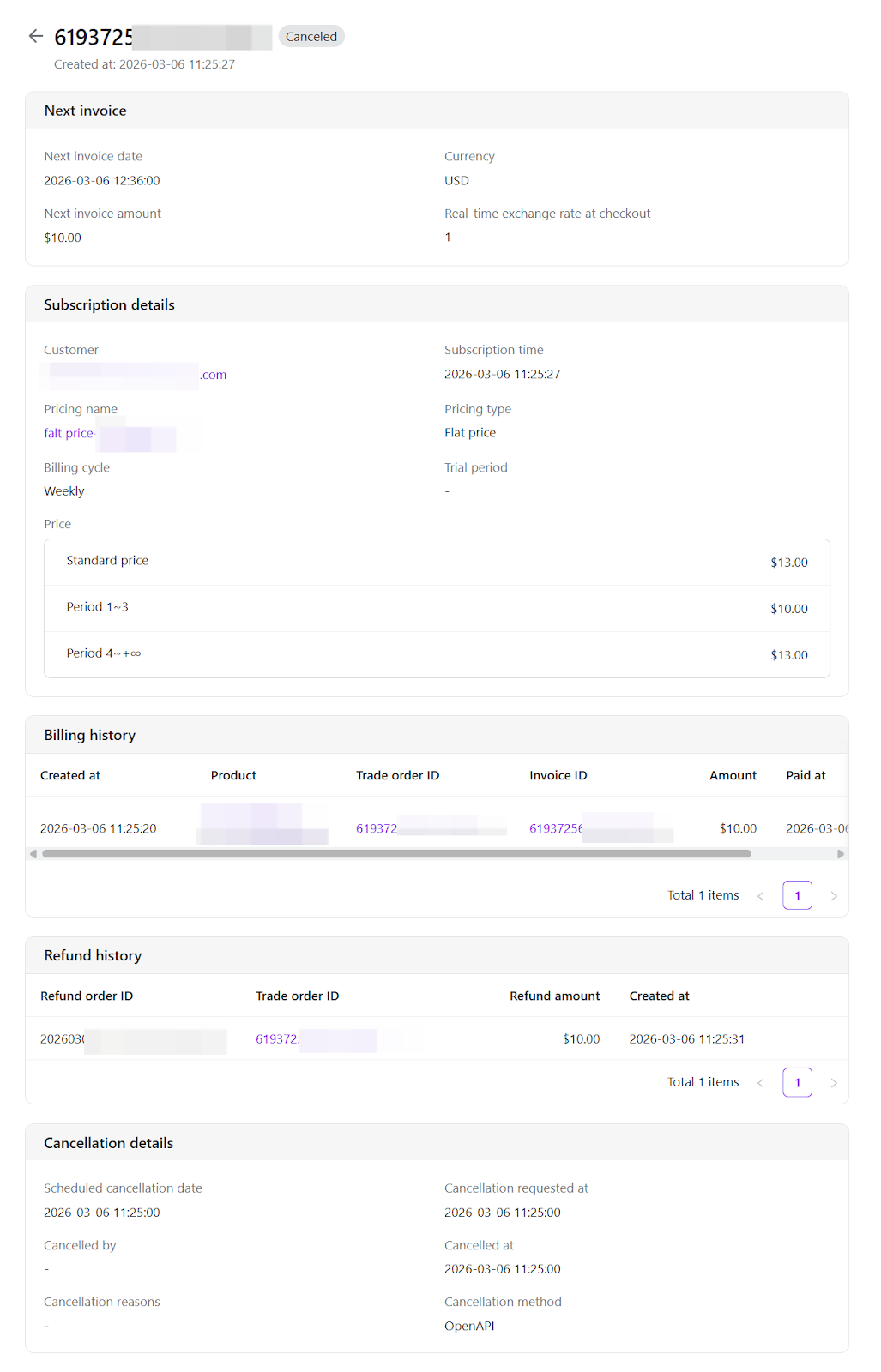
- The subscription detail page includes the following sections:
- Status: Displays the current subscription status, such as Trial, Active, Canceled, or Incomplete.
- Next invoice: Provides quick visibility into the next billing event:
- Next invoice date
- Next invoice amount
- Currency
- Real-time exchange rate at checkout
- Subscription details: Confirms the relationship between the customer and the pricing plan:
- Customer email or customer information
- Subscription time
- Pricing name
- Pricing type
- Billing cycle
- Trial information (if applicable)
- Billing history: Shows billing and invoice generation for each billing cycle, including:
- Created time
- Product or pricing information
- Trade order ID
- Invoice ID
- Amount
- Payment time
- Refund records: Tracks refunds related to the subscription:
- Refund Order ID
- Related trade order ID
- Refund amount
- Created time / refund time
- Cancellation details (if applicable)
- Scheduled cancellation time
- Cancellation request time
- Canceled by
- Actual cancellation time
- Cancellation method
- Cancellation reason or notes
Available Actions
In the Actions menu in the upper-right corner of the subscription detail page, you can perform the following actions.
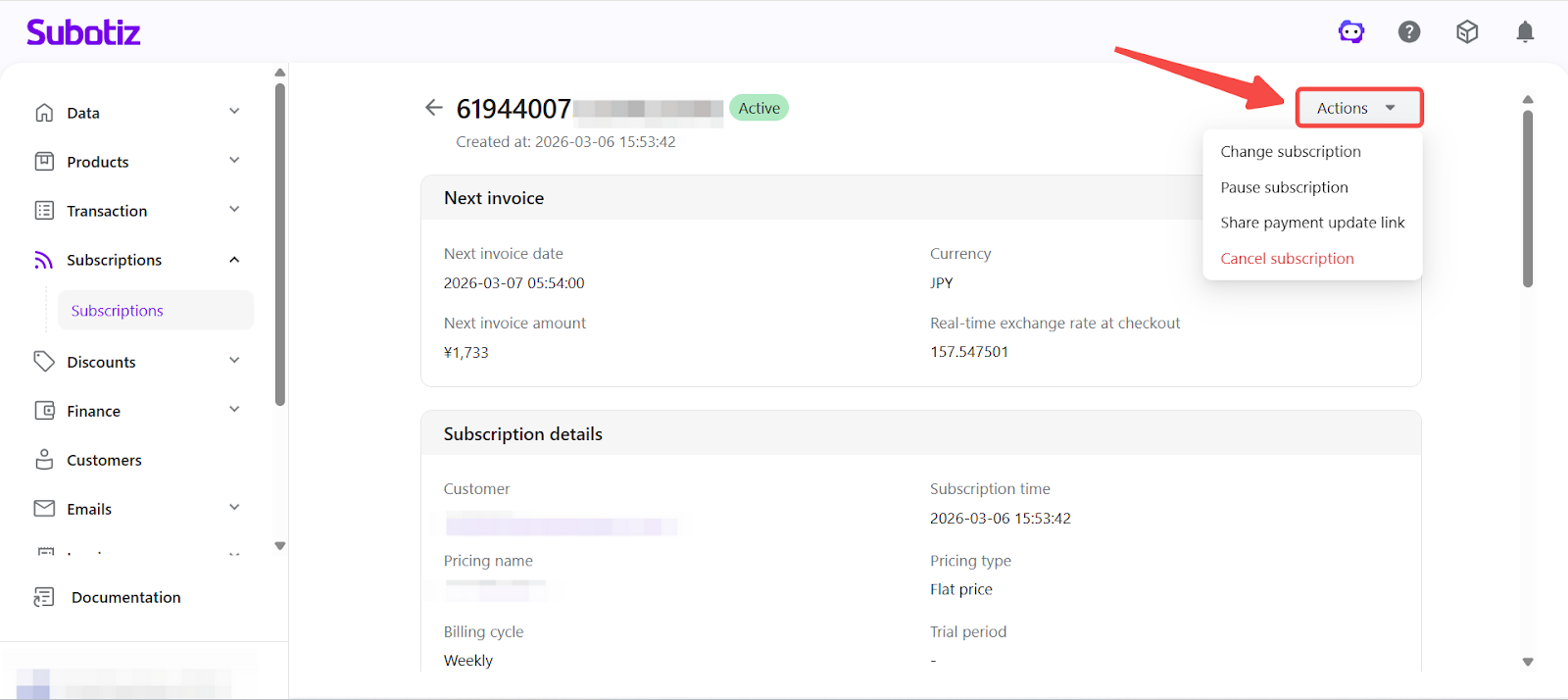
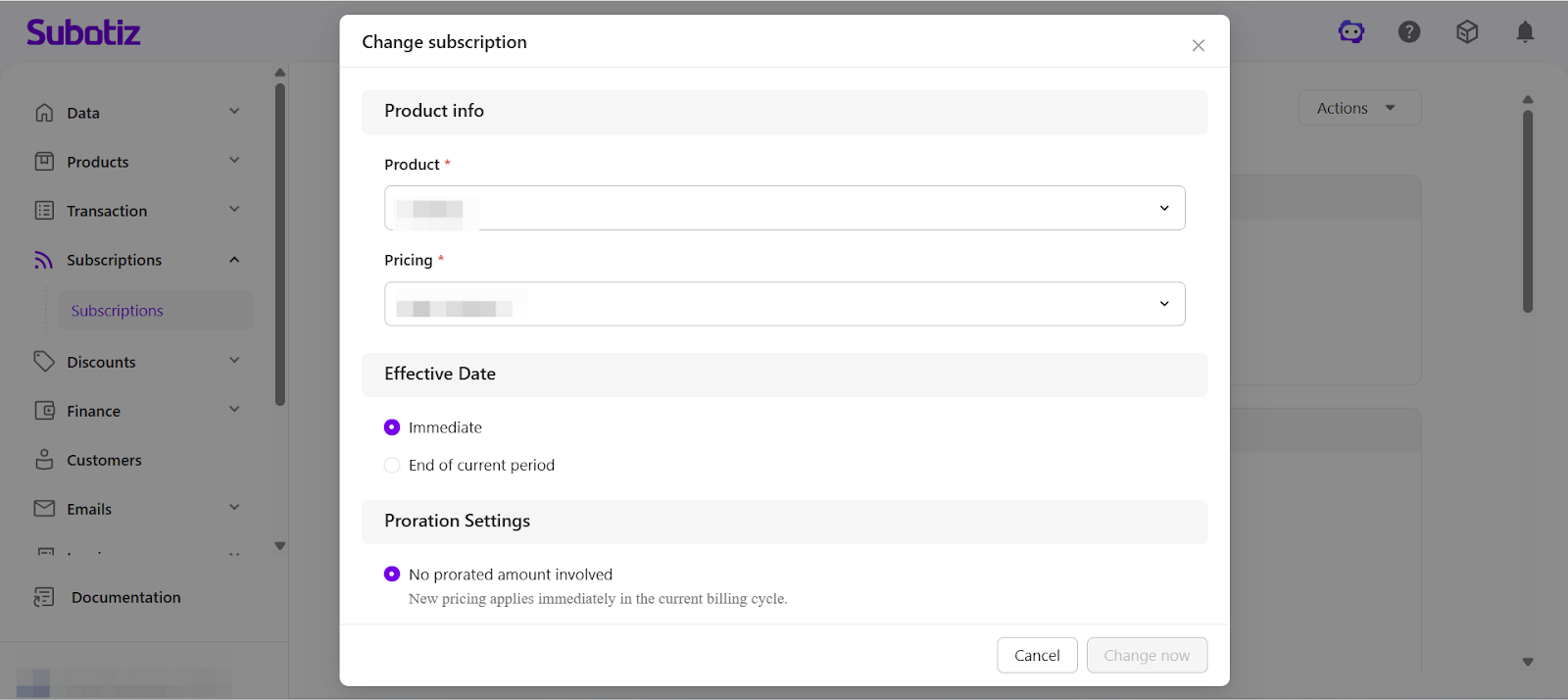
- Change subscription: Used to upgrade, downgrade, or switch to a different pricing plan.
- Select a new product or pricing plan (including flat price, package price, or Based on usage pricing)
- Choose the effective time (for example: immediate effect or at the end of the current billing cycle)
- Select proration or settlement behavior when applicable (for example, in paid trial or based on usage pricing scenarios)
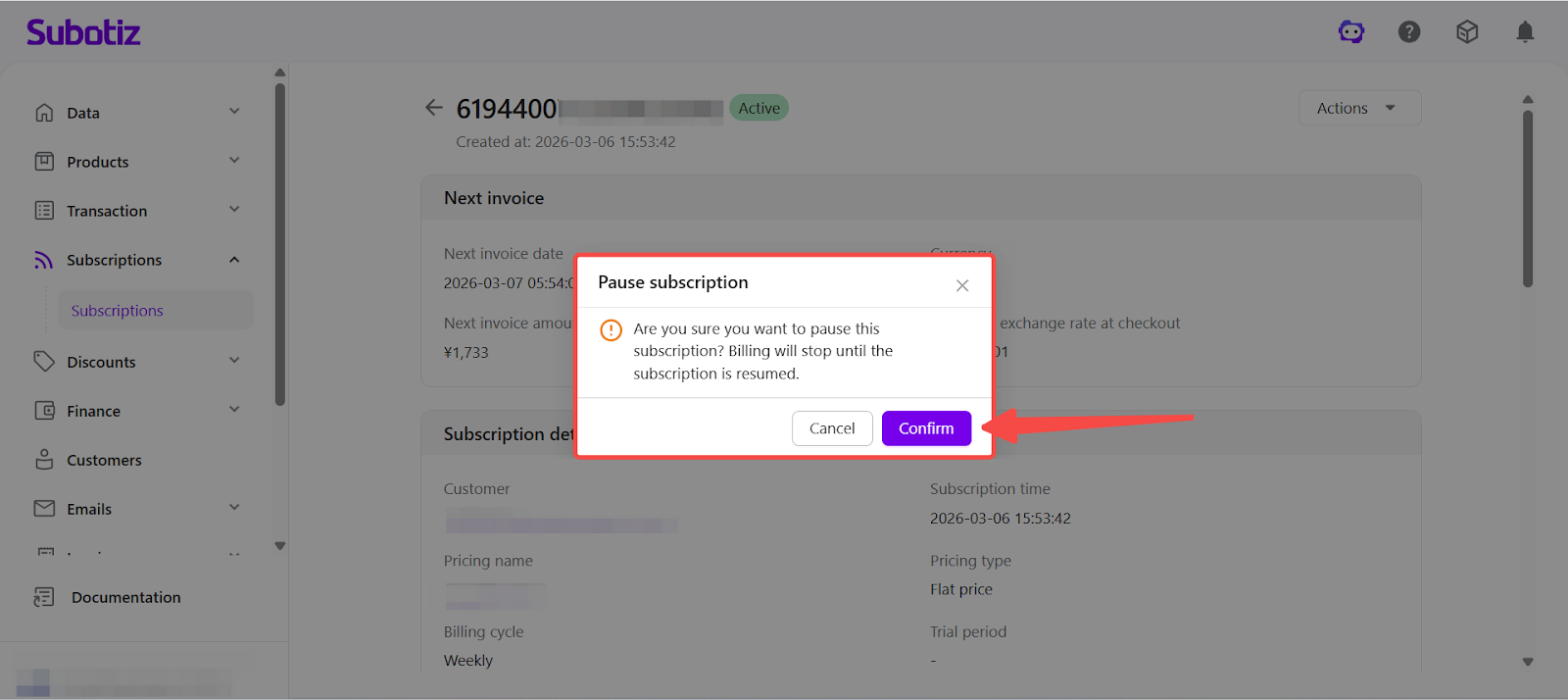
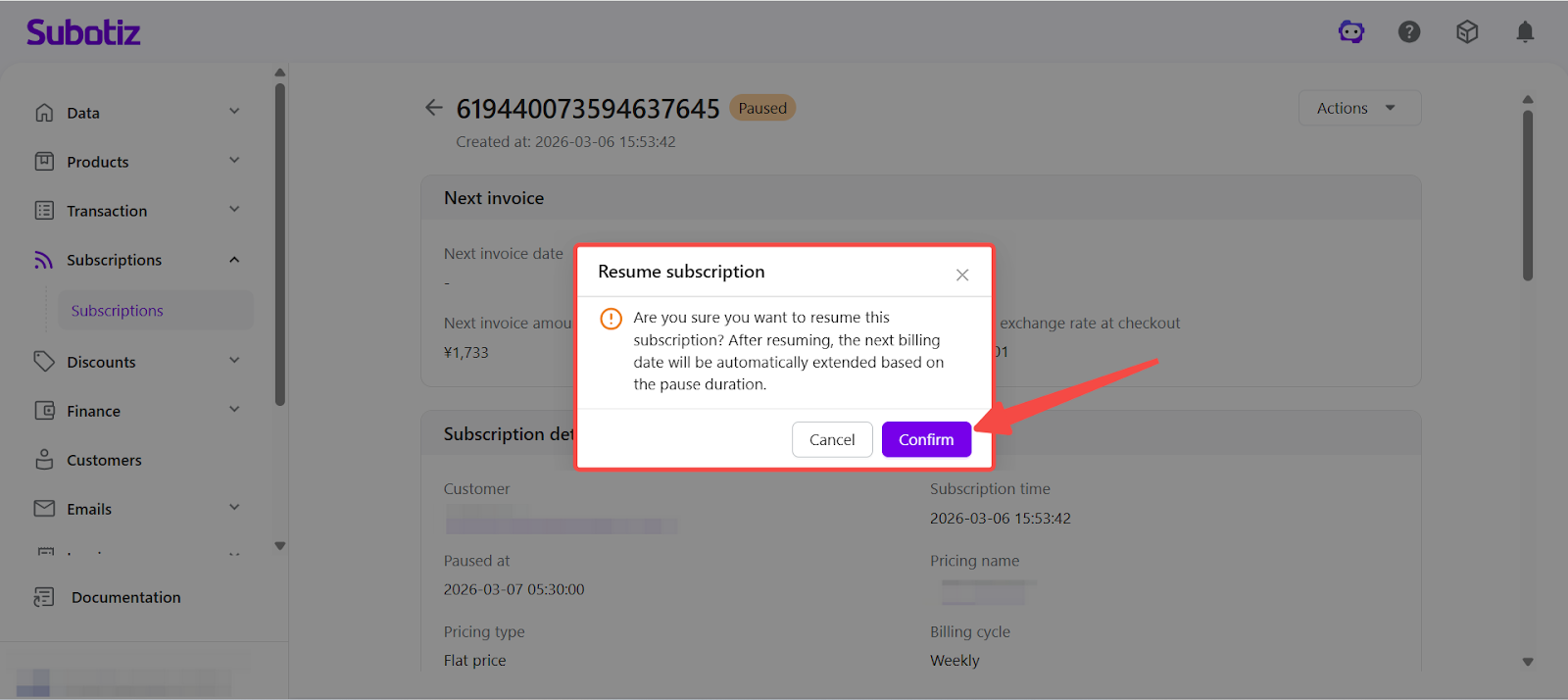
- Pause or resume a subscription: Temporarily stop a subscription and resume it later.
- Pause subscription: Temporarily stops the subscription. No new invoices will be generated until the subscription is resumed.
- Resume subscription: Restores a paused subscription and allows billing to continue normally.
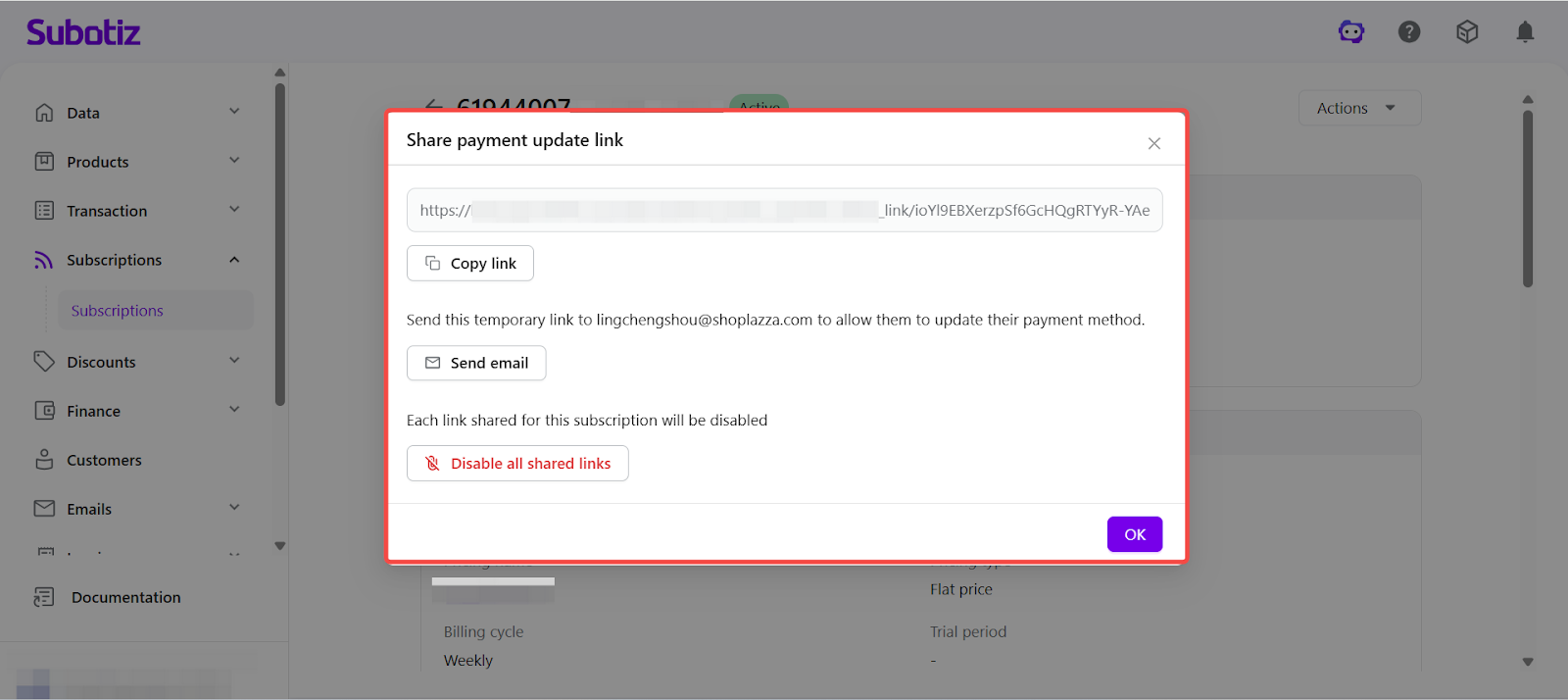
- Share payment update link: Generate a temporary link that allows the customer to update the payment method associated with the subscription.
- Copy the link and send it to the customer
- Send the link via email
- Disable the link if it should no longer be used
- Cancel subscription: Permanently cancel the subscription.
- Cancellation timing (cancel immediately or at the end of the current billing cycle)
- Refund behavior (no refund, refund the most recent invoice amount, or prorated refund based on unused days)
- Cancellation reason or notes for operational records
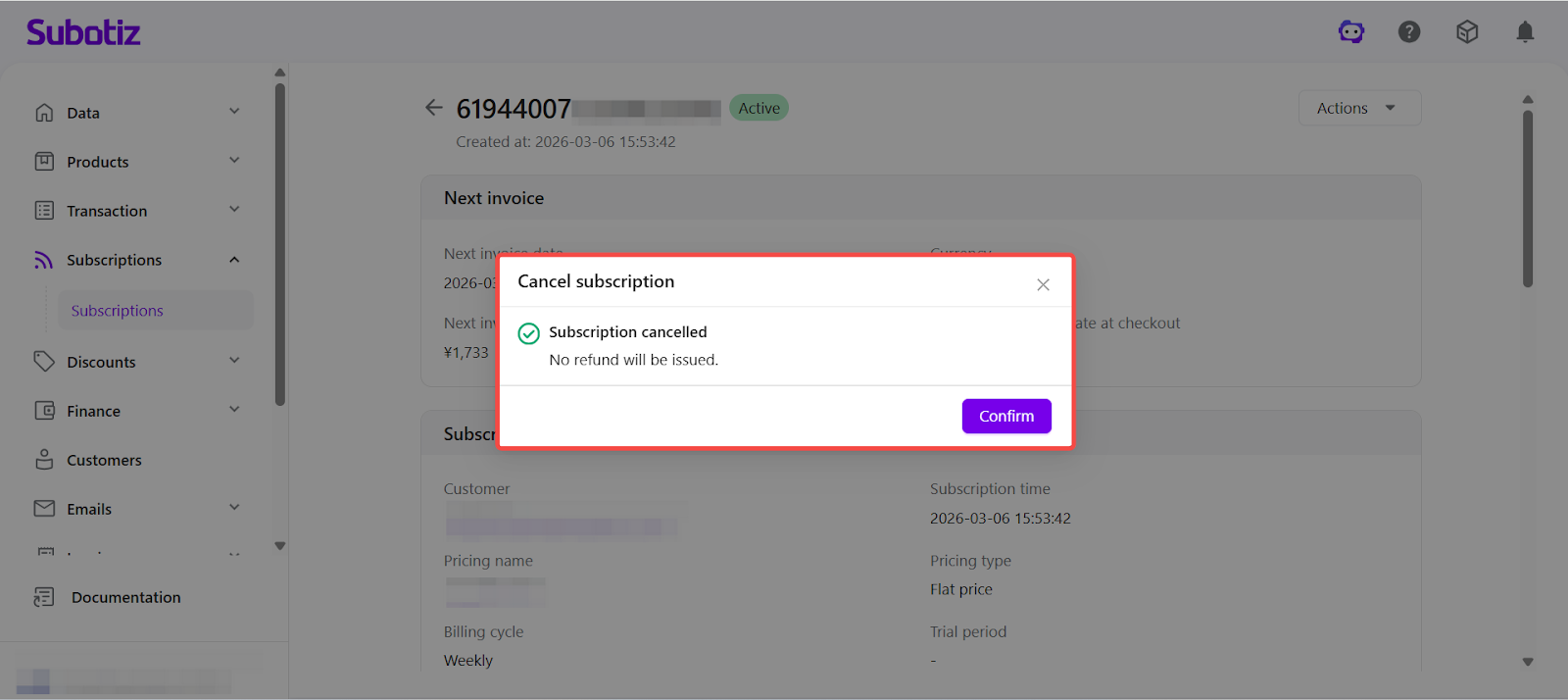
After submission, the system returns the cancellation result in a confirmation window and may display refund details if applicable. The page refreshes to reflect the updated subscription status.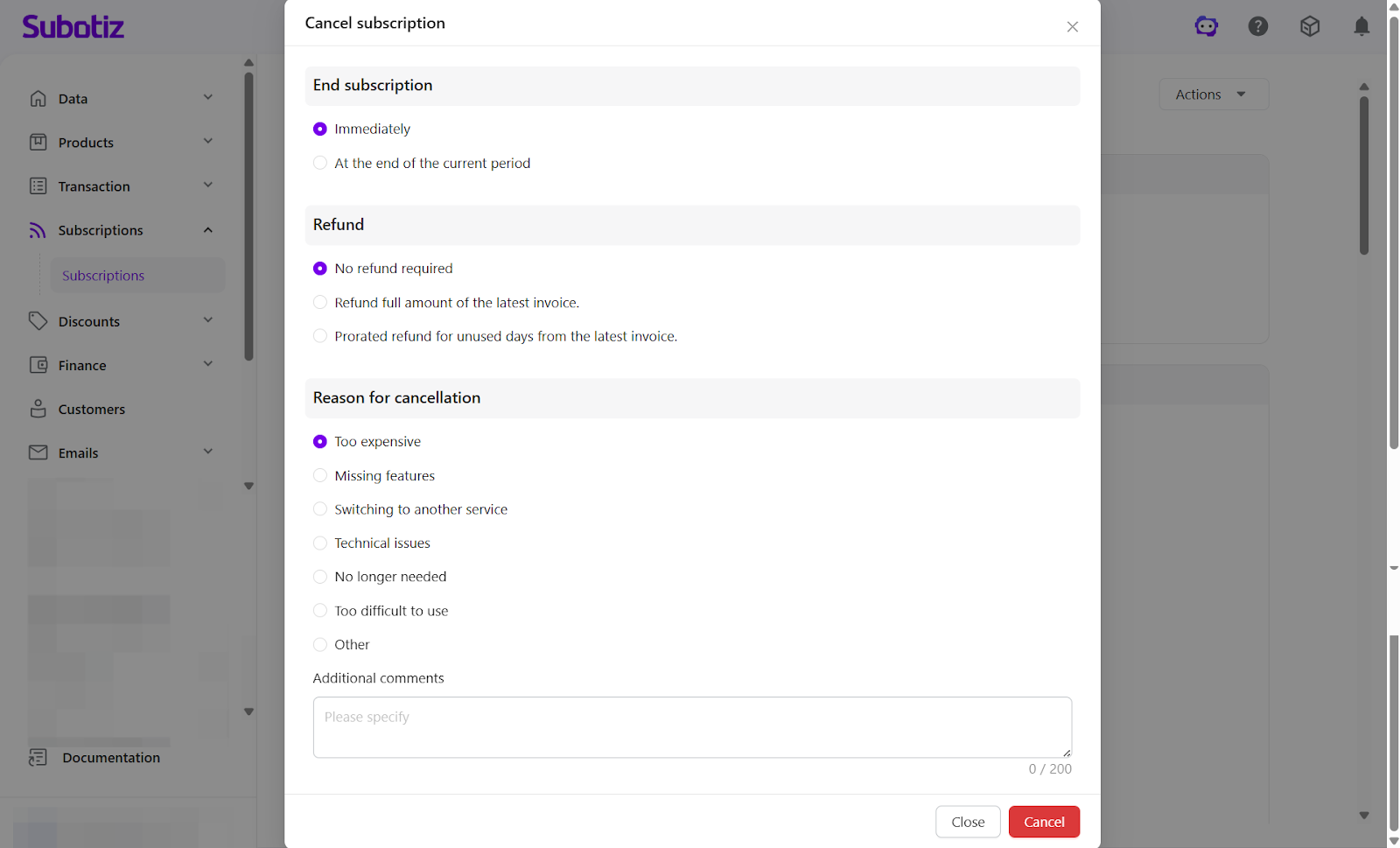
Best Practices
- Locate subscriptions using customer email, subscription ID, trade order ID, or invoice ID to significantly improve investigation efficiency.
- For pricing plans with trial periods or tiered pricing, review the Price column and subscription details carefully to confirm billing amounts for the current stage.
- Before performing actions such as changing, pausing, or canceling a subscription, review the current status and next billing information to avoid unintended billing changes.
Subscriptions serve as the operational core of Subotiz’s subscription management system, centralizing billing cycles, subscription changes, and related orders in a single record.