In Subotiz, subscriptions provide a centralized view of customer subscription relationships, billing records, and subscription status. Through the subscription list and details page, merchants can review subscription information and perform actions such as modifying subscriptions, adjusting fixed terms, pausing, resuming, or canceling subscriptions.
Accessing Subscriptions
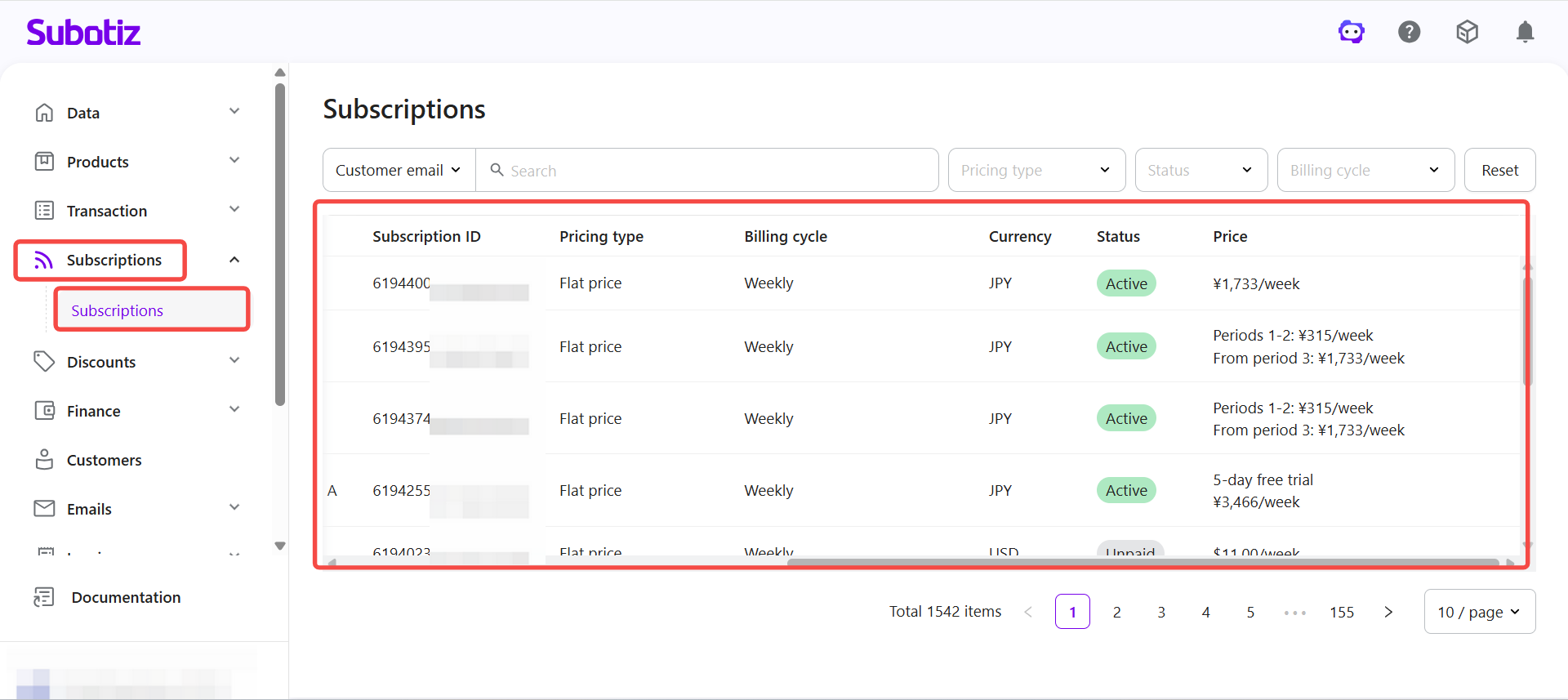
- Access subscriptions: Log in to Subotiz Admin and go to Subscriptions > Subscriptions to view all current and historical subscriptions.The subscription list typically displays:
- Created time
- Customer email
- Customer
- Pricing name
- Subscription ID
- Pricing type
- Billing cycle
- Currency
- Status
- Price
The Price column displays pricing details based on the pricing structure, such as:- Trial information (free or paid trial duration or amount) .
- Tiered or staged pricing (for example, different pricing across billing phases) .
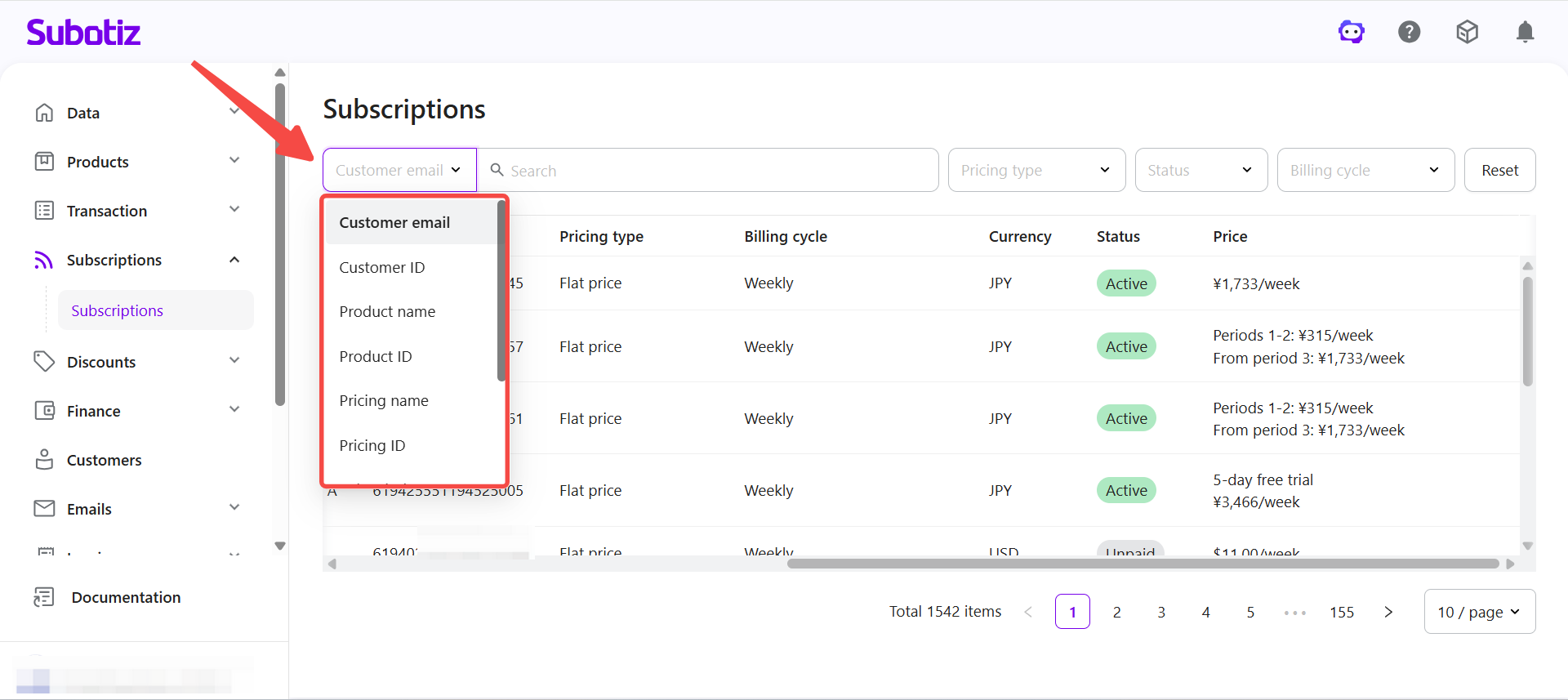
- Search subscriptions: The search bar supports selecting a search field before entering keywords.Supported search fields include:
- Customer email
- Customer ID
- Product name / Product ID
- Pricing name / Pricing ID
- Subscription ID
- Trade order ID
- Refund order ID
- Invoice ID
Common use cases include:- Investigating billing concerns: Search by customer email or invoice ID.
- Reconciliation: Search by trade order ID or refund order ID.
- Reviewing subscriptions for a specific product: Search by product name or product ID.
- Filter subscriptions: Filters help merchants quickly locate specific subscription records.
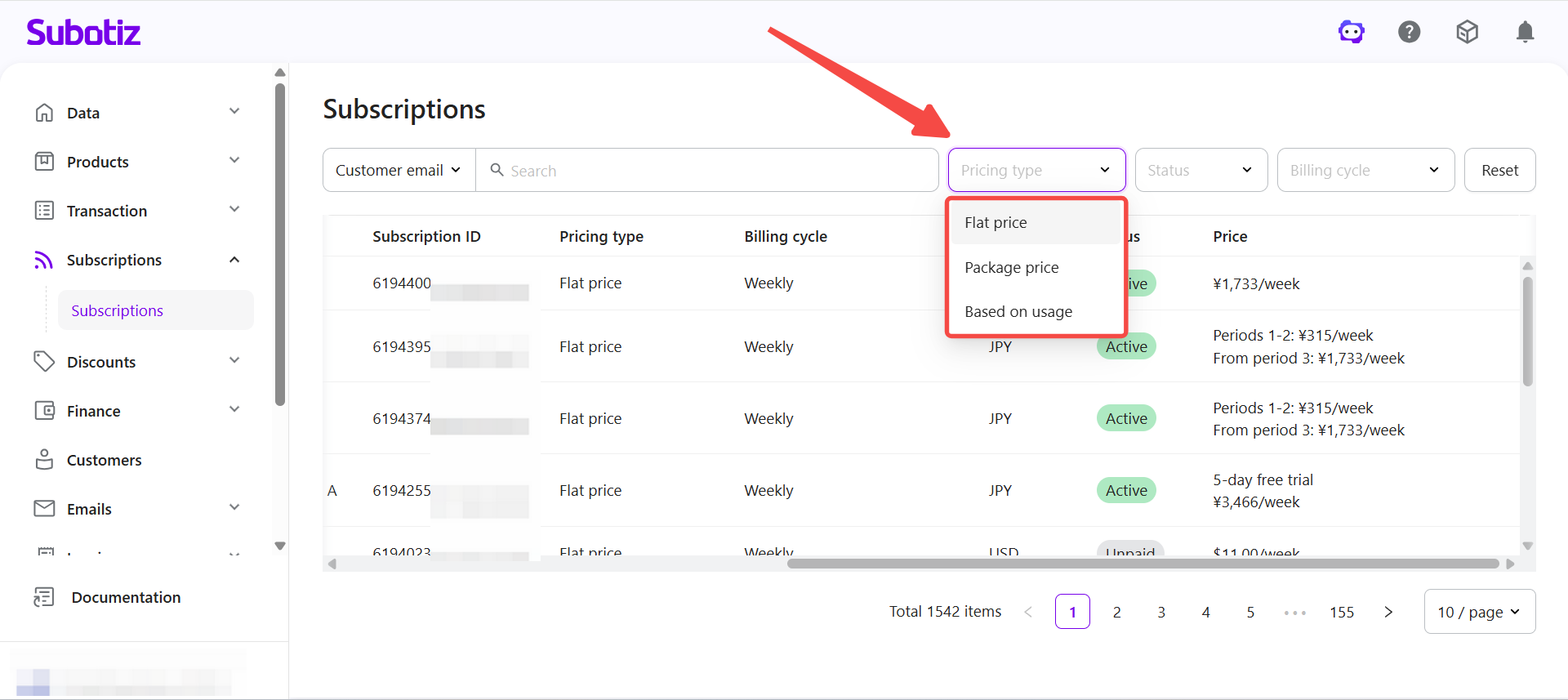
- Filter by pricing type: Under Pricing type, subscriptions can be filtered by:
- Flat pricing
- Package pricing
- Usage-based pricing
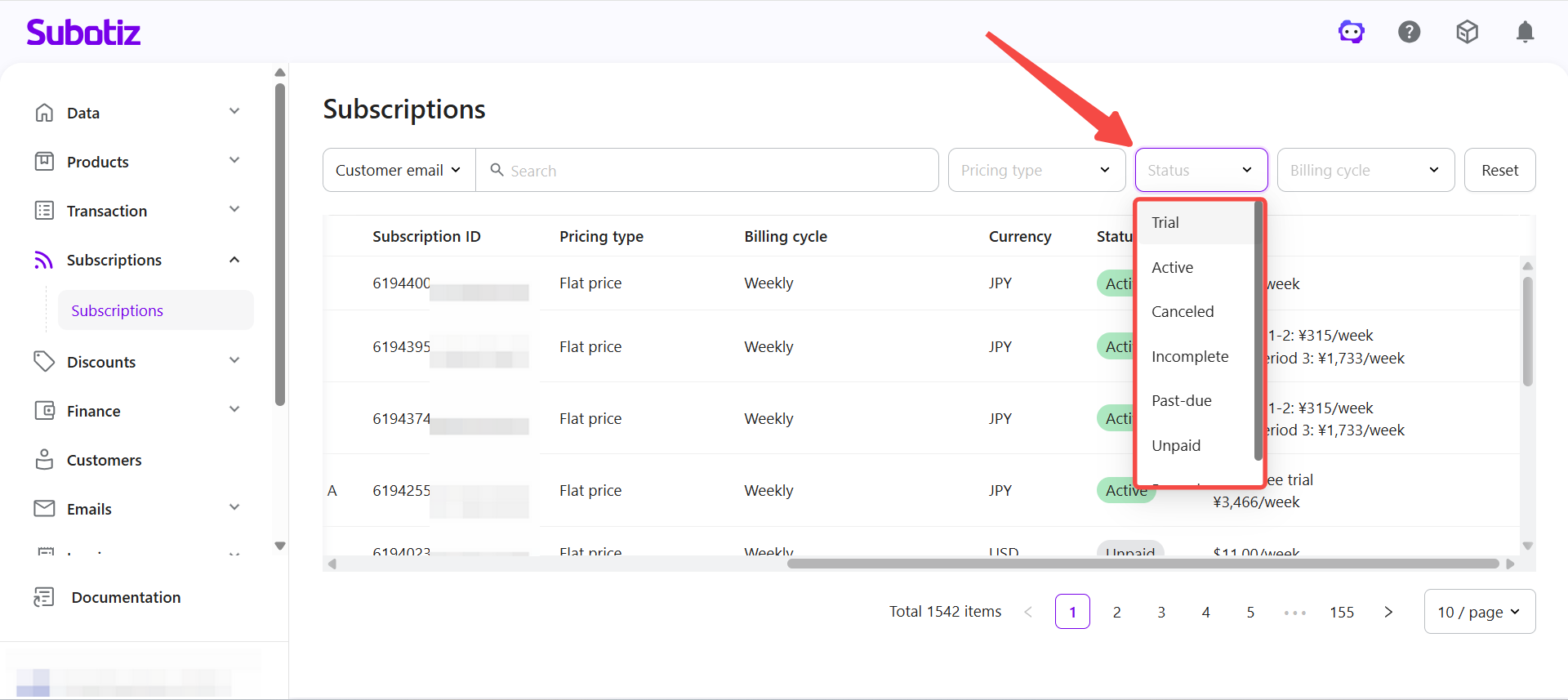
- Filter by subscription status: Under Status, subscriptions can be filtered by lifecycle stage:
- Trial: Subscription is in a free or paid trial period and has not entered standard billing.
- Active: Subscription is running and generating invoices based on billing rules.
- Incomplete: Checkout or subscription creation was initiated but not completed.
- Past due: Payment remains unpaid after the invoice due date.
- Unpaid: Pending payment exists for the billing cycle.
- Paused: Subscription has been paused and billing is temporarily stopped.
- Canceled: Subscription has been terminated and no further renewal invoices will be generated.
- Filter by billing cycle: Under Billing cycle, subscriptions can be filtered by billing method:
- Weekly
- Monthly
- Quarterly
- Yearly
- Customer-initiated payment
- Charge when billing threshold is reached
These filters help merchants quickly locate subscriptions across different billing models.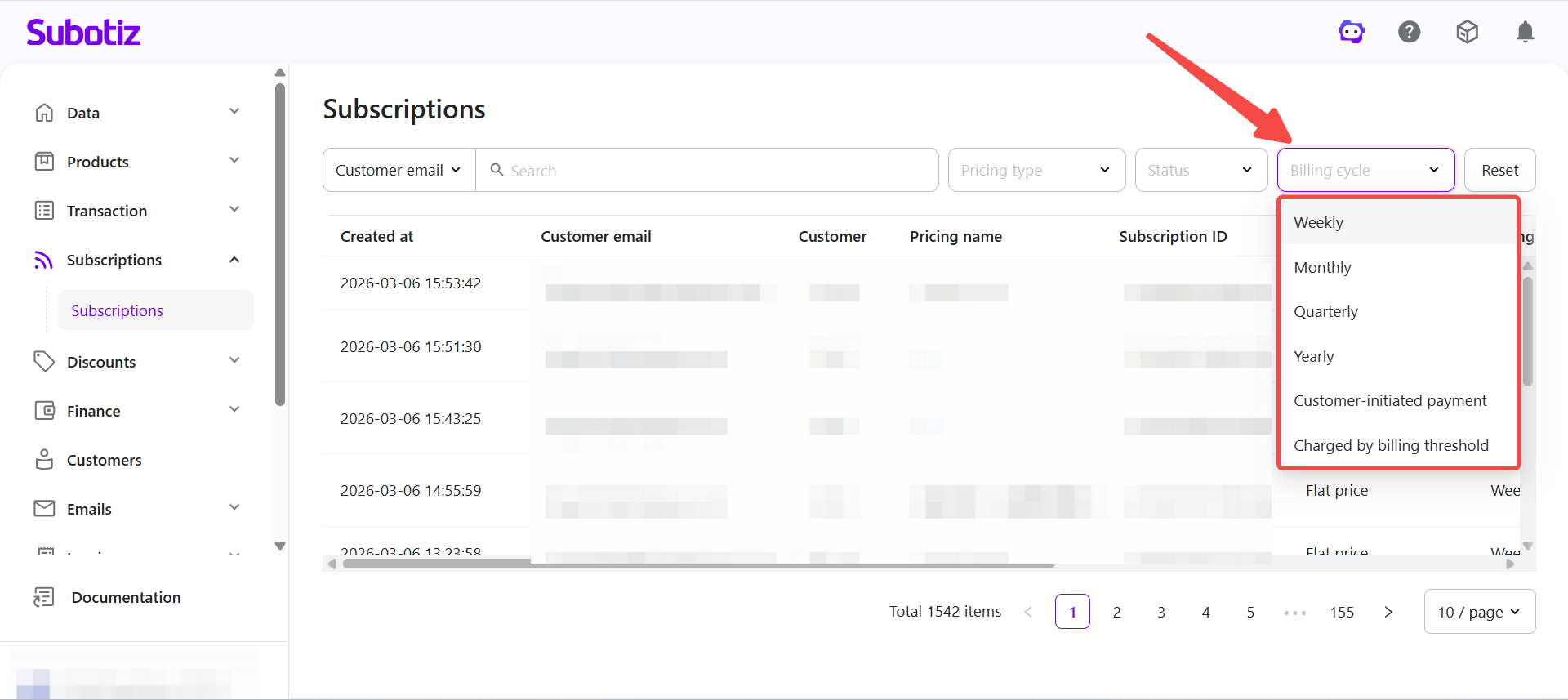
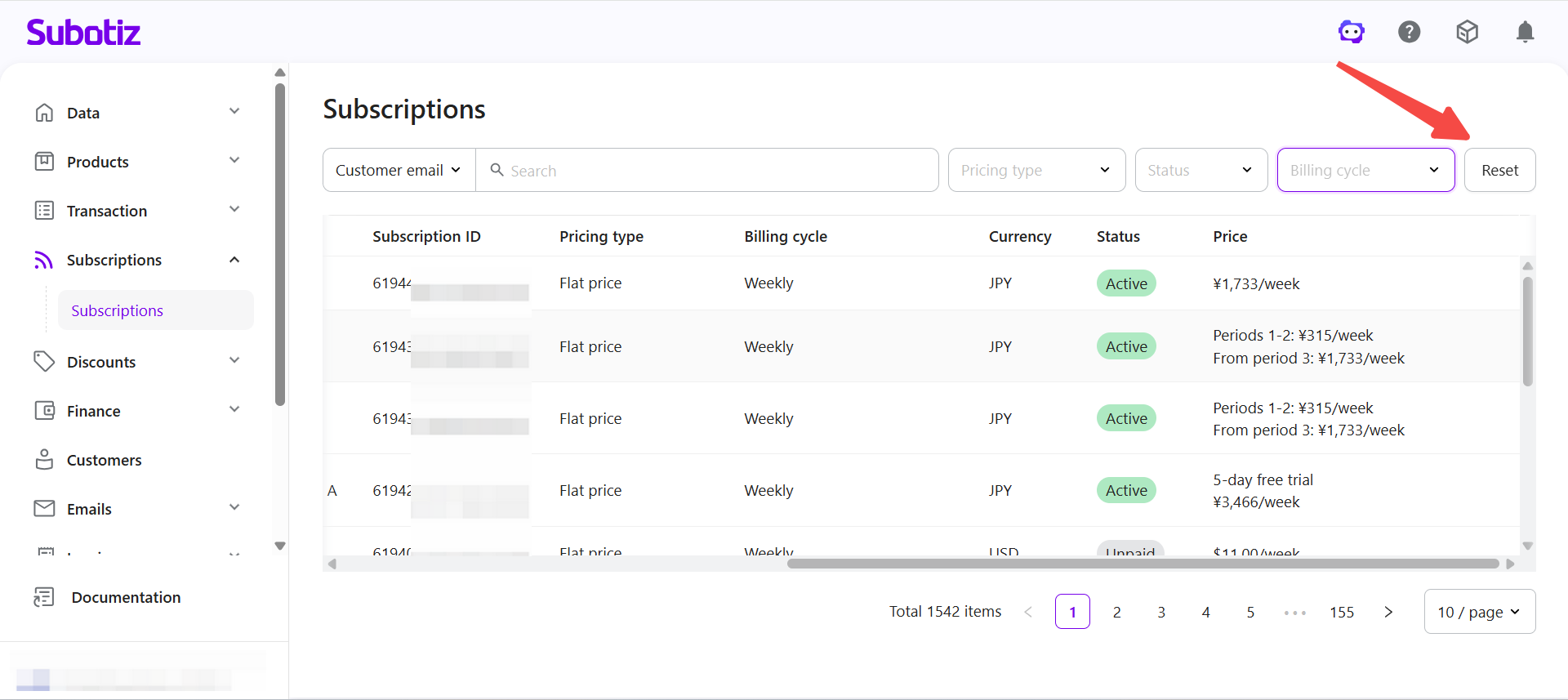
- Reset filters: Click Reset to clear all active filters and restore the full subscription list.
Viewing Subscription Details
Click any subscription in the list to open the details page and review complete subscription information and related records.
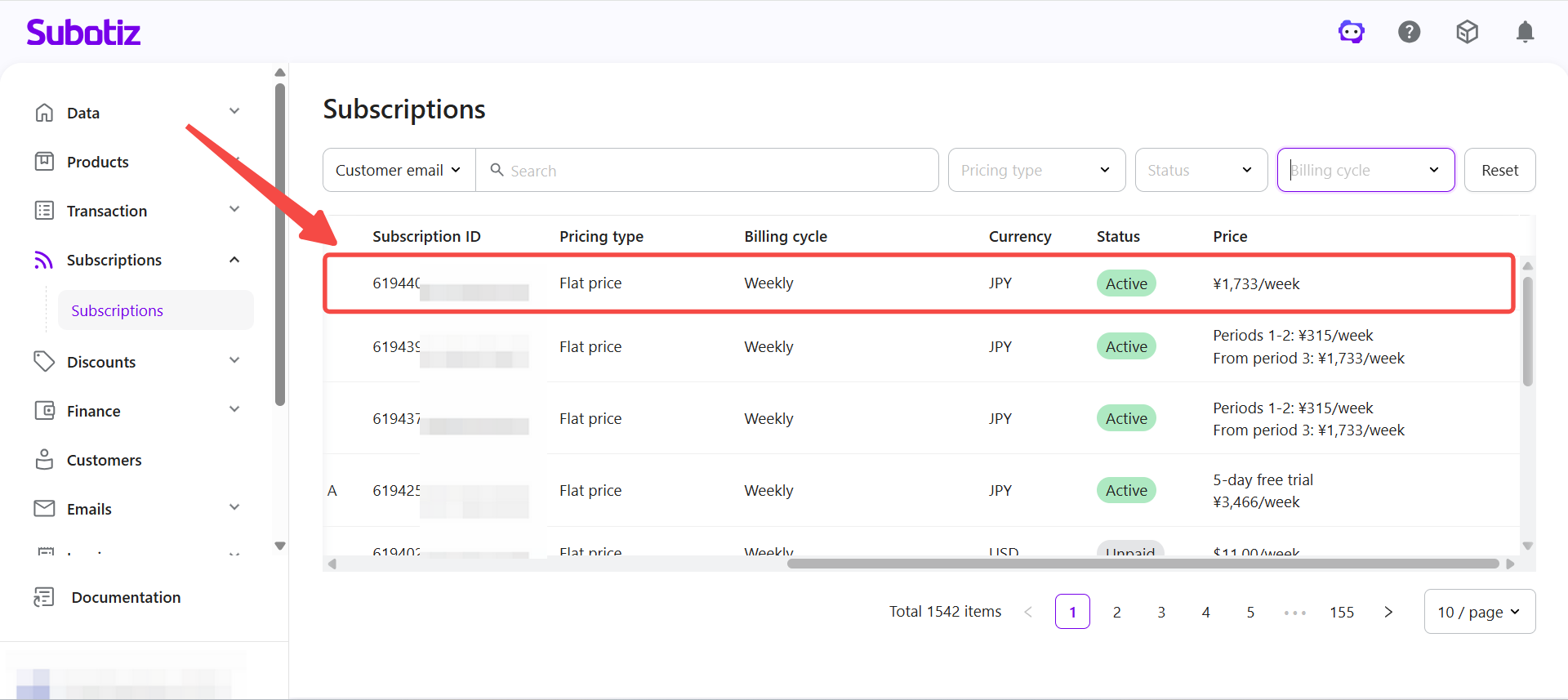
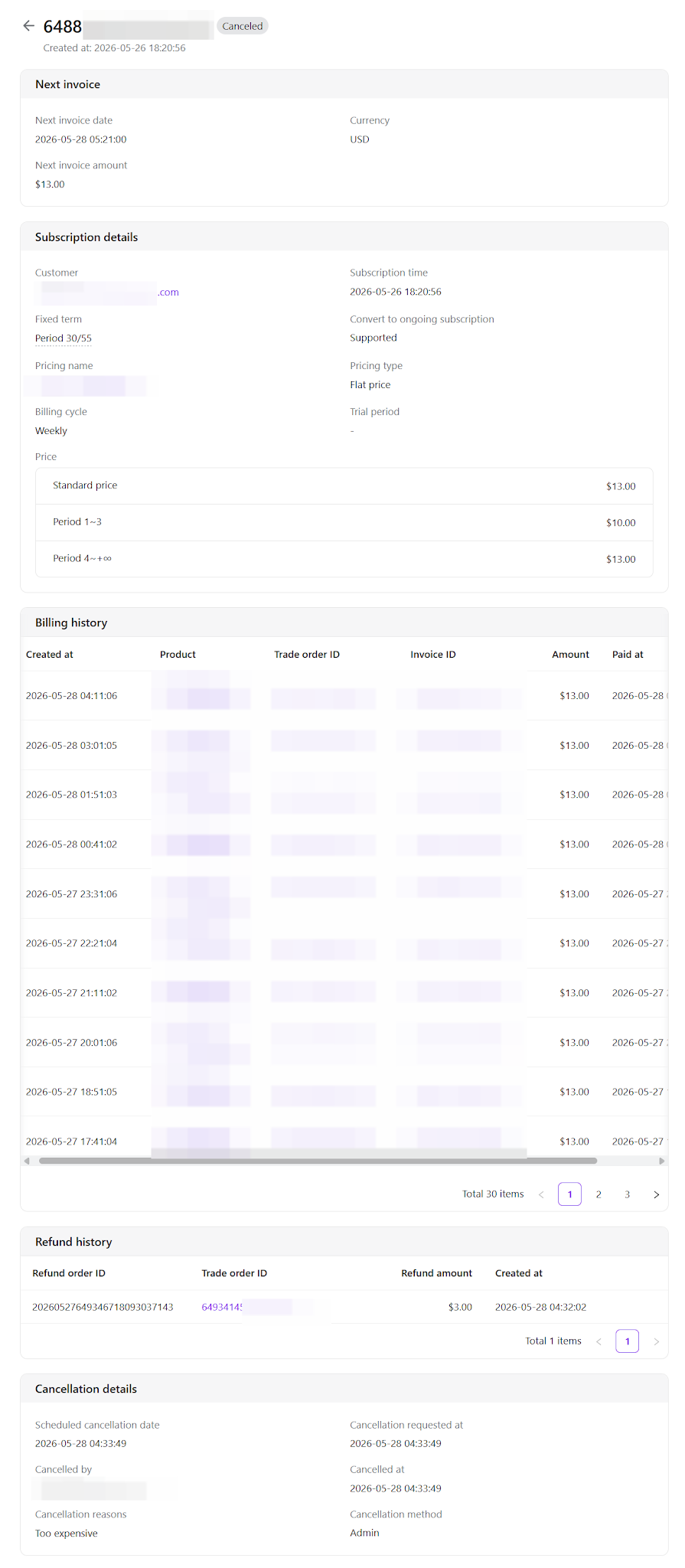
- The subscription details page typically includes the following sections:
- Status: Displays the current subscription status, such as Trial, Active, Canceled, or Incomplete.
- Next invoice: Provides quick visibility into the next billing event:
- Next invoice date
- Next invoice amount
- Currency
- Real-time exchange rate at checkout
- Subscription details: Confirms the relationship between the customer and the pricing plan:
- Customer email or customer information
- Subscription time
- Pricing name
- Pricing type
- Billing cycle
- Trial information (if applicable)
If a fixed term is enabled, the following information is also displayed:
Fixed term (current period / total term)- Fixed term (current period / total term)
- Whether conversion to a recurring subscription is supported
An edit shortcut is typically available beside the fixed-term setting for quick access to term adjustments. - Billing history: Shows billing and invoice generation for each billing cycle, including:
- Created time
- Product or pricing information
- Trade order ID
- Invoice ID
- Amount
- Payment time
- Refund records: Tracks refunds related to the subscription:
- Refund Order ID
- Related trade order ID
- Refund amount
- Created time / refund time
- Cancellation details (if applicable)
- Scheduled cancellation time
- Cancellation request time
- Canceled by
- Actual cancellation time
- Cancellation method
- Cancellation reason or notes
Note: Fields such as customer, pricing plans, trade orders, refunds, and invoices are typically clickable and allow you to navigate directly to the related records for a complete view of the business flow.
Managing Subscriptions
The More actions menu in the upper-right corner of the subscription details page provides access to available subscription management actions. Available actions may vary depending on subscription status.
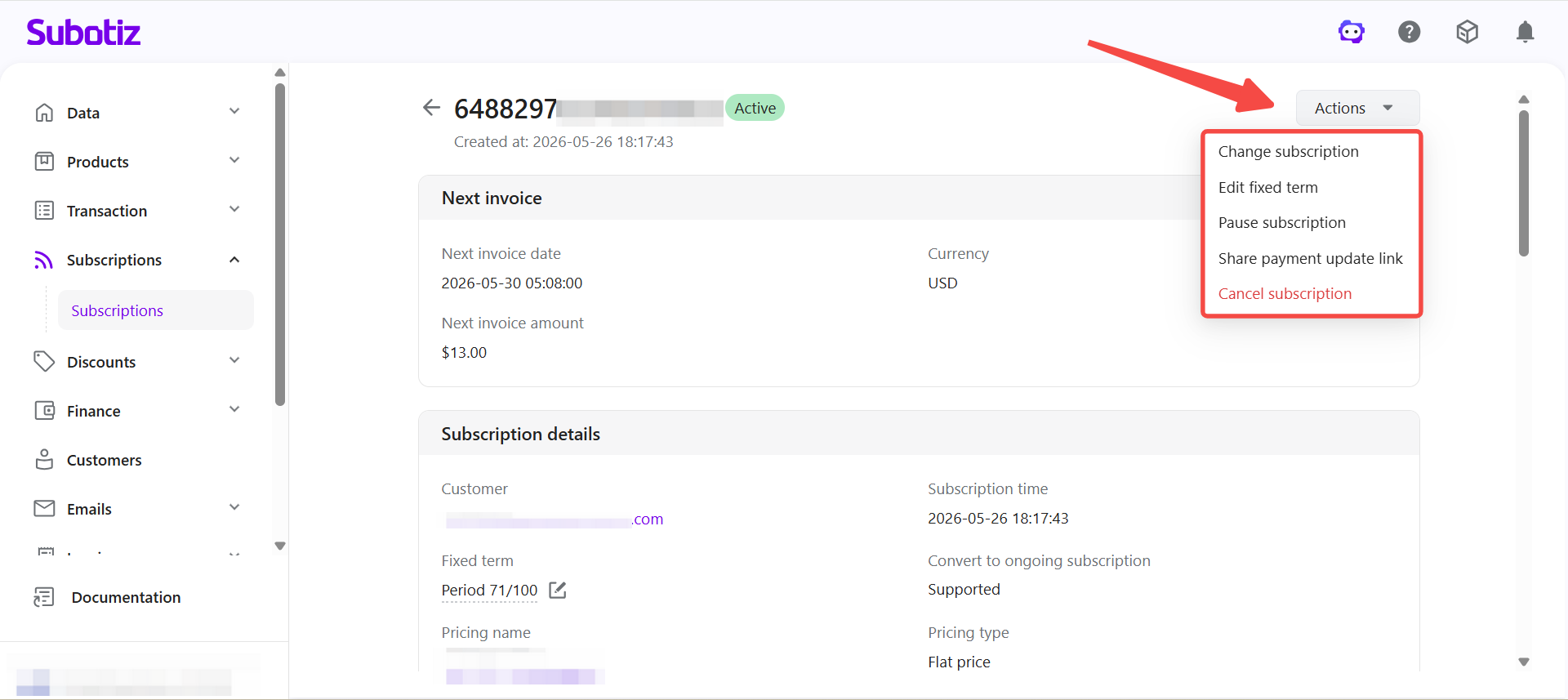
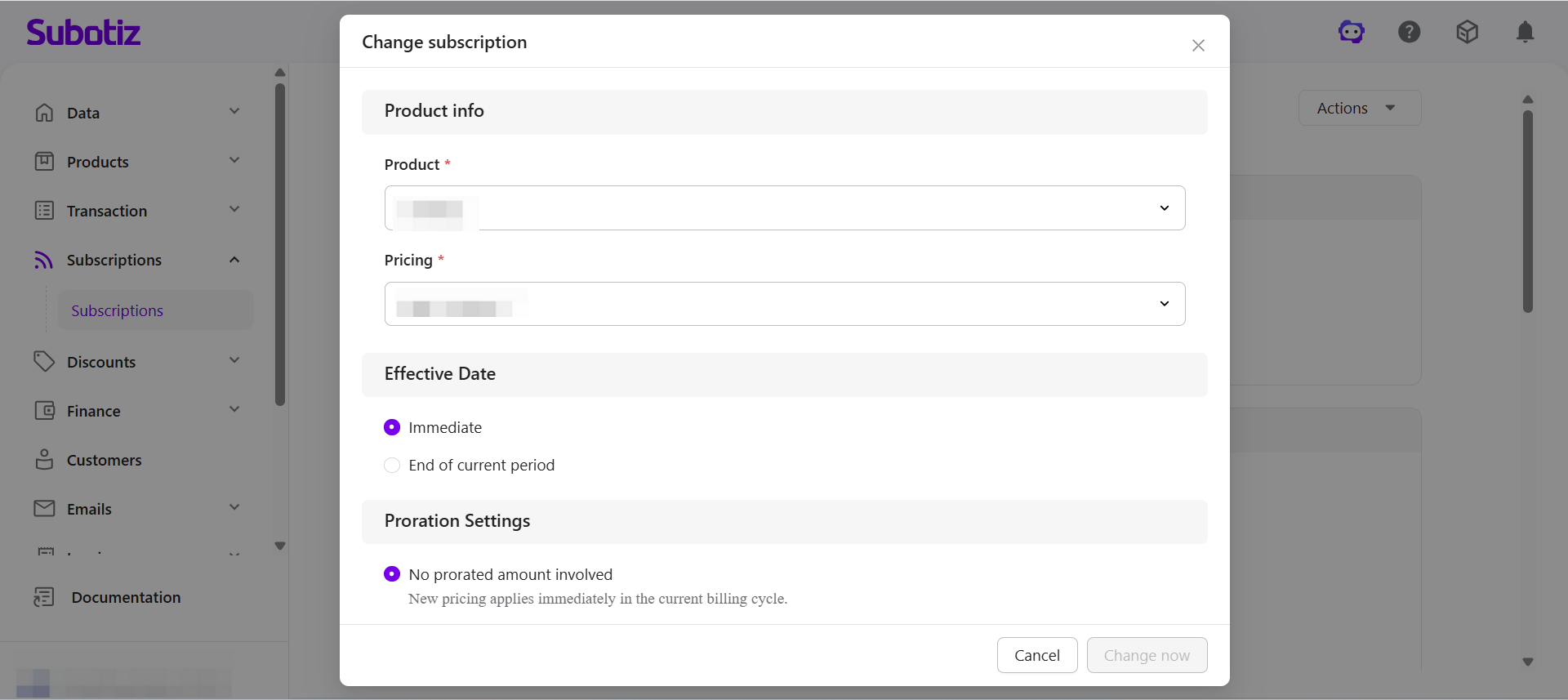
- Change subscription: Used to upgrade, downgrade, or switch to a different pricing plan.You can:
- Select a new product or pricing plan (including flat price, package price, or Based on usage pricing).
- Choose the effective time (for example: immediate effect or at the end of the current billing cycle).
- Select proration or settlement behavior when applicable (for example, in paid trial or based on usage pricing scenarios).
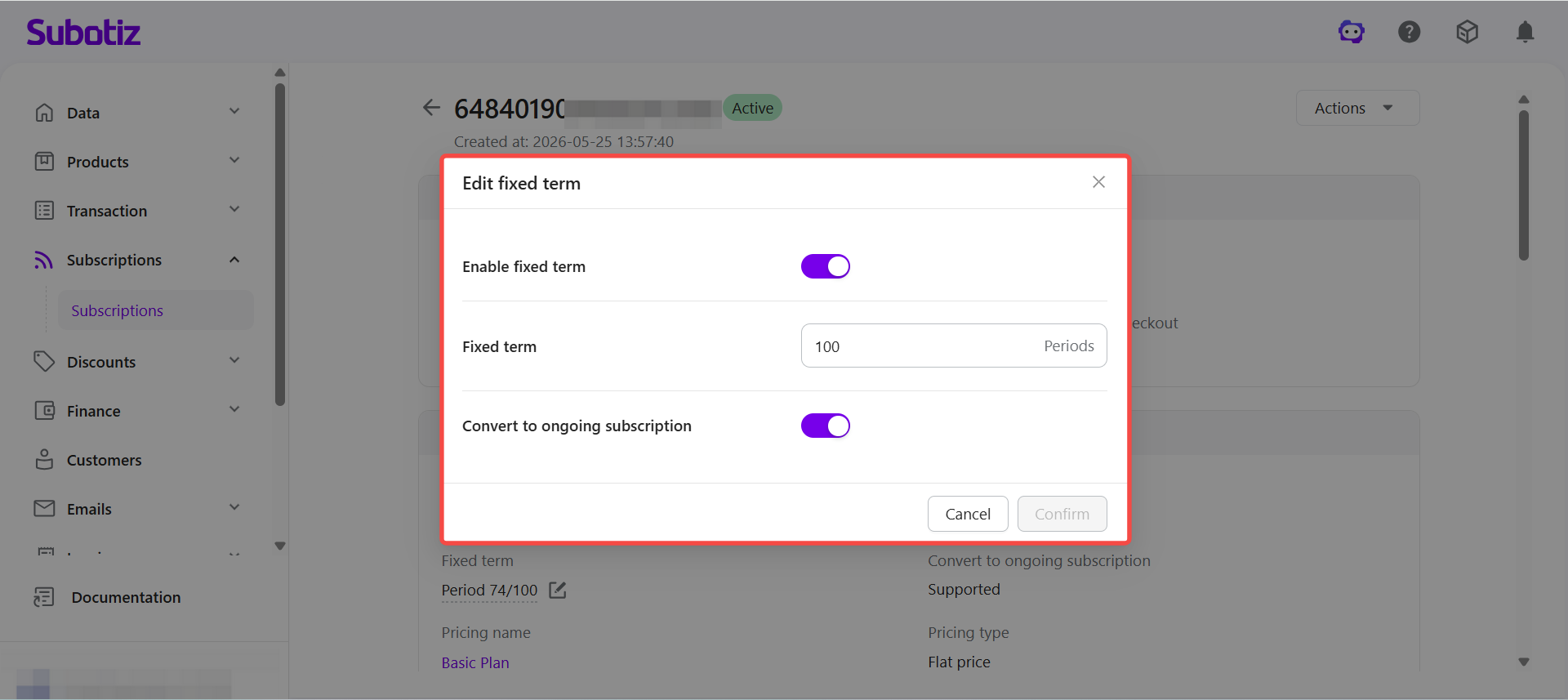
- Edit fixed term: Used to configure or adjust a subscription’s fixed term.Subscriptions that support fixed terms display an Edit fixed term option. Merchants can access it through More actions or the edit shortcut beside the fixed-term field.Available options include:
- Enable or disable fixed term.
- Set fixed-term length (must exceed completed billing period).
- Configure whether the subscription can convert to a recurring subscription.
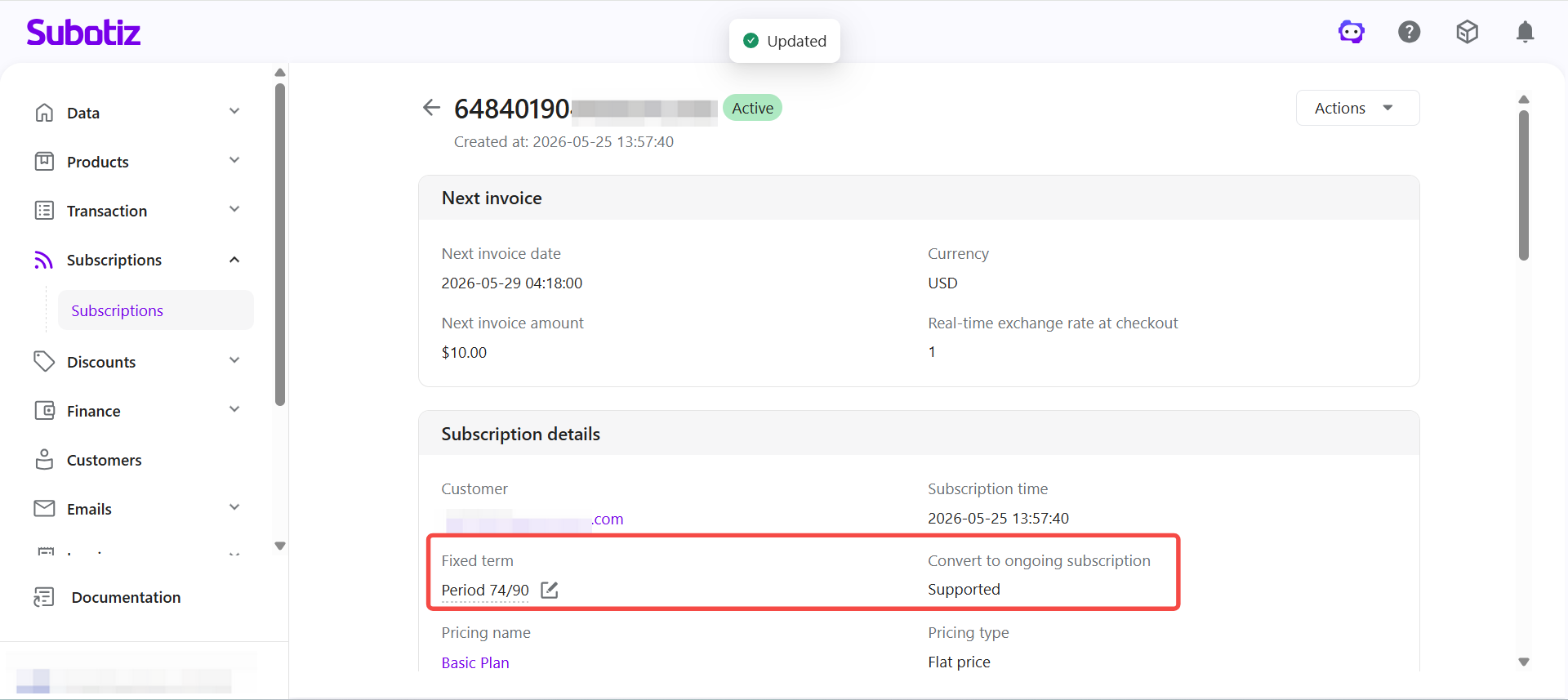
- After submission, subscription information and the related expiration timeline are updated.
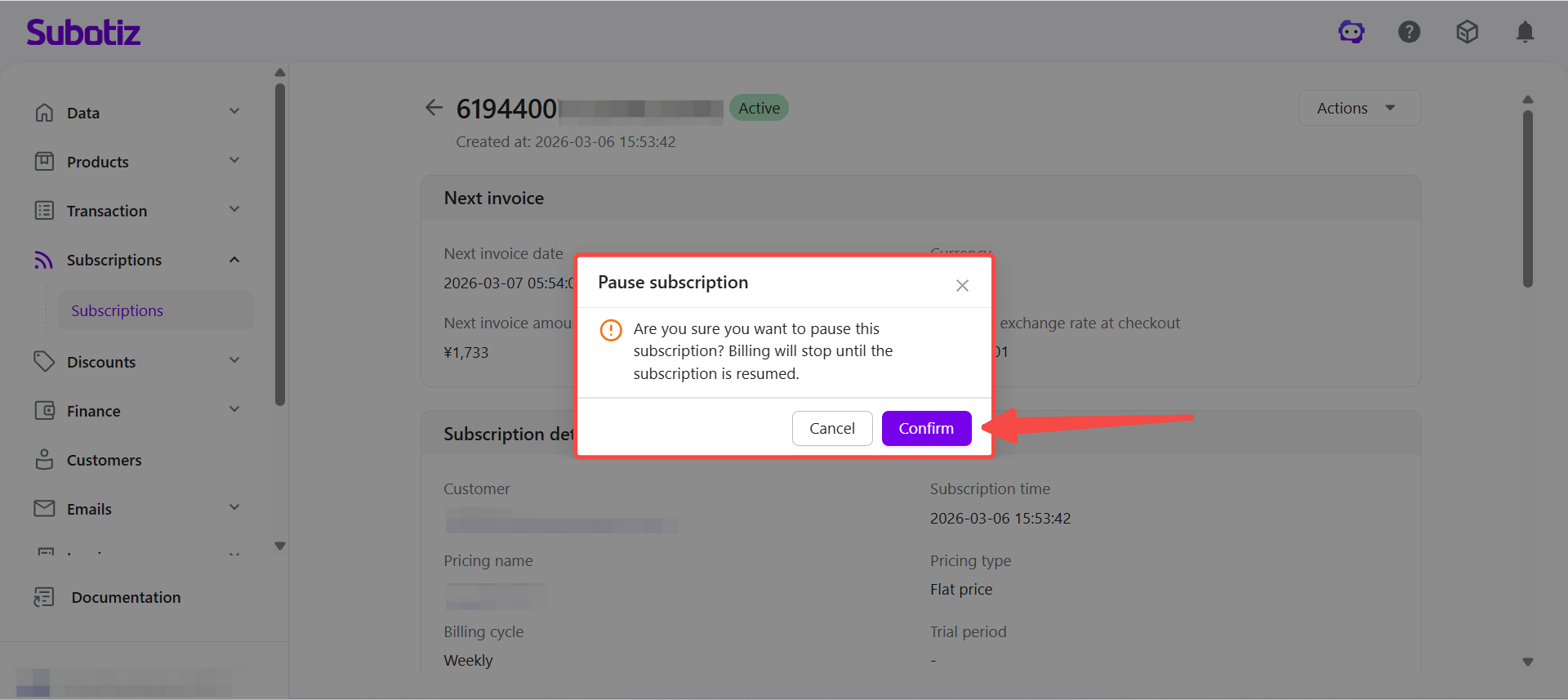
- Pause or resume a subscription: Temporarily stop a subscription and resume it later.
- Pause subscription: Temporarily stops the subscription. No new invoices will be generated until the subscription is resumed.
- Resume subscription: Restores a paused subscription and allows billing to continue normally.
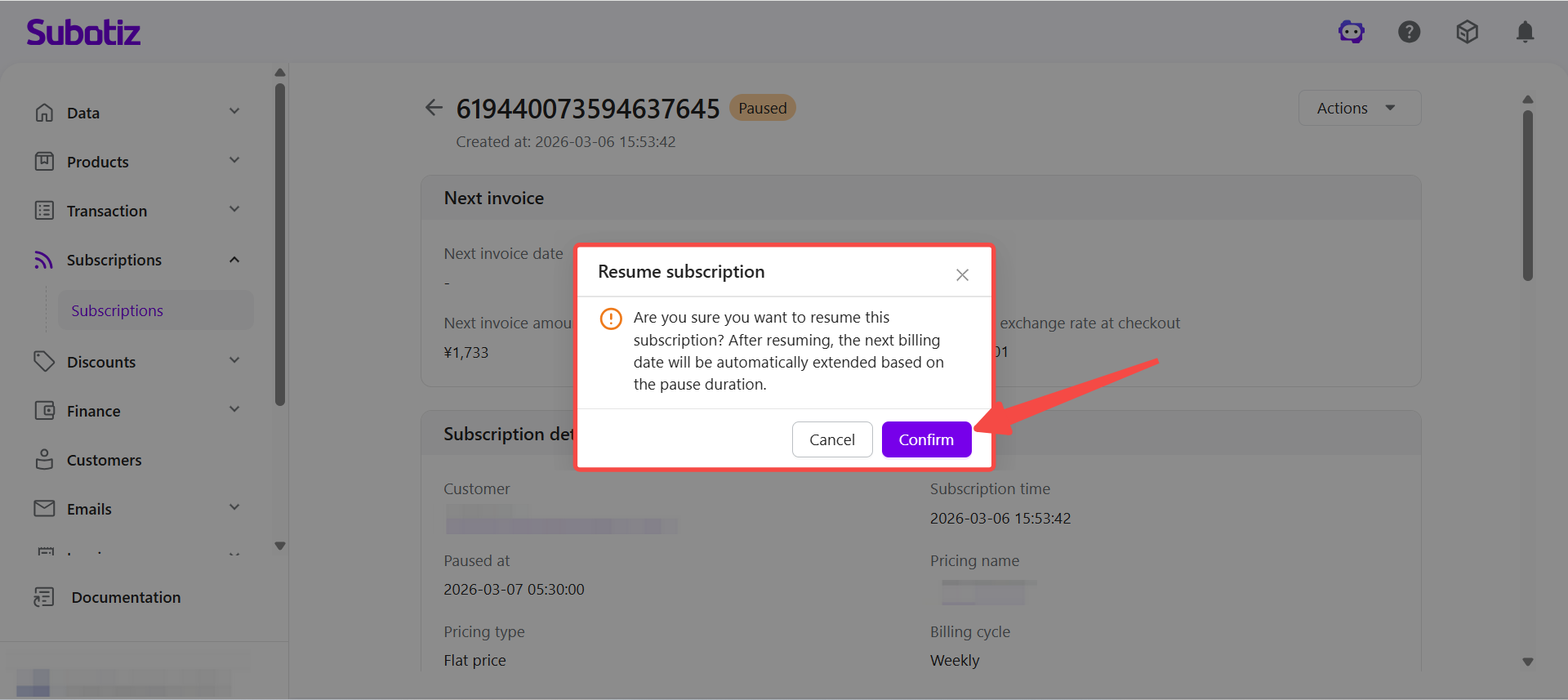 For fixed-term subscriptions, paused time is not counted toward the fixed term. After resuming, the system recalculates the expiration timeline based on the pause duration.
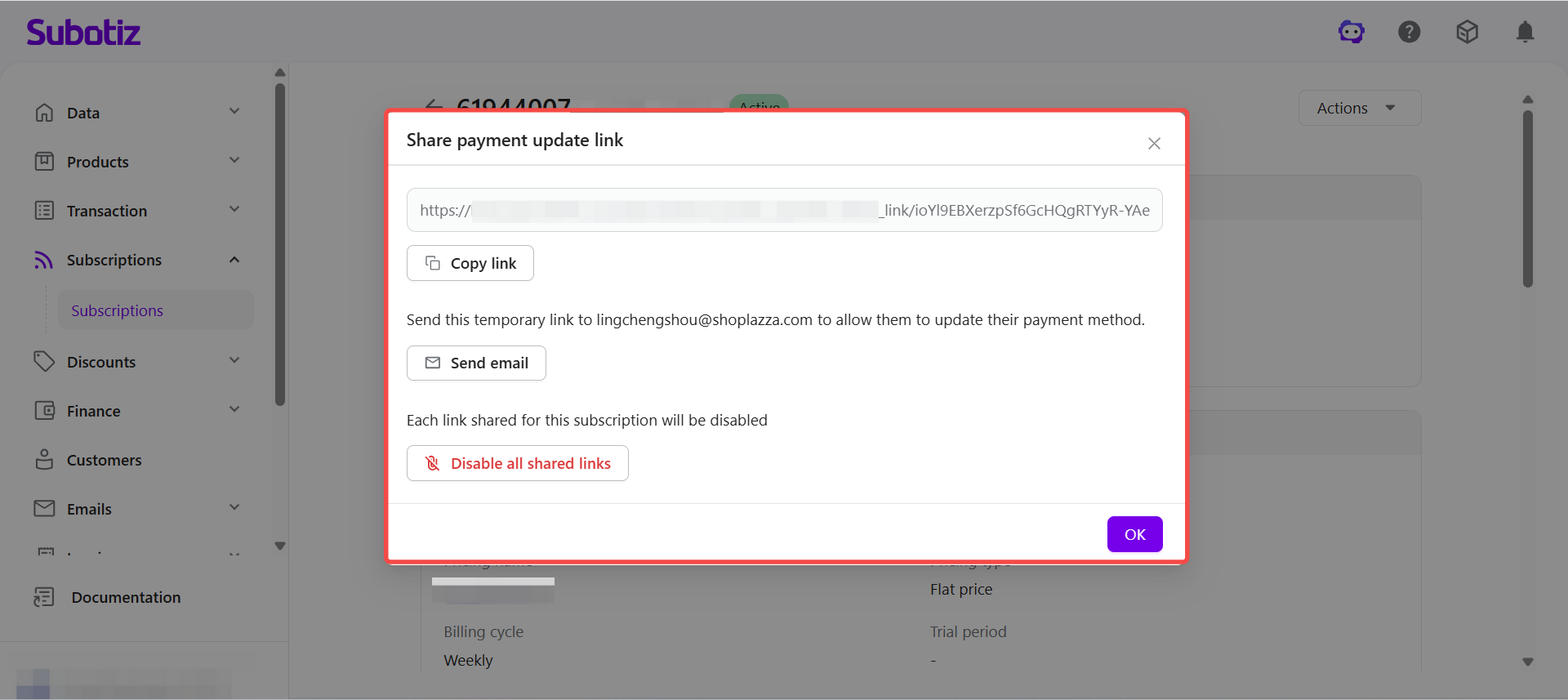
- Share payment update link: Generate a temporary link that allows the customer to update the payment method associated with the subscription.In the popup window you can:
- Copy the link and send it to the customer.
- Send the link via email.
- Disable the link if it should no longer be used.
- Cancel subscription: Permanently cancel the subscription.When canceling a subscription, you may need to choose:
- Cancellation timing (cancel immediately or at the end of the current billing cycle).
- Refund behavior (no refund, refund the most recent invoice amount, or prorated refund based on unused days).
- Cancellation reason or notes for operational records.
For fixed-term subscriptions:- Automatic expiration at term completion and cancellation at the end of a billing cycle are independent mechanisms.
- If a cancellation has already been initiated, cancellation rules take priority over fixed-term expiration logic.
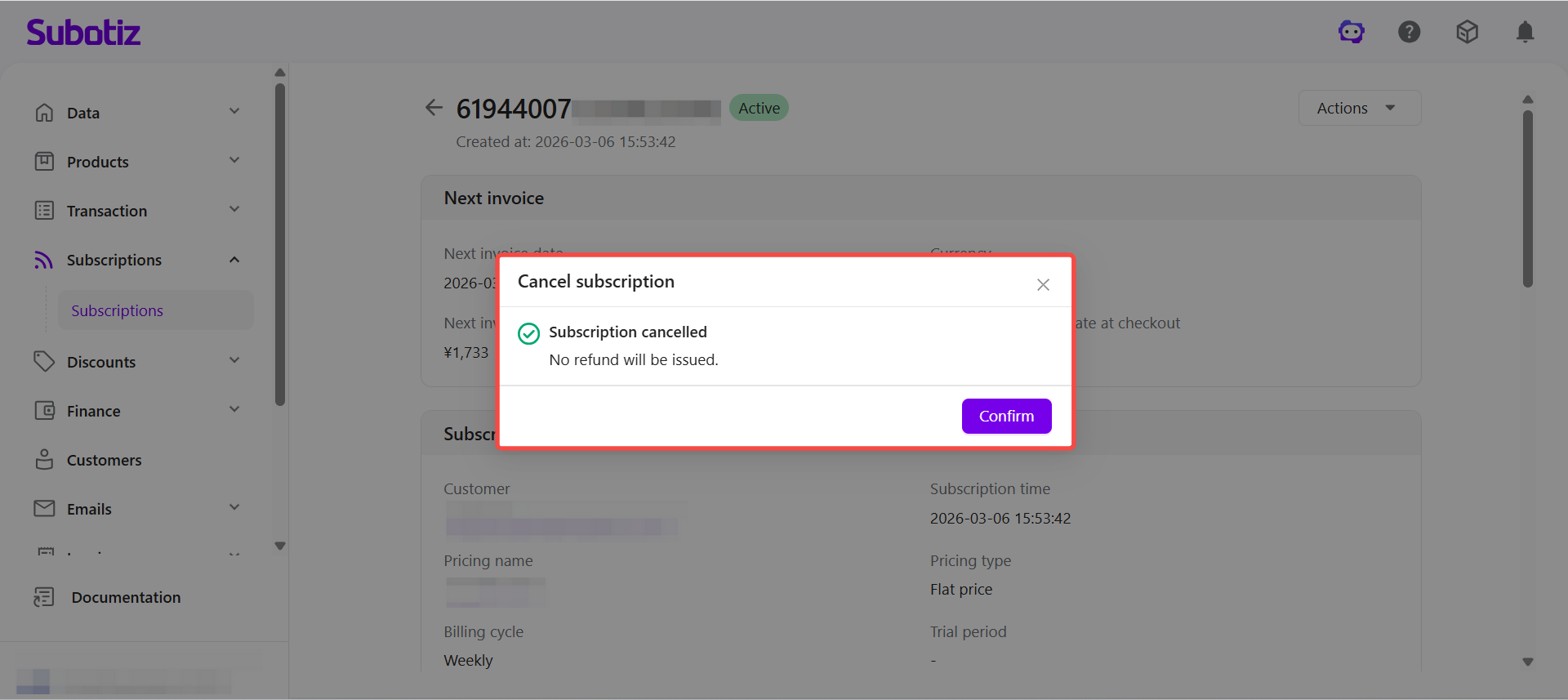
After submission, the system returns the cancellation result in a confirmation window and may display refund details if applicable. The page refreshes to reflect the updated subscription status.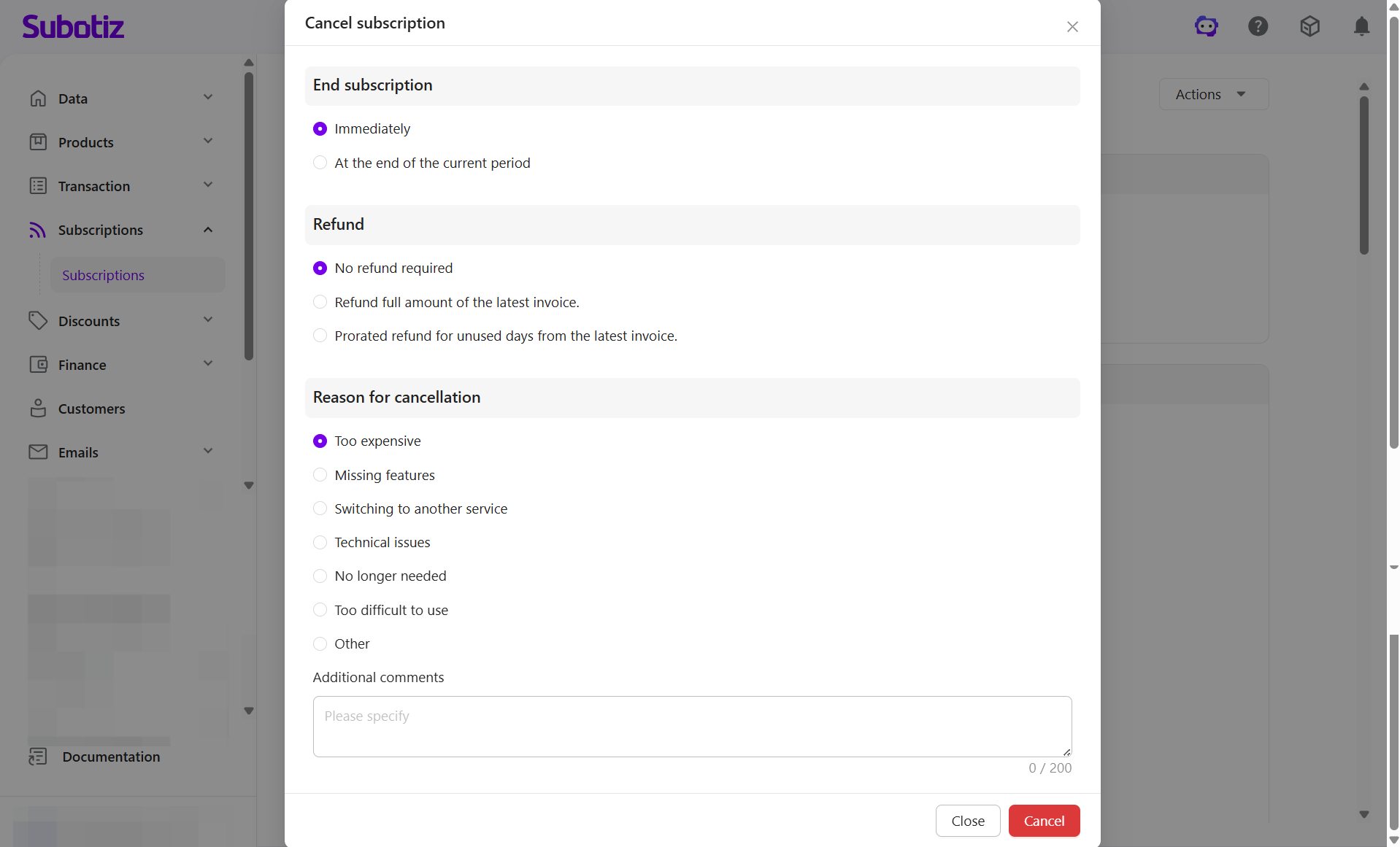
Best Practices
- Locate subscriptions using customer email, subscription ID, trade order ID, or invoice ID for faster investigation.
- For pricing plans with trial periods or tiered pricing, review the Price column and subscription details carefully to confirm billing amounts for the current stage.
- Before performing actions such as changing, pausing, or canceling a subscription, review the current status and next billing information to avoid unintended billing changes.
Subscriptions serve as the operational core of Subotiz’s subscription management system, centralizing billing cycles, subscription changes, and related orders in a single record.