The Disputes feature in Subotiz Payments provides merchants with tools to manage contested transactions efficiently. This guide explains how to review case details, understand dispute reasons, and decide whether to contest or accept disputes.
Reviewing Subotiz Disputes
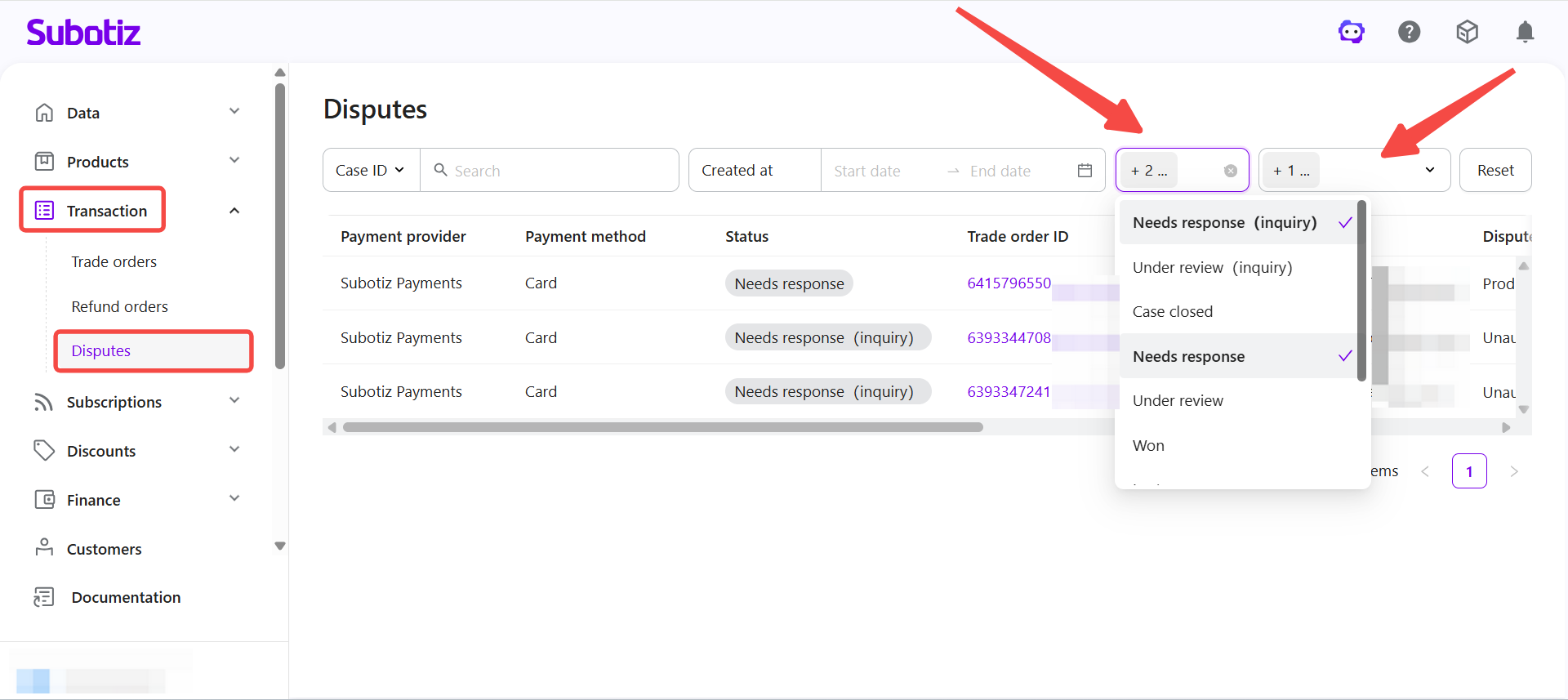
- Access and filter disputes: Go to Transaction > Disputes in the Subotiz admin. First apply the Payment provider filter to display Subotiz Payments disputes, then apply the Status filter to focus on actionable cases:
- Needs response (inquiry): Respond to the inquiry before it escalates to a formal dispute.
- Needs response: Action required to accept dispute or submit full evidence.
- Other statuses (e.g., Under review, Case closed): View only, no action required.
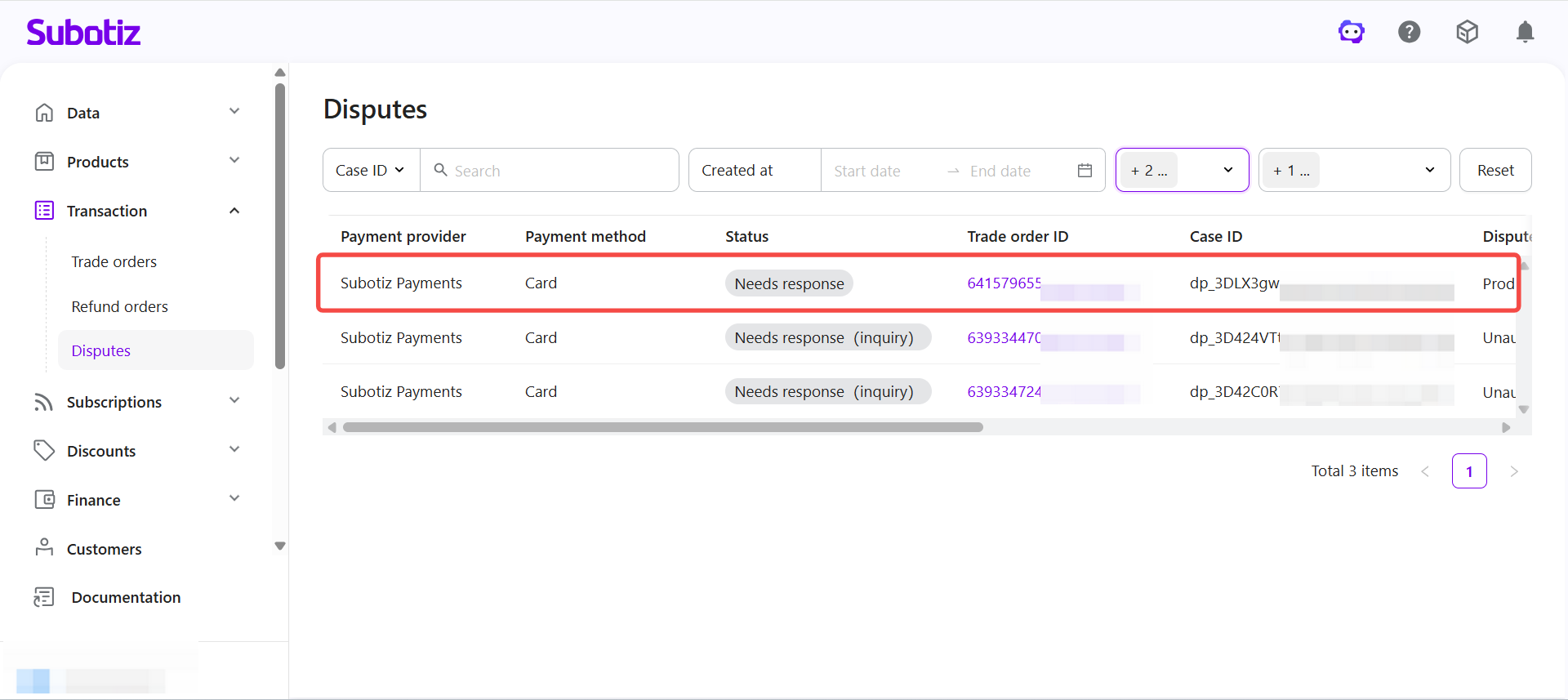
- Open a case: Select a dispute entry to view its details.
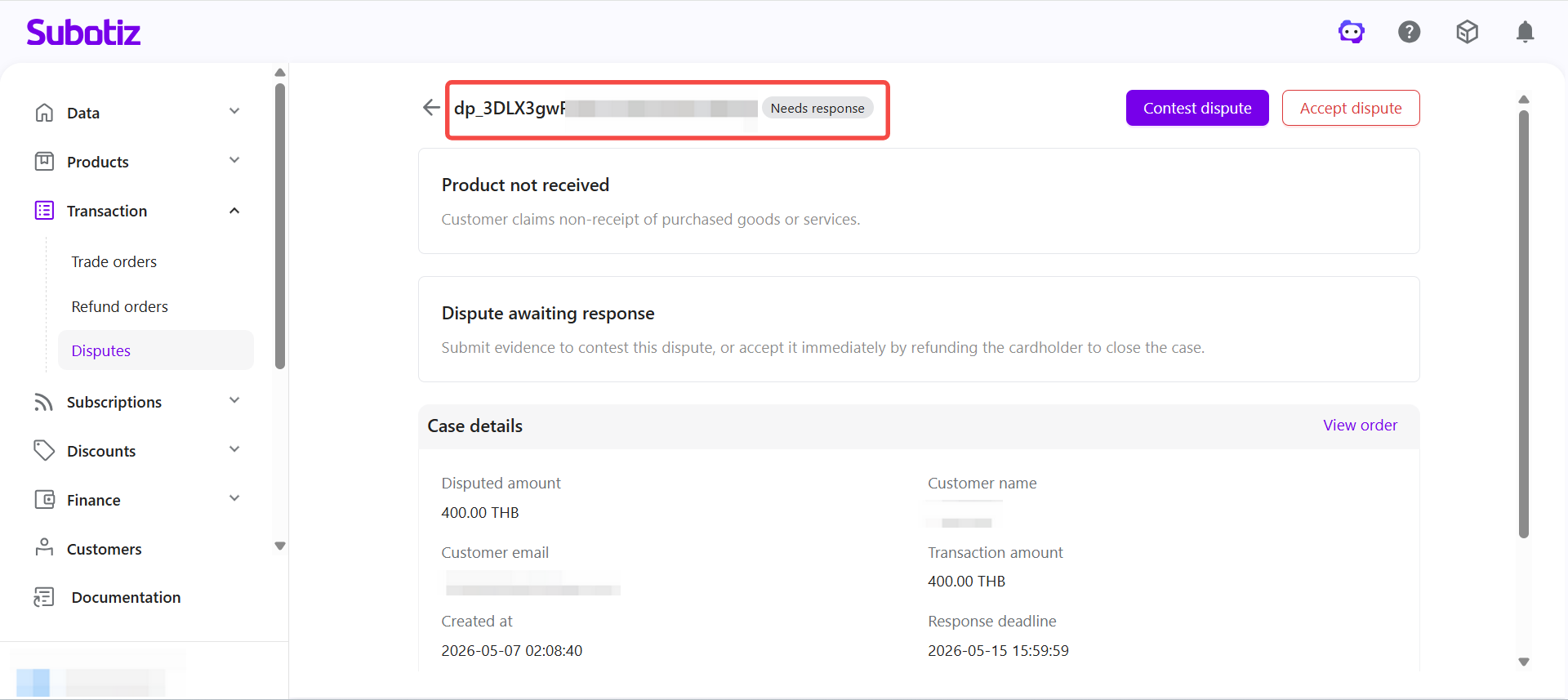
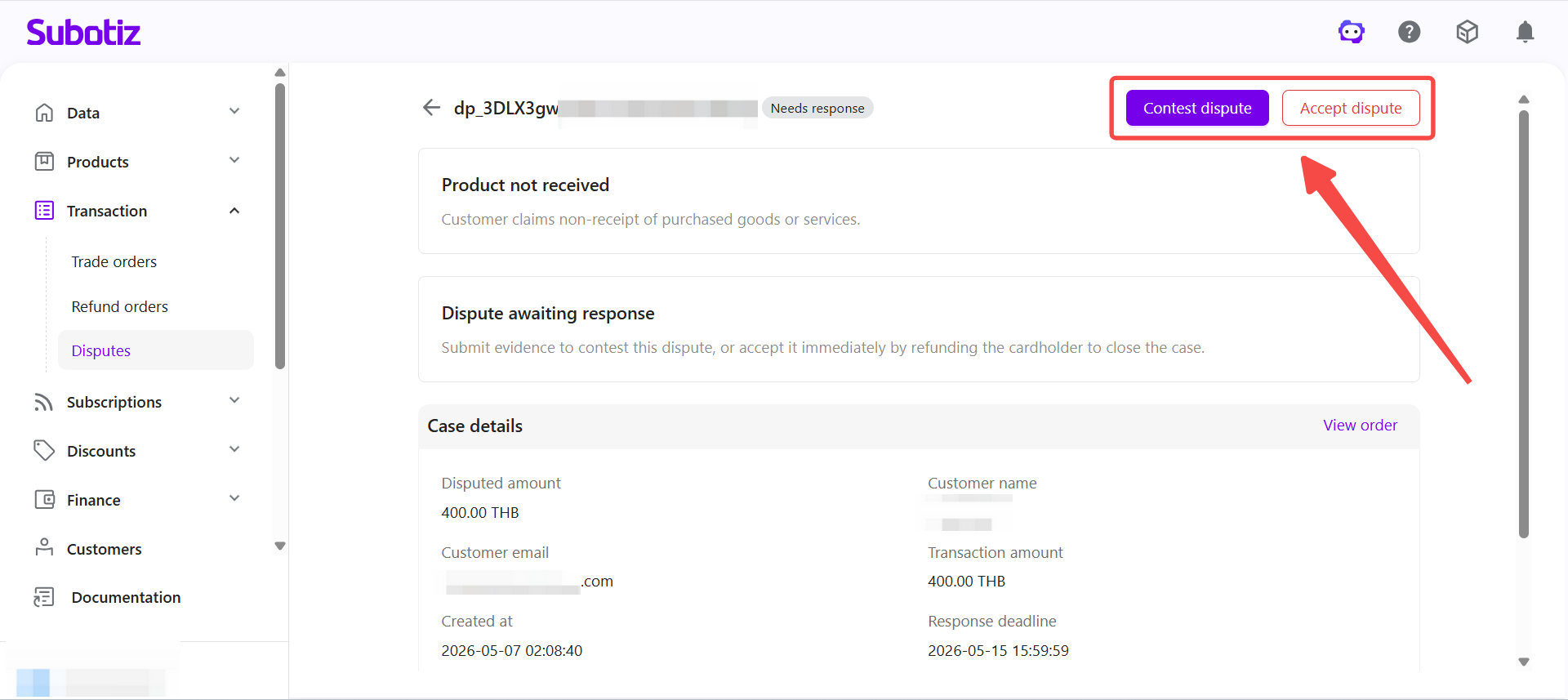
- View case header: The header shows the Case ID and current status, making it clear whether a response is required.
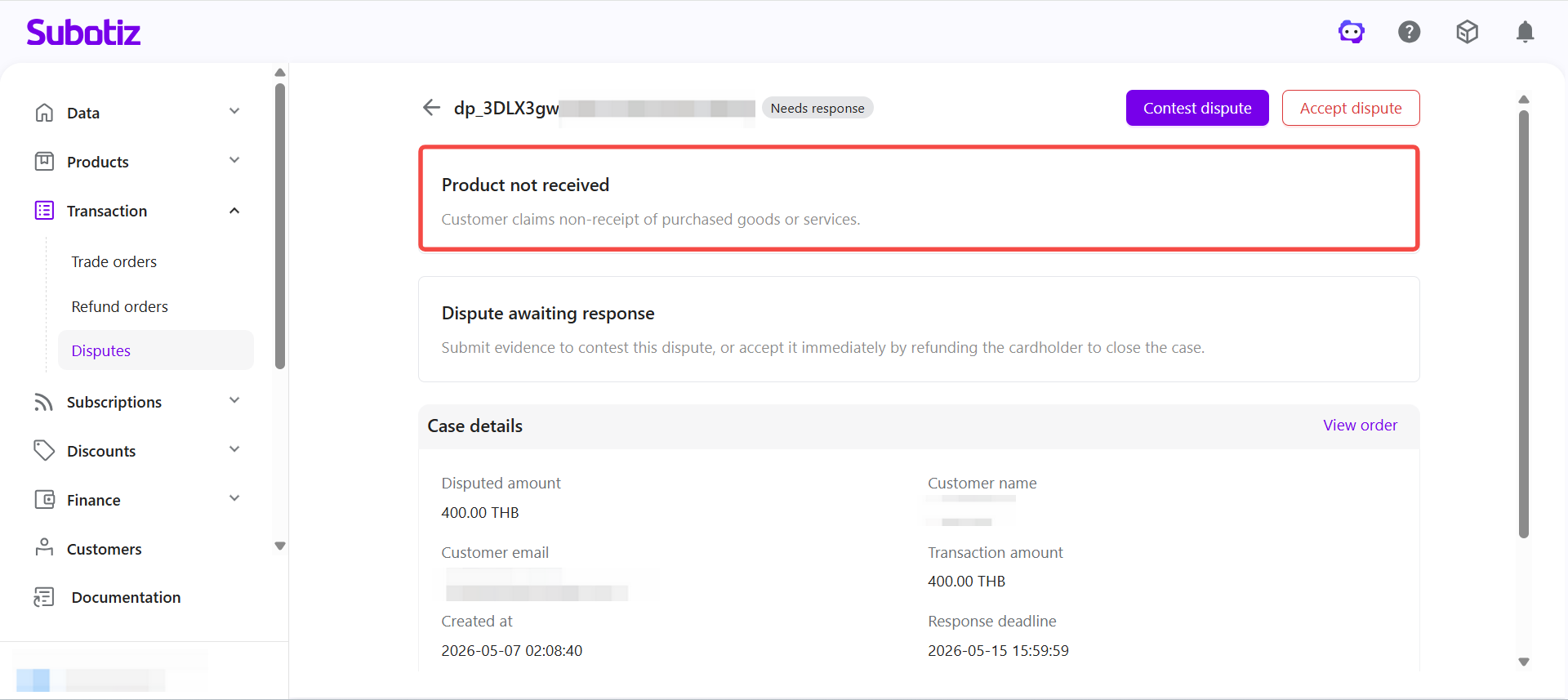
- Review dispute reason and details: The page displays the customer’s reason code and claim description, such as Product not received or Unauthorized.
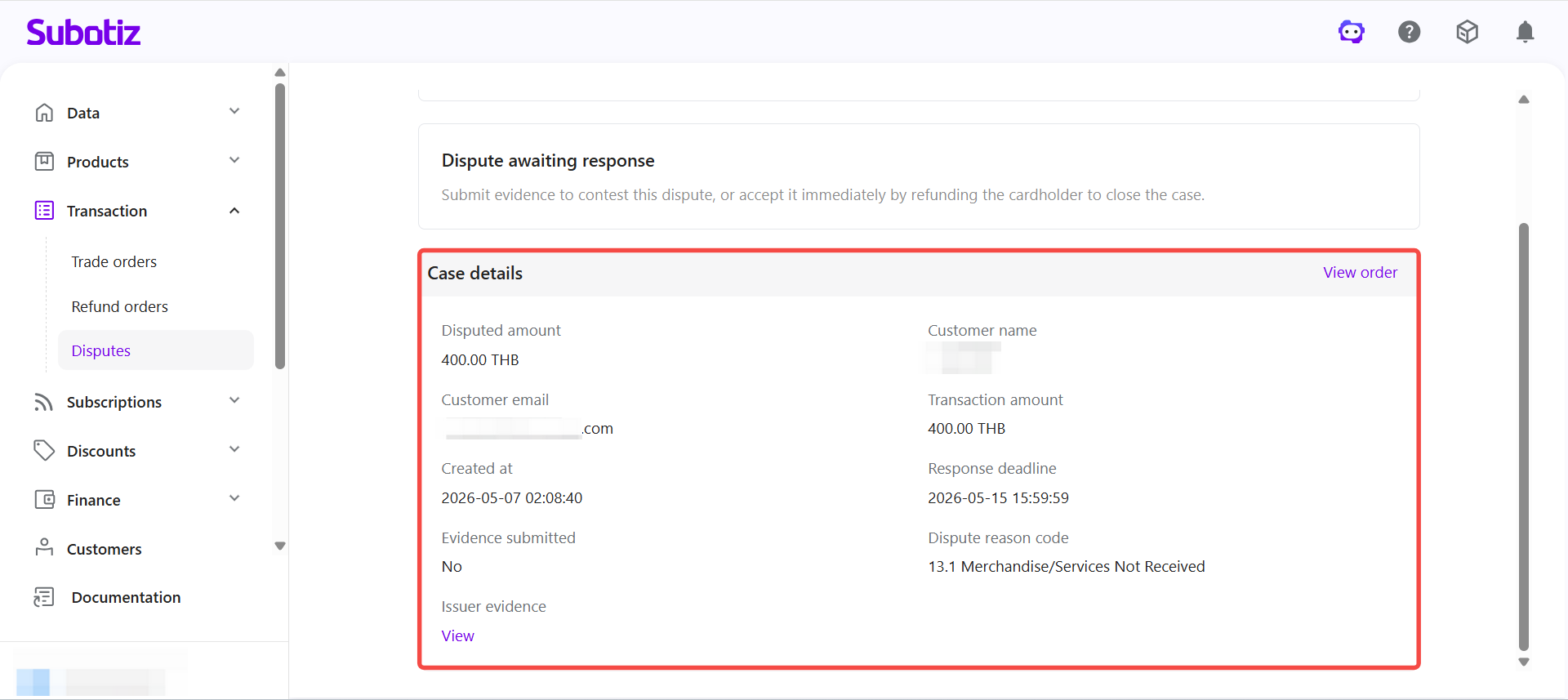
- Check case details: Review supporting information including:
- Disputed amount and transaction amount
- Customer email and cardholder name
- Created at and response deadline
- Dispute reason code
- Evidence submission status
- Additional case information (if available), such as issuer-provided evidence
- Select an action: Choose how to proceed from the case detail page:
- Contest dispute: Click Contest dispute to open the submission form and upload required evidence.
- Accept dispute: Click Accept dispute to issue a refund and close the case.
Dispute Reasons
Understanding the dispute reason is essential for preparing the right response. Each dispute includes a customer-provided reason code. Common categories include:
Reason | Description | Typical scenario |
|---|---|---|
Credit not processed | Refund or credit not issued. | Customer canceled but refund not processed. |
Duplicate | Same transaction charged multiple times. | Multiple charges for one order. |
Unauthorized | Cardholder did not authorize the payment. | Fraudulent or unrecognized charge. |
Product not received | Goods or services were not delivered. | Delivery failure or incomplete fulfillment. |
Product unacceptable | Product defective, damaged, or not as described. | Item delivered broken or misdescribed. |
Subscription canceled | Billing continued after cancellation. | Subscription ended but charges persisted. |
Unrecognized | Transaction not identified by customer. | Merchant name unclear or confusing. |
Others | Reason not listed in predefined categories | Unclear or custom explanation. |
Submitting Evidence (Contest dispute)
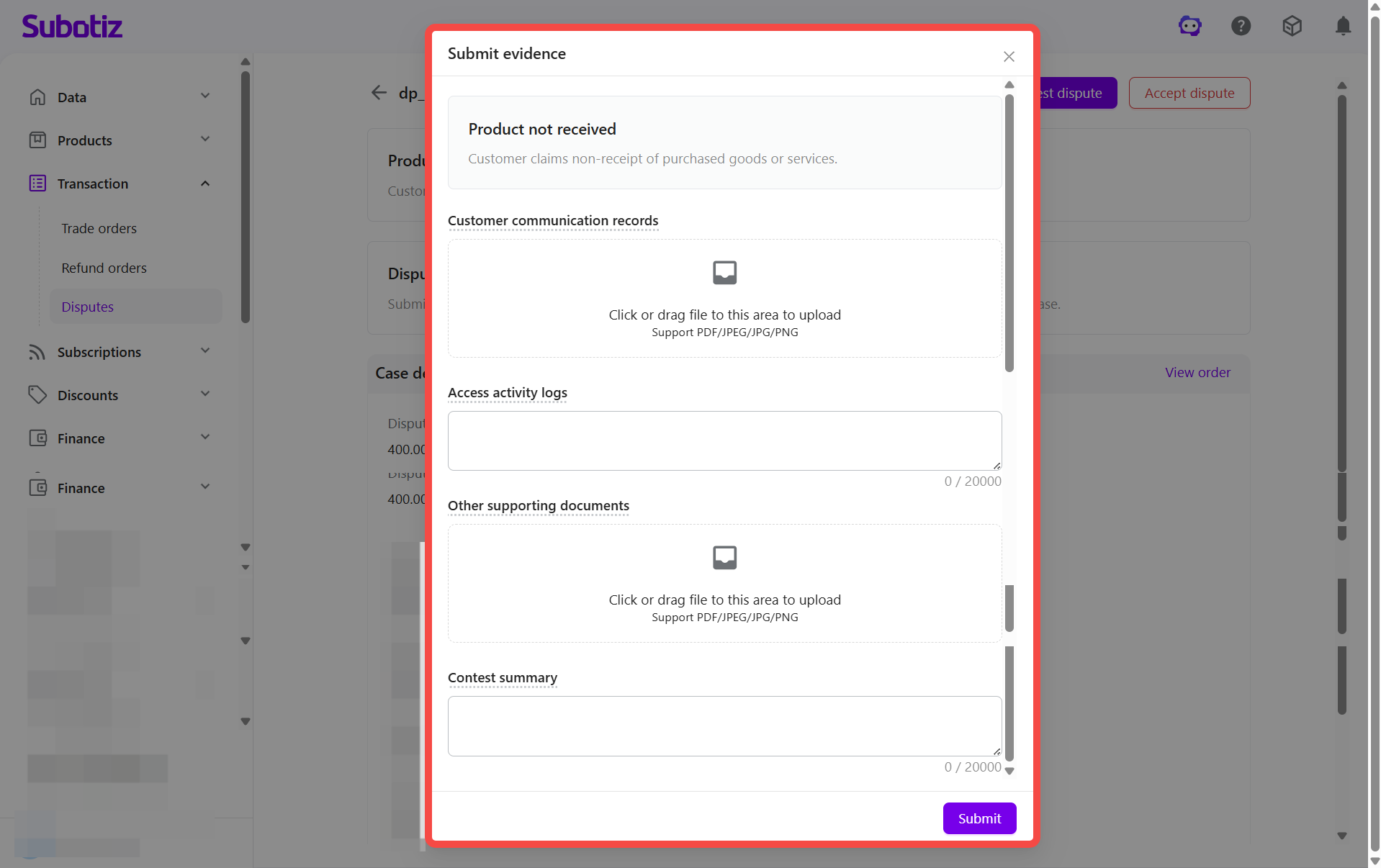
On the case detail page, click Contest dispute. The evidence form opens with fields dynamically displayed based on the dispute reason.
The following example reflects the fields shown for "Product not received." Fields will vary depending on the actual dispute reason.
- Customer communication records: Upload proof of any communication with the customer before the dispute. If the customer never reached out, clearly state this.
- Access activity logs: Provide records showing the customer accessed or downloaded the purchased product (e.g., IP logs, timestamps, or session activity).
- Other supporting documents: Add evidence such as device information, delivery proof, refund records, or documentation showing the disputed amount exceeds undelivered items.
- Contest summary: Provide a short, clear explanation of why the case should succeed, keeping it concise so reviewers can quickly understand the rationale.
- Submit evidence: Once all sections are complete, click Submit to send for review.
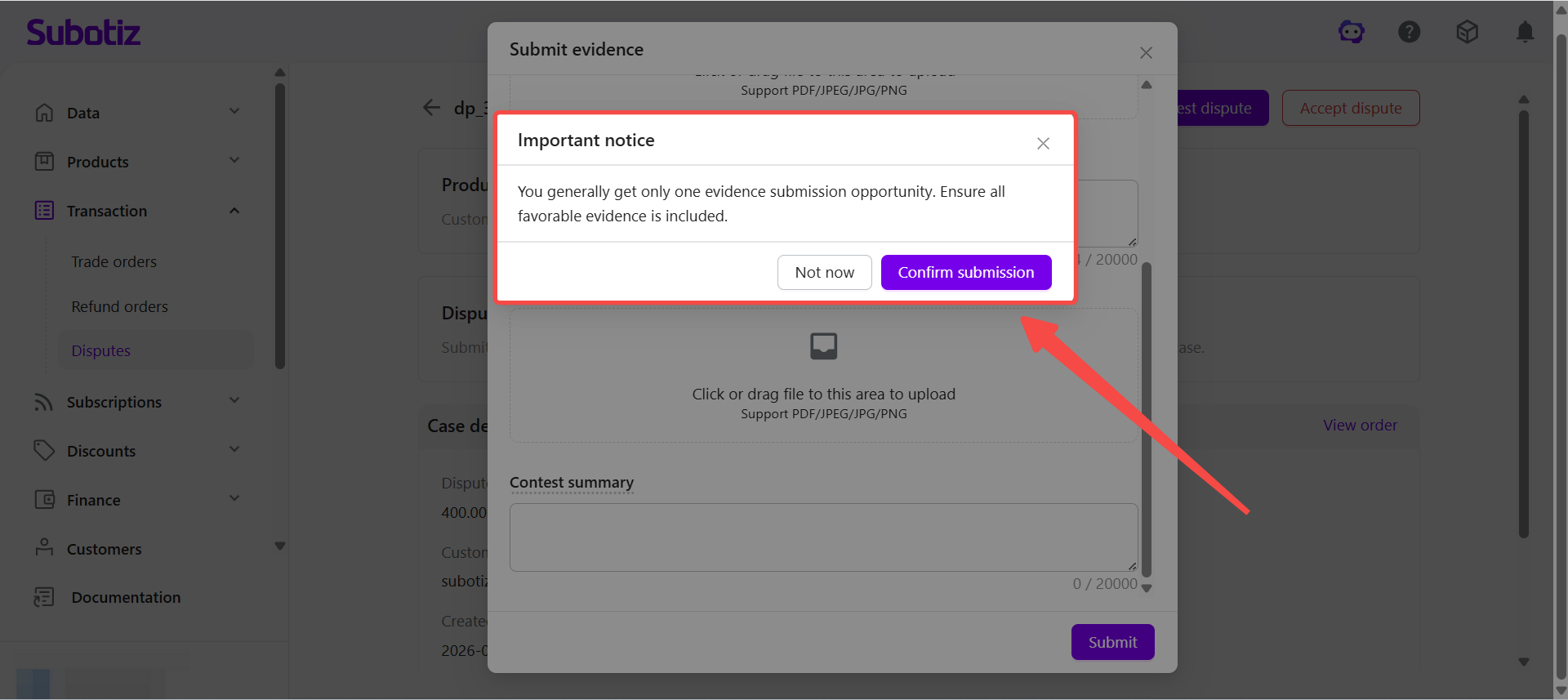
Note: Evidence can only be submitted once; ensure all supporting materials are included before clicking Confirm submission.
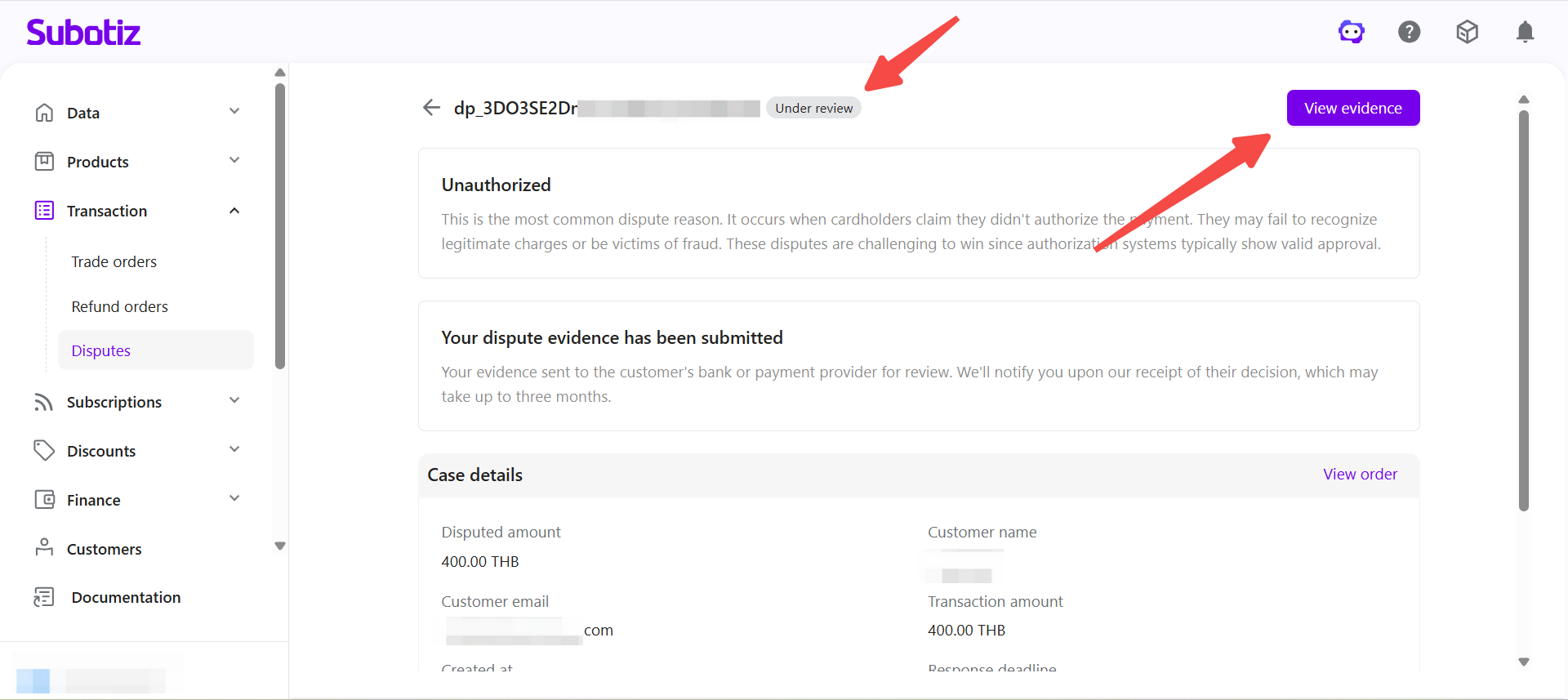
After submission, the case status updates to Under review. Evidence has been forwarded to the issuing bank or payment provider. Review periods may take up to 3 months. Previously submitted evidence can be viewed at any time from the case detail page by clicking View evidence.
Accepting and Closing Disputes
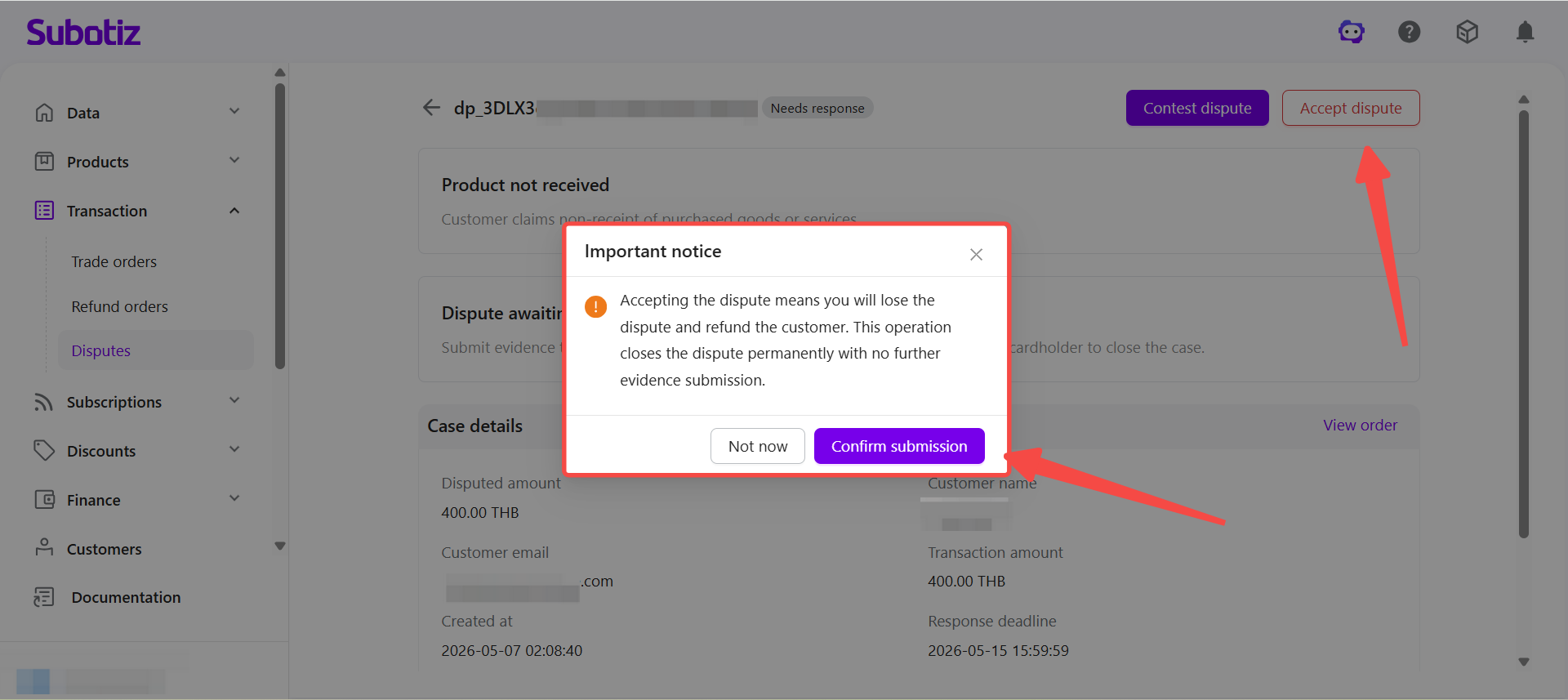
Selecting Accept dispute issues a refund to the customer:
- Confirm acceptance: A confirmation notice appears before clicking Confirm submission, reminding that no further evidence can be added after the dispute is accepted.
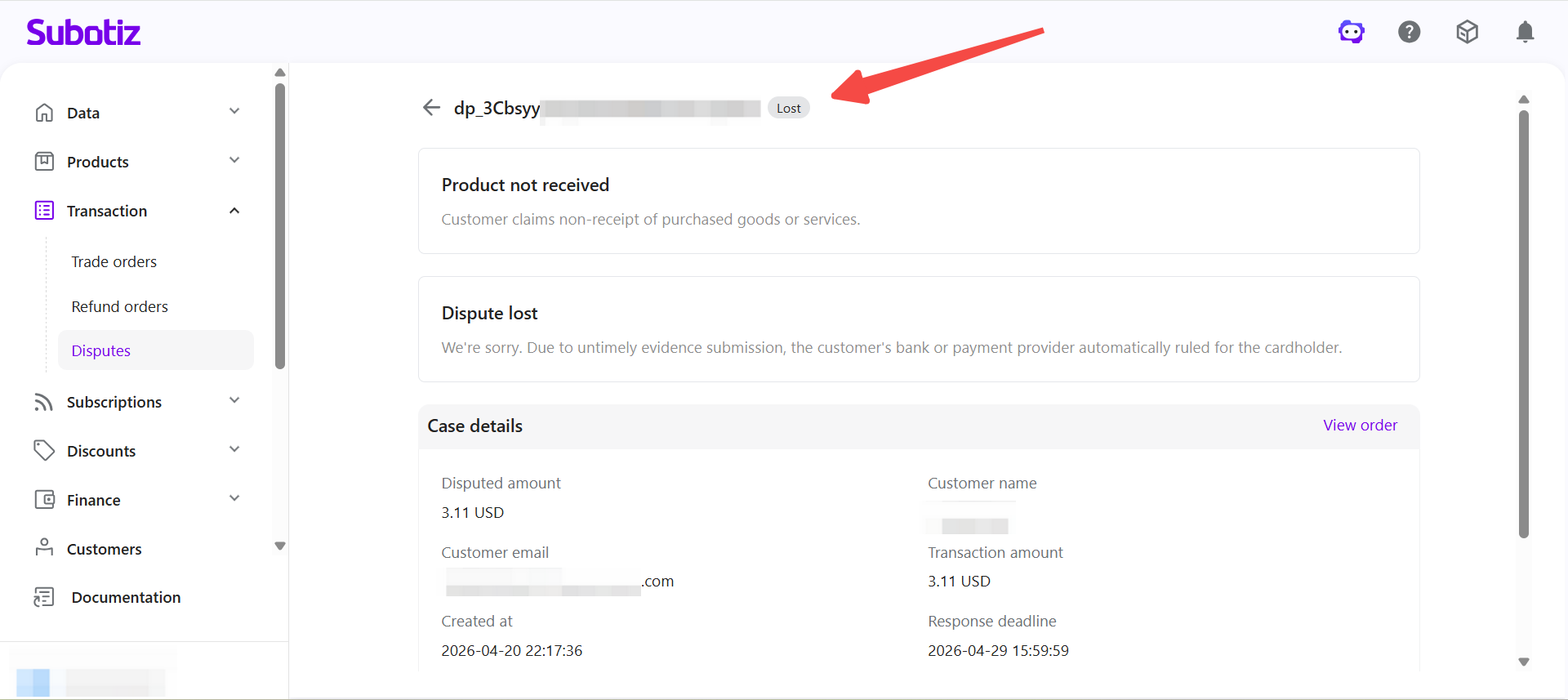
- Case closed: The case is permanently closed, and the status updates to Lost.
Best Practices
- Submit evidence early: Upload documents as soon as possible to strengthen your case.
- Keep records organized: Maintain communication logs, delivery proofs, and refund records for quick access.
- Summarize clearly: Keep explanations short and focused for quick reviewer understanding.
- Monitor deadlines: Check response timelines in the admin to avoid automatic case closure.
- Review outcomes: Use Won/Lost results to refine customer communication and risk management.
The Subotiz Payments dispute workflow provides merchants with a structured process to handle contested transactions. By focusing on actionable cases and responding on time, merchants can reduce chargeback risk and protect customer trust.