The refund orders page in Subotiz provides a centralized view of all refund activity. Every refund order is generated automatically when a refund is issued from a trade order and is updated in real time. Both full and partial refunds are tracked here, keeping refund records aligned with overall billing data.
Accessing the Refund Orders Page
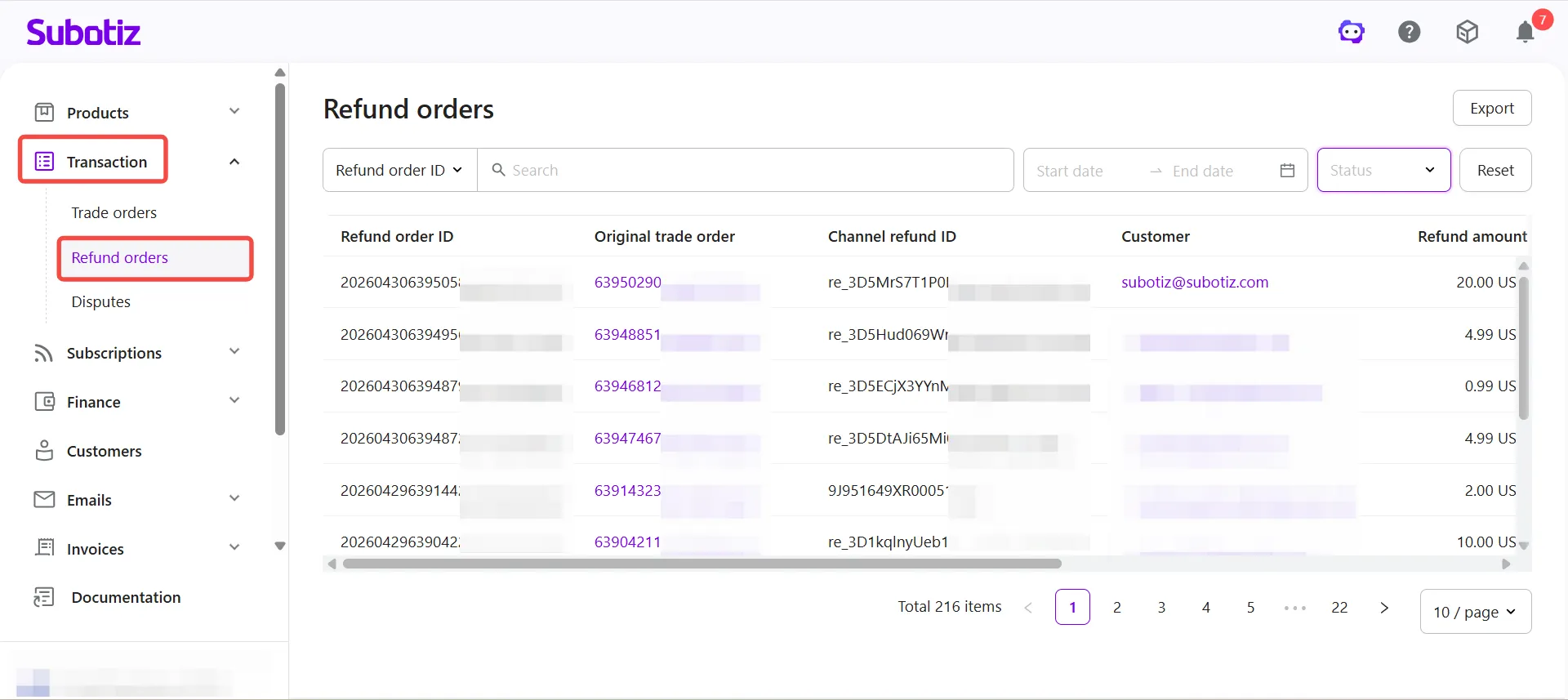
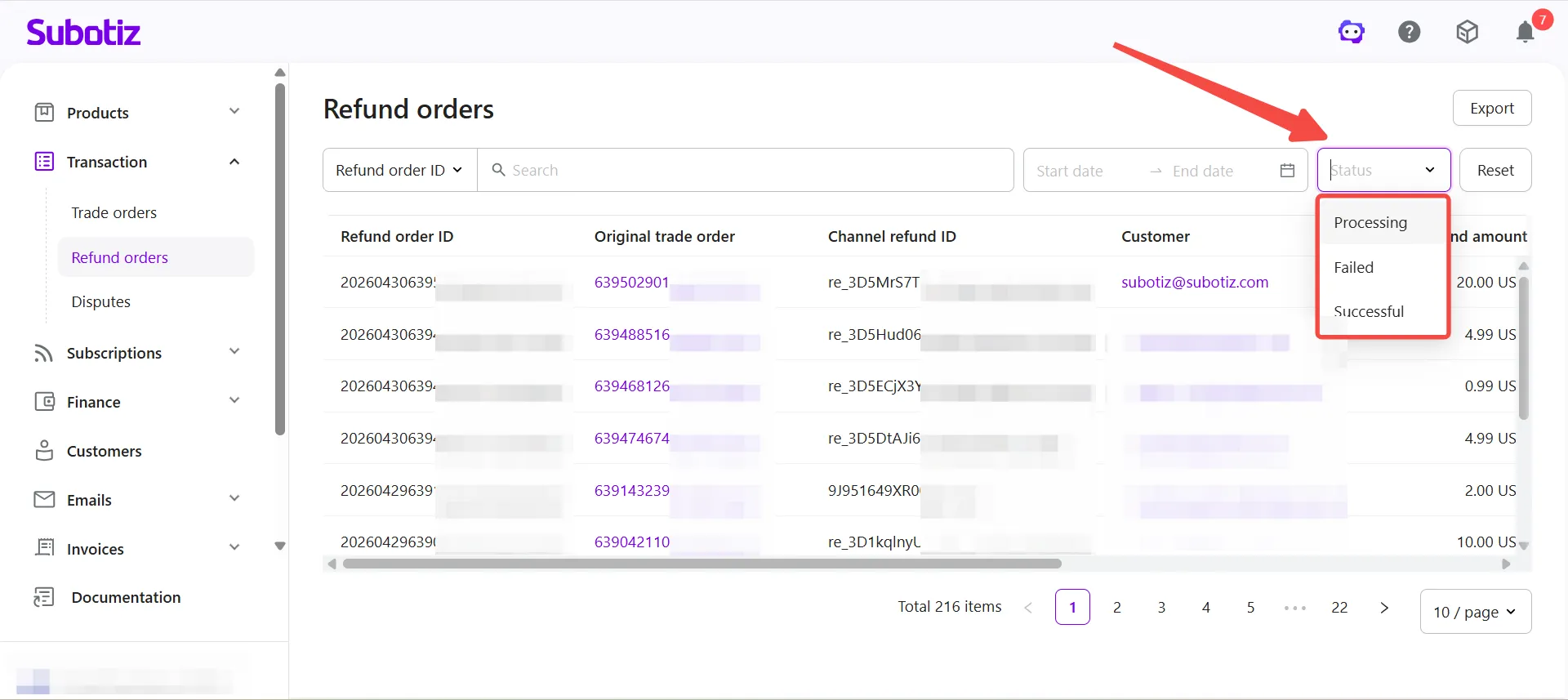
- Open the refund orders page: Go to Transaction > Refund orders in the Subotiz admin.
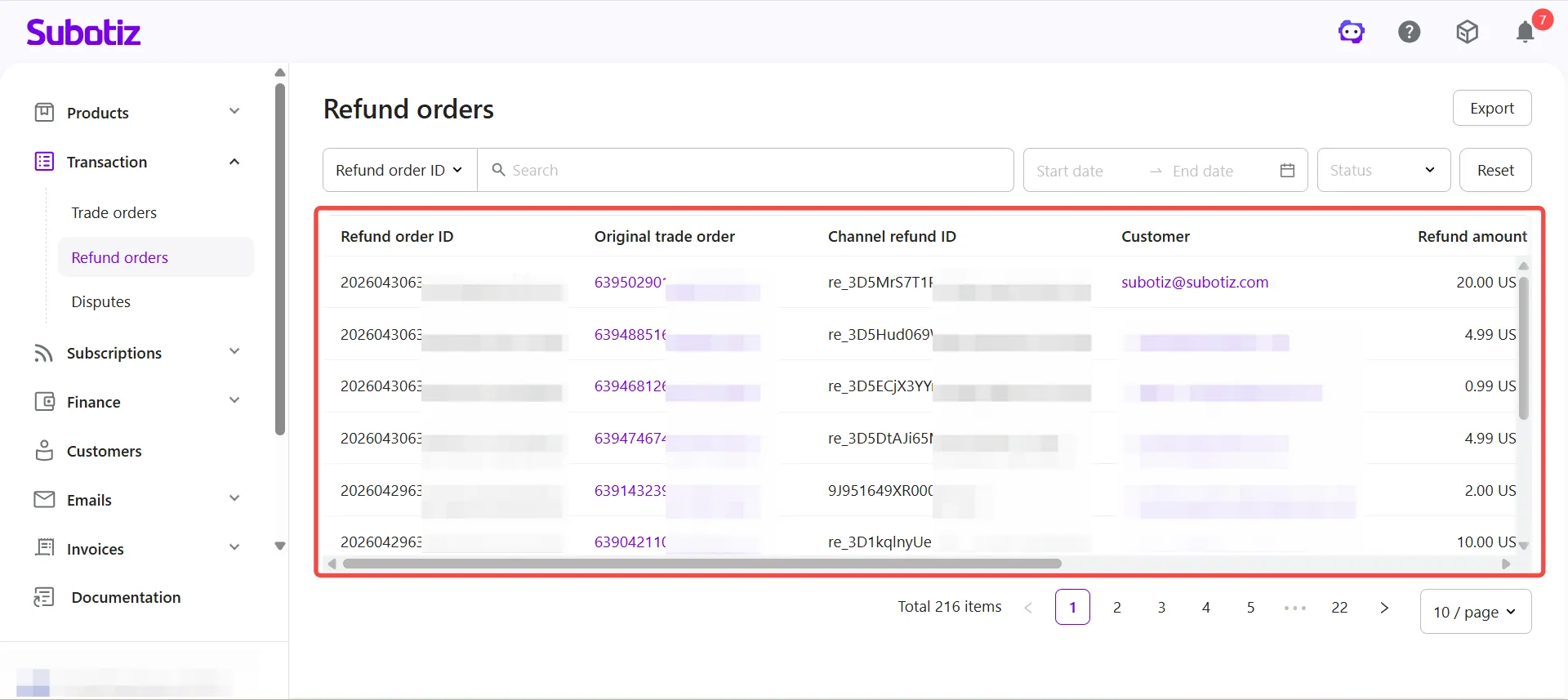
- View refund details: Each row displays refund order ID, original trade order (clickable, opens the trade order detail page), channel refund ID, customer (clickable, opens the customer profile), and refund amount.
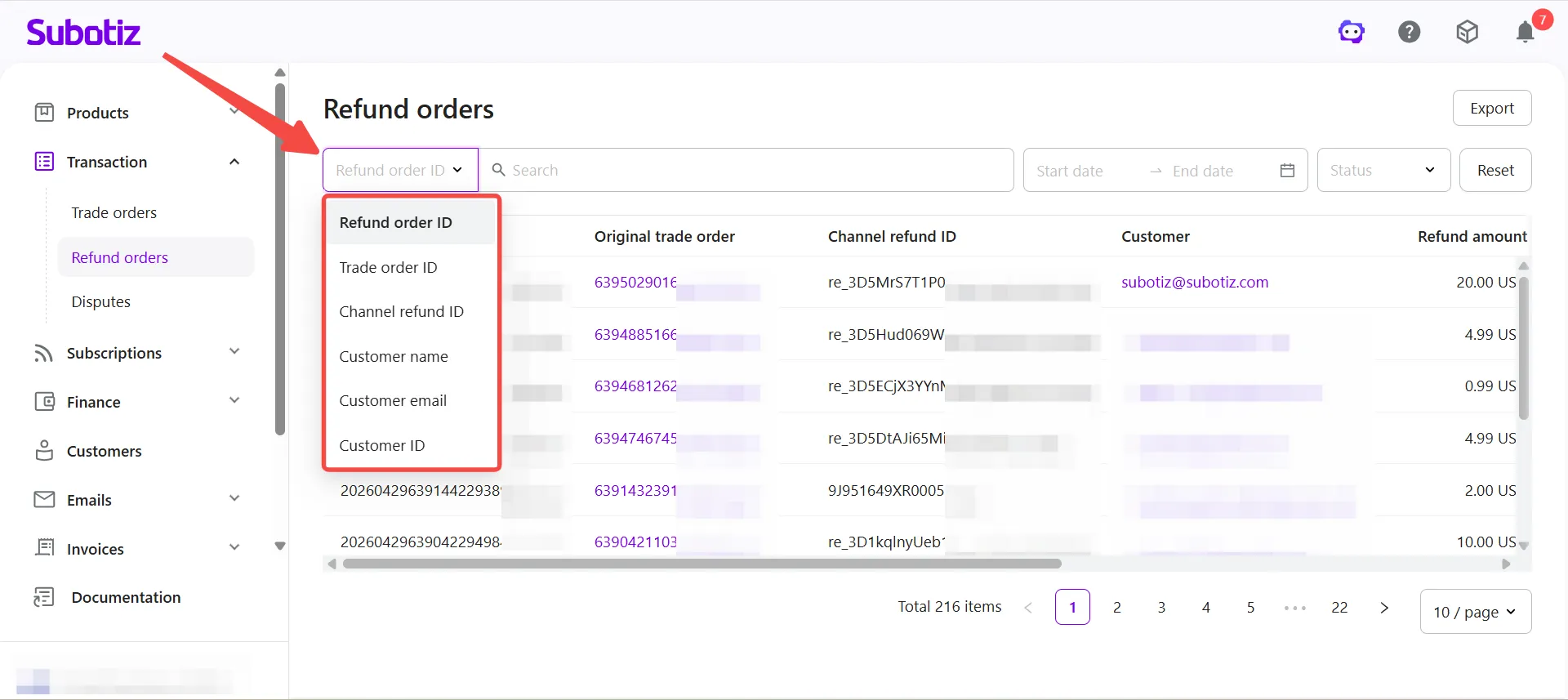
- Search refund orders: Select a search type from the dropdown, then enter a keyword.Supported search fields:
- Refund order ID
- Trade order ID
- Channel refund ID
- Customer name
- Customer email
- Customer ID
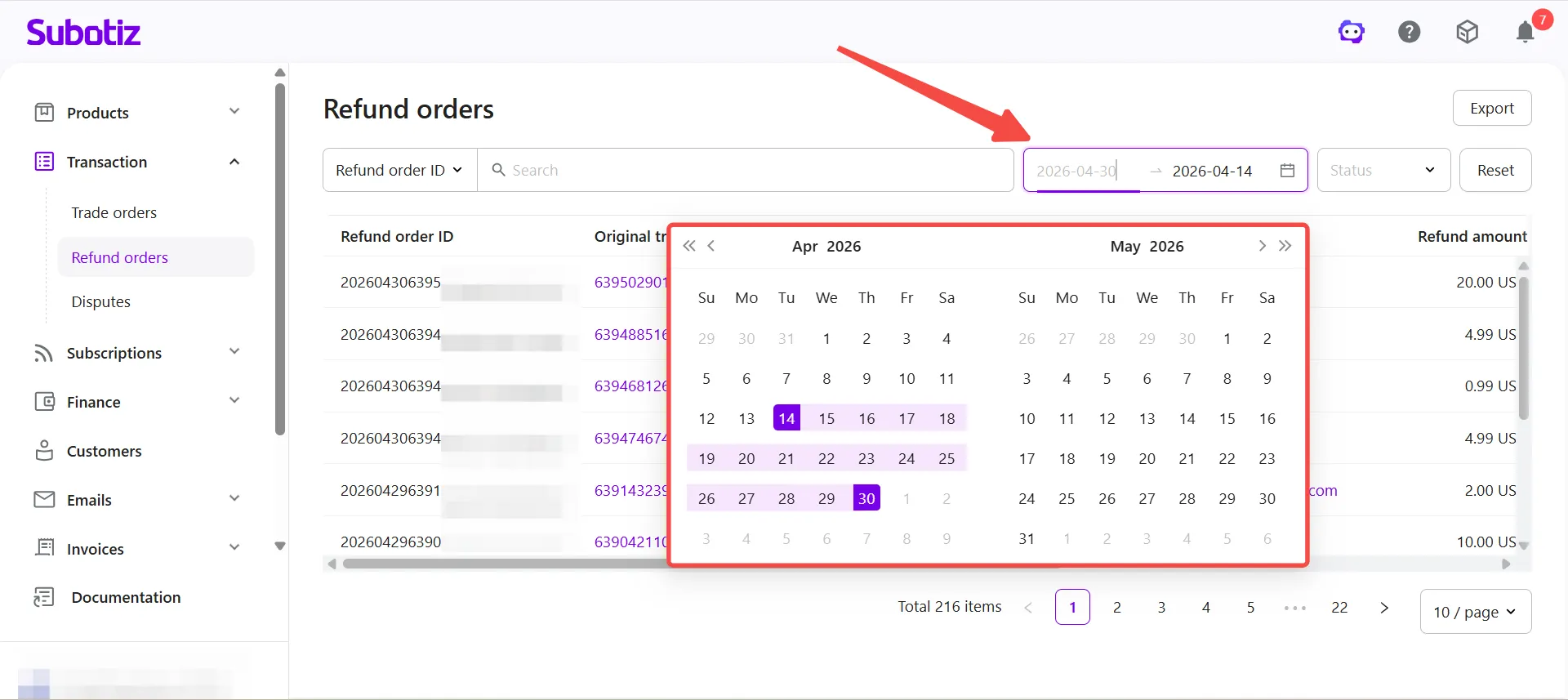
- Filter refund orders: Use the available filters to narrow down results.
- Date range: Select a start and end date to view refunds created within a specific period.
- Status: Filter by refund outcome:
- Processing: The refund request has been submitted and is awaiting settlement.
- Failed: The refund did not complete. Review the details and retry if needed.
- Successful: The refund has been processed and the amount returned to the customer's original payment method.
Best Practices
- Follow up on unresolved refunds: Prioritize records with a Processing or Failed status and take action promptly.
- Verify order linkage: Confirm each refund is correctly tied to its original trade order for accurate reconciliation.
- Use filters efficiently: When handling customer service requests, search by ID or date range to locate specific refund records quickly.
The refund orders page centralizes all refund activity in one place. By monitoring statuses, verifying linked trade orders, and using the available search and filter tools, merchants can maintain accurate billing records and resolve refund issues efficiently.